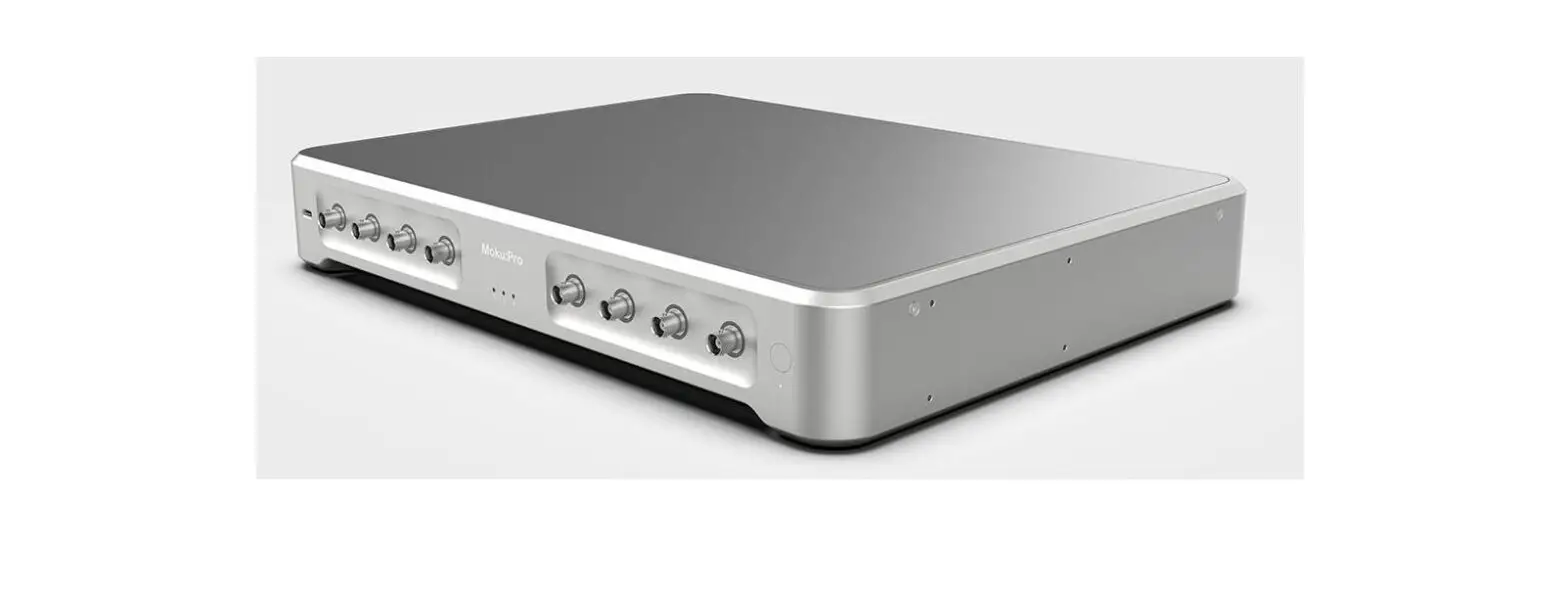
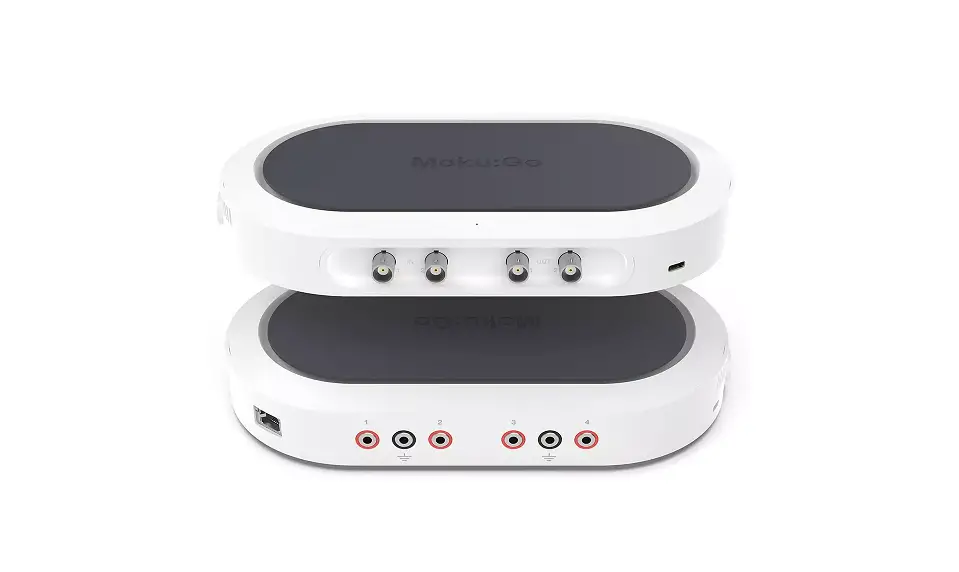
Moku Pro Frequency Response Analyzer
Product Information: Frequency Response Analyzer
The Frequency Response Analyzer is a tool for measuring the
frequency response of a system. It is included in the Moku:Pro User
Manual V23-0125 and is available on liquidinstruments.com. The tool
has several features, including instrument configuration, channels,
swept sine output settings, advanced demodulation settings,
normalization tool, sweep mode, and more. The user interface
includes a main menu that allows users to access various features
of the tool.
Table of Contents:
- User interface
- Main menu
- Preferences
- Instrument configuration
- Channels
- Measurement mode
- Math channel
- Unwrap phase
- Swept sine
- Sweep points
- Sweep scale
- Averaging
- Settling time
- Advanced
- Dynamic amplitude
- Cursors
- Magnitude cursors
- Phase cursors
- Frequency cursors
- Removing cursors
- Sweep modes
- Single
- Continuous
- Pause / Restart
- Normalization
- Exporting data
Product Usage Instructions:
To use the Frequency Response Analyzer, follow the steps
below:
- Ensure that the Moku:Pro is fully updated by visiting
liquidinstruments.com for the latest information. - Access the main menu by pressing the icon.
- From the main menu, access the preferences pane to reassign
color representations for each channel, connect to Dropbox, and
more. - Use the instrument configuration menu to configure channels,
measurement mode, math channel, unwrap phase, swept sine, sweep
points, sweep scale, averaging, settling time, advanced
demodulation settings, dynamic amplitude, and more. - Use the cursors to measure magnitude, phase, and
frequency. - Choose a sweep mode from single, continuous, or
pause/restart. - Use the normalization tool to normalize data.
- Export data as needed.
Frequency Response Analyzer
Moku:Pro User Manual
The Moku:Pro Frequency Response Analyzer can be used to measure a system’s frequency response from 10 mHz to 300 MHz. Frequency response analyzers are commonly used to measure the transfer functions of electrical, mechanical, or optical systems by injecting a swept sine wave into the system and then comparing the output voltage to the input voltage. The resulting measurements of the system’s magnitude and phase response can be used to optimize the closed-loop response of control systems, characterize resonant behavior in nonlinear systems, design filters, and measure the bandwidth of different electronic or optical components. Frequency response analyzers are an indispensable tool in any electronics and optics lab.
V23-0125
liquidinstruments.com
Ó 2023 Liquid Instruments. All rights reserved.
Table of contents
User interface………………………………………………………………………………………………………………………………..4
Main menu …………………………………………………………………………………………………………………………………… 5
Preferences………………………………………………………………………………………………………………………………….. 6
Instrument configuration……………………………………………………………………………………………………………….7
Channels
7
Measurement mode
8
Math channel
8
Unwrap phase
8
Swept sine
9
Sweep points
9
Sweep scale
10
Averaging
10
Settling time
10
Advanced
11
Dynamic amplitude
11
Cursors ……………………………………………………………………………………………………………………………………….. 13
Magnitude cursors
14
Phase cursors
14
Frequency cursors
14
Removing cursors
14
Sweep modes………………………………………………………………………………………………………………………………15
Single
15
Continuous
15
Pause / Restart
15
Normalization ……………………………………………………………………………………………………………………………… 16
Exporting data …………………………………………………………………………………………………………………………….. 17
2 | Moku:Pro Frequency Response Analyzer User Manual
© 2023 Liquid Instruments. All rights reserved.
Ensure Moku:Pro is fully updated. For the latest information, visit:
liquidinstruments.com
3 | Moku:Pro Frequency Response Analyzer User Manual
© 2023 Liquid Instruments. All rights reserved.
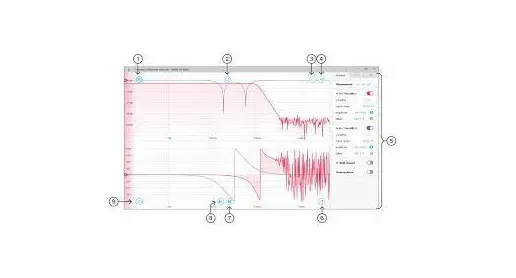
User interface
ID Description 1 Main menu 2 Back to instrument selection screen 3 Export data 4 Instrument configuration menu 5 Channel settings 6 Swept sine output settings 7 Advanced demodulation settings
ID Description 8 Normalization tool 9 Sweep mode 10 Start / pause sweep 11 Cursors 12 Phase plot 13 Magnitude plot
4 | Moku:Pro Frequency Response Analyzer User Manual
© 2023 Liquid Instruments. All rights reserved.
Main menu
The main menu can be accessed by pressing the
icon, allowing you to:
5 | Moku:Pro Frequency Response Analyzer User Manual
© 2023 Liquid Instruments. All rights reserved.
Preferences
You can access the preferences pane via the main menu. Here, you can reassign the color representations for each channel, connect to Dropbox, and more. Throughout the manual, the default colors (shown in the figure below) are used to present instrument features.
ID Description 1 Tap to change the color associated with Input Channels. 2 Tap to change the color associated with Output Channels. 3 Tap to change the color associated with Math Channel. 4 Indicate touch points on the screen with circles. This can be useful for demonstrations. 5 Change the currently linked Dropbox account to which data can be uploaded. 6 Notify when a new version of the app is available. 7 Moku:Pro automatically saves instrument settings when exiting the app, and restores them
again at launch. When disabled, all settings will be reset to defaults on launch. 8 Moku:Pro can remember the last used instrument and automatically reconnect to it at launch.
When disabled, you will need to manually connect every time. 9 Reset all instruments to their default state. 10 Save and apply settings.
6 | Moku:Pro Frequency Response Analyzer User Manual
© 2023 Liquid Instruments. All rights reserved.
Instrument configuration
The instrument configuration menu allows you to configure the Frequency Response Analyzer for your measurement, which will vary depending on the characteristics of the system under test.
Access the instrument configuration menu by pressing the icon.
Channels
Additional settings can be accessed by scrolling up and down.
ID Description
ID Description
1 Select the measurement mode
7 Swept sine amplitude
2 Toggle channel on/off
8 Swept sine offset
3 Select AC or DC coupling
9 Turn on/off amplitude and/or offset
4 Select 1 MW or 50 W input impedance 10 Access additional settings
5 Select input range 400 mV, 4 V or 40 V 11 Enable/disable Math Channel peak-to-peak
6 Select 1 MW or 50 W output load
12 Unwrap/wrap phase
7 | Moku:Pro Frequency Response Analyzer User Manual
© 2023 Liquid Instruments. All rights reserved.
Measurement mode The frequency response can be displayed in Input (dBm, dBVpp, dBVrms), In ÷ Out (dB), and In ÷ In1 (dB) mode. In the Input mode, the amplitude response is displayed as the measured power, irrespective of the output amplitude. The In ÷ Out (dB) displays the response as the input power ÷ output power in dB. The In ÷ In1 (dB) allows the user to dynamic measure the amplitude of swept sine wave via Input 1 and calculate the relative amplitude response with respect to the measured amplitude from Input 1.
Math channel
· Select between addition, subtraction, multiplication, and division of two channels. Additionally, you can create arbitrary complex-valued equations of the four channels.
· Compare transfer functions of channel 1, 2, 3, and 4 by configuring them identically.
Unwrap phase
· Phase is measured as a modulo of 2p. Enable unwrapping to display an estimate of the total accumulated phase of the system.
8 | Moku:Pro Frequency Response Analyzer User Manual
© 2023 Liquid Instruments. All rights reserved.
Swept sine
ID Description 1 Lock frequency axis 2 Configure sweep start frequency 3 Configure sweep stop frequency 4 Sel Select Linear or Log scale 5 Select number of sweep points
6 Reverse direction of sweep
ID Description 7 Configure minimum averaging time 8 Configure minimum averaging cycles 9 Configure minimum settling time 10 Configure minimum setting cycles 11 Total sweep time based upon selected
parameters
Sweep points
· Increasing the number of points in the sweep increases frequency resolution of the measurement, allowing narrower features to be detected over a wider frequency range, but will increase the total measurement duration.
9 | Moku:Pro Frequency Response Analyzer User Manual
© 2023 Liquid Instruments. All rights reserved.
Sweep scale
· Select whether or not the discrete points in the swept sine output are spaced linearly or logarithmically. Logarithmic sweeps provide greater measurement resolution at lower frequencies.
Averaging
· Measurements at each point in the frequency sweep are averaged to improve accuracy and precision. You can configure the period over which each measurement is averaged in order to control signal-to-noise ratio. Longer averaging times result in higher SNRs, allowing small features to be detected with greater precision. Shorter averaging times result in lower SNR measurements but the reduce total sweep time.
· The total averaging time is determined based on the minimum duration and minimum number of cycles over which each point in the sweep is averaged. The Moku:Pro Frequency Response Analyzer averages for the greater of the two values rounded up to the nearest number of integer cycles in order to avoid spectral leakage.
Settling time
· The settling time determines how long the Frequency Response Analyzer waits before performing measurements at each frequency in the sweep. Settling time is important when characterizing resonant systems with high Q-factors in order to allow excitations to settle between measurements. It can also be used to account for transmission delays in cables. When interrogating a non-resonant system, the settling time should be set to equal the total propagation delay through the system.
· The total settling time is determined based on the minimum duration and minimum number of cycles over which the instrument will wait before beginning a measurement at each frequency in the sweep. The Frequency Response Analyzer will wait for the greater effective duration of the two settings before beginning a measurement at each point in the sweep.
10 | Moku:Pro Frequency Response Analyzer User Manual
© 2023 Liquid Instruments. All rights reserved.
Advanced
ID Description
ID Description
1 Enable/disable dynamic amplitude scaling 2 Select a harmonic to measure the frequency response of the swept sine
3 Adjust output phase for each channel
Dynamic amplitude
Enabling dynamic amplitude maximizes the dynamic range of the measurement by automatically reducing the output signal amplitude when saturation is detected on the corresponding input channel. This can be very useful when measuring devices whose amplitude response varies strongly with frequency, making it difficult to measure the frequency response with high dynamic range using a constant driving source.
Additionally, the user interface provides a momentary pop-up message warning when input saturation is detected.
11 | Moku:Pro Frequency Response Analyzer User Manual
© 2023 Liquid Instruments. All rights reserved.
Clicking the orange exclamation icon on the right-hand side of the graph will provide additional information regarding which frequencies are saturated and possible solutions, including enabling dynamic amplitude mode.
12 | Moku:Pro Frequency Response Analyzer User Manual
© 2023 Liquid Instruments. All rights reserved.
Cursors
Magnitude and phase cursors can be added to the Frequency Response plot by pressing the button.
Tip: Magnitude and phase cursors can be moved between the two plots by dragging them vertically across the horizontal divider.
ID Cursor item 1 Frequency cursor 2 Amplitude cursor
3 Create cursor
4 Phase cursor 5 Cursor label
Description
Drag to adjust frequency, tap and hold to hide channel.
Drag to adjust tap to set magnitude manually and other options.
Tap to create, or drag up or drag right for magnitude/frequency cursor.
Drag to adjust, tap to set phase manually and other options.
Label depicting frequency, amplitude, and phase of cursor. Drag to adjust. Tap to manually adjust or remove.
13 | Moku:Pro Frequency Response Analyzer User Manual
© 2023 Liquid Instruments. All rights reserved.
ID Description 1 Cursor action buttons 2 Remove all cursors 3 Add frequency cursor
ID Description 4 Add phase cursor 5 Add magnitude cursor
Magnitude cursors Magnitude cursors can be added to the magnitude plot by tapping the icon and selecting “Add magnitude cursor.” A magnitude cursor can also be created by dragging your finger up from the cursor icon and then repositioning it on the magnitude plot.
Phase cursors Phase cursors can be added to the phase plot by tapping the icon and selecting “Add phase cursor.” A phase cursor can also be created by dragging your finger up from the cursor icon and then repositioning it on the phase plot.
Frequency cursors Up to five frequency cursors can be added to the frequency plot by tapping the icon and selecting “Add frequency cursor.” Frequency cursors can also be created by dragging your finger to the right from the cursor icon.
Removing cursors All active cursors can be removed from the frequency and phase plots by tapping the icon and selecting “Remove all cursors.” Individual cursors can be removed by tapping their label and pressing “Remove.”
14 | Moku:Pro Frequency Response Analyzer User Manual
© 2023 Liquid Instruments. All rights reserved.
Sweep modes
Single
Tapping the icon will enable single sweep mode, which will pause the swept sine source at the end of the next full sweep. The swept sine signal will be turned off after the sweep completes and displayed data will not be updated.
Continuous
Tapping the icon will enable continuous sweep mode, which will perform a new measurement as soon as the previous one has finished. This mode is commonly used to monitor systems with transfer functions that may change over time (e.g., control loops).
Pause / Restart
Tapping the icon will immediately pause the current sweep. While paused, you can zoom in on features for more details, but no new data will be captured. Pressing the icon will also pause capture. Tapping the or icons will restart the sweep.
ID Description 1 Start single sweep
ID Description 2 Stop sweep
15 | Moku:Pro Frequency Response Analyzer User Manual
© 2023 Liquid Instruments. All rights reserved.
Normalization
The Moku:Pro Frequency Response Analyzer features a normalization tool that can be used to normalize subsequent measurements. Normalization is useful when compensating for cable delays and comparing different devices under test.
ID Description 1 Normalize menu 2 Re-normalize
ID Description 3 Remove normalization
Tapping the icon will bring up the normalization menu. Re-normalize will replace the current normalization trace with a new one. Remove normalization will erase all stored normalization settings and cannot be undone.
16 | Moku:Pro Frequency Response Analyzer User Manual
© 2023 Liquid Instruments. All rights reserved.
Exporting data
Measurement traces and screenshots can be uploaded to My Files (iOS 11 or later), Dropbox, email, iCloud, or Clipboard (screenshot is not copied to the clipboard).
The Frequency Response Analyzer instrument settings can also be exported for future reference.
To export a measurement trace, press the
icon at the top of the frequency response plot.
ID Button 1 Traces data 2 Traces format 3 Settings data 4 Screenshot capture 5 Screenshot format 6 Saved data destination
Description Select to enable saving of trace data Tap to select CSV or MATLAB format Select to save instrument settings Select to capture screenshot Tap to select JPG or PNG screenshot format Select data destination
17 | Moku:Pro Frequency Response Analyzer User Manual
© 2023 Liquid Instruments. All rights reserved.
Ensure Moku:Pro is fully updated. For the latest information, visit:
liquidinstruments.com
18 | Moku:Pro Frequency Response Analyzer User Manual
© 2023 Liquid Instruments. All rights reserved.
 Liquid Instruments