Light Therapy Mobile App

Joovv Mobile App
Quickstart Guide
| Revision History | ||
| Date | Revision # | Description of Changes |
| Jan-21 | JV-MKT-DOC-3785 (Ver.0) | Ver.0 Release to market |
| Feb-21 | JV-MKT-DOC-3785 (Ver.1) | Page updates |
| Jul-21 | JV-MKT-DOC-3785 (Ver.2) | Updated images on pages 3-10 |
Experiencing an error with your Joovv Mobile App?
Share feedback [email protected]
Getting Started
Step 1
Download the Joovv Mobile App.
Step 2
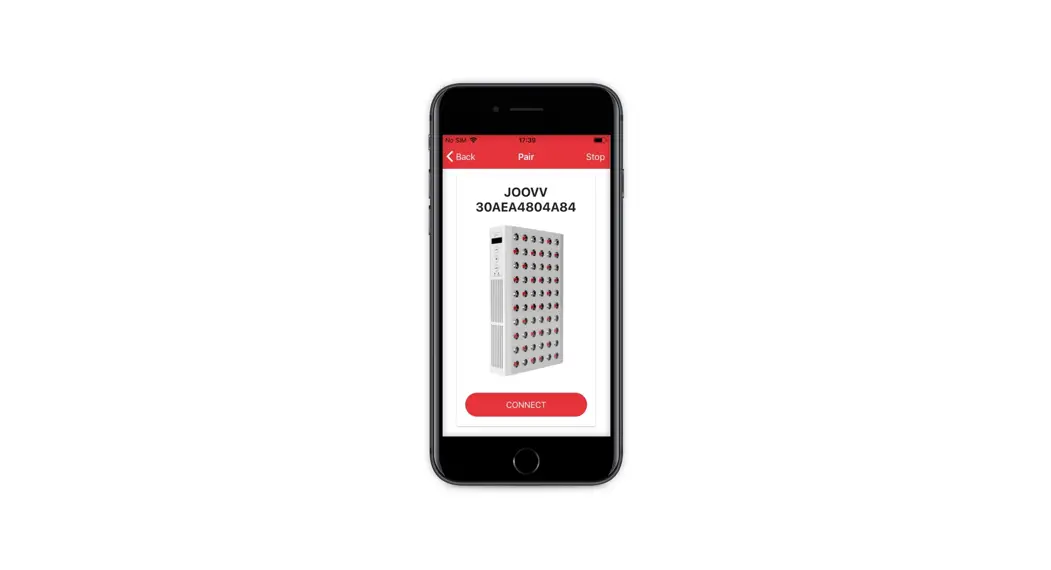
Open the Joovv Mobile App and tap Sign up and create a user account.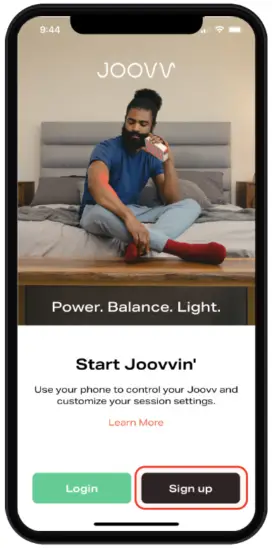
Pair Your Device
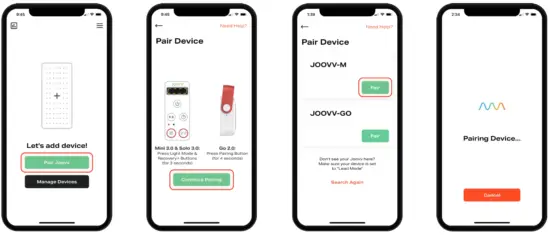
| Step 1 With your Joovv device turned on, use the app and tap Pair Joovv to begin pairing with device. | Step 2 Follow on-screen prompts to ready your device for pairing. | Step 3 Once the App has discovered your Joovv device, tap Pair to start pairing with device. | Step 4 Remain near device during pairing process, this may take a few moments. Do not leave this screen. |
 | |||
Light Mode
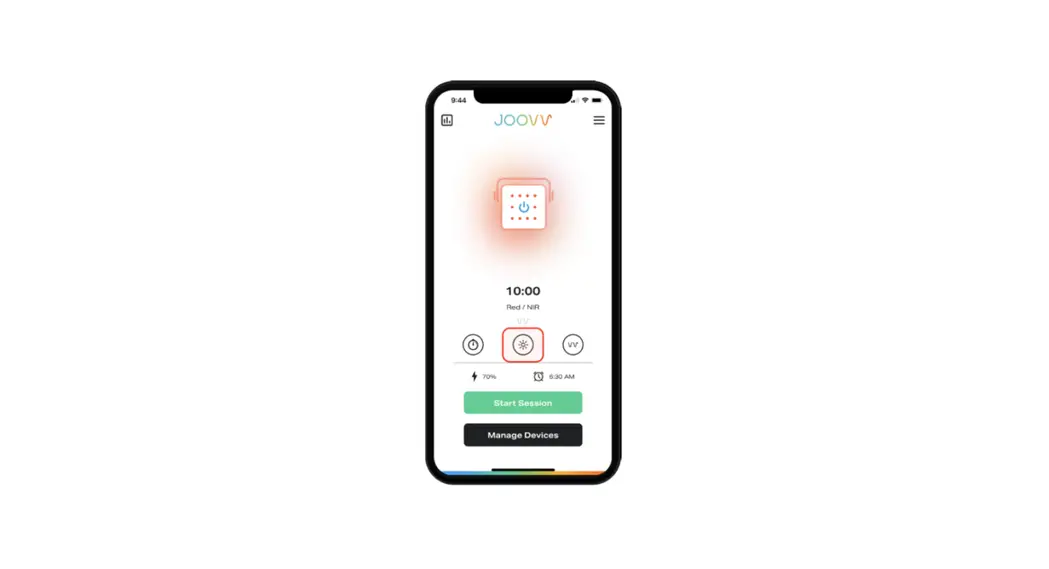
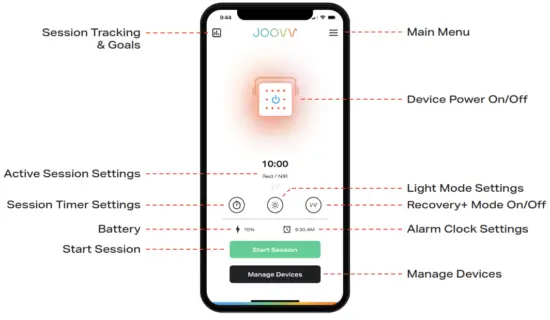
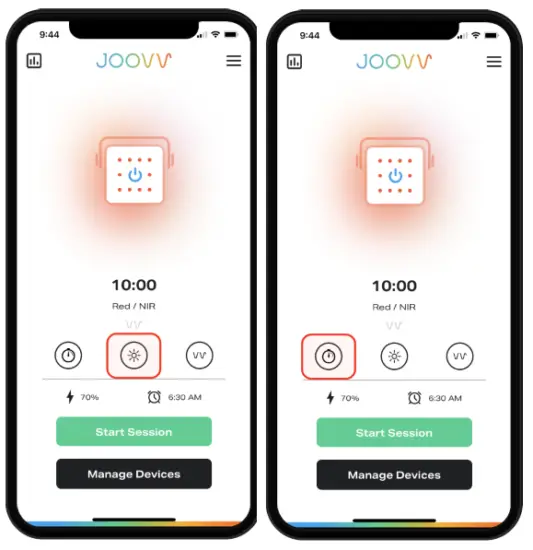
| Step 1 To change to your device’s Light Mode, tap the Light Mode icon to open the menu and select your desired Mode. (Use of NIR requires protective eye wear, see device User Manual for more information.) | Step 2 To adjust the Session Time, tap the Session Timer icon to open the menu. Treatments can be set between 1-10 minutes with the Joovv Go and 1-20 minutes with the Joovv Mini & Solo. |
 | |
Recovery+
Step 1
To use Recovery+, your Joovv Go must be in Red & NIR Mode. Tap the Light Mode icon to change.
(Use of NIR requires protective eyewear, see device User Manual for more information.)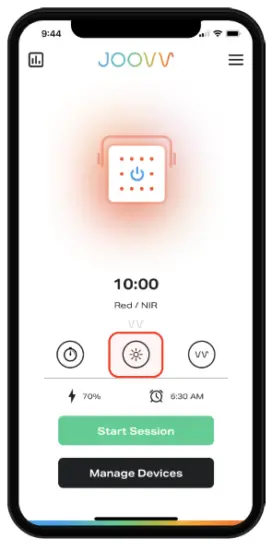
Step 2
To activate Recovery+, tap the Recovery+ icon to change from Inactive to Active.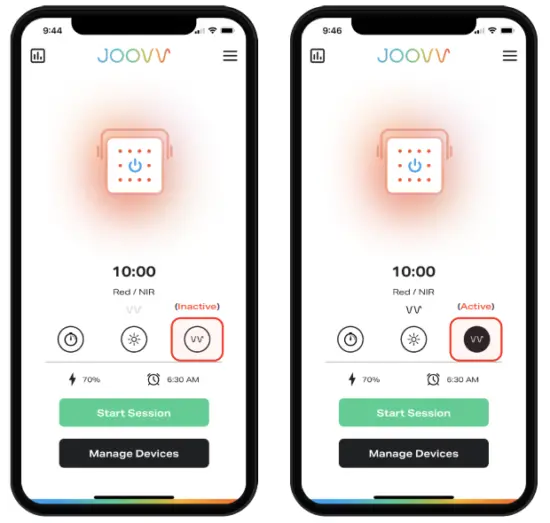
Ambient Mode
Step 1
To change your device to Ambient Mode, tap the Light Mode icon to open the Light Mode menu.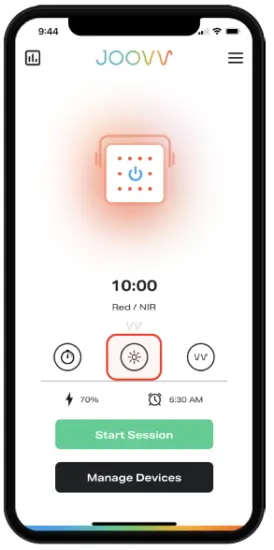
Step 2
Scroll down to select Ambient and then choose which level of Ambient Light you prefer and tap Save to continue.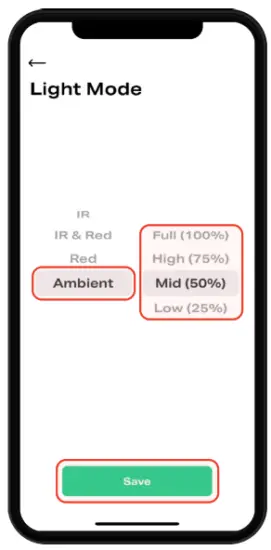
Alarm Clock (only for Joovv Go 2.0)
Step 1
To set or change your Alarm Clock settings, tap the Alarm Clock icon to open settings.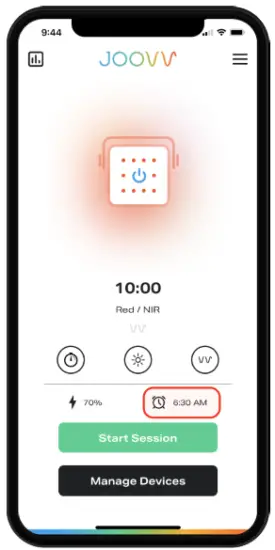
Step 2
The Alarm Clock feature can be turned on/off, and adjusted to desired settings. Once time and light level is selected, tap Save to save preferences.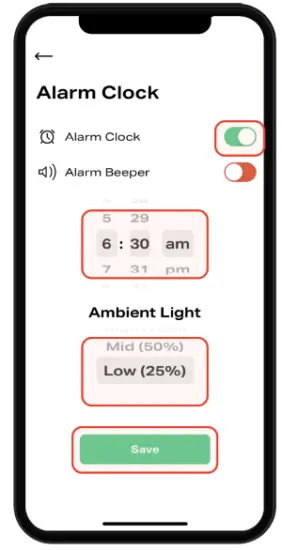
How to Complete a Software Update
Step 1
To complete a software update, tap the Main Menu tab.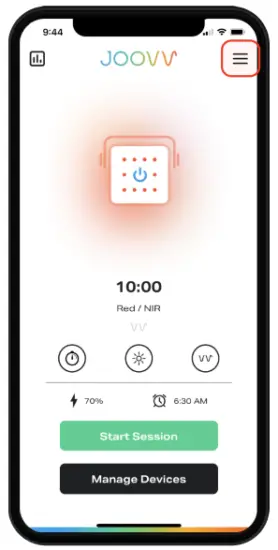
Step 2
Locate and tap Software Update.
Note, when an update is available, an exclamation bubble will appear.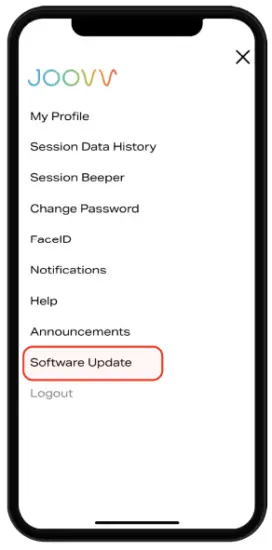
Step 3
Locate available updates as shown below, and tap Update.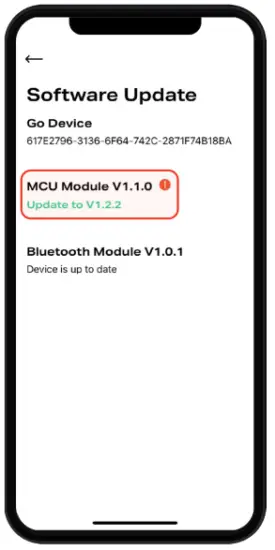
Step 1
With your Joovv device turned on and nearby your Mobile App device, tap Start Update.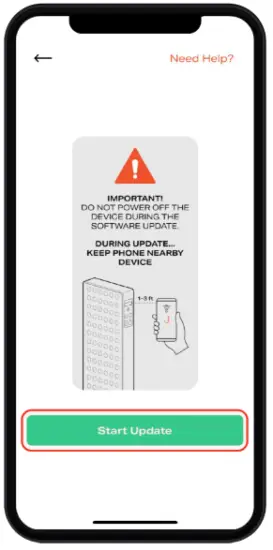
Step 2
Do not power off the device during the software update!
During update keep your Mobile App device 1-3ft. from Joovv device.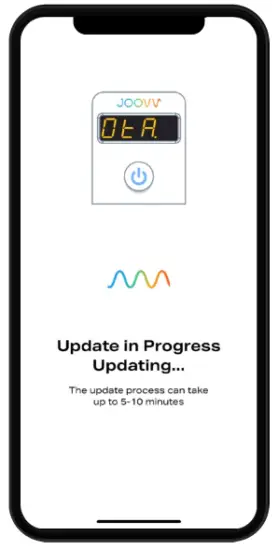
Step 3
Congratulations you’ve completed a Software Update! Tap Done to exit.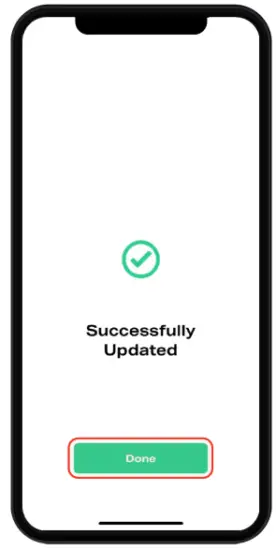
joovv.com
JV-MKT-DOC-3785 VER.2
JOOVV MOBILE APP QUICKSTART GUIDE
 Red and Infrared LED Light Therapy Devices | Joovv