 Quick Start Guide
S5720I-6X-PWH-SI-AC
and S5720I-10X-PWH-SI-AC Issue: 06 (2020-12-30)
Part Number: 31500ACG
HUAWEI TECHNOLOGIES CO., LTD.

Packing List
- Chassis
- Installation accessory package:
– Warranty Card – Positioning sticker – Quick Start Guide – Installation kit – Power connector – Hose clamps – Screws – Key to the maintenance compartment – OT terminals
Safety Guidelines
- To ensure personal and equipment safety, observe all the safety precautions on the equipment and in this document. WARNING and CAUTION items do not cover all the safety precautions and are only supplementary to the safety precautions.
- Follow all the safety precautions and instructions provided by Huawei. The safety precautions outlined in this document are only requirements of Huawei and do not include general safety requirements.
Huawei is not liable for any consequence that results from a violation of regulations pertaining to safe operations or safety codes pertaining to design, production, and equipment use.
 CAUTION
- This is a class A product. In a domestic environment, this product may cause radio interference. In such an environment, the user is required to take adequate safety measures.
- Class A products are products that have received EMC Class A certification.
- During equipment transport and installation, prevent the equipment from colliding with objects like doors, walls, or shelves.
 NOTE
NOTE
Figures in the document are for reference only and may be different from actual devices.
Site Environment
- Switches can be pole- or wall-mounted outdoors.
- The temperature and humidity in the site must be within the operating temperature and humidity ranges required for the switches. For the operating temperature and relative humidity ranges required for the switches, see the. S5700 Hardware Description
- Grounding the switch helps protect it from lightning, electromagnetic interference, and electrostatic discharge. For a PoE-capable switch, grounding the switch also ensures that it can properly supply power to powered devices (PDs).
Surge Protection
- Network cables used outdoors must be buried underground or routed through steel pipes to protect the switches from lightning. Do not route network cables overhead.
- If the network ports on the switches are connected to devices on a street pole, no surge protector needs to be installed. If the network ports are connected to devices on a tower, a network port surge protector must be installed.
- To protect network ports from lightning, use 8-line surge protectors or Huawei certified 4-line surge protectors.
- When installing a network port surge protector, connect the IN ports to network devices and connect the OUT ports to network ports of the switches.
- If fiber reinforcing ribs are used, ensure that they are properly grounded to protect the switches from lightning.
- To prevent the switch or the interconnected device from being damaged, ground the switch before powering it on. The ground resistance must be less than 10 ohms.
Commissioning the Switch
If the switch needs to be commissioned, do so before it is pole- or wall-mounted.
5.1 Using the Web Management System for the First Login
Before You Start
- If you do not save the configuration in 10 minutes after entering the initial configuration mode, the system will exit this mode and restore the factory settings.
- If the web pages cannot be displayed normally, your web browser may need an upgrade. For details about the web browser requirements, see the
Web-based Configuration Guide switch.
Login Procedure
Step 1 Power on the switch.
Step 2 Connect your computer to any Ethernet port of the switch using an Ethernet cable.
Step 3 Hold down the MODE button for 6 seconds or longer. When the PoE mode indicator turns green, the switch enters the initial configuration mode. In this mode, the IP address of the switch is set to 192.168.1.253/24, and the admin user level is set to 15 automatically.
Step 4 Configure an IP address for the computer, which is in the same network segment as the default IP address of the switch.
Step 5 Start the web browser on the computer, enter https://192.168.1.253 in the address box, and press Enter to display the initial login page. The default username and password are available in S Series Switches Default Usernames and Passwords. If you have not obtained the access permission of the document, see Help on the website to find out how to obtain it.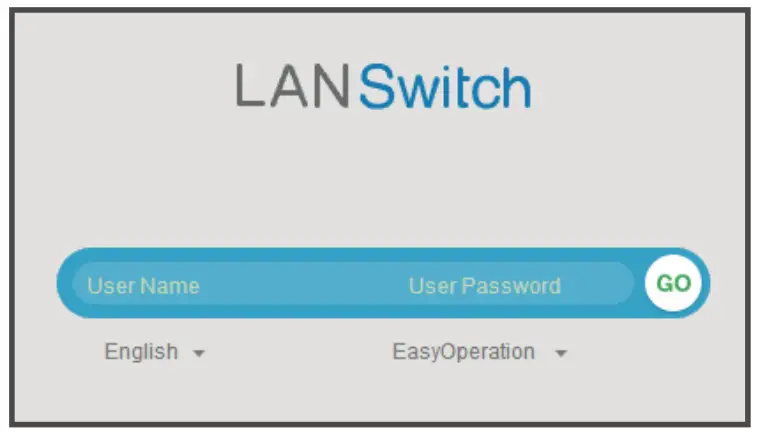 NOTE
NOTE
In V200R020C00 and later versions, the switch does not have a default web login password. You need to create a user name and set a password when logging in to the web system for the first time.
Step 6 Configure the switch. The web-based configuration page provides basic and optional configuration items.
The basic configuration enables you to log in to the switch using the web management system, and the optional configuration enables you to log in to the switch using Telnet or STelnet. Only parameters for the basic configuration are described below. For details about the optional configuration and more information about the product, see the Configuration Guide for your switch on the Huawei support website.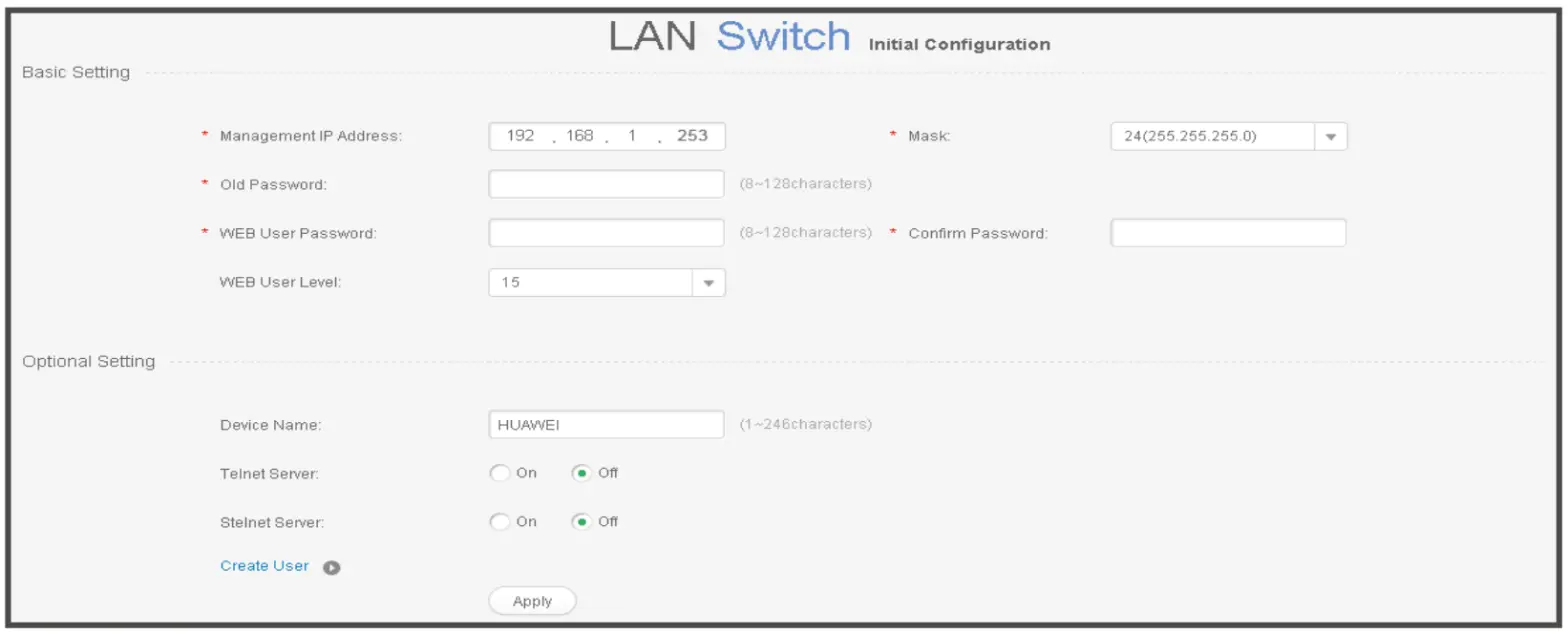
| Configuration Item | Description |
| Management IP Address | Mandatory. Enter the management IP address of the switch, in dotted decimal notation. |
| Mask | Mandatory. Select a subnet mask from the drop-down list box. |
| Old Password | Mandatory. Enter the old password for the default web user. |
| WEB User Password | Mandatory. Enter a new password for the default web user. To ensure password strength, the password must contain at least two types of the following: lowercase letters, uppercase letters, digits, and special characters (such as ! $ # %), and cannot contain any space or single quotation mark. |
| Confirm Password | Mandatory. Enter the new password again. |
| WEB User Level | Optional. Select a user level from the drop-down list box. The user of level 3 or higher has management rights. |
Step 7 Click Apply to save the configuration. When you exit from the initial login page, either of the following situations will occur depending on the management IP address you configured:
- If the management IP address is in the same network segment as 192.168.1.253/24, the system jumps to the web login page directly.
- If the management IP address is not in the same network segment as 192.168.1.253/24, you cannot log in to the switch again using the web management system. You need to configure another IP address for your computer to make the computer and switch reachable from each other.
On the web management system, you can access Quick Config and then quickly finish the configurations of VLAN isolation and interconnection by selecting the Switching and Routing options.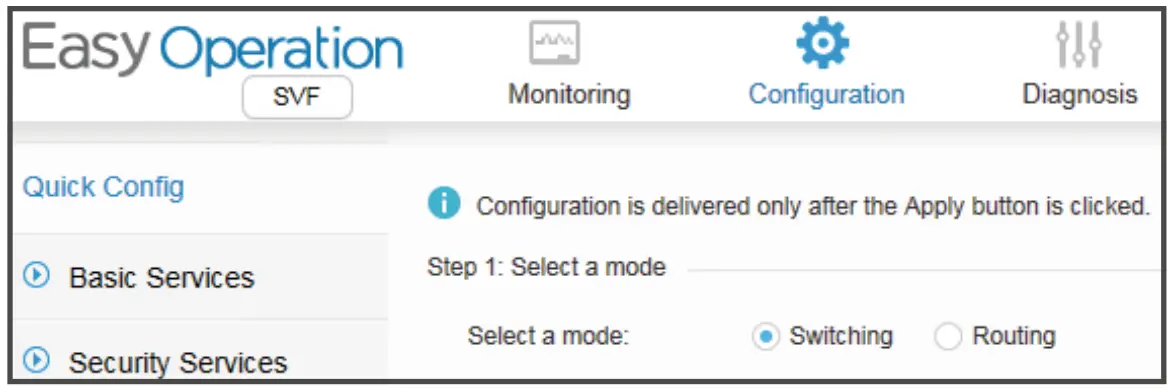
Now, you can log in to the switch using the web management system, Telnet, or STelnet to maintain the switch.
5.2 Using the Console Port for the First Login
Before You Start
- The console cable is not delivered with the switch and needs to be separately purchased if needed.
- The display information may differ on different product models.
- Install third-party terminal simulation software on the PC by referring to user manual or online help.
Step 1 Power on the switch.
Step 2 Use a console cable to connect the switch to a PC.
Step 3 Start the terminal simulation software, create a connection, select a serial port, and set communication parameters inconsistent with the default configuration of the switch’s console port, as listed below:
- Transmission rate: 9600
- Data bit (B): 8
- Parity bit: None
- Stop bit (S): 1
- Flow control mode: None
Step 4 Press Enter in subsequent steps until the following information is displayed on the terminal simulation software, and then enter the password. The default username and password are available in S Series.
Switches Default Usernames and Passwords.
Login authentication
Username: admin
Password:
Warning: The default password poses security risks.
The password needs to be changed. Change now? [Y/N]: y
Please enter the old password:
Please enter a new password:
Please confirm new password:
The password has been changed successfully
<HUAWEI>
NOTE
In V200R020C00 and later versions, the switch does not have a default console port login password. You need to set a password when you log in to the switch through the console port for the first time.
- The password entered in interactive mode is not displayed on the screen.
- If you do not change the authentication mode and password after entering the user view, the authentication password used for the next login is the one configured during the first login.
You can run commands to configure the device. Enter a question mark (?) whenever you need help.
For more information, see the Configuration Guide for your switch on the Huawei support website.
Installing the Switch
Scenario 1: Pole Mounting
Before You Start
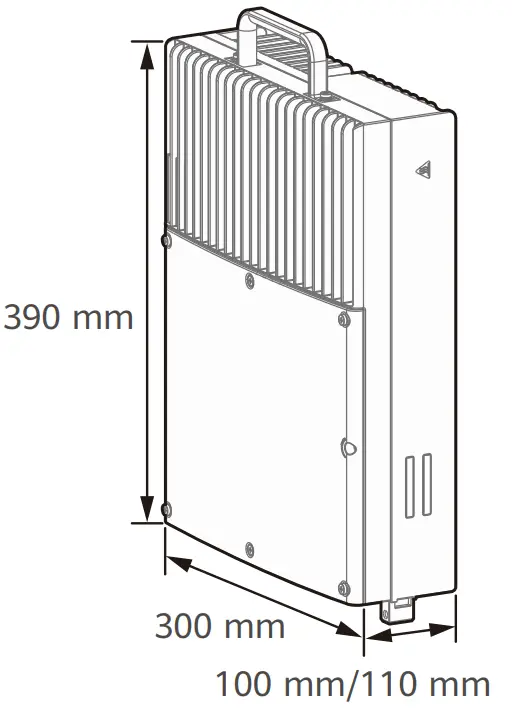
- The depth of the S5720I-6X-PWH-SI-AC is 110 mm.
The depth of the S5720I-10X-PWH-SI-AC is 100 mm. - In pole-mounted installation scenarios, the switch must be mounted to a vertical round pole.
- When installing the switch, use the installation kit and hose clamps delivered with the switch.
- Wear protective gloves during installation.
- Never install the switch while the power is on.
- Keep the paint coating on the surface of the switch intact. If there is any peeling paint, re-paint the switch to protect the switch from corrosion.
Required Items and Tools
- Protective gloves
- M6 inner hex torque screwdriver
- Ladder
- Phillips torque screwdriver (with a shaft of at least 130 mm in length)
Installation Procedure
Step 1 Use the positioning sticker to mark the installation position of the installation kit on the pole.
Step 2 Open the hose clamps.
Step 3 Feed the hose clamps through the installation kit (mounting side).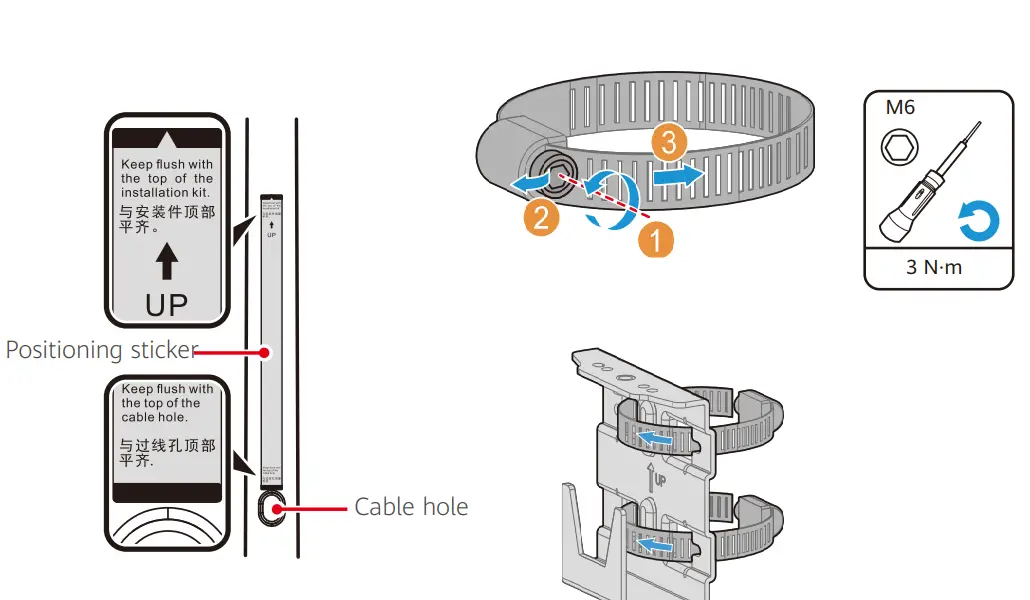
Step 4 Install the installation kit (mounting side) onto the pole. Ensure that the top of the installation kit is flush with the top of the positioning sticker.
- A standard hose clamp is used for poles with a diameter of 48 mm to 114 mm.

- An optional hose clamp is used for poles with a diameter of 114 mm to 380 mm.

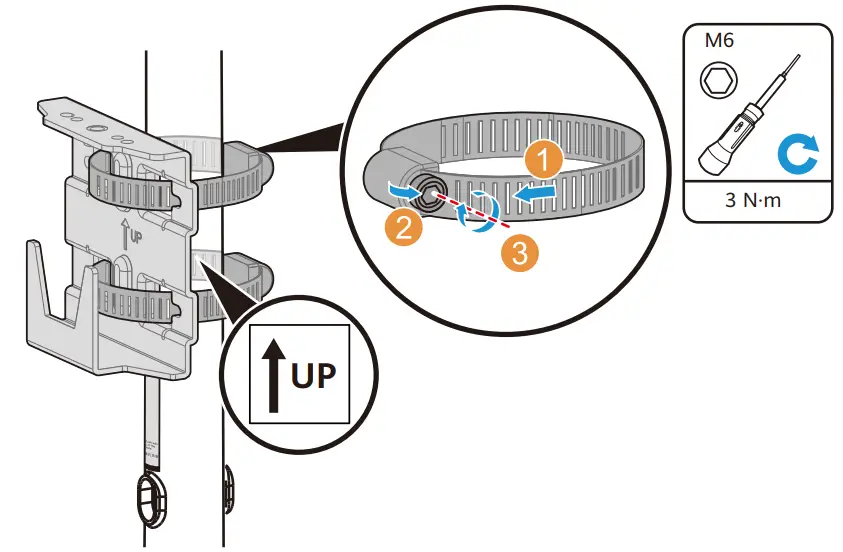
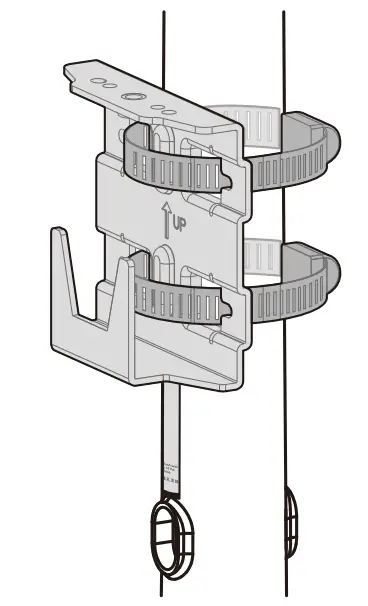
- Position the hose clamp around the pole and feed the loose end of the hose clamp into the saddle.
- Tighten the hose clamp around the pole and close the hose clamp.
- Tighten the screw on the hose clamp using the inner hex torque screwdriver.
Step 5 Install the installation kit (device side) onto the switch.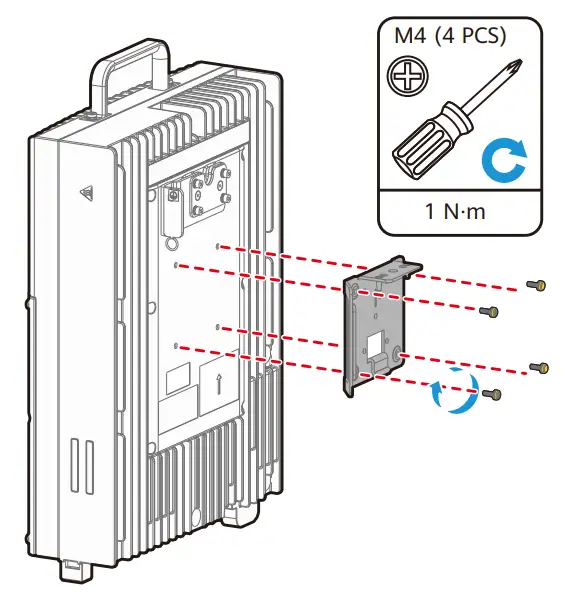 Step 6 Mount the switch onto the pole.
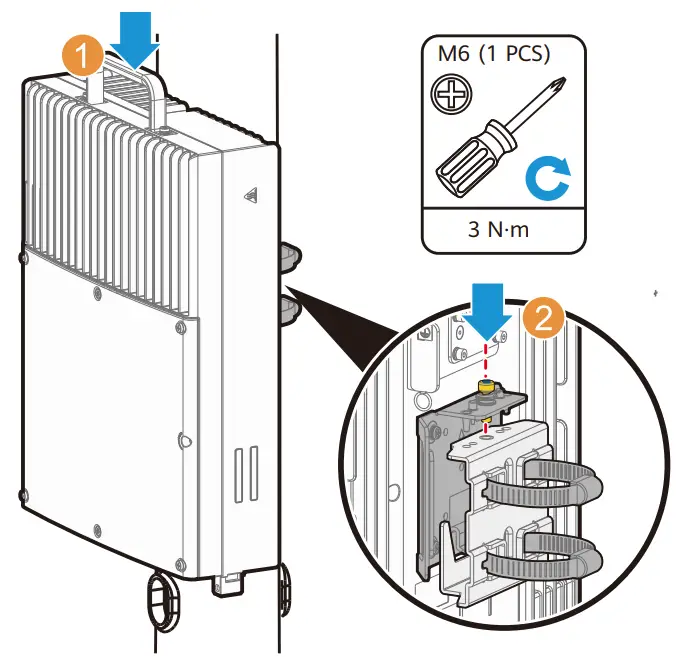
Scenario 2: Wall Mounting
Before You Start
Ensure the wall is made of reinforced concrete and is able to bear at least 800 N. Ensure the wall can sustain a tension of 1.25 kN exerted outwards vertical to the wall without being damaged.
Required Items and Tools
| Protective gloves | Expansion bolts |
| Hammer drill | Socket wrench |
| Marker | M6 inner hex torque screwdriver |
| Ladder | Spirit level |
| Phillips torque screwdriver (with a shaft of at least 130 mm in length) | |
Space Planning
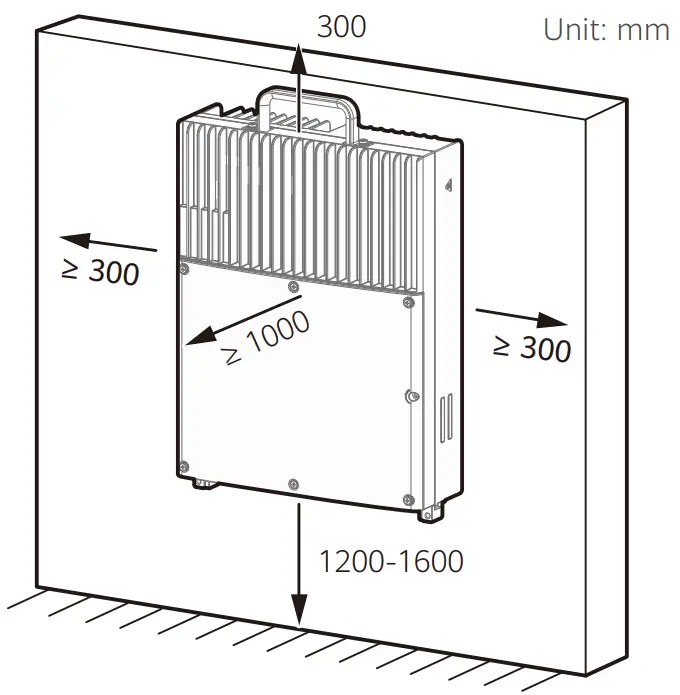
Installation Procedure
Step 1 Mark the four drilling positions on the installation kit (mounting side).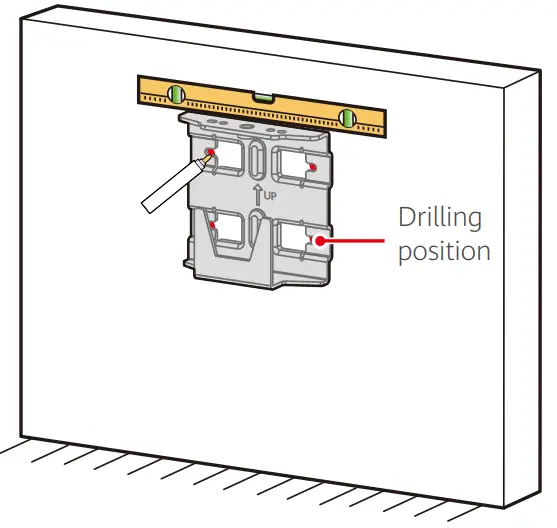 Step 2 Drill holes and install expansion bolts.
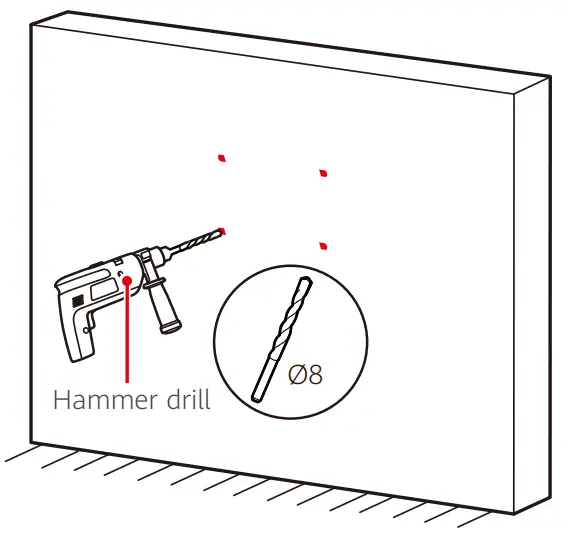
Step 3 Install the installation kit (mounting side) onto the wall.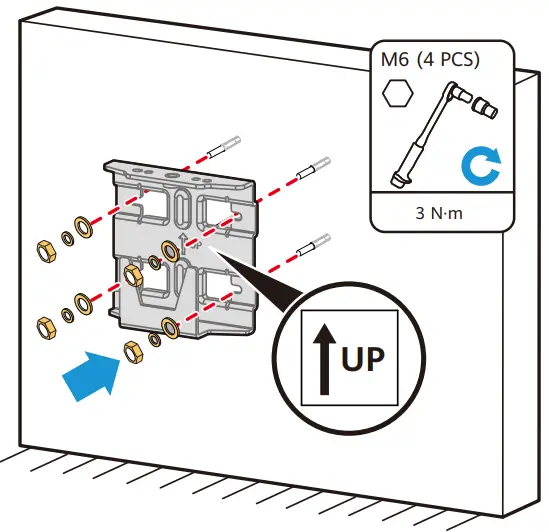 Step 4 Install the installation kit (device side) onto the switch.
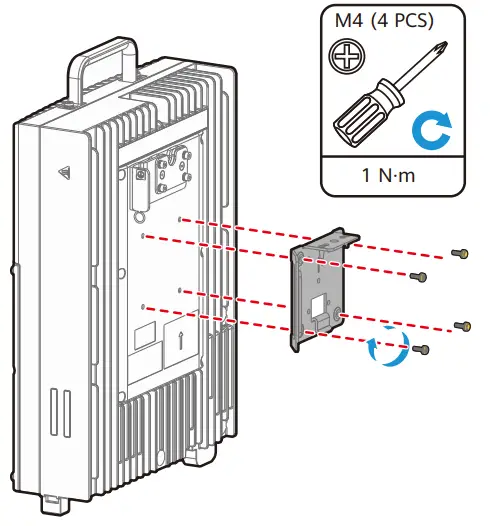 Step 5 Mount the switch onto the wall.
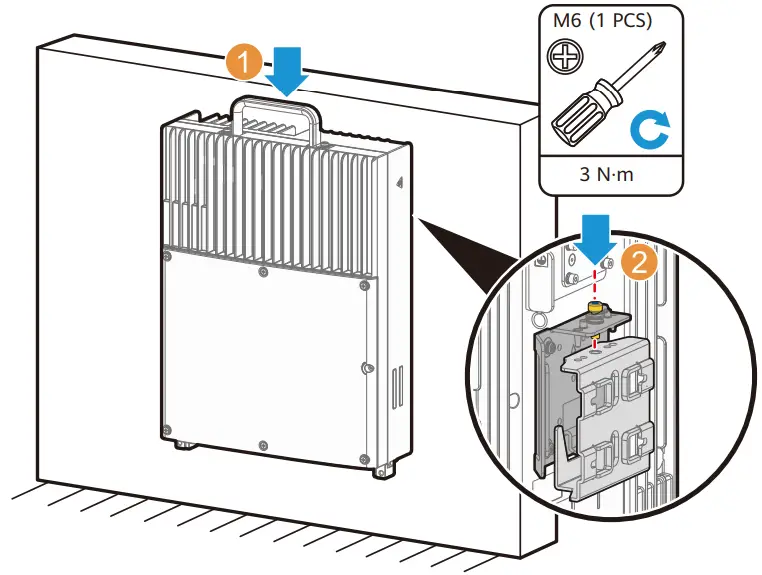
Cabling the Switch
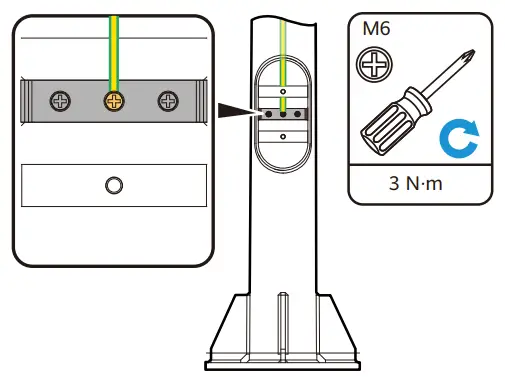
7.1 Connecting the Ground Cable to the Switch
Step 1 Connect one end of the ground cable to the switch.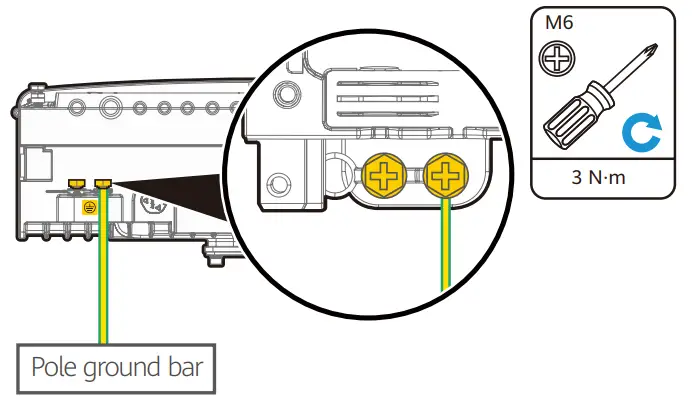
Step 2 Connect the other end of the ground cable to the pole ground bar.
 7.2 Connecting Cables to the Maintenance Compartment
Cable Outlet Diameter Requirements
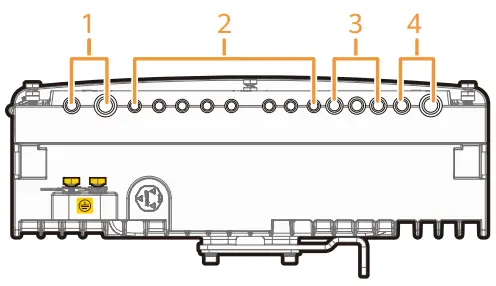
| No. | Cable Type | Supported Cable Outer Diameter |
| 1 | Optical fiber/Optical cable | 8±0.5 mm to 9.6±0.5 mm (on the left outlet) and 13.3±0.5 mm (on the right outlet) |
| 2 | Ethernet cable | Cat5e and Cat6 Ethernet cables |
| 3 | DC or AC output power cable | 9.3±0.5 mm |
| 4 | AC input power cable | 9.5±0.5 mm (on the left outlet) and 14±0.5 mm (on the right outlet) |
Connecting Procedure
Step 1 Open the maintenance compartment door.
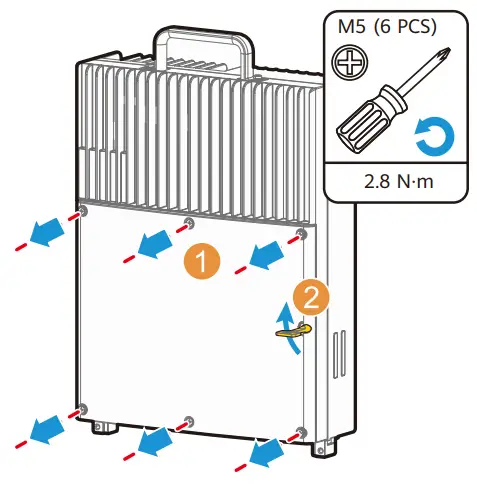
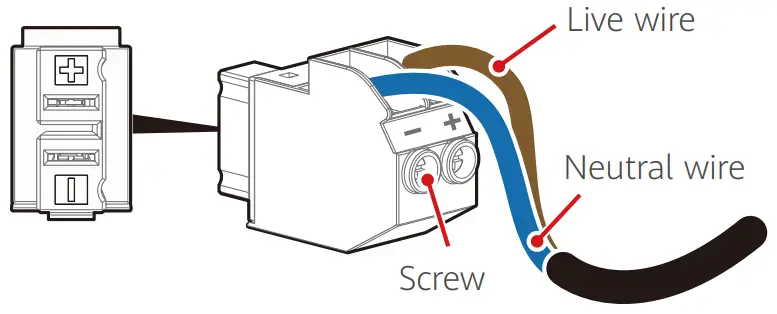
Step 2 Connect power cables to the power connector.
Step 3 Connect cables to the maintenance compartment.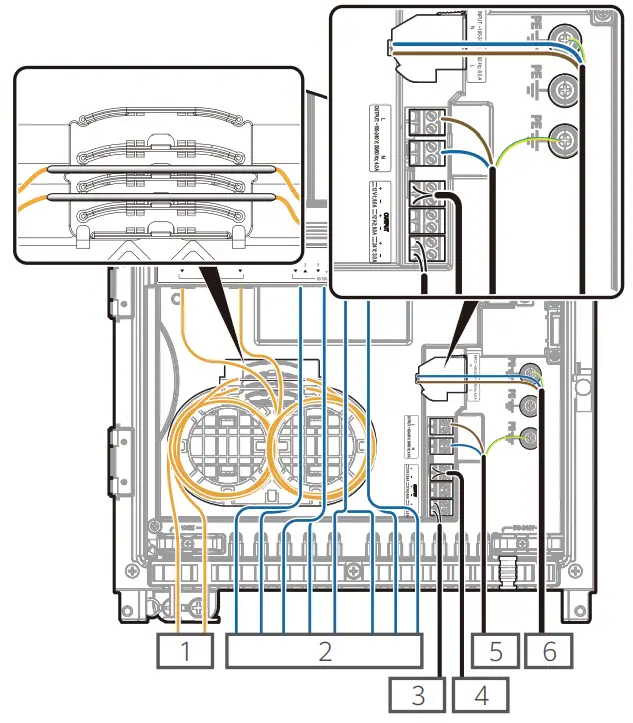
NOTE
The key for the maintenance compartment door and the power connector are included in the installation accessory package that comes with the switch.
 WARNING
- Never install or remove switches and power cables when the power is on.
- The external power supply system must be connected to a circuit breaker (20 A is recommended). For safety purposes, do not use a switch without a circuit breaker.
- The internal 110 V or 220 V AC power supply is used only for external power conversion. It has no circuit breaker, regulated voltage circuit, or surge protection. Therefore, do not connect cables when the power is on.
- Pay attention to the position of the +/- or L/N labels when connecting power cables to power sockets. Connect the live wire of an AC power cable to the socket marked with an L, the neutral wire to the socket marked with an N, and PE cables to the PE cable ground terminals in the maintenance compartment.
- Ensure no power cables have metal parts exposed to air.
| No. | Cable Type | Connected Network or Device |
| 1 | Optical fiber/Optical cable | Optical network |
| 2 | Ethernet cable | Ethernet or PoE PD |
| 3 | S57201-6X-PWH-si-AC: AC power cable | External 24 V device |
| S57201-10X-PENH-SI-AC: DC power cable | ||
| 4 | DC power cable | External 12 V device, two outputs at most |
| 5 | AC power cable | External 110 V or 220 V device |
| 6 | AC power cable | 110 V or 220 V AC power supply that provides power to the switch |
NOTE
- The maximum length of a fiber that can be coiled up in a fiber management tray (FMT): 20 m (for a single bare fiber) or 1 m (for a single fiber pigtail). If two fibers are used, this length is halved.
- The S5720I-6X-PWH-SI-AC does not support 110 V input or 110 V output.
Verifying the Installation
- Check whether the installation kit is securely installed and whether all screws are tightly secured.
- Check whether all cables are reliably connected with correct polarity and no short circuit.
- Check whether there are any empty screw holes. If there are, install screws in the empty holes.
- Check whether the waterproof rubber bungs are properly inserted into idle cable outlets.
Power-On Check
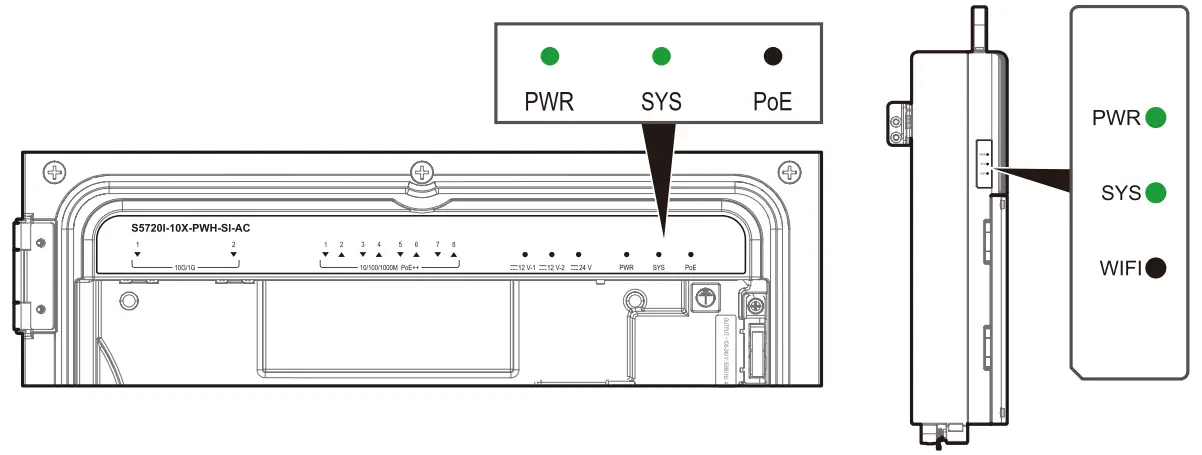
- Power on the switch and check indicators on the switch.
• If the built-in power supply indicator PWR is steady green, the power module is supplying power.
• If the system status indicator SYS blinks green slowly, the system is operating properly. - Check service configurations of the switch, for example, whether the switch is reachable and can query on the NMS.
NOTE
- For details about different states of the indicators, see the S5720I-10X-PWH-SI-AC is used as an example.
- S5700 Hardware Description.
Closing the Maintenance Compartment Door
WARNING
After the maintenance compartment door is closed, tighten the captive screws on the door. Waterproof rubber bungs must be inserted into the idle cable outlets to prevent water intrusion.
Procedure.
Step 1 Close the maintenance compartment door and tighten the captive screws.
Step 2 (Optional) Install a cable cover (part number: 98010812), which needs to be separately purchased.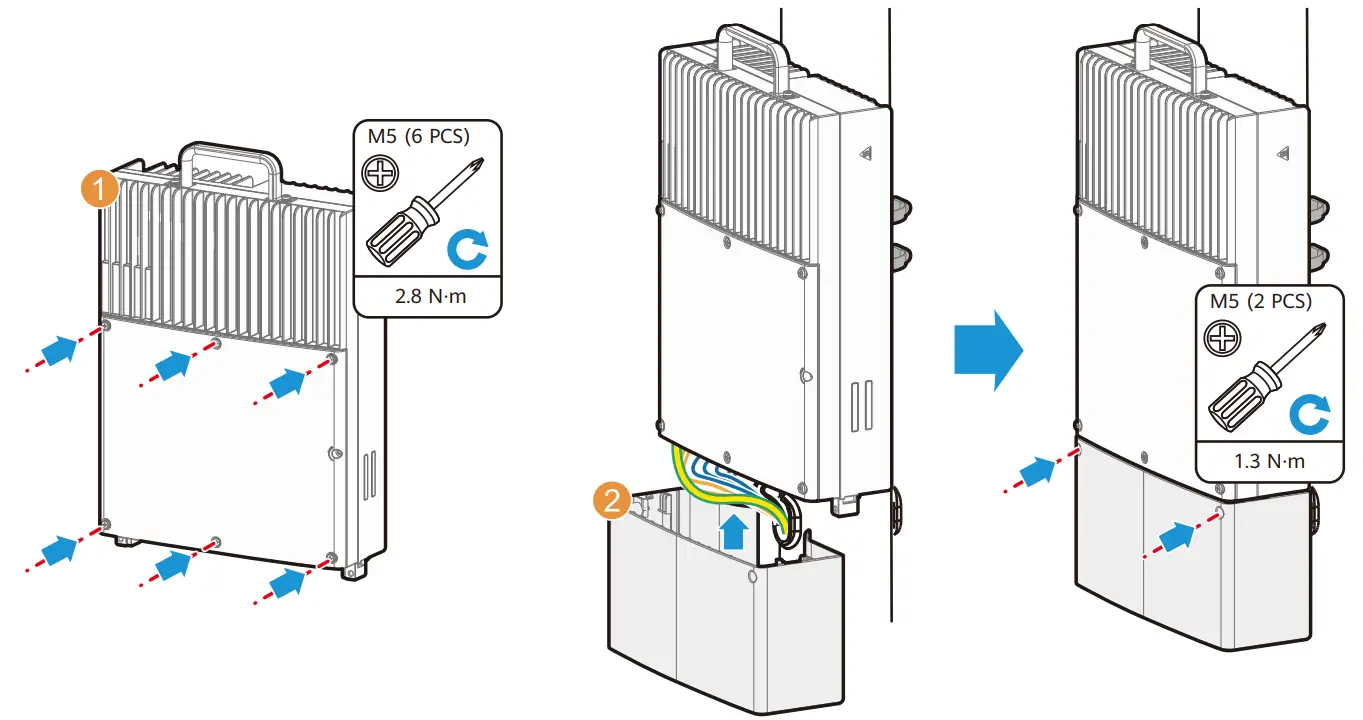
- Log in to Huawei enterprise technical support website (https://support.huawei.com/enterprise), and select a specific product model and version to find its documentation.
- Log in to the Huawei enterprise support community (https://forum.huawei.com/enterprise) and post your questions in the community.
 http://support.huawei.com/enterprise
Huawei Enterprise
Technical Support
Trademarks and Permissions
and other Huawei trademarks are trademarks of Huawei Technologies Co., Ltd.
All other trademarks and trade names mentioned in this document are the property of their respective holders.
Copyright © Huawei Technologies Co., Ltd. 2020. All rights reserved.
No part of this document may be reproduced or transmitted in any form or by any means without the prior written consent of Huawei Technologies Co., Ltd.
Supplier’s Declaration of Conformity (SDoC)
Unique Identifier: trade name: HUAWEI; product name: Switch;
model number: S5720I-6X-PWH-SI-AC, S5720I-10X-PWH-SI-AC
Responsible Party- U.S. Contact Information
Huawei Technologies USA Inc.
5700 Tennyson Parkway, Suite 500
Plano, Texas 75024
Main: 214-919-6000 / TAC Hotline: 877-448-2934
FCC Compliance Statement ( for products subject to Part 15)
This device complies with part 15 of the FCC Rules. Operation is subject to the following two conditions: (1) This device may not cause harmful interference, and (2) this device must accept any interference received, including interference that may cause undesired operation.
Open Source Software Notice
The Open Source Software Notice lists notices on open source software components used by the product. Visit Huawei enterprise technical support website for the Open Source Software Notice.