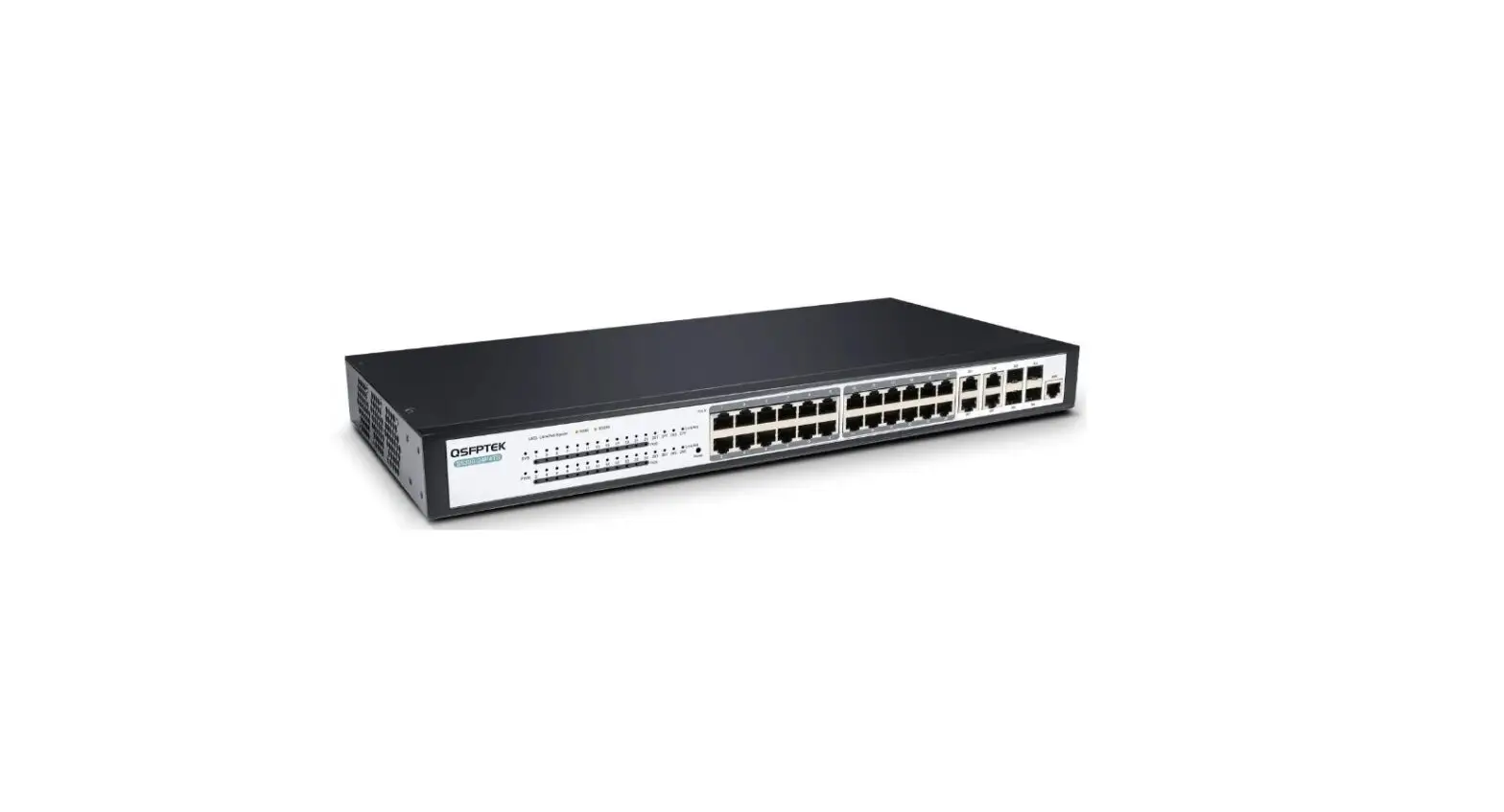
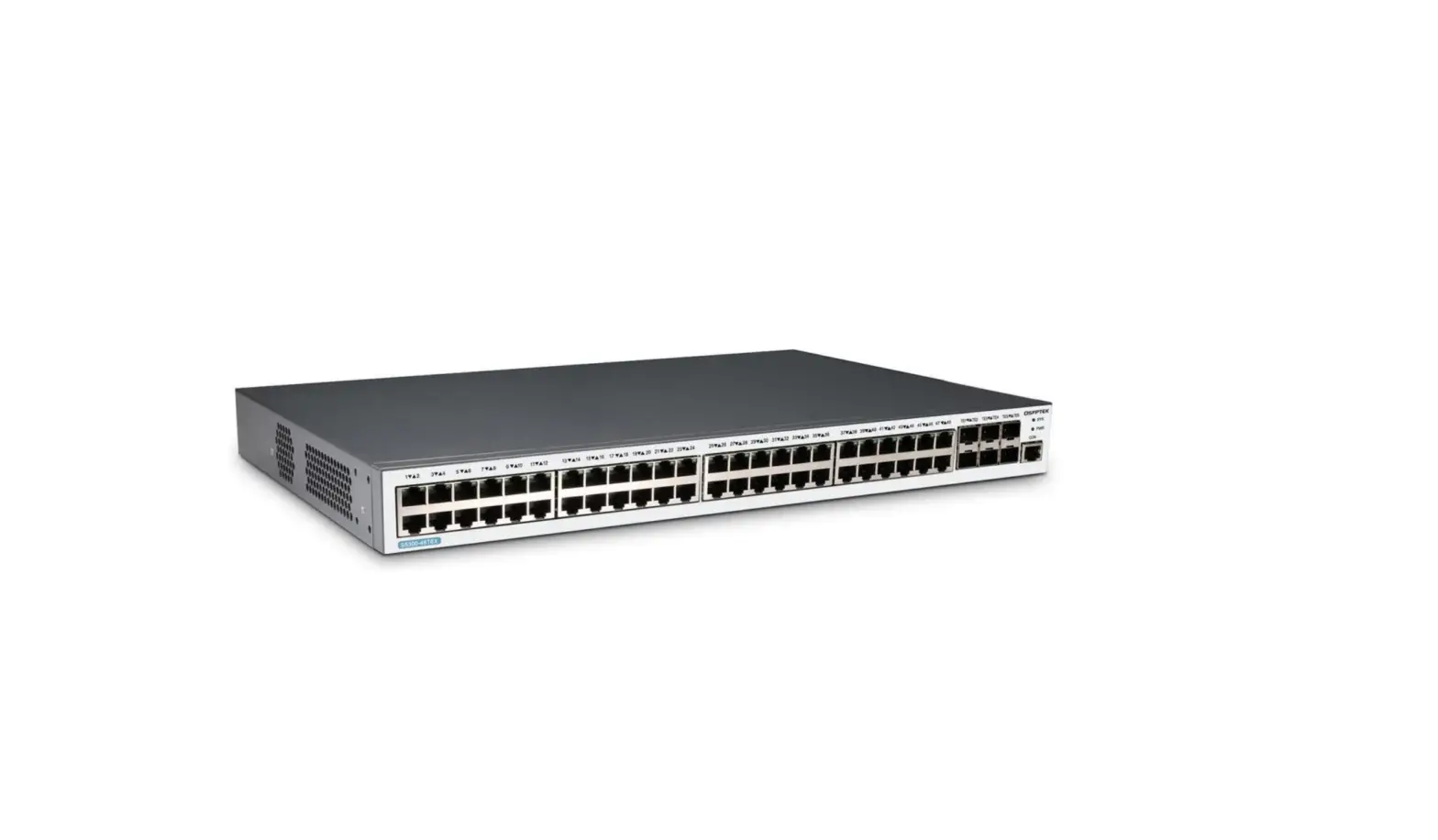
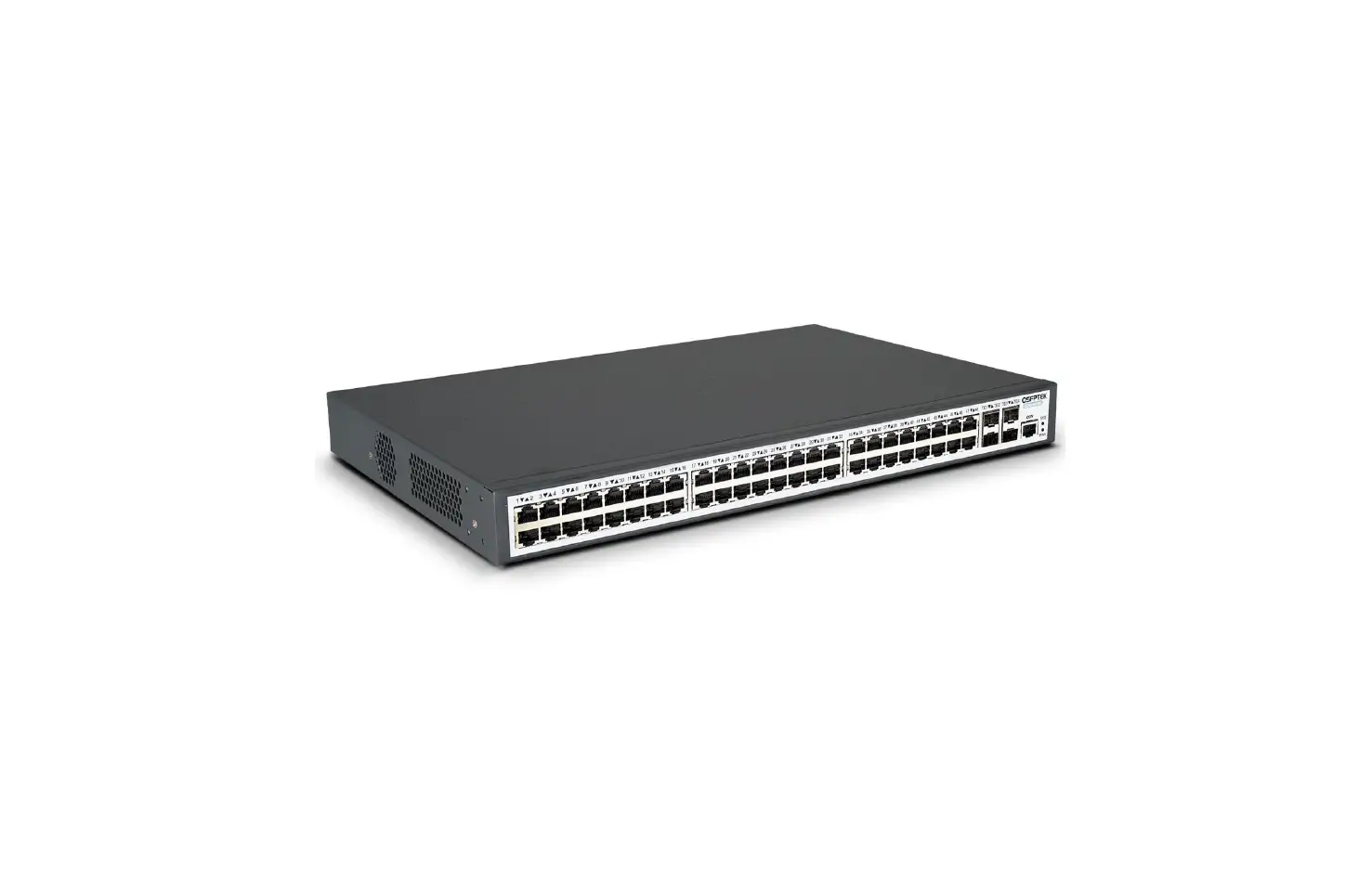
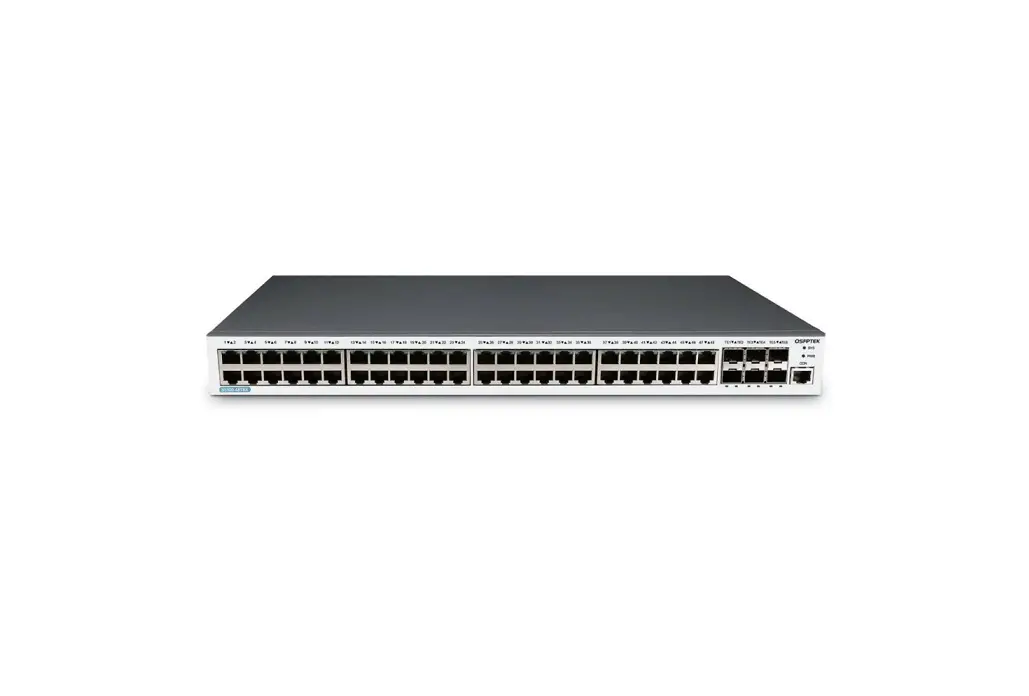
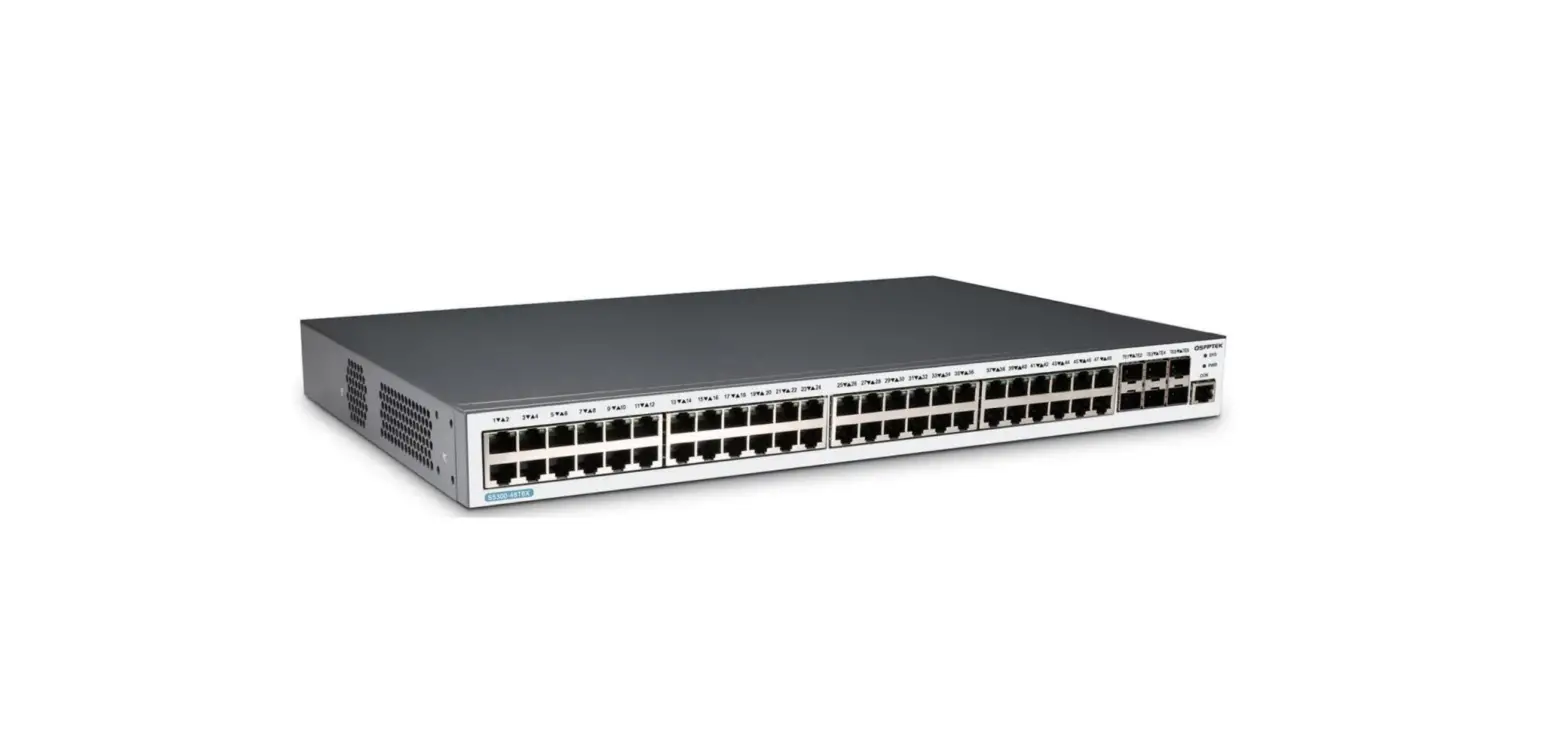
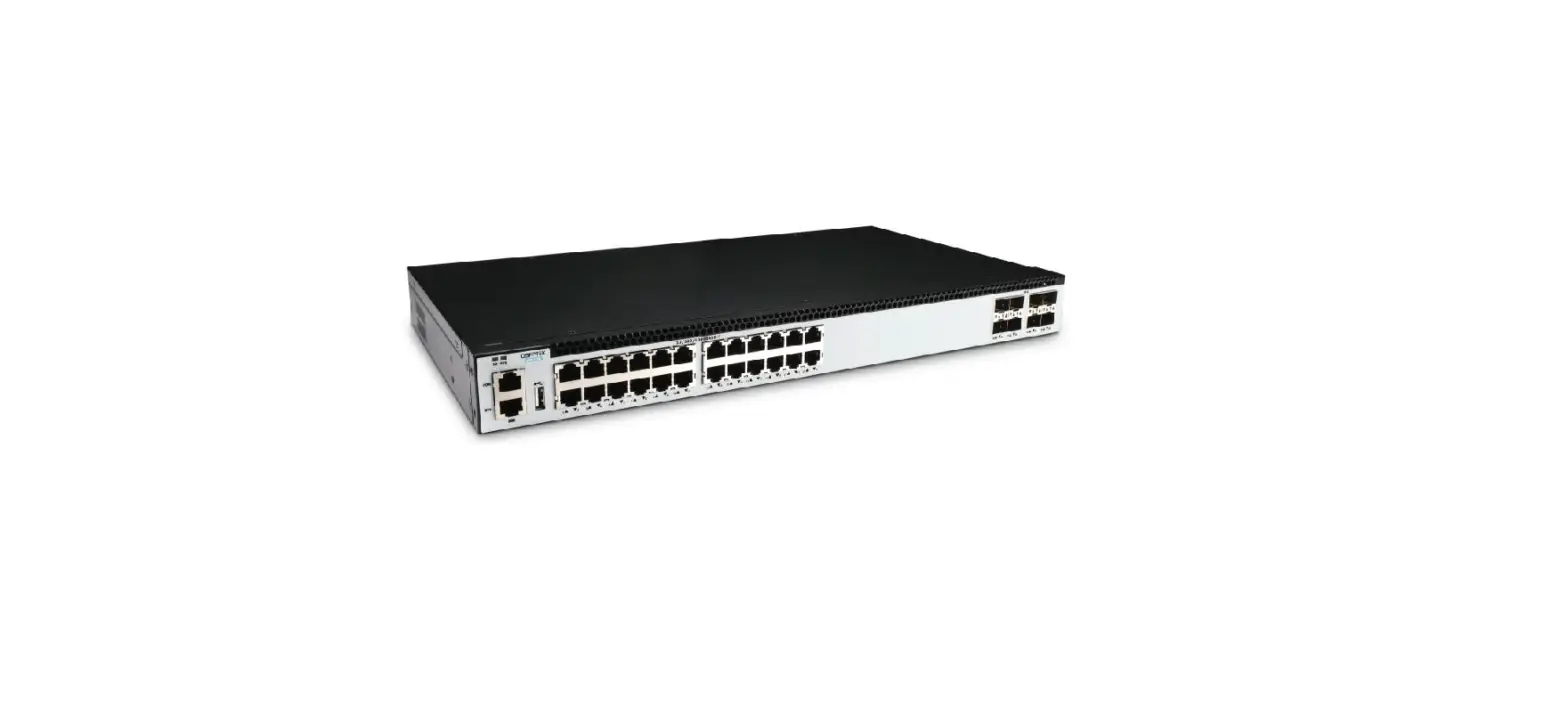
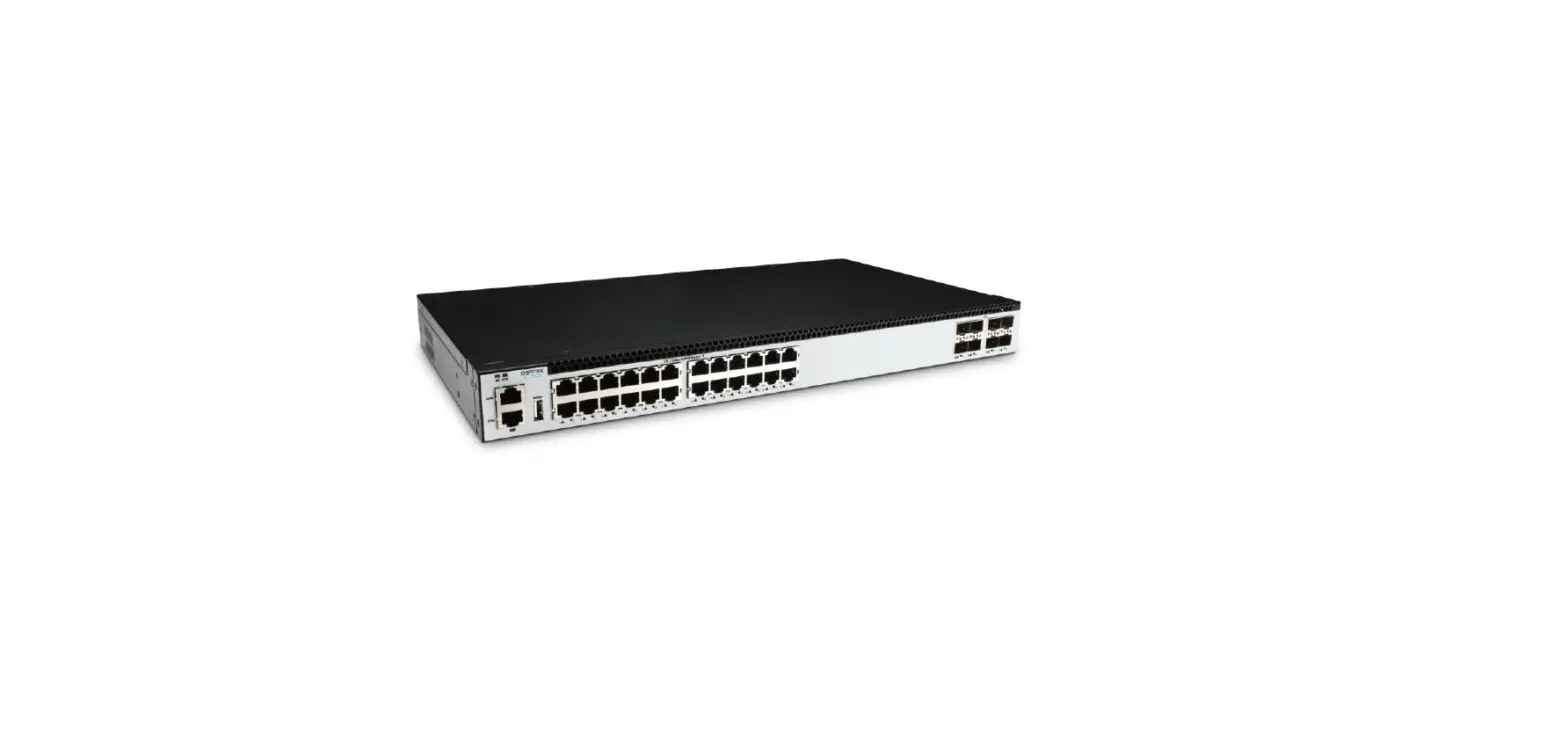
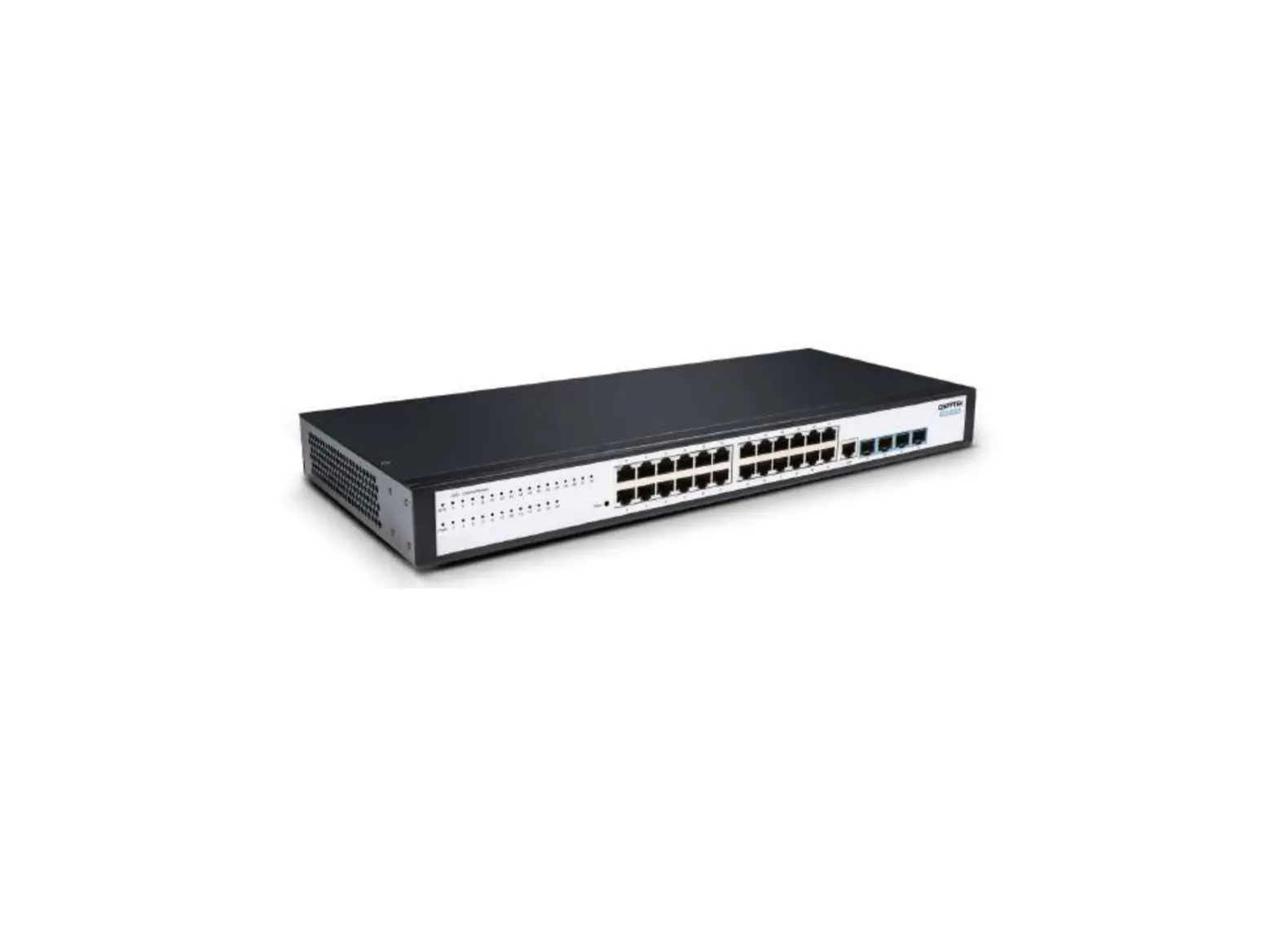
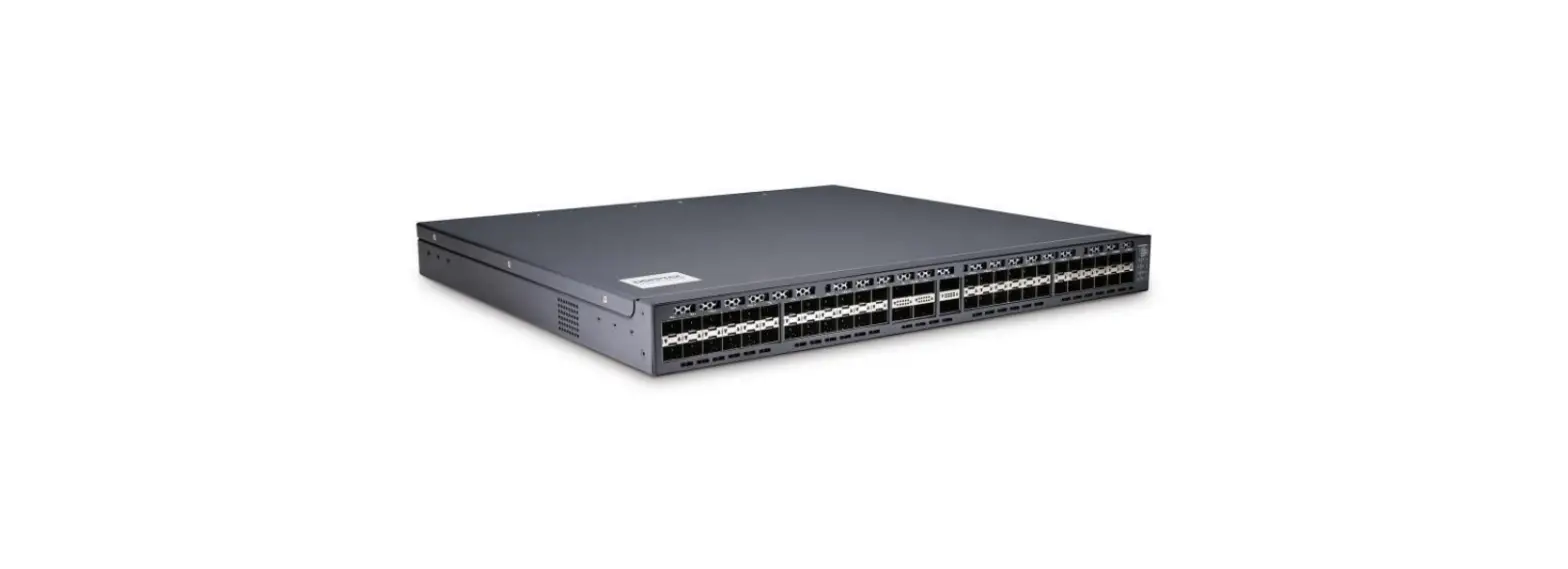
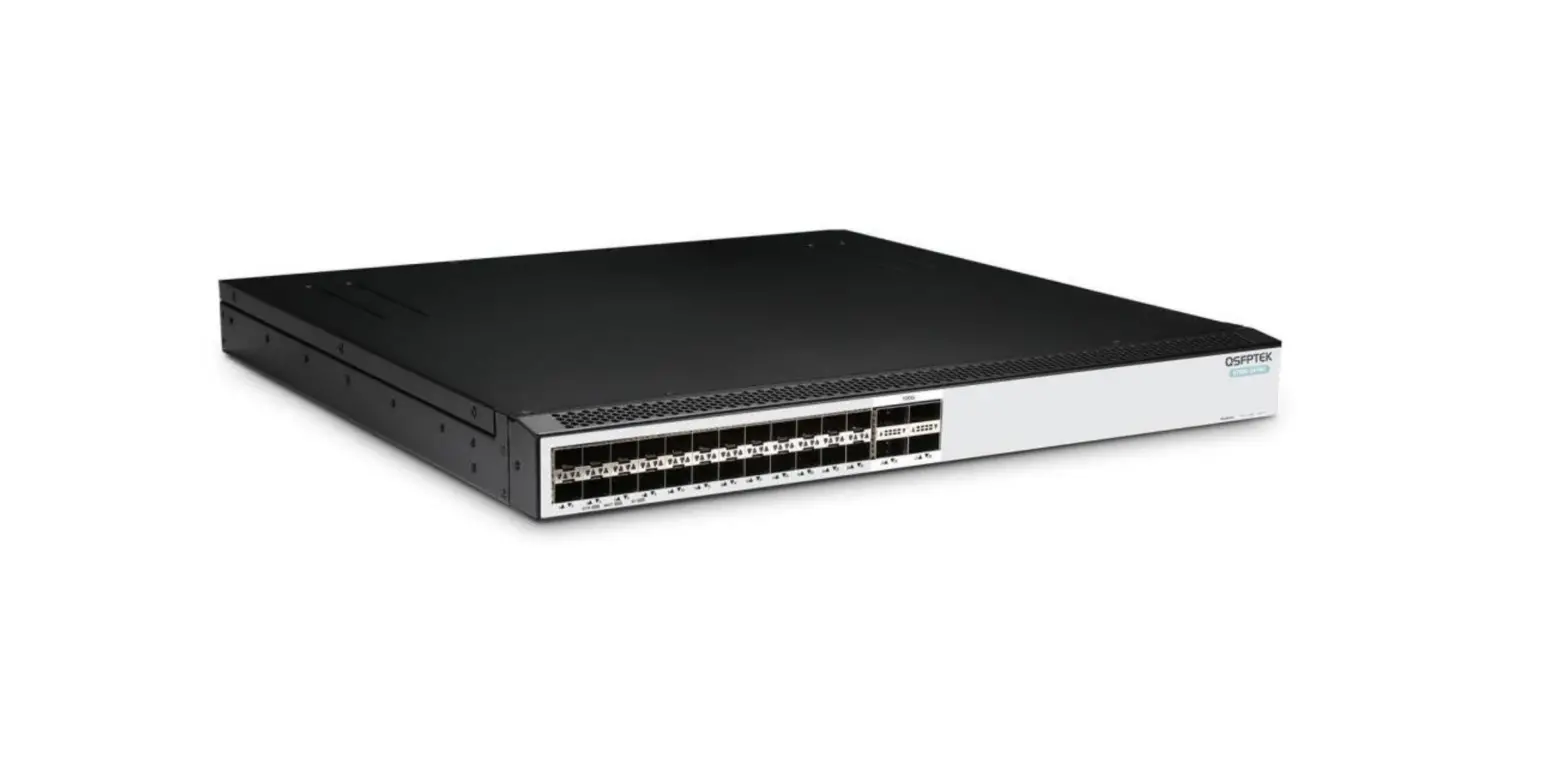
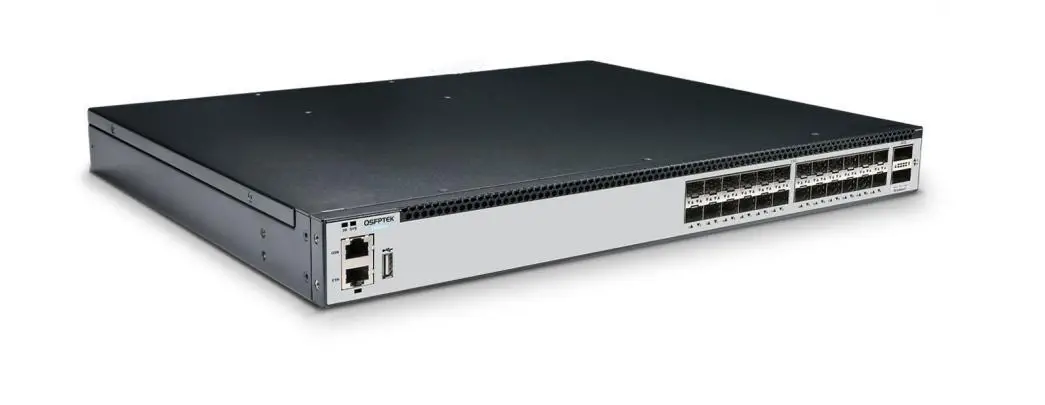
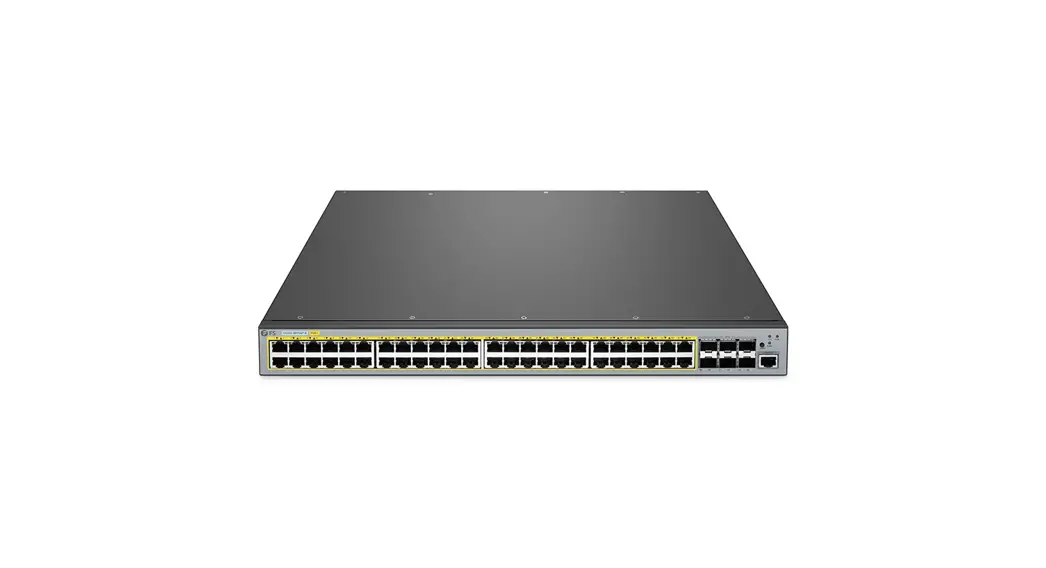
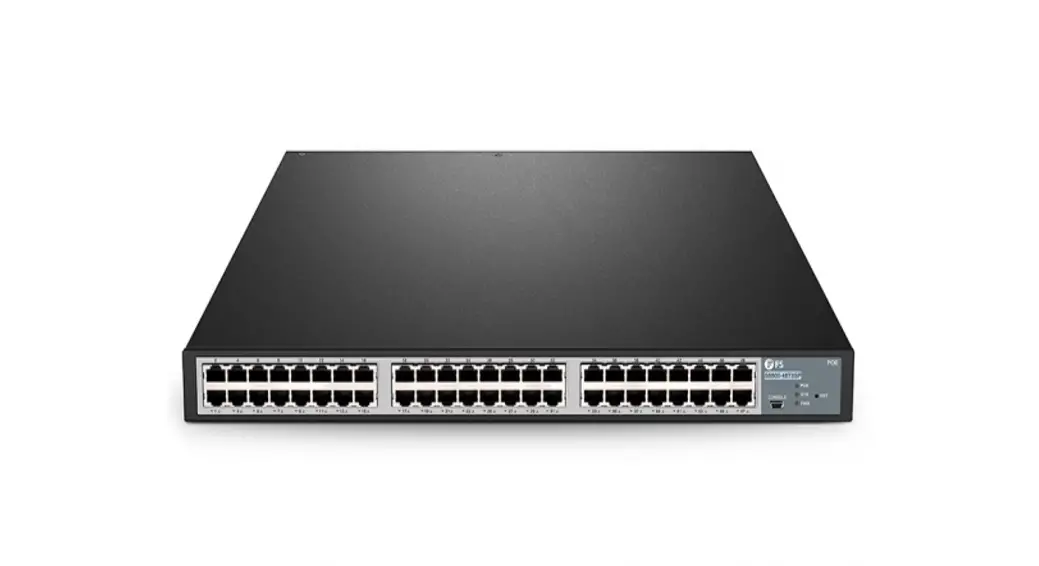
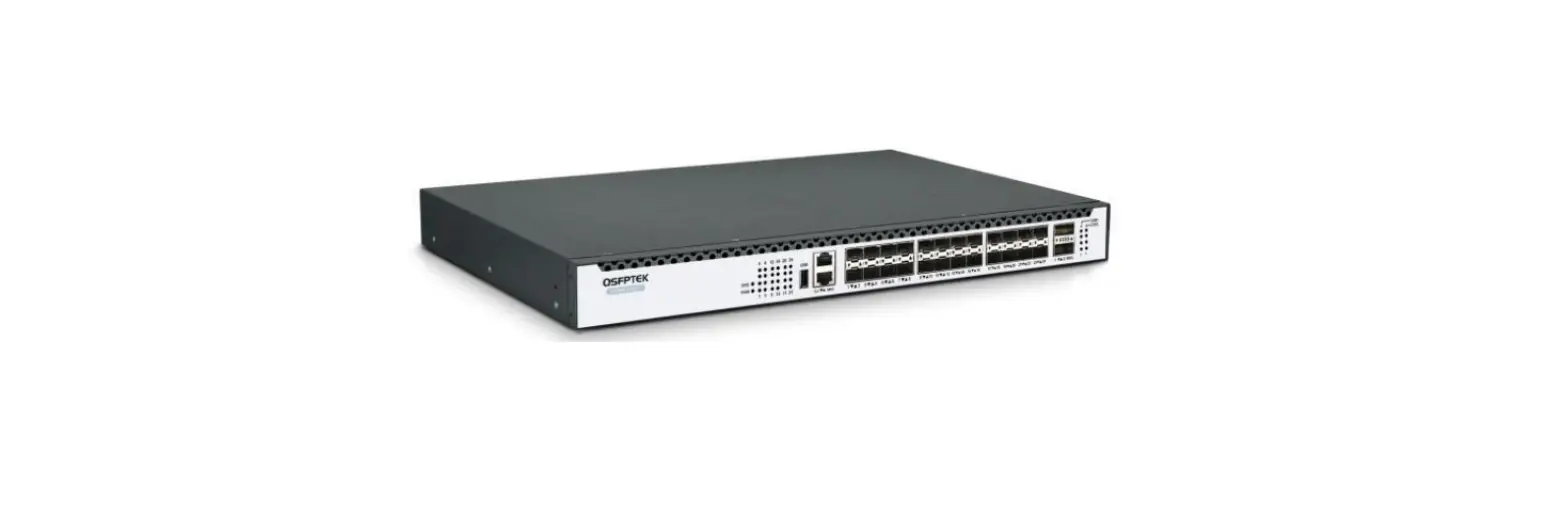
S5300-48P6X 48-Port Gigabit Ethernet L2 Plus Plus PoE Plus Switch
Product Information
The QSFPTEK S5300-48P6X is a next-gen aggregation switch
designed for network implementation. It features 48x Gigabit
Ethernet RJ45 ports, 6x 10 Gigabit Ethernet SFP+ uplink ports, and
supports stacking of up to 8 S5300 series switches. The switch
allows for interconnection and management of multiple switches as
one logical unit.
Product Usage Instructions
Accessories
- Screwdriver
- Static-proof wristband
- Bolt
- Ethernet cable
- Other Ethernet terminal devices
- Control terminal
Installation Requirements
Before installation, ensure the following:
- Keep the installation area dustless and clean.
- Securely place the cover in a safe place.
- Ensure tools are placed in a secure location.
- Wear appropriate clothing to avoid accidents.
- Use protective glasses if required.
- Avoid incorrect operations that may cause damage.
Site Environment
To ensure proper functioning of the switch, consider the
following:
- Ensure the workshop is well-ventilated to dissipate heat.
- Follow electrostatic discharge prevention procedures to prevent
damage.
Hardware Installation
- Place the switch in a location where cool air can circulate to
dissipate heat. - Ensure the machine box is sealed properly.
Mounting the Switch
Follow these steps to mount the switch:
- Plug the AC power cord into the switch power port on the
rear. - Connect the other end of the power cord to an AC power source
equipment.
Connecting the RJ45 Port
- Connect one end of the Ethernet cable to the RJ45 port on
networking equipment (e.g., PC, printer, server, storage). - Connect the other end of the Ethernet cable to the switch RJ45
port.
Connecting the SFP+ Port
- Insert the SFP+ module into the SFP+ port.
- Plug a fiber patch cable into the SFP+ transceiver.
- Connect the other end of the fiber to the device for data
communication.
Connecting the Management Ports
Connecting the Console Port
- Prepare a console cable.
- Insert the RJ45 connector of the console cable into the console
port on the switch. - Connect the D89 female connector on the other end of the
console cable to the serial port on the computer host.
S5300-48P6X Quick Start Guide
48-Port Gigabit Ethernet L2++ PoE+ Switch 48x PoE+ Ports, with 6x 10GE SFP+, Support Stacking
V1.0
www.qsfptek.com
v1.0
1 / 10
Introduction
The QSFPTEK S5300-48P6X is a next-gen aggregation switch, with 48x GE RJ45, 6x 10GE SFP+ Uplink. It supports stacking of up to 8 S5300 series switches, making them logically regarded as one switch for interconnection and management. We appreciate your decision to select S5300-48P6X. This manual is intended to help you become acquainted with the switch design and provide instructions for implementing the switches into your network.
Accessories
Hardware Overview
www.qsfptek.com
v1.0
2 / 10
Front Panel Ports
Ports
Gigabit port 10GE port CON Port
Front Panel LEDs
Description
RJ45 port, LINK/ACT indicators SFP+ port, LINK/ACT indicators A baud rate of 9600bps, RJ45 port
LEDS
SWAP PWR LED SYS LED POE LED
Back Panel
Description
Swap function, used to switch POE indication. If the switch is powered on, the PWR indicator is on. If the system is started normally, the SYS indicator flickers. Indicates whether the POE card is detected.
www.qsfptek.com
v1.0
3 / 10
Abbrev
POWER /
ON/OFF
POWER
Name
DC power supply Grounding column
Power on-off
AC power supply
Description
Input voltage 55VDC The grounding must be fine. ON: means the power is on; OFF: means the power is off. Input voltage AC100-240V
Installation Requirements
Tools Preparation
Screwdriver Static-proof wristband Bolt Ethernet cable Other Ethernet terminal devices Control terminal
Safety Principles
Keep dustless and clean during or after the installation. Put the cover at the safe place. Put tools at the right place where they are not easily falling down. Put on relatively tight clothes, and fasten the tie or scarf well and roll up the sleeve, avoiding stumbling the machine box. Put on the protective glasses if the environment may cause damage to your eyes. Avoid incorrect operations that may cause damage to human or devices.
Site Environment
Make sure that the workshop is well-ventilated, the heat of electrical devices is well-discharged Avoid to damage devices by following the electrostatic discharge prevention procedure. S5300-48P6X Hardware Installation
Manual Put the machine box at the place where cool air can blow off the heat inside the machine box. Make sure the machine box is
sealed.
Mounting the Switch
Connecting the Power
www.qsfptek.com
v1.0
4 / 10
1. Plug the AC power cord to the switch power port on the back rear. 2. Connect the other end of the power cord to a AC power source equipment.
Connecting the RJ45 Port
1. Connect one end of the Ethernet cable to the RJ45 port on networking equipment, such as PC, printer, server, storage, etc.
www.qsfptek.com
v1.0
5 / 10
2. Connect the other end of the Ethernet cable to the switch RJ45 port.
Connecting the SFP+ Port
1. Insert the SFP+ module into the SFP+ port. 2. Plug a fiber patch cable to the SFP+ transceiver. 3. Connect the other end of the fiber to the device that you want to realize data communication.
www.qsfptek.com
v1.0
6 / 10
Connecting the Management Ports
Connecting the Console Port
1. Prepare an console cable. 2. Insert the RJ45 connector of the console cable into the console port on the switch. 3. Connect the D89 female connector on the other end of the console cable to the serial port on the computer host.
Configuring the Switch
Configuring the Switch Using the Web-based Interface
Step 1: Connect your computer to the switch using an Ethernet cable and open a web browser. Step 2: Set the IP address of the computer to 192.168.0.x (where “x” is any number from 2 to 254) and the subnet mask to 255.255.255.0.
www.qsfptek.com
v1.0
7 / 10
Step 3: Open a web browser and type http://192.168.0.2 in the address bar. Enter the default username and password (admin/admin). Step 4: Click sign-in to access the web-based configuration page.
Configuring the Switch Using the Console Port
Step 1: Use the console cable to direct connect the switch console port to your computer. Step 2: Launch the terminal simulation software such as Hyper Terminal on the computer. Step 3: Configure the parameters of the terminal emulation software as follows: 9600 bits per second, 8 data bits, no parity, 1 stop bit, and no flow control.
www.qsfptek.com
v1.0
8 / 10
Step 4: Enter the default username and password (admin/admin).
Troubleshooting
Hardware Fault Analysis
Power and cooling systems–power and fan Port, cable and connection–ports on the front panel of the switch and the cables connecting these ports
Faults Relative with Power and Cooling System
Do the following checkups to help remove the fault: 1. When the power on-off is at the “ON” location, check whether the fan works normally. If the fan does not work well, check the fan. 2. If the switch is too hot, check whether the air outlet and air inlet are clean and then do relative operations in section 2.3 “Requirements for Common Locations”. 3. If the switch cannot be started and the PWR indicator is off, check the power.
Faults Relative with Port, Cable and Connection
Do the following checkups to help remove the fault: If the port of the switch cannot be linked, check whether the cable is correctly connected and whether the peer connection is normal.
If the power on-off is at the “ON” location, check the power source and the power cable.
If the CLI port does not work after the system is started up, check whether the CLI port is set to a baud rate of 9600 bps, eight data bits, no sum check bit, one stop bit and no traffic control.
www.qsfptek.com
v1.0
9 / 10
Support and Other Resources
Contact us
https://www.qsfptek.com/company/contact-us.html
Customer Success
https://www.qsfptek.com/resources/customer-success-stories
Product Warranty
S5300 series switches are backed by a 5-year limited warranty supported by QSFPTEK. And you are eligible to apply for a return or exchange of your items within 14 days of receiving them. For more details about applying qualifications, please live chat or email [email protected] for support.
5 Year Warranty
14-day Return Window
www.qsfptek.com
v1.0
10 / 10
 QSFPTEK - Compatible Optical Transceivers Factory Outlet