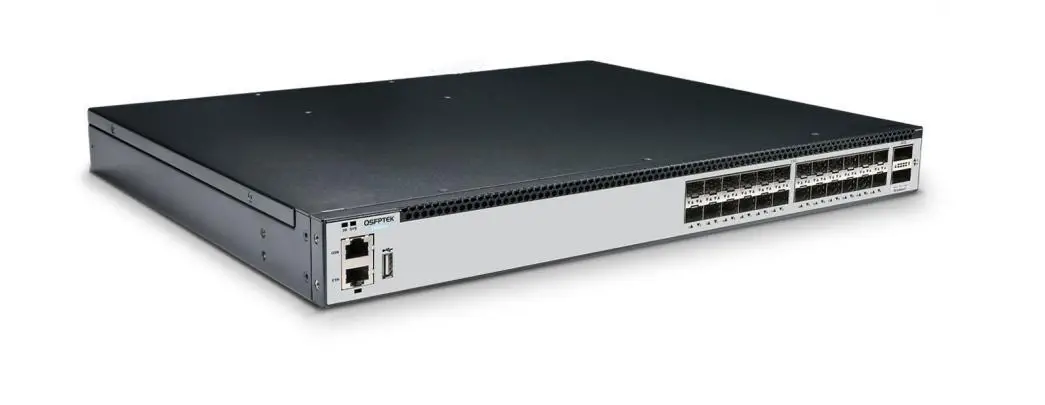
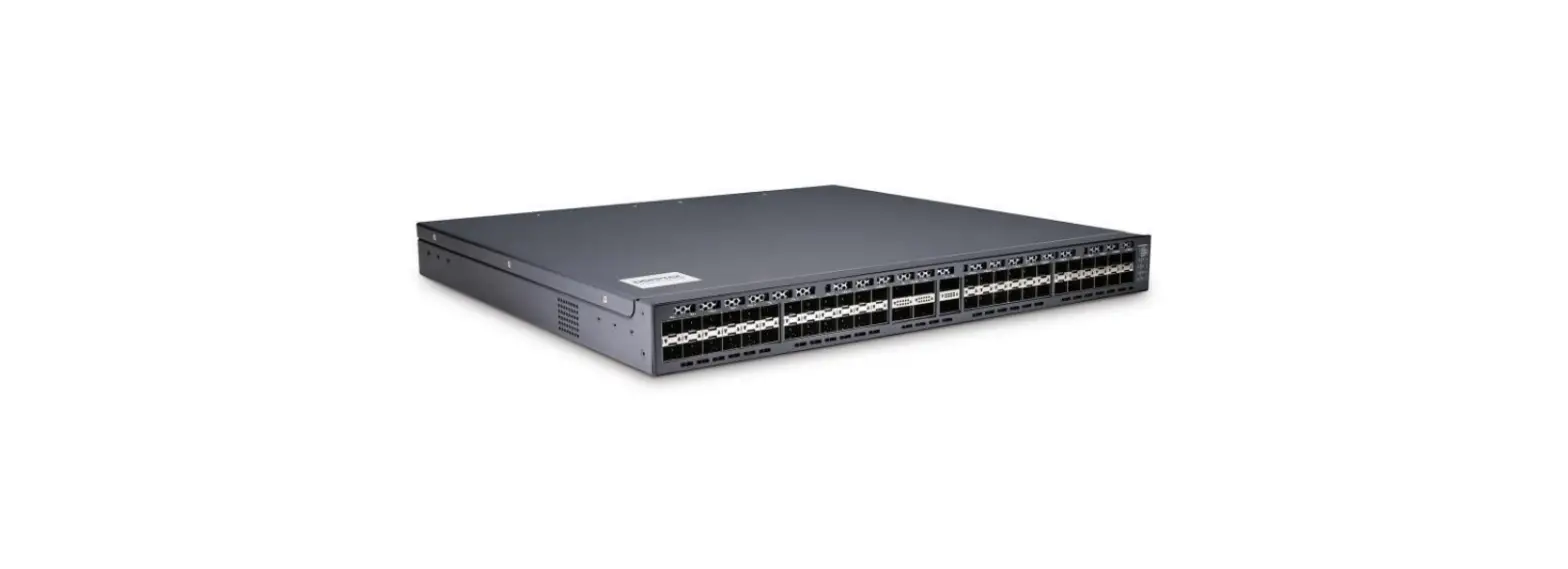
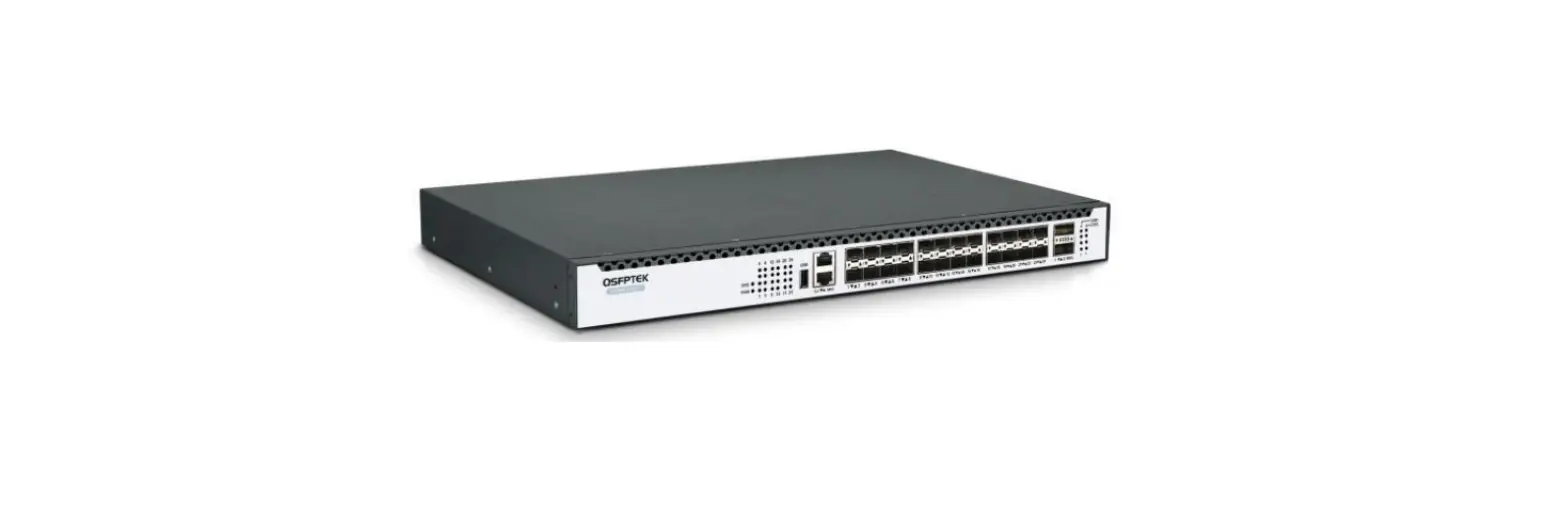
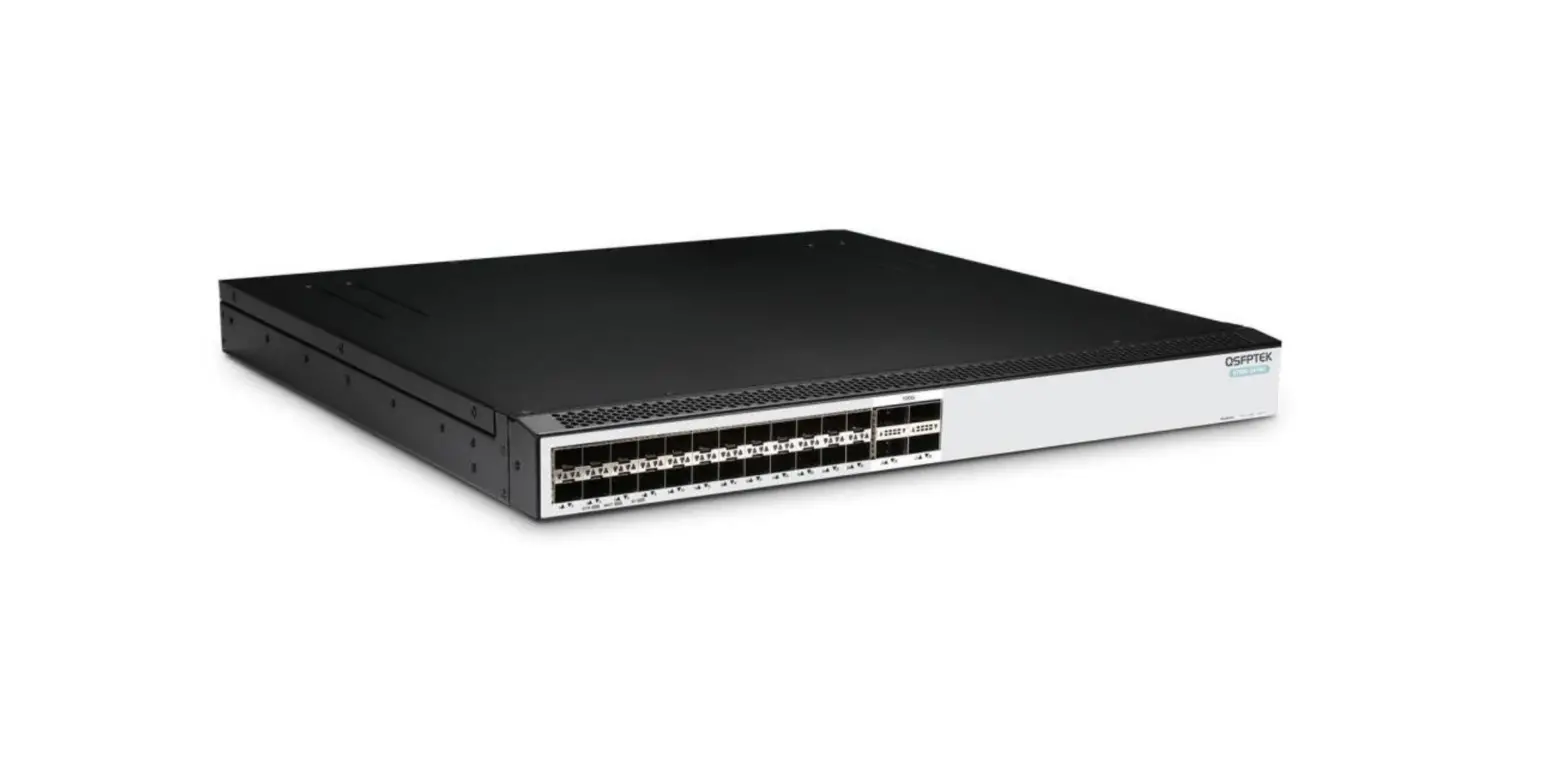
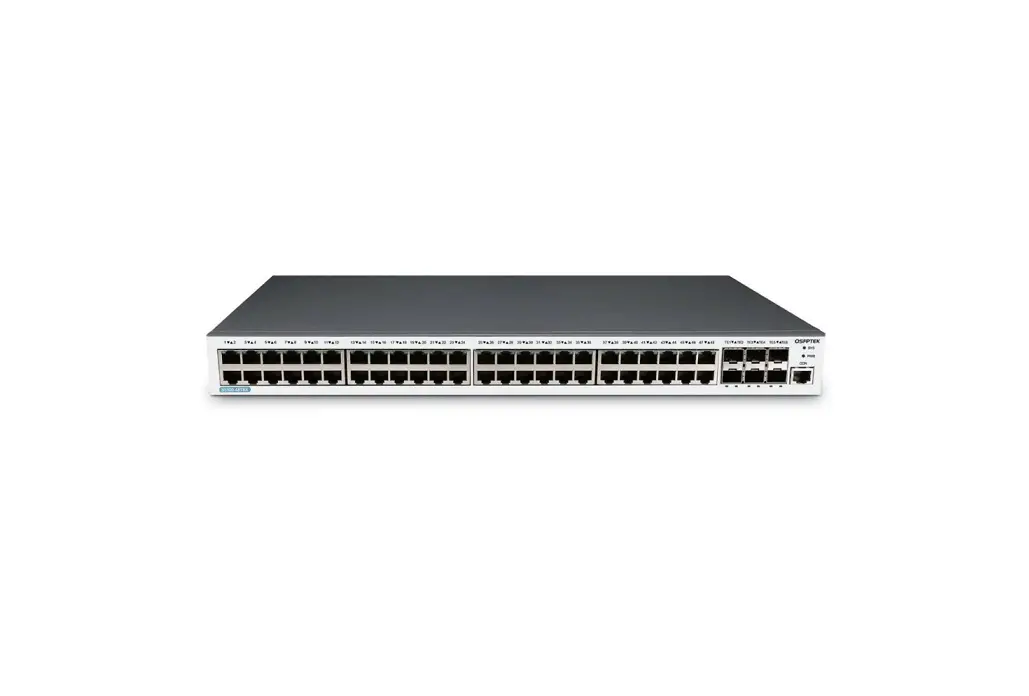
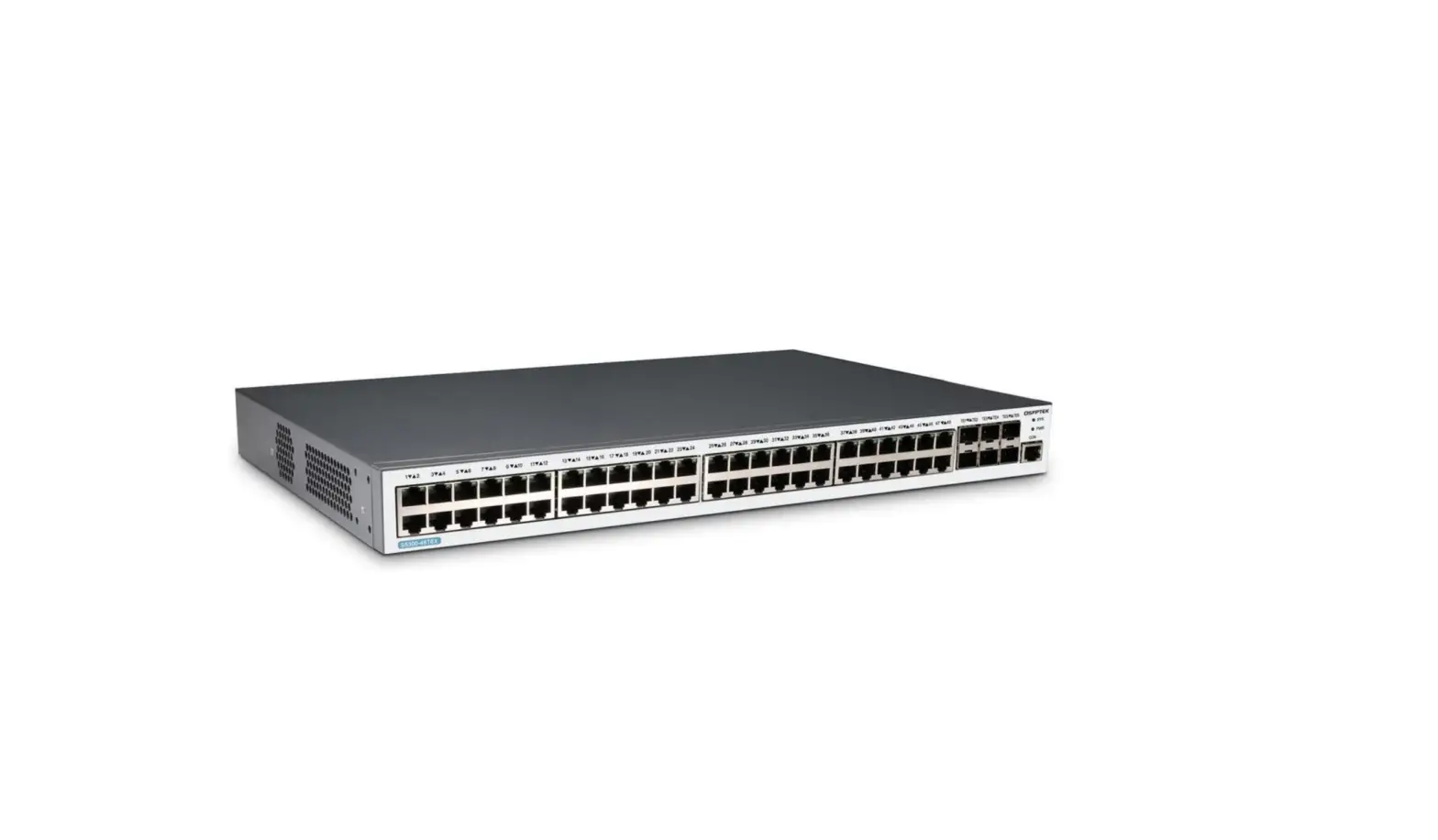
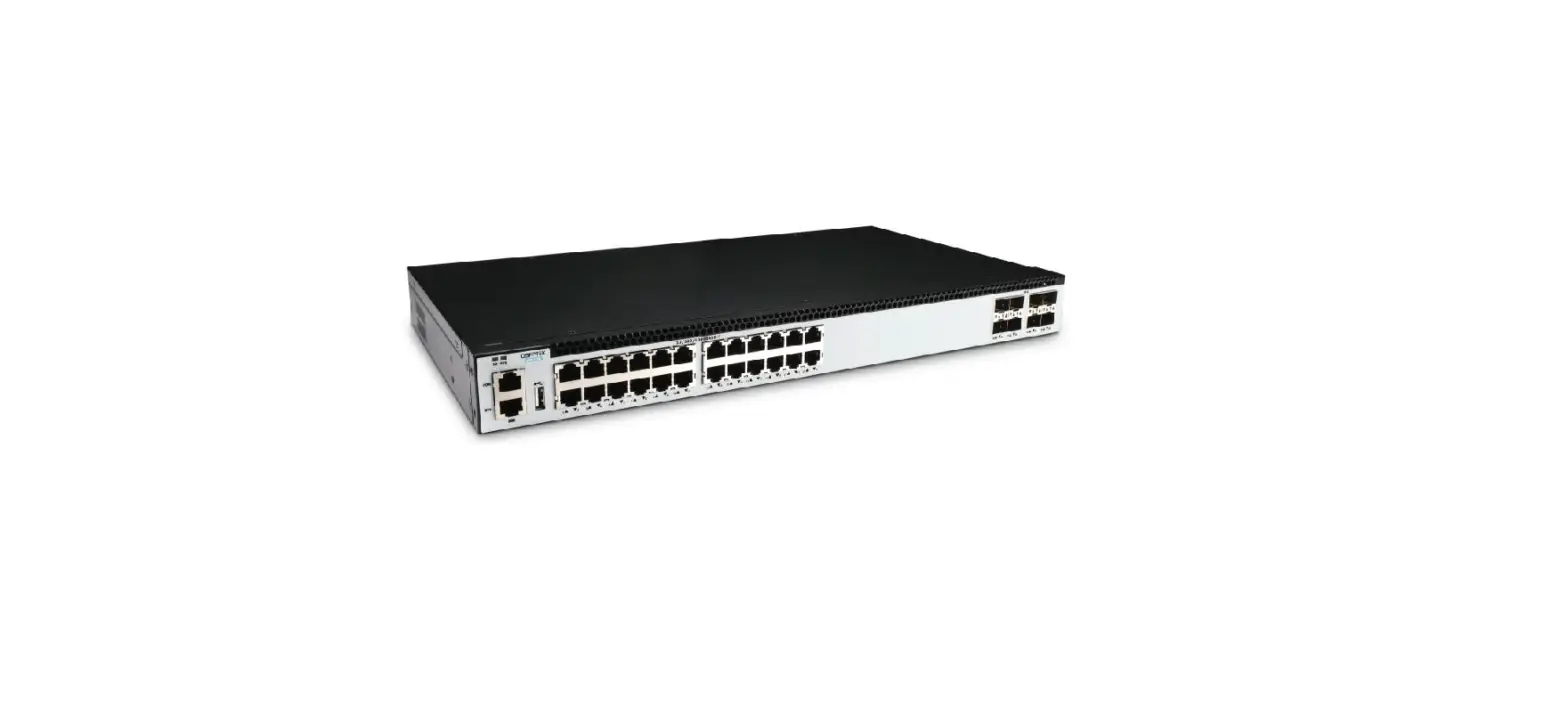
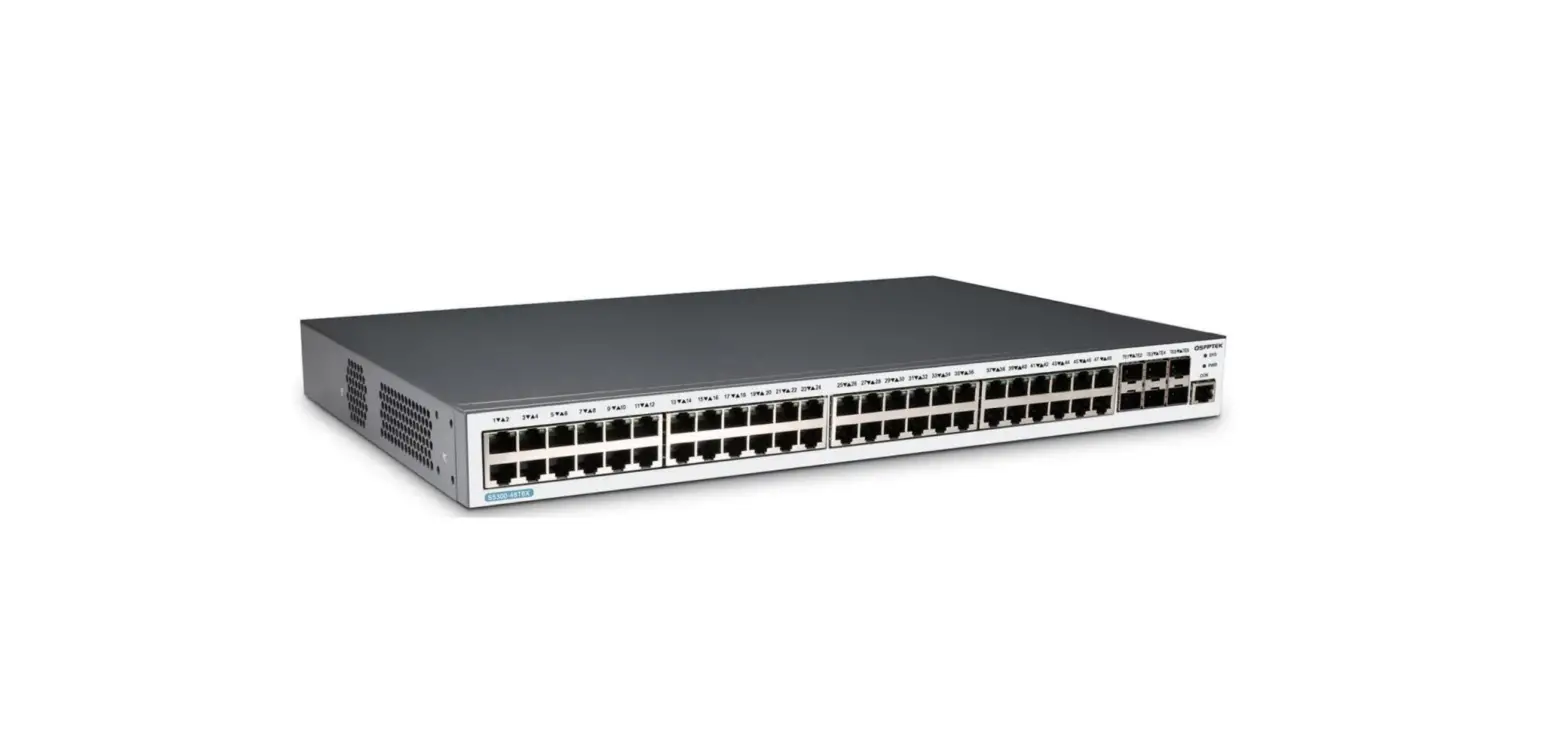
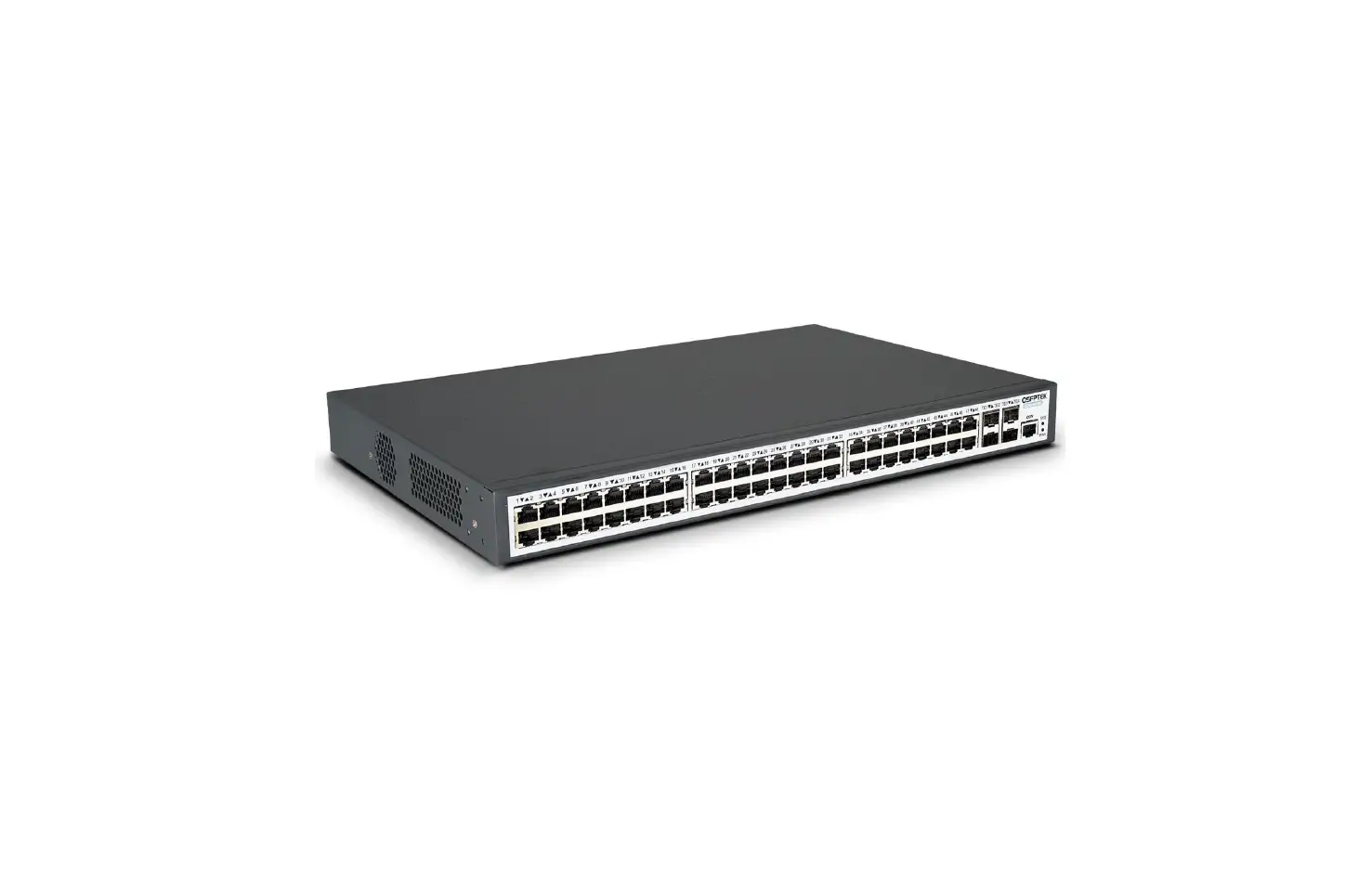
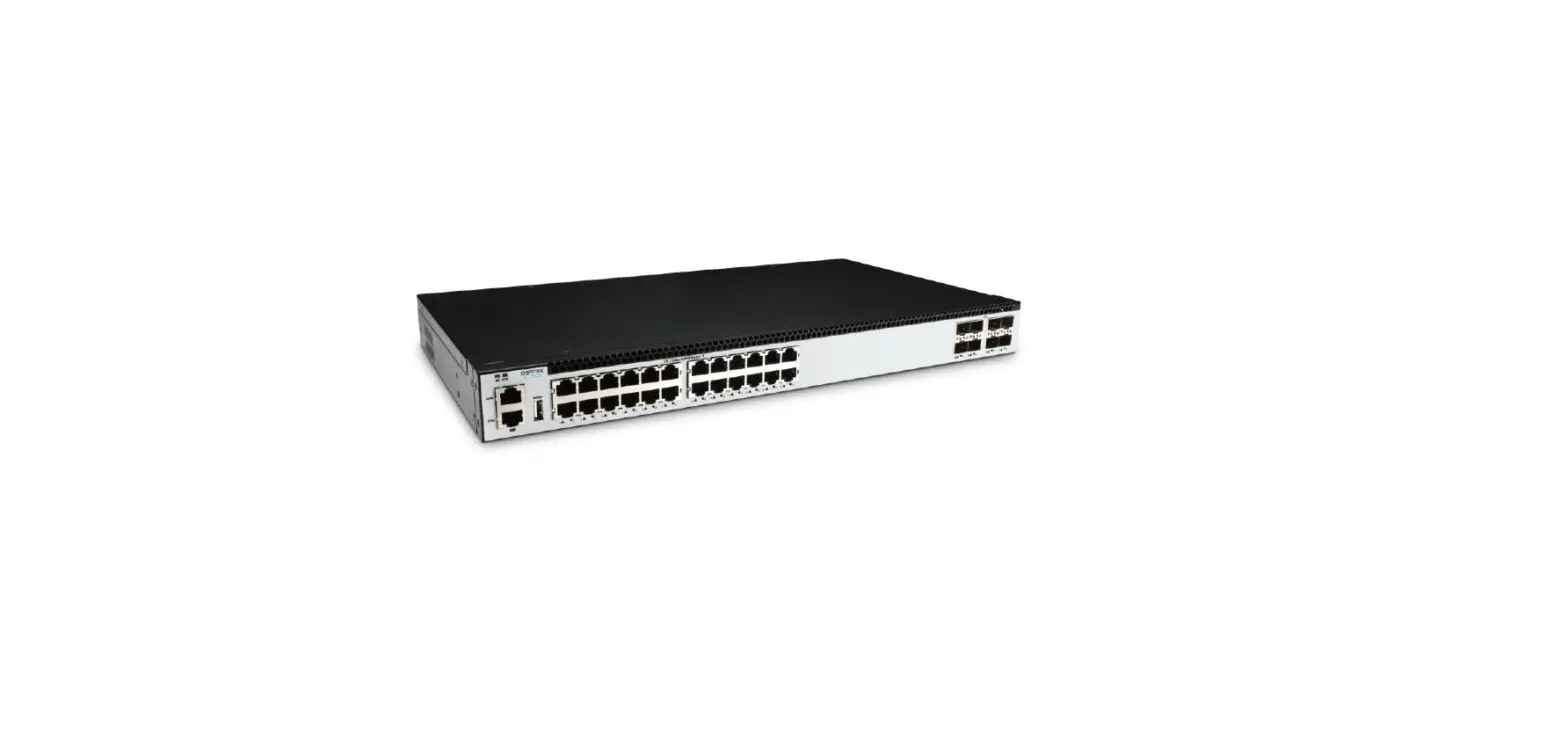
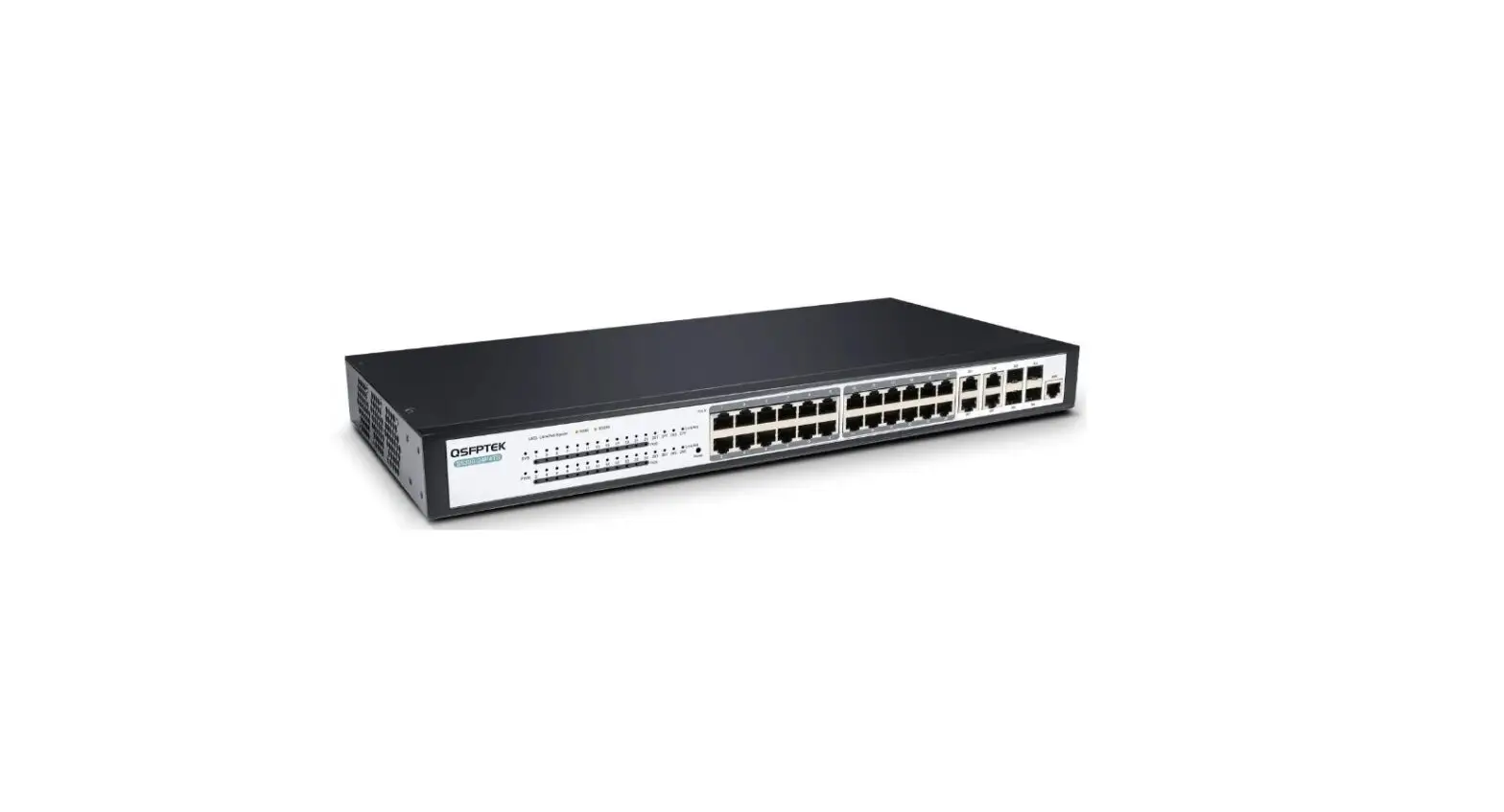
S7600-48X8C 48-Port 10Gb Ethernet L3+ Switch
S7600-48X8C Quick Start Guide
The S7600-48X8C is a high-performance 10G/100G switch. The
product position is to meet the requirements of next generation
enterprise, data center, Metro and HCI (Hyper-Converged
Infrastructure) networks.
Accessories
- AC power cord
- SFP+ module
- QSFP28 module
- Fiber patch cable
- Console cable
- Flathead screwdrivers
- Phillips screwdrivers
- ESD-preventive wrist strap
Hardware Overview
The S7600-48X8C has 48x 10G SFP+ ports and 8x 100G QSFP28
uplinks. It supports MLAG.
Front Panel Ports
| Ports | Description |
|---|---|
| SFP+ | Ports for 1G/10G connection |
| QSFP28 | Ports for 40G/100G connection |
Back Panel Ports
| Ports | Description |
|---|---|
| CON | An RJ45 console port for serial management |
| ETH | An RJ-45 Ethernet management port |
| USB | A USB management port for software and configuration backup and offline software upgrade |
Front Panel LEDs
| LEDs | Status Description |
|---|---|
| ID SYS ETH | Blue: On ID indication function enable, Off ID indication function disable Green: On The system is normal running Amber: On The system occur alarm or error. Off: No power or System is not run or abnormality |
| SFP+ (Port 1-48) | Green: On Port link, Off Port not link Green: On 10G port link, Blinking 10G packets receiving or transmitting Amber: On 1G port link, Blinking 1G packets receiving or transmitting Off: Port not link |
| QSFP28 (Port 49-56) | Green: On 100G/40G port link, Blinking 100G/40G packets receiving or transmitting Amber: On 10G/1G port link, Blinking 10G/1G packets receiving or transmitting Off: Port not link Loop Blinking: One or more 100G/40G ports are breakout Off: None of the 100G/40G port is breakout |
Installation Requirements
Tools Preparation
- Flathead screwdrivers
- Phillips screwdrivers
- ESD-preventive wrist strap
Temperature/Humidity Requirements
Temperature: 10%-95%
Cleanliness Requirements
- Substance: DUST SO2 H2S NH3 Cl2
- Concentration limit:
- Particle/m3: 3 X 10⁴ (No visible dust on the tabletop for three
days) - mg/m3: 0.2
- mg/m3: 0.006
- mg/m3: 0.05
- mg/m3: 0.01
- Particle/m3: 3 X 10⁴ (No visible dust on the tabletop for three
- Note: The dust particle size is 5 m
Mounting the Switch
To mount the switch:
- Choose a suitable location for the switch.
- Use the flathead and Phillips screwdrivers to install the
switch onto a rack or a flat surface.
Connecting the Power
To connect the power:
- Plug the AC power cord to the switch power port on the back
rear. - Connect the other end of the power cord to an AC power source
equipment.
Connecting the SFP+ Port
To connect the SFP+ port:
- Insert the SFP+ module into the SFP+ port.
- Plug a fiber patch cable to the SFP+ transceiver.
- Connect the other end of the fiber to the device that you want
to realize data communication.
Connecting the QSFP28 Port
To connect the QSFP28 port:
- Insert the QSFP28 module into the QSFP28 port.
- Plug a fiber patch cable to the QSFP28 transceiver.
- Connect the other end of the fiber to the device that you want
to realize data communication.
Connecting the Management Ports
Connecting the Console Port
To connect the console port:
- Prepare a console cable.
- Insert the RJ45 connector of the console cable into the console
port on the switch. - Connect the D89 female connector on the other end of the
console cable to the serial port on the computer host.
S7600-48X8C Quick Start Guide
48-Port 10Gb Ethernet L3+ Switch 48x 10G SFP+ Ports, with 8x 100G QSFP28 Uplinks, Support MLAG
V1.0
www.qsfptek.com
V1.0
112
Introduction
The S7600-48X8C is a high-performance 10G/100G switch. The product position is to meet the requirements of next generation enterprise, data center, Metro and HCI (Hyper-Converged Infrastructure) networks. We appreciate your decision to select S7600-48X8C. This manual is intended to help you become acquainted with the switch design and provide instructions for implementing the switches into your network.
Accessories
www.qsfptek.com
V1.0
212
Hardware Overview
Front Panel Ports
Ports
SFP+ QSFP28
Description
SFP+ ports for 1G/10G connection
QSFP28 ports for 40G/100G connection
Back Panel Ports
Ports
CON ETH
USB
Description
An RJ45 console port for serial management An RJ-45 Ethernet management port
A USB management port for software and configuration backupand offline software upgrade
www.qsfptek.com
V1.0
312
Front Panel LEDs
LEDs
ID SYS ETH
SFP+ (Port 1-48)
QSFP28 (Port 49-56)
Breakout
Status Description
Blue
On ID indication function enable Off ID indication function disable
Green
On The system is normal running
Amber
On The system occur alarm or error.
–
Off No power or System is not run or abnormality
Green
On Port link. Off Port not link.
Green
On 10G port link.
Blinking 10G packets receiving or transmitting.
Amber
On 1G port link.
Blinking 1G packets receiving or transmitting.
–
Off Port not link
Green
On 100G/40G port link.
Blinking 100G/40G packets receiving or transmitting.
Amber
On 10G/1G port link.
Blinking 10G/1G packets receiving or transmitting.
–
Off Port not link
Loop Blinking One or more 100G/40G ports are breakout
Off
None of the 100G/40G port is breakout
1G
10G
www.qsfptek.com
V1.0
412
Back Panel
Installation Requirements
Tools Preparation
Flathead screwdrivers Phillips screwdrivers ESD-preventive wrist strap
Temperature/Humidity Requirements
Temperature
0~45°C
Cleanliness Requirements
Humidity
10%95%
Substance
DUST SO2 H2S NH3 Cl2
Unit
Concentration limit
Particle/m3 3 X 10⁴ (No visible dust on the tabletop for three days)
mg/m3
0.2
mg/m3
0.006
mg/m3
0.05
mg/m3
0.01
Note: The dust particle size is 5 m
www.qsfptek.com
V1.0
512
Mounting the Switch
Connecting the Power
1. Plug the AC power cord to the switch power port on the back rear. 2. Connect the other end of the power cord to a AC power source equipment.
Connecting the SFP+ Port
1. Insert the SFP+ module into the SFP+ port. 2. Plug a fiber patch cable to the SFP+ transceiver. 3. Connect the other end of the fiber to the device that you want to realize data
communication.
Connecting the QSFP28 Port
www.qsfptek.com
V1.0
612
1. Insert the QSFP28 module into the QSFP28 port. 2. Plug a fiber patch cable to the QSFP28 transceiver. 3. Connect the other end of the fiber to the device that you want to realize data communication.
Connecting the Management Ports
Connecting the Console Port
1. Prepare an console cable.
2. Insert the RJ45 connector of the console cable into the console port on the switch.
3. Connect the D89 female connector on the other end of the console cable to the serial port on the computer host.
www.qsfptek.com
V1.0
712
Connecting the ETH Port
1. Prepare an standard RJ45 Ethernet patch cable. 2. Insert one end of the RJ45 Ethernet patch cable to the computer RJ45 port. 3. Connect the RJ45 connector on the other end of the patch cable to the ETH port on the switch.
Connecting the USB Port
1. Prepare an Universal Serial Bus (USB) flash disk. 2. Insert the USB to the switch USB port.
www.qsfptek.com
V1.0
812
Configuring the Switch
Configuring the Switch Using the Web-based Interface
Step 1: Connect your computer to the switch using an Ethernet cable and open a web browser. Step 2: Set the IP address of the computer to 192.168.1.x (where “x” is any number from 2 to 254) and the subnet mask to 255.255.255.0.
Step 3: Open a web browser and type http://192.168.1.2 in the address bar. Enter the default username and password (admin/admin).
Step 4: Click sign-in to access the web-based configuration page.
www.qsfptek.com
V1.0
912
Configuring the Switch Using the Console Port
Step 1: Use the console cable to direct connect the switch console port to your computer. Step 2: Launch the terminal simulation software such as HyperTerminal on the computer. Step 3: Configure the parameters of the terminal emulation software as follows: 115200 bits per second, 8 data bits, no parity, 1 stop bit, and no flow control.
Step 4: Enter the default username and password (admin/admin).
www.qsfptek.com
V1.0
1012
Troubleshooting
Loading Failure Processing:
After loading fails, the system will keep running in the original version. At this time, users should refer to the following steps to re-check:
1. if physical port connections are good first. If some ports are not connected, then re-connect them to ensure that physical connections are correct, and begin re-loading.
2. If physical connections are correct, then check the loading process information displayed on the super terminal to verify if there are input errors. If there are input errors, correct them and re-load. For example, when using TFTP protocol, we enter incorrect IP addresses of the Server and Switch, name of loading software, do not specify the correct working path of the correct TFTP server, and so on.
3. if physical connections are good, and there are no input errors in the loading process but the loading fails finally, please contact agents for help.
User Password Lost:
If the system password is lost or forgotten, the following method can be used to reset the password: 1. Enter uBoot operation mode; see Chapter 5 for how to enter; 2. Input boot_flash_nopass command to start the system in uBoot mode;
Note: After using the boot_flash_nopass command, the system will clear up the startup-config files; before starting this operation, the startup-config files will be stored in flash:/startup-config.conf.old file.
Power System Troubleshooting:
The switch can judge if its power system is faulty according to the PWR indicator on the front panel: when the power system works normally, the PWR indicator shall always keep lighting; when the PWR indicator is off, please check if:
1. The power line of the switch is connected correctly.
2. The EPS of the switch matches the power required by the switch.
Configuration System Troubleshooting:
After the switch is powered on, if the system is normal, the startup information will be displayed on the configuration terminal; If no display information on the configuration terminal appears, maybe the configuration system is faulty, please check if:
1. The power is normal.
2. The cable of the configuration port (Console) is properly connected.
If no problems have been found after the above checks, it is possible that the configuration cable is faulty or the parameter setting of the terminal (such as a super terminal) is incorrect, please check accordingly.
www.qsfptek.com
V1.0
1112
3. Troubleshooting for the terminal displaying hashes: If the configuration terminal displays hashes, it is probable that the parameter setting of the terminal (such as a super terminal) is incorrect Please confirm the parameter setting of the terminal (such as HyperTerminal): baud rate: 115200, data bit: 8, parity: no, stop bit: 1, flow control: NA, selecting terminal emulation: VT100.
Support and Other Resources
Contact us
https://www.qsfptek.com/company/contact-us.html
Customer Success https://www.qsfptek.com/resources/customer-success-stories
Product Warranty
S7600 series switches are backed by a 5-year limited warranty supported by QSFPTEK. And you are eligible to apply for a return or exchange of your items within 14 days of receiving them.
For more details about applying qualifications, please live chat or email [email protected] for support.
5 Year Warranty
14-day Return Window
www.qsfptek.com
V1.0
1212
 Return Policy - FS.com
 QSFPTEK - Compatible Optical Transceivers Factory Outlet