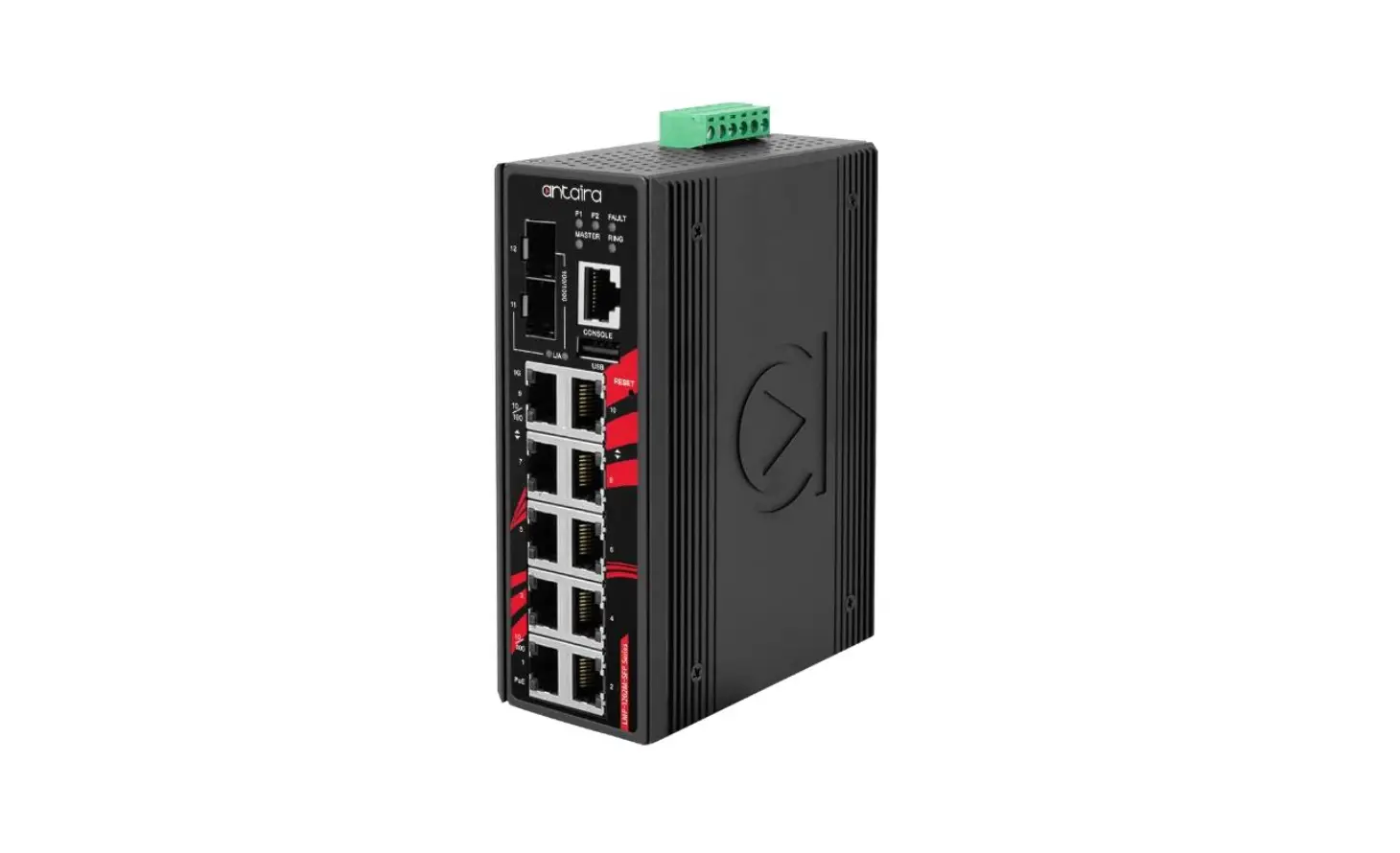
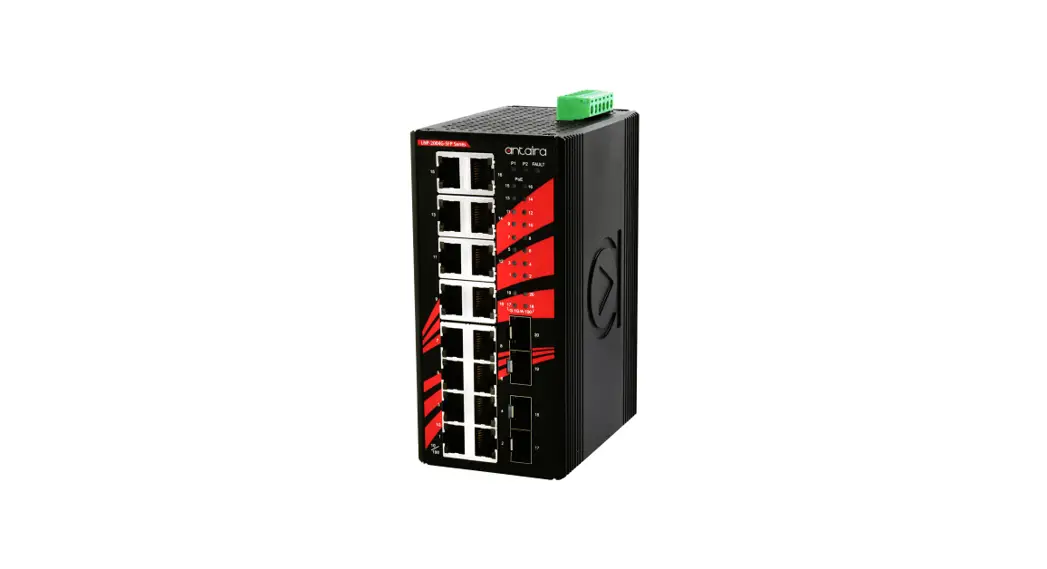
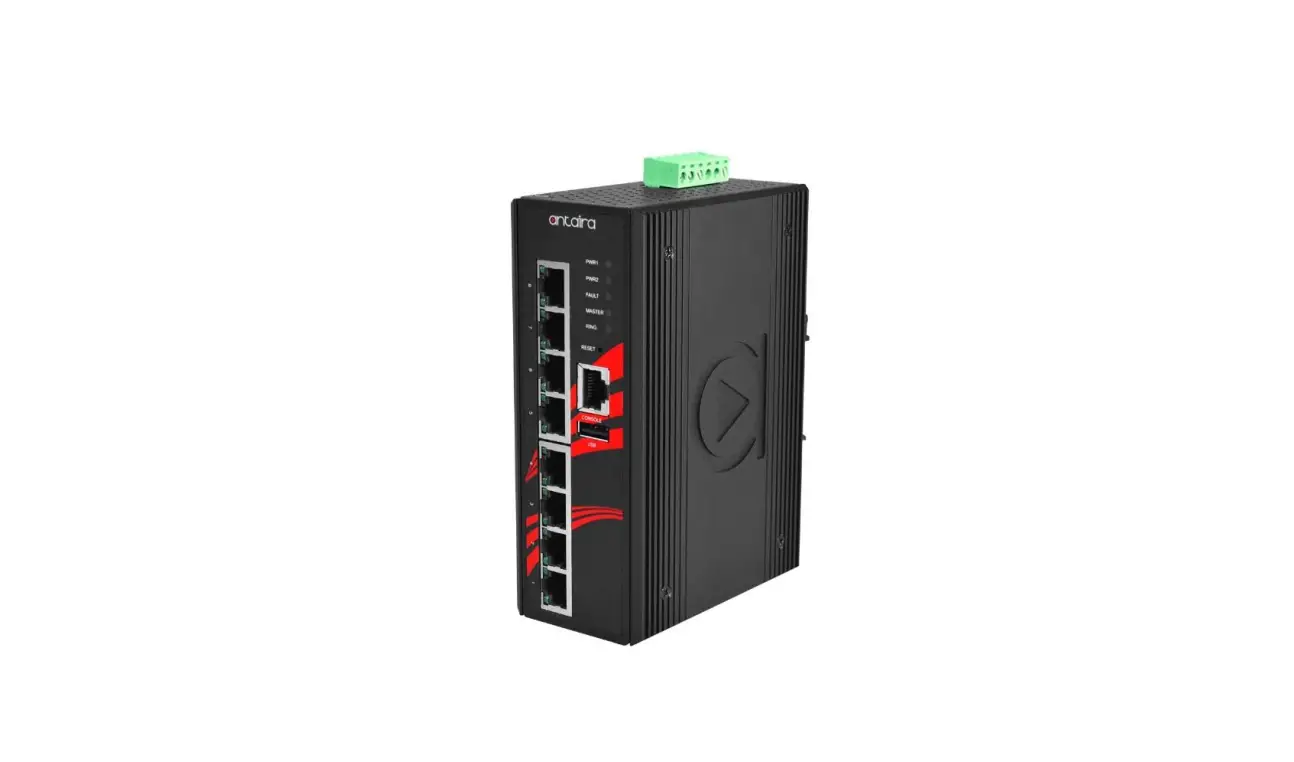
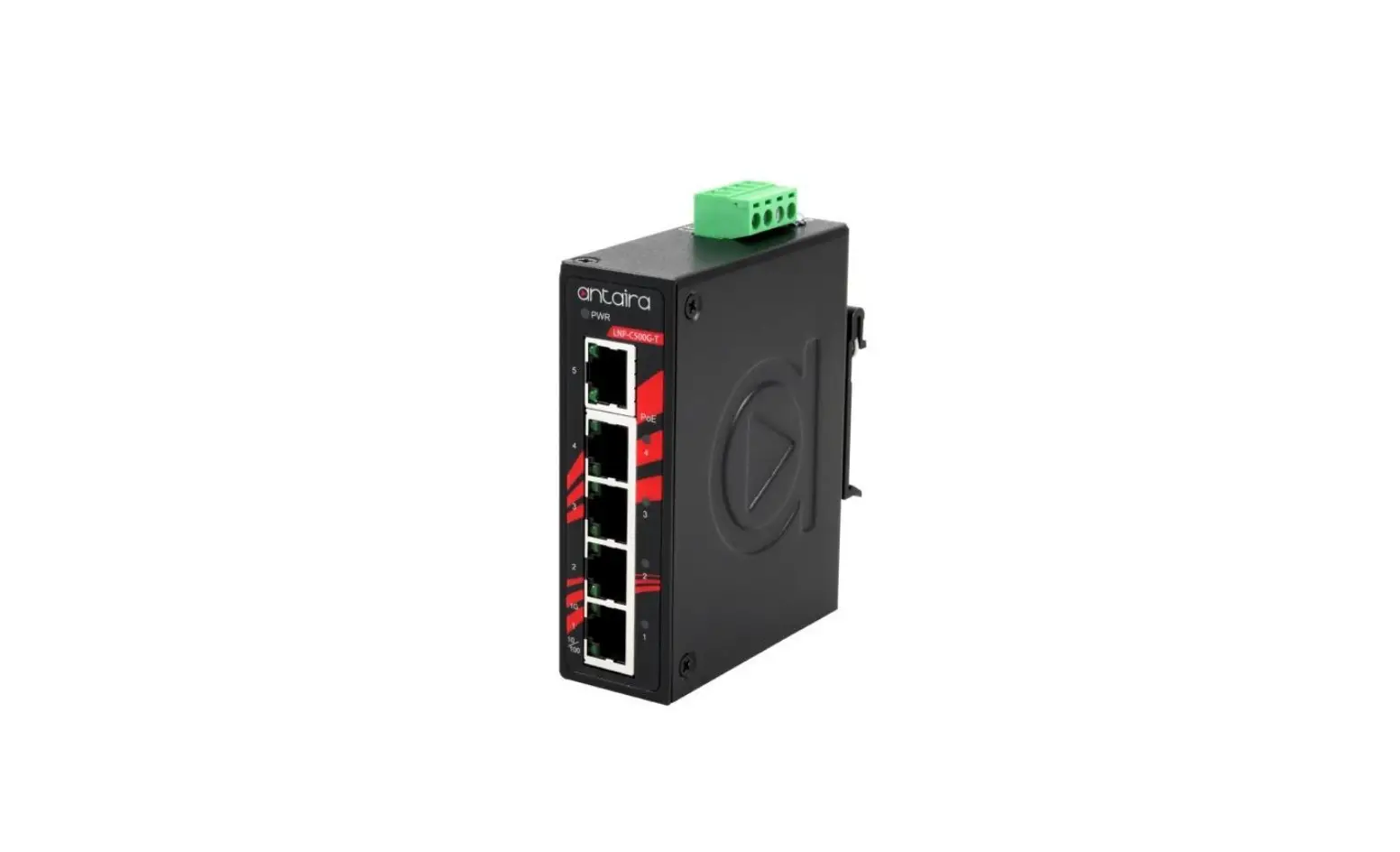
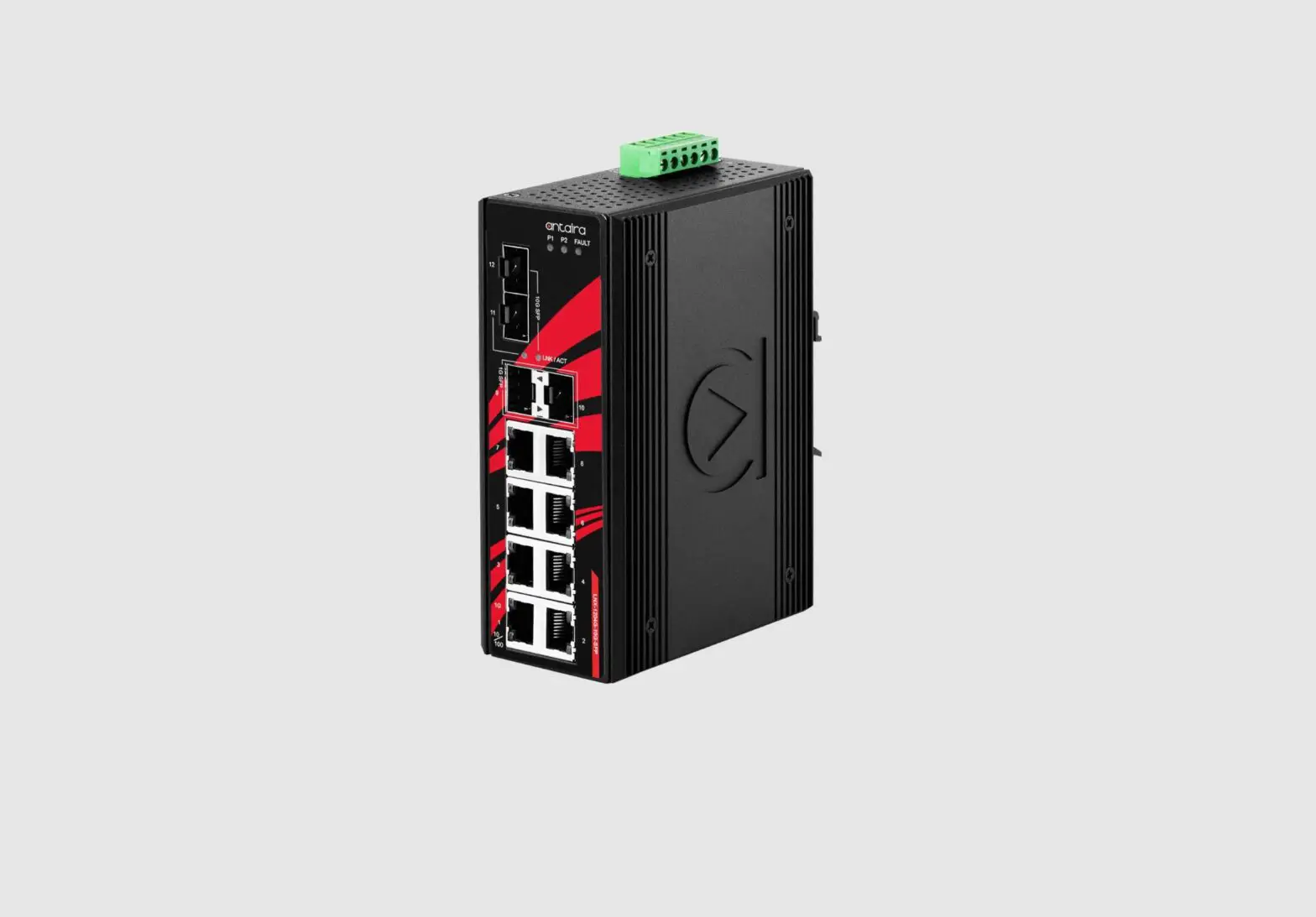
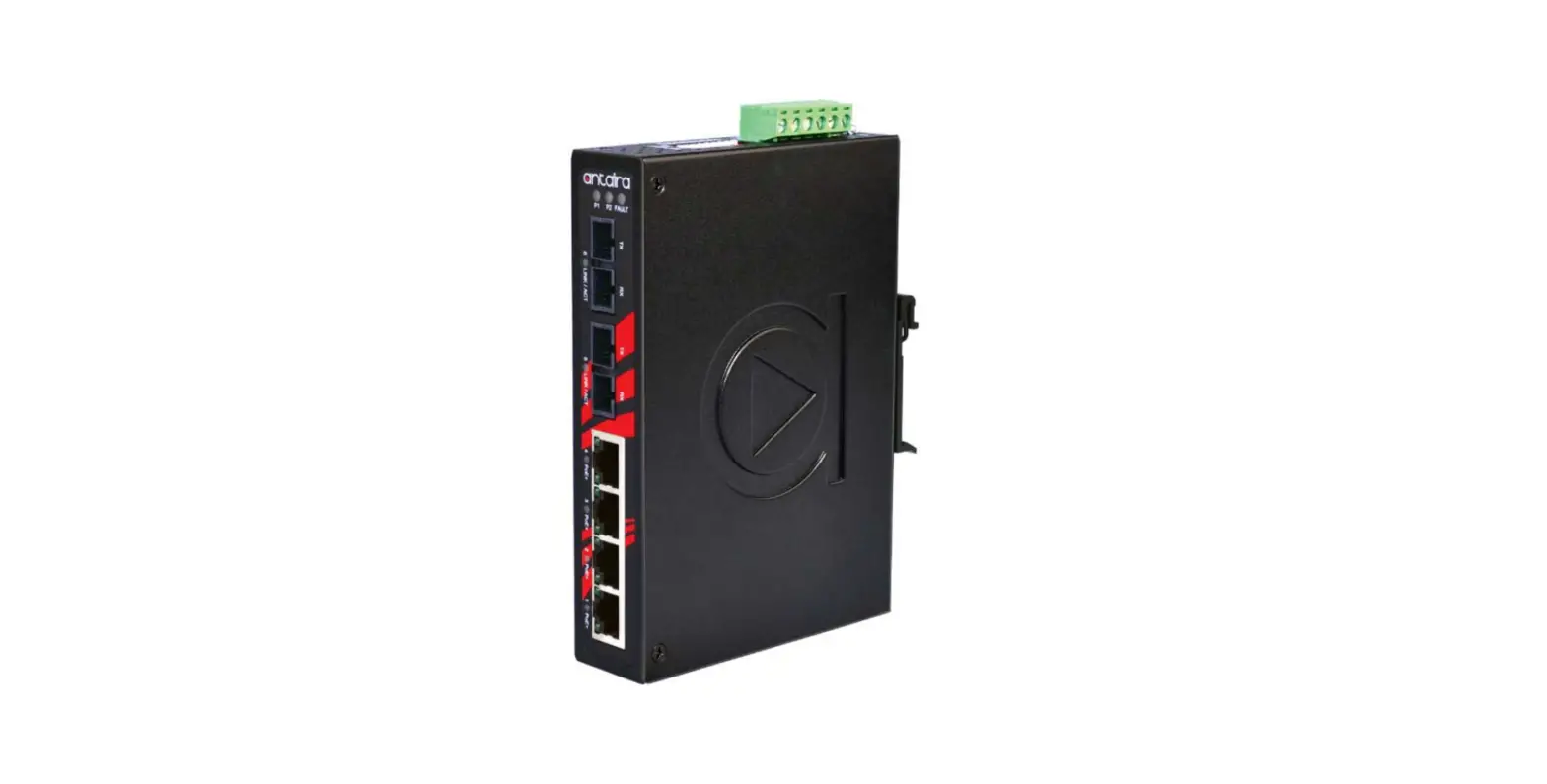
LMP-2602G-SFP 26-Port Industrial PoE Plus Gigabit Managed Ethernet Switch
Product Information
The LMP-2602G-SFP series is a 26-port industrial PoE+ Gigabit
managed Ethernet switch designed by Antaira Technologies. It comes
with 24 10/100/1000Tx (30W/Port) ports and 2 Gigabit combo ports (2
10/100/1000Tx RJ45 and 2 100/1000 SFP slots). The switch has a
quick installation guide version 1.0 (September 2022). The front
panel layout includes LEDs for Power 1, Power 2, Fault, Master, and
Ring, a console port, a reset button, a USB configuration backup,
SFP Port# 25~26 LED for Link/Activity Status 100/1000Mbps, LAN#
1~24 LED for PoE Status, LAN# 1~24 LED for Link/Activity Status
10/100/1000Mbps, LAN# 25~26 LED for Link/Activity Status 1000Mbps,
and LAN# 25~26 LED for Link/Activity Status 10/100Mbps. The back
panel view includes one 8-pin redundant power inputs (48~55VDC) and
one 2-pin removal terminal block for relay output. The switch
supports auto MDI/MDI-X function and has a store-and-forward
switching architecture with an 8K MAC address table.
Product Usage Instructions
Follow the instructions below to use the LMP-2602G-SFP series
industrial PoE+ Gigabit managed Ethernet switch:
- Connect the switch to a UL listed industrial power supply with
DC 48 to 55V through the 8-pin redundant power inputs. - Use the RJ45 Ethernet port for device connections. The port is
auto-sensing for 10Base-T, 100Base-TX or 1000Base-TX device
connections. - Refer to the RJ45 Ethernet Port Pin Outs table for wiring pin
assignments. - Use the SFP slots for network connections with 100/1000Mbps SFP
modules. - Check the LED indicators for Power 1, Power 2, Fault, Master,
and Ring, LAN (Port 1~24), LAN (Port 1~24), Combo Port LAN (Port
25~26), Combo Port LAN (Port 25~26), Combo Port SFP LNK/ACT (Port
25-26) to monitor the status of the switch and network
connections. - Use the console port, reset button, and USB configuration
backup as needed for troubleshooting and configuration backup
purposes.
Antaira Technologies
Package Check List
The package contains the following items: 1 Quick Installation Guide 1 LMP-2602G-SFP(-T) 1 Rack Mounting Brackets and Screws 1 RJ45 to DB9 Serial Console Cable 1 Dust Cover Set
LMP-2602G-SFP Series
26-Port Industrial PoE+ Gigabit Managed Ethernet Switch, with 24*10/100/1000Tx (30W/Port) and 2* Gigabit Combo Ports
(2*10/100/1000Tx RJ45 and 2*100/1000 SFP Slots)
Quick Installation Guide Version 1.0 (September 2022)
Front Panel Layout
LED for Power 1, Power 2, Fault, Master, and Ring
LAN# 1~24 10/100/1000Tx RJ45 (30W/Port)
Console Port
Combo Port# 25~26 10/100/1000Tx RJ45 and 100/1000Fx SFP
Reset Button
USB Configuration Backup
SFP Port# 25~26 LED for Link/Activity Status 100/1000Mbps
LAN# 1~24 LED for PoE Status
LAN# 1~24 LED for Link/Activity Status 10/100/1000Mbps
LAN# 25~26 LED for Link/Activity Status 1000Mbps
LAN# 25~26 LED for Link/Activity Status 10/100Mbps
Back Panel View
LMP-2602G-SFP series back panel is equipped with one 8-pin redundant power inputs (48~55VDC) and one 2-pin removal terminal block for relay output.
24VDC @1A Relay Output
Tel: 1-844-268-2472 Fax: 1-714-671-9944
www.antaira.com
Power Input 1 and 2 Grounding Screw Connectors
19020000000191
Product Overview
System Interface/Performance All RJ45 ports support the auto MDI/MDI-X function Embedded 24*10/100/1000Tx RJ45 ports (30W/Port) and
2*Gigabit combo ports (2*10/100/1000Tx and 2*100/1000 SFP slots) Store-and-forward switching architecture 8K MAC address table Power Input & Connection DC 48 to 55V through 8-pin redundant power inputs It is recommended to use a UL listed industrial power supply
Operating Temperature Standard operating temperature model: -10°C to 65°C Extended operating temperature model: -40°C to 75°C Case/Installation IP40 Protection 1U Rackmount Design
LED Indicators
LED Power 1
Power 2
Fault
Master
Ring
LAN (Port 1~24)
LAN (Port 1~24)
Combo Port LAN
(Port 25~26)
Combo Port LAN
(Port 25~26)
Combo Port SFP
LNK/ACT (Port 25-26)
Color Green Green Green Red Green Green
Green
Green Green Green Green Amber
On Off On Off On On Flashing On Off
Description
Power input 1 is active
Power input 1 is inactive
Power input 2 is active
Power input 2 is inactive
No event happened 1. System booting 2. Configured event happens Firmware upgrading ERPS Owner Mode (Ring Master) is ready ERPS Owner Mode is not active
On Flashing
Off On Flashing
ERPS Ring Network is active
ERPS Ring works abnormally or misconfigure
ERPS Ring Network is not active
Connected to network, 10/100/1000Mbps
Networking is active
Off
Not connected to network
On
Supplying power to the powereddevice
Off
Not connected to a powered-device
On Flashing
Off On Flashing Off On Flashing Off On Flashing Off
Connected to network, 1000Mbps Networking is active Not connected to network Connected to network, 10/100Mbps Networking is active Not connected to network Connected to network, 1000Mbps Networking is active Not connected to network Connected to network, 100Mbps Networking is active Not connected to network
Quick Installation
Ethernet RJ45 Port (Auto MDI/MDIX) RJ45 port is auto-sensing for 10Base-T, 100Base-TX or 1000Base-TX device connections. Please follow the wiring pin assignment table below for the Ethernet port installation.
RJ45 Ethernet Port Pin Outs
Pins
T568A Color T568B Color
10/100 Base-T(X)
1
White/Green White/Orang
Rx+
2
Green
Orange
Rx-
3
White/Orang White/Green
Tx+
4
Blue
Blue
unused
5
White/Blue
White/Blue
unused
6
Orange
Green
Tx-
7
White/Brown White/Brown
unused
8
Brown
Brown
unused
1000 Base-T TP0+
TP0TP1+ TP2+ TP2TP1TP3+ TP3-
SFP Slots The Small Form-Factor Pluggable (SFP) is a compact optical
transceiver used in optical communications.
Please follow the steps below for connecting the SFP and LC cable: 1. Insert the SFP transceiver module into the SFP slot as
shown below in Figure 1 (Please be noted that the triangle mark is at the bottom of the SFP slot). Figure 2 shows the SFP transceiver module was inserted.
Figure 1
Figure 2
2. Insert the fiber cable of the LC connector into the transceiver as shown below in Figure 3.
Figure 3
Power Inputs Wiring Please follow the below steps to insert the power wire: 1. Insert the positive and negative wires into the PWR1 (V1+,
V1-) and PWR2 (V2+, V2-) contacts on the terminal block connector. See Figure 4. 2. Tighten the wire-clamp screws to prevent the wires from loosening.
Figure 4
Industrial Switch Mounting The switch comes with a rack-mounted kit can be mounted in an EIA standard size, 19-inch rack. It can be placed in a wiring closet with other equipment.
Perform the following steps to rack-mount the switch.
1. Position one plate to align with the holes on one side of the hub and secure it with the smaller plate screws. Then, attach the remaining plate to the other side of the switch.
2. After attaching both mounting plates, position the switch in the rack by lining up the holes in the plates with the appropriate holes on the rack. Secure the switch to the rack with a screwdriver and the rack-mounting screws.
*Note: For proper ventilation, allow at least 4 inches (10 cm) of clearance on the front and 3.4 inches (8 cm) on the back of the switch. This is especially important for enclosed rack installation.
Field Maintenance and Service
If the device requires servicing of any kind, the user is required to disconnect and remove it from its mounting. The initial installation should be done in a way that makes this as convenient as possible.
Voltage/Power lines should be properly insulated as well as other cables. Be careful when handling them so as to not trip over it.
Do not under any circumstance insert foreign objects of any kind into the heat dissipation holes located in the different faces of the device. This may not only harm the internal layout, but might cause harm to user as well.
Do not under any circumstance open the device for any reason. Please contact your dealer for any repair needed or follow the instructions within the manual.
Warranty Policy
Warranty Conditions Products supplied by Antaira Technologies are covered in this warranty for sub-standard performance or defective workmanship. The warranty is not, however, extended to goods damaged in the following circumstances: (a) Excessive forces or impacts (b) War or an Act of God: wind storm, fire, flood, electric shock, earthquake (c) Use of unqualified power supply, connectors, or unauthorized parts/kits (d) Replacement with unauthorized parts
RMA and Shipping Costs Reimbursement Customers shall always obtain an authorized “RMA” number from Antaira before shipping the goods for repair or replacement. Within the warranty period (based on the invoice date), all parts and labor are free of charge to the customers. Customers are responsible for the cost of parts and labor, if the products are out of warranty. For RMA service, customers are responsible for the shipping expense for shipping the RMA unit(s) to Antaira. Antaira is responsible for the shipping expense via a ground service for the return repair/replace unit(s) back to customers.
Limited Liability Antaira would not be held responsible for any consequential losses from using Antaira’s product.
Warranty Period 5-Year Warranty
Antaira’s Customer Service and Support Antaira’s Technical Service & Support Centers:
+ 844-268-2472 (Antaira US Headquarter) + 48-22-862-88-81 (Antaira Europe Office) + 886-2-2218-9733 (Antaira Asia Office)
Antaira’s Web Sites & Repair/Support Emails: www.antaira.com / [email protected] www.antaira.eu / [email protected] www.antaira.com.tw / [email protected]
*Any changes will be announced on the Antaira website.