
Dedicated KVM switch and rackmount screen technology
User Manual
CV-K101
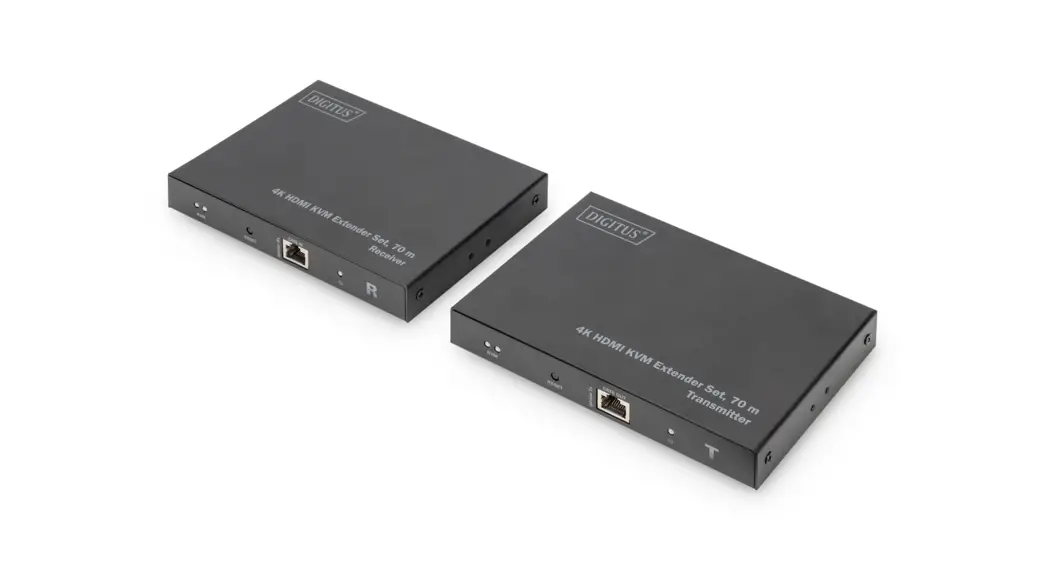
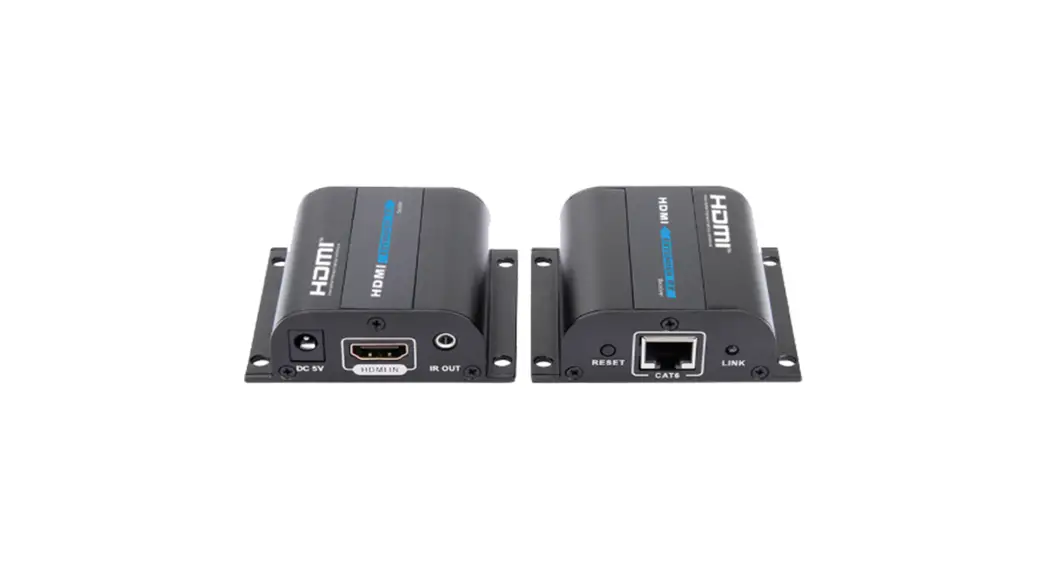
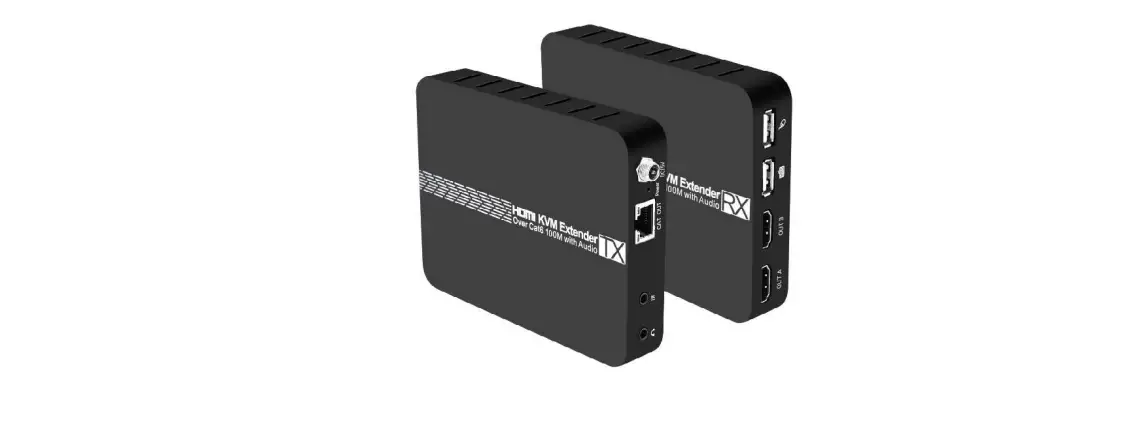
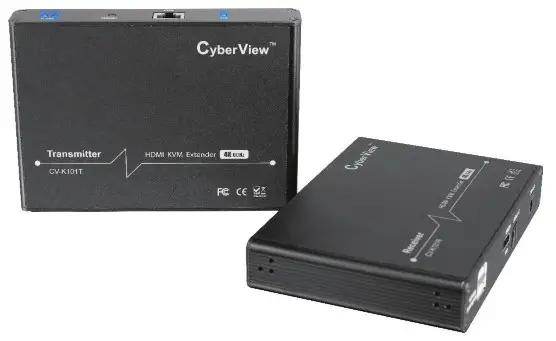
4K HDMI KVM Extender
Designed and manufactured by Austin Hughes
UM-CV-K101-Q421V1
www.austin-hughes.com
Legal Information
First English printing, October 2021
Information in this document has been carefully checked for accuracy; however, no guarantee is given to the correctness of the contents. The information in this document is subject to change without notice. We are not liable for any injury or loss that results from the use of this equipment.
Safety Instructions
Please read all of these instructions carefully before you use the device. Save this manual for future reference.
- Unplug equipment before cleaning. Don’t use liquid or spray detergent; use a moist cloth.
- Keep equipment away from excessive humidity and heat. Preferably, keep it in an air-conditioned environment with temperatures not exceeding 40º Celsius (104º Fahrenheit).
- When installing, place the equipment on a sturdy, level surface to prevent it from accidentally falling and causing dam age to other equipment or injury to persons nearby.
- When the equipment is in an open position, do not cover, block or in any way obstruct the gap between it and the power supply. Proper air convection is necessary to keep it from overheating.
- Arrange the equipment’s power cord in such a way that others won’t trip or fall over it.
- If you are using a power cord that didn’t ship with the equipment, ensure that it is rated for the voltage and current labeled on the equipment’s electrical ratings label. The voltage rating on the cord should be higher than the one listed on the equipment’s ratings label.
- Observe all precautions and warnings attached to the equipment.
- If you don’t intend on using the equipment for a long time, disconnect it from the power outlet to prevent being damaged by transient over-voltage.
- Keep all liquids away from the equipment to minimize the risk of accidental spillage. Liquid spilled on to the power supply or on other hardware may cause damage, fi re or electrical shock.
- Only qualifi ed service personnel should open the chassis. Opening it yourself could damage the equipment and invalid date its warranty.
- If any part of the equipment becomes damaged or stops functioning, have it checked by qualifi ed service personnel.
What the warranty does not cover
- Any product, on which the serial number has been defaced, modifi ed or removed.
- Damage, deterioration or malfunction resulting from:
□ Accident, misuse, neglect, fire, water, lightning, or other acts of nature, unauthorized product modifi cation, or failure to follow instructions supplied with the product.
□ Repair or attempted repair by anyone not authorized by us.
□ Any damage of the product due to shipment.
□ Removal or installation of the product.
□ Causes external to the product, such as electric power fluctuation or failure.
□ Use of supplies or parts not meeting our specifi cations.
□ Normal wear and tear.
□ Any other causes which do not relate to a product defect. - Removal, installation, and set-up service charges.
Regulatory Notices Federal Communications Commission (FCC)
This equipment has been tested and found to comply with the limits for a Class B digital device, pursuant to Part 15 of the FCC rules. These limits are designed to provide reasonable protection against harmful interference in a residential installation. Any changes or modifi cations made to this equipment may void the user’s authority to operate this equipment. This equipment generates, uses, and can radiate radio frequency energy and, if not installed and used in accordance with the instructions, may cause harmful interference to radio communications. However, there is no guarantee that interference will not occur in a particular installation. If this equipment does cause harmful interference to radio or television reception, which can be determined by turning the equipment off and on, the user is encouraged to try to correct the interference by one or more of the following measures:
- Re-position or relocate the receiving antenna.
- Increase the separation between the equipment and receiver.
- Connect the equipment into an outlet on a circuit diff erent from that to which the receiver is connected.
Before Installation
- It is very important to mount the equipment in a suitable cabinet or on a stable surface.
- Make sure the place has good ventilation, is out of direct sunlight, away from sources of excessive dust, dirt, heat, water, moisture, and vibration.
Unpacking
The equipment comes with the standard parts shown in the package content. Check and make sure they are included and in good condition. If anything is missing or damaged, contact the supplier immediately.
CV-K101
Package Content
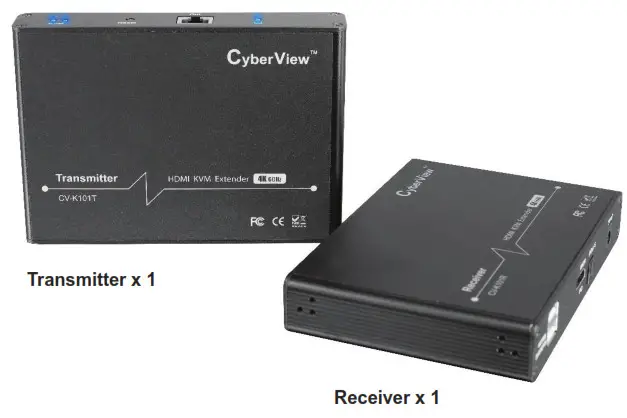
– Transmitter CV-K101T x 1
– Receiver CV-K101R x 1
– Power adapter x 2
– USB cable x 1
– Pack of mounting brackets & screws x 1
| Model | Packing Dimension (W x D x H) | Gross Weight |
| CV-K101 | 362 x 154 x 86 mm 14.25 x 6.06 x 3.39 inch | 1.09 kg 2.40 lb |
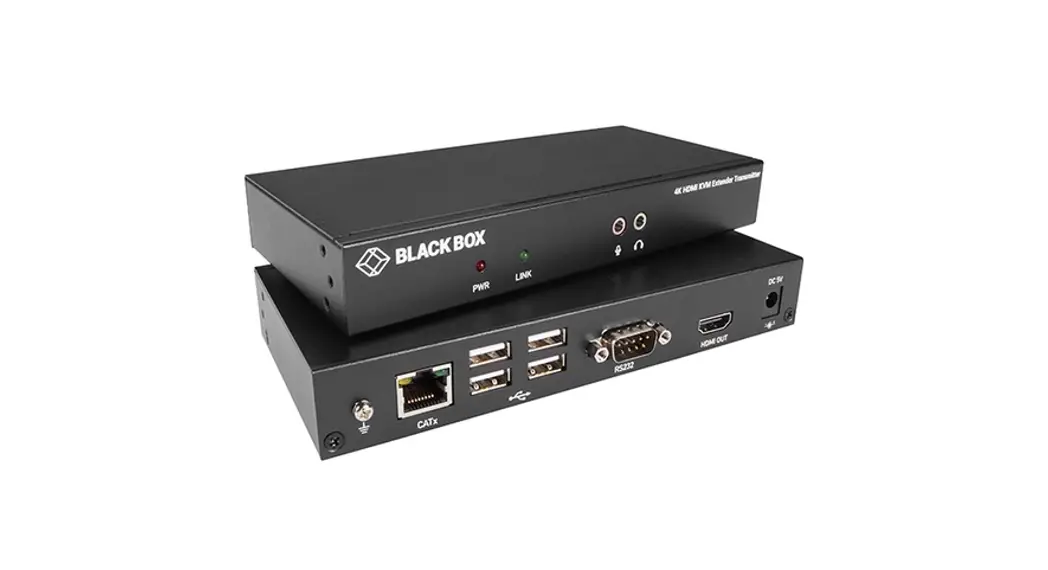
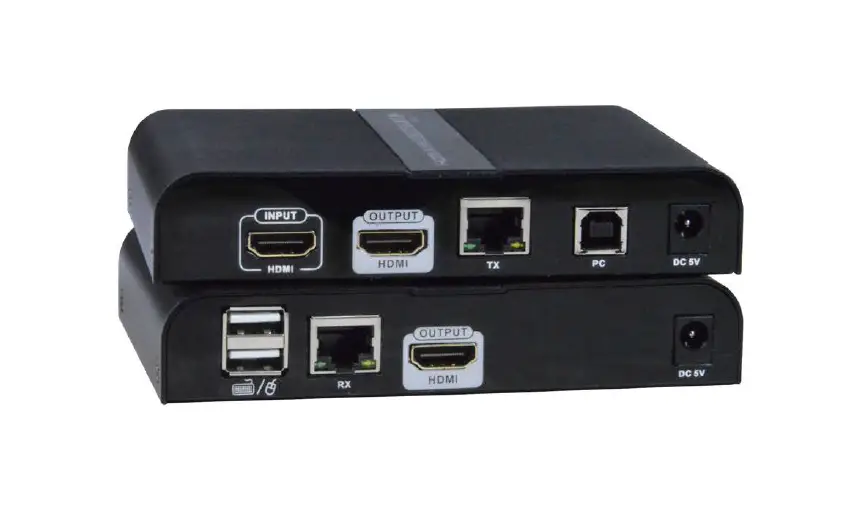
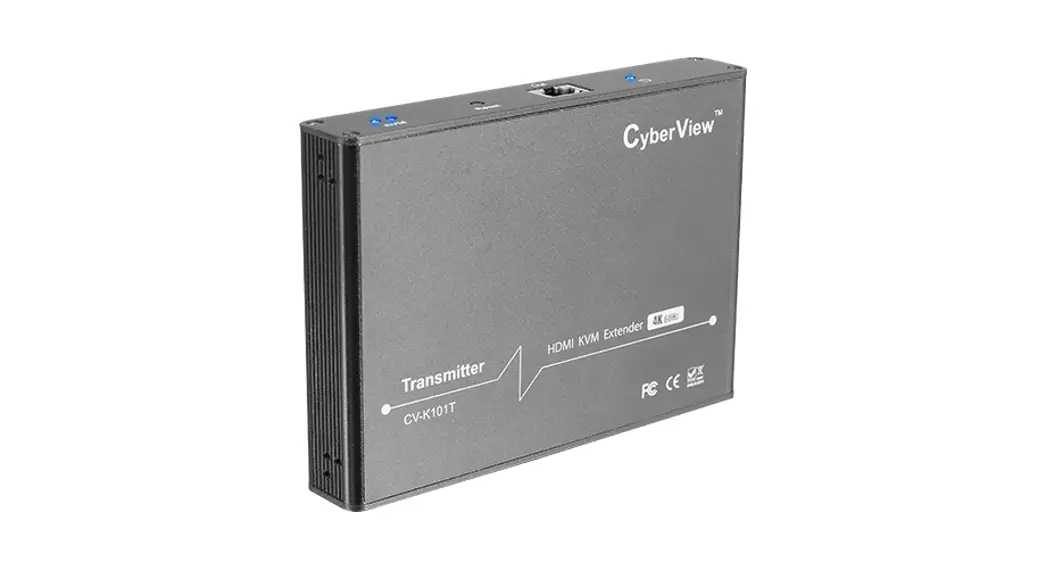
Transmitter ( CV-K101T )
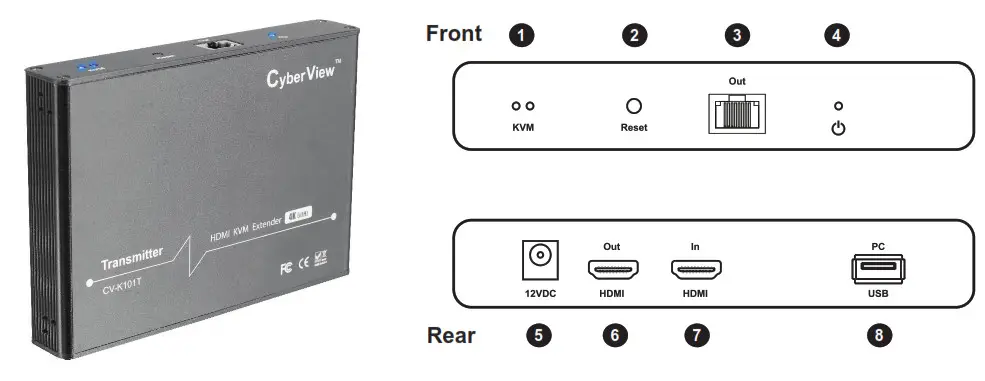
| 1 | Reset | a). When the host computer is not connected, the indicator light is off. b). When connect to the host computer, the indicator light is on. c). When there is signal transmission, the indicator light fl ashes. |
| 2 | KVM LED | Press the button to restart the device. |
| 3 | Cat6/ 7 Output | Connect with a network cable |
| 4 | Power LED | a). When power is on but no HDMI signal, the indicator flashes. b). When power is on and there is an HDMI signal, the indicator is always on. |
| 5 | 12V DC Power Input | Connect to the 12V DC power adapter. |
| 6 | HDMI Output | Connect to a local HDMI display device. |
| 7 | HDMI Input | Connect to an HDMI source device. |
| 8 | USB-A to Server/ PC | Connect to the computer/ server. |
Product Specification
| Technical | Transmitter |
| HDMI compliance | HDMI2.0, compatible to HDMI1.4 |
| HDCP compliance | HDCP2.2 |
| Transmission medium | Cat6/ 7 |
| Transmission distance | ≤70 meters |
| Audio formats | LPCM/DTS-HD/DTS-Audio/Dolby Digital 5.1CH |
| HDR10 (YUV4:4:4) | support |
| HDMI Loop-out | support |
| S/PDIF out | support |
| EDID through | support |
| KVM function | support |
| Input TMDS signal | 0.7~1.2Vp-p (TMDS) |
| Input DDC signal | 5Vp-p (TTL) |
| HDMI connector | Type A 19 Pins, Female |
| Network cable standard | Cat6/ 7, follow IEEE-5688 standard |
Transmitter ( CV-K101T )
| TV Video Supported | PC Video Supported | ||
| 16:09 | 16:10 | 4:03 | |
| 24 /25 / 30 Hz | 60Hz | ||
| 4K ( 4096 x 2160 ) | 3840 x 2160 | 1680 x 1050 | 1280 x 960 |
| 4K ( 3840 x 2160 ) | 1920 x 1080 | 1280 x 800 | 1024 x 768 |
| 1080p, 720p | 1600 x 900 | / | 800 x 600 |
| 576p, 480p | 1280 x 720 | / | / |
| 576i, 480i | 1366 x 768 | / | / |
| Physical | Transmitter |
| Product (W x D x H) | 150 x 107 x 26 mm |
| 5.91 x 4.21 x 1.03 Inch | |
| Net Weight | 290 g |
| 0.64 lb | |
| Chassis color | Black |
| Chassis materials | Aluminum alloy |
| Power | Transmitter |
| Power supply | 12V |
| Power consumption | 4W |
| Electrostatic protection | Implementation of the standard: IEC61000-4-2 1a Contract discharge level 4 (8KV) 1b Air discharge level 4 (15KV) |
| Compliance | |
| Safety | FCC / CE |
| Environment | RoHS3 / REACH |
| Environmental | |
| Operation temperature | -20 ~ 60°C |
| Storage temperature | -30 ~ 70°C |
| Relative humidity | 0 ~ 90% (no condensation) |
Receiver (CV-K101R)
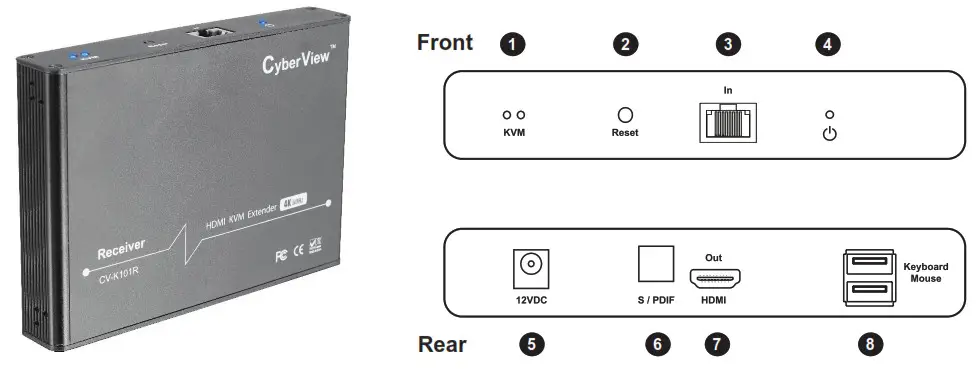
| 1 | KVM LED | a). When the host computer is not connected, the indicator light is off. b). When connect to the host computer, the indicator light is on. c). When there is signal transmission, the indicator light flashes. |
| 2 | Reset | Press the button to restart the device. |
| 3 | Cat6/ 7 Output | Connect with a network cable. |
| 4 | Power LED | a). When power is on but no HDMI signal, the indicator flashes. b). When power is on and there is an HDMI signal, the indicator is always on. |
| 5 | 12V DC Power Input | Connect to the 12V DC power adapter. |
| 6 | HDMI Output | Connect to a local HDMI display device. |
| 7 | HDMI Input | Connect to an HDMI source device. |
| 8 | USB-A to Server/ PC | Connect to the computer/ server. |
Product Specification
| Technical | Receiver |
| HDMI compliance | HDMI2.0, compatible to HDMI1.4 |
| HDCP compliance | HDCP2.2 |
| Transmission medium | Cat6/ 7 |
| Transmission distance | ≤70 meters |
| Audio formats | LPCM/DTS-HD/DTS-Audio/Dolby Digital 5.1CH |
| HDR10 (YUV4:4:4) | support |
| HDMI Loop-out | support |
| S/PDIF out | support |
| EDID through | support |
| KVM function | support |
| Input TMDS signal | 0.7~1.2Vp-p (TMDS) |
| Input DDC signal | 5Vp-p (TTL) |
| HDMI connector | Type A 19 Pins, Female |
| Network cable standard | Cat6/ 7, follow IEEE-5688 standard |
Receiver (CV-K101R)
| TV Video Supported | PC Video Supported | ||
| 16:09 | 16:10 | 4:03 | |
| 24 /25 / 30 Hz | 60Hz | ||
| 4K ( 4096 x 2160 ) | 3840 x 2160 | 1680 x 1050 | 1280 x 960 |
| 4K ( 3840 x 2160 ) | 1920 x 1080 | 1280 x 800 | 1024 x 768 |
| 1080p, 720p | 1600 x 900 | / | 800 x 600 |
| 576p, 480p | 1280 x 720 | / | / |
| 576i, 480i | 1366 x 768 | / | / |
| Physical | Receiver |
| Product (W x D x H) | 150 x 107 x 26 mm |
| 5.91 x 4.21 x 1.03 Inch | |
| Net Weight | 292 g |
| 0.64 lb | |
| Chassis color | Black |
| Chassis materials | Aluminum alloy |
| Power | Receiver |
| Power supply | 12V |
| Power consumption | 4W |
| Electrostatic protection | Implementation of the standard: IEC61000-4-2 1a Contract discharge level 4 (8KV) 1b Air discharge level 4 (15KV) |
| Compliance | |
| Safety | FCC / CE |
| Environment | RoHS3 / REACH |
| Environmental | |
| Operation temperature | -20 ~ 60°C |
| Storage temperature | -30 ~ 70°C |
| Relative humidity | 0 ~ 90% (no condensation) |
Installation
Connection Diagram
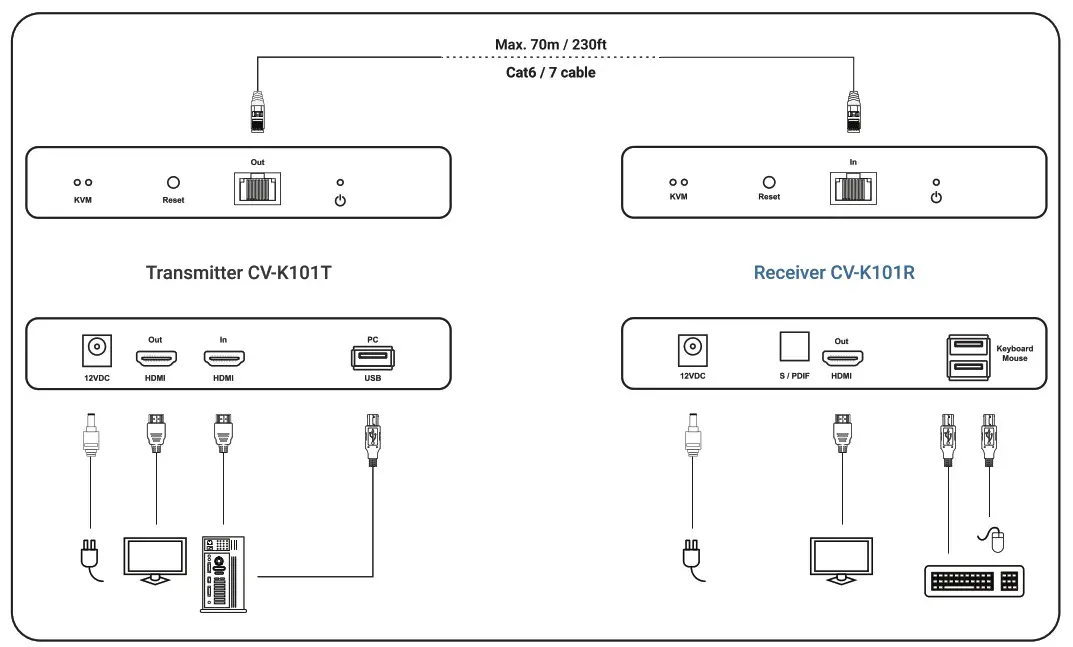
Connection Instruction
- Connect the source devices to the Transmitter HDMI-In port with an HDMI cable, and connect the Receiver HDMI-Out port with another HDMI cable.
- Connect the Transmitter RJ-45 Out port to the Receiver RJ-45 In port via a network cable ( Cat6/ 7 ).
- If using HDMI loop out, connect the display device to the Transmitter HDMI-Out port.
- It is recommended to use a length range within 2 ~ 70M network cable.If the cable is too short, it may cause no display output because of too strong a signal. If the cable is too long, it may cause poor output quality.
FAQ
- No output on-screen even when all connections are correct.
– Please make sure that the HDMI cables support the resolution of the output signal from the source device.
– Please double-check again and make sure the network cable is well-inserted to the RJ-45 ports of the transmitter and receiver.
– Restart the transmitter or receiver by pressing the reset button. - A black screen happened on the display/ monitor.
– Double-check the length of the cable and make sure it is within the specifi ed range.
– Reset the transmitter to re-built the connection. - The display shows unusual color or no sound.
– Reset the transmitter or receiver to re-build the connection.
– Double-check if the HDMI cables are connected well.
– Reconnect the network cable.
The company reserves the right to modify product specifi cations without prior notice and assumes no responsibility for any error which may appear in this publication.
All brand names, logos and registered trademarks are properties of their respective owners.
Copyright 2021 Austin Hughes Electronics Ltd. All rights reserved.
UM-CV-K101-Q421V1 www.austin-hughes.com