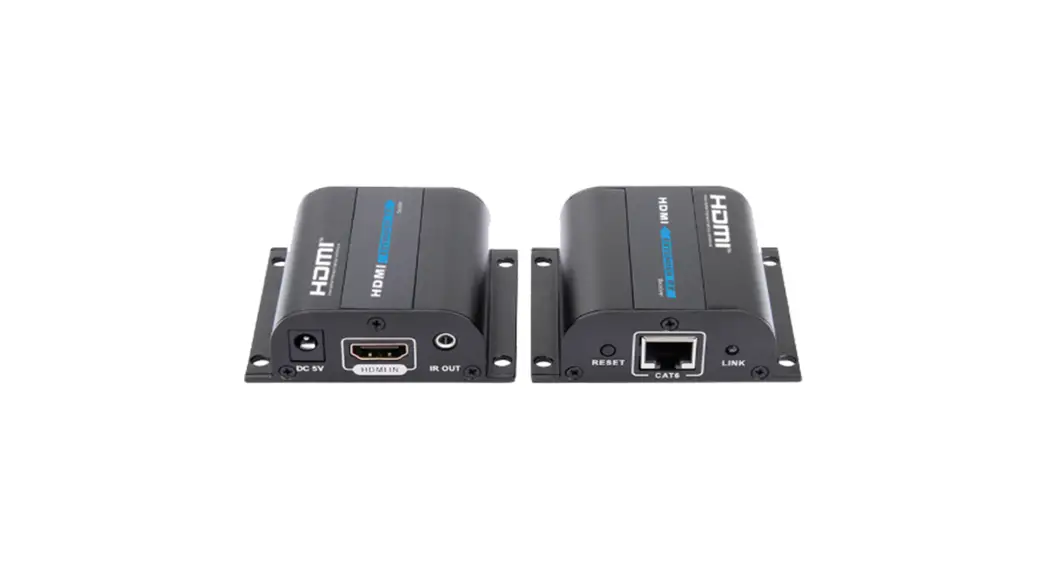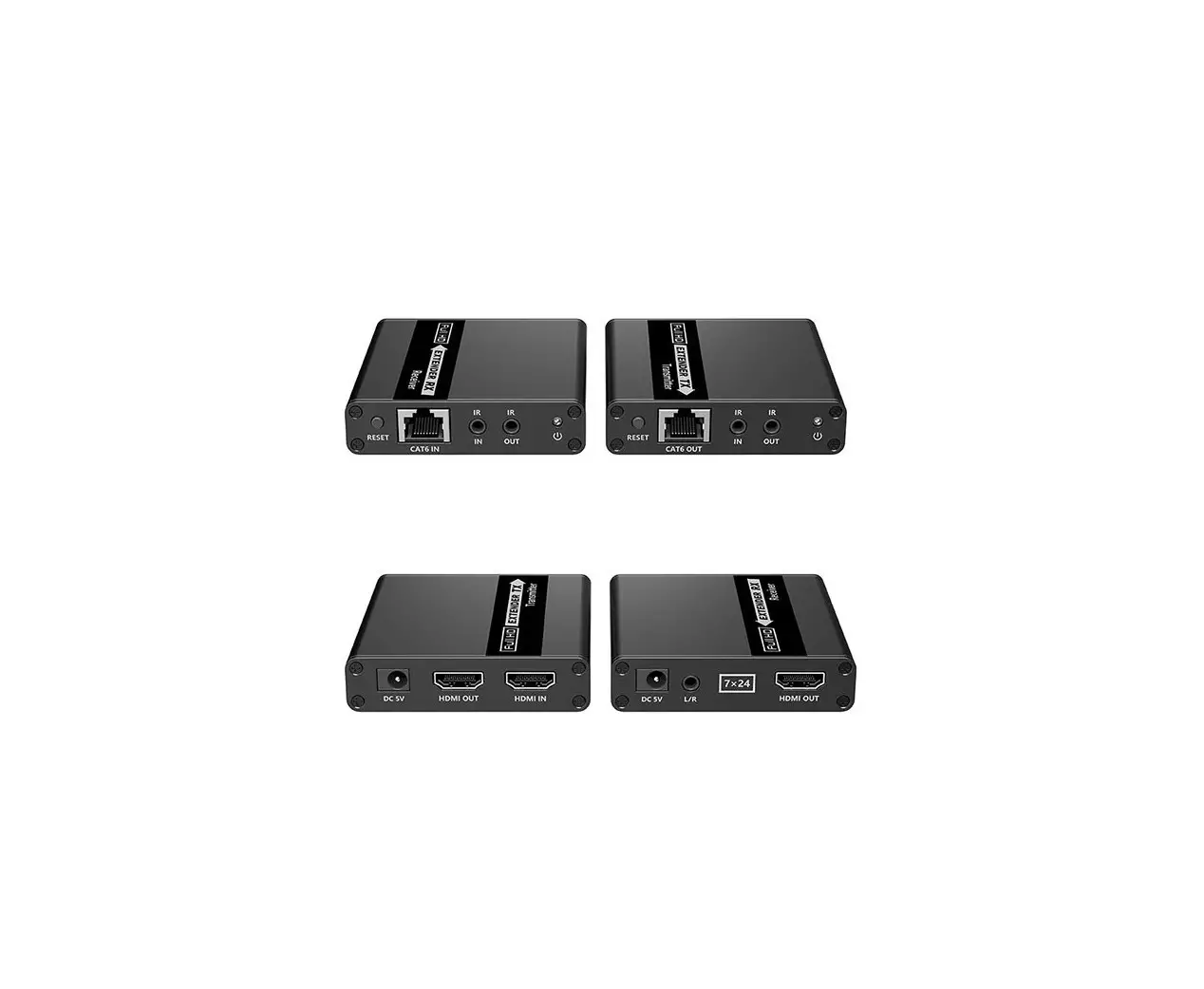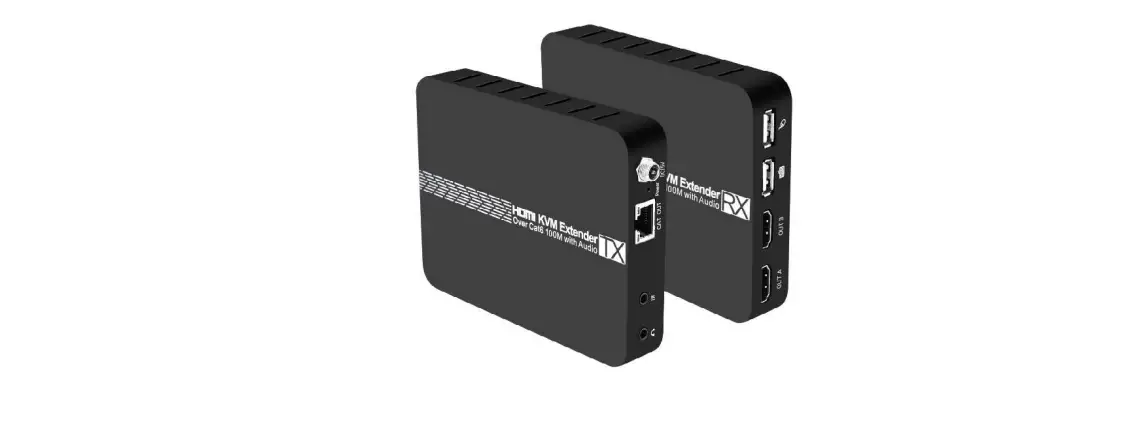
rocstor Y10G006-B1 TrueReach HDMI EXTENDER KVM Point to Point Extender
Important Safety Notice
- Do not mix up HDMI to RJ45 transmitter and RJ45 to HDMI receiver before installation.
- Do not hot plug when the unit is operational.
- Use DC5V-12V power supply only.
Make sure power specification is fully matched, if using a 3rd party adapter. - Static electricity will cause damage to the device. Please do ESD protection when using the device.
Introduction
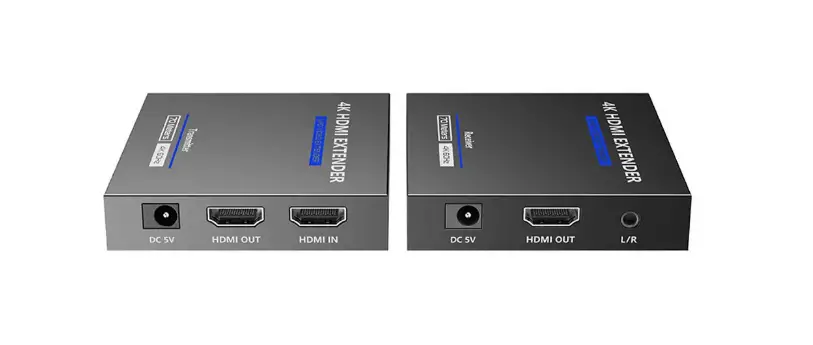
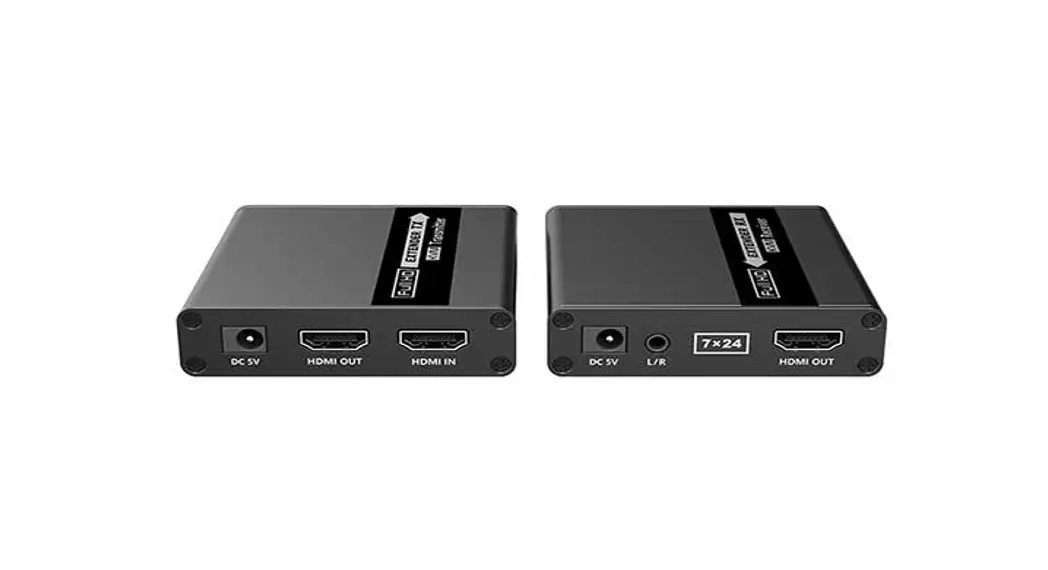
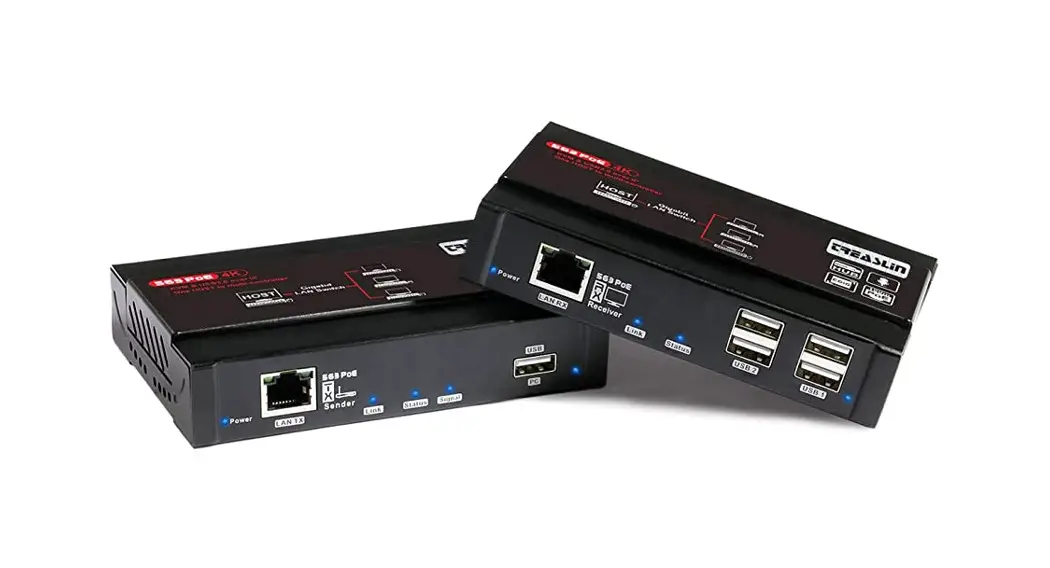
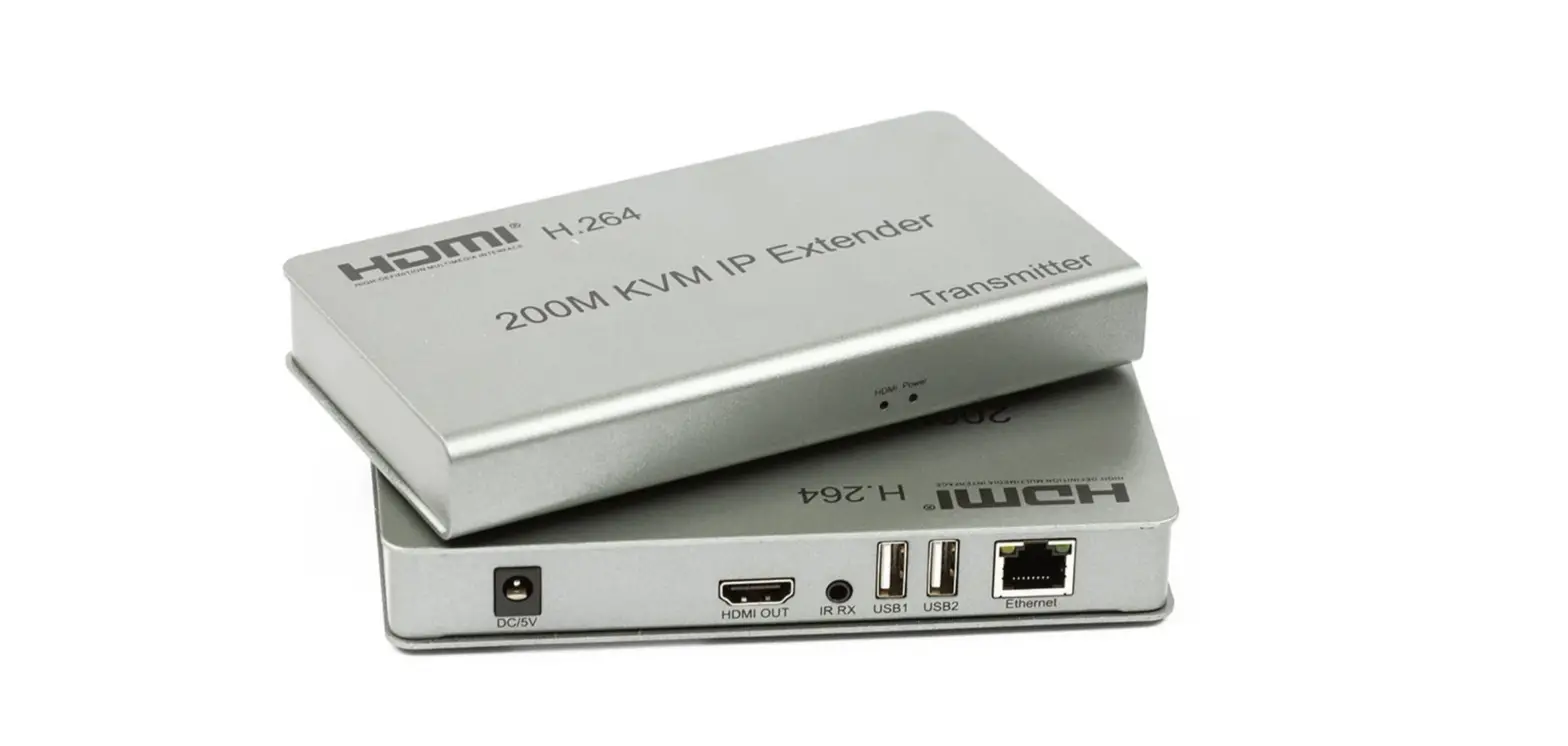
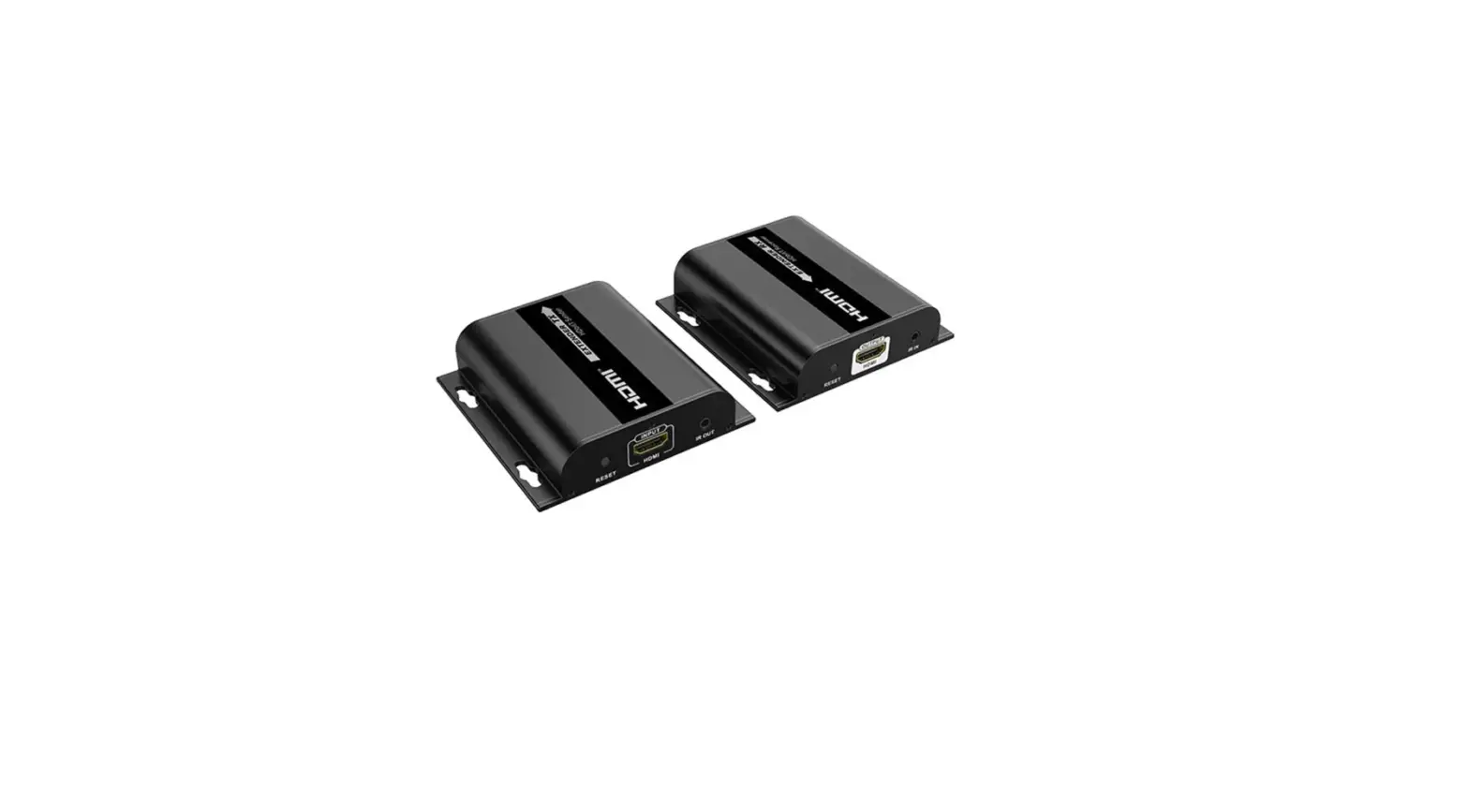
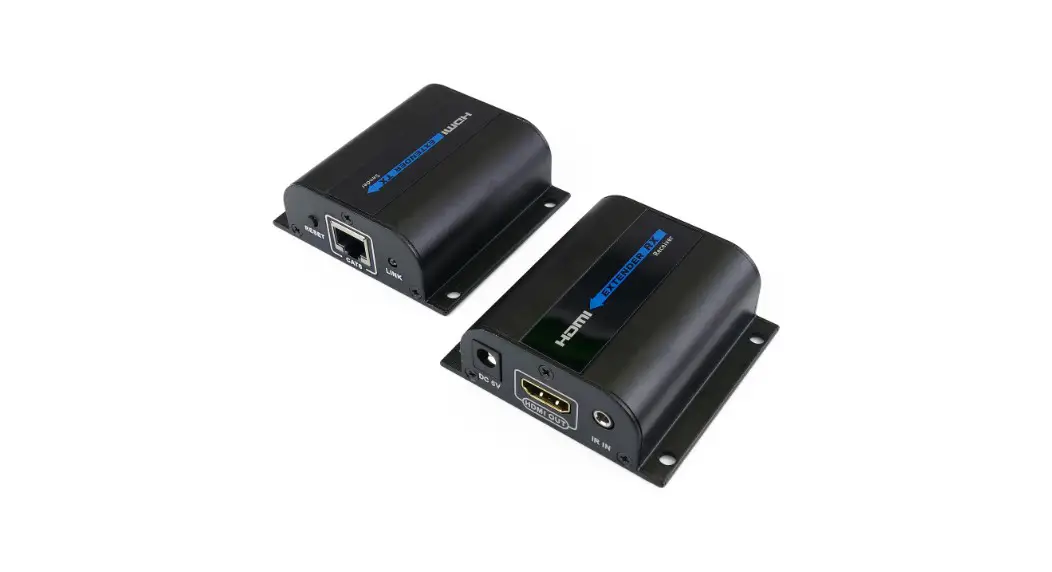
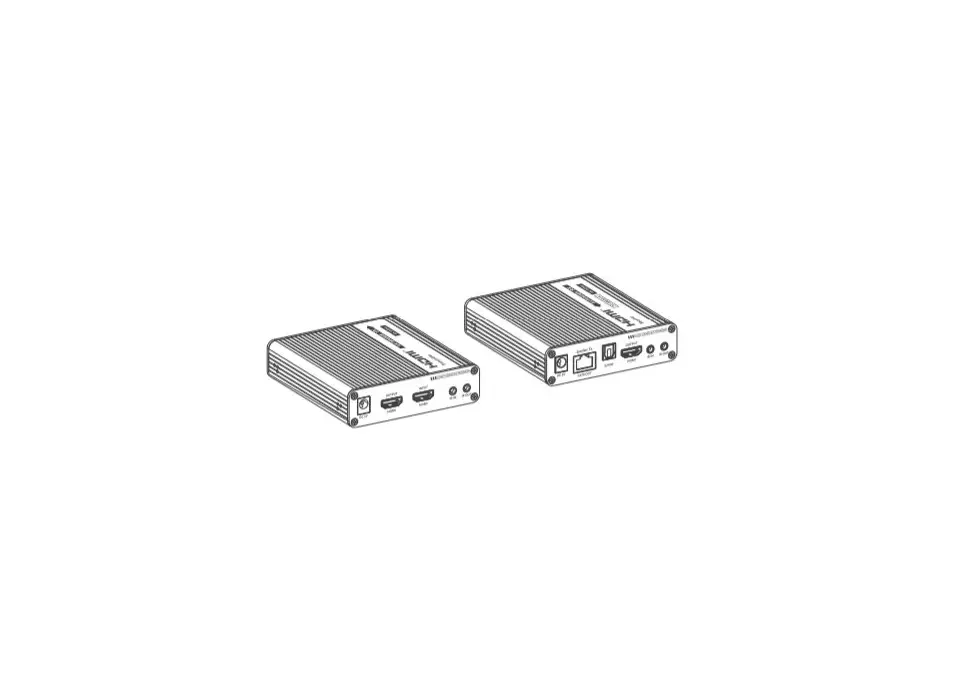
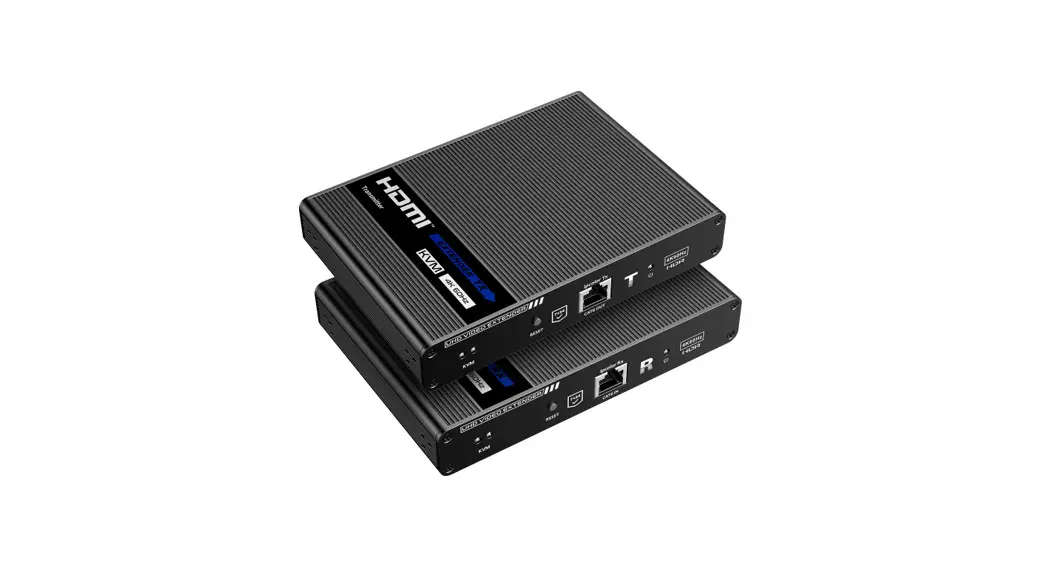
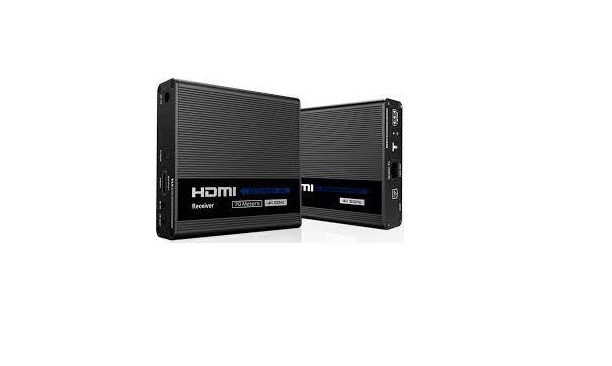
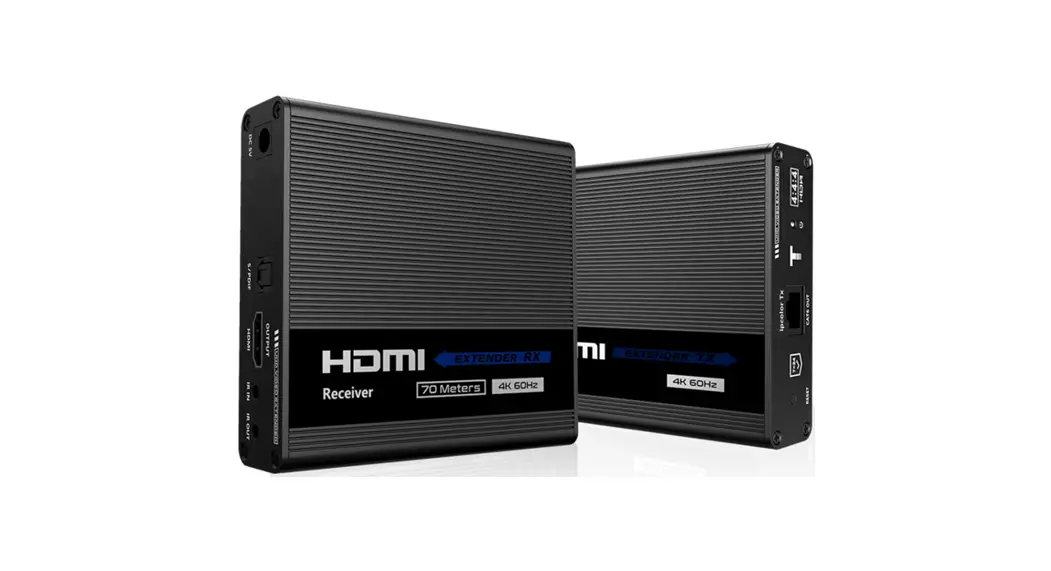
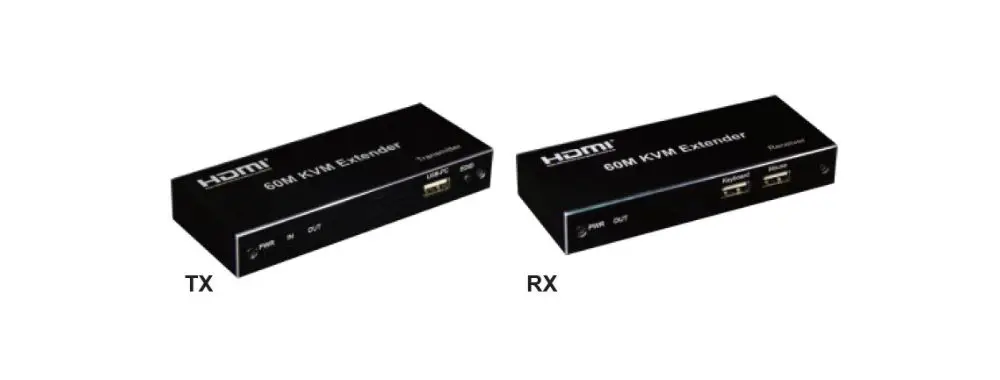
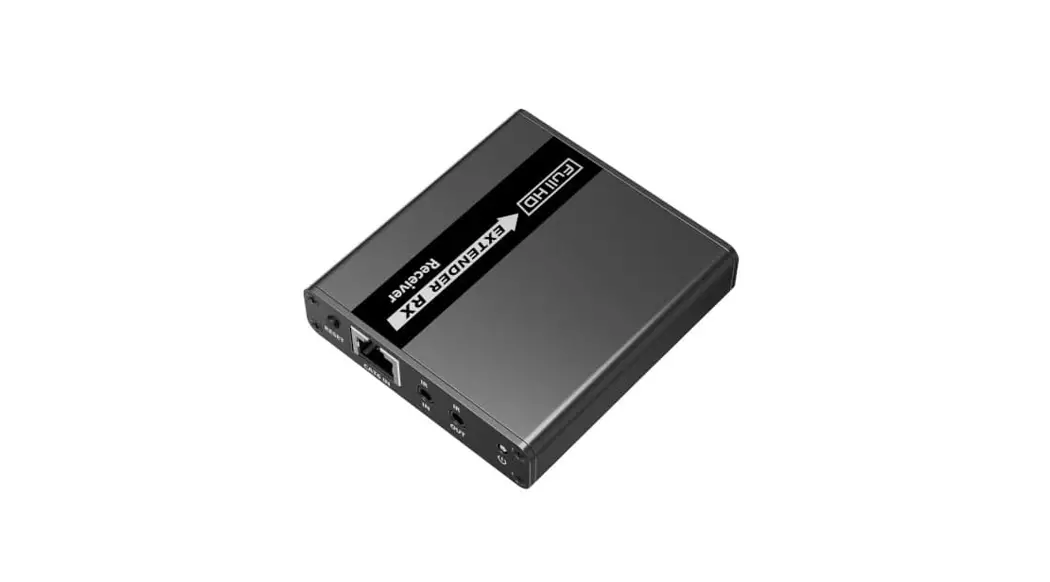
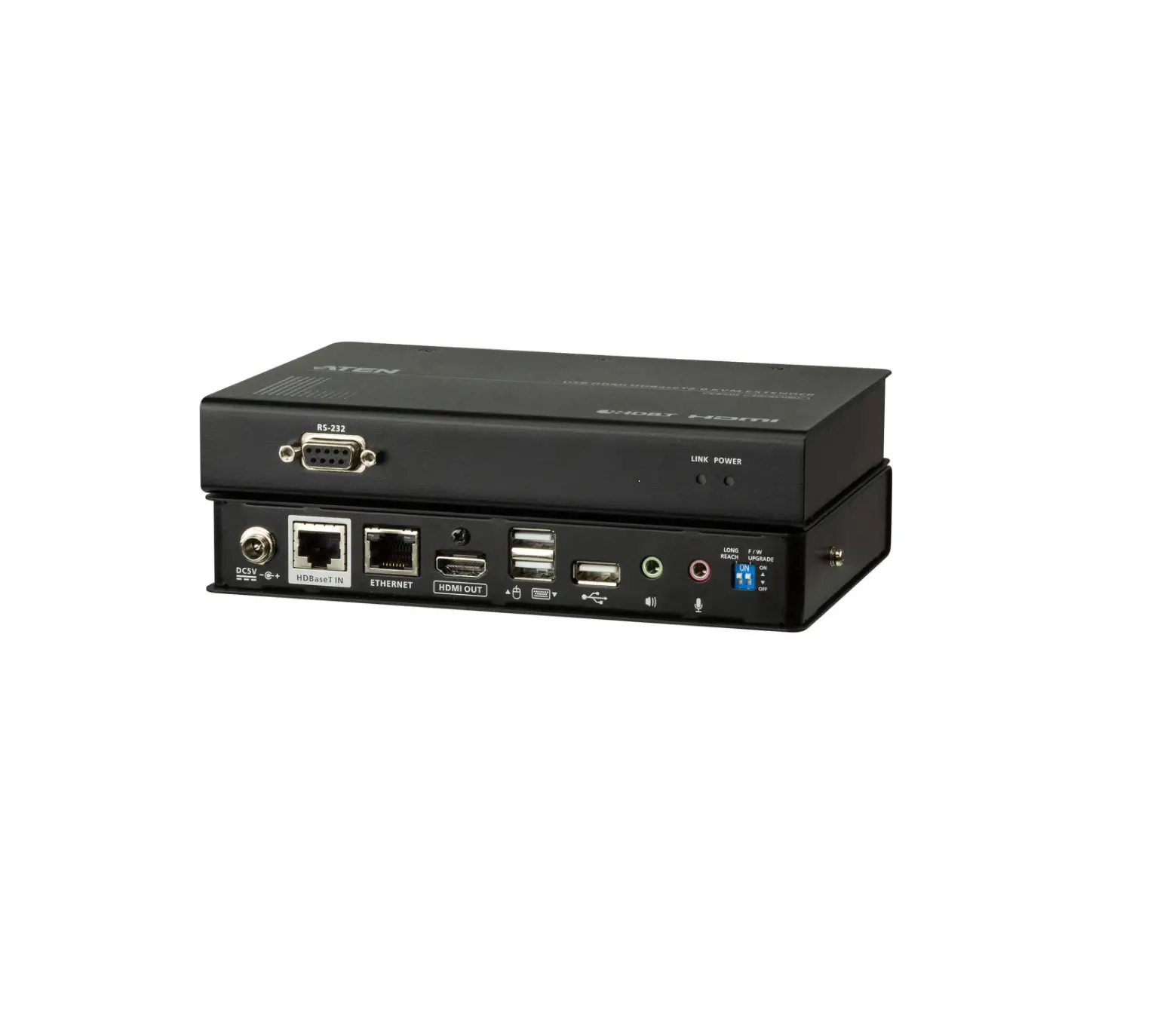
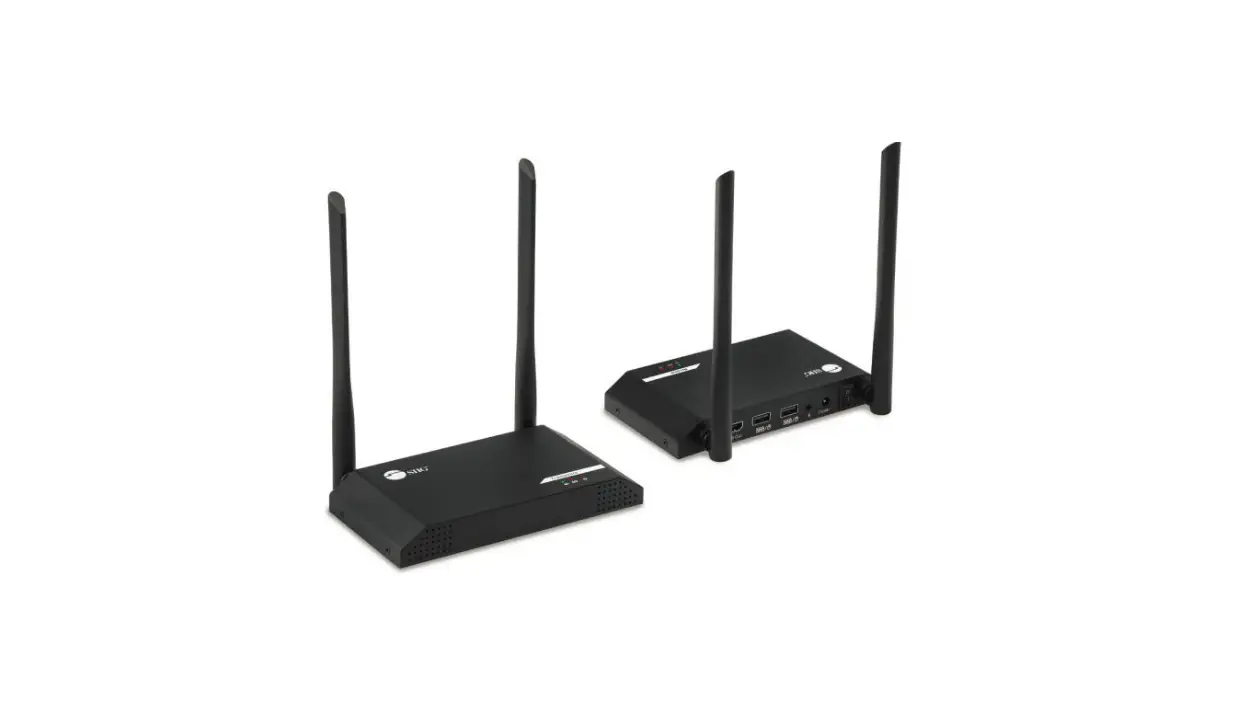
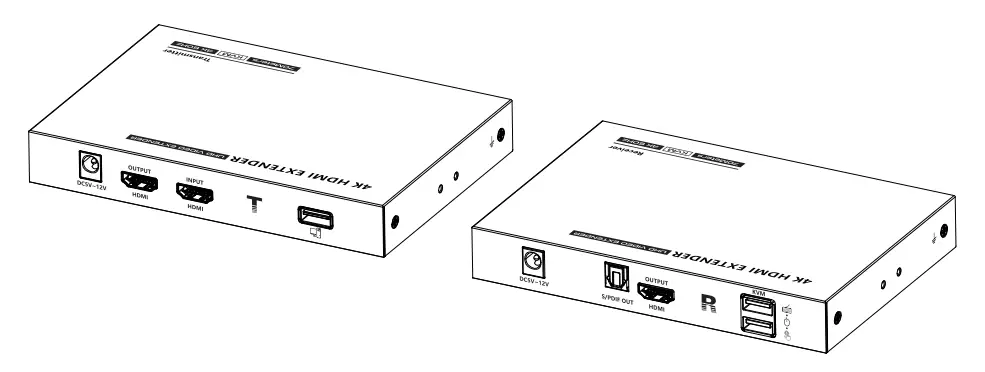
The Rocstor TrueReach HDMI Extender includes a transmitter unit and a receiver unit. It allows HDMI signal to be transmitted up to 230 ft (70m) at 4K resolution using a CAT6/6A/7 network cable. It is perfect for outdoor advertising, video clips, monitor system, home entertainment, and conference, and more.
Features
- Provides Zero latency.
- 4K@60Hz HDMI signal can be transmitted 230 ft (70m) through a CAT6/6A/7 network cable.
- The receiver can extract the digital audio from the transmitter through the S/PDIF port.
- Supports multiple audio formats (LPCM/DTS-HD/DTS-Audio/Dolby Digital 5.1CH).
- Supports HDR(YUV4:4:4), EDID passback.
- Transmitter supports one HDMI loop-out.
- Supports KVM functions. Compatible with mouse, keyboard and touch screen control.
- Lighting protection, surge protection, ESD protection.
Package Contents
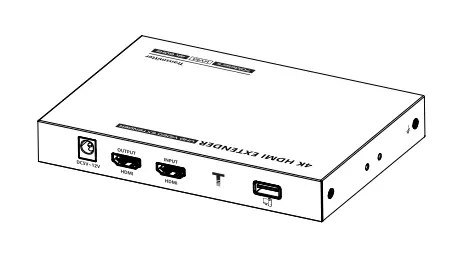
- Transmit terun it x 1pc

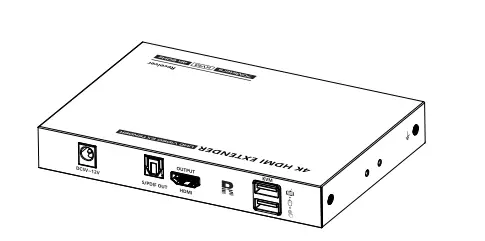
- Receive run it x 1pc

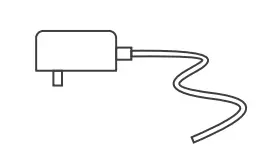
- DC5V/2A x 2pcs

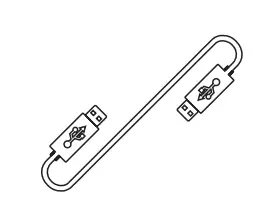
- USB Cable x1pc

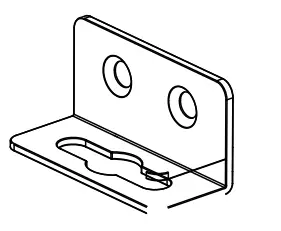
- Mounting brackets x4pcs

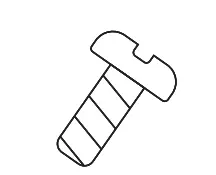
- Screw x10pcs

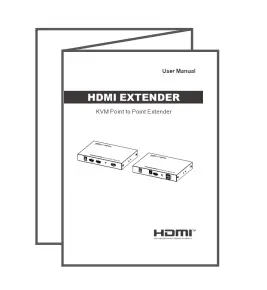
- User manual x 1pc

Installation Requirements
- HDMI source device (compute graphics card, DVD, PS3, )HD monitoring equipment etc.
- HDMI display device like SDTV, HDTV, projector with HDMI port.
- UTP/STP CAT6/CAT6A/CAT7 cable. Follow standard IEEE-568B, It is recommended to select a network cable with less loss and crosstalk.
Interfaces
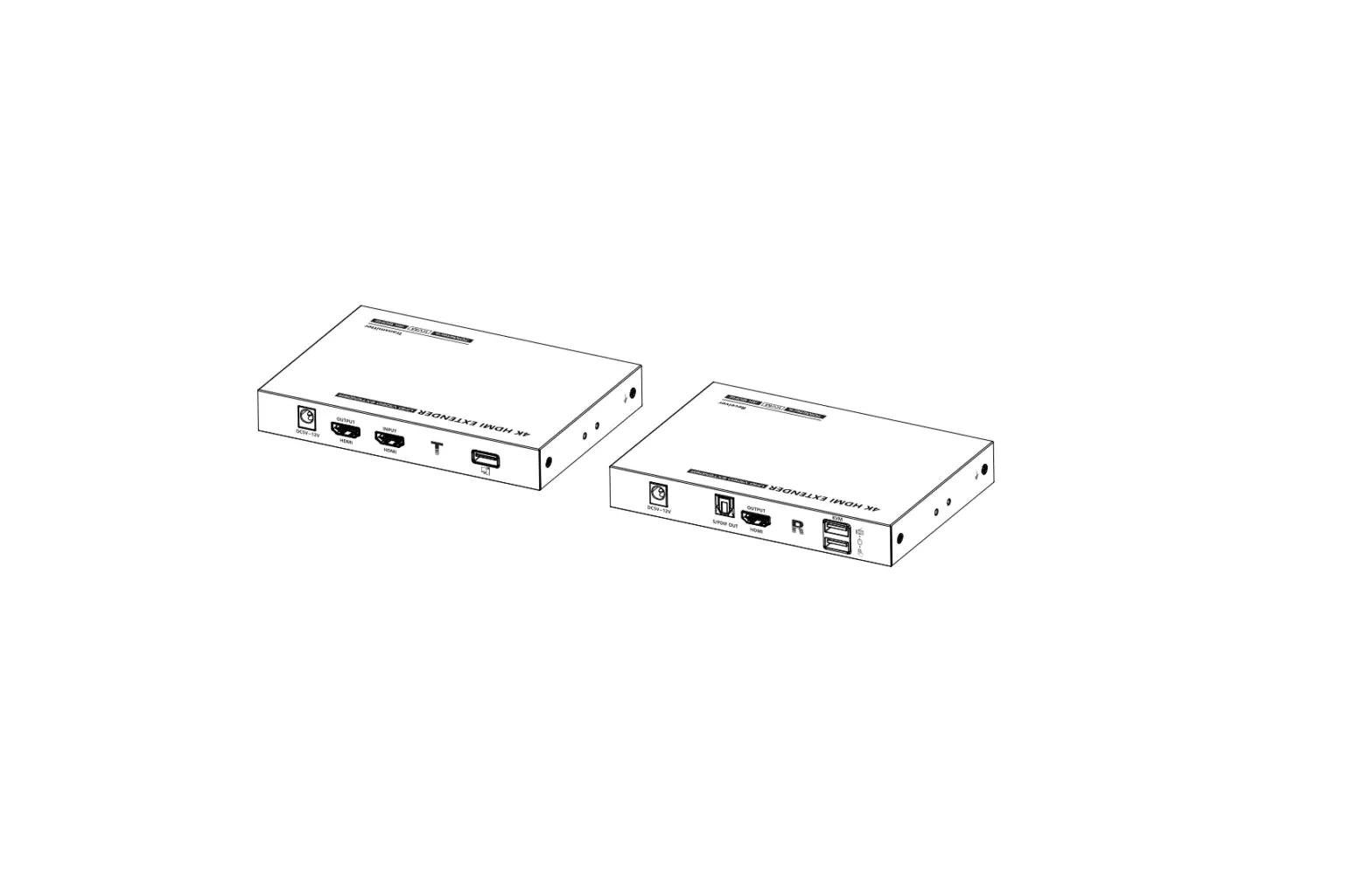
Transmitter (TX)
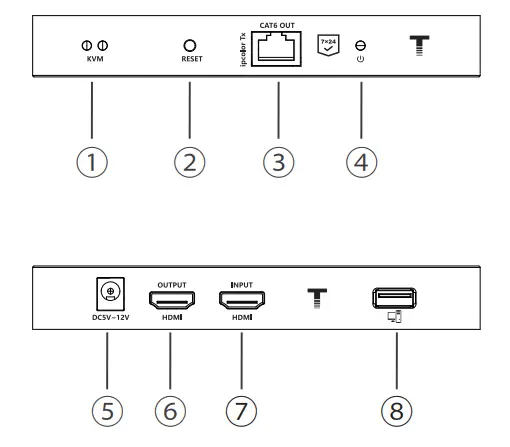
| ① | KVM Light | The left indicator lights on when device connected with computer. The right indicator lights off when there is no signal transmission, flashes when there is a signal transmission |
| ② | Reset button | Press to restart the device |
| ③ | RJ45 signal output | Connect with network cable |
| ④ | Power/ Signal indicator | When there is power but no HDMI signal, the indicator will flash. When there is HDMI signal, the indicator will light solid blue |
| ⑤ | DC5V – 1 2V input | Connect with D C 5V – 12V power adapter |
| ⑥ | H D M I output | Connect with HDMI display device |
| ⑦ | HDMI input | Connect with the source device |
| ⑧ | USB – A port | Connect with computer |
Receiver (RX)
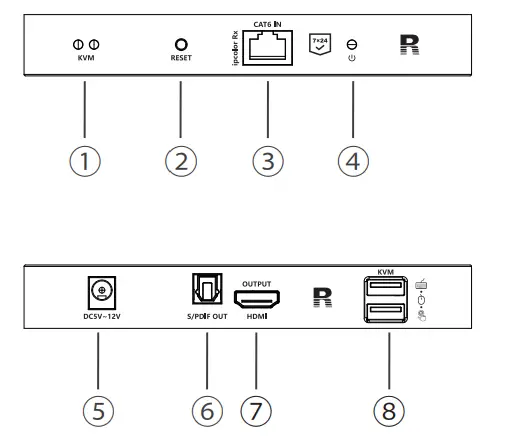
| ① | KVM Light | The mouse/ keyboard/ touch screen is connected to the USB port , the indicator light is on |
| ② | Reset button | Press to restart the device |
| ③ | RJ45 signal input | Connect with network cable |
| ④ | Power/ Signal indicator | When there is power but no HDMI signal, the indicator will flash. When there is HDMI signal, the indicator will lights olid blue. |
| ⑤ | DC5V – 1 2V input | Connect with DC 5V – 12V power adapter |
| ⑥ | S/PD IF out | Output digital audio signal |
| ⑦ | HDMI output | Connect with HDMI display device |
| ⑧ | USB – A port | Connect with keyboard, mouse and touch screen |
Contact Information
Corporate Headquarters
12979 Arroyo Ave San Fernando, CA 91340 – USA
Office: +1 (818) 727-7000
Fax: +1 (818) 875-0002
Email: [email protected]
Technical Support / RMA
Hours: 9:00 am – 5:00 pm PST
Mon – Fri (excluding holidays)
Sales Info
Hours: 8:00 am – 5:00 pm PST
Mon – Fri (excluding holidays)
Tell: +1 (818) 727-7000 (DOM/INTL)
Fax: +1 (818) 875-0002
Email: [email protected]
Tell: +1 (818) 727-7000 (DOM/INTL)
Fax: +1 (818) 875-0002
Email: [email protected]
Corporate, Government and Academic Customers
Our Corporate Sales Team’s goal is to help our U.S.A. and Canadian customers find a storage solution that best serves their needs. We will help you determine your best purchasing options. For more information please contact the appropriate department below or call us at +1 (818) 727-7000.
General sales information: [email protected]
Corporate sales information: [email protected]
Educational sales information: [email protected]
Federal, State & Local government sales information: [email protected]
Resellers/Business Development/OEM Partners
All Channel National and International Resellers, VARs, Consultants … contact Rocstor Channel Sales:
call: +1 (818) 727-7000
Email: [email protected]
Disclaimer
©2023 Rocstroge, Inc. Rocstor is registered trademark of Rocstorage, Inc. The terms
HDMI, HDMI High-Definition Multimedia Interface, HDMI Trade dress and the HDMI Logos are trademarks or registered trademarks of HDMI Licensing Administrator, Inc. The product name and brand name may be registered trademark of related manufactures. ™ and ® may be omitted on the user manual. The pictures in this user manual are just for reference. We reserve the rights to make changes without further notice to a product or system described herein to improve reliability, function or design.
Installation Procedures
- Touch screen connection

- Mouse and keyboard connection

Follow the standard of IEEE-568B, It is recommended to select a network cable with less loss and crosstalk.
1-Orange/white
2-Orange
3-Green/white
4-Blue
5-Blue/white
6-Green
7-Brown/white
8-Brown - Mouse and keyboard connection
1) Connect the source device to the HDMI in-port of the transmitter with an HDMI cable, and connect the HDMI out-port of the receiver to the display device with another HDMI cable.
2) Connect the CAT out-port of the transmitter and the CAT in port of the receiver via a network cable (CAT6/CAT6A/CAT7).
3) If using HDMI loop out, connect the display device to the HDMI OUT port of the transmitter.
4) It takes about 25 seconds to display the image after the product is successfully connected.
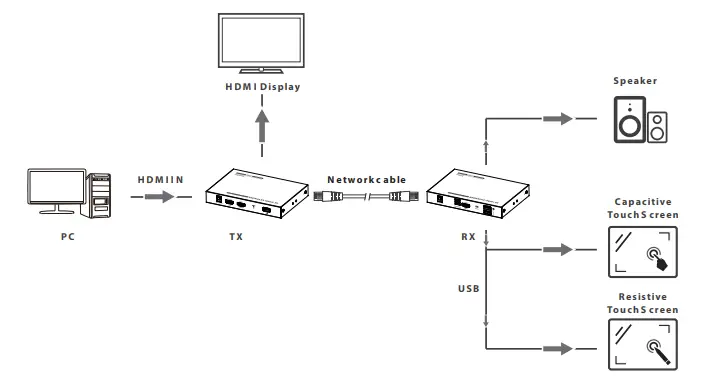
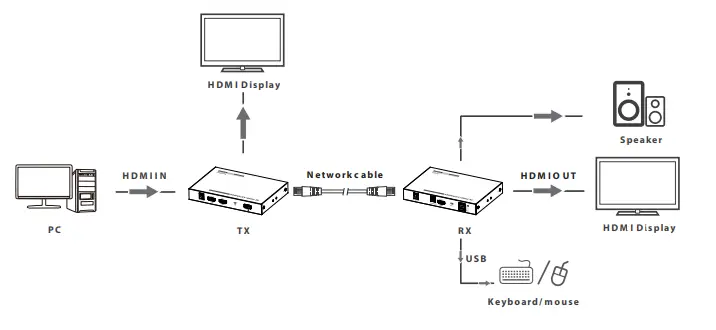
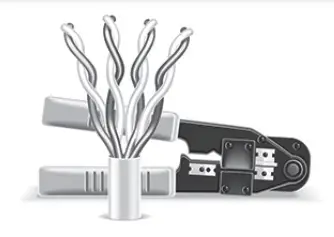
[NOTE]: It is recommended to use a length range within 6.5~230ft (2~70m) network cable. If the cable is too short, there may be no display output because the signal is too strong. If the cable is too long, the output may be with poor quality.
FAQ
Q: There is no output on screen when all connections are correct?
A:
- Please make sure the HDMI cables supports 4K×2K if the output signal from the source device is 4K×2K resolution.
- Please check and make sure the network cable is inserted to the RJ45 port well.
- Restart the transmitter or receiver by pressing the reset button.
Q: Black screen happened on the display/monitor?
A:
- Make sure the network cable is length range is within 6.5~230ft (2~70m).
- Reset the transmitter to re-built the connection.
Q: The display shows unusual color or no sound?
A:
- Reset the transmitter or receiver to re-built the connection.
- Check if the HDMI cables are connected well.
- Reconnect the network cable.
Specification
| Items | Specification | |
| Power Supply | Voltage/Current | DC 5V- 1 2V |
| Power consumption | TX <4W R X <4W | |
| HDMI Performance And Interface | HDMI compliance | HDMI2.0 |
| HDCP compliance | 1–10CP 2 .2 | |
| HDMI resolution | 480I@ 60Hz, 480prjo 60Hz, 576I@ 50Hz, 576p@ 50Hz, 720p@ 50/60Hz, 1080450/60Hz, 1080p@ 50/60Hz, 3840×21600 24/25/30/50/60Hz, 4096×21600 24/25Hz, 1280×960, 1280×800, 1280×768, 1680×1050, 1360×768, 1366×768, 1600×900, 1024×768, 800×600 | |
| HDMI Performance And Interface | Supports audio formats | LPCM/DTS-HD/DTS-Audio/ Dolby Digita15 .1CH |
| Input and output TMDS signal | 0.7-1.2Vp- p(TM DS) | |
| Input and output DDC signal | SVp-p(TTL) | |
| Input cable length | 58m(AWG24) | |
| Output cable length | 58m(AWG24) | |
| Transmission Distance | CAT6/6A/7 | 570m |
| Protection Level | Electrostatic protection of the whole machine | to Contact discharge level 2 lb Air discharge level 3 implementation of the standard: IEC61000-4- 2 |
| Operating Environment | Working temperature | -20-60°C |
| Storage temperature | -30-70°C | |
| Humidity (no condensation) | 0.–-90%RH | |
| Body Properties | Dimension | 153.0(L)x 1 05.5(W)x2 2.0(H) m m |
| Material | Iron | |
| Color | Black | |
| Weight | TX: 348.0g RX:3 48.0g | |