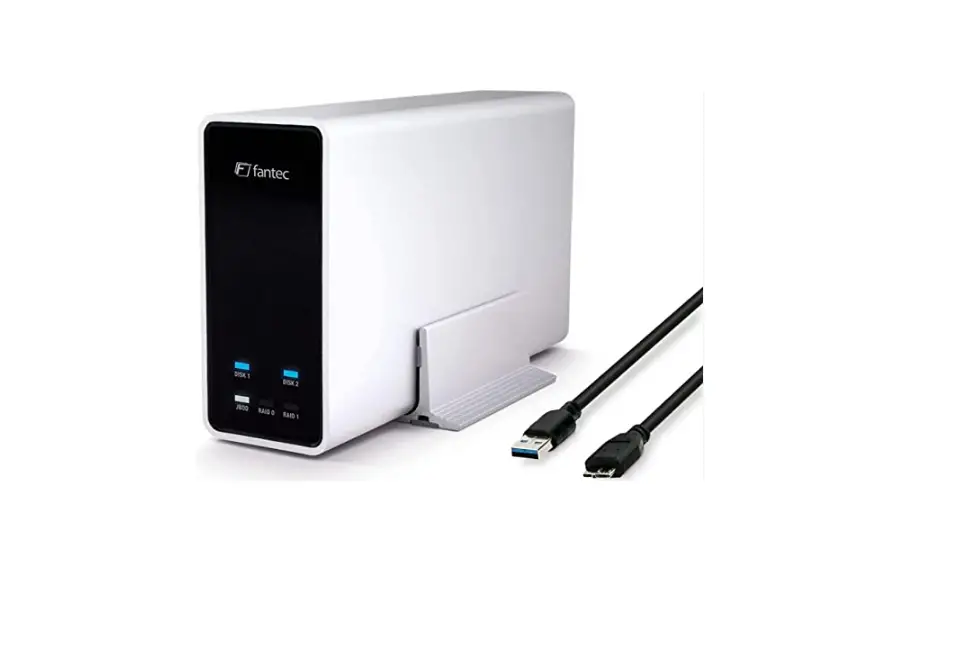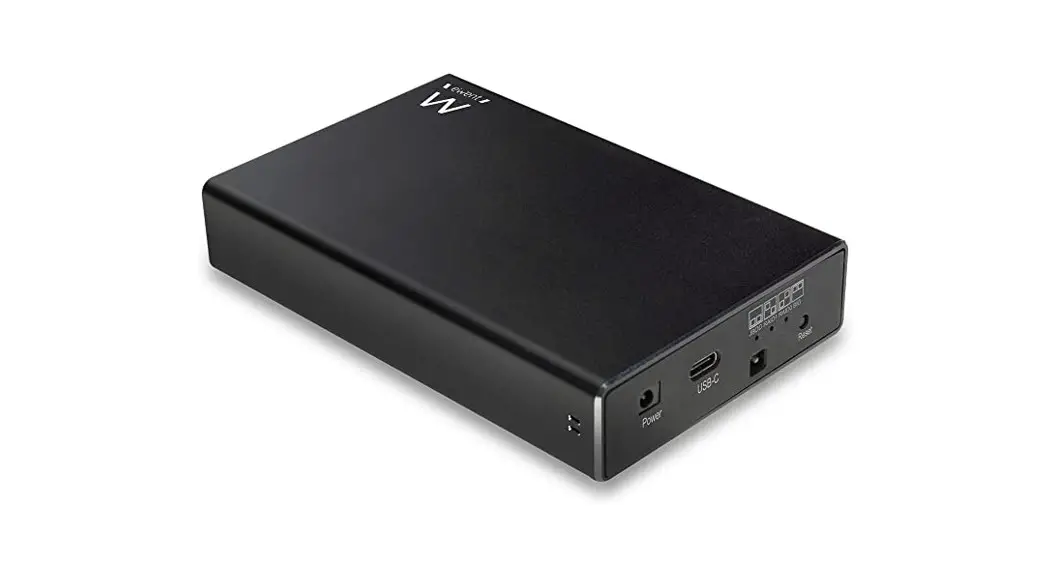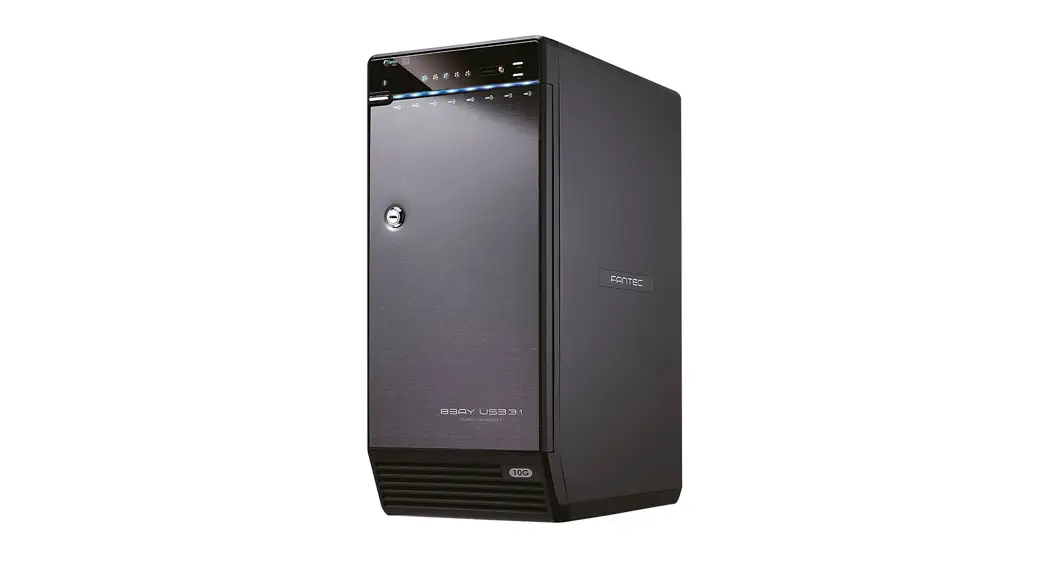
 FANTEC QB-X8U318×3.5″ Sata HDD Usb 3.1 Generation II
Typ-C 10G
Information
- Operation System
Windows 10 / Windows 7
Mac OS X 13 or later - Operation Environment
Temperature 0 – 40 °C
Humidity 5 “a – 90 - Hot-plug for USB-C interface
Supports USB 3.1 Gen-II 10Gbps transfer speed - USB 0/3.0 compatible
Additional cable required, cable converter adapters not recommended - Smart Fan
Smart fan controlled by the built-in thermal sensor and it comes with 2 modes (auto/manual) and 3 levels of speed:Low below 45“C 1200 rpm Medium 45”C – 54°C 1600 rpm High higher than 55°C 2600 rpm
STEP: 2 Hints
Follow all instructions.
- Do not use the device in the immediate vicinity of water.
- Clean the device with a soft, dry cloth.
- Do not block ventilation holes.
- Perform the installation according to these instructions.
- Do not operate the device in the immediate vicinity of heat sources such as heaters, or other devices that give off heat sources.
- Lay the power cord so that nobody can trip over it. I’4ake sure that the cables are not pinched and that no heavy objects are parked on them.
- Use only accessories recommended by the manufacturer.
- Disconnect the power plug during a thunderstorm or if you do not use the device for a long time.
- Always contact our service team for repairs. Maintenance is required if the device, power cord, or plug is damaged, liquids or foreign objects in the device have penetrated, or the device is not working normally or was dropped.
- Do not shake the device, do not drop it.
- Do not use the device during operation.
- Do not pull the power plug by the cable from the socket.
Schritt 3 Front Panel
- LED INDICATION/BUTTON

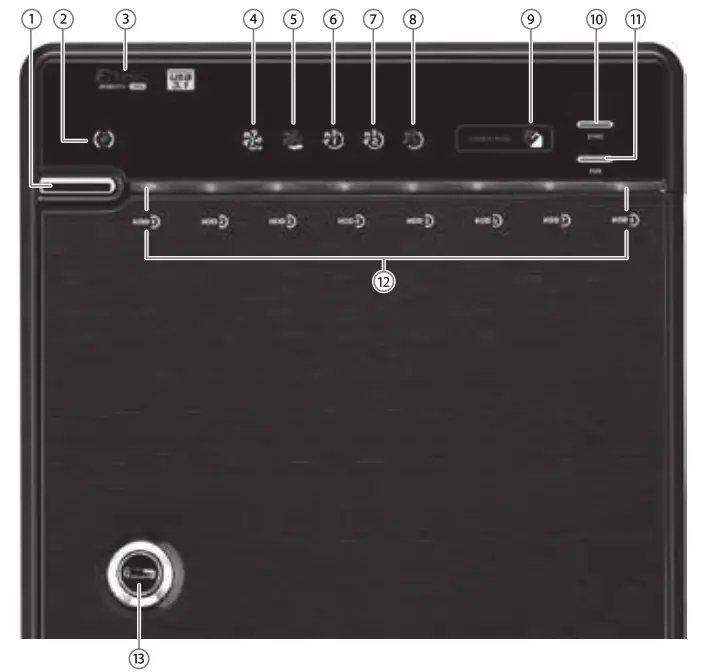
Descriptions
- Power button
It needs to be pressed and held for 3 seconds to power off. This design prevents accidental power off.
 - USB Status
Link interface use - Power Indicator Status
Blue light
Power on
Orange light
Sleep mode - Smart Fan automatic mode
- Smart Fan manual mode
- Fan speed/level 1
- Fan speed/level 2
- Fan speed/level 3
- Synchronization comes in 2 modes
Orange light
OffWhen the PC is off,
the device goes to sleep mode.
Synchronization is off. - Synchronization mode button
Switch power Sync mode (no power Sync / Hibernate)
It needs to be pressed and held for 3 seconds to power off.This design prevents accidental power off. - Smart Fan button
Controls auto & manual modes and fan speed from level 1 to level 3.
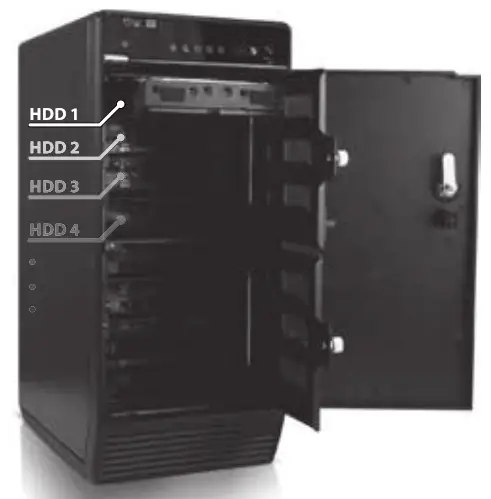
HDD1 / HDD2 / HDD3/ HDD4
HDD5 / HDD6 / HDD7 / HDD8 Status
Blue Flashing light | Read - Key slot
 This design prevents accidental power off.
STEP4 Rear Panel
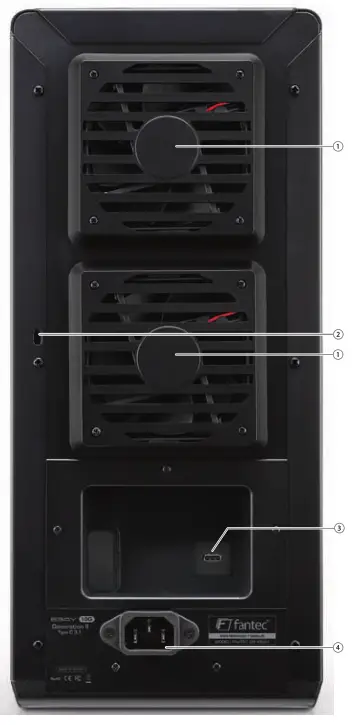
Description
- Fan
- Security lock
- USB- port (Connect with PC/Mac)
- AC input port
- HDD Handle

- Keys

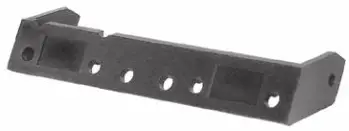
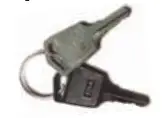
SPEP 5 Installation
- Please use the provided handles to secure

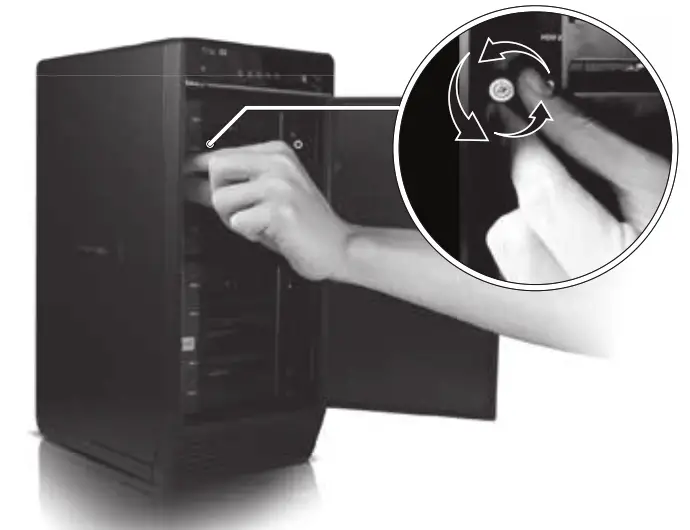
- Unlock the cover with the key supplied and press the circular depression to open the cover.

- Release the inner covers.

- . Install the HDDs from up to down

- Blake is sure the HDD is securely installed first at all times. Otherwise, the PC may not recognize the device.
- Close and secure the covers
- Connect the power cord to the device, plug in USB-C cable in the rear panel and power on the device.
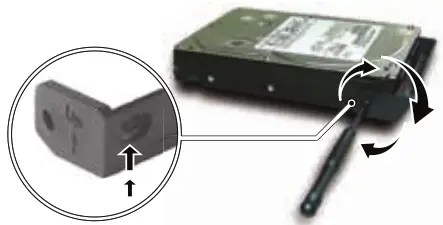
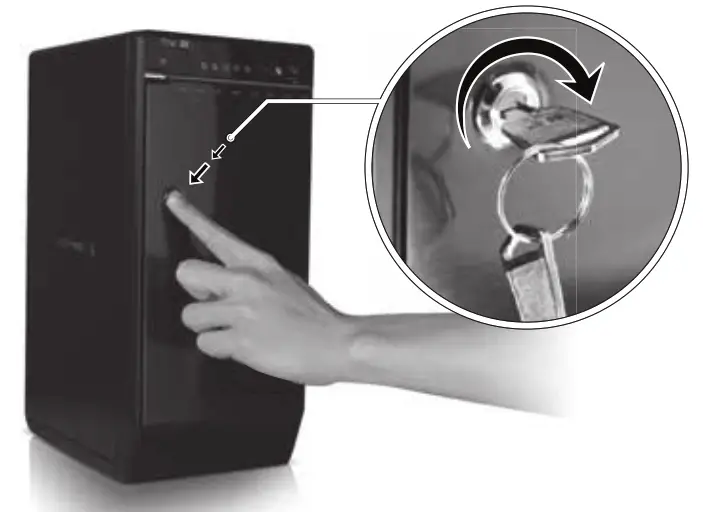
Step 6 Initialization
Microsoft Windows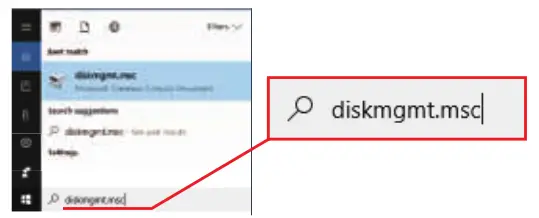 If you are using unformatted disks, they must first be initialized.
To do this tap the Windows key on your keyboard and enter”diskmgmt.msc” (without quotation marks). Then press the “ENTER” key.
- Start disk initialization

- Create new partition and format disk

- HDD format completed

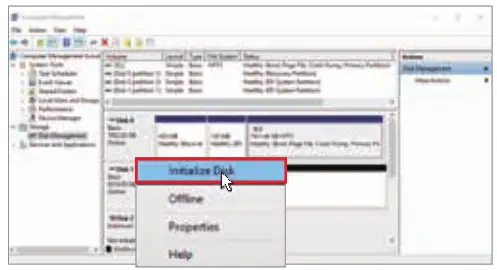
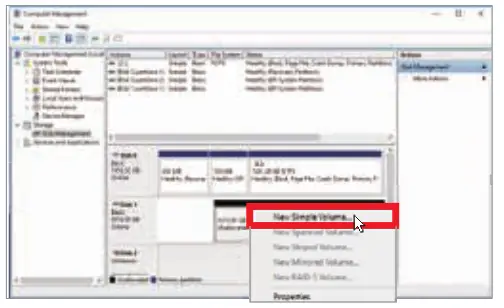
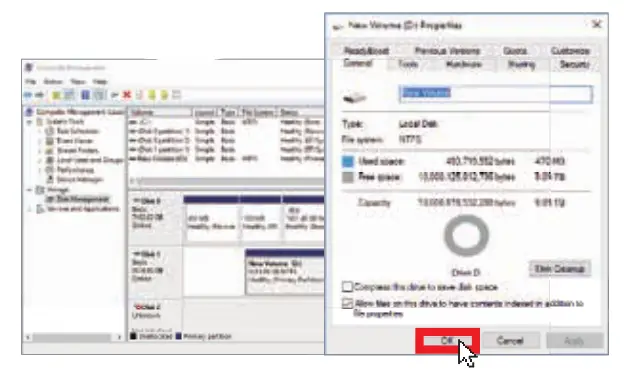
Start disk initialization
Please enable the GPT mode when the total capacity exceeds 2TB, otherwise choose the MBR mode.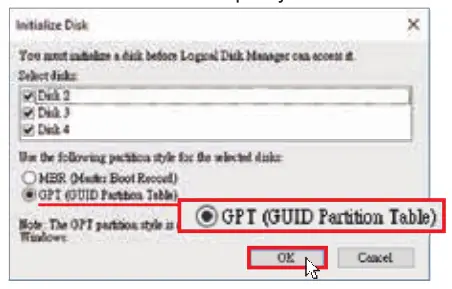
Enable MBR if the total capacity does not exceed 2TB.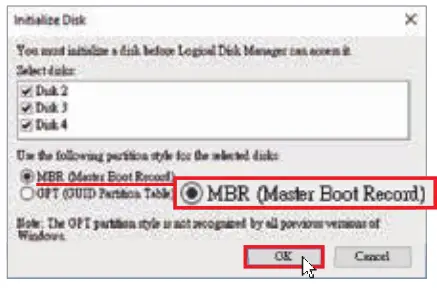
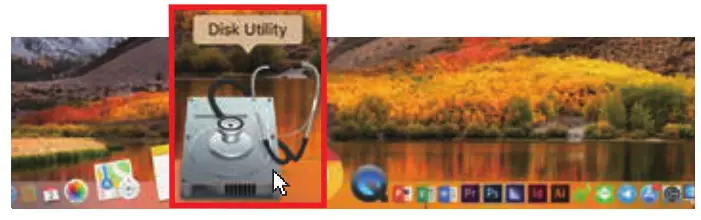
Mac OS X 10.13 or later
- Click “Disk Utility’ icon

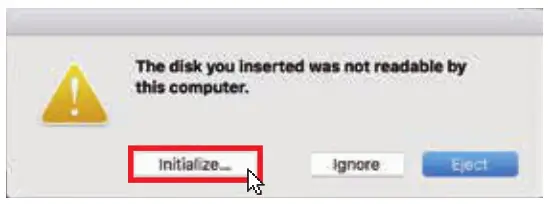
- HDD initialize..

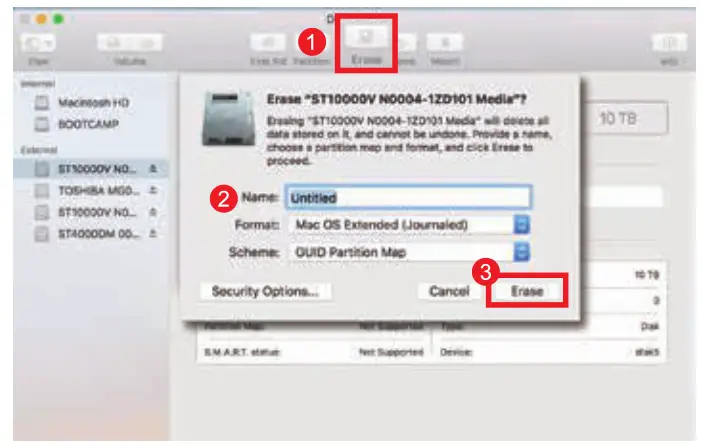
- Click “Erase”

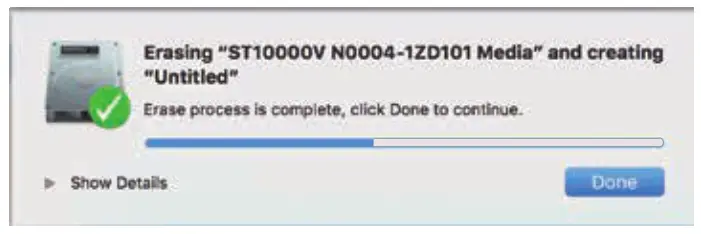
- HDD format in process

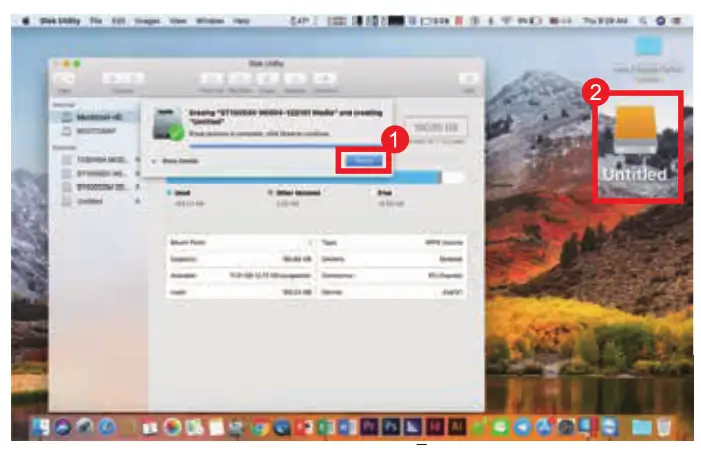
- Format completed

Troubleshooting
1. If the device takes too long to detect HDD, please check if the HDD is securely installed or update the drivers according to your hardware manufacture (PC or USB- card).
2. If the fan is noisy pull out the power cord, unscrew and take out the fan cover, clean the fan and assemble it back.
3. If the fan noise is still present or it stop working, replace the fan. Fan size is 80x80x20mm 2 pins.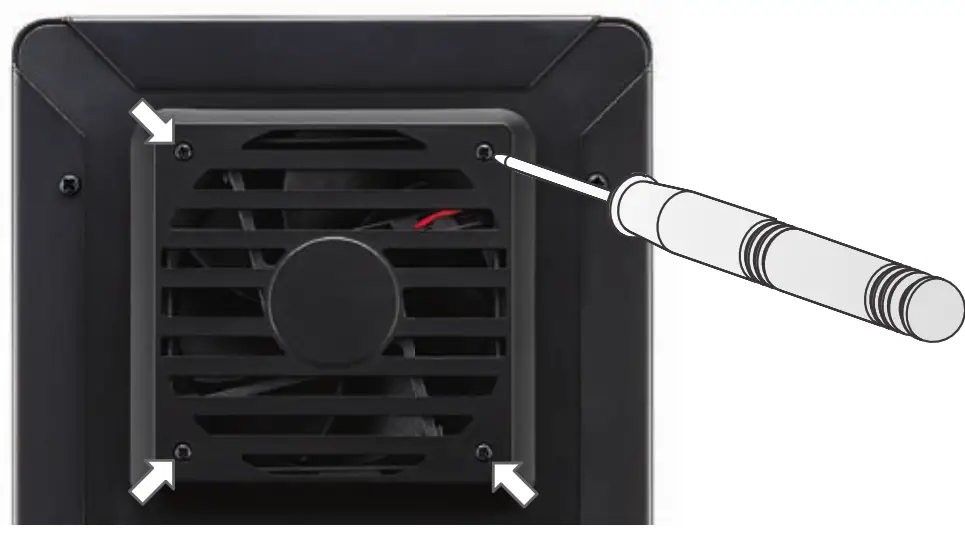
4. To take the HDD out from the device, lightly press down the handle and pull it out.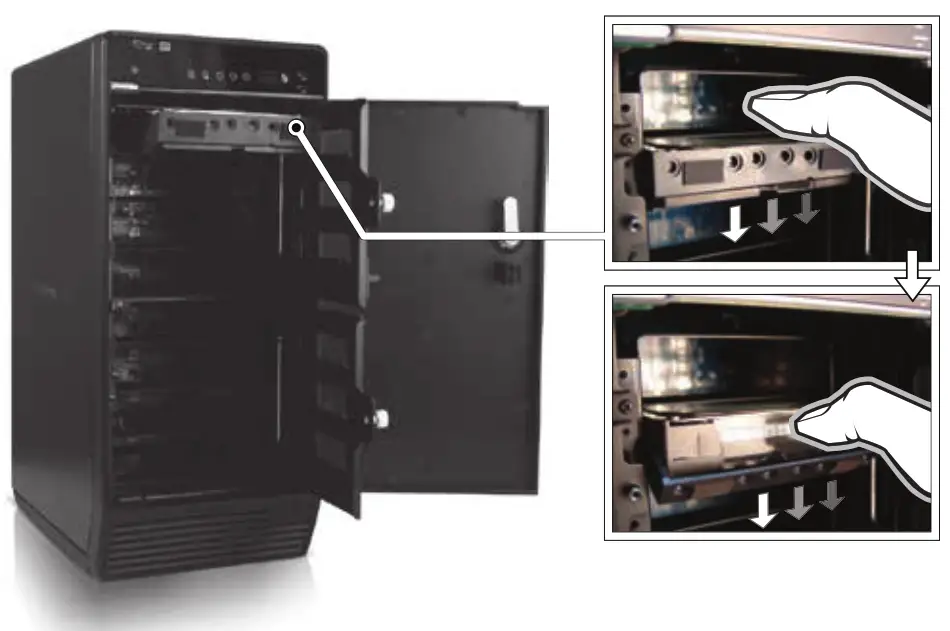
Declaration of Conformity:
We declare that the article complies with the provisions of Directive 1999/5 / EC. http://www.fantec.de/unternehmen/bestimmungenrichtlinien/ce/
Typing errors, errors and modifications are subject to change. 0 FANTEC GmbH, 2019 – All rights reserved.