
SABRENT EC-M2CU SATA III 2.5-Inch Enclosure Adapter
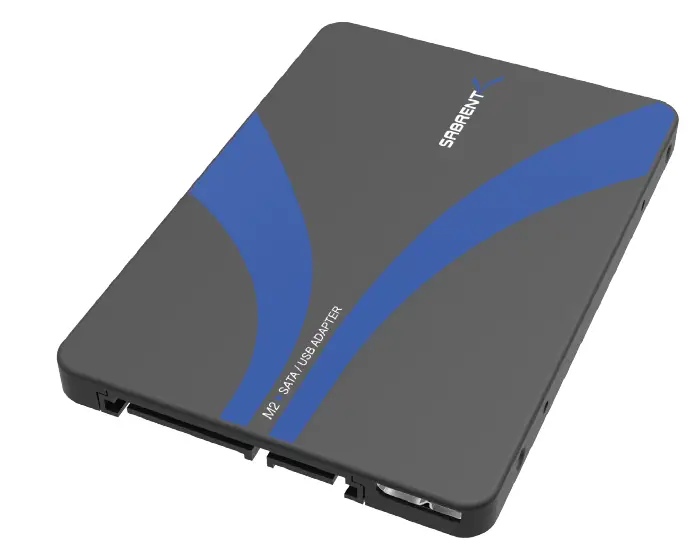
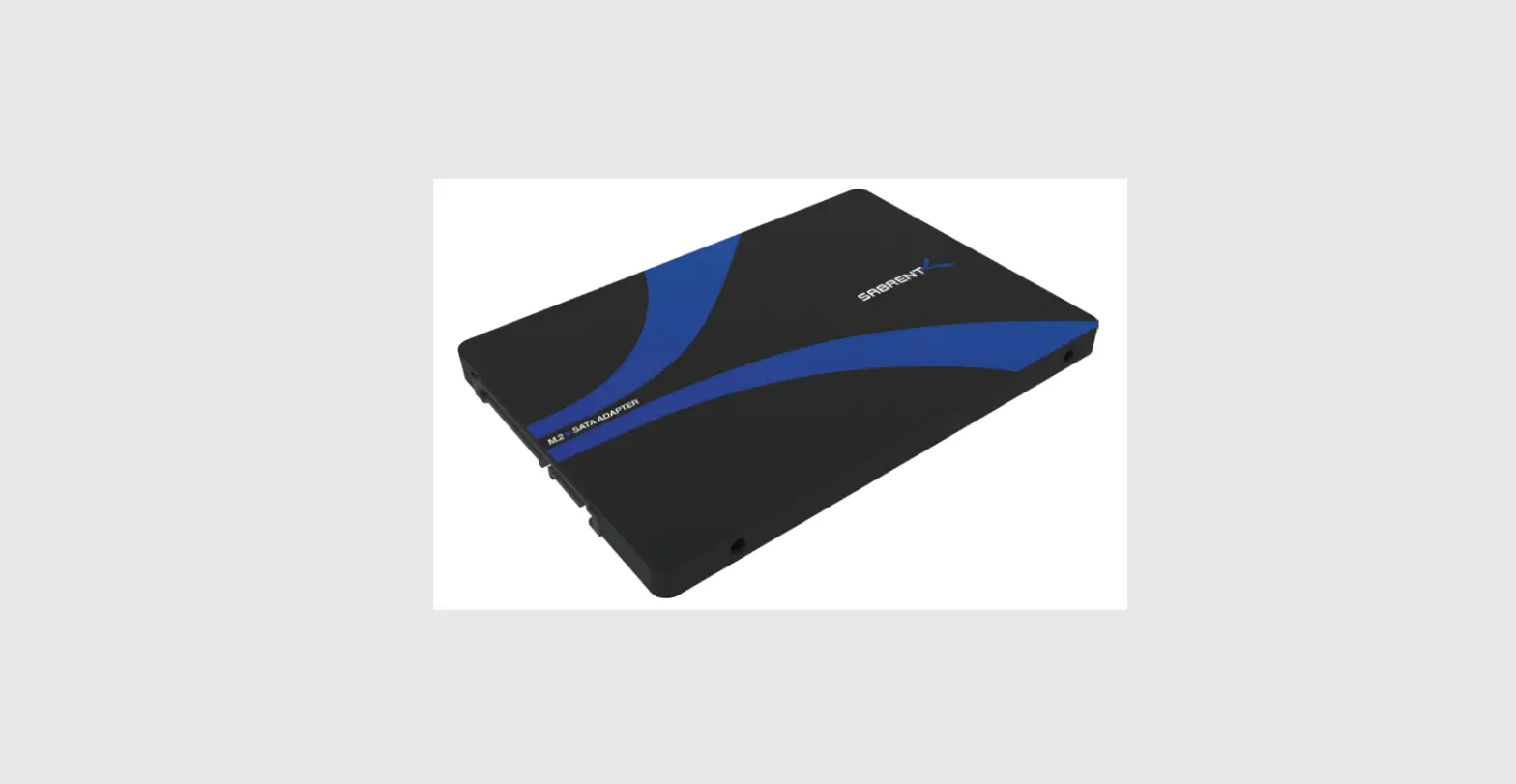
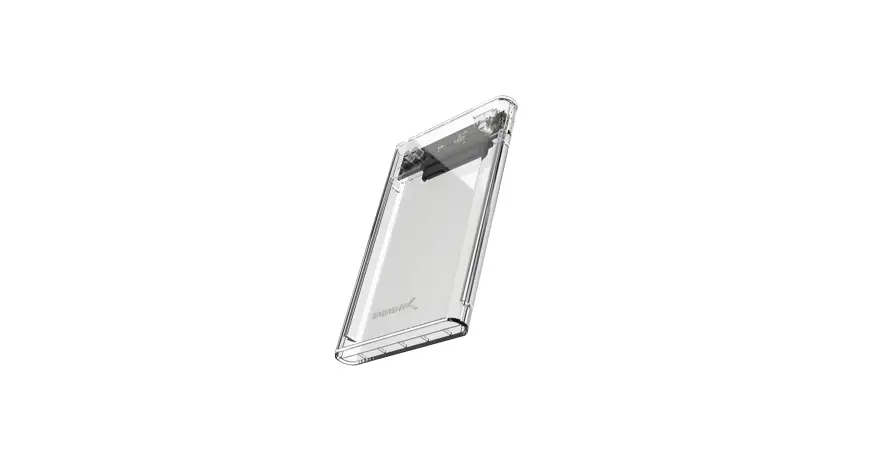
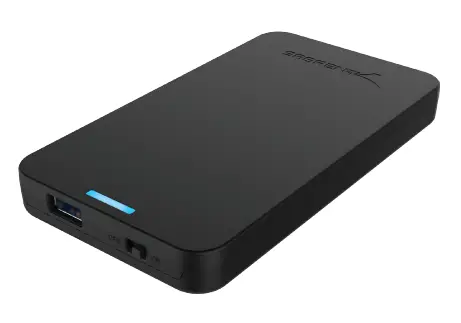
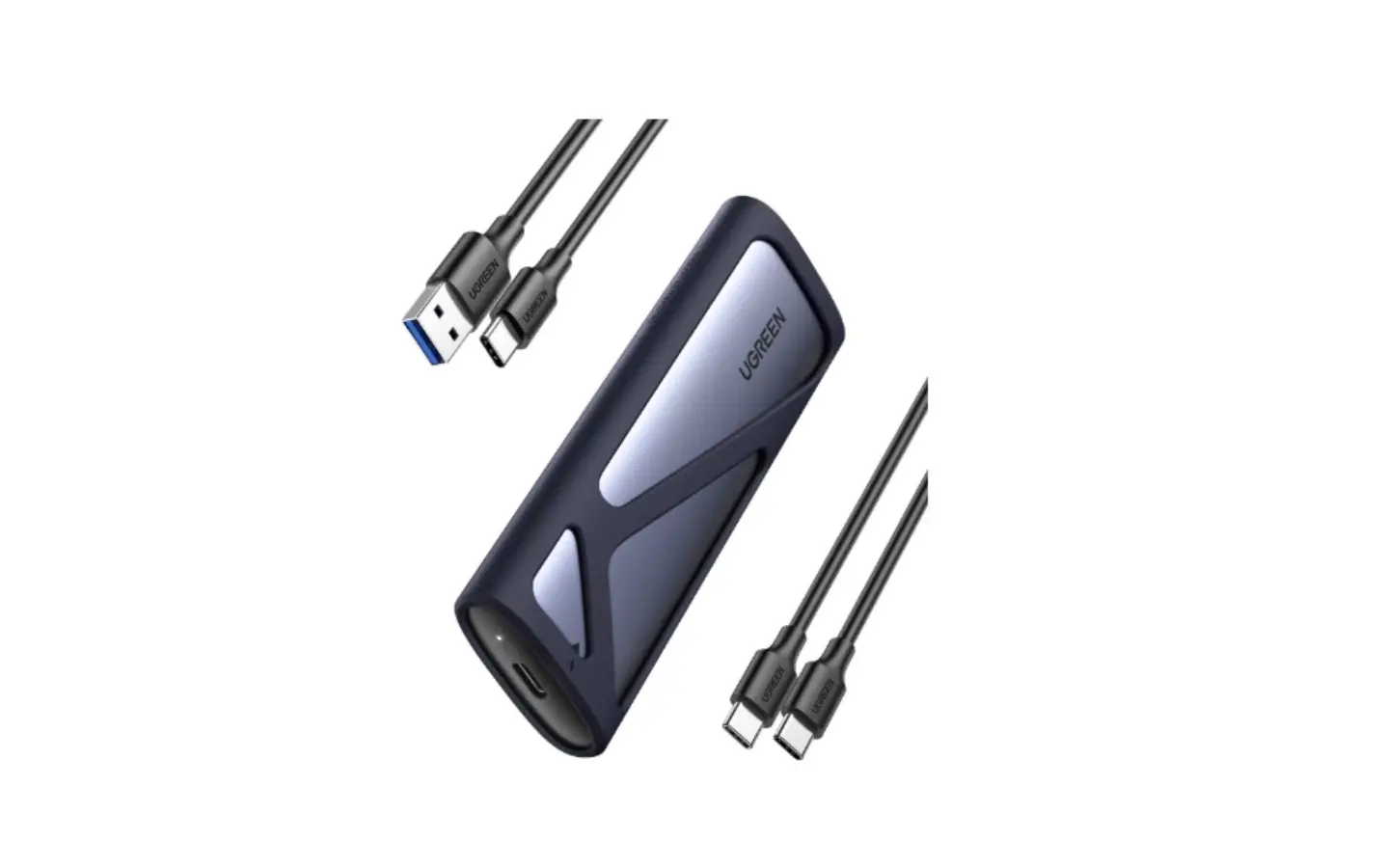
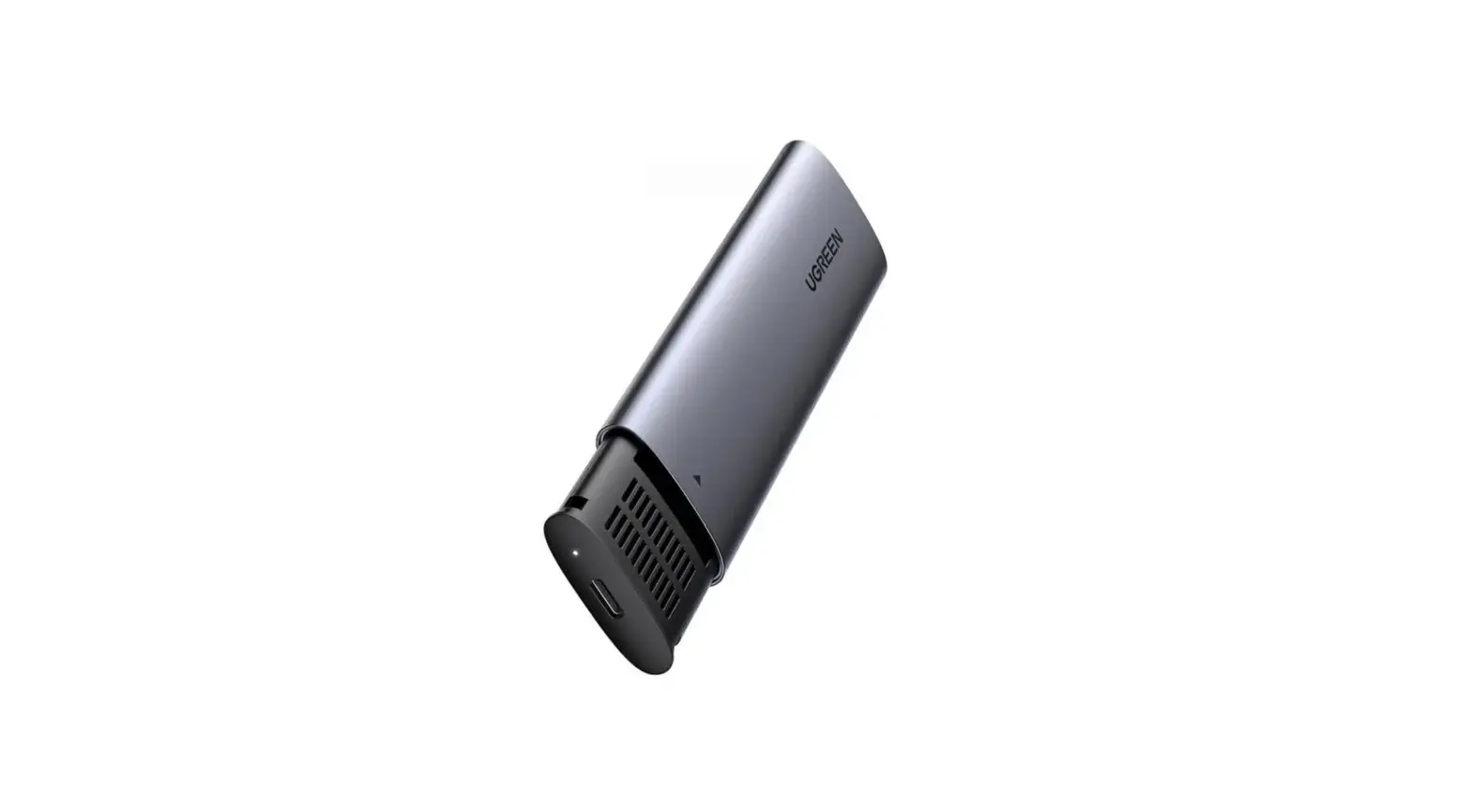
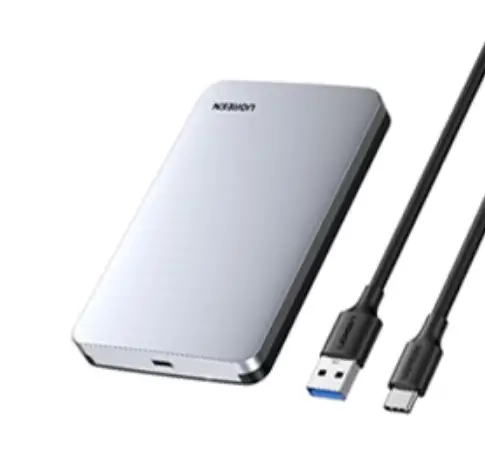
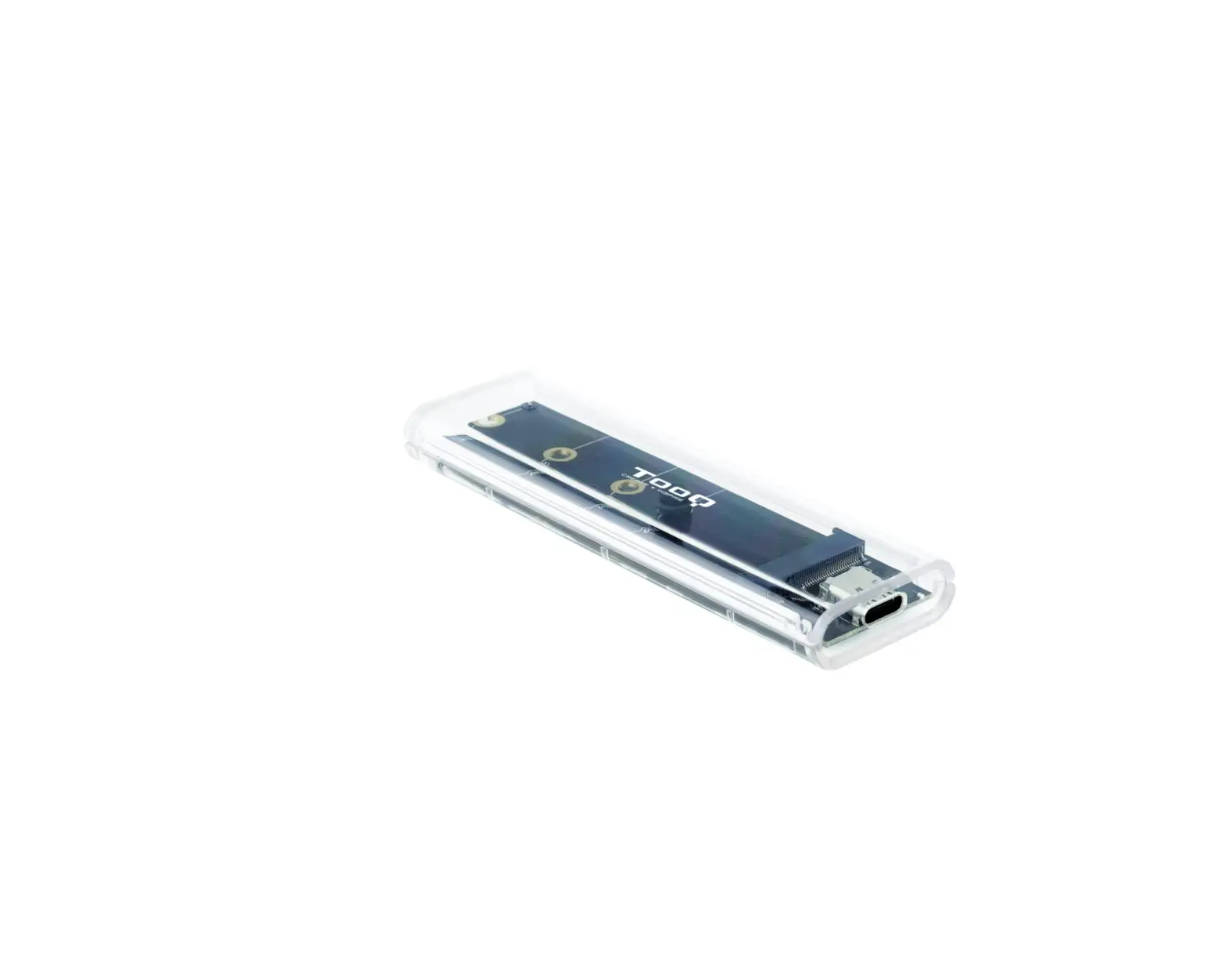
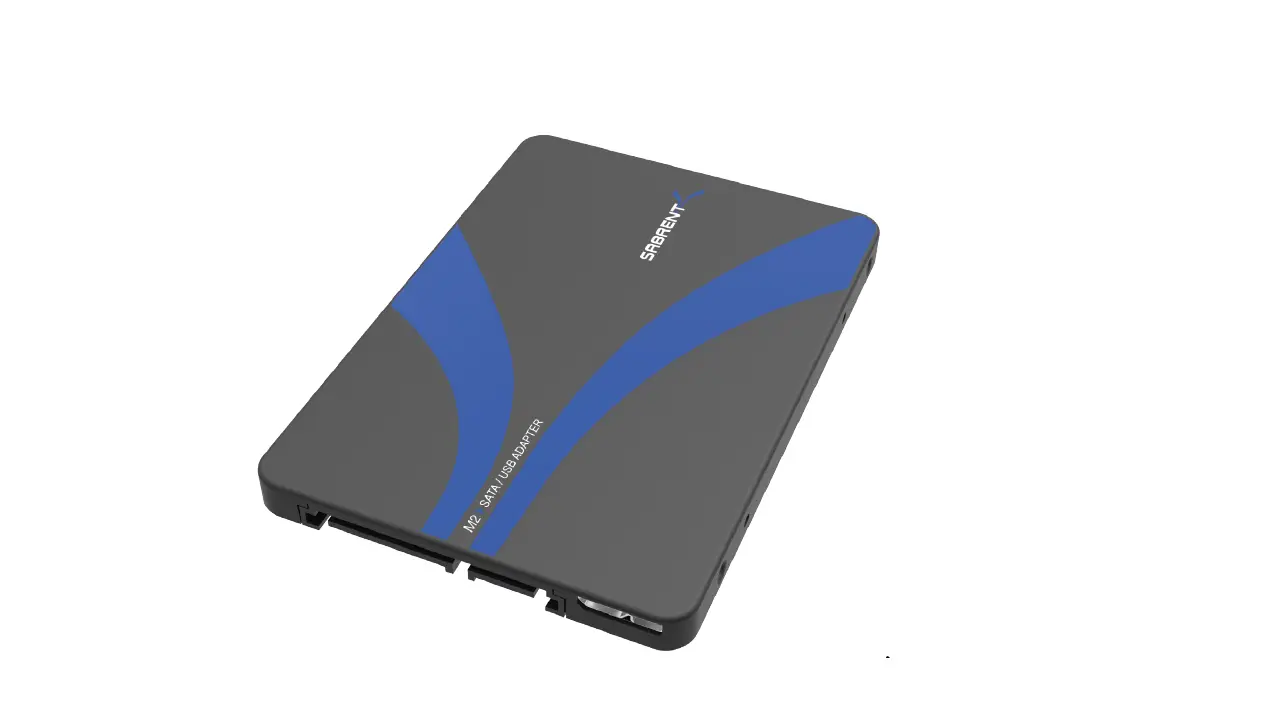
You can now turn your M.2 NGFF SSD drive into a 2.5″ SATA Ill or External USB 3.0 Enclosure with the Sabrent EC-M2CU. Exclusively designed for M.2 NGFF SSD B or B+M Key supporting 2242 (42mm), 2260 (60mm), and 2280 (80mm) size drives. Slim Aluminum casing, Plug & Play no driver install required.
OVERVIEW 
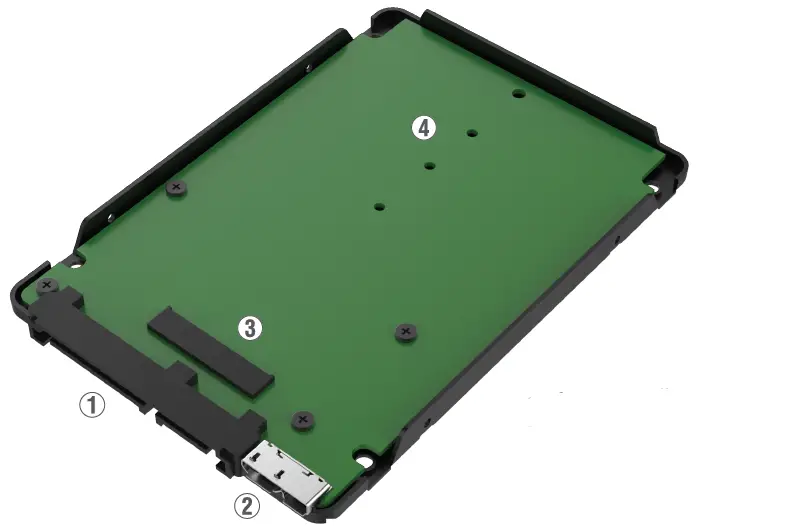
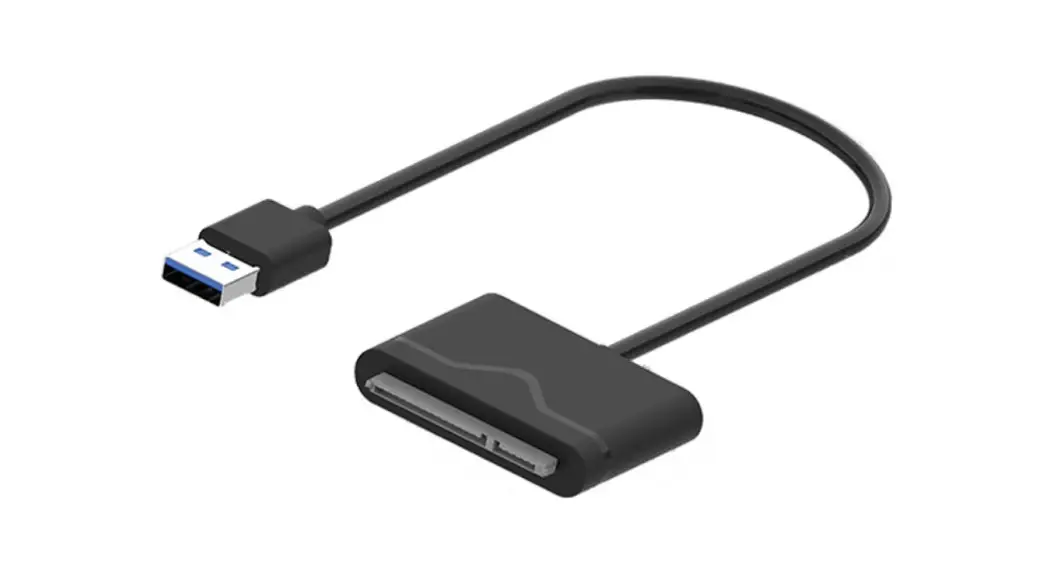
- SATA Interface
- USB 3.0
- M.2 SSD Slot
- M.2 SSD Screw Holes
SETUP 1
Open the enclosure, connect your M.2 SSD B or B+M Key drive into the board, screw the drive in and close the case 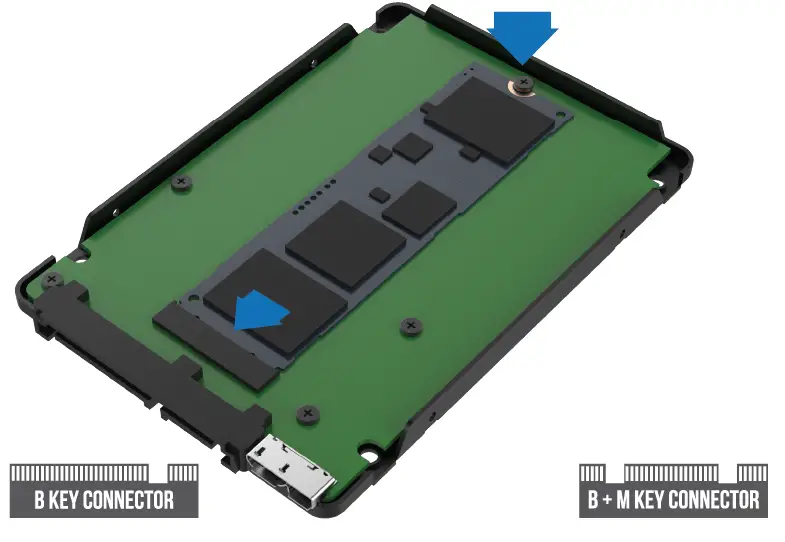
SETUP 2
Screw in the sides and connect the USB 3.0 cable to the enclosure and to your computer
*You can also connect it internally or externally using the SATA interface* 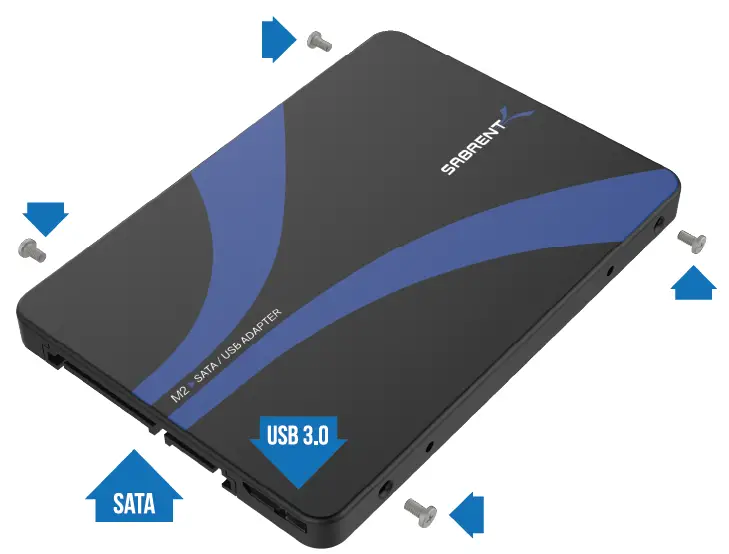
WINDOWS PC HARD DRIVE WITH DATA/FILES
Click on the Start Icon located on the bottom left of the screen and then click on Computer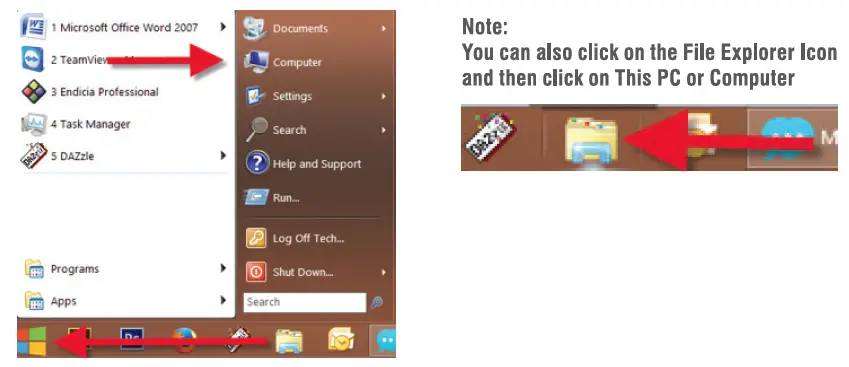
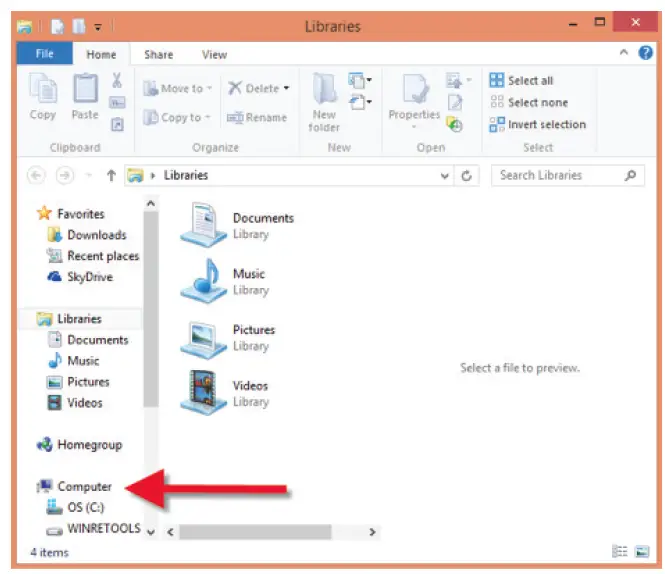
You should get a new drive letter every time you insert a hard drive with data/files 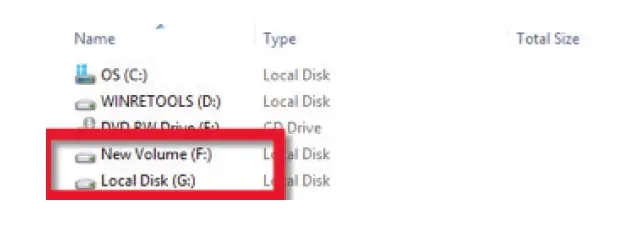
WINDOWS PC NEW HARD DRIVE SETUP CHARD DRIVE WITH NO DATA/FILES)
Click on the Start Icon located on the bottom left of the screen and then RIGHT click on Computer 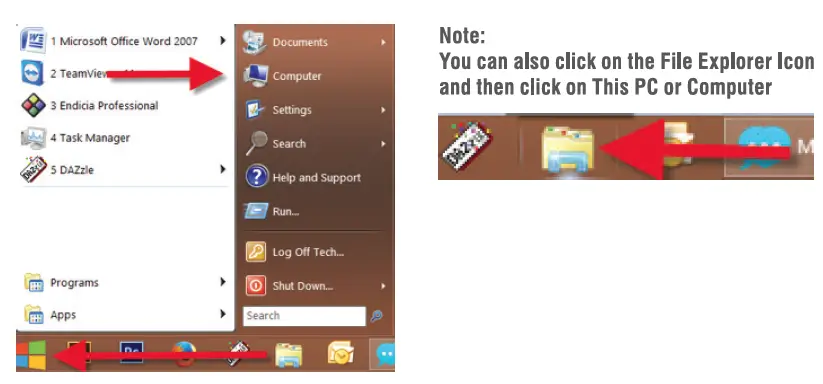
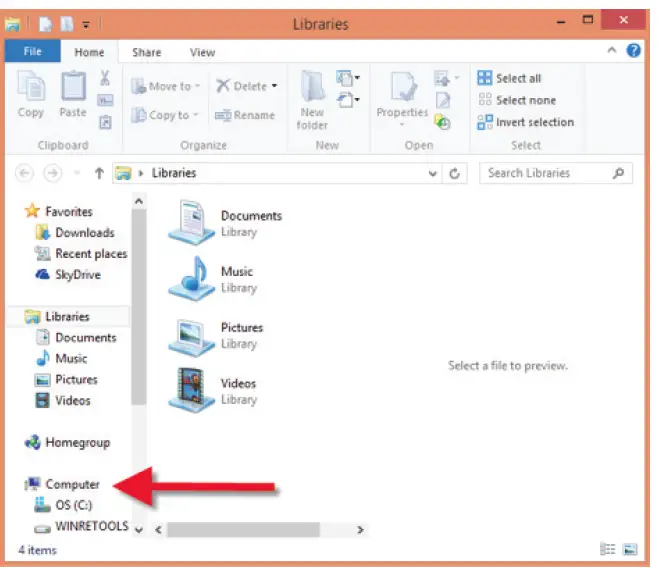
Click on Manage 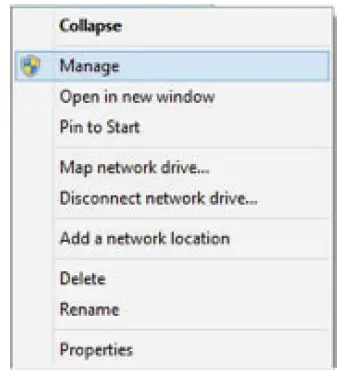
Click on Disk Management 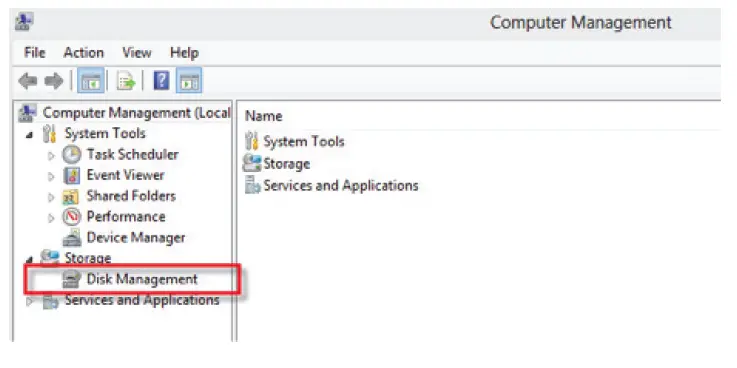
Note: Disk O should be your internal hard drive
Disk 1 should be your external hard drive but SETUPS MAY DIFFER
RIGHT click on Unallocated and click on New Simple Volume 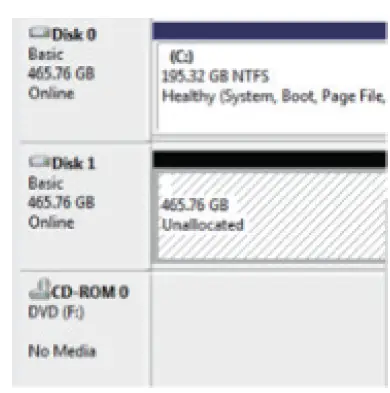
Go through the Setup Wizard to assign a drive letter 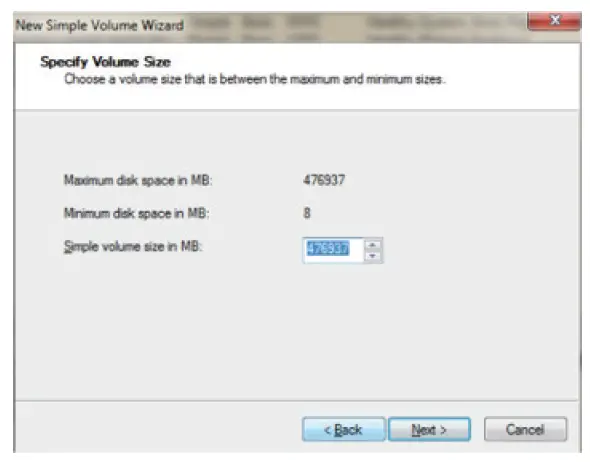
MAC OS HARD DRIVE WITH DATA/FILES
A new Icon should pop up on your main screen each time you insert a hard drive with DATA/Files 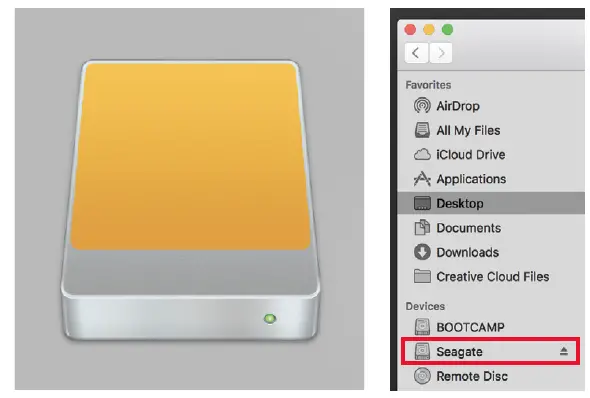
Click on the Icon to view your hard drive
Note: You can also click on the Finder icon and select your hard drive under Devices
MAC OS NEW HARD DRIVE SETUP CHARD DRIVE WITH NO DATA/FILESJ
Click on the Search icon on your toolbar 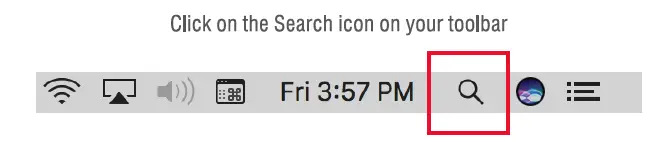
Type in Disk Utility and click on it 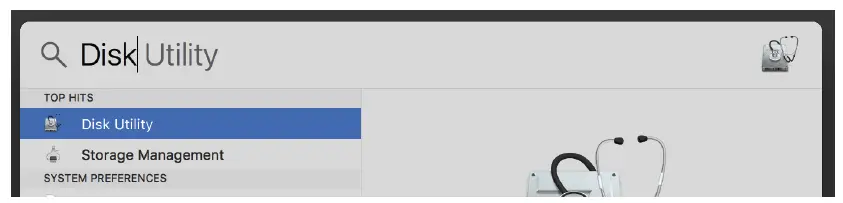
Click the icon for your external hard drive located in the sidebar on the left Click on the Erase tab at the top of the window 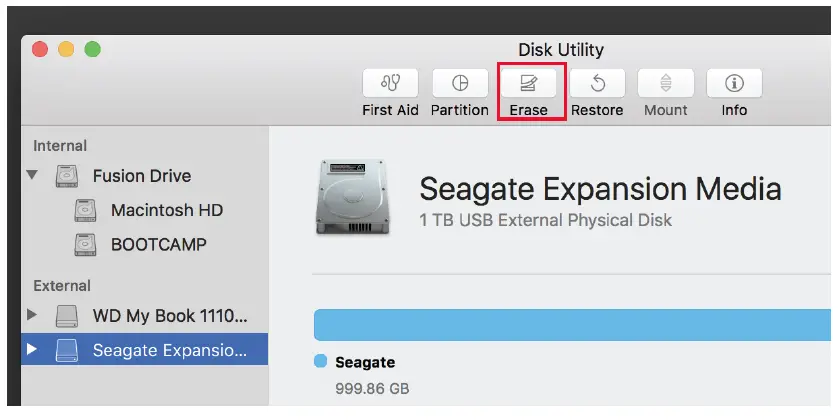
Select the volume format you want and give it a name 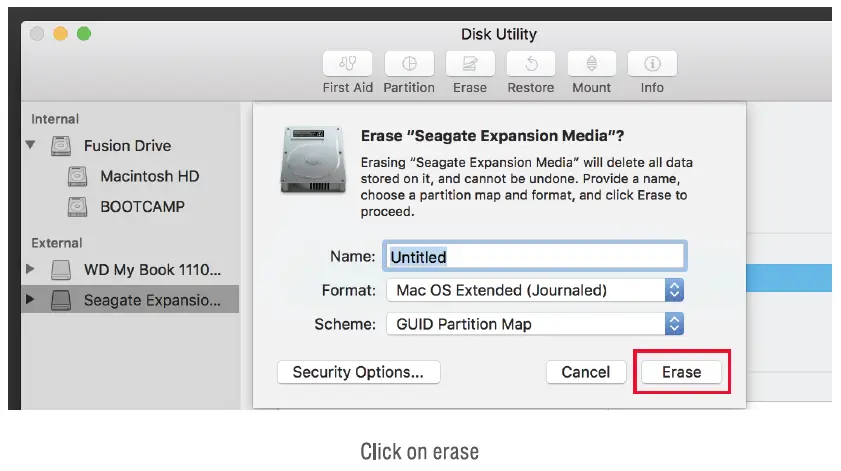
Notes
- This is backwards compatible with USB 2.0 and 1.1 with their transfer speeds.
- Plug & Play no drivers required.
- Exclusively designed for M.2 NGFF SATA SSD B or B+M Key.
Computer does not recognize the drive?
- Make sure that you have a tight connection between the enclosure and 3.0 cable/ SATA cable.
- Try the USB cable on a different USB port on your computer.
- New hard drives must be setup, please review new hard drive setup for your OS.
- Swap out the hard drive with a spare.
Please contact our Technical Support Team for additional troubleshooting