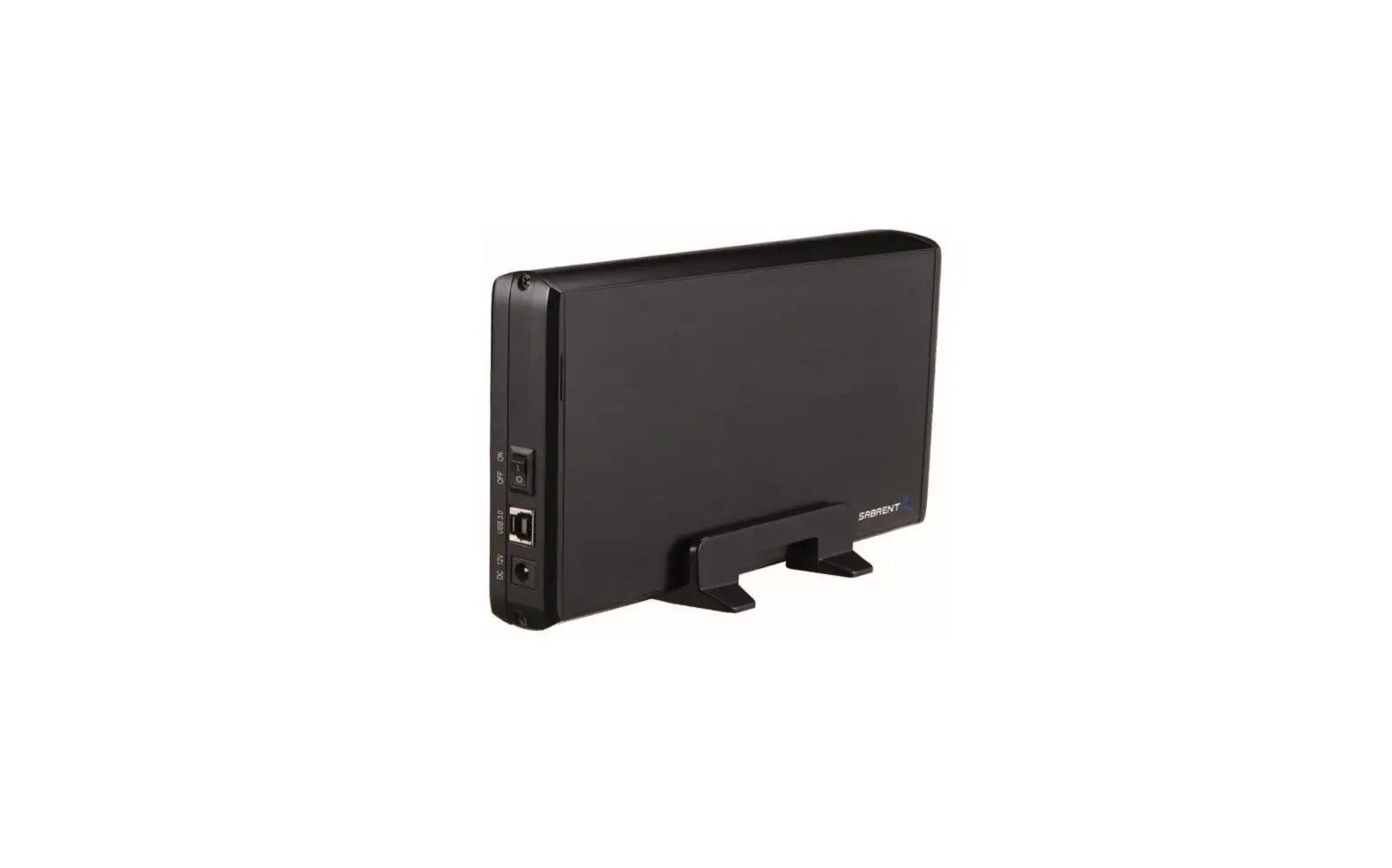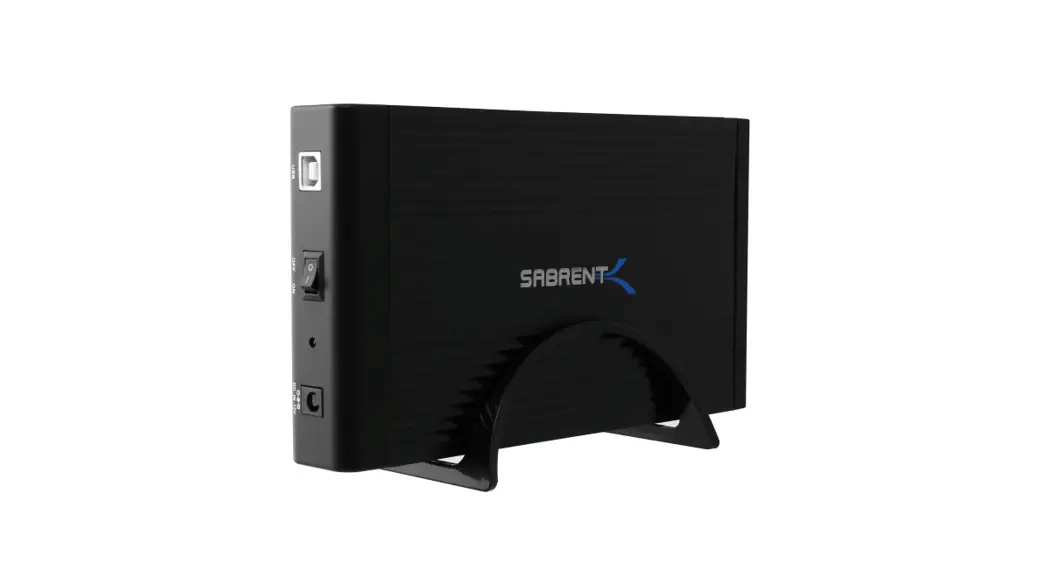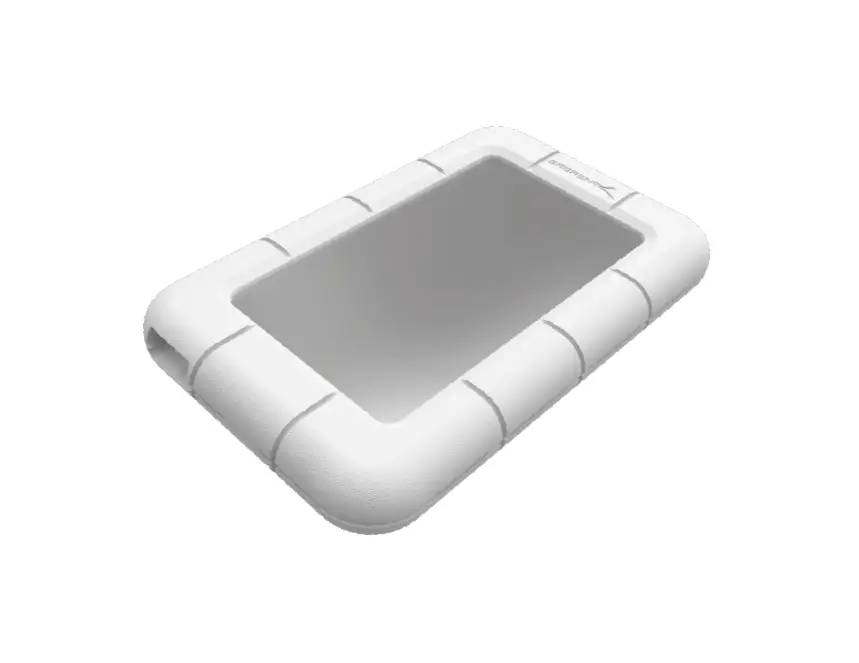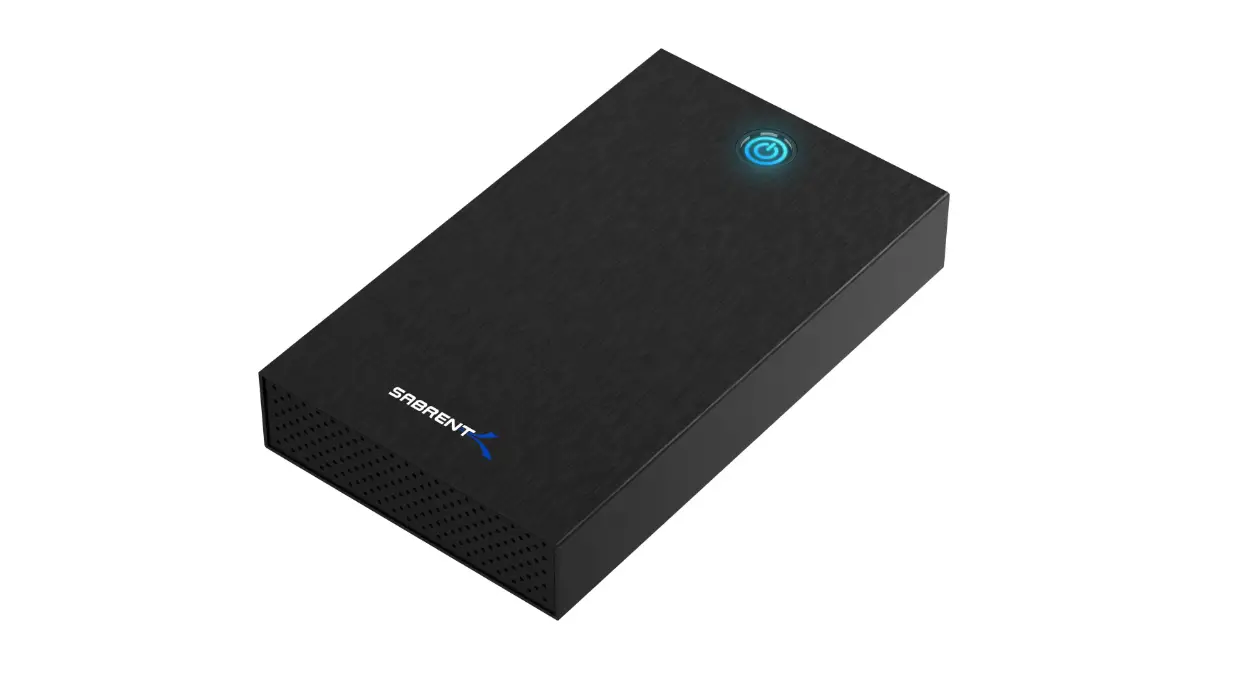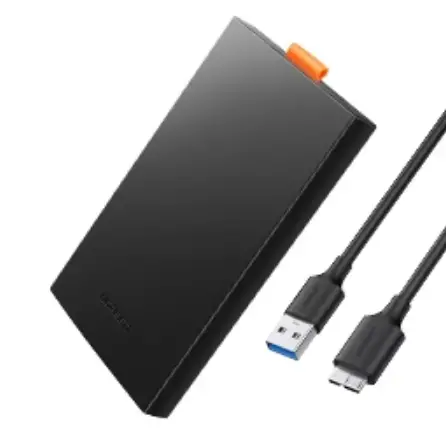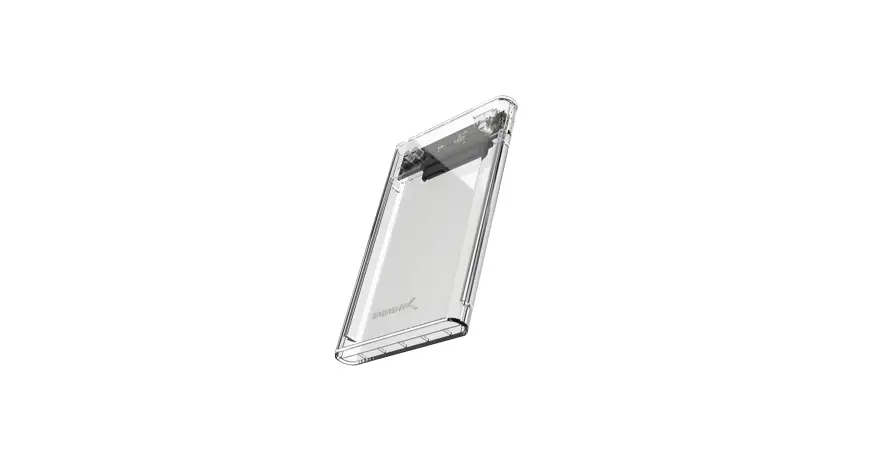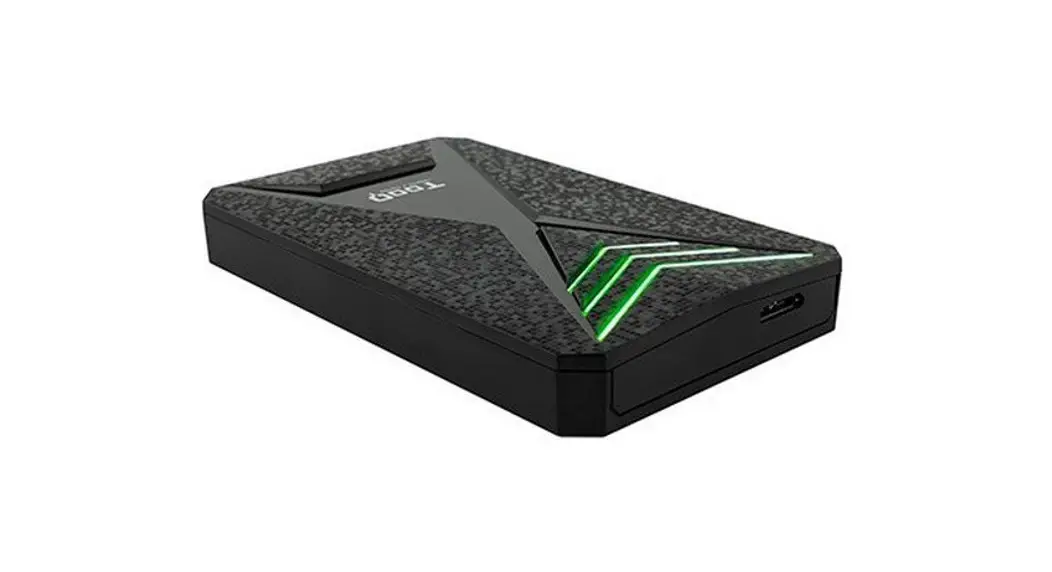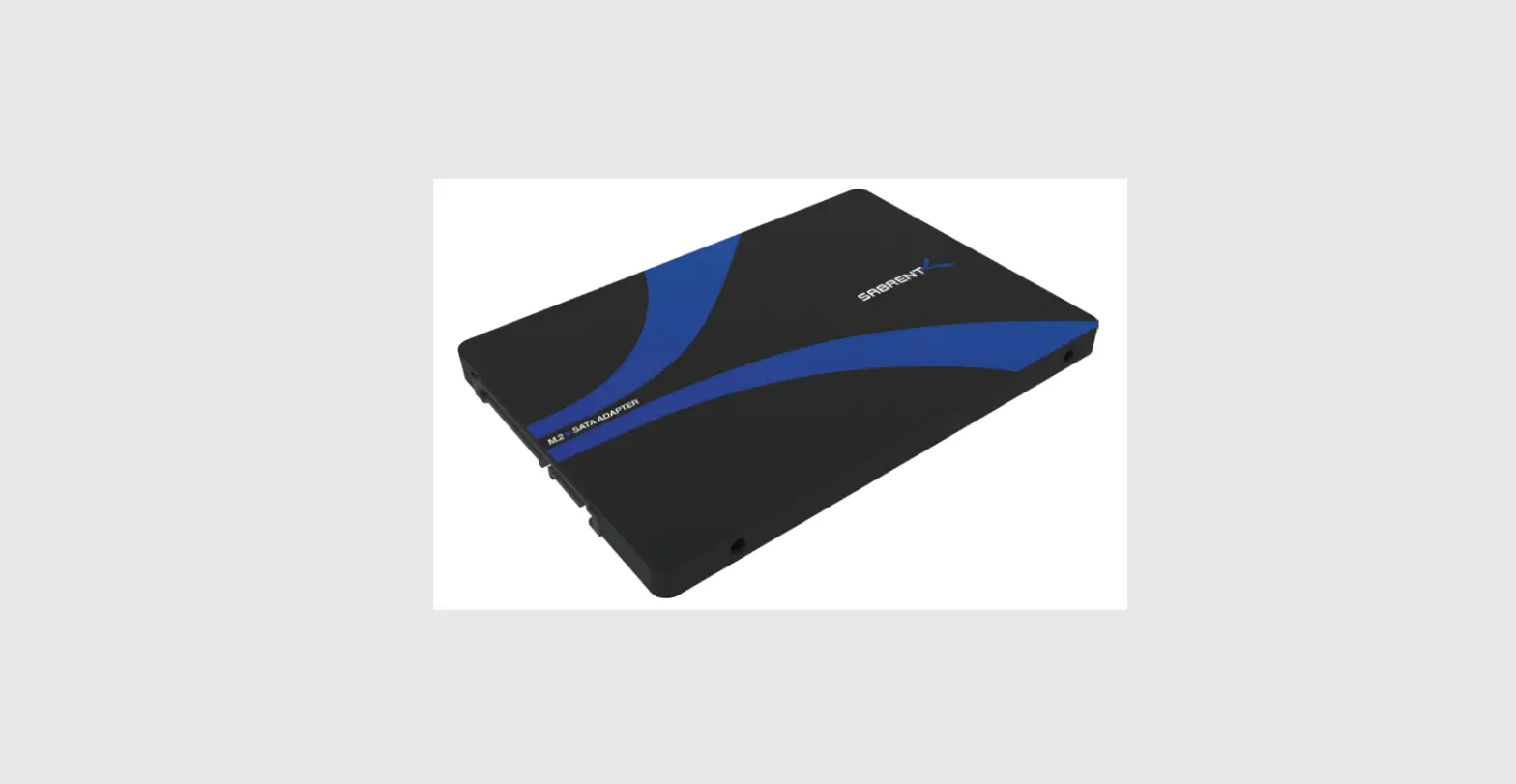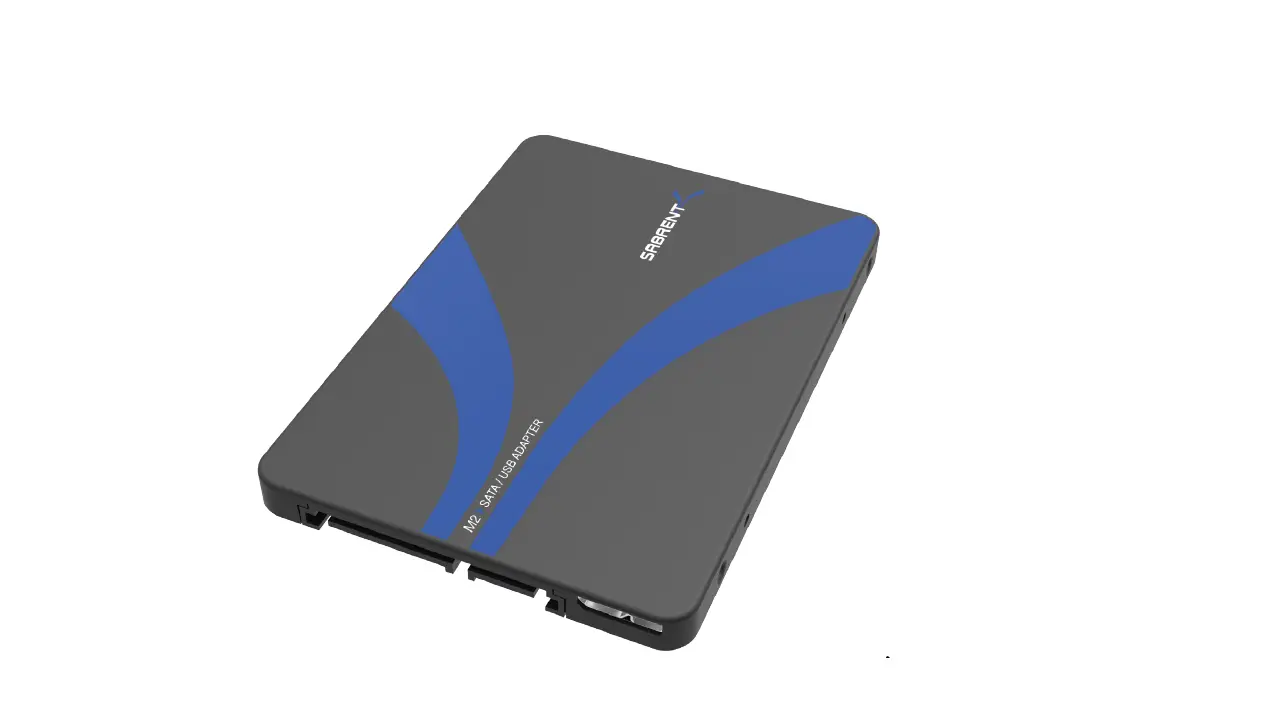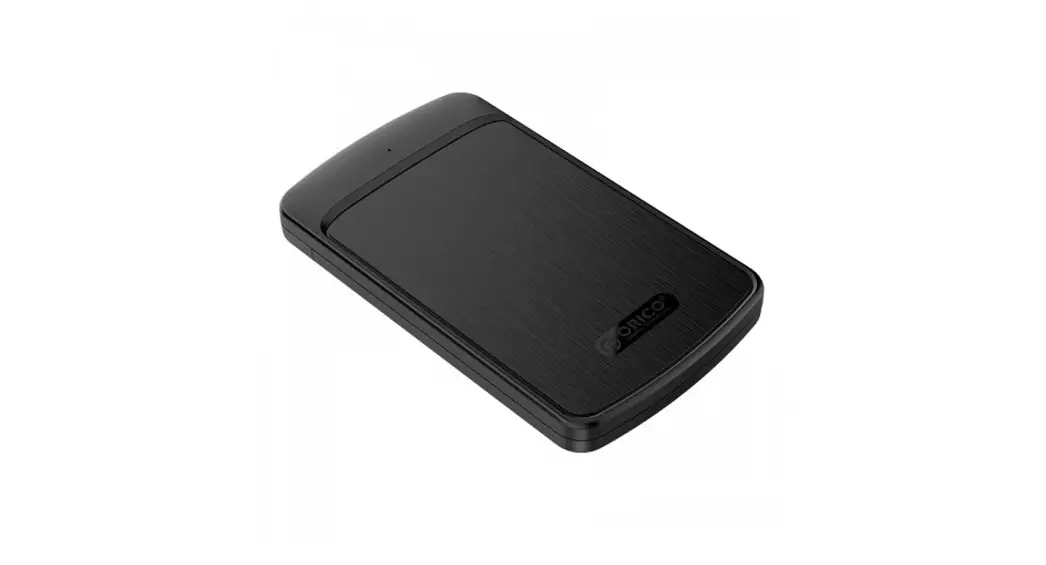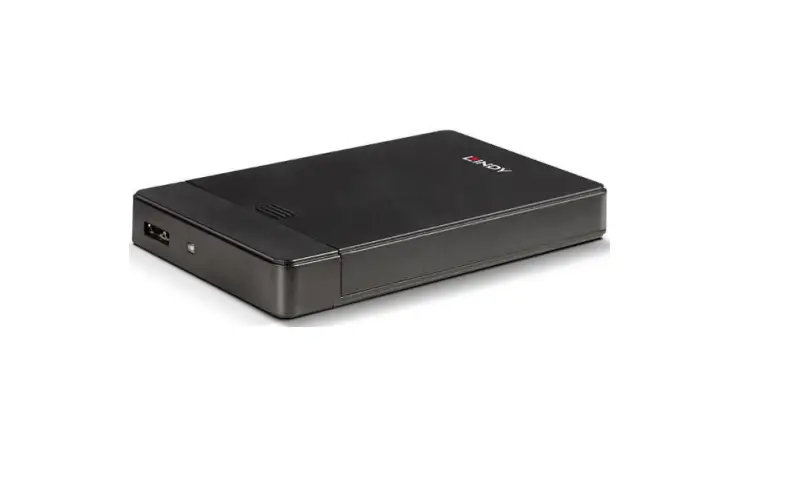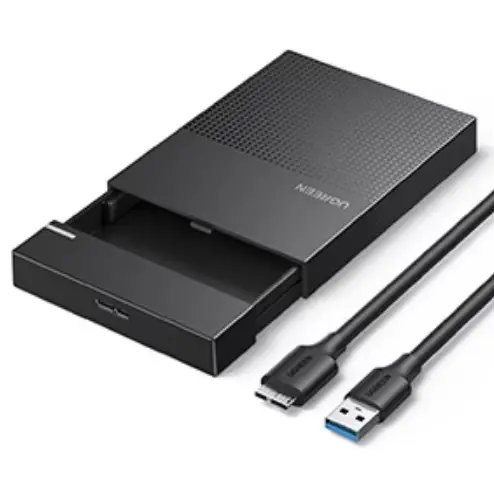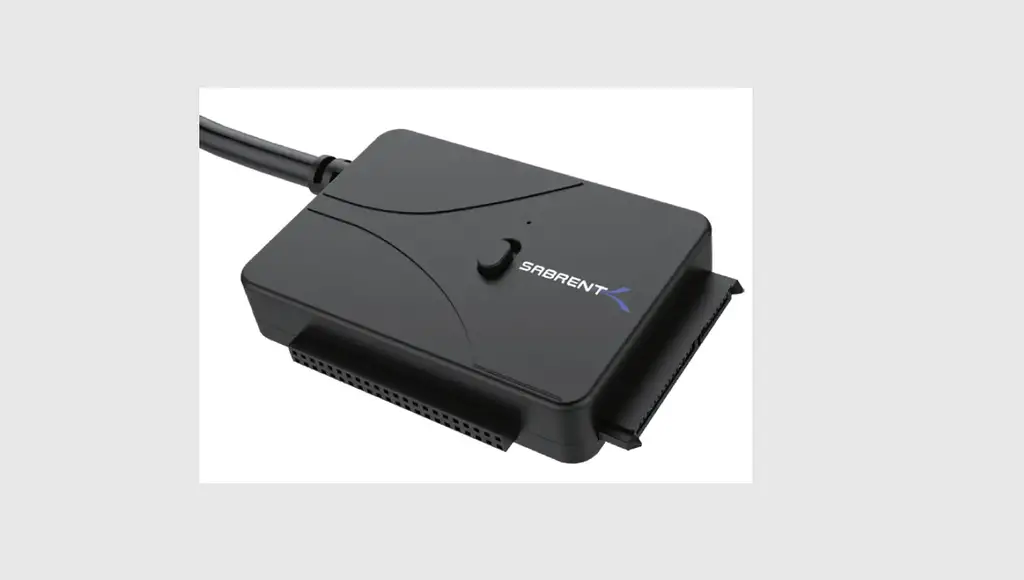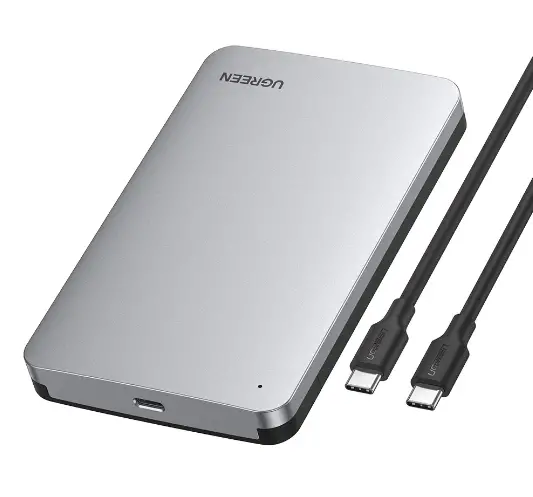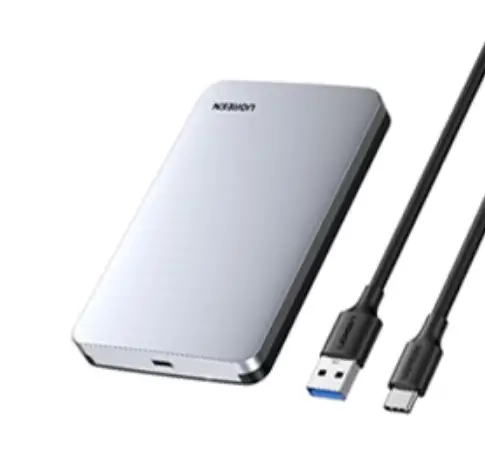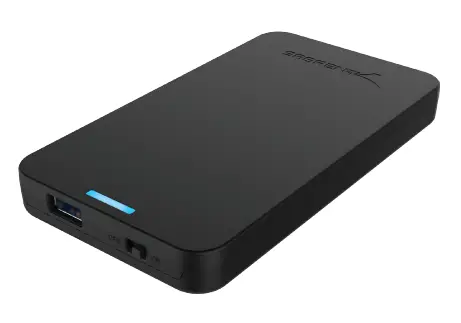

SABRENT EC-UASP 2.5 Inch SATA Hard Drive USB 3.0 Enclosure
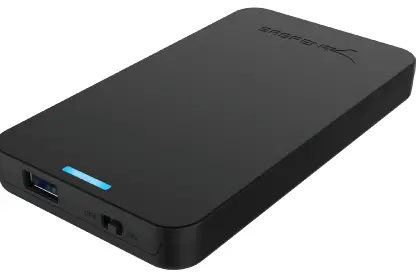
EC-UASP / USER MANUAL
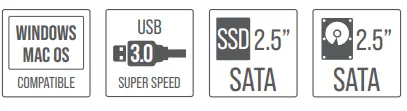
- Screwless and tool free design
- Supports all standard 2.5″ SATA hard drives with a height of up to 9.5mm
Package contents: - USB 3.0 2.5″ enclosure
- USB 3.0 cable
- Manual

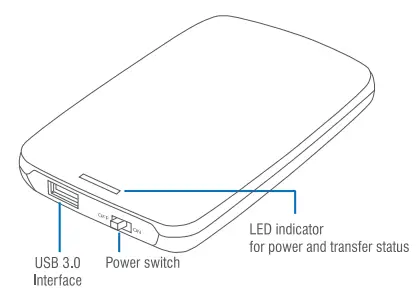
Technical data
- Supported drives
2.5 SATA VIVIII HDD/SSD - Interlace
USB 3.0 - Maximum height of drives
Height of up to 9.5mm supported
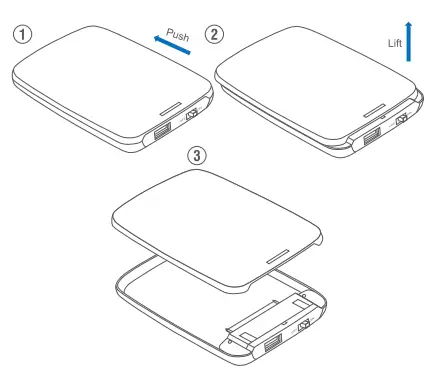
Hard drive installation steps
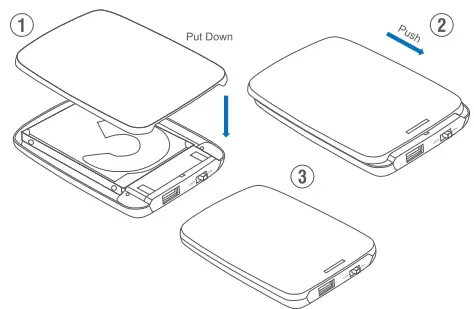
- Move the cover in to the arrow direction indicated below. When clear of the clamps, lift the cover to remove it.

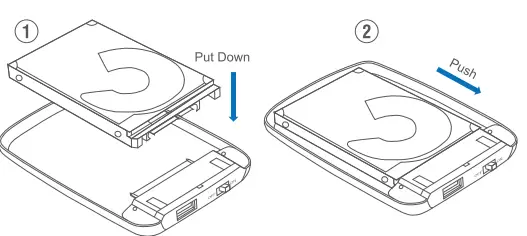
- Follow the arrow direction below while inserting the 2.5″ hard drive, then move the drive forward in the indicated direction to establish a connection to the SATA interface of the enclosure.

- Realign and lower the cover oriented on the position of the clip slots,move forward in the indicated direction to close the enclosure.
Installation is now complete.
- Connect the USB data cable, one USB-A connector plugged into enclosure, the other into an available use Interface on the PC.
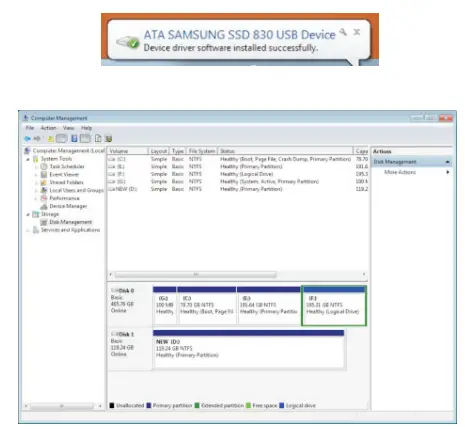
When the drive property mounts, a Plug & Play symbol will show up in the status bar. In data storage manager, the drive will appear accordingly.
- Instruction for the disconnecting drivers
NOTE: Before the removal of the data storage, stop all data access and transfer to the device, so that the storage can be property disconnected.
To prevent any data loss, please follow the steps for removal below
- Windows Systems: Right-click on the hardware or USB device removal symbol in the status bar, click on the peripheral to be removed.
When the system notification reads “The ‘USB Mass Storage Device can now be safely removed from the computer” you can remove the data storage device.
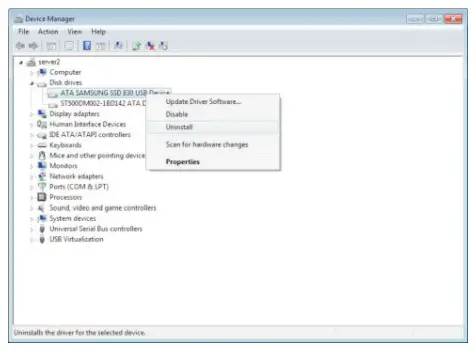
- Alternatively, you can access the drive through the device manager: Computer > Device Manger>DrivesClick on “Remove”

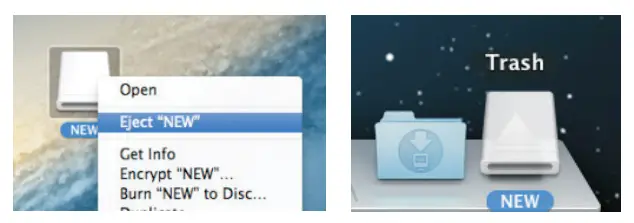
- Mac Systems: Select the symbol for portable drives/devices, then choose the menu function. Remove from the drop-down menu by
right-clicking onto the symbol. You can also drag the portable device to the Trash bin. Now the device can be safely removed.

Please contact our Technical Support Team for additional troubleshooting