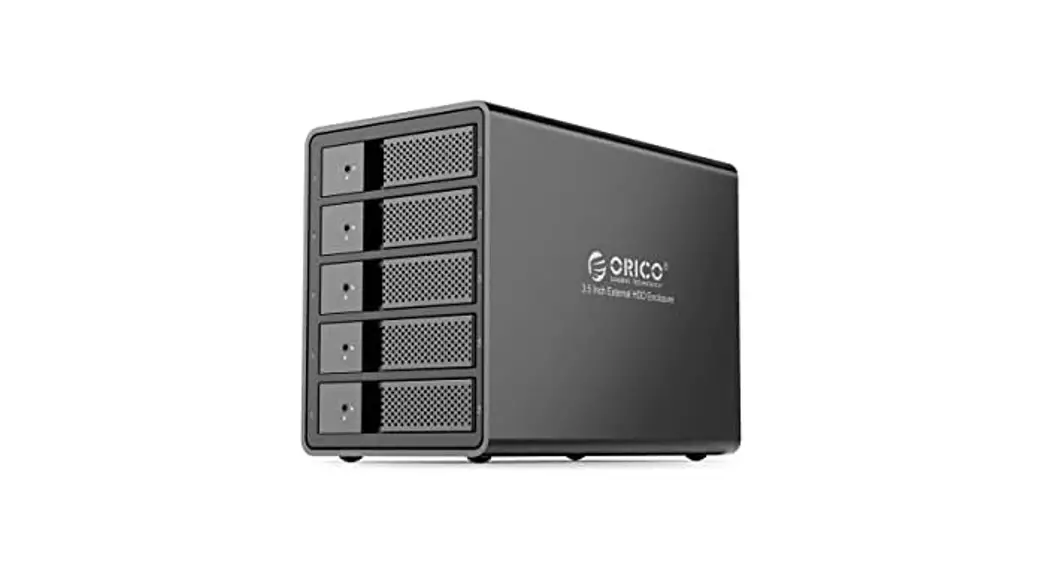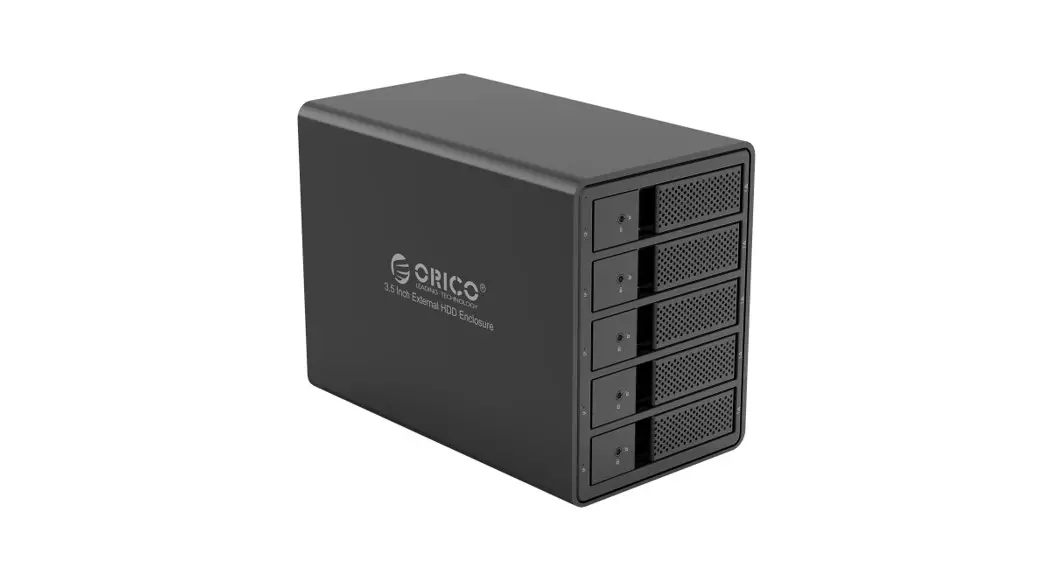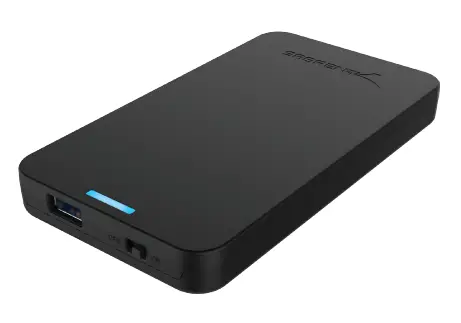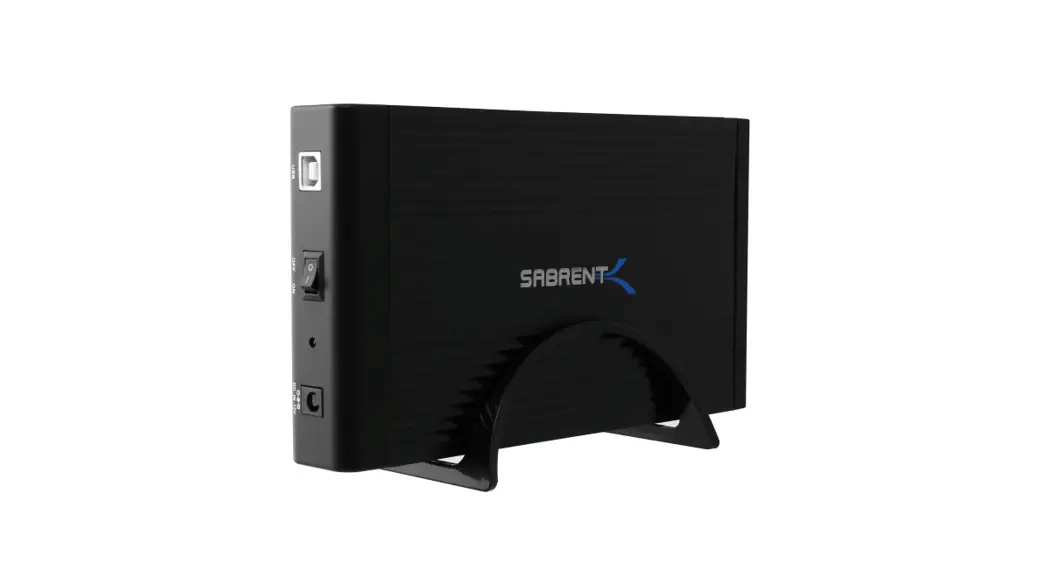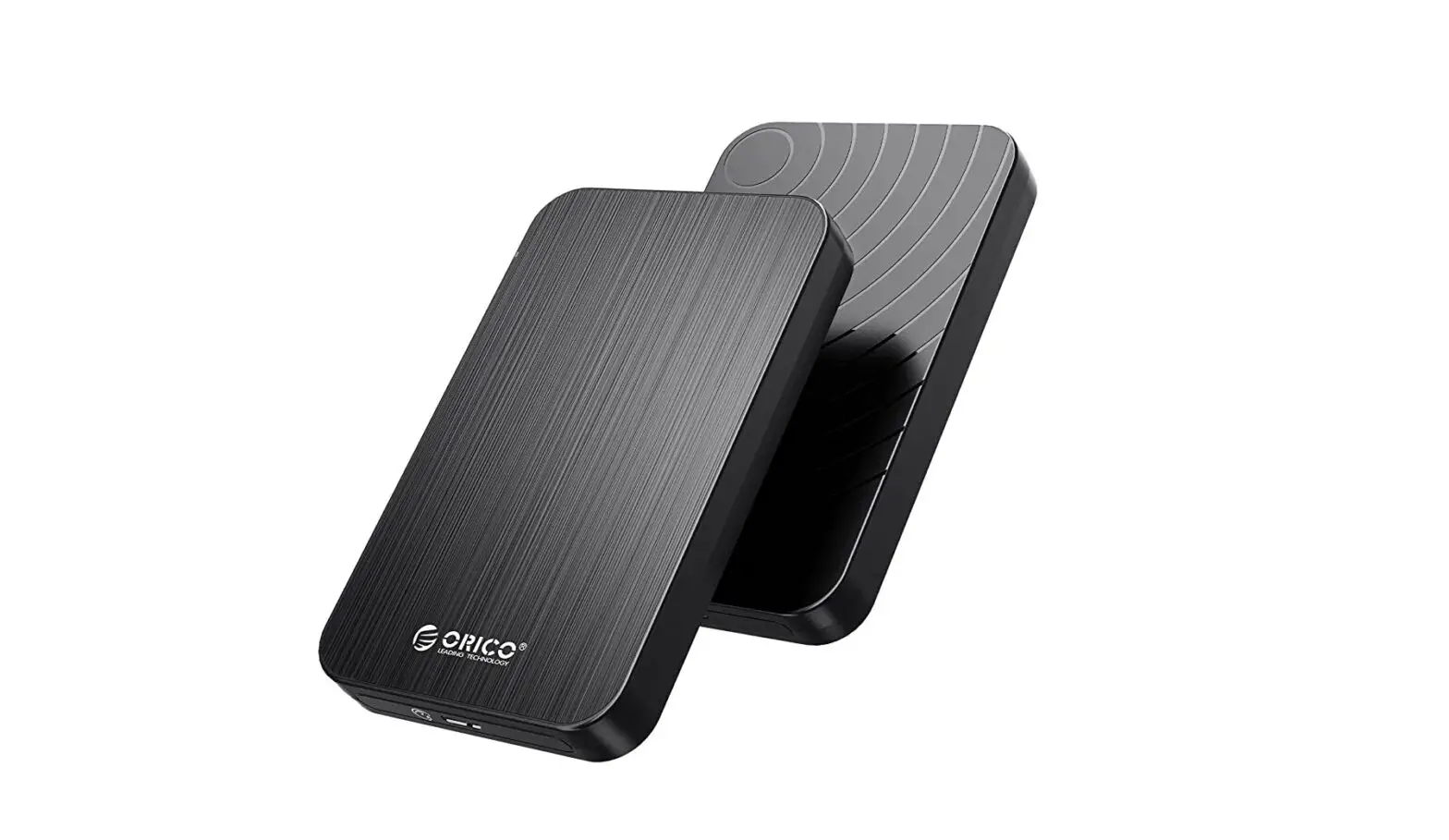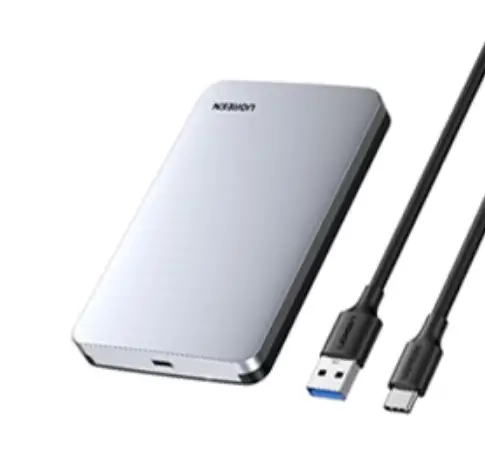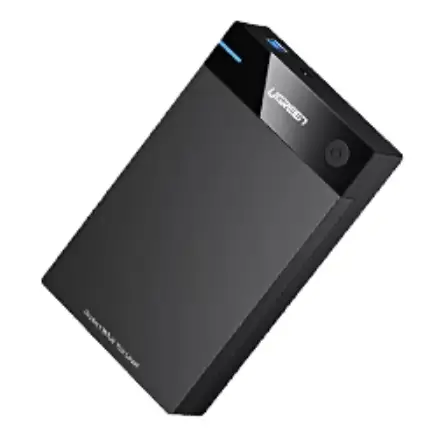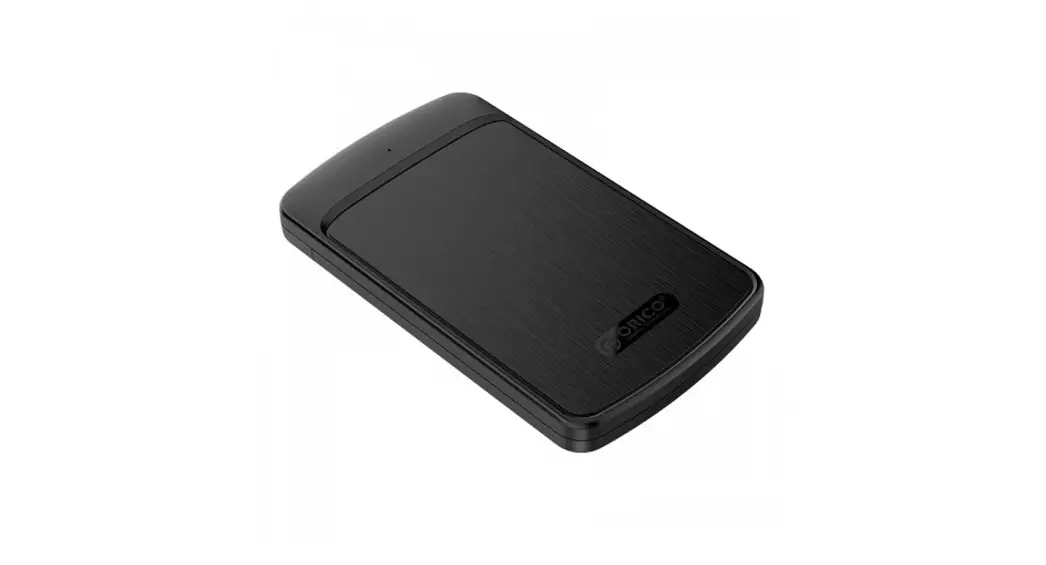

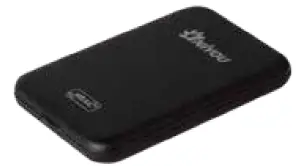
 2.5″ USB 3.0 SATA Hard Drive External Enclosure
Model: ENIYOU-252U3
CONTENT
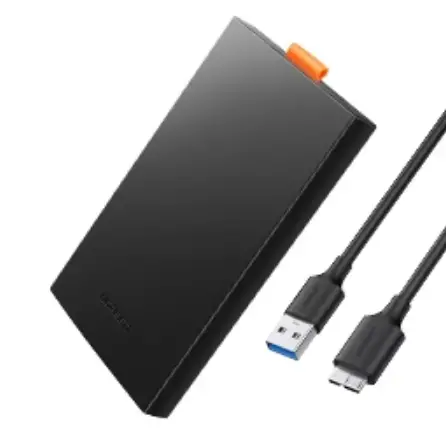
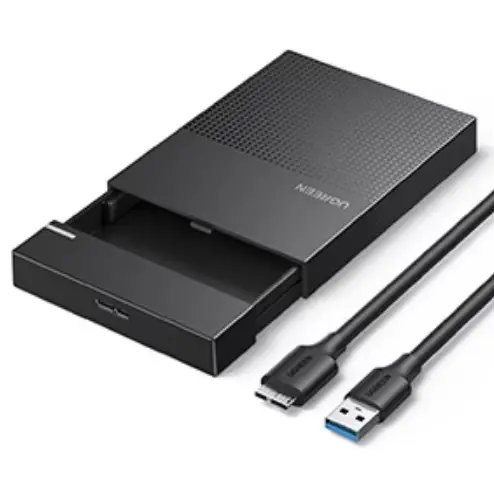
2.5 HDD Enclosure
USB 3.0 cable
PU Leather pouch
User Manual
OS Support
widows 2000/ Me/ XP /
Vista/ 7/ 8/8.1/10 and above,
Mac 0$ 9.1/10 and above
CONNECTING HDD
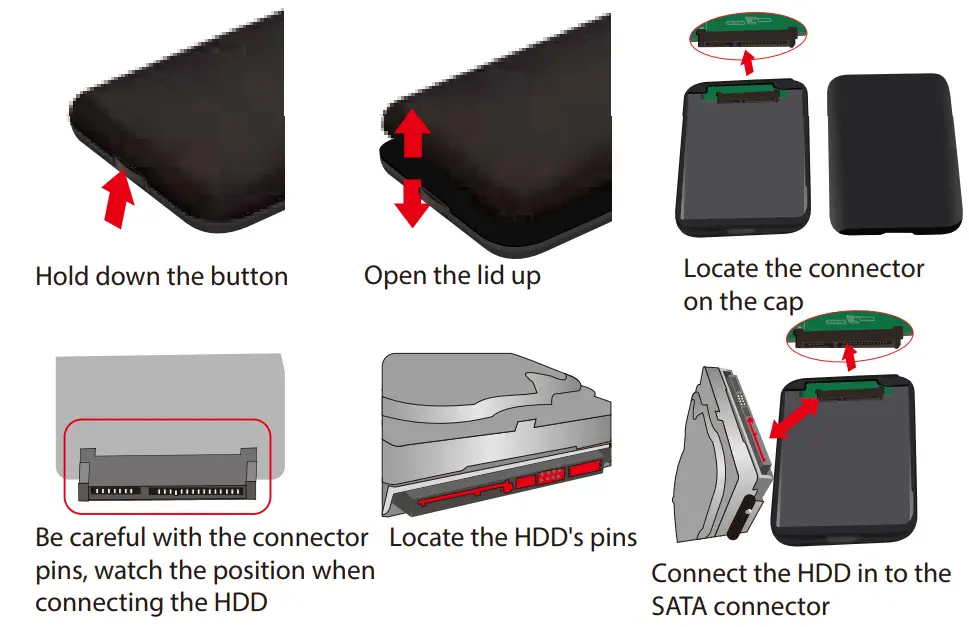
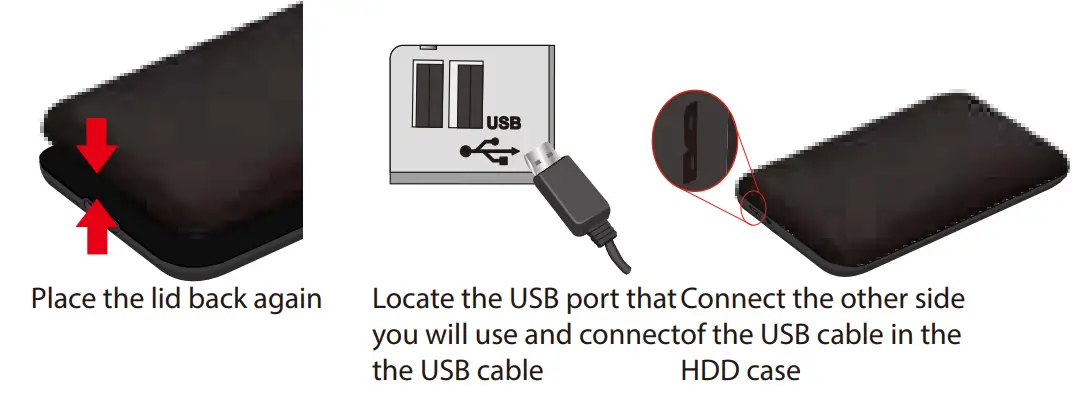
 NOTE: It your external HDD does not appear as a disk in “My PC” (when it is new), you will need to format it and create a new partition to use it.NOTE: If the HDD is not new, and you format it you will lose all the data files that were in the disk and you will not be able to recover them.
Partition and Format
 |  |
| Right-click on the My Computer icon and select Manager When this window appears, select Disk Management | Right-click on the disk on New Volume” and select initialize Dial” |
 | 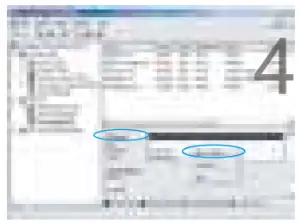 |
| Select the new disk to start with the configuration. | When new disk appears, right click on it and select “New partition”. |
 |  |
| When the wizard window appears, click on [Next]. | Select “Primary Partition” and click on [Next] |
 |  |
| Select the partition size We recommend using as maximum and click on [Next]. | Select the drive letter to sign the hard disk and click on [Next]. |
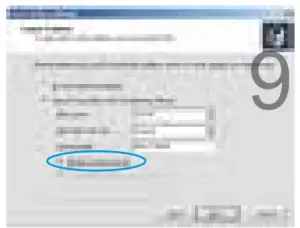 |  |
| Select the format settings FAT 3′, DEFAULT, and Volume Labbe (Select the lectures that you need to format FAT3, Predetemm ed, the CD label that you need (example. New Volume’) and Perform a quick format” | The new partition is complete and your hard disk is ready to be used. Cake on (finish] |
Product Specification
| Supported Devices | 2.5 inch SATA I/11/111 Supported |
| External Interface | USB 3.0 |
| Maximum Data Transfer Rate | USB 3.0 (MAX 5Gbps) / USB 2.0(MAX 480Mbps) |
| OS Support | Windows 2000/ Me/ XP Vista/ 7/ 8//8.1/10 above, Mac OS 9.1/10. above |
| Power | USB power supplied, no external power needed |
| Plug and play | Support |
| Material | Black durable metal case |
| Package Contents | 2.5″ HDD Enclosure, PU Leather pouch,USB 3.0 Cable, User Manual |
| Please Note | Hard is not included |
Feature
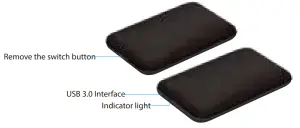
- USB 3.0 (MAX 5Gbps),USB 2.0(MAX 480Mbps)
- OS Support: Windows 8/8.1/10 and above