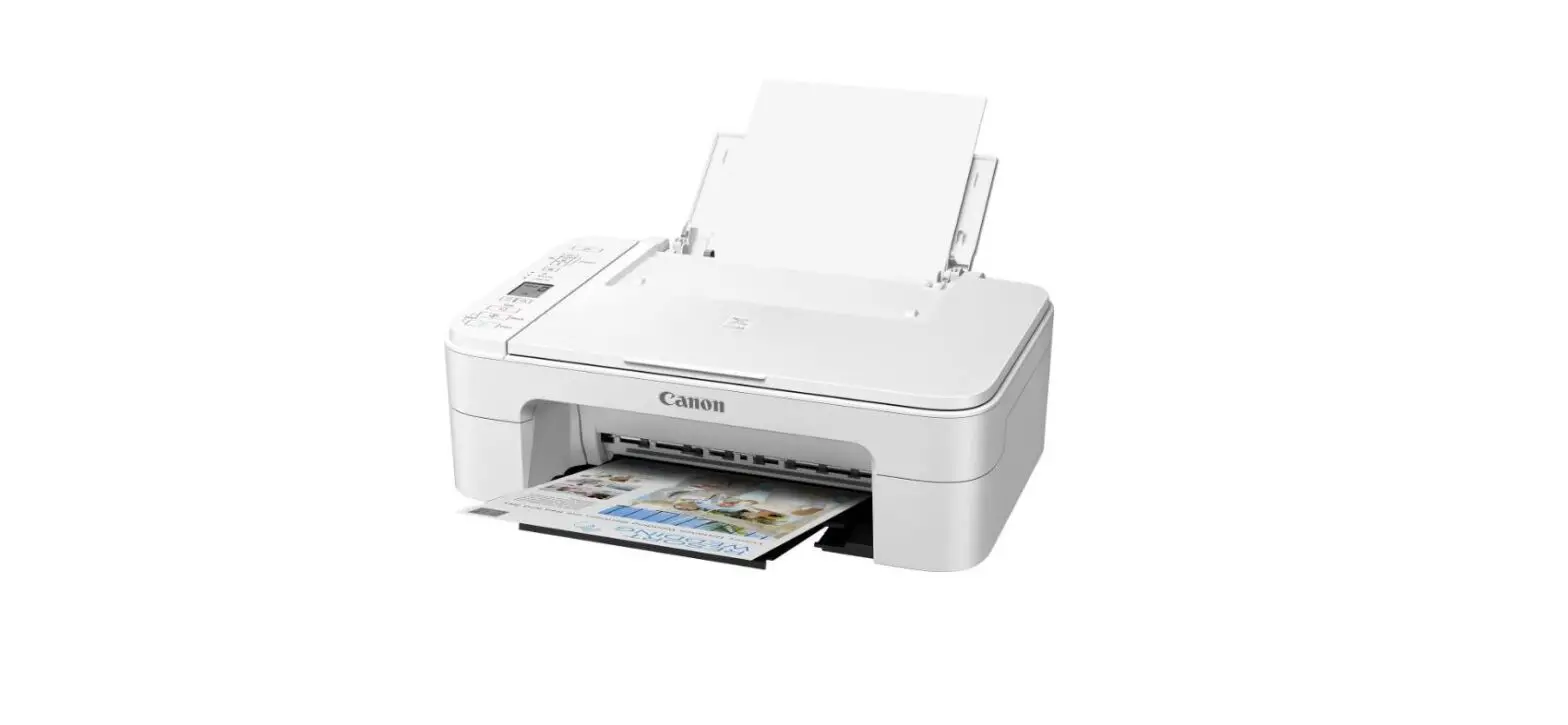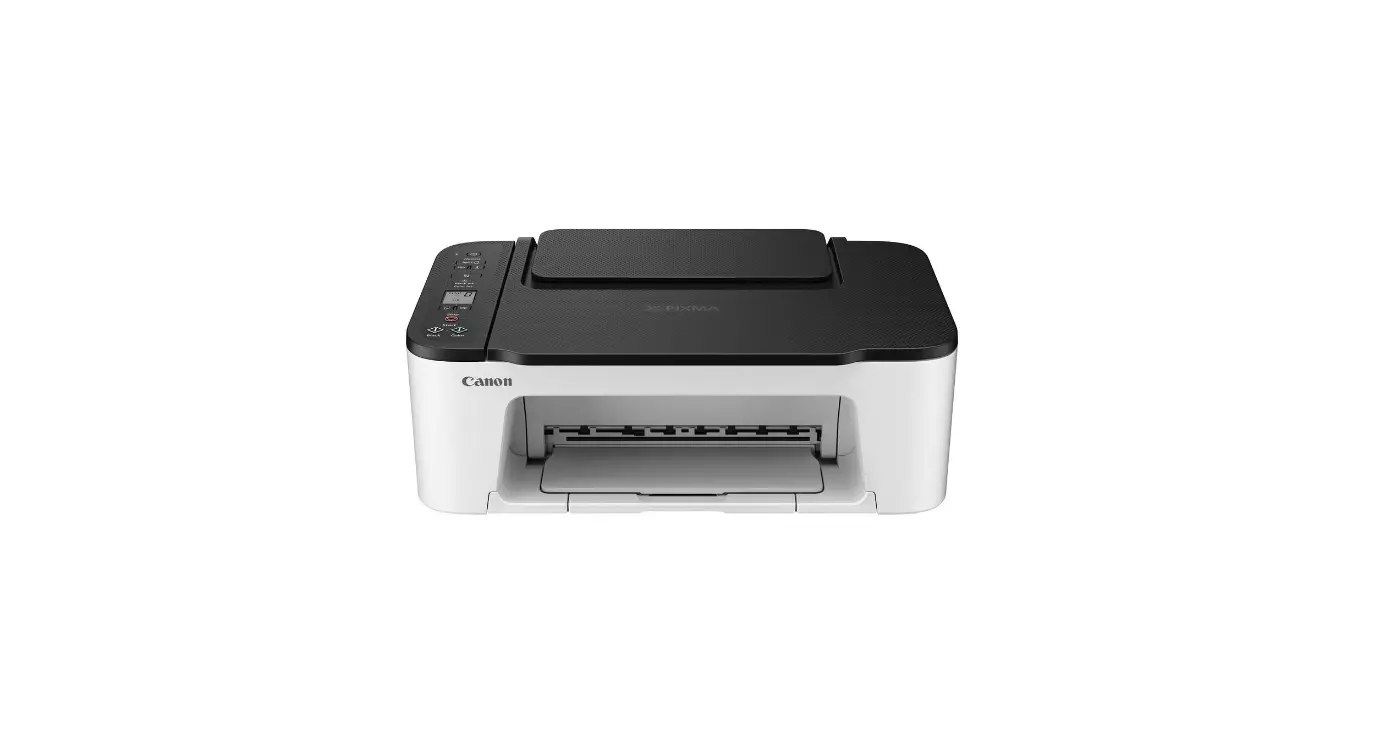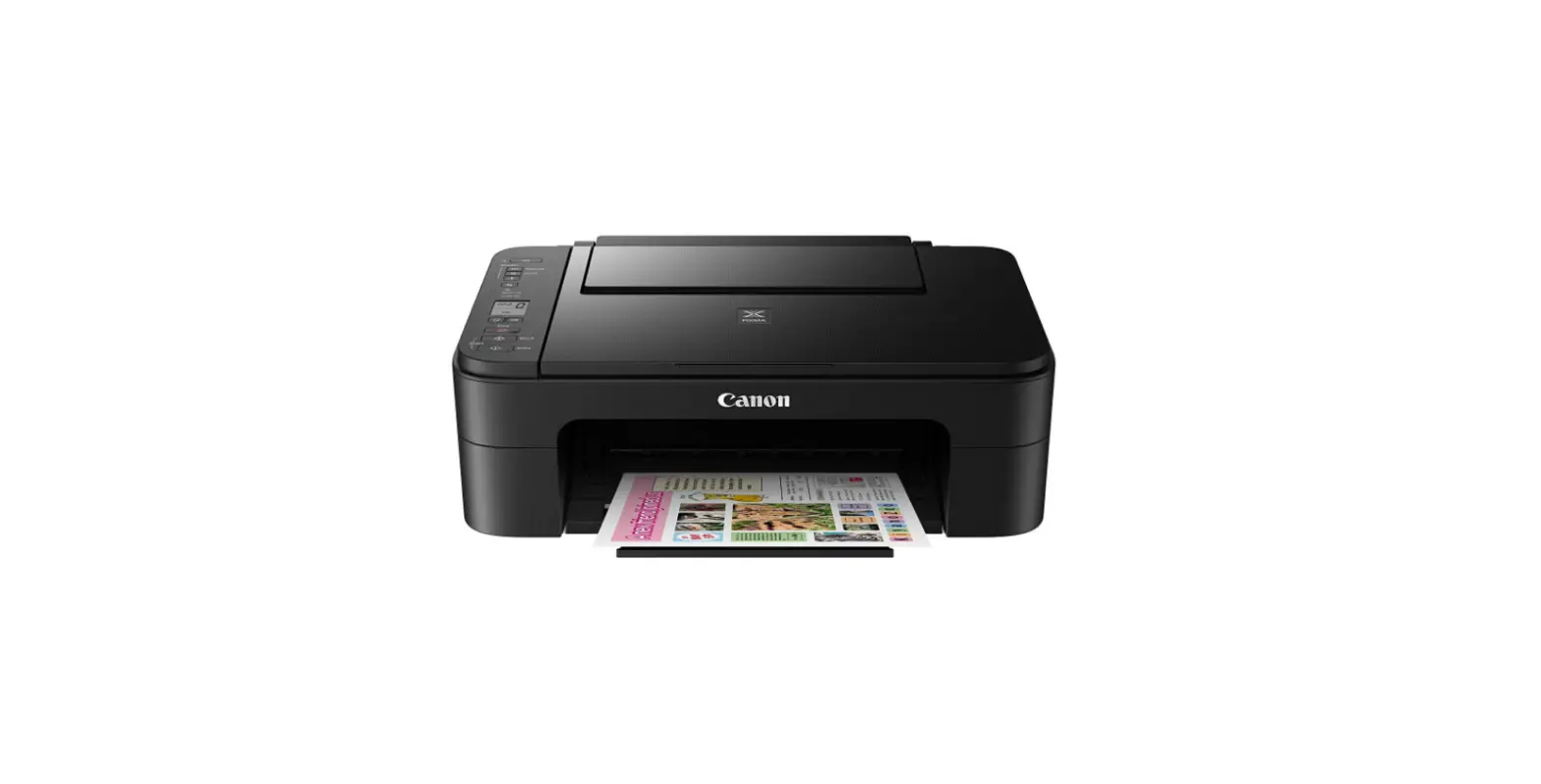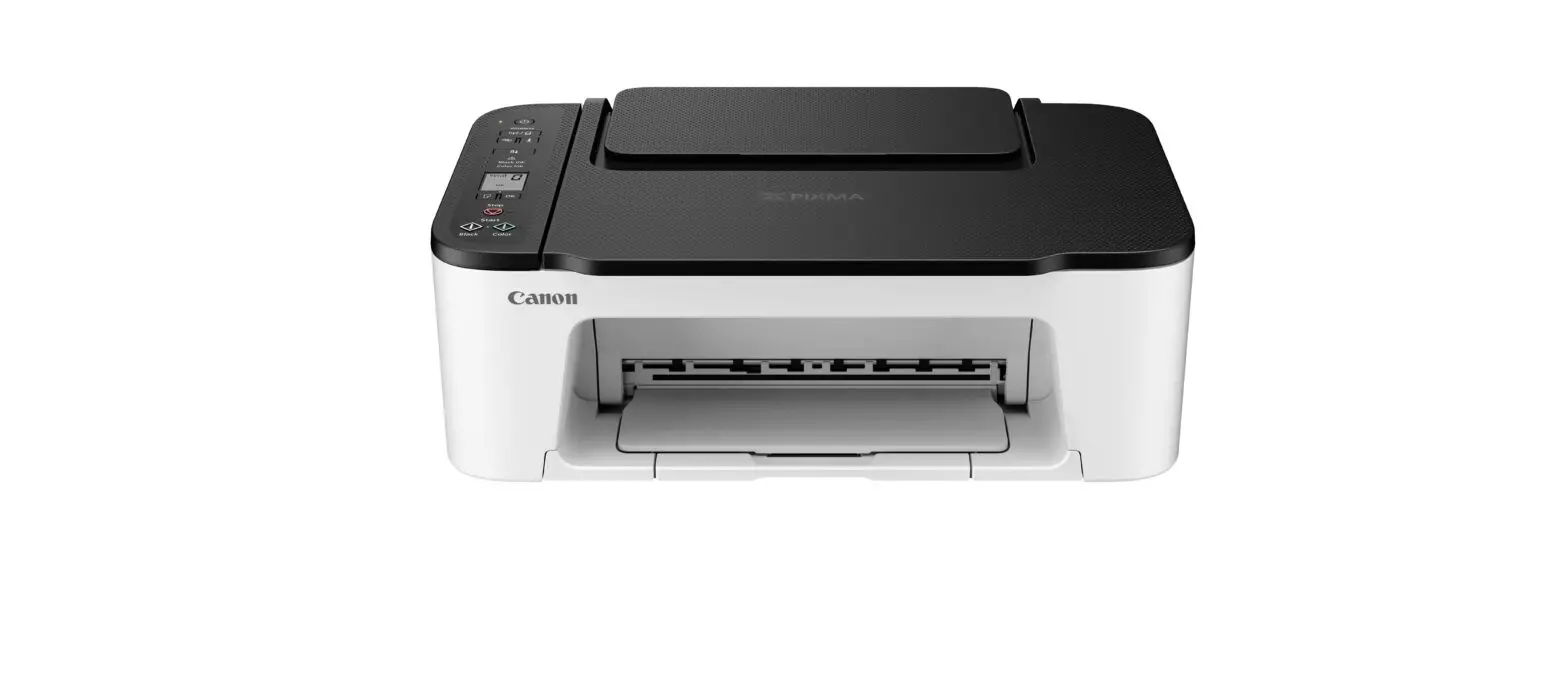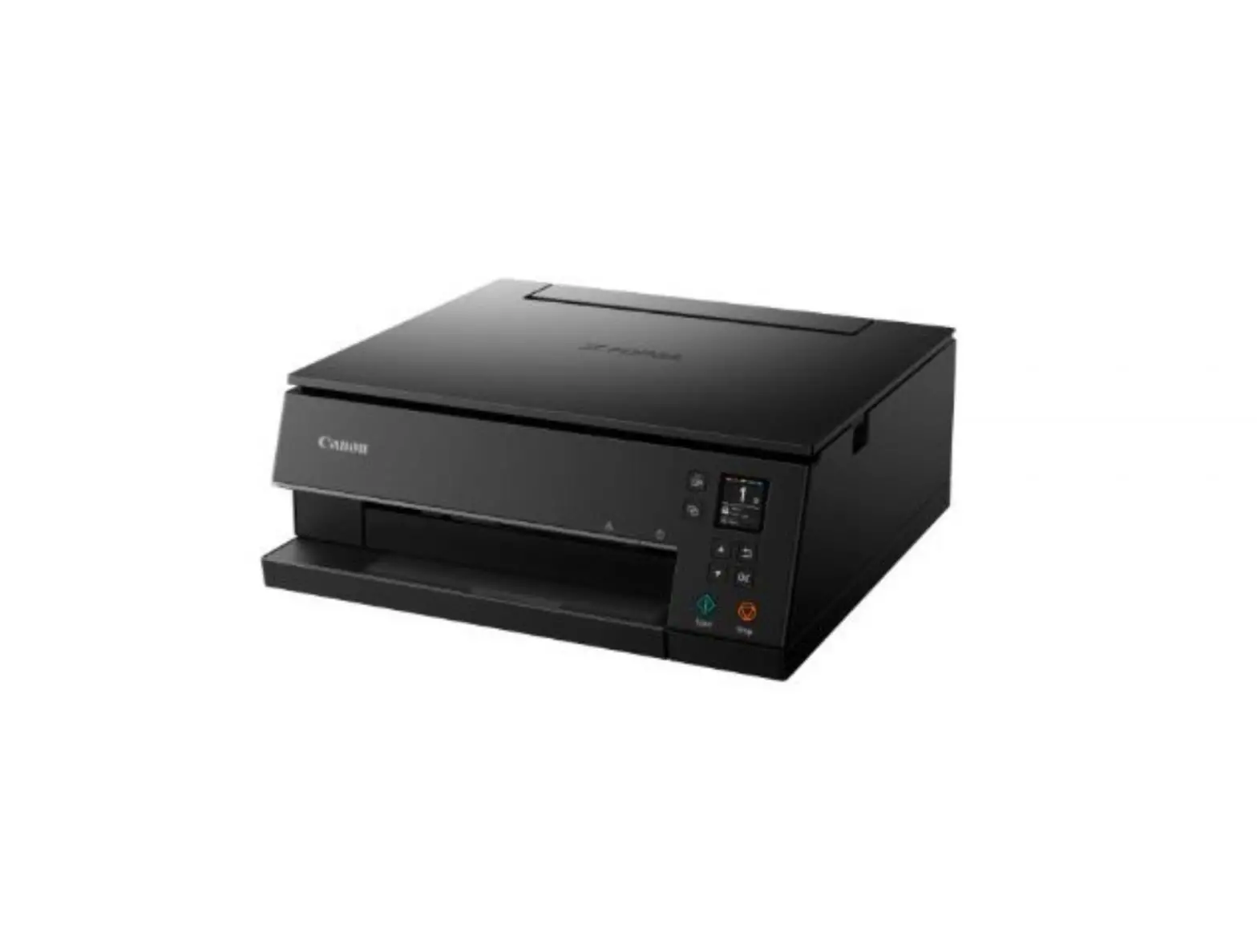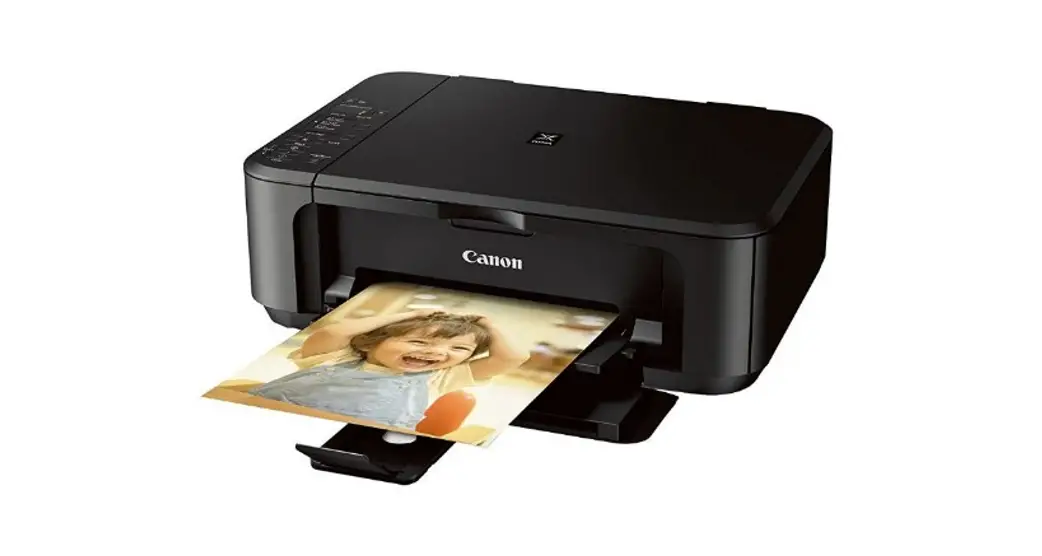
 Canon PIXMA E3300 Series
Getting Started
Read Safety and Important Information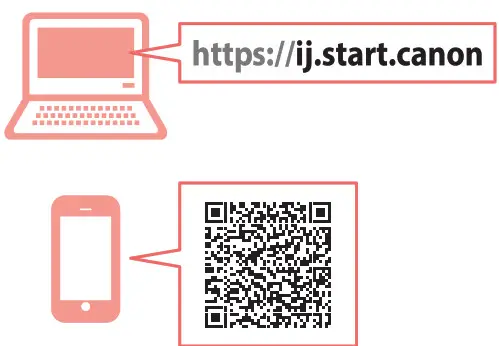
Installing the Printer Connecting to a Computer, Smartphone or Tablet
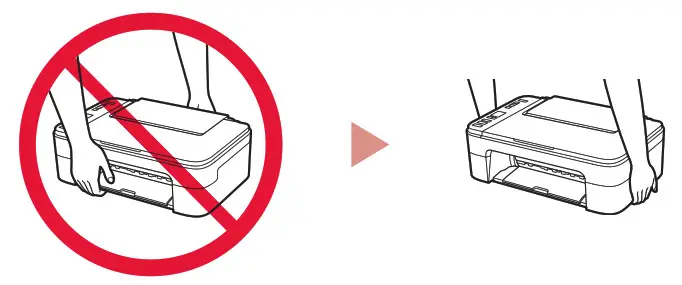
 Holding the Printer
 Instructional Videos

 Connecting to a Computer, Smartphone or Tablet
 Holding the Printer
 Instructional Videos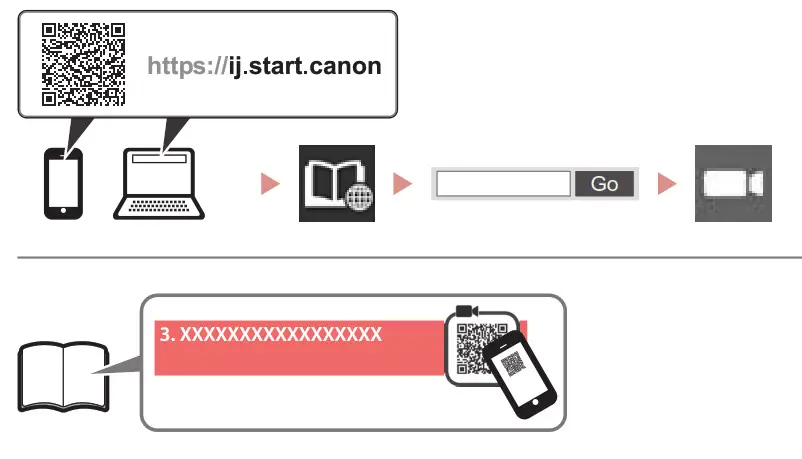
 Checking Included Items
 Checking Included Items
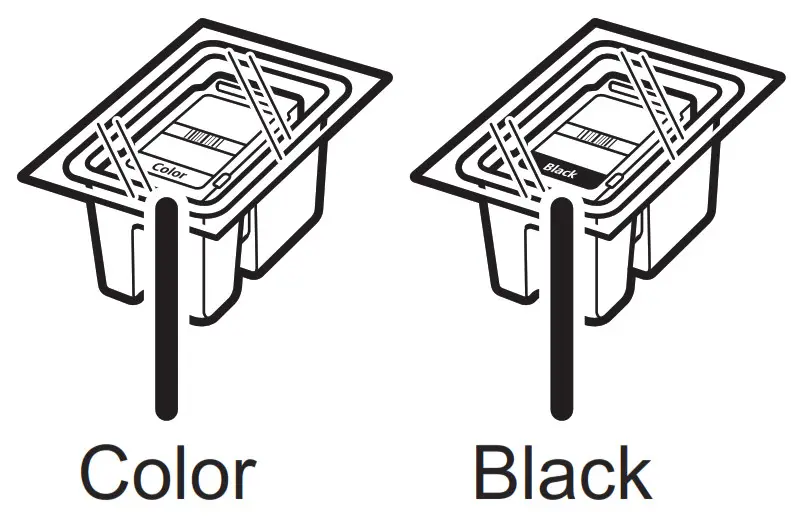
- FINE cartridges
- Power cord
- Setup CD-ROM for Windows
- Safety and Important Information
- Getting Started (this manual)
Removing Packing Materials 

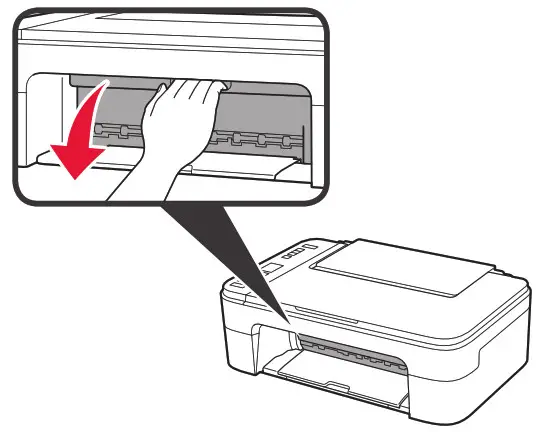
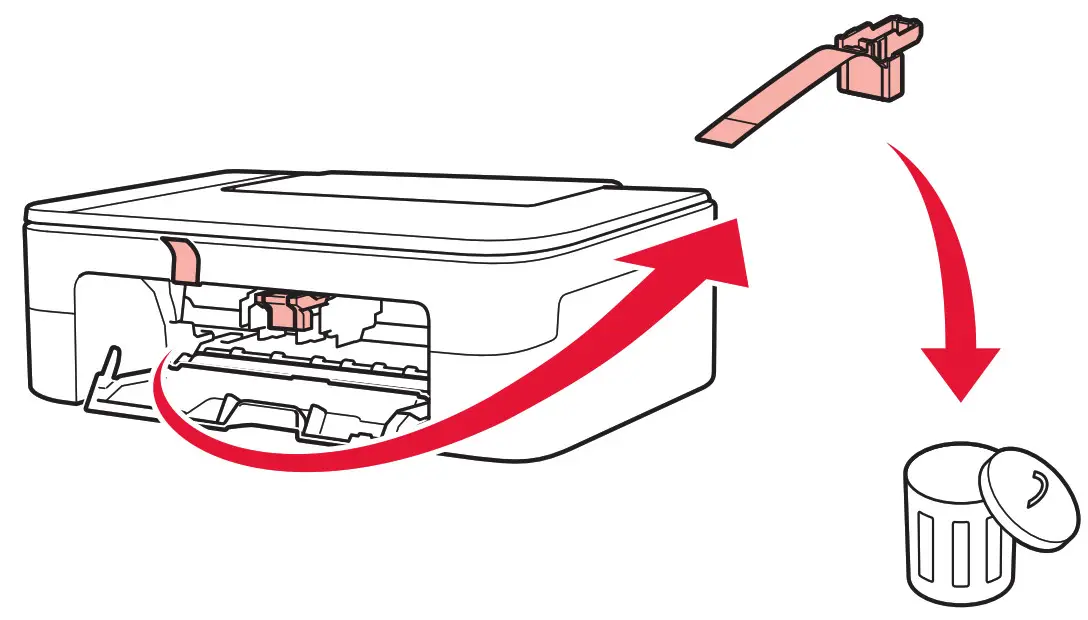
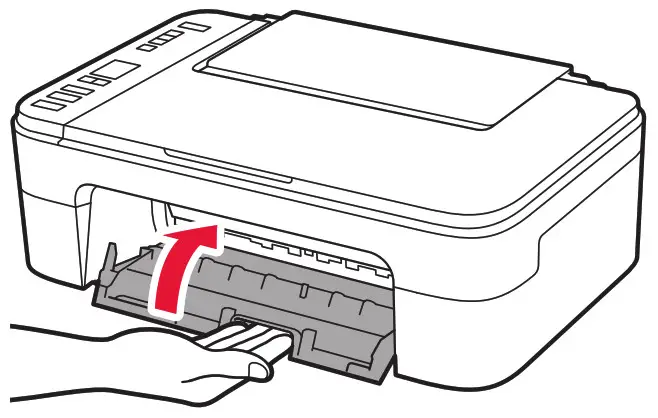
- Remove and dispose of any packing materials and orange tape from the printer’s exterior.
- Open the cover.

- Remove and dispose of the orange tape and protective material inside.

- Close the cover.

Turning on the Printer
- Connect the power cord.
 At this time, do not connect any other cables.
 - Press the ON button.
 If E > 0 > 9 appears on the screen, press the ON button to turn off the printer, and then redo from step 2 of “2. Removing Packing Materials”.
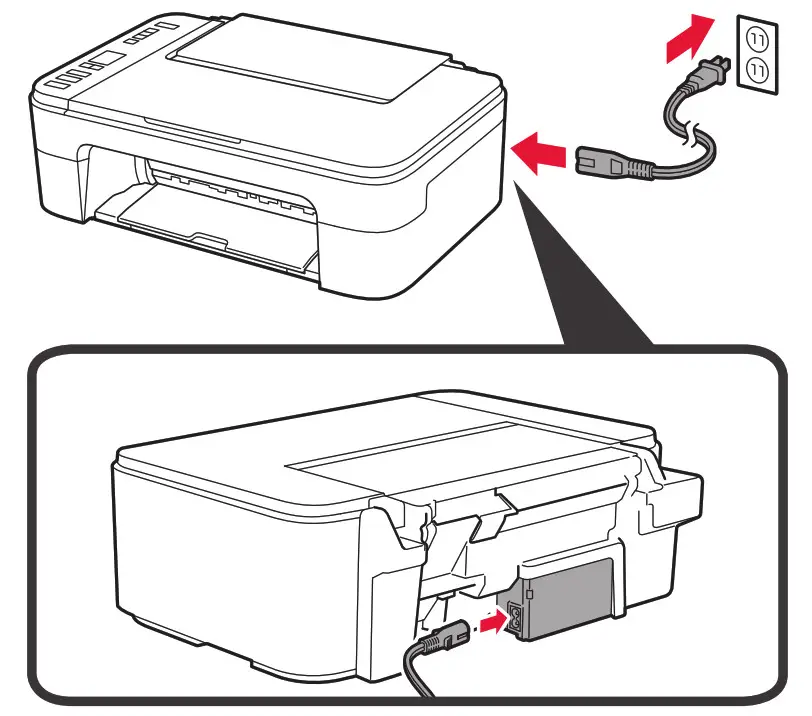 At this time, do not connect any other cables.
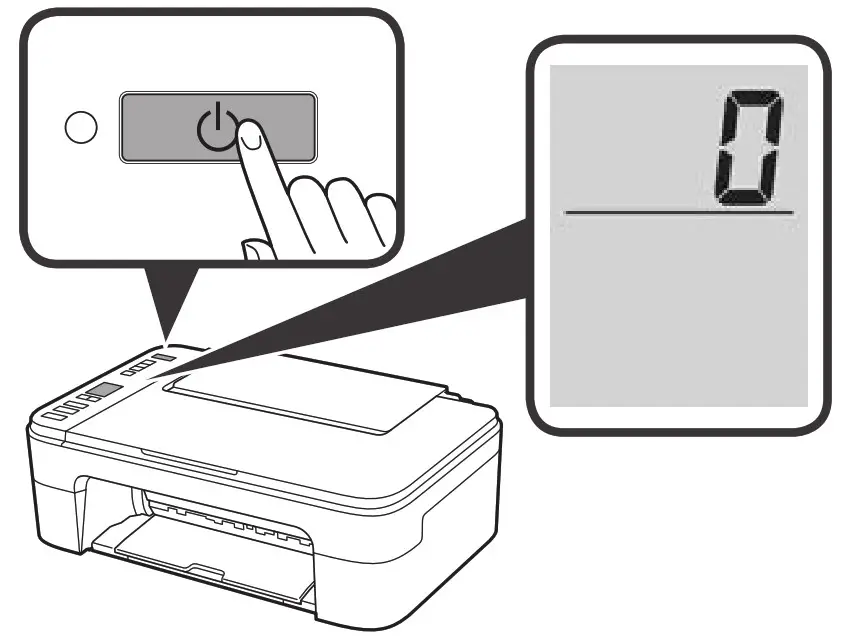 If E > 0 > 9 appears on the screen, press the ON button to turn off the printer, and then redo from step 2 of “2. Removing Packing Materials”.
Installing the FINE Cartridges
- Open the cover.
- a . Remove the Color FINE cartridge from the container.
b. Remove the protective tape. Be careful of ink on the protective tape.
 - a. Insert the Color FINE Cartridge into the FINE cartridge holder on the left-hand side at a slight upward angle.
b. Push the FINE cartridge in and up firmly until it snaps into place.
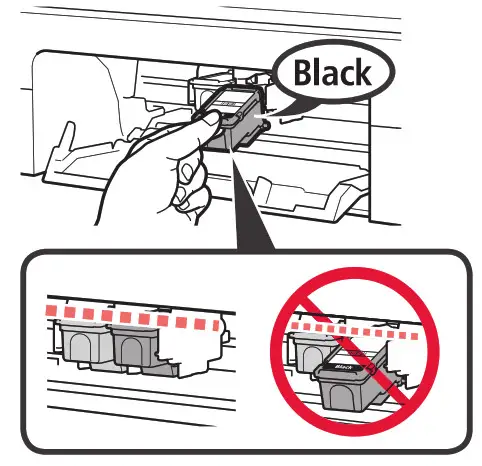
Confirm that the FINE cartridge is straight and level.
- Repeat steps 2 to 3 to install the Black FINE cartridge on the right-hand side.

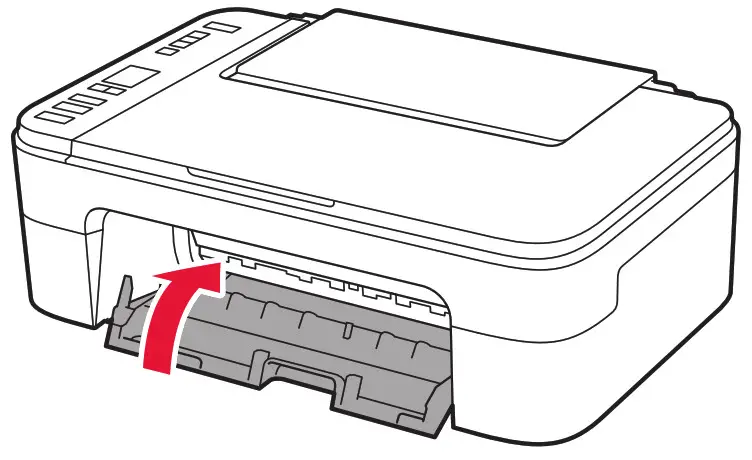
- Close the cover.

If E > 0 > 4 appears on the screen, return to step 3 of “4. Installing the FINE Cartridges” and confirm that the Color and Black FINE cartridges are installed correctly.
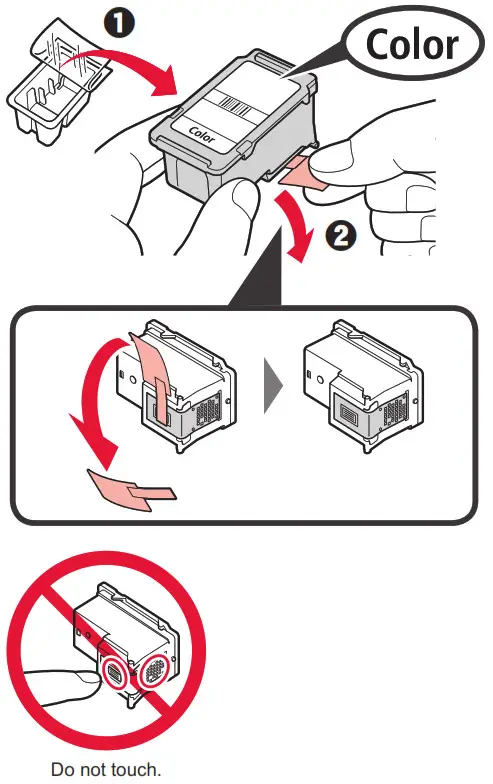 Be careful of ink on the protective tape.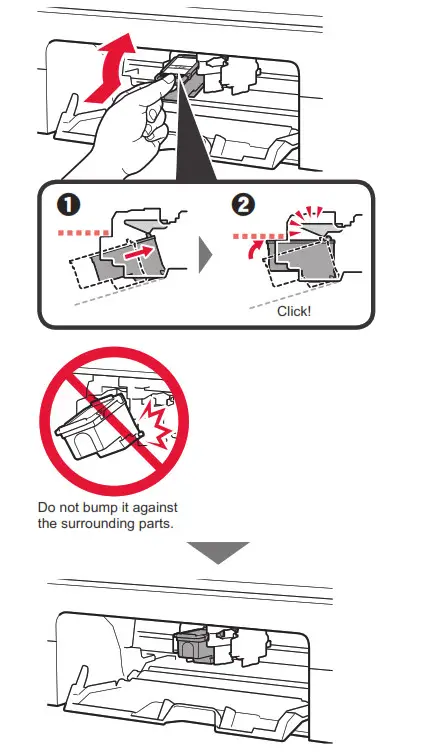
Loading Paper
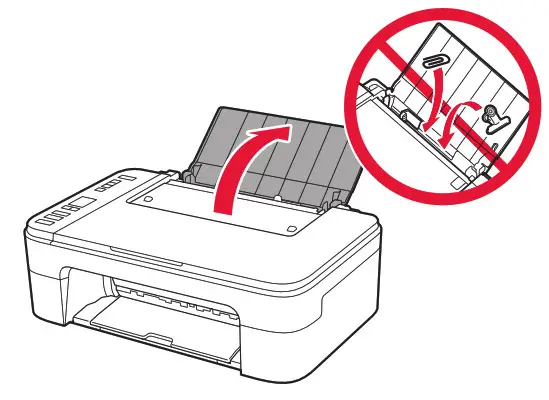
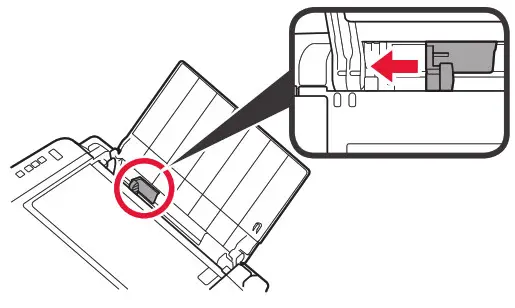
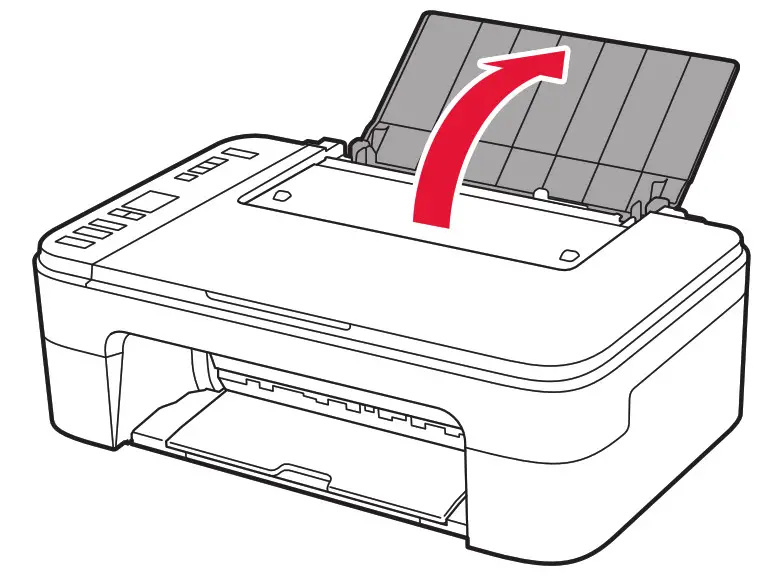
- Open the paper support.

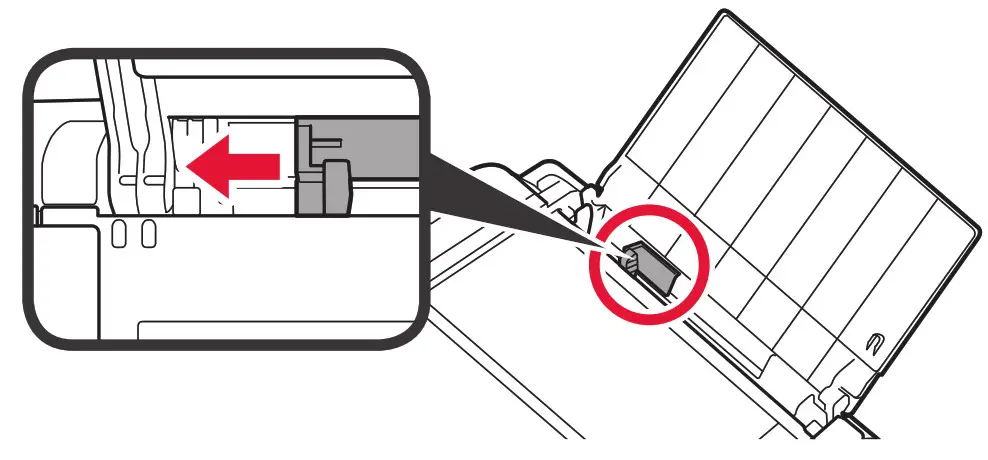
- Slide the paper guide to the left.

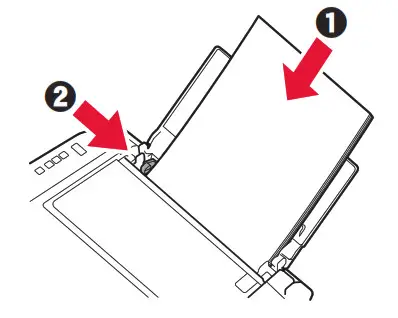
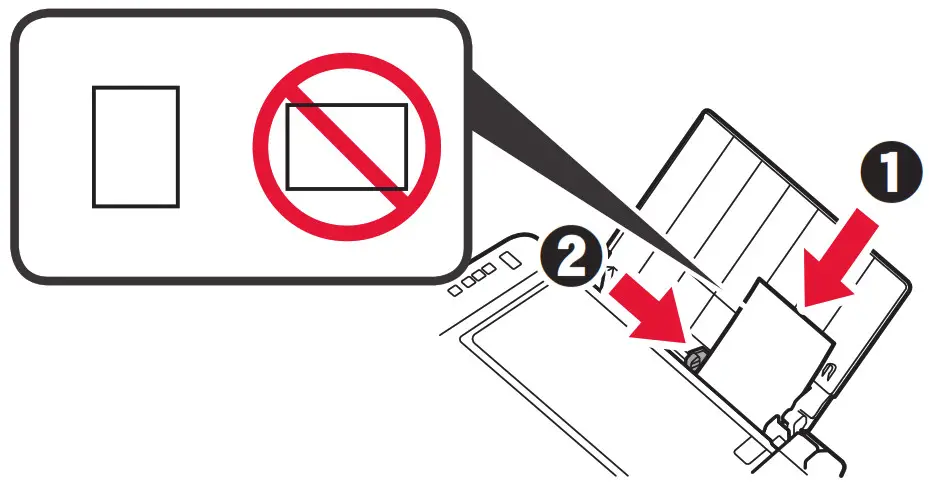
- a. Load Letter or A4 sized plain paper against the right edge with the print side facing up.
b. Slide the paper guide to align it with the side of the paper stack.
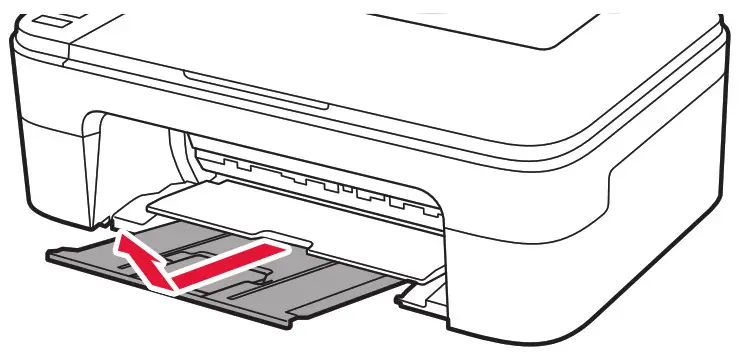
- Pull out the paper output tray.

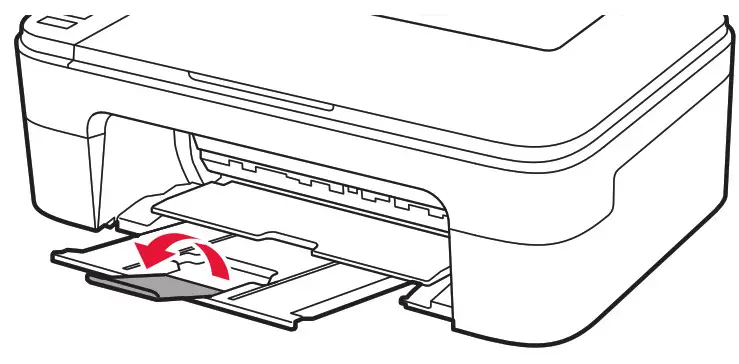
- Open the output tray extension.

Preparing for Connection
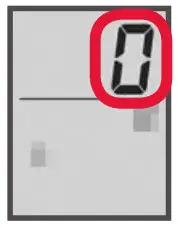
- Confirm that the screen appears as shown below.

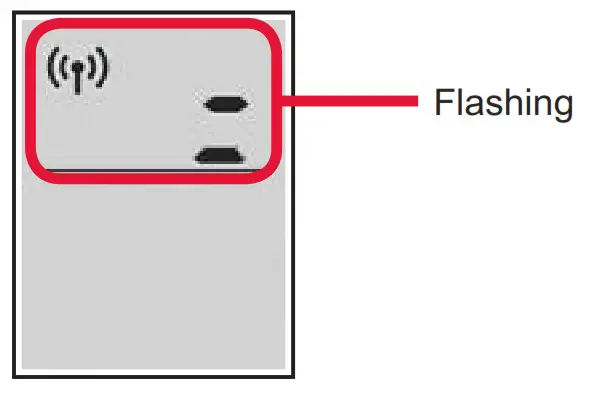
What device are you connecting?

To use your printer without connecting to any other devices. → “7-c”
Connecting to a Computer
If you are using multiple computers, perform these steps on each computer
- Access the Canon website from a computer.

- Select
 Set Up.
 - Enter your printer’s model name and click Go.
- Click Start.
- Click If you have already prepared your printer, go to Connect.
Note
The following steps are for Windows (except Windows 10 in S mode) and macOS users. For other operating systems, continue setup by following the on-screen instructions instead. - Click Download.
- Run the downloaded file.
- Click Start Setup.

- Follow the on-screen instructions.
• These operations may take some time.
• To connect to a smartphone as well, see “7-b. Connecting to a Smartphone” on page 5.

 Set Up.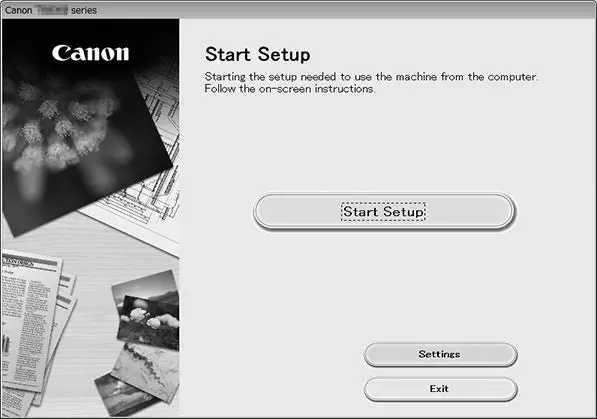
Using the Setup CD-ROM for Windows
Double click EasySetup.exe in the CD-ROM, and then continue from step 3. If you do not have an internet connection, open the win folder in the CD-ROM and double click SETUP.exe. This will install the printer driver.
Connecting to a Smartphone
If you are using multiple smartphones, perform these steps on each smartphone.
Prepare the following before starting.
- Enable the Wi-Fi setting on your smartphone.
- Connect your smartphone to the wireless router (if you have a wireless router).
Refer to your smartphone and wireless router manuals for more details.
1. Install the “Canon PRINT Inkjet/ SELPHY” app on your smartphone.
• Scan the QR code shown on the right to access the Canon website, and then download the app.
 https://rs.ciggws.net/rd2.cgi?FNC=GS2_APP
2. Open your smartphone’s Wi-Fi settings.
Tap the network name (SSID) that starts with “Canon_ij_”. If “Canon_ij_” does not appear, proceed to step 3.
(Example of iOS screen)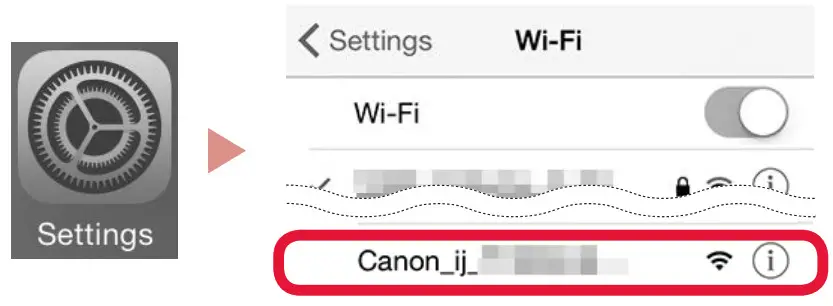 3. Open the installed app.
 4. Follow the on-screen instructions in the app to add your printer.
Once you have added your printer, you can print from your smartphone. To print photos, see “Loading Photo Paper” on page 6.
No Device Connected
- Press the Stop button.
- Confirm that the screen appears as shown below.

Loading Photo Paper
- Open the paper support.

- Slide the paper guide to the left.”

- a. Load several sheets of photo paper against the right edge with the print side facing up.
b. Slide the paper guide to align it with the side of the paper stack.
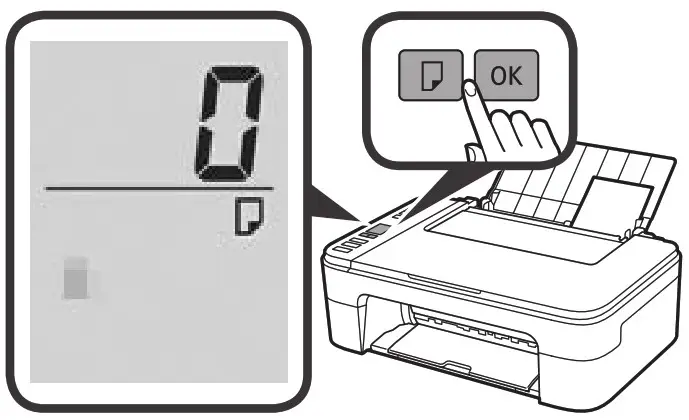
- Press the Paper Select button, select a paper size, and then press the OK button.

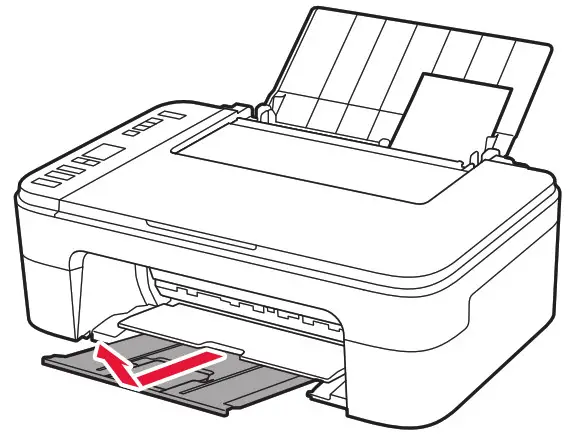
- Pull out the paper output tray.

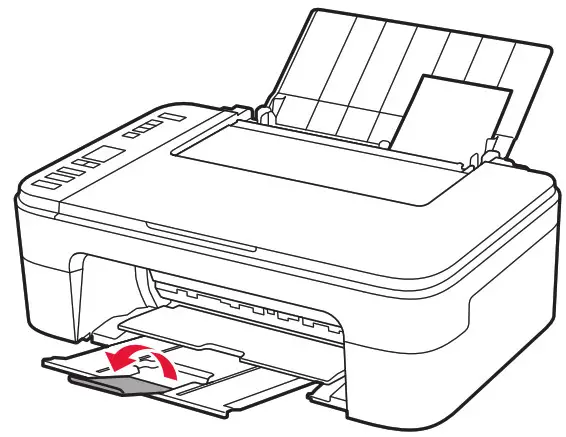
- Open the output tray extension.

If Print Results Are Unsatisfactory
Perform Print Head Alignment if straight lines are crooked or colors are inconsistent, or print results are otherwise not what you expected.
For details, click Maintenance on the Online Manual and refer to If Printing Is Faint or Uneven > Aligning the Print Head.
Refer to the back cover of this manual for how to open the Online Manual.
■ Lines Are Misaligned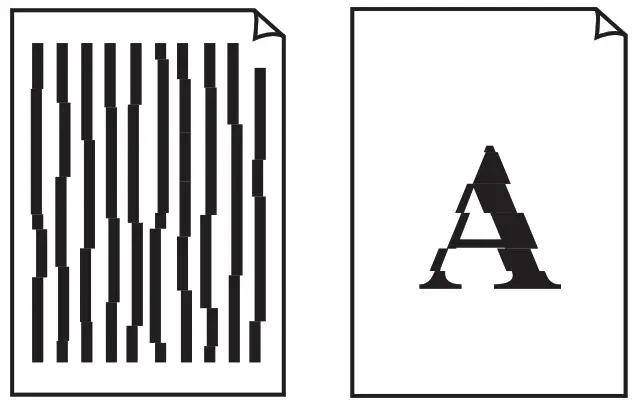 ■ Uneven or Streaked Colors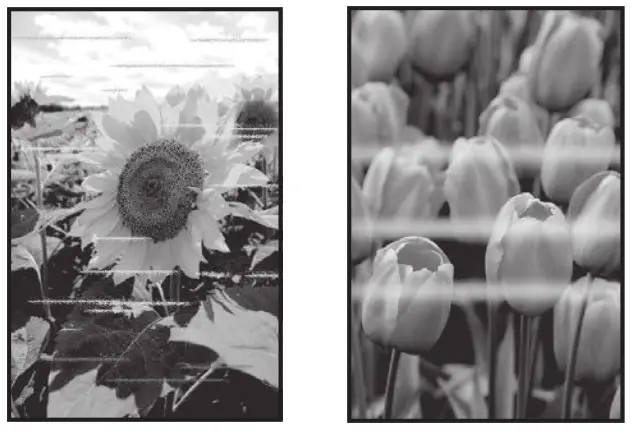

Access Online Manual
From your browser