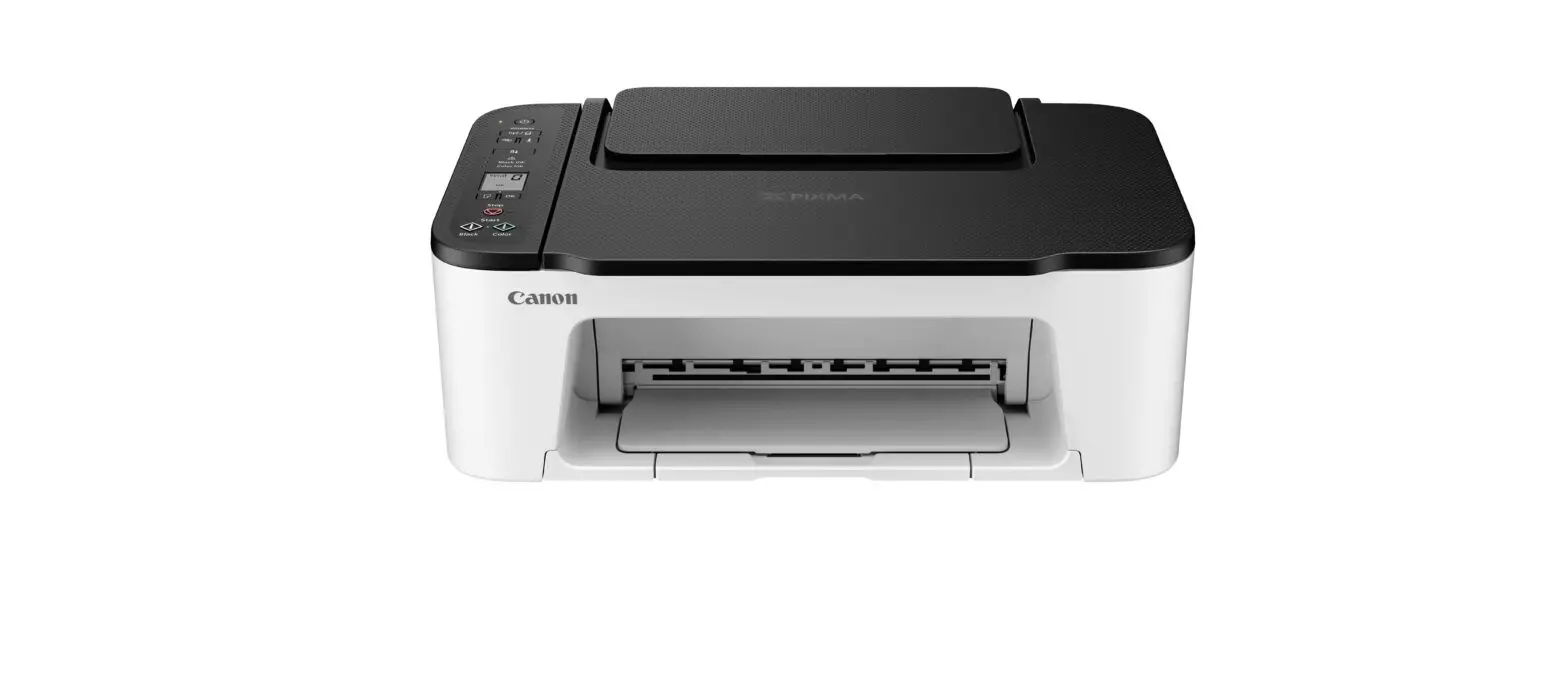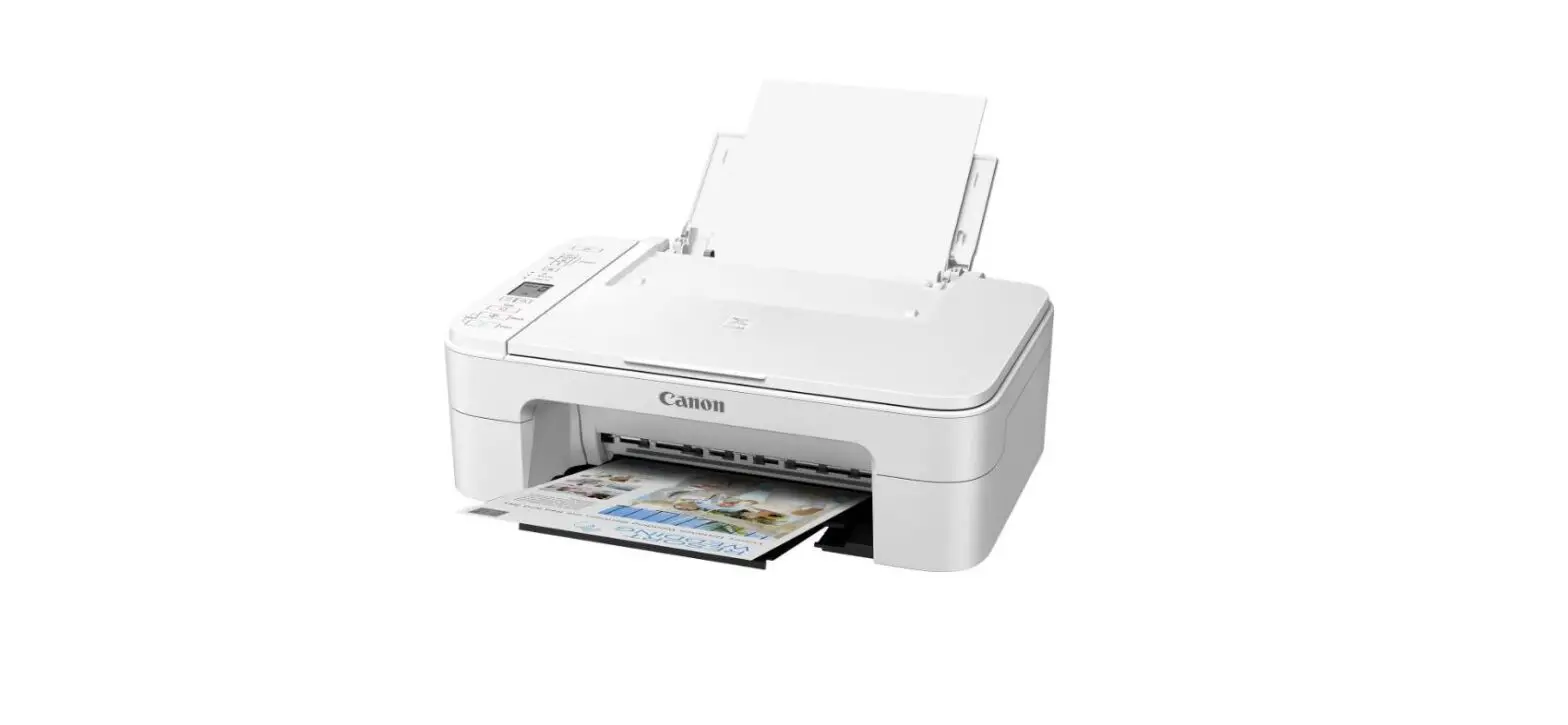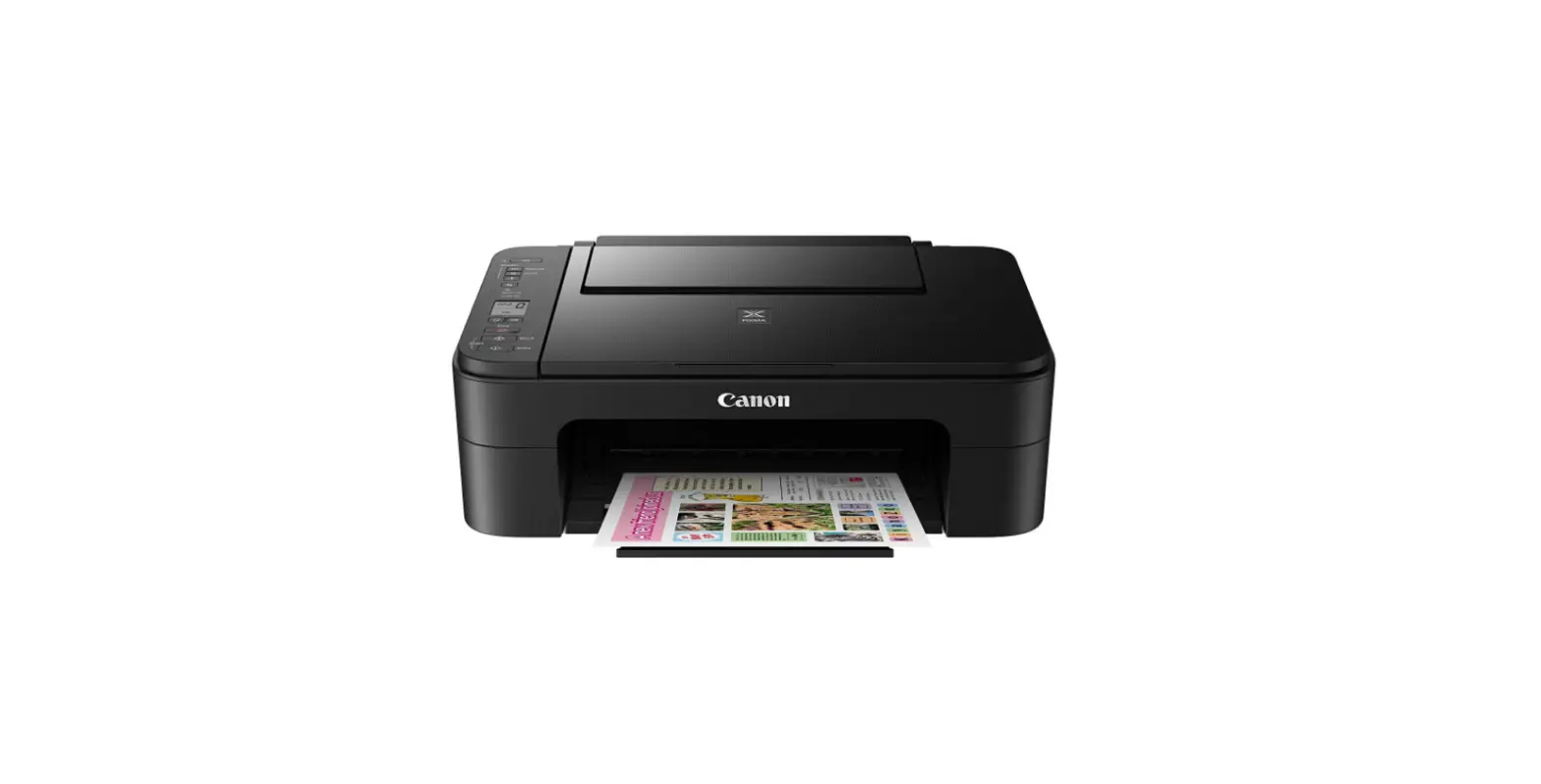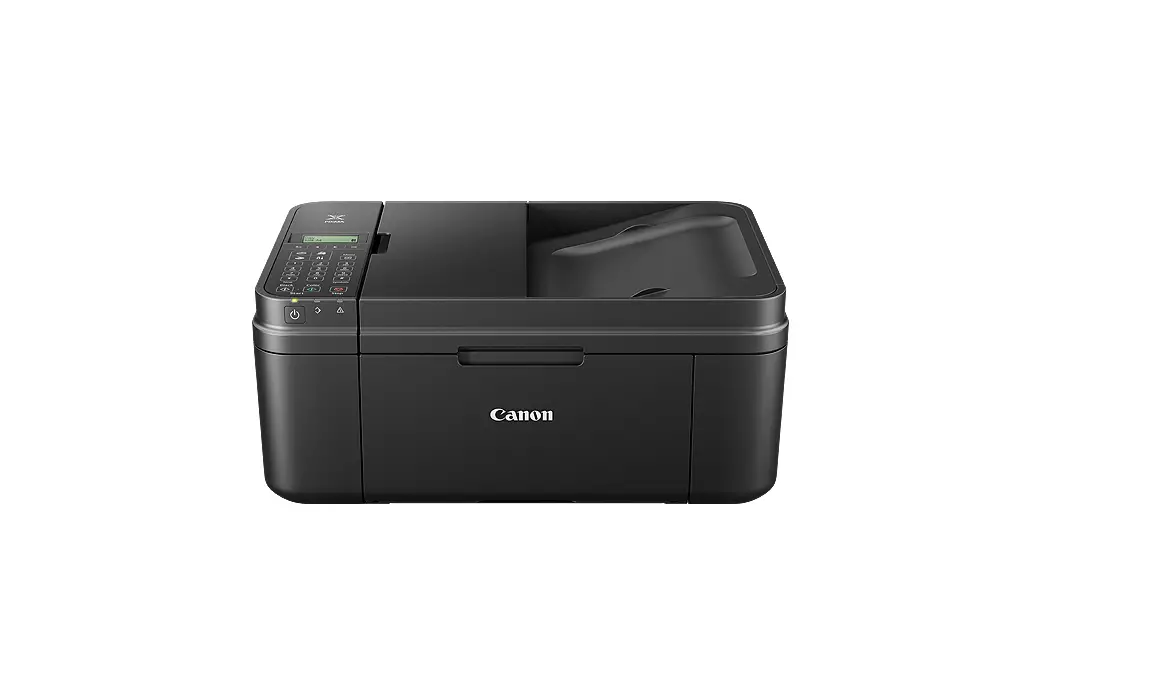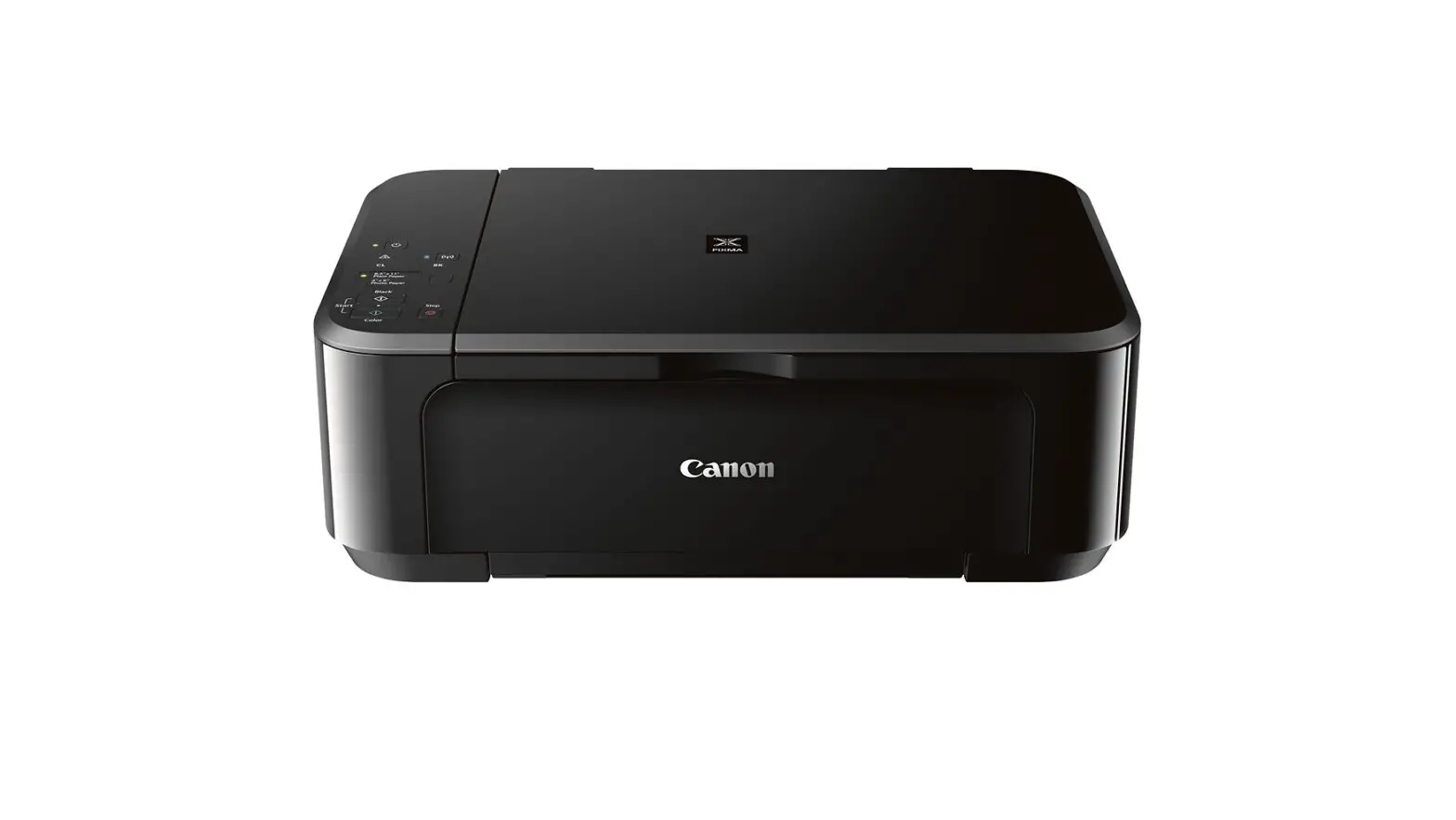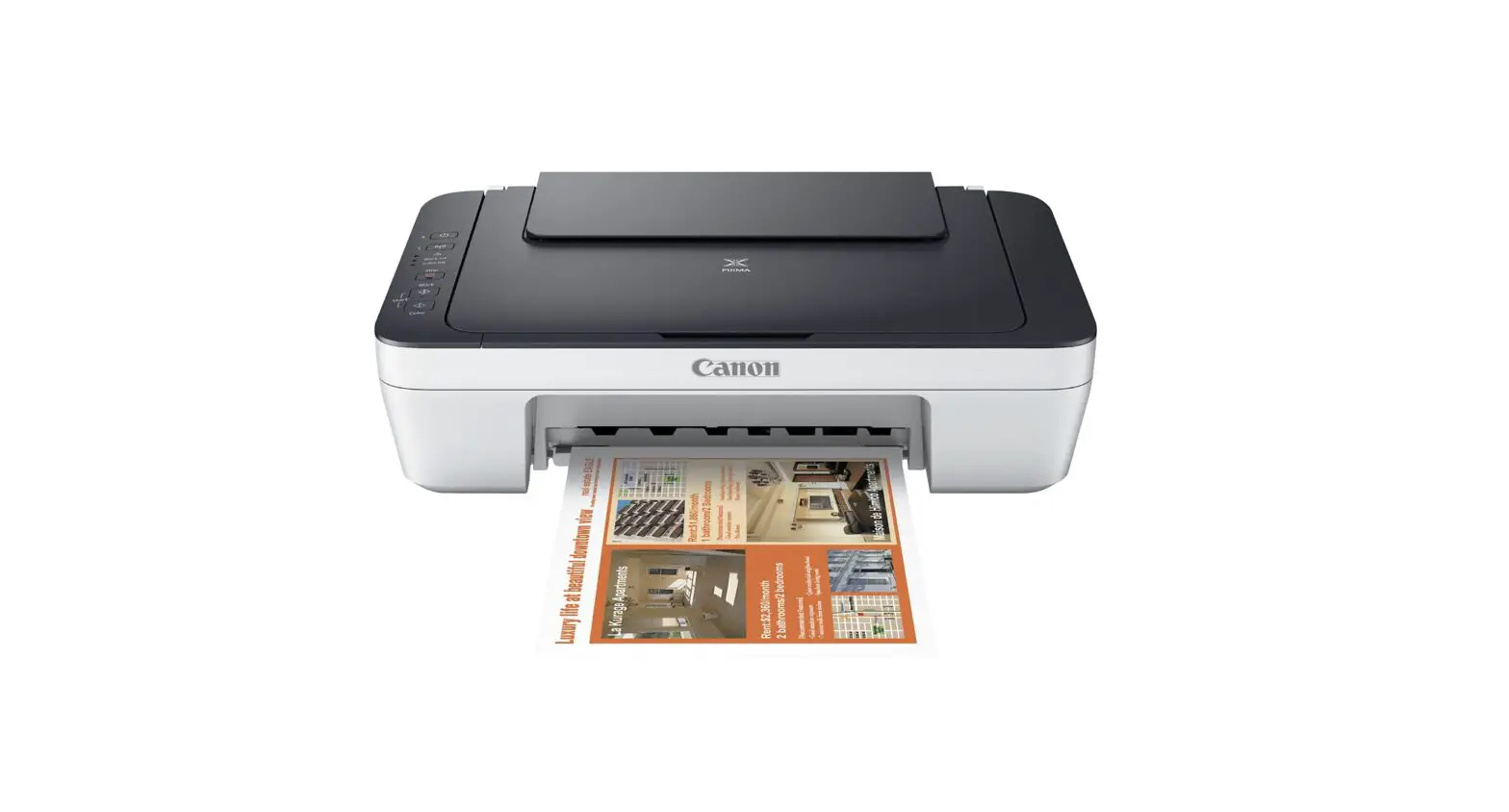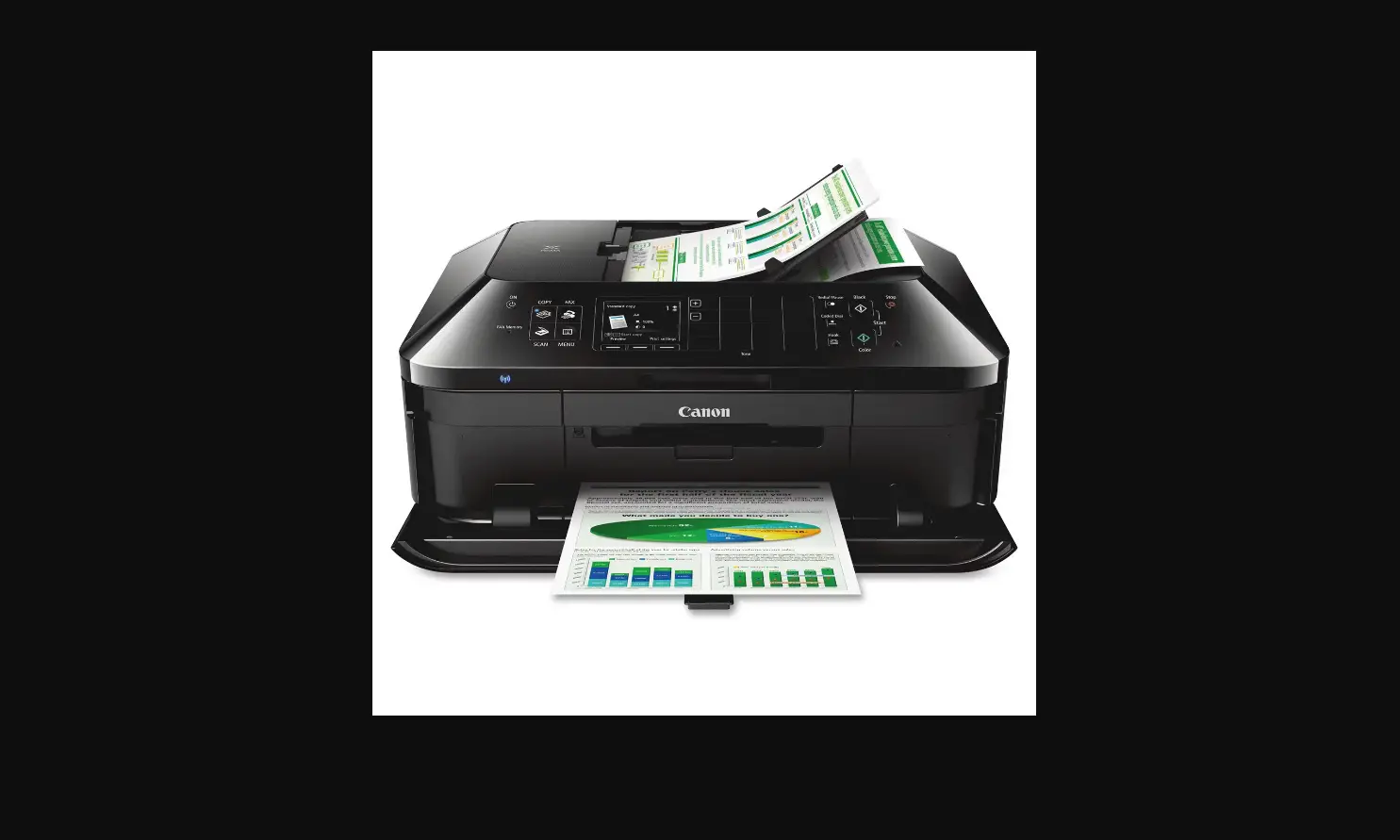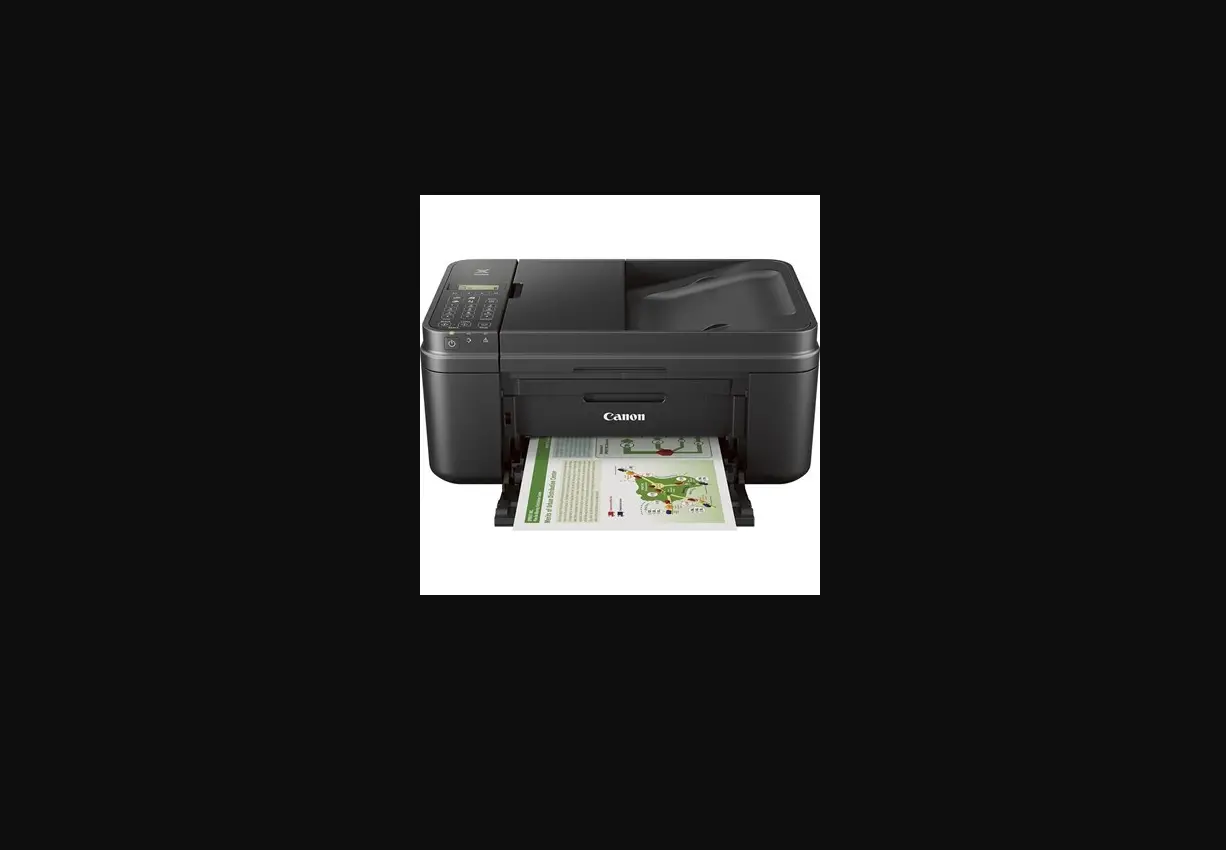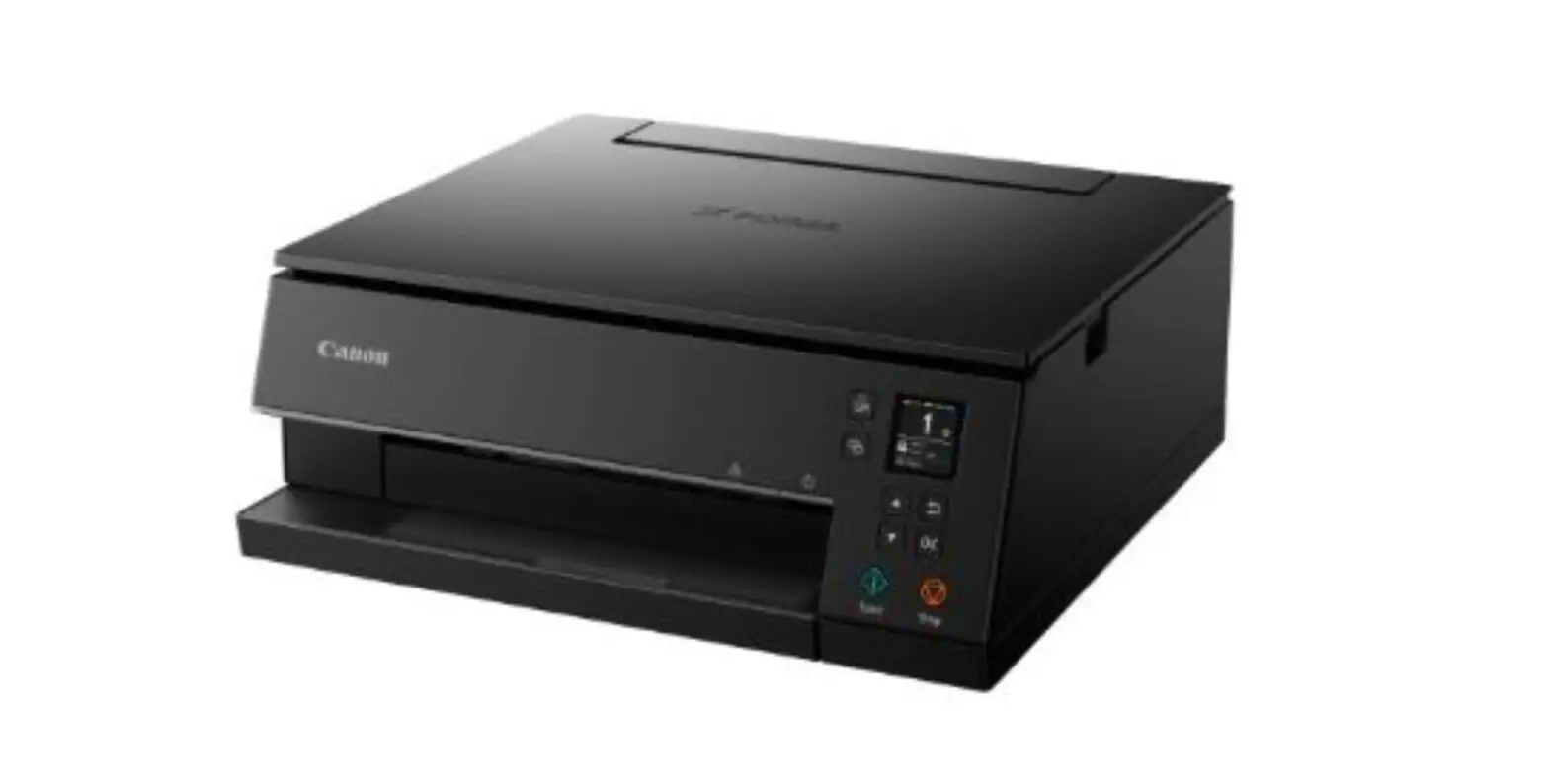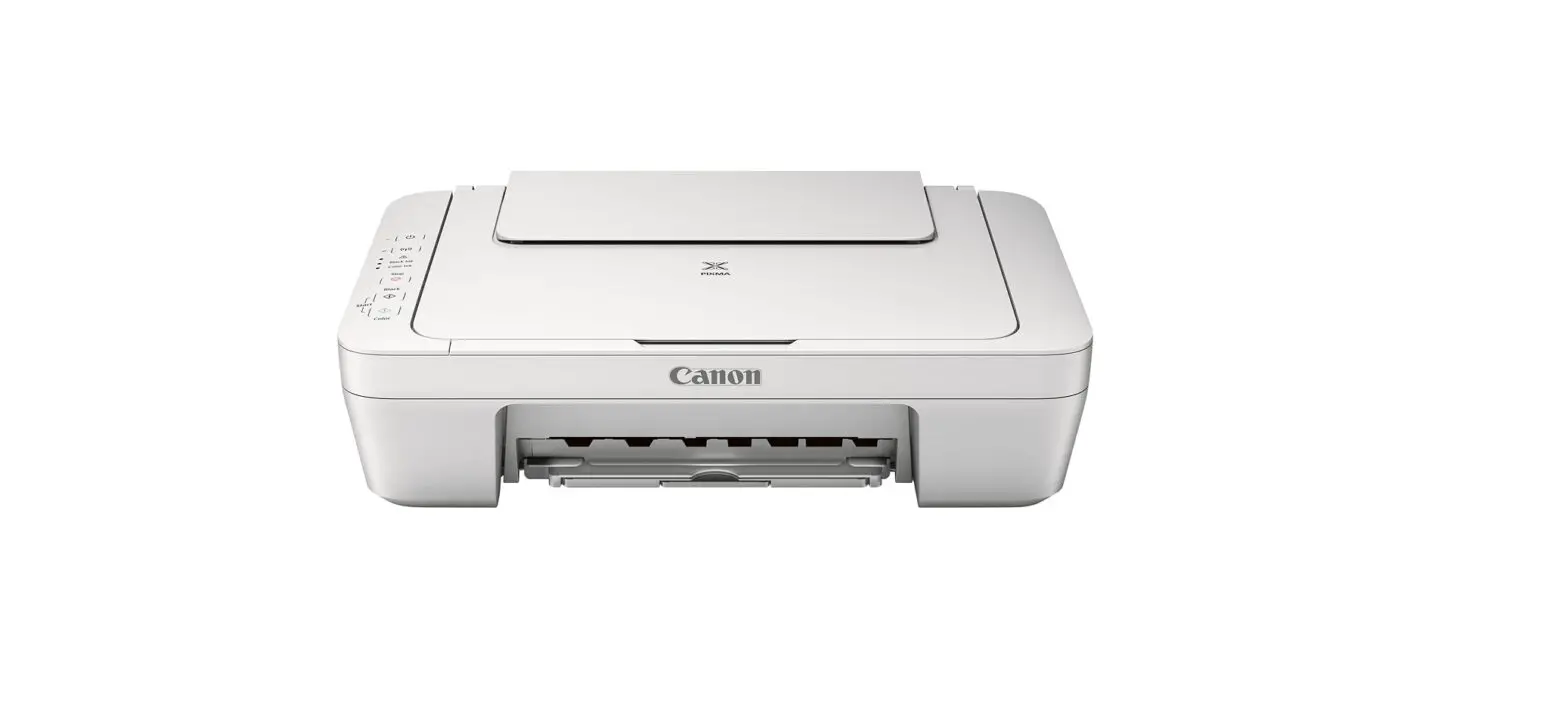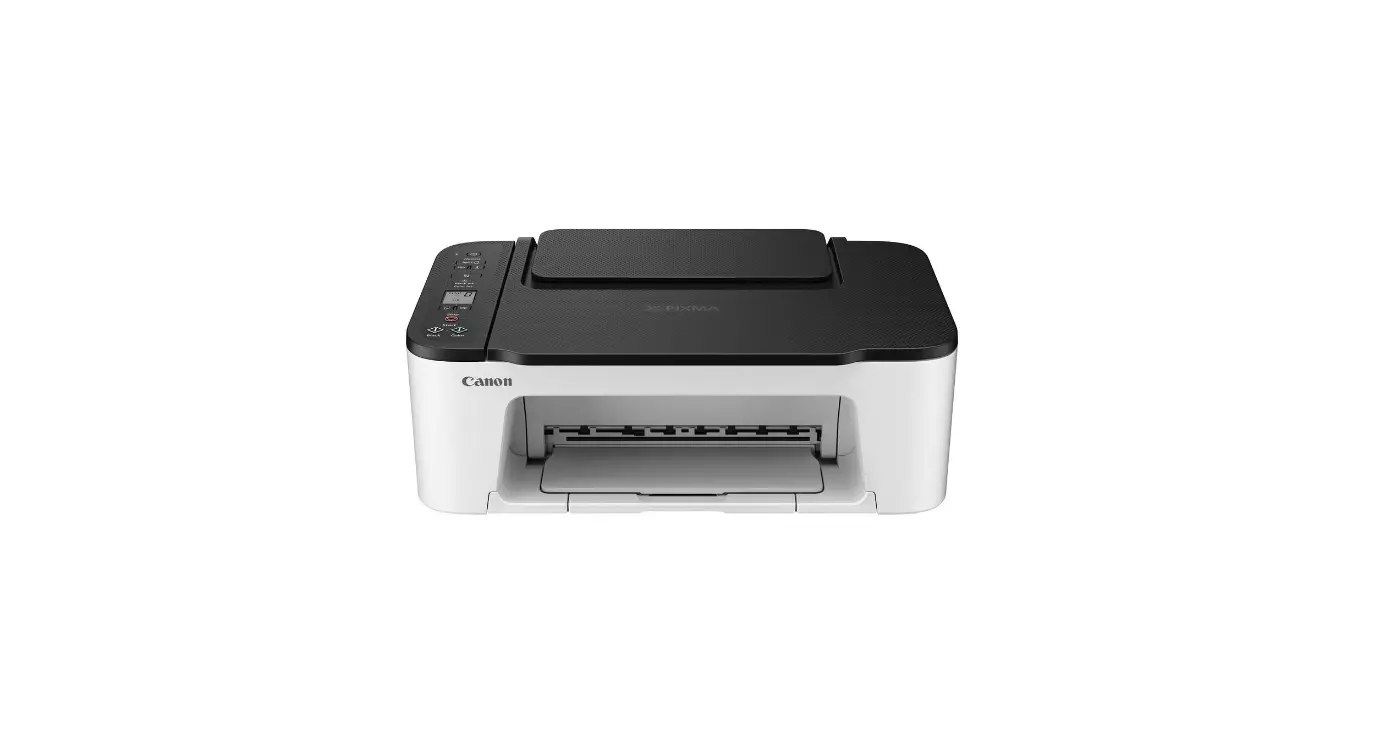

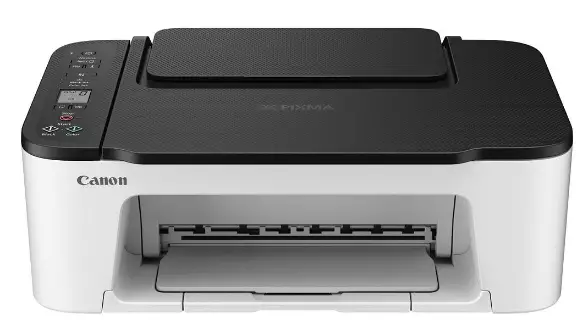
Canon Pixma TS3522 series Printer User Manual
Setting Up the Printer
For Setup, visit the URL https://ij.start.canon

or scan the code with your mobile device
Follow the instructions below if you do not have an internet connection.
Box Contents
- FINE cartridges

- Power Cord
- Safety and Important Information
- Getting Started (this manual)
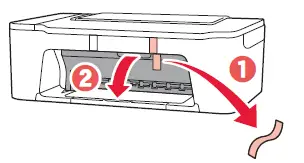
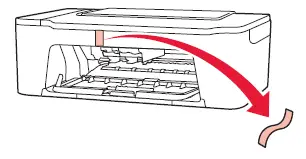
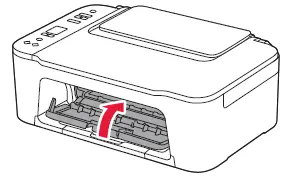
Removing Packing Materials
- Remove the orange tape on the right and open the cover.

- Remove the orange tape on the left.

- Close the cover.

Turning on the Printer
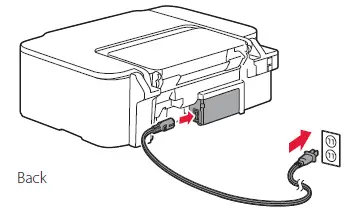
- Connect the power cord.

- Press the ON button.

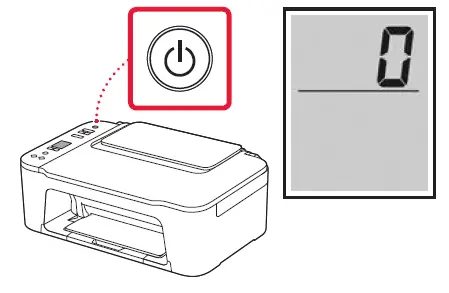
Important
If another screen appears, see “If any of the following screens appear” on page 3 and follow the instructions.
Installing the FINE Cartridges
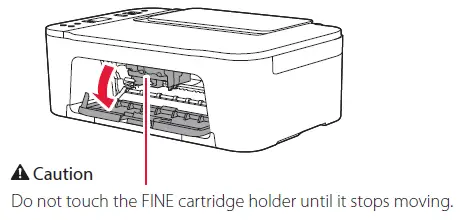
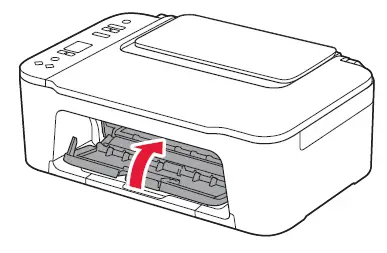
- Open the cover.

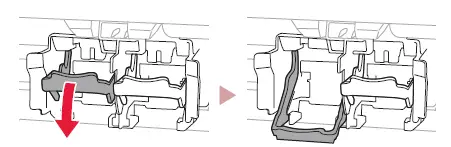
- Lower the ink cartridge lock lever on the left-hand side.

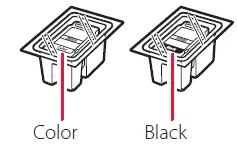
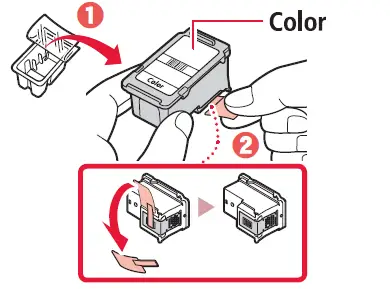
- Remove the Color FINE cartridge from the package and remove the protective tape.

Important- Do not touch the ink on the protective tape. It could stain your hands or surrounding objects.
- Do not touch the areas shown in the figure.
Otherwise, the printer may not print correctly.
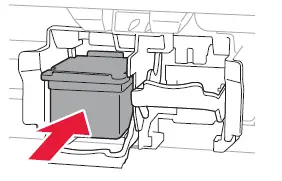
- Insert the Color FINE cartridge in the FINE cartridge holder.

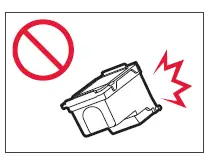
Important
Do not bump the FINE cartridge. Doing so may cause a malfunction.
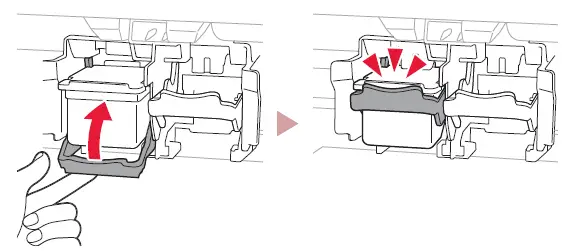
- Raise the ink cartridge lock lever.

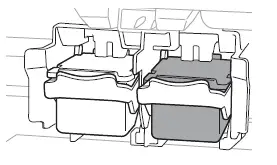
- Repeat steps 2 to 5 and install the Black FINE cartridge on the right-hand side.

- Close the cover.

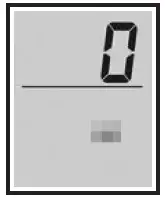
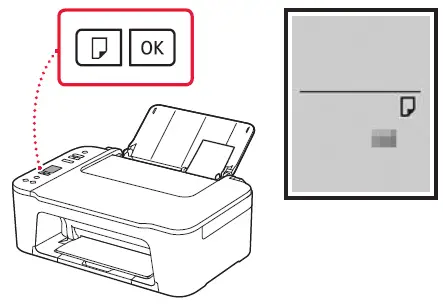
- Check that the following screen appears.

Important
If E > 0 > 4 appears on the screen, see “If any of the following screens appear” on page 3 and follow the instructions.

Select the connection method that best matches how you will use the printer.
- To use the printer without connecting to any other devices
The setup is now complete. - To use the printer connecting to a computer or smartphone
Proceed to the next page.
If any of the following screens appear 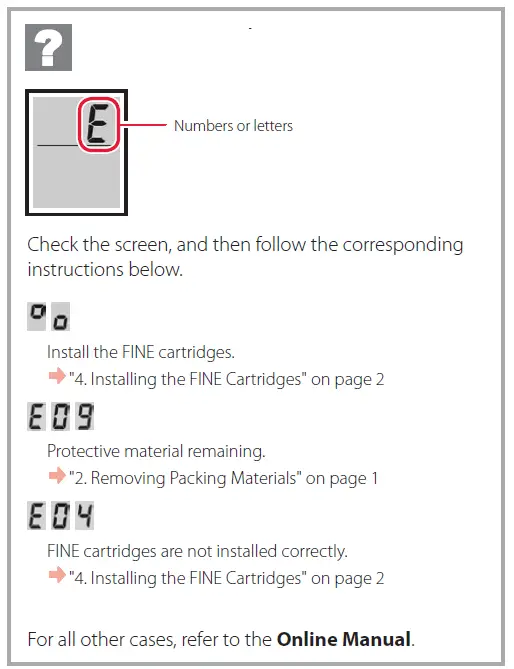
What device are you connecting?
Connecting to a Computer
If you are using multiple computers, perform these steps on each computer.
- Access the Canon website from your computer.
- Select
 Set Up.
 - Enter your printer’s model name and click Go.
- Click Start.
- Click (B) Connecting to a Computer/Smartphone.
- The following steps are for Windows users.
- Click Download.
- Run the downloaded file.
- Follow the on-screen instructions.
- These operations may take some time.
- To connect to a smartphone as well, see “5-b. Connecting to a Smartphone” on page 5.
 Set Up.
Connecting to a Smartphone
If you are using multiple smartphones, perform these steps on each smartphone.
 Install the “Canon PRINT Inkjet/SELPHY” app on your smartphone.
- Search for “Canon PRINT” in App Store, or Google Play.
- Access the Canon website to download the app.

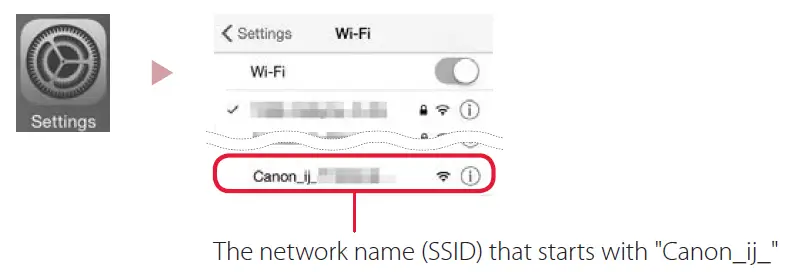
- Open your smartphone’s Wi-Fi settings. Check that the network name (SSID) that starts with “Canon_ij_” appears.

- If “Canon_ij_” appears Proceed to step 3.
- If “Canon_ij_” does not appear Proceed to step 4.
- Tap the network name (SSID) that starts with “Canon_ij_”.
- Open the installed app, and follow the on-screen instructions in the app to add your printer.

 Install the “Canon PRINT Inkjet/SELPHY” app on your smartphone.
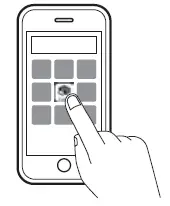
Once you have added your printer, you can print from your smartphone. To print photos, see “Loading Paper” on page 6.
Holding the Printer

Loading Paper
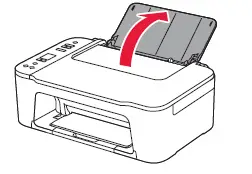
- Open the paper support.

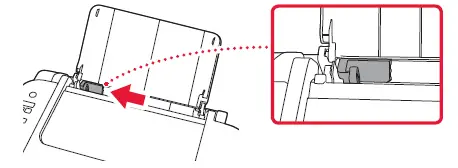
- Slide the paper guide to the left.

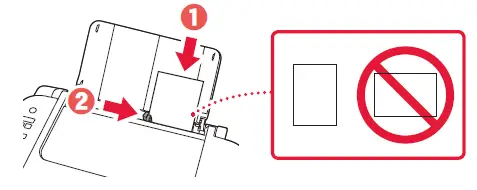
- Load several sheets of paper against the right edge with the print side facing up and align the paper guide to the width of the paper.

- Press the Paper Select button, select a paper size, and then press the OK button.

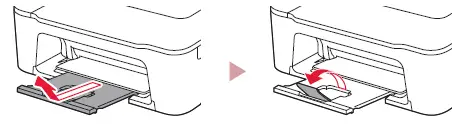
- Extend the paper output tray, and open the output tray extension.

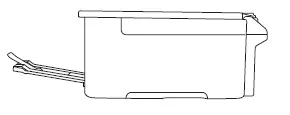
- Look at it from the side to confirm it looks like the diagram.

- Look at it from the side to confirm it looks like the diagram.
If Print Results Are Unsatisfactory
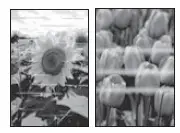
Perform Print Head Alignment if straight lines are crooked or colors are inconsistent, or print results are otherwise not what you expected.
For details, click Maintenance on the Online Manual and refer to If Printing Is Faint or Uneven > Aligning the Print Head. Refer to the back cover for how to access the Online Manual.
- Lines Are Misaligned

- Uneven or Streaked Colors


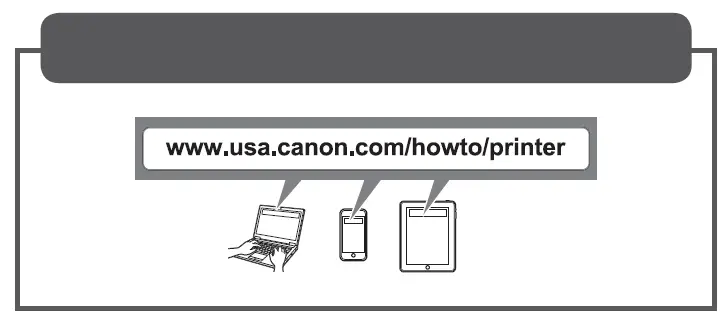
How-To Vide Library
Trademarks
- Windows is a trademark or registered trademark of Microsoft Corporation in the U.S. and/or other countries.
- App Store is a trademark of Apple Inc., registered in the U.S. and other countries.
- Google Play is a registered trademark of Google LLC.
Download PDF: Canon Pixma TS3522 series Printer User Manual