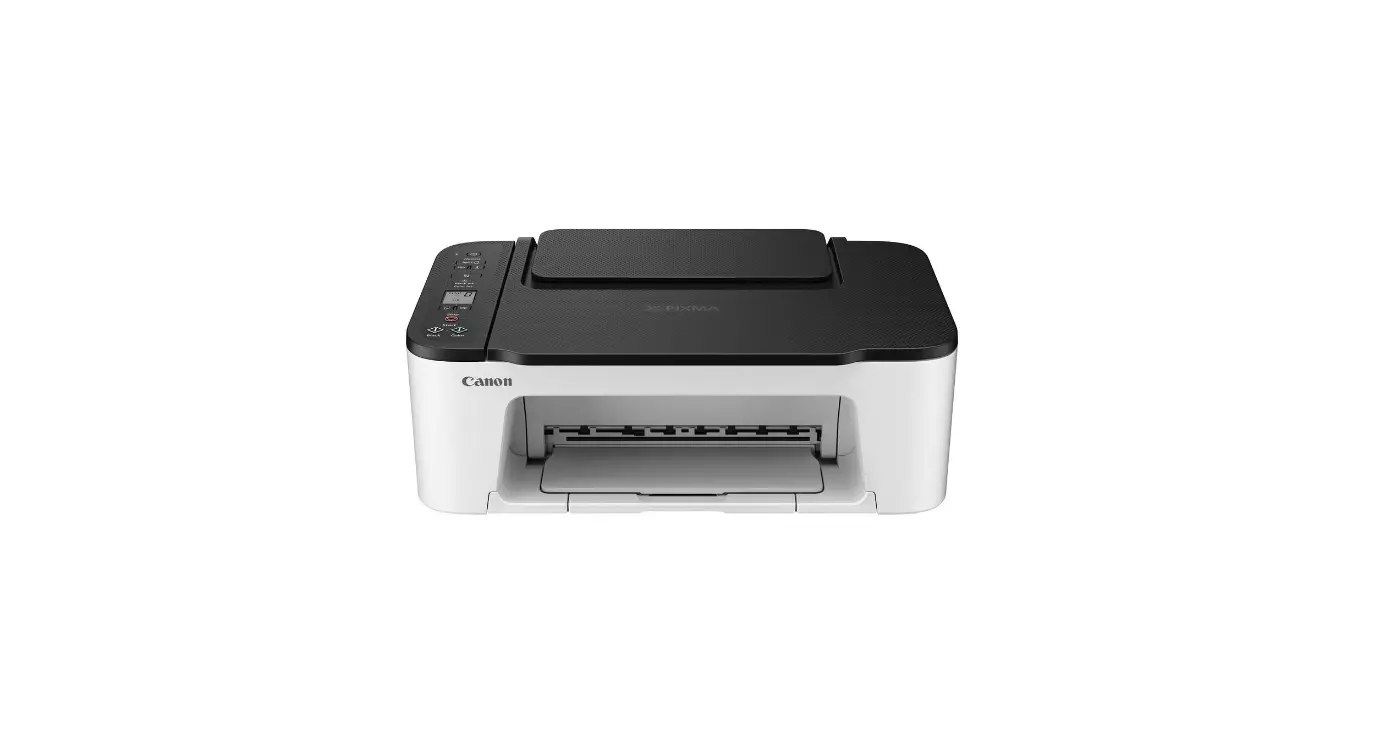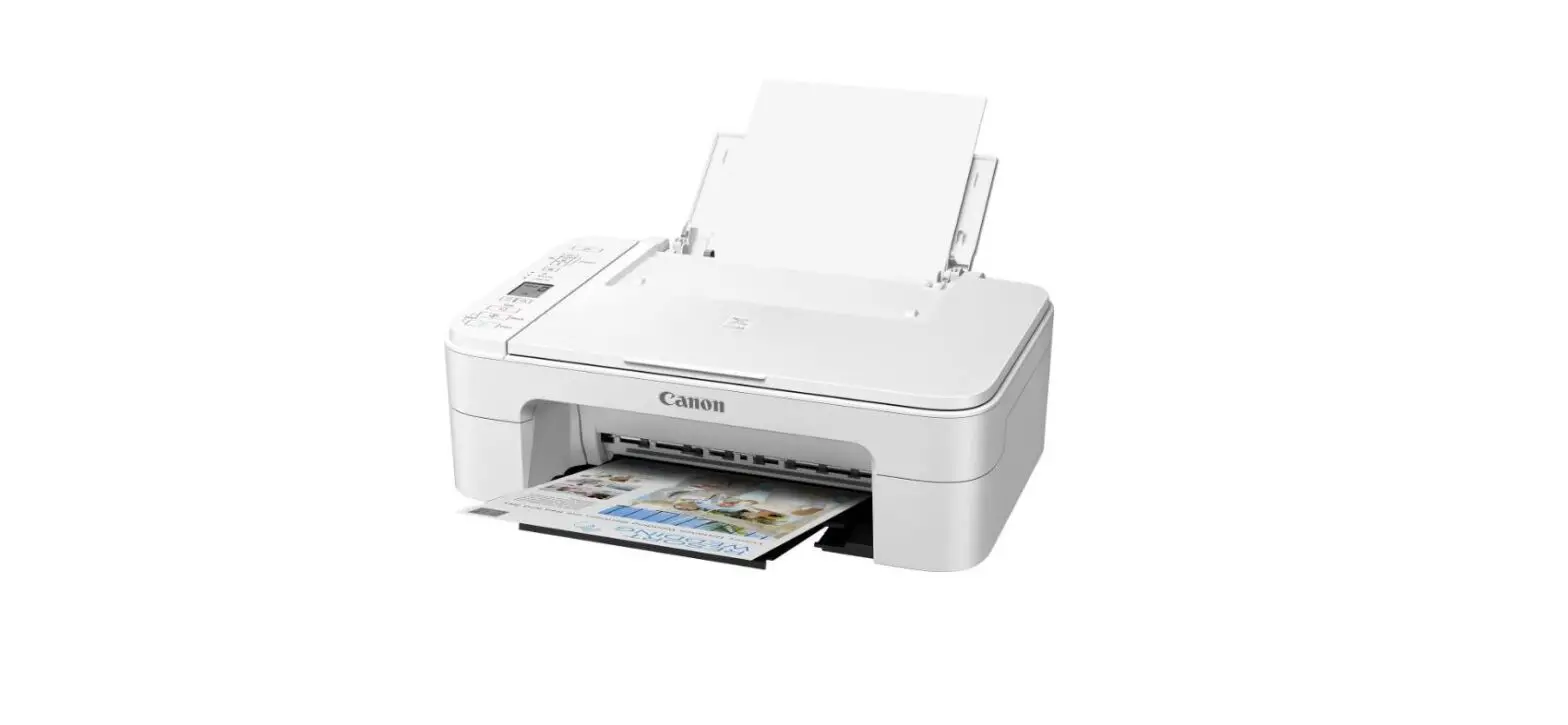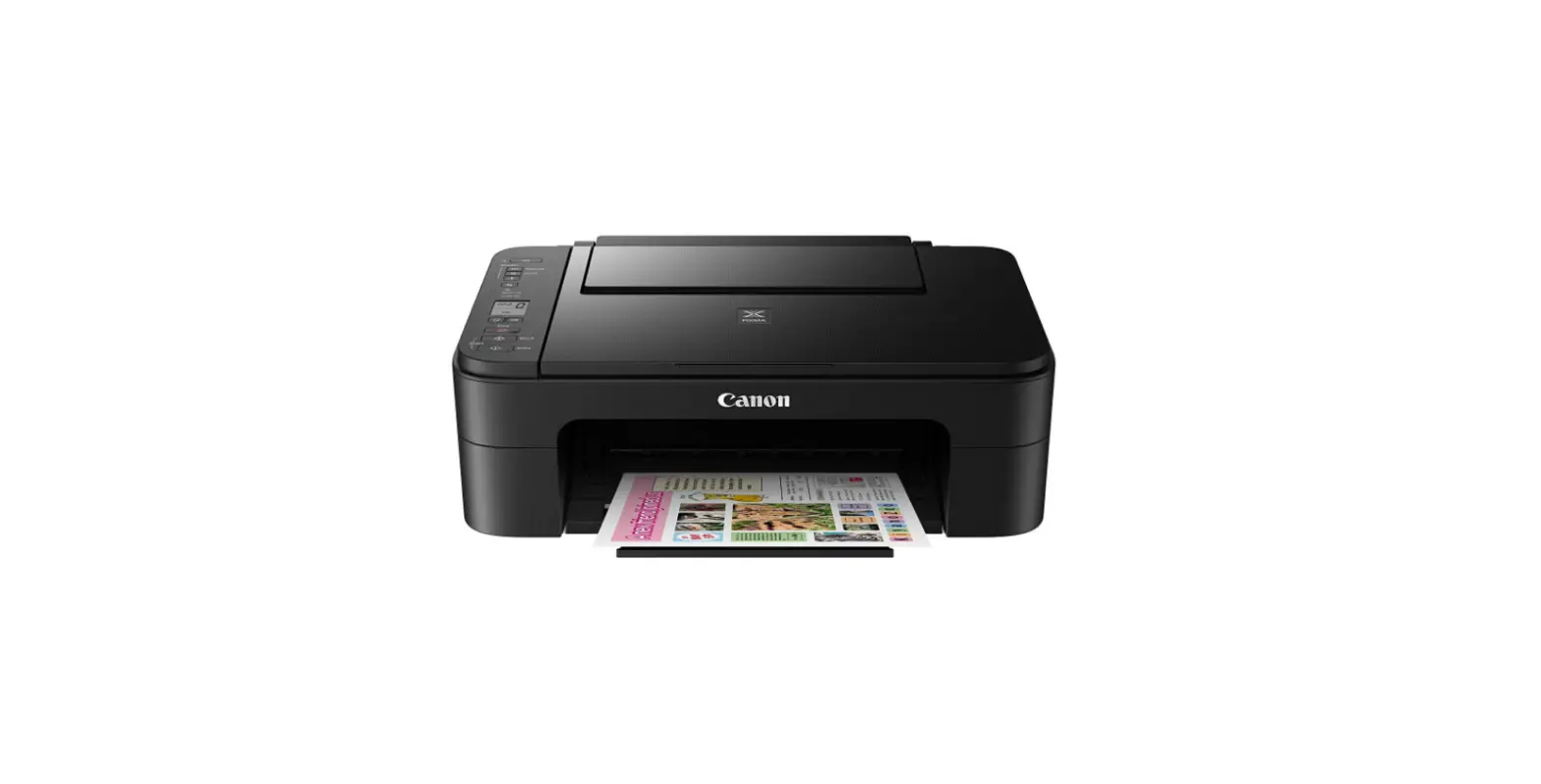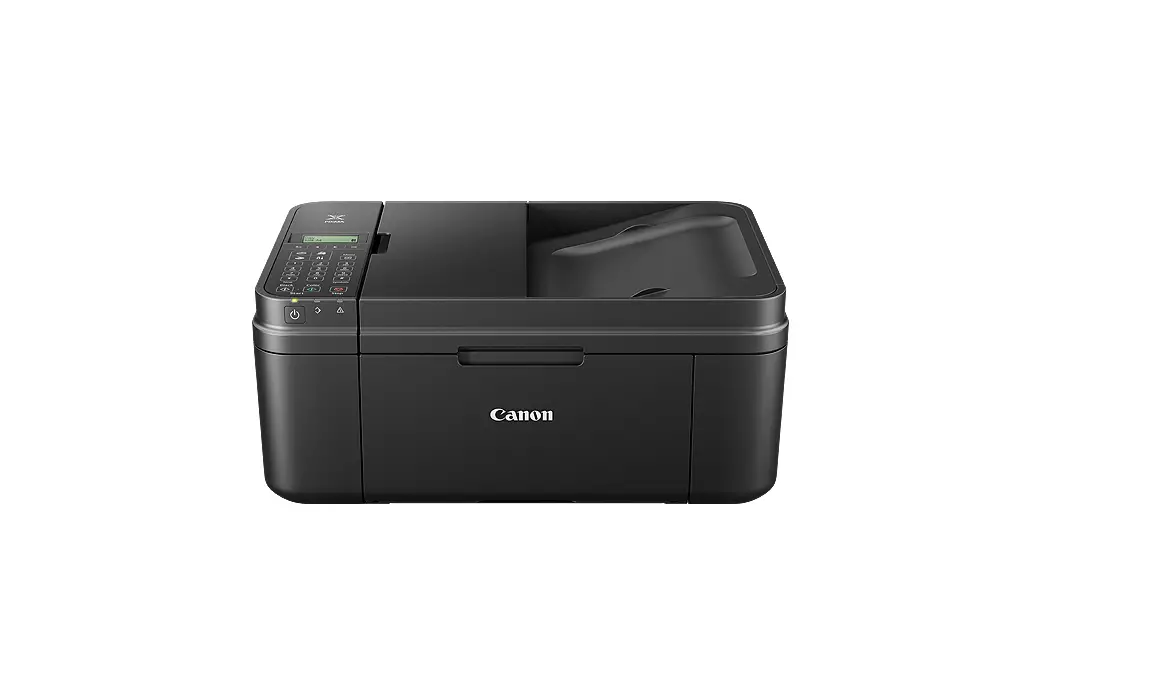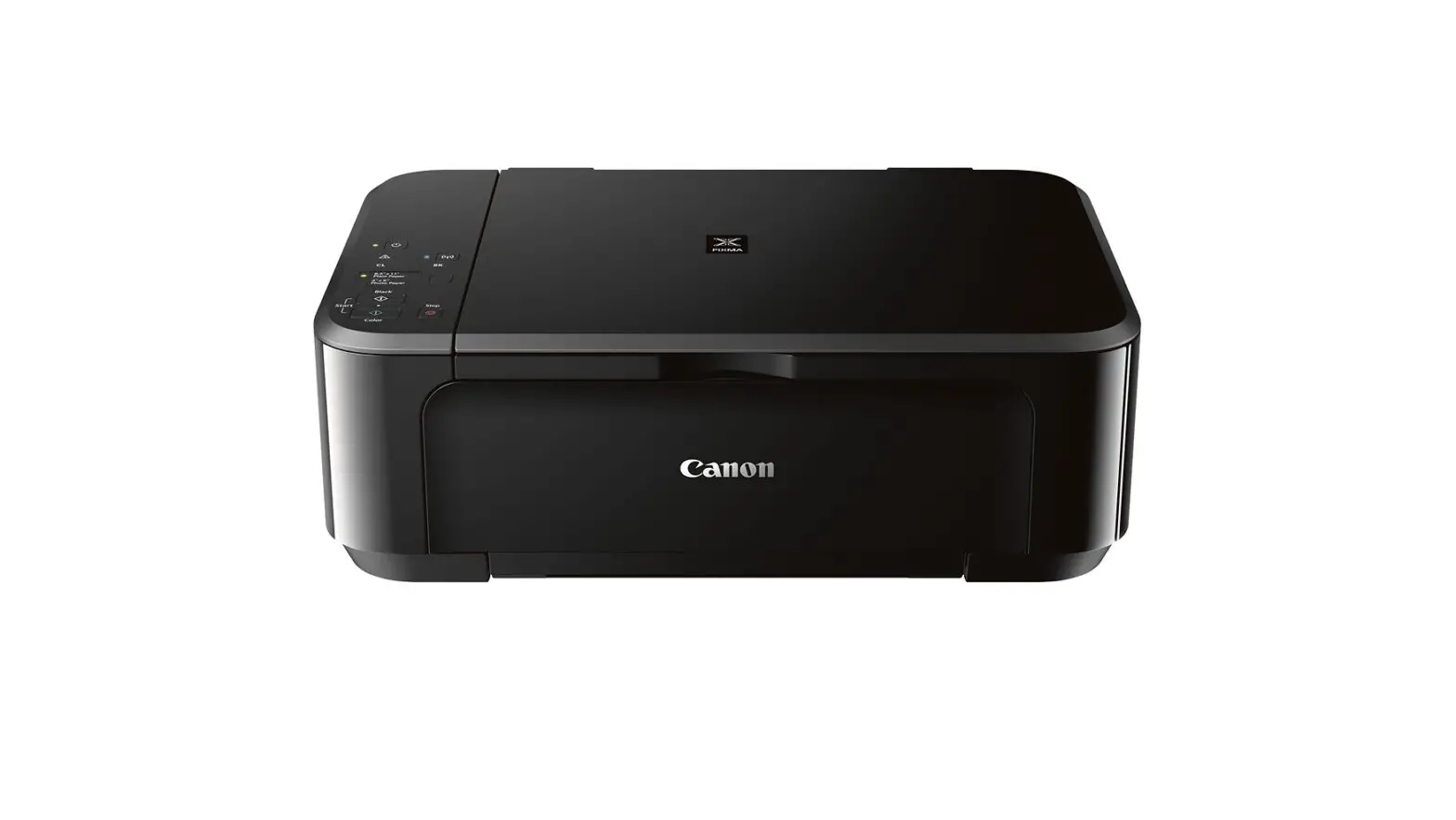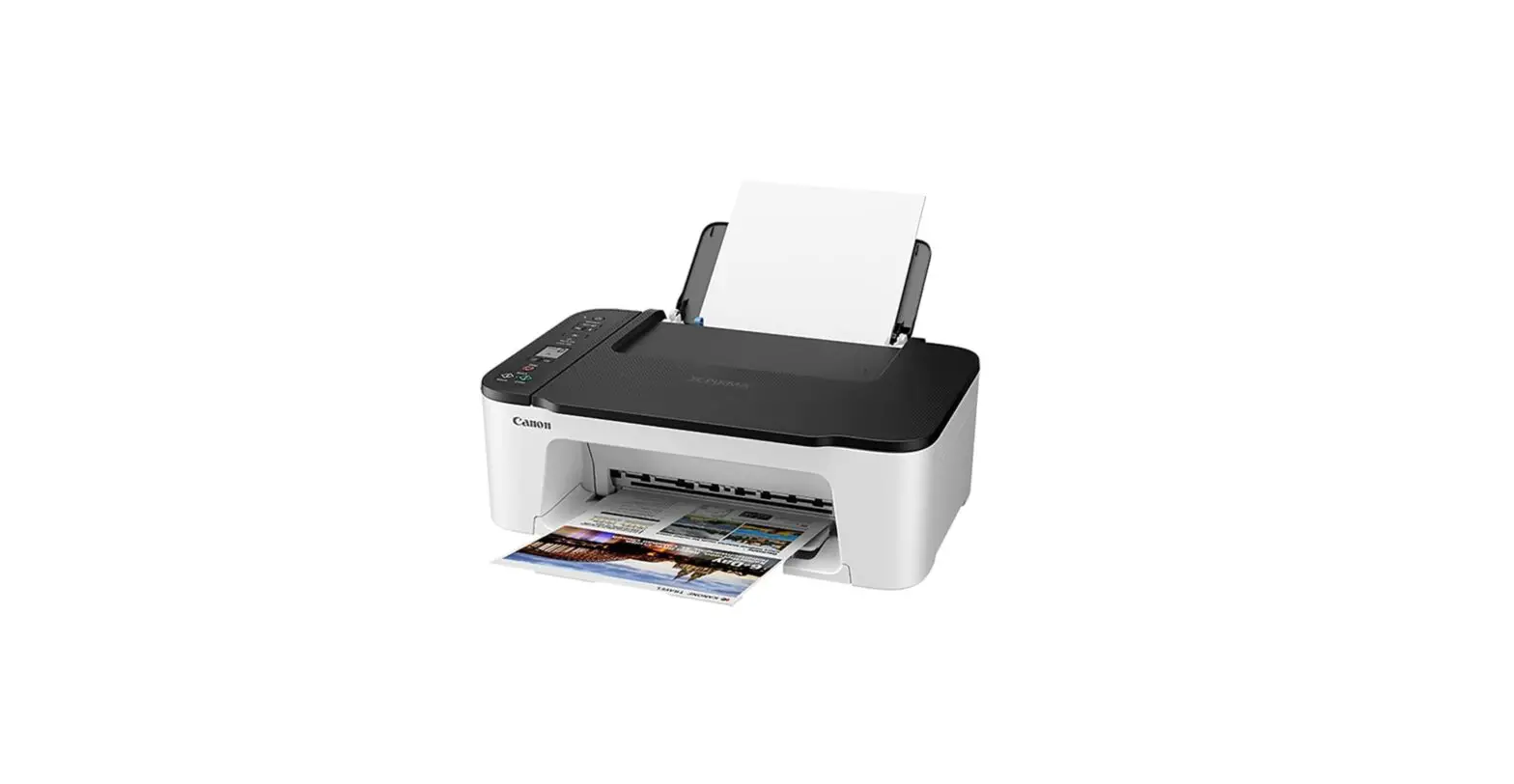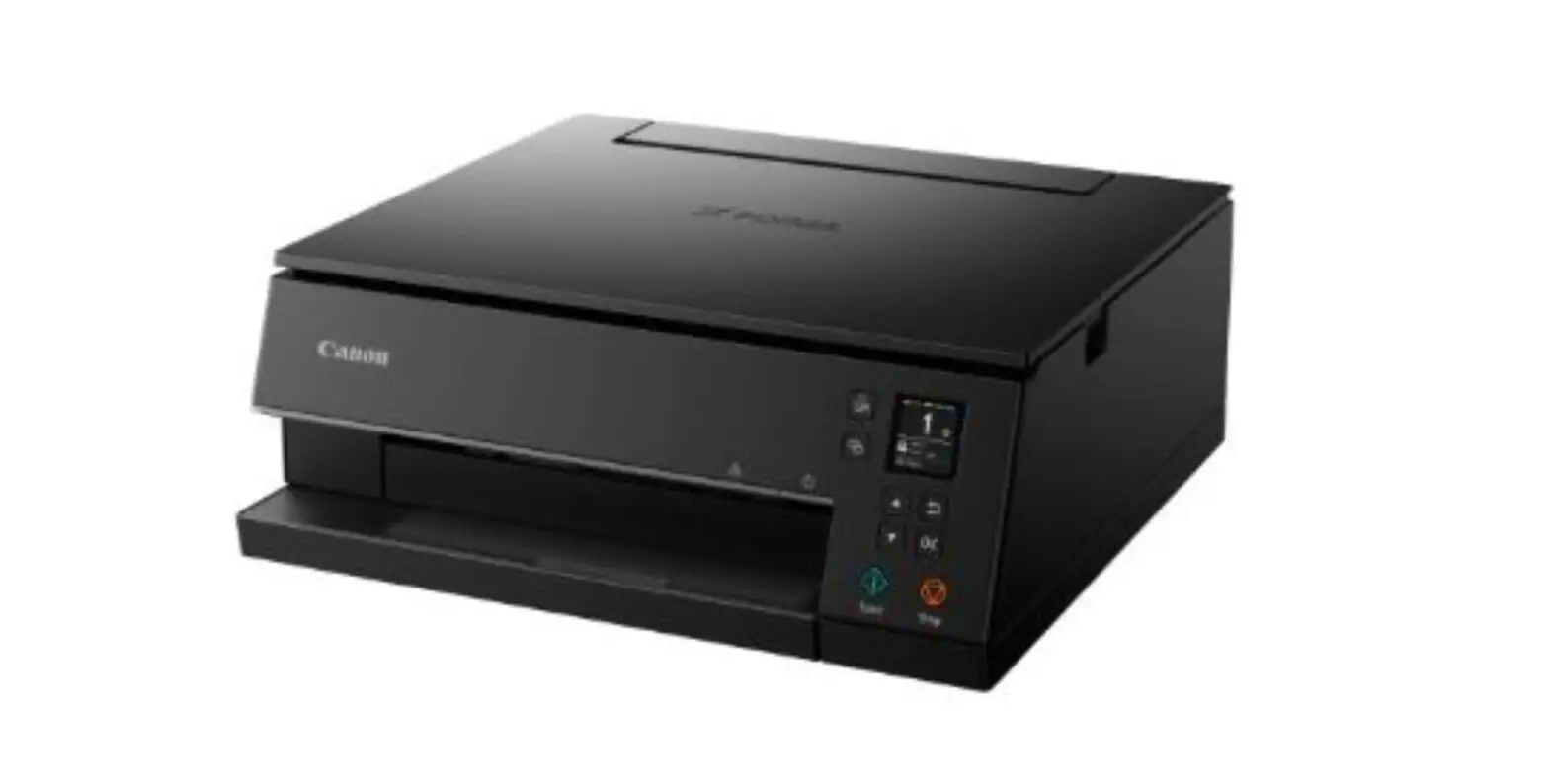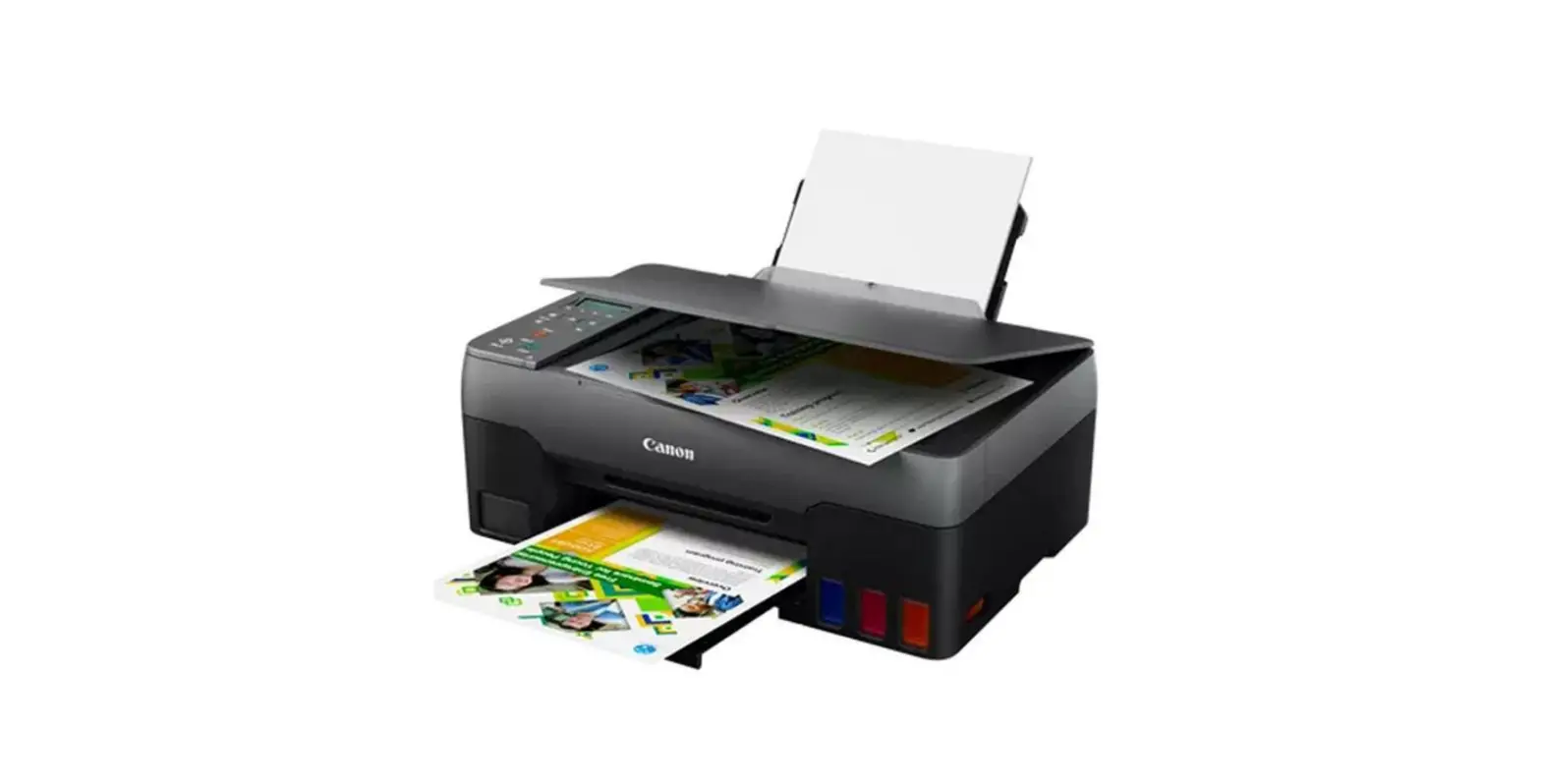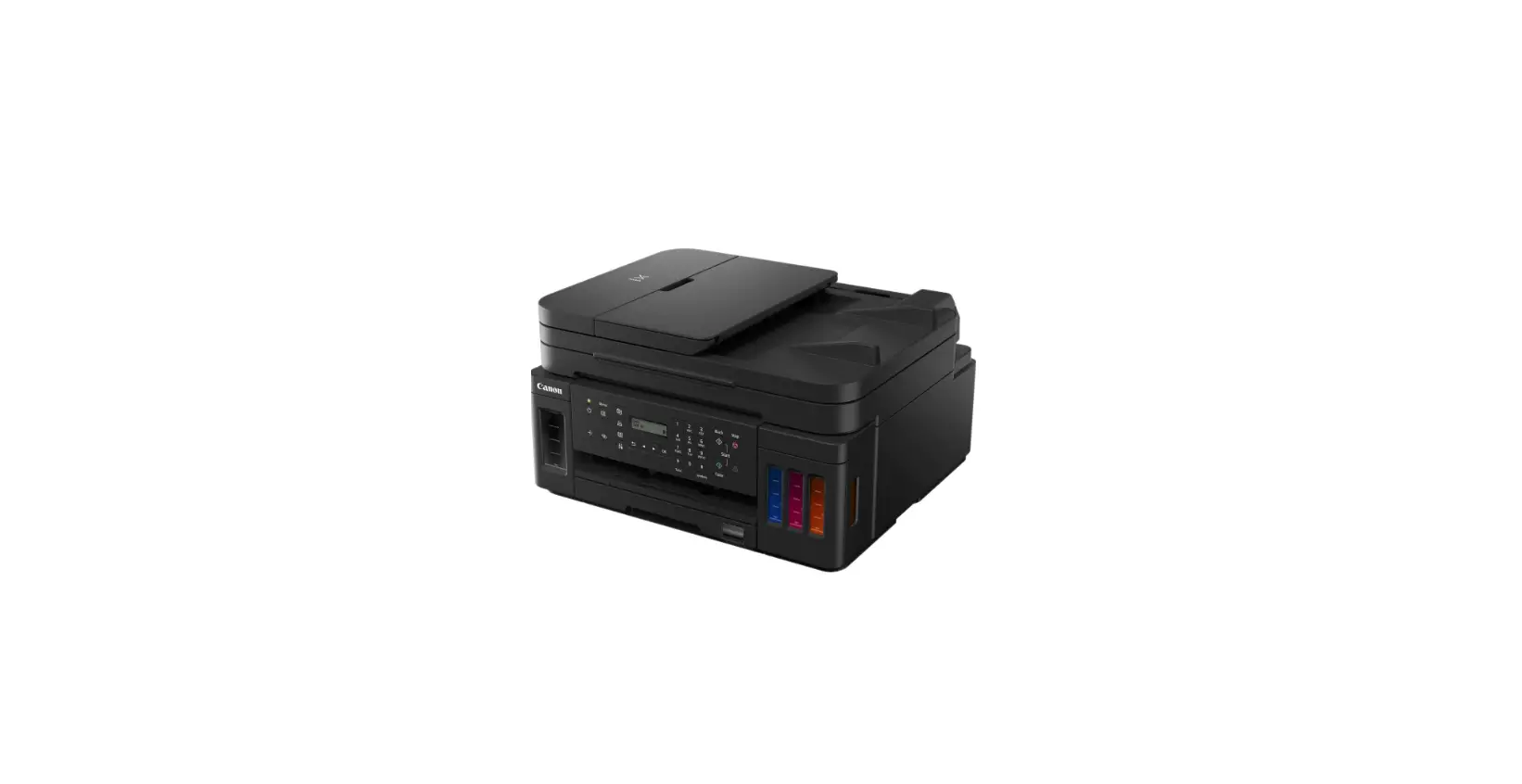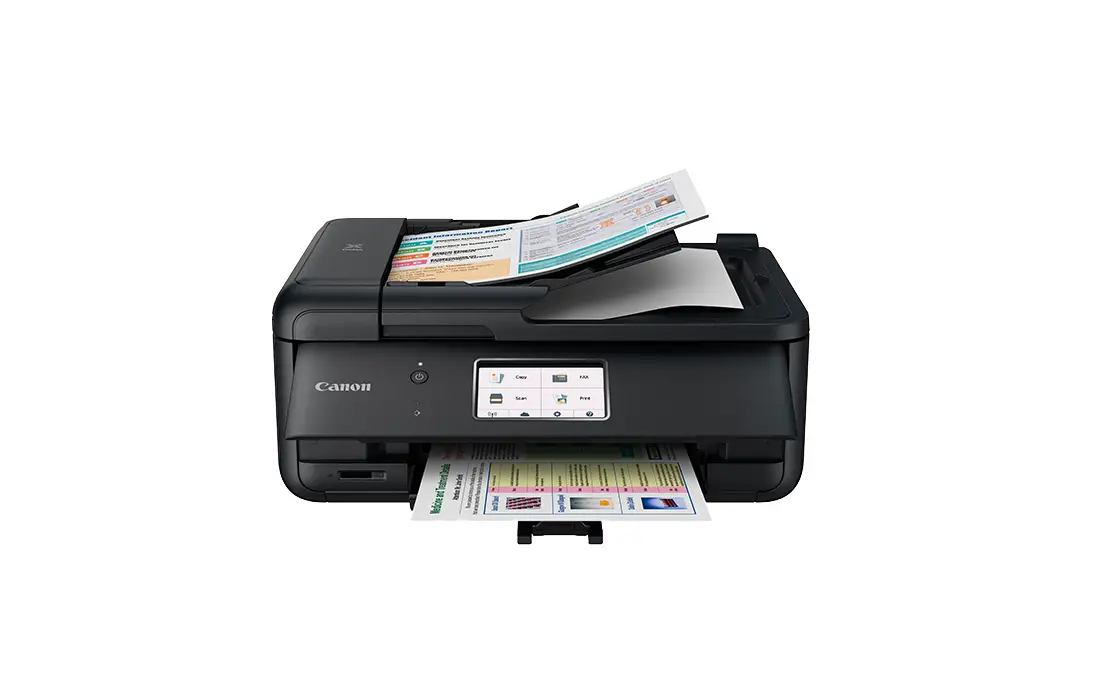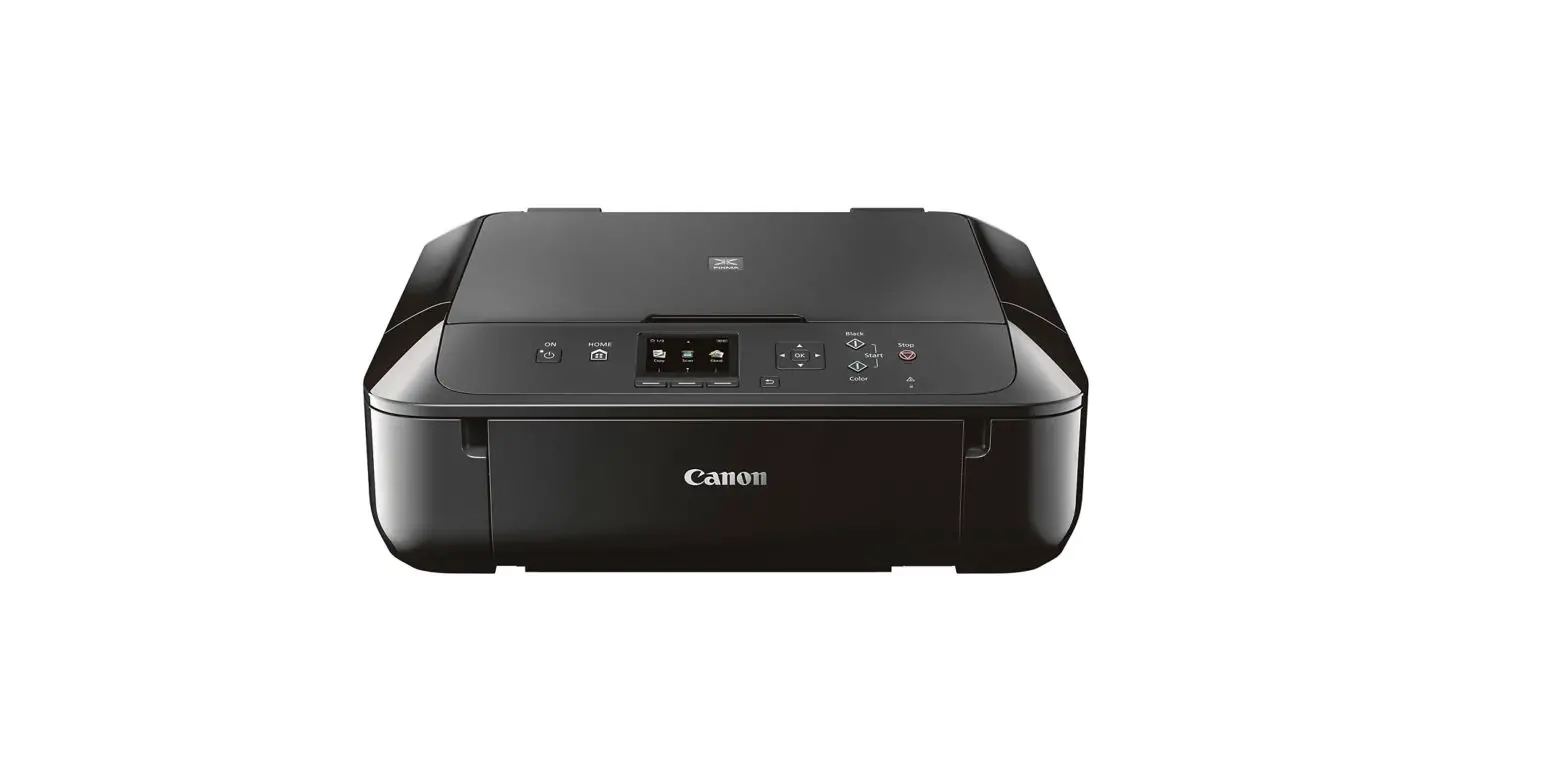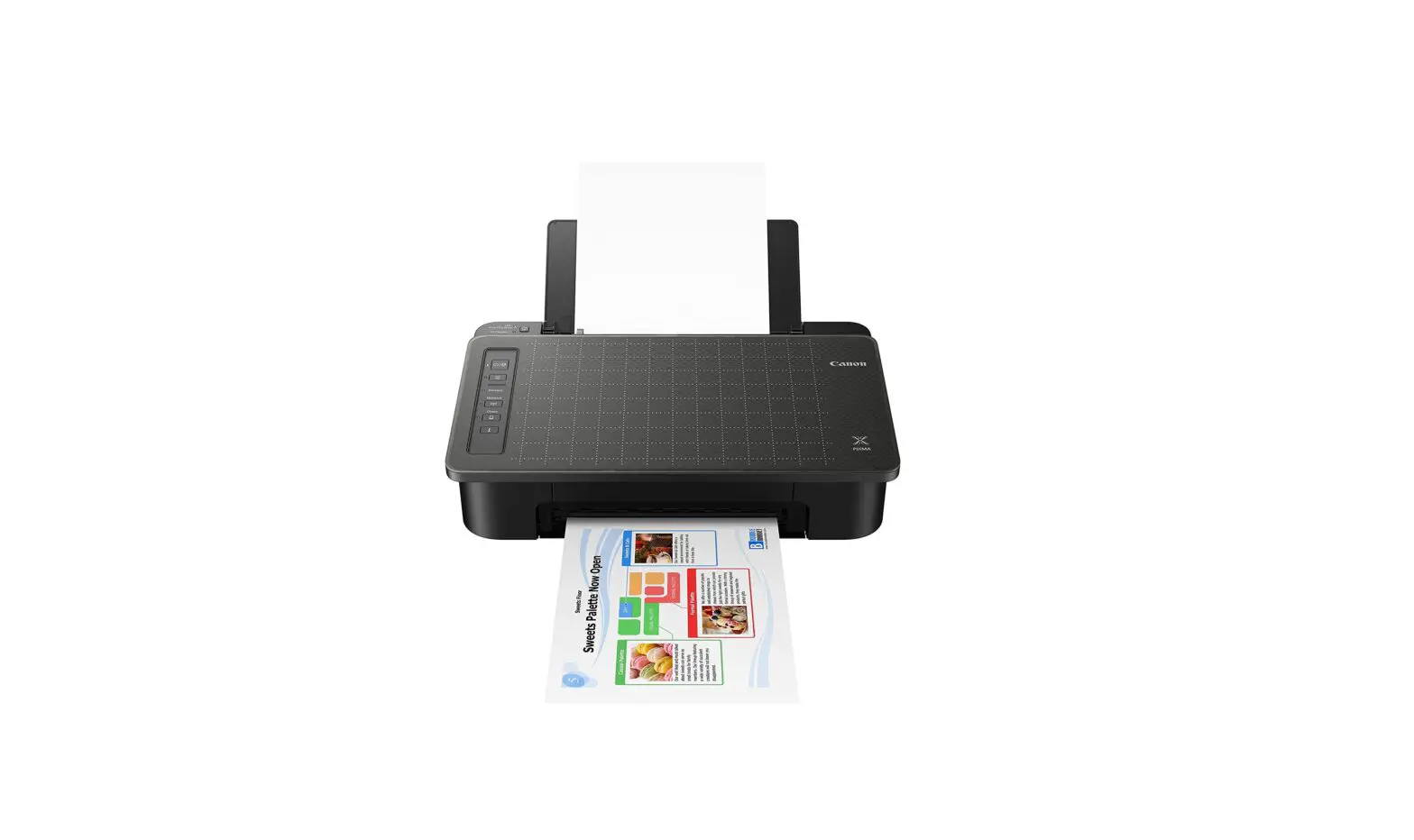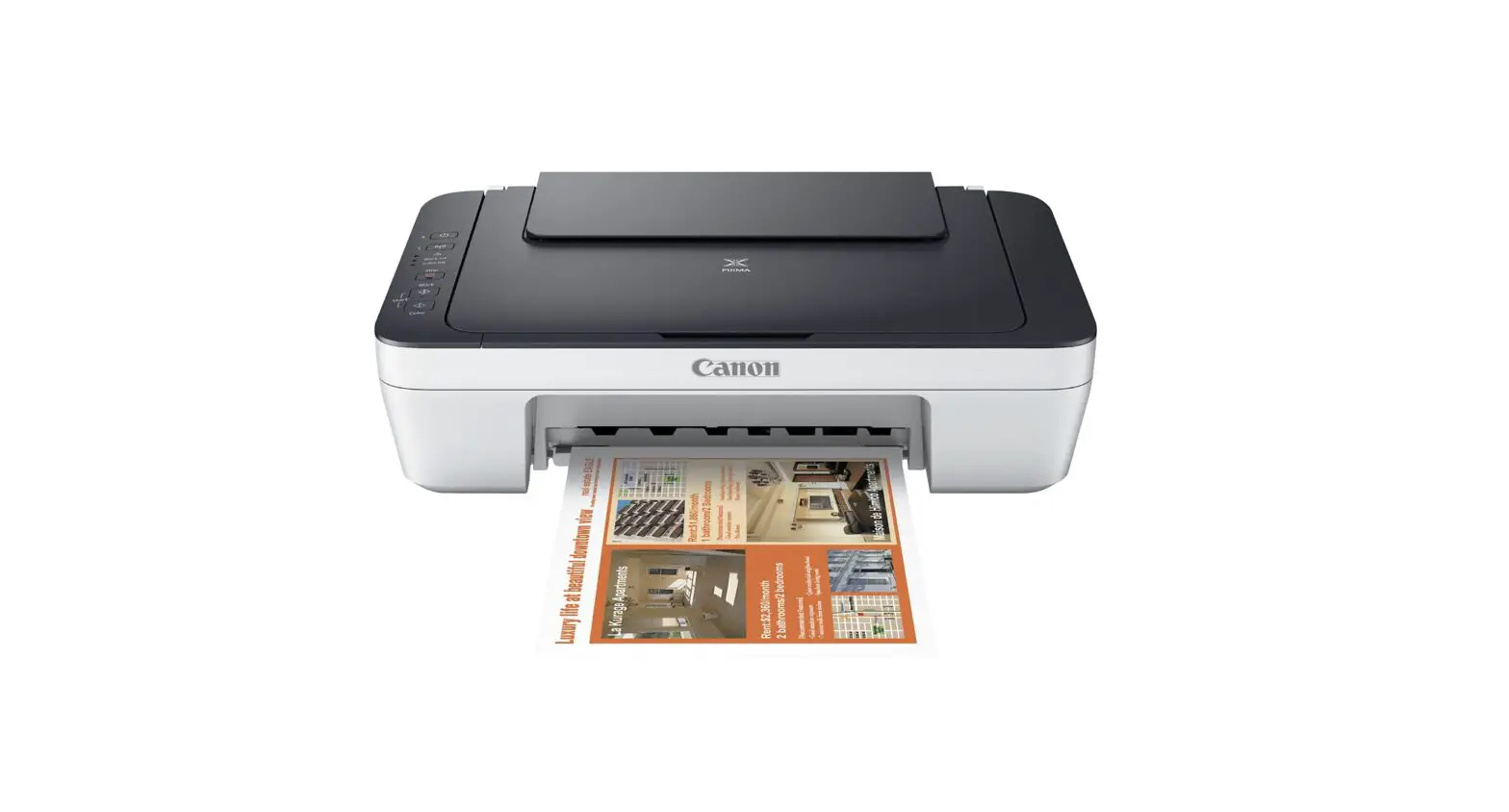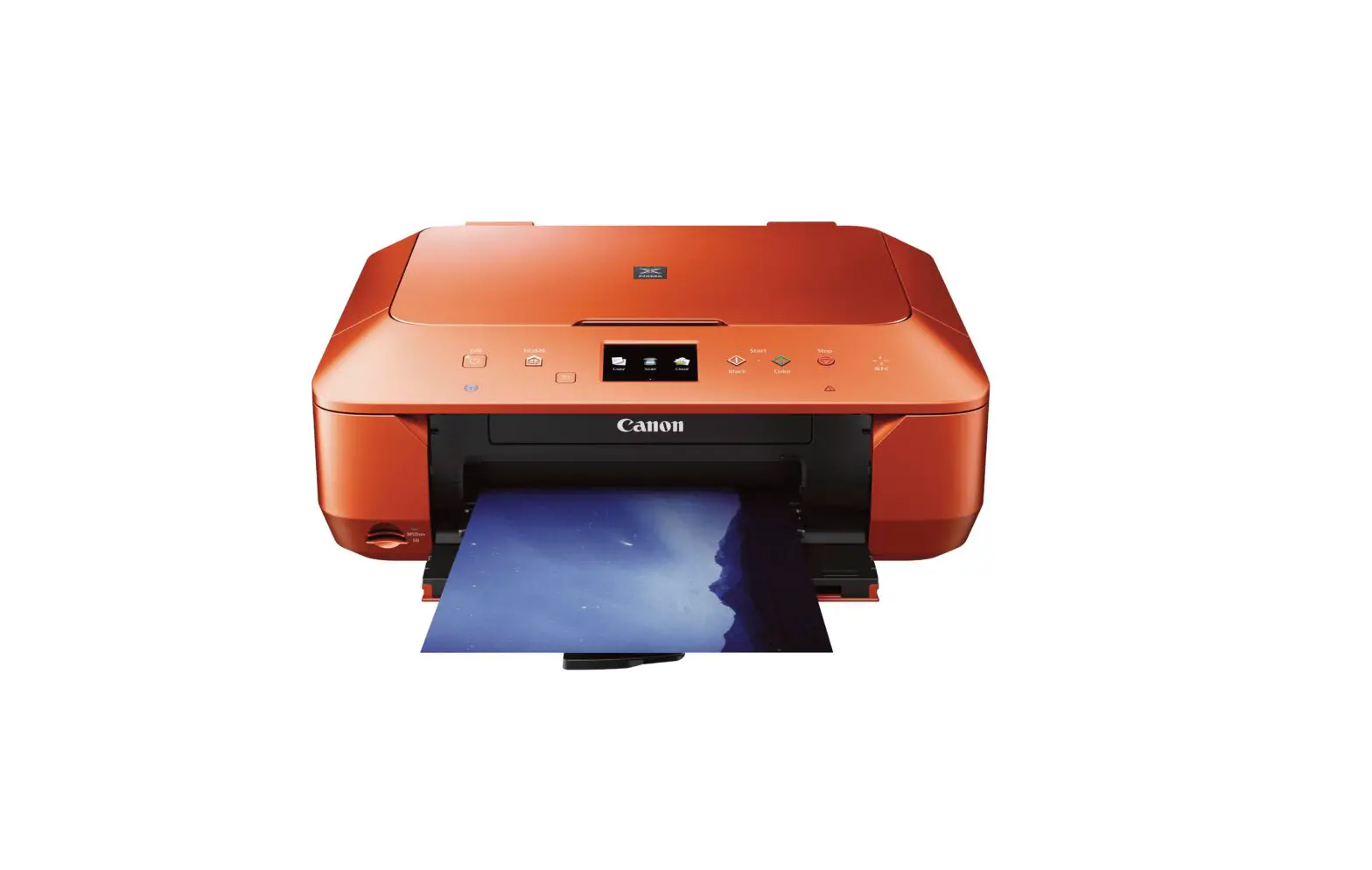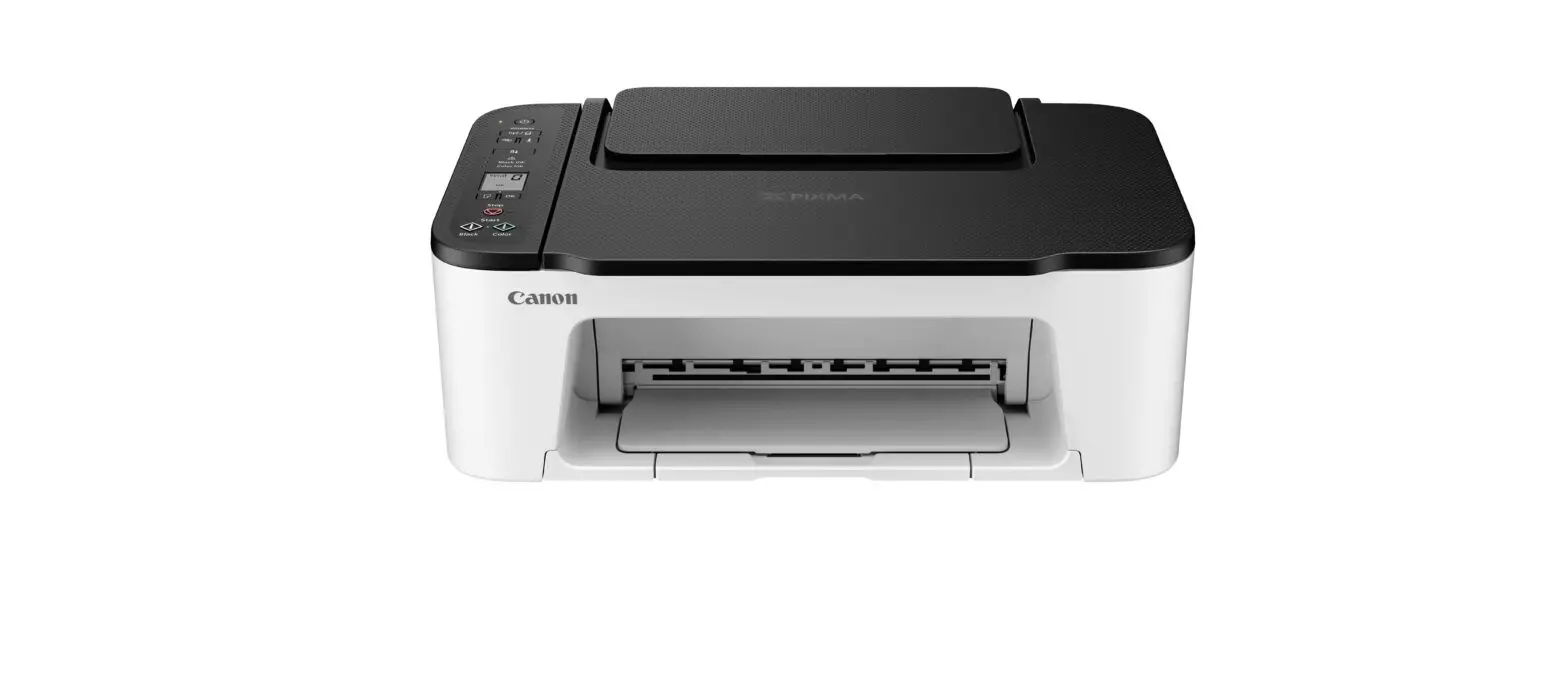

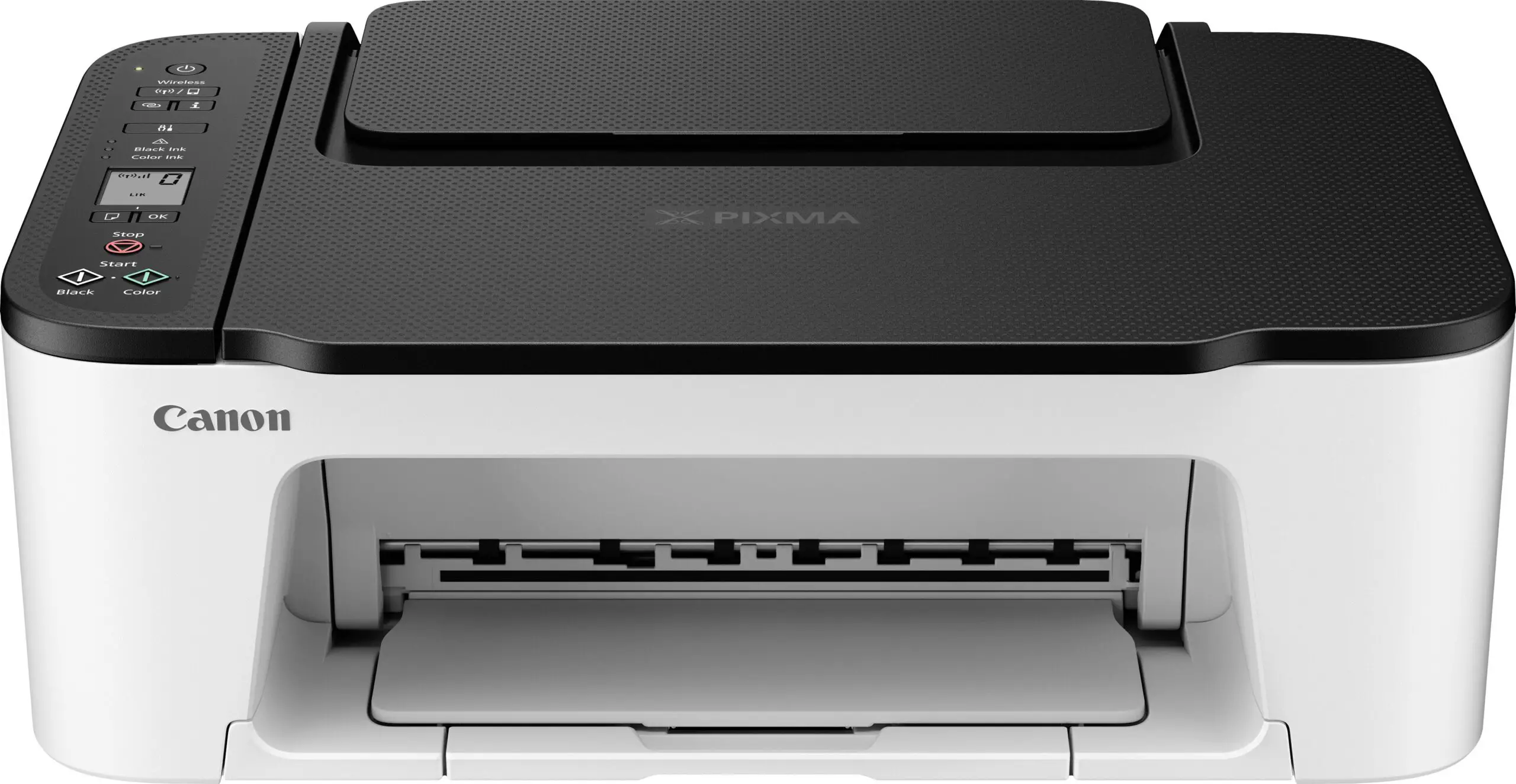
Canon PIXMA TS3450 Inkjet Printer
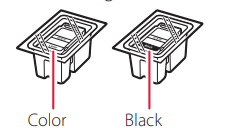
Box Contents
- FINE cartridges

- Power Cord
- Safety and Important Information
- Getting Started (this manual)
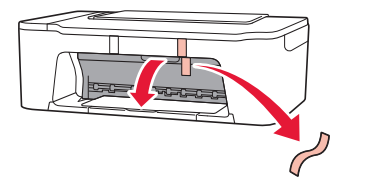
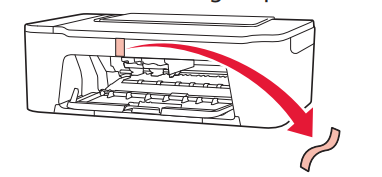
Removing Packing Materials
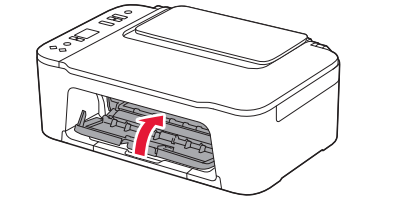
- Remove the orange tape on the right and open the cover.

- Remove the orange tape on the left.

- Close the cover.

Turning on the Printer
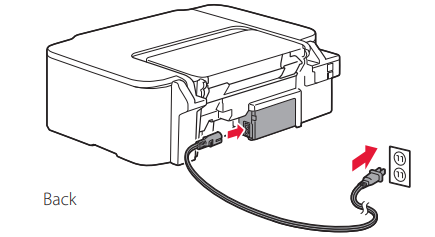
- Connect the power cord.

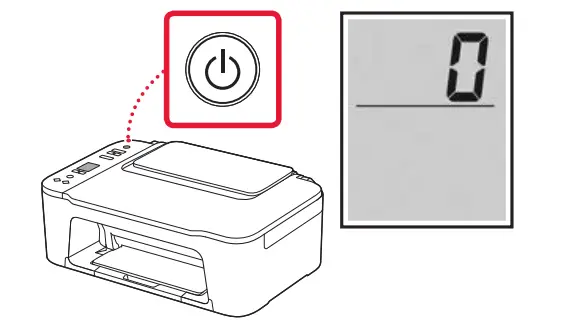
- Press the ON button.
 Important
If another screen appears, see “If any of the following screens appear” on page 3 and follow the instructions.
 Important
Installing the FINE Cartridges
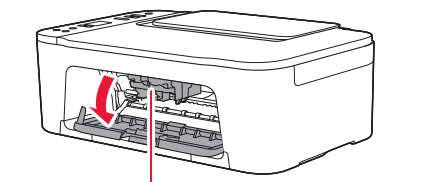
- Open the cover.
 Caution
Do not touch the FINE cartridge holder until it stops moving. - Lower the ink cartridge lock lever on the left- hand side.

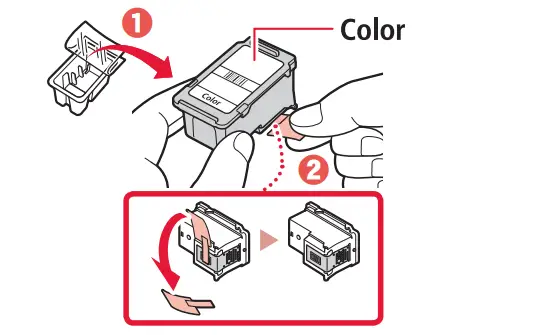
- Remove the Color FINE cartridge from the package and remove the protective tape.
 Important
- Do not touch the ink on the protective tape. It could stain your hands or surrounding objects.
- Do not touch the areas shown in the figure.
Otherwise, the printer may not print correctly.
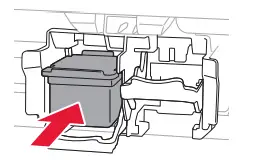
- Insert the Color FINE cartridge in the FINE cartridge holder.
 Important
Do not bump the FINE cartridge. Doing so may cause a malfunction.
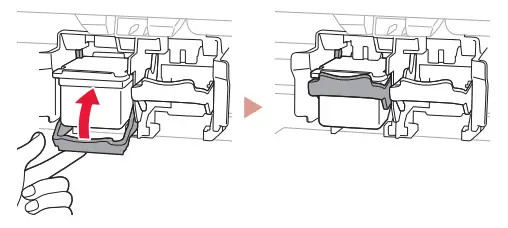
- Raise the ink cartridge lock lever.

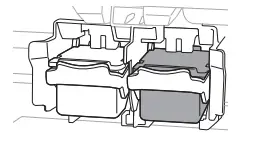
- Repeat steps 2 to 5 and install the Black FINE cartridge on the right-hand side.

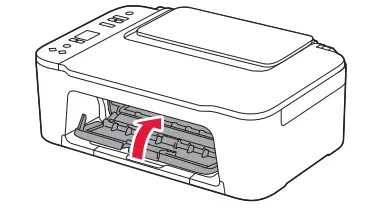
- Close the cover.

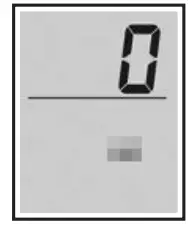
- Check that the following screen appears.
 Important
If E > 0 > 4 appears on the screen, see “If any of the following screens appear” on page 3 and follow the instructions.
 Caution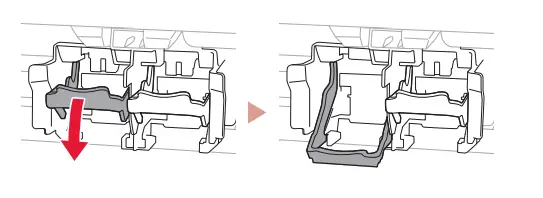
 Important
 Important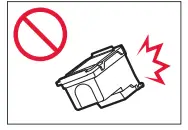
 Important
Select the connection method that best matches how you will use the printer.
- To use the printer without connecting to any other devices
Setup is now complete. - To use the printer connecting to a computer or smartphone
Proceed to the next page.
If any of the following screens appear
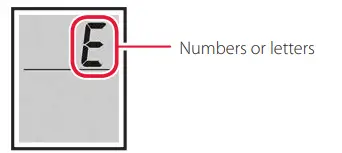
Check the screen, and then follow the corresponding instructions below.
 Install the FINE cartridges.
“4. Installing the FINE Cartridges” on page 2
 Protective material remaining.
“2. Removing Packing Materials” on page 1
 FINE cartridges are not installed correctly.
“4. Installing the FINE Cartridges” on page 2
What device are you connecting?
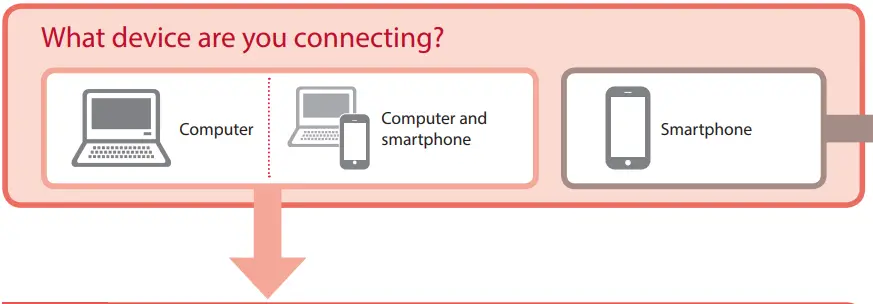
Connecting to a Computer
If you are using multiple computers, perform these steps on each computer.
- Access the Canon website from your computer.
- Select Set Up.
- Enter your printer’s model name and click Go.
- Click Start.
- Click (B) Connecting to a Computer/Smartphone.
- The following steps are for Windows users.
- Click Download.
- Run the downloaded file.
- Follow the on-screen instructions.
- These operations may take some time.
- To connect to a smartphone as well, see “5-b. Connecting to a Smartphone” on page 5.
Connecting to a Smartphone
If you are using multiple smartphones, perform these steps on each smartphone.
- Install the “Canon PRINT Inkjet/SELPHY” app on your smartphone.
- Search for “Canon PRINT” in App Store, or Google Play.
- Access the Canon website to download the app.
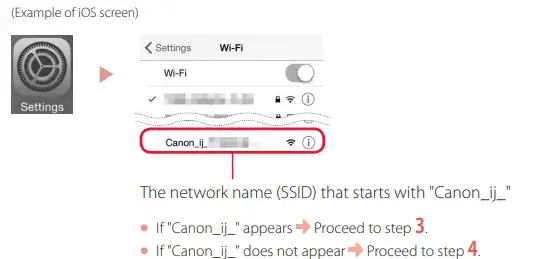
- Open your smartphone’s Wi-Fi settings. Check that the network name (SSID) that starts with “Canon_ij_” appears.
(Example of iOS screen)
- Tap the network name (SSID) that starts with “Canon_ij_”.
- Open the installed app, and follow the on-screen instructions in the app to add your printer.

Loading Paper
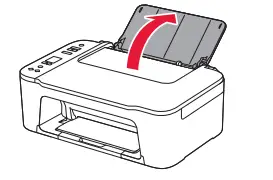
- Open the paper support.

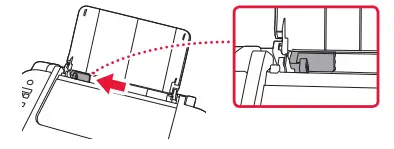
- Slide the paper guide to the left.

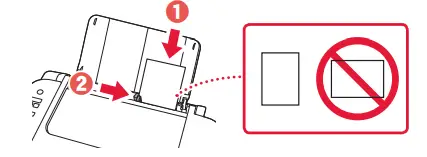
- Load several sheets of paper against the right edge with the print side facing up and align the paper guide to the width of the paper.

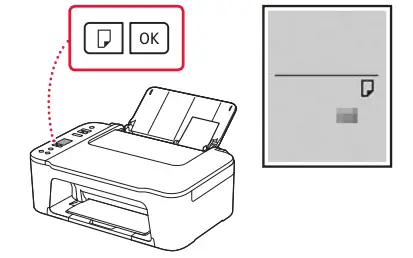
- Press the Paper Select button, select a paper size, and then press the OK button.

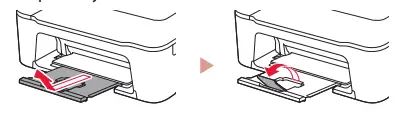
- Extend the paper output tray, and open the output tray extension.

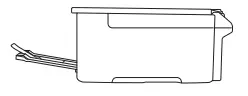
- Look at it from the side to confirm it looks like the diagram.

- Look at it from the side to confirm it looks like the diagram.
If Print Results Are Unsatisfactory
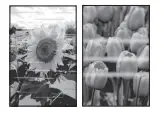
Perform Print Head Alignment if straight lines are crooked or colors are inconsistent, or print results are otherwise not what you expected.
For details, click Maintenance on the Online Manual and refer to If Printing Is Faint or Uneven > Aligning the Print Head. Refer to the back cover for how to access the Online Manual.
- Lines Are Misaligned

- Uneven or Streaked Colors


FAQ’s
You can also set duplex printing in Additional Features on the Quick Setup tab. Check the Duplex Printing (Manual) check box on the Page Setup tab. Select Normal-size, Fit-to-Page, Scaled, or Page Layout from the Page Layout list.
Print, copy, and scan with our entry-level multifunction printer for home and office. It’s super simple to set up and use and allows smartphone printing for extra versatility.
PIXMA inkjet printers use unique print heads and ink technologies to deliver high-quality photos and documents at speed.
To keep your printer lasting longer, we recommend leaving your printer on. If it is off for a long period of time or if you turn it on and off again regularly, the printhead inside the printer will dry out faster. When you leave it on, you may hear the printer start up every once in a while and begin to calibrate.
Printing on 5% = 480 pages (the official page yield). Printing on 10% = 240 pages. Printing on 20% = 120 pages. Printing on 40% = 60 pages.
Place multiple documents on the ADF (Auto Document Feeder) and scan them at one time. You can scan multiple documents at one time from the ADF when scanning via Auto, Document, Custom, or ScanGear.
The PIXMA TS3450 is amazingly convenient with many ways to print wirelessly. With the Canon PRINT app2 easily prints photos and documents directly from your mobile devices. Enjoy printing from your iPad®, iPhone® or iPod® touch with AirPrint3, and from your Android devices with Mopria® Print Service.
Best portable photo printer If you’re looking for the best printer for printing photos on the go, check out the Canon PIXMA TS3450, a print-only inkjet model with a built-in rechargeable battery.
Canon ink can last for up to two years in its sealed packaging. Even after two years, you may still get some more life out of the cartridge, so it may be worth trying after the fact.
Printer ink should last for up to a maximum of 2 years, but as the points above show, printer ink does dry out and so the way you store the inks will have a bearing on this time frame
In short, no! Printers need specific cartridges to work, which is why we have clear listings across the website for what ink works in any printer. You cannot just use any model/brand cartridge in a printer, even if they look the same.
Enable Canon Print Service on smartphone or tablet. On devices running Android 7.0 or later, Canon Print Service will be enabled automatically after installation. Open a web page or e-mail in a smartphone app, and then perform an operation for printing.
You can use non-Canon genuine specialty paper that is up to 53 lb (200 g /m 2). Do not use heavier or lighter paper (except for Canon genuine paper), as it could jam in the printer.
In many cases, the best resolution for printing is 300 PPI. At 300 pixels per inch (which roughly translates to 300 DPI, or dots per inch, on a printing press), an image will appear sharp and crisp. These are considered to be high-resolution, or high-res, images.
Ink cartridges can dry out over time. If they are sitting in your machine for an extended period, they will eventually dry up and become unusable. The simplest way to combat this problem is by printing more frequently or running regular cleans and ink tests to ensure the nozzles remain clean.
Download this PDF Link: Canon PIXMA TS3450 Inkjet Printer User Manual