MB-X2U31R 3.5 Inch Hard Drives
Product Information
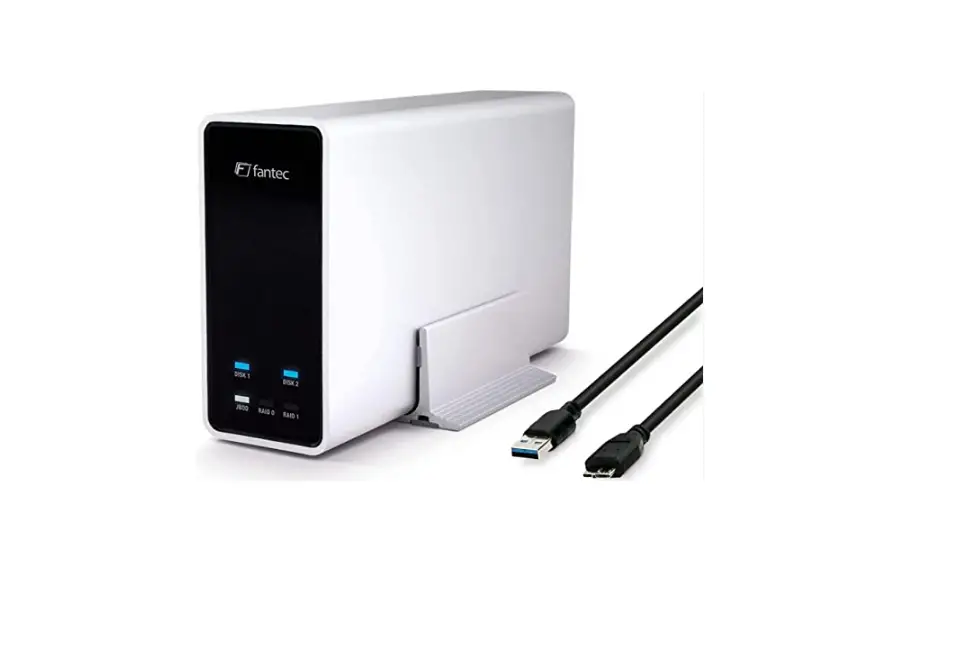
The FANTEC MB-X2U31R is a storage enclosure that supports 2x
3.5/2.5 SATA HDD/SSD drives. It features USB3.1 Generation II
Type-C 10G technology for fast data transfer.
The enclosure has a USB 3.1 Type-C port with Gen II support,
offering data transfer speeds of up to 10 Gbit/s. It is compatible
with USB 2.0/3.0 devices using the included type-A connector
cable.
The front of the enclosure features status LEDs for each hard
disk, indicating power status and activity. The LED colors indicate
different states such as on, off, active, or failed.
The back of the enclosure includes a Kensington Lock slot for
security, a 12V power supply input, a SET button for RAID mode
configuration, a RAID MODE switch, a 40mm fan for optimal cooling,
a USB-C connector, and a central power switch.
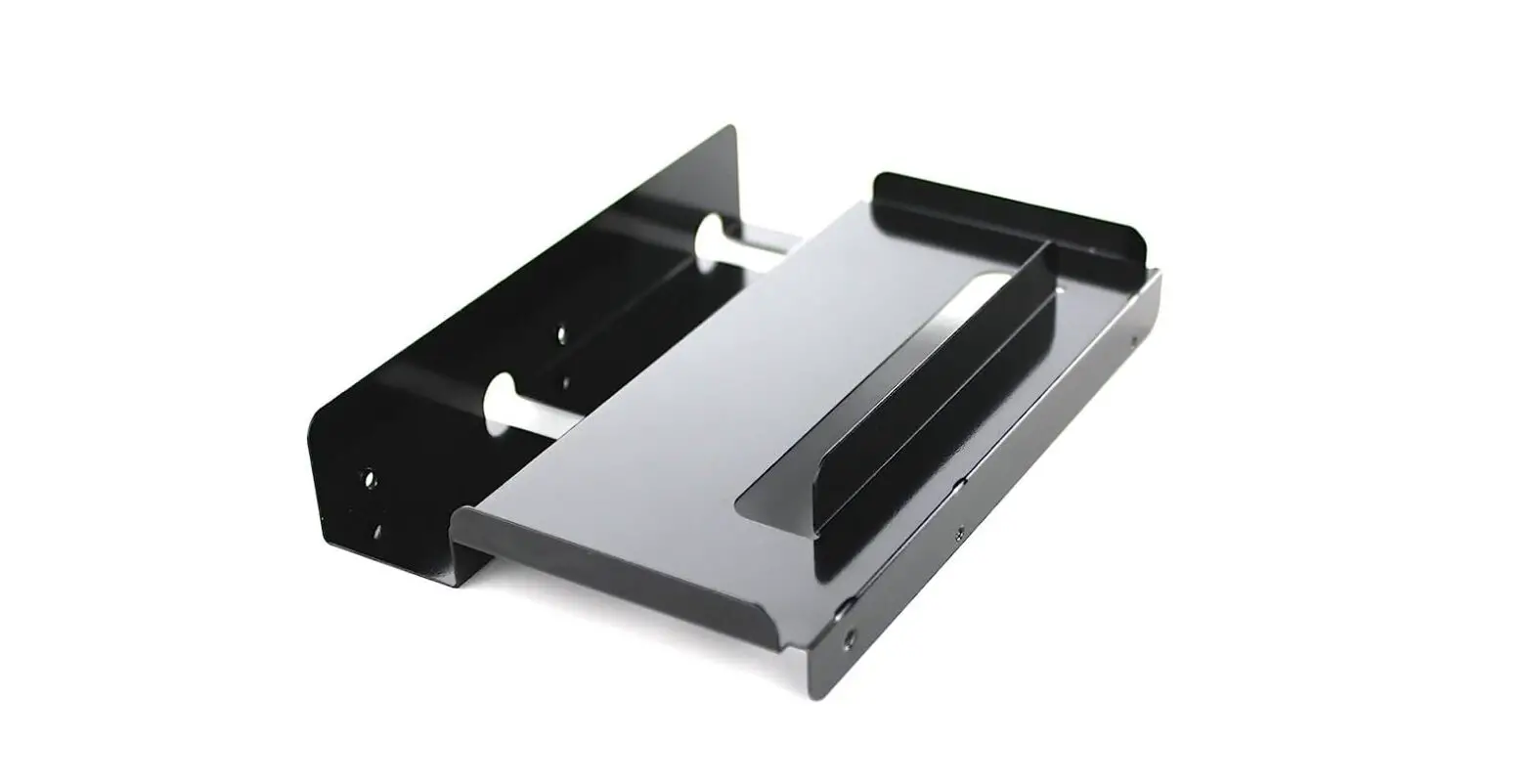
Please note that 2.5″ SSD/HDD drives are only supported with the
optional accessory “FANTEC MB-Bracket 25” (Art.No.:2534).
The FANTEC MB-X2U31R is compatible with Windows 10 (32/64 bit)
and higher, as well as Mac OS 12.1 and higher.
Product Usage Instructions
Step 1: Informations
Make sure you have the necessary operating system requirements:
Windows 10 (32/64 bit) and higher or Mac OS 12.1 and higher.
Step 2: Front and Back
On the front of the enclosure, the status LEDs indicate the
power status and activity of each hard disk. The colors of the LEDs
represent different states such as on, off, active, or failed.
On the back of the enclosure, you will find a Kensington Lock
slot for security, a 12V power supply input, a SET button for RAID
mode configuration, a RAID MODE switch, a 40mm fan for cooling, a
USB-C connector, and a central power switch.
Step 3: Installation
- Connect the power cable to the enclosure and turn on the
power. - Plug in the USB cable and connect the other end to your
PC.
Step 4: RAID Mode – SETUP
Use the SET button and RAID MODE switch on the back of the
enclosure to configure the desired RAID mode. Refer to the manual
for detailed instructions on setting up different RAID modes.
Step 5: Festplatten initialisieren und formatieren
- Initialize the new hard disk using the provided software or
utility. - Create a new partition and format the hard disk using the
appropriate software or utility.
Step 6: Problembehandlung
If you encounter any USB-related issues, follow these steps:
- To prevent data loss, make sure to safely remove hardware
before disconnecting the USB cable.
Please refer to the user manual for further instructions and
troubleshooting information.
FANTEC MB-X2U31R
Handbuch / Manual
2x 3,5″/2,5″ SATA HDD/SSD USB3.1 Generation II* Typ-C 10G Technologie
* 2,5″ SSD/HDD nur zusammen mit optionalem Zubehör ,,FANTEC MB-Bracket 25″ (Art.Nr.:2534). * 2,5″ SSD/HDD only together with optional accessory ,,FANTEC MB-Bracket 25″ (Art.No.:2534).
1 Punkt Informationen
Betriebssysteme Windows 10, 32/64bit und höher Mac OS 12.1 und höher
Arbeitsumgebung Temperatur 5°C ~ 55°C Luftfeuchtigkeit 20% ~ 80 %
USB 3.1 Typ-C Anschluss USB 3.1 Typ-C Anschluss, Gen II bis zu 10 Gbit/s
USB 2.0/3.0 kompatibel ein zusätzlich, passendes Kabel mit Stecker Typ-A (im Lieferumfang enthalten.)
Lüfter Die gelochten Fronttüren zusammen mit dem 40mm Lüfter, bieten eine optimale Kühlung.
2,5″ SDD/HDD 2,5″ SSD/HDD nur zusammen mit optionalem Zubehör: ,,FANTEC MB-Bracket 25″ (Art.Nr.:2534).
DE
2 Hinweise Punkt
· Befolgen Sie alle Hinweise. · Benutzen Sie das Gerät nicht in unmittelbarer Nähe von Wasser. · Reinigen Sie das Gerät mit einem weichen trockenen Tuch. · Blockieren Sie keine Ventilationsöffnungen. · Nehmen Sie die Installation entsprechend dieser Anleitungen vor. · Betreiben Sie das Gerät nicht in unmittelbarer Nähe von Wärmequel-
len wie Heizungen, oder anderen Geräten die Wärme abgeben. · Verlegen Sie das Netzkabel so, dass niemand darüber stolpern kann.
Achten Sie drauf das die Kabel nicht eingeklemmt werden und das keine schweren Gegenstände auf ihnen abgestellt werden. · Benutzen Sie nur vom Hersteller empfohlene Zubehörteile. · Ziehen Sie den Stromstecker während eines Gewitters oder wenn Sie das Gerät für längere Zeit nicht benutzen. · Wenden Sie sich an unser Service Team wenn Gerät, Netzkabel oder Stecker beschädigt wurden, Flüssigkeiten oder Fremdkörper in das Gerät eingedrungen sind, oder das Gerät nicht normal funktioniert bzw. fallen gelassen wurde. · Schütteln Sie das Gerät nicht, lassen Sie es nicht fallen. · Setzen Sie das Gerät nicht während des Betriebs um. · Ziehen Sie den Stromstecker nicht am Kabel aus der Steckdose. · Bevor Sie das Gerät ausschalten oder eine Festplatte ausschalten oder das USB Kabel abziehen, stellen Sie sicher, dass betroffene Partitionen nicht mehr aktiv von Ihrem Betriebssystem genutzt werden. Führen Sie ein sogenannten ,,Unmounting” oder ,,Aushängen” (,,Eject”) durch.
3 Punkt Vorder- und Rückseite
5
6
7
DE
3 Erklärung Punkt
Beschreibung – Vorne
1.
Status LED für jede Festplatte:
leuchtet Blau: blinkt Blau: LED ist aus:
LED ist rot: blinkt langsam Blau:
Festplatte ist eingeschaltet und aktiv auf die Festplatte wird zugegriffen die Festplatte ist ausgeschaltet, oder das Kabel USB ist abgezogen. Die Festplatte ist eingeschaltet, aber inaktiv: z.B. im Standby oder nach “Hardware sicher entfernen”, oder wenn die Festplatte in einem Energiesparmdus/” Sleepmodus” parkt. Festplatte ist ausgefallen (RAID1) und muss ausgetauscht werden. RAID1 ist im Zustand Rebuild
2. Möglichkeit zum Abschließen für jede Festplatte. 3. Gelochter Türgriff für jede Fronttür für jede Festplatte 4. Einschub für jede Festplatte
Beschreibung – Hinten
1.
Kensington Lock
2. 12V Stromversorgung
3. SET-Knopf RAID Mode
4. RAID MODE Schalter
5. 40mm Lüfter
6. USB-C Anschluss
7.
Zentraler Einschalter
4 Punkt Installation
1. Schließen Sie das Stromkabel an und schalten Sie das Gerät ein. Schließen Sie das USB Kabel an und verbinden Sie das andere Ende des Kabels mit Ihrem PC.
2. Schliessen Sie die Tür auf und ziehen Sie am Türgriff, um den Einschub zu öffnen.
3. Öffnen Sie die Tür.
DE
4 Installation Punkt
4. Schieben Sie die Festplatten in das Gehäuse
5. Schließen Sie die Tür.
6. Zur Entnahme der Festplatte, führen Sie in Ihrem Betriebssystem die Aktion ,,Hardware sicher entfernen” aus, schalten das Gehäuse an der Rückseite aus, öffnen SIe die Tür und entnehmen Sie die Festplatte wieder.
5 RAID Mode – SETUP
Punkt
SETUP
SINGLE MODE
Das MB-X2U31R bietet vier verschiedene Modi an: · die RAID Modi RAID1, RAID0 Striping und RAID0 Spanning (BIG), · den Modus SINGLE.
In diesem Manual wird der SINGLE MODE beschrieben. Wenn Sie ein RAID1 oder RAID0 nutzen möchten, informieren Sie sich bitte in dem PDF-Manual. Sie finden es auf unserer Homepage. Suchen Sie in der Suchmaske nach dem Text ,,MB-X2″ und schauen dann unter ,,Download” auf der Produkt Informationsseite.
Im SINGLE-MODE Modus können Sie auf die beiden Festplatten ohne RAID Technik zugreifen. Wir beschreiben den Weg, wie Sie das Gehäuse in den SINGLE-MODE einstellen.
Wichtige Hinweise vorweg: · Legen Sie immer ein Backup wichtiger Daten an. · Setzen Sie keine Festplatten in das Gehäuse, wenn auf den Festplatten wichtige Daten sind, von denen Sie kein Backup angelegt haben. Wenn Sie beim Einstellen des Gehäuse versehentlich eine Fehlbedienung durchführen und versehentlich ein RAID aktivieren, werden die Partitionstabellen der Festplatten gemäß der Einstellung überschrieben und Ihre Daten sind verloren. · Verändern Sie nicht den RAID Modus (Schalter 4), wenn Sie nicht zuvor ein Backup wichtiger Daten auf den Festplatten durchgeführt haben. · Drücken Sie nicht den versenkten Knopf (3) an der Rückseite, wenn Sie nicht zuvor ein Backup wichtiger Daten auf den Festplatten durchgeführt haben.
DE
5 RAID Mode – SETUP Punkt
1. Schalten Sie das Gehäuse ab und starten Sie an Ihrem PC die Datenträgerverwaltung.
2. Stellen Sie den Schalter (4) an der Rückseite in die Stellung ,,SINGLE”: beide Schalter sind nach oben gerichtet.
3. Setzen Sie eine oder zwei Festplatten ein, schließen das Gehäuse an einen PC an und schalten Sie das Gehäuse ein.
4. Drücken Sie 3 Sekunden den versenkten Knopf (3) an der Rückseite. Nach ein paar Sekunden erscheinen in der Datenträgerverwaltung zusätzliche Datenträger.
· Falls Sie Daten auf der/den Festplatten hatten, sollten die Daten jetzt erreichbar sein. · Falls Ihre Festplatten neu sind und noch kein Filesystem enthalten, müssen Sie für die Nutzung vorbereitet werden. Lesen Sie dazu Punkt 6. · Falls Ihre Festplatten neu sind und Sie nach dem Einschalten unter Windows einen sogenannten ,,Laufwerksbuchstaben” bekommen, ist ein Formatieren eigentlich nicht notwendig. Punkt 6 ist dann für Sie überflüssig. · Falls Sie nach dem Einschalten unter Windows vorhandenen Daten wieder erreichen, ist Punkt 6 für Sie auch überflüssig. · Sollten auf den Festplatten schon Daten vorhanden sein, die Sie allerdings nicht angezeigt bekommen, gehen Sie nicht die Schritte unter Punkt 6 durch, sonst sind Ihre Daten verloren. In diesem Fall kann das MB-Gehäuse die Daten nicht erreichen. Schalten Sie das Gehäuse wieder ab und bauen Sie die Festplatten wieder aus. Wenn Sie unsicher im Umgang mit unterschiedlichen PC Systemen sind, wenden Sie sich bitte an unseren Service. Wir erklären Ihnen gerne die Zusammenhänge.
6 Festplatten initialisieren und formatieren
Punkt Microsoft Windows Falls Sie unformatierte Festplatten verwenden müssen diese zunächst initialisiert werden. Dazu tippen Sie auf die Windowstaste auf Ihrer Tastatur und geben “diskmgmt.msc” (ohne Anführungszeichen) ein. Danach drücken Sie die “ENTER” Taste.
1. Initialisieren Sie die neue Festplatte
2. Erstellen Sie eine neue Partition und formatieren Sie die Festplatte
DE
6 Festplatten initialisieren und formatieren Punkt
3. Festplatte ist fertig formatiert.
MBR oder GPT Modus Wichtig: Bitte benutzen Sie GPT wenn die Festplatte eine Kapazität über 2TB hat. Benutzen Sie MBR wenn die Festplattenkapazität max. 2TB ist. Ausgewählter MBR Modus für Festplatte unter 2TB
MBR (Master Boot Record) Ausgewählter GPT Modus für Festplatte über 2TB
GPT (GUID Partition Table)
6 Festplatten initialisieren und formatieren
Punkt MAC OS X ab 10.13 oder höher 1. Starten Sie das ,,Festplattendienstprogramm”.
2. Festplatte initialisieren.
3. klicken Sie auf Löschen > selektieren Sie Details und drücken Sie auf Löschen.
DE
6 Festplatten initialisieren und formatieren Punkt
4. Festplatte wird formatiert.
5. Festplatte fertig formatiert
. .
7 Punkt Problembehandlung
Wenn die eingesetzte Festplatte nicht einschaltet, prüfen Sie, ob das Stromkabel richtig eingesteckt ist und der zentrale Einschaltereingeschaltet ist.
Falls die USB Verbindung nicht aufgebaut wird, überprüfen Sie, ob das USB Kabel gesteckt ist.
Falls Ihr USB Probleme macht:
USB3 Treiber, die bei der Installation eines Betriebssystems mitgeliefert werden, sind oftmals nicht optimal auf Ihr Mainboard abgestimmt. Falls eine USB Verbindung nicht zu Ihrer Zufriedenheit funktioniert, installieren Sie die richtigen USB3 Treiber. Die finden Sie in der Regel auf der Homepage des Herstellers Ihres Mainboards, passend zu Ihrem Betriebssystem. Falls Sie die USB3 Treiber nicht aufgeführt finden, installieren Sie alle Treiber, die der Hersteller für Ihr Mainboard, passend zu Ihrem Betriebssystem bereitstellt.
Wenn Sie eine PC Karte für Ihr USB benutzen: nutzen Sie bitte die Treiber des Herstellers der PC Karte, passend für Ihr eingesetztes Betriebssystem.
Das Standby Verhalten von Festplatten wird in der Regel durch das Betriebssystem gesteuert. Oftmals in den Erweiterten Energiesparoptionen. Wenn sich die Festplatten bei Ihnen ungewöhnlich schnell abschalten, prüfen Sie dort die Einstellungen. PCs, die eine SSD nutzen schalten diese recht kurzfristig ab, um Energie zu sparen. Dieses Abschalten von Datenträgern wirkt bei vielen Betriebssystemen auf alle angeschlossenen Festplatten und kann sich störend auswirken. Schalten Sie diese Techniken aus, um Fehlerquellen zu finden und korrigieren Sie die Einstellungen auf eine sinnvolle Zeit.
Manche PCs nutzen Energiespartechniken an der USB Schnittstelle. Gerade Gerät mit Akkus sparen gerne Energie, was sich allerdings störend auswirken kann. Oftmals findet man Hinweise dazu in den Energiesparoptionen. Schalten Sie diese Techniken erst einmal ab, um Fehlerquellen ausfindig zu machen. Schalten Sie die Techniken dann nach und nach wieder ein. Oder erkundigen Sie sich bitte beim Service Ihres PC Herstellers, wenn eine USB Schnittstelle sich ungewöhnlich oft abschaltet und dadurch den Betrieb eines USB Mehrfach Festplattengehäusen stört.
Um Datenverluste zu verhindern:
· Ziehen Sie ein USB Kabel erst dann ab, wenn Sie zuvor ein sogenanntes ,,Unmounting”, ,,Hardware sicher entfernen”, ,,Eject”, ,,Auswer fen” oder ,,Aushängen der Partition” durchgeführt haben. Dieser Vorgang wird bei jedem Betriebssystem etwas anders bezeichnet.
· Führen Sie regelmäßig ein Backup wichtiger Daten durch, damit wichtige Daten mindestens zweimal vorhanden sind.
· Nutzen Sie das Gehäuse nur dann, wenn alles zu Ihrer Zufriedenheit funktioniert. Treiber können durch Software Updates verändert werden und instabile USB Verbindungen können zu Datenverlust führen. Reagieren Sie auf Veränderungen in Ihrem Betriebssystem rechtzeitig.
Das Gehäuse ist aus Sicht von Windows ein Wechseldatenträger. Sobald Sie die Aktion ,,Hardware sicher entfernen” durchgeführt haben, wird die Festplatte von Ihrem Betriebssystem aus dem Filesystem entfernt und inaktiv geschaltet. Die LEDs gehen dann aus und die Festplatten schalten ab. Wenn Sie das Gehäuse wieder nutzen möchten, müssen Sie es über den Schalter an der Rückseite Ausschalten und wieder Einschalten. Oder das USB Kabel abziehen und wieder aufstecken. So, wie Sie es mit anderen Wechseldatenträgern (z.B. einem USB Stick) unter Windows auch machen würden.
Anschrift für RMA Sendungen: FANTEC GmbH Abteilung RMA/Service Billwerder Billdeich 605B 21033 Hamburg Konformitätserklätung: Hiermit erklären wir, dass der Artikel mit den Bestimmungen der RL 1999/EG übereinstimmt http://www.fantec.de/unternehmen/bestimmungenrichtlinien/ce/ Tippfehler, Irrtümer und Änderungen vorbehalten. Abbildungen ähnlich FANTEC GmbH, 2023 – Alle Rechte vorbehalten.
English
EN
FANTEC MB-X2U31R
Manual – english
2x 3,5″/2,5″ SATA HDD/SSD USB3.1 Generation II* Typ-C 10G Technologie
* 2,5″ SSD/HDD only together with optional accessory ,,FANTEC MB-Bracket 25″ (Art.No.:2534).
1 STEP Informations
Operating systems Windows 10, 32/64bit and higher Mac OS 12.1 and higher
Working enviroment Temperature 5°C ~ 55°C Humidity 20% ~ 80%
USB 3.1 Typ-C port USB 3.1 Typ-C connector, Gen II up to 10 Gbit/s
USB 2.0/3.0 compatible a suitable cable with type-A connector is included in the scope of delivery.
Fan The perforated front doors together with the 40mm fan, provide optimal cooling.
2,5″ SDD/HDD 2,5″ SSD/HDD only together with optional accessories: ,,FANTEC MB-Bracket 25″ (Art.No.:2534).
EN
2 Instructions STEP
· Follow all instructions. · Do not use the device in the immediate vicinity of water. · Clean the device with a soft dry cloth. · Do not block any ventilation openings. · Carry out the installation according to these instructions. · Do not operate the unit in the immediate vicinity of heat sources such as
heaters, or other devices that emit heat. · Route the power cord so that it is not likely to be walked on or pinched,
and do not place heavy objects on or near the power cord. · Use only accessories recommended by the manufacturer. · Unplug this apparatus during lightning storms or when unused for long
periods of time. · Contact our service team if the unit, power cord or plug is damaged,
liquid has been spilled or objects have fallen into the unit, or the unit does not operate normally or has been dropped. · Do not shake the device or drop it. · Do not move the device during operation. · Do not pull the power plug out of the socket by the cable. · Before you switch off the device or turn off a hard disk or disconnect the USB cable, make sure that affected partitions are no longer actively used by your operating system. Perform a so-called ,,unmounting” or ,,unmounting” (,,eject”).
3 STEP Front and Back
5
6
7
EN
3 Explanation STEP
Description – Front
1.
Status LED for each hard disk:
lights up Blue: flashing Blue: LED is off:
LED is red: flashes slowly Blue:
hard disk is switched on and active hard disk being accessed the hard disk is switched off, or the USB cable is disconnected. The hard disk is switched on but inactive: e.g. in standby or after ,,Safely Remove Hardware”, or if the hard disk is in a energy ” sleep mode”. Hard disk has failed (RAID1) and must be replaced. RAID1 is in Rebuild state.
2. possibility to lock for each hard disk. 3. perforated door handle for each front door for each hard drive 4. slide-in for each hard disk
Description – Back
1.
Kensington Lock
2. 12V power supply
3. SET button RAID Mode
4. RAID MODE switch
5. 40mm Fan
6. USB-C connector
7.
central power switch
4 STEP Installation
1. Connect the power cable and turn on the power. Plug in the USB cable and connect the other end of the cable to your PC.
2. Unlock the door and pull the door handle, to open the slide-in module.
3. Open the door.
EN
4 Installation STEP
4. Slide the hard drives into the enclosure.
5. Close the door.
6. To remove the hard disk, execute the action ,,Safely remove hardware” in your operating system, switch off the case at the back, open the door and remove the hard disk again.
5 RAID Mode – SETUP
STEP
SETUP
SINGLE MODE
The MB-X2U31R offers four different modes: · the RAID modes RAID1, RAID0 Striping and RAID0 Spanning (BIG), · the SINGLE mode.
In this manual the SINGLE MODE is described. If you want to use RAID1 or RAID0, please refer to the PDF manual. You can find it on our homepage. Search for the text ,,MB-X2″ in the search mask and then look under ,,Download” on the product information page.
In SINGLE-MODE mode you can access the two hard disks without RAID technology. We describe the way how to set the enclosure into the SINGLE-MODE.
Important notes beforehand: · Always create a backup of important data. · Do not put hard disks into the enclosure if there is important data on the hard disks that you have not backed up. If you make a mistake when setting the enclosure and accidentally activate a RAID, the partition tables of the hard disks will be overwritten according to the setting and your data will be lost. · Do not change the RAID mode (switch 4) if you have not previously backed up important data on the hard disks. · Do not press the recessed button (3) on the rear panel if you have not previously backed up important data on the hard drives.
EN
5 RAID Mode – SETUP STEP
1. Switch off the case and start the disk management on your PC. 2. Set the switch (4) on the rear panel to the ,,SINGLE” position: both switches
are facing up. 3. Insert one or two hard disks, connect the case to a PC and switch
on the case. 4. Press the recessed button (3) on the rear panel for 3 seconds. After a few
seconds, additional disks will appear in Disk Management.
· If you had data on the hard drive(s), the data should now be accessible. · If your disks are new and do not yet contain a file system, they must be prepared for use. Please read point 6. · If your hard disks are new and you get a so-called ,,drive letter” after switching on under Windows, formatting is actually not necessary. Point 6 is then superfluous for you. · If you reach existing data after switching on under Windows again, point 6 is also superfluous for you. · If there are already data on the hard disks, but you do not see them do not go through the steps under point 6, otherwise your data will be lost. In this case the MB enclosure cannot reach the data. Switch off the enclosure again and remove the hard disks. If you are not sure how to handle different PC systems, please contact our service. We will gladly explain the connections to you.
6 Initialize and format hard disks
STEP
Microsoft Windows
If you are using unformatted hard disks, they must first be initialized. To do this, tap the Windows key on your keyboard and type ,,diskmgmt.msc” (without quotes). Then press the ,,ENTER” key.
1. Initialize the new hard disk
2. Create a new partition and format the hard drive
EN
6 Initialize and format hard disks STEP
3. Hard disk is formatted.
MBR or GPT mode
Important: Please use GPT if the hard disk has a capacity over 2TB. Use MBR if the hard disk capacity is max. 2TB. Selected MBR mode for hard disk below 2TB
MBR (Master Boot Record) Selected GPT mode for hard disk over 2TB
GPT (GUID Partition Table)
6 STEP Initialize and format hard disks
MAC OS X 10.13 or above
1. start the ,,Disk Utility”.
2. Initialize hard disk
3. Click Delete > select details and press Delete.
EN
6 Initialize and format hard disks STEP
4. Hard disk being formatted.
5. Hard disk ready formatted.
. .
7 STEP Problem handling
If the inserted hard drive does not turn on, check if the power cable is plugged in properly and the central power switch is turned on. If the USB connection is not established, check if the USB cable is plugged in. If your USB is causing problems: USB3 drivers that come with the installation of an operating system are often not optimally matched to your motherboard. If a USB connection does not work to your satisfaction, install the correct USB3 drivers. You can usually find them on the homepage of the manufacturer of your mainboard, matching your operating system. If you don`t find the USB3 drivers listed, install all drivers that the manufacturer provides for your mainboard, matching your operating system. If you use a PC card for your USB: please use the drivers of the manufacturer of the PC card, suitable for your operating system. The standby behavior of hard disks is usually controlled by the operating system. Often in the advanced energy-saving options. If the hard disks switch off unusually quickly, check the settings there. PCs that use an SSD switch it off quite quickly to save energy. This shutdown of data carriers affects all connected hard disks in many operating systems and can have a disruptive effect. Switch off these techniques to find sources of error and correct the settings to a sensible time. Some PCs use energy saving techniques on the USB interface. Especially devices with rechargeable batteries like to save energy, but this can have a disturbing effect. Often you can find hints about this in the energy saving options. Switch off these techniques first to find the source of errors. Then switch the techniques back on step by step. Or please ask your PC manufacturer`s service if a USB interface switches off unusually often and thus disturbs the operation of a USB multiple hard disk enclosure. To prevent data loss: · Do not disconnect a USB cable until you have first performed a so-called ,,unmounting”, ,,remove hard ware safely”, ,,eject” or ,,unmount partition”. This process is called something different for each operating system. · Back up important data regularly so that important data is present at least twice. · Only use the case when everything is working to your satisfaction. Drivers can be changed by software updates and unstable USB connections can lead to data loss. Respond to changes in your operating system in a timely manner. The case is a removable disk from Windows` point of view. As soon as you have performed the action ,,Safely remove hardware”, the hard disk is removed from the file system by your operating system and switched to inactive. The LEDs and the hard disks switch off. If you want to use the case again, you have to turn it off and on again via the switch at the back. Or unplug the USB cable and plug it back in. Just like you would do with other removable media (e.g. a USB stick) under Windows.
Address for RMA shipments: FANTEC GmbH Department RMA/Service Billwerder Billdeich 605B 21033 Hamburg Declaration of Conformity: Herewith we declare that the article is in conformity with the provisions of the RL 1999/EG http://www.fantec.de/unternehmen/bestimmungenrichtlinien/ce/ Typing errors, mistakes and changes reserved. Illustrations similar FANTEC GmbH, 2023 – All rights reserved.
 CE
CE