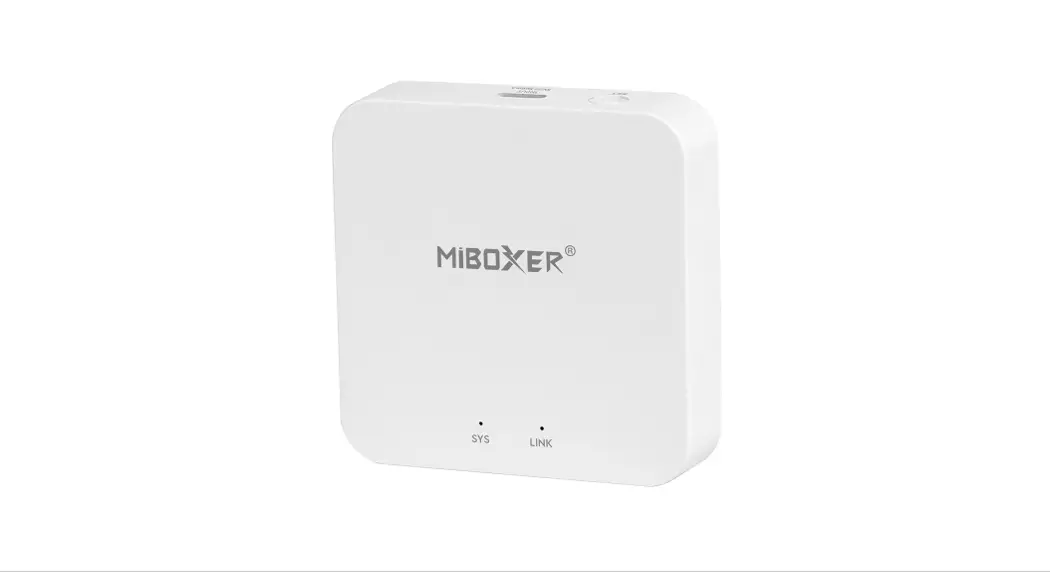

2.4GHz Gateway Instruction
Product features
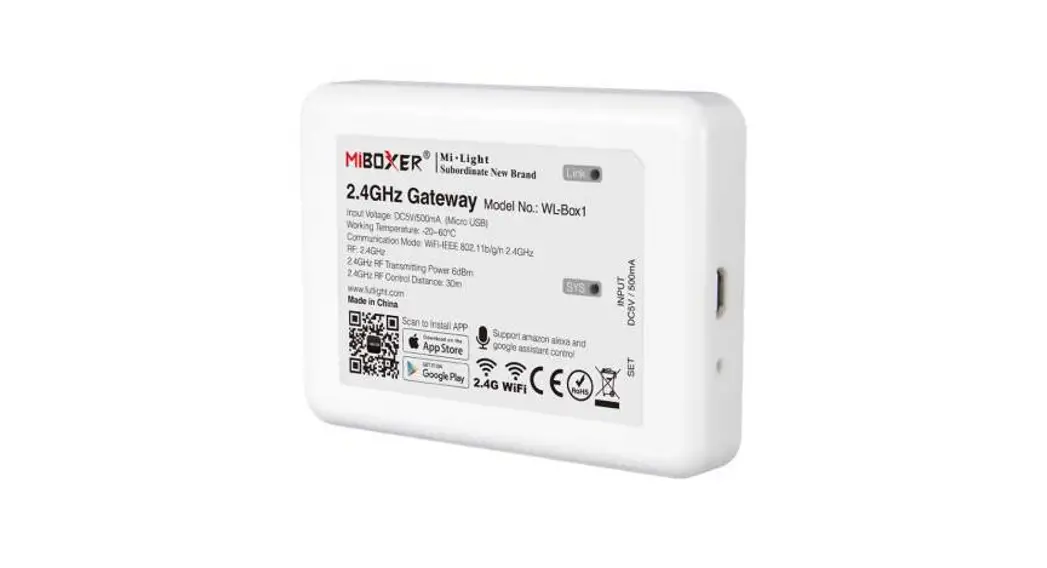
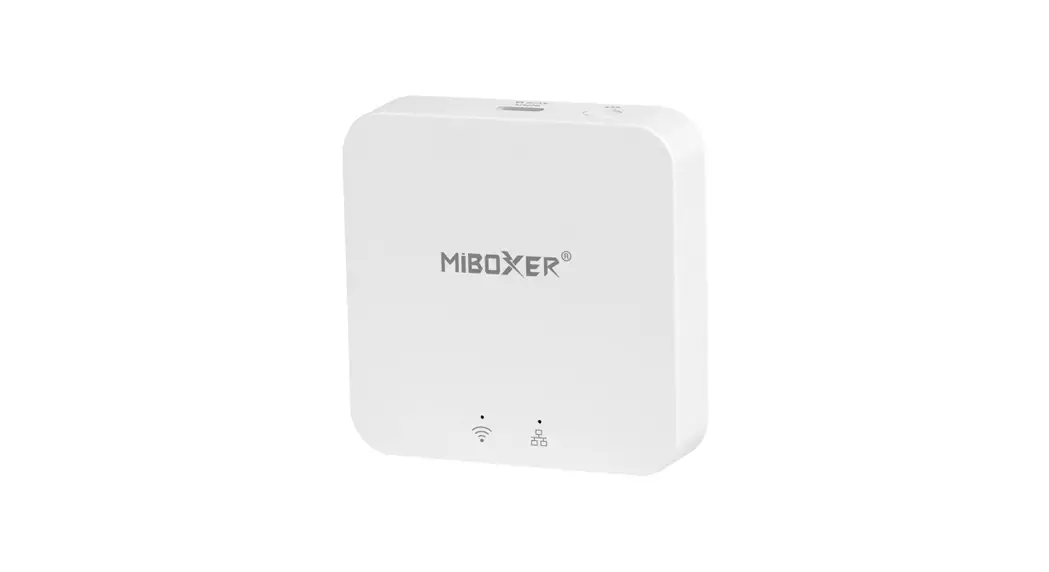
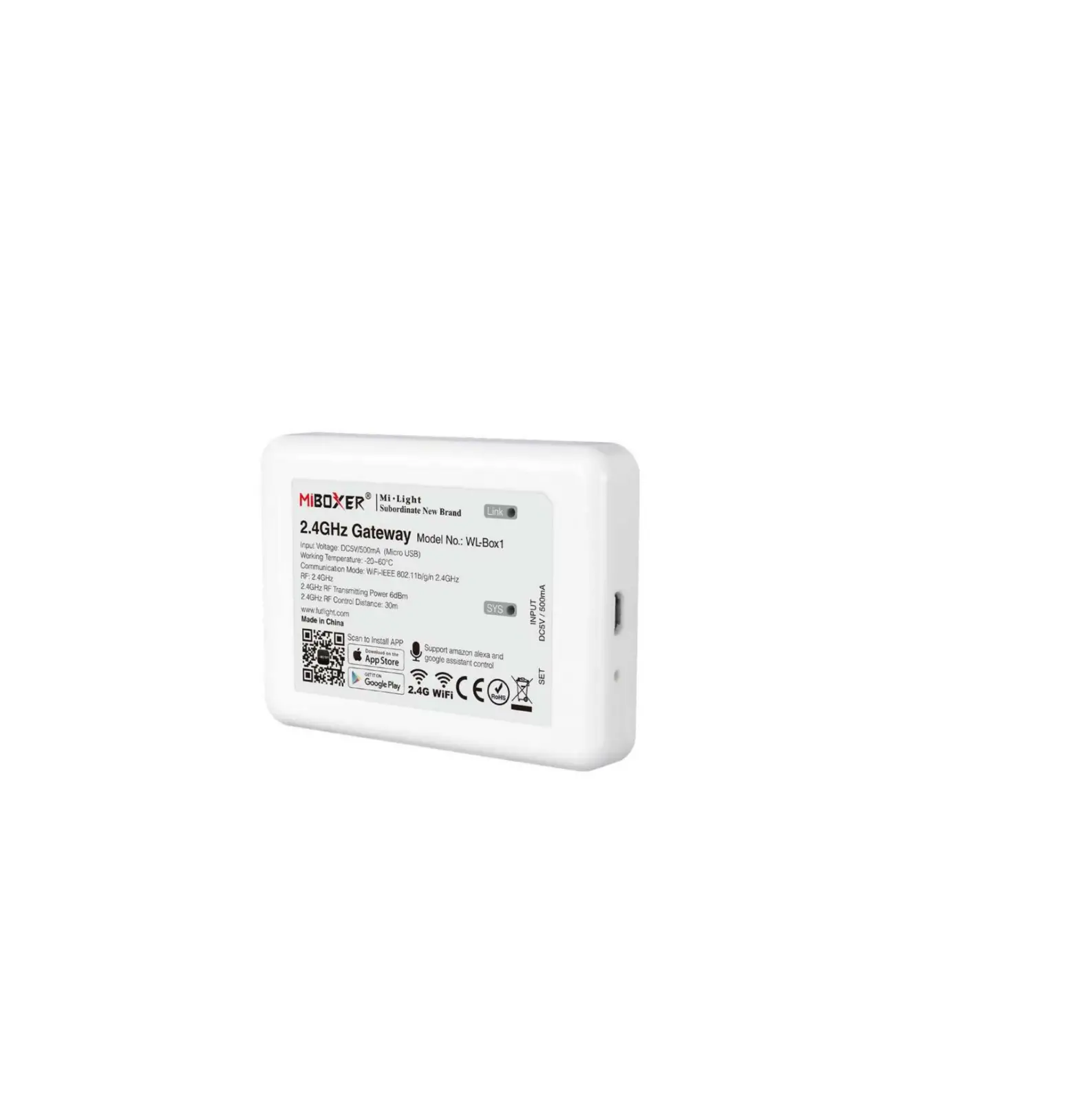
It’s compatible with MiBoxer 2.4GHz RF products. It communicate icloud with smartphone via Wi-Fi network, user can do remote control for connected lights via “Tuya Smart” or “MiBoxer” App. Support third party voice control, meet every smart application in your home.
 | Compatible with 2.4GHz RF products |
 | 16 Millions of colors to choose |
 | Color temperature adjustable |
 | Dim brightness / Saturation |
 | Smartphone APP control |
 | Third party voice control |
 | Support Remote control |
 | Home sharing function |
 | Tap-to-run & automation |
 | Support timmer control |
Product parameter
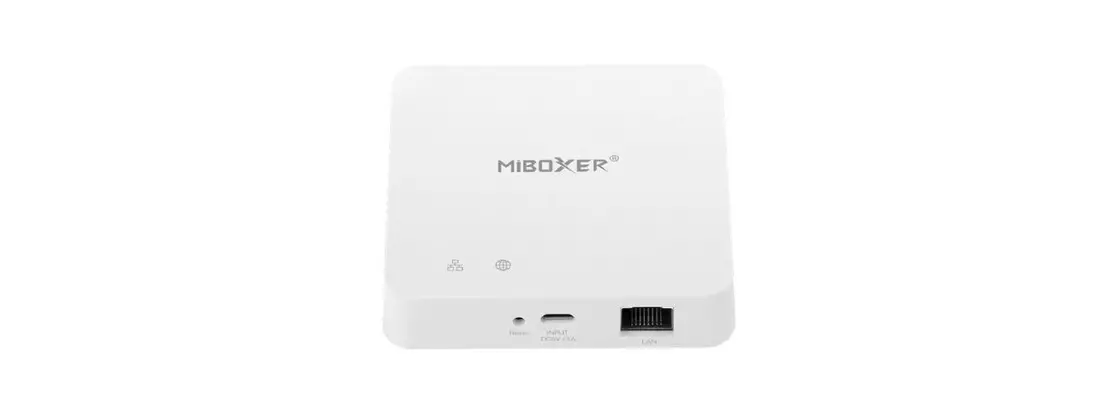
Model No.: WL-Box2
Input: 5V 500mA (Type-C)
Working Temperature: -10~40°C
Wireless Technology: Wi-Fi IEEE 802.11b/g/n 2.4GHz
RF: 2.4GHz
Transmiting Power: 6dBm
2.4G RF Control Distance: 30m
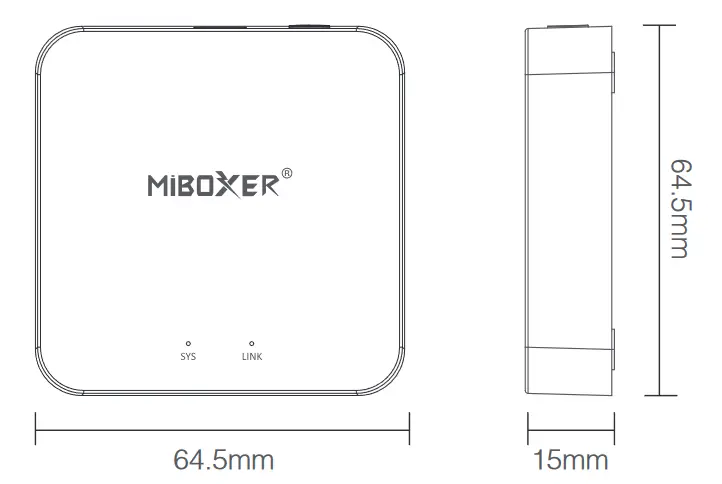
Indicator status instruction
| Pairing with Wi-Fi | “SYS” Indicator | Off |
| Connected with Wi-Fi | Flash quickly | On |
| Steuersignal empfangen | Off | Blinkt |
| Wi-Fi getrennt | Off | Off |
| Device status | On | “LINK” Indicator |
Smartphone app control instruction
Download an install “Tuya Smart” APP
Search “Tuya Smart” in apple or google store, or scan QR code directly.
Please creat account if using in the first time.
 https://miboxer.com/light/app/tuya.html
Pairing with Network (5G router is useless)
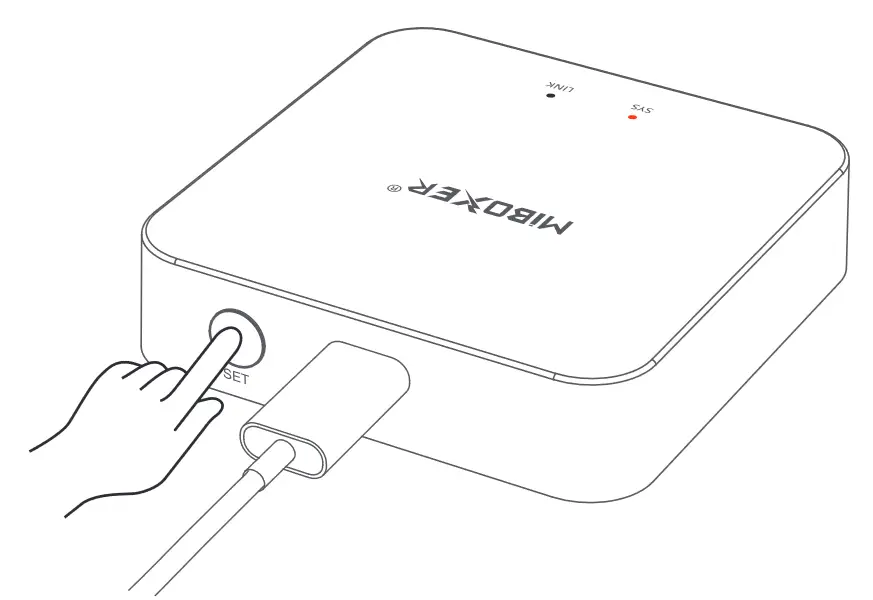
- Wire gateway with power source, enable smart phone to connect with WiFi.
- Standby pairing with Network Confirm “SYS” indicator flashing quickly
Please long press “SET” 3 seconds if indicator not flash quickly
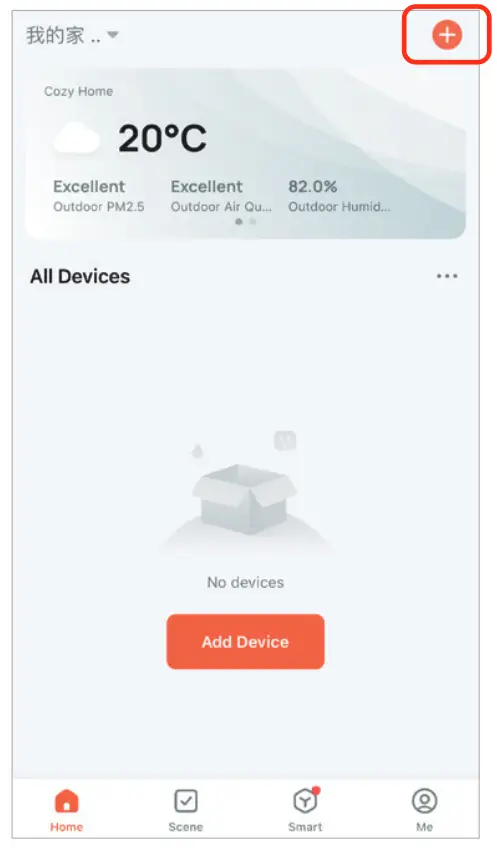
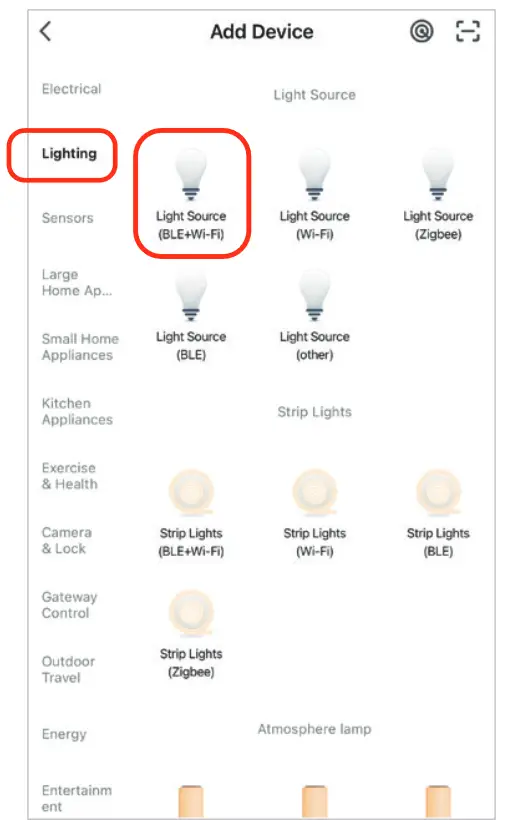
- Click “+” in APP

- Select “Lighting”
- Find out “Light Source (BLE+Wi-Fi)”
- Finish every step based on instruction
Copy Remote
While you have multilamps which are already linked with remote, the new gateway have two control solutions for youlamp :
Way 1: Follow instruction of linking gatewaand link gateway with your lamp.
 (Disadvantage: waste time)
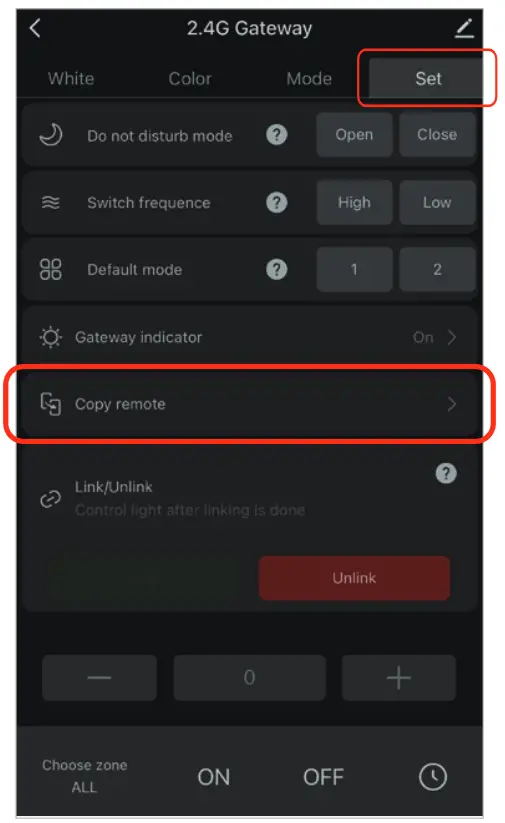
Way 2: Use “Copy remote” function, it can control lamps once copying is done.
(Advantage: save time)
How to copy remote?
- Click “Set”
- Click copy remote
- Click “Copy”
- Finishing it based on App instruction
Clean up
Clean up remote which is copied, divide remote and gateway
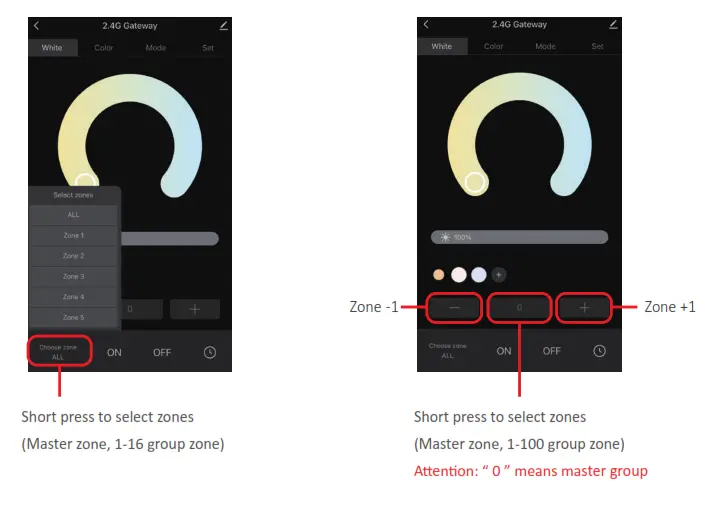
Atiention: gateway only can copy one remote, it will replace the previous one if user copy another new remote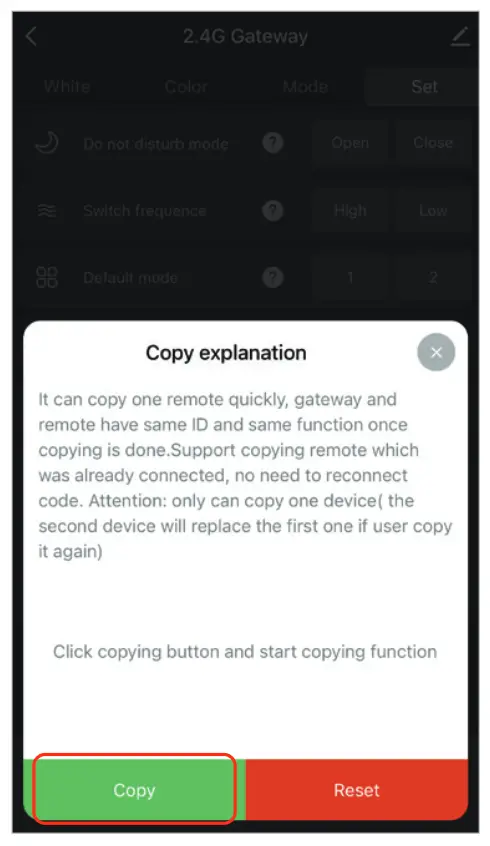 How to select zones?
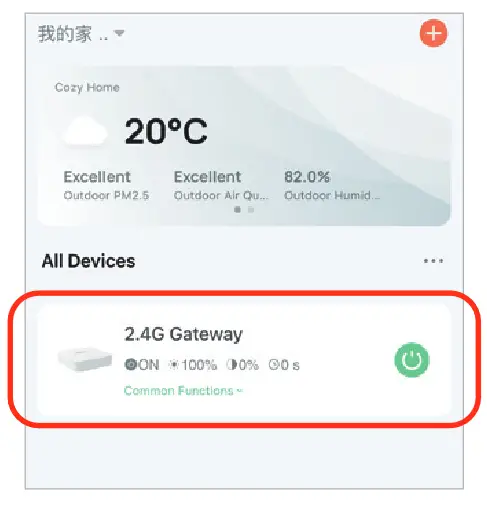
- Click connected gateway,
Eg: “2.4G Gateway”.
- Explanation
How to rename group zones?
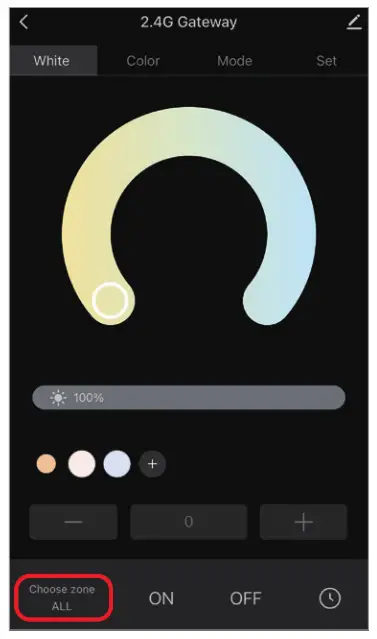
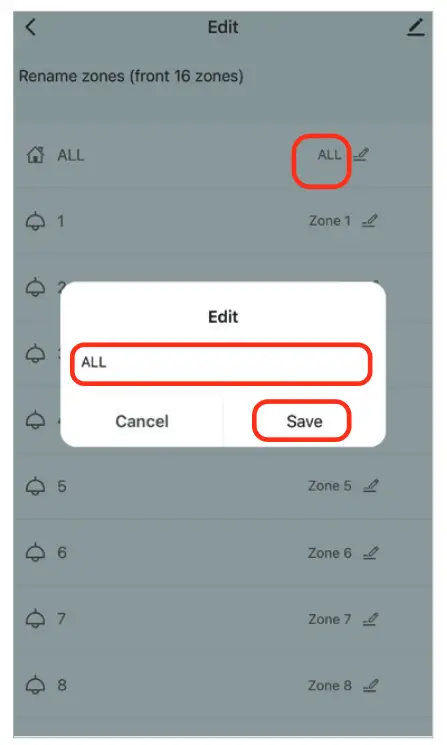
Atiention: only support to rename master zone and 1-16 zones
- Long press to “Choose zone”

- Click zones which you want to rename
(Eg: ALL) - Type new name

- Click “Save”
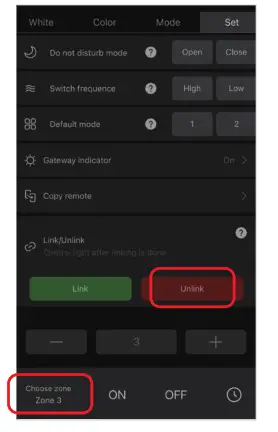
Link/Unlink instruction
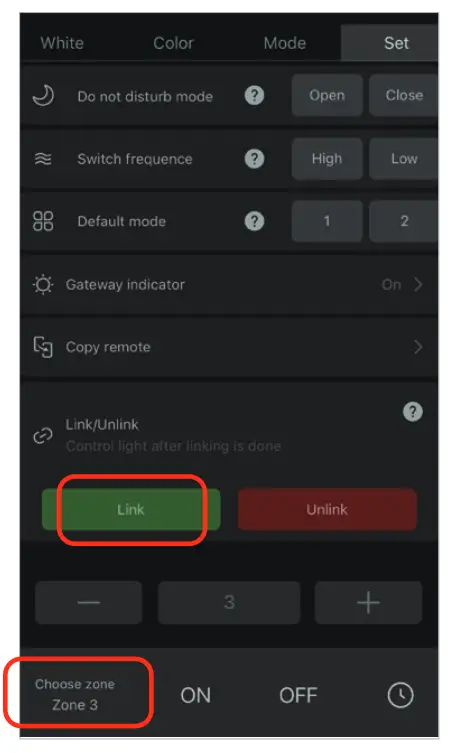
The lamp must be linked with gateway. One zone can control countless MiBoxer 2.4G
lamps.
Link:
- Select group zones;
- Power off lamps and power on again atier 10 seconds (review lamp instruction)
- Lamp is on, short press “Link” 1 time
- Link is done once light flashes 3 times slowly
Unlink:
- Select group zones;
- Power off lamps and power on again atier 10 seconds (review lamp instruction)
- Lamp is on, short press “Unlink” 1 time
- Unlink is done once light flashes 10 times quickly
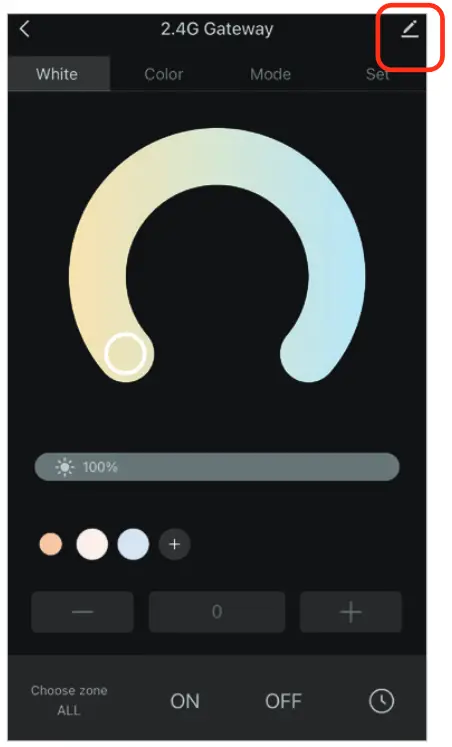
- Click “ ”

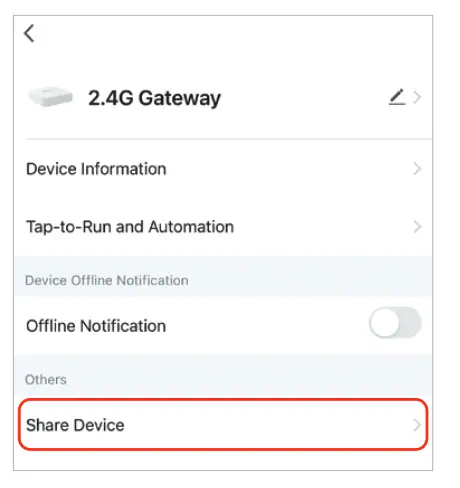
- Click “Share Device”, follow instruction on APP

Alexa voice control instruction
Please add device into Tuya Smart App (details in page 4) before doing following steps:
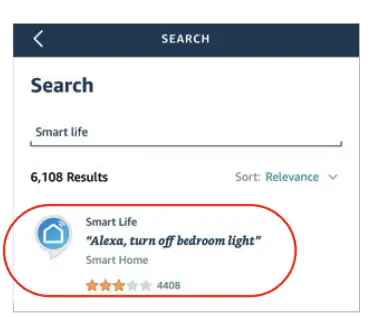
- Open Alexa App

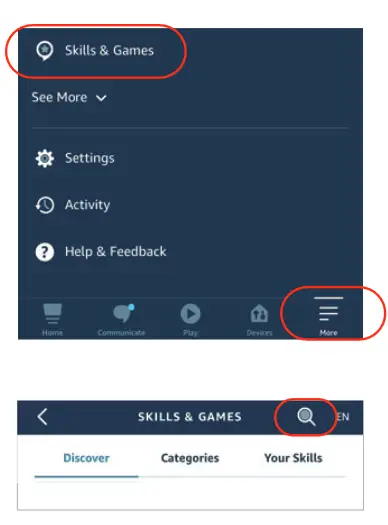
- Click “More” on the botiom of right corner
- Click “Skills & Games”
- Click “ ” on the top of right corner
- Type into “Smart life” and search

- Click “Smart Life” skill, follow instruction to finish configuration and start voice control
Alexa voice group control
use voice command to switch zones firstly, then control lampes ( turn on/off, dim brightness, color temperature, adjust color)
Command as following:
“Alexa, set the <device name> group to 7.”
“Alexa, decrease the group on the <device name> by 3.”
“Alexa, what’s the <device name> group?”
“Alexa,set the group on the <device name> to (0-100)”
Google Home voice control instruction
Please add device into Tuya Smart App (details in page 4) before doing following steps:
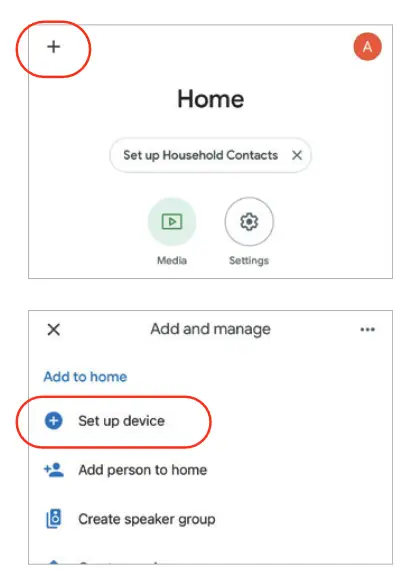
- Open Google Home App

- Click “+” on the top of leti corner
- Click “Set up device”
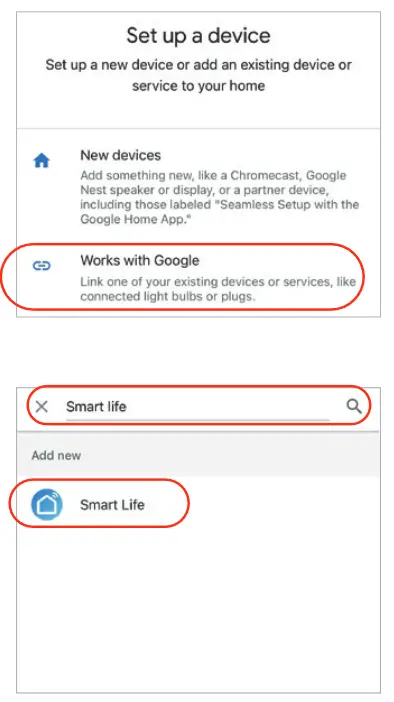
- Click “Works with Google”
- Click “ ” on the top of right corner

- Type into “Smart life” and search
- Click “Smart Life” skill, follow instruction to finish configuration and start voice control
Atiention: Google Home don’t support group control.
Atiention
- Please stay away from magnetic area, otherwise signal will be affected
- Don’t install device in the place where have strong sunshine, high temperature or humidity feature, working temperature is -10~40°C.

Scan QR code or review video from following link
https://miboxer.com/wifi-series-video
Made in China

 WiFi Series Video - MiBoxer