 Mi.Light
Subordinate New Brand
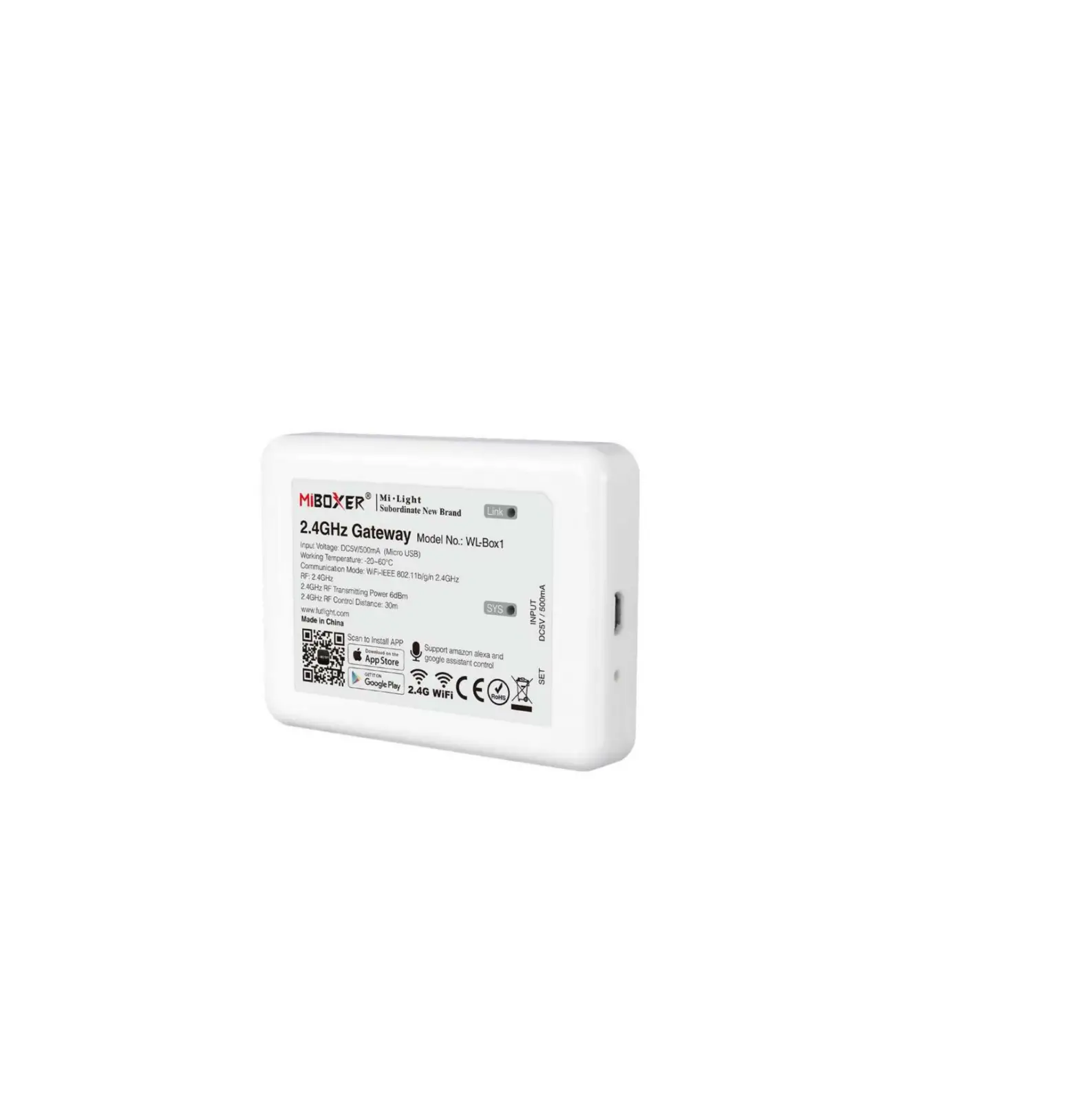
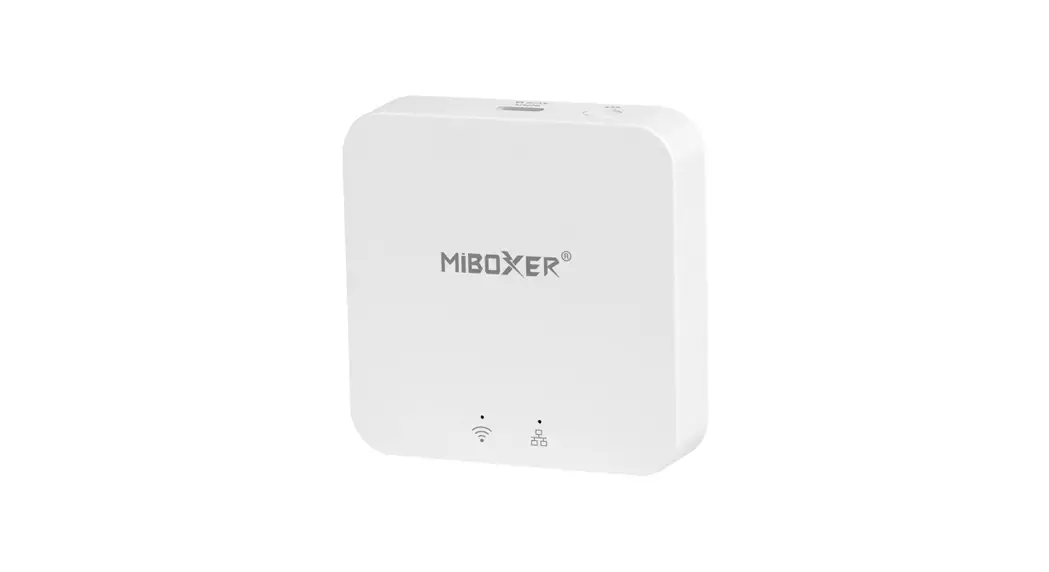
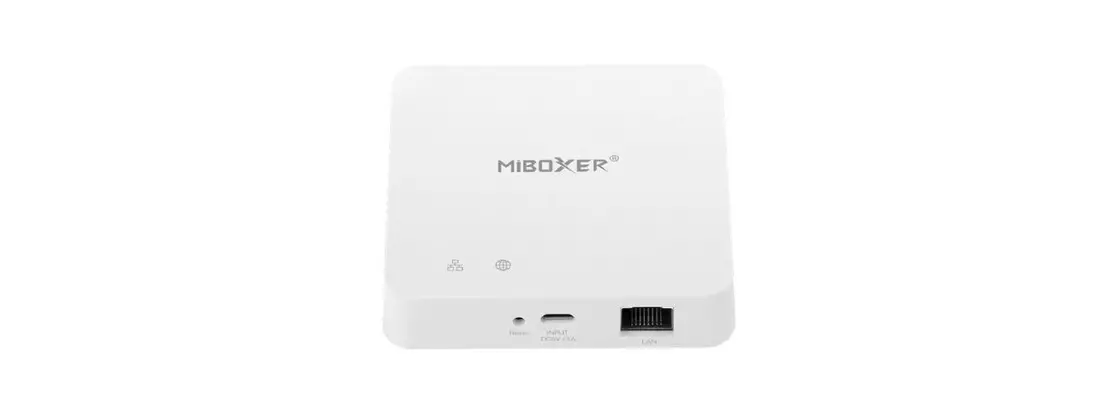
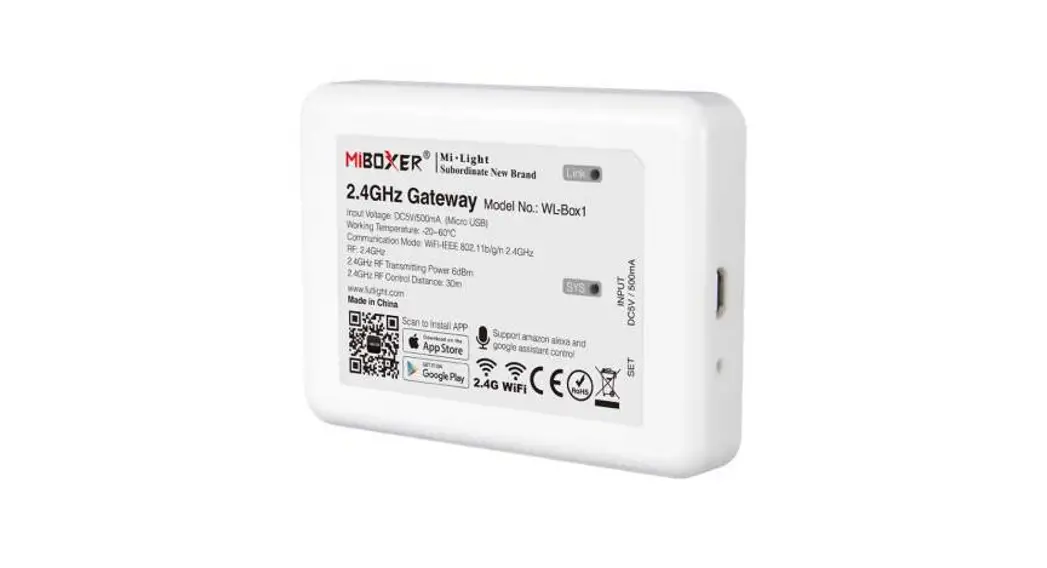
2.4GHz Gateway
Model No.: WL-Box1
Please read the instructions carefully before using the controller.
Features
Compatible with 2.4GHz RF products; and controlled by MiBoxer APP through WiFi or 4G network.
 Can control 2.4GHz RF series product
 WiFi Wireless Control
 2.4GHz RF transmission tech Smartphone
 Smartphone App control
 Support amazon Alexa and google assistant control
 16 Million colors to choose
 Color temperature 2700K~6500K
 Dim brightness/ Saturation
 Timing ON/OFF the lights
Parameters
Model No.: WL-Box1
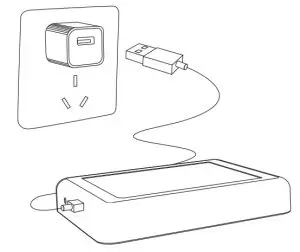
Input: DC5V/500mA (Micro USB)
Working Temperature: -20~60°C
Communication Mode: WiFi-IEEE 802.11b/g/n 2.4GHz
RF: 2.4GHz Transmitting Power: 6dBm
Product Weight: 23g
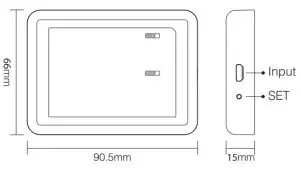 SET button
Long press “SET” 3 seconds to smart link mode,
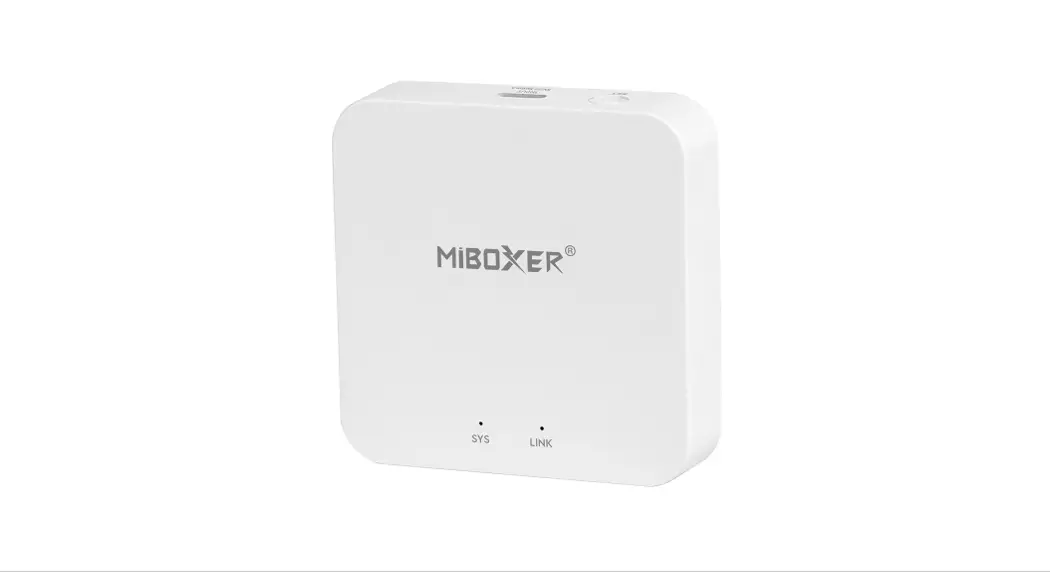
SYS pilot lamp blinking.
Note: Factory setting is Smart Link mode by default.
Installation
Please install the device within 30m as lights, and approach the WiFi Router.
The pilot lamp illustrates:
Device status | SYS pilot lamp | Link pilot lamp |
| Smart link mode | Blinking | OFF |
| Networking successfully | OFF | ON |
| Received signal | OFF | Blinking |
| Disconnected from network | ON | ON |
| Device malfunction | Blinking | Blinking |

User Instruction
- Install MiBoxer APP. Click“ + ” add devices( See details on MiBoxer APP instructions).
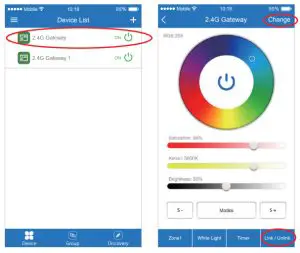
- Click “2.4G Gateway” on the device list to enter the control interface.
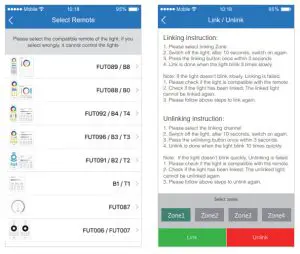
- Click “Change” to select a compatible remote for the lights (Note: If you select the wrong remote, you cannot control the lights).

- Click “Link/Unlink”.
- Link/Unlink method, See details on APP link/unlink instruction.
- After linking successfully, back to the control interface to control the lights randomly.
Zone selection:
Click the “Zone” on the left bottom into the Zone selection.
Note: Please select the linked Zone, otherwise it cannot control the lamps.
Timer:
When the device gets into Smart Link mode and re-configure, all the timers on this device will be deleted.
 Attention
- Before installation, please check the output voltage is in accordance with the device’s Rated Voltage.
- The input voltage is DC5V/500mA, Please do not connect the power supply over DC5V, otherwise, the device will be broken easily.
- Non-professional users cannot dismantle the device directly, otherwise, it may damage the device.
- The working temperature is -20~60°C; Do not install the device to direct sunlight, moisture, and another high-temperature area.
- Please do not install the device around the mental area and high magnetic field, otherwise, it will badly affect the control distance.
 Made in China
MiBoxer APP User Instruction
- APP Downloading
For IOS System: Pls search “MiBoxer” on APP store. (Above IOS9.0)
For Android System: search “MiBoxer” on Google Play (Above Android 5.0) or Scan the below QR-code to download APP. Scan QR Code to Install APP
https://www.futlight.com/app/1.html - Register MiBoxer Account
Open APP and click the Register button; Complete the register and log in.
- Add Device
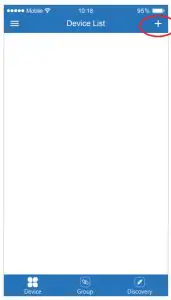
1. Click the right top “+” on the device list.
2. Please select the device type you will add, then complete the adding according to the hint of APP.
3. Back to device list after adding successfully, then pull down refresh in the list to get the device status. - Modify device name or delete device
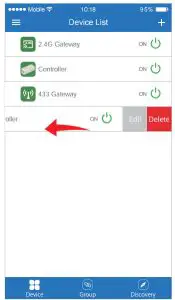
Slide device list to left, click ” Edit ” to modify device name; click ” Delete ” to delete the device.
Note: If the device was shared with others, then the device will also be deleted from your friends’ device list.
- APP Control
Click the device that you want to dim on the device list into dimming Interface. Click speed+ under dynamic mode. Click speed- under dynamic mode.
- Third-Party Voice Control instructions
Search “Mi-Light Smart” on third-party platform APP and set up.
Click left top ” ” icon on the home page;
Then click “ ” to check detailed instructions.
Note: The third-party voice just controls the lamps linked on the selected remote. (Not support Zone control)
- Sharing Device
Share the device with friends, Let your friends can control this device.
1. Click the left top ” ” icon on the home page.
2. Click ” ” to My sharing, then click”Add sharing” (Note: the receiving sharing device cannot be shared again).
3. Click ” ” to edit sharing, slide to the left to delete sharing. Shared Device Jack [email protected]
 Scan QR Code to Install APP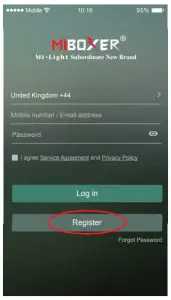
 Click speed+ under dynamic mode.
 Click speed- under dynamic mode.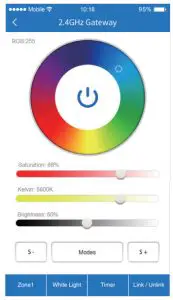
 ” to check detailed instructions.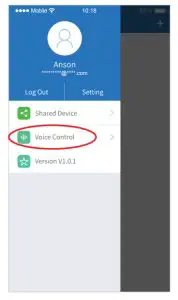
 ” to My sharing, then click”Add sharing” (Note: the receiving sharing device cannot be shared again).
 ” to edit sharing, slide to the left to delete sharing. Shared Device Jack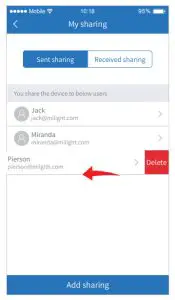
 https://miboxer.com/light/video/wifi_2.html
Scan QR code to watch video instruction