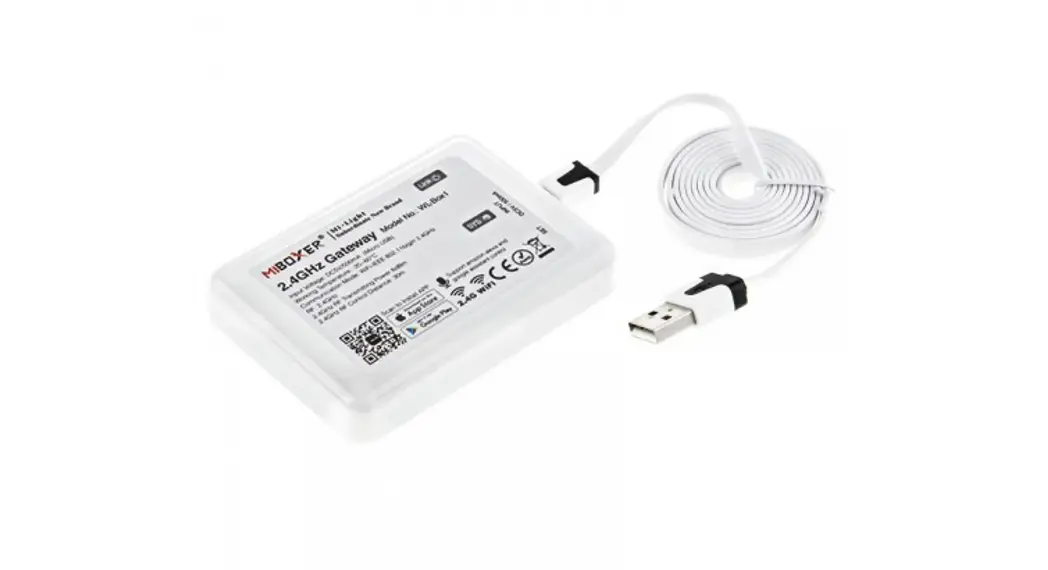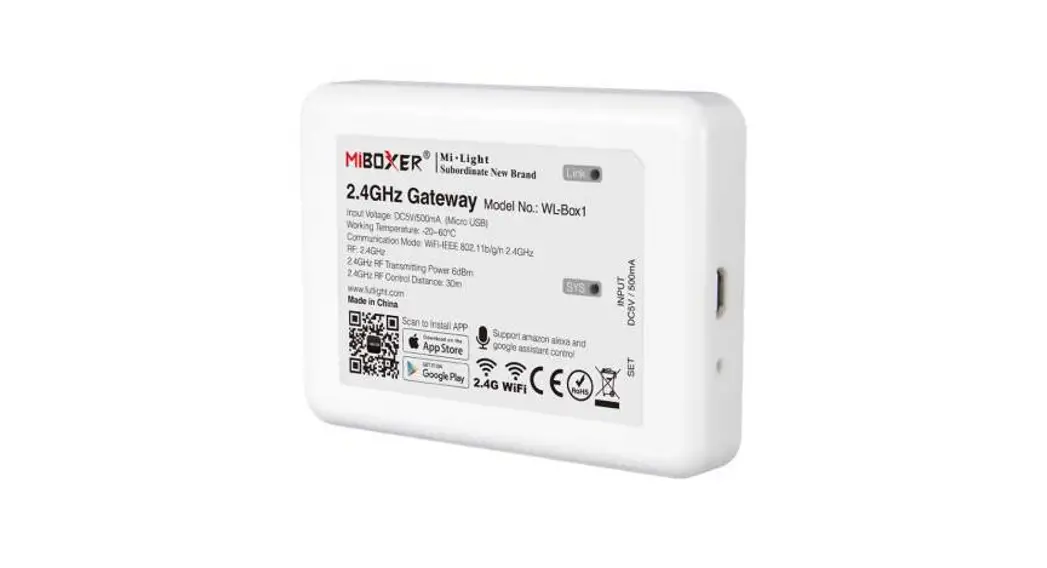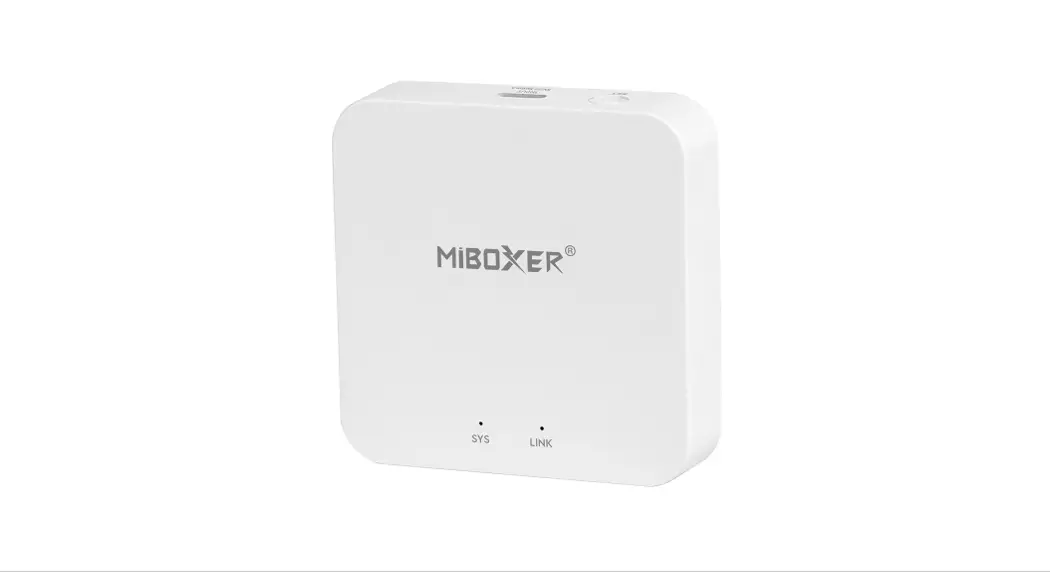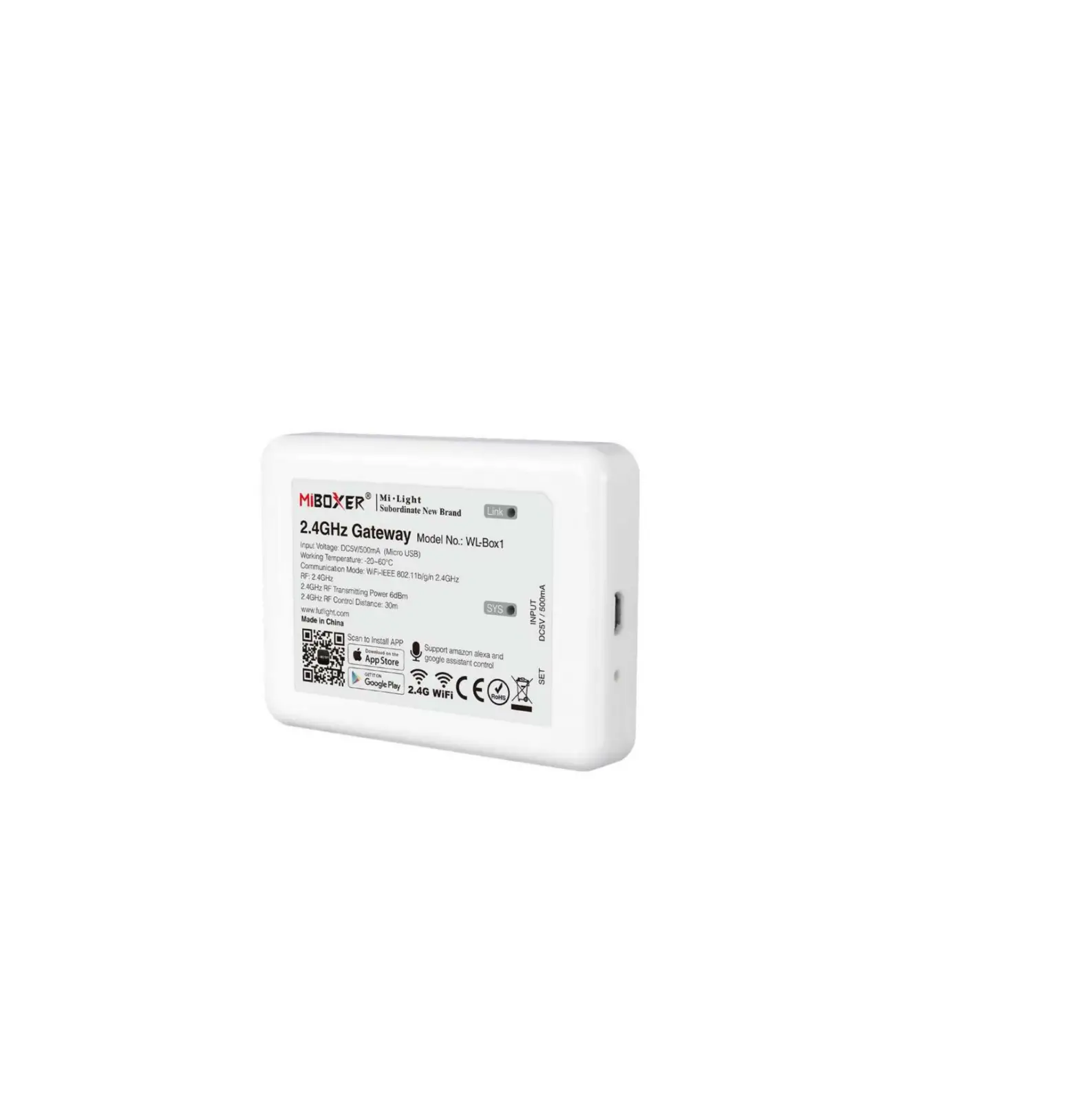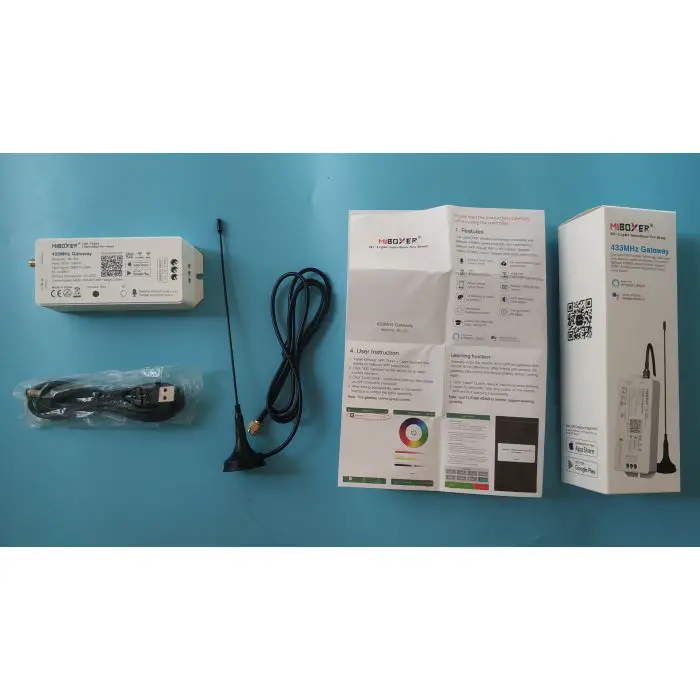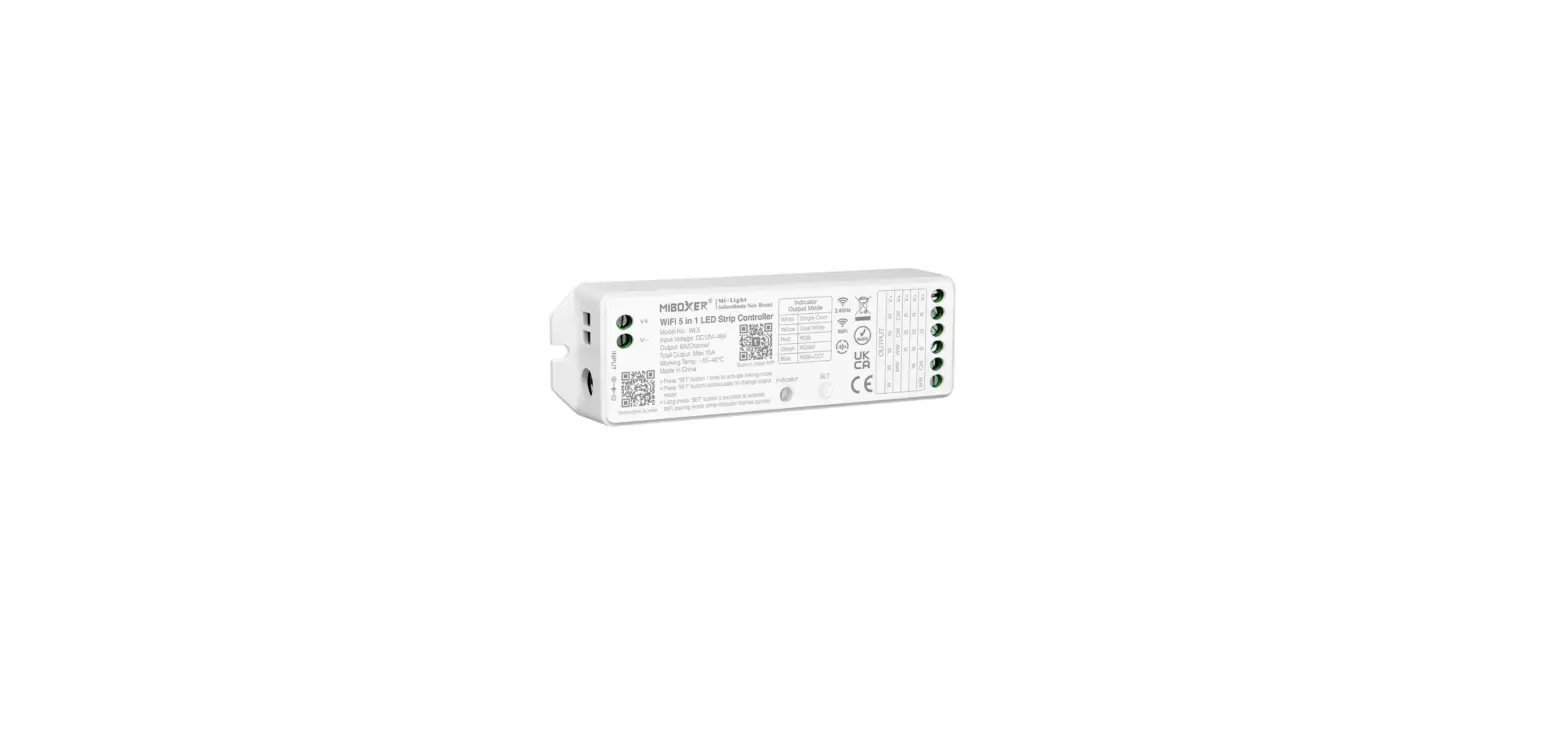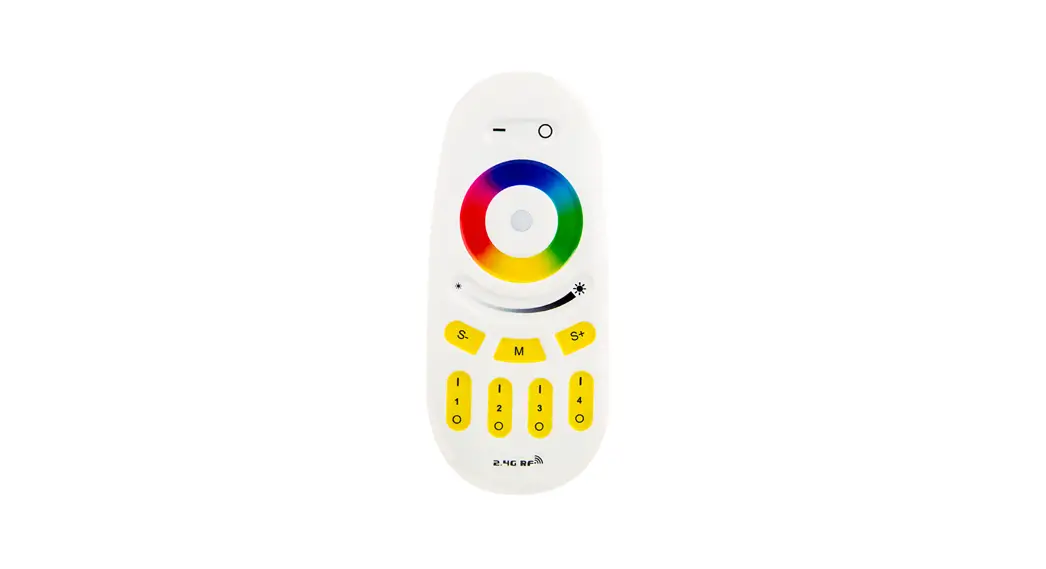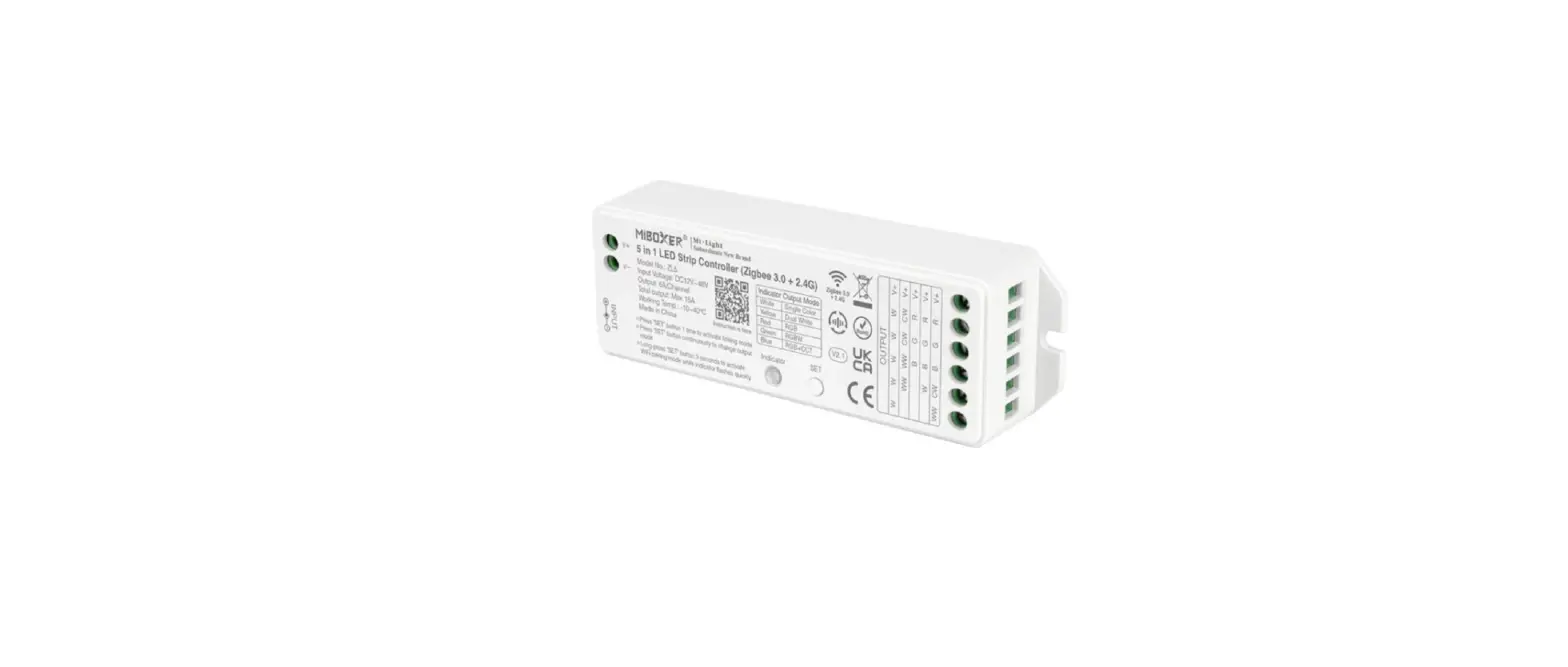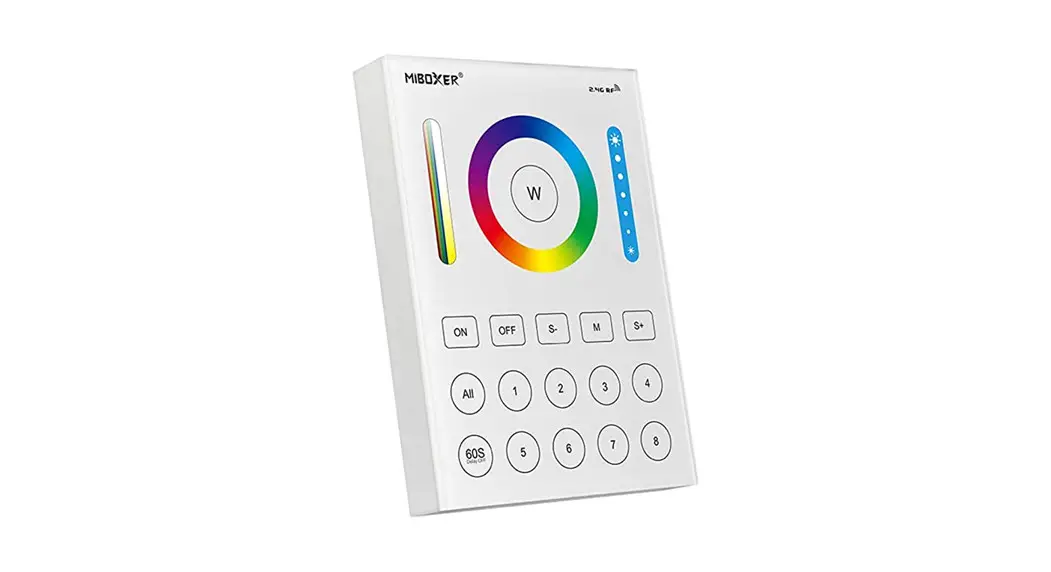

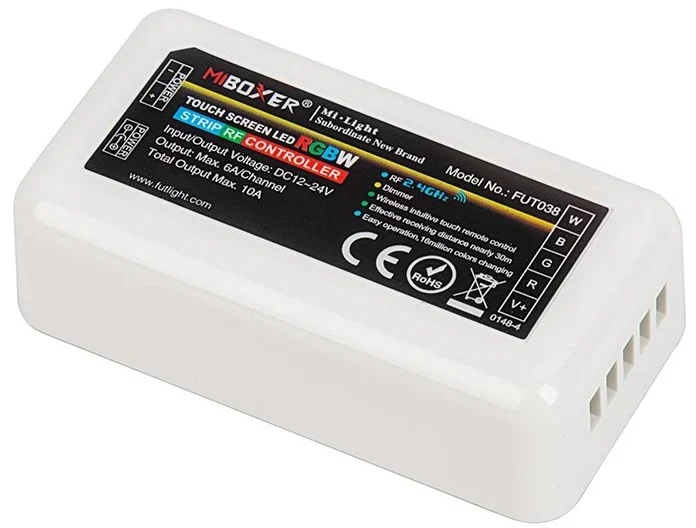
MiBOXER WIFI-CON2 WIFI Wireless Control
Please read the instructions carefully before using the controller.
Features
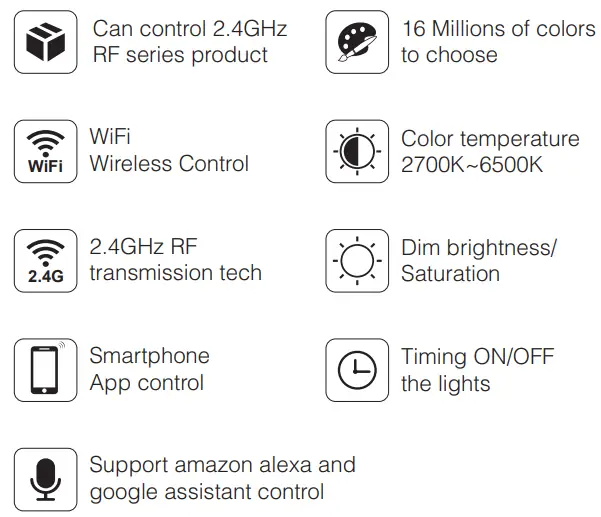
Compatible with 2.4GHz RF products; and controlled by MiBoxer APP through 2.4 GHz Wi-Fi network.
Parameters
- Model No.: WIFI-CON2
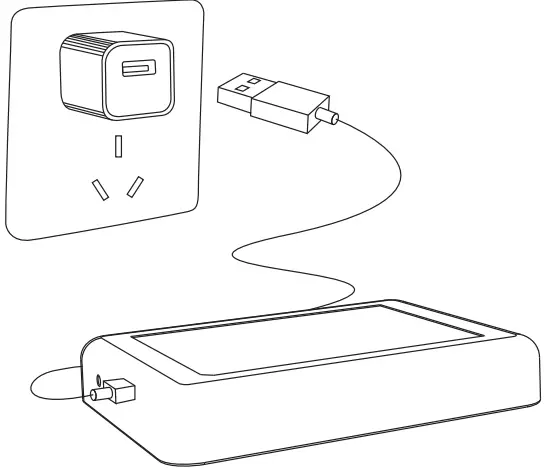
- Input: DC5V/500mA (Micro USB)
- Working Temperature: -20~60°C
- Communication Mode: WiFi-IEEE 802.11b/g/n 2.4GHz
- RF: 2.4GHz
- Transmitting Power: 6dBm
- Product Weight: 23g

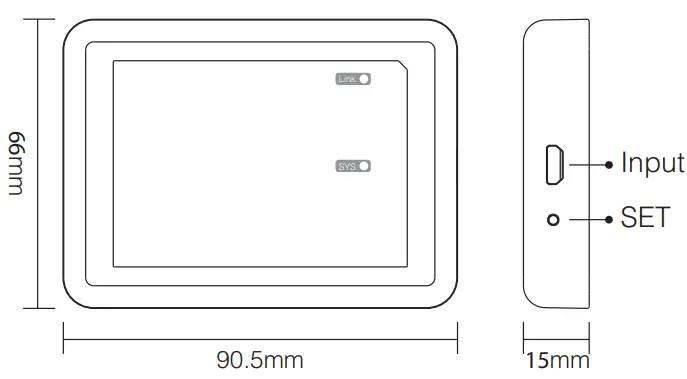
- SET button
Long press “SET” 3 seconds to smart link mode, SYS pilot lamp blinking.
Note: Factory setting is Smart Link mode by default.
Installation
Please install the device within 30m as lights, and approaching the Wi-Fi Router.
Pilot lamp illustrate:
| Device status | SYS pilot lamp | Link pilot lamp |
| Smart link mode | Blinking | OFF |
| Networking successfully | OFF | ON |
| Received signal | OFF | Blinking |
| Disconnected from network | ON | ON |
| Device malfunction | Blinking | Blinking |
User Instruction
- Install MiBoxer APP. Click“ + ” add devices( See details on MiBoxer APP instructions).
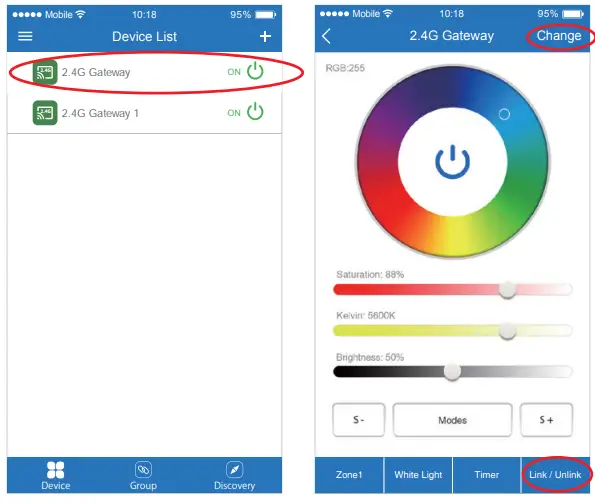
- Click “2.4G Gateway” on the device list to enter control interface.
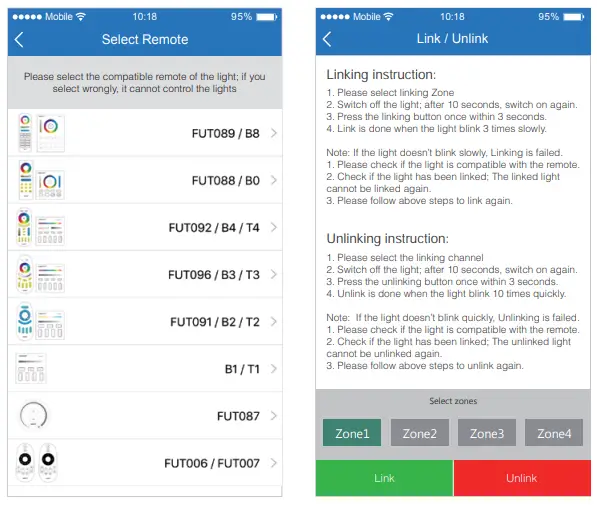
- Click “Change” to select compatible remote for the lights(Note: If you select wrong remote, you cannot control the lights).

- Click “Link/Unlink”.
- Link/Unlink method, See details on APP link/unlink instruction.
- After linking successfully, back to the control interface to control the lights randomly.
Zone selection:
Click the “Zone” on the left bottom into the Zone selection. Note: Please select the linked Zone, otherwise it cannot control the lamps.
Timer:
When the device get into Smart Link mode and re-configure, all the timers on this device will be deleted.
Attention
- Before installation, please check the output voltage is in accordance with the device Rated Voltage.
- The input voltage is DC5V/500mA, Please do not connect the power supply over DC5V, otherwise, the device will be broken easily.
- Non-professional user cannot dismantle the divice directly, otherwise, it may damage the divice.
- The working temperature is -20~60°C; Do not install the device to direct sunlight, moist and other high temperature area.
- Please do not install the device around the mental area and high magnetic field, otherwise, it will badly affect the control distance.
MiBoxer APP User Instruction
- APP Downloading
For IOS System: Pls search “MiBoxer” on APP store. (Above IOS9.0)
For Android System: search “MiBoxer” on Google Play
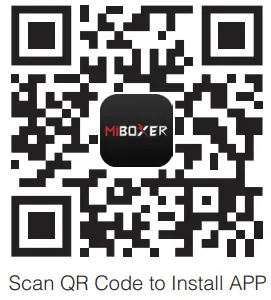
(Above Android 5.0) or Scan below QR-code to download APP.
- Register MiBoxer Account
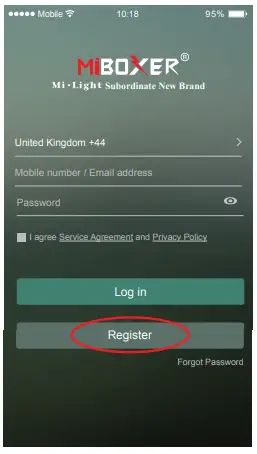
Open APP and click Register button;Complete the register and log in.
- Add Device
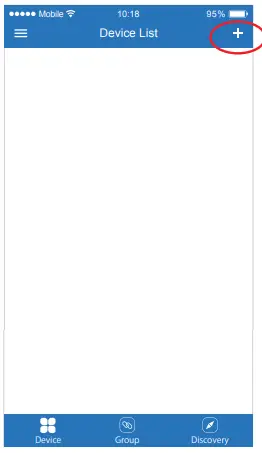
- Click the right top “+” on the device list.
- Please select the device type you will add, then complete the adding according to the hint of APP.
- Back to device list after adding successfully, then pull down refresh in list to get the device status.

- Modify device name or delete device
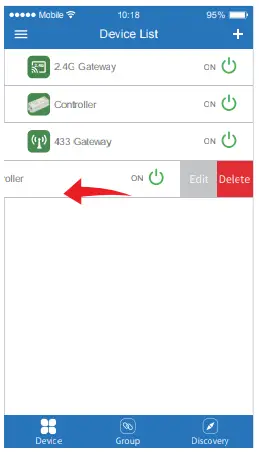
Slide device list to left, click ” Edit ” to modify device name; click ” Delete ” to delete device.
Note: If the device was shared to others, then the device will also be deleted on your friends’ device list.
- APP Control
Click the device that you want to dim on device list into dimming Interface. Click speed+ under dynamic mode.
 Click speed – under dynamic mode.
- Third Party Voice Control instructions
Search “Mi-Light Smart” on third-party platform APP and set up.- Click left top “
 ” icon on the home page;
 - Then click ”
 ” to check detailed instructions.
Note: The third party voice just control the lamps linked on selected remote. (Not support Zone control)
- Click left top “
- Sharing Device
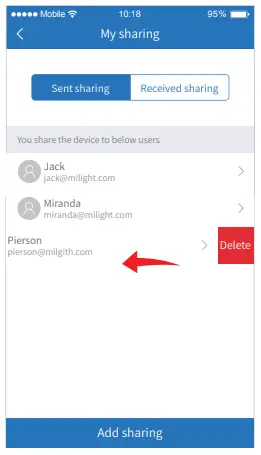
Share the device to friends, Let your friends can control this device.- Click the left top “ ” icon on the home page.
- Click
 ” ” to My sharing, then click”Add sharing”
(Note: the receiving sharing device cannot be shared again). - Click ”
 ” to edit sharing, slide to left to delete sharing.
- Click the left top “
 Click speed+ under dynamic mode.
 Click speed – under dynamic mode.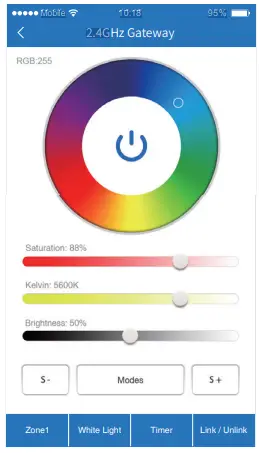
 ” icon on the home page;
 ” to check detailed instructions.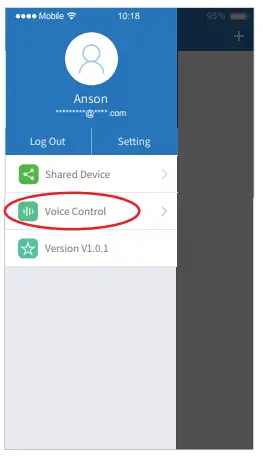
 ” ” to My sharing, then click”Add sharing”
 ” to edit sharing, slide to left to delete sharing.