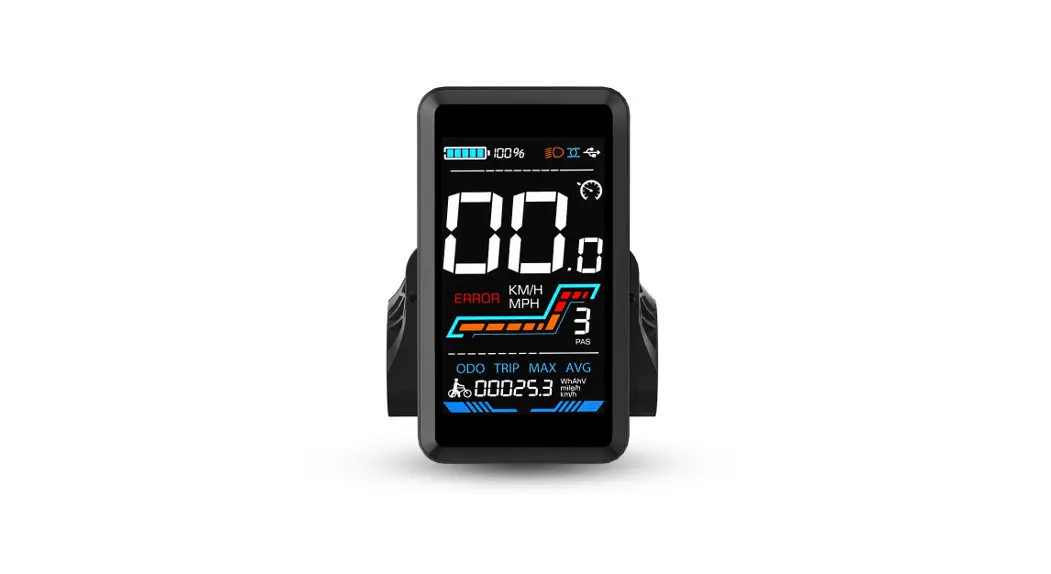
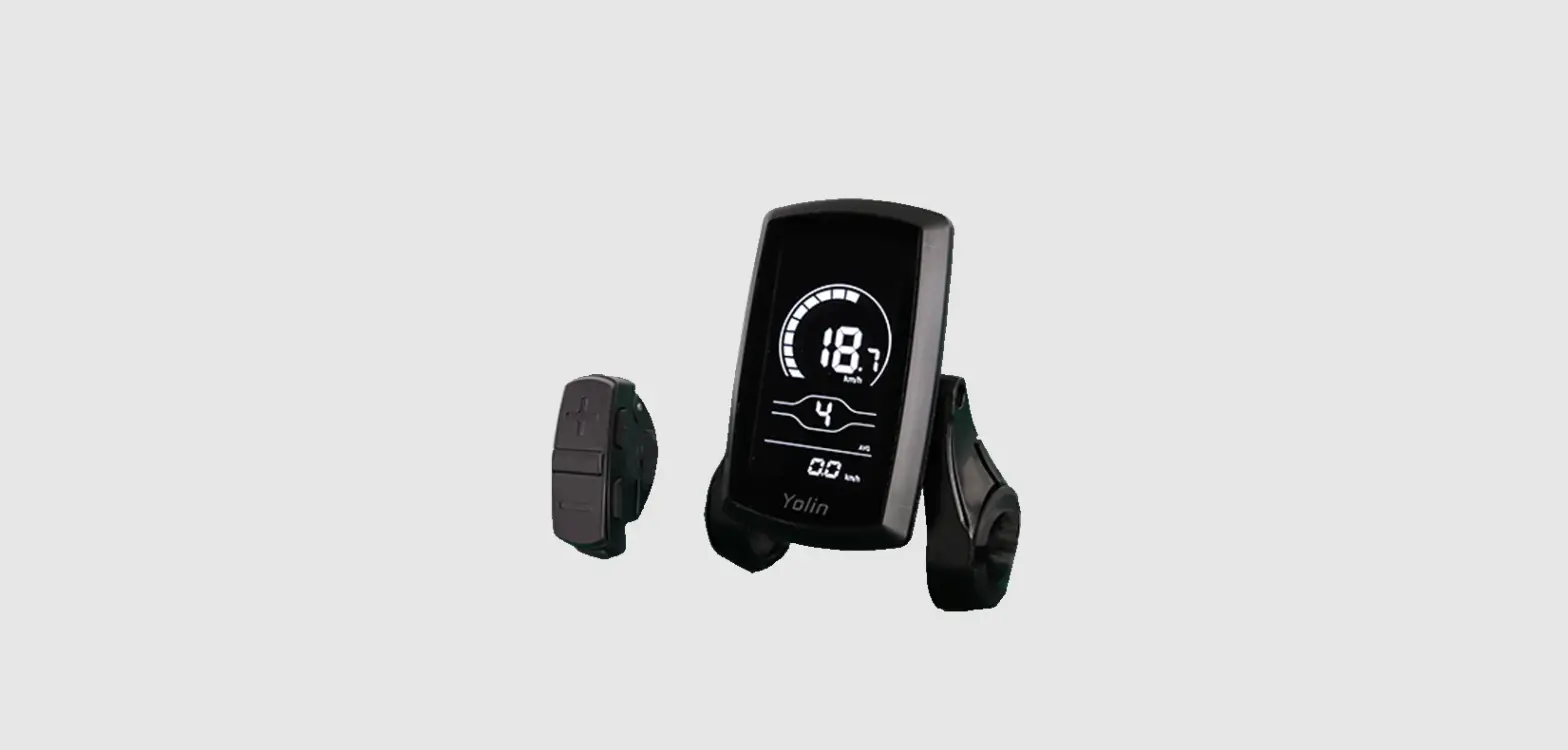
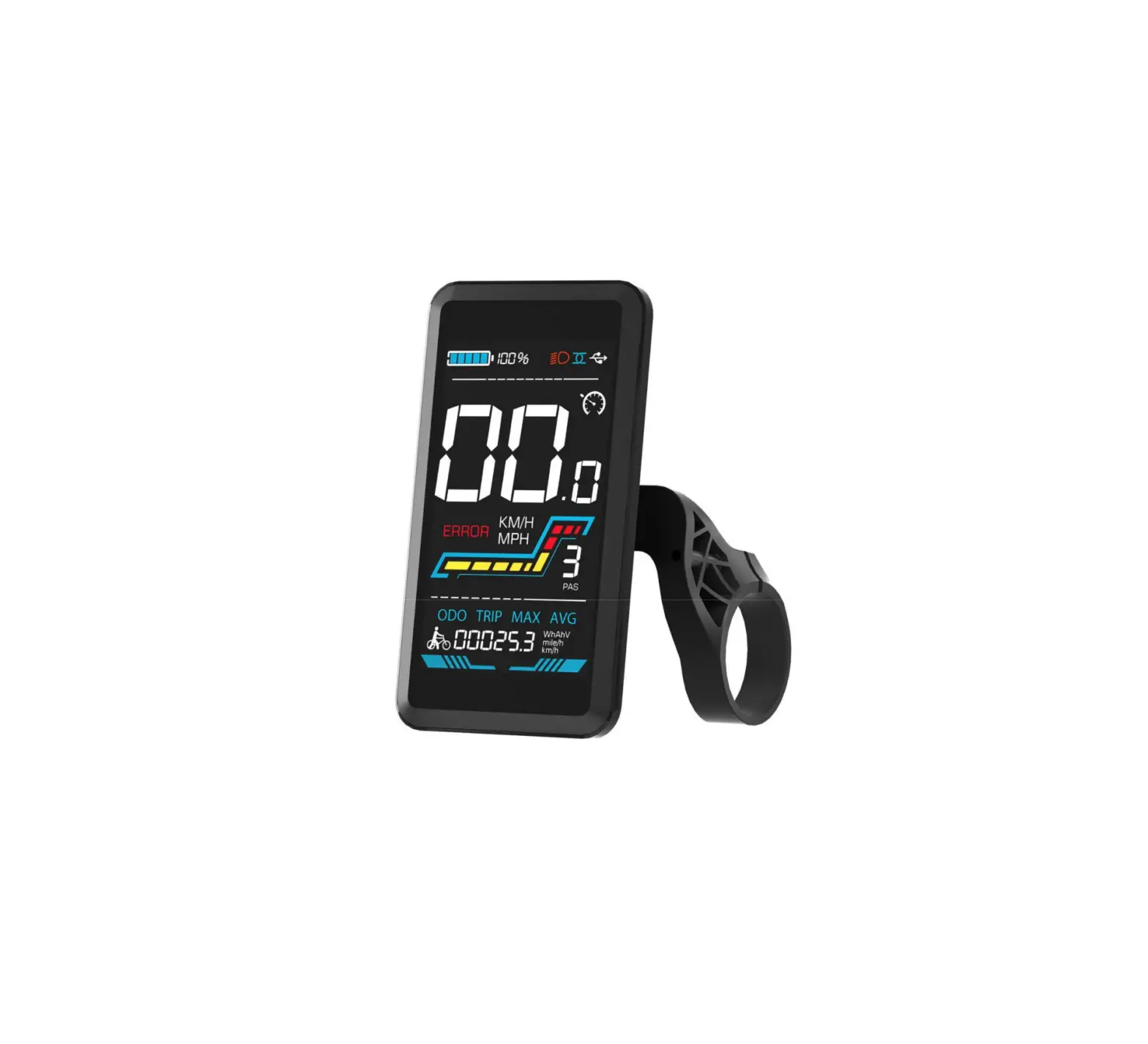
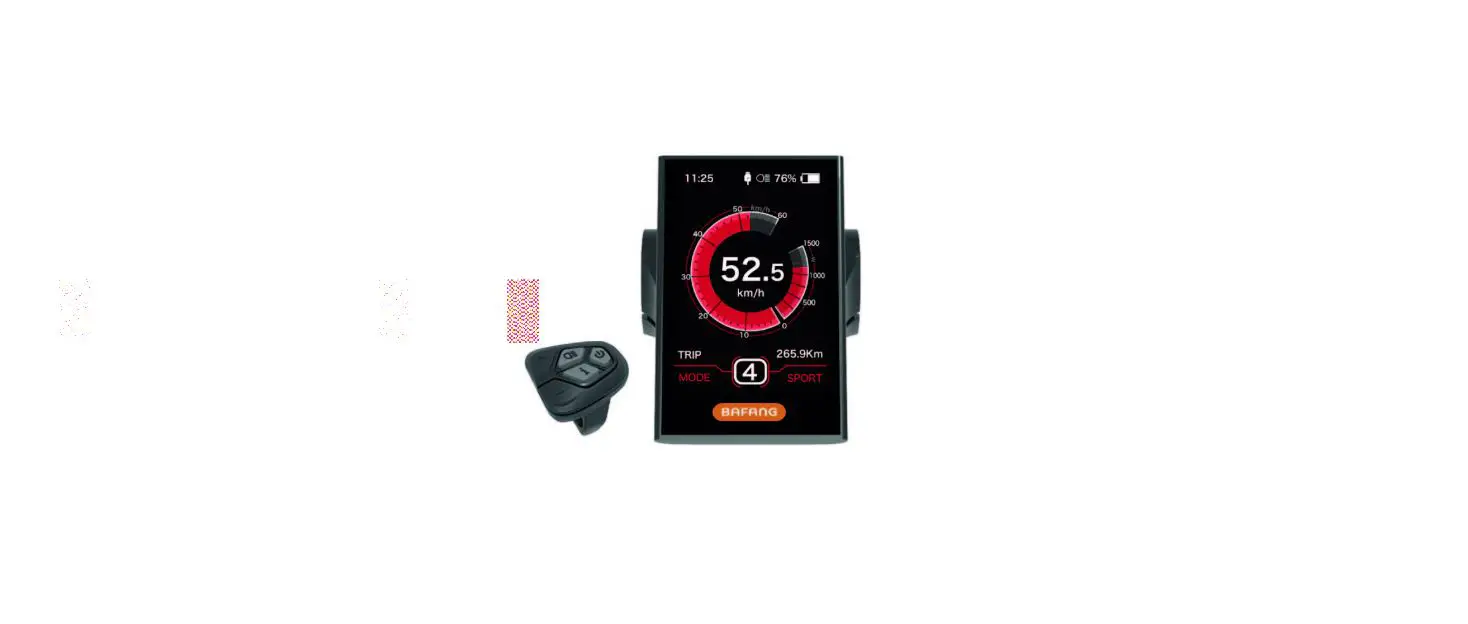
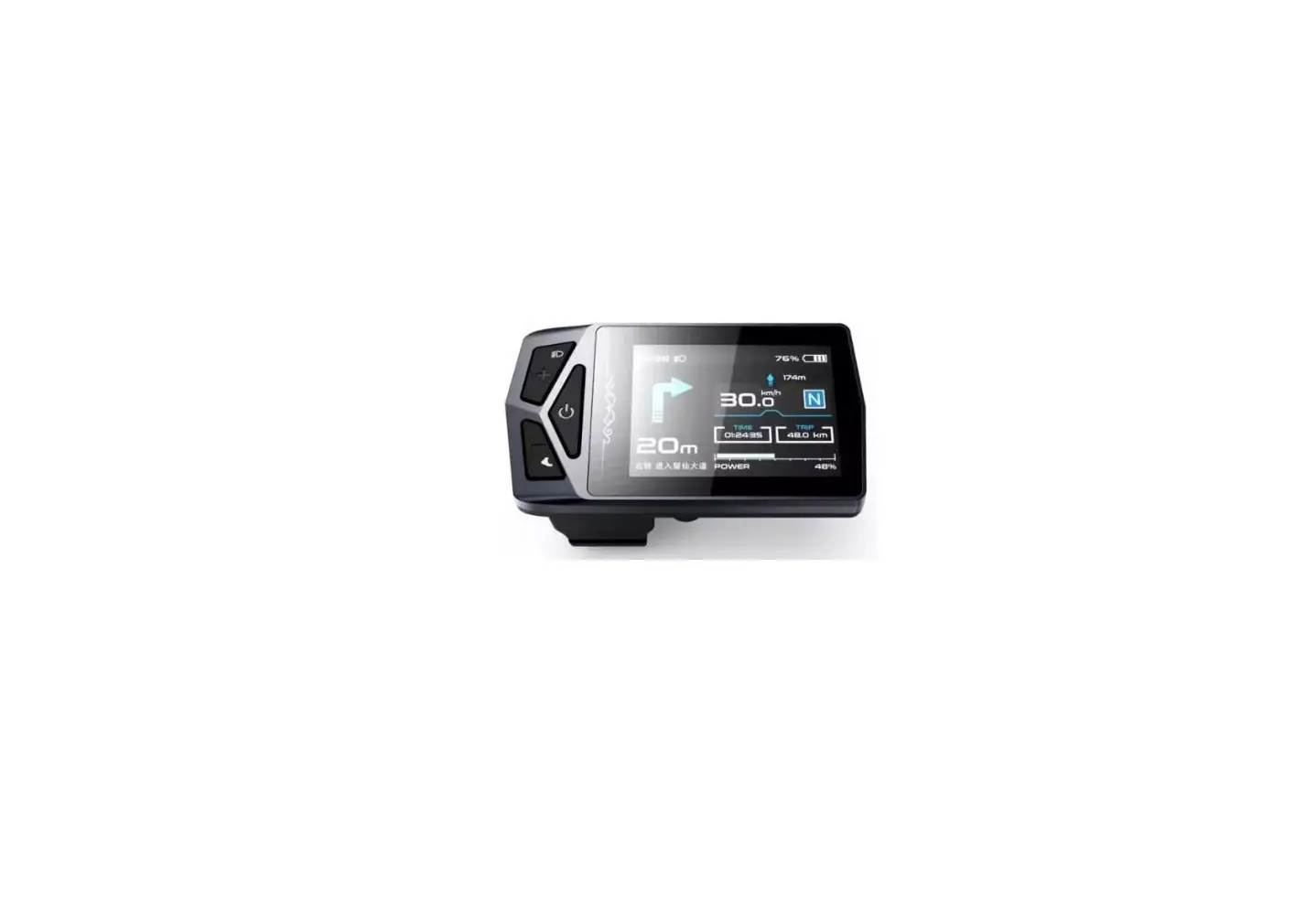
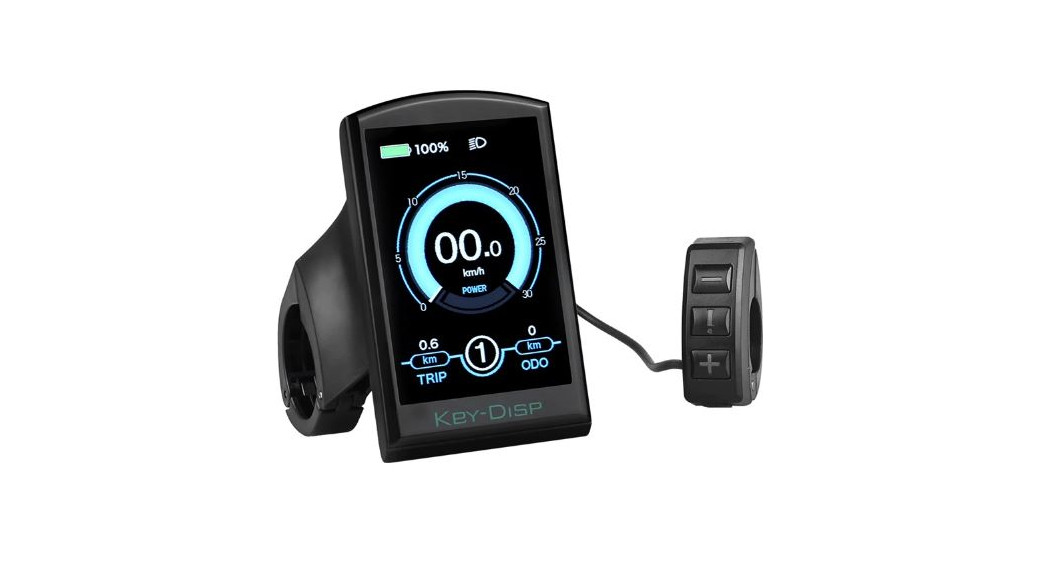
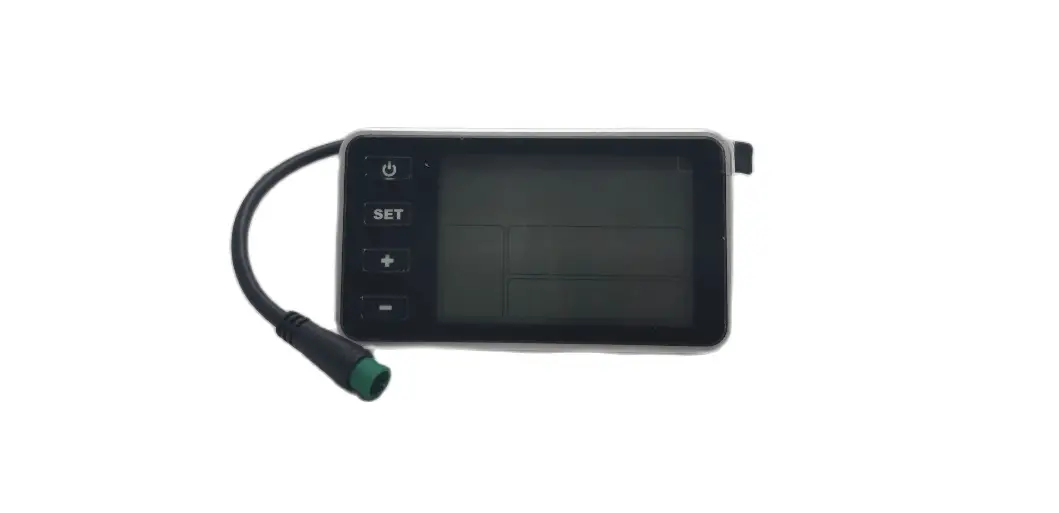
YL81F Electric Bike Display
Electric Bike Display
User’s Manual
YL81F
TABLE OF CONTENTS
- Product Name and Model Number
- Specification
- Appearance and Size
- Function overview and Functional areas
- Routine operation
- Personalized parameter settings
- Shortcut operation
- Quality Assurance and Warranty
- Wire connection diagram
- Precautions
1. Product Name and Model Number
Smart LCD display for electric bicycle; Model: YL81F.
2. Specification
- 24V/36V/48V power supply
- Display rated current: 15mA
- Display maximum current: 30mA
- Shutdown leakage current: [value not provided]
Electric Bike Display
User’s Manual
YL81F
TABLE OF CONTENTS
1. Product Name and Model Number …………………………………………………………………………………………………………………………….. 1
2. Specification ……………………………………………………………………………………………………………………………………………………………… 1
3. Appearance and Size …………………………………………………………………………………………………………………………………………………..1
4. Function overview and Functional areas ……………………………………………………………………………………………………………………..3
4.1 Functional overview …………………………………………………………………………………………………………………………………………….. 3 4.2 Functional areas ……………………………………………………………………………………………………………………………………………………3 4.3 Button definitions ………………………………………………………………………………………………………………………………………………… 3
5. Routine operation ……………………………………………………………………………………………………………………………………………………… 4
5.1 Power on/off ………………………………………………………………………………………………………………………………………………………… 4 5.2 Display interface switching …………………………………………………………………………………………………………………………………… 4 5.3 Walk boost mode …………………………………………………………………………………………………………………………………………………..5 5.4 Turning on/off lights …………………………………………………………………………………………………………………………………………….. 5 5.5 PAS level selection ……………………………………………………………………………………………………………………………………………….. 6 5.6 Battery level display …………………………………………………………………………………………………………………………………………….. 6 5.7 Error code display ……………………………………………………………………………………………………………………………………………….. 6
6. Personalized parameter settings ………………………………………………………………………………………………………………………………….7
6.1 Backlight luminance setting ………………………………………………………………………………………………………………………………….7 6.2 Metric and Imperial setting ………………………………………………………………………………………………………………………………….. 8 6.3 Rated voltage setting ……………………………………………………………………………………………………………………………………………. 8 6.4 Auto Sleep Time Setting ……………………………………………………………………………………………………………………………………….. 9 6.5 PAS level setting ……………………………………………………………………………………………………………………………………………………9 6.6 Wheel diameter setting ………………………………………………………………………………………………………………………………………..10 6.7 Number of speed sensor magnets setting ………………………………………………………………………………………………………………10 6.8 Speed Limit Setting ……………………………………………………………………………………………………………………………………………..11 6.9 Start-up setting ……………………………………………………………………………………………………………………………………………………11 6.10 Drive mode setting ……………………………………………………………………………………………………………………………………………. 12 6.11 Pedal assist sensitivity setting ……………………………………………………………………………………………………………………………. 12 6.12 Pedal assist strength setting ………………………………………………………………………………………………………………………………. 13 6.13 Number of pedal assist sensor magnets setting ……………………………………………………………………………………………………13 6.14 Controller Current Limit Setting ……………………………………………………………………………………………………………………….14 6.15 Battery under voltage value setting …………………………………………………………………………………………………………………… 14 6.16 ODO resets setting ……………………………………………………………………………………………………………………………………………. 15 6.17 Controller cruise control setting …………………………………………………………………………………………………………………………15 6.18 6km/h walk boost setting ……………………………………………………………………………………………………………………………………16
7. Shortcut operation …………………………………………………………………………………………………………………………………………………… 16
8. Quality Assurance and Warranty ………………………………………………………………………………………………………………………………18
8.1 Warranty info ……………………………………………………………………………………………………………………………………………………..18 8.2 Warranty does not cover ……………………………………………………………………………………………………………………………………..18
9. Wire connection diagram …………………………………………………………………………………………………………………………………………. 18
9.1 Standard wire connection sequence ……………………………………………………………………………………………………………………..18
10. Precautions ……………………………………………………………………………………………………………………………………………………………. 18
Schedule 1: Error Code Definition ………………………………………………………………………………………………………………………………..19
Schedule 2: Error Code Definition ………………………………………………………………………………………………………………………………..19
1. Product Name and Model Number
Smart LCD display for electric bicycle; Model: YL81F.
2. Specification
24V/36V/48V power supply Display rated current 15mA Display maximum current 30mA Shutdown leakage current <1uA Supplied current to the controller 50mA Operating temperature -2060 Storage temperature -30 to 70°C
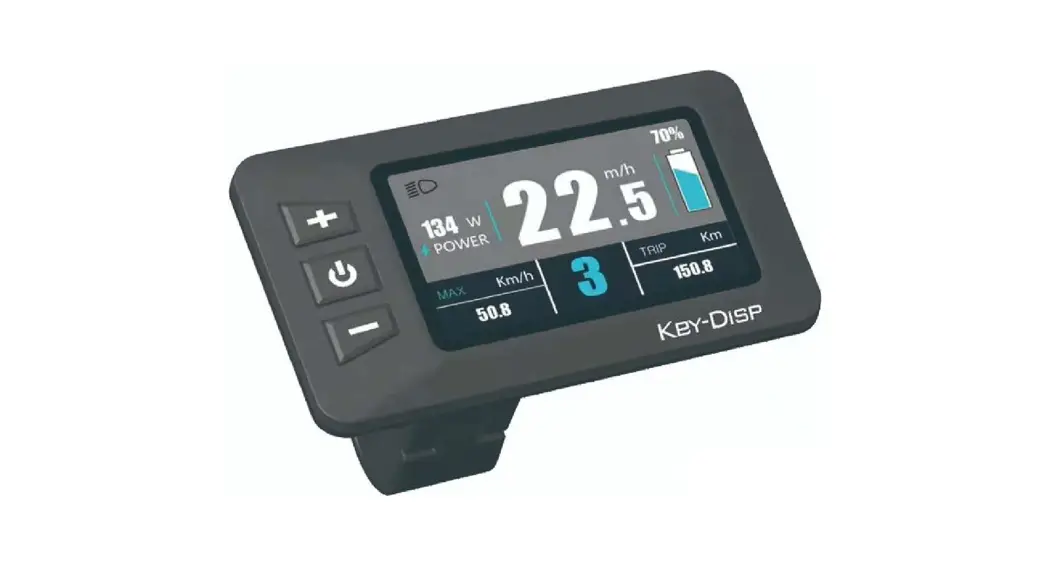
3. Appearance and Size
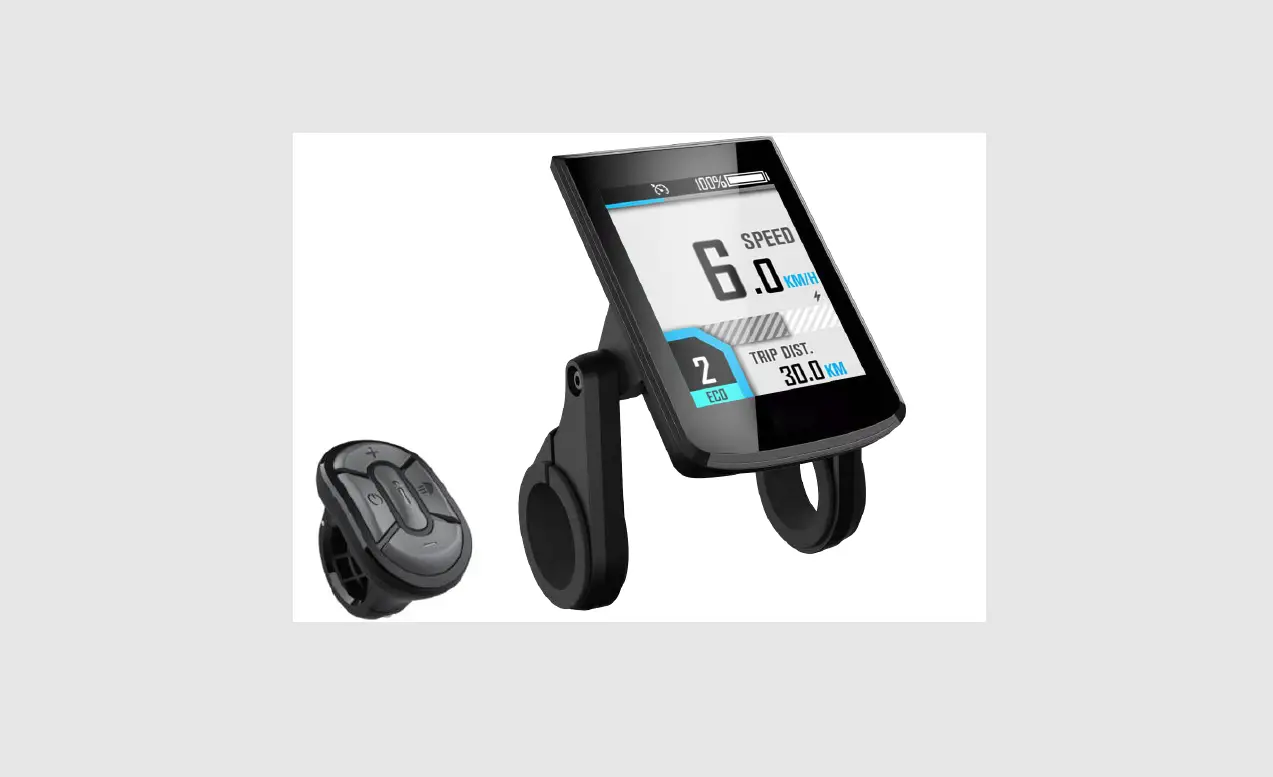
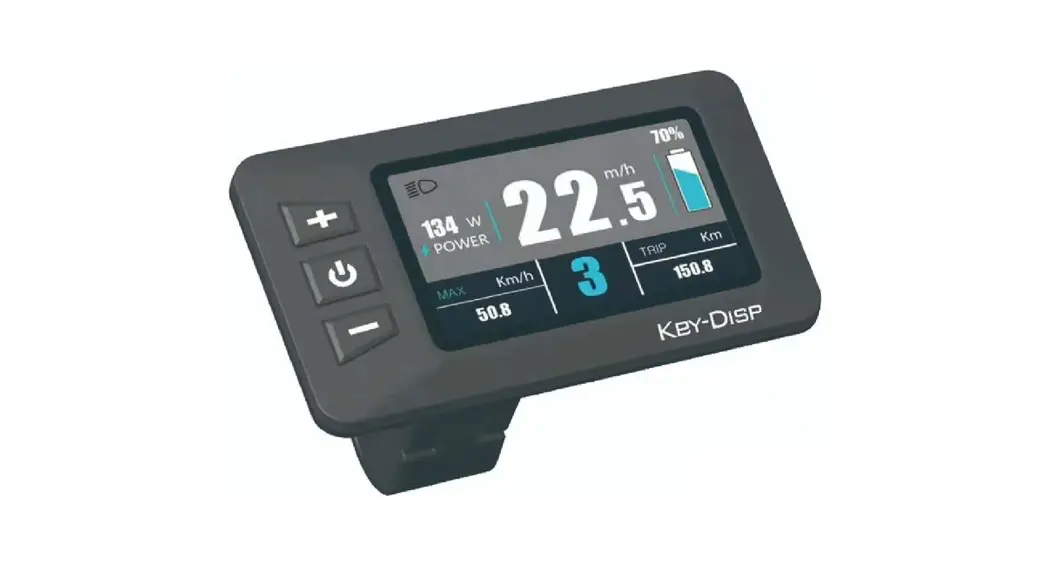
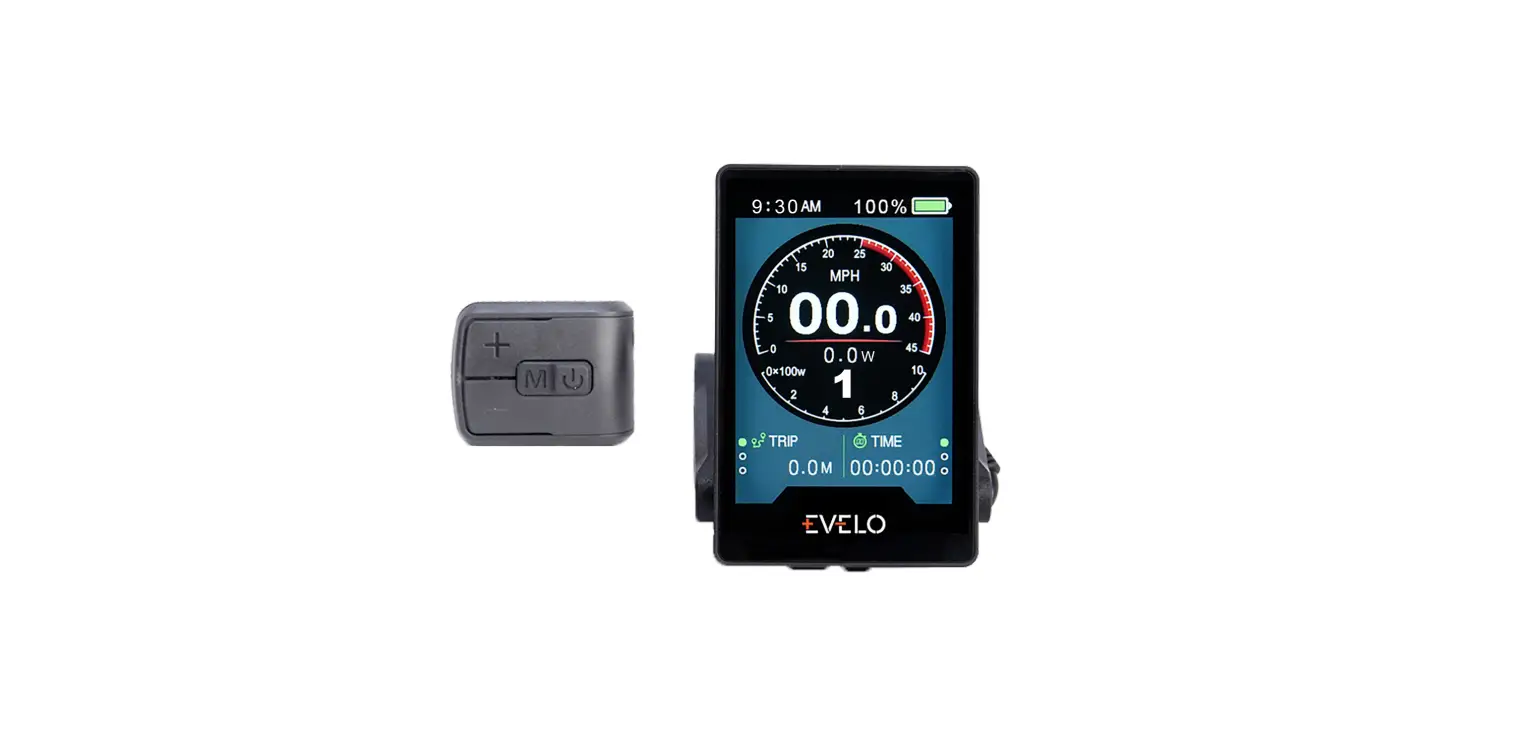
Figure 3-1 Physical picture of the YL81F display 1
Figure 3-2 Physical picture of the K5 control button
Figure 3-3 Physical picture of the K6 control button
Figure 3-4 90T-V Front View Dimension
Figure 3-5 90T-V Side View Dimension
2
4. Function overview and Functional areas
4.1 Functional overview The YL81F display offers a variety of features to suit your riding needs, including: Battery level indicator Pedal assist (PAS) level indicator Speed (current speed, maximum speed, average speed) Mileage display (single and total mileage) Walk boost mode Light ON/OFF Error code indicator Motor power indicator (optional) USB connection indicator (optional) Cruise control indicator (optional) Bluetooth connection indicator (optional) Personalized parameter settings (e.g. wheel diameter, speed limit, battery power setting and PAS parameter setting,
password setting, controller current limit setting, etc.). Factory default parameter recovery function
4.2 Functional areas
Battery level Error code Current speed
Light ON/OFF Bluetooth USB
Speed unit KM/H MPH
Walk boost
Trip odometer Odometer Max speed
Average speed
Cruise PAS level
Value and unit
Figure 4-1 YL90T-V functional area distribution interface
4.3 Button definitions The YL81F display is equipped with five buttons on the corresponding operating unit: power on/off , plus ,
minus , light and toggle .
3
5. Routine operation
5.1 Power on/off
Long press
to power on/off the display. When the display is off, it will not use the battery power and the leakage
current is less than 1uA. The display will automatically shut off if it is not used for more than 10 minutes.
5.2 Display interface switching When the display is powered on, it will show the Current Speed (km/h) and Trip Odometer (km) by default. Short
press to switch between Trip Odometer(km), Odometer (km), Maximum Speed (km/h), and Average Speed (km/h).
Trip Odometer
Odometer
Average Speed
Maximum Speed
Figure 5-1 Display Interface Switching
4
5.3 Walk boost mode Long Press and hold
, the electric bicycle enters the walk boost mode. The electric bicycle will walk at a fixed
speed of 6 km per hour and the display shows state before walk boost.
. Release
to stop the power output immediately and restore to the
Figure 5-2 Helping to implement the display screen
The walk boost mode can only be used when pushing the electric bicycle, please do not use it while riding.
5.4 Turning on/off lights Press the to make the controller turn on the lights and the display backlight becomes dim. Press
the controller turn off the lights and the backlight restore brightness.
again to make
Figure 5-3 Backlight display interface 5
5.5 PAS level selection Press / to switch PAS level of electric bicycle, thus changing the motor output power.
Figure 5-4 PAS level display interface
5.6 Battery level display The Battery level is shown as 5 bars. When the battery is full charged, all of the 5 bars lighten up. When the battery is fully depleted, the bar will begin to flash, warning the user to charge the battery as soon as possible.
Full power
Four bars power
Three bars power
Two bars power
One bar power
Empty power flashing
Figure 5-5 Battery Level Display Interface
5.7 Error code display If there is a fault occurs in the electronic system of the electric bicycle, the display will automatically show an error
code, see Schedule 1 for a detailed definition of the error code.
Figure 5-6 Error Code Display 6
When the error code appears on the display, please troubleshoot the problem in time, the electric bicycle will not be able to drive normally after the problem occurs.
6. Personalized parameter settings
Each setting needs to be done with the bicycle stationary. The personalized parameter setting procedure is as follows: When the display is ON and the speed shows 0,
(1) Press and hold
simultaneously for more than 2 seconds to enter the personalized parameter setting
interface.
(2) Press
/
to toggle between the personalized parameter setting interface, and press
to enter the
parameter changing state.
(3) Press
/
to select the parameter, long pres for addition operation, long press for subtraction
operation.
(4) Press
to save the parameter settings and return to the personalized parameter setting interface.
(5) Long Press to save the parameter settings and exit the personalized parameter setting interface. The following options are available on the personalized parameter setting interface:
6.1 Backlight luminance setting 01P is the backlight luminance setting. Parameters 01, 02 and 03 are available, which represent the backlight
luminance, 01 for the minimum luminance, 02 for the standard luminance and 03 for the maximum luminance.
Press the button
to enter the parameter modification interface. Press the button / for parameter selection.
Press the button to save the parameter and return to the selection interface of general setting options.
Fig. 6-1 Backlight Luminance Setting Interface 7
6.2 Metric and Imperial setting 02P is the metric and imperial setting, 00 for metric and 01 for imperial.
Press to enter the parameter changing state. Press the / to select the parameter and press parameter setting and return to the personalized parameter setting interface.
to save the
Figure 6-2 Metric and Imperial Units Setting Interface
6.3 Rated voltage setting 03P is the rated voltage setting. The available rated voltage range is: 24V, 36V, 48V. Press to enter the parameter changing state. Press the / to select the parameter and press
parameter setting and return to the personalized parameter setting interface.
to save the
Figure 6-3 Rated voltage setting interface 8
6.4 Auto Sleep Time Setting
04P is the auto sleep time setting. To save the battery power and reach higher range, this display will be turned off after it has not been used for a time. The adjustable range is: 1~60min, 00 means no auto shutdown. The factory default setting is 10 minutes.
Press to enter the parameter changing state. Press the / to select the parameter and press parameter setting and return to the personalized parameter setting interface.
to save the
Figure 6-4 Auto Power Off Time Setting Interface
6.5 PAS level setting 05P is the Pedal assist level setting. The available PAS level settings are: 0~3, 1~3, 0~5, 1~5, 1~7, 0~7, 0~9, 1~9.
Press to enter the parameter changing state. Press the / to select the parameter and press parameter setting and return to the personalized parameter setting interface.
to save the
Figure 6-5 PAS level setting interface 9
6.6 Wheel diameter setting 06P is the wheel diameter setting. The adjustable wheel diameter range is: 1~50inch.
Press to enter the parameter changing state. Press the / to select the parameter and press parameter setting and return to the personalized parameter setting interface.
to save the
Figure 6-6 Wheel diameter setting interface
6.7 Number of speed sensor magnets setting 07P is the speed sensor magnet number setting. The adjustable speed sensor magnet number range is: 1 ~ 255 pcs.
Press to enter the parameter changing state. Press the / to select the parameter and press parameter setting and return to the personalized parameter setting interface.
to save the
Figure 6-7 Number of speed sensor magnets setting interface 10
6.8 Speed Limit Setting
08P is the speed limit setting. The adjustable speed limit range is: 1~100km/h. (The maximum adjustable speed limit varies by different protocols).
Press to enter the parameter changing state. Press the / to select the parameter and press parameter setting and return to the personalized parameter setting interface.
to save the
Figure 6-8 Speed limit setting interface
6.9 Start-up setting 09P is the start-up setting. The display can choose the following start modes: 00zero start, 01non-zero start.
Press to enter the parameter changing state. Press the / to select the parameter and press parameter setting and return to the personalized parameter setting interface.
to save the
Figure 6-9 Start-up setting interface 11
6.10 Drive mode setting 10P is the drive mode setting. The available drive modes are: 00Pedal assist only, 01Electric only, 02Both Pedal
assist and electric.
Press to enter the parameter changing state. Press the / to select the parameter and press parameter setting and return to the personalized parameter setting interface.
to save the
Figure 6-10 Drive mode setting interface
6.11 Pedal assist sensitivity setting 11P is the pedal assist sensitivity setting. When set to higher numbers, it will take more crank rotations to activate the
motor. On lower numbers, it will take little crank rotation to activate the motor. The adjustable range is: 1~24.
Press to enter the parameter changing state. Press the / to select the parameter and press parameter setting and return to the personalized parameter setting interface.
to save the
Figure 6-11 Pedal assist sensitivity setting interface 12
6.12 Pedal assist strength setting
12P is the Pedal assist strength setting. The Pedal assist strength is the relative strength of the PWM signal from the controller when start to activate pedal assist. The adjustable range is 0 ~ 5. 0 is the weakest strength and 5 is the strongest.
Press to enter the parameter changing state. Press the / to select the parameter and press parameter setting and return to the personalized parameter setting interface.
to save the
Figure 6-12 Pedal assist Start-up intensity setting interface
6.13 Number of pedal assist sensor magnets setting 13P is the number of pedal assist sensor magnets setting. The adjustable range: 5, 8, 12 pcs. Press to enter the parameter changing state. Press the / to select the parameter and press
parameter setting and return to the personalized parameter setting interface.
to save the
Figure 6-13 Number of pedal assist sensor magnets setting interface 13
6.14 Controller Current Limit Setting 14P is the controller current limit setting. The adjustable range is: 1~50A.
Press to enter the parameter changing state. Press the / to select the parameter and press parameter setting and return to the personalized parameter setting interface.
to save the
Figure 6-14 Controller current limit setting interface
6.15 Battery under voltage value setting 15P is the battery under voltage setting. The value can be adjusted based on the current rated voltage. Press to enter the parameter changing state. Press the / to select the parameter and press
parameter setting and return to the personalized parameter setting interface.
to save the
Figure 6-15 Battery under voltage value setting interface 14
6.16 ODO resets setting 16P is the ODO resets setting. The display can choose the following: 00non reset, 01reset.
Press to enter the parameter changing state. Press the / to select the parameter and press parameter setting and return to the personalized parameter setting interface.
to save the
Figure 6-16 ODO resets setting interface
6.17 Controller cruise control setting 17P is the controller cruise control setting. The display can choose the following: 00non enable, 01enable.
Press to enter the parameter changing state. Press the / to select the parameter and press parameter setting and return to the personalized parameter setting interface.
to save the
Figure 6-17 Controller cruise control setting interface 15
6.18 6km/h walk boost setting 18P is the 6km/h walk boost setting. The display can choose the following: 00turn off walk boost function, 01turn
on walk boost function.
Press to enter the parameter changing state. Press the / to select the parameter and press parameter setting and return to the personalized parameter setting interface.
to save the
Figure 6-18 6km/h walk boost setting interface
7. Shortcut operation
7.1 Restore factory settings operation dEF is the restore factory default parameter settings. dEF-Y is to restore default settings, and dEF-N is not to restore.
Enter into the main setting interface and keep the speed at 0, press and hold
and
simultaneously for 2s to
enter the restore factory default setting interface. Pressing
/
to toggle to dEF-Y. Then after pressing
to
confirm, the display will show dEF-0 for a few seconds and then automatically start to restore the factory default settings. The display will automatically exit to setting interface after the restoration.
Figure 7-1 Restore Factory Default Settings Interface 16
7.2 Trip odometer reset operation The display can record trip odometer and odometer. Trip odometer is not automatically reset after turning off. The trip
odometer needs to be reset manually.
Enter into the main setting interface and keep the speed at 0, press and hold
and
simultaneously for 2s to
reset the trip odometer. The main interface will flash during the reset process.
Figure 7-2 Trip Odometer Reset Interface
17
8. Quality Assurance and Warranty
8.1 Warranty info Yolin will offer a limited warranty for any failure caused by the product defects under normal use during the
warranty period. The product is warranted for 12 months from the date out of factory.
8.2 Warranty does not cover The shell is opened. The connector is damaged. Scratches on the appearance after the product is out of factory. Scratched or broken wires Failure or damage caused by force majeure (e.g. fire, earthquake, etc.) or natural disaster (e.g. lightning strike, etc.) Out of warranty period.
9. Wire connection diagram
9.1 Standard wire connection sequence
Controller connector
Display connector (Female terminal) Display connector (Male terminal)
Figure 9-1 Wire Connection Diagram
Table 9-1 Standard connector wire sequence table
Standard Wire Sequence Standard wire color
Function
1
Red (VCC)
Display power wire
2
Blue (Kp)
Controller power wire
3
Black (GND)
Display ground wire
4
Green (RX)
Display data reception wire
5
Yellow (TX)
Display data transmit wire
Some models are equipped with waterproof connectors and the color inside wires can not be seen.
10. Precautions
Pay attention to all the general operating when using the products and do not plug and unplug the display while it is powered on.
Avoid bumping the display as much as possible. Please do not change the parameter settings at will, otherwise normal riding cannot be guaranteed. If display does not work properly, please send it to the repair center as soon as possible. There may be differences between the physical products and this manual due to normal upgrade. Please refer to the physical products.
18
Schedule 1: Error Code Definition
YL-01, YL-02 Error codes
Error code
Definition
Error code
Definition
E001
Controller failure
E004
Throttle failure
E002 E003
Communication failure Hbraelal kfdaiolwurne
E005 E006
Brake failure Motor phase failure
YL-05, KDS, YL-J Error codes
Error code
Definition
Error code
Definition
E021
Current failure
E024
Hall failure
E022
Throttle failure
E025
Brake failure
E023
Motor phase failure
E030
Communication failure breakdown
Schedule 2: Error Code Definition
Customize YL-02 (LKLS) Error codes:
Error code
Definition
Handling method
Error05
Brake failure
Check whether the brakes are in position; Replace the brake handle.
Error06
Low-battery
Check whether the battery needs recharging
Error07
Motor phase failure
Check whether the hall wire of the motor is loose
Error08
Throttle failure
Whether to return the handle; Check the connection of the handle, if normal, need
to replace the handle
Error09
Controller failure
Check the cable harness connection of the controller or replace the controller
with a new controller
Error10 Error11
Communication reception failure
Communication transmission failure
Check that the display cable is properly connected
Check that the display cable is properly connected
19