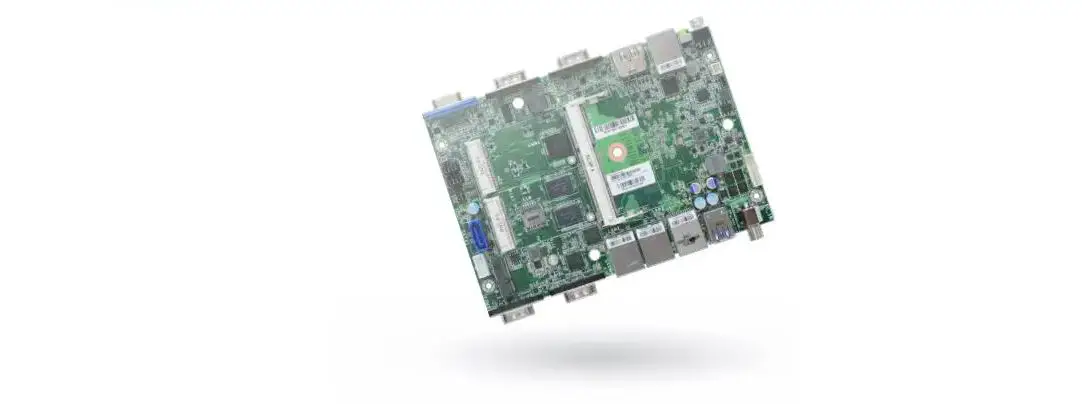
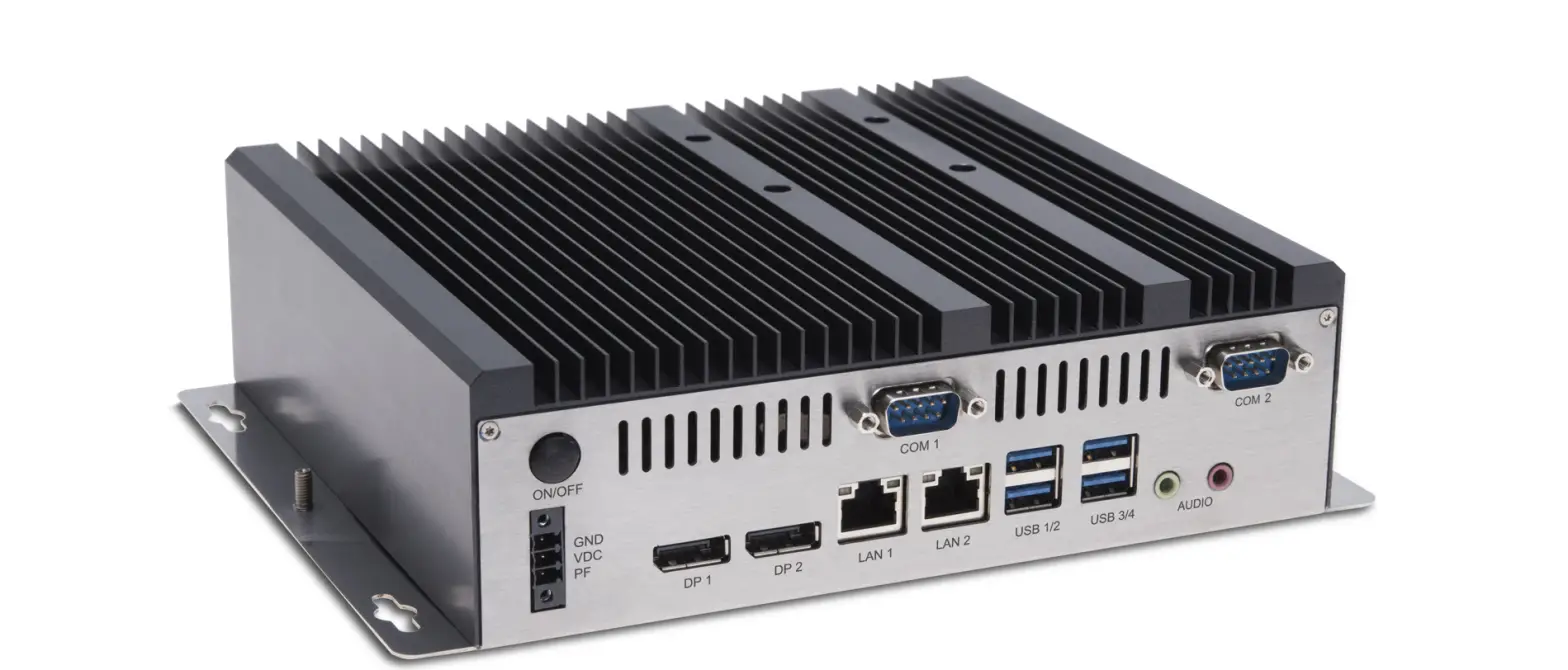
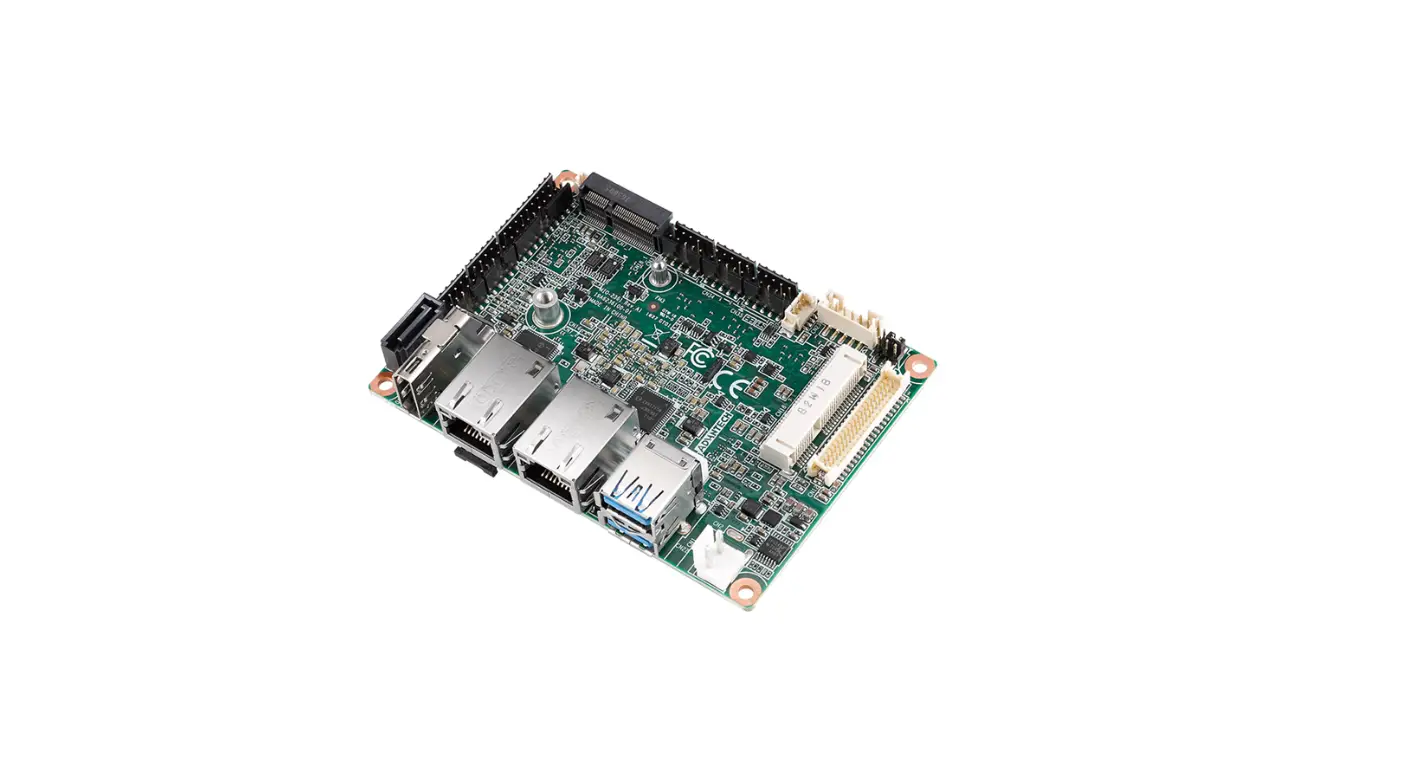
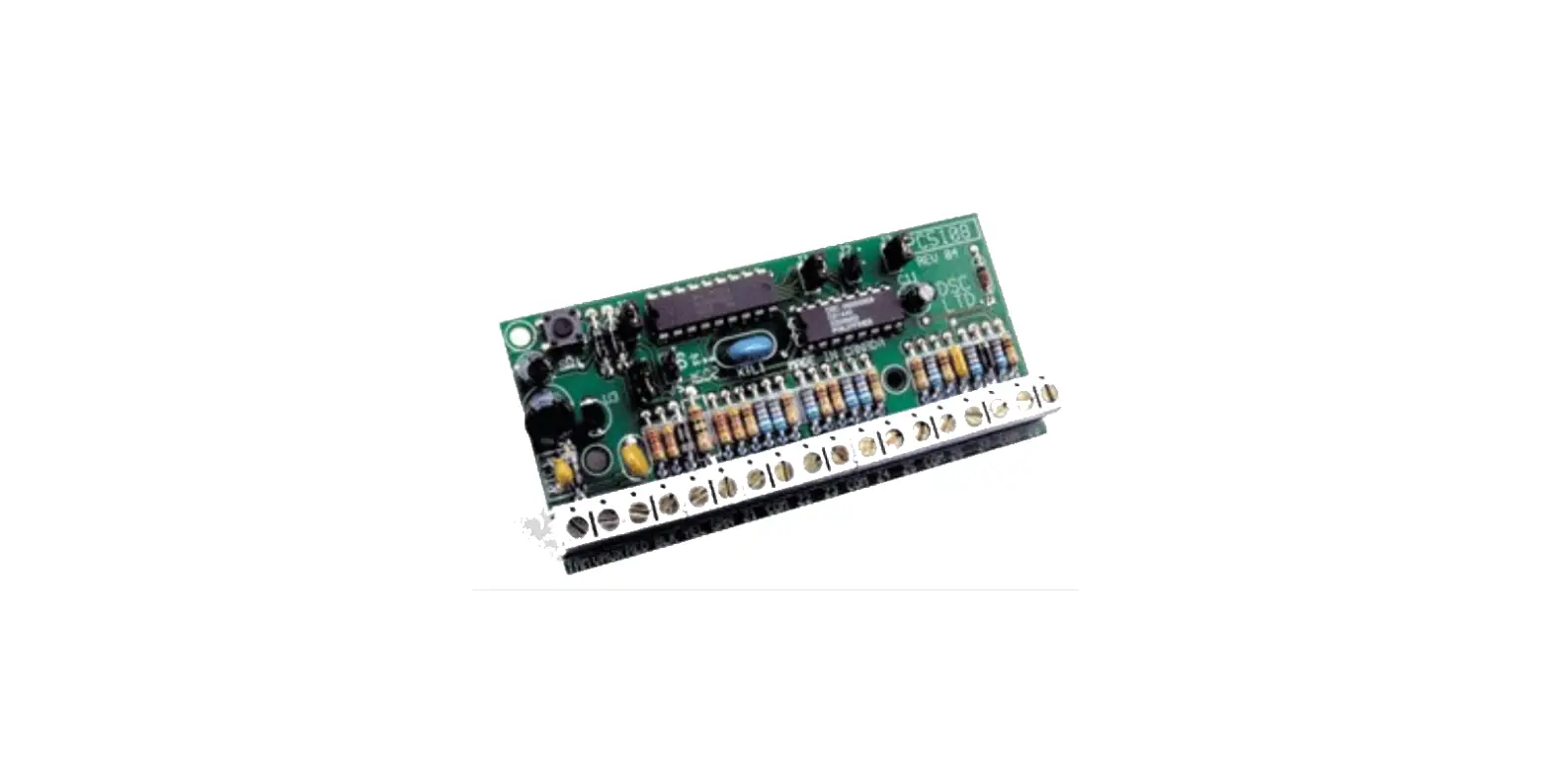
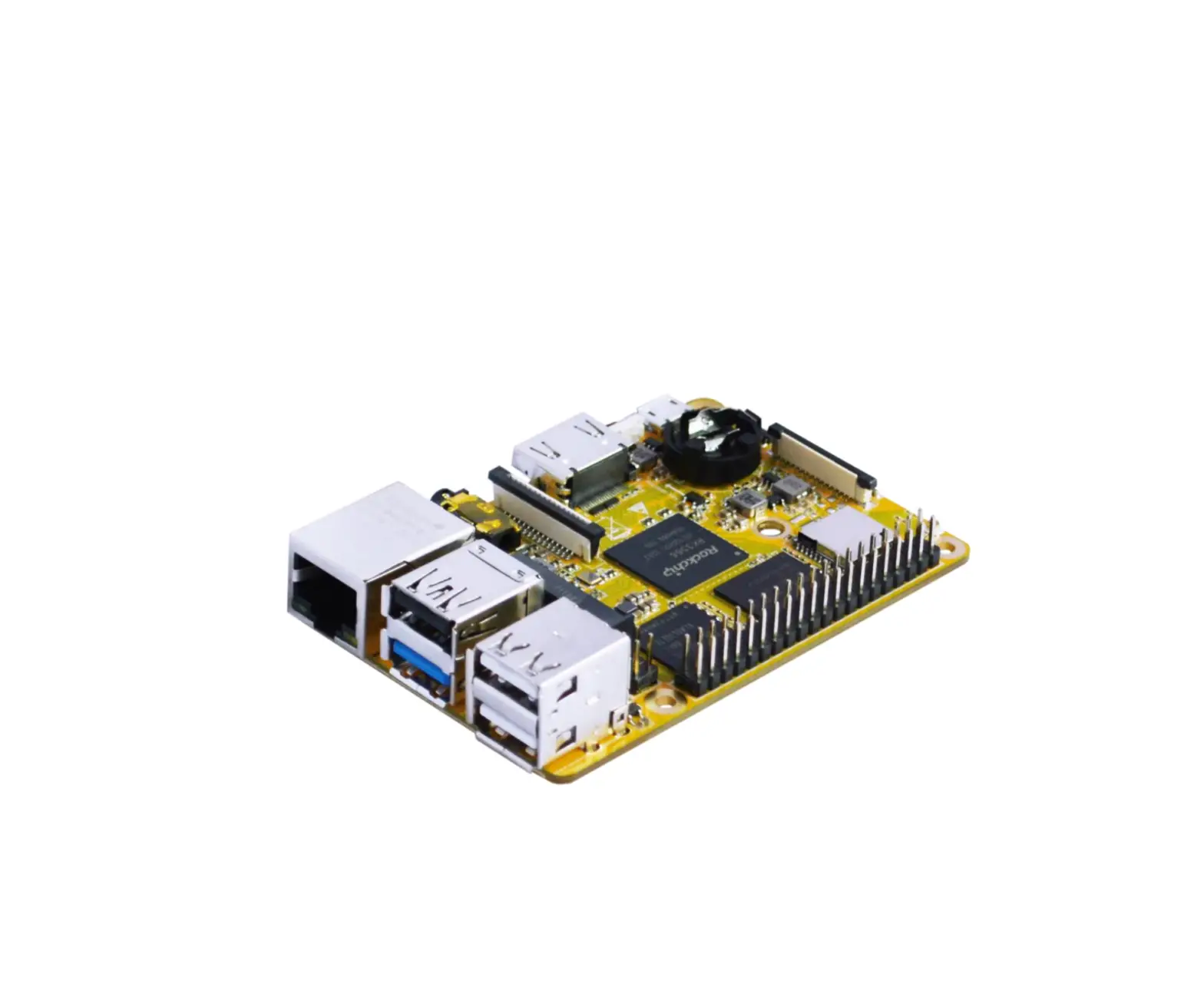
PCSF51 Embedded 1.8 SBC
Product Information
The PCSF51 is an Embedded 1.8 SBC device that is protected by
copyright. It is a sensitive product that requires careful handling
to prevent damage from static electrical discharge. The product
comes with a user manual that provides detailed information on
product usage and precautions.
Product Usage Instructions
Before using the PCSF51, it is important to read the user manual
carefully and follow the instructions provided. Here are some
important instructions to keep in mind:
1. Copyright
The information provided in the user manual is protected by
copyright. No part of it may be reproduced or used to make any
transformation/adaptation without prior written permission from the
copyright holders.
2. Trademarks
Product names or trademarks appearing in the manual are for
identification purposes only and are the properties of their
respective owners.
3. FCC and DOC Statement on Class A
Changes or modifications not expressly approved by the party
responsible for compliance could void the user’s authority to
operate the equipment. Shielded interface cables must be used to
comply with emission limits.
4. Mating Connectors
The manual contains a list of Mating Connectors that can be used
with the PCSF51.
5. Warranty
The warranty does not cover damages or failures arising from
misuse, inability to use, unauthorized replacement or alteration of
components and product specifications. The warranty is void if the
product has been subjected to physical abuse, improper
installation, modification, accidents, or unauthorized repair.
Unless otherwise instructed in the user’s manual, the user may not
attempt to perform service, adjustments or repairs on the product,
whether in or out of warranty. It must be returned to the purchase
point, factory or authorized service agency for all such work.
6. Package Contents
The package contains the PCSF51 device and accessories. If any
of these items are missing or damaged, please contact your dealer
or sales representative for assistance.
7. Static Electricity Precautions
Static electrical discharge can damage computer components
without causing any signs of physical damage. It is important to
take extra care in handling the PCSF51 to ensure against
electrostatic build-up.
PCSF51
Embedded 1.8″ SBC User’s Manual
© March 15, 2023 DFI Inc.
Copyright
This publication contains information that is protected by copyright. No part of it may be reproduced in any form or by any means or used to make any transformation/adaptation without the prior written permission from the copyright holders.
This publication is provided for informational purposes only. The manufacturer makes no representations or warranties with respect to the contents or use of this manual and specifically disclaims any express or implied warranties of merchantability or fitness for any particular purpose. The user will assume the entire risk of the use or the results of the use of this document. Further, the manufacturer reserves the right to revise this publication and make changes to its contents at any time, without obligation to notify any person or entity of such revisions or changes.
Changes after the publication’s first release will be based on the product’s revision. The website will always provide the most updated information.
© 2023. All Rights Reserved.
Trademarks
Product names or trademarks appearing in this manual are for identification purpose only and are the properties of the respective owners.
FCC and DOC Statement on Class A
This equipment has been tested and found to comply with the limits for a Class A digital device, pursuant to Part 15 of the FCC rules. These limits are designed to provide reasonable protection against harmful interference when the equipment is operated in a residential installation. This equipment generates, uses and can radiate radio frequency energy and, if not installed and used in accordance with the instruction manual, may cause harmful interference to radio communications. However, there is no guarantee that interference will not occur in a particular installation. If this equipment does cause harmful interference to radio or television reception, which can be determined by turning the equipment off and on, the user is encouraged to try to correct the interference by one or more of the following measures:
· Reorient or relocate the receiving antenna.
· Increase the separation between the equipment and the receiver.
· Connect the equipment into an outlet on a circuit different from that to which the receiver is connected.
· Consult the dealer or an experienced radio TV technician for help.
Notice:
1. The changes or modifications not expressly approved by the party responsible for compliance could void the user’s authority to operate the equipment.
2. Shielded interface cables must be used in order to comply with the emission limits.
User’s Manual | PCSF51
2
Table of Contents
Chapter 1 – Introduction…………………………………………………………………………………………………. 6 Specifications …………………………………………………………………………………………………………. 6 Dimensions …………………………………………………………………………………………………………….. 8 Block Diagram ………………………………………………………………………………………………………… 8
Chapter 2 – Hardware Installations…………………………………………………………………………………. 9 Overview…………………………………………………………………………………………………………………. 9 Top View…………………………………………………………………………………………………………… 9 Bottom View……………………………………………………………………………………………………… 9 Standby Power LED………………………………………………………………………………………………..10 Pin Assignment ……………………………………………………………………………………………………..11 System Fan (J3000) …………………………………………………………………………………………11 DC Power Connector (CN6)………………………………………………………………………………11 UART Debug (J12) ……………………………………………………………………………………………12 DIO Header (J11)……………………………………………………………………………………………..12 Expansion Slots ……………………………………………………………………………………………………..13 Installing the M.2 Module …………………………………………………………………………………13 Assembly ………………………………………………………………………………………………………………14
Chapter 3 – BIOS Settings……………………………………………………………………………………………..15 Overview ……………………………………………………………………………………………………………….15 Main……………………………………………………………………………………………………………………… 16 Advanced ……………………………………………………………………………………………………………..16 ACPI Configuration …………………………………………………………………………………………..17 AMD CHIPSET Setting………………………………………………………………………………………17 CPU Configuration ……………………………………………………………………………………………18 Trusted Computing…………………………………………………………………………………………..18 WatchDog Configuration…………………………………………………………………………………..19 PC Health Status ……………………………………………………………………………………………..19 USB Configuration …………………………………………………………………………………………..20 Network Stack Configuration…………………………………………………………………………….20 USB Power Control …………………………………………………………………………………………..21 Security …………………………………………………………………………………………………………………22 Secure Boot……………………………………………………………………………………………………..22 Secure Boot Key Management ………………………………………………………………23 Boot ………………………………………………………………………………………………………………………24 Save & Exit …………………………………………………………………………………………………………….24 Updating the BIOS ………………………………………………………………………………………………….25 Notice: BIOS SPI ROM…………………………………………………………………………………………….25
Appendix A- Mating Connectors……………………………………………………………………………………26 The Mating Connectors List ……………………………………………………………………………………26
User’s Manual | PCSF51
3
About this Manual
This manual can be retrieved from the website.
The manual is subject to change and update without notice, and may be based on editions that do not resemble your actual products. Please visit our website or contact our sales representatives for the latest editions.
Warranty
1. Warranty does not cover damages or failures that arises from misuse of the product, inability to use the product, unauthorized replacement or alteration of components and product specifications.
2. The warranty is void if the product has been subjected to physical abuse, improper installation, modification, accidents or unauthorized repair of the product.
3. Unless otherwise instructed in this user’s manual, the user may not, under any circumstances, attempt to perform service, adjustments or repairs on the product, whether in or out of warranty. It must be returned to the purchase point, factory or authorized service agency for all such work.
4. We will not be liable for any indirect, special, incidental or consequential damages to the product that has been modified or altered.
About this Package
The package contains the following items. If any of these items are missing or damaged, please contact your dealer or sales representative for assistance.
· 1 PCSF51 board
· 1 Heat spreader
· 1 Screw of M.2 card
Note: The items are subject to change in the developing stage. The product and accessories in the package may not come similar to the information listed above. This may differ in accordance with the sales region or models in which it was sold. For more information about the standard package in your region, please contact your dealer or sales representative.
User’s Manual | PCSF51
4
Static Electricity Precautions
It is quite easy to inadvertently damage your PC, system board, components or devices even before installing them in your system unit. Static electrical discharge can damage computer components without causing any signs of physical damage. You must take extra care in handling them to ensure against electrostatic build-up.
1. To prevent electrostatic build-up, leave the system board in its anti-static bag until you are ready to install it.
2. Wear an antistatic wrist strap.
3. Do all preparation work on a static-free surface.
4. Hold the device only by its edges. Be careful not to touch any of the components, contacts or connections.
5. Avoid touching the pins or contacts on all modules and connectors. Hold modules or connectors by their ends.
Important: Electrostatic discharge (ESD) can damage your processor, disk drive and other components. Perform the upgrade instruction procedures described at an ESD workstation only. If such a station is not available, you can provide some ESD protection by wearing an antistatic wrist strap and attaching it to a metal part of the system chassis. If a wrist strap is unavailable, establish and maintain contact with the system chassis throughout any procedures requiring ESD protection.
Safety Precautions
· Use the correct DC / AC input voltage range.
· Unplug the power cord before removing the system chassis cover for installation or servicing. After installation or servicing, cover the system chassis before plugging in the power cord.
· There is danger of explosion if battery incorrectly replaced.
· Replace only with the same or equivalent specifications of batteries recommend by the manufacturer.
· Dispose of used batteries according to local ordinance.
· Keep this system away from humid environments.
· Make sure the system is placed or mounted correctly and stably to prevent the chance of dropping or falling may cause damage.
· The openings on the system shall not be blocked and shall be kept in distance from
User’s Manual | PCSF51
other objects to make sure of proper air ventilation to protect the system from overheating. · Dress the cables, especially the power cord, so they will not be stepped on, in contact with high temperature surfaces, or cause any tripping hazards. · Do not place anything on top of the power cord. Use a power cord that has been approved for use with the system and is compliant with the voltage and current ranges required by the system’s electrical specifications. · If the system is to be unused or stored for a long time, disconnect it from the power source to avoid damage by transient overvoltage. · If one of the following occurs, consult a service personnel: – The power cord or plug is damaged. – Liquid has penetrated the system. – The system has been exposed to moisture. – The system is not working properly. – The system is physically damaged. · The unit uses a three-wire ground cable which is equipped with a third pin to ground the unit and prevent electric shock. Do not defeat the purpose of this pin. If your outlet does not support this kind of plug, contact your electrician to replace the outlet. · Disconnect the system from the electricity outlet before cleaning. Use a damp cloth for cleaning the surface. Do not use liquid or spray detergents for cleaning. · Before connecting, make sure that the power supply voltage is correct. The device is connected to a power outlet which should be grounded connection.
The system may burn fingers while running. Wait for 30 minutes to handle electronic parts after power off.
5
Chapter 1 – Introduction
X Specifications
SYSTEM
GRAPHICS
EXPANSION ETHERNET REAR I/O
INTERNAL I/O STORAGE WATCHDOG TIMER SECURITY POWER
OS SUPPORT
Processor
Memory
BIOS Controller Feature Display
Expansion Controller Ethernet USB Display DIO eMMC 5.0 Output & Interval TPM Type Connector Consumption RTC Battery Microsoft Linux
AMD® RyzenTM Embedded R2514, Quad Core, 2MB Cache, 8 CU, 2.1Hz AMD® RyzenTM Embedded R2314, Quad Core, 2MB Cache, 6 CU, 2.1GHz AMD® RyzenTM Embedded R2312, Dual Core, 1MB Cache 3 CU, 2.7GHz 12W support DDR4 Memory Down up to 4GB/8GB Single Channel DDR4-2667 (R2312 with DDR4-2400) AMI SPI 64Mbit AMD Vega GPU with up to 8 computing units H.265 decode/encode support, VP9 decode
· 1x HDMI · HDMI 1.4: resolution up to 4096×2160 @ 24Hz 1 x M.2 E key (PCIe x1 / USB 2) 1 x Intel® I210AT PCIe (10/100/1000Mbps) 1 x GbE (RJ-45) 2 x Type A USB 3.1 Gen 2 1 x HDMI (HDMI 1.4) 1 x 8-bit DIO 1 x 32GB/64GB/128GB eMMC
Software Reset, Programmable via Software from 1 to 655,535 Seconds
fTPM 2.0 Single 12V +/-5% DC 2-pin Terminal Block TBD CR2032 Coin Cell
Windows 10 IoT Enterprise 64-bit Linux (Kernel 5.4) Ubuntu 20.04 LTS
User’s Manual | PCSF51
Chapter 1
INTRODUCTION
6
MECHANISM ENVIRONMENT
Dimensions Height Temperature Humidity MTBF
1.8″ SBC Form Factor 84mm (3.31″) x 55mm (2.17″)
PCB: 1.60mm
Operating: 0 to 60°C Storage: -40 to 85°C
Operating: 5 to 90% RH Storage: 5 to 90% RH
TBD
Chapter 1
INTRODUCTION
User’s Manual | PCSF51
7
X Dimensions
X Block Diagram
Chapter 1
INTRODUCTION
User’s Manual | PCSF51
8
Chapter 2 – Hardware Installations
X Overview
Top View
1
2
12
4
4
M2
M2
M1
3
M1 PD G3
2
2
11
SW2C
11
A SW1
54 3
3
C
1 G1
A
J1
BAT
2
6
1
1
1 5 U312
A
B
C
D
E
F
G
H
J K L
M
N
P
R
T
DDR
123 789
SC10
A
B
C
D
E
F
G
H
J K L
M N P R
T
123
DDR
U307
789
1
11 J12 3
2
5
6
CN3 USB-C_1/2
G4
G2 19 5
1
16
CN10
U135
C
G2
4
M2
G1
M1 1
4
6
S2
4 S3 5
13
5
S1 SC110
1
9 S4
10
4
5
L1 L2 P1
1
14
L3 L4 6
CN1 LAN1
M2CN1-GG33
C 4 1A
18
8 A C J3000 5
1
CN6 CN7
1 Q26
Q28
7
64
SPI U303
C
8
U333
U334 11
91
5
C
A
B
6 21 9
9
10 10
10
3
1
3
4
1
2
1
11
2
2
LC804
74
32 22
M2 M.2 E Key
G2 75
33 23
2 M1 G1
1
3 1
5
45
1
M.2-E
X1
4
A
SYS_FAN
1 Reset Button 2 Power Button 3 HDMI 4 LAN 5 USB3.1 Type A 6 CMOS Battery
7 SPI 8 System Fan 9 DC Power Connector 10 DIO Header 11 UART Debug
User’s Manual | PCSF51
U314
J11 U121
4
Chapter 2
HARDWARE INSTALLATION
Bottom View
13
eMMC
12
DDR DDR
12 Led Indicator
13 Buzzer
Important: Electrostatic discharge (ESD) can damage your board, processor, disk drives, add-in boards, and other components. Perform installation procedures at an ESD workstation only. If such a station is not available, you can provide some ESD protection by wearing an antistatic wrist strap and attaching it to a metal part of the system chassis. If a wrist strap is unavailable, establish and maintain contact with the system chassis throughout any procedures requiring ESD protection.
9
X Standby Power LED
Standby Power LED
DDR
DDR
eMMC
Important: Electrostatic discharge (ESD) can damage your board, processor, disk drives, add-in boards, and other components. Perform installation procedures at an ESD workstation only. If such a station is not available, you can provide some ESD protection by wearing an antistatic wrist strap and attaching it to a metal part of the system chassis. If a wrist strap is unavailable, establish and maintain contact with the system chassis throughout any procedures requiring ESD protection.
User’s Manual | PCSF51
Chapter 2
HARDWARE INSTALLATION
10
X Pin Assignment System Fan (J3000)
1
2
4
4
M2
M2
M1
3
M1 PD G3
2
2
11
SW2C
11
A SW1
54 3
C
1 G1
A J1 2
1 5 U312
BAT
1
1
A
B
C
D
E
F
G
H
J K L
M
N
P
R
T
DDR
123 789
A
B
C
D
E
F
G
H
J K L
M N P R T
123
DDR
U307
789
1
J12 3
2
5
6
SC10
CN3 USB-C_1/2
G4
G2 19 5
1
16
CN10
U135
C
G2 M2
G1
M1 1
4
6
S2
4 S3 5
13
S1 SC110
1
9 S4
10
4
5
4
L1 L2 P1
1
14
L3 L4 6
CN1 LAN1
M2CN1-GG33
3
18
C
4 1A
A
C J3000
1
1
1
5
3
2
CN6 CN7
1 Q26
Q28
SPI U303
64
C
8
U333
1
5
C
A 1
U334
B
11
6 21 9
11
9
10 2
10
2
LC804
74
32 22
M2 M.2 E Key
G2 75
33 23
2 M1 G1
1
3 1
5
45
1
M.2-E X1
4
A
SYS_FAN
Pin
Assignment
1
NC
2
12VSB
3
GND
U314
J11 U121
4
Chapter 2
HARDWARE INSTALLATION
DC Power Connector (CN6)
SYS_FAN
A
C
4 M2
2
2
M1
2
11
SW2C C
3
M2
4
M1 PD G3
11
A SW1
54 3
1 G1
A J1
1 5 U312
G4
G2 19 5
1
CN10
U135
G2 M2
CN3 USB-C_1/2
G1
M1 1
4
6
S2
4 S3 5
13
S1 SC110
1
9 S4
10
4
BAT
5
4
5
1
1
16
L1 L2 P1
1
14
L3 L4 6
3
18
C
4 1A
AC J3000
1
1
1
A
B
C
D
E
F
G
H
J K L
M
N
P
R
T
5
3
123 789
1
DDR
CN1 LAN1
M2CN1-GG33
2
CN6 CN7
C
8
U333
1
5
1 Q26
Q28
SPI U303
SC10
C
M N P R
T
J K L
H
DDR
G
F
E
D
C
B
A
789
123
U307
64
A 1
U334
B
11
6 21 9
11
9
10 2
10
2
1
2
1
J12 3
2
5
6
LC804
74
32 22
M2 M.2 E Key
G2 75
33 23
2 M1 G1
1
3 1
5
45
1
M.2-E X1
4
U314
J11 U121
4
Pin
Assignment
1
DC-IN
2
GND
User’s Manual | PCSF51
11
UART Debug (J12)
1
2
4
4
M2
M2
M1
3
M1 PD G3
2
2
11
SW2C
11
A SW1
54 3
C
1 G1
A J1 2
1 5 U312
BAT
1
1
A
B
C
D
E
F
G
H
J K L
M
N
P
R
T
DDR
123 789
A
B
C
D
E
F
G
H
J K L
M N P R T
123
DDR
U307
789
1
J12 3
2
5
6
SC10
CN3 USB-C_1/2
G4
G2 19 5
1
16
CN10
U135
C
G2 M2
G1
M1 1
4
6
S2
4 S3 5
13
S1 SC110
1
9 S4
10
4
5
L1 L2 P1
1
14
L3 L4 6
CN1 LAN1
M2CN1-GG33
C 4 1A
18 AC
5
J3000
1
CN6 CN7
1 Q26
Q28
SPI U303
64
C
8
U333
U334 11
1 5 C
A
B
6 21 9
9 10
10
3
1
3
4
1
2
1
11
2
2
LC804
74
32 22
M2 M.2 E Key
G2 75
33 23
2 M1 G1
1
3 1
5
45
1
4
A
SYS_FAN
1
M.2-E X1
Pin
Assignment
1
GND
2
UART_TX
User’s Manual | PCSF51
U314
J11 U121
4
Chapter 2
HARDWARE INSTALLATION
DIO Header (J11)
1
2
4
4
M2
M2
M1
3
M1 PD G3
2
2
11
SW2C
11
A SW1
54 3
C
1 G1
A J1 2
1 5 U312
BAT
1
1
A
B
C
D
E
F
G
H
J K L
M
N
P
R
T
DDR
123 789
A
B
C
D
E
F
G
H
J K L
M N P R
T
123
DDR
U307
789
1
J12 3
2
5
6
SC10
CN3 USB-C_1/2
G4
G2 19 5
1
16
CN10
U135
C
G2 M2
G1
M1 1
4
6
S2
4 S3 5
13
S1 SC110
1
9 S4
10
4
5
4
L1 L2 P1
1
14
L3 L4 6
CN1 LAN1
M2CN1-GG33
3
18
C
4 1A
AC J3000
1
1
1
5
3
2
CN6 CN7
1 Q26
Q28
SPI U303
64
C
8
U333
1
5
C
A 1
U334
B
11
6 21 9
11
9
10 2
10
2
LC804
74
32 22
M2 M.2 E Key
G2 75
33 23
2 M1 G1
1
3 1
5
45
1
M.2-E X1
4
A
SYS_FAN
U314
J11 U121
4
9
1
10
10
2
Pin
Assignment
1
GND
2
5VSB
3
DIO0
4
DIO1
5
DIO2
6
DIO3
7
DIO4
8
DIO5
9
DIO6
10
DIO7
12
X Expansion Slots
Installing the M.2 Module
Before installing the M.2 module into the M.2 socket, please make sure that the following safety cautions are well-attended.
1. Make sure the PC and all other peripheral devices connected to it has been powered down.
2. Disconnect all power cords and cables. 3. Locate the M.2 socket on the system board 4. Make sure the notch on card is aligned to the key on the socket. 5. Make sure the standoff screw is removed from the standoff.
1
2
4
4
M2
M2
M1
3
M1 PD G3
2
2
11
SW2C
11
A SW1
54 3
C
1 G1
A J1 2
1 5 U312
BAT
1
1
A
B
C
D
E
F
G
H
J K L
M
N
P
R
T
DDR
123 789
A
B
C
D
E
F
G
H
J K L
M N P R T
123
DDR
U307
789
1
J12 3
2
5
6
SC10
CN3 USB-C_1/2
G4
G2 19 5
1
16
CN10
U135
C
G2 M2
G1
M1 1
4
6
S2
4 S3 5
13
S1 SC110
1
9 S4
10
4
5
L1 L2 P1
1
14
L3 L4 6
CN1 LAN1
M2CN1-GG33
C 4 1A
18 AC
5
J3000
1
CN6 CN7
1 Q26
Q28
SPI U303
64
C
8
U333
U334 11
1 5 C
A
B
6 21 9
9 10
10
3
1
3
4
1
2
1
11
2
2
LC804
74
32 22
M2 M.2 E Key
G2 75
33 23
2 M1 G1
1
3 1
5
45
1
M.2-E X1
4
A
SYS_FAN
U314
J11 U121
4
M.2 Module
Notch
Stand-off
M.2 Socket
Key
Chapter 2
HARDWARE INSTALLATION
Please follow the steps below to install the card into the socket.
Step 1: Insert the card into the socket at an angle while making sure the notch and key are perfectly aligned.
Step 2: Press the end of the card far from the socket down until against the stand-off.
Step 3: Screw tight the card onto the stand-off with a screw driver and a stand-off screw until the gap between the card and the standoff closes up. The card should be lying parallel to the board when it’s correctly mounted.
User’s Manual | PCSF51
13
X Assembly
A heat spreader is included in the standard package. The heat spreader and components required for mounting are illustrated below.
Screw * 4
Interface Metal
The heat spreader is designed to be mounted onto the module as illustrated below. Please make sure the contacting sides of the heat spreader and the module are correct — the CPU side of the module shall be facing the interface metal side and legs of the heat spreader. Rotate horozontally so the interface metal sits right on top of the CPU. Remove any plastic cover on the interface metal and apply thermal paste/adhesive if it is required.
Interface Metal Side Down
Chapter 2
HARDWARE INSTALLATION
Rotate the module and heat spreader combo so that the I/O is facing the desired side, and place the combo in the position of the chassis reserved for your module.
Align the screw holes of the combo to those on the chassis. The combo can be mounted onto the chassis in two manners — 1) module side to the chassis, or 2) heat spreader side to the chassis as illustrated below. This shall depend entirely on the design of the chassis with regard to interior spacing, thermal, and I/O.
Place the screws that come with the standard package into the screw holes, and use a screw driver to fasten the screws until the combo is securely fixed onto the chassis.
To Chassis
Chassis
Module side to chassis
Chassis
To Chassis
Heat spreader side to chassis
CPU Side Up
User’s Manual | PCSF51
14
Chapter 3 – BIOS Settings
X Overview
The BIOS is a program that takes care of the basic level of communication between the CPU and peripherals. It contains codes for various advanced features found in this system board. The BIOS allows you to configure the system and save the configuration in a battery-backed CMOS so that the data retains even when the power is off. In general, the information stored in the CMOS RAM of the EEPROM will stay unchanged unless a configuration change has been made such as a hard drive replaced or a device added. It is possible that the CMOS battery will fail causing CMOS data loss. If this happens, you need to install a new CMOS battery and reconfigure the BIOS settings.
Note: The BIOS is constantly updated to improve the performance of the system board; therefore the BIOS screens in this chapter may not appear the same as the actual one. These screens are for reference purpose only.
Default Configuration Most of the configuration settings are either predefined according to the Load Optimal Defaults settings which are stored in the BIOS or are automatically detected and configured without requiring any actions. There are a few settings that you may need to change depending on your system configuration.
Entering the BIOS Setup Utility The BIOS Setup Utility can only be operated from the keyboard and all commands are keyboard commands. The commands are available at the right side of each setup screen. The BIOS Setup Utility does not require an operating system to run. After you power up the system, the BIOS message appears on the screen and the memory count begins. After the memory test, the message “Press DEL to run setup” will appear on the screen. If the message disappears before you respond, restart the system or press the “Reset” button. You may also restart the system by pressing the <Ctrl> <Alt> and <Del> keys simultaneously.
Chapter 3
BIOS SETTINGS
Legends
Keys Right / Left arrow Up / Down arrow <Enter> + (plus key)/F6 – (minus key)/F5 <F1> <F2> <F12> <F9> <F10> <Esc>
Function Move the highlight left or right to select a menu Move the highlight up or down between submenus or fields Enter the highlighted submenu Scroll forward through the values or options of the highlighted field Scroll backward through the values or options of the highlighted field Display general help Display previous values Popup Boot Device List Optimized defaults Save and Exit Return to previous menu
Scroll Bar When a scroll bar appears to the right of the setup screen, it indicates that there are more available fields not shown on the screen. Use the up and down arrow keys to scroll through all the available fields.
Submenu When “X” appears on the left of a particular field, it indicates that a submenu which contains additional options are available for that field. To display the submenu, move the highlight to that field and press <Enter>.
User’s Manual | PCSF51
15
X Main
The Main menu is the first screen that you will see when you enter the BIOS Setup Utility.
X Advanced
Chapter 3
BIOS SETTINGS
The Advanced menu allows you to configure your system for basic operation. Some entries are defaults required by the system board, while others, if enabled, will improve the performance of your system or let you set some features according to your preference.
Important: Setting incorrect field values may cause the system to malfunction.
System Date
The date format is <month>, <date>, <year>. Press “Tab” to switch to the next field and press “-” or “+” to modify the value.
System Time
The time format is <hour>, <minute>, <second>. The time is based on the 24-hour military-time clock. For example, 1 p.m. is 13:00:00. Hour displays hours from 00 to 23. Minute displays minutes from 00 to 59. Second displays seconds from 00 to 59.
User’s Manual | PCSF51
16
X Advanced
ACPI Configuration
X Advanced
AMD CHIPSET Setting
Chapter 3
BIOS SETTINGS
Wake On PCIE Enable/Disable integrated LAN to wake the system. Wake On RTC Resume by RTC Alarm after S5 shutdown.
AC Loss Control Select AC Loss Control Method.
GFX Configuration GFX Configuration.
User’s Manual | PCSF51
17
X Advanced
CPU Configuration
X Advanced
Trusted Computing
Chapter 3
BIOS SETTINGS
PSS Support Enable/Disable the generation of ACPI _PSS, and _PCT objects. Core Performance Boost Disable CPB (test item) NX Mode Enable/Disable No-execute page protection Function. SVM Mode Enable/Disable CPU Virtualization.
User’s Manual | PCSF51
Security Device Support This field is used to enable or disable BIOS support for the security device such as an TPM 2.0 to achieve hardware-level security via cryptographic keys. Pending operation To clear the existing TPM encryption, select “TPM Clear” and restart the system. This field is not available when “Security Device Support” is disabled.
18
X Advanced
WatchDog Configuration
WatchDog1 function Enable/disable WatchDog Timer.
User’s Manual | PCSF51
X Advanced
PC Health Status
Chapter 3
BIOS SETTINGS
Monitor hardware status
19
X Advanced
USB Configuration
X Advanced
Network Stack Configuration
Chapter 3
BIOS SETTINGS
XHCI Hand-off Enable or disable XHCI Hand-off. USB Mass Storage Driver Support Enable or disable USB Mass Storage Driver Support.
User’s Manual | PCSF51
Network Stack Enable or disable UEFI network stack. The following fields will appear when this field is en-abled. Ipv4 PXE Support Enable or disable IPv4 PXE boot support. If disabled, IPv4 PXE boot support will not be avail-able. Ipv6 PXE Support Enable or disable IPv6 PXE boot support. If disabled, IPv6 PXE boot support will not be avail-able. PXE boot wait time Set the wait time in seconds to press ESC key to abort the PXE boot. Use either +/- or numeric keys to set the value. Media detect count Set the number of times the presence of media will be checked. Use either +/- or numeric keys to set the value.
20
X Advanced
USB Power Control
Server CA Configuration 5_Dual: Support system wake up from S3/S4 by USB KB&MS 5V: No support system wake up from S3/54 by USB KB&MS
User’s Manual | PCSF51
Chapter 3
BIOS SETTINGS
21
X Security
X Security
Secure Boot
Chapter 3
BIOS SETTINGS
Administrator Password Set the administrator password. To clear the password, input nothing and press enter when a new password is asked. Administrator Password will be required when entering the BIOS.
Secure Boot
The Secure Boot store a database of certificates in the firmware and only allows the OSes with authorized signatures to boot on the system. To activate Secure Boot, please make sure that “Secure Boot” is “[Enabled]”, Platform Key (PK) is enrolled, “System Mode” is “User”, and CSM is disabled. After enabling/disabling Secure Boot, please save the configuration and restart the system. When configured and activated correctly, the Secure Boot status will be “Active”.
Secure Boot Mode
Select the secure boot mode — Standard or Custom. When set to Custom, the following fields will be configurable for the user to manually modify the key database.
Restore Factory Keys
Force system to User Mode. Load OEM-defined factory defaults of keys and databases onto the Secure Boot. Press Enter and a prompt will show up for you to confirm.
Reset To Setup Mode
Clear the database from the NVRAM, including all the keys and signatures installed in the Key Management menu. Press Enter and a prompt will show up for you to confirm.
User’s Manual | PCSF51
22
X Security
Secure Boot Key Management
Chapter 3
BIOS SETTINGS
Enroll Factory Defaults or load certificates from a file: 1. Public Key Certificate: a)EFI_SIGNATURE_LIST b)EFI_CERT_X509 (DER) C)EFI_CERT_RSA2048 (bin) d)EFI_CERT_SHAXXX 2. Authenticated UEFI Variable 3. EFI PE/COFF Image (SHA256) Key Source: Factory, External, Mixed
Factory Key Provision
Install factory default Secur Boot keys after the platform reset and while the system is in Setup mode. Restore Factory Keys Force System to User Mode. Install factory default Secure Boot key databases. Export Secure Boot variables Copy NVRAM content of Secure Boot variables to files in a root folder on a file system device. Enroll Efi Image Allow the image to run in Secure Boot mode. Enroll SHA256 Hash certificate of a PE image into Authorized Signature Database (db). Restore DB defaults Restore DB variable to factory defaults.
User’s Manual | PCSF51
23
X Boot
X Save & Exit
Chapter 3
BIOS SETTINGS
Setup Prompt Timeout
Set the number of seconds to wait for the setup activation key. 65535 (0xFFFF) denotes indefinite waiting.
Bootup NumLock State Select the keyboard NumLock state: On or Off. Quiet Boot This section is used to enable or disable quiet boot option. Boot Option Priorities Rearrange the system boot order of available boot devices.
Save Changes and Reset
To save the changes, select this field and then press <Enter>. A dialog box will appear. Select Yes to reset the system after saving all changes made.
Discard Changes and Reset
To discard the changes, select this field and then press <Enter>. A dialog box will appear. Select Yes to reset the system setup without saving any changes.
Restore Defaults
To restore and load the optimized default values, select this field and then press <Enter>. A dia-log box will appear. Select Yes to restore the default values of all the setup options.
User’s Manual | PCSF51
24
X Updating the BIOS
To update the BIOS, you will need the new BIOS file and a flash utility. Please contact technical support or your sales representative for the files and specific instructions about how to update BIOS with the flash utility.
X Notice: BIOS SPI ROM
1. The Intel® Management Engine has already been integrated into this system board. Due to the safety concerns, the BIOS (SPI ROM) chip cannot be removed from this system board and used on another system board of the same model.
2. The BIOS (SPI ROM) on this system board must be the original equipment from the factory and cannot be used to replace one which has been utilized on other system boards.
3. If you do not follow the methods above, the Intel® Management Engine will not be updated and will cease to be effective.
Note: a. You can take advantage of flash tools to update the default configuration of the
BIOS (SPI ROM) to the latest version anytime. b. When the BIOS IC needs to be replaced, you have to populate it properly onto
the system board after the EEPROM programmer has been burned and follow the technical person’s instructions to confirm that the MAC address should be burned or not.
User’s Manual | PCSF51
Chapter 3
BIOS SETTINGS
25
Appendix A- Mating Connectors
X The Mating Connectors List
Please refer to the following list of the mating connectors.
Function System Fan Uart Debug
DIO
Connector J3000 J12 J11
Connector information E-CALL, WAFER, 0110-3221030: 1*3,1.25mm , wafer PINREX 220-96-02GB01: 1*2,2.0mm, PIN PLUG V-STAR SHY-JCL180810P: 2*5, 1.27mm, PIN PLUG
Rate output +12VSB/0.5A
Debug use +5V/1A
Appendix A
MATING CONNECTORS
User’s Manual | PCSF51
26