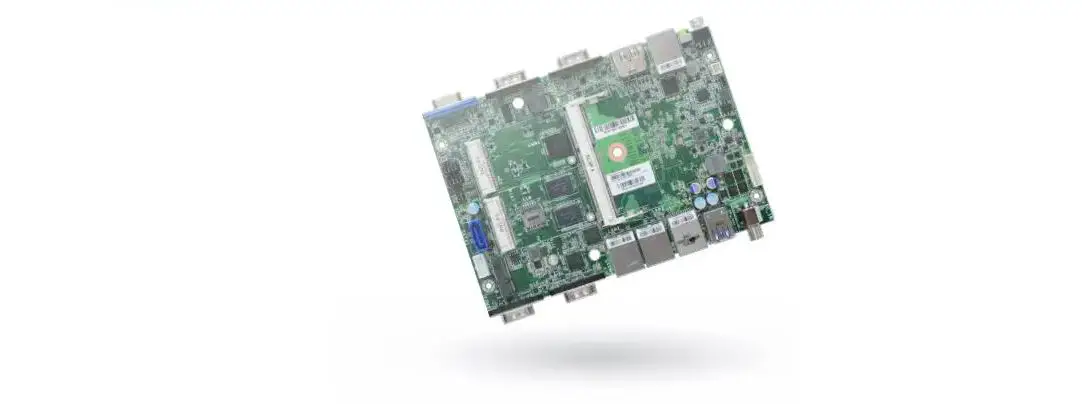
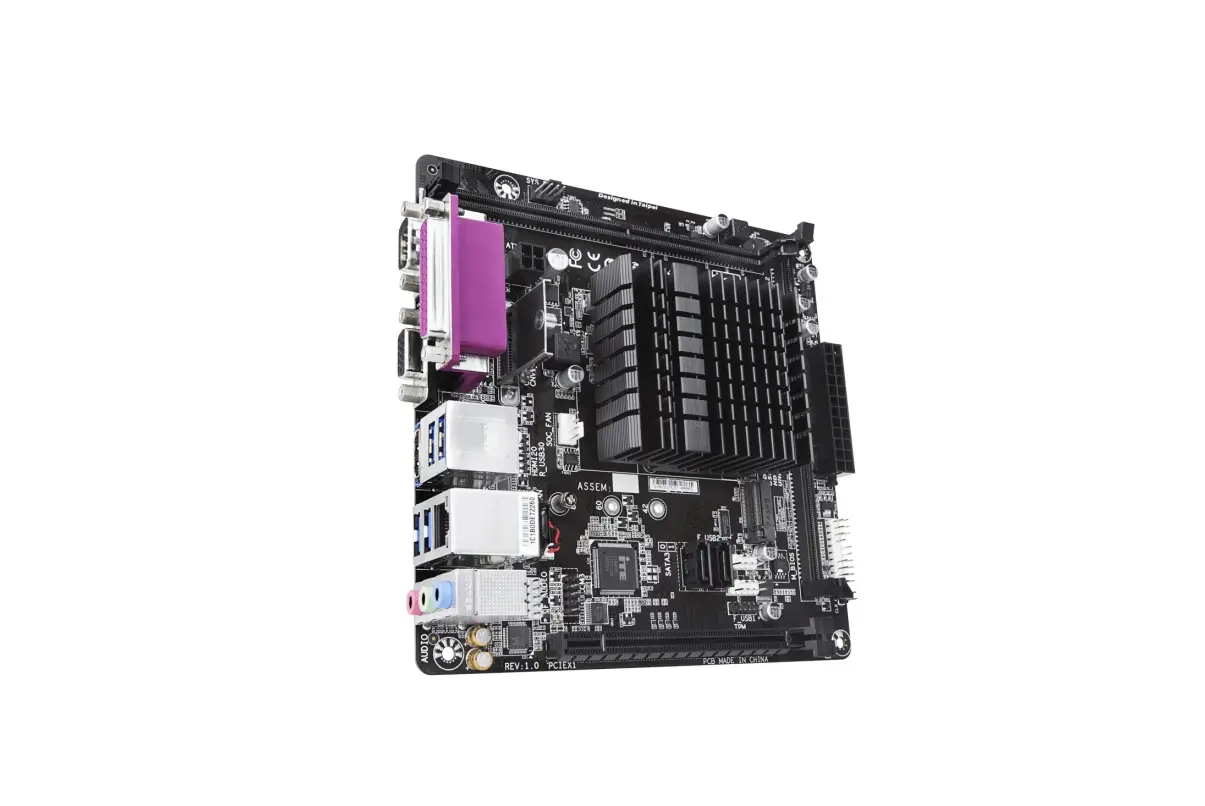
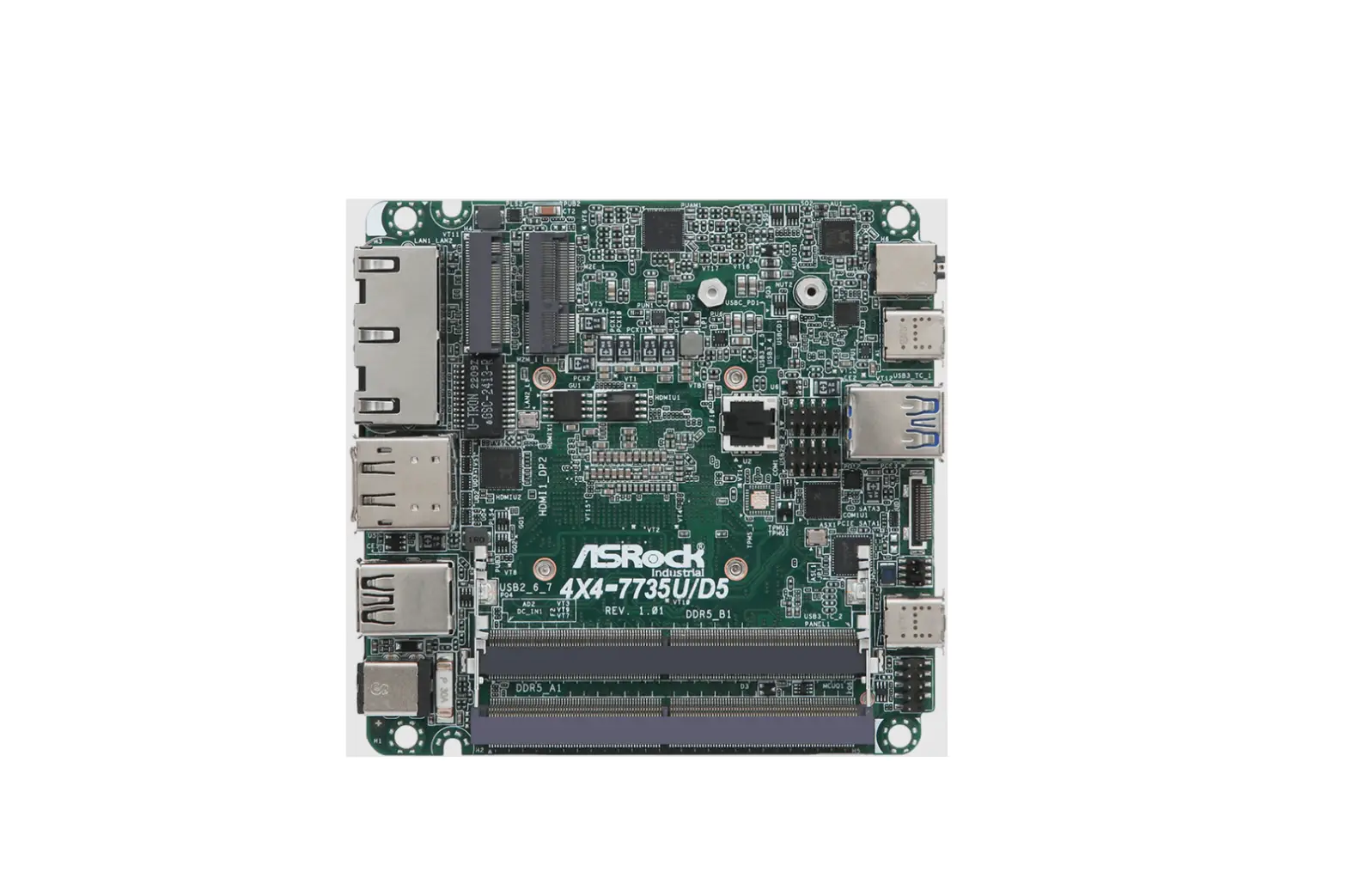
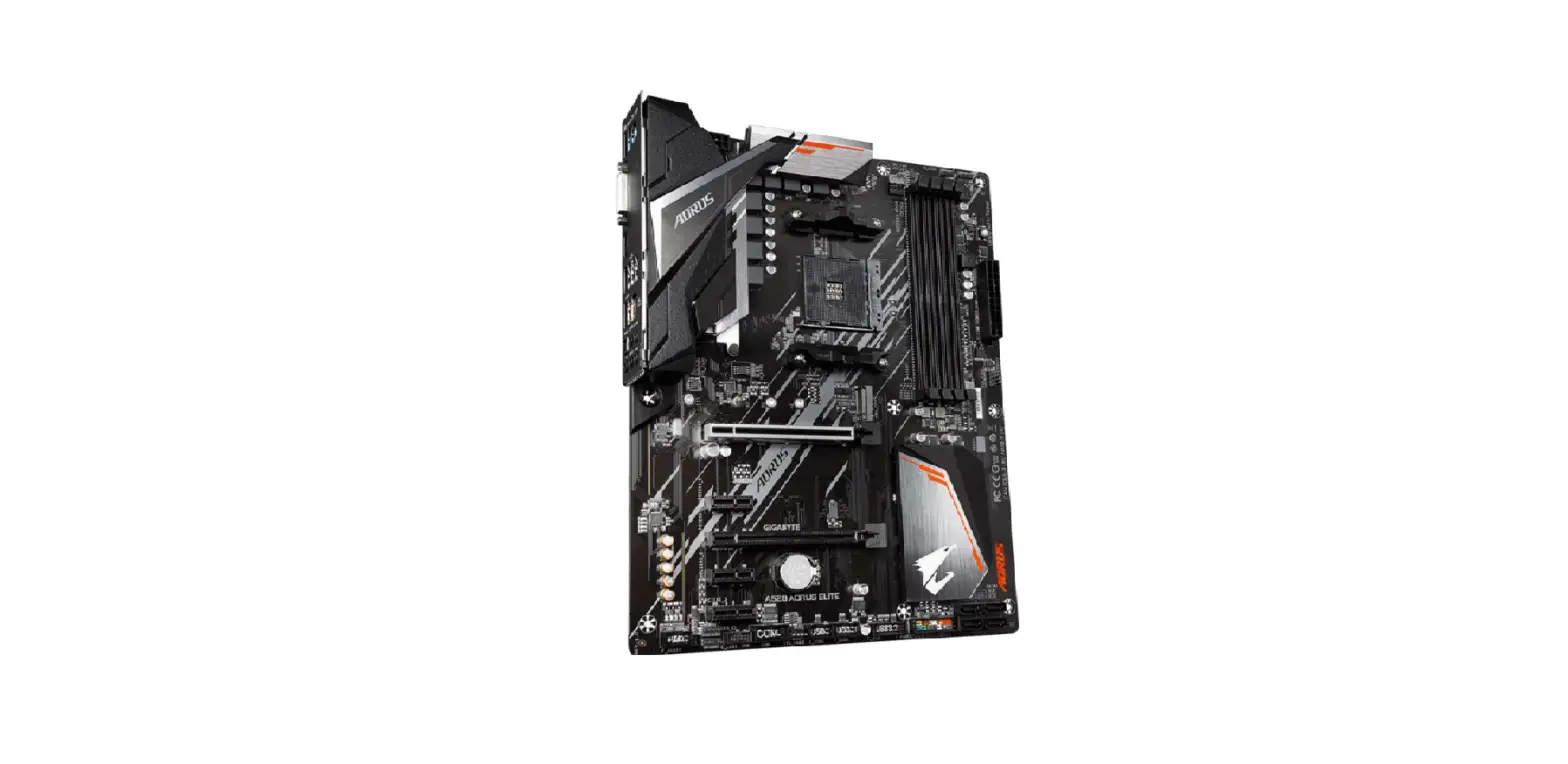
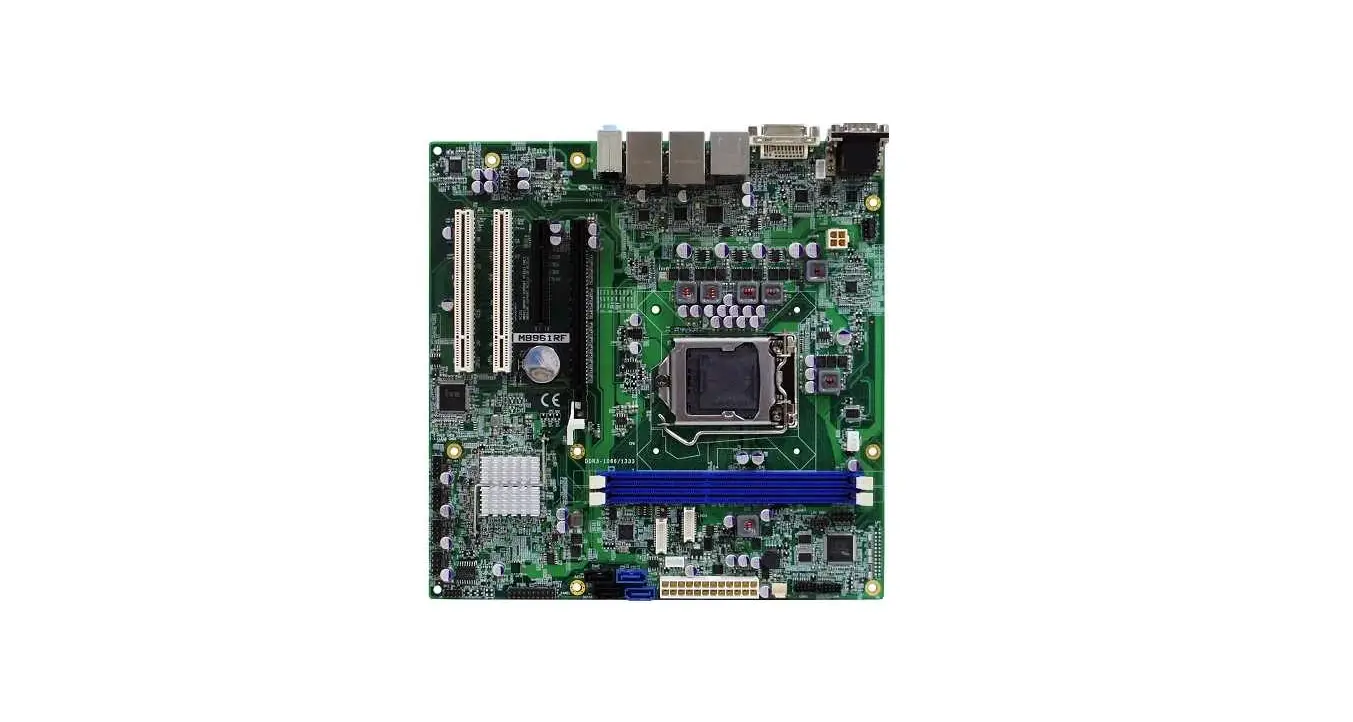
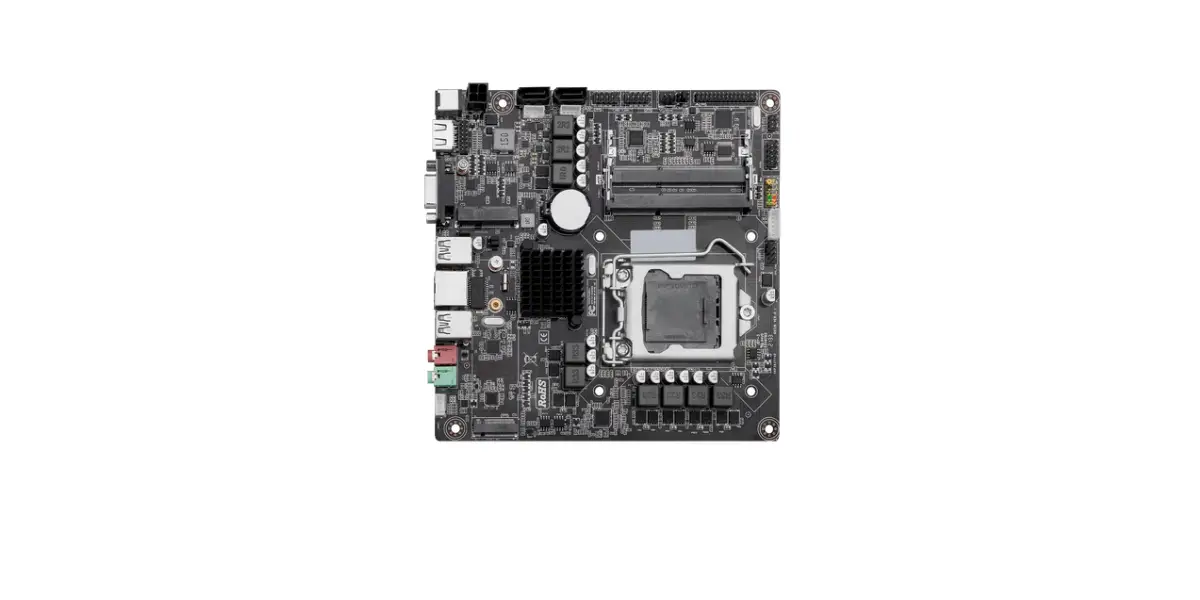
AL05P Embedded SBC 2.5 Inch Industrial Motherboard
Product Information
The AL05P Embedded SBC 2.5 is a system board that can be used in
various embedded applications. The user manual provides detailed
information on the specifications, features, hardware installation,
BIOS setup, and supported software.
Specifications
- Model: AL05P
- SBC Type: Embedded
- Form Factor: 2.5 inches
- Copyright: A-525-1M-2003
Features
- LAN/PoE PD (48V DC) support
- Graphics interface support
- USB 2.0 ports
- BIOS SPI ROM support
- Insyde BIOS Setup Utility support
Product Usage Instructions
Static Electricity Precautions
Before handling the system board, make sure to ground yourself
to prevent any static electricity damage to the board or other
components.
Safety Measures
When installing the system board, make sure that the power is
off and all cables are unplugged. Also, avoid placing the board on
a metal surface or near any heat sources that may damage the
board.
Before Using the System Board
Before using the system board, make sure that all components and
specifications are compatible with the board. Also, ensure that the
board is installed correctly and securely in the system.
Hardware Installation
The user manual provides detailed information on the hardware
installation process, including the board layout, system memory,
block diagram, rear panel I/O ports, LAN/PoE PD (48V DC) support,
graphics interface support, USB 2.0 ports, and I/O connectors.
BIOS Setup
The user manual also provides detailed information on the BIOS
setup process, including an overview of the Insyde BIOS Setup
Utility and instructions on updating the BIOS. The user is advised
to follow the instructions carefully to avoid any damage to the
board or system.
Supported Software
The user manual provides information on the supported software
for the system board. The user is advised to check the manual for
compatibility and installation instructions.
Warranty
The product warranty does not cover damages or failures that
arise from misuse of the product, inability to use the product,
unauthorized replacement or alteration of components and product
specifications. The warranty is also void if the product has been
subjected to physical abuse, improper installation, modification,
accidents, or unauthorized repair of the product.
AL05P
Embedded SBC 2.5″ User’s Manual
A-525-1M-2003
Copyright
This publication contains information that is protected by copyright. No part of it may be reproduced in any form or by any means or used to make any transformation/adaptation without the prior written permission from the copyright holders.
This publication is provided for informational purposes only. The manufacturer makes no representations or warranties with respect to the contents or use of this manual and specifically disclaims any express or implied warranties of merchantability or fitness for any particular purpose. The user will assume the entire risk of the use or the results of the use of this document. Further, the manufacturer reserves the right to revise this publication and make changes to its contents at any time, without obligation to notify any person or entity of such revisions or changes.
Changes after the publication’s first release will be based on the product’s revision. The website will always provide the most updated information.
© 2019. All Rights Reserved.
Trademarks
Product names or trademarks appearing in this manual are for identification purpose only and are the properties of the respective owners.
FCC and DOC Statement on Class B
This equipment has been tested and found to comply with the limits for a Class B digital device, pursuant to Part 15 of the FCC rules. These limits are designed to provide reasonable protection against harmful interference when the equipment is operated in a residential installation. This equipment generates, uses and can radiate radio frequency energy and, if not installed and used in accordance with the instruction manual, may cause harmful interference to radio communications. However, there is no guarantee that interference will not occur in a particular installation. If this equipment does cause harmful interference to radio or television reception, which can be determined by turning the equipment off and on, the user is encouraged to try to correct the interference by one or more of the following measures:
· Reorient or relocate the receiving antenna. · Increase the separation between the equipment and the receiver. · Connect the equipment into an outlet on a circuit different from that to which the receiver
is connected. · Consult the dealer or an experienced radio TV technician for help.
Notice:
1. The changes or modifications not expressly approved by the party responsible for compliance could void the user’s authority to operate the equipment.
2. Shielded interface cables must be used in order to comply with the emission limits.
2
Table of Contents
Copyright…………………………………………… 2
Trademarks………………………………………… 2
FCC and DOC Statement on Class B ……….. 2
Warranty …………………………………………… 4
Static Electricity Precautions ………………….. 4
Safety Measures………………………………….. 4
About the Package ………………………………. 5
Optional Items……………………………………. 5
Before Using the System Board ……………… 5
Chapter 1 – Introduction……………………….. 6
Specifications ………………………………………………………… 6
Features ………………………………………………………………. 7
Chapter 2 – Hardware Installation …………… 8
Board Layout ………………………………………………………… 8
System Memory …………………………………………………….. 9
Block Diagram……………………………………………………….. 9
Rear Panel I/O Ports……………………………………………….10
LAN/PoE PD (48V DC) ………………………………………………………….. 10 Graphics Interface ……………………………………………………………….. 11 USB Ports ………………………………………………………………………….. 11
I/O Connectors ……………………………………………………..12
Digital I/O Connector……………………………………………………………. 12 Expansion Slot ……………………………………………………………………. 12 COM (Serial) Port ………………………………………………………………… 13 SMBus Connector ………………………………………………………………… 14 Front Panel Connector ………………………………………………………….. 14 Battery ……………………………………………………………………………… 15 12V DC Connector for Debug (optional) …………………………………… 15
Chapter 3 – BIOS Setup……………………….16
Overview ……………………………………………………………..16 Insyde BIOS Setup Utility ………………………………………..16
Main …………………………………………………………………………………. 16 Advanced…………………………………………………………………………… 16 Security …………………………………………………………………………….. 24 Boot …………………………………………………………………………………. 25 Exit ………………………………………………………………………………….. 26
Updating the BIOS …………………………………………………26 Notice: BIOS SPI ROM…………………………………………….27
Chapter 4 – Supported Software…………….28
3
Warranty
1. Warranty does not cover damages or failures that arised from misuse of the product, inability to use the product, unauthorized replacement or alteration of components and product specifications.
2. The warranty is void if the product has been subjected to physical abuse, improper installation, modification, accidents or unauthorized repair of the product.
3. Unless otherwise instructed in this user’s manual, the user may not, under any circumstances, attempt to perform service, adjustments or repairs on the product, whether in or out of warranty. It must be returned to the purchase point, factory or authorized service agency for all such work.
4. We will not be liable for any indirect, special, incidental or consequencial damages to the product that has been modified or altered.
Static Electricity Precautions
It is quite easy to inadvertently damage your PC, system board, components or devices even before installing them in your system unit. Static electrical discharge can damage computer components without causing any signs of physical damage. You must take extra care in handling them to ensure against electrostatic build-up.
1. To prevent electrostatic build-up, leave the system board in its anti-static bag until you are ready to install it.
2. Wear an antistatic wrist strap.
3. Do all preparation work on a static-free surface.
4. Hold the device only by its edges. Be careful not to touch any of the components, contacts or connections.
5. Avoid touching the pins or contacts on all modules and connectors. Hold modules or connectors by their ends.
Important: Electrostatic discharge (ESD) can damage your processor, disk drive and other components. Perform the upgrade instruction procedures described at an ESD workstation only. If such a station is not available, you can provide some ESD protection by wearing an antistatic wrist strap and attaching it to a metal part of the system chassis. If a wrist strap is unavailable, establish and maintain contact with the system chassis throughout any procedures requiring ESD protection.
Safety Measures
To avoid damage to the system: · Use the correct AC input voltage range.
To reduce the risk of electric shock: · Unplug the power cord before removing the system chassis cover for installation or servic-
ing. After installation or servicing, cover the system chassis before plugging the power cord.
4
About the Package
The package contains the following items. If any of these items are missing or damaged, please contact your dealer or sales representative for assistance. · One AL05P board · One Heat spreader (Height: 15mm)
Optional Items
· USB port cable (Length: 200mm) · COM port cable (Length: 300mm) · Heat sink for 0 to 60°C (Height: 28mm) The board and accessories in the package may not come similar to the information listed above. This may differ in accordance to the sales region or models in which it was sold. For more information about the standard package in your region, please contact your dealer or sales representative.
Before Using the System Board
Before using the system board, prepare basic system components. If you are installing the system board in a new system, you will need at least the following internal components. · Storage devices such as hard disk drive, etc. You will also need external system peripherals you intend to use which will normally include at least a keyboard, a mouse and a video display monitor.
5
Chapter 1
Chapter 1 – Introduction
Specifications
SYSTEM
GRAPHICS
EXPANSION STORAGE ETHERNET REAR I/O
INTERNAL I/O
WATCHDOG TIMER SECURITY POWER
OS SUPPORT (UEFI ONLY) ENVIRONMENT
MECHANICAL
Processor
Intel Atom® Processor E3900 Series, BGA 1296 Intel Atom® x5-E3940 Processor, Quad Core, 2M Cache, 1.6GHz (1.8GHz), 9.5W Intel Atom® x5-E3930 Processor, Dual Core, 2M Cache, 1.3GHz (1.8GHz), 6.5W Intel® Pentium® Processor N4200, Quad Core, 2M Cache, 1.1GHz (2.5GHz), 6W Intel® Celeron® Processor N3350, Dual Core, 2M Cache, 1.1GHz (2.4GHz), 6W
Memory
SDRAM Memory Down up to 4GB Single Channel DDR4 2400MHz
BIOS
Insyde SPI 128Mbit (supports UEFI boot only)
Controller
Intel® HD Graphics
Feature
OpenGL 4.2, Direct X 11.1, OpenCL 1.2, OGL ES 3.0 HW Decode: H.264, MPEG2, VC1, VP8, H.265, MPEG4 HW Encode: H.264, MPEG2, MPEG4
Display
1 x Mini DP++ Mini DP++: resolution up to 4096×2160 @ 60Hz
Interface
1 x Full-size Mini PCIe (PCIe/USB 2.0/SATA 3.0, optional USB 3.1 Gen1/USB 2.0)
eMMC
1 x 16GB/32GB/64GB eMMC
Controller
1 x Intel® I211AT PCIe (10/100/1000Mbps) 1 x Intel® I210IT PCIe (10/100/1000Mbps) (available upon request)
Ethernet
1 x GbE (RJ-45)
USB
2 x USB 3.1 Gen1
Display
1 x Mini DP++
Serial
1 x RS-232/422/485 (1.27mm pitch)
USB
2 x USB 2.0 (1.27mm pitch)
DIO
1 x 8-bit DIO
SMBus
1 x SMBus
Output & Interval System Reset, Programmable via Software from 1 to 255 Seconds
TPM Type Connector RTC Battery Microsoft/Linux
Temperature
Humidity
Dimensions
Height
fTPM2.0
48VDC PoE
PoE LAN
CR2032 Coin Cell
Windows 10 IoT Enterprise (64-bit) Ubuntu 16.04
Operating: 0 to 60°C, -20 to 70°C Storage: -40 to 85°C
Operating: 5 to 90% RH Storage: 5 to 90% RH
2.5″ Pico-ITX Form Factor 100mm (3.94″) x 72mm (2.83″)
PCB: 1.6mm Top Side: 15mm, Bottom Side: 8mm
6
Chapter 1 Introduction
www.dfi.com
Chapter 1
Features
· Watchdog Timer
The Watchdog Timer function allows your application to regularly “clear” the system at the set time interval. If the system hangs or fails to function, it will reset at the set time interval so that your system will continue to operate.
· LPDDR4
LPDDR4 SDRAM provides backward compatibility to LPDDR3 memory modules but can operate at a lower power level.
· Graphics
The integrated Intel® HD graphics engine delivers an excellent blend of graphics performance and features to meet business needs. It provides excellent video and 3D graphics with outstanding graphics responsiveness. These enhancements deliver the performance and compatibility needed for today’s and tomorrow’s business applications. Supports 1 x Mini DP++ interface for display output.
· Gigabit LAN
One Intel® I211AT PCI Express Gigabit Ethernet controller or one optional Intel® I210IT PCI Express Gigabit Ethernet controller supports up to 1Gbps data transmission.
· Power Failure Recovery
When power returns after an AC power failure, you may choose to either power-on the system manually or let the system power-on automatically.
· USB
The system board supports the USB 3.1 Gen1. It is capable of running at a maximum transmission speed of up to 5 Gbit/s (625 MB/s) and is faster than USB 2.0 (480 Mbit/s, or 60 MB/s) and USB 1.1 (12Mb/s). USB 3.1 Gen1 reduces the time required for data transmission, reduces power consumption, and is backward compatible with USB 2.0. It is a marked improvement in device transfer speeds between your computer and a wide range of simultaneously accessible external Plug and Play peripherals.
· Wake-On-LAN
This feature allows the network to remotely wake up a Soft Power Down (Soft-Off) PC. It is supported via the onboard LAN port or via a PCI LAN card that uses the PCI PME (Power Management Event) signal. However, if your system is in the Suspend mode, you can power-on the system only through an IRQ or DMA interrupt.
· ACPI STR
The system board is designed to meet the ACPI (Advanced Configuration and Power Interface) specification. ACPI has energy saving features that enable PCs to implement power management and plug-and-play with operating systems that support power management features.
With ACPI, the system can further utilize the Ethernet adapter’s wake-on-LAN (WOL) capability that enables remote wake-up if the Ethernet adapter supports such feature.
· Power over Ethernet
The system board is powerd by PoE (Power over Ethernet) for industrial and signage user under PoE environment.
7
Chapter 1 Introduction
www.dfi.com
Chapter 2 – Hardware Installation
Board Layout
LAN/PoE PD
Intel I211AT or optional I210IT
Buzzer
USB 0-1 USB 3.1 Gen1
12V DC
Connector
for
Debug (opt.)
1
21
Battery
Mini PCIe
12
9 10
USB 6-7
USB 2.0
LPDDR4 F81803
Mini DP++ SPI Flash BIOS
2 10
COM 1
19
eMMC
Top View
Standby Power LED
LPDDR4
Intel Atom
Front Panel DIO SMBus
51 9 1 51 6 2 10 2 6 2
Bottom View
8
Important: Electrostatic discharge (ESD) can damage your board, processor, disk drives, add-in boards, and other components. Perform installation procedures at an ESD workstation only. If such a station is not available, you can provide some ESD protection by wearing an antistatic wrist strap and attaching it to a metal part of the system chassis. If a wrist strap is unavailable, establish and maintain contact with the system chassis throughout any procedures requiring ESD protection.
System Memory
Important: When the Standby Power LED lights red, it indicates that there is power on the system board. Power-off the PC then unplug the power cord prior to installing any devices. Failure to do so will cause severe damage to the motherboard and components.
Block Diagram
Mini DP++
48V DC PoE
GLAN 1
I211AT PCIe x1
I210IT (opt.)
Power Input
Channel A
LPDDR4
eMMC
Intel Atom® PCIe x1/SATA 3.0
Processor
(USB 3.1 opt.)
Full-size
USB 3.1 Gen1 E3900 Series
USB 2.0
Mini PCIe
USB 3.1 Gen1/2.0 2x USB 2.0
SMBus
Digital I/O 8-bit
USB 2.0 2x USB 2.0
SMBus SPI
LPC Bus
Super IO with WDT
RS-232/422/485 1x
LPDDR4
Standby Power LED LPDDR4
Features
· SDRAM Memory Down up to 4GB · Single Channel LPDDR4 2400MHz
9
Rear Panel I/O Ports
LAN/PoE PD
USB 3.1 Gen1
Mini DP++
The rear panel I/O consists of the following ports:
· 1 LAN/PoE PD · 2 USB 3.1 Gen1 ports · 1 Mini DP++ port
LAN/PoE PD (48V DC, 802.3af)
81
LAN/PoE PD (48V DC)
Pin Assignment
Pin Assignment
1 White Green TX+ 2 Green TX-
3
White Orange RX+
5
White Blue DC+ PoE
7
White Brown DC- PoE
4 Blue DC+ PoE 6 Orange RX8 Brown DC- PoE
Features
· 1 Intel® I211AT PCI Express Gigabit Ethernet controller or 1 optional Intel® I210IT PCI Express Gigabit Ethernet controller
AL05P is powered by power over ethernet (PoE) for industrial and signage use under PoE environment. The LAN port enables the system board to connect to a local area network and 48V DC power by means of a network hub. Using a voltage more than the recommended range may fail to boot the system or cause damage to the system board.
BIOS Setting
Configure the onboard LAN in the “ACPI Configuration” submenu of the Advanced menu in the BIOS. Refer to Chapter 3 for more information.
Driver Installation
Install the LAN drivers. Refer to Chapter 4 for more information.
10
Graphics Interface
The display port consists of the following: · 1 Mini DP++ port
Mini DP++
USB Ports
USB 1 USB 0
USB 3.1 Gen1
12
PWR
PWR
DATA- DATA-
DATA+
DATA+
GND
GND
NC
NC
9 10
USB 2.0
USB 6-7
Mini DP++ Port
The Mini DP++ port is a digital display interface used to connect a display device such as a computer monitor. It is used to transmit audio and video simultaneously. The interface, which is developed by VESA, delivers higher performance features than any other digital interfaces.
Driver Installation
Install the graphics driver. Refer to Chapter 4 for more information.
The USB device allows data exchange between your computer and a wide range of simultaneously accessible external Plug and Play peripherals.
The system board is equipped with 2 onboard USB 3.1 Gen1 ports (USB 0-1). The 10-pin connector allows you to connect 2 additional USB 2.0 ports (USB 6-7). The additional USB ports may be mounted on a card-edge bracket. Install the card-edge bracket to an available slot at the rear of the system chassis and then insert the USB port cables to a connector.
BIOS Settings
Configure the onboard USB in the Boot menu in the BIOS. Refer to Chapter 3 for more information.
11
I/O Connectors Digital I/O Connector
Expansion Slot
Full-size Mni PCIe (PCIe/USB 2.0/SATA 3.0, optional USB 3.1 Gen1/USB 2.0)
Digital I/O
9
1
10
2
The Digital I/O connector supports 8-bit digital input/output signals to provide the ability of monitoring and controlling the states of the connected external devices.
Digital I/O Connector
Pin Assignment 1 DIO7 3 DIO5 5 DIO3 7 DIO1 9 +5V
Pin Assignment 2 DIO6 4 DIO4 6 DIO2 8 DIO0 10 GND
Mini PCI Express Slot
The full-size Mini PCIe socket supports PCIe x1, USB 2.0, and SATA 3.0 (optional USB 3.1 Gen1/USB 2.0) signals and is used to install a Mini PCIe card.
12
COM (Serial) Port
COM 1: RS232/422/485
2
10
1
9
COM 1 can be selected among RS232, RS422 and RS485.
The serial port is asynchronous communication ports with 16C550A-compatible UARTs that can be used with modems, serial printers, remote display terminals, and other serial devices.
BIOS Setting Configure the serial port in the “SIO FINTEK81803” submenu of the Advanced menu in the BIOS. Refer to Chapter 3 for more information.
COM 1
Pin RS232
1 DCD2 RD 3 TD 4 DTR5 GND 6 DSR7 RTS8 CTS9 RI10 GND
RS422 Full Duplex RS485
TX-
DATA-
TX+ RX+ RXGND NC NC NC NC GND
DATA+ NC NC GND NC NC NC NC GND
13
SMBus Connector
Front Panel Connector
ATX-SW RESET
5
1
Front Panel
6
2
PWR-LED SATA-LED
SMBus
5
1
6
2
The System Management Bus (SMBus) connector is used to connect SMBus devices. It is a multiple device bus that allows multiple chips to connect to the same bus and enable each one to act as a master by initiating data transfer.
Pin Assignment 1 3V3SB 3 SMB_CLK 5 SMB_ALERT
Pin Assignment 2 GND 4 SMB_DATA 6 GND
ATX-SW This switch is used to power on or off the system.
RESET This switch allows you to reboot without having to power off the system.
PWR-LED When the system’s power is on, this LED will light. When the system is in the S1 (POS – Power On Suspend) state, it will blink every second. When the system is in the S3 (STR – Suspend To RAM) state, it will blink every 4 seconds.
Pin Assignment
Pin Assignment
ATX-SW
1 Signal 3 GND
PWR-LED
2 LED Power 4 Signal
RESET
3 GND 5 Signal
SATA-LED 6 SATA_LED
14
Battery
12
+3.3V
GND
Battery Connector
12V DC Connector for Debug (optional)
12V DC Connector for Debug (optional) 2 GND
1 12VSB
Battery
Connect to the battery connector
The lithium ion battery powers the real-time clock and CMOS memory. It is an auxiliary source of power when the main power is shut off.
Safety Measures · Danger of explosion if battery incorrectly replaced. · Replace only with the same or equivalent type recommended by the manufacturer. · Dispose of used batteries according to local ordinance.
12V DC connector (optional) is for debug.
15
Chapter 3 – BIOS Setup
Overview
The BIOS is a program that takes care of the basic level of communication between the CPU and peripherals. It contains codes for various advanced features found in this system board. The BIOS allows you to configure the system and save the configuration in a battery-backed CMOS so that the data retains even when the power is off. In general, the information stored in the CMOS RAM of the EEPROM will stay unchanged unless a configuration change has been made such as a hard drive replaced or a device added.
It is possible that the CMOS battery will fail causing CMOS data loss. If this happens, you need to install a new CMOS battery and reconfigure the BIOS settings.
Note: The BIOS is constantly updated to improve the performance of the system board; therefore the BIOS screens in this chapter may not appear the same as the actual one. These screens are for reference purpose only.
Default Configuration
Most of the configuration settings are either predefined according to the Load Optimal Defaults settings which are stored in the BIOS or are automatically detected and configured without requiring any actions. There are a few settings that you may need to change depending on your system configuration.
Entering the BIOS Setup Utility
The BIOS Setup Utility can only be operated from the keyboard and all commands are keyboard commands. The commands are available at the right side of each setup screen.
The BIOS Setup Utility does not require an operating system to run. After you power up the system, the BIOS message appears on the screen and the memory count begins. After the memory test, the message “Press DEL to run setup” will appear on the screen. If the message disappears before you respond, restart the system or press the “Reset” button. You may also restart the system by pressing the <Ctrl> <Alt> and <Del> keys simultaneously.
Legends
Keys
Function
Right and Left arrows
Moves the highlight left or right to select a menu.
Up and Down arrows
<Esc> <F5> <F6> <F1> <F9> <F10> <Enter>
Moves the hightlight up or down between submenu or fields. Exit to the BIOS Setup Utility.
Scrolls forward through the values or options of the highlighted field. Scrolls backward through the values or options of the highlighted field.
Displays general help Optimized defaults
Saves and resets the setup program. Press <Enter> to enter the highlighted submenu.
Scroll Bar
When a scroll bar appears to the right of the setup screen, it indicates that there are more available fields not shown on the screen. Use the up and down arrow keys to scroll through all the available fields.
Submenu
When “” appears on the left of a particular field, it indicates that a submenu which contains additional options are available for that field. To display the submenu, move the highlight to that field and press <Enter>.
16
Insyde BIOS Setup Utility
Main
The Main menu is the first screen that you will see when you enter the BIOS Setup Utility.
Main
Advanced
Security
InsydeH2O Setup Utility
Boot
Exit
Project Name BIOS Version
AL05P B192.19A
Intel(R) APetonmtiu(TmM(R))PCroPcUesNso4r2E0309@[email protected]
CPU Speed
1600 MHz
CPUID
0x506C9
L1 Data Cache
24 KB
L1 Instruction Cache
32 KB
L2 Cache
1024 KB
L3 Cache
0 KB
Number Of Processors
4 Core(s) / 4 Thread(s)
BXT SOC
B1 Stepping
Microcode Rev
00000032
Total Memory
System Memory Speed SODIMM 0 SODIMM 1
2048 MB 2400 MHz 1024 MB 1024 MB
TXE FW Version
3.1.55.2269
System Time System Date
[11:14:24] [04/25/2019]Rev. 5.0
This is the help for the hour, minute, second field. Valid range is from 0 to 23, 0 to 59, 0 to 59. INCREASE/REDUCE : +/-.
Advanced
The Advanced menu allows you to configure your system for basic operation. Some entries are defaults required by the system board, while others, if enabled, will improve the performance of your system or let you set some features according to your preference.
Important: Setting incorrect field values may cause the system to malfunction.
Main
Advanced
Security
InsydeH2O Setup Utility
Boot
Exit
ACPI Configuration CPU Configuration Video Configuration SATA Configuration PCI Express Configuration Console Redirection SIO FINTEK81803
Rev. 5.0 ACPI Configuration Setting
F1 Help Esc Exit
/ Select Item / Select Item
F5/F6 Change Values Enter Select SubMenu
F9 Setup Defaults F10 Save and Exit
System Time
The time format is <hour>, <minute>, <second>. The time is based on the 24-hour military-time clock. For example, 1 p.m. is 13:00:00. Hour displays hours from 00 to 23. Minute displays minutes from 00 to 59. Second displays seconds from 00 to 59.
System Date
The date format is <month>, <date>, <year>. Month displays the month, from 01 to 12. Date displays the date, from 01 to 31. Year displays the year, from 2000 to 2099.
F1 Help Esc Exit
/ Select Item / Select Item
F5/F6 Change Values Enter Select SubMenu
F9 Setup Defaults F10 Save and Exit
17
ACPI Configuration This section configures the system ACPI parameters.
Advanced Wake On LAN After G3
InsydeH2O Setup Utility <Disabled> <Always On>
Rev. 5.0 Enable/Disable Wake On LAN capability
Note: If “Quiet Boot” of Boot menu is set to enabled, “BGRT Logo” will appear for configuration. Refer to the Boot menu in this chapter for more information.
Advanced Wake On LAN After G3 BGRT Logo
InsydeH2O Setup Utility <Disabled> <Always On> <Enabled>
Rev. 5.0 Support display logo with ACPI BGRT table.
F1 Help Esc Exit
/ Select Item / Select Item
F5/F6 Change Values Enter Select SubMenu
F9 Setup Defaults F10 Save and Exit
Wake On LAN This field is used to enable or disable the LAN signal to wake up the system.
After G3 This field is to specify what state the system should be in when power is re-applied after a power failure (G3, the mechanical-off, state). Always On The system working state. Always Off Off, except for trickle current to devices such as the power button.
F1 Help Esc Exit
/ Select Item / Select Item
F5/F6 Change Values Enter Select SubMenu
F9 Setup Defaults F10 Save and Exit
BGRT Logo This field is used to enable or disable to support display logo with ACPI BGRT table.
18
CPU Configuration This section is used to configure the CPU.
Advanced
EIST Turbo Mode C-States
InsydeH2O Setup Utility <Enabled> <Enabled> <Enabled>
Rev. 5.0
Enable/Disable Intel SpeedStep
F1 Help Esc Exit
/ Select Item / Select Item
F5/F6 Change Values Enter Select SubMenu
F9 Setup Defaults F10 Save and Exit
EIST
This field is used to enable or disable the Enhanced Intel SpeedStep® Technology, which helps optimize the balance between system’s power consumption and performance. After it is enabled in the BIOS, you can enable the EIST feature using the operating system’s power management.
Turbo Mode
This field is used to enable or disable processor turbo mode (requires that EIST is enabled too), which allows the processor core to automatically run faster than the base frequency when the processor’s power, temperature, and specification are within the limits of TDP.
C-States
Enable or disable CPU Power Management. It allows CPU to go to C States when it’s not 100% utilized.
Video Configuration This section configures the video settings.
Advanced
Primary Display Integrated Graphics Device
InsydeH2O Setup Utility <IGD> <Enabled>
Rev. 5.0
Select which of IGD/PCIe Graphics device should be Primary Display
Primary Display IGD PCIe
F1 Help Esc Exit
/ Select Item / Select Item
Primary Display
F5/F6 Change Values Enter Select SubMenu
F9 Setup Defaults F10 Save and Exit
Select either IGD or PCIe Graphics device to be the primary display. Integrated Graphics Device Keep IGD enabled or disabled based on the setup options.
19
SATA Configuration This section configures the SATA controller.
Advanced
SATA Controller SATA Mode Selection SATA Speed Selection
SATA Port 0 SATA Port 0
InsydeH2O Setup Utility <Enabled> <AHCI> <Gen3> [Not Installed] <Enabled>
Rev. 5.0 Enables or Disables the Chipset SATA Controller.
PCI Express Configuration This section configures settings relevant to PCI Express root ports.
Advanced
InsydeH2O Setup Utility
PCI Express Root Port 2 (Mini PCIE) PCI Express Root Port 4 (LAN)
Rev. 5.0
Control the PCI Express Root Port. Enable: Enable PCIe root port Disable: Disable PCIe root port
F1 Help Esc Exit
/ Select Item / Select Item
F5/F6 Change Values Enter Select SubMenu
F9 Setup Defaults F10 Save and Exit
SATA Controller This field is used to enable or disable the Serial ATA controller.
SATA Mode Selection The mode selection determines how the SATA controller(s) operates.
AHCI This option allows the Serial ATA devices to use AHCI (Advanced Host Controller Interface).
SATA Speed Selection Select Serial ATA controller(s) speed from Gen1 (1.5 Gbit/s), Gen2 (3.0 Gbit/s) or Gen3 (6.0 Gbit/s).
Serial ATA Port 0
This field is used to enable or disable the serial ATA port.
F1 Help Esc Exit
/ Select Item / Select Item
F5/F6 Change Values Enter Select SubMenu
F9 Setup Defaults F10 Save and Exit
Advanced PCI Express Root Port 2 (Mini PCIE) Hot Plug PCIe Speed
InsydeH2O Setup Utility <Enabled> <Disabled> <Auto>
Rev. 5.0
Control the PCI Express Root Port. Enable: Enable PCIe root port Disable: Disable PCIe root port
F1 Help Esc Exit
/ Select Item / Select Item
F5/F6 Change Values Enter Select SubMenu
F9 Setup Defaults F10 Save and Exit
20
Advanced PCI Express Root Port 4 (LAN)
InsydeH2O Setup Utility <Enabled>
Rev. 5.0
Control the PCI Express Root Port. Enable: Enable PCIe root port Disable: Disable PCIe root port
Console Redirection This section configures settings relevant to console redirection.
Advanced Console Serial Redirect
InsydeH2O Setup Utility <Disabled>
Rev. 5.0
Enable Console Redirection Function
F1 Help Esc Exit
/ Select Item / Select Item
F5/F6 Change Values Enter Select SubMenu
F9 Setup Defaults F10 Save and Exit
PCI Express Root Port 2/4 This field is used to enable or disable the PCI Express Root Port.
Hot Plug This field is used to enable or disable the PCI Express Hot Plug.
PCIe Speed Select the speed of the PCI Express Root Port: Auto, Gen1 or Gen2.
F1 Help Esc Exit
/ Select Item / Select Item
F5/F6 Change Values Enter Select SubMenu
F9 Setup Defaults F10 Save and Exit
Console Serial Redirect This field is used to enable or disable the console serial redirection function.
21
When Console Serial Redirect is set to enabled, the screen will appear like below:
Advanced
Console Serial Redirect Terminal Type Baud Rate Data Bits Parity Stop Bits Flow Control
COM1 Enable VT-100, 115200, N81
InsydeH2O Setup Utility <Enabled> <VT_100> <115200> <8 Bits> <None> <1 Bit> <None>
Rev. 5.0
Enable Console Redirection Function
COM1
Advanced COM1 PortEnable UseGlobalSetting
InsydeH2O Setup Utility <Enabled> <Enabled>
Rev. 5.0
F1 Help Esc Exit
/ Select Item / Select Item
F5/F6 Change Values Enter Select SubMenu
F9 Setup Defaults F10 Save and Exit
Terminal Type Select terminal type: VT_100, VT_100+, VT_UTF8 or PC_ANSI.
Baud Rate Select baud rate: 115200, 57600, 38400, 19200 or 9600.
Data Bits Select data bits: 7 Bits or 8 Bits.
Parity Select parity bits: None, Even or Odd.
Stop Bits Select stop bits: 1 Bit or 2 Bits.
Flow Control Select flow control type: None, RTS/CTS or XON/XOFF.
F1 Help Esc Exit
/ Select Item / Select Item
F5/F6 Change Values Enter Select SubMenu
F9 Setup Defaults F10 Save and Exit
PortEnable This field is used to enable or disable the COM port to redirect the console.
UseGlobalSetting
This field is to enable or disable to use global setting. When enabled the global setting, setting of the COM port will be the same as those in Console Redirection section. When disabled the global setting, setting of the COM port can be configured independently in this section.
22
When UseGlobalSetting is set to disabled, the screen will appear like below:
Advanced
COM1
PortEnable UseGlobalSetting Terminal Type Baud Rate Data Bits Parity Stop Bits Flow Control
InsydeH2O Setup Utility <Enabled> <Disabled> <VT_100> <115200> <8 Bits> <None> <1 Bit> <None>
Rev. 5.0
SIO FINTEK81803 This section configures the system super I/O chip parameters.
Advanced
COM Port 1 Base I/O Address Interrupt Type
WDT PC Health Status
InsydeH2O Setup Utility <Enable> <3F8> <IRQ4> <RS232> <Disable>
Rev. 5.0 Configure Serial port using options : [Disable] No Configuration [Enable] User Configuration
F1 Help Esc Exit
/ Select Item / Select Item
F5/F6 Change Values Enter Select SubMenu
F9 Setup Defaults F10 Save and Exit
F1 Help Esc Exit
/ Select Item / Select Item
F5/F6 Change Values Enter Select SubMenu
F9 Setup Defaults F10 Save and Exit
COM Port 1 Configure the settings to use the serial port.
Disable No configuration Enable User configuration
Type Choose RS232/RS422/RS485 (Peer-to-Peer) for COM type.
WDT
Enable or disable the watchdog function. A counter will appear if you select to enable WDT. Input any value between 1 to 255 seconds.
23
PC Health Status This section displays the PC health status.
Advanced
Voltage VCORE VDDQ 3VSB 3VCC 5VA 3VA
Temperature CPU (oC/oF) System (oC/oF)
InsydeH2O Setup Utility
0.880 V 1.104 V 3.328 V 3.312 V 4.968 V 3.328 V 43 C/109 F 45 C/113 F
Rev. 5.0
Security
Main
Advanced
Security
InsydeH2O Setup Utility
Boot
Exit
Current TPM Device TPM State TPM Availability TPM Operation Clear TPM
Supervisor Password
Set Supervisor Password
<TPM 2.0 (FTPM)> All Hierarchies Enabled, UnOwned <Available> <No Operation> [ ] Not installed
Rev. 5.0
When Hidden, don’t exposes TPM to 0
F1 Help Esc Exit
/ Select Item / Select Item
F5/F6 Change Values Enter Select SubMenu
F9 Setup Defaults F10 Save and Exit
F1 Help Esc Exit
/ Select Item / Select Item
F5/F6 Change Values Enter Select SubMenu
F9 Setup Defaults F10 Save and Exit
TPM Availability Show or hide the TPM availability and its configurations. TPM Operation Enable or disable the TPM function. It displays the following options: No Operation No changes to current state. Enable Enable TPM. Disable Disable TPM.
Clear TPM Remove all TPM context associated with a specific owner.
Set Supervisor Password Set the supervisor’s password and the length of the password must be greater than one character.
24
Boot
Main
Advanced
Security
InsydeH2O Setup Utility Boot Exit
Setup Prompt Timeout
Numlock Quiet Boot Network Stack PXE Boot capability USB Boot
Rev. 5.0 The number of seconds that the firmware will wait before booting the original default boot selection.
Note: AL05P only support UEFI boot, no Legacy boot.
F1 Help Esc Exit
/ Select Item / Select Item
F5/F6 Change Values Enter Select SubMenu
F9 Setup Defaults F10 Save and Exit
Setup Prompt Timeout Setup the number of seconds that the firmware will wait before booting the original default boot selection.
Numlock Select the power-on state for numlock. Quiet Boot Enable or disable booting in text mode. Network Stack This field is used to enable or disable network stack.
PXE Boot capability Disabled Suppoort Network Stack UEFI IPv4/IPv6 USB Boot Enable or disable booting to USB boot devices.
25
Exit
Main
Advanced Security
InsydeH2O Setup Utility
Boot
Exit
Exit Saving Changes Load Optimal Defaults Discard Changes Save Setting to file
Rev. 5.0
Exit system setup and save your changes.
Updating the BIOS
To update the BIOS, you will need the new BIOS file and a flash utility. Please contact technical support or your sales representative for the files. For updating Insyde BIOS in UEFI mode, you may refer to the how-to-video at https://www.dfi.com/Knowledge/Video/31 .
F1 Help Esc Exit
/ Select Item / Select Item
F5/F6 Change Values Enter Select SubMenu
F9 Setup Defaults F10 Save and Exit
Exit Saving Changes Select Yes and press <Enter> to exit the system setup and save your changes.
Load Optimal Defaults Select YES and press <Enter> to load optimal defaults.
Discard Changes Select YES and press <Enter> to exit the system setup without saving your changes.
Save Setting to file Select this option to save BIOS configuration settings to a USB flash device.
Restore Setting from file This field will appear only when a USB flash device is detected. Select this field to restore setting from the USB flash device.
26
Notice: BIOS SPI ROM
1. The Intel® Trusted Execution Engine has already been integrated into this system board. Due to the safety concerns, the BIOS (SPI ROM) chip cannot be removed from this system board and used on another system board of the same model.
2. The BIOS (SPI ROM) on this system board must be the original equipment from the factory and cannot be used to replace one which has been utilized on other system boards.
3. If you do not follow the methods above, the Intel® Trusted Execution Engine will not be updated and will cease to be effective. Note: a. You can take advantage of flash tools to update the default configuration of the BIOS (SPI ROM) to the latest version anytime. b. When the BIOS IC needs to be replaced, you have to populate it properly onto the system board after the EEPROM programmer has been burned and follow the technical person’s instructions to confirm that the MAC address should be burned or not.
27
Chapter 4 – Supported Software
Please download drivers, utilities and software applications required to enhance the performance of the system board at https://www.dfi.com/product/index/1447#download .
Intel Chipset Software Installation Utility
The Intel Chipset Software Installation Utility is used for updating Windows® INF files so that the Intel chipset can be recognized and configured properly in the system. To install the utility, download “AL05P Chipset Driver” zip file at our website.
1. Setup is ready to install the utility. Click “Next”.
3. Go through the readme document for more installation tips then click “Install”.
4. The step displays the installing status in the progress.
2. Read the license agreement then click “Accept”.
5. After completing installation, click “Restart Now” to exit setup. Restarting the system will allow the new software installation to take effect.
28
Intel Graphics Driver
To install the driver, download “AL05P Graphics Driver” zip file at our website.
1. Setup is now ready to install the graphics driver. Click “Next”.
3. Go through the readme document for system requirements and installation tips then click “Next”.
By default, the “Automatically run WinSAT and enable the Windows Aero desktop theme” is enabled. With this enabled, after installing the graphics driver and the system rebooted, the screen will turn blank for 1 to 2 minutes (while WinSAT is running) before the Windows 10 desktop appears. The “blank screen” period is the time Windows is testing the graphics performance.
We recommend that you skip this process by disabling this function then click “Next”.
2. Read the license agreement then click “Yes”.
4. Setup is now installing the driver. Click “Next” to continue.
5. Click “Yes, I want to restart this computer now” then click “Finish”. Restarting the system will allow the new software installation to take effect.
29
Intel LAN Driver
To install the driver, download “AL05P LAN Driver” zip file at our website. 1. Setup is ready to install the
driver. Click “Next”.
2. Click “I accept the terms in the license agreement” then click “Next”.
4. Click “Install” to begin the installation.
5. The step displays the installing status in the progress.
3. Select the program features you want installed then click “Next”.
6. After completing installation, click “Finish”.
30
Intel Trusted Execution Engine Driver
To install the driver, download “AL05P TXE Driver” zip file at our website. 1. Tick “I accept the terms
in the License Agreement” and then click “Next.”
2. The step shows the components which will be installed. Then, Click Next.
3. The step displays the installing status in the progress.
4. Click “Finish” when the installation is complete.
31
SIO Driver
To install the driver, download “AL05P SIO Driver” zip file at our website. 1. Setup is ready to install the driver.
Click “Next”.
2. Read the license agreement carefully. Tick “I accept the terms in the License Agreement” then click “Next”.
3. Go through the readme document for system requirements and installation tips then click “Next”.
4. Setup is ready to install the driver. Click “Next”.
32
5. Setup is now installing the driver.
6. Click “Yes, I want to restart this computer now” then click “Finish”. Restarting the system will allow the new software installation to take effect.
33
 DFI | Embedded Motherboard | Industrial Computer