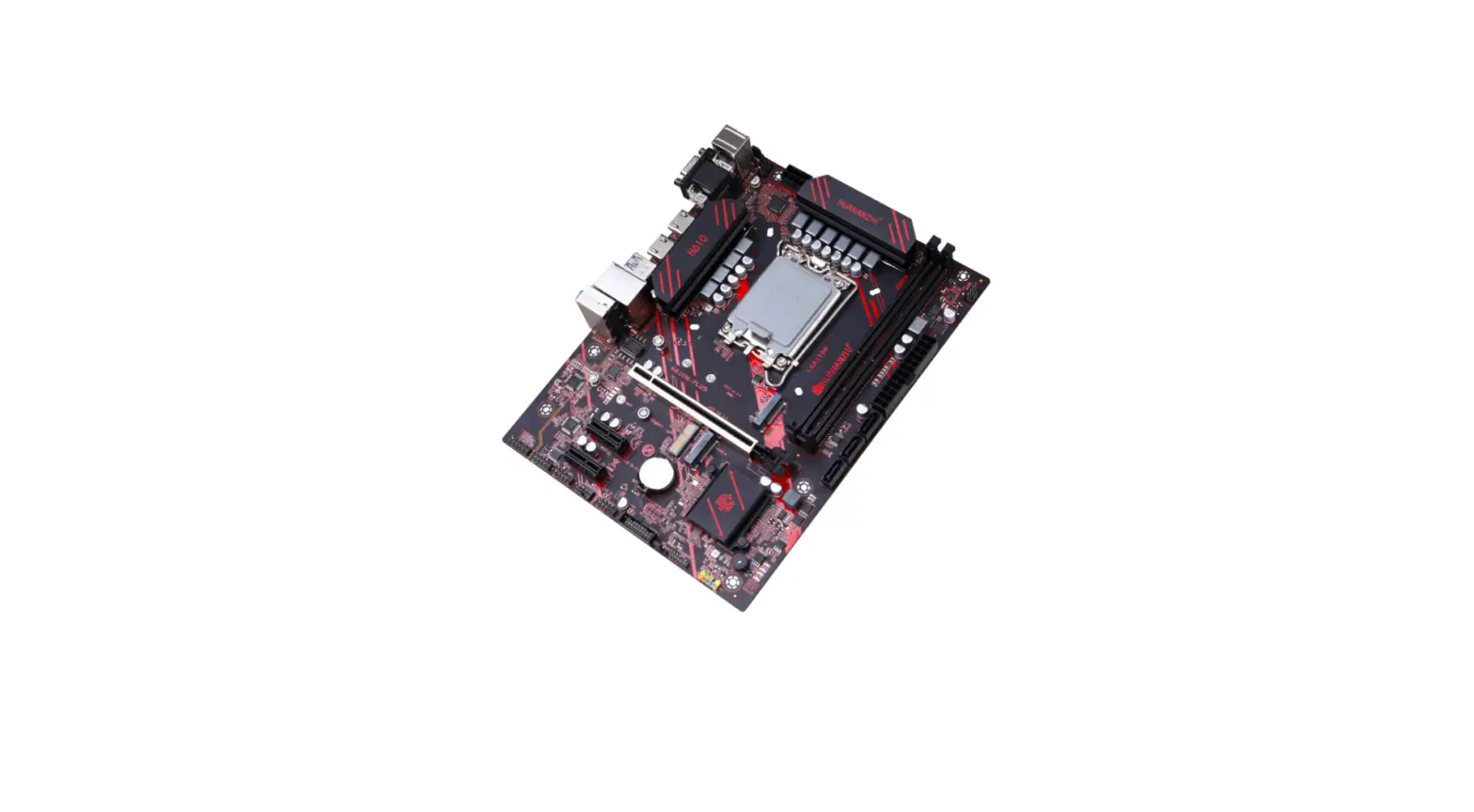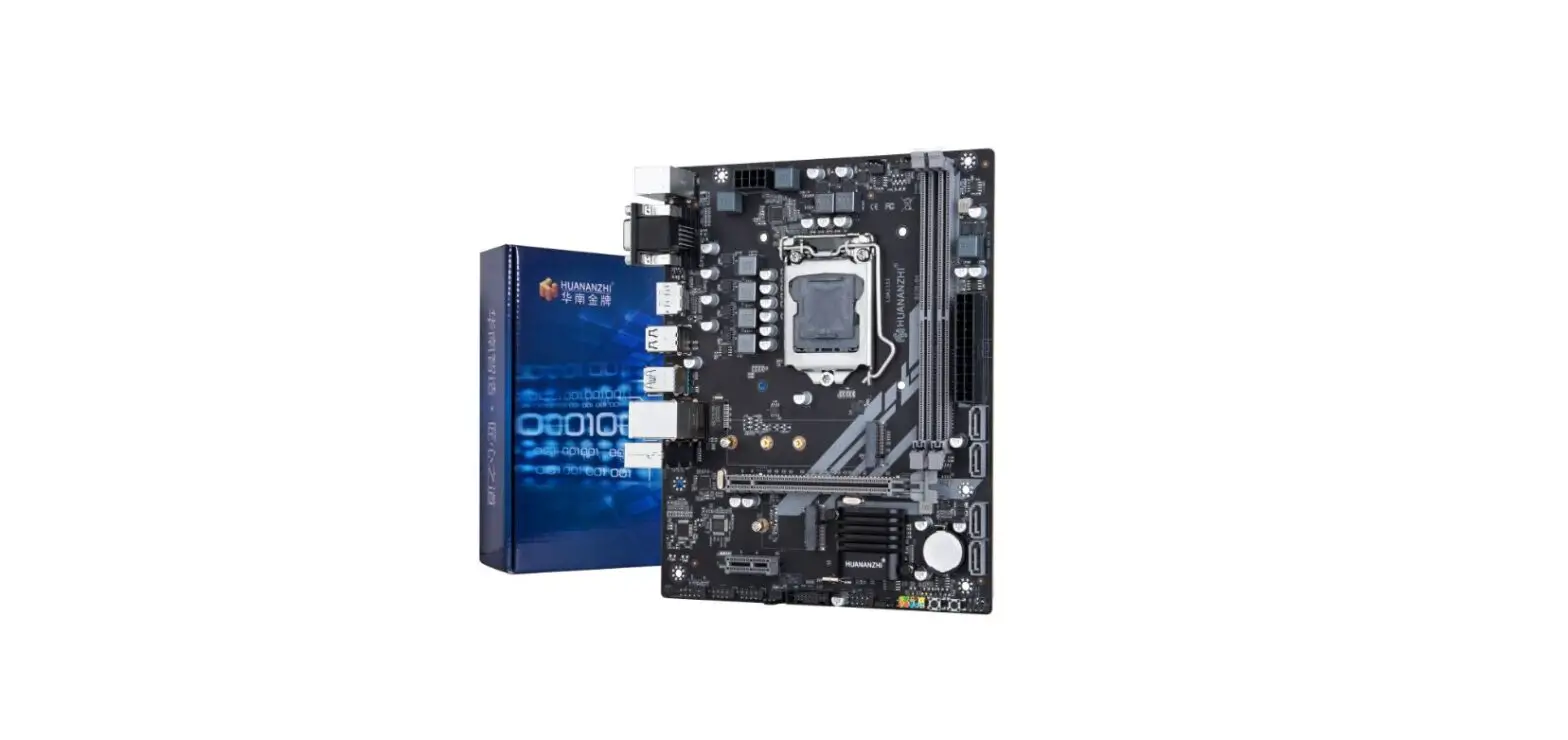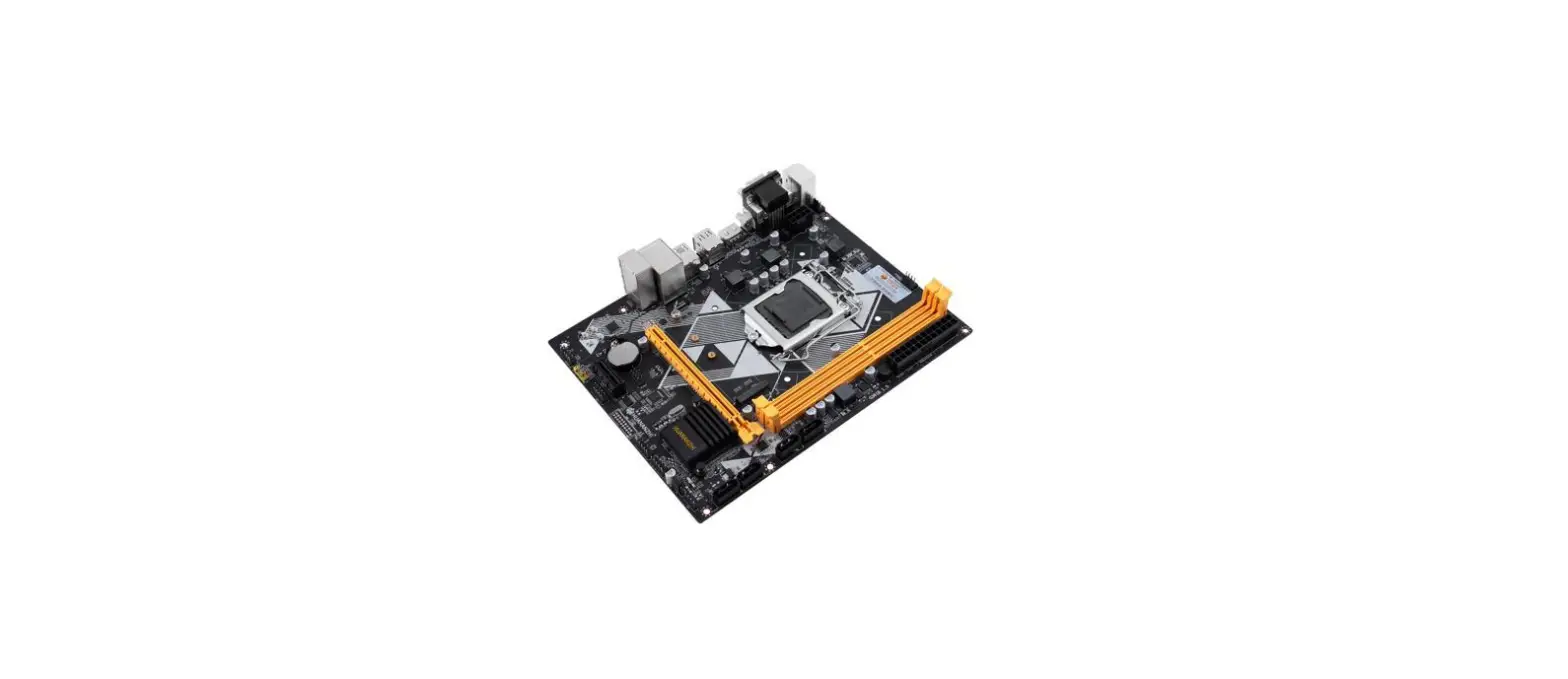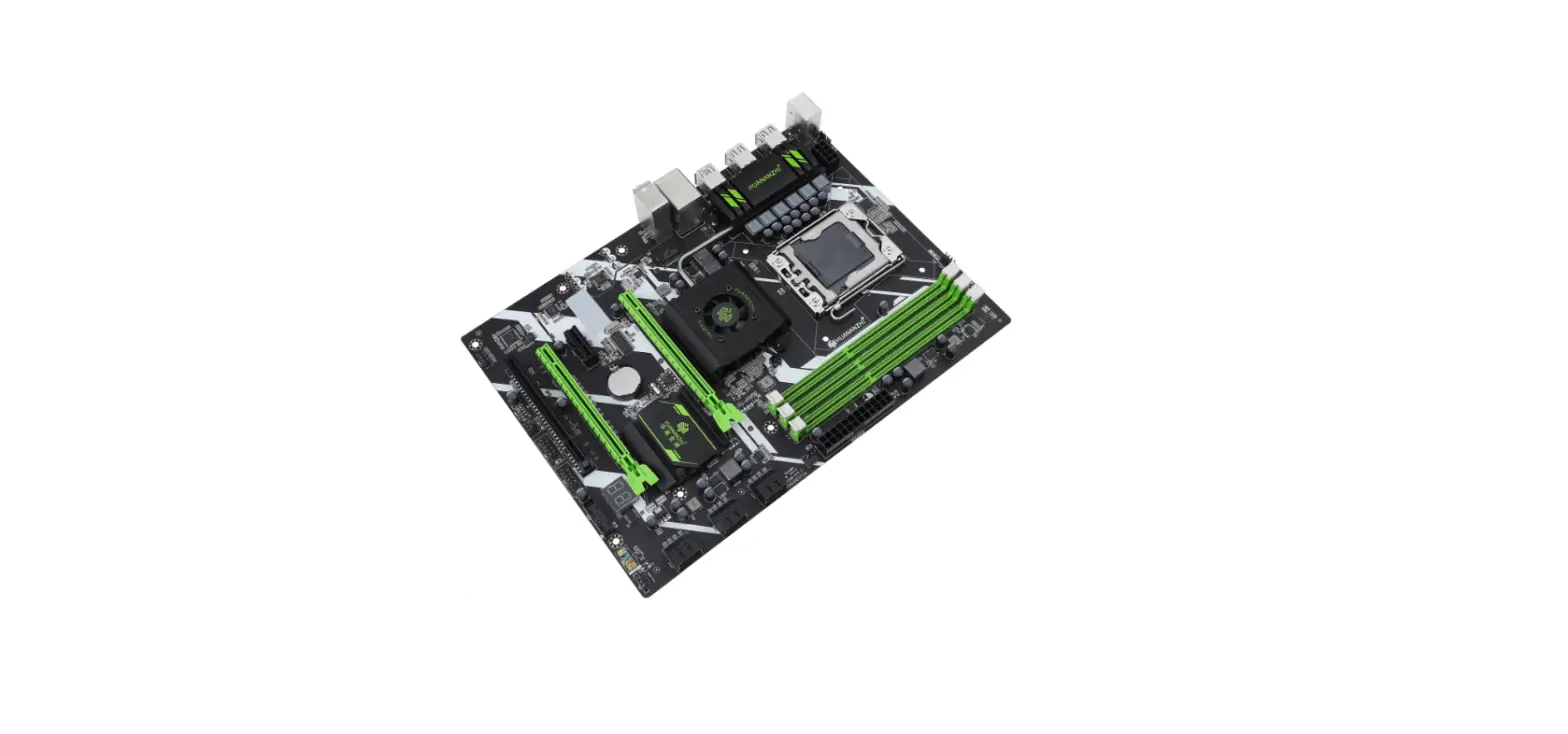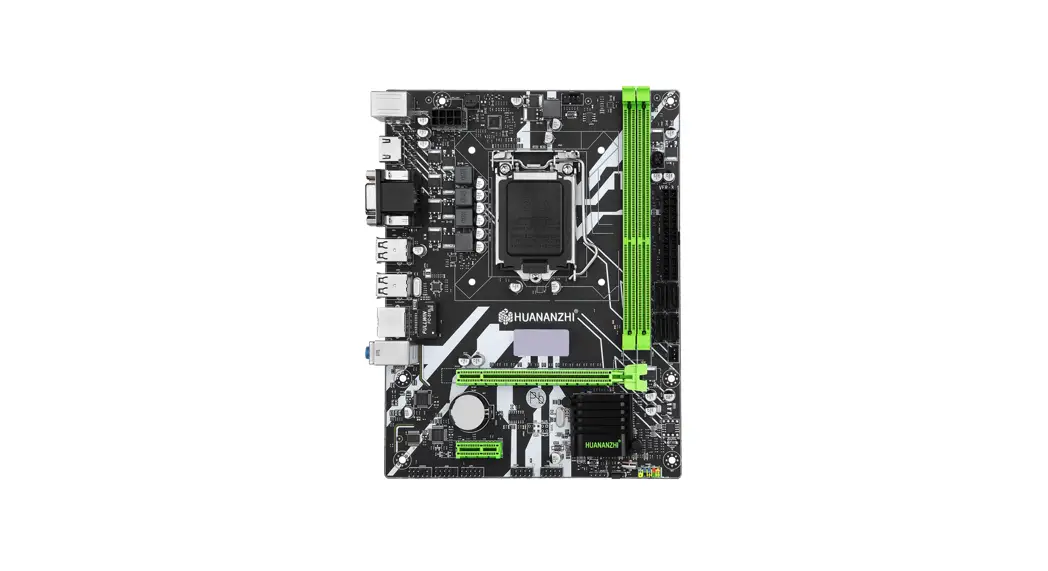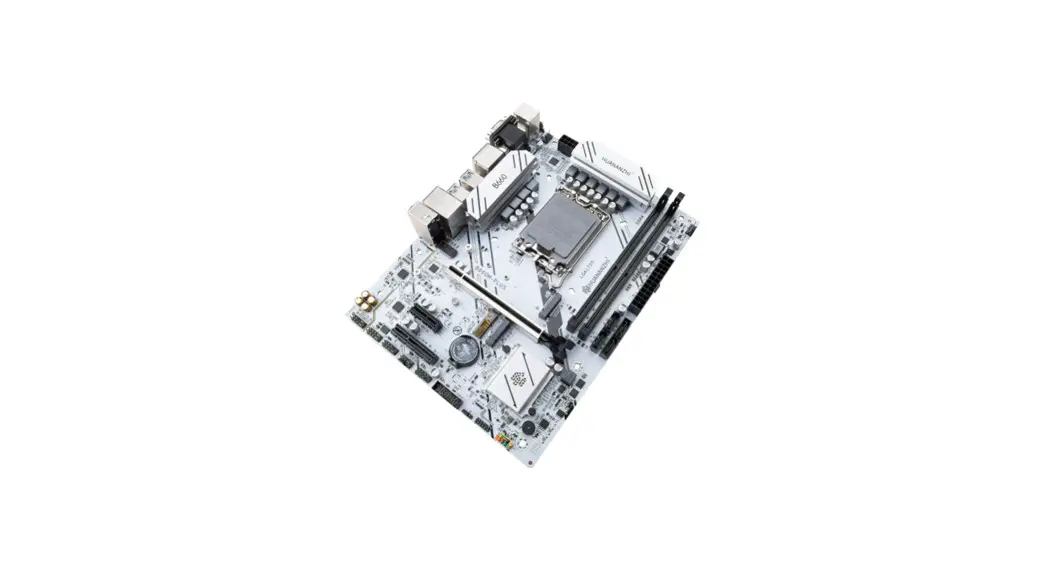
 B660M-PLUS DDR4 Motherboard
User Manual
B660M-PLUS
SAFETY PRECAUTIONS
- Products could probably be damaged due to electrostatic discharge(ESD). Please follow these steps below for a successful computer assembly.
- Make sure all parts are firmly connected; otherwise, it might lead to the failure of recognizing components or starting the computer.
- Place the power cord where it will not be stepped on. Do not place anything on the power cord.
- Hold the border of motherboard when taking it out. Do not touch the sensitive parts of motherboard.
- Please put the motherboard in an anti-static container or on anti-static pad if not needed.
- Before turning on the computer, make sure all parts inside the case are firmly connected without any loose screws or metal components.
- Do not start the computer before installation finished, otherwise it might result in permanent damage to the computer parts or even injury to the user.
- If you need any assistance in the process of installation,please contact our after-sales customer service or reach us on HUANANZHI official E-mail:[email protected] for professional technical support.
- Prior to installation or disassembly, please switch off the power and pull the power cable from the socket.
- Keep the motherboard away from moisture.
- Keep the user manual for future reference.
- Before plugging the power supply, please make sure the socket provides the corresponding voltage.
- In any of the following situations, please keep the motherboard and power cable in a safe place. Do not put anything onto the power cable.
- In the event of any of the following conditions, have the board checked by a service technician:
Liquid penetrated into the computer.
Motherboard is exposed to moisture.
Motherboard does not work even if you follow the instructions on user manual.
Motherboard fell off to the ground and got damaged.
Motherboard has clear signs of damage.
PACKING
Please confirm that the motherboard is properly packaged upon purchase of the product. If there is any damage to packaging or lack of accessories, contact us as soon as possible.
1.1*HUANANZHI B660M-PLUS Motherboard
2.1*SATA data cable
3.1*I/O shield back plat
4.1*Warranty card
BRIEF INTRODUCTION
Features
CPU : Intel ID 12thlr Generation LGA 1700 processor i3/i5/i7 Intel ® Core TM
Intel ® 12thlr Generation LGA1700 processor Intel ° Xeon TM
Intel ® 12thlr Generation LGA1700 processor Intel ® PentiumTM
RAM :2*DIMM RAM SLOT supports up to 64GB DDR4(Support for overclocking) 3600/3200/2666/2400/2133MHZ Non-ECC memory G1 Mode 2133-3200MHz/G2 Mode 2133-3600MHz Two-Channel Memory Architecture Actual memory data rate depends on CPU type and DRAM module
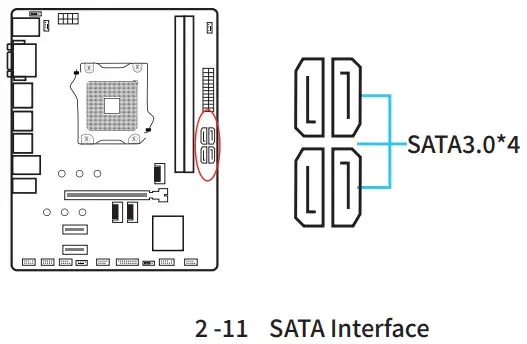
I/O effects: 4 x SATA3.0 (maximum transfer speed up to 6GB/s)
4 x USB2.0 interface
4 x USB3.2 ports
1 x PS/2 Mouse and Keyboard port
1 x RJ45 Network card interface
2 x HDMI-Compatible
1 x VGA+DP interface
Audio: Realtek Audio Transcoder
Realtek 5.1 Channel High Fidelity Audio
Audio output:Front Out/Front Speaker Out
Audio input:Microphone input, Audio input
Ethernet: 1 x Realtek RTL8125BG 2.5Gbps LAN
Expansion slot: 1 x PClex16 4.0/5.0
1 x PCIexl 3.0
1 x PCIex4 3.0
1 x M.2 NVME PCIe 3.0X4 (key M)2260/2280
1 x M.2 NGFF SATA3.0
1 x M.2 WIFI(Support NGFF/CNVI)
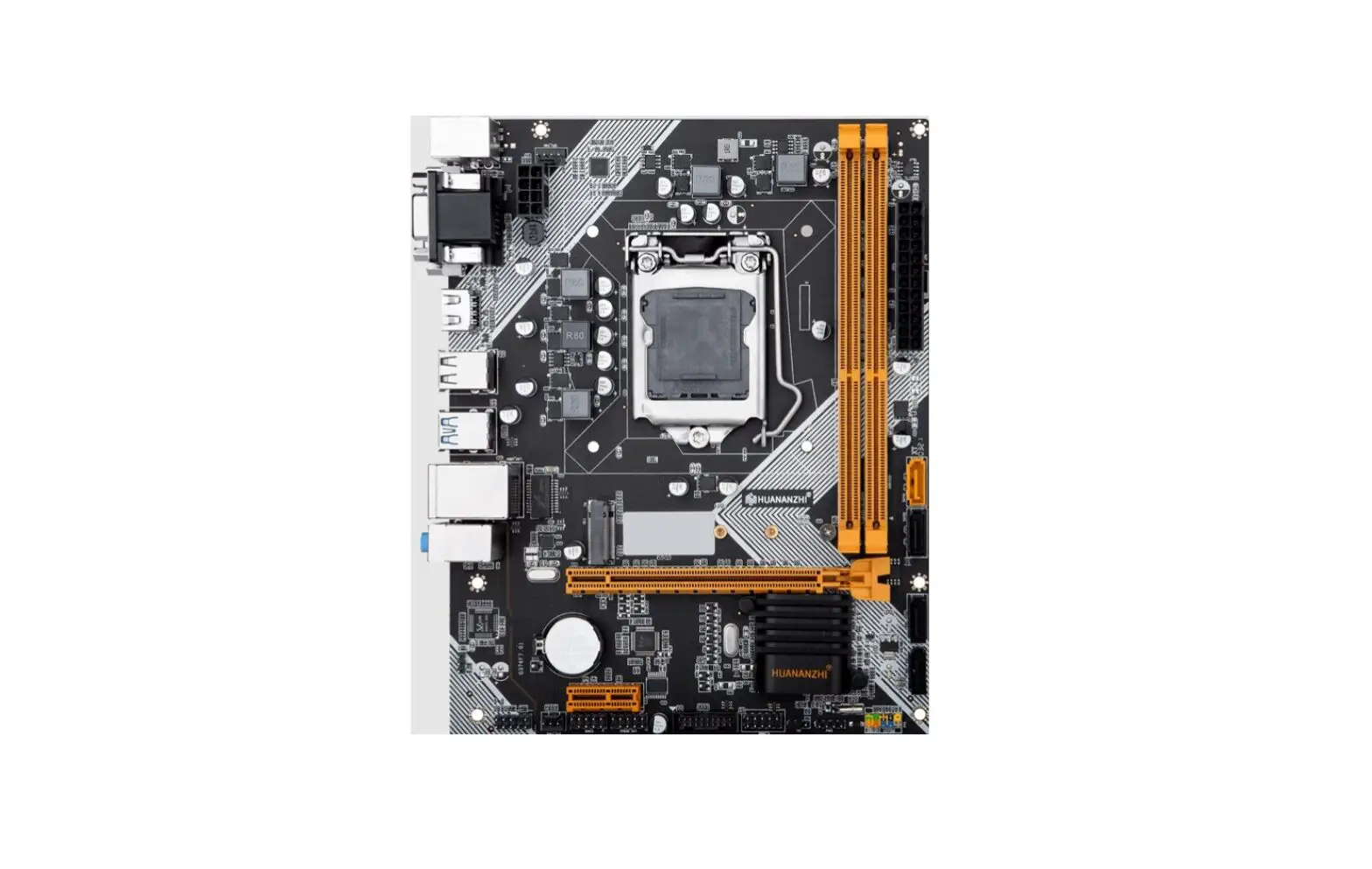
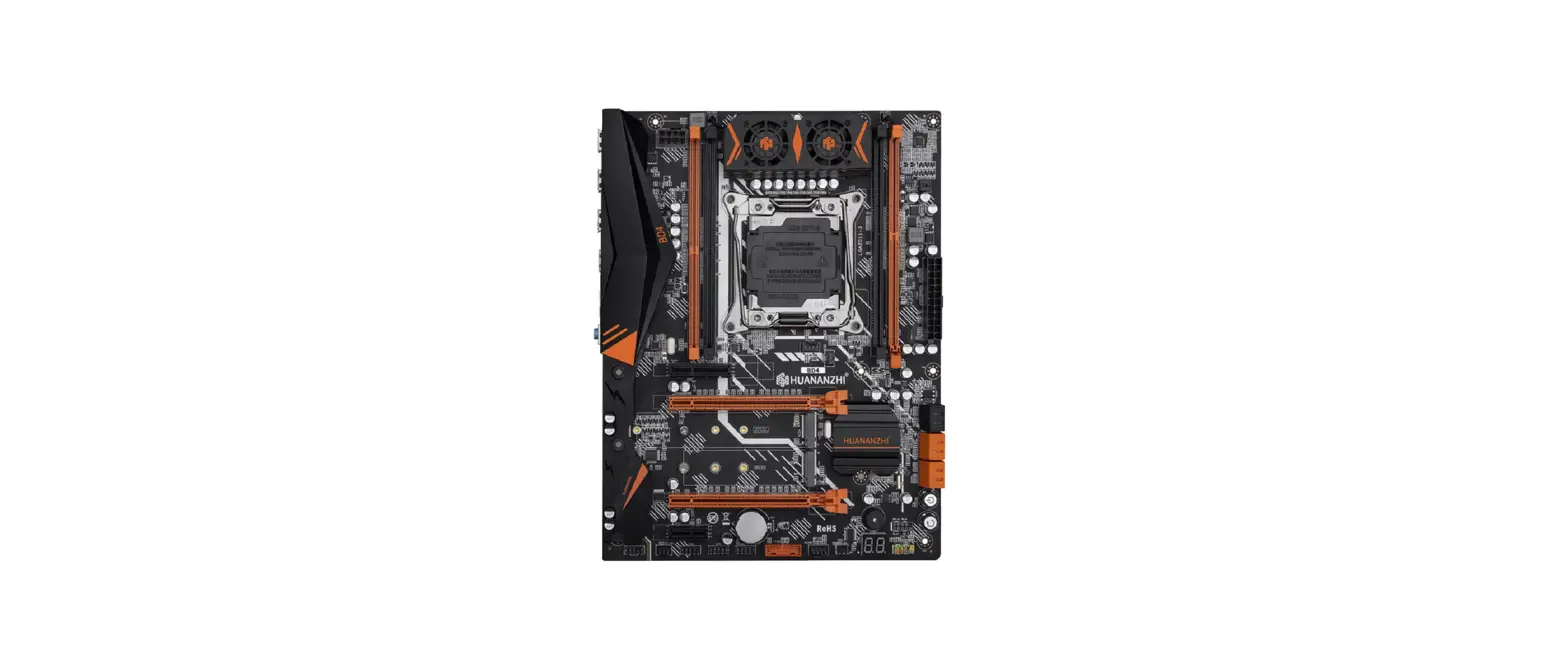
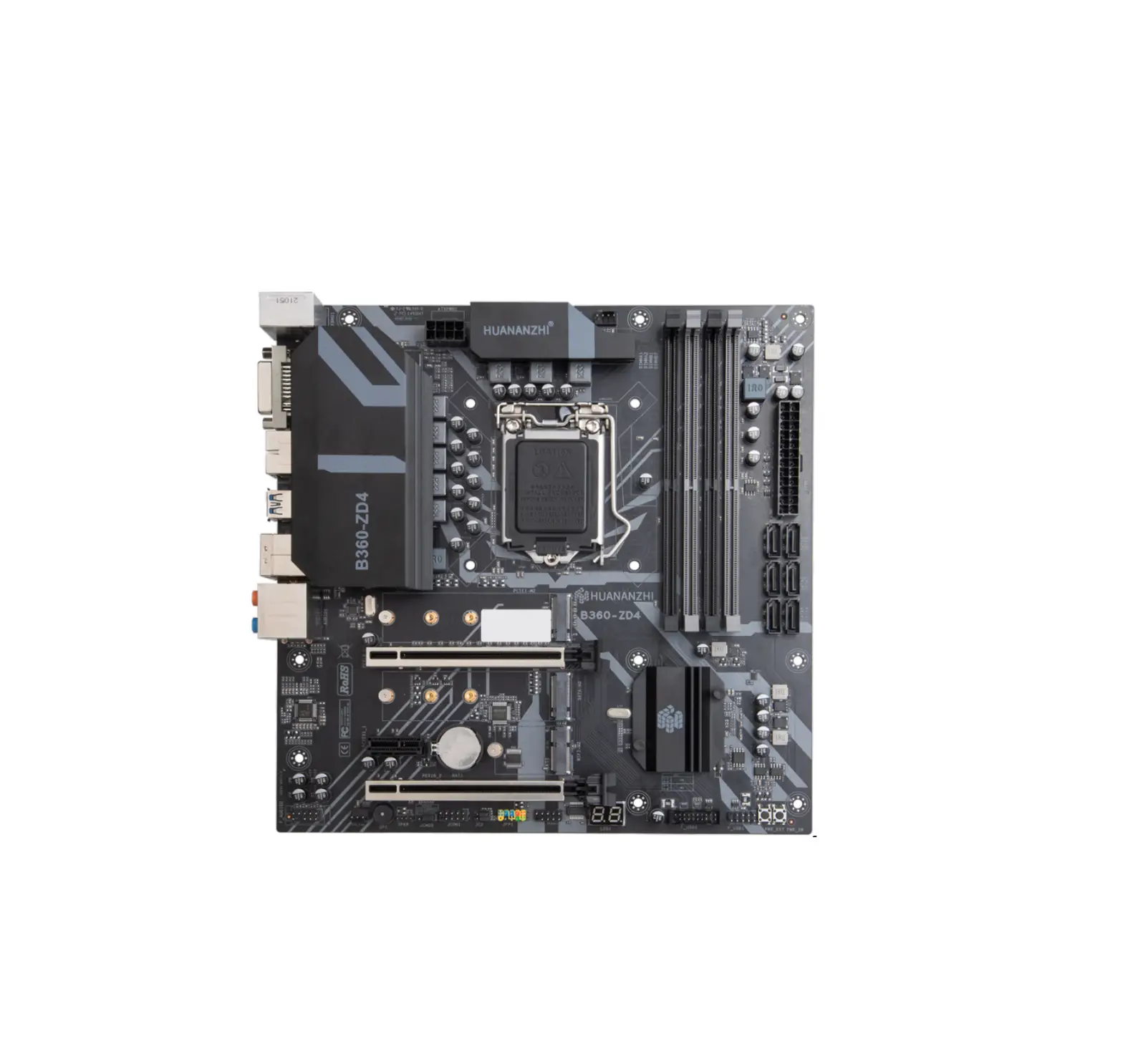
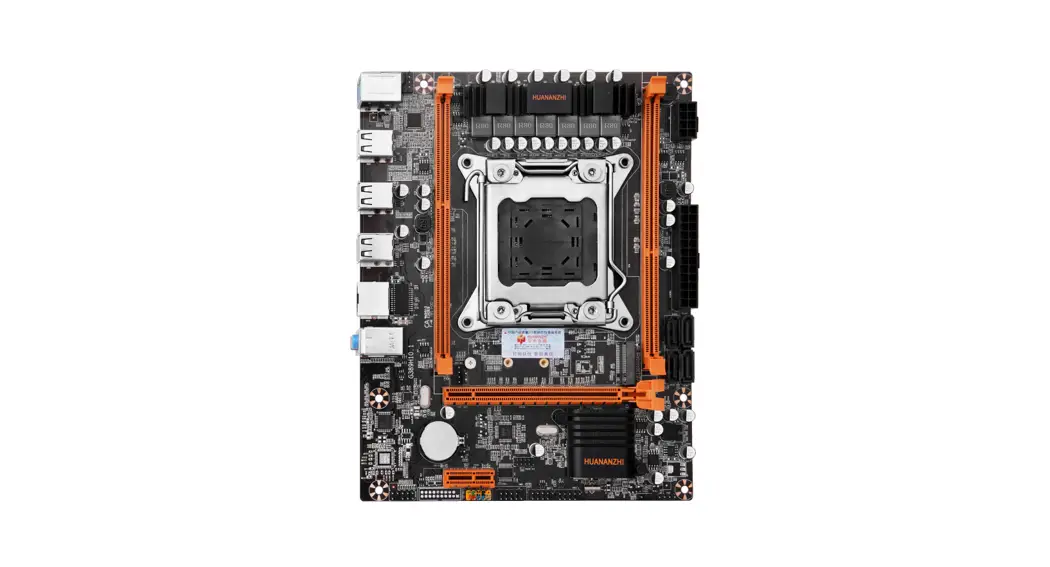
MOTHER BOARD IMAGE
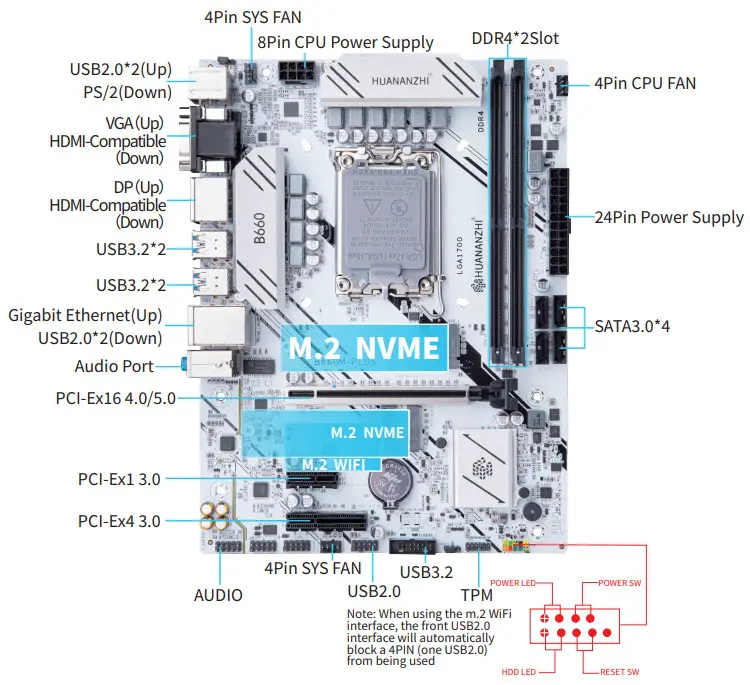
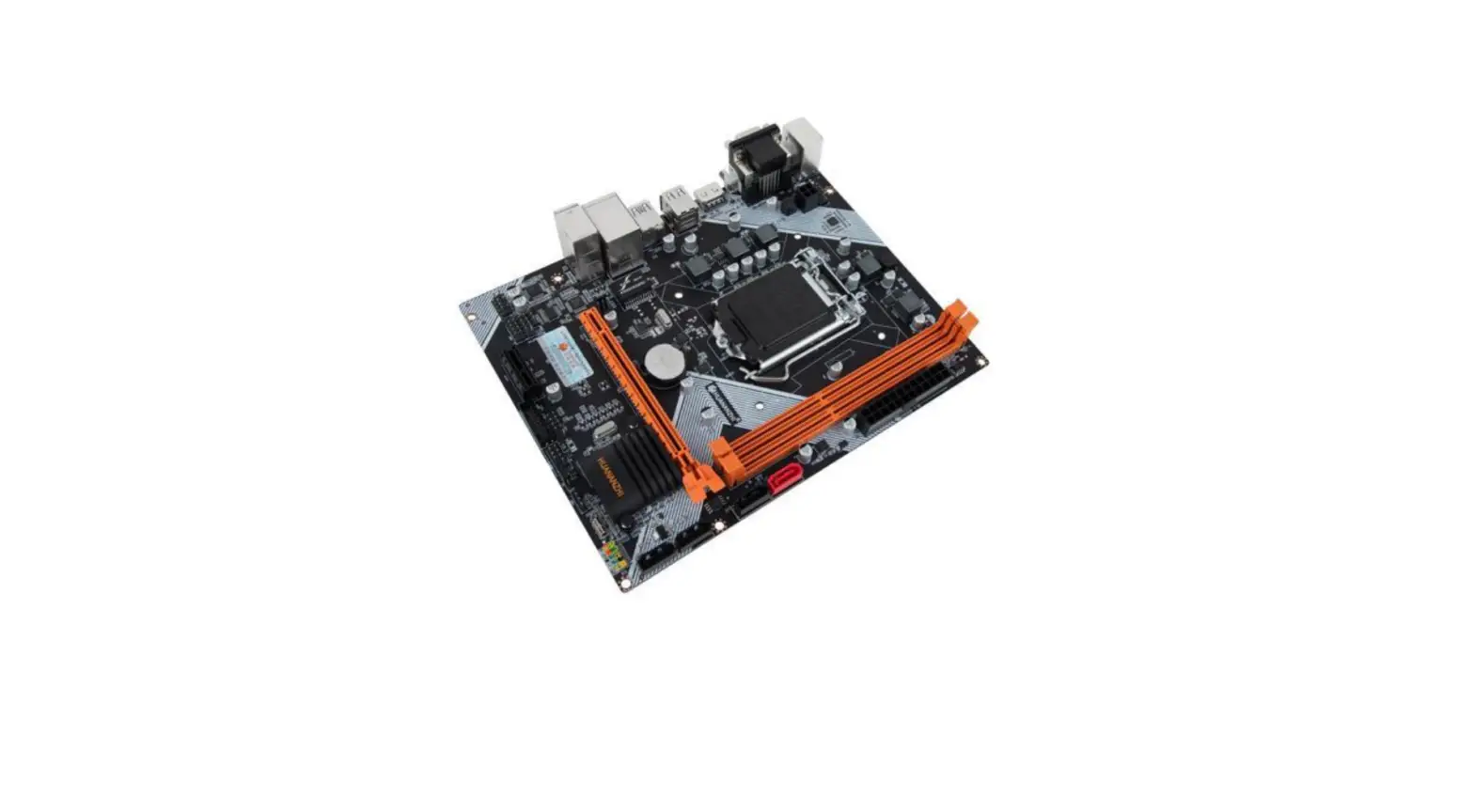
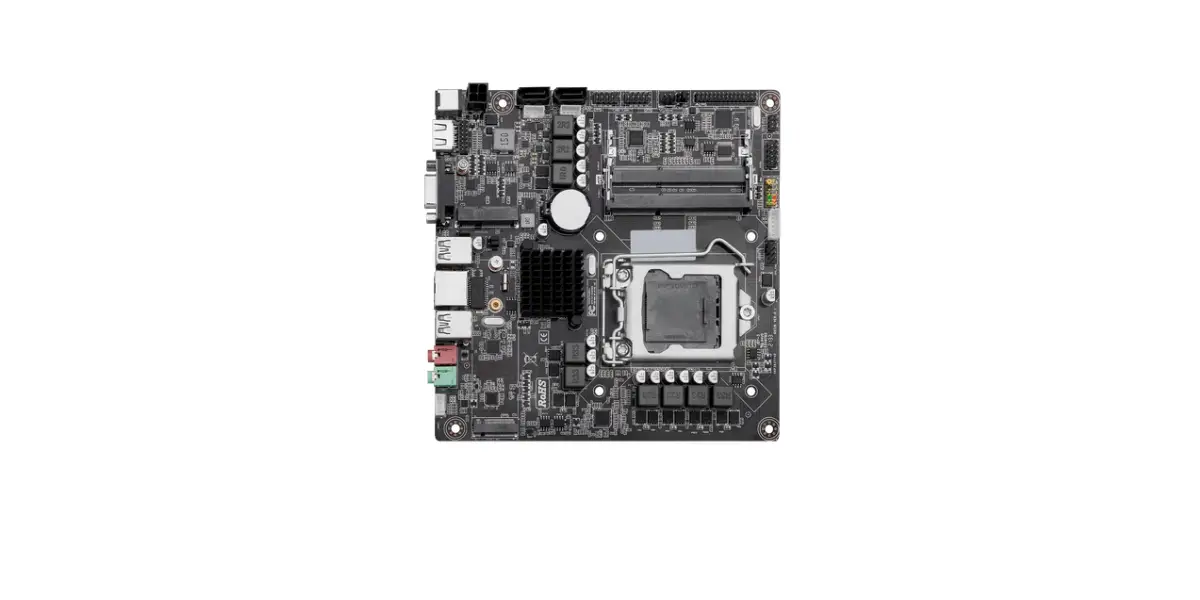
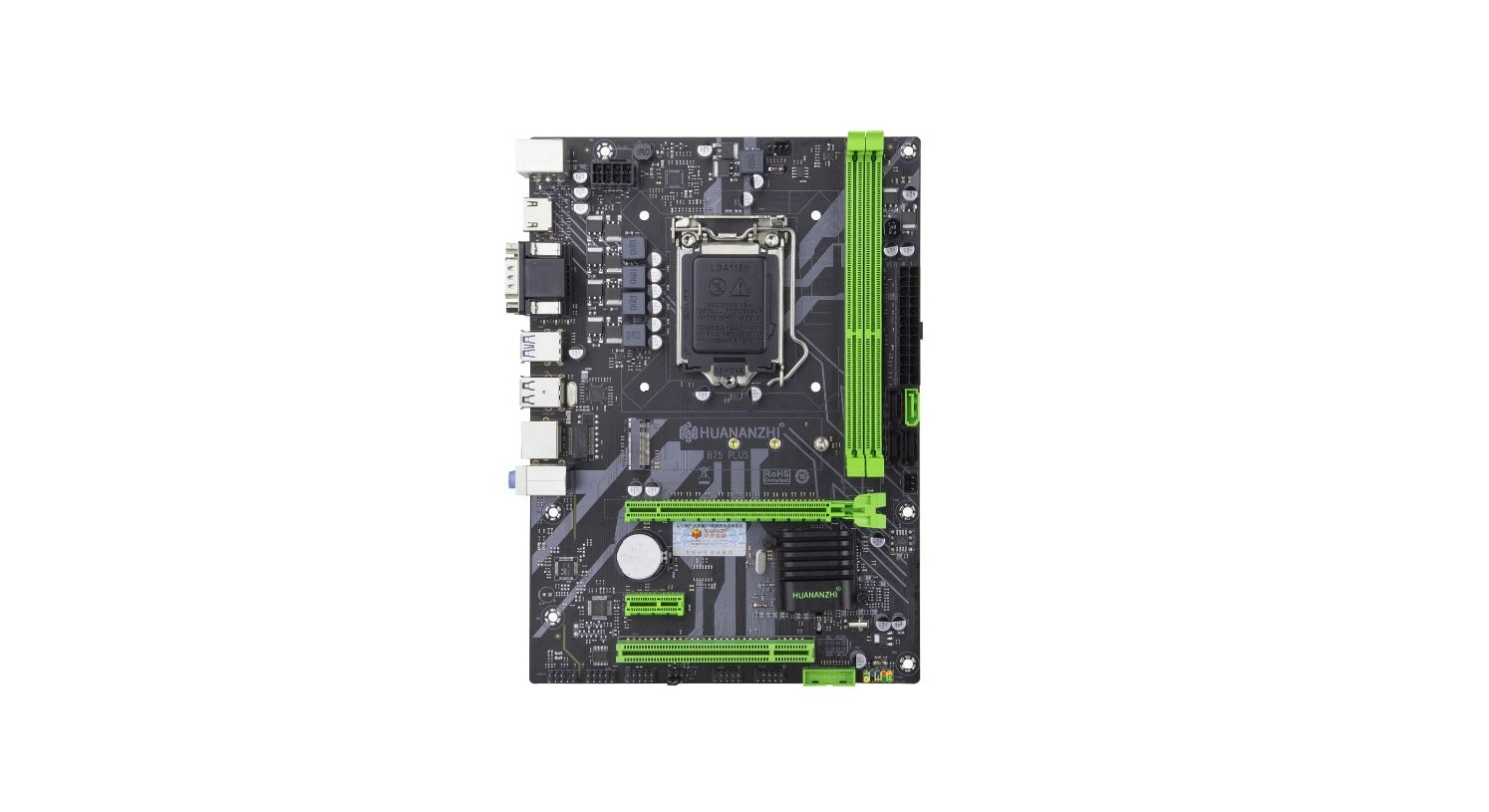
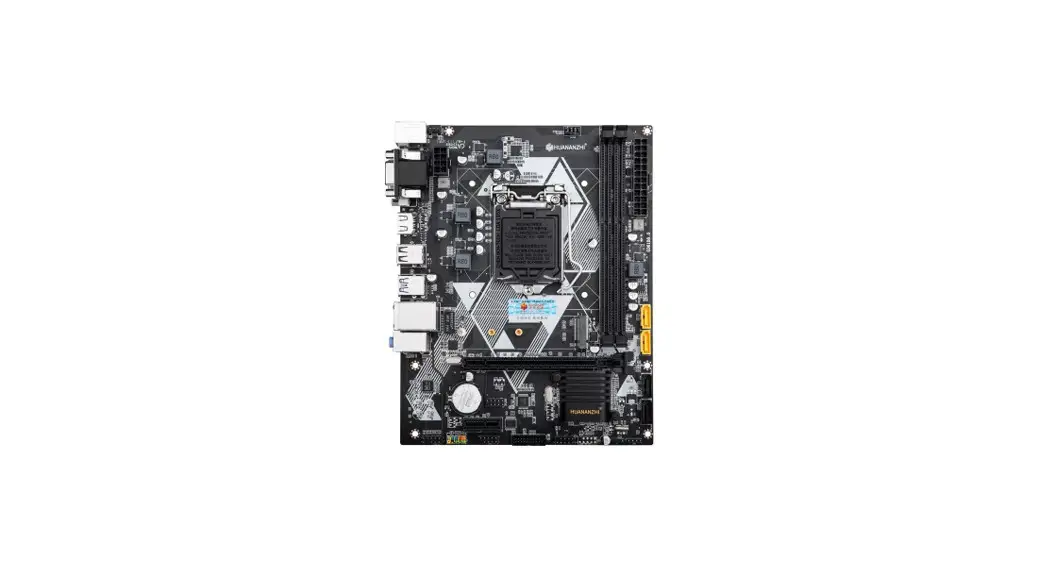
1-1 B660M-PLUS Motherboard Illustration
Rear I/O Panel
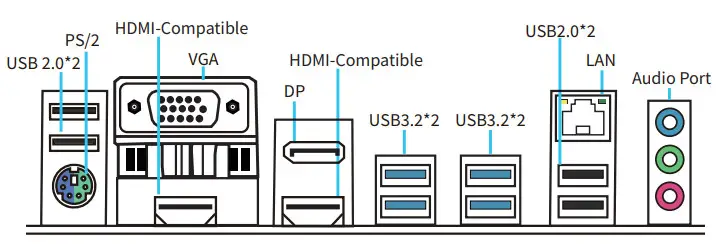 1-2 Overall Rear I/O Panel Display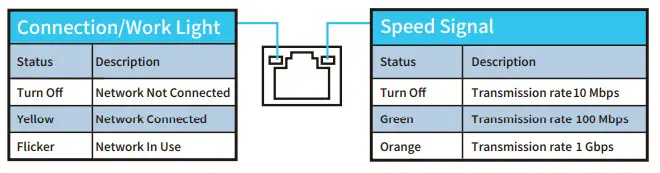
1-3 LAN Port Status Table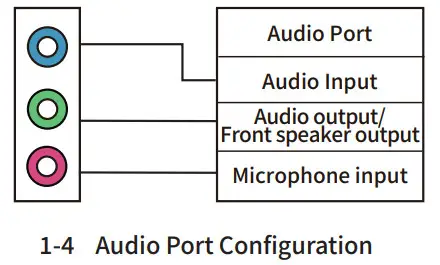
Installation And Settings
 NOTICE
please check the motherboard where all pins marked with number “1” or white bold line are position “1”.
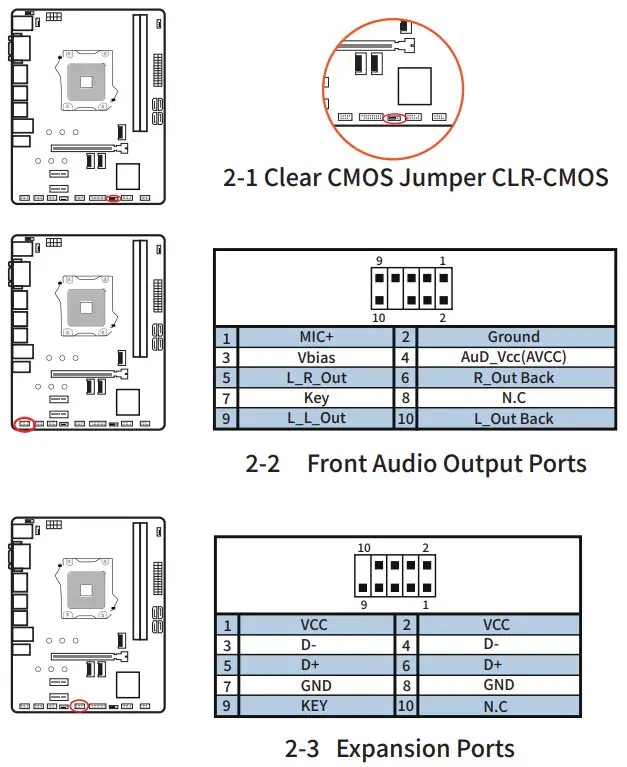 | 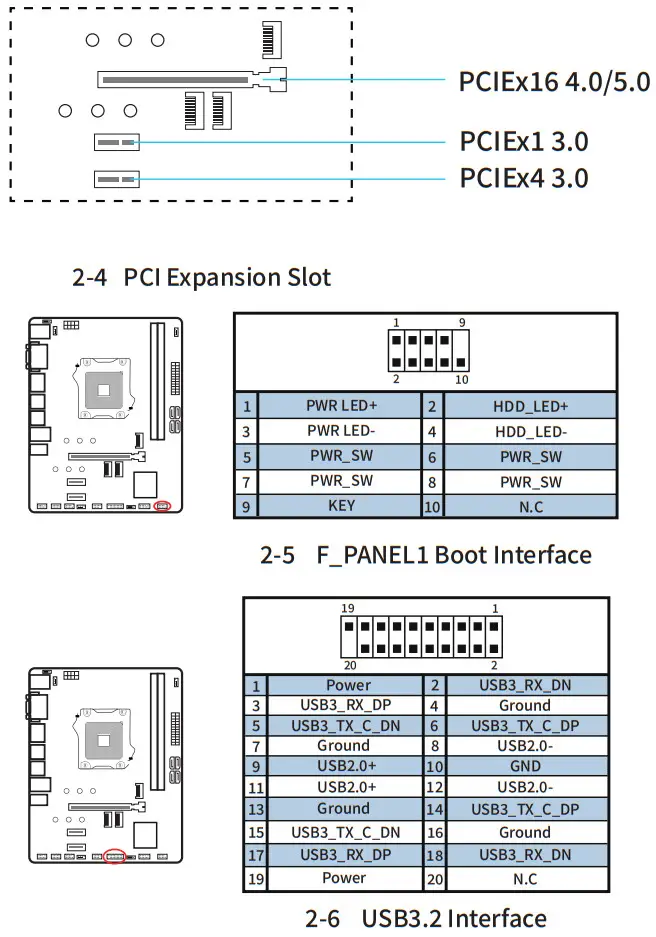 |
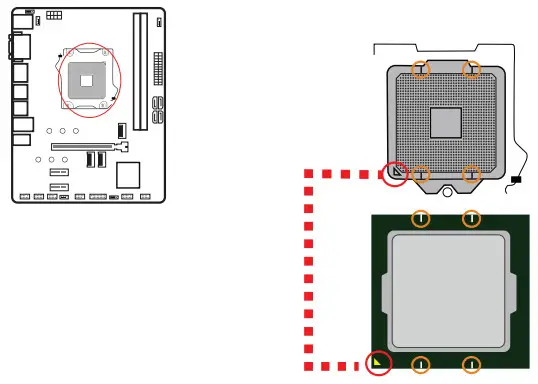 2-7 CPU Installation
To properly place the CPU in the motherboard,the Cpu base of the LGA 1700 motherboard has two salient points and a golden triangle indicator.Golden triangle indicates Pin1.
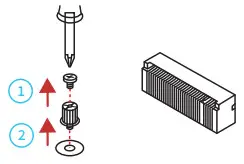
- Remove the screw from the screw base
- Remove the screw base

- Tighten the screw base screwed into the length M.2 module to the M.2 interface distance hole
- Insert your M.2 module into the M.2 interface at a 30 degree angle

- Place the screw on the trailing edge notch of your M.2 module and tighten to the screw base
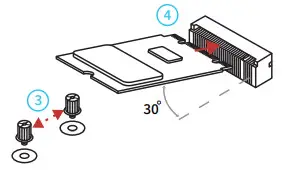
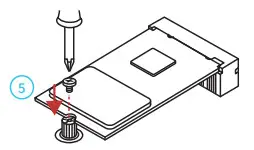
2-8 M.2 Interface Installation
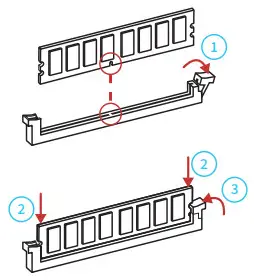 2-9 Memory Installation
- Pull the clips on both ends of the memory slot outward, and the memory strip corresponds to the protruding position of the slot to determine the direction of installation.
- Align the memory module into the slot and press
- Let the snaps on both ends of the slot automatically bounce
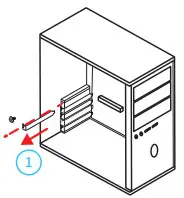
- Use a screwdriver to remove the bezel and screws on the main unit

- Need to pick up the card slot of the card slot when installing the graphics card
- Insert the graphics card into the card slot of the graphics card

- After the installation is in place, the chuck will automatically return to its position.
- Secure the graphics card to the chassis with screws
- Install the power cord
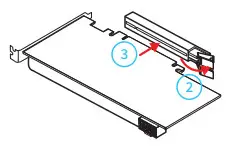
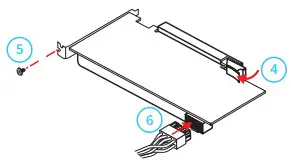
2-10 Graphics Card Installation
Drivers installation
- Drivers listing:
Driver Directory Driver Description Operating System B660M-PLUS Chipset Driver Intel chip information installation win10/win11 B660M-PLUS Sound Card Driver Realtek series sound card driver installation win10/win11 B660M-PLUS LAN Driver Realtek network card driver installation win10/win11 - Intel Chip Information Installation
Run “Control Panel – System – Hardware – Device Manager” Click the right mouse button to change the driver’s hardware device and proceed with the installation below:
Option: Property – Update driver – Not connect to Internet – Manually installation
Find the corresponding directory
Select “Next step” - Audio driver installation
Before this installation, please check the model of the audio chip on the motherboard first(you may refer to this manual), Select the proper driver accordingly for installation.
3.1 Audio driver installation (take HD Audio series for example)
Run “driver installer”: B660M-PLUS Audio/Realtek/windows 10-11/Setup.exe
Click on “next”to continue,and then”finished”
The system will automatically restart itself to finish the installation
3.2 Uninstallation of audio driver(take HD Audio series for example)
setting into Windows desktop, choose “setting”/ “control”,and then “add/remove programs”. Later, choose “Realtek High Definition Audio Driver” in the menu and click on ” add/remove”so that the driver will be automatically removed. - Driver installation of external video card
Run “driver installer”, take Setup.exe, Click on “next”- “yes”
-“next”
-“next”and”finished”h
The system will automatically search for devices to complete the installation - Driver installation of network
Run “driver installer”: B660M-PLUS LAN/Install_Win10_1001_05292015.exe
click on “next”
“installation”-“finished”and restart the computer and restart the computer,The system will automatically search for devices to complete the installation.
BIOS Settings
In order to enable the computer to work well or execute specific functions, CMOS SETUP normally stores all kinds of data in CMOS SRAM of the motherboard. When the computer is shut down, motherboard’s battery will supply power to CMOS SRAM. When the computer is turned on and starts POST(Power On Self Test), press “Delete/Del” key to enter into AMI BIOS CMOS SETUP main page. Motherboard warm boot key is “F7”.
Menu: please pay attention to every option in the settings menu.
When there is a triangle shaped symbol on the left side of menu, it means that you choose this sub-menu,so a pop-up sub-menu will be available.
- Main Menu Function
Main Advanced Chipset Boot Security Save Exit
- Main
- System Overview
Date/Time settings, HDD specs/Monitor type settings. - Advanced
Advanced Settings
BIOS special function settings, such as virus alert, booting disk priority etc. - Chipset
Advanced Chipset Settings - Overclocking
Memory XMP Profile - Boot
Boot Settings - Security
Security Settings - Save
Save Setting - Exit
Exit Options
Exit settings include loading of optimized defaults value/ loading of fail-safe defaults / discarding changes/ exiting without saving.Exit settings include loading of optimized defaults value/ loading of fail-safe defaults / discarding chang-
es/ exiting without saving.
SZ HUANAN SANXIAN TECHNOLOGY CO.,LTD.
WWW.HUANANZHI.COM
 华南金牌官网