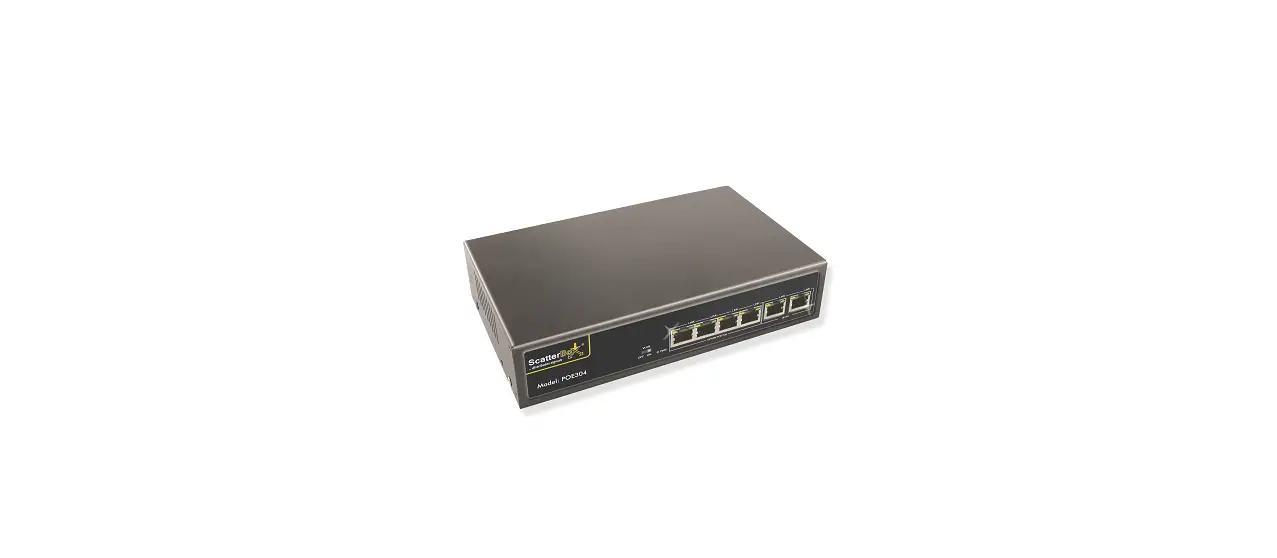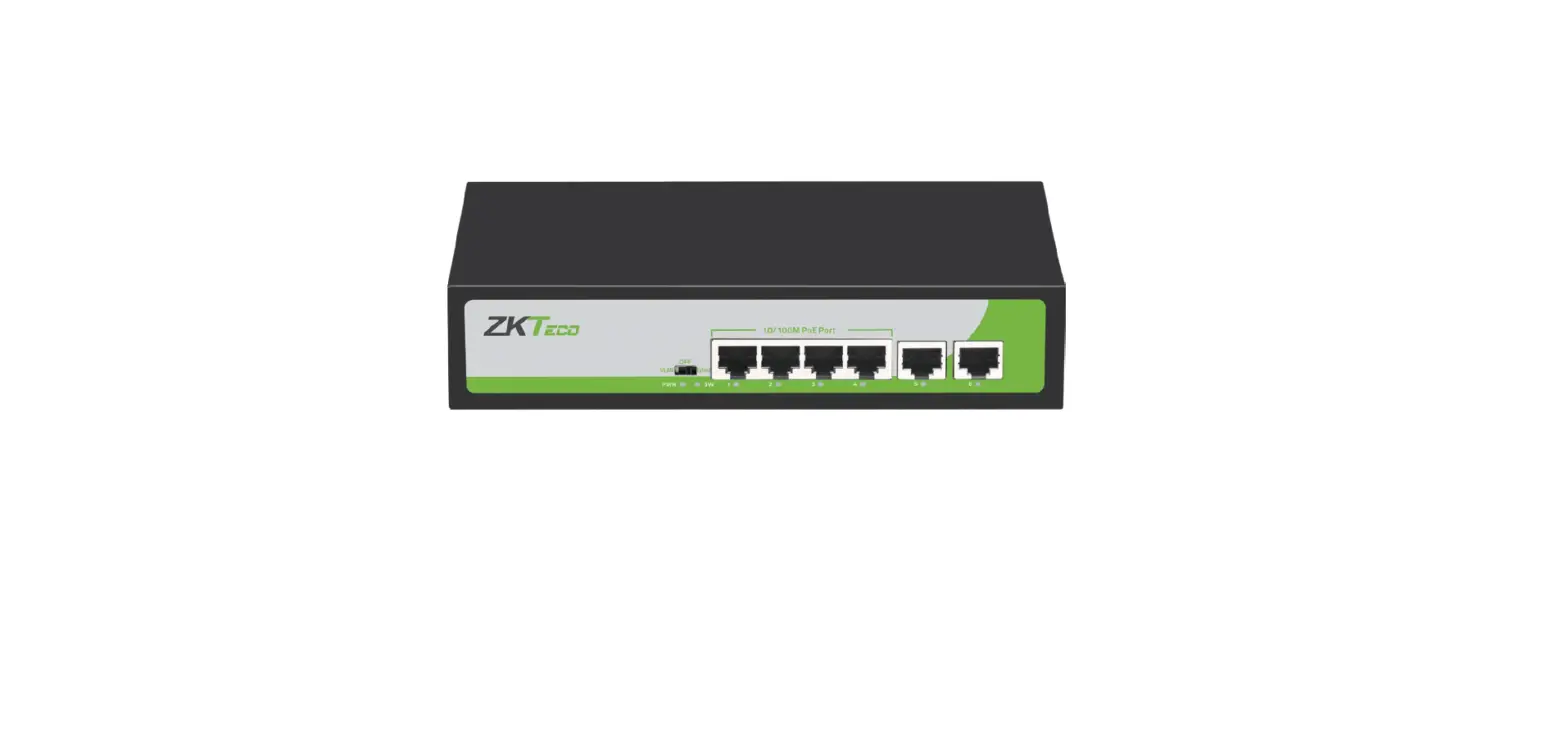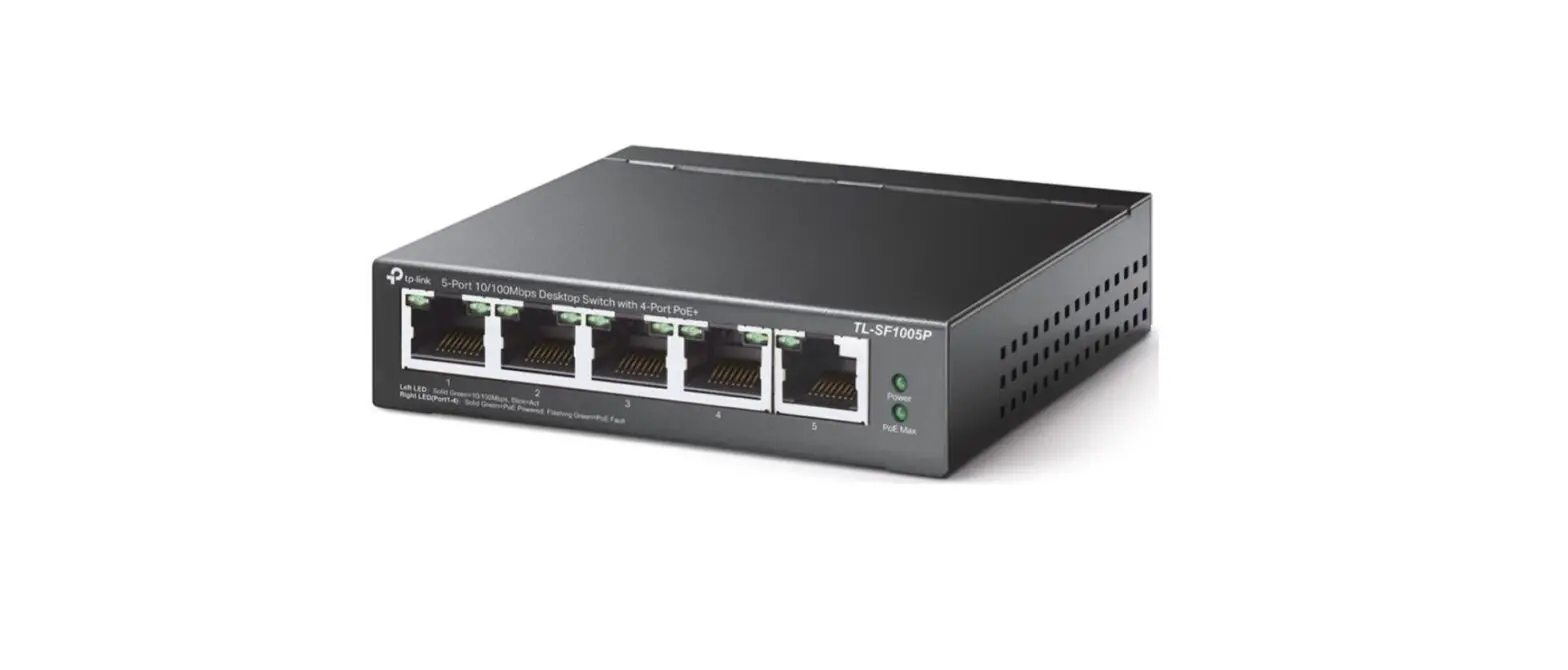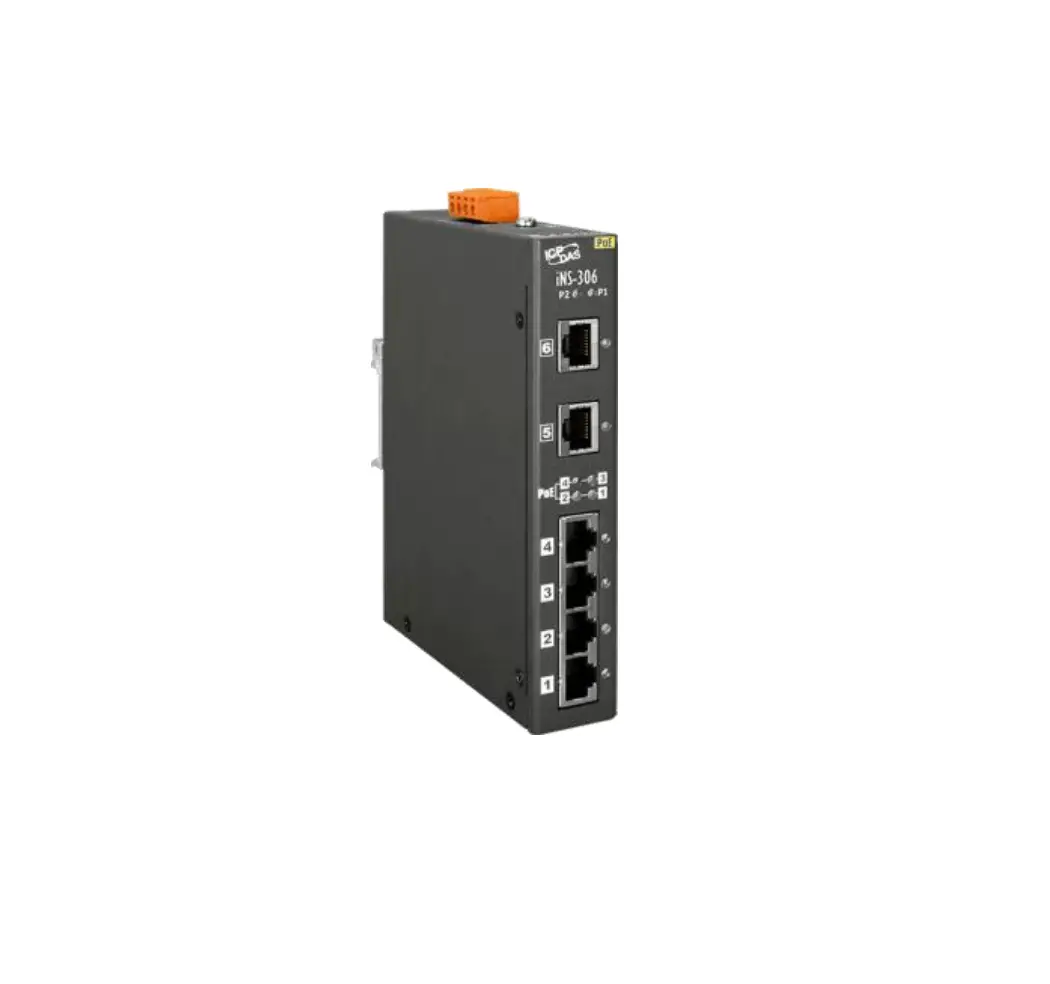
ICP DAS iNS-306 6-Port 10-100 Mbps PoE(PSE) IoT Switch
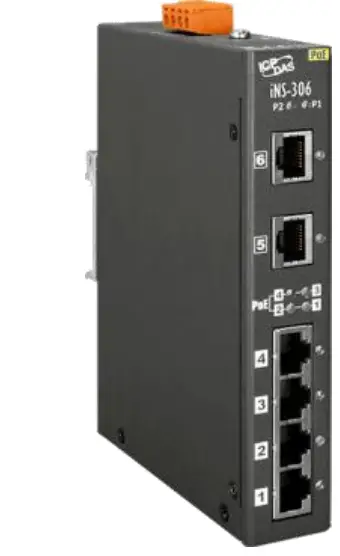
Packing List
In addition to this guide, the package includes the following items:
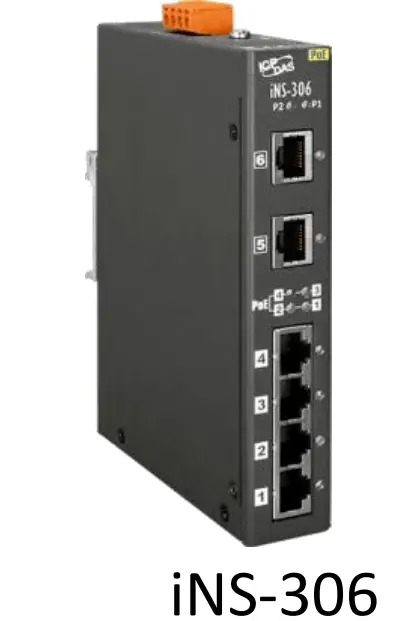
Technical Support
[email protected]
www.icpdas.com
Resources
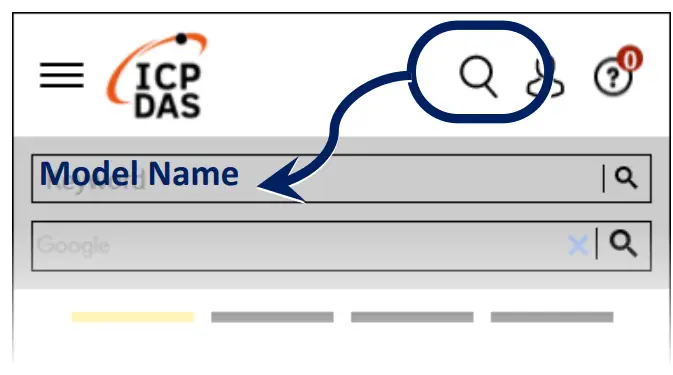
How to search for drivers, manuals and spec information on ICP DAS website.
- For Mobile Web

- For Desktop Web


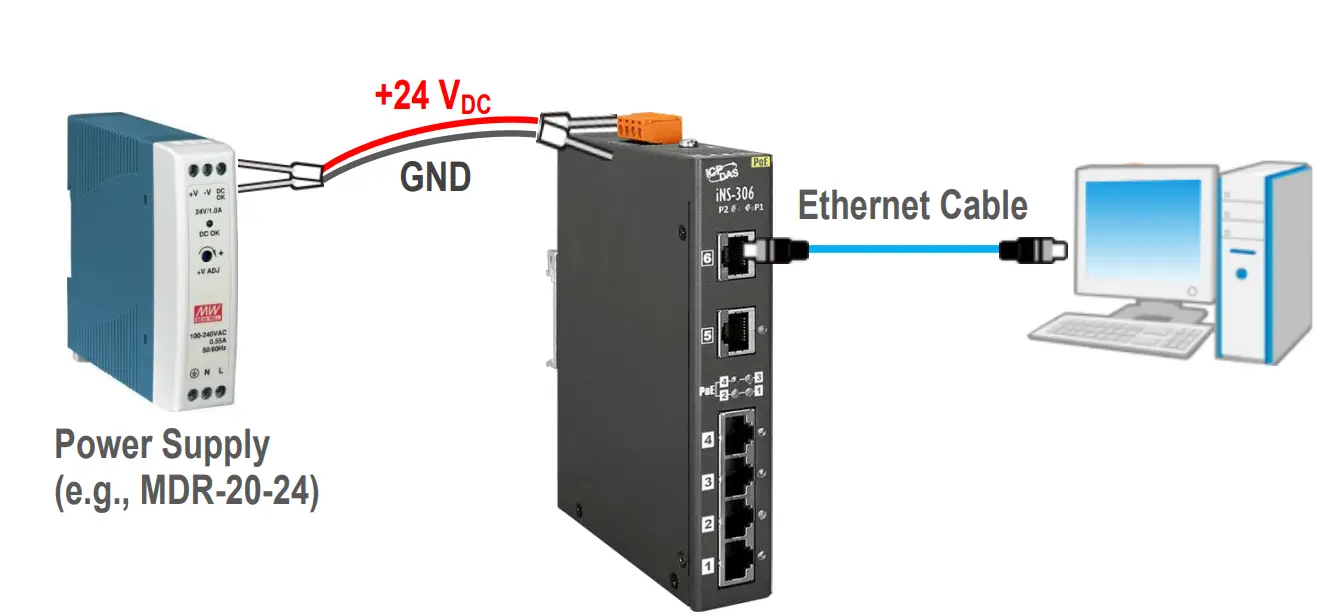
Connecting the Power and Hos Host PC
- Make sure your PC has workable network settings. Disable or well configure your Windows firewall and Anti-Virus firewall first, else the Search Server in section 3 may not work. (Please contact with your system Administrator)
- Connect the iNS-306 to your PC or to the same sub network of PC.
- Supply power (+12 ~ +57 VDC) to the iNS-306.

Installing Software on Your PC
Installed Search Utility, which can be obtained from the web site:
https://www.icpdas.com/en/product/guide+Software+Utility_Driver+eSearch__Utility
Configuring Network Settings
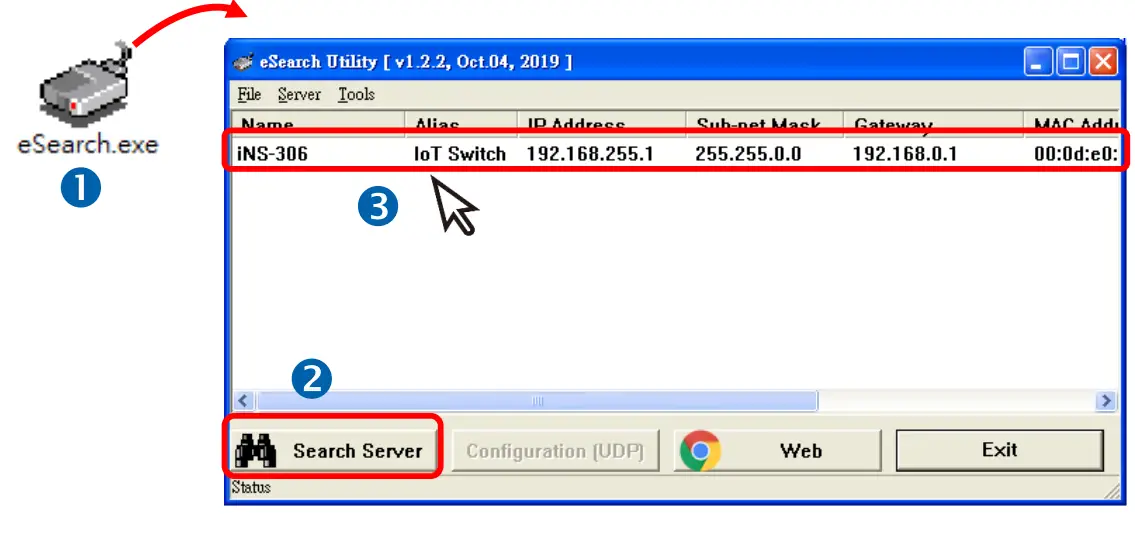
- Double-click the eSearch Utility shortcut on the desktop.
- Click Search Server to search your iNS-306.
- Double-click the name of iNS-306 to open the Configure Server (UDP) dialog box.

iNS-306 factory default network settingsIP Address Subnet Mask Gateway 192.168.255.1 255.255.0.0 192.168.0.1 - Contact your network administrator to obtain a correct network configuration (such as IP/Mask/Gateway). Enter the new network settings and click OK.
 Note: The iNS-306 will use the new settings 2 seconds later
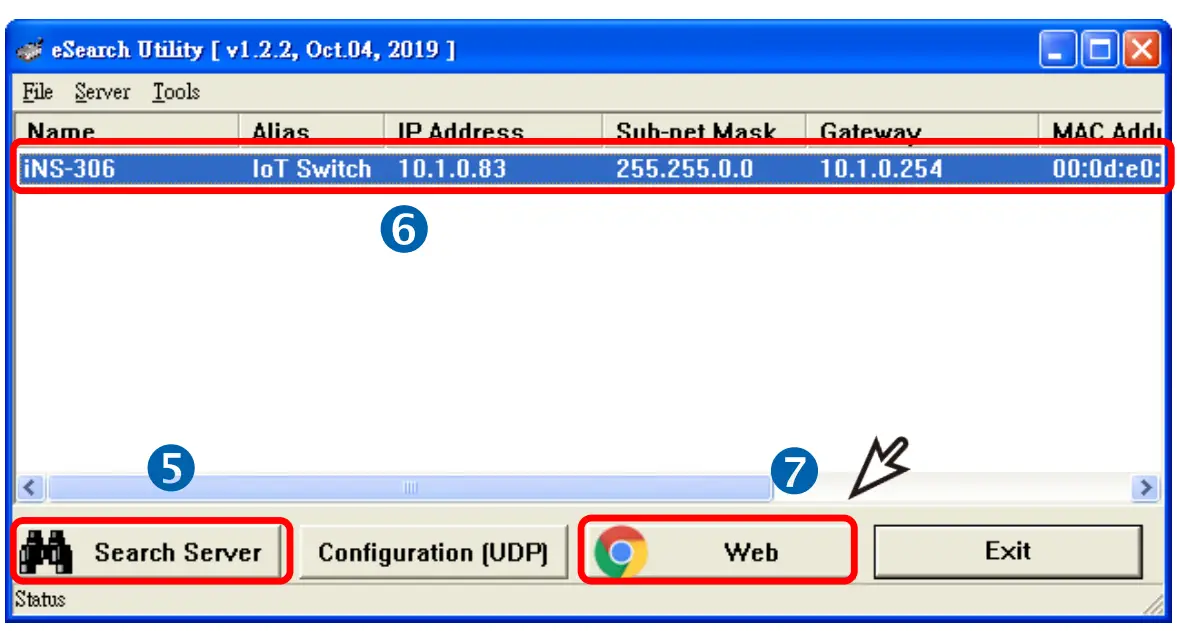
- Wait 2 seconds and click Search Server again to ensure the iNS-306 is working well with new configuration.
- Click the name of iNS-306 to select it.
- Click the Web button to open the iNS-306 web interface.

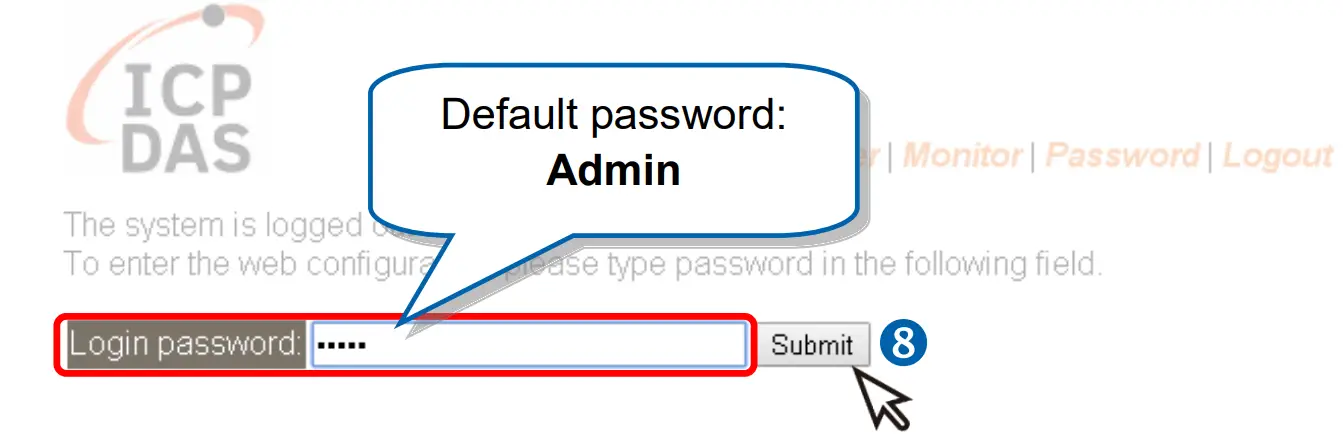
- Enter password in the Login password input field and click Submit to log in to the iNS-306.

 Note: The iNS-306 will use the new settings 2 seconds later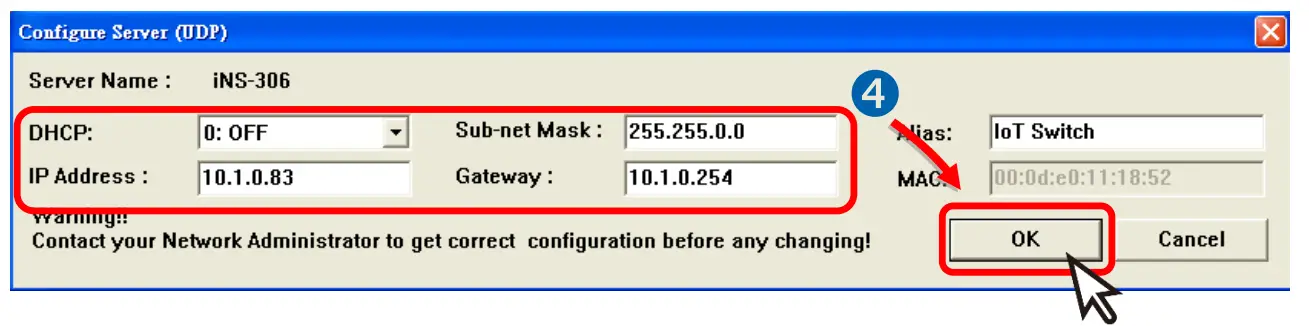

 ICP DAS