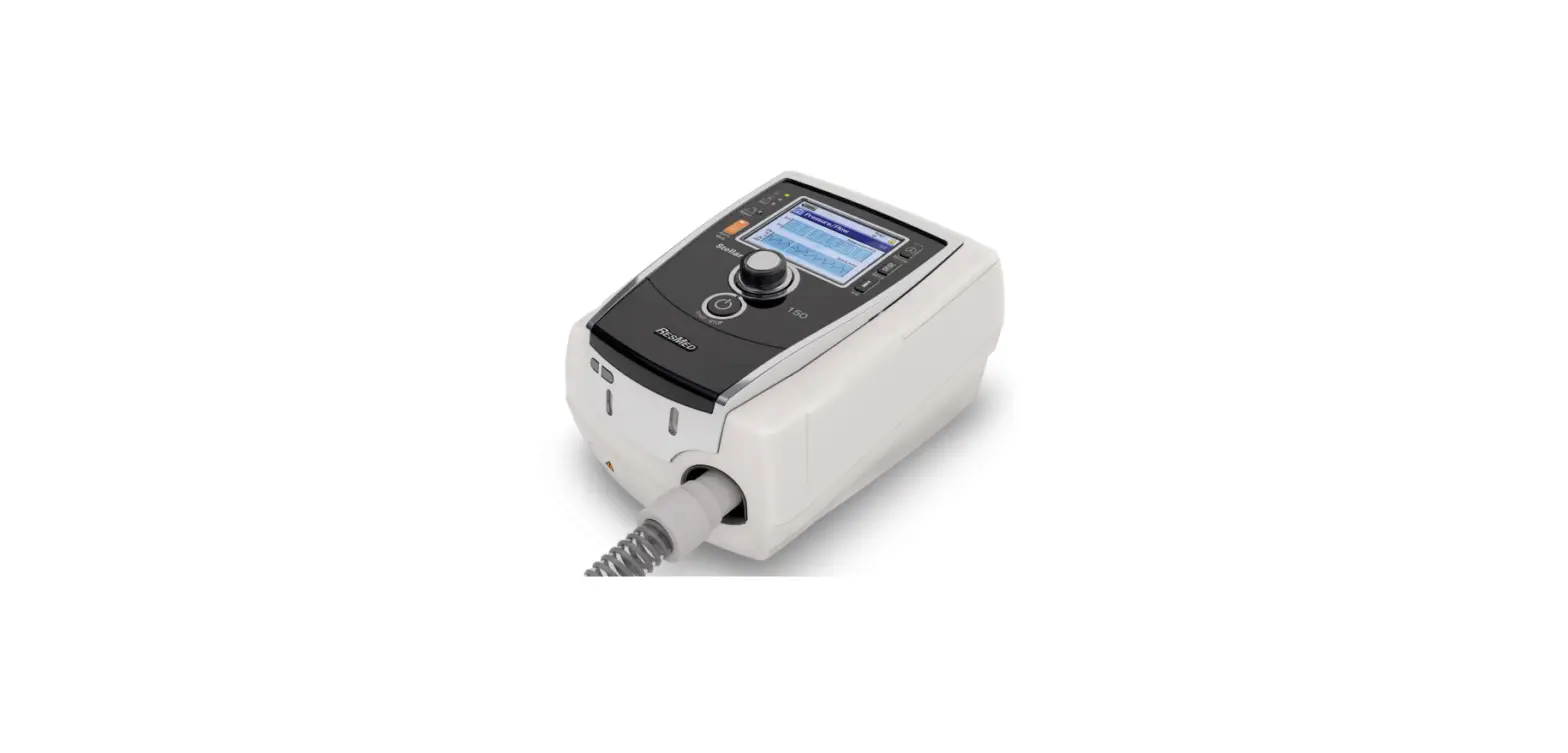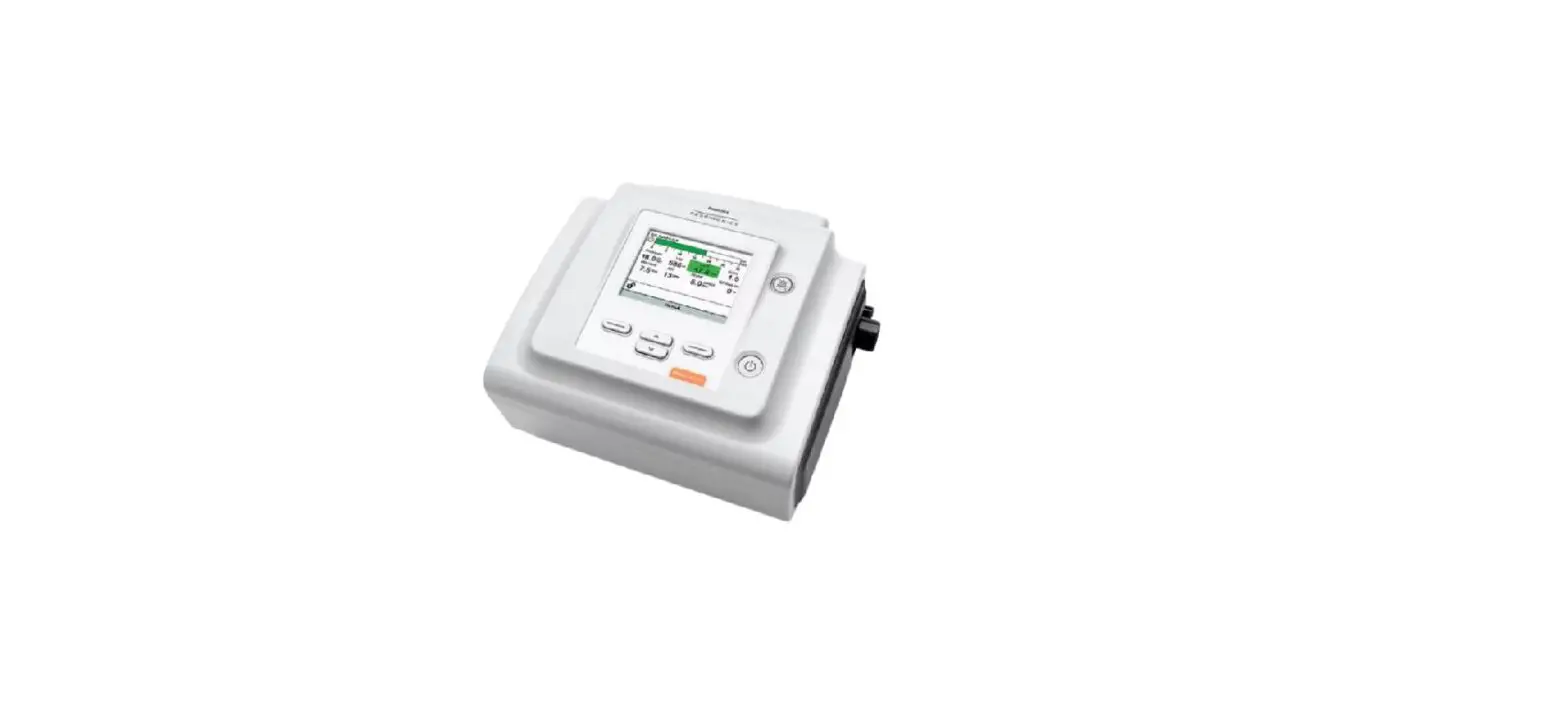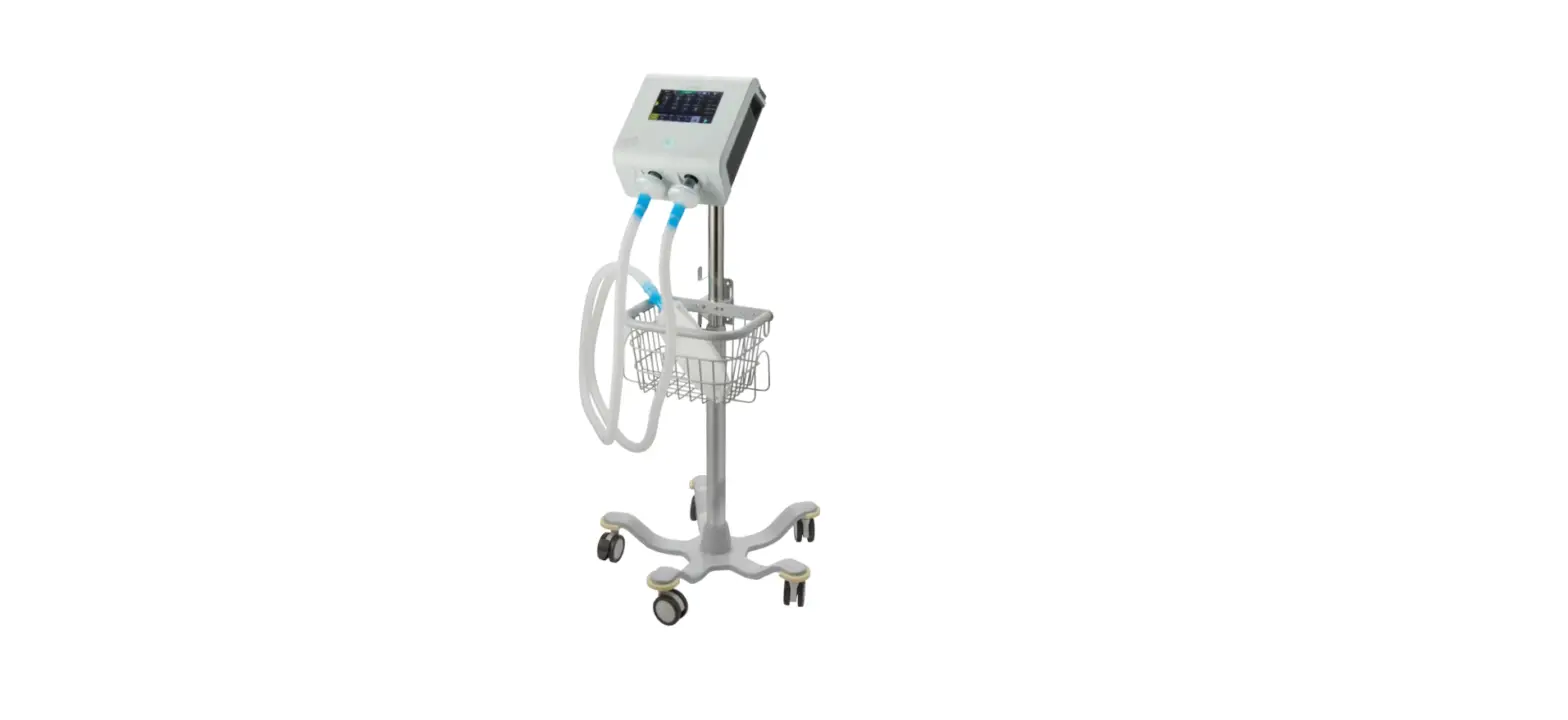

ABM Alpha Remote Operated Telehealth Ventilator
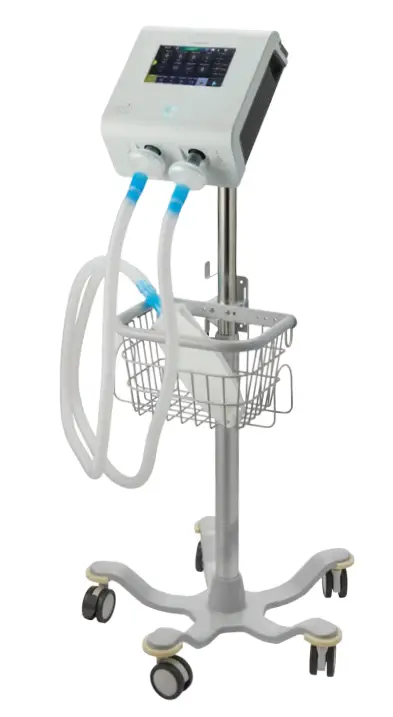
What is the Alpha Ventilator and its benefits to me
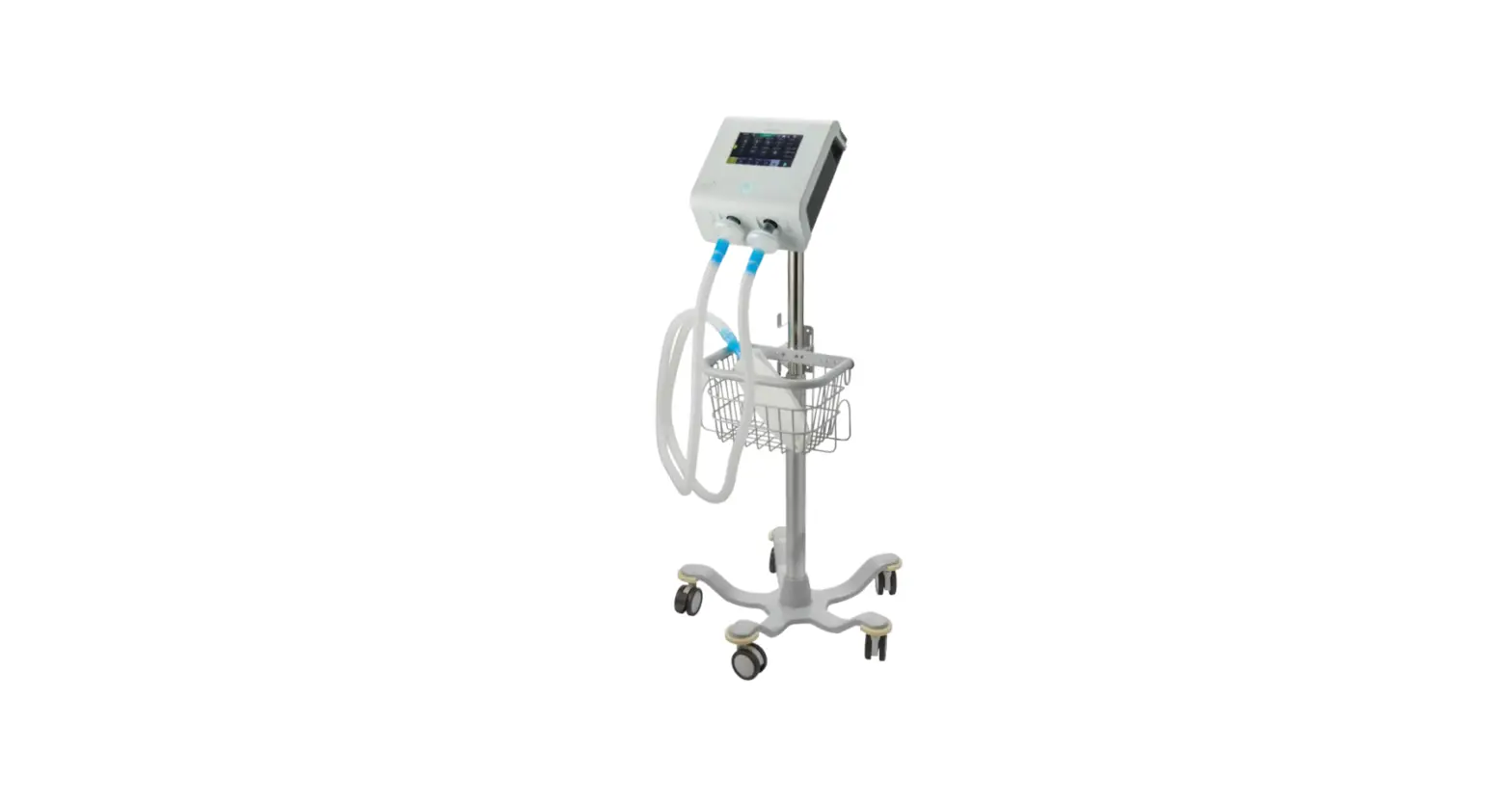
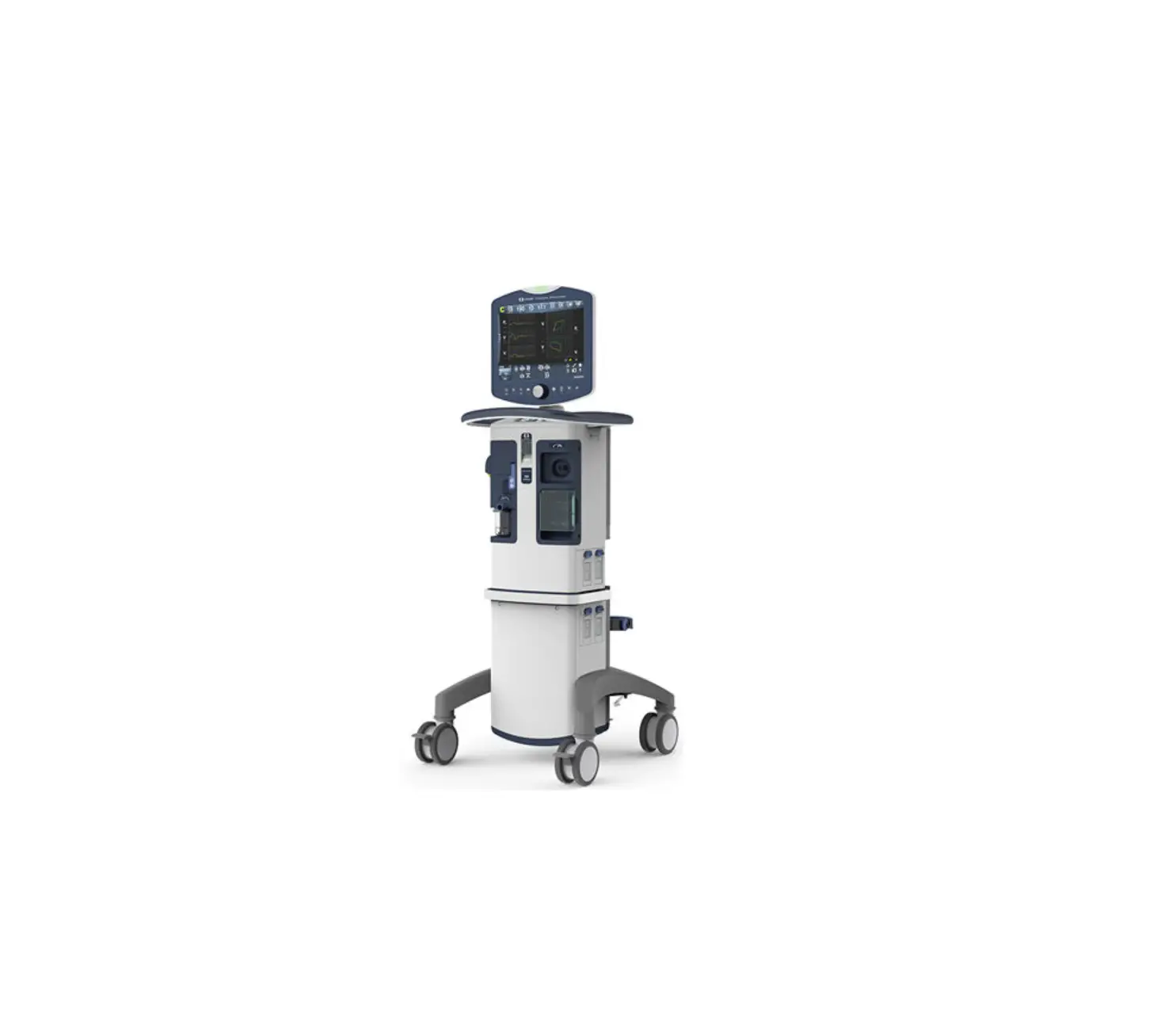
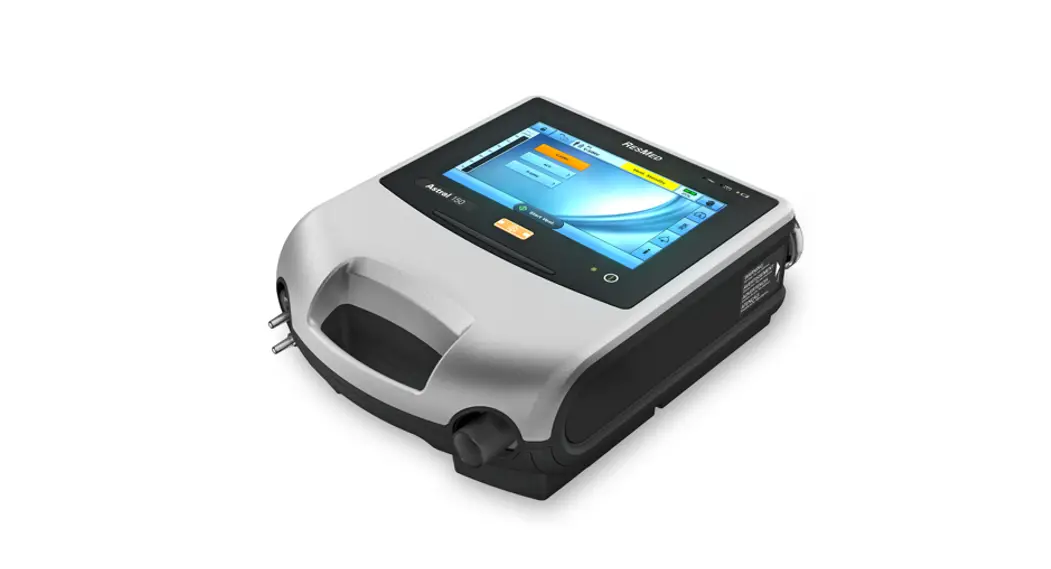
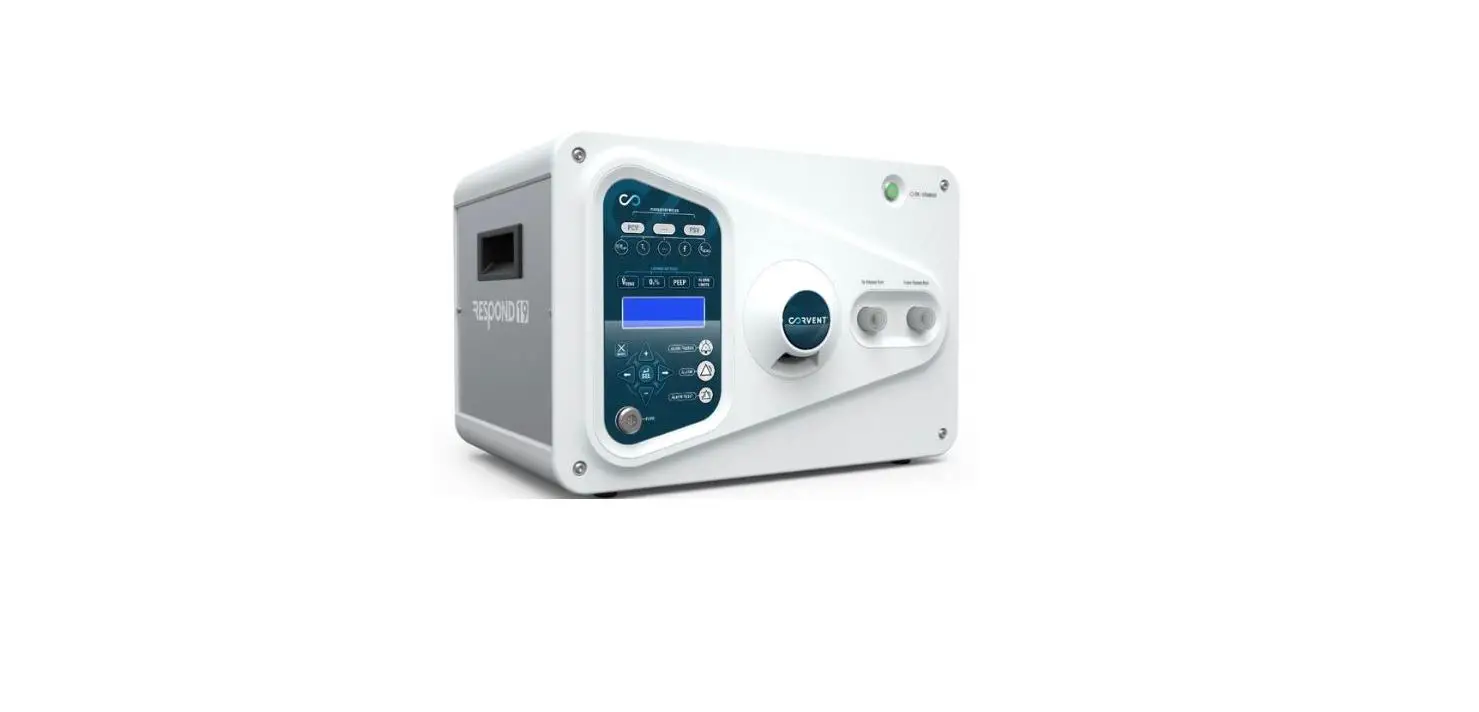
The Alpha Ventilator is the worlds first tile ventilator which includes advanced ventilator modes as well as key safety and alarm features as per international regulatory standards.
The COVID-19 pandemic has highlighted a shortage of ventilators but also a shortage of trained healthcare professionals to manage the large volume of ventilators when needed. In addition, frequent bedside visits by healthcare professionals to adjust and monitor ventilators increase the possibility of infection thereby pushing an already fragile healthcare system into a further grim situation. ABM’s Alpha Ventilator addresses both of these issues by enabling healthcare professionals to securely monitor and adjust ventilator settings through their online portal from any location. Visit our website to learn more: www.abmrc.com
Alpha Ventilator
OVERVIEW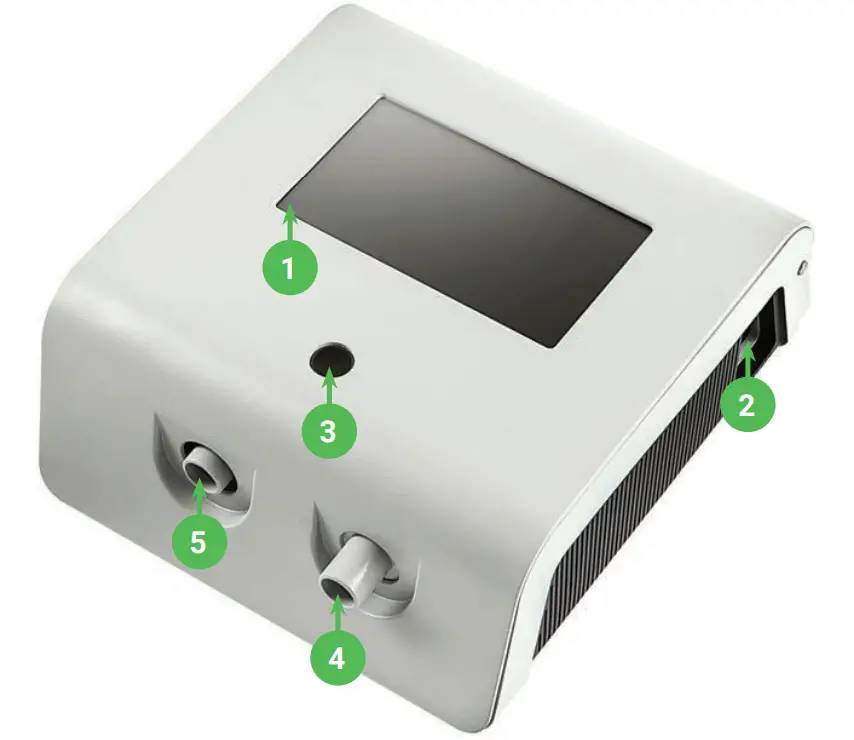
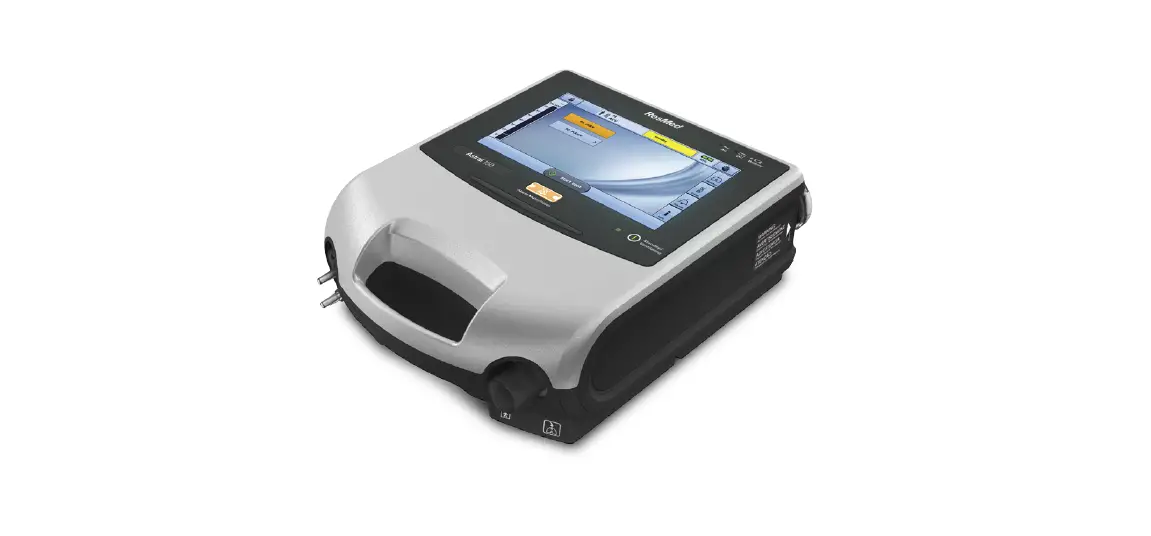
- Touch Screen Display Allows you to view settings, system status information, real-time patient data, and logs. You can also modify settings from the touch screen.
- Air Inlet Filter This is the inlet port for inspiratory air.
- Alarm LED Light Provides color code alarm lights.
- Patient Inhalation Port This is the inlet port for the inhalation of air.
- Patient Exhalation Port This is the outlet port for exhalation air.
Caution: Do not attach any unapproved devices or storage medium to any of the ports. Use only ABM approved and supplied parts. Failure to do so may damage the system.
2 A Patient Guide to Alpha Ventilator
BACK PANEL
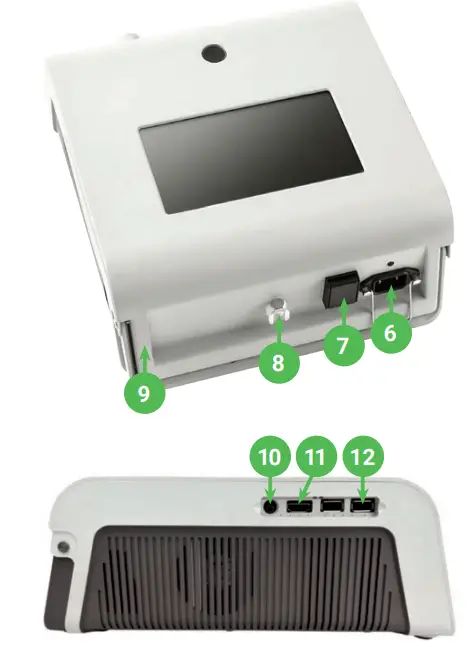
- AC Power Inlet Connection for the AC power cord here.
- Power Switch Turns the device on and off.
- Low Pressure O2 Inlet Connection for 02.
- Handle Handle to carry the device.
SIDE PANEL
- FiO2 Sensor Port FiO2 connection
- HDMI Port External HDMI display.
- USB Ports USB memory stick connections.
Caution: Do not attach any unapproved devices or storage medium to any of the ports. Use only ABM-approved and supplied parts. Failure to do so may damage the system.
Alpha Ventilator
USER INTERFACE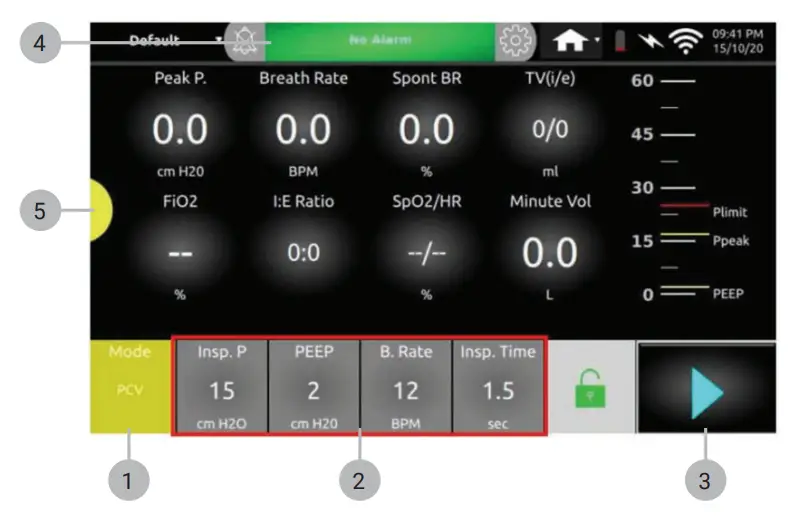
- Ventilation Modes Setting
- Parameters Setting
- Start/Stop
- Alarms
- Device Setting
How to Setup My Device
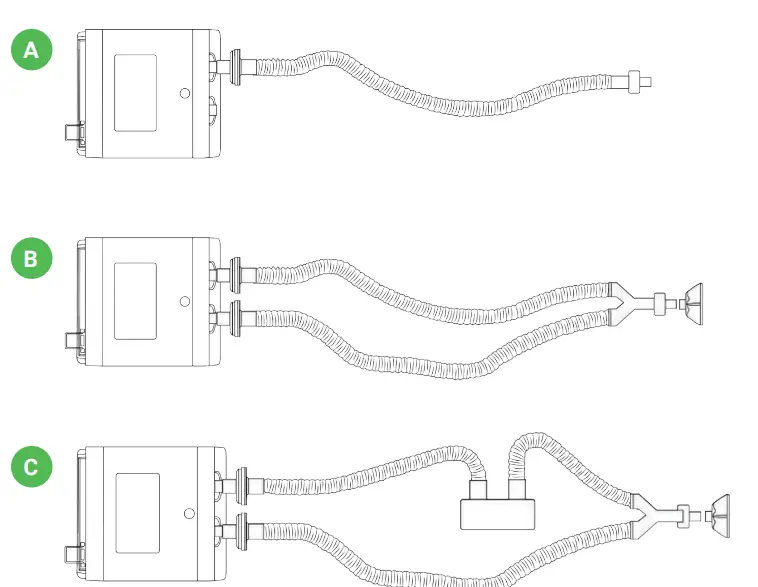
STEP ONE
Connect Patient Circuit
- A Single Limb
- B Dual Limb
- C Dual Limb with Active Humidifier
How to Set Up My Device STEP TWO
Select Ventilation Mode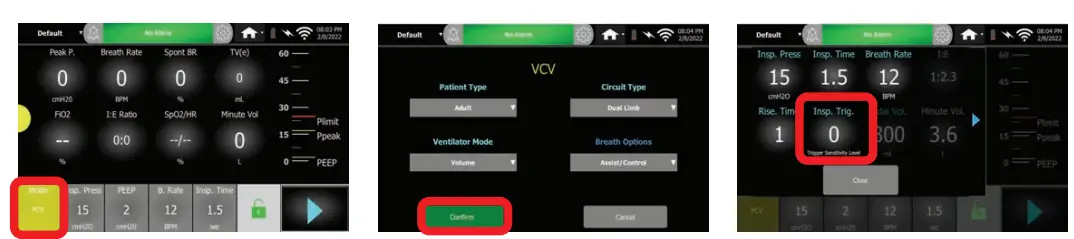
- A. Press Mode to enter the Ventilation Mode screen
- B. Select these options from the drop-down list:
- Patient Type
- Circuit Type
- Ventilation Mode
- Breath Options
- Review selections and press. Go to Parameters Setting to further define the ventilation mode
- Refer to Parameters Setting Steps and Table on Ventilation Modes Setting
How to Set Up My Device
STEP THREE Select Parameters Setting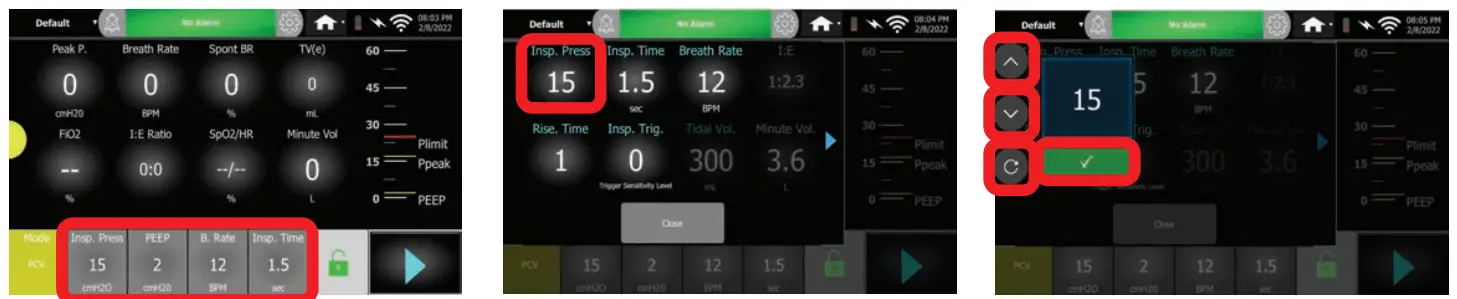
- A. Press Parameters Setting to enter the Parameters Setting screen
- B. Select individual parameters to adjust the values
- Reminder: Go to the next page to adjust more parameters
- Press
 or
or  to adjust the value
 - Press
 to confirm
 - Review all parameter values and
- Press
 to go to the main screen
 or
or  to adjust the value
 to confirm
 to go to the main screen
How to Set Up My Device
STEP FOUR
Define Alarm Settings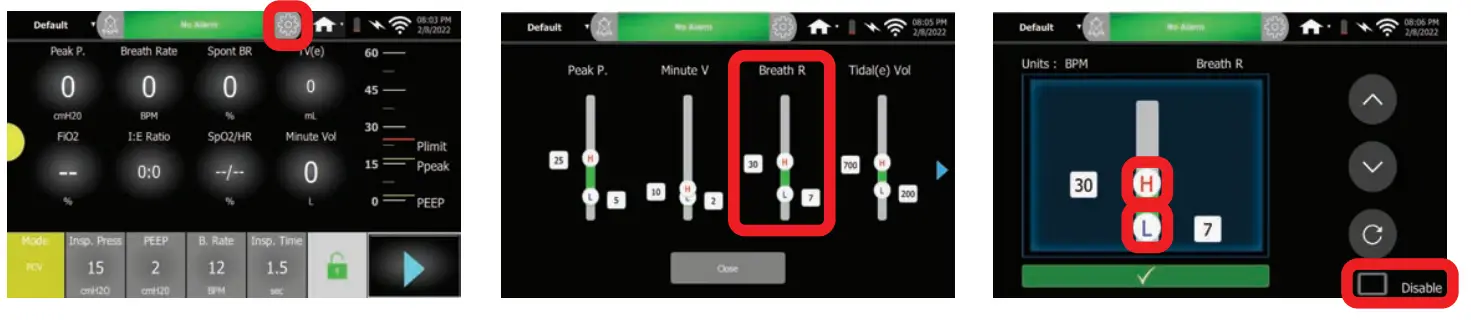
- A. Press
 the Alarms to enter the Alarms Setting screen
 - B. Select individual alarms to adjust the values
- Reminder: Go to the next page to adjust more alarms
- C. Toggle the tick box to Disable or Enable the Alarms
- Select
 or
or  adjust High and Low limits
 the Alarms to enter the Alarms Setting screen
 or
or  adjust High and Low limits
STEP FIVE
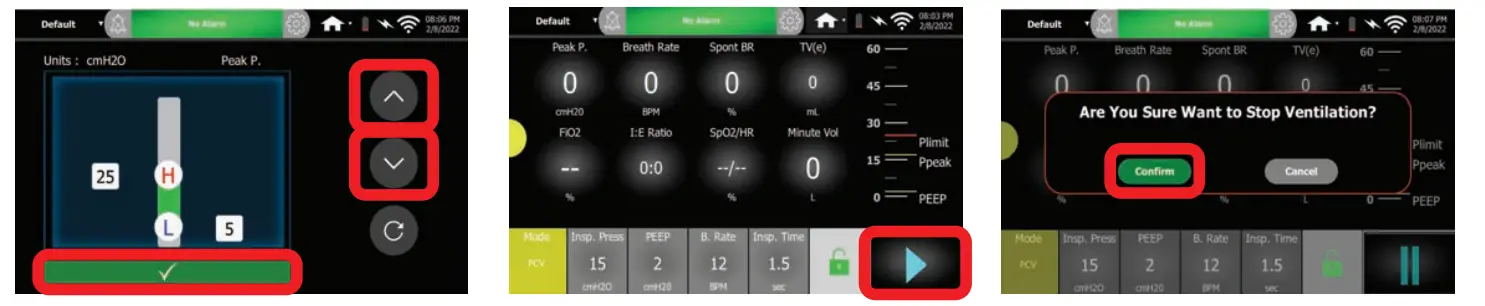
- Start/Stop Ventilation

- D. Press or adjust the value
- Press to confirm
- Review all parameter values and
- Press to go to the main screen
- A. Press and hold Start/Stop Button for 1 second, release and tab immediately to Start ventilation
- B. To Stop ventilation, press the Start/Stop Button and select
Ventilation Modes Setting
Select these options in Ventilation Mode Setting and Parameters Setting to define Ventilation Mode
| Ventilation Mode Setting | Ventilation Parameter Settings | ||||
| Modes | Ventilation Mode | Breath Option | Insp Trigger | Pressure Support | Exp Trigger |
| PCV | Pressure | Assist/Control | 0 | N.A. | N.A. |
| PCV (A) | Pressure | Assist/Control | 1–9 | N.A. | N.A. |
| PC-SIMV | Pressure | Intermittent | 1–9 | 0 | N.A. |
| PC-SIMV (PS) | Pressure | Intermittent | 1–9 | 1–40 | 0–90 |
| CPAP | Pressure | Support | 0 | N.A. | N.A. |
| PSV | Pressure | Support | 1–9 | 1–40 | 0–90 |
| VCV | Volume | Assist/Control | 0 | N.A. | N.A. |
| VCV (A) | Volume | Assist/Control | 1–9 | N.A. | N.A. |
| VC-SIMV | Volume | Intermittent | 1–9 | 0 | N.A. |
| VC-SIMV (PS) | Volume | Intermittent | 1–9 | 1–40 | 0–90 |
| PRVC | Volume | PRVC | 0–9 | N.A. | N.A. |
Additional Device Setup
Select this option to set-up low-flow O2 input and FiO2 sensor connection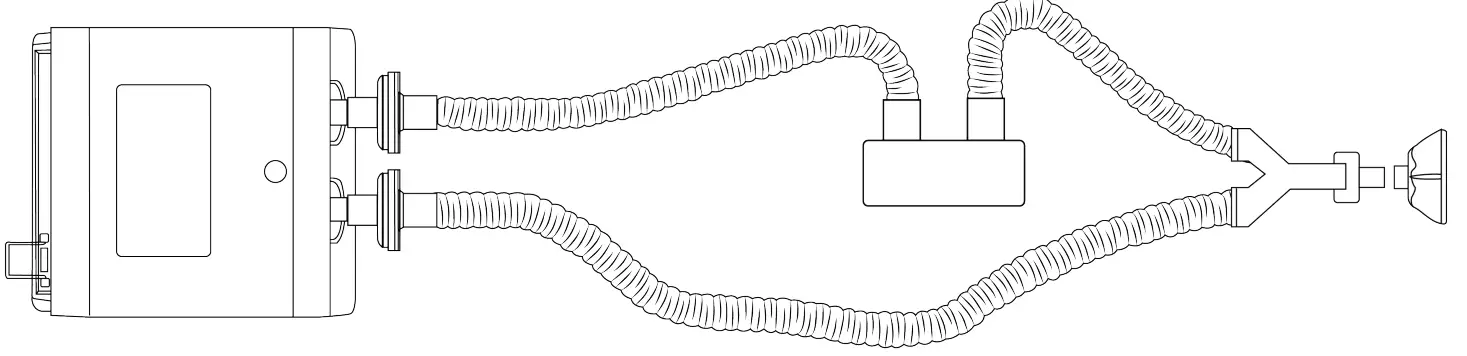
Notes
ABM Respiratory Care™ is a registered trademark of ABMRC, LLC. The only warranty ABMRC, LLC makes is the express written warranty extended on the sale or rental of its products.
©2022 ABMRC, LLC. ALL RIGHTS RESERVED. PRTN-1585539264-65 rev 1.0 APR-2022 ENG US
For further information about this product or service, visit our webpage:
www.abmrc.com or call customer support: 1-877-ABM-RC01 (877-226-7201)
 Telehealth Ventilator & Airway Clearance System | ABM Respiratory Care
 YouTube