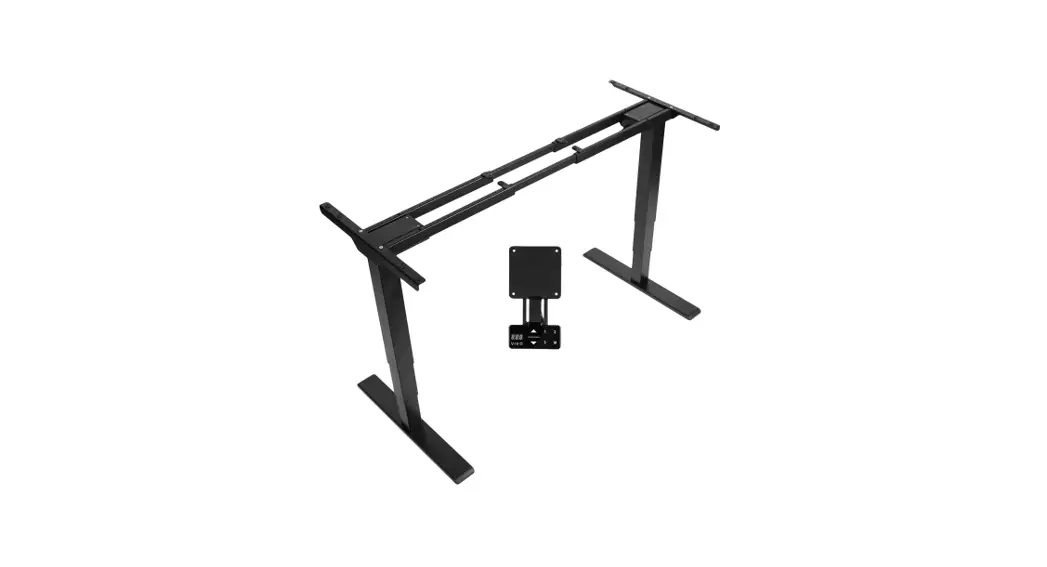
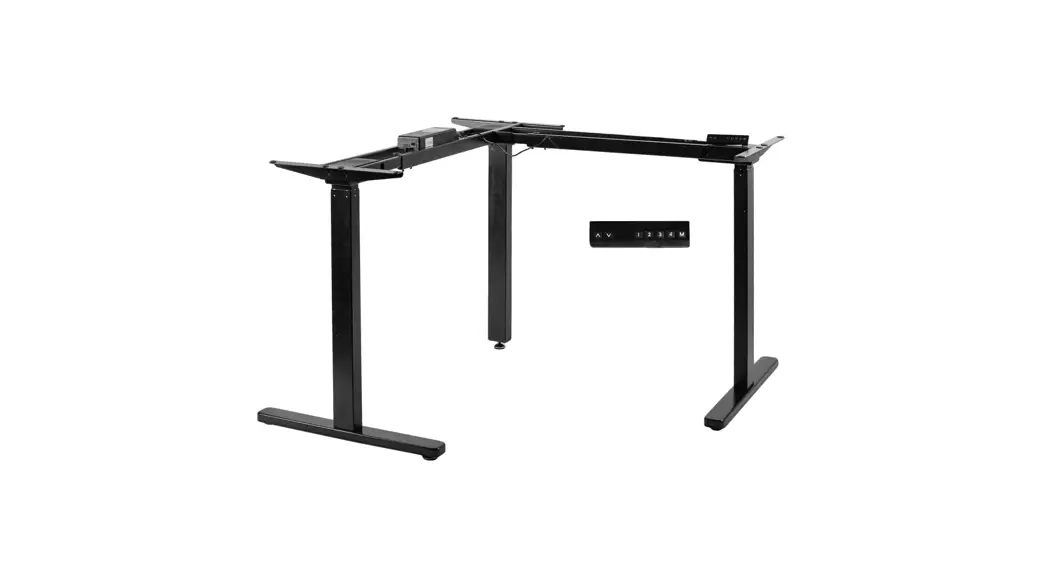
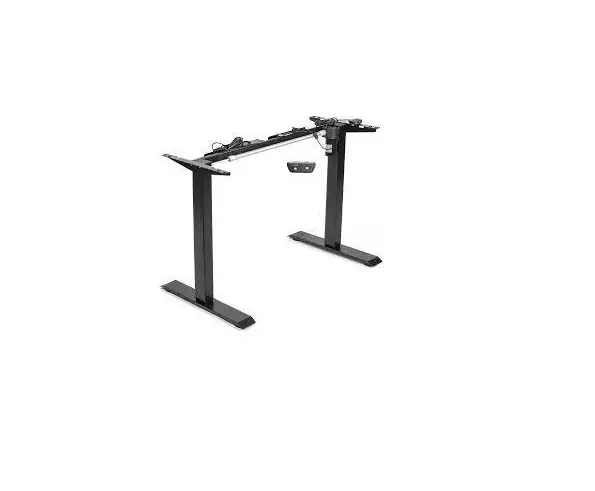
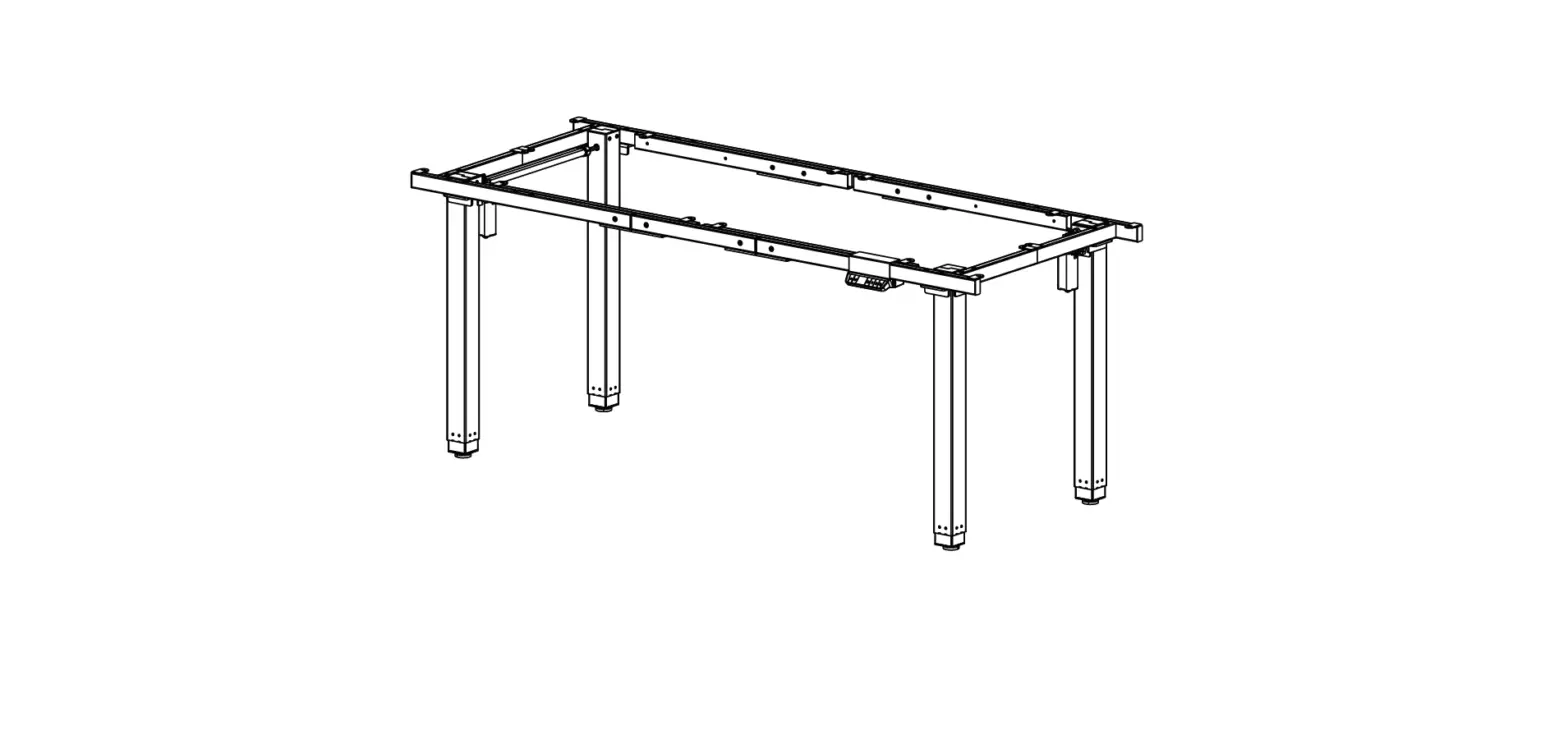
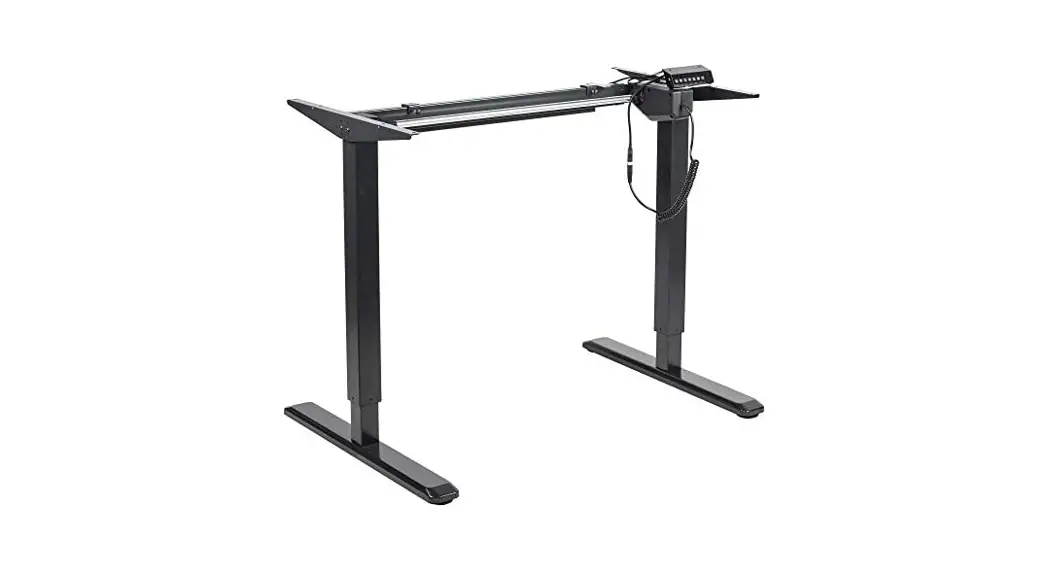
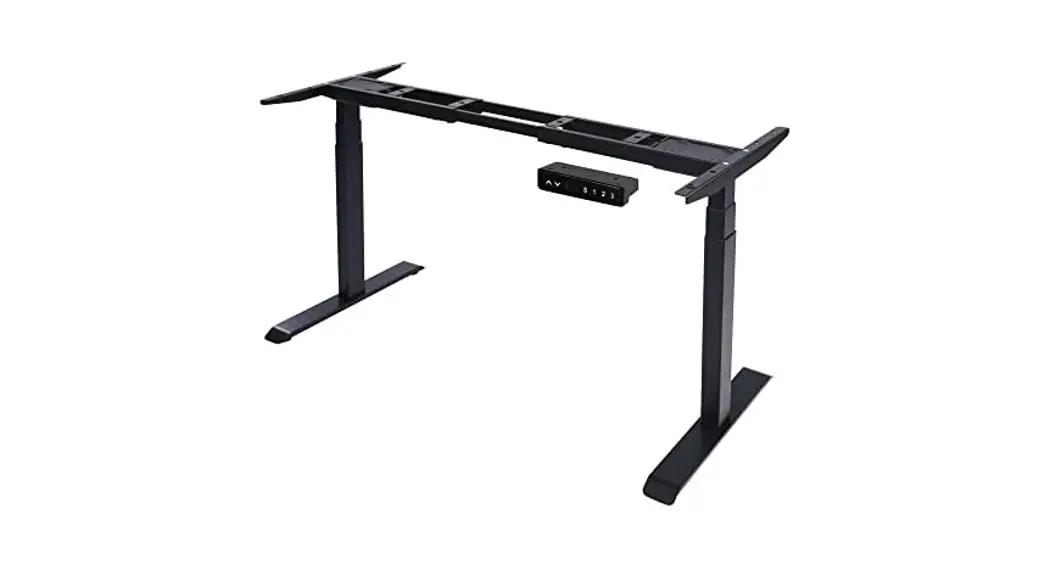
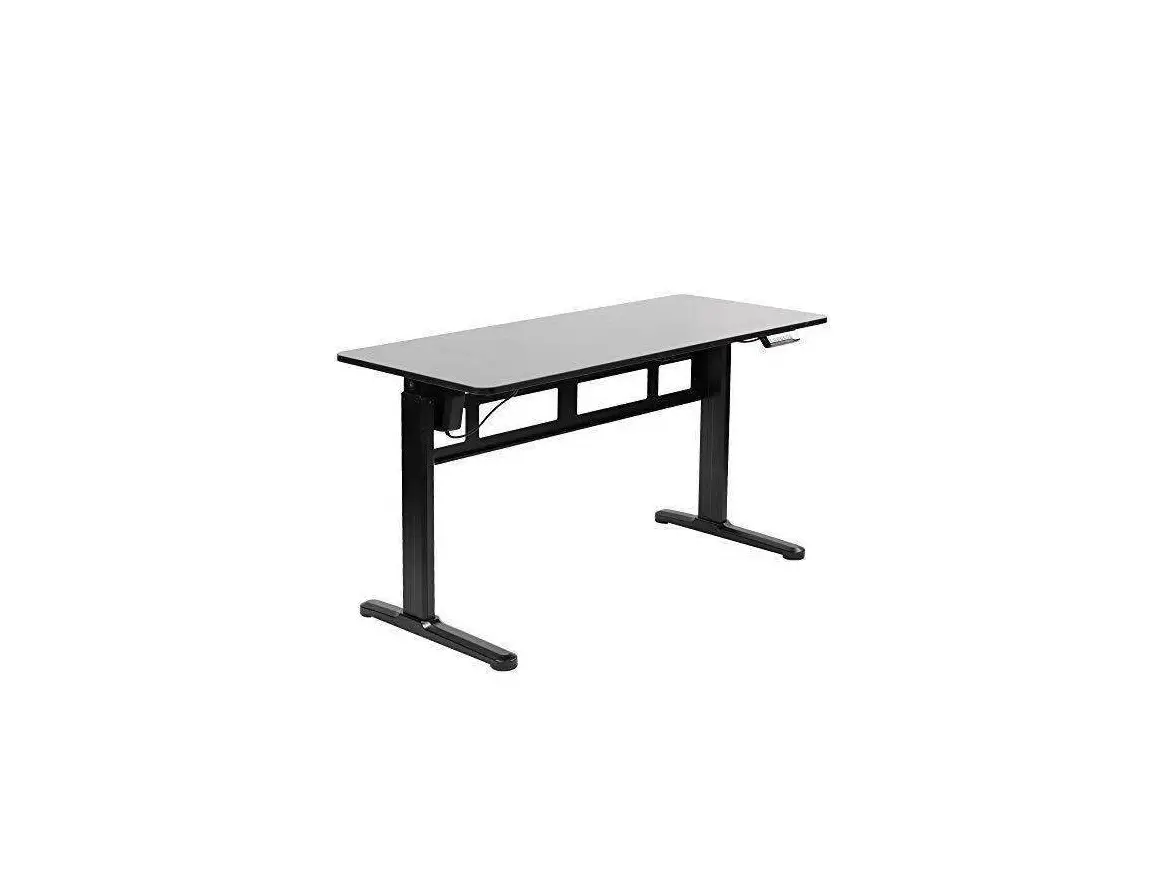
DESK-V103E-EW Electric Dual Motor Desk Frame
Product Information
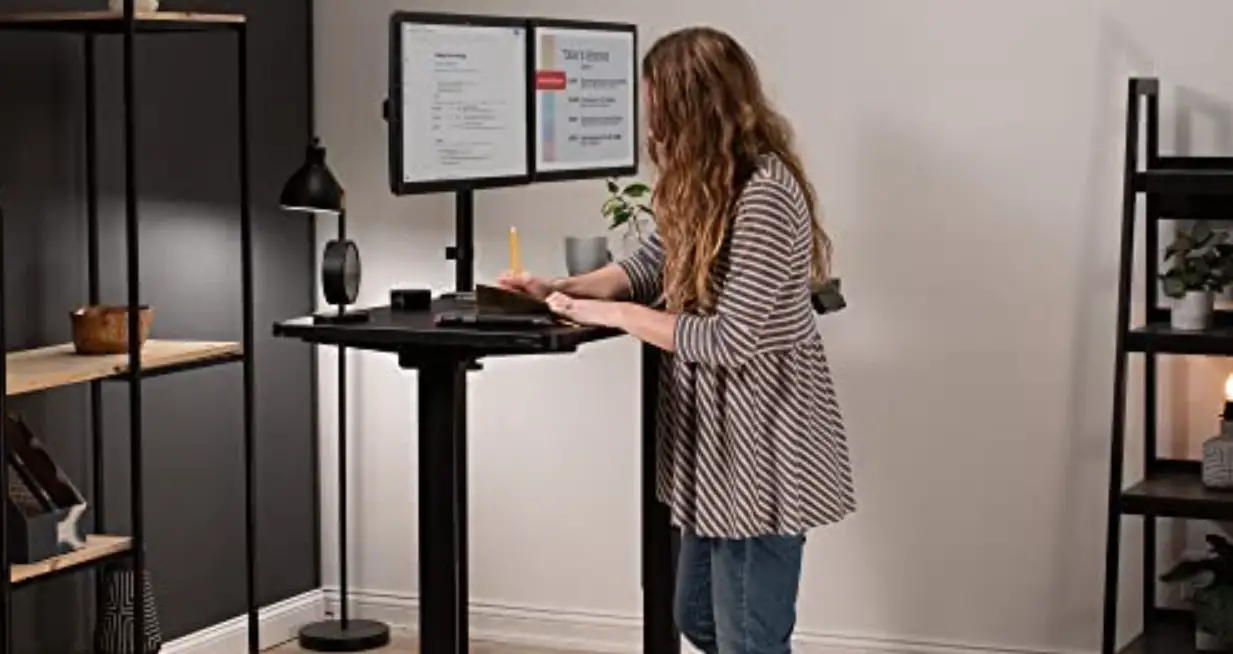
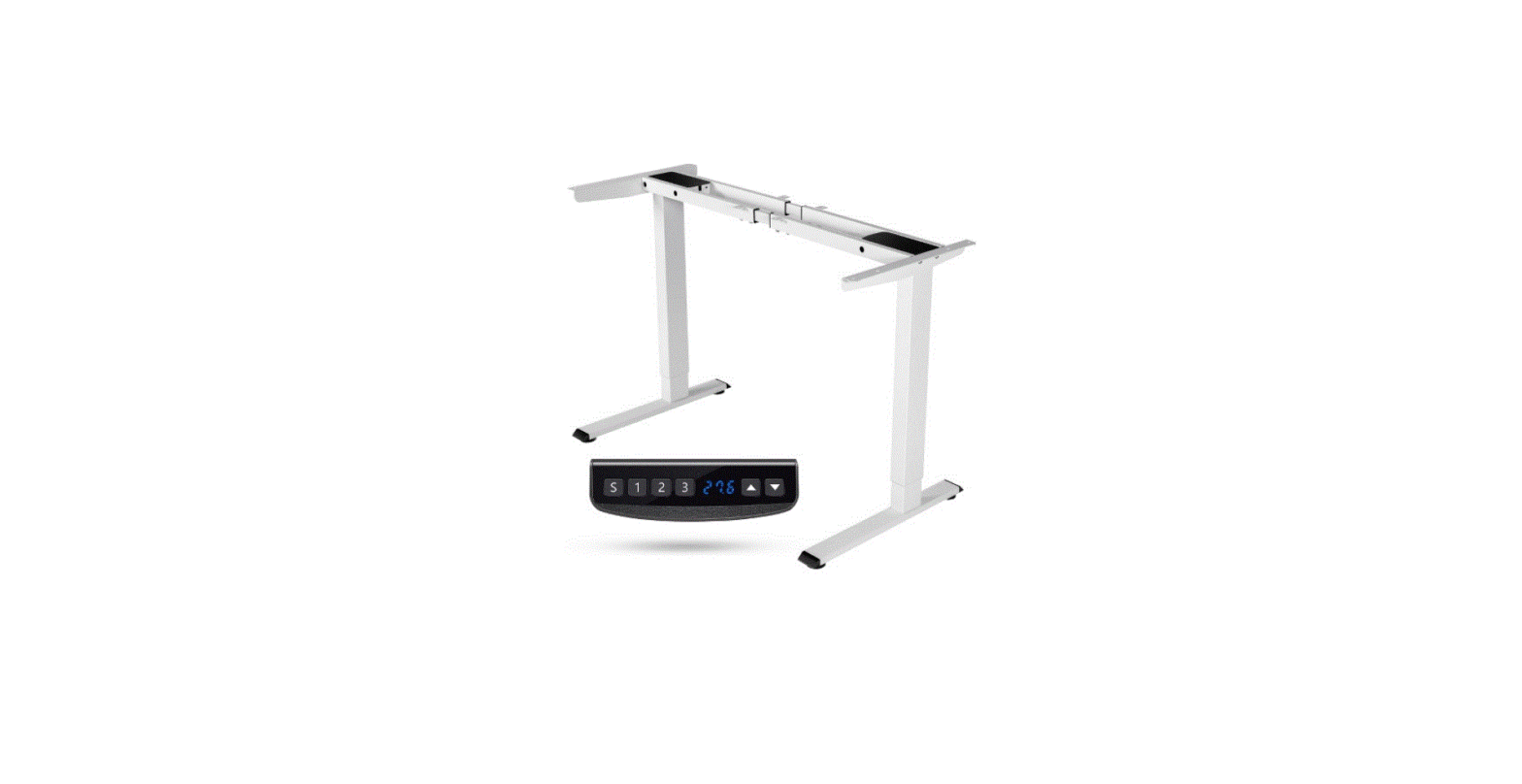
The Electric Dual Motor Desk Frame SKU: DESK-V103E/EW is a
modern and adjustable desk frame that can be used to create a
comfortable and ergonomic workspace. It features dual motors that
provide smooth and quiet height adjustments, a telescopic crossbar,
lifting columns, and a control unit with a control panel that
allows you to adjust the height of the desk. The desk frame has a
weight capacity of 275lbs (125kg) when plugged in and 176lbs (80kg)
when unplugged. The package contents include the necessary hardware
and tools for assembly.
Product Usage Instructions
Before beginning the assembly process, ensure that you have all
the necessary tools and hardware. If you are unsure about any of
the instructions or have doubts about the safety of the
installation, please call a qualified technician. Follow the
assembly steps below:
Pre-Assembly
Read the instructions carefully and ensure that there are no
missing or defective parts. Do not use this product for any purpose
that is not explicitly specified in the manual. Do not exceed
weight capacity.
Package Contents
Consult the parts list and ensure that you have everything
needed for assembly. If any parts are missing or damaged, contact
customer support.
- A (x1) Telescopic Crossbar
- B (x2) Side Bracket
- C (x2) Lifting Column
- D (x2) Foot
- E (x1) Fixing Plate
- F (x1) Control Unit
- G (x1) Power Cable
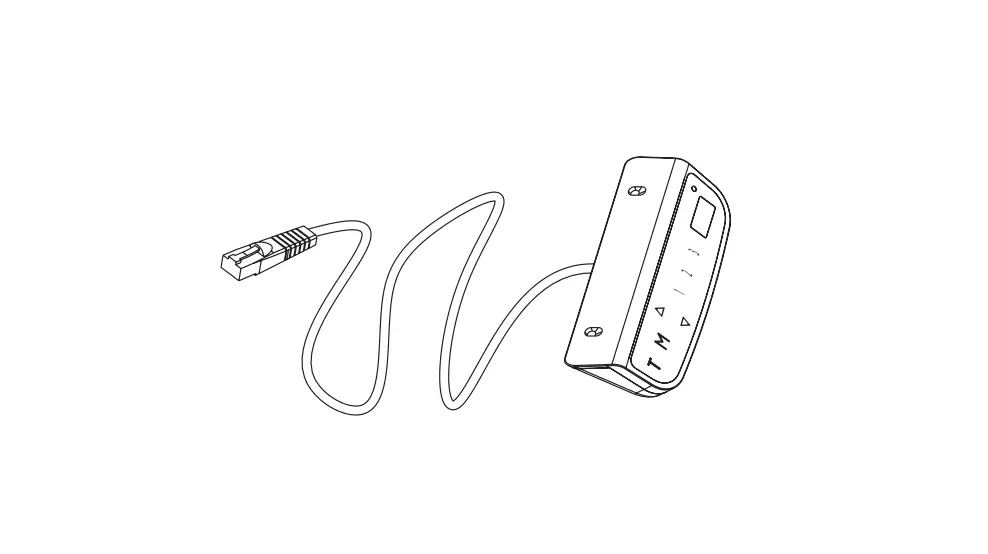
- H (x1) Control Panel
- I (x3) Cable Clip
- J (x12) Anti-Vibration Pad
- S-A (x8) M6x10mm Screw
- S-B (x8) M6x16mm Screw
- S-C (x12) 3/4 Screw
- S-D (x5) 3/4 Screw
- S-E (x2) M4x6mm Screw
- T-A (x1) Allen Wrench
Assembly Steps
- Attach the Anti-Vibration Pads (J) into the mounting holes on
top of the Telescopic Crossbar (A) and Side Brackets (B). - Insert the Side Brackets into the ends of the Crossbar and
place upside down on the desktop.
For the remaining assembly steps, please refer to the product
video walk-through or the instruction manual provided by the
manufacturer. If you encounter any issues during the assembly
process, please contact customer support for assistance.
Electric Dual Motor Desk Frame SKU: DESK-V103E/EW
Instruction Manual
ASSEMBLY VIDEO AVAILABLE: Follow along step-by-step with our video walk through by scanning the QR code with your mobile device or by following the product link: vivo-us.com/products/desk-v103e [email protected] 309-278-5303 www.vivo-us.com
Contact Us First!
DO NOT RETURN ITEM
Our friendly product support team is here to help!
PERSONABLE CUSTOMER SUPPORT
7AM – 7PM
Monday-Friday
Give us a Call: 309-278-5303
Chat Us: www.vivo-us.com
Email Us: [email protected]
We’re Here for You!
Our customer-minded support team is here for YOU, Monday-Friday 7am-7pm CST.
We offer immediate assistance with rapid response times from customer service agents and product techncians to
help you every step of the way!
Missing a Part?
If any parts are received damaged / defective OR you are missing a part, please reach out to us within 30 days of
product delivery to have it replaced at no cost. We are happy to replace parts to ensure you have a fully
functioning product
2
PRE-ASSEMBLY | BEFORE YOU BEGIN
If you do not understand these directions, or if you have any
doubts about the safety of the installation, please call a qualified
!
technician. Check carefully to make sure there are no missing
or defective parts. Improper installation may cause damage or
serious injury. Do not use this product for any purpose that is
not explicitly specified in this manual. Do not exceed weight capacity. We
cannot be liable for damage or injury caused by improper mounting, incorrect
assembly or inappropriate use.
WARNING: CHOKING HAZARD
SMALL PARTS – NOT FOR CHILDREN UNDER 3 YEARS. ADULT SUPERVISION IS REQUIRED.
TIPOVER WARNING
SERIOUS OR FATAL CRUSHING INJURIES CAN OCCUR FROM TIPOVER. TO HELP PREVENT TIPOVER: · NEVER ALLOW CHILDREN TO CLIMB, STAND, HANG, OR PLAY ON ANY PART
OF TV OR TV CART. · USE TIPOVER RESTRAINT OR ANCHOR STAND TO WALL USE OF TIPOVER RESTRAINTS MAY ONLY REDUCE, BUT NOT ELIMINATE RISK OF TIPOVER.
WEIGHT CAPACITY
DO NOT EXCEED WEIGHT CAPACITY. Failure to do so may result in serious injury.
275lbs (125kg) PLUGGED IN
176lbs (80kg) UNPLUGGED
Product Warranty For the most up to date details on your product’s warranty, please visit the product’s listing on our website or reach out to customer support. vivo-us.com/products/desk-v103e
Returns | Product Didn’t Work Out? We offer a hassle-free 30 day return on all products. Contact customer support at 309-278-5303 or [email protected]. Please note: For items ordered in error or no longer needed, the return shipping charges will be at the buyer’s expense.
3
TOOLS NEEDED: |
Phillips Screwdriver
|
Drill
|
DIFFICULTY LEVEL
Level
PACKAGE CONTENTS
Please consult the parts list below and ensure you have everything you need to assemble your product. If parts are missing or damaged, please contact us.
A (x1) Telescopic Crossbar
B (x2) Side Bracket
C (x2) Lifting Column
D (x2) Foot
E (x1)
F (x1)
Fixing Plate Control Unit
G (x1) Power Cable
H (x1) Control Panel
I (x3) Cable Clip
J (x12) Anti-Vibration
Pad
S-A (x8) M6x10mm
Screw
S-B (x8) M6x16mm
Screw
S-C (x12) 3/4″ Screw
S-D (x5) 3/4″ Screw
S-E (x2) M4x6mm
Screw
T-A (x1) Allen Wrench
NOTE: SOME HARDWARE INCLUDED MAY NOT BE USED
4
ASSEMBLY STEPS
STEP 1: Attaching the Crossbar
Insert Anti-Vibration Pads (J) into the mounting holes on top of the Telescopic Crossbar (A) and Side Brackets (B). Insert the Side Brackets into ends of the Crossbar and place upside down on the desktop.
B A
J
A Telescopic Crossbar
B Side Bracket
J Anti-Vibration Pad
Have a question? Give us a quick call / chat! 309-278-5303 or vivo-us.com
5
STEP 2: Attaching the Brackets
Place the Lifting Columns (C) into the Telescopic Crossbar (A) and secure using M6x10mm Screws (S-A) and the Allen Wrench (T-A). Assemble the Feet (D) to the columns using M6x16mm Screws (S-B) and the Allen Wrench (T-A).
S-B
D
C
T-A S-A
A
C
D
S-A
S-B
T-A
Lifting Column
Foot
M6x10mm Screw M6x16mm Screw Allen Wrench
6
STEP 3: Installing the Crossbar
Loosen the set screws in the Telescopic Crossbar (A) using the Allen Wrench (T-A), then extend the Crossbar length to fit the desktop. Retighten the set screws with the Allen Wrench (T-A).
A
SET SCREWS
T-A
T-A Allen Wrench
STEP 4: Installing the Frame
Drill 3/8″ (10mm) deep pilot holes using a 3/32″ (or 3mm) drill bit. Secure the frame to the desktop using 3/4″ Screws (S-C) with a Phillips screwdriver.
S-C
S-C 3/4″ Screw
Have a question? Give us a quick call / chat! 309-278-5303 or vivo-us.com
7
STEP 5: Install the Control Panel
Place the Control Panel (H) at the desired location and mark drilling locations with a pencil. Drill 5/8″ (16mm) deep pilot holes under the desktop with a 5/64″ (or 2mm) drill bit. Attach the Control Panel (H) to the desktop with 3/4″ Screws (S-D) using a Phillips screwdriver.
S-D
H
H Control Panel
S-D 3/4″ Screw
8
STEP 6: Attaching the Fixing Plate
Attach the Fixing Plate (E) to the telescopic Crossbar (A) using M4x6mm Screws (S-E) with a Phillips screwdriver. Slide the Control Unit (F) onto the Fixing Plate.
F S-E
E
E Fixing Plate
F Control Unit
S-E M4x6mm Screw
Have a question? Give us a quick call / chat! 309-278-5303 or vivo-us.com
9
STEP 7: Installing the Cable Clips
Connect motor cables, Control Panel (H) and Power Cable (G) to the Control Unit (F). Determine the locations for the Cable Clips (I) and drill 5/8″ (16mm) deep pilot holes under the desktop with a 5/64″ (or 2mm) drill bit. Mount the clips to the desk using 3/4″ Screws (S-D) with a Phillips screwdriver, and use the clips to organize the cables.
H
F
G Power Cable
I Cable Clip
S-D 3/4″ Screw
S-D I
G
10
STEP 8: Plug In Cable
Connect the Power Cable (G) to a wall outlet to power on desk for operation. In the case of uneven floor surface, adjust stabilizing foot pads as needed to make desk level. Each foot pad can be adjusted independently for fine tuning. Slightly turn the foot pad to lower or raise the base. Use a level to ensure the desktop is even.
G
11
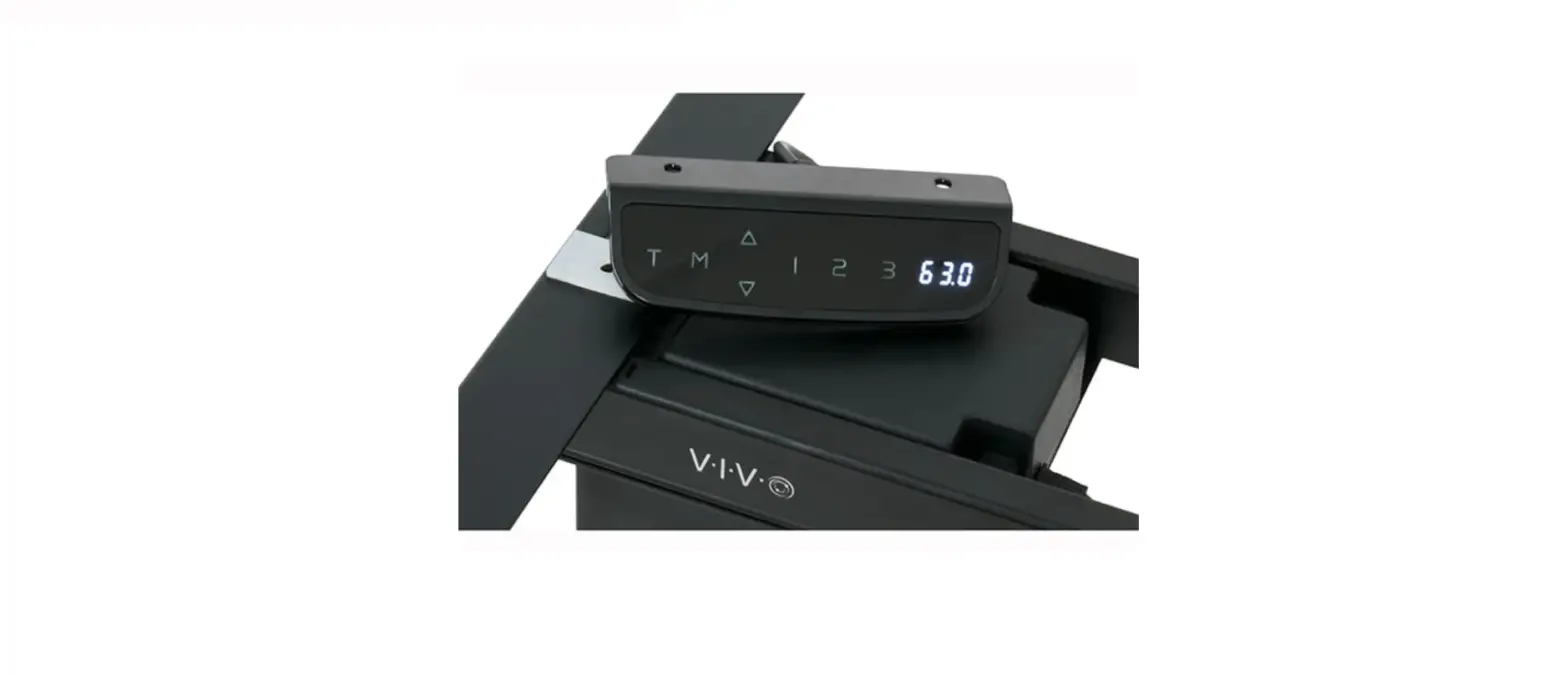
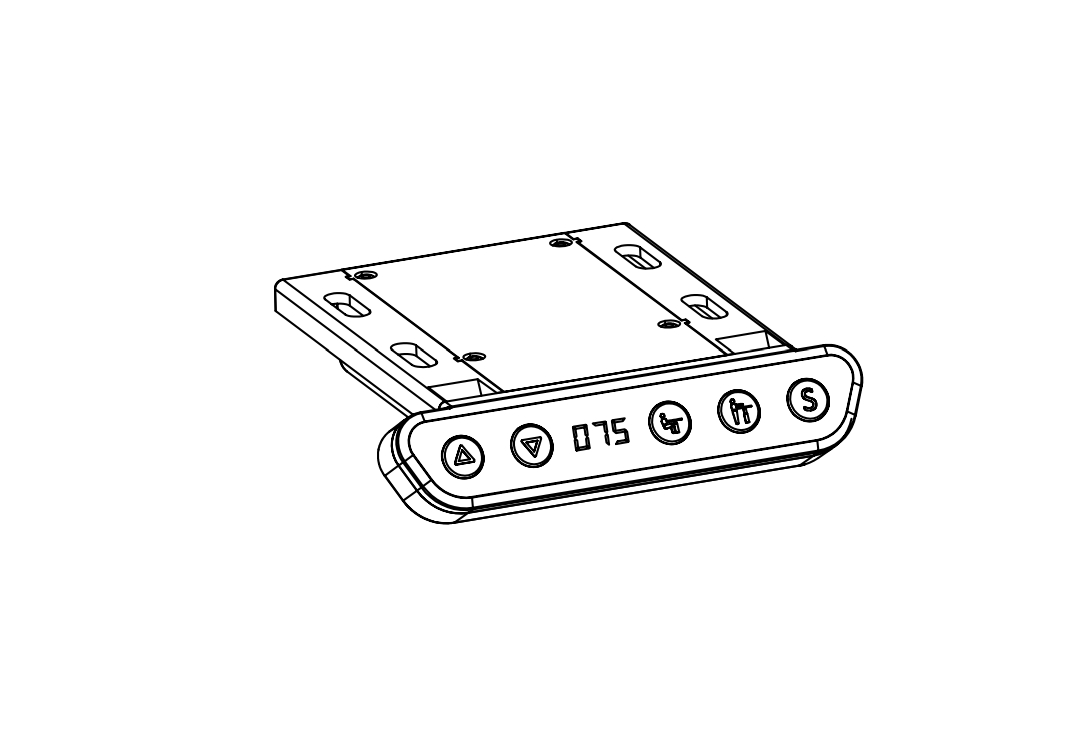
CONTROLLER – Overview
1 23
Indicator light
Timer
MMeemmooryry /Screen lock (unlock)
Upward movement
Downward movement
Memory 1 / 2 / 3
Display
OPERATING INSTRUCTIONS
First Use
When the system is powered on, the existing desktop height will be displayed on the control panel.
Sleep Mode
After resting for 10 minutes, the screen will turn off to prevent accidental operation. Touch the screen to exit sleep mode and operate the desk.
Height Adjustment
Press and hold the up or down arrow until the desk reaches the desired height. Press and release the arrow quickly for minor adjustments.
Timer
To set the timer, press “T”. The display will flash “0.5h” representing 30 minutes. Press “T” repeatedly to increase 0.5 hours at a time. The maximum timer setting is 2 hours. The timer is set when the display stops flashing and the light in the top right corner of the controller is on. When the timer has reached the set time, a beep will sound reminding the user to adjust the working position. Once the timer setting has expired (5 beeps), the unit’s timer is canceled. To deactivate the timer, press “T” five times or until the current height is displayed and the light in the upper right corner is turned off.
12
Memory Setting
To store a certain height in the controller’s memory, first press “M”. The letter “S-” will be displayed. Now press “1”, “2” or “3” within five seconds to store the current height in memory. Each number can store a different height. Once in memory, you can recall any of the three height settings by pressing the corresponding button. Touching any button (except for “T”) will stop the automatic adjustment.
Changing between CM and INCH
The preset measurement shown on the display is cm. If you would like to change cm to inch, then press “T” for at least 3 seconds. The controller will beep twice when changed to inch. Repeat to switch back from inch to cm, and the controller will beep once.
Reset Mode
Press and hold the up and down arrows together until the desk beeps and moves to the fully lowered position (do not release until the process is complete).
TROUBLESHOOTING
E01/E07 Troubleshooting
1
2
The system has experienced unusual electrical problems. Disconnect the power first, then wait for 30 seconds (until the display stays off) and reconnect.
HOT Troubleshooting
The system is overheating. Allow your desk to cool down and remain idle for approximately 18 minutes.
Error Codes
See full list of error codes, descriptions, and resolutions on next page.
13
CODE
E02 E04 E05 E06 E08 E11 E12 E13 E14 E15 E16 E17 E18
DESCRIPTION
Uneven Leg Height Control Panel (H) Connection Error
Collision Detected Electrical Problem Uneven Desktop Motor #1 is Not Connected Abnormal Electrical Current Motor #1 Power Cable is Damaged Motor #1 Sensor Wire is Damaged Short Circuit in Motor #1
Motor Problem Motor #1 Running in Reverse
Overloaded
RESOLUTION
See Desk Reset on pg 3.
Check the Control Panel (H) connection and follow Desk Reset on pg 3.
Clear obstructions and try again
Control Unit (F) is faulty and needs replaced. Please contact customer service. Perfrom Desk Reset on pg 3;
check to ensure weight is evenly distributed. Check motor #1 connection to control unit (M1)
Control Unit (F) is faulty and needs replaced. Please contact customer service.
Motor #1 power cable needs replaced (M1). Please contact customer service.
Motor #1 sensor cable needs replaced. Please contact customer service. Motor #1 needs replaced (M1). Please contact customer service.
See Desk Reset on pg 3
Motor #1 power cable needs replaced. Please contact customer service.
Remove excess weight from desk.
14
CODE
E21 E22 E23 E24 E25 E26 E27 E28 E42 E43 RSR/RST
DESCRIPTION
Motor #2 is Not Connected Abnormal Electrical Current Motor #2 Power Wire is Damaged Motor #2 Sensor Wire is Damaged
Short Circuit in Motor #2 Motor Problem
Motor #2 Running in Reverse Overloaded
Memory Function Failure Collision Sensor Failure
Reset Failure
RESOLUTION
Check M2 connection to Control Unit (F)
Control Unit (F) is faulty and needs replaced. Please contact customer service.
Motor #2 power cable needs replaced (M2). Please contact customer service.
Motor #2 sensor cable needs replaced (M2). Please contact customer service. Motor #2 needs replaced (M2). Please contact customer service.
See Desk Reset on pg 3
Motor #2 power cable needs replaced (M2). Please contact customer service.
Remove excess weight from desk.
Control Unit (F) is faulty and needs replaced. Please contact customer service.
Control Unit (F) is faulty and needs replaced. Please contact customer service.
See Desk Reset on pg 3
15
CUSTOM PROGRAMMING
To enter the custom programming menu, press and hold “M” and “T” together for 5 seconds. The controller will beep once and display “S-1”. If no action is taken for more than 10 seconds, the controller will automatically exit the menu. Unsaved settings may be canceled by pressing “T”. The following instructions assume the controller is in the “S-1” state.
Custom Minimum & Maximum Height Settings
To set a minimum height limit 1. Press “M” once, then press the up or down arrow to set your desired min. height. 2. Press “M” to save. “L-S” will be displayed if successfully saved, or “L-F” shows if failed. Note: Default min. height is 62cm (24.4″), and the adjustable range is 62-118cm (24.4″~46.4″).
To set a maximum height limit 1. Press the up or down arrows until “S-2” is displayed. 2. Press “M” once, then press the up or down arrow to set your desired max. height. 3. Press “M” to save. “H-S” will be displayed if successfully saved, or “H-F” shows if failed. Note: Default max. height is 128cm (50.4″), and the adjustable range is 72-128cm (28.3″~50.4″).
Adjust the Anti-Collision Sensitivity (Current Sensor)
To set collision sensitivity for upward movement: 1. Press the up or down arrows until “S-3” is displayed. 2. Press “M” once, then press the up or down arrow to change the sensitivity level. 3. Press “M” to save. “S-S” will be displayed if successfully saved, or “S-F” shows if failed. Note: Default sensitivity is 4, and the adjustable range is 0-8. (0: off, 8: maximum).
To set a downwards current sensitivity 1. Press the up or down arrows until “S-4” is displayed. 2. Press “M” once, then press the up or down arrow to change the sensitivity level. 3. Press “M” to save. “S-S” will be displayed if successfully saved, or “S-F” shows if failed. Note: Default sensitivity is 4, and the adjustable range is 0-8. (0: off, 8: maximum).
To set collision sensitivity for the gyro sensor 1. Press the up or down arrows until “S-5” is displayed. 2. Press “M” once, then press the up or down arrow to change the sensitivity level. 3. Press “M” to save. “S-S” will be displayed if successfully saved, or “S-F” shows if failed.
Note: Default sensitivity is 4, and the adjustable range is 0-8. (0: off, 8: maximum)
Displayed Height with Desktop Thickness
1. Press the up or down arrows until “S-6” is displayed. 2. Press “M” once, then press the up or down arrow to set the desktop thickness. 3. Press “M” to save. “T-S” will be displayed if successfully saved, or “T-F” shows if failed.
Screen Lock Setting
1. Press the up or down arrows until “S-7” is displayed. 2. Press “M” once, then press the up or down arrow to change the screen lock setting. (0: off, 1: on) 3. Press “M” to save. “A-S” will be displayed if successfully saved, or “A-F” shows if failed.
When screen lock is enabled, the display will read “- – -” after resting 60 seconds. Press and hold “M” for 3 seconds to unlock. Screen may be locked before 60 seconds by holding “M” again for 3 seconds.
16
To Save the Customized Settings at one time
After adjusting one setting, press “T” to go back and enter another setting. Once finished, press “M” to save all settings.
To Reset the Customized Settings
Press “M”, “T” and the up arrow simultaneously for 5 seconds. The controller will beep to indicate settings have been successfully reset.
NOTES · Self-protection function: The unit will enter a protective mode should the system operate in
excess of 2 minutes with “HOT” on the controller display. The system will return to normal operation after approximately 18 minutes. · Over-current protection mode: While operating, should the load on the desk exceed rated specifications, the system will enter into over-current protection mode to protect the system from damage. · Do NOT remove or reconnect power to reset the unit when in a protective or “HOT” state, as this may damage the electronics.
17
CHECK OUT OTHER GREAT PRODUCTS FROM
EXPLORE MORE AT VIVO-US.COM We offer a wide array of home & office products to fit your needs. From height adjustable desks to monitor mounts to keyboard trays and more!
SPEAKER MOUNTS & STANDS
Whether you’re mounting a soundbar or surround sound system, we’ve got a mounting solution to fit
your needs
CABLE MANAGEMENT
Clean up tangled work spaces with our sleek cable management
solutions!
MONITOR MOUNTS
From single monitor mounts to hex mount, gromment or clamp-ons, we’ve got a mounting solution for your setup.
WHO WE ARE
VIVO is more than a brand of ergonomic office furniture. We are a team of creative and innovative indivuduals working together to offer high quality, affordable ergonomic solutions. We think and work outside of the box to serve you, our customer, to the best of our abilitiy.
18
Need Assistance?
We Would Love to Help!
Personable Customer Support | Mon-Fri 7am-7pm We offer immediate assistance with rapid response times from customer service agents and product techncians to help you every step of the way!
Call Us: 309-278-5303
Average Resolution Time: 5m 4s
Chat Us: www.vivo-us.com
Average Resolution Time: < 15m
Email Us: [email protected]
Average Resolution Time: 1HR 8M 23% within < 15m 38% within < 30m 61% within < 1hr 83% within <2hr 92% within < 3hr
19
LOVE YOUR NEW VIVO SETUP? Ready to share that new amazing setup? Want to brag about that amazing new ergonomic solution?
Tag us in your photo!
VIVO-us @vivo_us
FOR MORE GREAT VIVO PRODUCTS, CHECK OUT OUR WEBSITE AT: WWW.VIVO-US.COM
LAST UPDATED: 01/10/2023 REV1.1LF
References
 Register a .US.COM domain today!
 VIVO - Desks, Monitor Mounting, and More Home & Office Solutions – VIVO - desk solutions, screen mounting, and more
-
Electric Dual Motor Desk Frame with Touch Screen Memory Controller – VIVO - desk solutions, screen mounting, and more
-
VIVO - Desks, Monitor Mounting, and More Home & Office Solutions – VIVO - desk solutions, screen mounting, and more
 Register a .US.COM domain today!
 VIVO - Desks, Monitor Mounting, and More Home & Office Solutions – VIVO - desk solutions, screen mounting, and more
 VIVO - Desks, Monitor Mounting, and More Home & Office Solutions – VIVO - desk solutions, screen mounting, and more