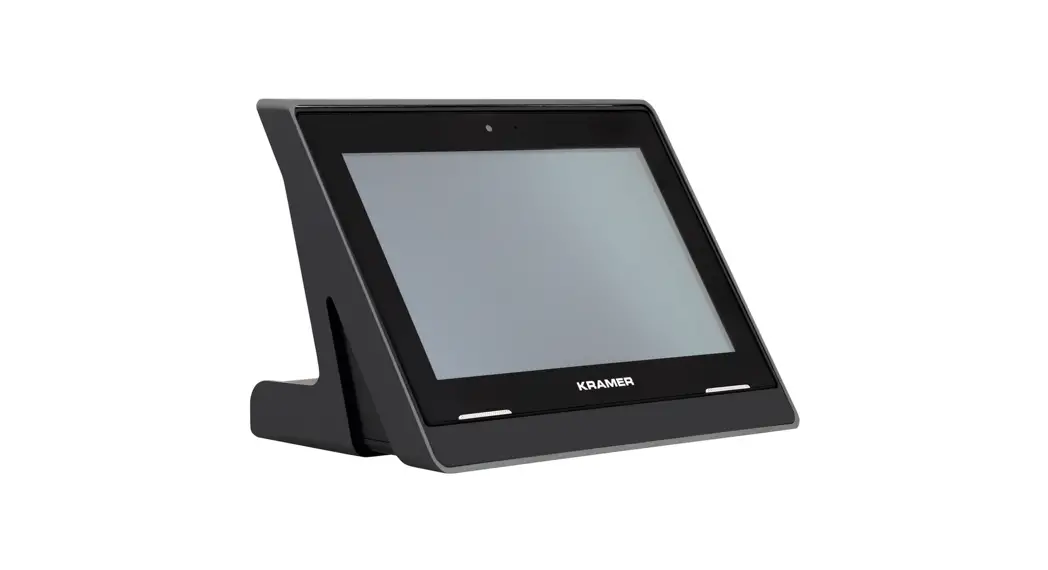
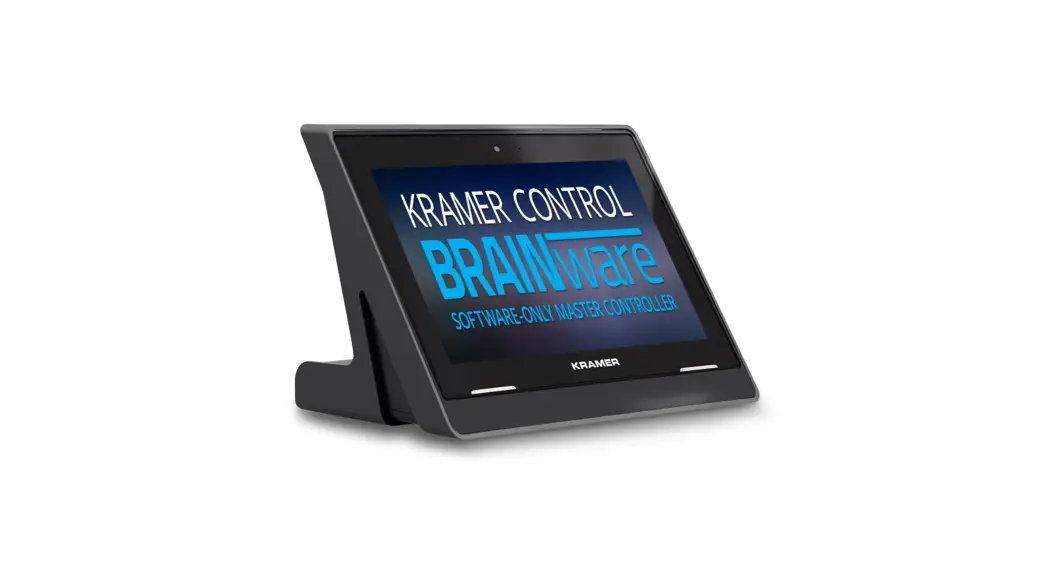
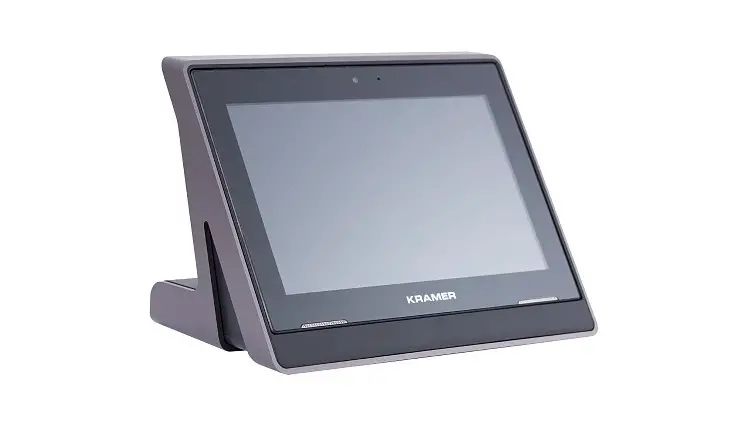
KT-2010 10 Inch Wall and Table Mount PoE Touch Panel
Product Information:
The KT-2010 / KT-2010WM is a tablet device designed for various
applications. It features a range of functions and connectivity
options, making it versatile for different use cases. The tablet
comes with a display, microphone, proximity sensor, camera, reset
button, home button, restore factory reset button, USB 3.0 port,
USB Type-C port, LAN 1G(PoE) RJ-45 port, Kensington lock, and a
12V/2A DC connector.
Product Usage Instructions:
Step 1: Check what’s in the box
The package includes the following items:
- KT-2010 tablet or KT-2010WM tablet
- Quick start guide
- Table stand (KT-2010 only)
- Wall bracket (KT-2010WM only)
- Screws: 1 x M3, 2 x M2, 2 x 5/32 (KT-2010 only)
- Screws: 1 x M3, 2 x M2 (KT-2010WM only)
- Double sided tape (KT-2010 and KT-2010WM)
Step 2: Get to know your KT-2010 / KT-2010WM
Familiarize yourself with the various features and ports of the
tablet as listed above.
Step 3: (Option 1) Mount KT-2010 on a Table
Simple Mounting (moveable table stand):
- Remove the I/O cover: Take out the 2 M2 screws. Insert fingers
into the two slots and slide the cover down. - Connect any necessary cables, running them through the table
stand to the KT-2010. - Replace the I/O cover, taking care to prevent pressure on the
RJ-45 cable: Use a cable without a hood. Curl the cable under the
cover. - Close the cover with the 2 M2 screws.
- Lay the KT-2010 face-down and mount the table stand on it.
- Insert and fasten the provided M3 screw that secures the bottom
of the KT-2010 to the table stand.
Secure Mounting (fixed table stand):
- Follow steps 1-4 above.
- Lay the KT-2010 face-down and mount the table stand on it.
- Secure the stand to the table using the two provided 5/32
screws. - Mount the KT-2010 on the stand and secure it with the provided
M3 screw.
Note: For optimum range and performance, it is
recommended to use Kramer cables available at
www.kramerav.com/product/KT-2010. Using third-party cables may
cause damage.
Step 4: (Option 2) Mount KT-2010WM on a Wall
To mount the device using double-sided tape:
- Remove the I/O cover: Take out the 2 M2 screws. Insert fingers
into the two slots and slide the cover down. - Connect any necessary cables to the KT-2010WM.
- Replace the I/O cover and close it with the 2 M2 screws.
- Attach the double-sided tape to the back of the wall
bracket. - Click the wall bracket onto the back of the I/O cover (push the
bracket into place while holding its top slightly outward). - Secure the wall bracket to the tablet cover using the M3
screw. - Use the double-sided tape to fix the tablet on a wall. The
tablet is now mounted.
To mount the device on a secured wall bracket:
- Mount the wall bracket onto the installation point using
appropriate screws (not provided).
Please refer to the full user manual available for download at
www.kramerav.com/downloads/KT-2010 or
www.kramerav.com/downloads/KT-2010WM for detailed instructions on
installation, usage, and firmware upgrades.
Scan for full manual
KT-2010 / KT-2010WM Quick Start Guide
This guide helps you install and use your KT-2010 / KT-2010WM for the first time. Go to www.kramerav.com/downloads/KT-2010 or http://www.kramerav.com/downloads/KT-2010WM to download the latest user manual and check if firmware upgrades are available.
Step 1: Check what’s in the box
KT-2010: KT-2010WM:
10″ Tablet 10″ Tablet
1 Quick start guide 1 Quick start guide
Table stand Wall bracket
Screws: 1 x M3, 2 x M2, 2 x 5/32″
Screws: 1 x M3, 2 x M2
Double sided tape
Step 2: Get to know your KT-2010 / KT-2010WM
# Feature 1 Display 2 Microphone 3 Proximity Sensor
4 Camera 5 Reset 6 Home Button 7 Restore Factory Reset Button 8 USB 3.0 Port 9 USB Type-C Port 10 LAN 1G(PoE) RJ-45 Port
11 Kensington Lock 12 12V/2A DC Connector
KT-2010 / KT-2010WM Quick Start
Function
Touch panel For audio communication, recording or conferencing. Automatically adjusts the screen brightness and camera according to the room lighting conditions. For remote room viewing or video conferencing. Located on the topside. Insert a pin and hold for a few seconds to restart. Press to wake up / darken the screen. Insert a pin and hold for 22 seconds to reset the device to factory default values. Multipurpose port for external connection. Multipurpose port for external connection. Connect to the LAN for network communication. KT-2010 / KT-2010WM is powered by PoE (power over ethernet) delivered through the LAN port. Optionally, you can connect the power adapter too (as backup). Anti-theft security slot for locking the device. Connect to the power adapter (optional, purchased separately).
P/N: 2 9 0 0 – 3 0 1 6 4 0 QS
Rev: 3
Step 3: (Option 1) Mount KT-2010 on a Table
Simple Mounting (moveable table stand)
1. Remove the I/O cover: Take out the 2 M2 screws. Insert fingers into the two slots and slide the cover down.
2. Connect any necessary cables, running them through the table stand to the KT-2010.
3. Replace the I/O cover, taking care to prevent pressure on the RJ-45 cable: Use a cable without a hood. Curl the cable under the cover.
4. Close the cover with the 2 M2 screws.
5. Lay the KT-2010 face-down and mount the table stand on it. 6. Insert and fasten the provided M3 screw that secures the bottom
of the KT-2010 to the table stand.
The table stand and tablet are now ready for use.
Secure Mounting (fixed table stand)
1. Remove the I/O cover: Take out the 2 M2 screws. Insert fingers into the two slots and slide the cover down.
2. Connect any necessary cables, running them through the table stand to the KT-2010.
3. Replace the I/O cover, taking care to prevent pressure on the RJ45 cable: Use a cable without a hood. Curl the cable under the cover.
4. Close the cover with the 2 M2 screws.
5. Lay the KT-2010 face-down and mount the table stand on it. 6. Secure the stand to the table using the two provided 5/32″
screws.
7. Mount the KT-2010 on the stand and secure it with the provided M3 screw.
The table stand and tablet are now ready for use.
For optimum range and performance use the recommended Kramer cables available at www.kramerav.com/product/KT-2010.
Using third-party cables may cause damage!
Step 4: (Option 2) Mount KT-2010WM on a Wall
To mount the device using double-sided tape:
1. Remove the I/O cover: Take out the 2 M2 screws. Insert fingers into the two slots and slide the cover down.
2. Connect any necessary cables to the KT-2010WM. 3. Replace the I/O cover, and close with the 2 M2 screws. 4. Attach the double-sided tape to the back of the wall bracket.
5. Click the wall bracket onto the back of the I/O cover (push the bracket into place while holding its top slightly outward).
6. Secure the wall bracket to the tablet cover using the M3 screw. 7. Use the double-sided tape to fix the tablet on a wall. The tablet is mounted.
To mount the device on a secured wall bracket:
1. Mount the wall bracket on to the installation point (screws not provided).
2. Connect the tablet to the wall bracket (lift it into place while holding the top of the tablet slightly outward).
3. Use the provided M3 screw to secure the tablet to the wall bracket and back cover.
The tablet is mounted. For optimum range and performance use the recommended Kramer cables available at www.kramerav.com/product/KT-2010WM. Using third-party cables may cause damage!
Step 5: Connect to Power
KT-2010 and KT-2010WM are powered by PoE (Power over Ethernet). When accepting power from a PoE provider, there is no need to connect a DC power supply. If you do need an external power adapter, it can be purchased separately. Connect the device to a LAN switch with PoE: The device starts automatically when power is connected.
Ensure that the environment (e.g., maximum ambient temperature & air flow) is compatible for the device. Avoid uneven mechanical loading. Appropriate consideration of equipment nameplate ratings should be used for avoiding overloading of the circuits. Reliable earthing of rack-mounted equipment should be maintained. Maximum mounting height for the device is 2 meters. This equipment has been tested and found to comply with the limits for a Class A digital device, pursuant to Part 15 of the FCC Rules. These limits are designed to provide reasonable protection against harmful interference when the equipment is operated in a commercial environment. This equipment generates, uses, and can radiate radio frequency energy and, if not installed and used in accordance with the instruction manual, may cause harmful interference to radio communications. Operation of this equipment in a residential area is likely to cause harmful interference in which case the user will be required to correct the interference at his/her own expense. Changes or modifications not expressly approved by the manufacturer could void the user’s authority to operate the equipment. This device complies with Part 15 of the FCC Rules. Operation of the device is subject to the following conditions: This device may not cause harmful interference This device must accept any interference received, including interference that may cause undesired operation Recommendations for safe exposure to non-ionizing radiation: Only use the device at least 20 centimeters away from your body.
Step 6: Customize KT-2010 / KT-2010WM settings
KT-2010 and KT-2010WM are designed to operate with Kramer Control. Ideally, their operational
characteristics should be defined before they are used. For more information see Kramer Control. · To view the Android navigation icons, swipe a finger upwards from the line at the bottom of the screen and release.
The following steps are recommended for setting up your Kramer KT-2010 / KT-2010WM: 1. Set the device’s time and date:
· On the Home screen, press the Settings icon and then select Date & time > Time zone and set the Region.
2. Setup the Ethernet or Wi-Fi connection:
· On the Home screen, press Settings and select Network & Internet > Wi-Fi (or Ethernet). For detailed information, see “Connecting to Wi-Fi or Ethernet” in the User Manual.
3. (optional) Change the time of OS firmware (FW) updates:
By default, the system checks for FW updates at midnight: Updates are automatically downloaded and installed.
a. To change FW update settings, in the Settings screen select Firmware update > Remote firmware update.
b. Press the time to change the time. Clear the URL to prevent automatic updates (updates will be manual). 4. (optional) Change the time of the Kramer Control agent (APK) updates:
By default, the system checks for APK updates at midnight. Updates are automatically downloaded and installed.
a. To change APK update settings, open the Settings screen and select Remote APP upgrade URL.
b. Press the time to change the time. Clear the URL to prevent automatic updates (updates will be manual). Note: Factory resets delete the APK but not the Remote APP upgrade URL. 5. Setup the Kramer Control agent:
KT-2010 / KT-2010WM is designed to operate with Kramer Control. There are two ways to setup the link to Kramer Control: from the tablet or from a laptop. For more information see https://www.manula.com/manuals/kramer/kramer-control/1/en/topic/new-kramer-tablets · Setting the link from the tablet:
a. In the tablet’s Home page, open the Chromium browser and enter “<Kramer Control’s IP>:8000”. b. Select the desired interface and copy its URL.
c. In the tablet’s Home page, open the Kramer Agent app . d. Press “Launch Control Interface” and paste the link, then press OK.
· (alternative method) Setting the link from a Windows laptop connected to the same network:
Open a Chrome browser and enter: https://<IP of the tablet>:9804/launchurl?<IP of Kramer Control>:8000/?interface=&immersive=true
Specifications are subject to change without notice at www.kramerav.com
References
 Kramer | Audio Visual Solutions - Kramer
-
Kramer | Audio Visual Solutions - Kramer
-
Application Diagrams - Kramer Electronics
-
No resources found
-
kramerav.com/product/KT-2010
-
Kramer Pro AV manufacturer - Product Categories
-
kramerav.com/product/kt-208#Tab_Resources
 New Kramer Tablets - Kramer Control - 1
-
www1.kramerav.com/product/Kramer%20Control
 Kramer | Audio Visual Solutions - Kramer
 New Kramer Tablets - Kramer Control - 1
 www1.kramerav.com/product/Kramer%20Control