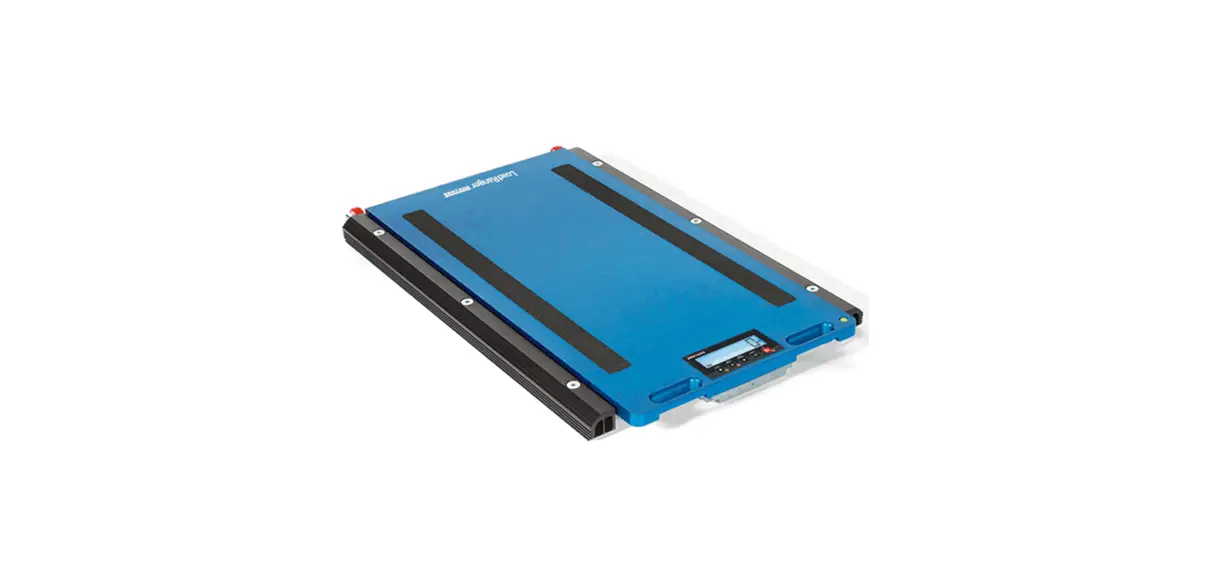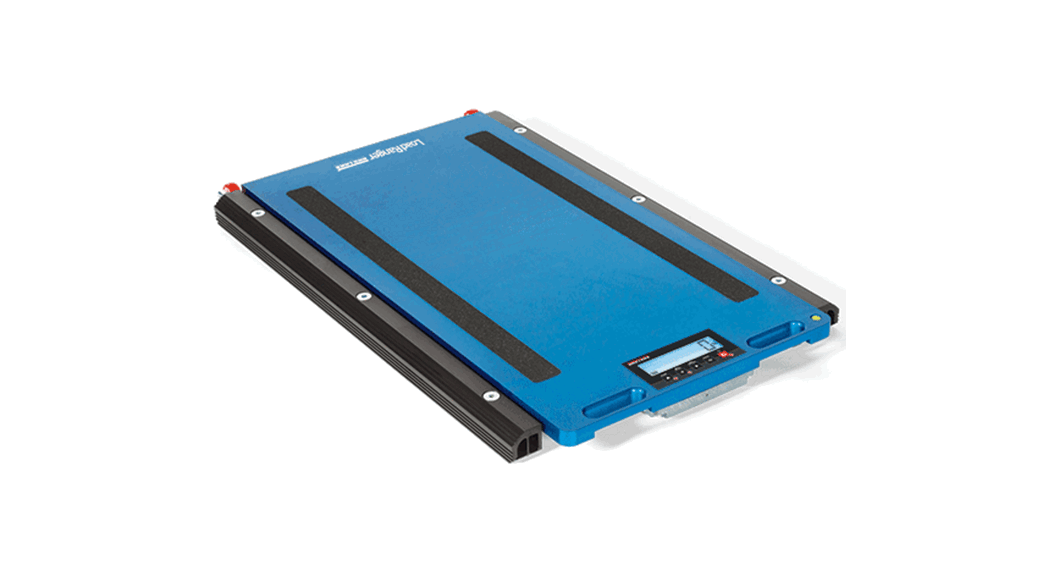
 214609 Load Ranger
2.4 GHz RF Module Retrofit
User Guide
This quick start guide contains condensed instructions for installing 2.4 GHz RF module retrofit kits in the wheel weigh pad and Ai-1 indicator.
For full instructions regarding retrofit and configuration, see Load Ranger Technical Manual (PN 214194).
 NOTE: Fully charge wheel weigh pad and Ai-1 indicator before proceeding.
 CAUTION: Wear a grounding wrist strap when working inside the Load Ranger to protect components from electrostatic discharge (ESD).
Replace Radio Module in Wheel Weigh Pad
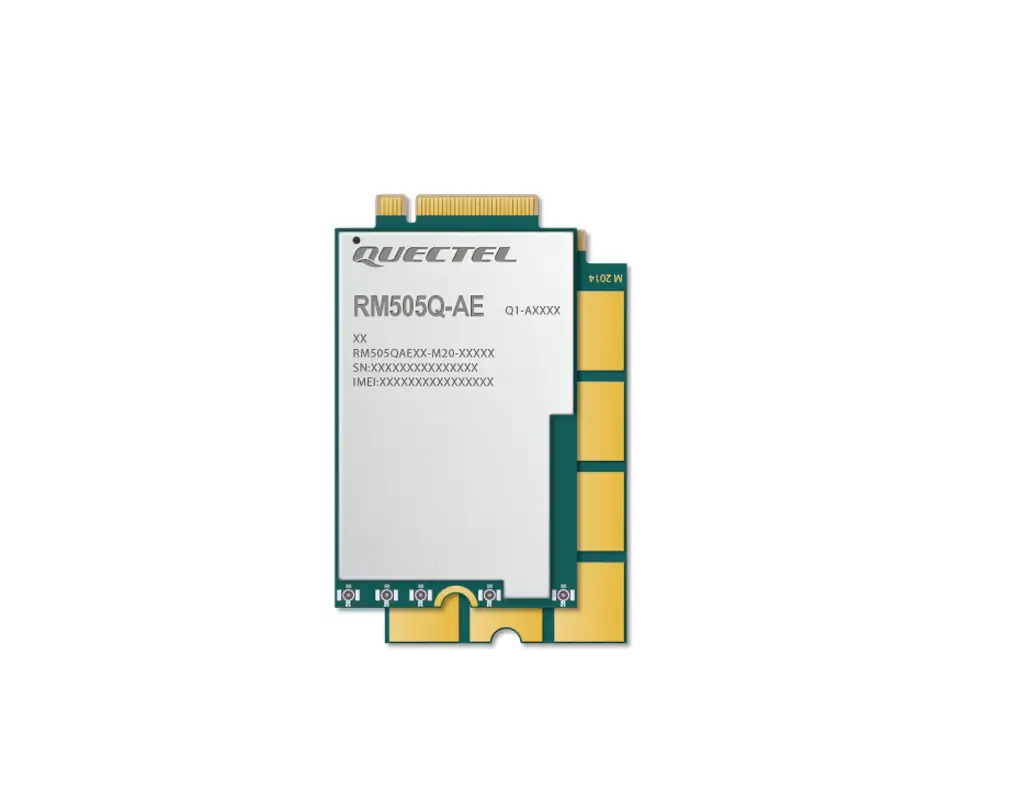
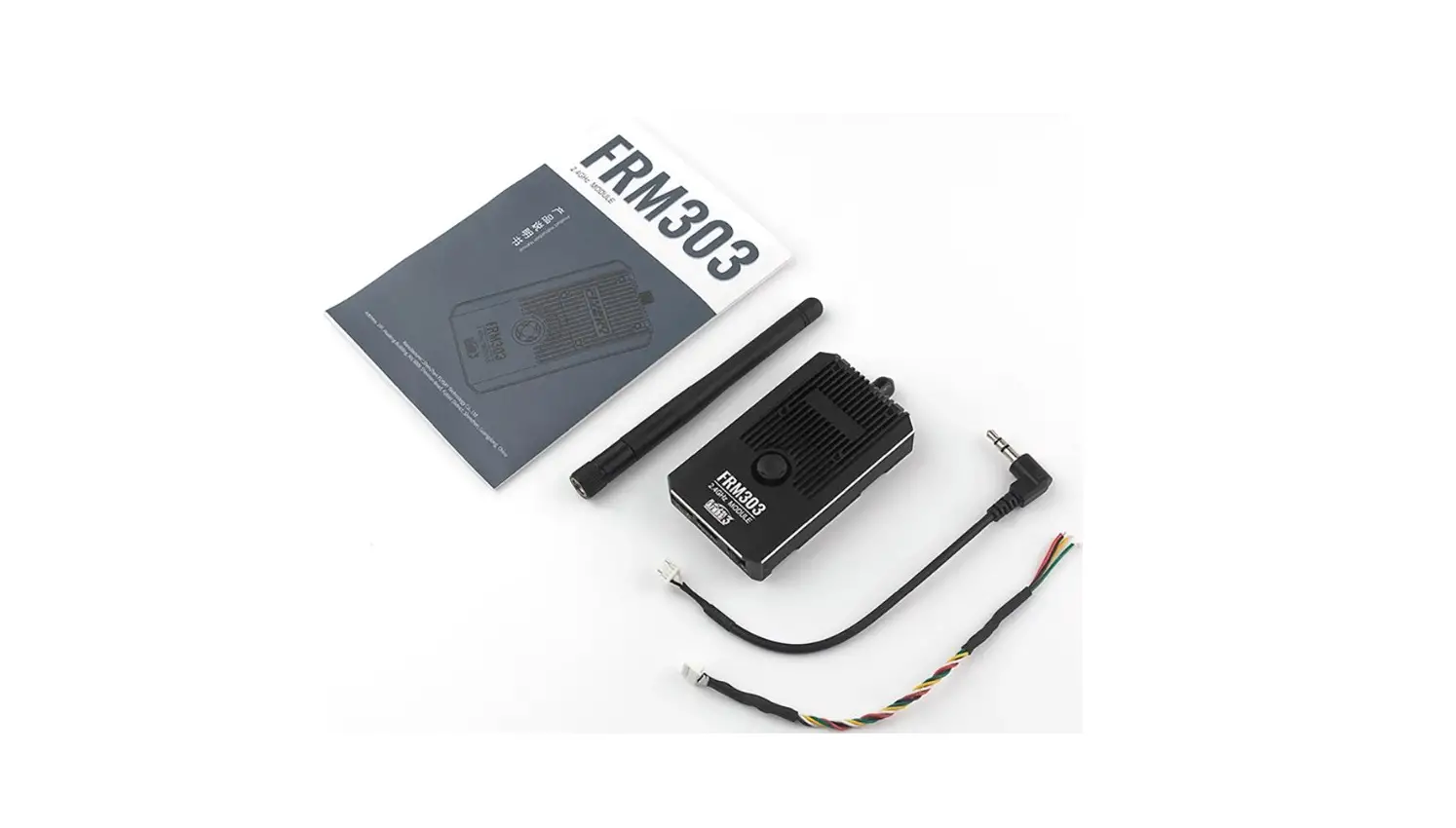
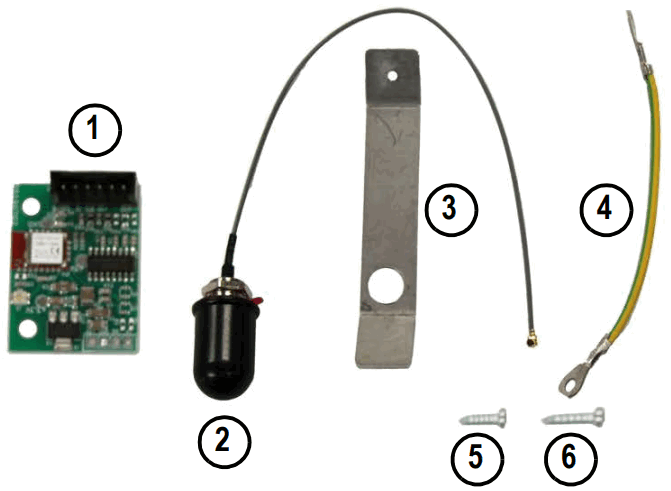 Figure 1. Retrofit Kit (212110)
| Item No. | Description |
| 1 | 2.4GHz Radio Frequency Module |
| 2 | Antenna (with O-ring) |
| 3 | Antenna Support plate |
| 4 | Ground wire |
| 5 | Phillips screw, M3 x 6 screw |
| 6 | Phillips screw, M3 x 9 self-tapping screw |
- Turn off the wheel weigh pad and disconnect the power cable.
- Position wheel weighs pad with the bottom facing up.
- Remove two protection plate bolts, then remove plate (Figure 2).
- Remove six electronics cover mounting bolts, then open the electronics cover (Figure 2).
 Figure 2. Protection Plate and Cover Mounting Bolts
 - Remove antenna, power cable, and Bluetooth® module cabling.
- Remove Bluetooth® module mounting screw, then Bluetooth® module.
 Figure 3. Existing Hardware Removal
 - Remove jam nut and adhesive protector film from the new antenna, then slide black O-ring along the cable and push into adhesive.
- Insert new antenna into cover while threading into support plate.
- Secure ground to support plate with M3 x 6 screws.
- Remove CPU board Phillips mounting screw and O-ring from CPU board mounting hole closest to support plate.
- Secure ground to CPU board mounting hole with previously removed Phillips screw and O-ring.
- Secure ground to the hole in the antenna support plate with a Phillips screw.
 Figure 4. Antenna and Ground Wire Installation
 - Secure RF module (Bluetooth® module mounting location) with Philips screw.
- Connect communication cable to RF module and CPU board COM2 TTL, antenna cable to RF module, and power cable to the CPU board.
 Figure 5. RF Module Installation
 - Repeat for remaining wheel weighs pads.
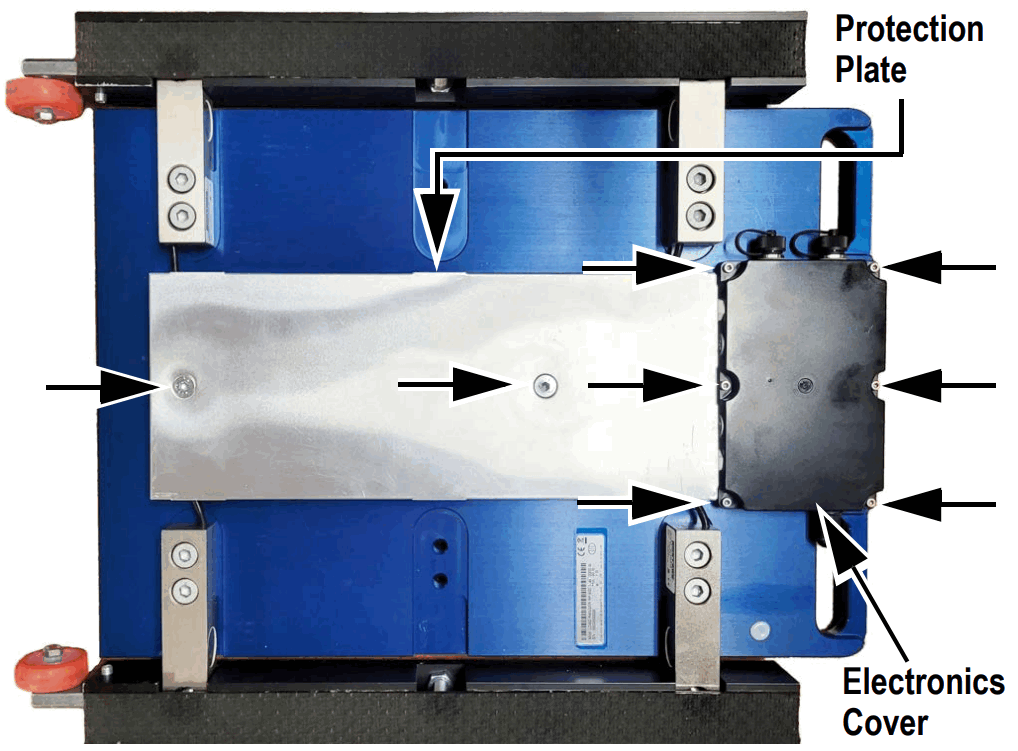 Figure 2. Protection Plate and Cover Mounting Bolts
 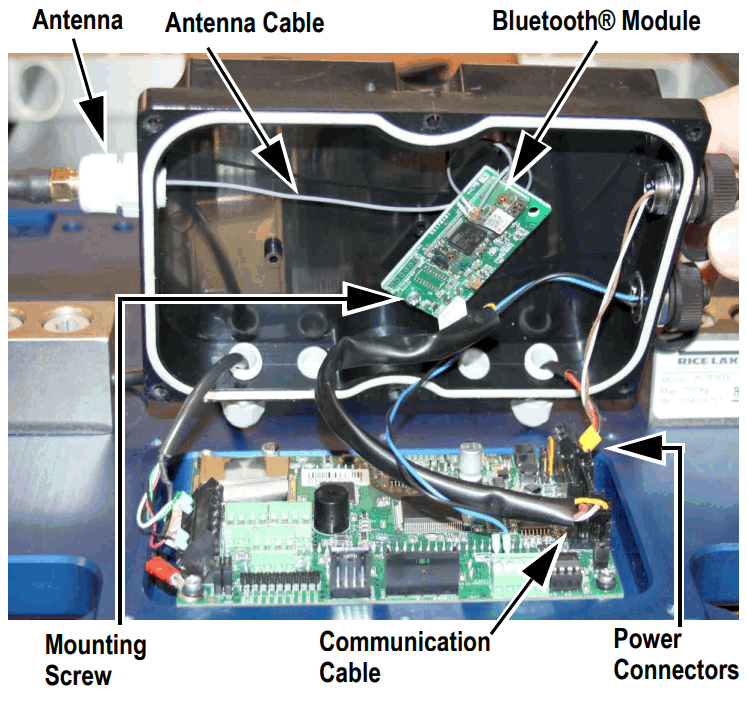 Figure 3. Existing Hardware Removal
 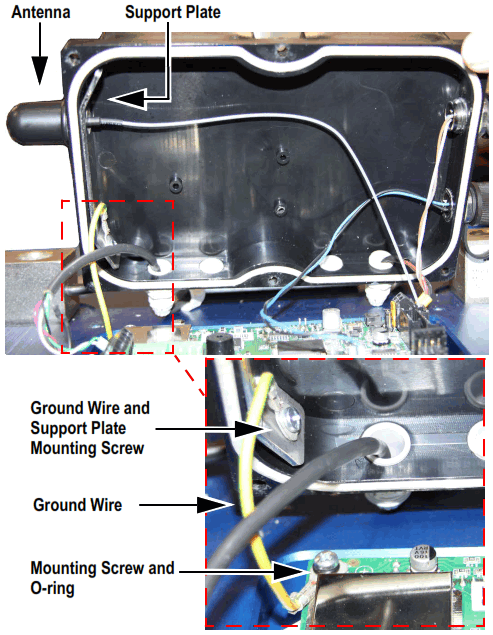 Figure 4. Antenna and Ground Wire Installation
 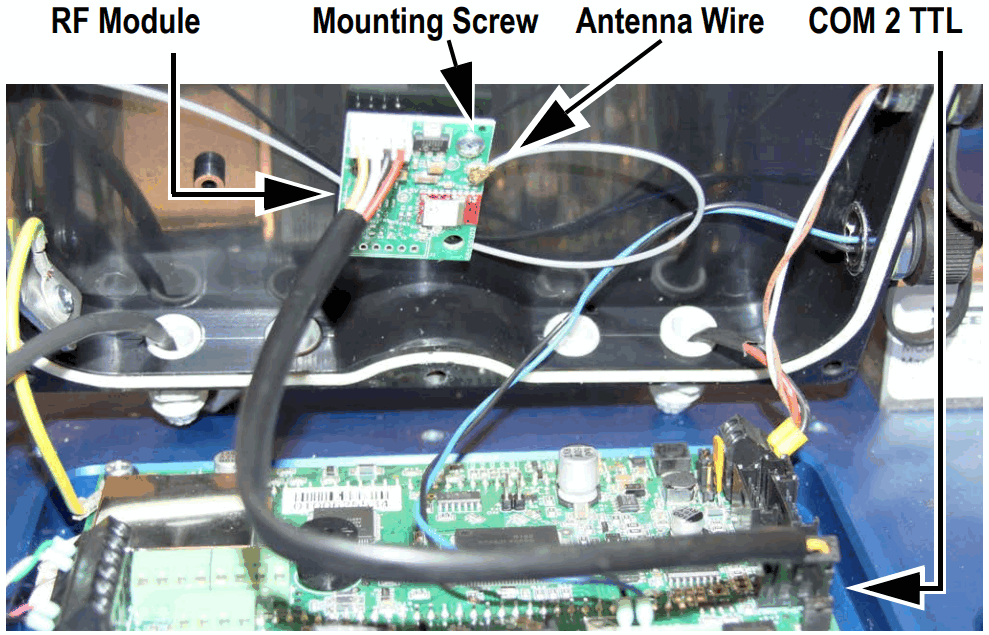 Figure 5. RF Module Installation
Replace Radio Module in Ai-1 Indicator
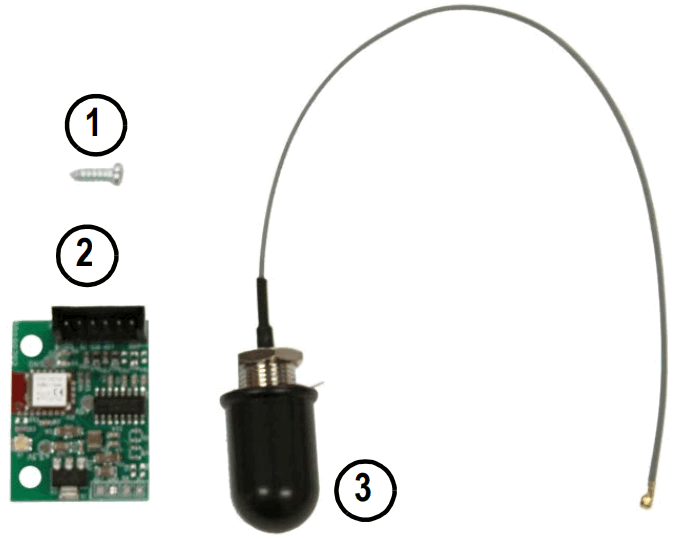 Figure 6. Ai-1 Indicator RF Retrofit Kit Parts (212111)
| Item No. | Description |
| 1 | Phillips screw, 2.9 x 9.5 self-tapping screw |
| 2 | 2.4GHz Radio Frequency Module |
| 3 | Antenna |
- Turn off the device and disconnect the power cable.
- Position Ai-1 indicator with the bottom facing up.
- Remove four cover mounting bolts, then remove the cover.
 Figure 7. Ai-1 Indicator Cover Mounting Bolts
 - Disconnect battery cabling and Bluetooth® radio cabling.
- Remove existing antenna.
- Remove Bluetooth® module mounting screw, then Bluetooth® module.
 Figure 8. Removing Bluetooth® Module
 - Remove jam nut and adhesive protector from the antenna.
- Insert antenna wire through the antenna mounting hole on the front of the cover then push the antenna firmly in the mounting hole.
- Secure antenna with a jam nut on the inside of the enclosure.
 Figure 9. Install Antenna
 - Install the new RF module in the same location as the Bluetooth® module.
- Connect communication cable to CPU board COM3 and RF module J3, antenna cable to RF module, and reconnect battery cables.
 Figure 10. Install RF Module
 - Reinstall the rear cover and handles with four bolts.
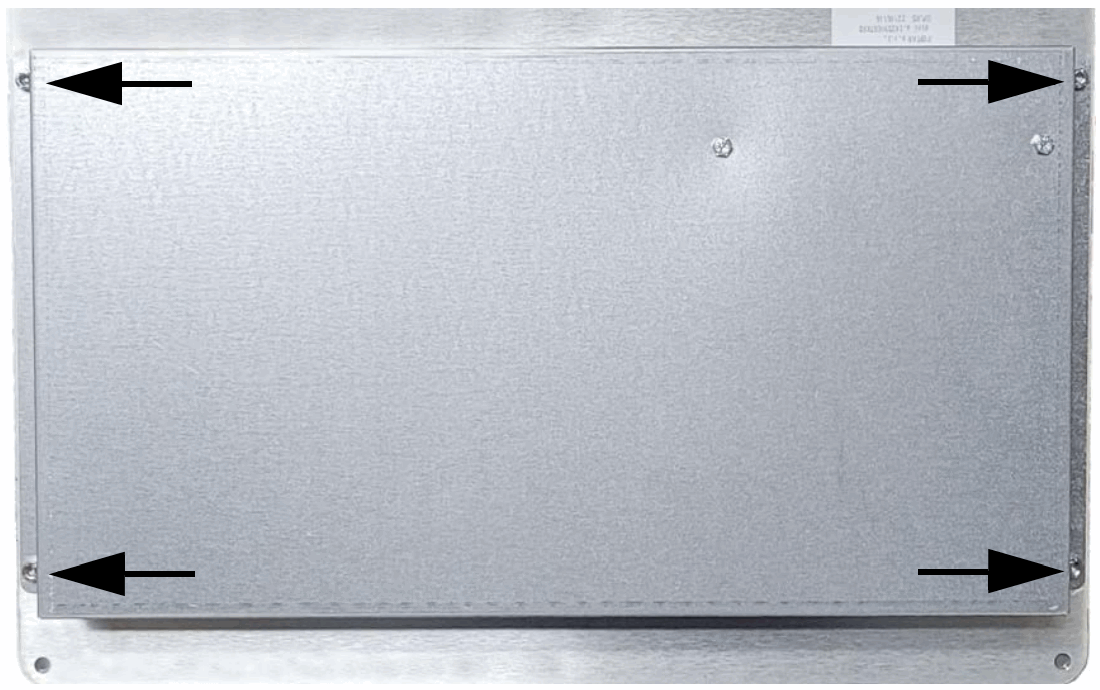 Figure 7. Ai-1 Indicator Cover Mounting Bolts
 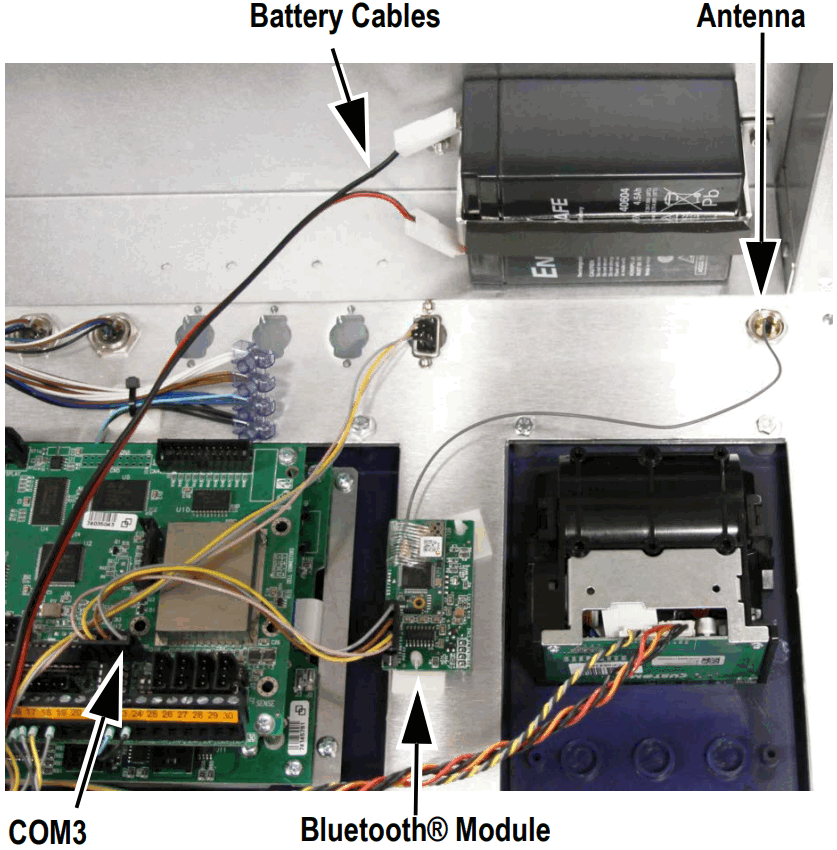 Figure 8. Removing Bluetooth® Module
 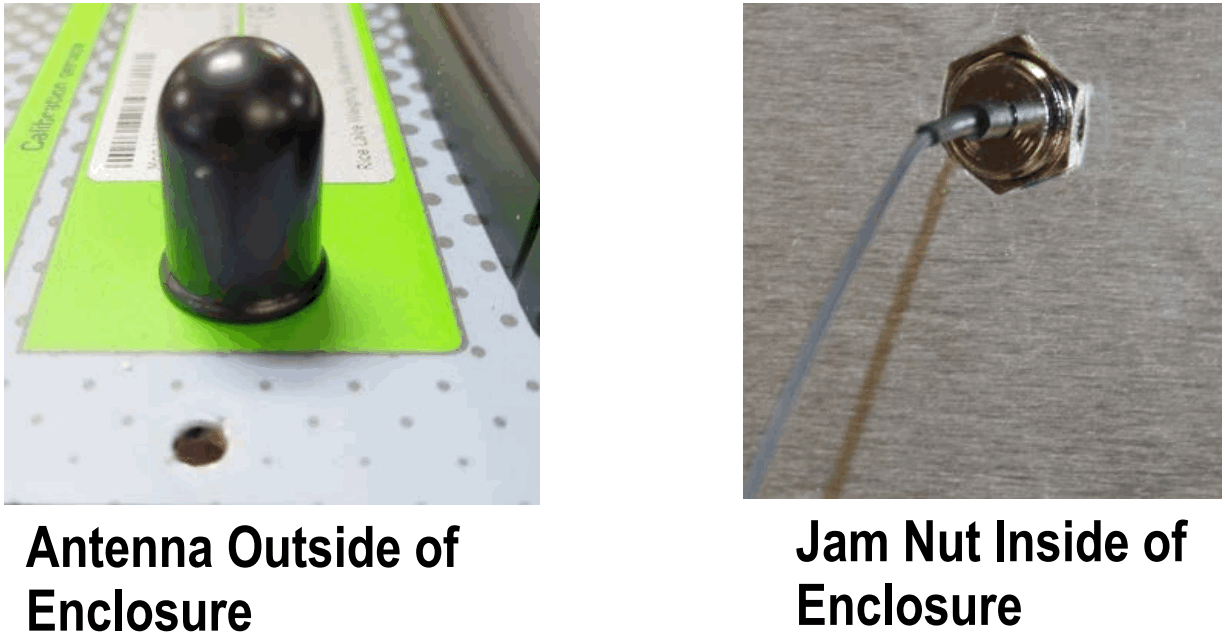 Figure 9. Install Antenna
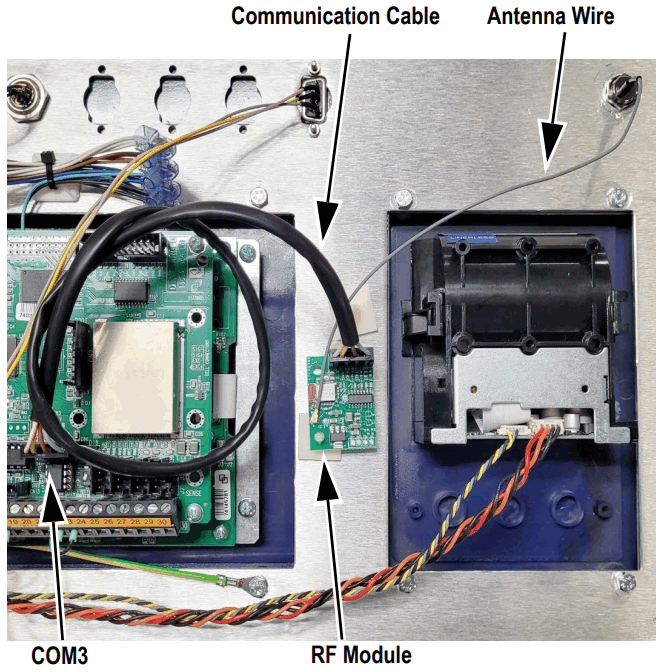 Figure 10. Install RF Module
 Update Firmware
In order for wheel weigh pads and Ai-1 indicators originally supplied with Bluetooth® modules to use RF modules, their firmware must be updated.
 IMPORTANT: Firmware update supports Windows 10 and 11 computers. NOTE: Firmware update duration varies; plan for approximately five to ten minutes for a wheel weigh pad and 25 to 45 minutes for an Ai-1 Indicator.
- Download 2.4GHz Load Ranger firmware from: https://www.ricelake.com/firmware
- Unzip firmware file (files for Ai-1 and indicator wheel weigh pad are included):
Device Firmware File Name Ai-1 Indicator EGT-AF13_07.07.00_XX_NL2.08_RICELAKE.exe Weigh Pad Dfw06WWSRF_05.03.00_ML_NL2.05_LCD_RICELAKE.exe  NOTE: Firmware file names contain version numbers and are equal to or greater than displayed above.
 - Attach a serial cable to the Ai-1 indicator’s serial port and connect the free end to the computer. NOTE: The Ai-1 indicator’s serial port is located on the front panel.
 Figure 11. Ai-1 Indicator Serial Port
 - Turn on the Ai-1 indicator.
- Run Ai-1 indicator firmware executable.
- Select a serial port number from the drop-down menu.
- Enable the USB->COM check box, if using a USB to serial converter.
- Select OK.
 Figure 12. Firmware Update Configuration Window
 - A connection status indicator displays until a connection between the computer and the Ai-1 indicator is established.
 Figure 1-1. Connection Status Window
 - Once communication is established, a firmware update status window displays.
 Figure 2. Firmware Update Status Window
 - When firmware has been updated, a success prompt displays.
- Select OK to close the window.
 Figure 3. Firmware Success Prompt
 - After the firmware update is completed, allow the device to reboot if it power cycles.
- Power off the Ai-1 indicator and remove the serial cable.
- Attach a serial cable to the wheel weigh pad’s serial port and connect the free end to the computer. NOTE: The wheel weighs pad’s serial port is located inside the electronics cover on the CPU board.
 Figure 4. Wheel Weigh Pad Serial Port
 - Run wheel weigh pad firmware executable.
- Repeat steps Step 7 through Step 14.
- Reinstall the wheel weigh pad’s cover and protection plate with previously removed hardware (Figure 2 on page 1).
- Repeat steps Step 15 through Step 18 for the remaining wheel weigh pads.
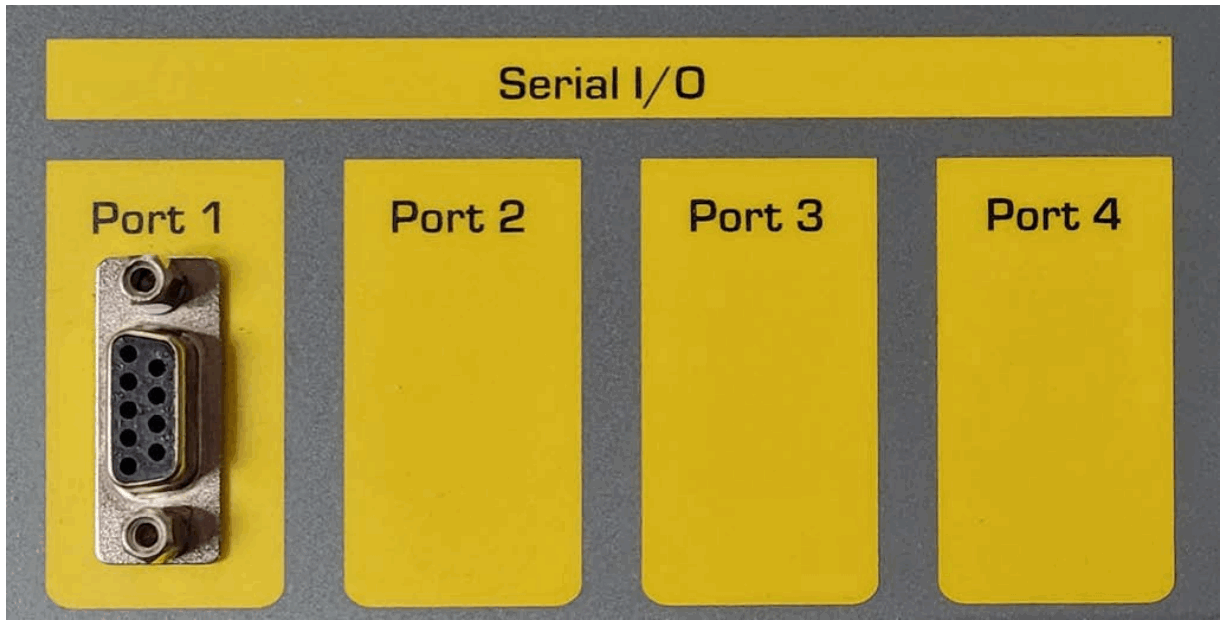 Figure 11. Ai-1 Indicator Serial Port
 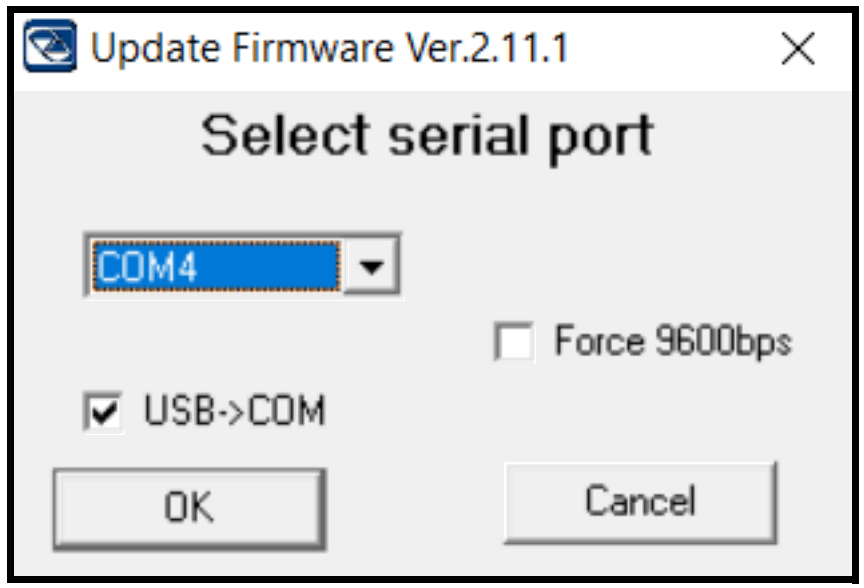 Figure 12. Firmware Update Configuration Window
 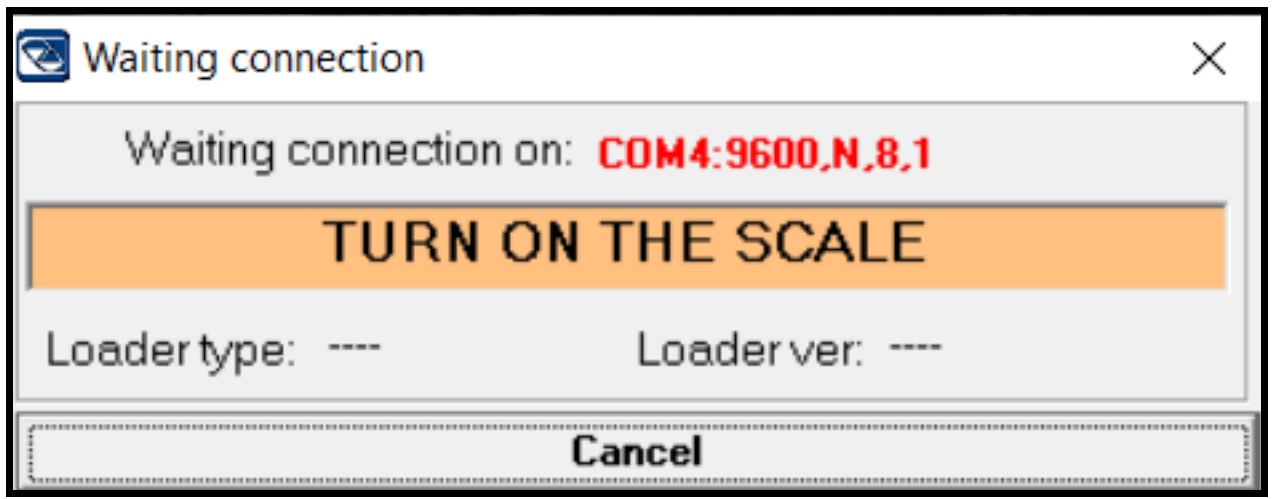 Figure 1-1. Connection Status Window
 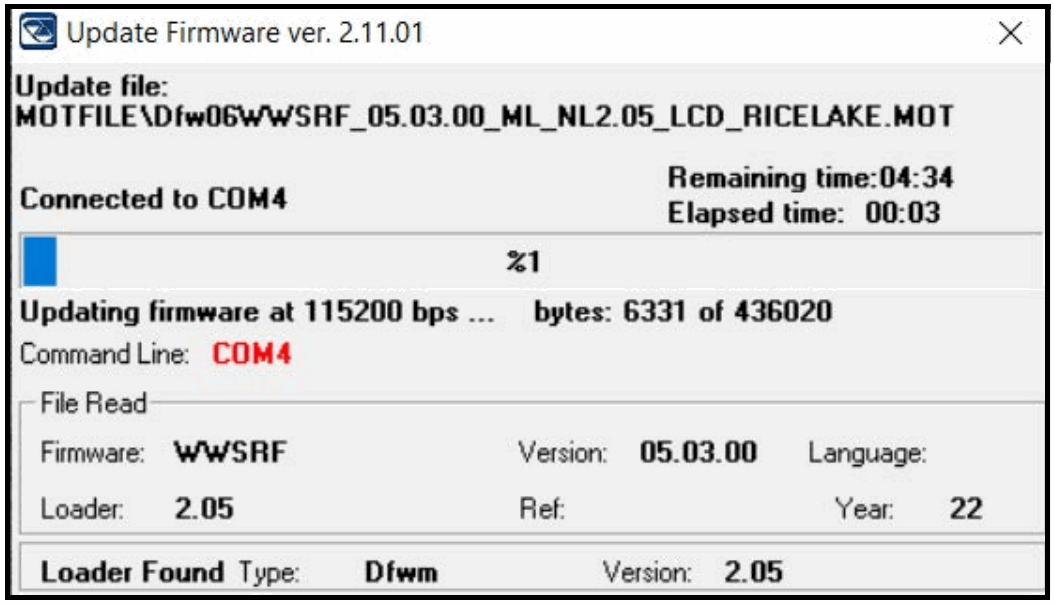 Figure 2. Firmware Update Status Window
 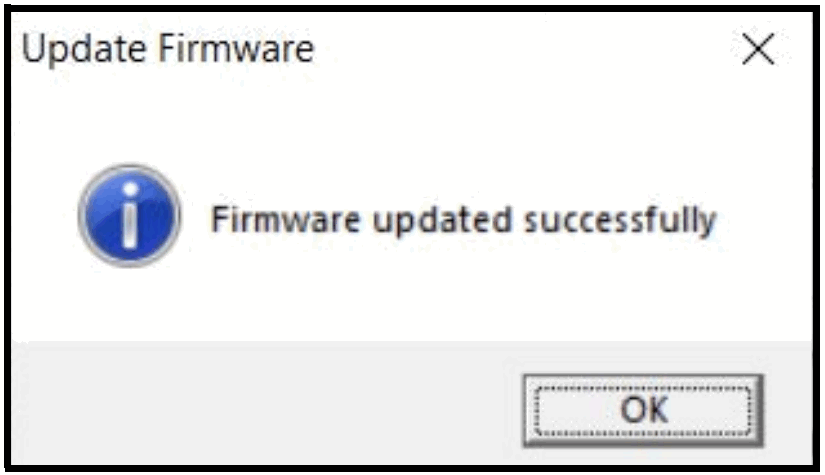 Figure 3. Firmware Success Prompt
 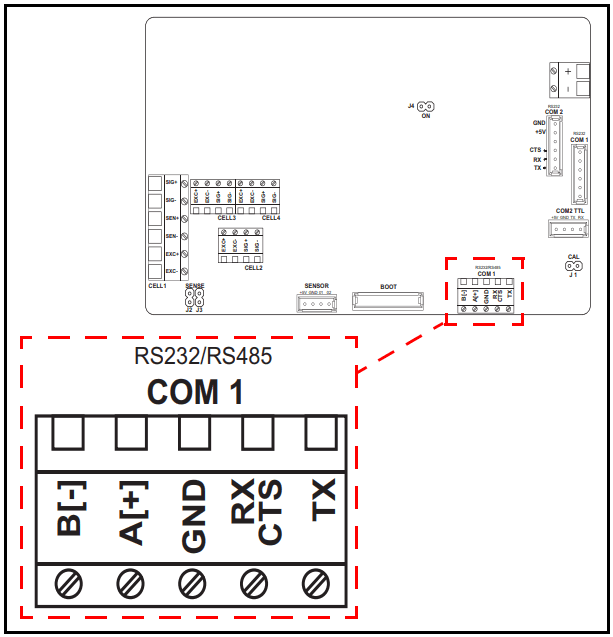 Figure 4. Wheel Weigh Pad Serial Port
 Default Wheel Weigh Pad
Wheel weigh pads must default after a firmware update is applied.
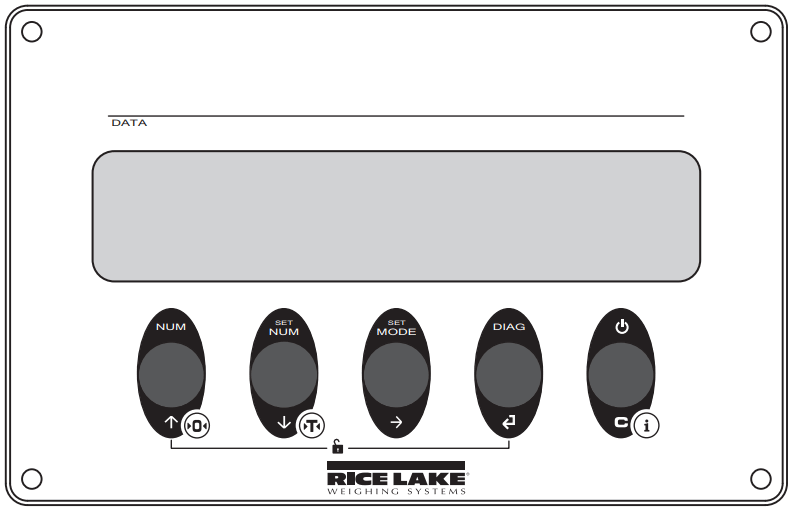 Figure 5. Wheel Weigh Pad Controls
- Press
 to turn on the first wheel weigh pad.
 - Press during startup.
 flashes then
  display.
 - Press.
 displays.
 - Press .
 displays.
 - Press .
 displays.
 - Press .
 displays.
 - Press to default the wheel weighs pad.
 displays while the process runs, then
  display.
 - Press two times to back out of the menu.
 displays.
 - Press .
 briefly displays, then CaL displays. See Load Ranger Technical Manual (PN 214194) recalibrate the wheel weigh pad.
 - Repeat for remaining wheel weighs pads.
 to turn on the first wheel weigh pad.
 during startup.
  flashes then
  display.
 .
.  displays.
 .
.  displays.
 displays.
 displays.
 displays while the process runs, then
  display.
 displays.
 briefly displays, then CaL displays. See Load Ranger Technical Manual (PN 214194) recalibrate the wheel weigh pad.
5. Setup Wheel Weigh Pad
- Press to turn on the first wheel weigh pad.
- Press during startup. Tech flashes, then CAL displays.
- Press repeatedly until SERiAL displays.
- Press to enter the Serial menu. iD displays.
- Press to enter the ID settings.
- Press or to increase or decrease the selected digit and press
 to move between the digits to enter the pad ID number. NOTE: The first Pad ID number must be 01 and the remaining pad ID numbers must increment in ascending numeric order. Example: 01, 02, 03. Do not configure two pads with the same ID number.
 Figure 6. Wheel Weigh Pad Positioning
 - Press .
 displays.
 - Press until repeated
 displays.
 - Press .
 displays.
 - Press or until
 displays.
 - Press .
 briefly displays.
 - Use arrows to enter a channel number. NOTE: The default channel number is 27. The wheel weighs pad channel number must match the Ai-1 indicator channel number it will pair with. The Ai-1 indicator supports channels 00 – 38. If using multiple groups of Ai-1 indicators and wheel weigh pads, the channel numbers must be unique for each group.
- Press . OK briefly displays then Baud displays.
- Press until the wheel weighs pad resets.
- Repeat for remaining wheel weighs pads.
 to move between the digits to enter the pad ID number.
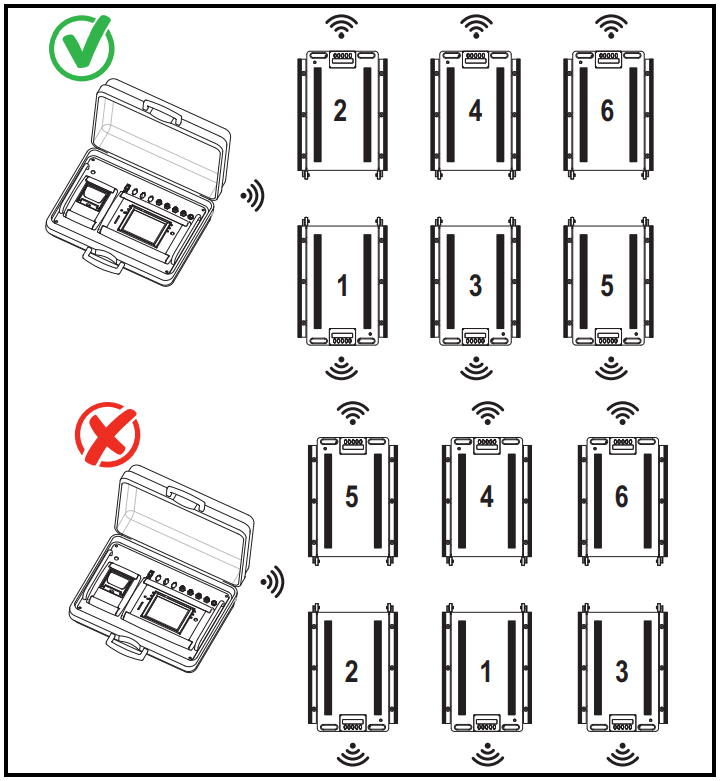 Figure 6. Wheel Weigh Pad Positioning
 displays.
 displays.
 displays.
 displays.
 briefly displays.
6. Setup Ai-1 Indicator
- Turn off all wheel weigh pads.
- Press
 to turn on the Ai-1 indicator.
 - During startup, press the upper right corner of the screen when the logo displays to enter the Technical Setup menu.
 Figure 7. Touch the Upper Right Corner of the Display
 - Press
 to go to the second Setup menu page.
 - On the second page, press
 .The Serial Port menu displays.
 - Press
 .Radio Frequency interface displays.
 - Press
 .
. - Enter the required channel number. NOTE: The default channel number is 27. The wheel weighs pad channel number must match the Ai-1 indicator channel number it will pair with. The Ai-1 indicator supports channels 00 – 38. If using multiple groups of Ai-1 indicators and wheel pads, the channel numbers must be unique for each group.
 Figure 8. Channel Keyboard
 - Press
 . A Channel prompt displays.
 Figure 9. Channel Success Prompt
 - Press to close the prompt and return to the Radio Frequency interface menu.
- Press
 twice.
 - Press
 once.
once. - Press
 .
. - Press
 .
. - Press
 the Number of Scales menu displays.
 - Select the number of wheels and weigh pads to be used.
 Figure 10. Number of Scales Configuration
 - Press .
- Press .
- Press
 Gravity value setting pop-up displays.
 - Enter the gravity value for the area the wheel weigh pads will be used.
 Figure 11. Set Gravity Value
 - Press to close the prompt and return to the Calibration menu.
- Press
 . Setup changed prompt displays.
  Figure 12. Setup Changed
 - Press
 to save settings and complete setup. Ai-1 indicator reboots to Weigh mode.
 to turn on the Ai-1 indicator.
 Figure 7. Touch the Upper Right Corner of the Display
 to go to the second Setup menu page.
 .The Serial Port menu displays.
 .Radio Frequency interface displays.
 .
.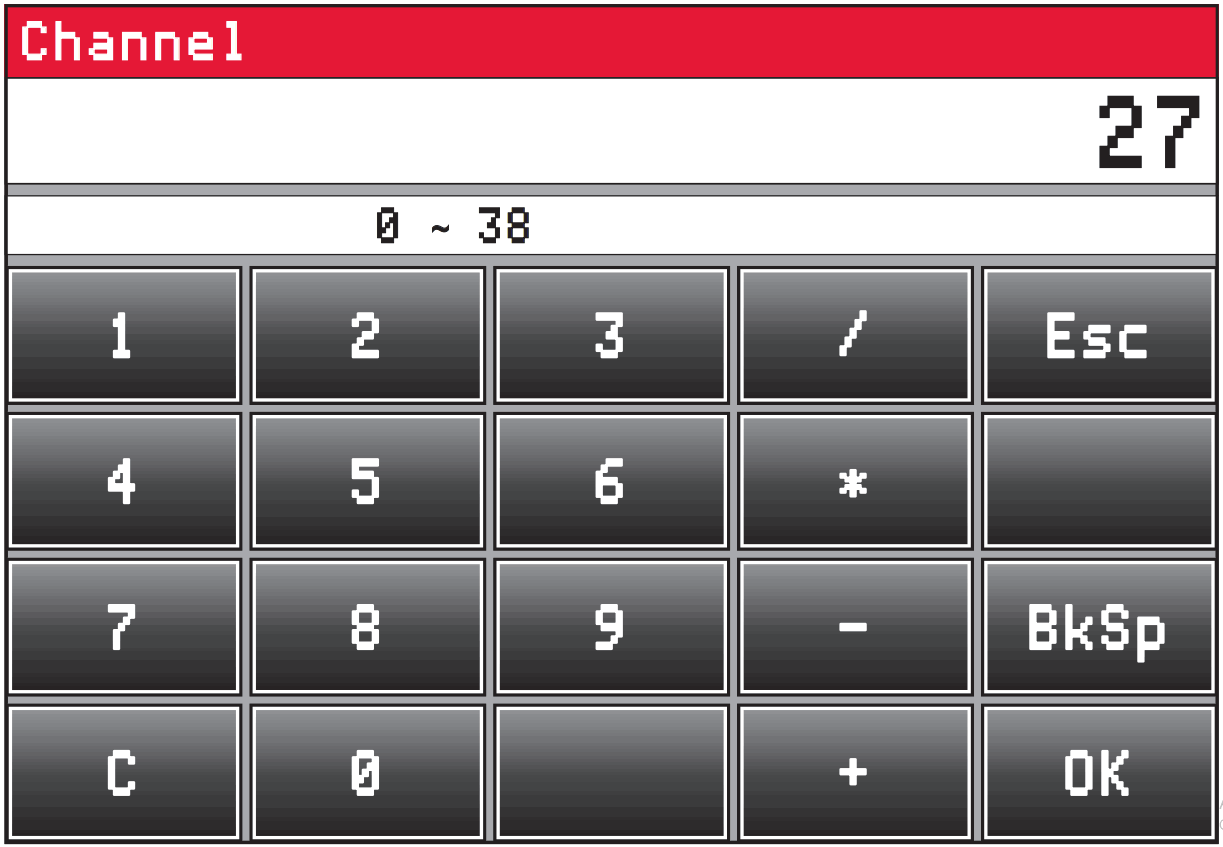 Figure 8. Channel Keyboard
 . A Channel prompt displays.
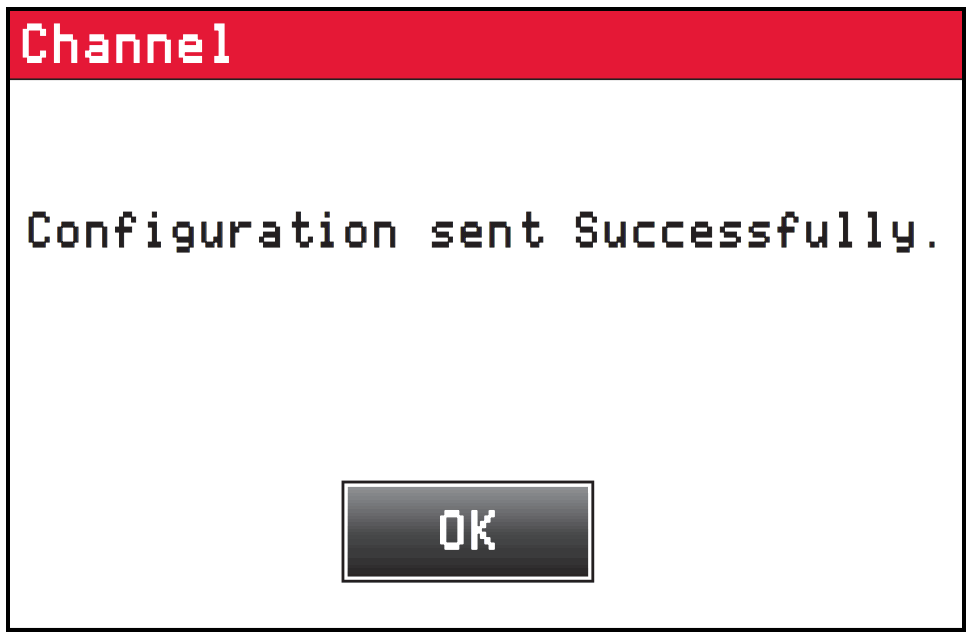 Figure 9. Channel Success Prompt
 twice.
 once.
once. .
. .
. the Number of Scales menu displays.
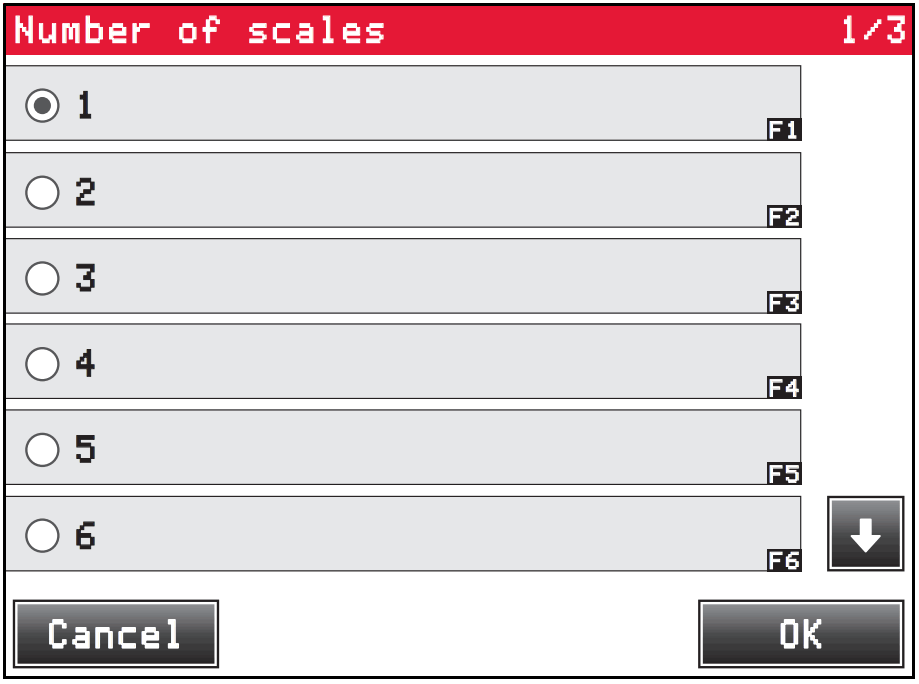 Figure 10. Number of Scales Configuration
 Gravity value setting pop-up displays.
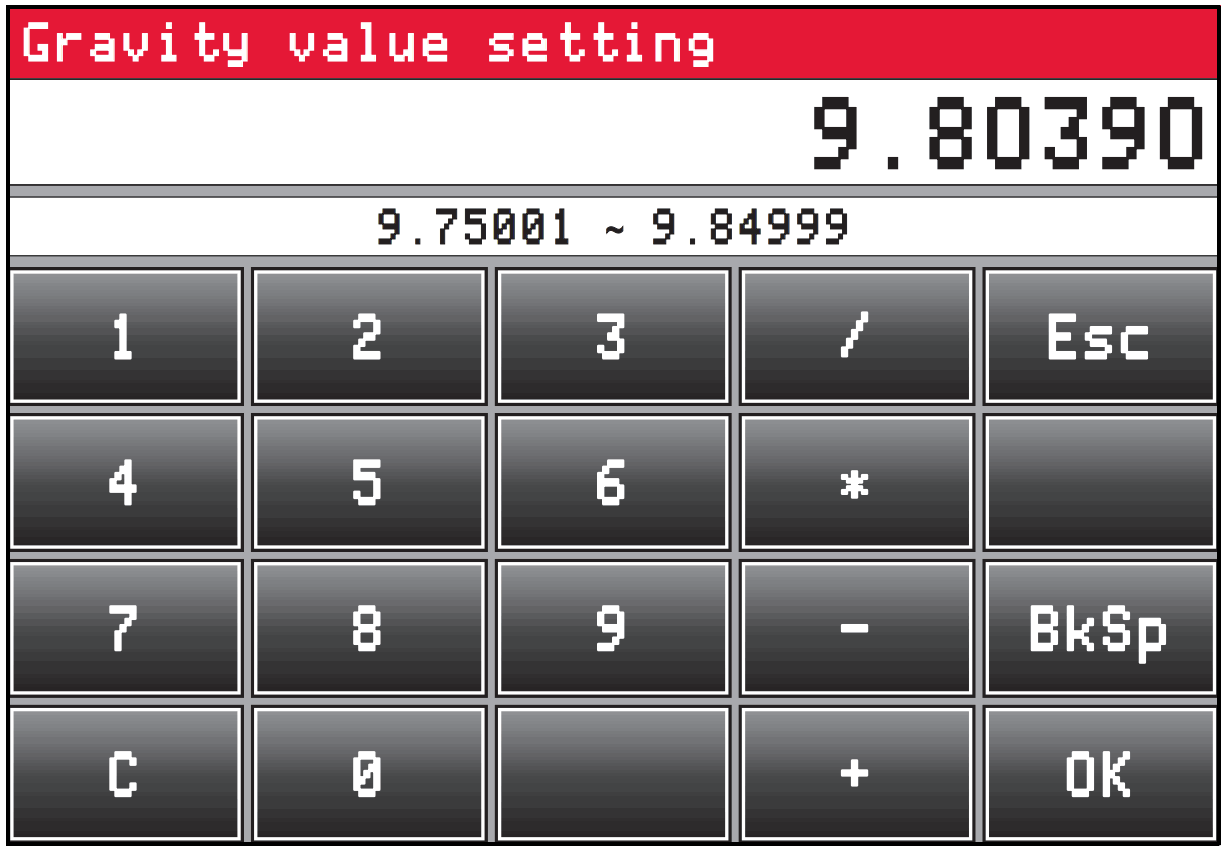 Figure 11. Set Gravity Value
 . Setup changed prompt displays.
 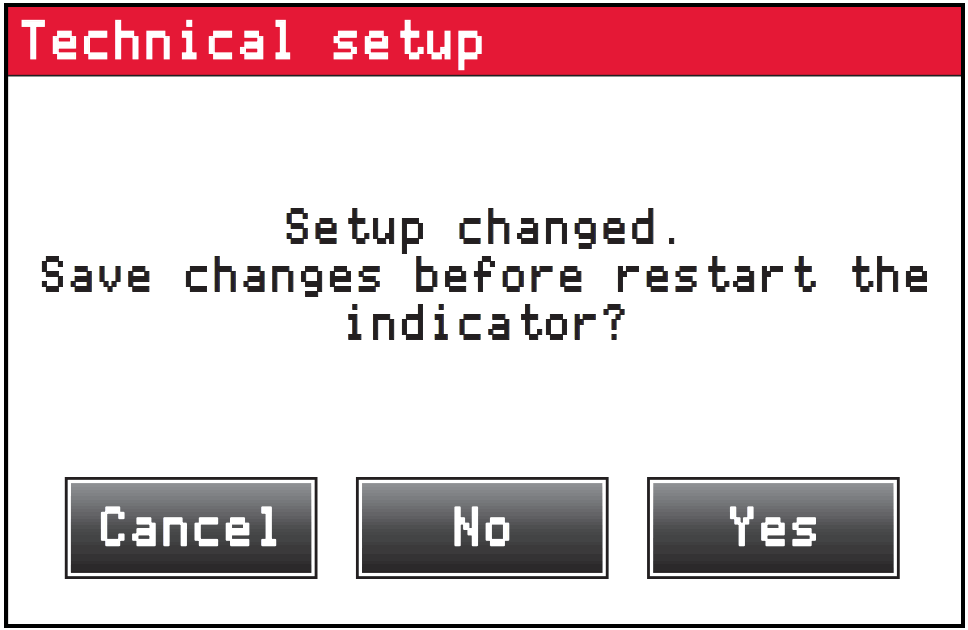 Figure 12. Setup Changed
 to save settings and complete setup. Ai-1 indicator reboots to Weigh mode.
7. Pairing Ai-1 Indicator with Wheel Weigh Pads
- Press to turn on the Ai-1 indicator.
- Access the Technical Setup menu.
- Turn on the first wheel weigh pad only (assigned ID 01) and allow it to connect.
- Wheel weigh pad connects with Ai-1 indicator and displays PL.1.
- Repeat Step 1 and Step 4 for additional wheel weigh pads.
- Press .
- If setup changed prompt displays. Press to save settings.
 Figure 13. Setup Changed
 - Ai-1 indicator reboots to Weigh mode.
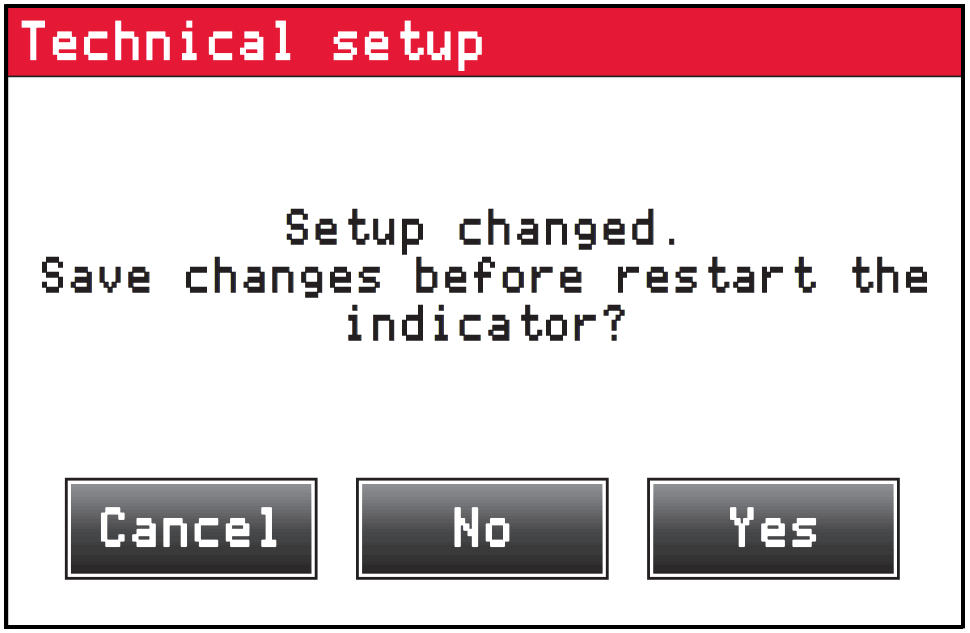 Figure 13. Setup Changed
© Rice Lake Weighing Systems
Content is subject to change without notice.
www.ricelake.com
230 W. Coleman St. • Rice Lake, WI 54868
United States: 800-472-6703
International: +1 715-234-9171
July 22, 2022
N 214609 Rev A
 Rice Lake Weighing Systems