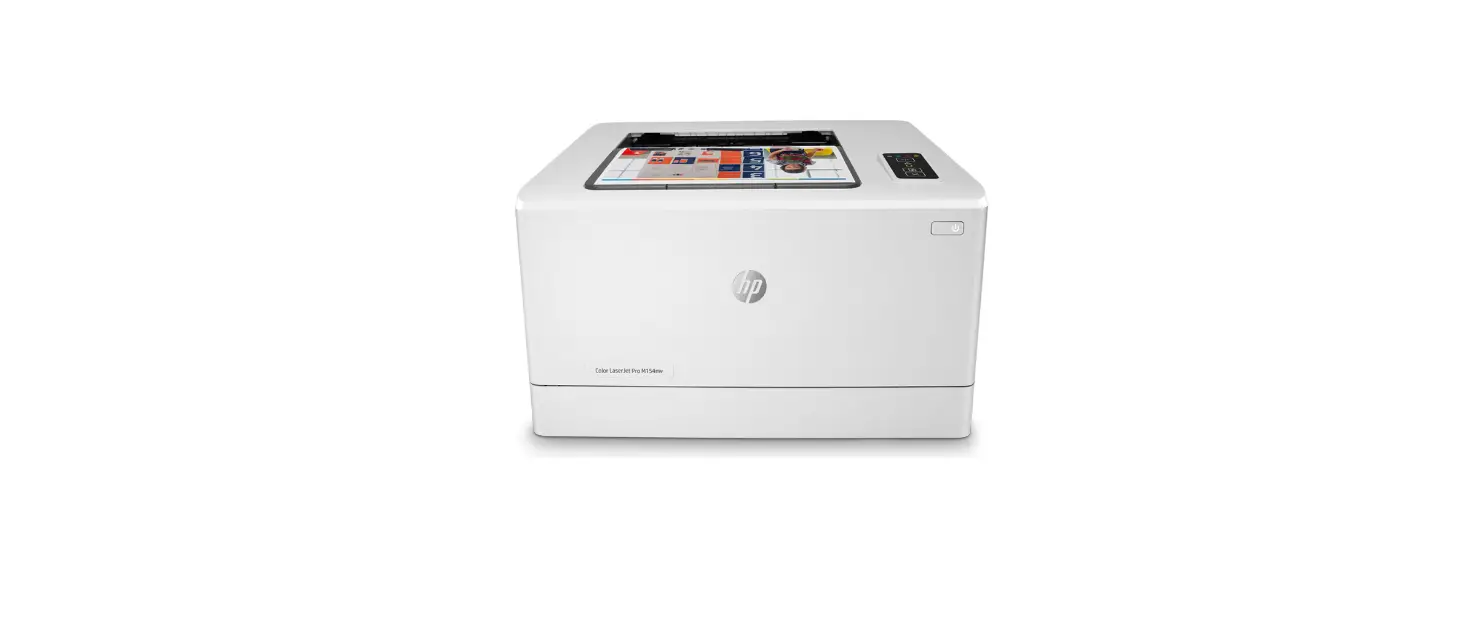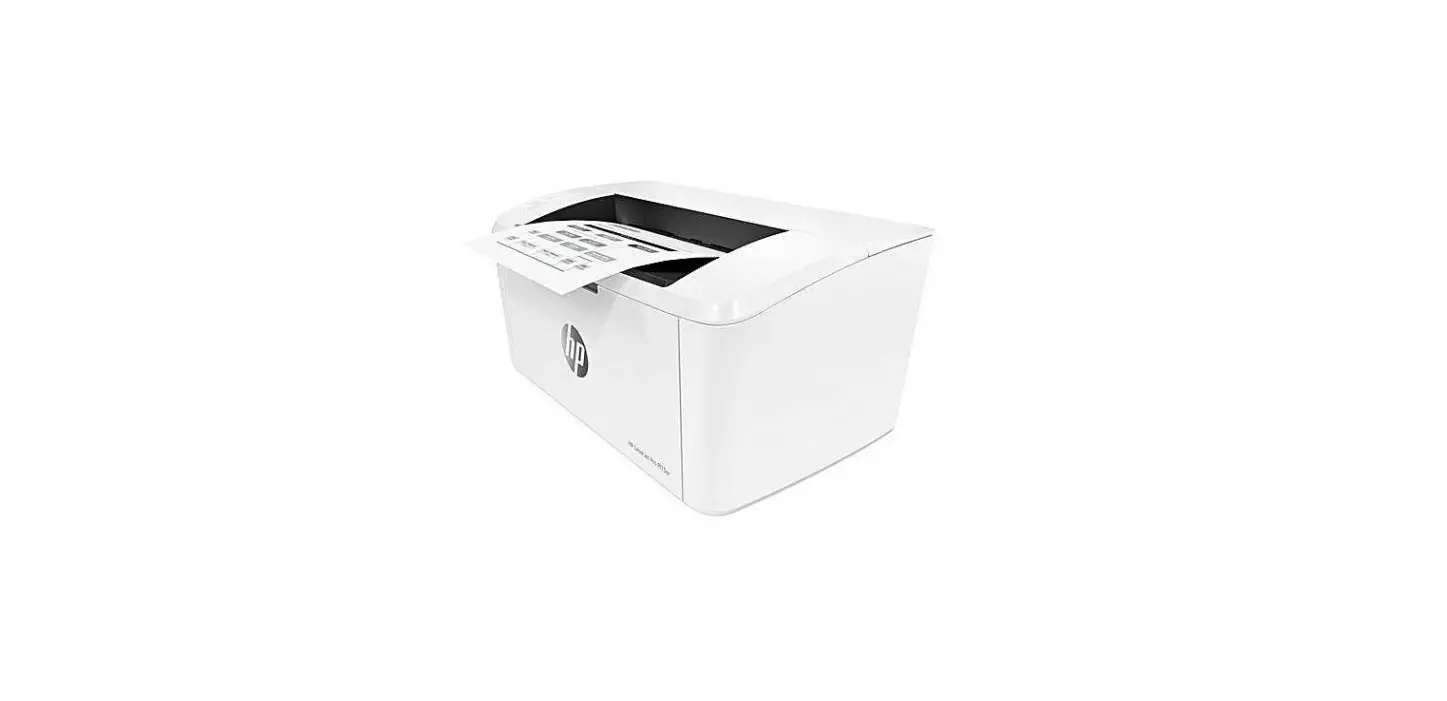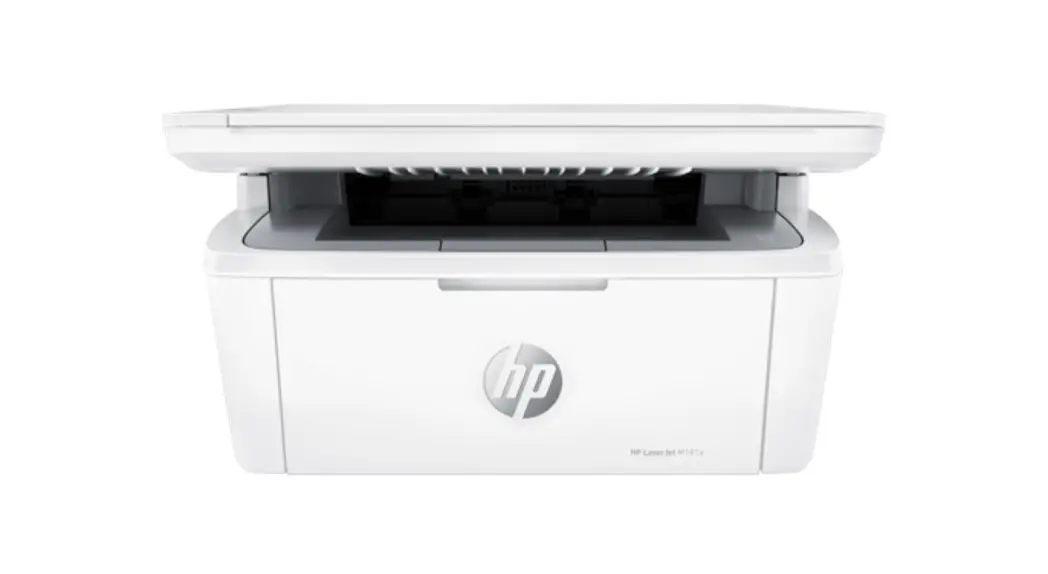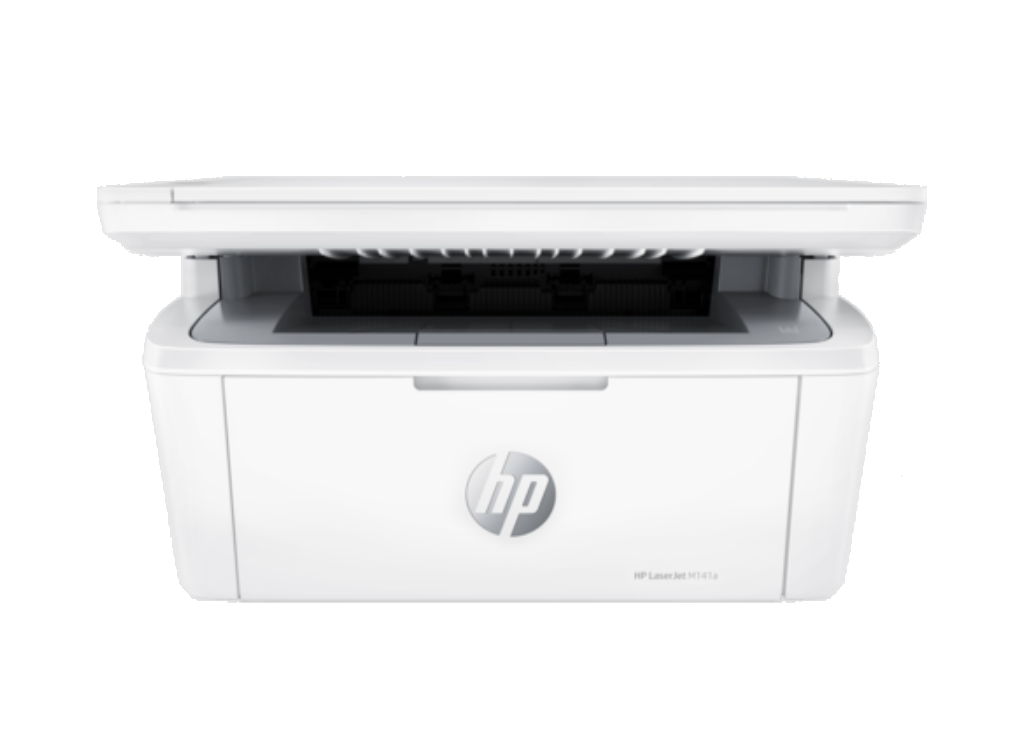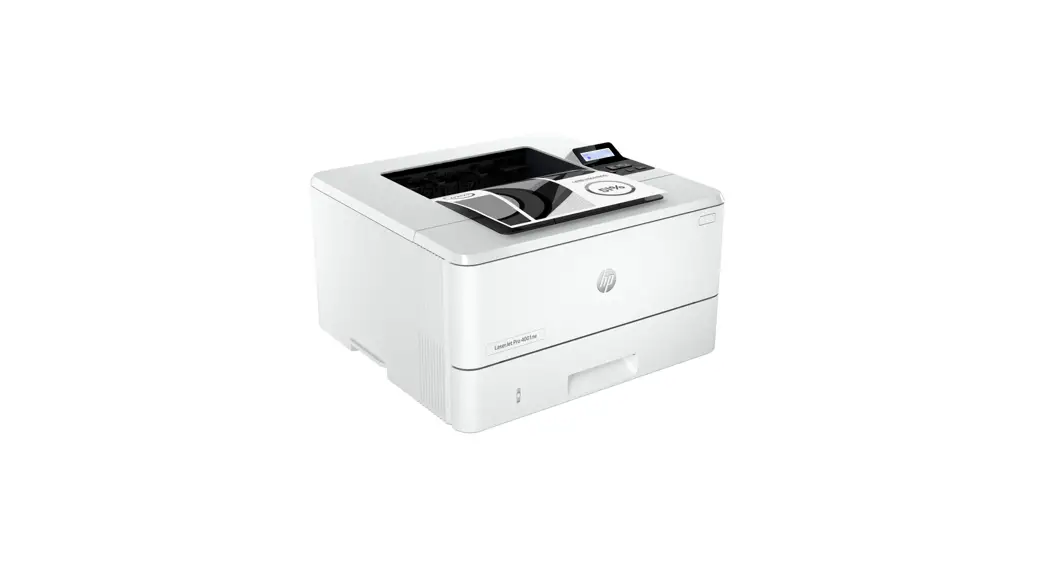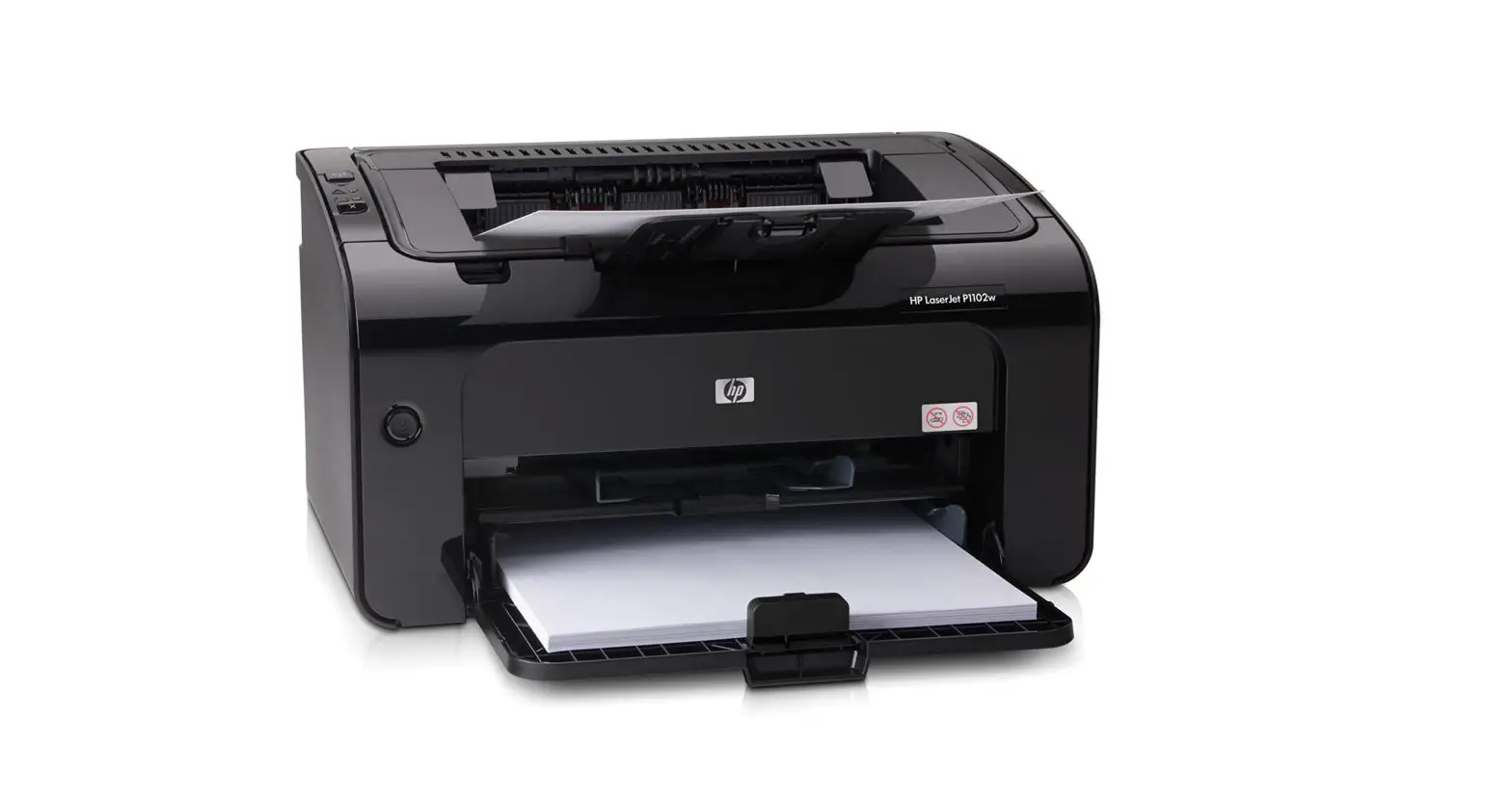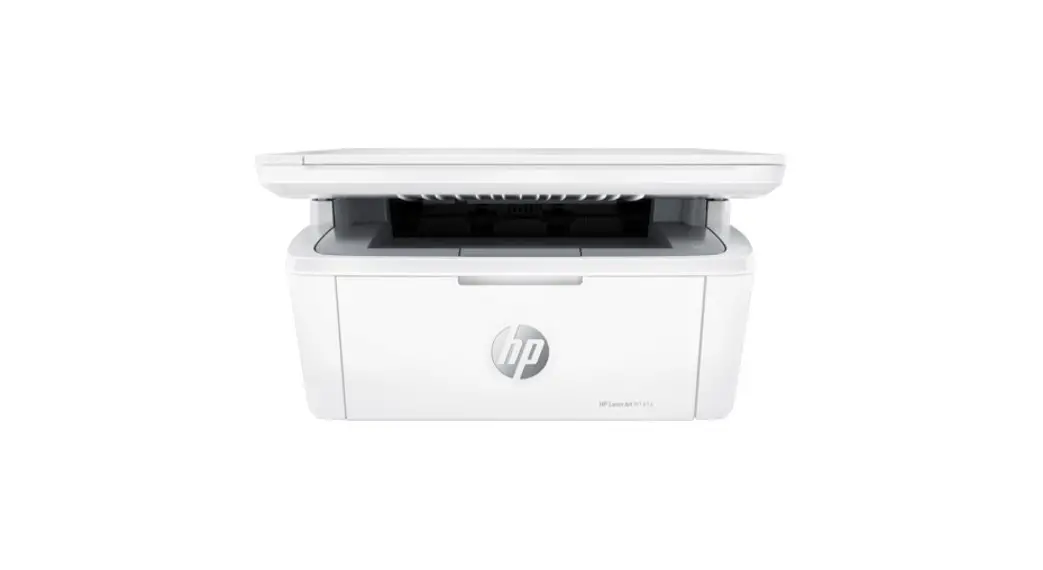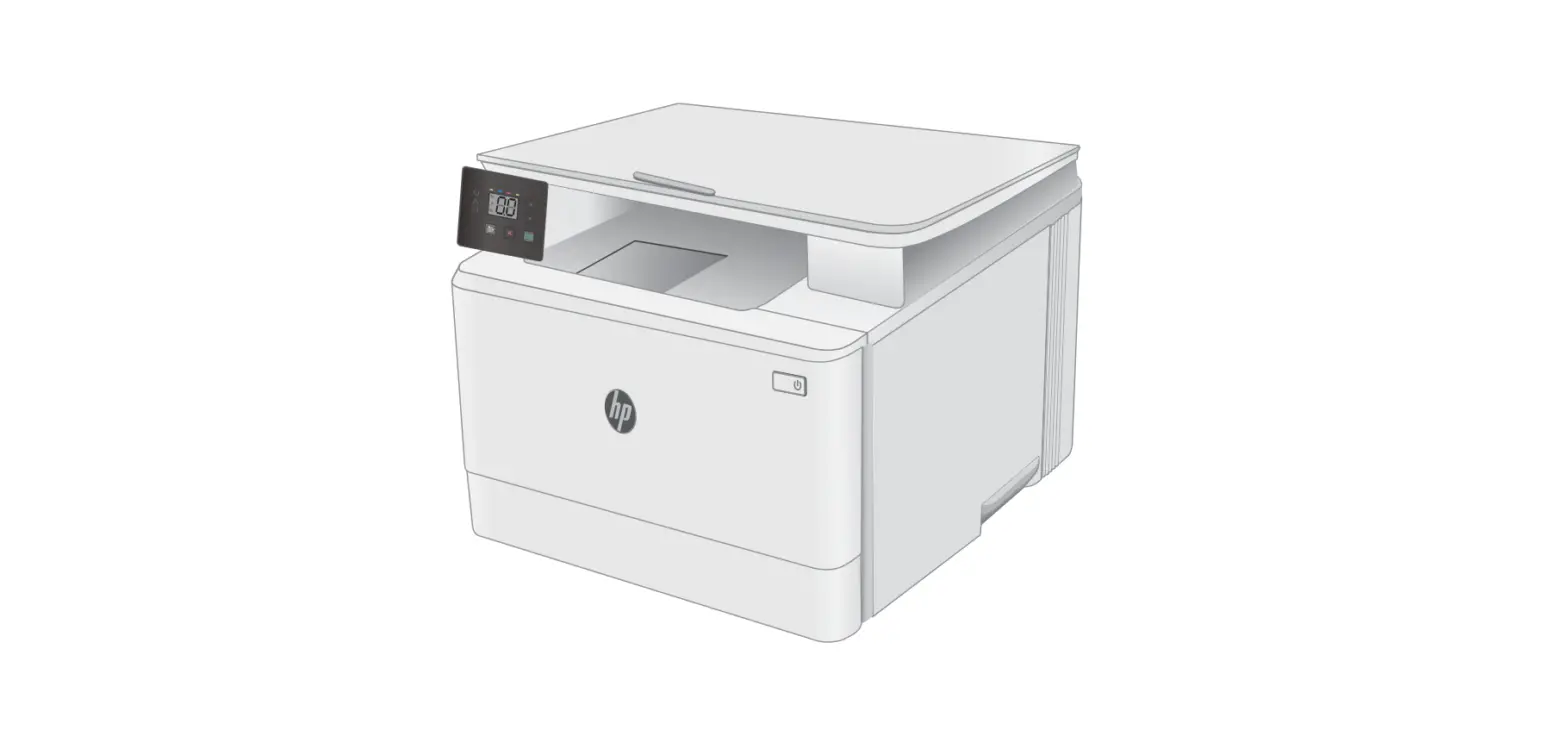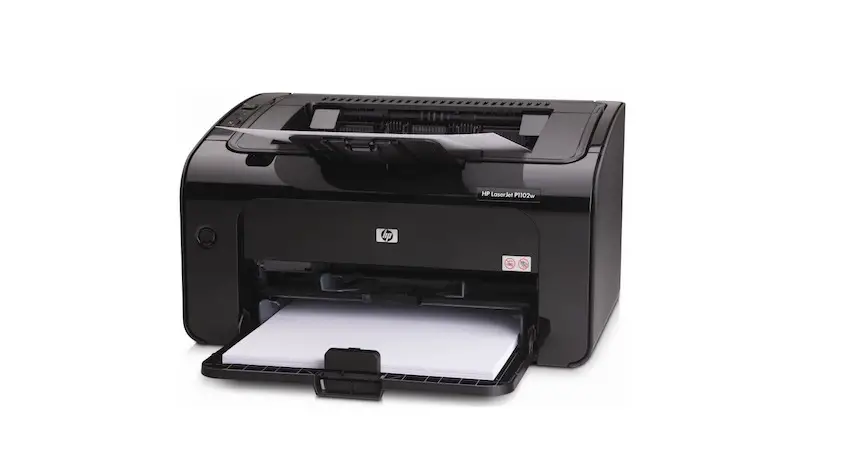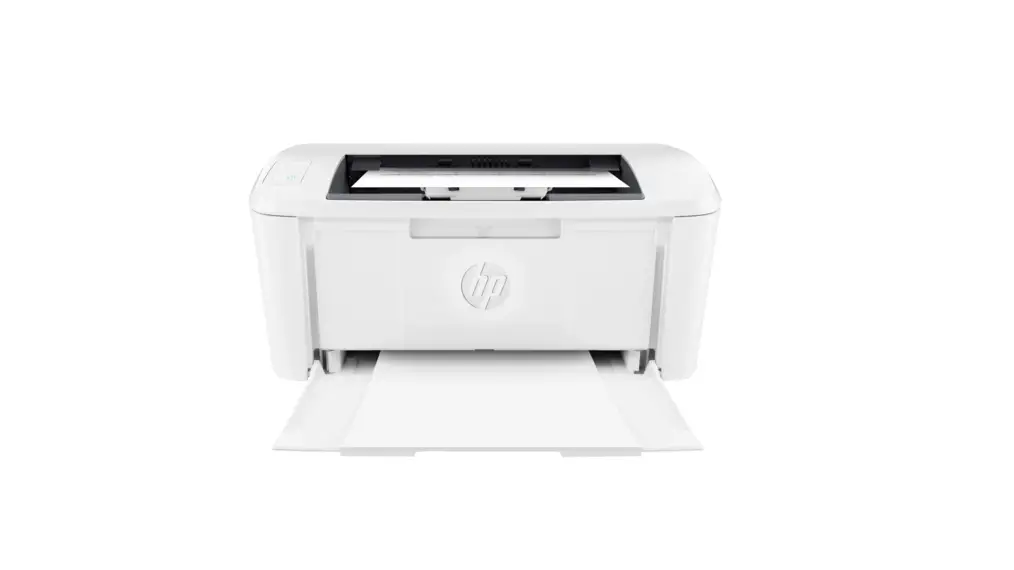
hp M112e Series LaserJet Printer User Guide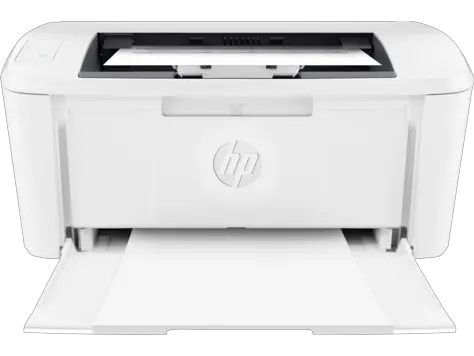
Control panel
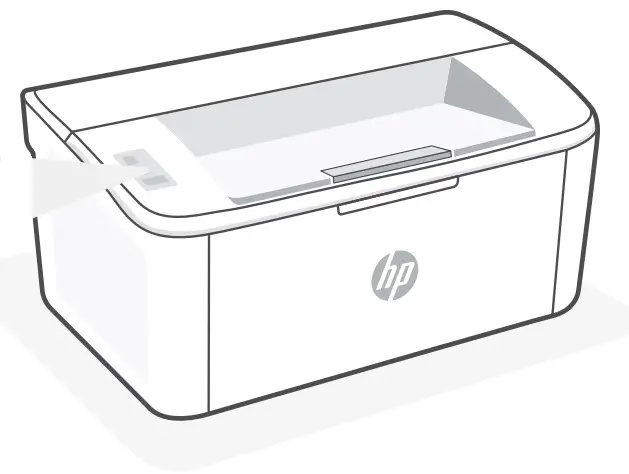
 Wireless button and light
- Resume/Cancel button
 Attention light
 Power button
 Wireless button and light
 Resume/Cancel button
 Attention light
 Power button
Light patterns
 Ready
Ready Processing
- Initializing, cleaning, or cooling down
 Error, manual feed, manual duplex, cartridge very low, or out of paper If blinking fast, press to continue printing or to print the information page.
 Ready
Ready Processing
 Error, manual feed, manual duplex, cartridge very low, or out of paper If blinking fast, press
 For a complete list of light patterns, refer to user guide on: hp.com/support.
Printer features
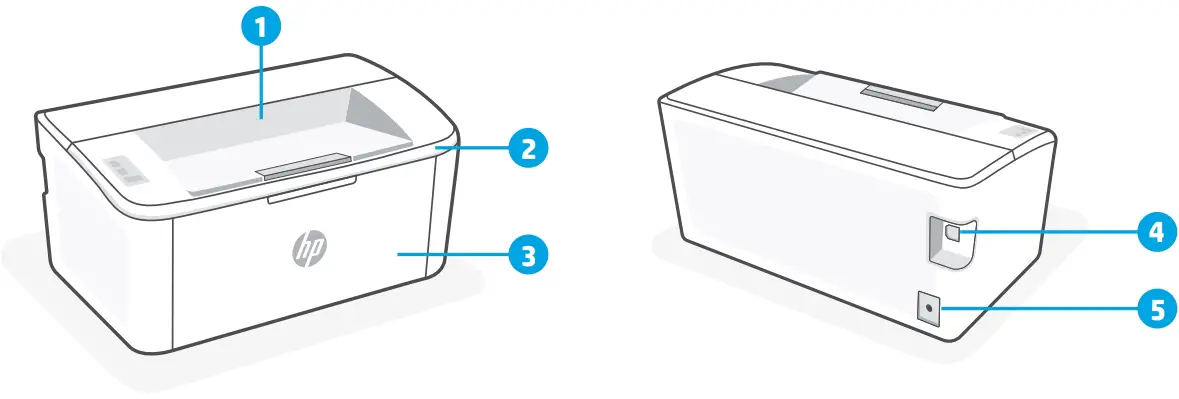
- Output bin
- Cartridge access door
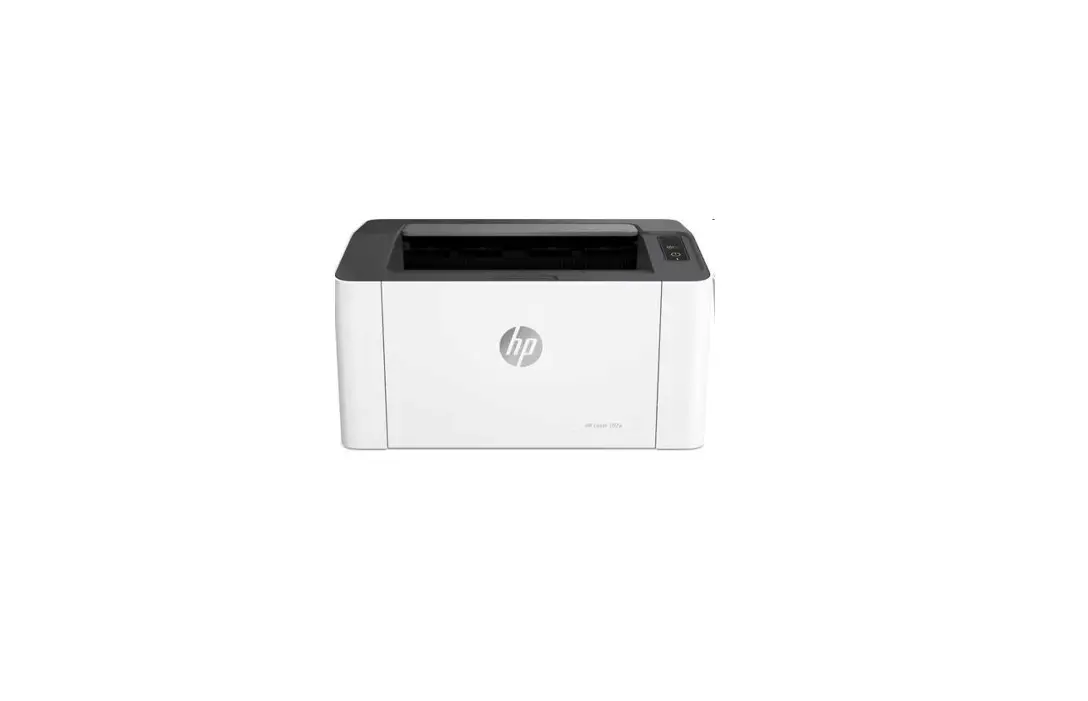
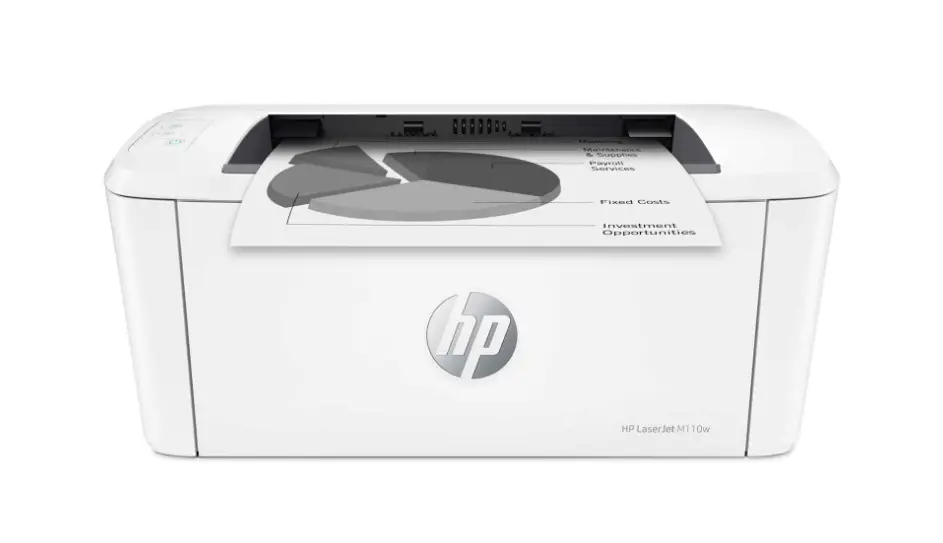
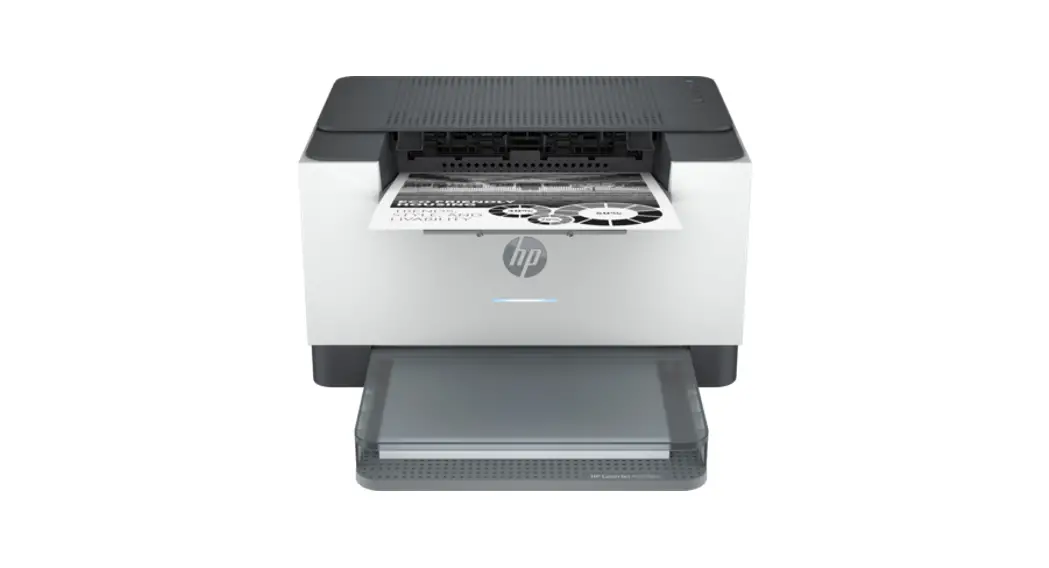
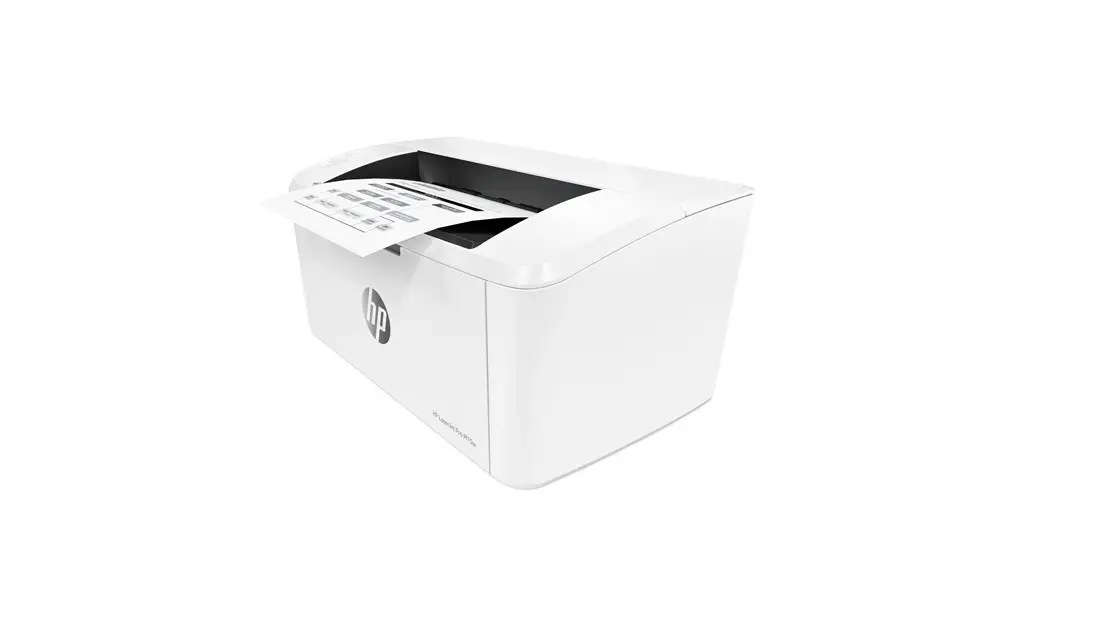
- Front door and input tray
- USB port
- Power connection
Do not use USB for setup
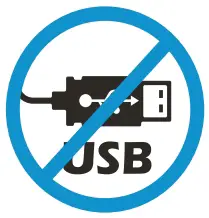 Printers with a label covering the USB port must be set up with HP Smart and an Internet connection. After setup, you can print using a USB cable if needed, but the printer must also remain connected to the Internet. Remove the label to uncover the USB port when needed.
Help and tips for Wi-Fi and connectivity
If the software is unable to find your printer during setup, check the following conditions to resolve the issue.
Potential Issue | Solution |
Printer Wi-Fi setup mode timed out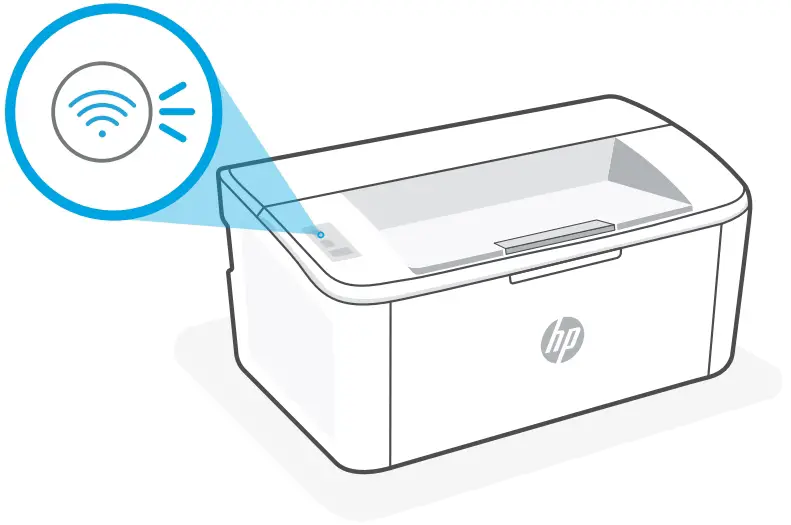 | If the Wireless light is not blinking blue, the printer might not be in Wi-Fi setup mode. Restart setup mode:
|
| Computer or mobile device too far from printer | Move your computer or mobile device closer to the printer. Your device might be out of range of the printer’s Wi-Fi signal. |
| Computer connected to a Virtual Private Network (VPN) or remote work network | Disconnect from a VPN before installing HP Smart software. You can’t install apps from the Microsoft Store when connected to a VPN. Connect to the VPN again after finishing printer setup. Note: Consider your location and the security of the Wi-Fi network before disconnecting from a VPN. |
| Wi-Fi turned off on computer (computer connected by Ethernet) | If your computer is connected by Ethernet, turn on the computer’s Wi-Fi while setting up the printer. You don’t need to disconnect the Ethernet cable. |
| Bluetooth and location services are turned off on your mobile device | If setting up with a mobile device, turn on Bluetooth and location services. This helps the software find your network and printer. Note: Your location is not being determined and no location information is being sent to HP as part of the setup process. |
Exclusive HP+ Support
Get complimentary support by contacting our experts at this website.* *Support varies by country/region. Visit website for more information.

The information contained herein is subject to change without notice

 HP Customer Support - HP+