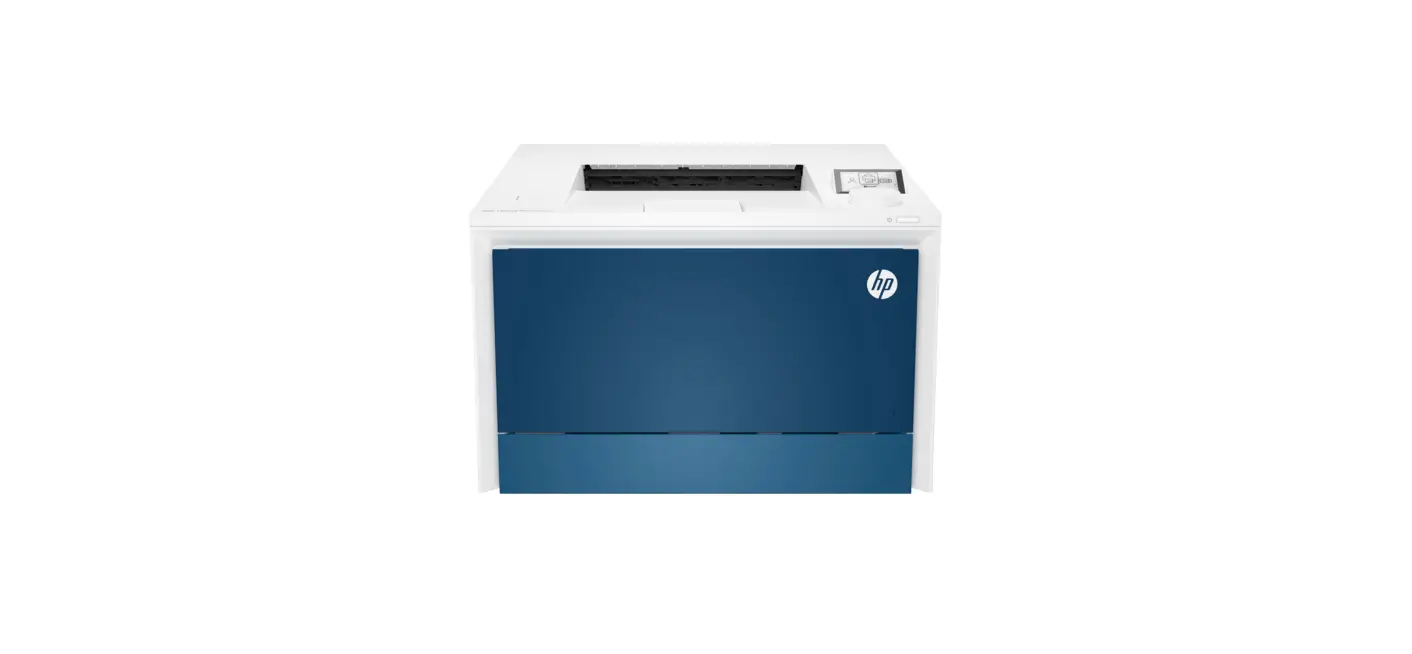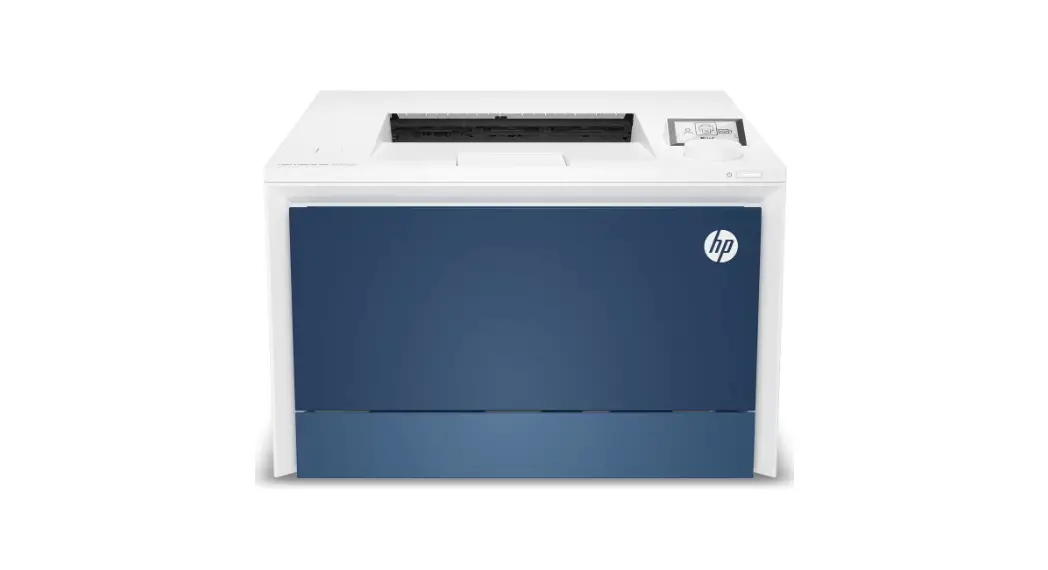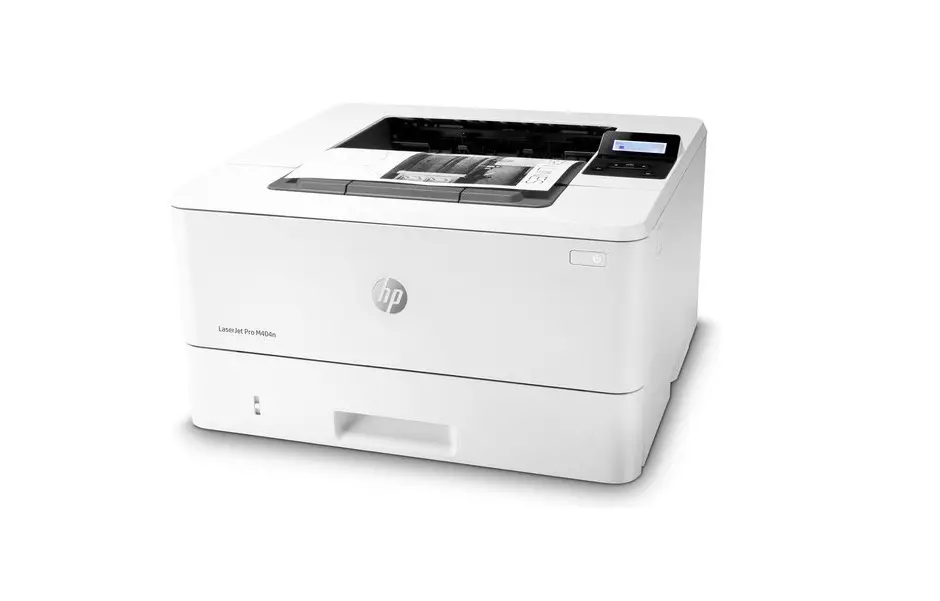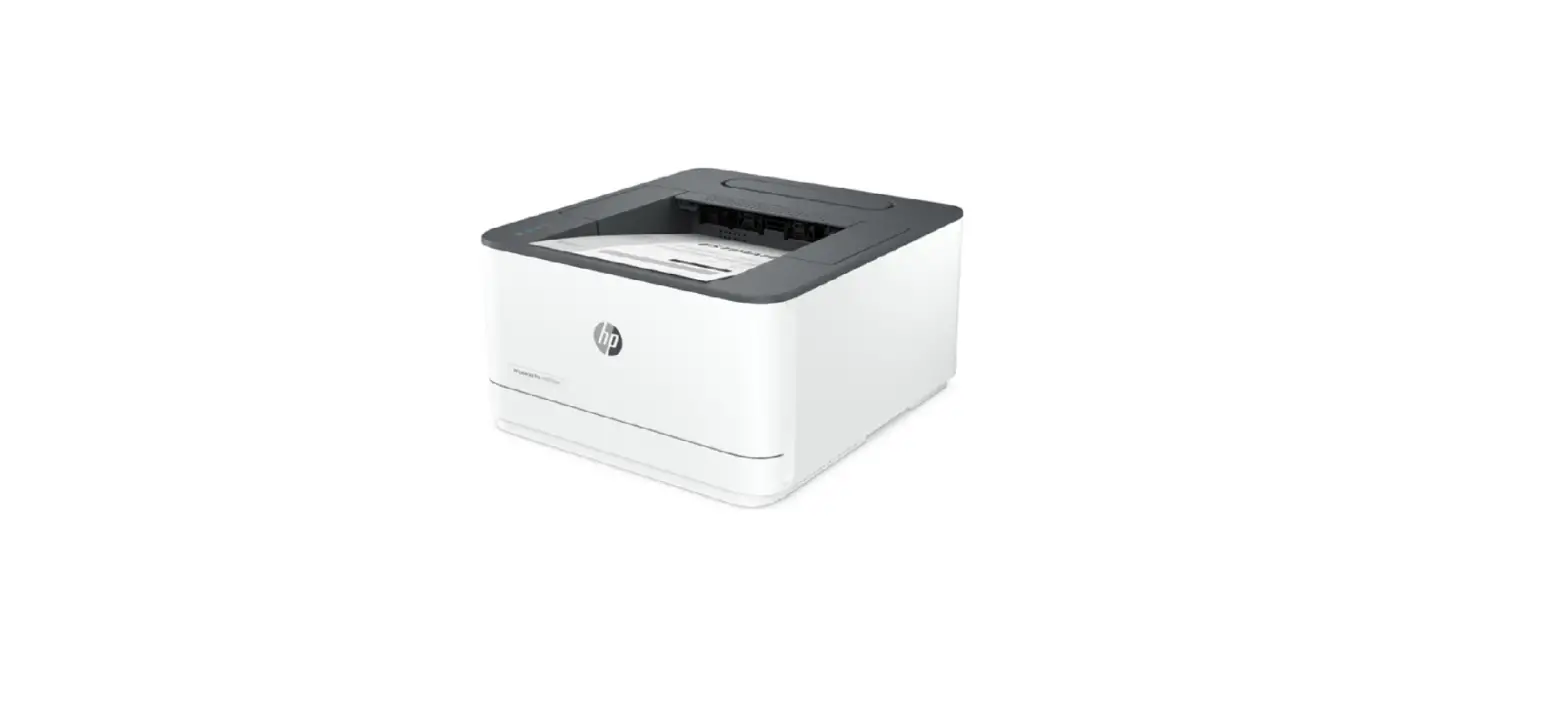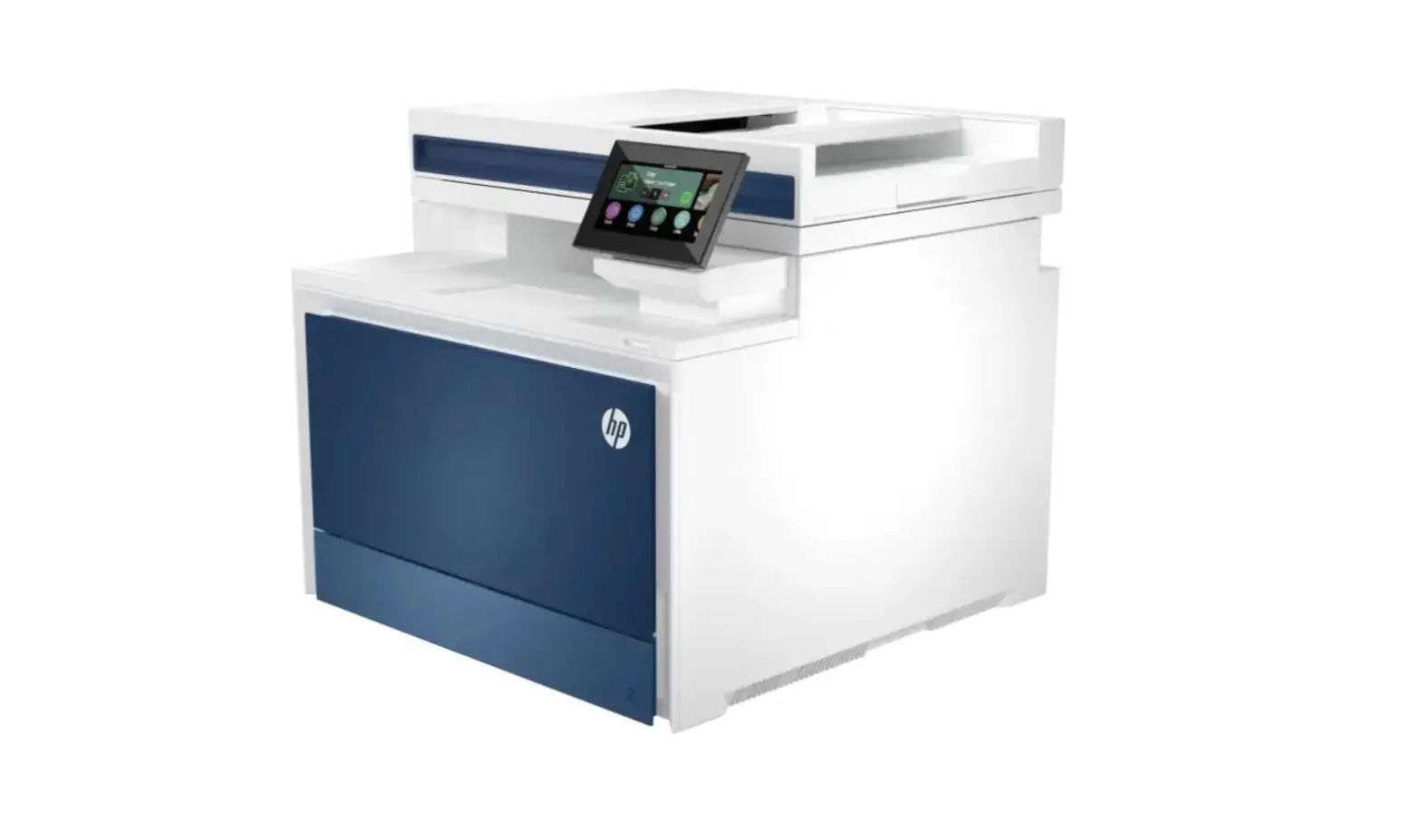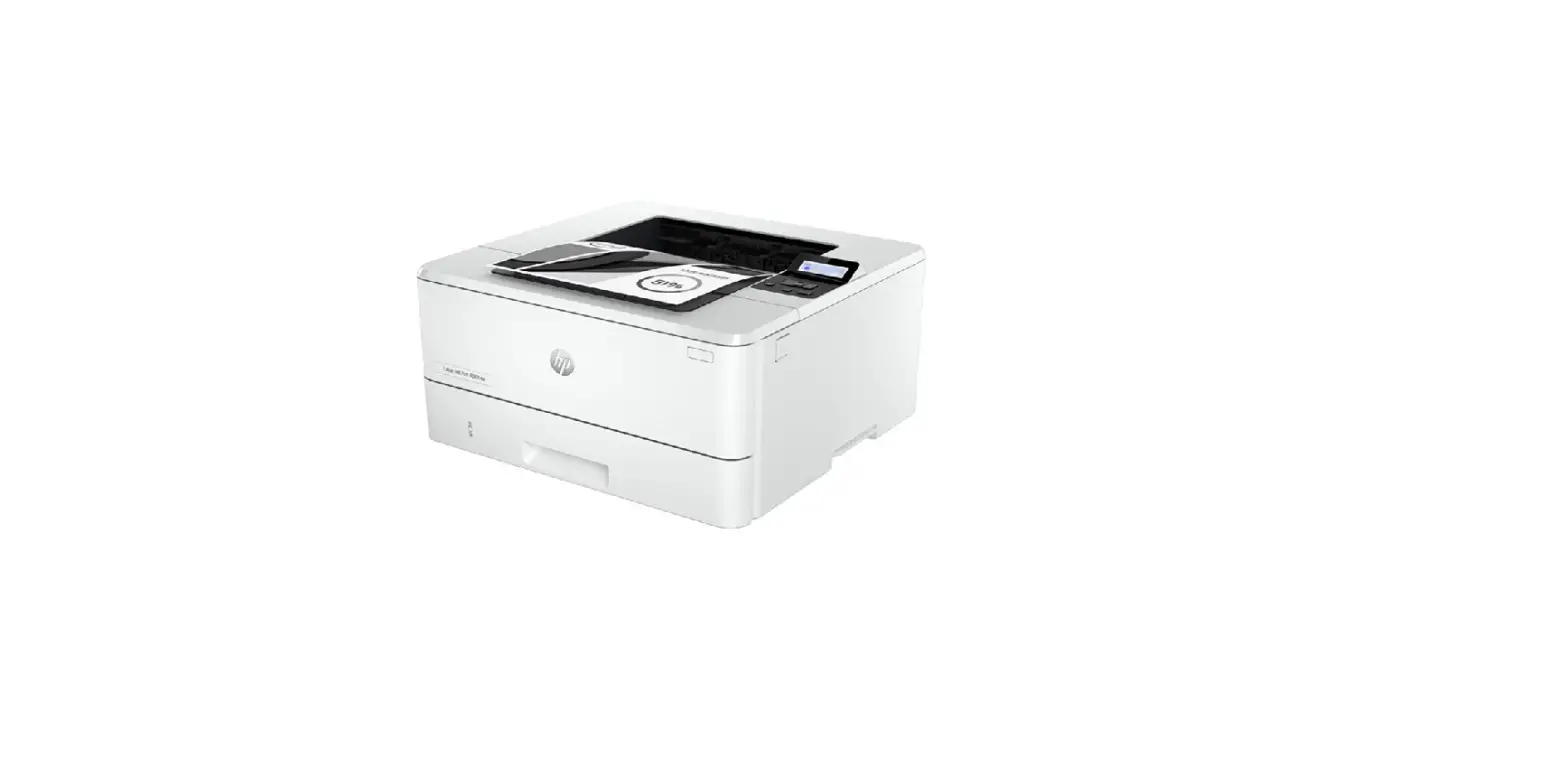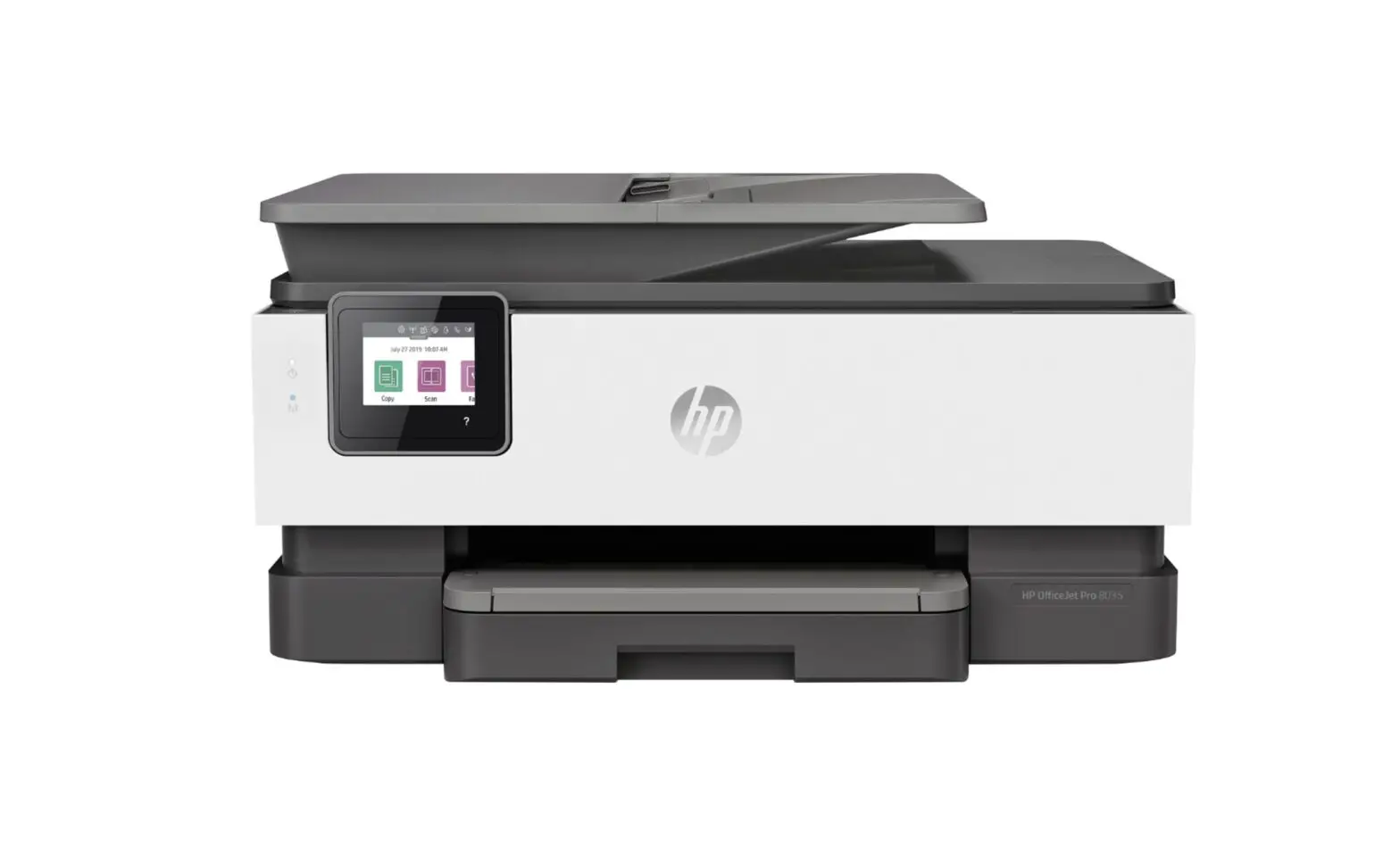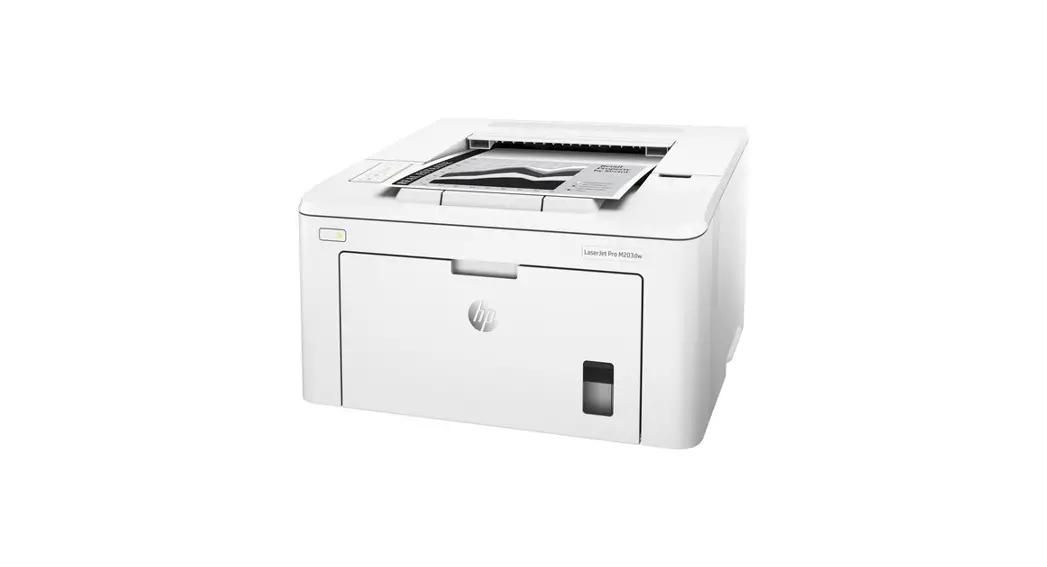
 4203dw LaserJet Pro Printer
User Guide
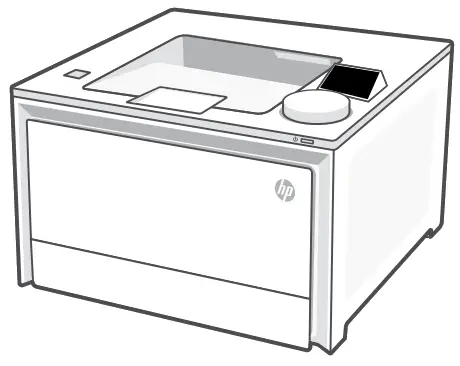 HP Color LaserJet Pro4203dw
Setup overview
Prepare printer
Choose setup option
Option 1: Basic setup
Use for basic printing without Internet
- USB
- Ethernet or Wi-Fi for network capability
OR
Option 2: Full-feature setup
Get advanced cloud management features with HP Smart Admin.
Get help with setup
Find setup information and videos online.
 hp.com/support/colorlj4201-4203
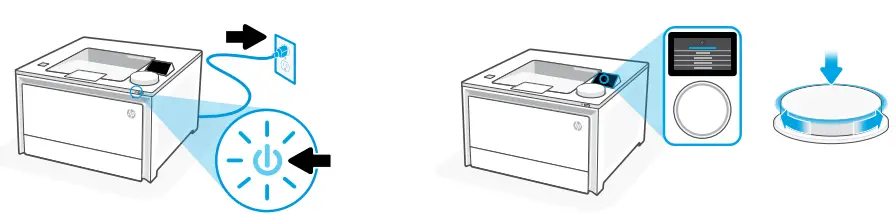
Plug in and power on. On the control panel, choose your language and country/region by turning the dial. Press dial down to select.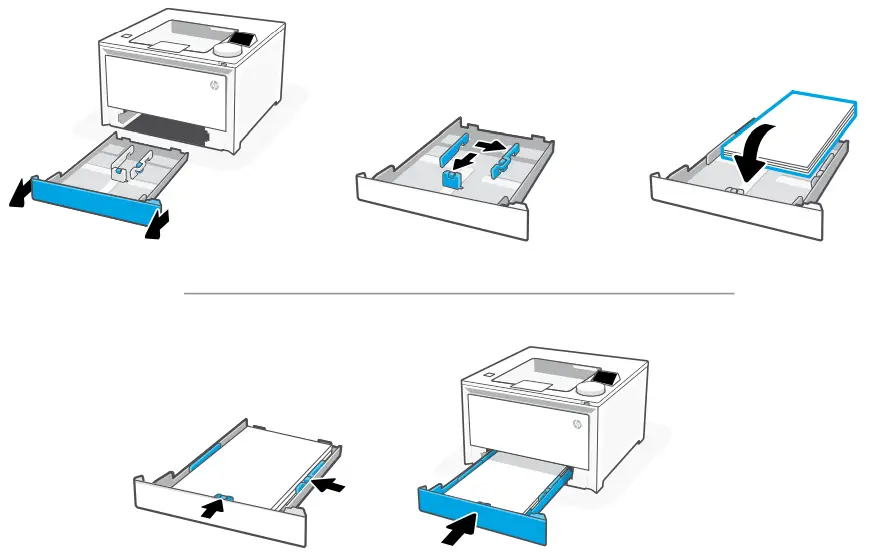
Load paper and adjust the guides.
Note: If loading legal paper, squeeze the side latch at the front of the tray and pull forward. When inserted, the tray will extend from the front of the printer approximately 2 inches (50.8mm).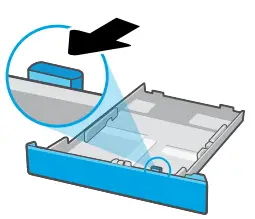
Choose setup option
OPTION 1: Basic setup
Choose Basic setup for printing on a local network or USB connection.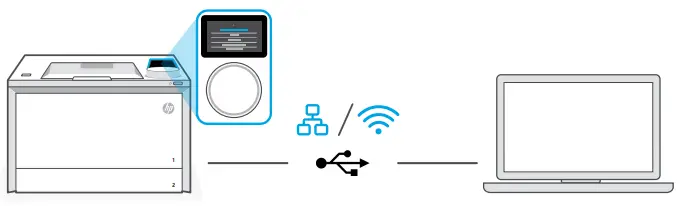
- On the control panel, choose your connection method:
Ethernet
i. Connect an Ethernet cable from the printer to the same network as the computer.
ii. Press “Continue” on the control panel to confirm the IP address. Then continue with the steps on the control panel until you reach the home screen.
Wi-Fi
i. Make sure the computer Wi-Fi is turned on and in range of the printer during setup.
ii. On the control panel, enter Wi-Fi information when prompted. Choose the same network as the computer.
iii. Continue with the steps on the control panel until you reach the home screen.
USB
i. Connect the USB cable to the port on the back of the printer and to the computer.
ii. Continue with the steps on the control panel until you reach the home screen. - Install printer software.
i. Go to hpsmart.com/download to download the HP software and print drivers.
ii. Install the software and complete setup.


 Setup Complete for Option 1
OPTION 2: Full-feature setup
Provides cloud-based tools to manage the printer in a multi-user, multi-printer environment. Do not use USB cable. The printer must be on a network with access to the Internet.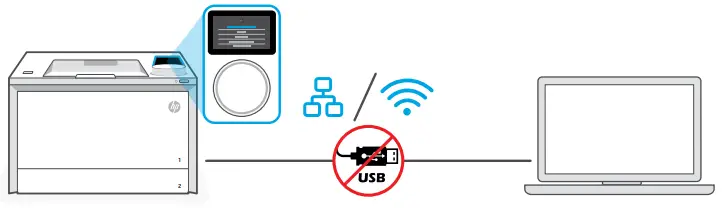
Connect printer to network
- On the control panel, choose your connection method:
Ethernet
Connect an Ethernet cable from the printer to the same network as the computer.
Continue with the steps on the control panel until you reach the home screen.
Wi-Fi
Make sure the computer Wi-Fi is turned on and in range of the printer during setup. Enter Wi-Fi information when prompted, then continue until you reach the home screen. - Go to hpsmart.com/setup on a computer to install HP Easy Start software.
- Choose the option for full-feature setup and to generate a pairing code. The pairing code displays on the control panel.
Pair printer to HP Smart Admin
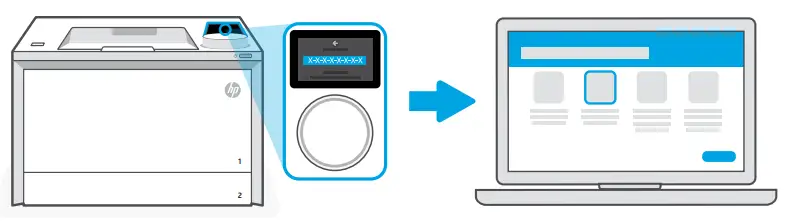
- Record the pairing code that displays on the control panel. The pairing code will expire after a limited time. If code expires, generate a new code in HP Easy Start.
- Continue setup by going to hpsmart.com/connect in a web browser. After creating or signing in to an HP account, you will:
• Choose to set up the printer for a company/organization or for personal use.
• Enter the pairing code to link the printer to your HP account.
• Sign up for Instant Ink for hassle-free, toner delivery service (optional).
• Install print drivers and print a test page.
Manage printer with HP Smart Admin
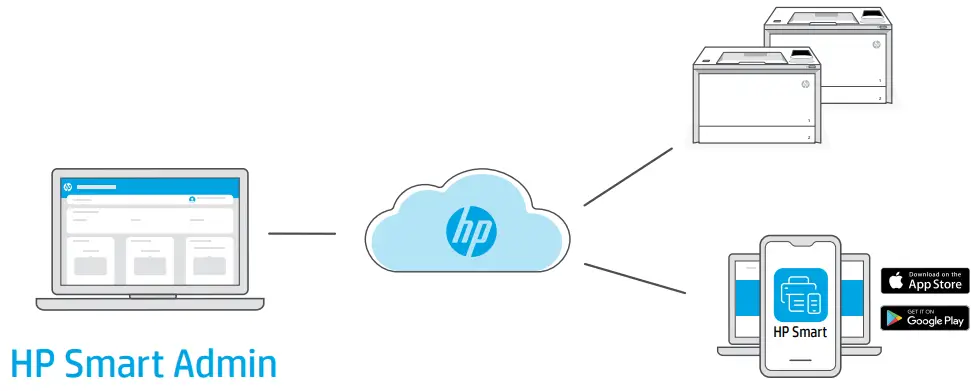
After completing initial setup, manage the printer from a cloud-connected dashboard. The dashboard URL differs based on how the printer was configured during setup:
Personal use: hpsmart.com
- Monitor printer status and supplies
- Share printer with friends and family
- Enable mobile printing (requires HP Smart)
- View warranty status
Company/organization use: hpsmart.com/admin
- Manage the printer, toner, users, and more
- Enable mobile printing (requires HP Smart)
- Keep your printing private with Private Pickup
© Copyright 2023 HP Development Company, L.P.
The Apple logo is a trademark of Apple Inc., registered in the U.S. and other countries.
App Store is a service mark of Apple Inc.
Android, Google Play, and the Google Play logo are trademarks of Google Inc.
| Printed in xxxxx | EN | PT | ES | FR | RU |
| Printed in xxxxx | TR | KK | SR | JA | KO |
| Printed in xxxxx | ZHTW | ID | TH | VI | RO |
| Printed in xxxxx | HR | UK | AR | ||
| Printed in xxxxx |
 HP Color LaserJet Pro 4201-4203cdn/dn/dw Printer series | HP® Customer Support
 HP Smart
 HP Color LaserJet Pro 4201-4203cdn/dn/dw Printer series | HP® Customer Support
 HP Smart