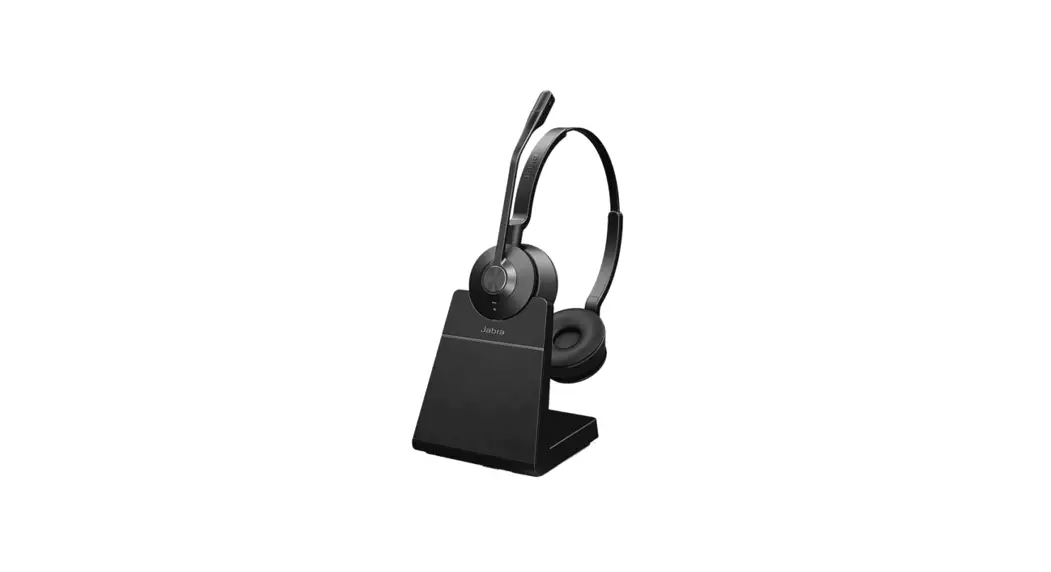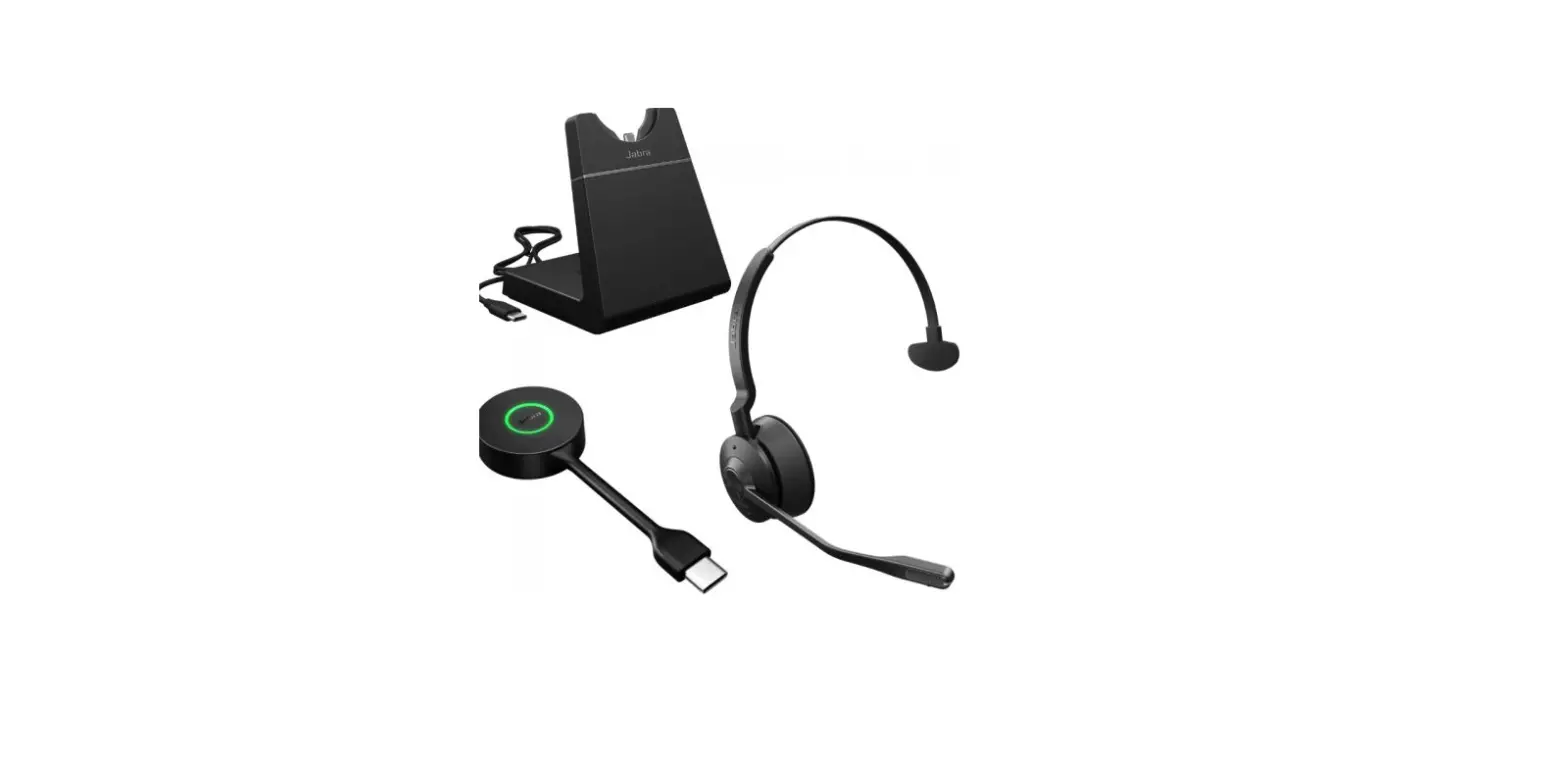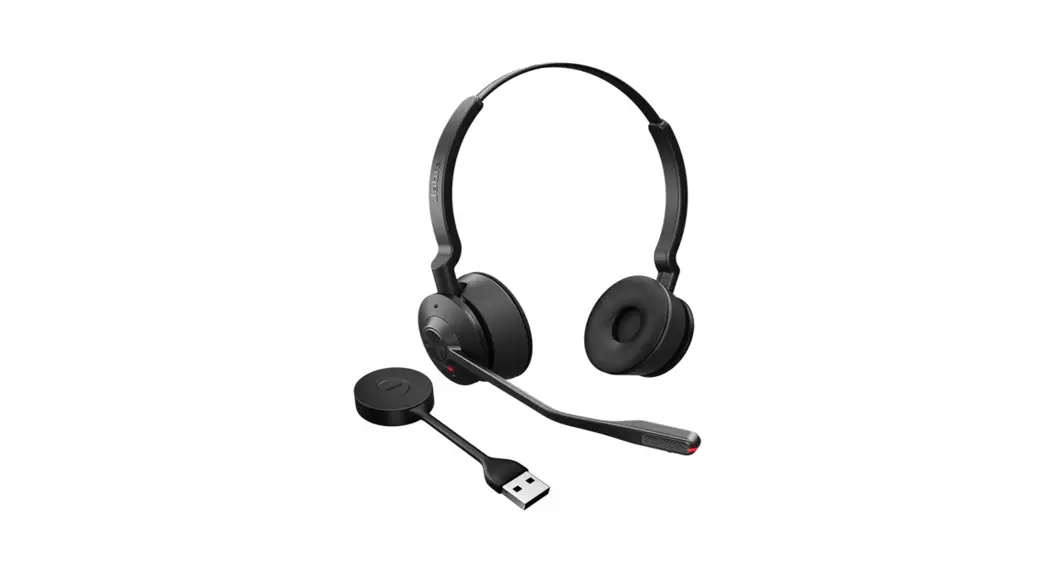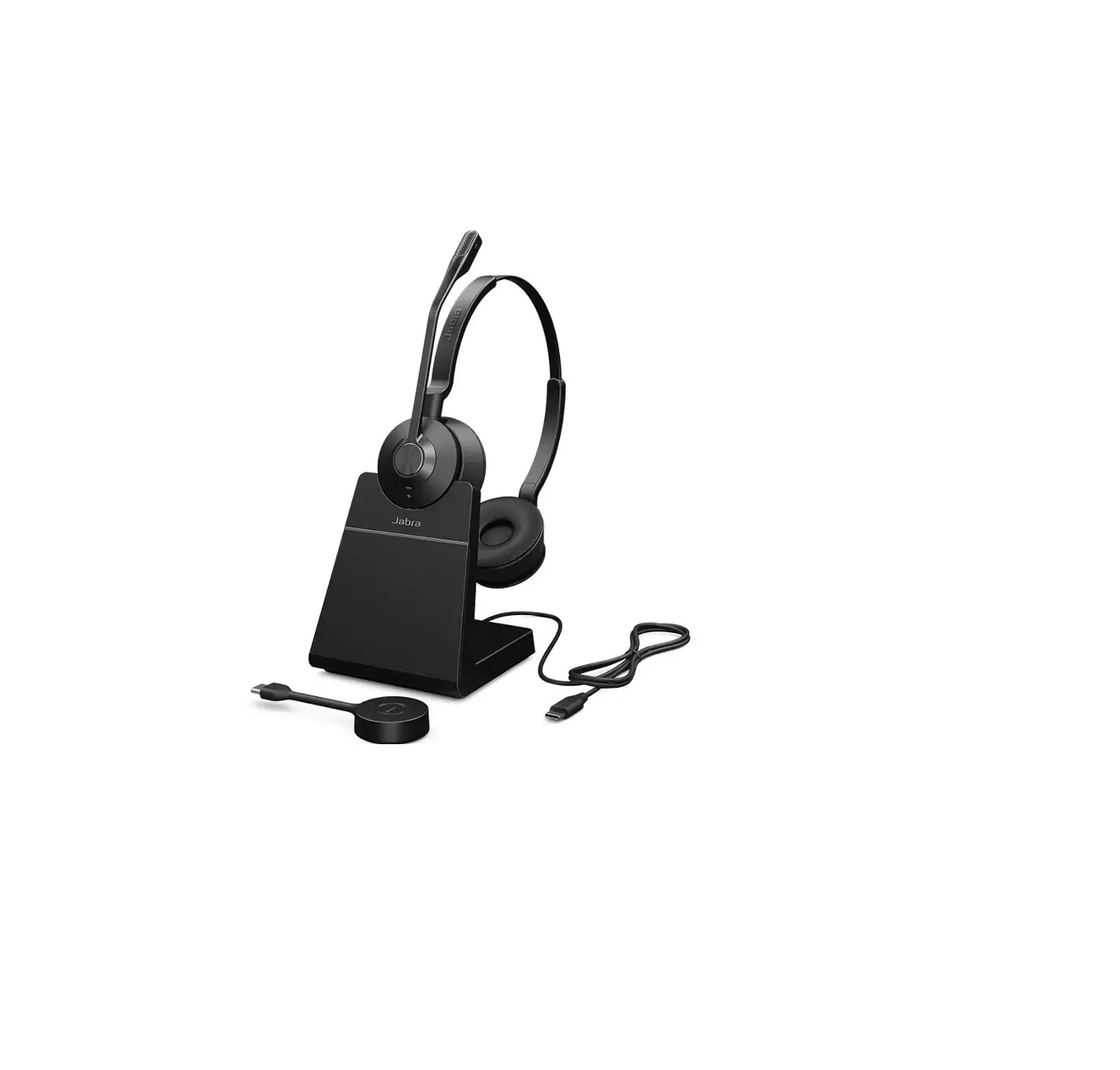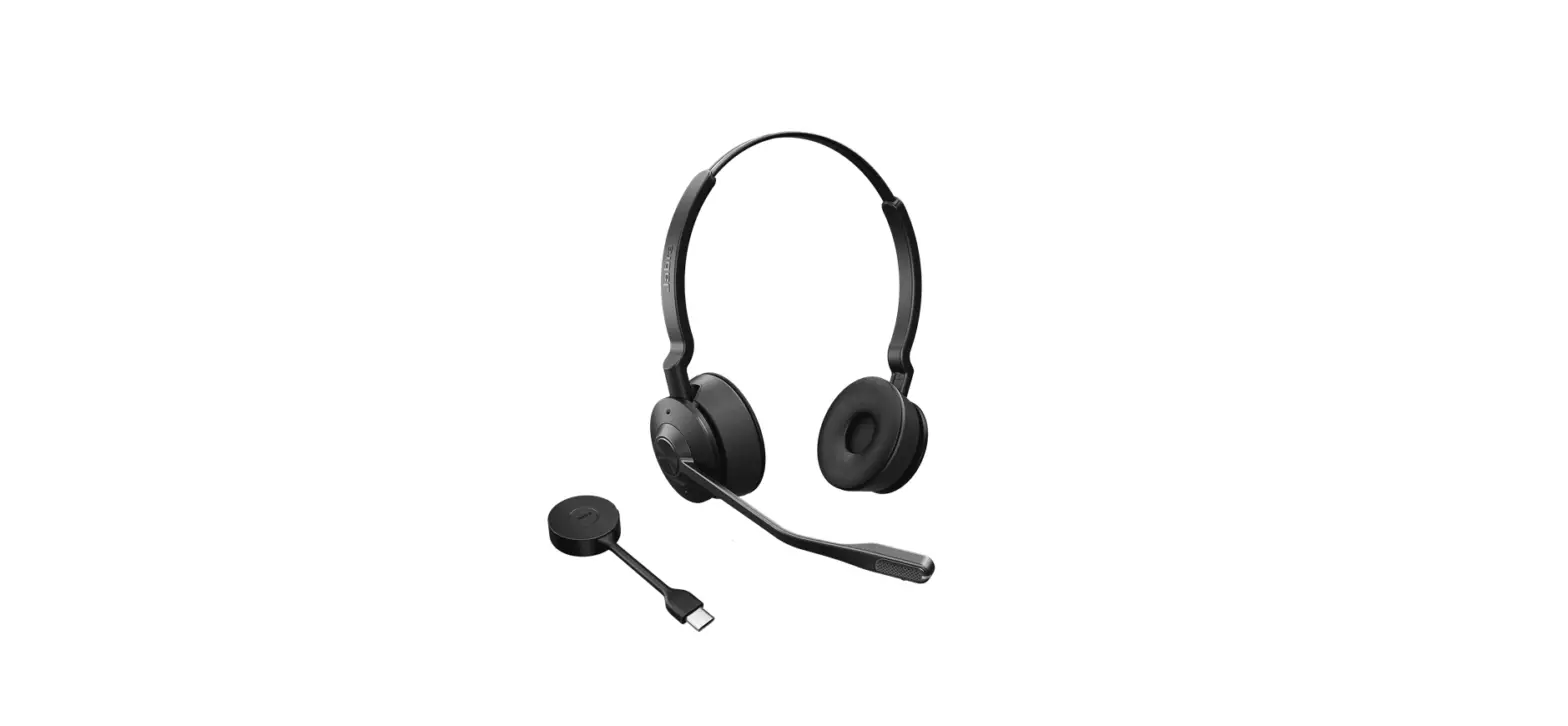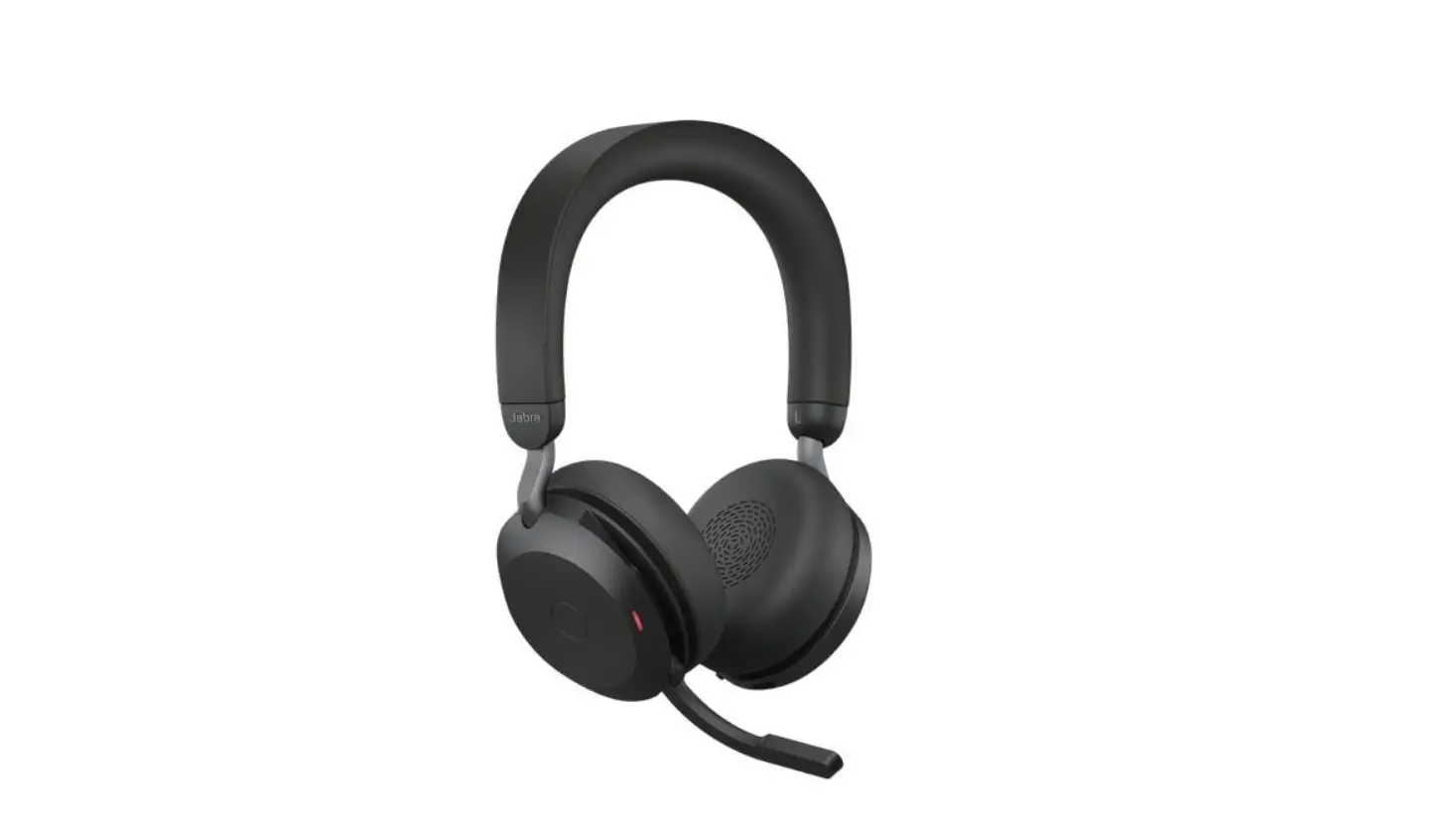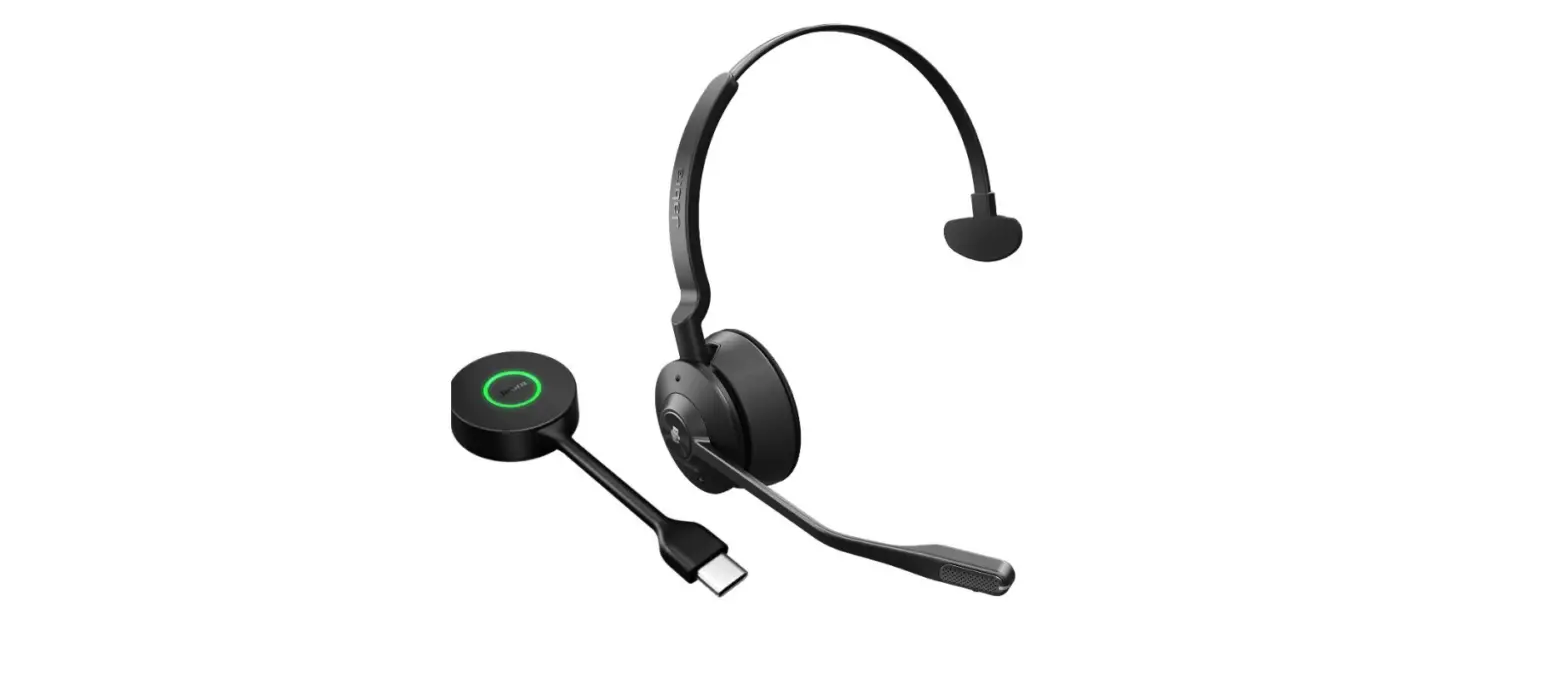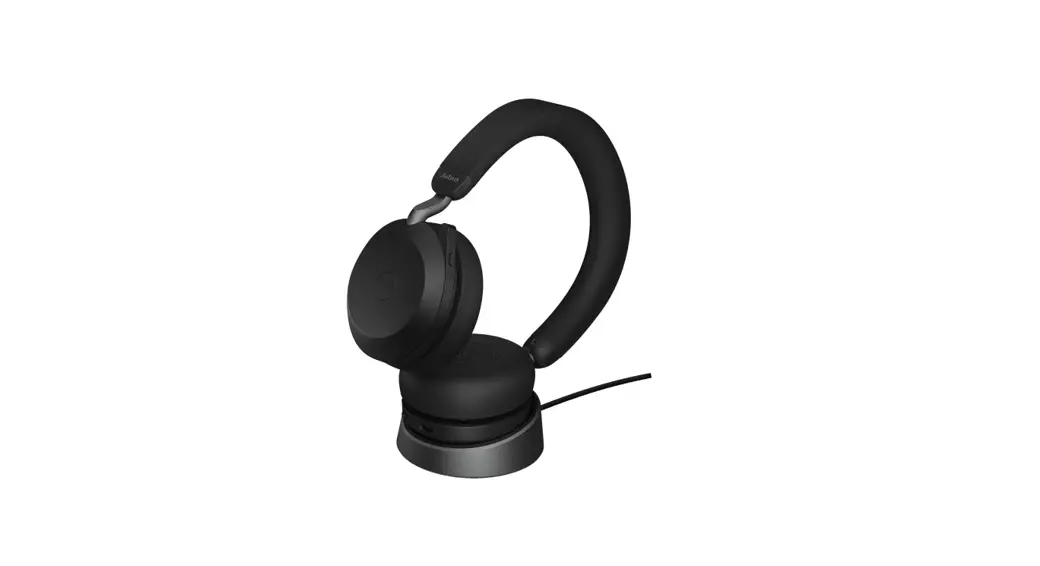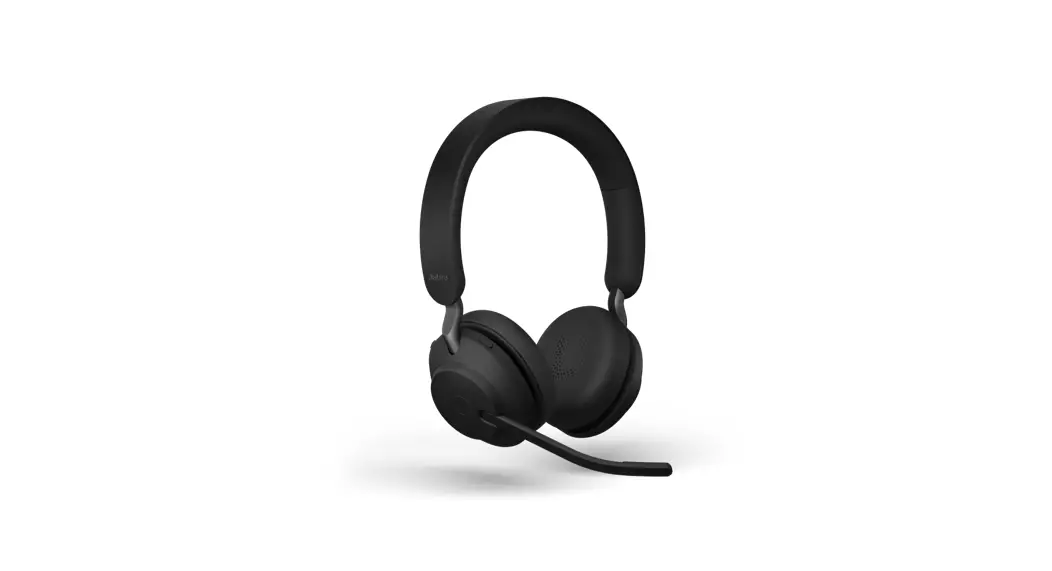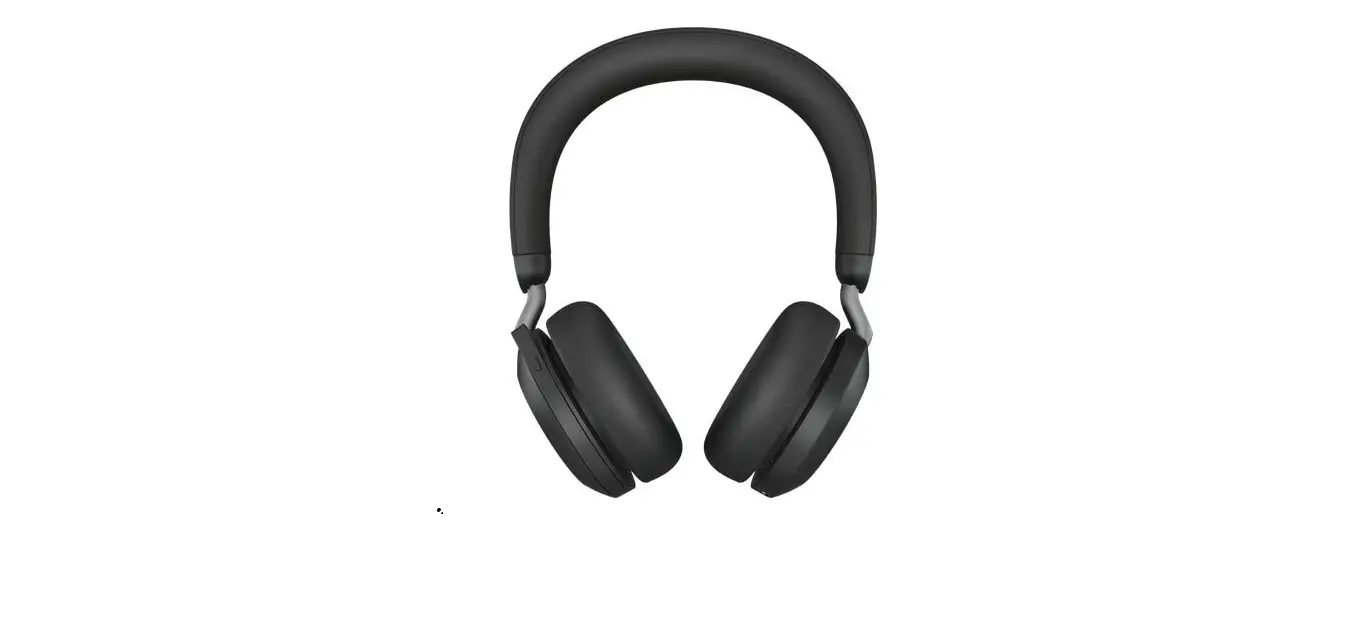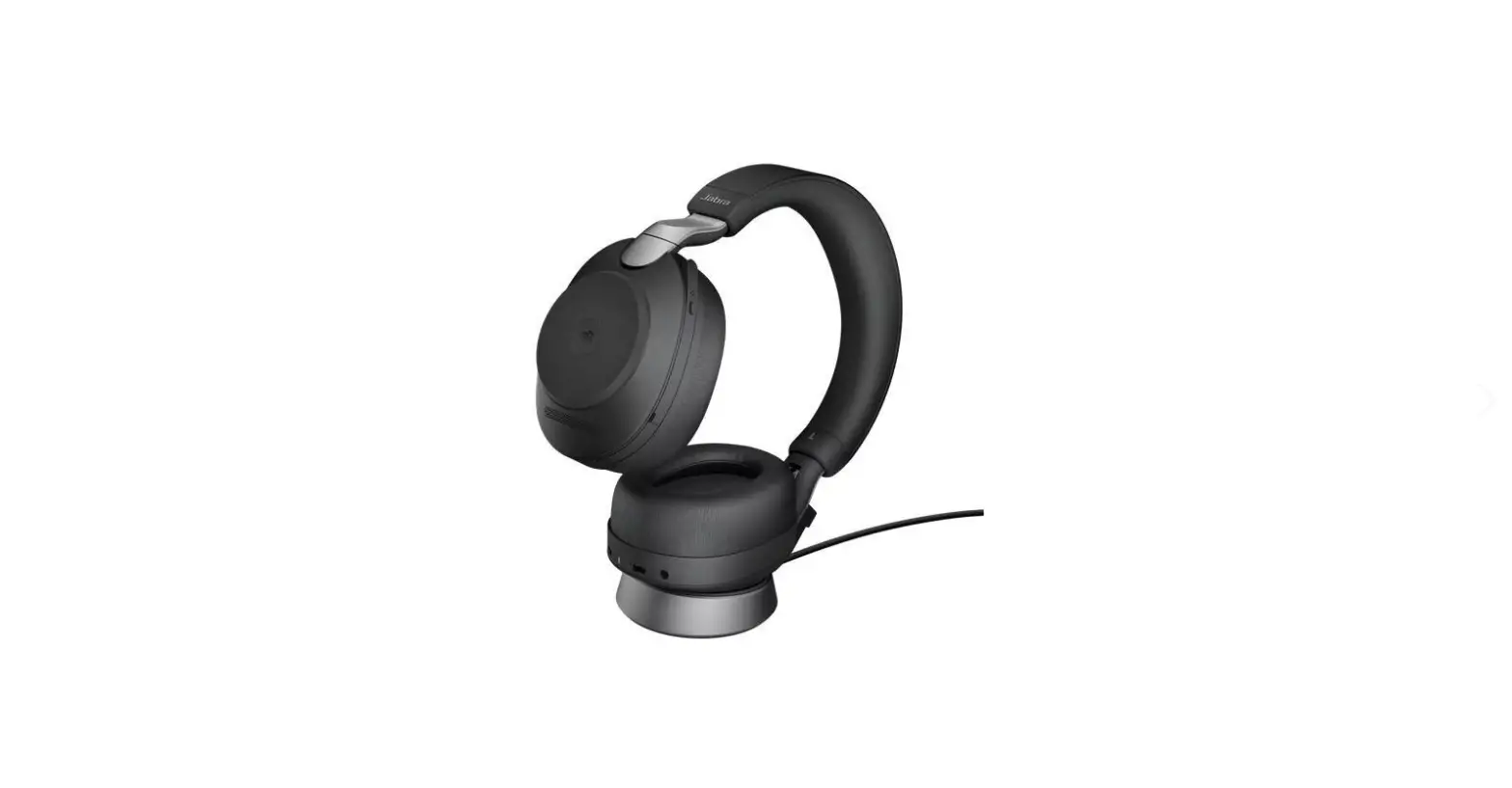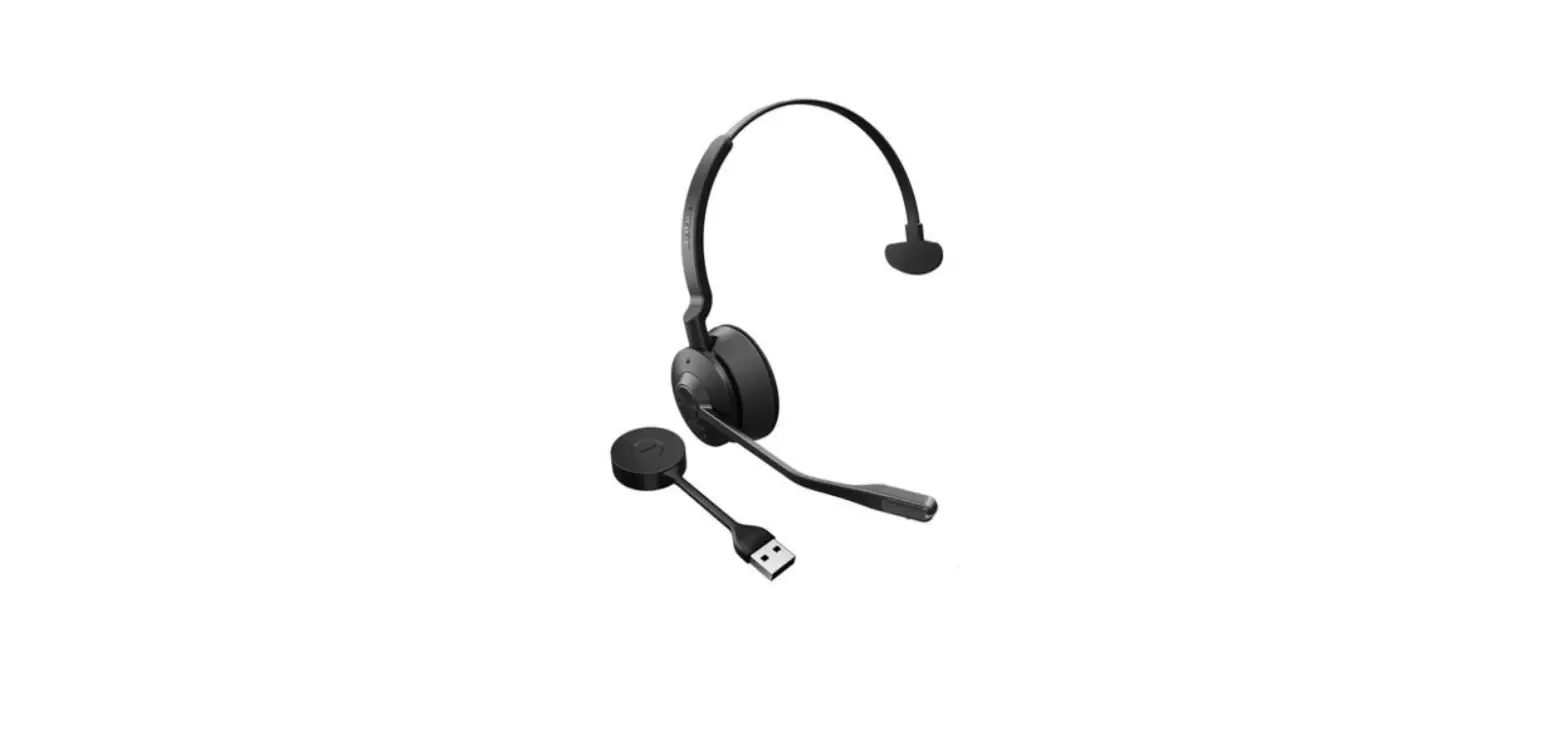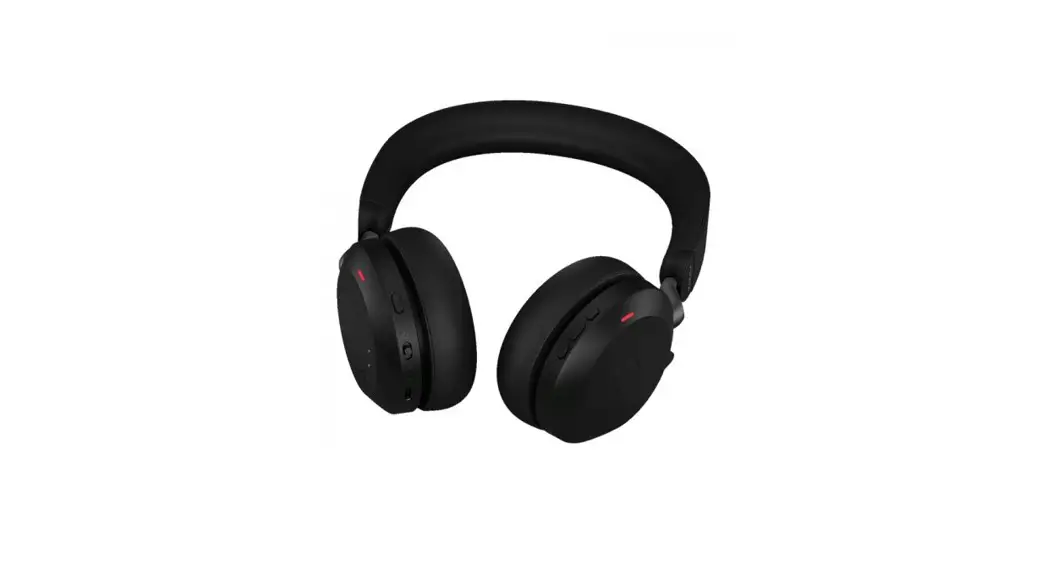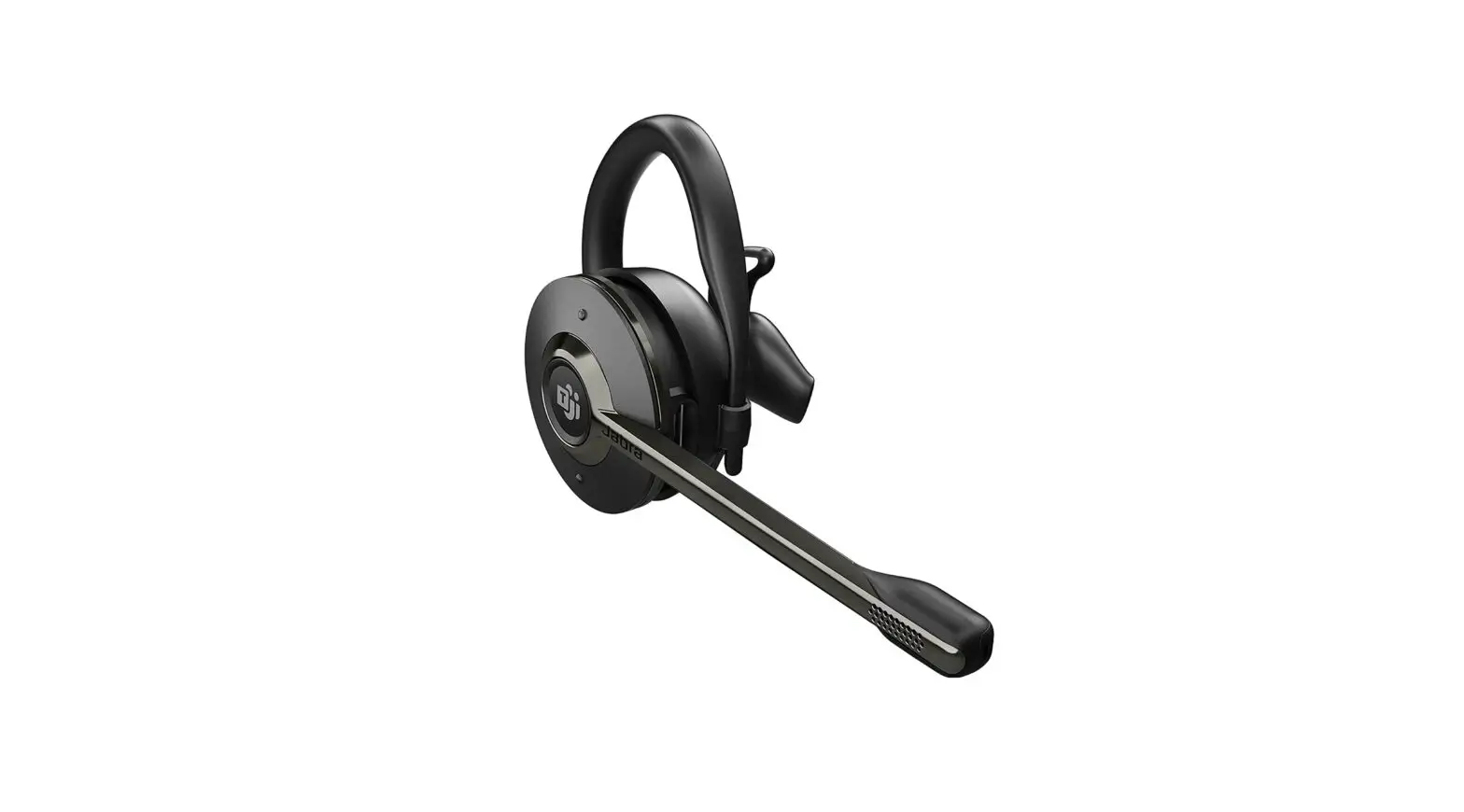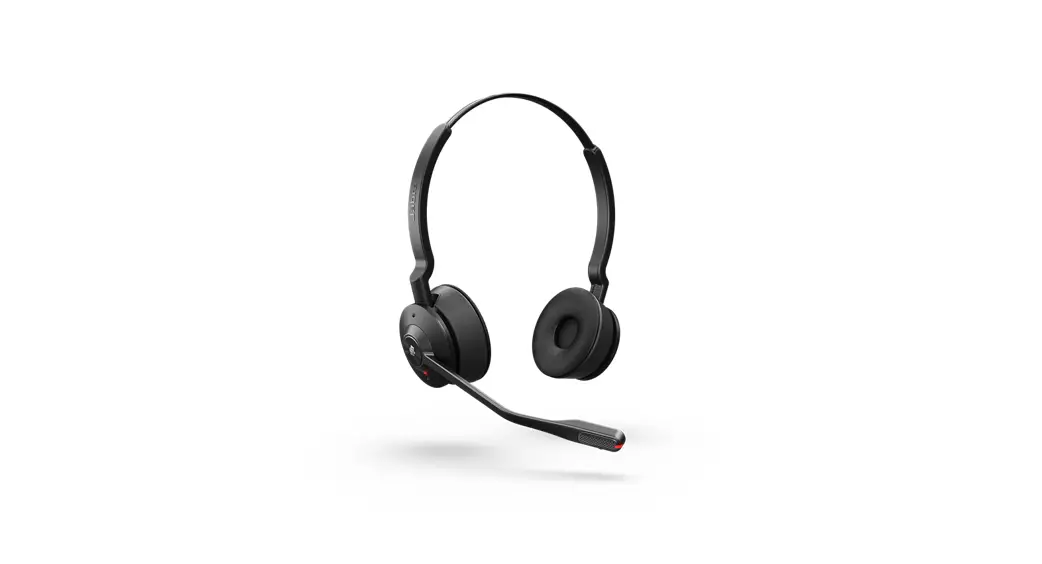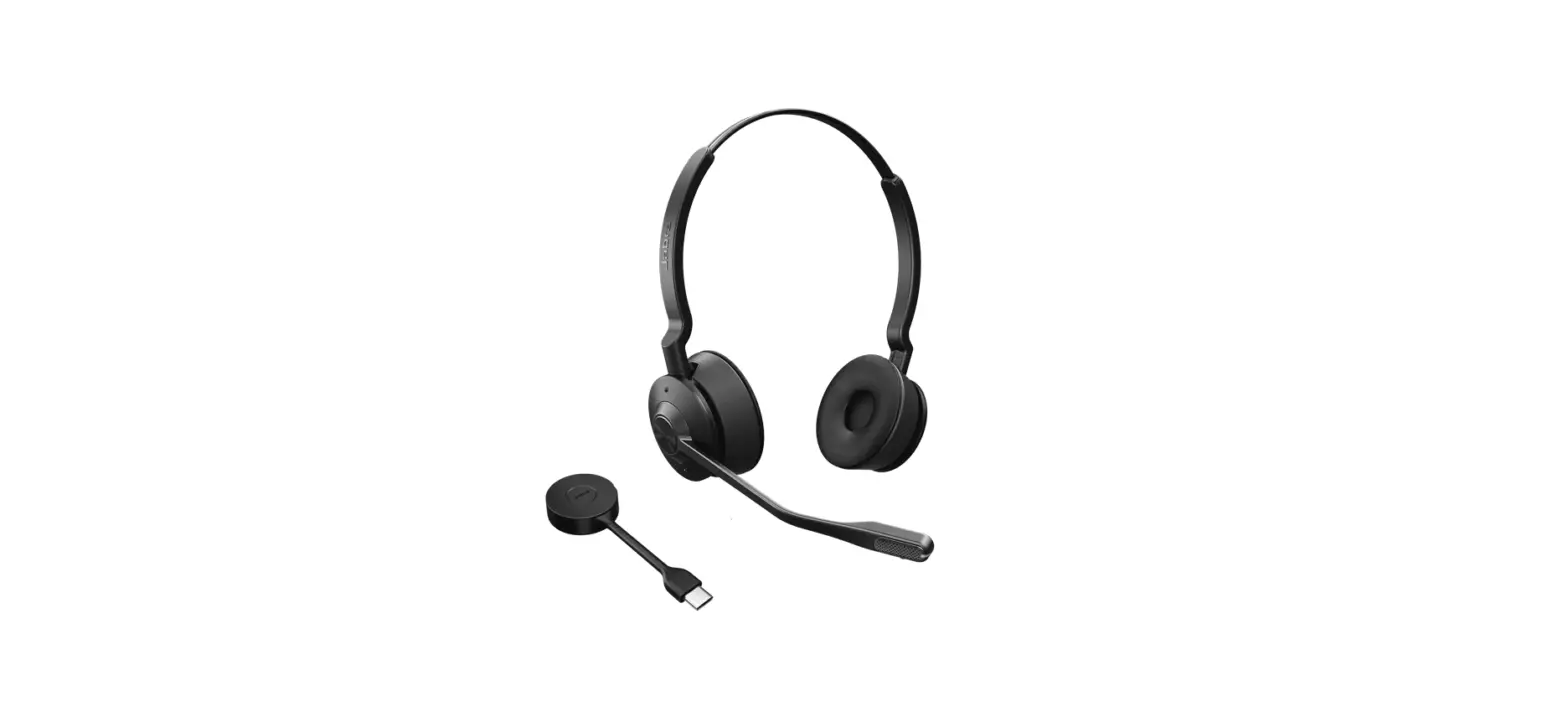

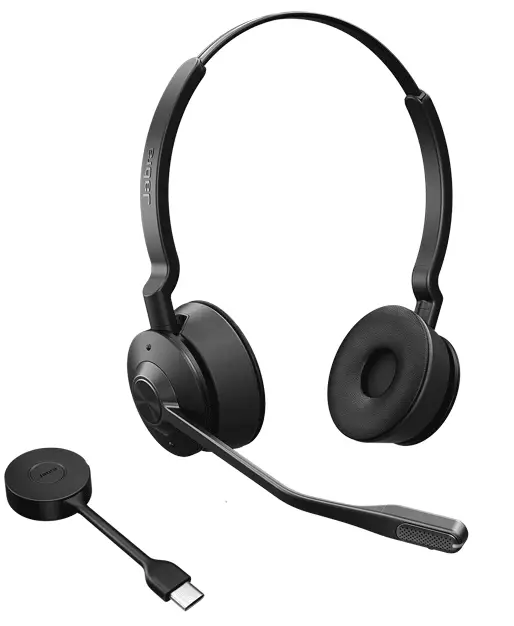
Jabra Engage 55 USB A MS Mono Wireless Headset with Charging
How do I set my Jabra device as the default audio device on my macOS computer?
To manually set your Jabra device as the default audio device, follow these steps.
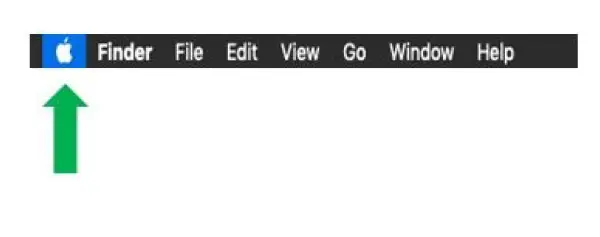
- Click the Apple icon at the top left.

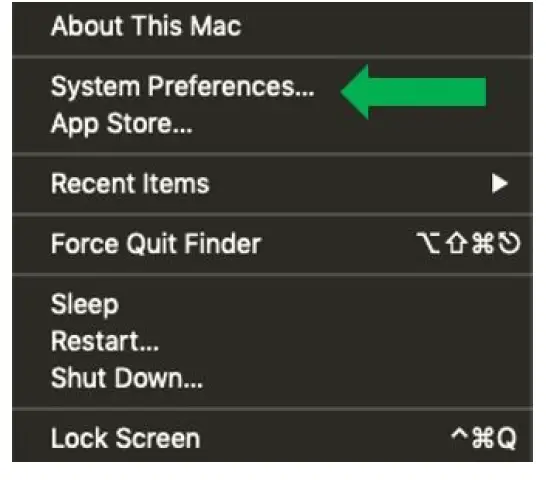
- Select System Preferences.

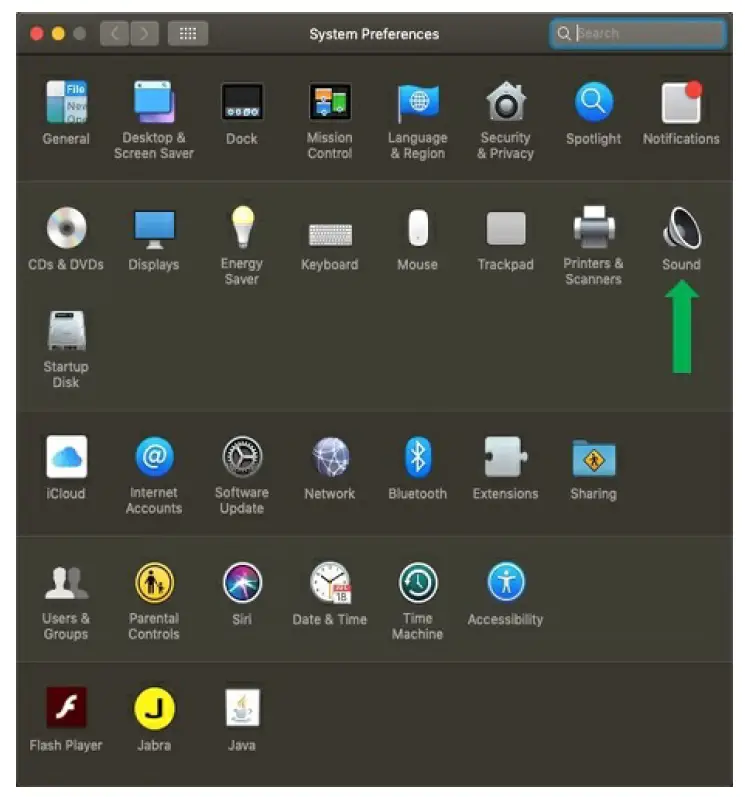
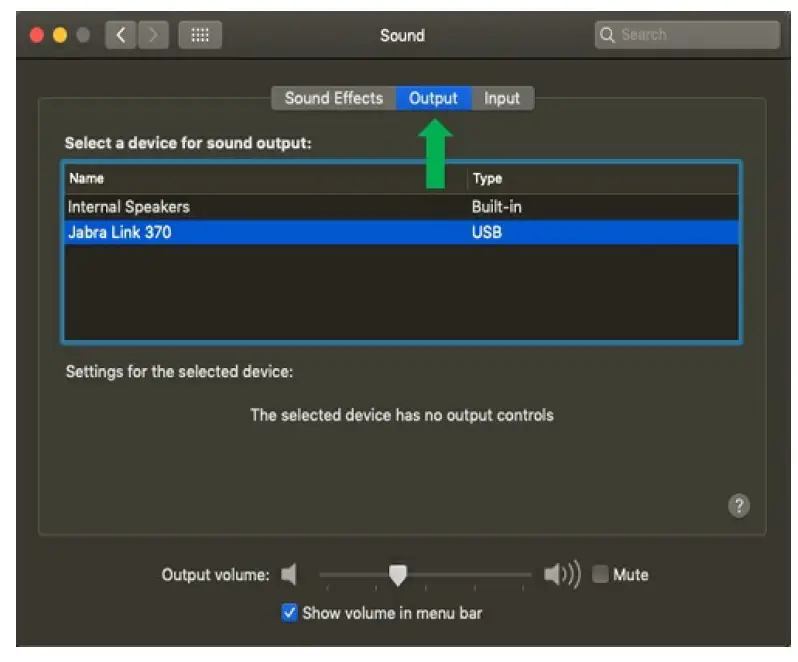
- Select Sound.

- On the Output tab, select your Jabra device.
If you are using a Jabra wireless device, select the connected Bluetooth adapter, such as the Jabra Link 370.
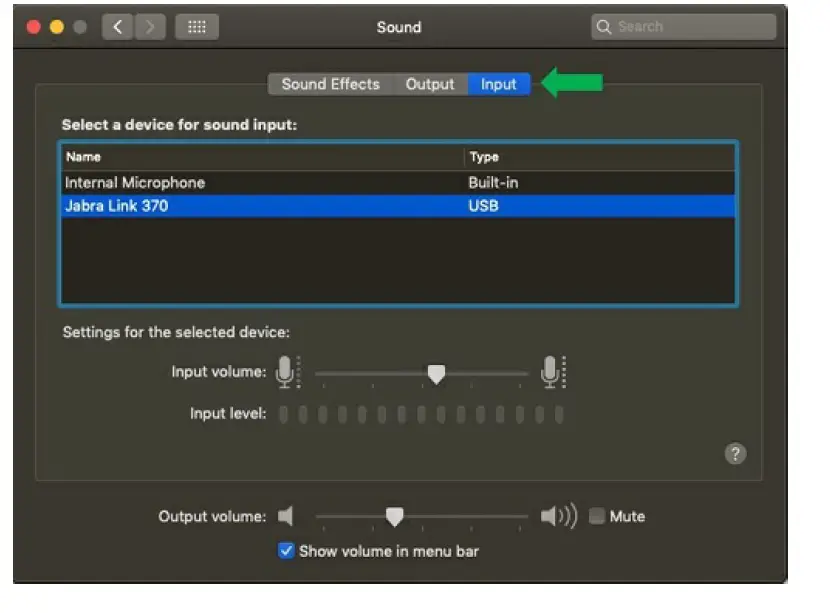
- On the Input tab, select your Jabra device.|
If you are using a Jabra wireless device, select the connected Bluetooth adapter, such as the Jabra Link 370.
References
 [FAQTitle] | Jabra Engage 55 - USB-A MS Mono with Charging Stand | FAQ | Jabra Support
-
How do I set my Jabra device as the default audio device on my macOS computer? | Jabra Engage 55 - USB-A MS Mono with Charging Stand | FAQ | Jabra Support
-
[FAQTitle] | Jabra Engage 55 - USB-A MS Mono with Charging Stand | FAQ | Jabra Support
-
How do I manually turn on/off the busylight on my Jabra Engage headset? | Jabra Engage 55 - USB-A MS Mono with Charging Stand | FAQ | Jabra Support
 [FAQTitle] | Jabra Engage 55 - USB-A MS Mono with Charging Stand | FAQ | Jabra Support
 [FAQTitle] | Jabra Engage 55 - USB-A MS Mono with Charging Stand | FAQ | Jabra Support