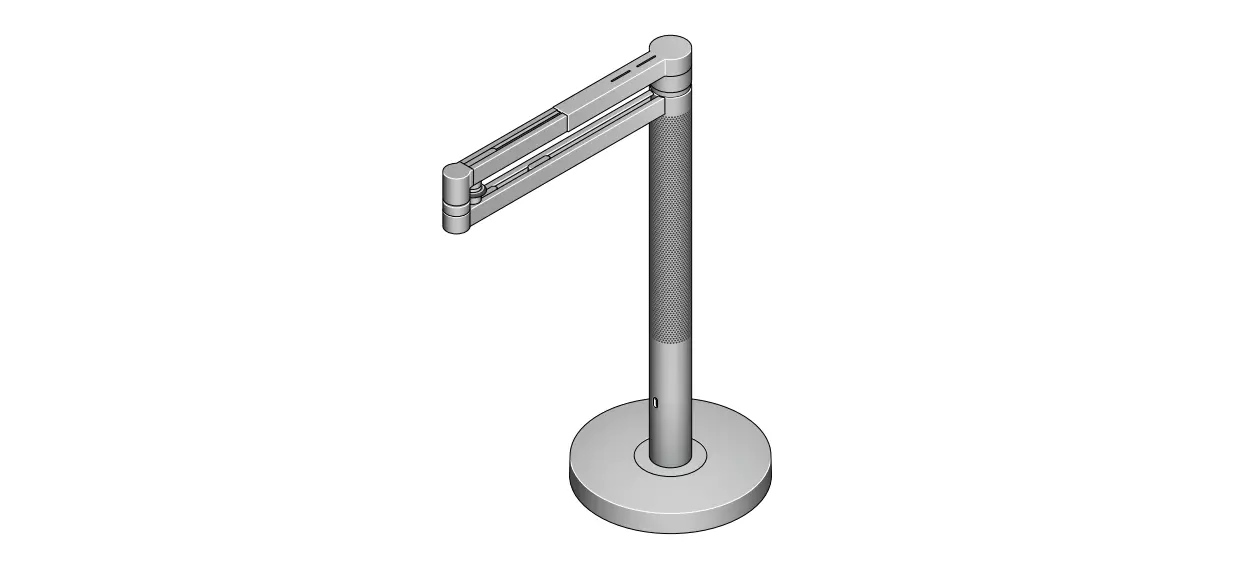
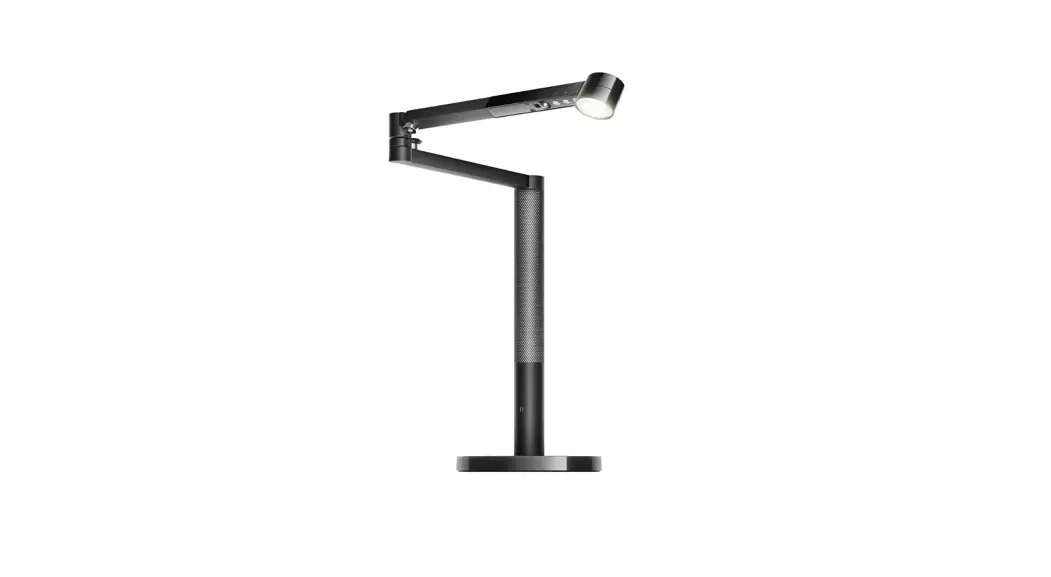
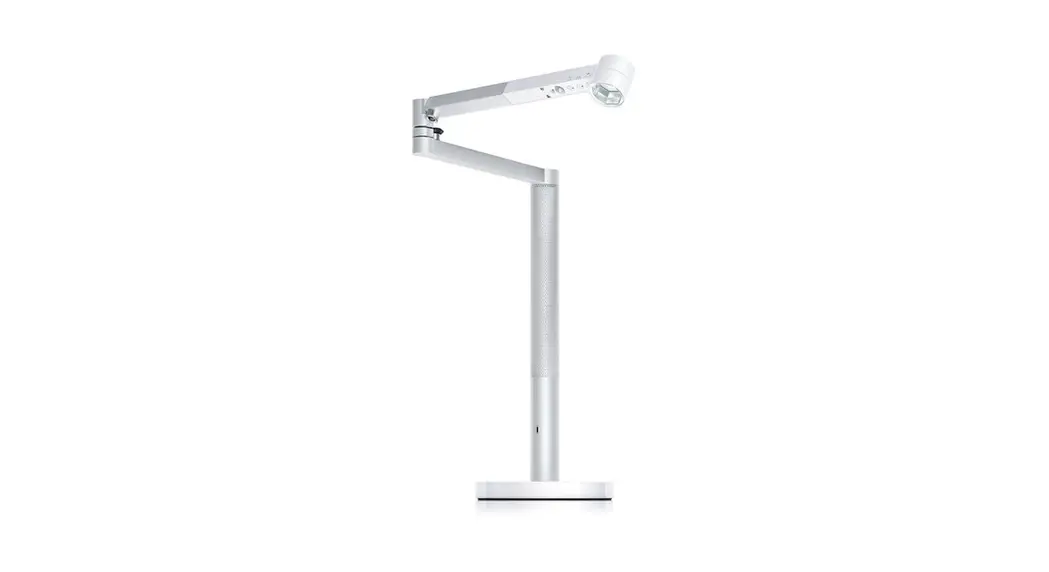
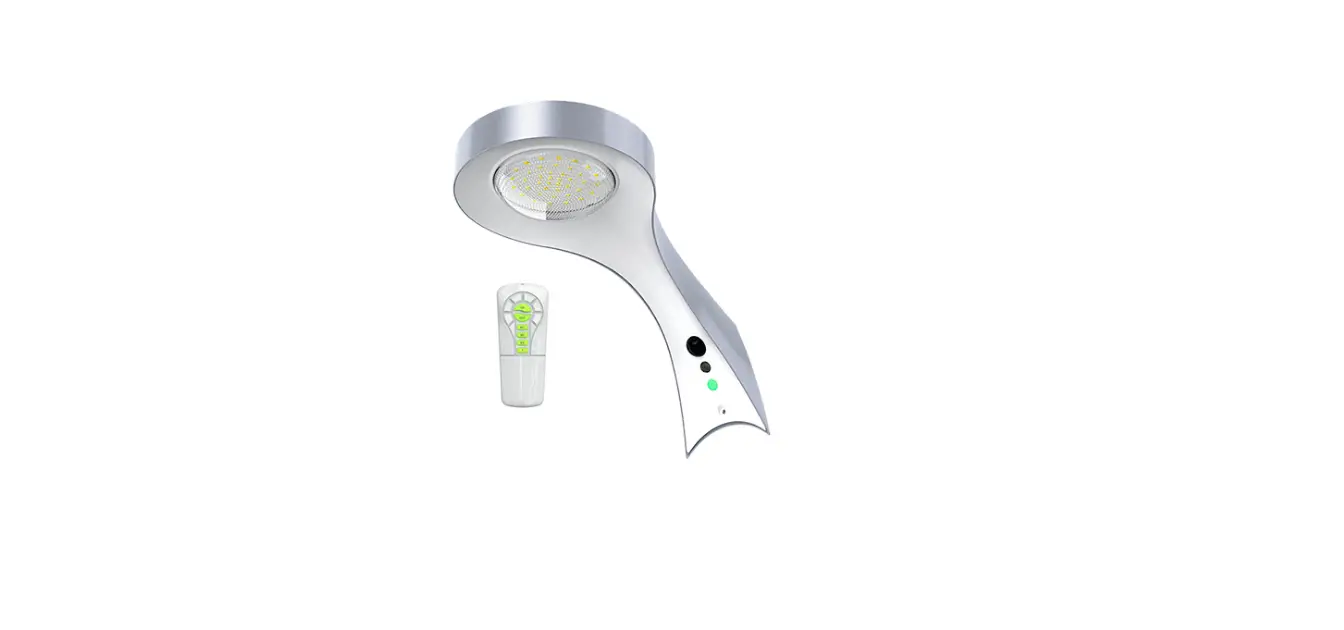
Solarcycle Morph Desk Lamp
Product Information
Product Name: Dyson Light
Model: CD06 JN.00000 PN.000000-00-00 00.00.00
Version: 01
Thank you for choosing to buy a Dyson Light. This product allows
you to take full control of its operation through the Dyson Link
app. With the app, you can set up and receive step-by-step support
for your light. You can control how and when your Dyson Light
operates according to your preferences.
To access the full features of the Dyson Light, you need to
download the Dyson Link app from either the App Store or Google
Play. Once downloaded, open the app and follow the on-screen
instructions to create a new account. For further information and
support, you can visit our website at https://www.dyson.co.th/en-TH/support/contact-us
or contact us at +66 2026 6325.
Please note that even after the guarantee period has ended, we
will still provide support for your Dyson Light.
Assembling Instructions
- Lift the base and place it vertically in the slot in the
box. - Insert the main body into the hole in the top of the base,
ensuring it is level. - Insert the locking nut into the bottom of the base and turn it
clockwise until tight. - Insert the power cable into the base, making sure it sits in
the cable guide. - Remove any protective wrapping from your light.
- Plug in the power cable and switch on the light.
- Download the Dyson Link app and add your light.
Usage Instructions
Positioning your light
Find a suitable location to position your Dyson Light. Ensure it
is placed securely and offers optimal lighting for your
workspace.
Colour temperature and brightness
Swipe left or right to change the colour temperature of the
light, ranging from warm to cool. Swipe up or down to adjust the
brightness level of the light.
Tap the screen to quickly switch between colour temperatures or
brightness levels.
For detailed information on colour temperature and brightness
levels, as well as tips on getting the best lighting experience,
refer to the Dyson Link app or visit our website at http://dyson.com/mylcm.
Automatic Features
The Dyson Light is equipped with automatic features:
- The light will adjust to background light conditions to
maintain a constant brightness in your workspace. - If no movement is detected for five minutes, the light will
automatically turn off.
For more information on using your light without connecting to
the Dyson Link app, visit our website at http://dyson.com/mylcm.
USB-C Charging Point
The Dyson Light features a USB-C charging point where you can
plug in your mobile devices to charge at a maximum of 1.5A and
5V.
User manual
2 Activating your guarantee 3 Assembling your light 3 Positioning your light 4 Colour temperature and brightness 4 Settings 5 Disabling/Enabling Bluetooth® wireless technology 5 USB-C charging point
CD06 JN.00000 PN.000000-00-00 00.00.00 VERSION NO.01
Thank you for choosing to buy a Dyson Light
Take full control with the Dyson Link app.
Get step-by-step set up and support.
Control how and when your Dyson Light operates.
Download the Dyson Link app
Download the Dyson Link app from the App store or Google Play. Open the app and follow the on-screen instructions to create a new account. For further information and support: https://www.dyson.co.th/en-TH/support/contact-us +66 2026 6325
Apple and the Apple logo are trademarks of Apple Inc., registered in the U.S. and other countries. App Store is a service mark of Apple Inc., registered in the U.S. and other countries. Google Play and the Google Play logo are trademarks of Google Inc. The Bluetooth® word mark and logos are registered trade marks owned by the Bluetooth SIG, Inc. and any use of such marks by Dyson is under license.
Activating your guarantee We don’t stop caring about our machines once they’re yours. Even after your guarantee has ended, we’ll still be on hand to help. Your serial number can be found on the rating plate located on the bottom of your light. Note your serial number for future reference.
This illustration is for example purposes only.
2
Assembling your light
Power
Brightness
Colour temperature
Settings
We’ve engineered the box to help you assemble your light.
Lift the base and place vertically in the slot in the box.
Insert the main body into the hole in the top of the base, making sure it’s level.
Insert the locking nut into the bottom of the base. Turn it clockwise until tight.
Insert the power cable into the base, making sure it sits in the cable guide.
Remove any protective wrapping from your light.
Plug in and switch on.
Download the Dyson link app and add your light.
Positioning your light
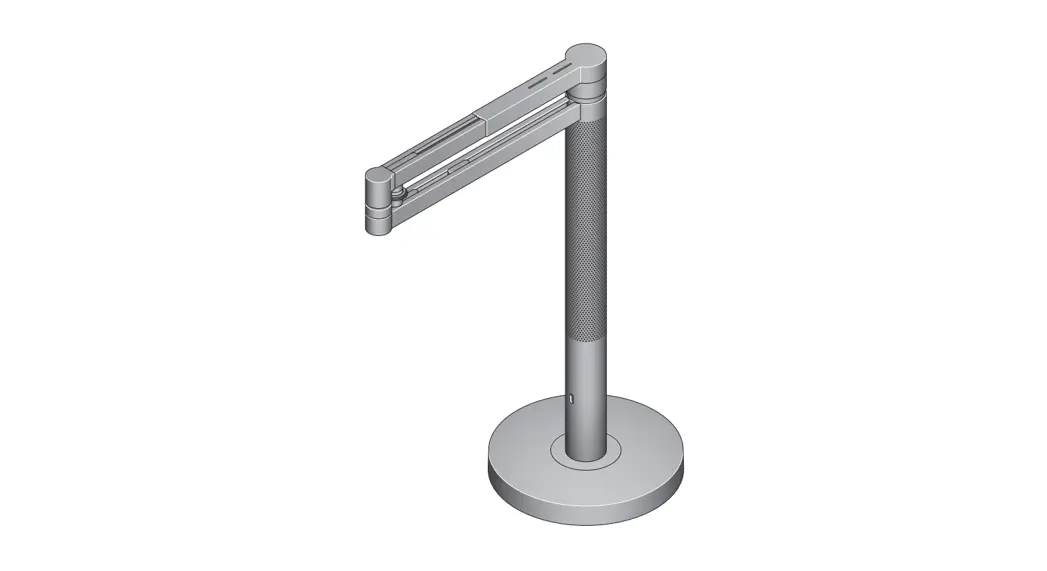
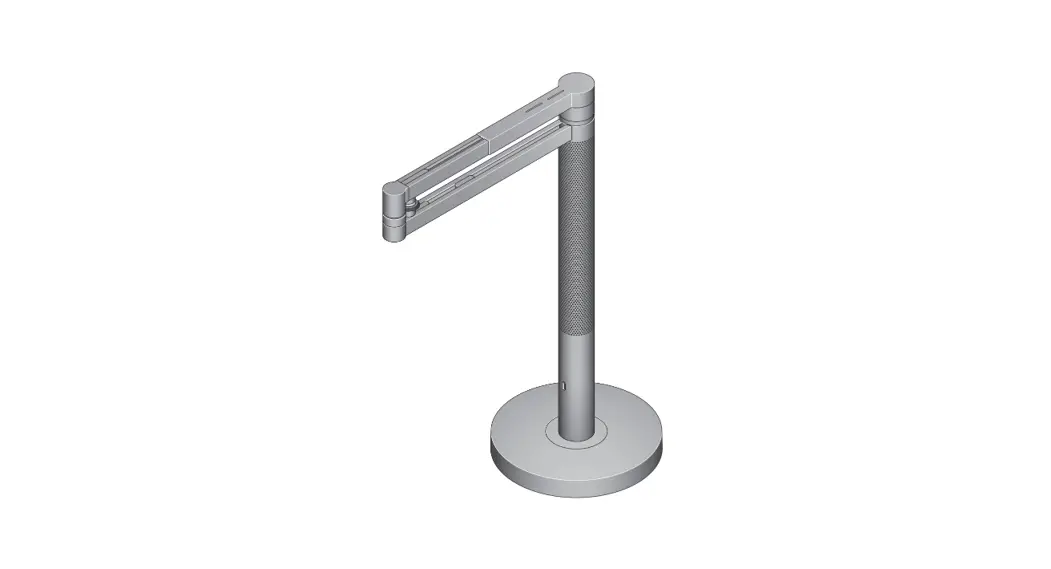
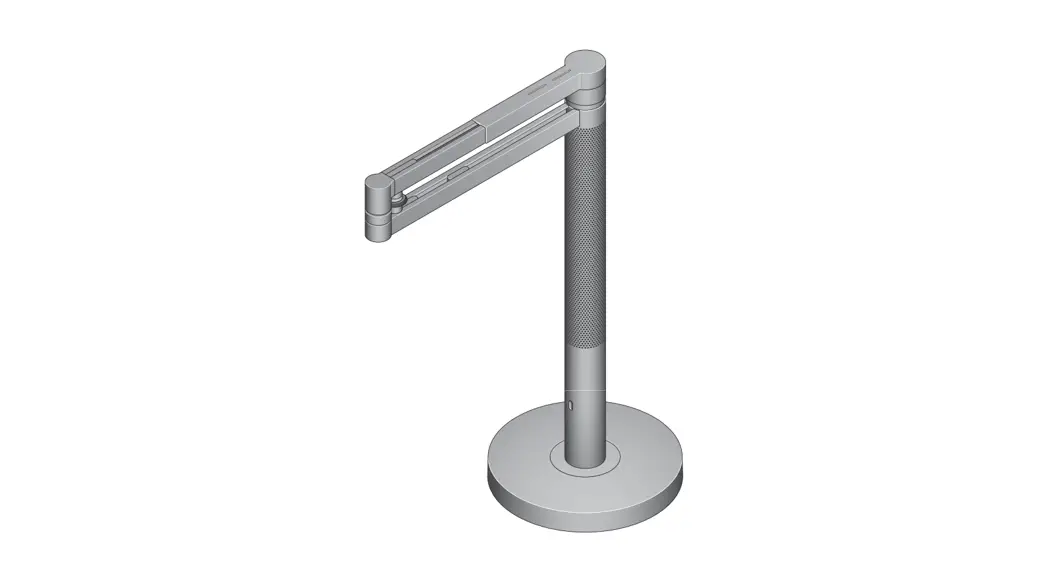
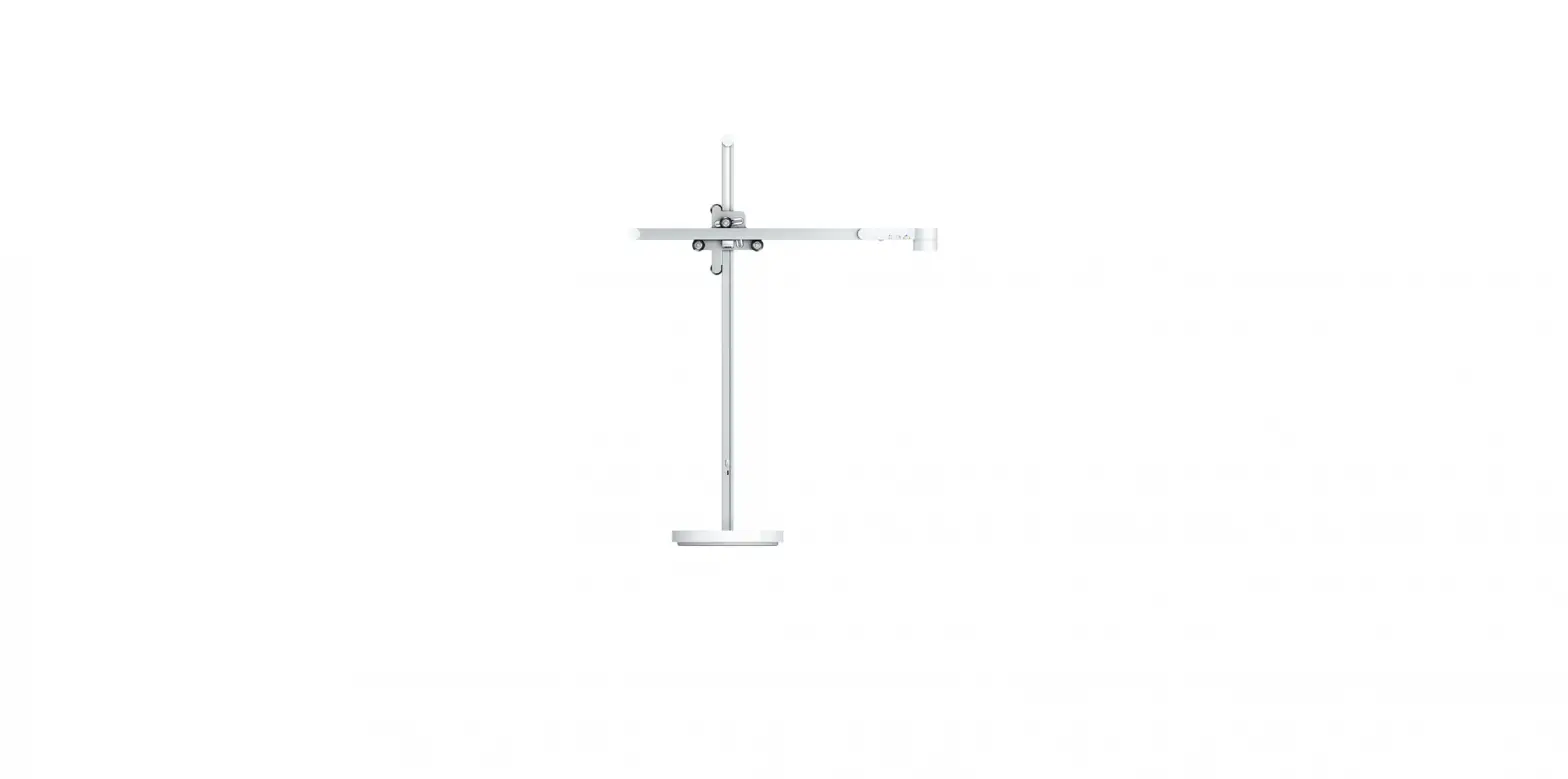
You can easily change the position of your light by independently rotating the optical head, arm and stem up to 360°.
3
Colour temperature and brightness
Swipe to change the colour temperature of the light from warm through to cool.
Swipe to change the brightness of the light.
Tap to change quickly between colour temperatures.
Tap to change quickly between brightness levels.
Settings
To find out more about colour temperature and brightness levels, and to get the best from your light, go to the Dyson Link app or online at: http://dyson.com/mylcm
The light will adjust to background light conditions and keep the workspace at a constant brightness.
Automatically changes the brightness and colour, according to your geographical location, throughout the day when connected by Bluetooth® wireless technology to the Dyson Link app.
4
The light will turn off after five minutes if no movement is detected.
For more information about using your light without connecting to the Dyson Link app: http://dyson.com/mylcm
Disabling/Enabling Bluetooth® wireless technology
Your light has Bluetooth® wireless technology enabled by default. Press and hold the middle button until the LED lights on the three buttons blink. The main light source will turn off and then on again to show that Bluetooth has been disabled. To re-enable Bluetooth, repeat the instructions above. The main light will blink twice to show that Bluetooth has been re-enabled.
USB-C charging point
Plug in your mobile devices to charge up to 1.5A at 5V.
5
 My Dyson light
 Contact us | Dyson Thailand