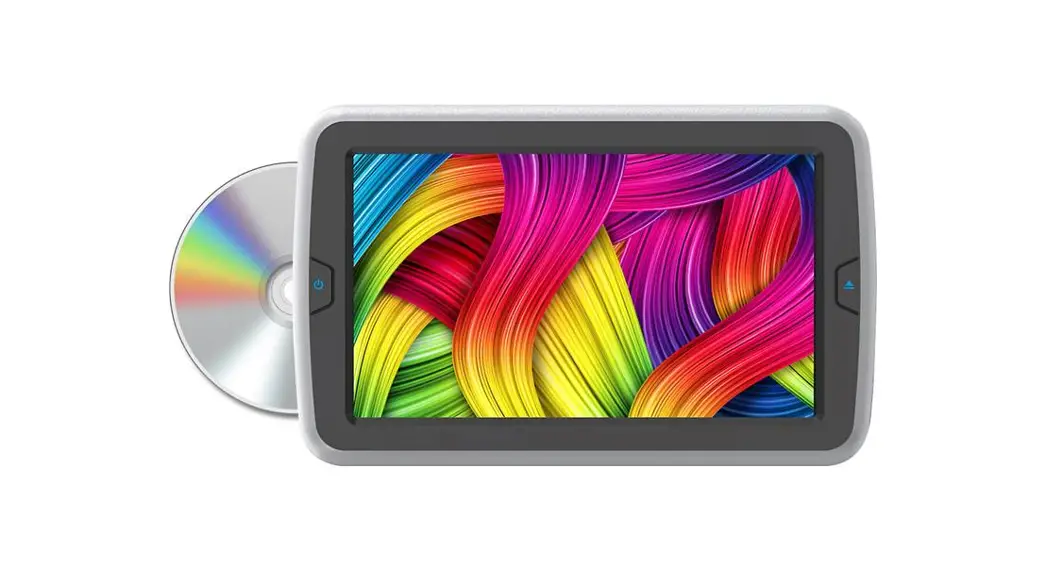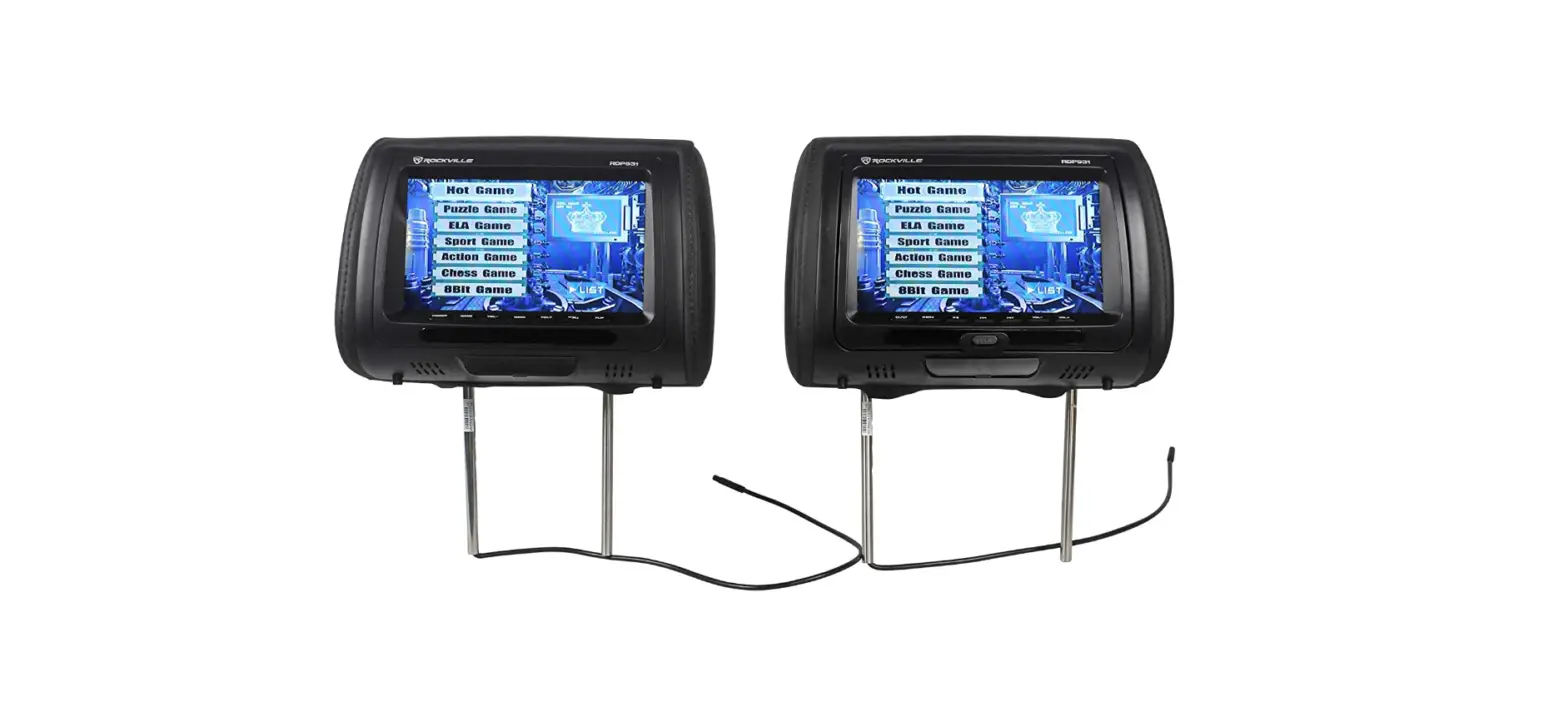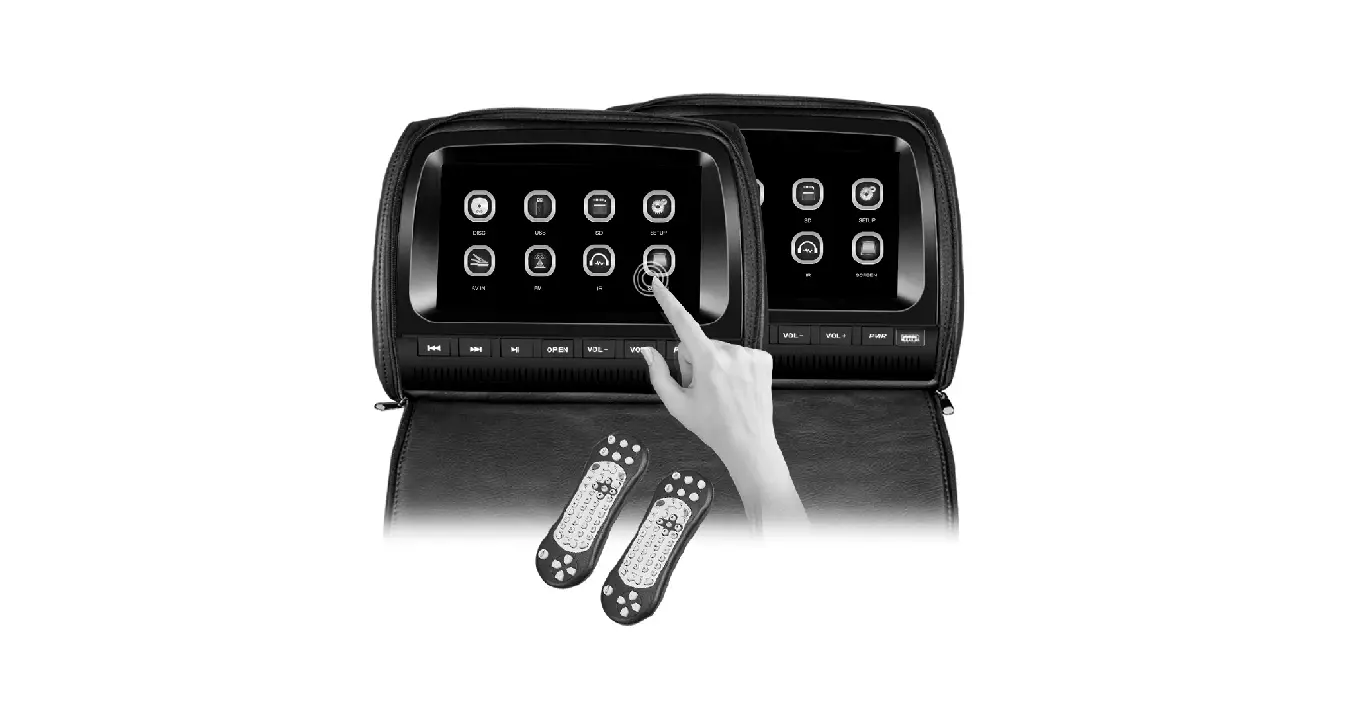
SOUNDSTREAM LM-T907D Wide Smart-Link Rainbow Headrest Monitor Series User Manual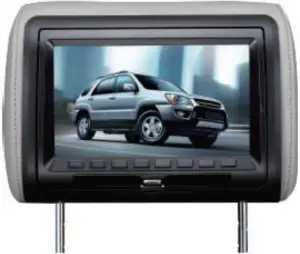
Congratulations on your new purchase of a Overhead Entertainment System, Please take a moment to fully review this owner’s manual thoroughly prior to the Initial operation, which will provide you with the best understanding to property operate your new Overhead Entertainment System.

| DVD | 1 USB | AV | |
| POWER | POWER ON/OFF | ||
DIMMER | DIMMER ON/OFF | ||
| V. SEL | V.SEL MODE DISPIAY | VSEL SCREEN OFF | |
| Exit | BACK TO PREVIOUS FOLDER | ||
 | PREV CHAPTER | FILE UP | UP |
 | NEXT OWNER | FILE DOWN | DOWN |
 | PLAY/PAUSE | SELECT | |
| STOP | STOP | |
 X 2 | DVD READY | USB MAIN MENU | |

 Wired Earphone Input
- UBS: USB Slot & Smart phone Charging
- Smart: Smart LINK Input port
 Wired Earphone Input
Materials On the Box
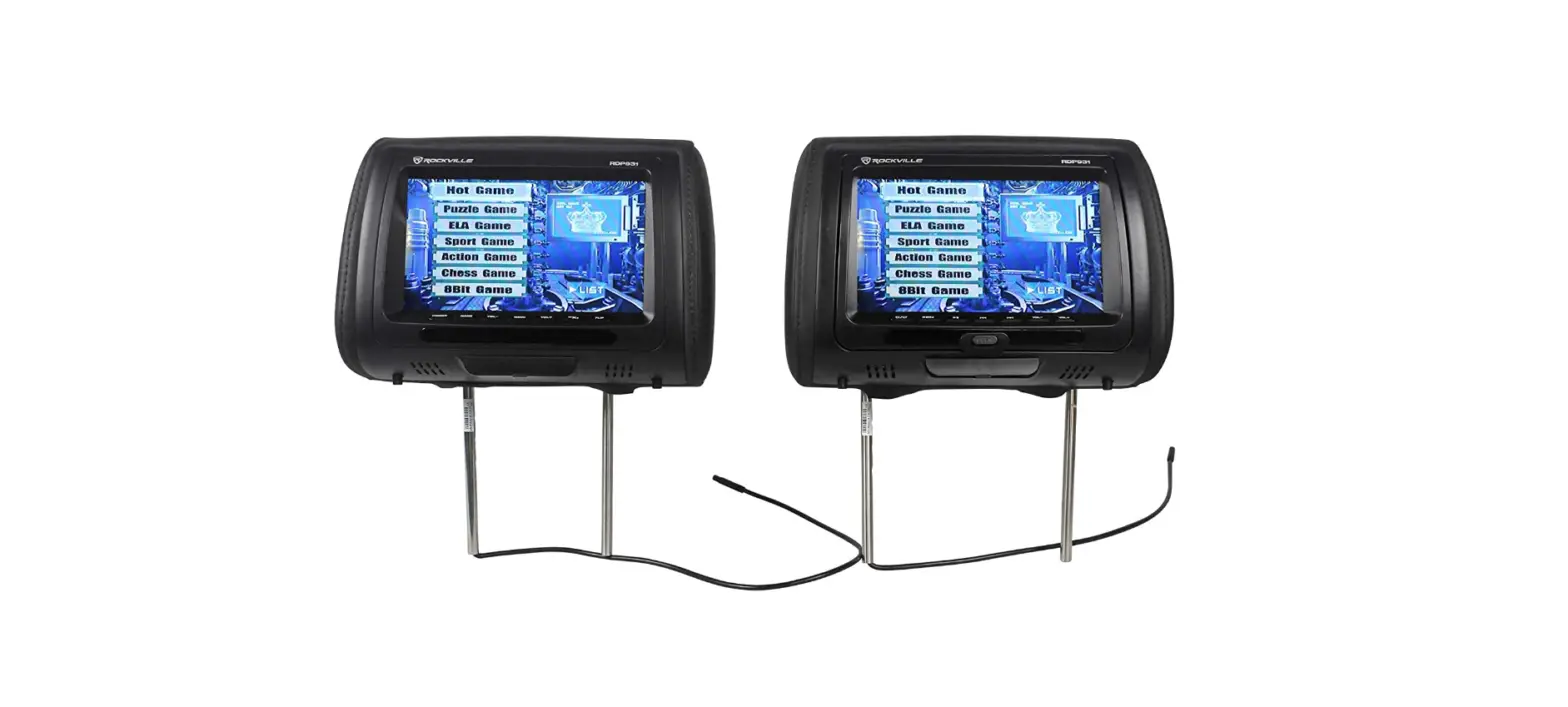
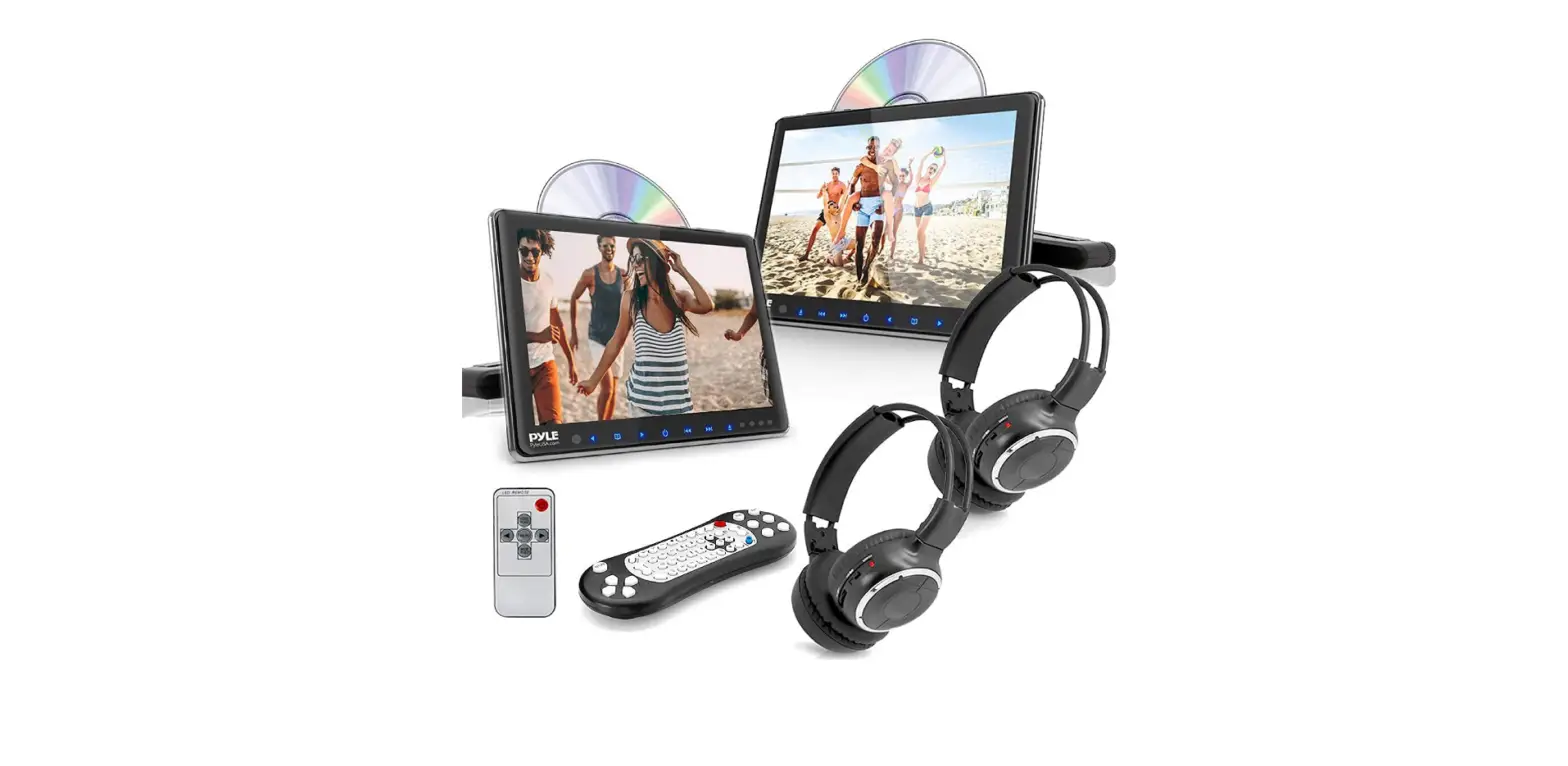
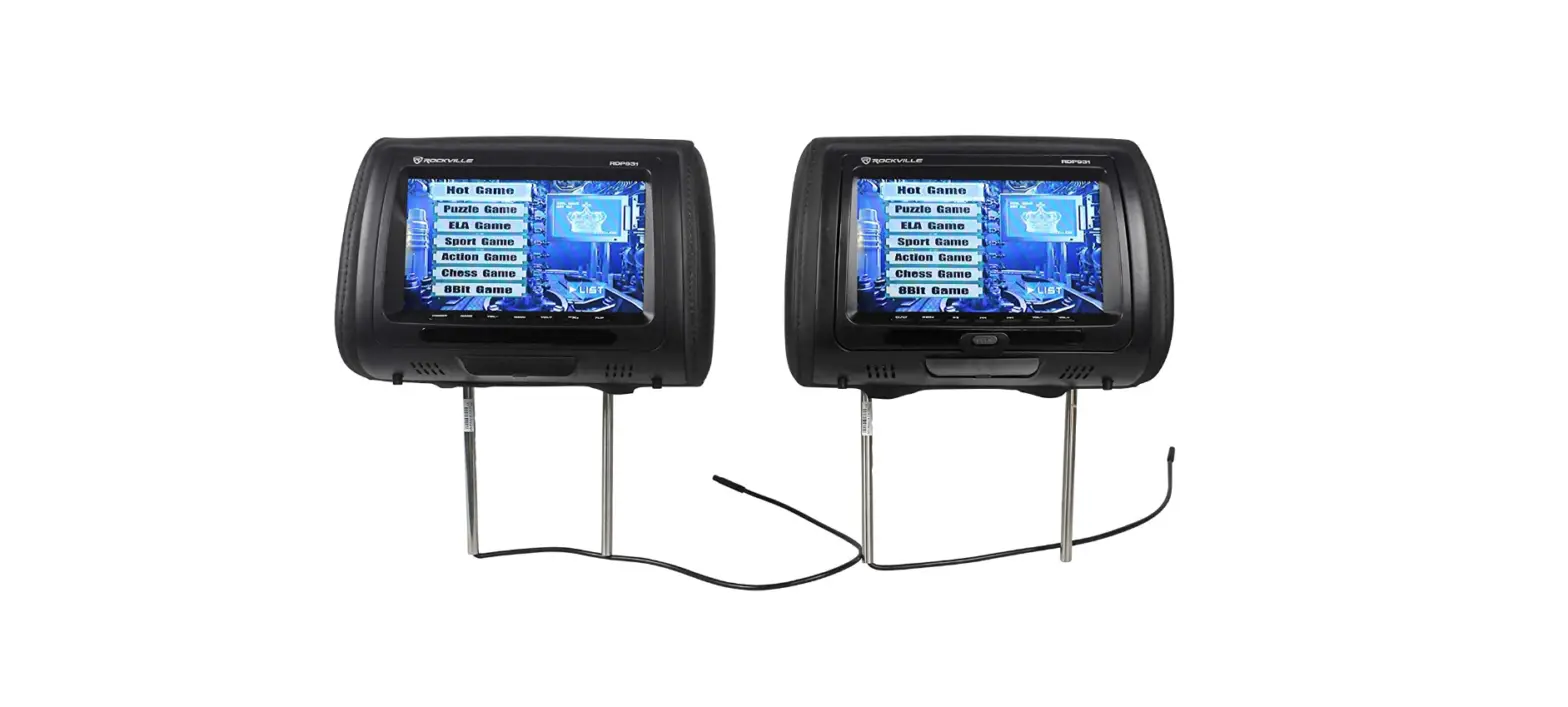
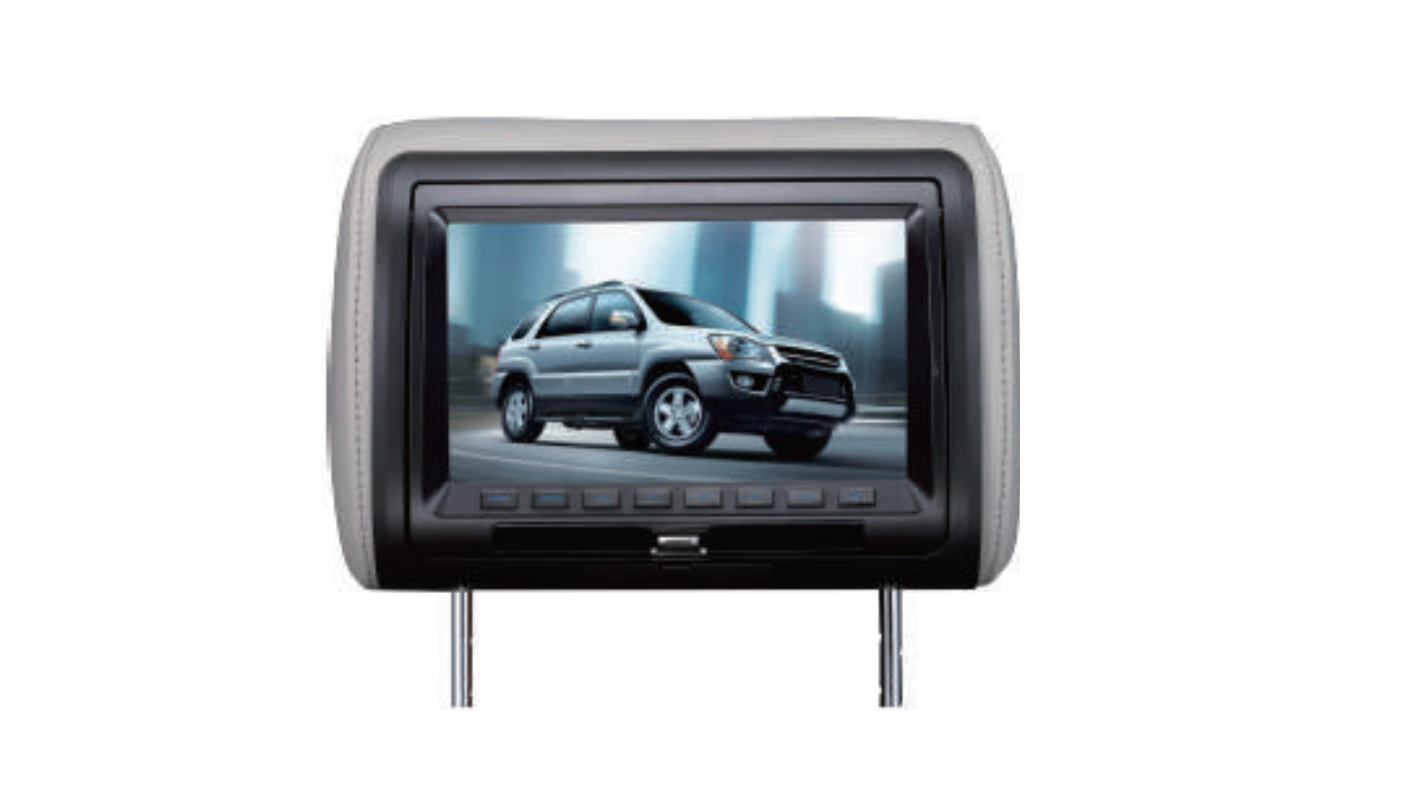
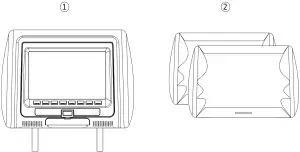
- 7”/9”Headrest DVD
- Beige cover and Gray cover
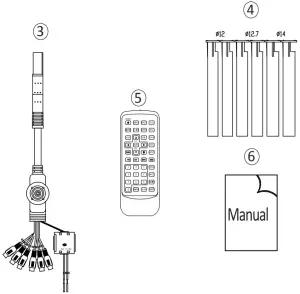
- DIN to RCA cable
- Pipe Adaptors(12/12.7/14mm)
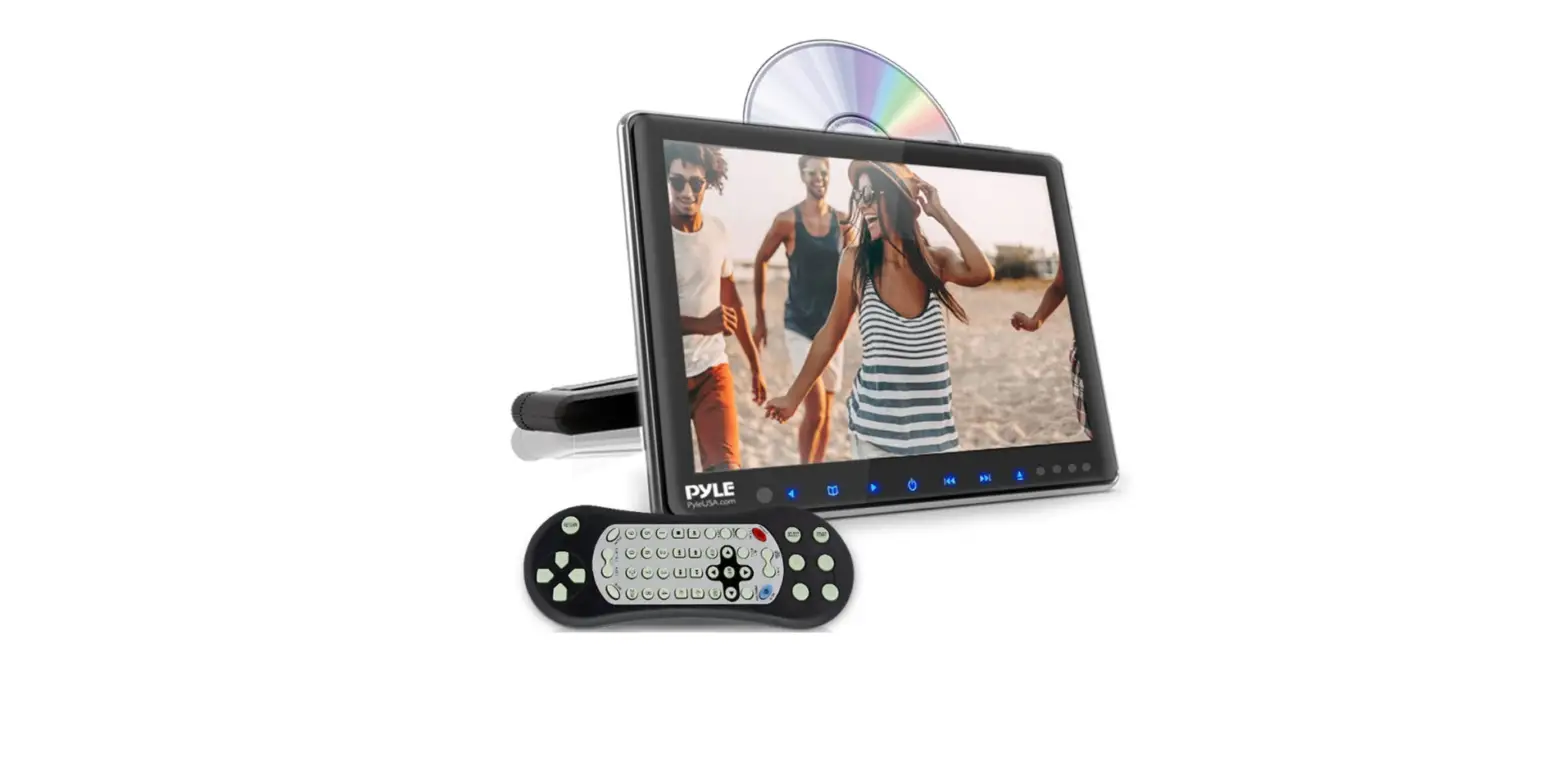
- Remote Control
- User’s Manual
How To Change VIDEO Source
This Unit has 4 different Modes . DVD, USB, AV, SMART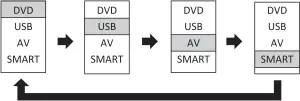
- DVD
- Press OPEN button on the unit to load DVD or CD disc.
- Completely close the LCD flip until you hear the sound “Click”.
- DVD or CD disc will be playing automatically.
- USB
- Put USB Memory on the slot located on right bottom side. (Inside of folding flip)
- Press V.SEL button on the unit or Remote to move cursor to USB on the screen.
- Select target file using
 /
/ buttons on the unit or
  button on the remote.
 - Press ‘PLAY” button on the unit or remote to play & pause the file.
- Press “EXIT’ button on the unit or remote to move to previous folder.
- AV
- AV input locate on the Side Panel (Left side of the unit)
- You can simply connect Portable or Handheld devices to this front AV Input
- SMART
- Please connect SMART LINK cable from external unit to Overhead’s SMART input port.
- Please change Video mode to SMART.
- Operate External device (especially video). Same picture as external device will be shown on the Overhead screen.
 button on the remote.
Descriptions Of Remote Control
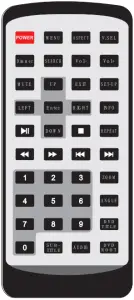
1 | POWER | Poster ON/OFF |
2 | MENU | Menu DISPLAY ON/Off |
| 3 | ASPECT | 9:3,169 changes |
4 | V.SEL | Video mode Selections |
| 5 | DIMMER | Dimmer ON/Off |
6 | SEARCH | Search Target Peoria, on the OM) or Media file |
| 7 | VOL- | Volume Down |
8 | VOL+ | Volume UP |
| 9 | MUTE | Mute ON/OFF |
10 | UP | Cursor UP |
| 11 | LEFT | Cursor Left |
12 | RIGHT | Cursor Right |
| 13 | DOWN | Cursor Down |
14 | EXIT | Exit From Folder or menu |
15 | ENTER | Function Select |
| 16 | | Play or Pause |
17 | | Stop |
| 18 | SET-UP | Set-UP Menu Display and Exit |
19 | INFO | Information of Current File or Disc |
| 20 | REPEAT | Repeat Playing of Currently Selected File |
21 |  | Fast forward (X2, X4, X8, X16) |
| 22 |
| Rewind (X2, X4, X8, X16) |
23 | | Previous Chaper |
| 24 | | Next Chaper |
25 | 1 0 Keys | Number Keys |
26 | ZOOM | X2, X3, X4, Time ZOOM up, 1/2 , 1/3, 1/4, time ZOOM Down |
| 27 | ANGLE | Angle adjust of picture (Only selected file or Disc) |
28 | DVD TITLE | Move to DVD Title Menu |
| 29 | DVD ROOT | Move To DVD Root Menu |
30 | SUB-TITLE | SUB-TILE Selection |
| 31 | AUDIO | Change to Audio Mode |

DVD / SET-UP
SET-UP page is consist with 4 different settings. It’s General Set up page, Audio Set up page.Video Set up page and Preference page.
- Preference page only able to OPEN when DVD is completely “STOP” or “No Disc” position When DVD is playing or only temporary stop, “Preference page” will not able to reach.
Please press “STOP” 2 times to make Disc completely stop or OPEN Monitor flip to reach “Preference page”
- General Set up Page
Please use ,
,  , buttons and ENTER button to go inside of detail MENU and exit from detail menu
Menu
Detail Selection
Default Setting
- TV Display
- Angle Mark
- OSD Language
- Caption
- Screen
- Last
- Memory
- Select Normal/PS,Normal LB or Wide
- Select On or Off
- Select one Language. 8Language are available English,
- Chimese, French, German, Italian, Spanish, Prrtuguses, and Russian
- Select On or Off
- Saver Select On or Off
- Select On or Off
- Normal/LB/Wide
- ON
- English
- ON
- ON
- ON
- ON
- Audio set up page
Menu
Detail Selection Default Setting Speaker Set UP Select LT/RT or Stereo Stereo
- Video Set up Page
Menu
Detail Selection Default Setting - Brightness
- Contrast
- Hue
- Saturation
- -16∼ +16
- -16∼ +16
- -9∼ +9
- -9∼ +9
- 00
- 00
- 00
- 00
- Preference Set up Page
MENU Detail Selection Default Setting - TV Type
- Audio
- Subtitle
- Disc MENU
- Parental
- Pass Word
- Default
- Select PAL TV,Multi, NT SCTV
- Select Audio Langage from English,French,Spanish,Romania or Others
- Select Audio Langage from English French,Spanish,Romania or OFF
- Select Audio Language from English French,Spanish,Romania or Others
- Select one from KID SAF/G/PG/PG13/PGR/R/Nc17/
- Password ON/OFF Selections Password Change
- RESET
- Multi English
- English
- English
- ADULT
- ON
- Default is 8888
- Press ENTER to RESET
 ,
,  ,
,  buttons and ENTER button to go inside of detail MENU and exit from detail menu
Picture
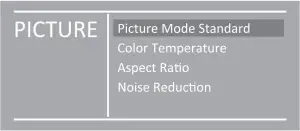
Default picture Mode is, “Picture Mode Standard” also, you can change the picture mode to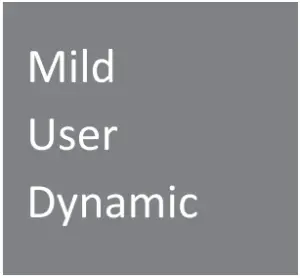
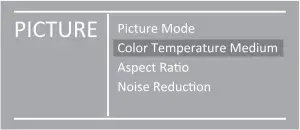
Default Color Temperature is, “Color Temperature Medium” also, you can change the Color Temperature to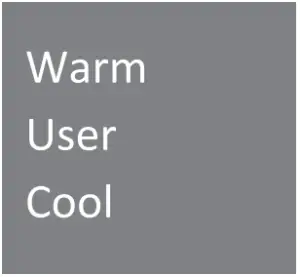
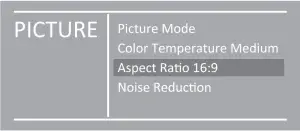
Default Aspect Ratio is, “16:9” also, you can change the Aspect Ratio to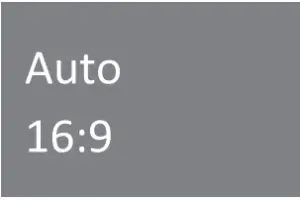
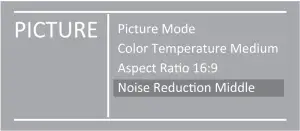
Default Noise Reduction is, “Middle” also, you can change the Aspect Ratio to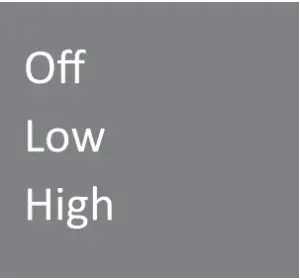
Sound
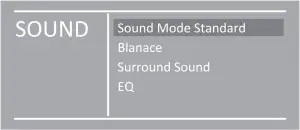
Default Sound Mode is, “Standard” also, you can change the Sound Mode to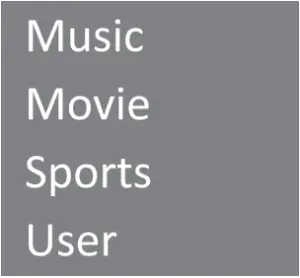
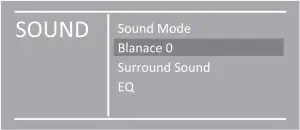
Default Balance is, “0” also, you can change the Balance to
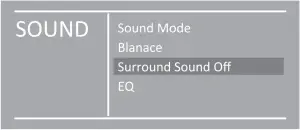
Default Surround Sound is “Off” also, you can change the Surround Sound to
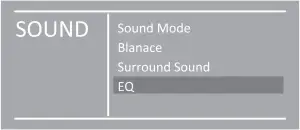
Default EQ Value is “50” also, you can change the Value level from 0 — 100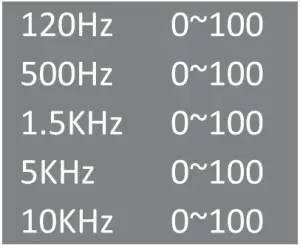
Option
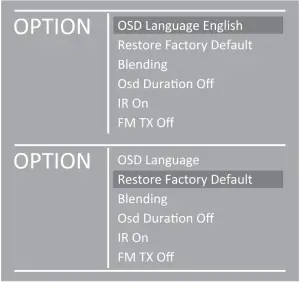
Press “Yes”-tn Restore Factory Default if you want to go back to Factory Setting
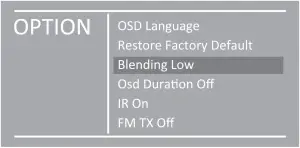
Default Blending is “Low” also, you can change the OSD Language to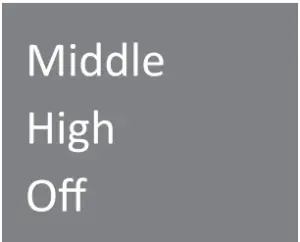
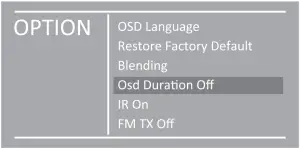
Default Osd Duration is “Off” also, you can change the OSD Language to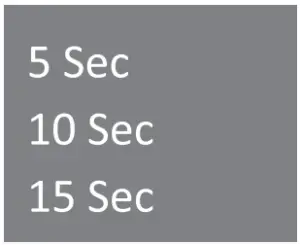
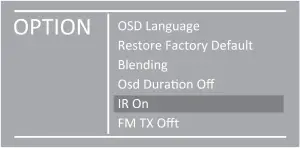
Default IR is “On” also, you can change the IR to
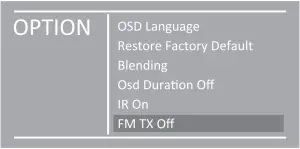
Default FM TX “Off” also, you can change the FM TX to
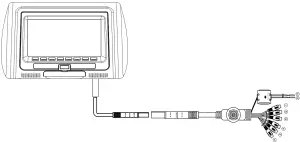
Wiring Diagram
- AV Video In
- AV Audio L In
- AV Audio R In
- Video Out
- Audio L Out
- Audio R Out
- ACC
- Ground
Important Safety Instructions
Caution: PLEASE READ AND OBSERVE ALL WARNINGS AND INSTRUCTIONS IN THIS OWNER’S MANUAL AND THOSE MARKED ON THE UNIT. RETAIN THIS BOOKLET FOR FUTURE REFERENCE.
Tin set has been designed and manufactured to assure personal safety. Improper use can result in electric shock or fire hazard. The Sanford, rods incorporated in this unit oil’ protect you if you observe One renown° procedures for installation, usa and strong. This unit is fully transistor pol and does not contain any parts that can be roomed by the user.
Warning
DO NOT attempt to operate if picture fails or no sound is heard. Stop using the unit and turn it off immediately if there is an smoke or burning smell. if unit is damaged it could cause fire or electrical shock.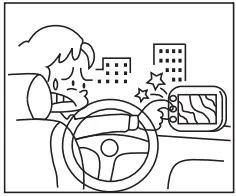
This product is designed for DC 12V. It is recommended to check with a trained “Authorized Dealer” for using this unit in a RV, truck or bus application.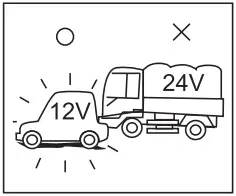
DO NOT install unit where it may obstruct driver’ sight or cause possible injury to passenger.
DO NOT allow installation to interfere with normal vehicle operation. Wiring and installation should not interfere with the brake pedal, steering wheel or transmission shift lever.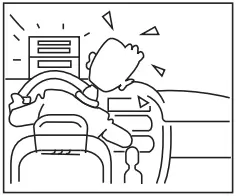
DO NOT remove any screw or hardware from vehicle to install product.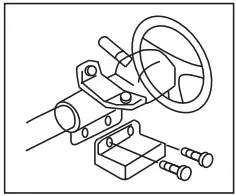
Inspect any vehicle areas before drilling any holes for mounting or wiring of unit. Make sure to check behind installation area to prevent damaging any existing vehicle wiring or other connections. Failure to do so could result in vehicle malfunction or impaired vehicle operation.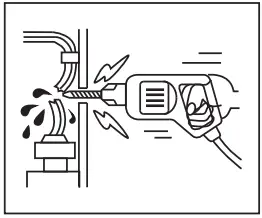
All wiring must be routed safely and should not distract the driver’s attention during normal operating conditions. DO NOT allow wiring to interfere with operation of the vehicle’s brake pedal, shift lever or steering wheel.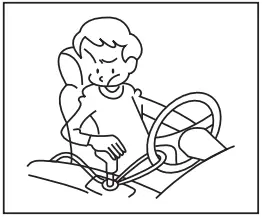
DO NOT cut or modify any DIN cables with fuse built-in This could render such protective circuit inactive and potentially result in permanent damage to the unit or vehicle.
Make sure both DIN cable and other wiring is not run where it may be cut or damaged.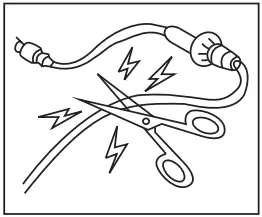
The slots and openings in the unit is provided for necessary ventilation. These must not be blocked to ensure reliable operation.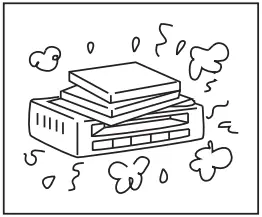
Caution
For the best results, follow wiring diagram for products a shown in the manual.
Do not place unit on uneven or unstable surfaces, avoid dusty areas and unsealed doors, or openings where water may be splashed.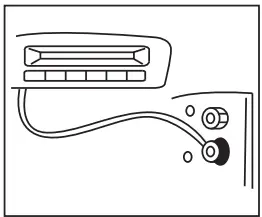
DO NOT watch the unit while driving. Distracting the driver from proper operation of the vehicle can result in possible accident or injury.
Proper installation allow the driver to only watch TV when the vehicle is stopped and the parking brake is applied.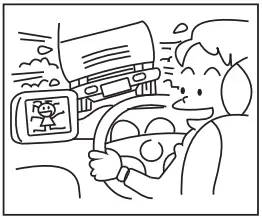
DO NOT disassemble or modify the product as it may cause accident, fire or electrical shock.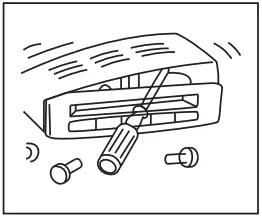
Set the volume to a moderate level, which will not prevent your hearing outside noises such as emergency vehicles.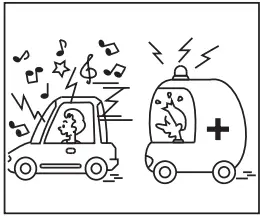
Use provided parts. Over-sized hardware may cause an electrical short or result in product not being mounted securely.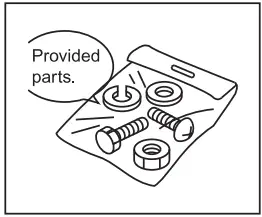
Use correct voltage batteries only. Make sure to insert batteries observing correct polarity. Using old and new batteries is not recommended. Keep small objects such as batteries out of the reach of children.
Swallowing them may result in serious injury.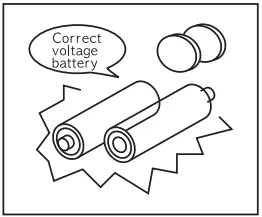
Keep the remote control in safe place when not in use to insure that the remote control dose not interfere with the vehicle operation if it is dropped or shifts while driving.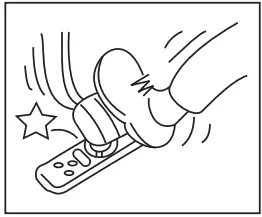
DO NOT Install antennas where they could cause unexpected accident or injury to pedestrians.
General Specifications
- 9″ Wide High Resolution, Low Reflection Digital TFT-LCD Screen
- 7″ Wide High Resolution, Low Reflection Digital TFT-LCD Screen
- 800 x RGB x 480 Resolution, Ultra Bright LED Back Lighting
- PAL/NTSC Auto Picture switching
- Car-Spec Disc Transport for Extreme High-temperature exposure
- Multimedia Disc Play-back
- USB Play-back (Full-HD 1080p Supports) from Front Panel
- High Capacity HDD Play-back (Supports Full-HD 1080p) Interface Ready
- Smart Input from Front Panel
- 1 A/V(CVBS) Input
- Wired Headphone Output from Front Panel
- Built-in Dual Channel Wireless IR Transmitter
- Built-in 300-Channel FM Transmitter
- Built-in Poly Switch for Reverse-voltage Protection
- Blue LED Button illumination
- Full Function Remote Control Included
- Pole Diameter 10mm with 12/12.7/14mm Pole Adapters Included
- Adjustable Pole Width 110mm ~ 210mm
- Easy to Exchange Headrest Skins
- 3 Different Color Headrest Skins are Included (Beige/Black/Gray)
- 12V DC Operation (9V ~ 16V)
- Dimension: 295mm(W) X 205mm(H) X 128mm(D)
- Dimension: 255mm(W) X 180mm(H) X 135mm(D)