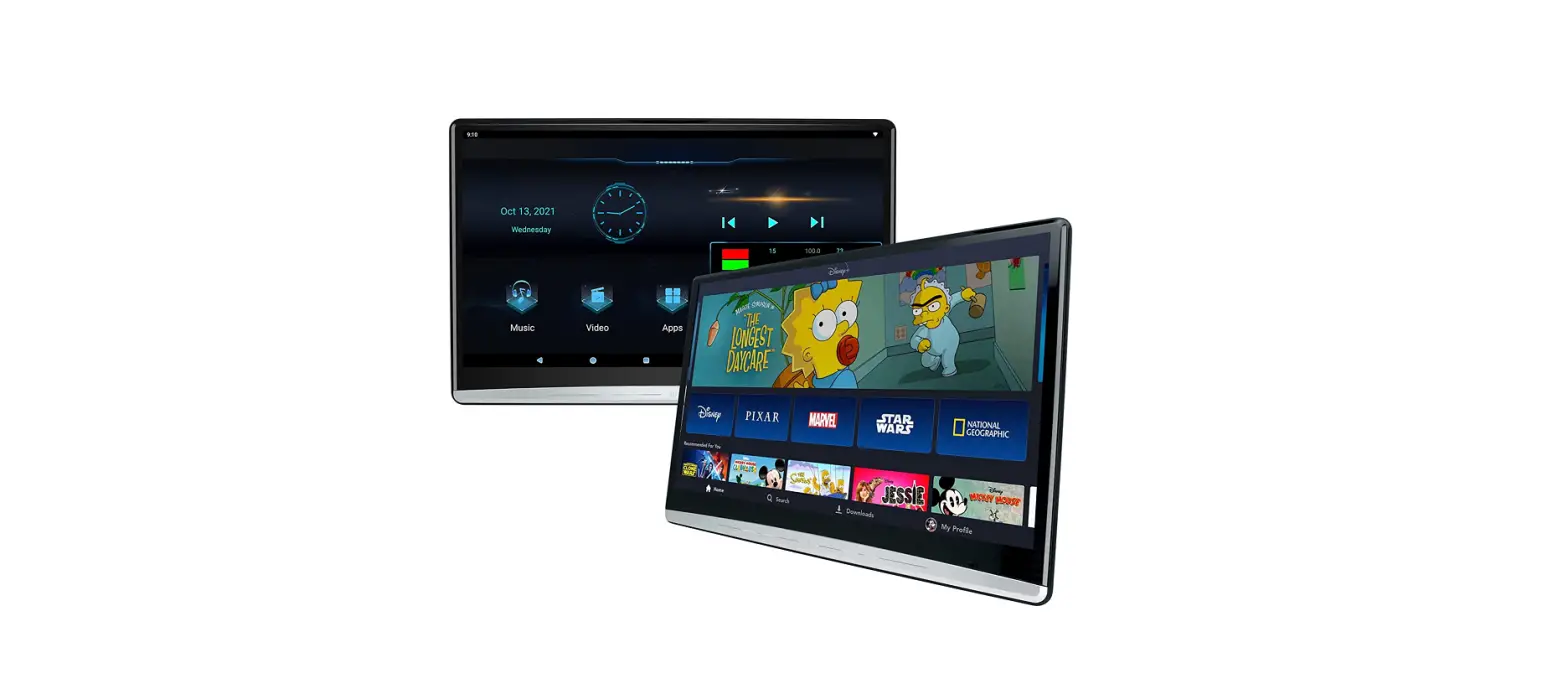

 RSD-1105/RSD-1105M
User’s Manual 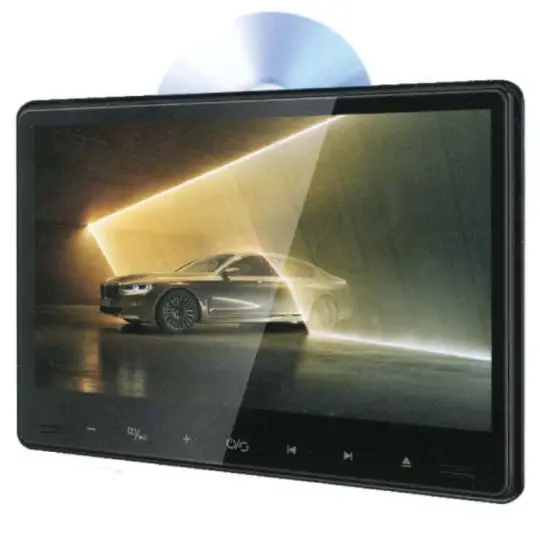 CAR HEADREST BRACKET DVP PLAYER
Bethe fore operation, please read the manual carefully.
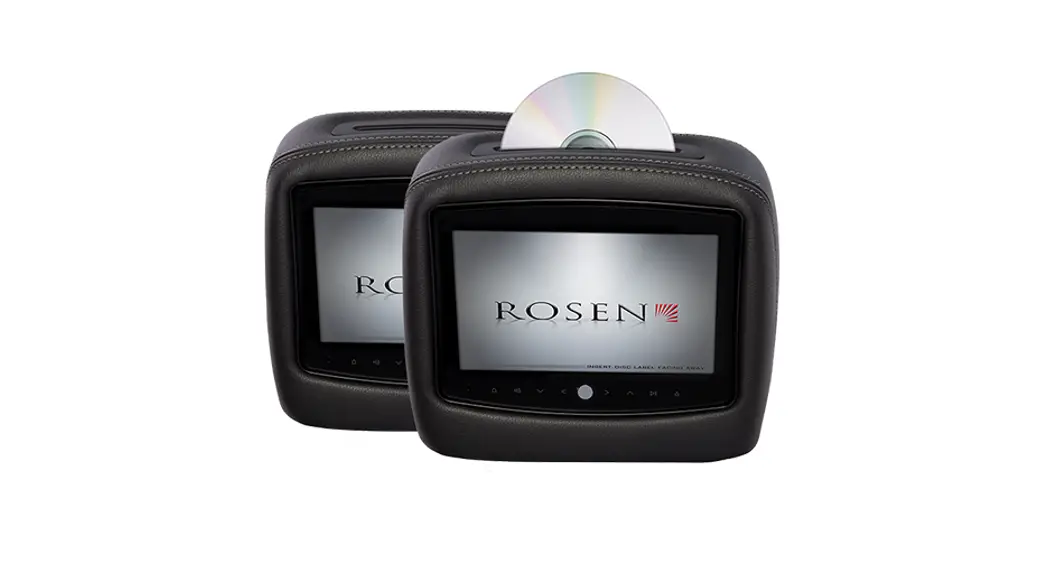
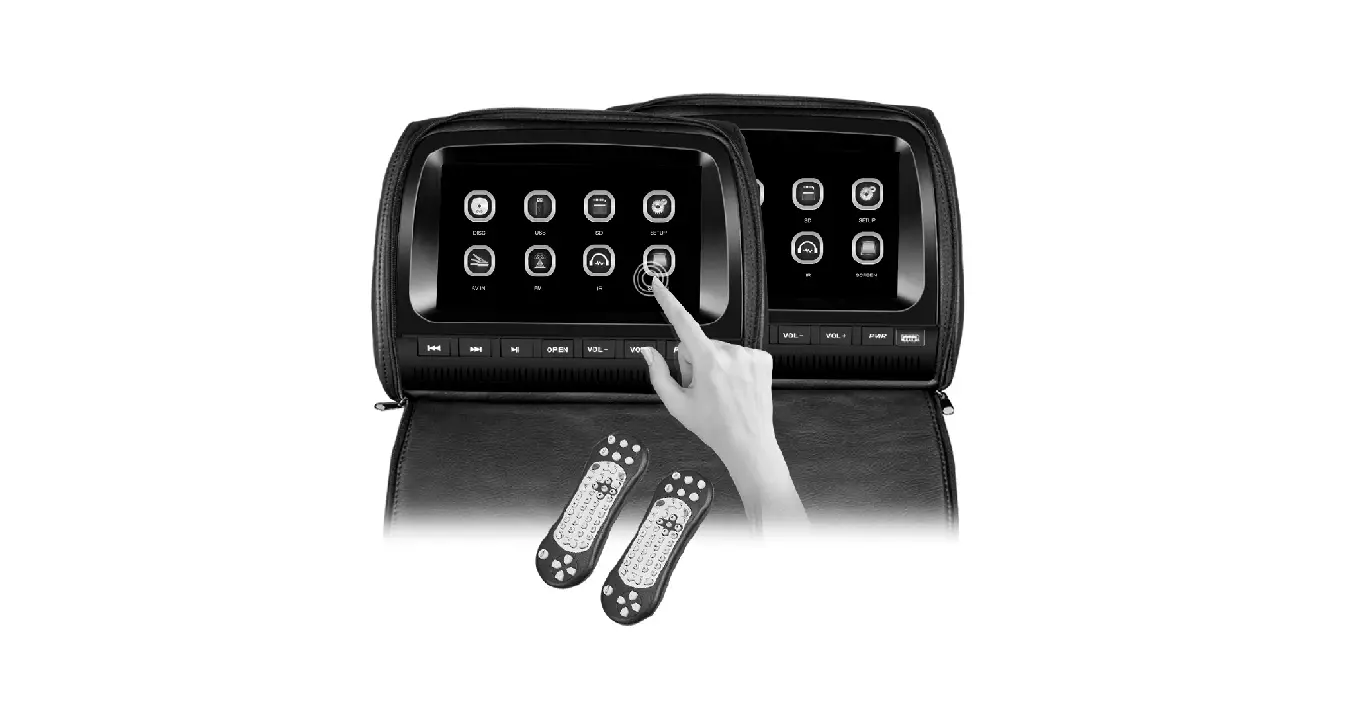
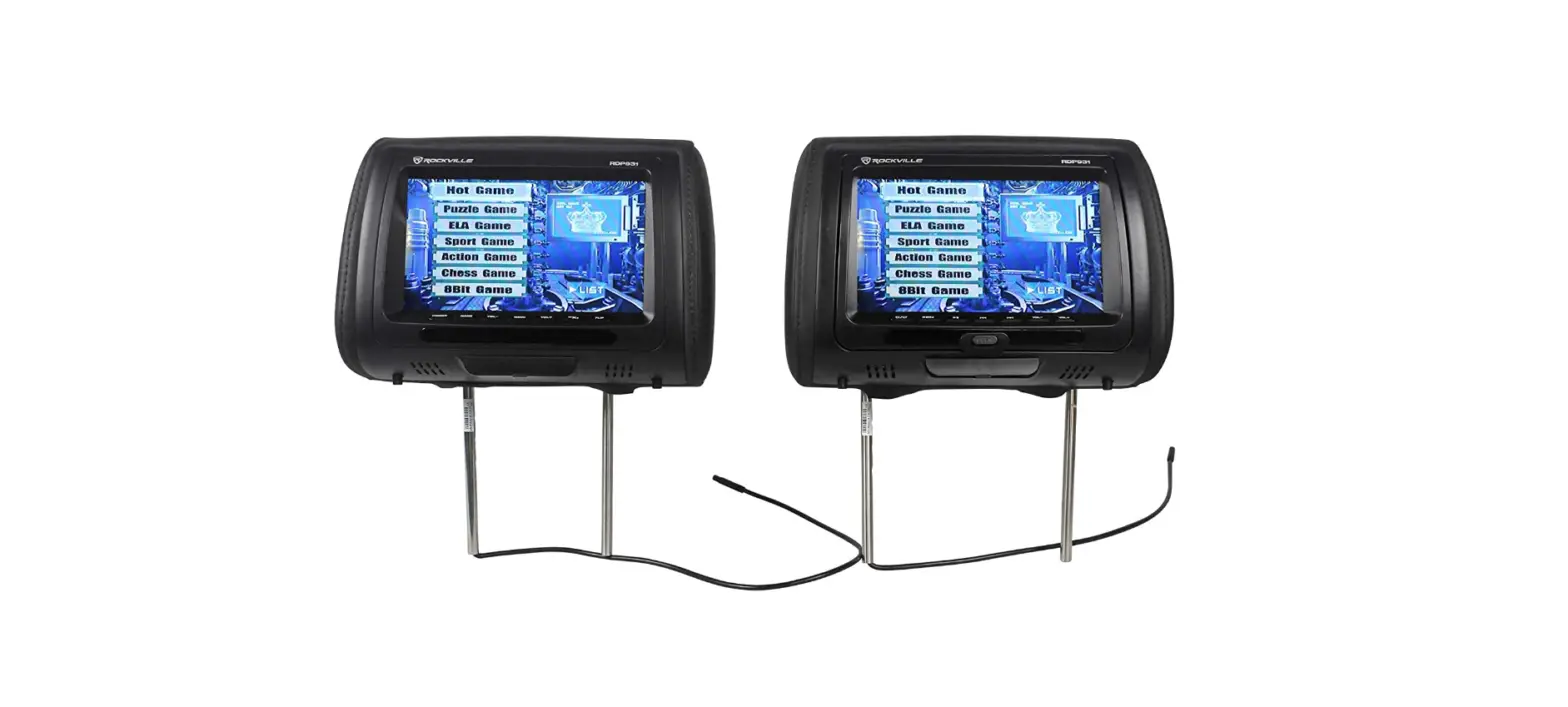
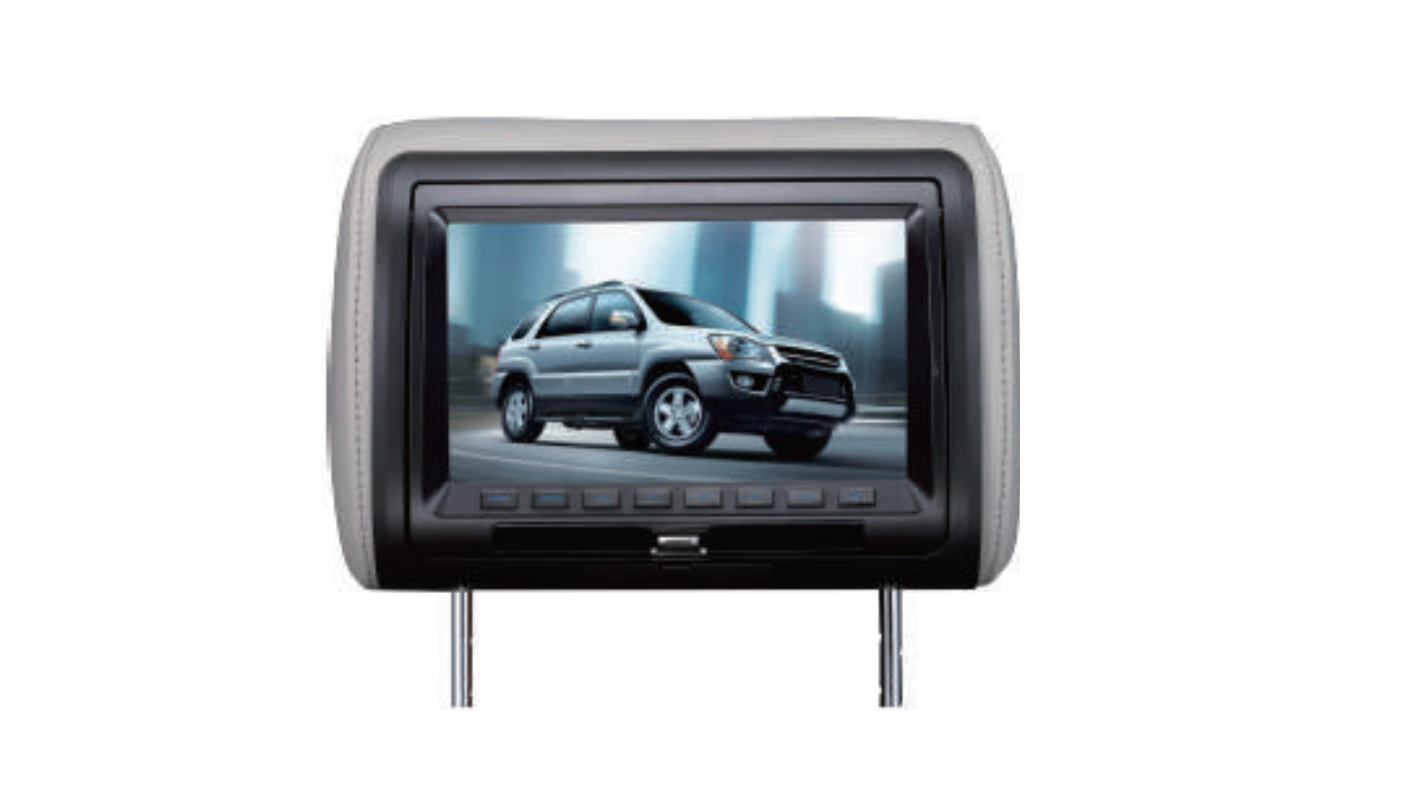
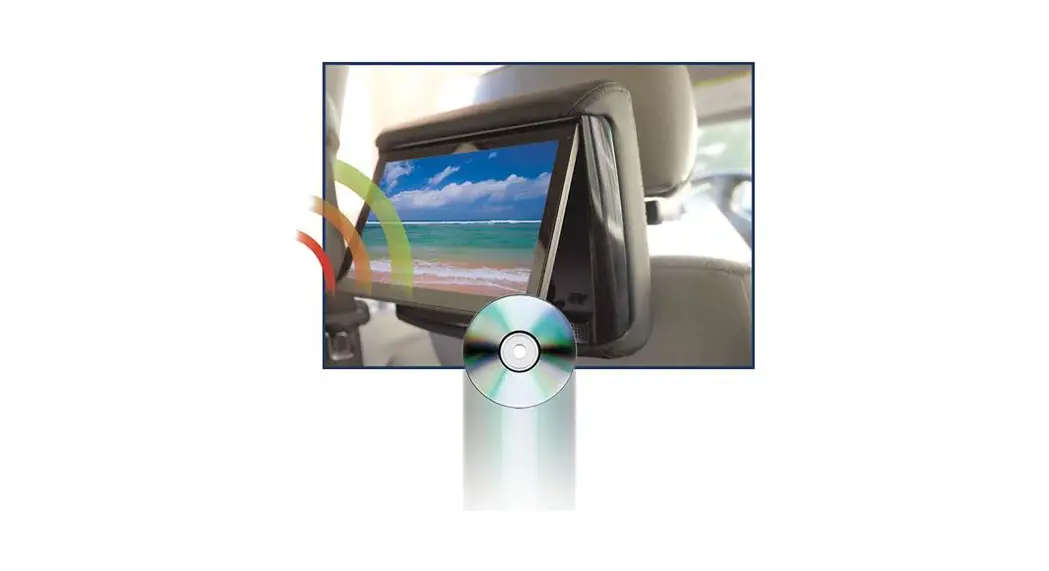
DVP Features and Functions
- DVP
- Super Slim Design
- Digital technique
- DATA/ CARD slot
- Screencast input
- Dual channel IR trarismitter
- Video/ audio inputs and outputs
- Built-in speakers
Parameters
| Product Name | Headrest DVP | |
| Display | 11 inch TFT LCD(16:9)/(4:3) | |
| Working Voltage | DC12V | |
| Power Consumption | ≤8W | |
| Contrast | ≥200:1 | |
| Resolution | 1920×1080 | |
| View Angle | Horizontal | ≥180° |
| Vertical | ≥180° | |
| Working Temperature | -10″C-60 C | |
| Storage Temperature | -20C-70 C | |
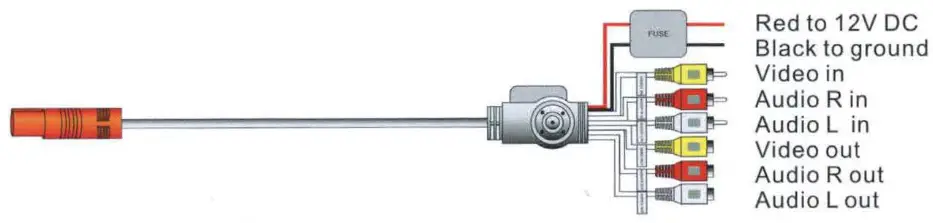
Appearance and Wiring Diagram
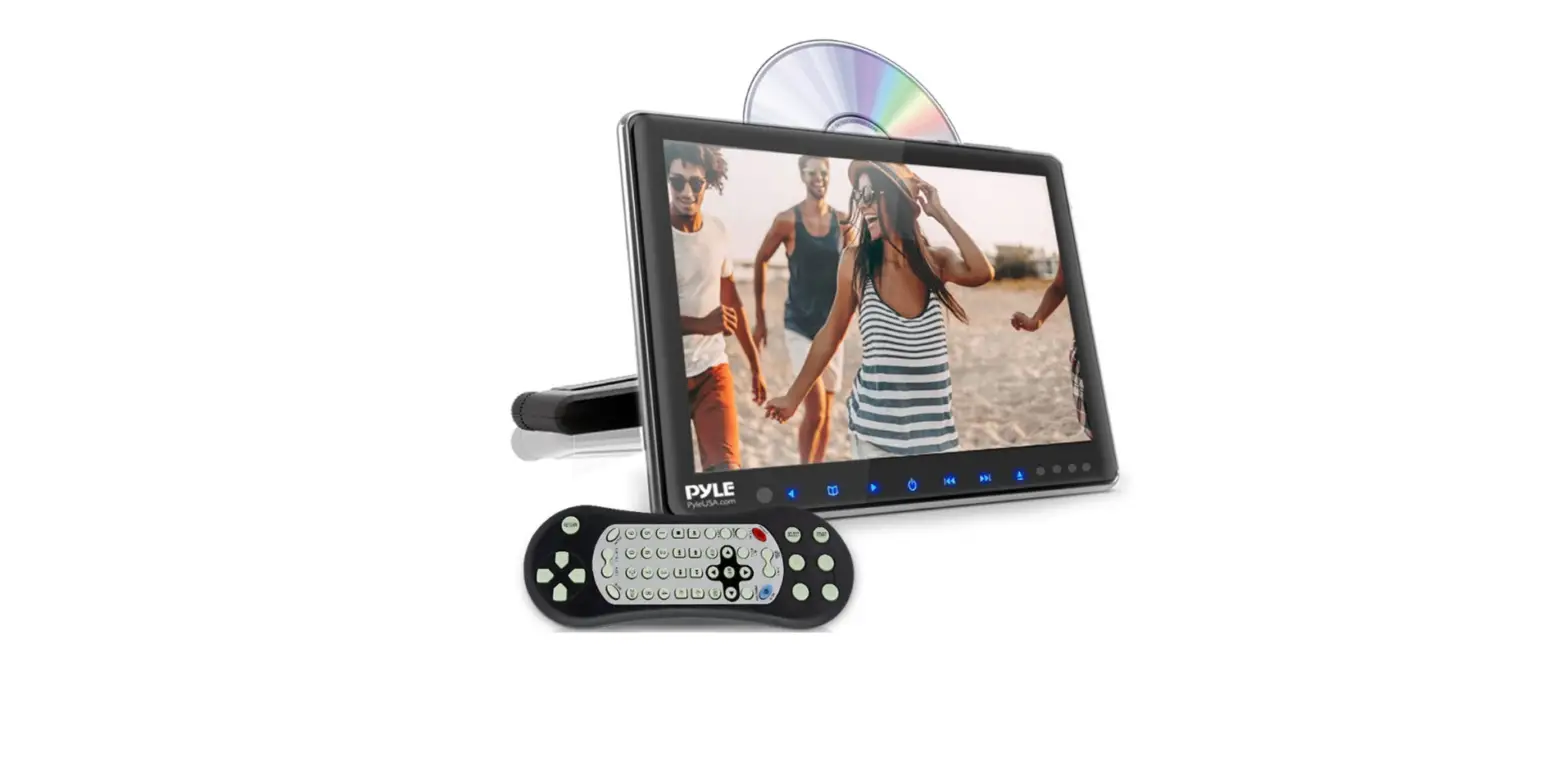
Only for RSD-1105
DVP Player 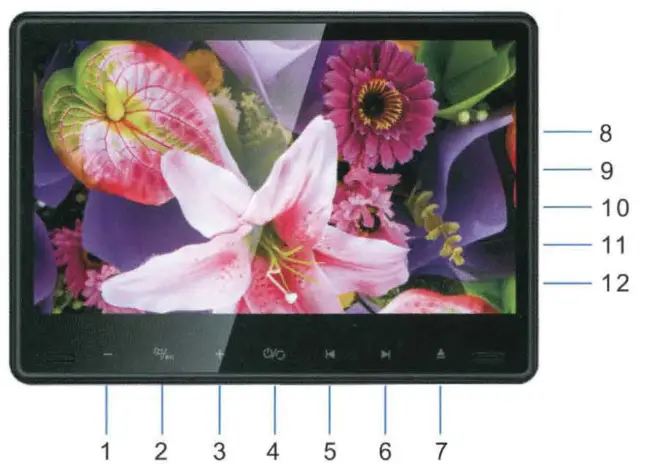
| 1. Volume-/ Analogue- 2. Menu / Play / Pause 3. Volume+ / Analogue+ 4 . POWER / Switch 5 . Last 6. Next | 7. Disc in / Out 8. HD In 9. DATA port 10. CARD port 11. Earphone jack 12. DC12V |
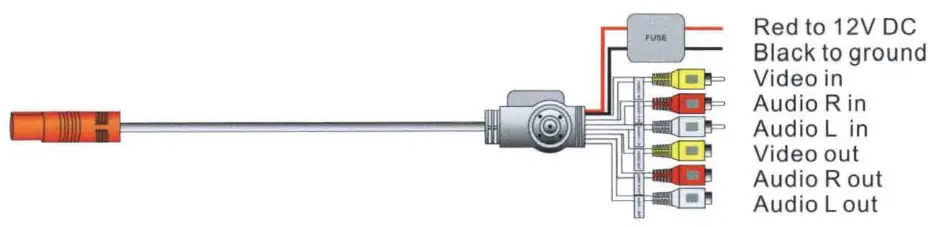
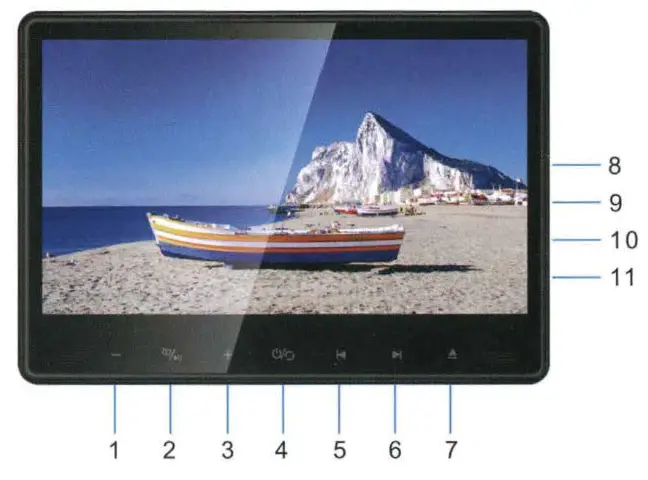
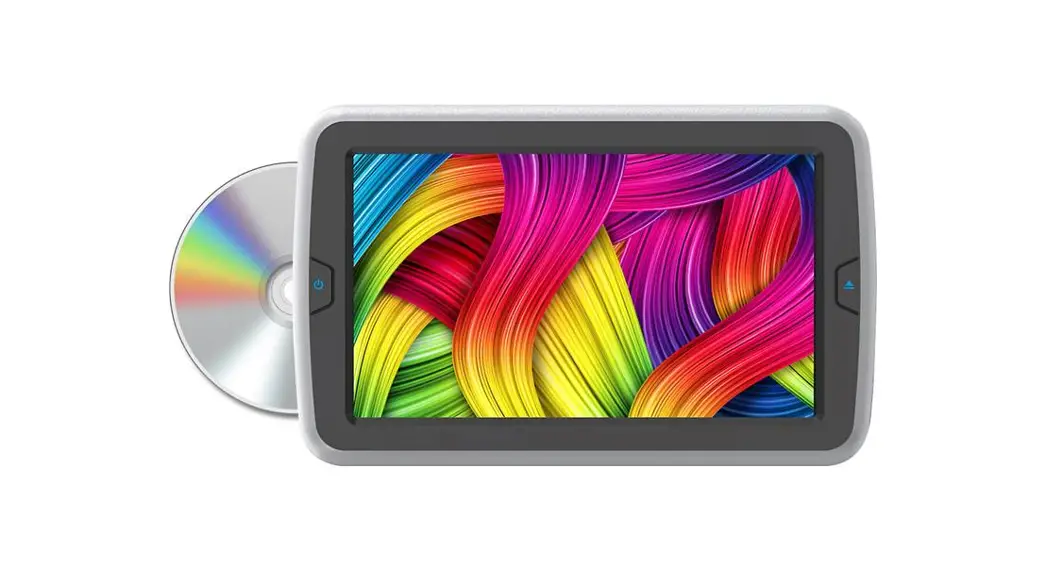
| 1. Volume- / Analogue- 2. Menu/ Play / Pause 3. Volume+/ Analogue+ 4 . POWER/ Switch 5. Last 6 . Next | 7 . Disc in / Out 8 . DATA port 9. CARD port 10. Earphone jack 11 .DC12V |
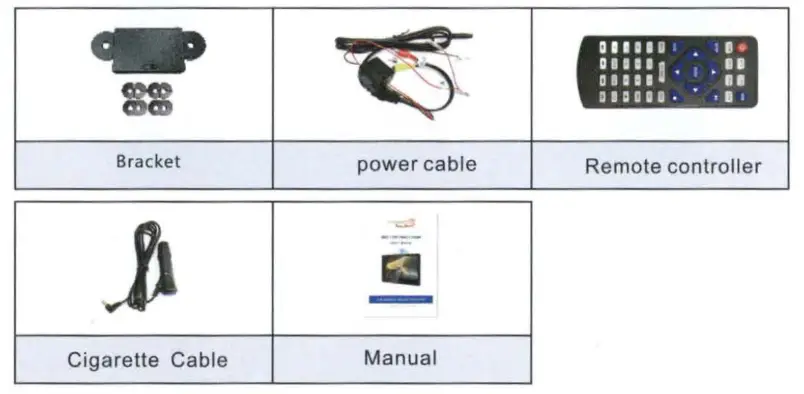
Accessories
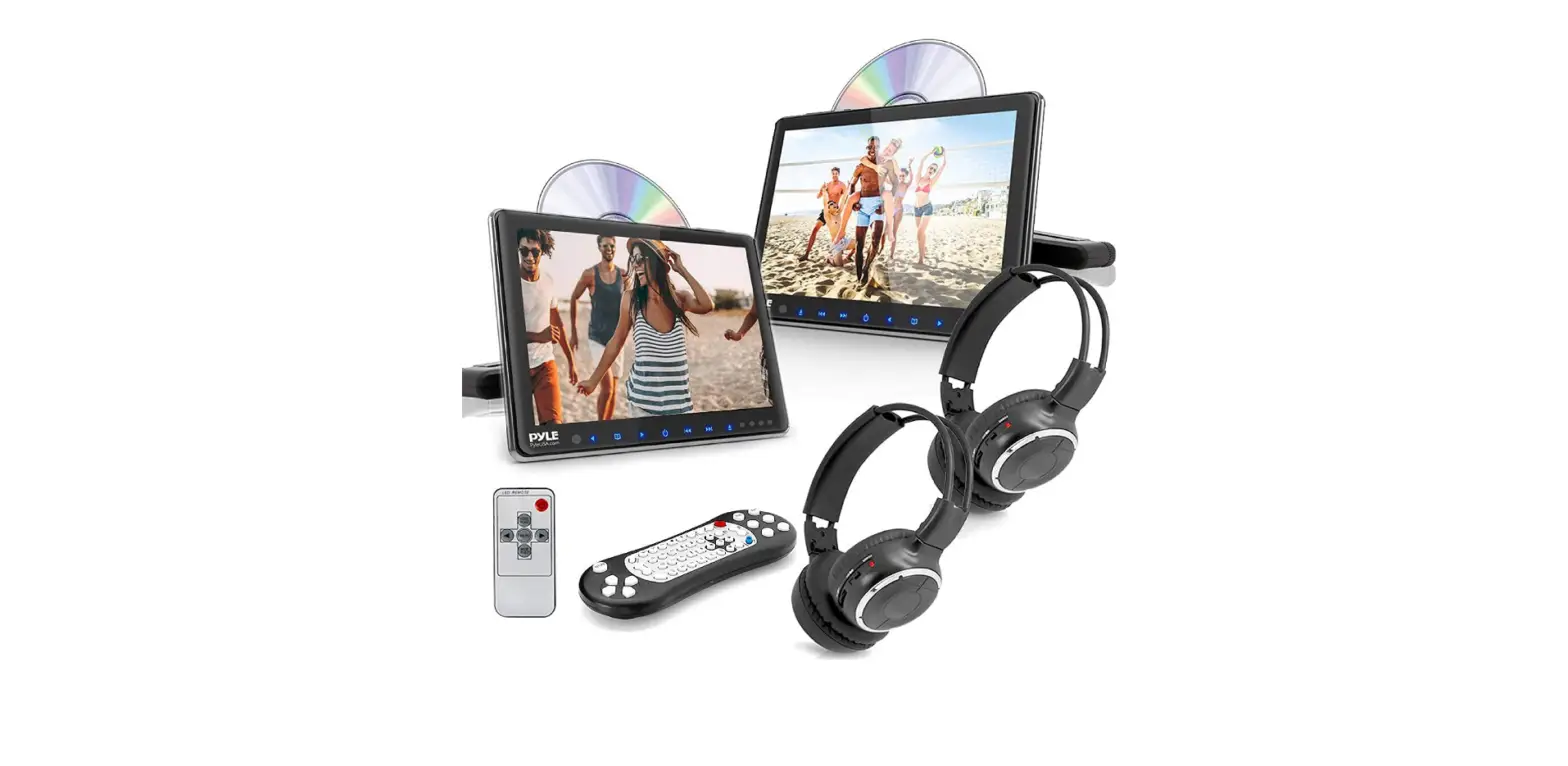
Remote Controller
Remote control And Gamepad 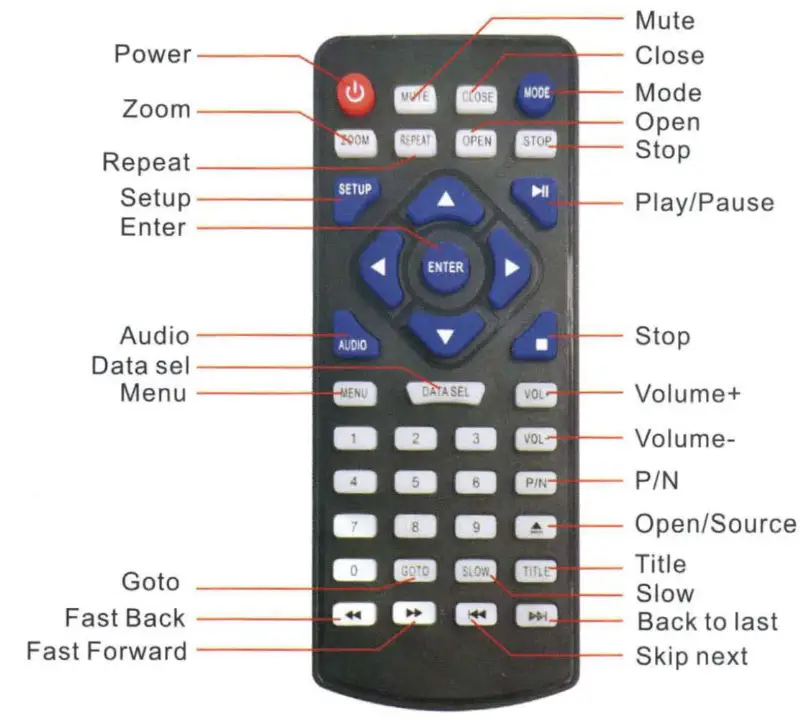
System Operation
- Choose the SOURCE selection by pressing the “MODE” button on the remote control.
- Pressing
 key to enter menu below.
 - Press[◄ ][ ► ] to select an item .
- Press
[-][+]to page down . - Press [ ►
II] confirm. - When the FM transmitter is turned on , there are 8 channels to choose From 87 . 7 88.1, 88.5, 88.9, 106.5, 107 .1, 107 .5 , 107 .9. Tune your radio to the corresponding frequency.
- Please note the built-in speakers operate on ly when the IR and FM is turned off .
 key to enter menu below.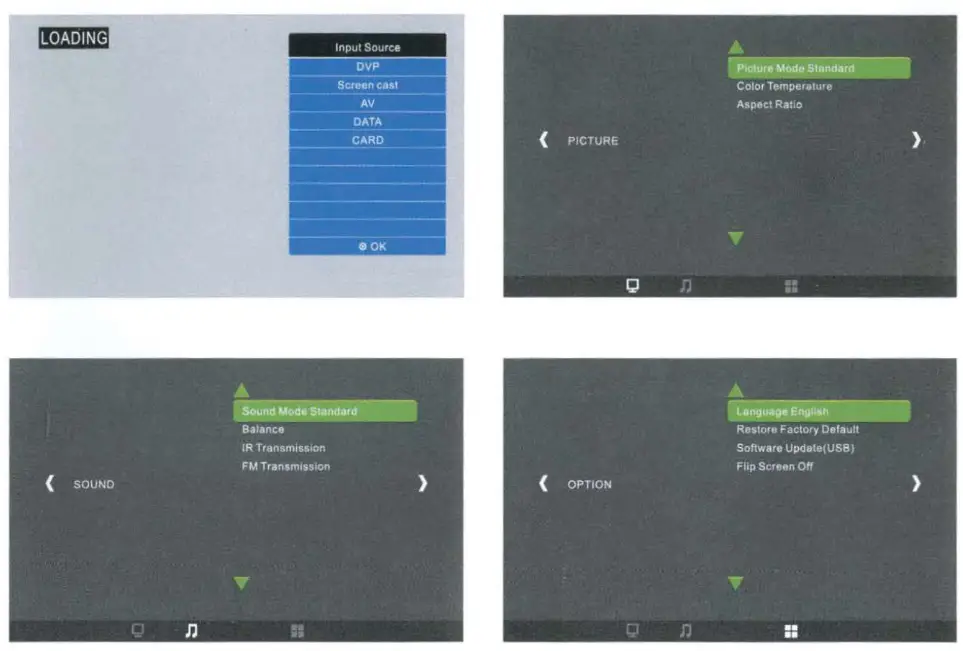
Handling Discs
Dust particles, scratches or twisting may cause sound disruption, poor sound quality or poor screen image during play.
- Use a soft cloth to gently clean fingerprints and dust on the data surface (polished side) of the disc.
- Never use anti-static spray or liquid, benzene, thinner or other chemical solvents to clean discs. Such chemical solvents may damage the plastic surface of the disc.
- After playing discs, you are advised to place them inside their original cases to prevent any damage to them.
- Do not expose discs to direct sunlight, high humidity or high temperatures for long periods of time. Discs may deform.
- Do not write on the disc’s signal surface. A sharp pen or ink may cause damage to the surface of the disc.
- The sound quality may vary among discs depending on their recording methods.
Screencast Setup Quick Guide: Only for RSD-1105M
- Press the “POWER” button of the unit.
- Press the ”
 ” button until “Screencast” appear in the top right of the unit screen.
 - When it starts, you can see “Screencast” on the screen.
- as shown below:

- For iPhone, skip to step 13.
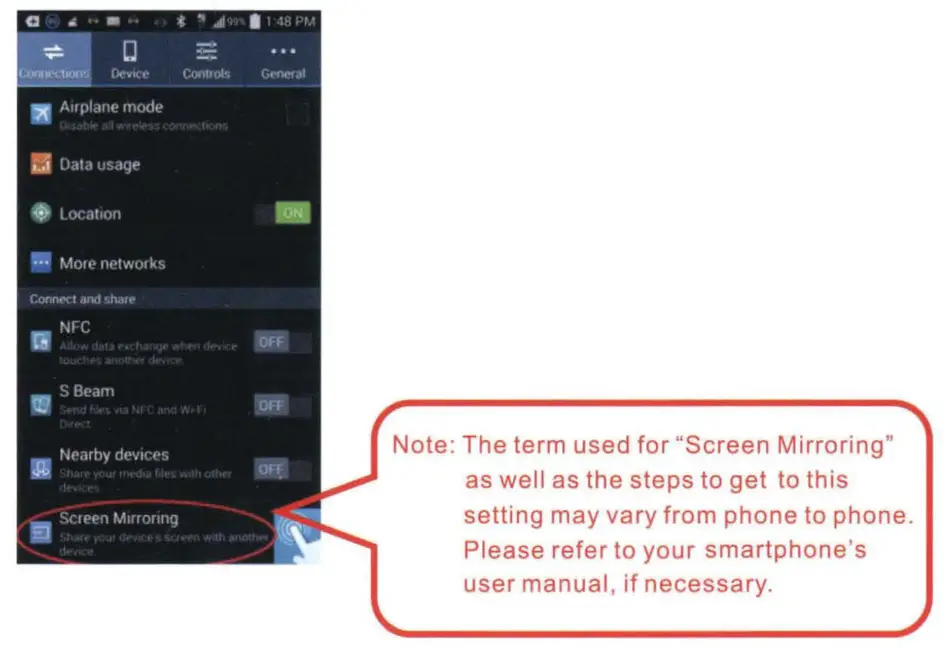
- For Android devices, go to your phone settings:

- Select the “Connections” tab at the top.

- Scroll to the bottom and tap on “Screen Mirroring”.

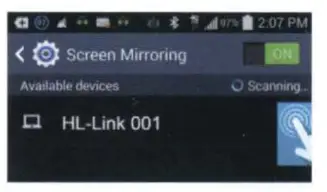
- Look for the device with the matching address and tap on it.

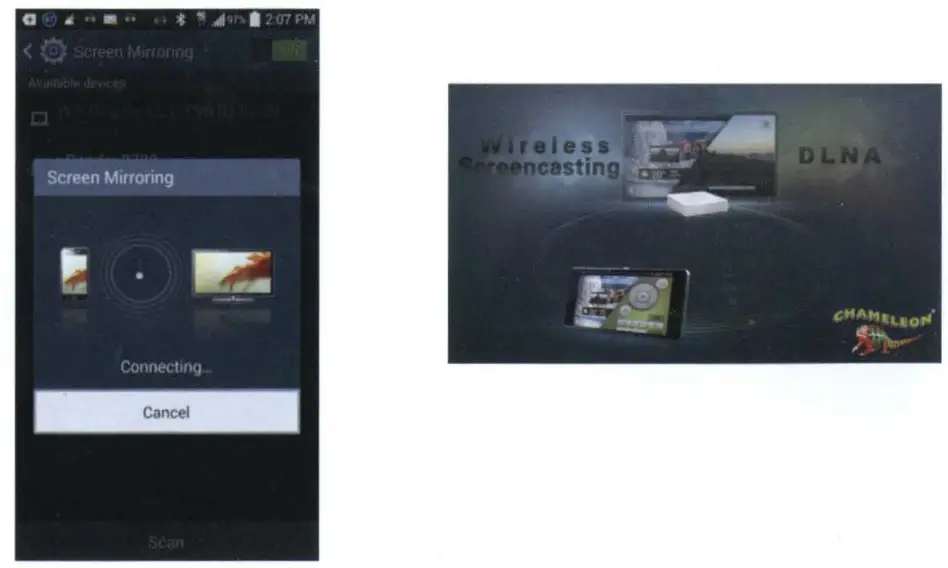
- The following screens will appear as the devices proceed to connect:

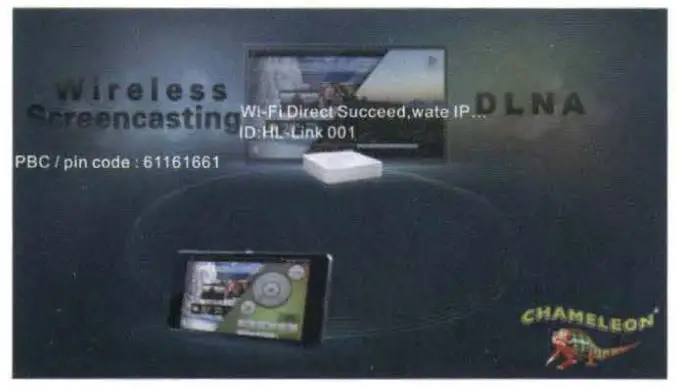
- 0nce you see the screens below, you have successfully connected.

- You can now listen and view all content displayed on your Android device on your new larger LCD display as well.
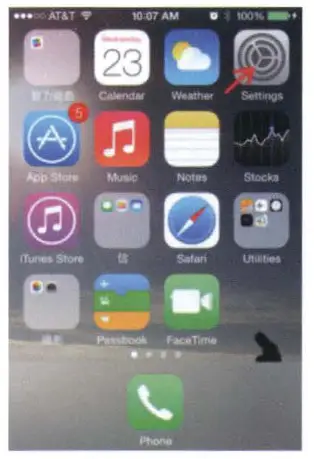
- For iPhone, tap on “Setting” on your iphone:

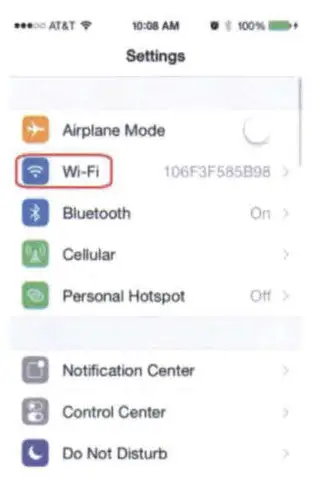
- Tap on “Wi-Fi”.

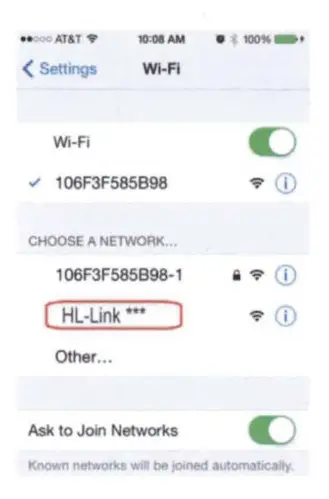
- Look for “H L-LI N K ***” as shown on the screen and select it.

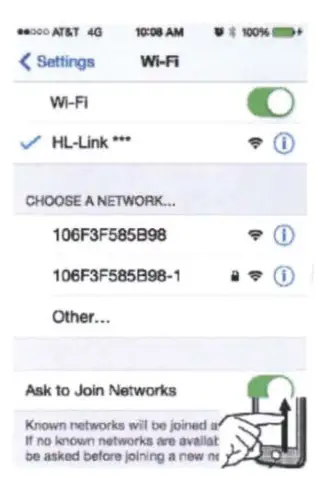
- Slide your finger up from the bottom of the screen, as shown below.

- Tap on “AirPlay”.

- You are now connected and your display will be mirrored to your larger LCD display.

 ” button until “Screencast” appear in the top right of the unit screen.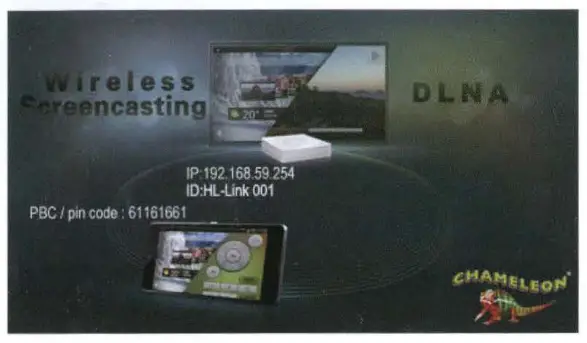
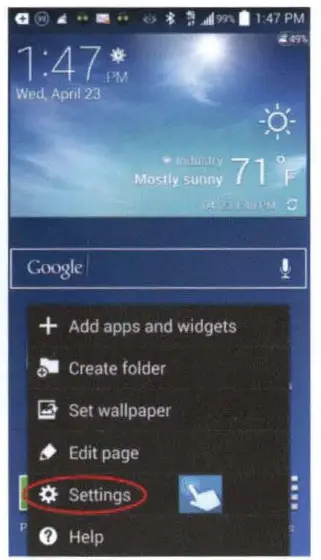
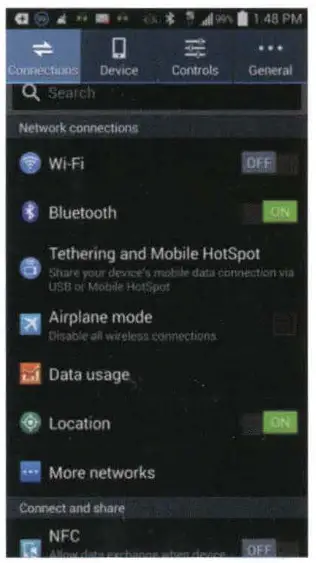
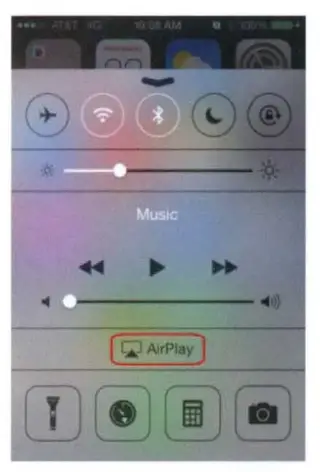
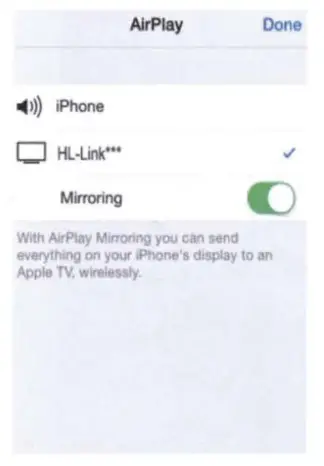
Note: Concept Miracast products are compatible with Android 4.2 and up as well as Apple iOS 7 and up. This serves as a general guide only. All of the steps above will vary depending on the exact phone model that you have. Please refer to the phone’s user manual as an additional resource.
Safety Precautions
This device is designed to be operated with a DC 12V grounded system. Do not allow any foreign substance to get into the disc slot. The device may not work in high or low temperatures. Stop using the device until the temperature returns to a normal level. (Operating temperature range: -10°C~+60°C)
Cleaning
When cleaning the device, do not make contact with water. The device may get damaged.
Since chemical solvents may damage the surface of the unit, do not use them for cleaning.
Use a clean and dry cloth to clean.
Condensation
When turning the heater on in the car during a rainy or humid day, moisture may condense on the optical lens. If this occurs, the device may not read the disc and will not function properly. In such a case, it is advised to remove the disc from the device until the unit is dried.
Installation and Repairs
Please install and operate the device as specified by this manual. If you cannot install the device correctly by yourself, take it to an authorized dealer.
Do not open the device by yourself for repairs. If the device does not work properly, take it to an authorized dealer. (If you disassemble the unit, you will void the warranty).
Video/Audio Trouble
When driving on a rough road the unit is prone to severe shaking and may experience video/audio problems. This is inevitable.
Troubleshooting
| Fault | Reason | Resolution |
| No power | Red wire should be connected to the ACC; Black wire should be connected to ground | Connect power correctly |
| Fuse burned out | Change fuse | |
| Power cable is disconnected | Connect power correctly | |
| No picture | No AV input | Check input video |
| Video lines disconnected | Reconnect video lines | |
| Remote does not work | Battery is blocked by protective paper | Remove paper |
| Pointed in wrong direction | Point remote to remote sensor | |
| No power | Change batteries | |
| Can’t play Disc | Bad disc | Replace disc |
| Distortion | Disc loaded incorrectly | Re-insert disc |
| Disc is dirty | Clean disc | |
| Fast forward/backward | This is normal |
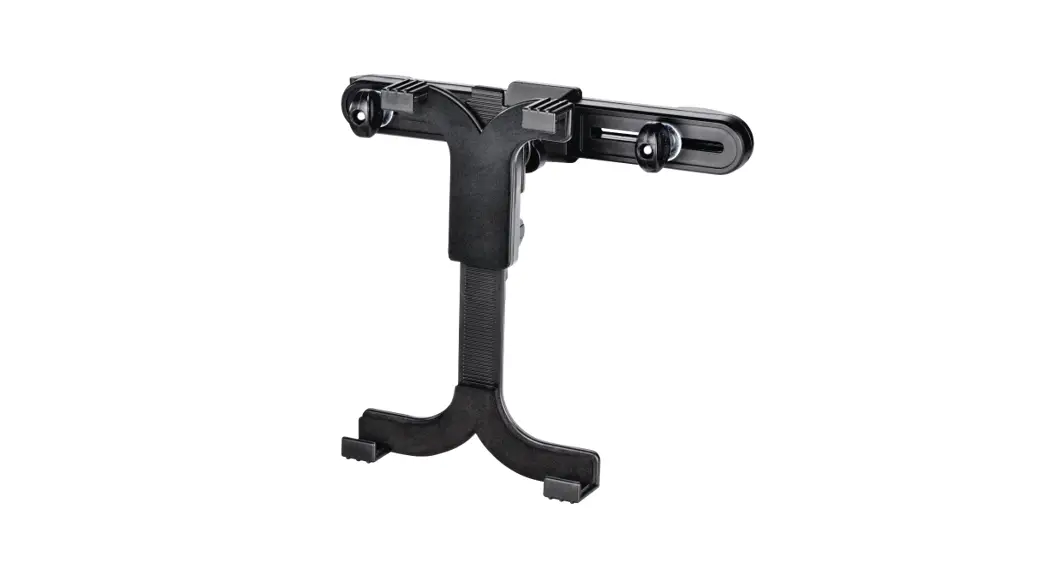
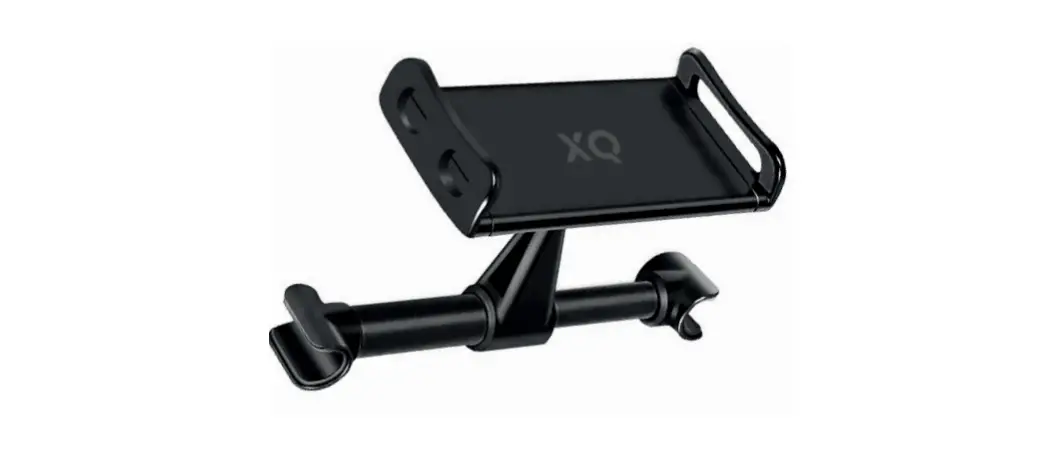
Bracket accessories and installation 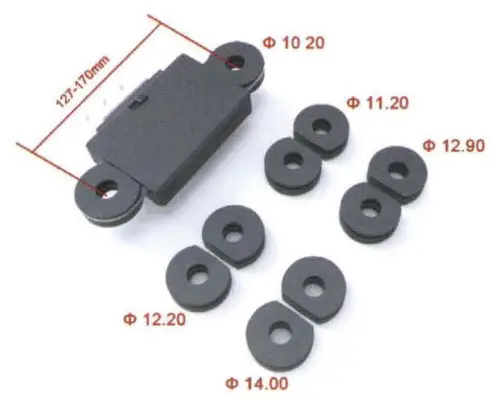
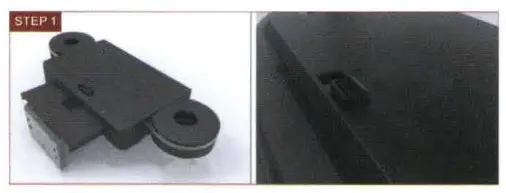 Step 1: Please ensure that the switch is at the position of “UNLOCK”.
 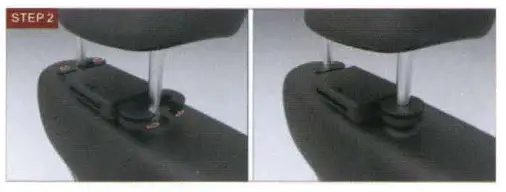 Step 2: Tighten the half-round plastic bracket.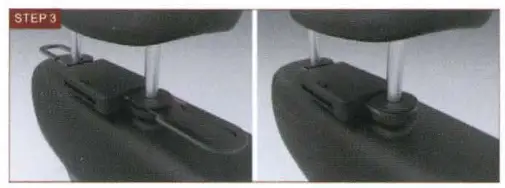
Step 3: Insert the U-Plug into the bracket lock. 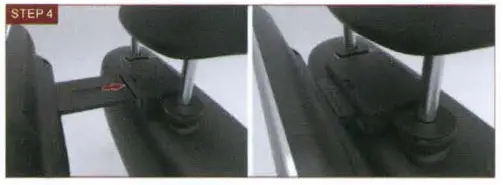 Step 4: Insert the assembled unit into the headrest bracket.
 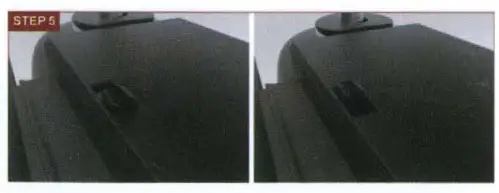 Step 5 : Slide the switch from “UNLOCK” to “LOCK” .
Disclaimer
*Unauthorized reprint of partial or full content is prohibited.
*We reserve the right to change the specification of the hardware and software mentioned in the instruction without a statement in advance.
*There will be some disparities between the pictures and the sample.
*Please note we will never be responsible for any consequences due to the use of this product.