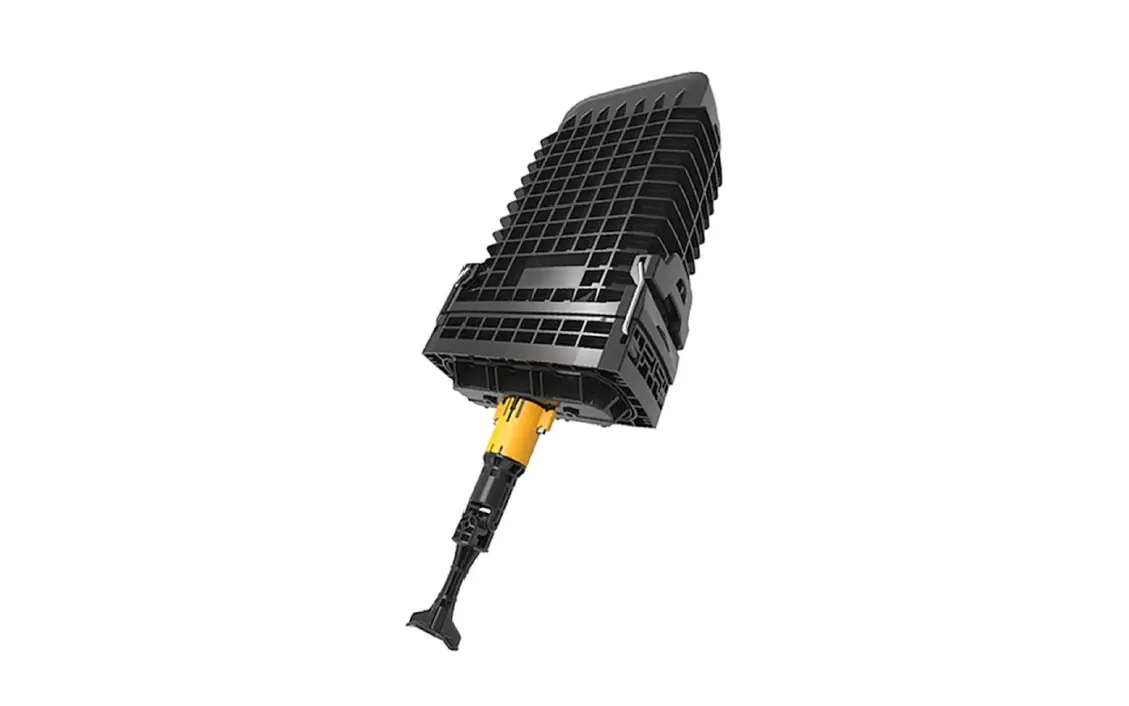
FACT Fiber Splice Drawers
FACT Splice Drawer
Installation Instructions
The FACT Splice Drawer is a product designed to facilitate the
splicing of fiber optic cables. Below is information on how to
install and use the product.
General Product Information
- The FACT Splice Drawer is a chassis used for splicing fiber
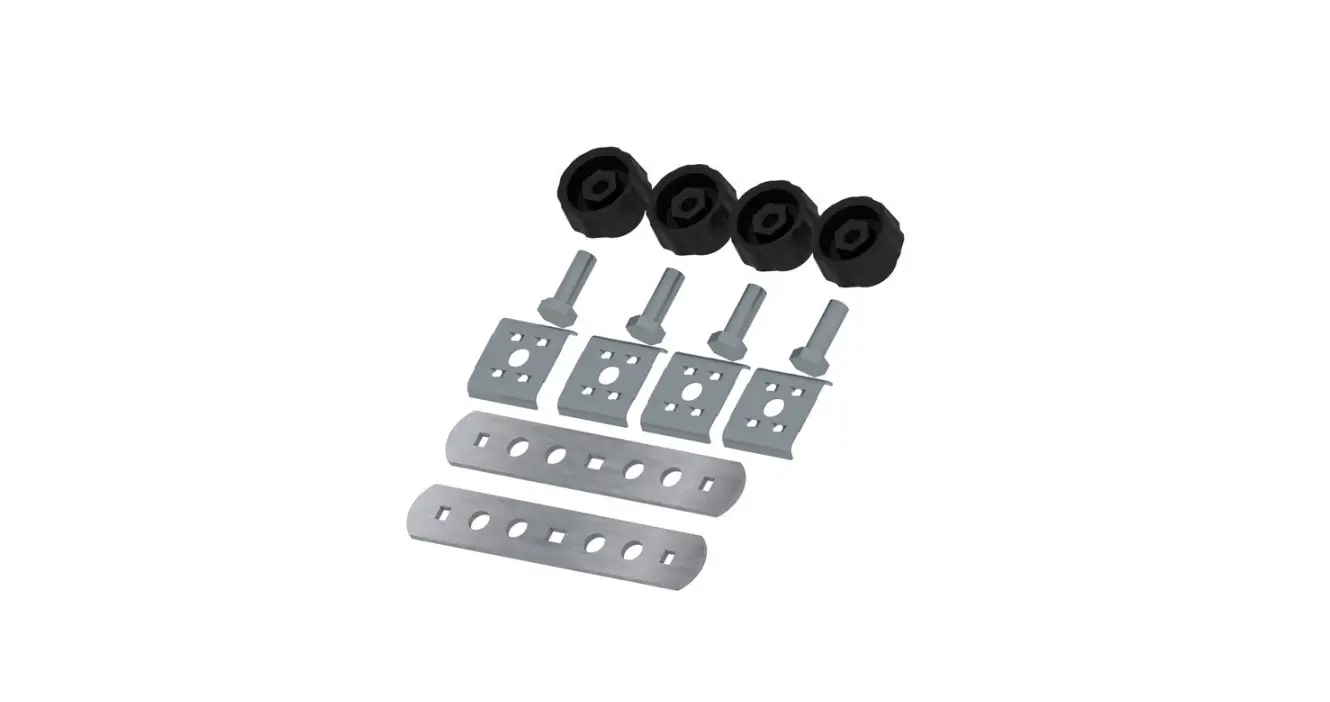
optic cables. - The product comes with a bracket kit according to the chassis
configuration.
Warnings and Caution
- Ensure that the rack is prepared with the brackets in the
correct position before installing the chassis. - When opening the cover, apply force to the cover in the
direction of the arrows to avoid damaging the product. - Be careful when handling the fiber picker to avoid damaging
it.
Kit Content
- 1x FACT Splice Chassis (as ordered)
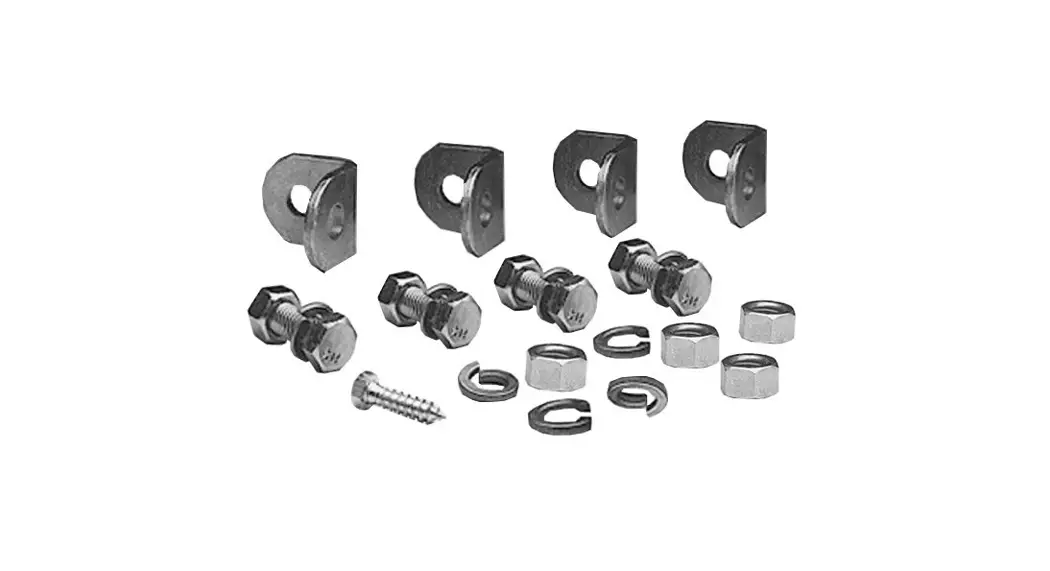
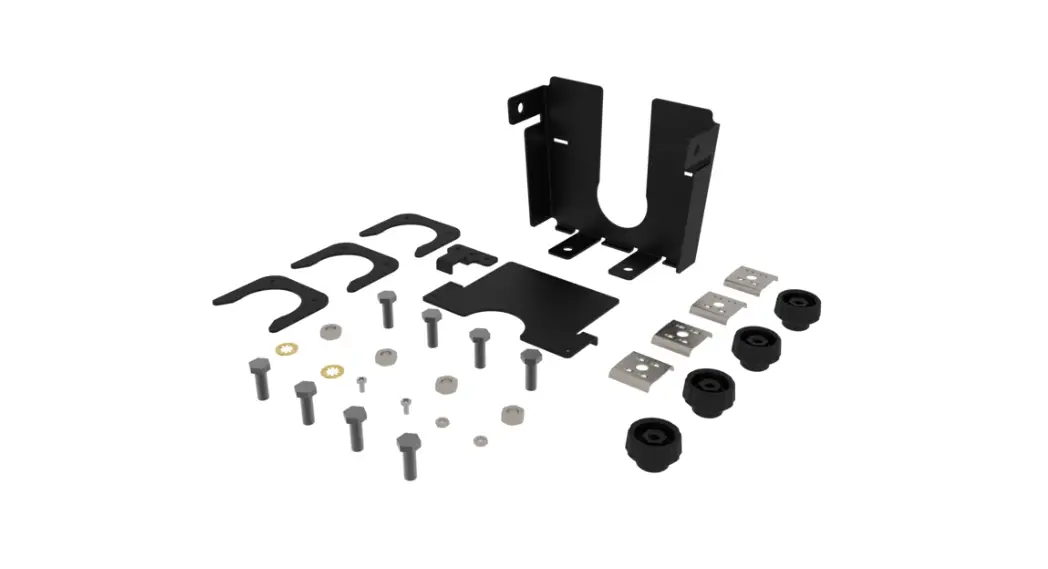
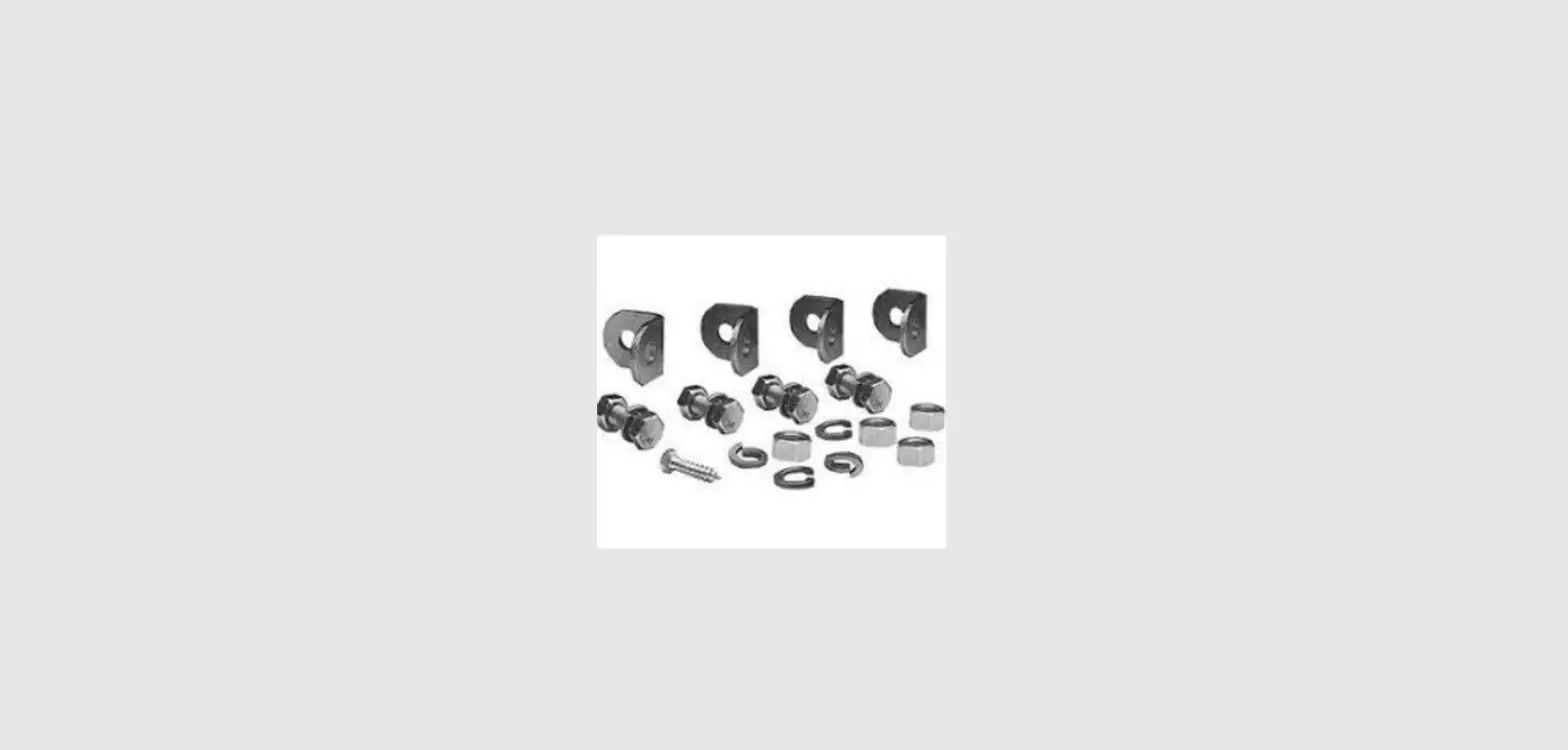
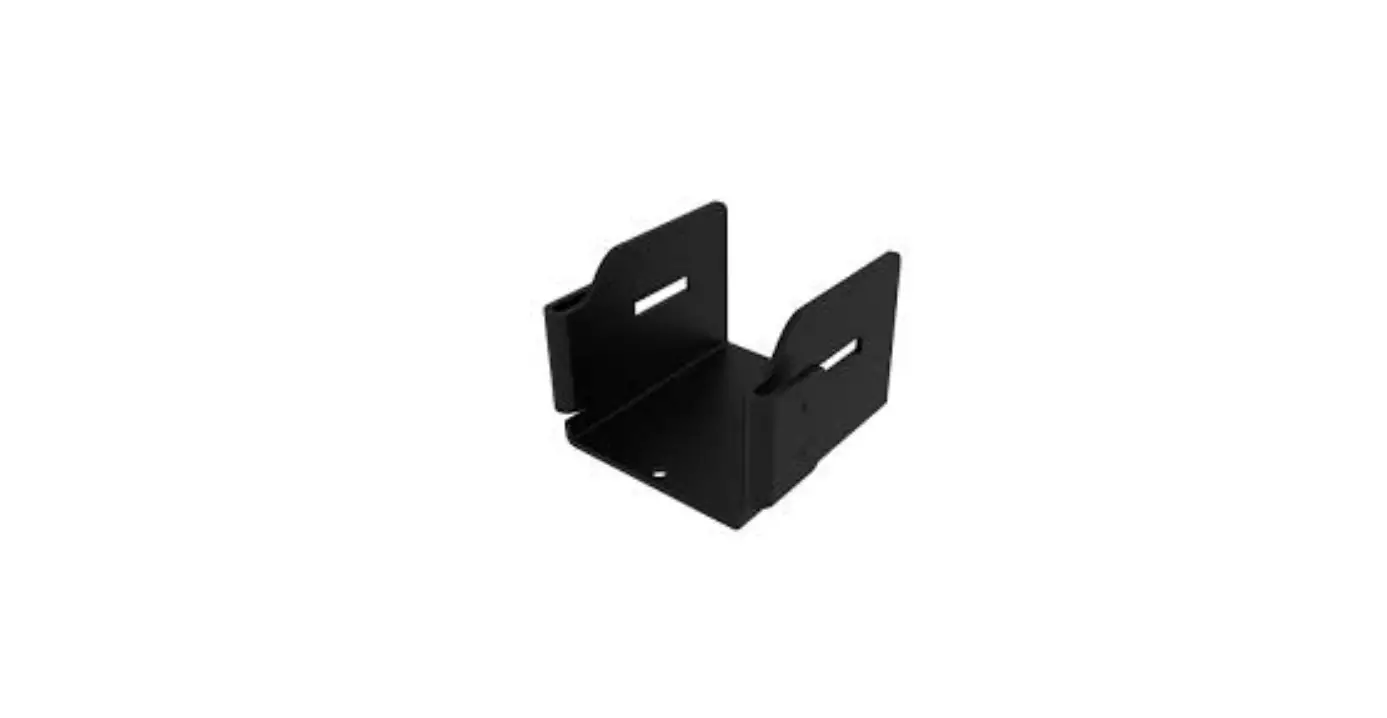
- 1x Bracket Kit (according to chassis-configuration)
Mounting FACT Chassis in Rack
- Prepare the rack with the brackets in the position where you
want to install the FACT Chassis by sliding them in. - Align the FACT Chassis with the brackets on both sides.
- Slide the FACT Chassis into the brackets until you hear a
clicking noise.
Dismounting FACT Chassis
- Open the upper drawer marked with a blue marking at the bend
control. - Pull the blue puller locks on both sides to the unlocked
position. - Slowly slide the FACT Chassis out by pulling simultaneously on
both sides with both hands.
Opening the Cover
- Apply some force by pinching together in the direction of the
arrows to unlock the cover. - Rotate the cover upwards to open it.
Removing the Cover
Notes can be made on the label when the cover is closed. The
label can also be removed if preferred. It is held in place in the
four corners. Simply slide it out of the four corners to
remove.
Handling the Fiber Picker
The fiber picker is located on the left or right as indicated by
the arrows. To remove it, simply pull it upwards until it releases
from the snapping features.
Trade-marks
This product is covered by one or more U.S. patents or their
foreign equivalents. For patents, see
www.commscope.com/ProductPatent/ProductPatent.aspx
Contact Information
Visit our website or contact your local CommScope representative
for more information. For technical assistance, customer service,
or to report any missing/damaged parts, visit us at:
http://www.commscope.com/SupportCenter
FAC T Splice Drawer
INSTALLATION INSTRUCTION
Installation Instructions
TC-40180-IP-EN Rev A, May 2020 www.commscope.com
FACT SPLICE DRAWER
Contents
1.
General product information ………………………………………… 2 7.
2.
Warnings and caution …………………………………………………… 2 8.
3.
Kit content……………………………………………………………………. 2 9.
4.
Mounting FACT Chassis in Rack …………………………………….. 3 10.
5.
Dismounting FACT Chassis ……………………………………………. 5 11.
6.
Opening the Cover ……………………………………………………….. 7
Removing the Cover……………………………………………………… 8 Handling the Label ……………………………………………………….. 9 Handling the Fiber Picker ……………………………………………. 10 Trade-marks ……………………………………………………………….. 12 Contact Information……………………………………………………. 12
1. General product information
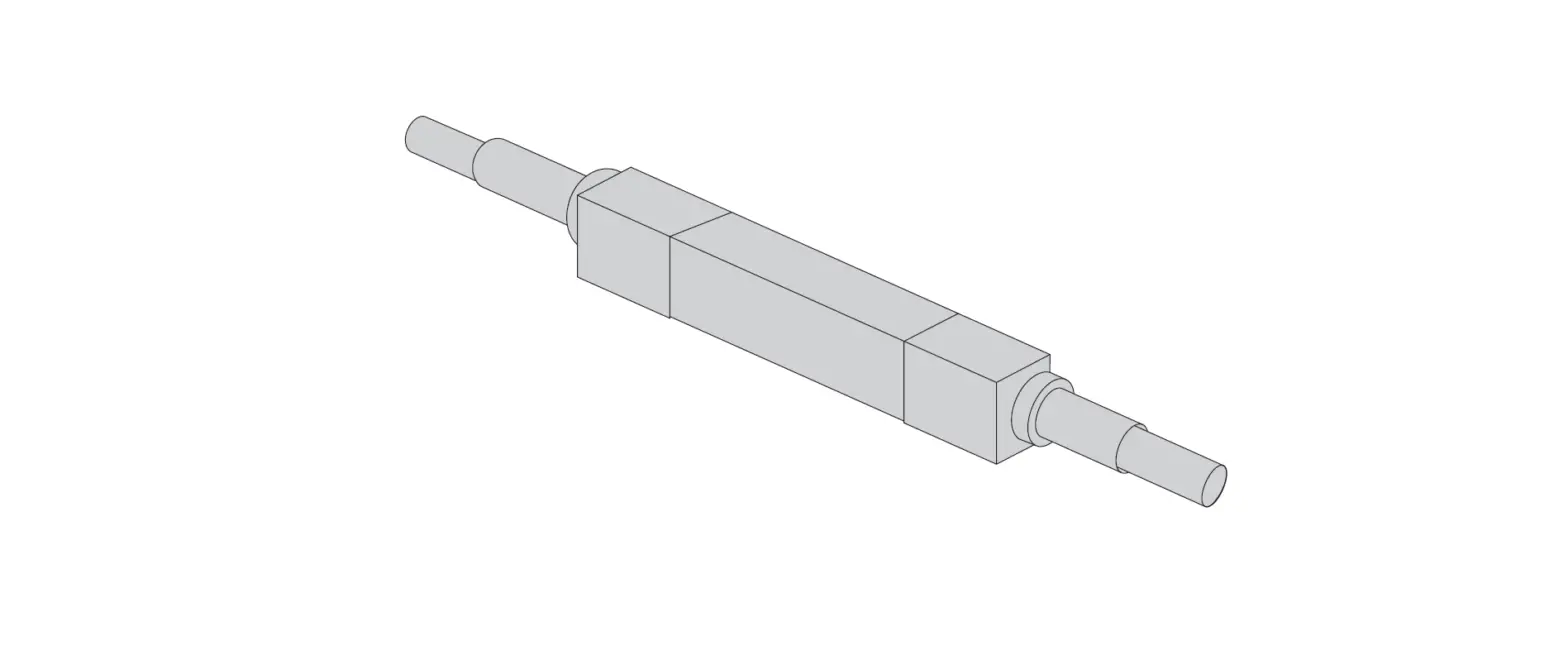
· The FACT multi-purpose splice chassis (FACT-xESPLxxx) feature Single Circuit and Single Element fiber management system technology.
· One FACT element is designed to enter from each side with max. 8 FOPT-tubes, 48 single-pigtails 1,8mm or 48x 900µm IFC cable.
· For cable installation and fiber routing into the chassis, please refer to the appropriate cable kit installation instructions (FACT-ACCCTUxxx).
2. Warnings and caution
· Fiber optic cables may be damaged if bent or curved to a radius that is less than the recommended minimum bend radius. Always observe the recommended bend radius limit when installing fiber optic cables and patch cords.
· Exposure to laser radiation can seriously damage the retina of the eye. Do not look into the ends of any optical fiber. Do not assume the laser power is turned off or that the fiber is disconnected at the other end.
3. Kit content
1x FACT Splice Chassis (as ordered)
1x Bracket Kit (according to chassis-configuration)
Page 2 of 12 © 2020 CommScope, Inc. All Rights Reserved
860656985 Rev. A
4. Mounting FACT Chassis in Rack
Step 1: Prepare the rack with the brackets on the position where you want to install the FACT Chassis (by sliding them in).
Step 2: Align the FACT Chassis with the brackets on both sides.
Page 3 of 12 © 2020 CommScope, Inc. All Rights Reserved
4. Mounting FACT Chassis in Rack
Step 3: Slide the FACT Chassis into the brackets until you hear a “clicking noise”..
Page 4 of 12 © 2020 CommScope, Inc. All Rights Reserved
5. Dismounting FACT Chassis
Step 1: Open the upper drawer (releasable). This one is marked at the front (blue marking at the bend control).
Page 5 of 12 © 2020 CommScope, Inc. All Rights Reserved
5. Dismounting FACT Chassis
Step 2: Pull the blue puller locks (make sure both sides are in the unlocked position).
Step 3: Slowly slide the FACT Chassis out (pull simultaneously on both sides, with both hands).
Page 6 of 12 © 2020 CommScope, Inc. All Rights Reserved
6. Opening the Cover
Step 1: Apply some force (pinching together in the direction of the arrows) to unlock the cover. Rotate the cover upwards to open it.
Step 2: The cover will stay in the open position if this is rotated about 85°.
Page 7 of 12 © 2020 CommScope, Inc. All Rights Reserved
7. Removing the Cover
Step 1: To remove the cover, rotate the cover about 10° upwards.
Step 2: Pull the cover in the 10° angle towards the front. The cover will pop out of the hinge. To re-assemble the cover, repeat the 2 previous steps the other way around.
Page 8 of 12 © 2020 CommScope, Inc. All Rights Reserved
8. Handling the Label
Notes can be made on the label when the cover is closed (this acts as a support). The label can also be removed if preferred. It is held in place in the four corners. Simply slide it out of the four corners to remove.
Page 9 of 12 © 2020 CommScope, Inc. All Rights Reserved
9. Handling the Fiber Picker
The fiber picker is located on the left or right (as indicated by the arrows). To remove it, simply pull it upwards until it releases from the snapping features.
Page 10 of 12 © 2020 CommScope, Inc. All Rights Reserved
Page 11 of 12 © 2020 CommScope, Inc. All Rights Reserved
10. Trade-marks:
All trademarks identified by ® or TM are registered trademarks or trademarks, respectively, of CommScope, Inc. This document is for planning purposes only and is not intended to modify or supplement any specifications or warranties relating to CommScope products or services. CommScope is committed to the highest standards of business integrity and environmental sustainability, with a number of CommScope’s facilities across the globe certified in accordance with international standards, including ISO9001, TL 9000, and ISO 14001. Further information regarding CommScope’s commitment can be found at: www.commscope.com/About-Us/Corporate-Responsibilityand-Sustainability.
11. Contact Information:
Visit our website or contact your local CommScope representative for more information. For technical assistance, customer service, or to report any missing/damaged parts, visit us at: http://www.commscope.com/SupportCenter This product is covered by one or more U.S. patents or their foreign equivalents. For patents, see www.commscope.com/ProductPatent/ProductPatent.aspx
© 2020 Commscope, Inc. All Rights Reserved
Page 12 of 12 © 2020 CommScope, Inc. All Rights Reserved
 Support Center