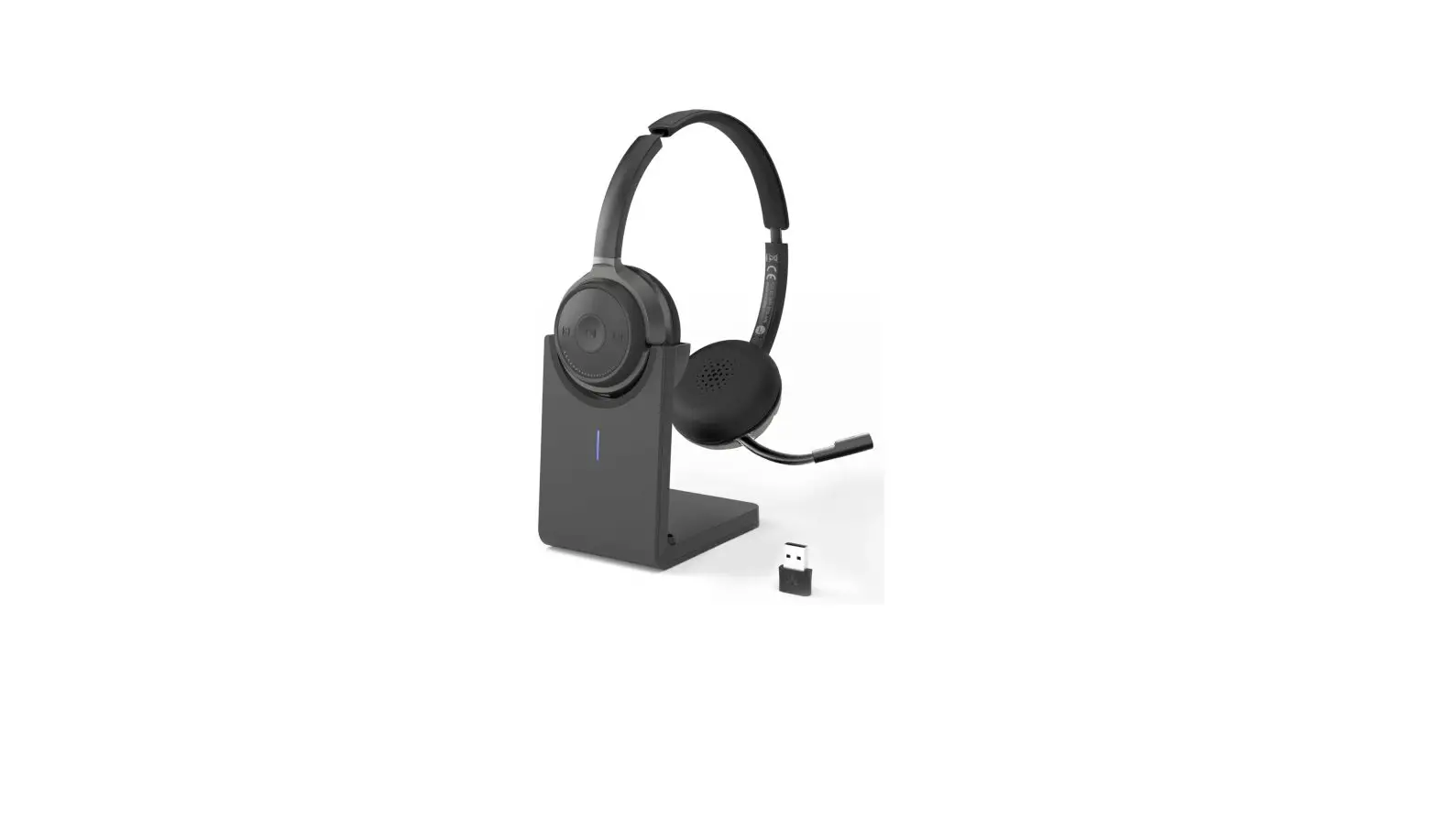
Avantree BTHT-8060 Alto 8060 Wireless Headset with Noise Canceling Mic and USB Dongle User Manual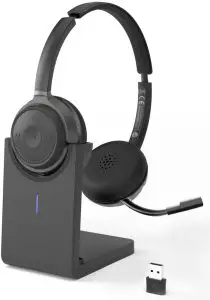
Box Contents
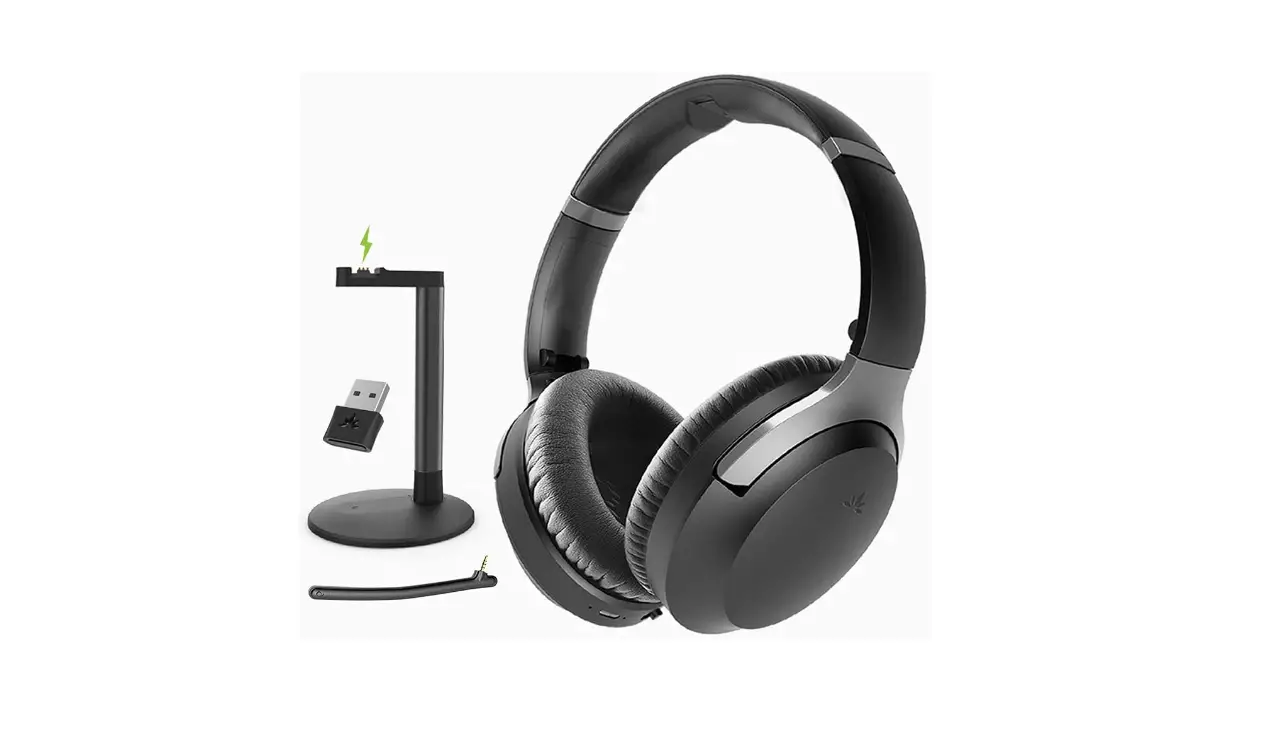
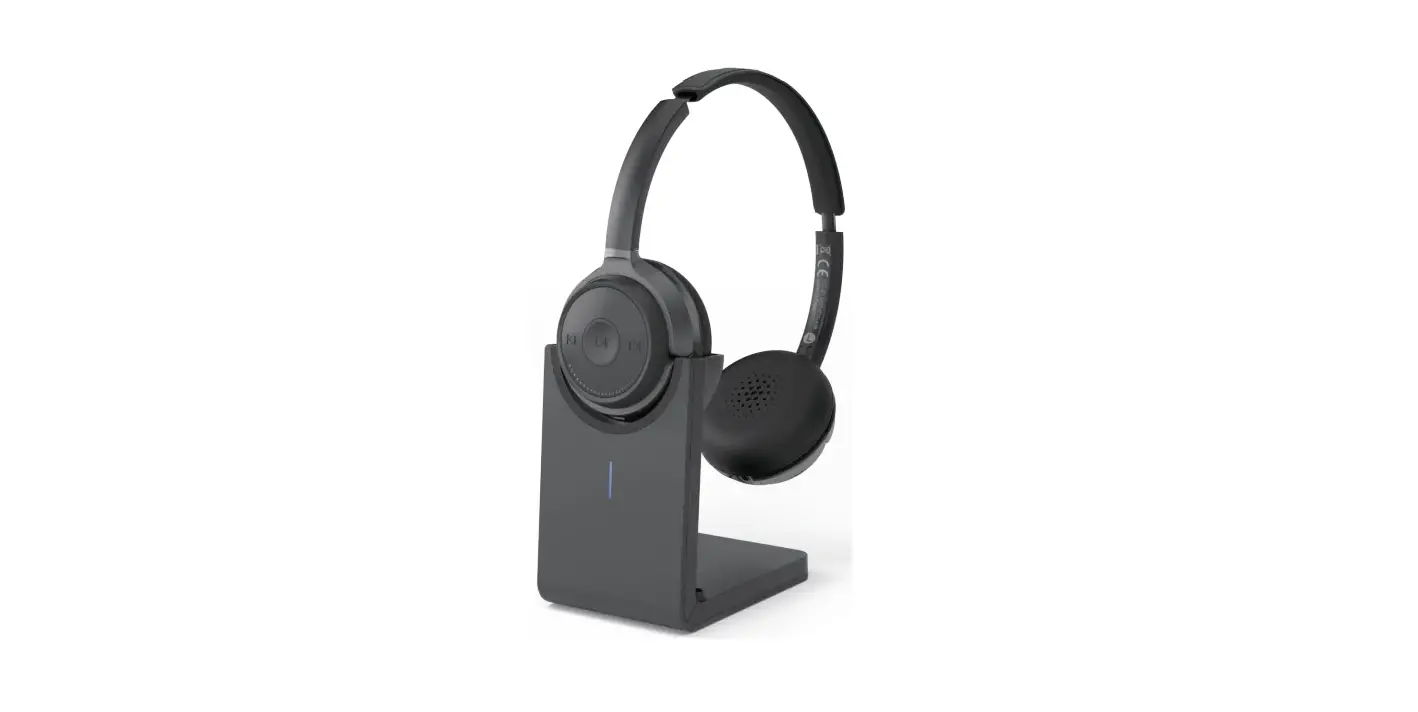
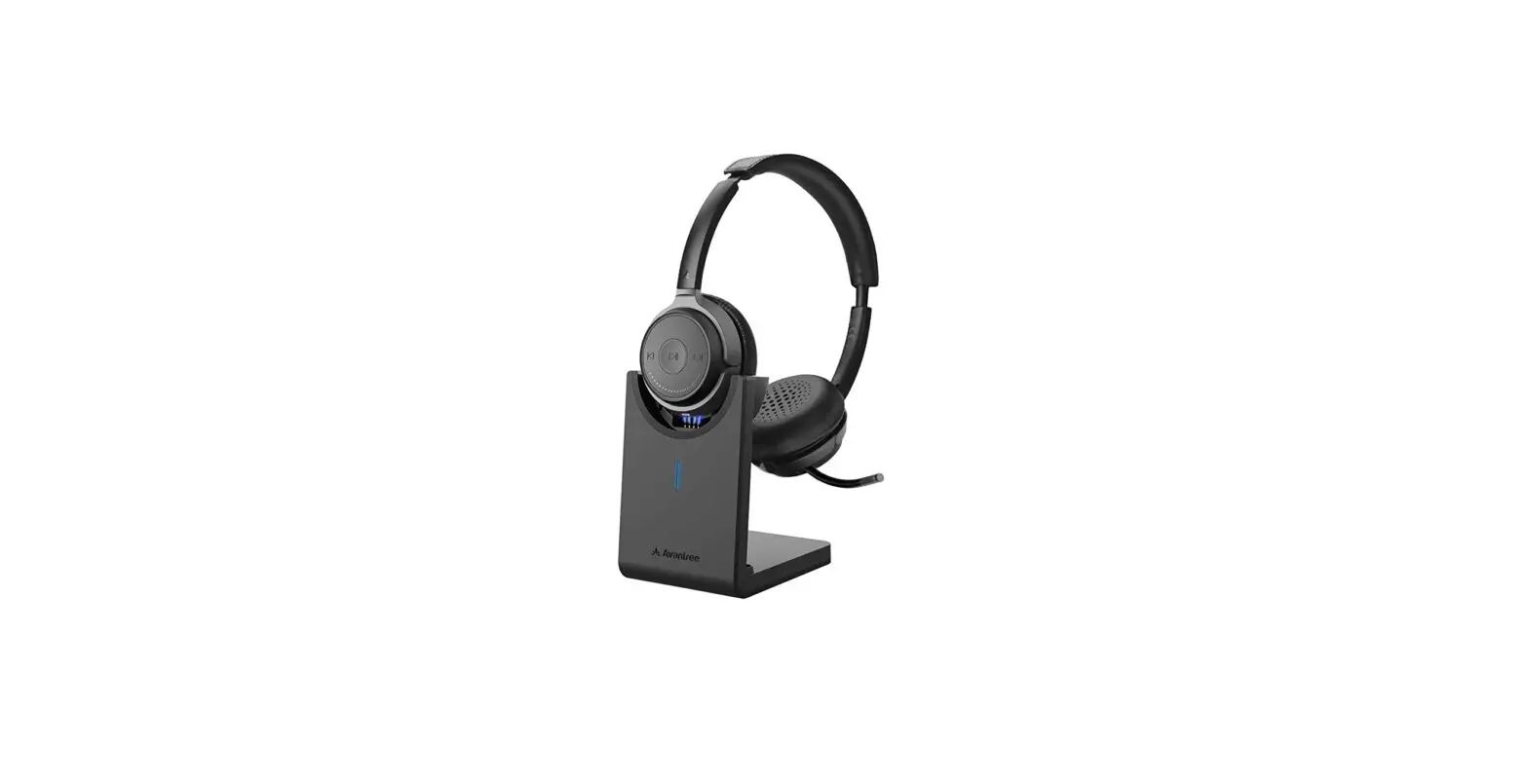
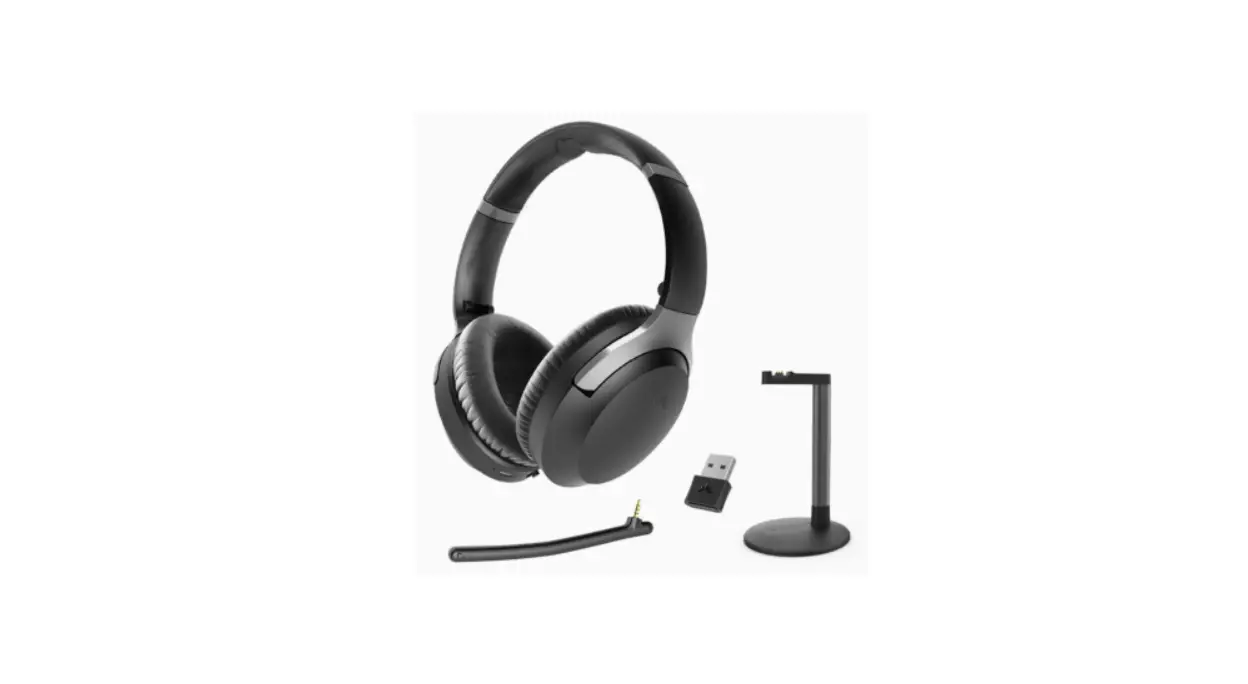
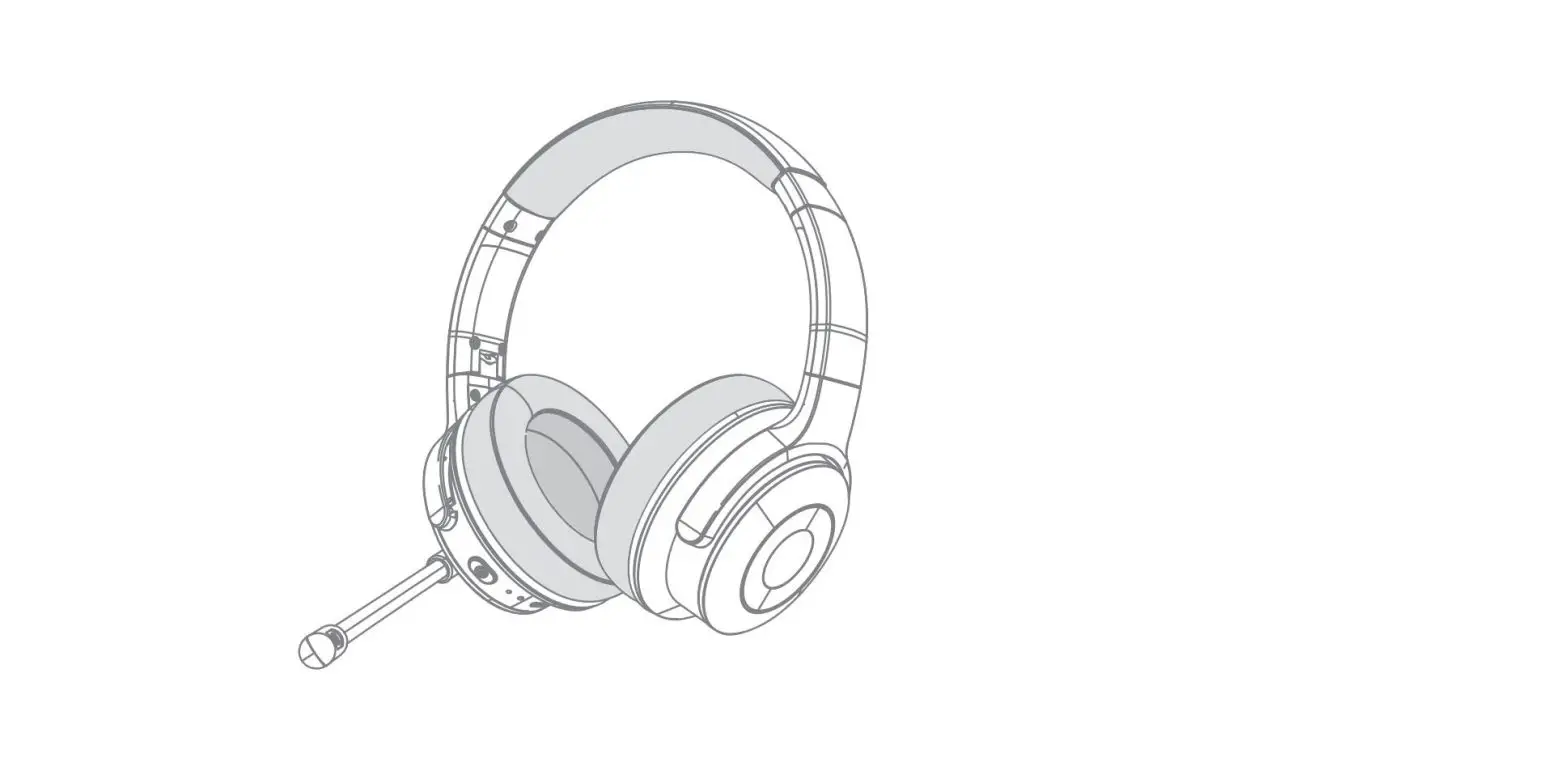
- AH6P Wireless Headphone x 1

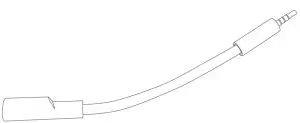
- Detachable Noise Canceling Microphone x 1

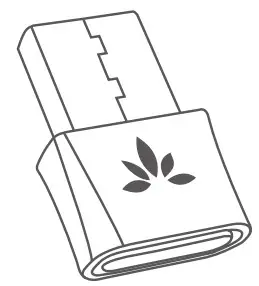
- DG80 USB Dongle x 1

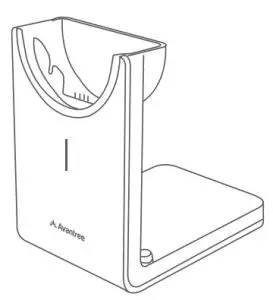
- Charging Stand x 1

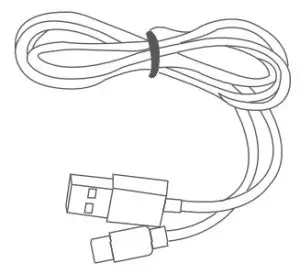
- harging Cable x 1

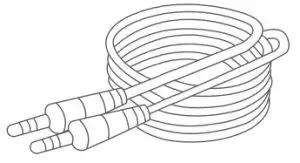
- 3.5mm AUX Audio Cable x 1

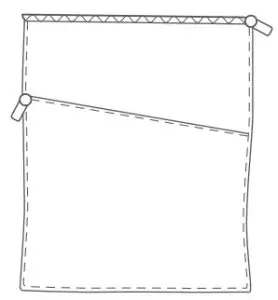
- Carrying Pouch x 1

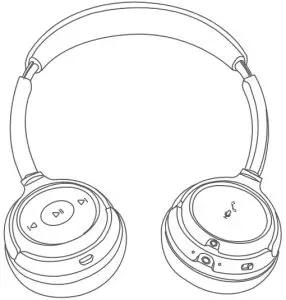
Product Overview
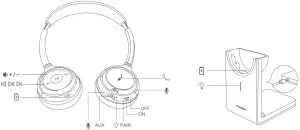
| Button | Function | Operations |
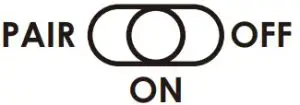 | Power ON/OFF | Slide the power switch to ON 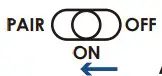 / OFF / OFF 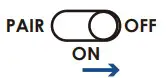 |
| Pairing Mode | From Power ON status, slide the power switch to PAIR and hold 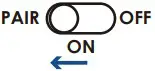 RED & BLUE alternately RED & BLUE alternately | |
| Reconnect | From Power ON status, slide the power switch to PAIR once then release | |
 | Answer / End a call | Press  once once |
| Reject a call | Hold for 1s when your phone is ringing | |
| Microphone Mute ON | While in a call, press and hold 1s to activate Microphone Mute function. You’ll hear a tone alert. Indicator turns SOLD WHITE | |
| Microphone Mute OFF | Press and hold 1s to Unmute the microphone. You’ll hear a tone alert. Headset indicator turns back to slowly pulsing BLUE | |
| Activate Voice Assistant | Press twice | |
| Repeat / forward | Press  once once |
| Play / Pause | Press  once once |
Volume | Volume Up / down | Rotate the volume wheel forward to volume up  / backward to volume down / backward to volume down  |
| Voice Prompts OFF / ON | Hold  for 2s until you hear “Voice prompts OFF / ON” for 2s until you hear “Voice prompts OFF / ON” |
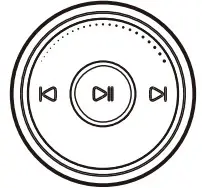
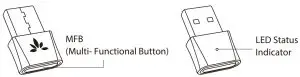
 Clear Pairing History*
Set it into Pairing Mode (Hold for 2s till LED BLUE quickly) then double click , LED will flash BLUE for 5s
Note: There should be no need to operate the button of the DG80 unless asked by Avantree Support ([email protected]).
Use with Windows / Mac
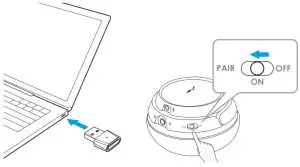
Plug the DG80 into your device’s USB port, power on the headset, they should connect automatically.
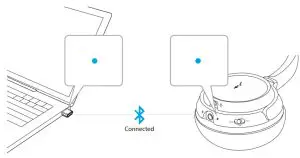
Once connected, the indicator on DG80 and the indicator on headphone will turn SOLID BLUE.
Verify Computer Audio Settings
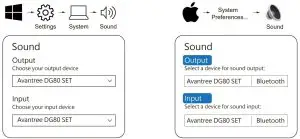
Please set “Avantree DG80 SET”as the default audio input / output device
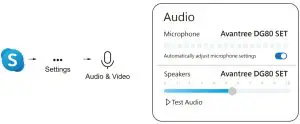
If there is NO SOUND when paired and computer’s audio settings are correct, please check your VoIP sound settings.
Using Your Alto 8060 Headphones with Other Mobile Devices
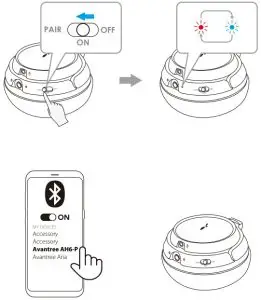
Toggle Audio / Calls between PC and 2nd Device
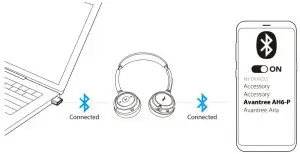
Pause or end the audio / call on the current device (either by pressing the corresponding button on the headphones or directly from the active device). Then play audio or make a call on the 2nd device – the audio will automatically switch to this device.
Charging
Connect USB charging cable to USB wall adapter rated at (DC 5V / 0.5-2A)
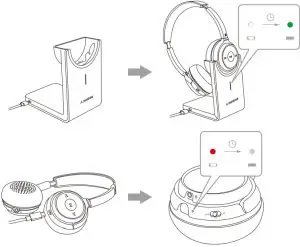

Note: Contact us at [email protected] for a FREE USB wall charger (for US / UK / EU ) if you need one.
Still no sound? Mic no sound? Please see further support/troubleshoot on support.avantree.com
USA / Canada: +1800 232 2078
(US Toll Free, 9am-6pm PST, Mon-Fri )
UK: +44 20 8068 2023
(9am-6pm, GMT, Mon-Sat)
IT: +39 06 9480 3330
(9am-6pm, CET, Mon-Sat )
ES: + 34 931786261
(9am-6pm, CET, Mon-Sat )
DE: +49 32221097297
(11am-9pm, CET, Mon-Sat )
FR: + 33 176340312
(11am-9pm, CET, Mon-Sat )
AU: + 61 2 8310 9897
(11am-7pm, Sydney Time, Mon-Fri)
Dispose of the packaging and this product in accordance with the latest provisions.