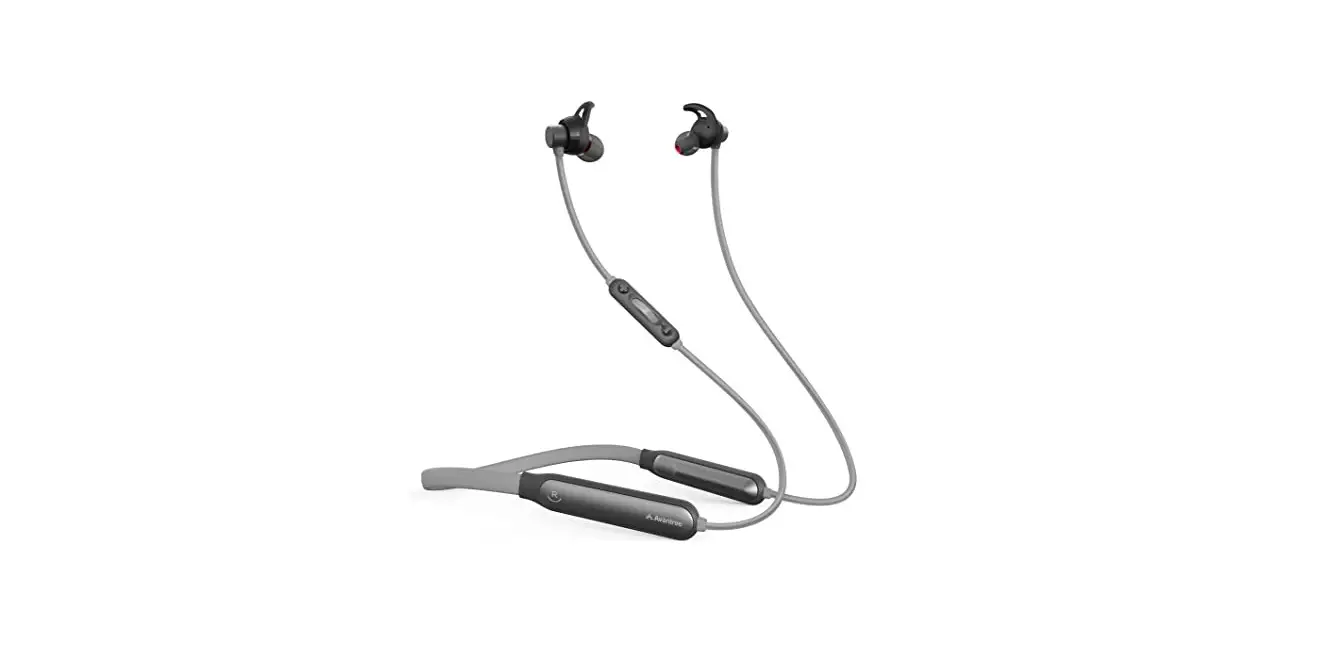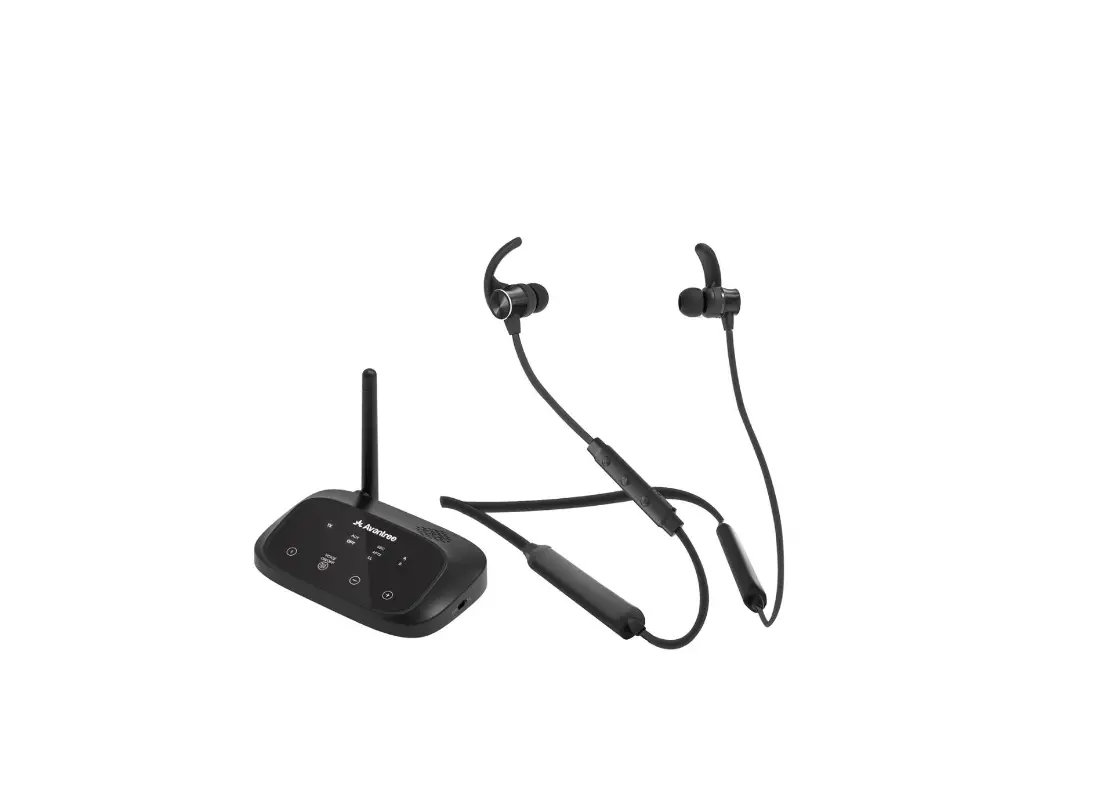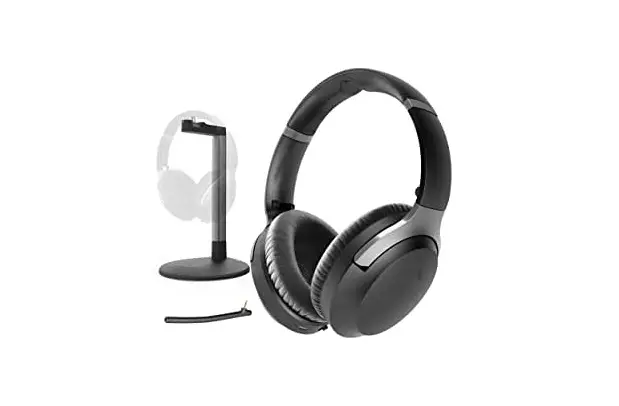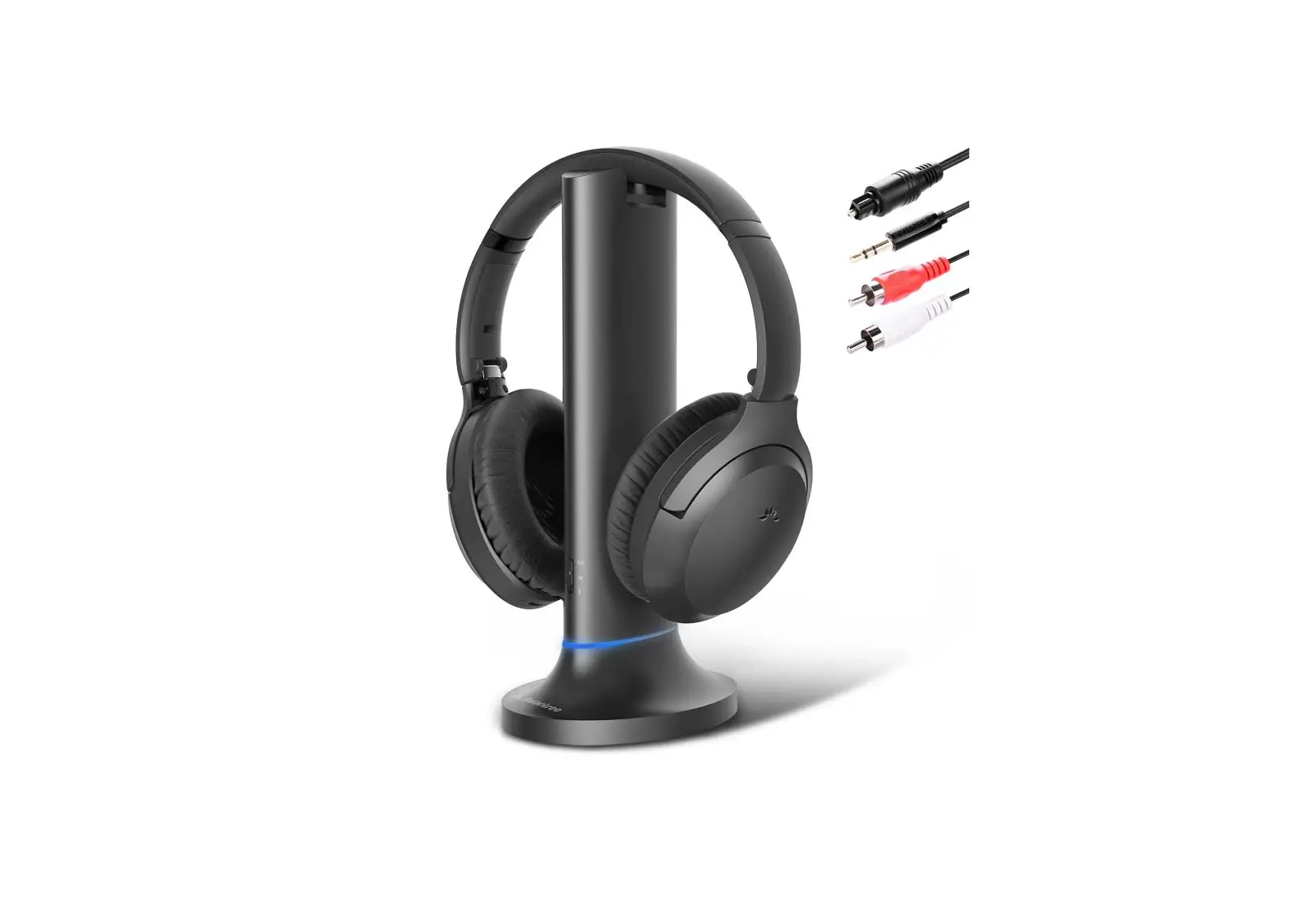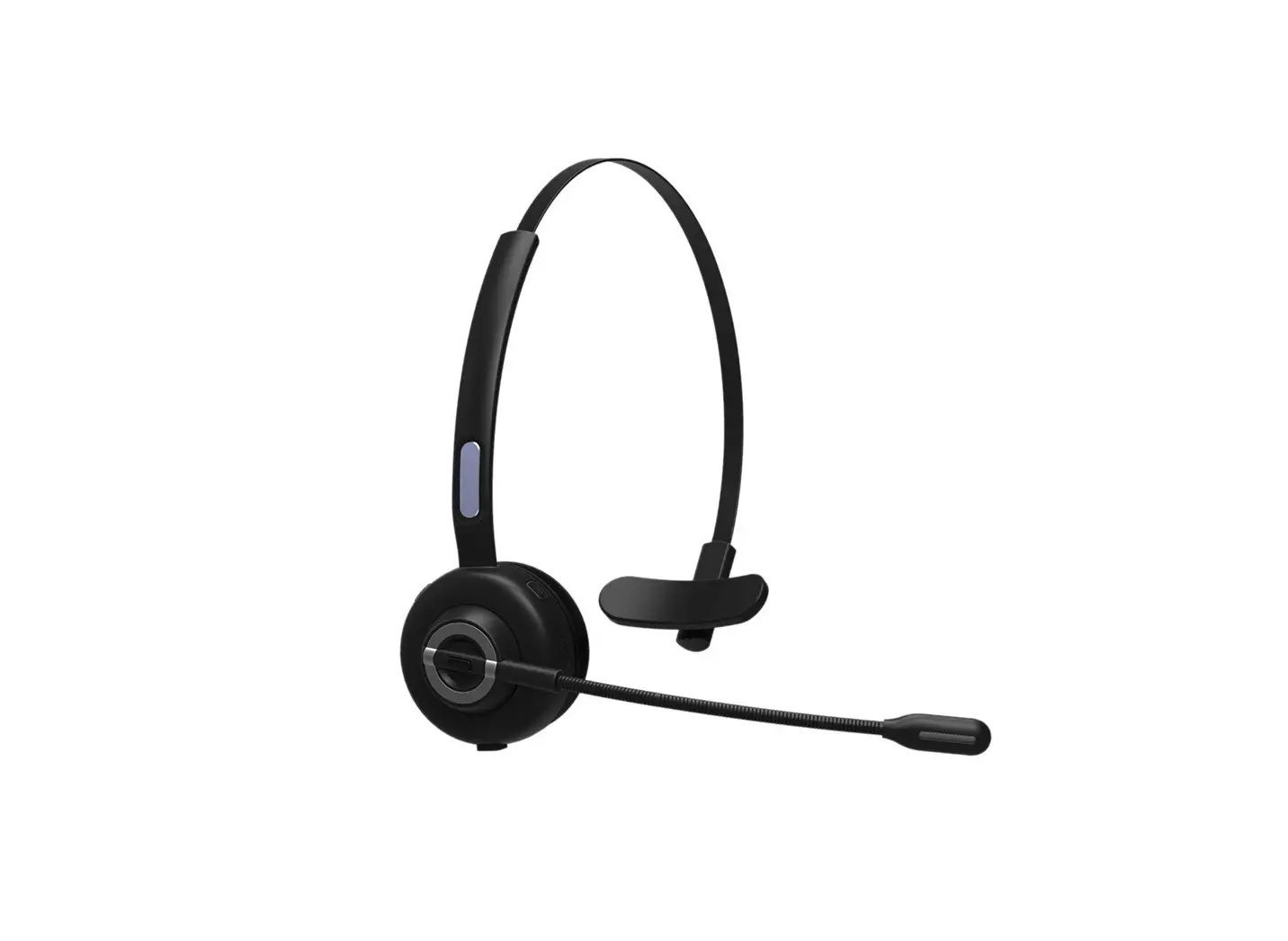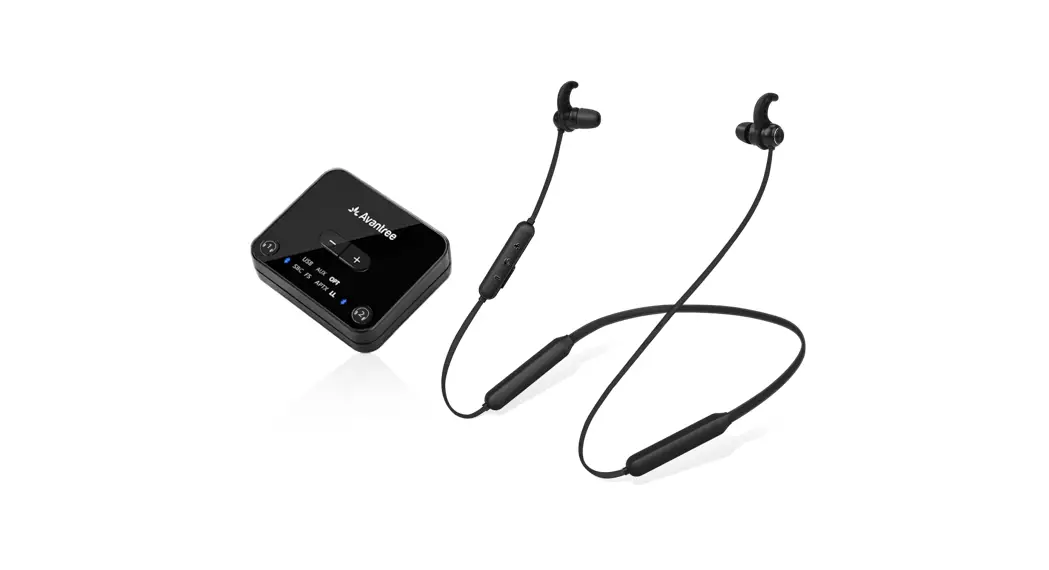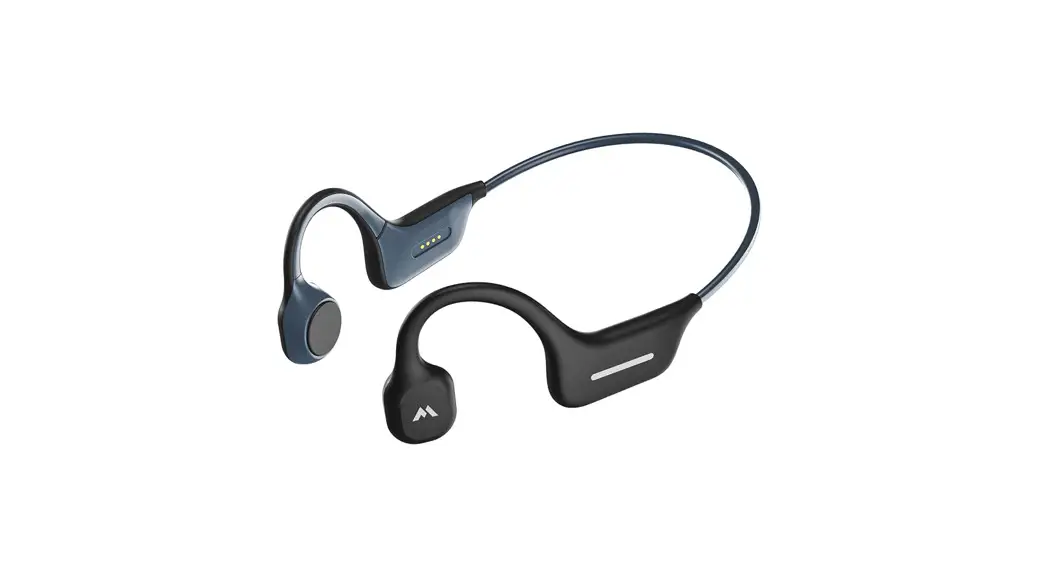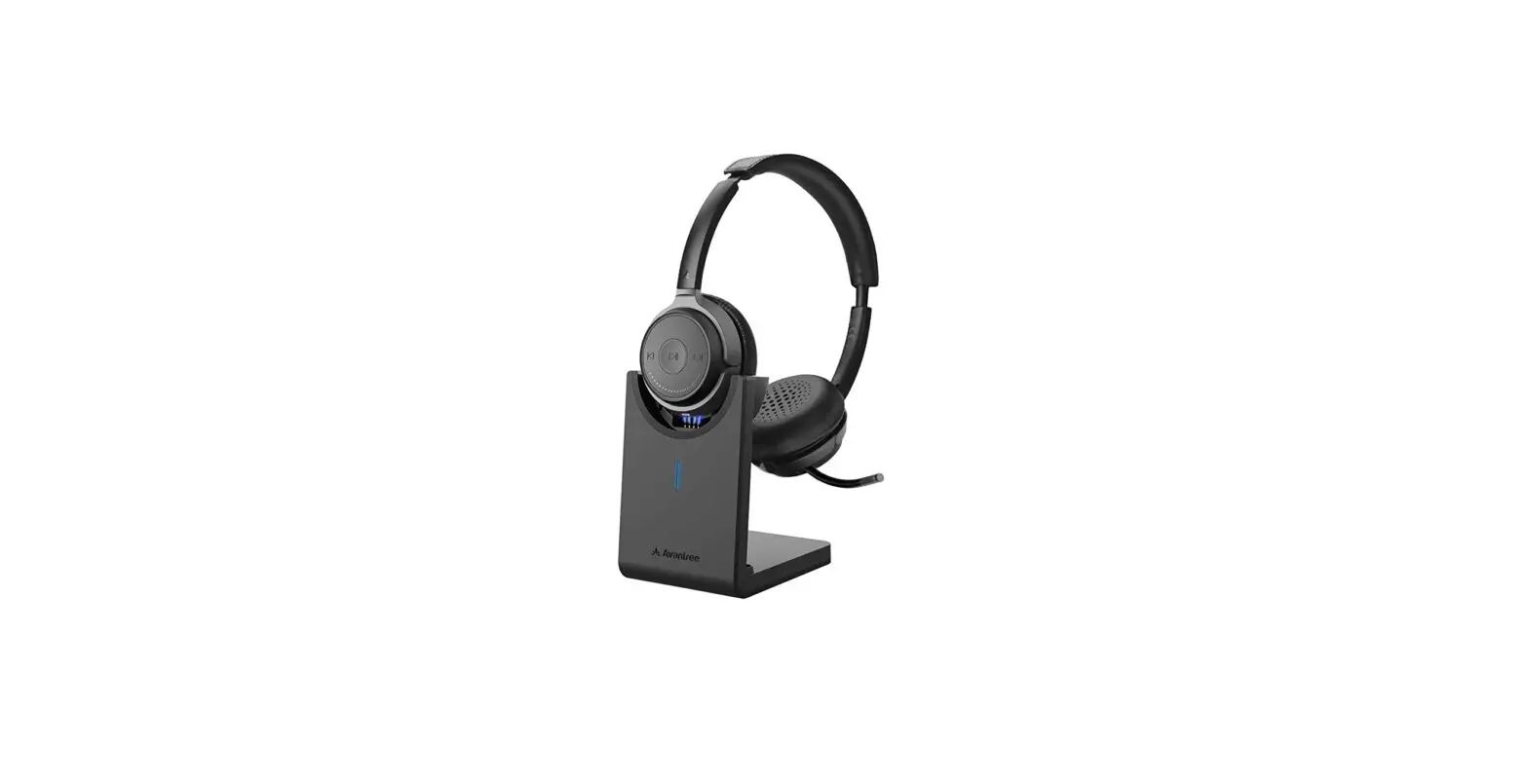
Avantree BTHS-AH6 Stereo Wireless Headset User Manual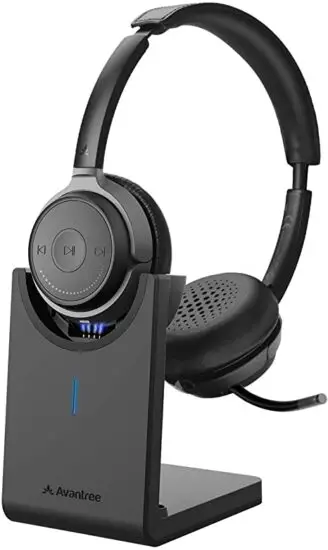
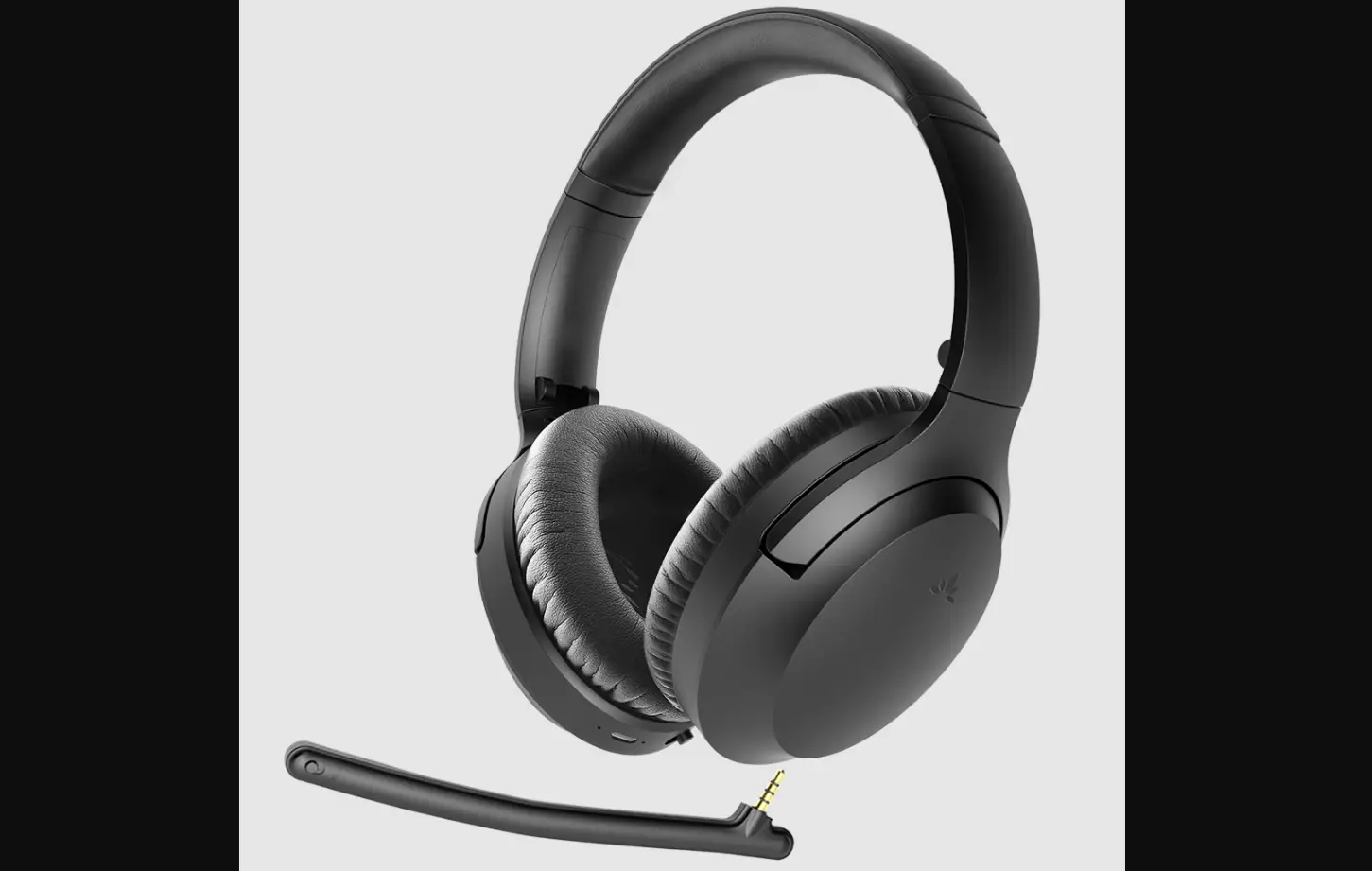
Product Overview
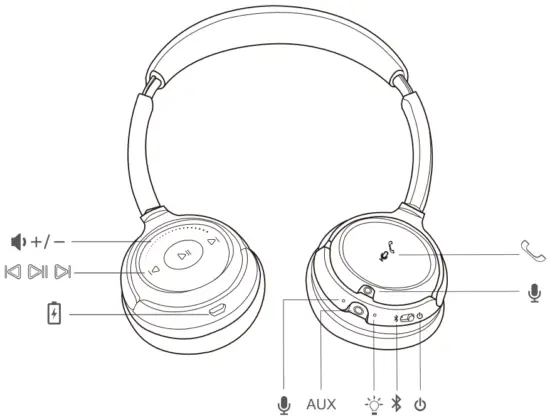
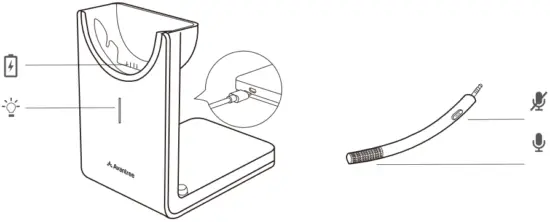
Basic Operations
| Button | Function | Operations |
| Power Switch
| Power ON | Slide the power switch towards middle  you’ll hear “Welcome to Avantree” you’ll hear “Welcome to Avantree” |
| Pairing | Slide the power switch to left and hold for 3 seconds. You’ll hear “Pairing” and the LED indicator blinks RED and BLUE alternately. | |
| Power OFF | Slide the power switch to right  You’ll hear “Good Bye” You’ll hear “Good Bye” | |
|
| Answer / End a call | Tap  once once |
| Reject a call | Hold 1s whilst a call coming | |
| Activate smart voice assistant | Tap twice | |
| Microphone Mute ON/OFF | While on an active call, tap and hold 1s to activate/close Microphone Mute function. You’ll hear “Microphone Mute ON/OFF” | |
| Track backward | Tap  once once |
| Play/Pause | Tap  once once |
| Track forward | Tap  once once |
Volume Wheel | Volume up | Rotate the volume wheel forward  to volume up to volume up |
| Volume down | Rotate the volume wheel backward  to volume down to volume down | |
| Microphone Mute ON/OFF | While on an active call with boom mic, tap and hold  1s to activate/close Microphone Mute function. You’ll hear “Microphone Mute ON/OFF” 1s to activate/close Microphone Mute function. You’ll hear “Microphone Mute ON/OFF” |
| Voice Prompt OFF | Hold  till you hear “Voice Prompt OFF” till you hear “Voice Prompt OFF” |
| Voice Prompt ON | Hold  till you hear “Voice Prompt ON” till you hear “Voice Prompt ON” |


NOTE: Functionality varies by applications
Status of LED indicators
| Working Status | LED indicator |
| Paring Mode | Blinks BLUE & RED alternately |
| Reconnecting | Blinks BLUE once every 1 second |
| Disconnected | Blinks BLUE once every 10 seconds |
| Microphone Mute ON | Remains WHITE |
| Connected with SBC Codec | Blinks BLUE once every 5 seconds |
| Connected with Fast Stream Codec | Remains BLUE |
| Connected with AptX Codec | Blinks WHITE once every 5 seconds |
| Connected with AptX-LL Codec | Remains WHITE |
| Connected with AptX-HD Codec | Blinks WHITE twice every 5 seconds |
| Low battery | Blinks RED three times every 10 seconds |
- aptX-LL supported devices: Avantree Oasis, Avantree Audikast etc.
- aptX-HD supported device: Avantree Oasis Plus
For full list of suppprted devices please visit www.aptx.com
Connect to a Bluetooth mobile device
Enter Headphones into Pairing Mode:
Slide the power switch to left and hold for 3 seconds. You’ll hear “Pairing” and the LED indicator blinks RED and BLUE alternately.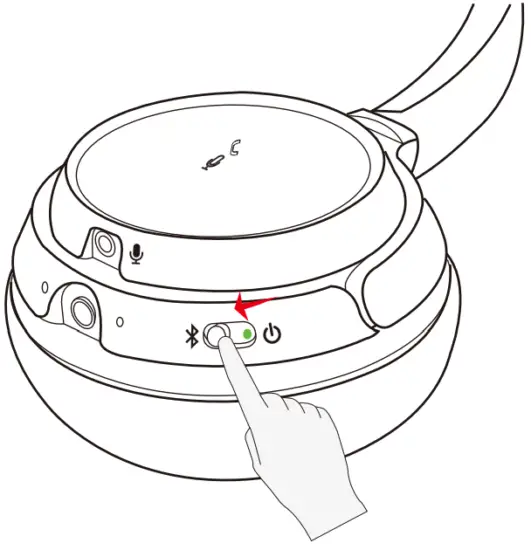
Pair to mobile device
- Set the headphones into Pairing Mode as above.
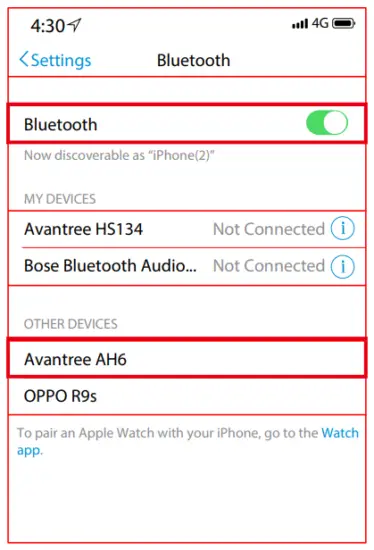
- Activate Bluetooth on your phone and set it to search for new devices.
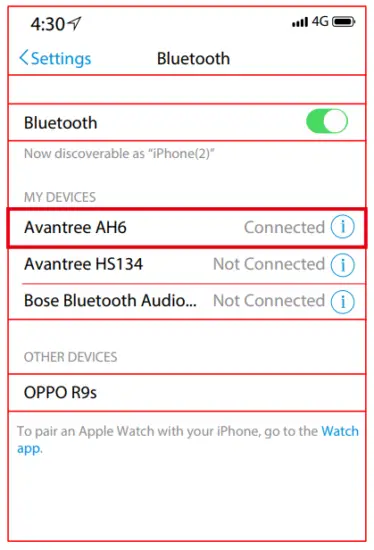
- Select “Avantree AH6”,once successfully paired you’ll hear “connected”.

Connect to two Bluetooth mobile devices simultaneously
- Connect with the FIRST phone as above, then turn off the headphones.
- Connect headphones with SECOND phone as above.
- Tap and select “Avantree AH6” on the FIRST phone Now, Avantree AH6 connected with TWO phones simultaneously.

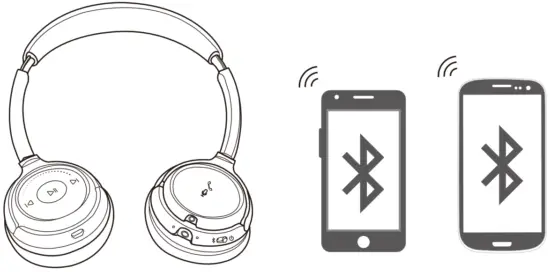
Note: This feature only works for two mobile devices, such as cellphones and tablets. It doesn’t work for PCs or Bluetooth transmitters.
Reconnect to Bluetooth device
Normally, when the next time you turn on Avantree AH6, it will automatically reconnect the last paired device.
Alternatively, Slide the power switch to left once then release to enter into its Reconnection Mode.
Connect to PC / Laptop
- Set the headphones into Pairing Mode as above.
- Activate Bluetooth function on your PC/Laptop, search & select “Avantree AH6” to pair and connect.
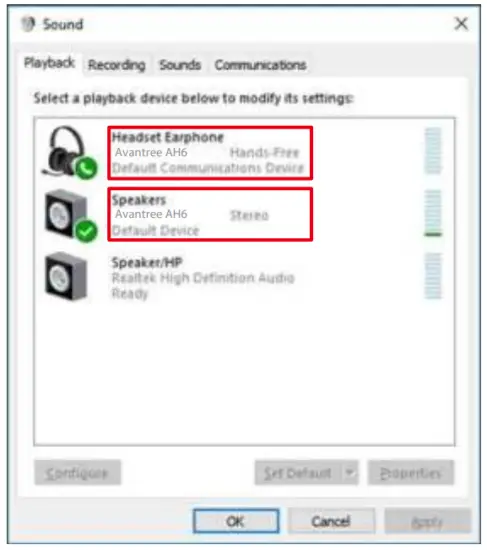
- For music stream, please set “Avantree AH6” as the Playback Default Device/Output device in Sound Setting page.

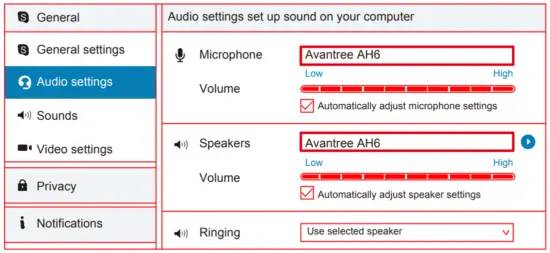
- For Skype call, please set “Avantree AH6 Hands-free Headset” as microphone and speaker device in Audio Settings.

Qualcomm® aptX™ HD
aptX-HD audio ensures your Bluetooth® wireless enabled device can deliver High Definition (HD) audio. To take advantage of this feature please ensure that the audio source device or transmitter also supports the aptX-HD Latency codec. Please check if your device is aptX-HD certified: www.aptx.com
We recommend Avantree Oasis Plus to ensure compatibility with the Alto Clair
Qualcomm® aptX™ Low Latency
aptX-Low Latency delivers high quality 16bit audio while minimizing audio/video syncing issues. To take advantage of this feature please ensure that the audio source device or transmitter also supports the aptX-Low Latency codec. Please check if your device is aptX-LL certified: www.aptx.com
We recommend any of the following Avantree Bluetooth transmitters – Oasis Plus, Audikast, Oasis or Priva III to ensure compatibility with the Alto Clair.
Use as a wired headphone
Use the supplied 3.5mm audio cable to connect to a non-Bluetooth audio device, or if the headphone battery is depleted.
Note: The headphone will power off automatically once you plug in the 3.5mm audio cable.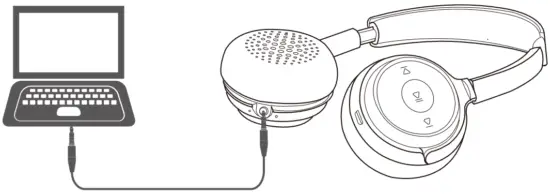
Charging
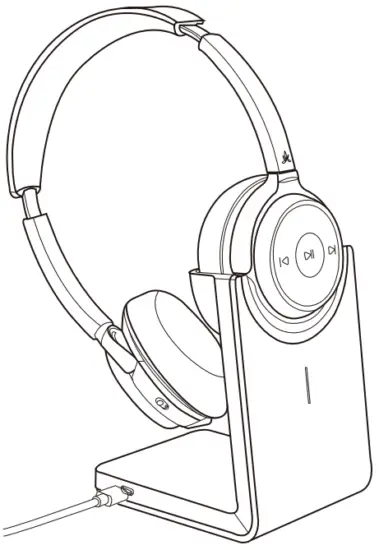
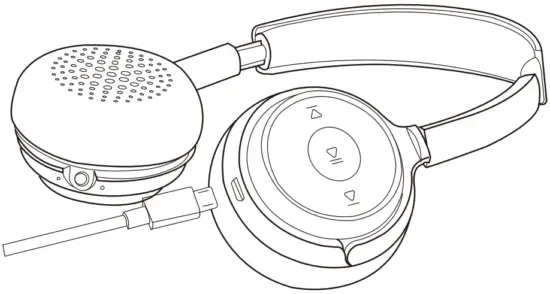
When the LED flashes RED 3 times per 10 seconds or you hear the voice prompts “Low battery please turn off and charge”, you should fully recharge the device for about 1 hour. The headset can be charged with the desktop charging stand (DC5V/0.5-1A) or with the micro USB cable (DC5V/0.5-1A).
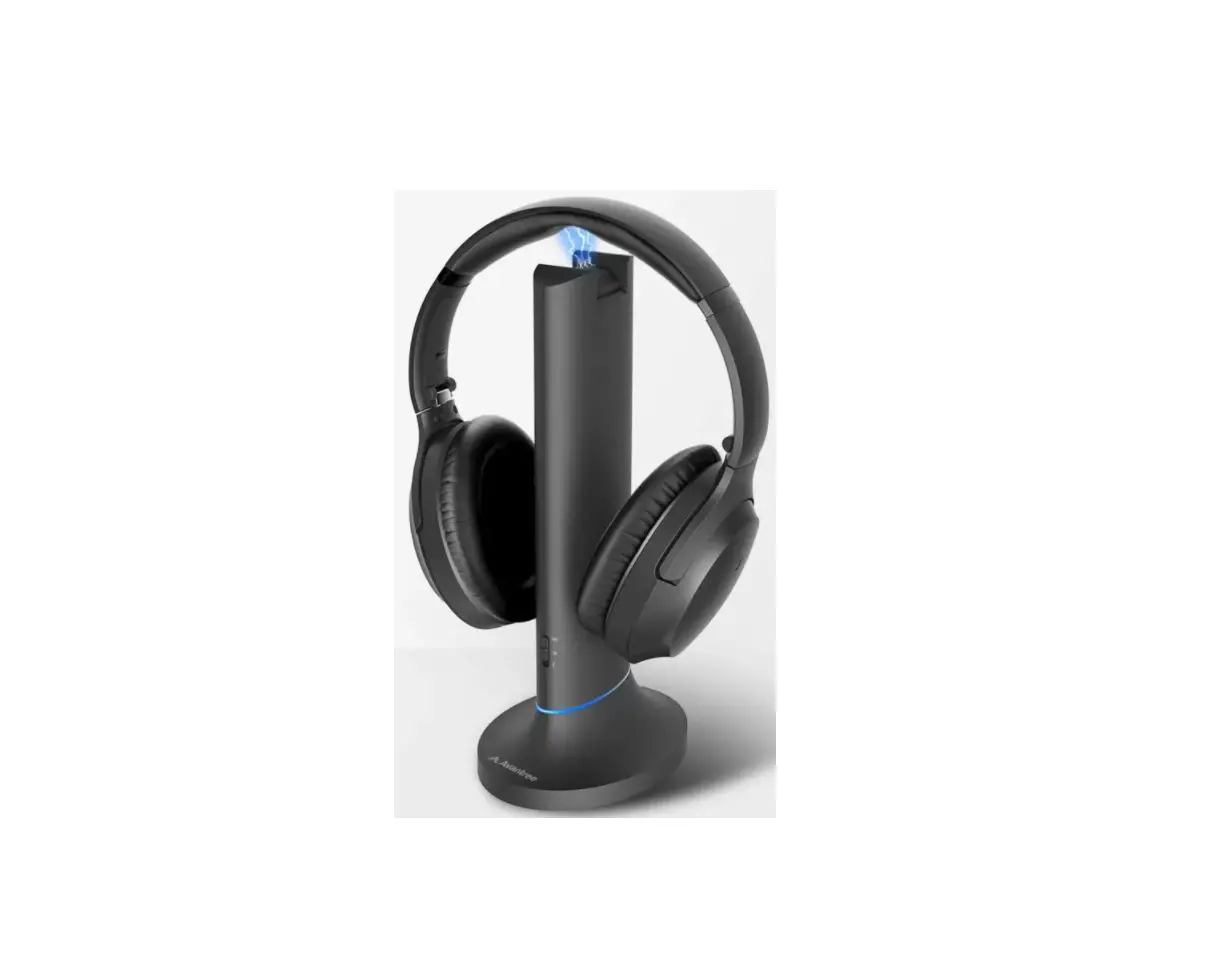
- Charged with the desktop charging stand – The LED indicator on the charging stand will remain WHITE while charging and turn to Green when charging is complete.

- Charged with the micro USB cable – The LED indicator on the headphones will remain RED while charging and turn off when charging is complete.

Clear pairing history
If you have issues with the audio stream skipping or cutting out when using Avantree AH6, please try to clear pairing history as following:
Firstly, turn on the headset (Non-calling Status), then Tap and Hold BOTH  5 seconds till the LED blinks PINK for 2 seconds, then the headphones enter into PAIRING MODE automatically.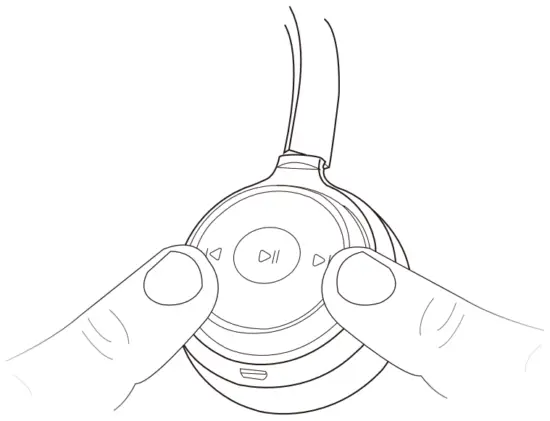
Troubleshooting
No sound with PC?
- Set Avantree Alto Clair as the default device or output device on the PC.
- When using Alto Clair to make VOIP calls through apps, please set Alto Clair Hands-Free as Microphone and Speakers device.
No sound with Bluetooth transmitter to watching TV?
- Ensure Bluetooth transmitter and headphones are connected properly.
- Check to ensure audio source is functioning properly
- AUX & RCA output on TV – test with wired headphones
- OPT output on TV – Set audio format to “PCM/LPCM” or turn o¬ Dolby/DTS
- Change your TV audio out setting to External speakers / Headset
Headphones do not pair with Bluetooth device?
- Ensure Alto Clair is in Pairing mode – LED flashes BLUE and RED alternately.
- For Bluetooth transmitter, ensure the transmitter is in Pairing mode – refer to its user manual.
- For Smart phone, tablet and PC
- Turn the Bluetooth off¬ and then on again.
- Delete “Avantree Alto Clair headphones” from your devices Bluetooth list and then try to pair again.
- Clear the headphones pairing history and pair again.
 Qualcomm® aptX™: Wireless High Resolution Audio Via Bluetooth