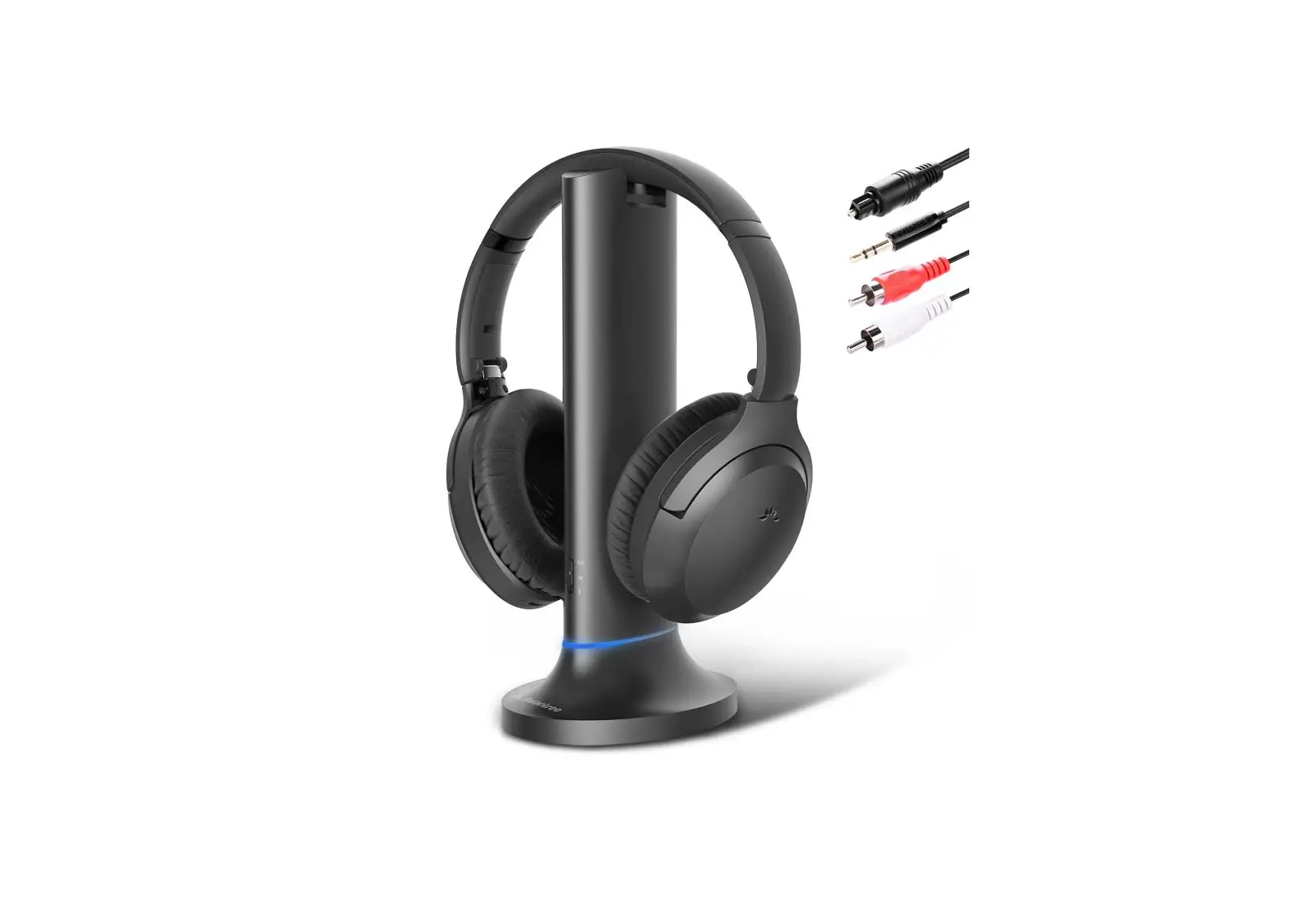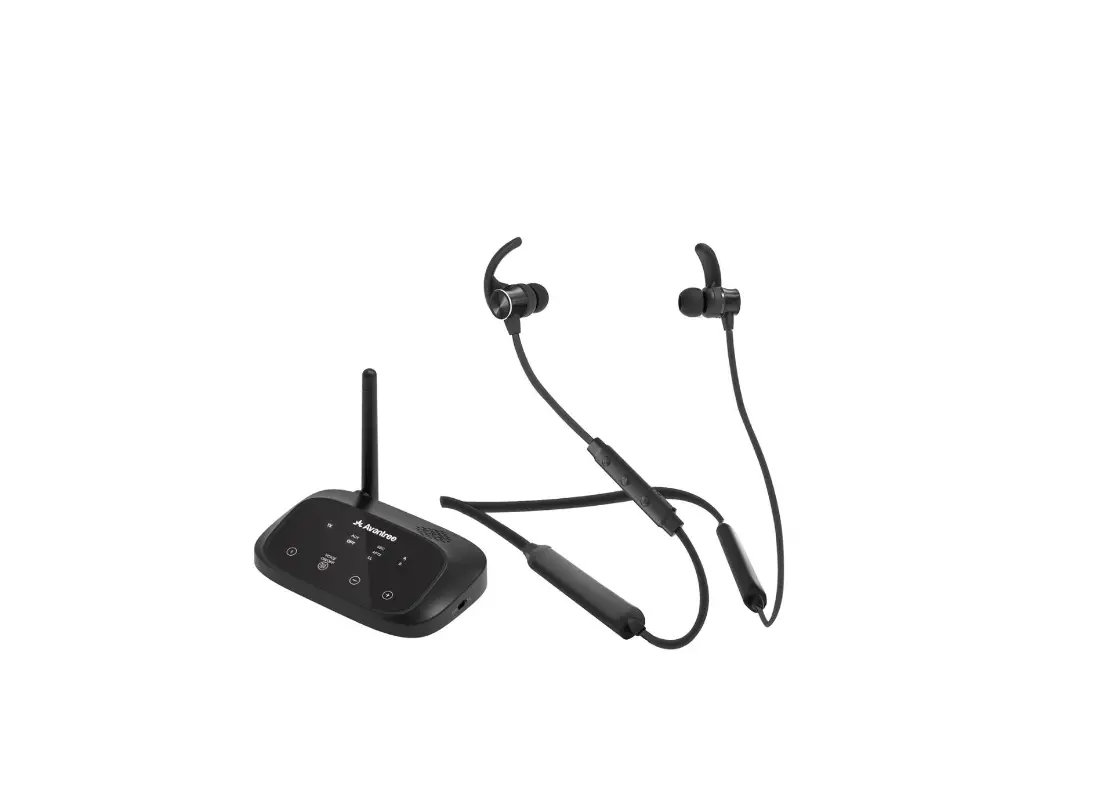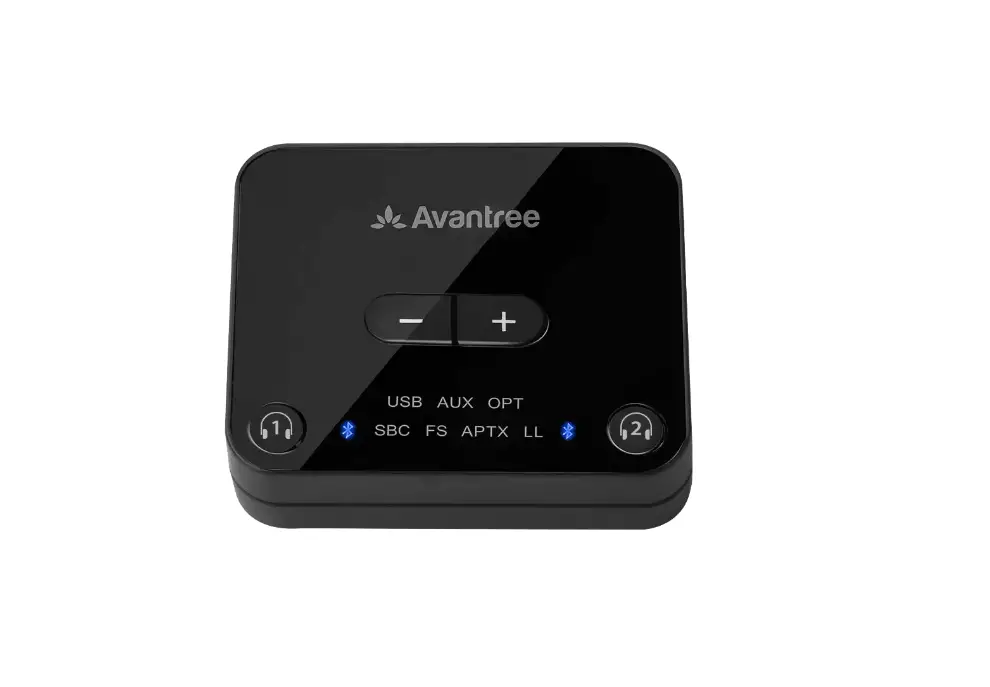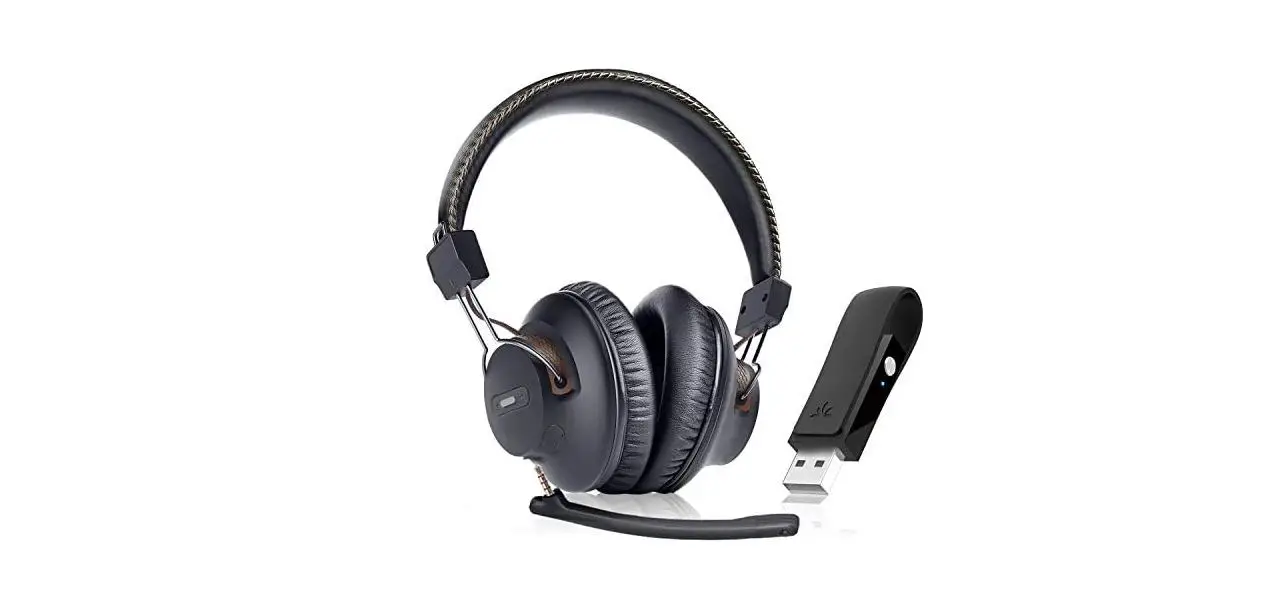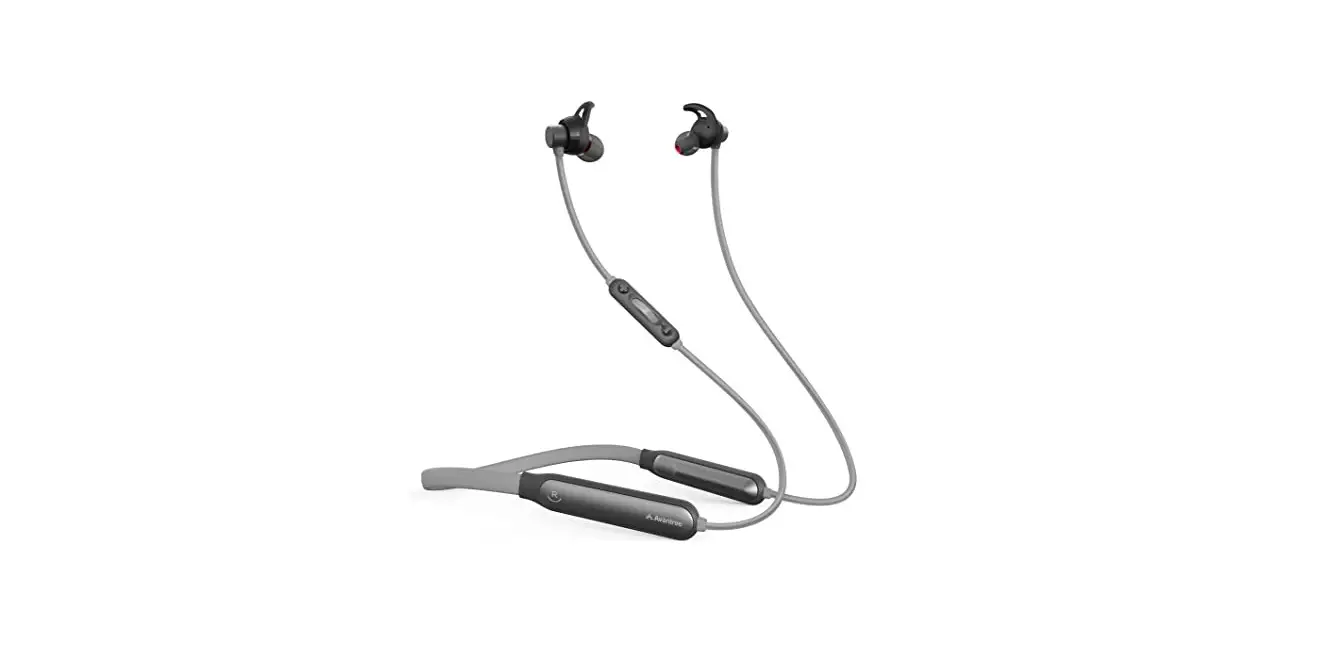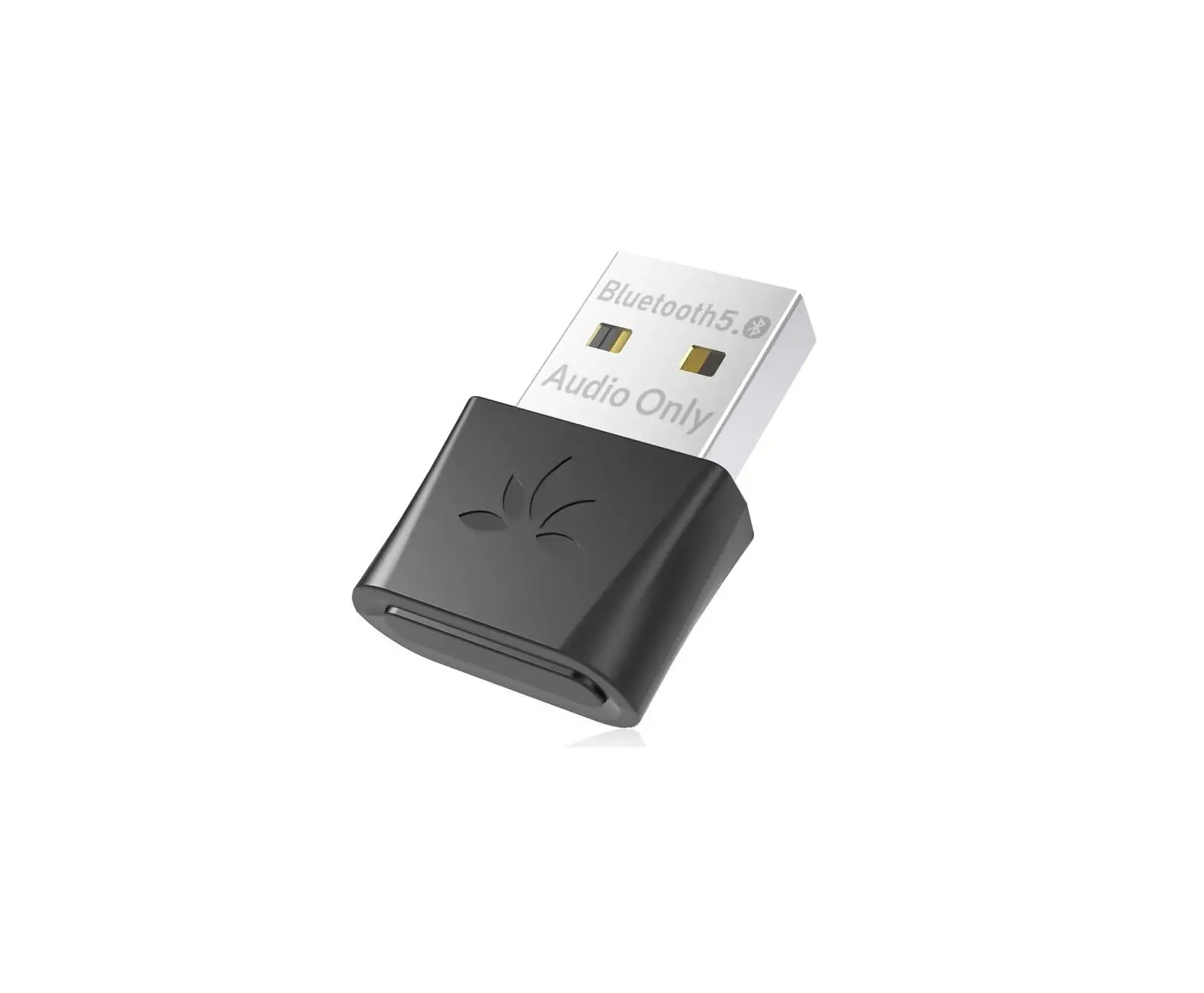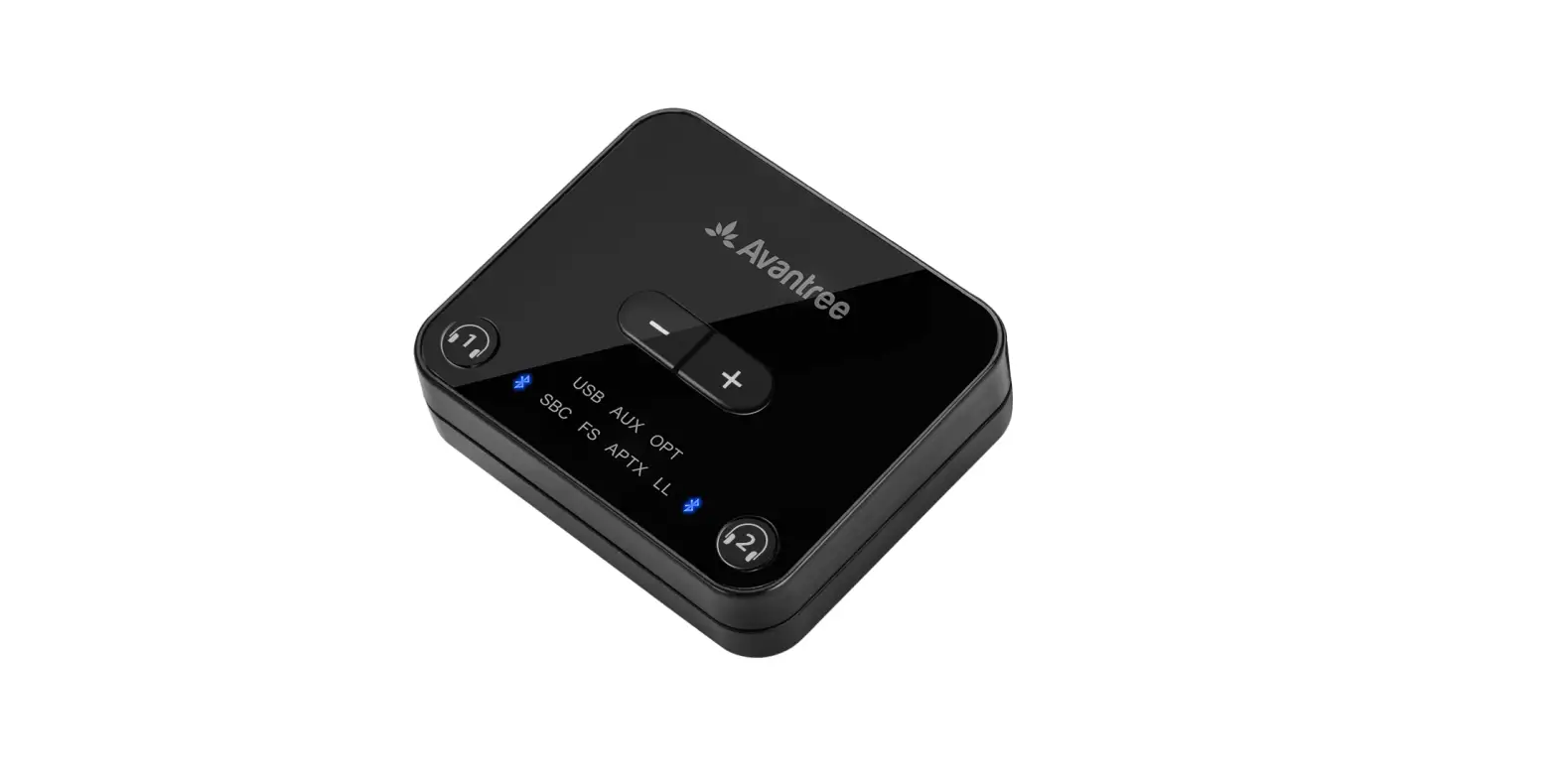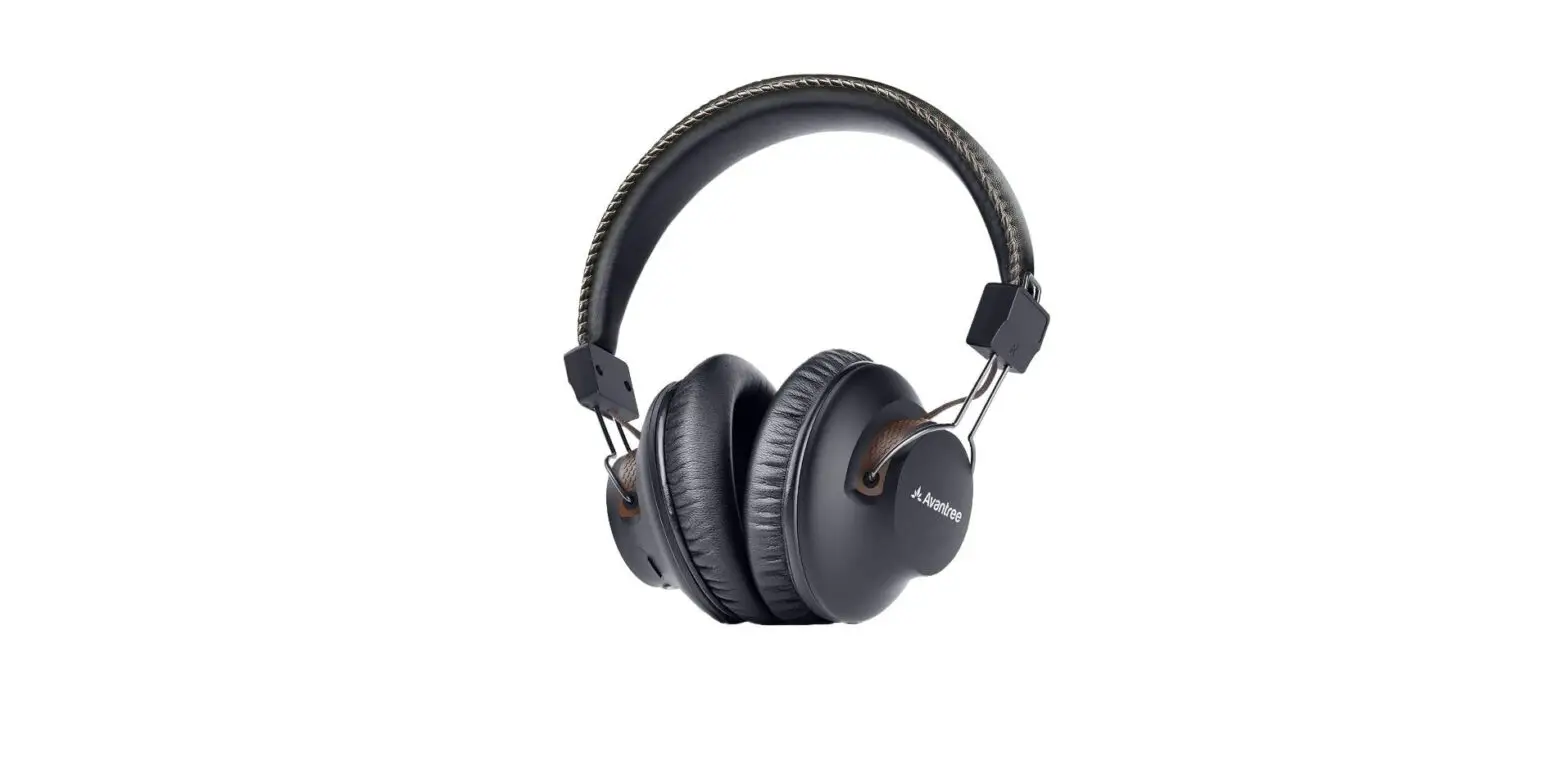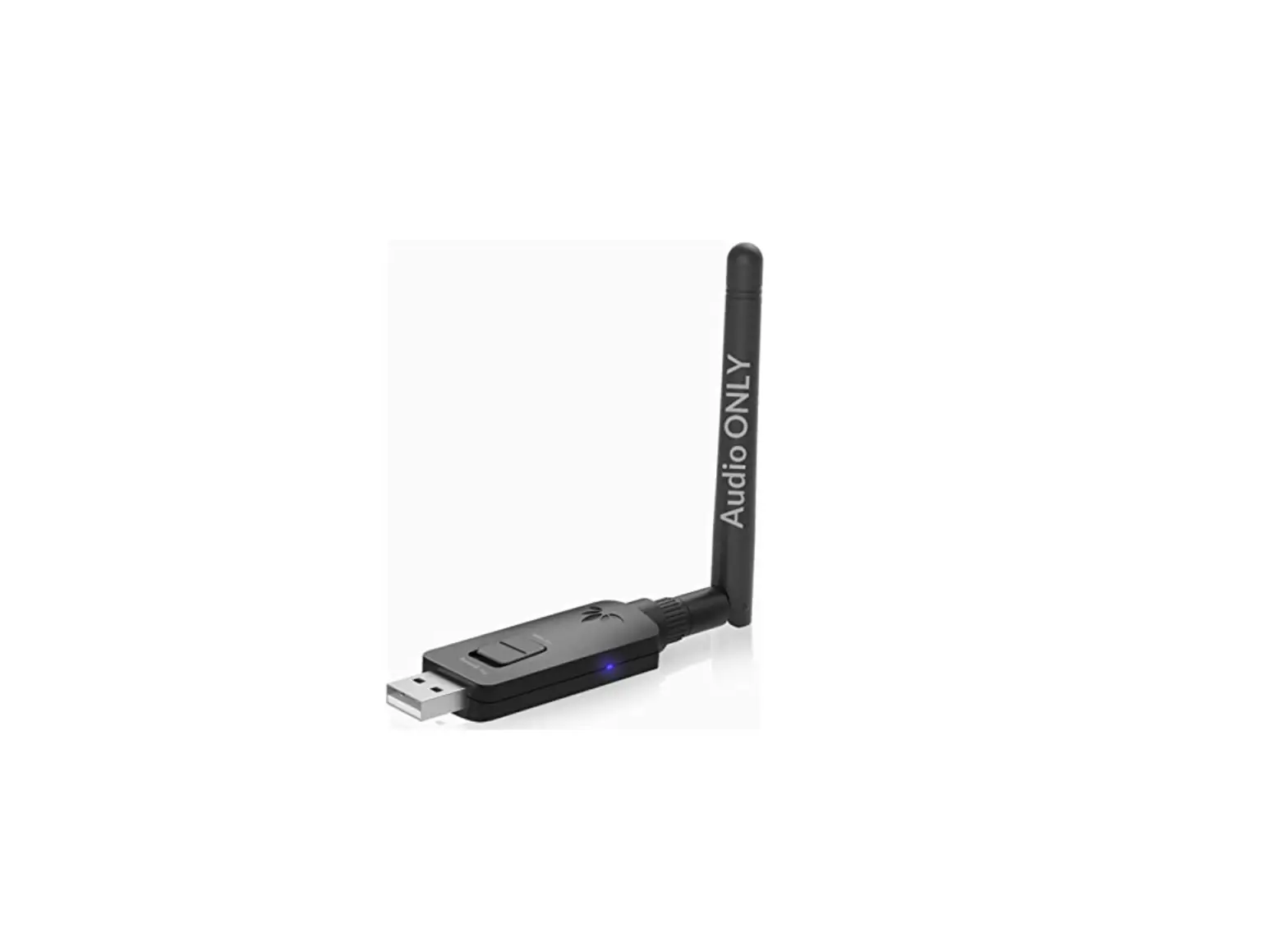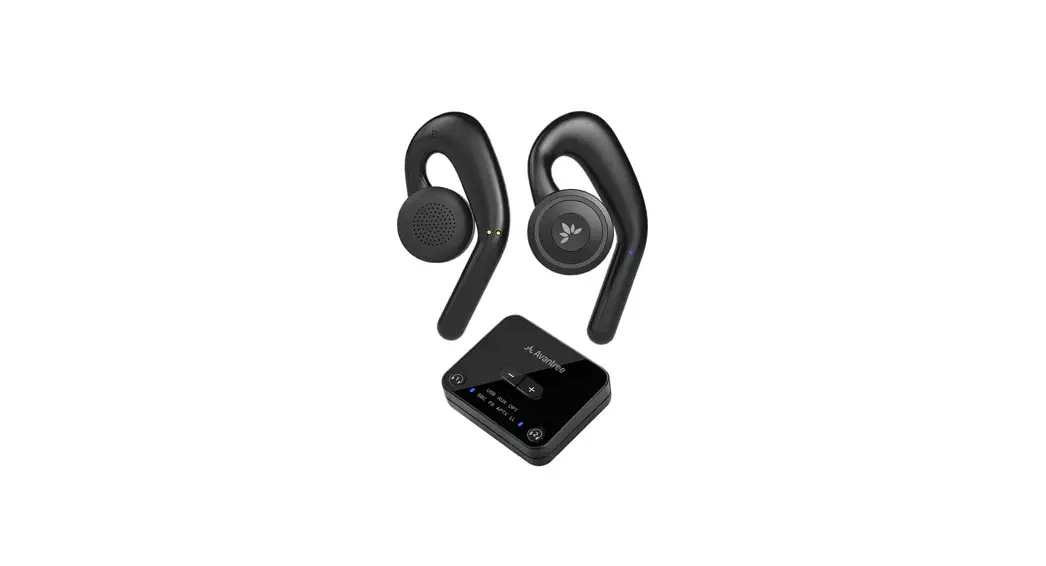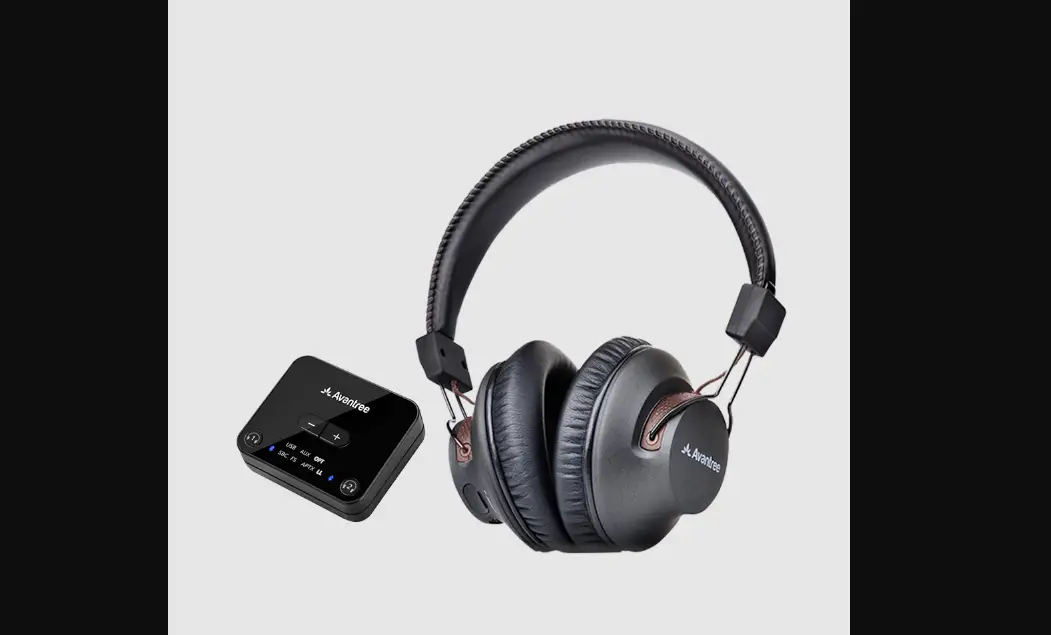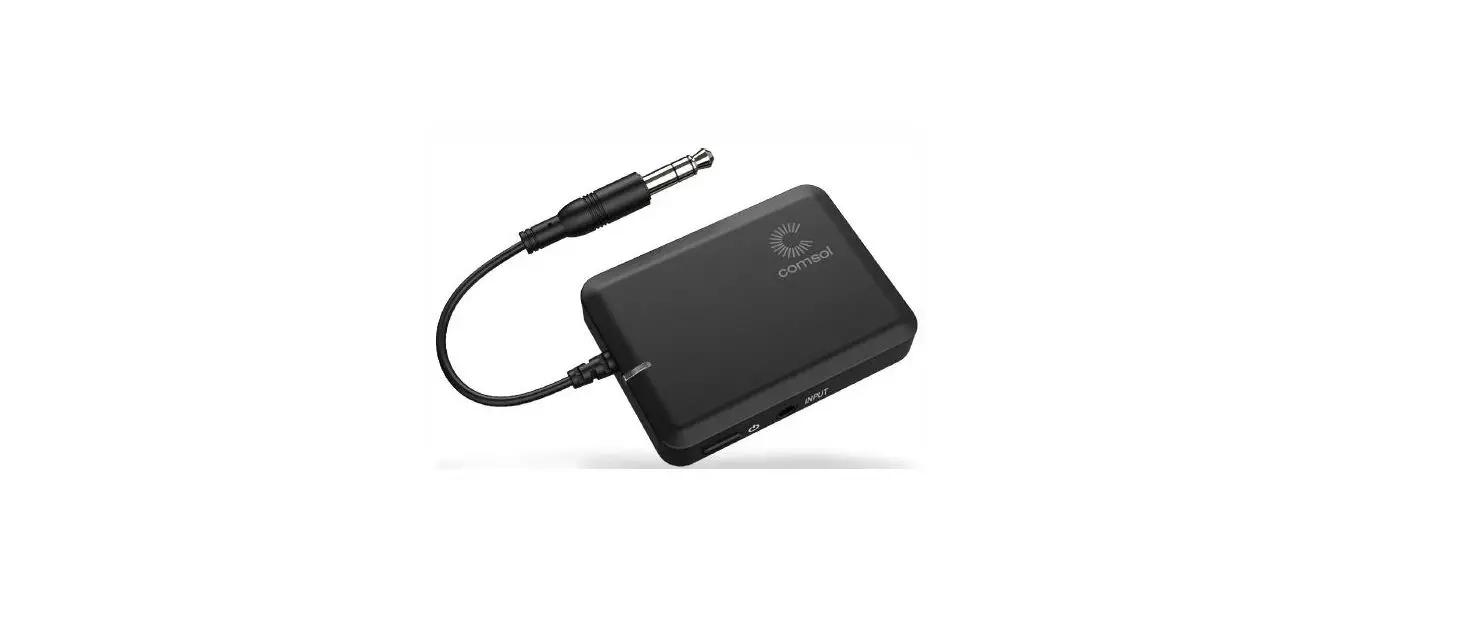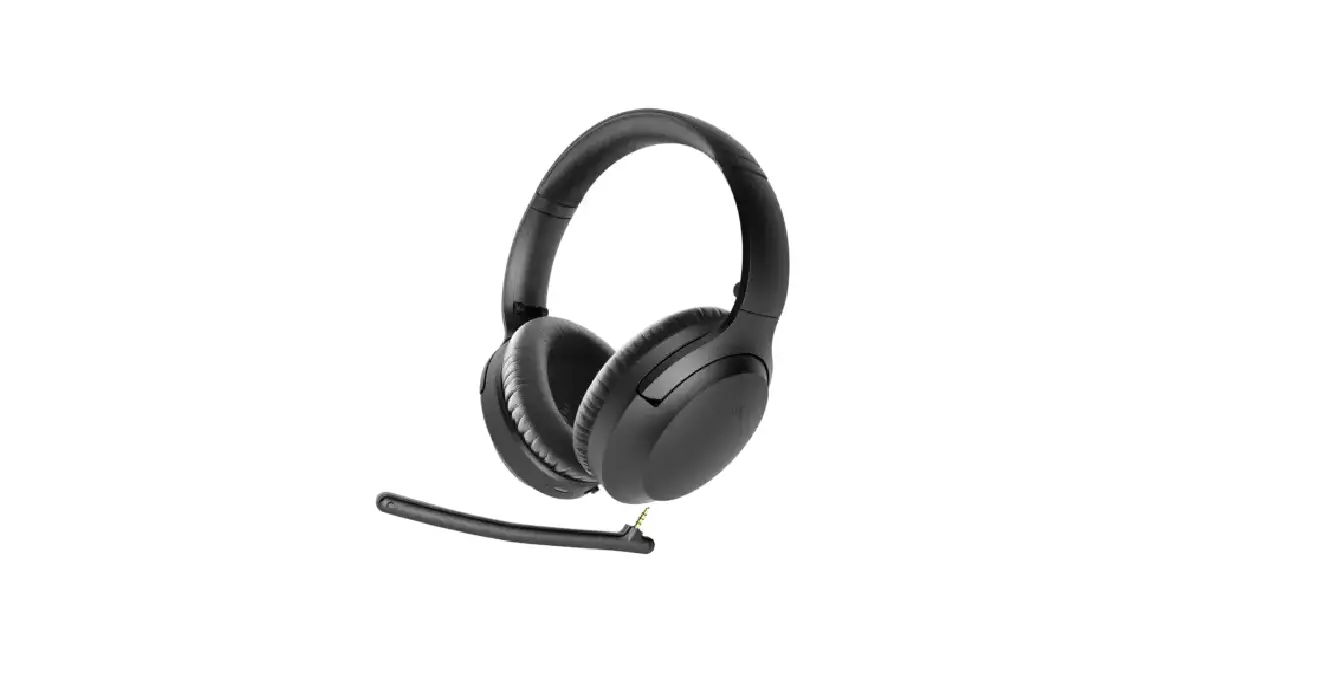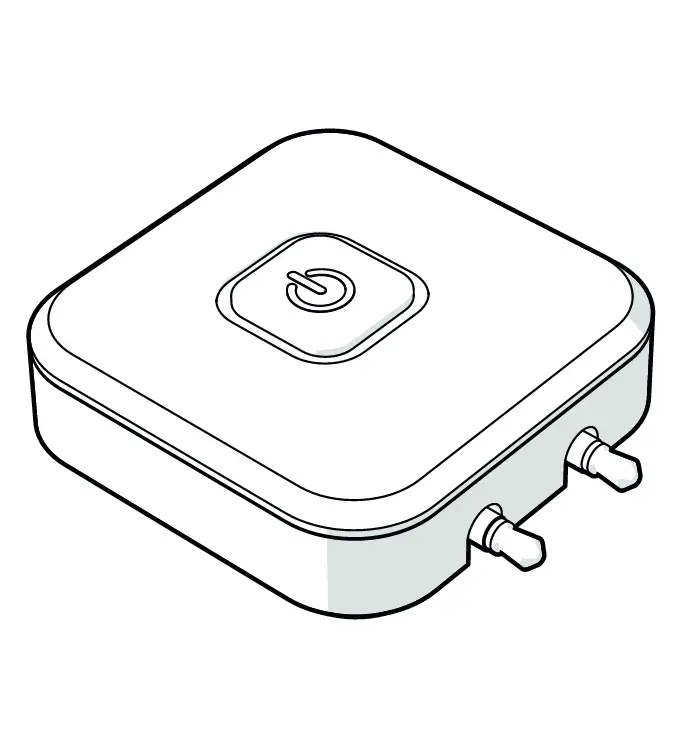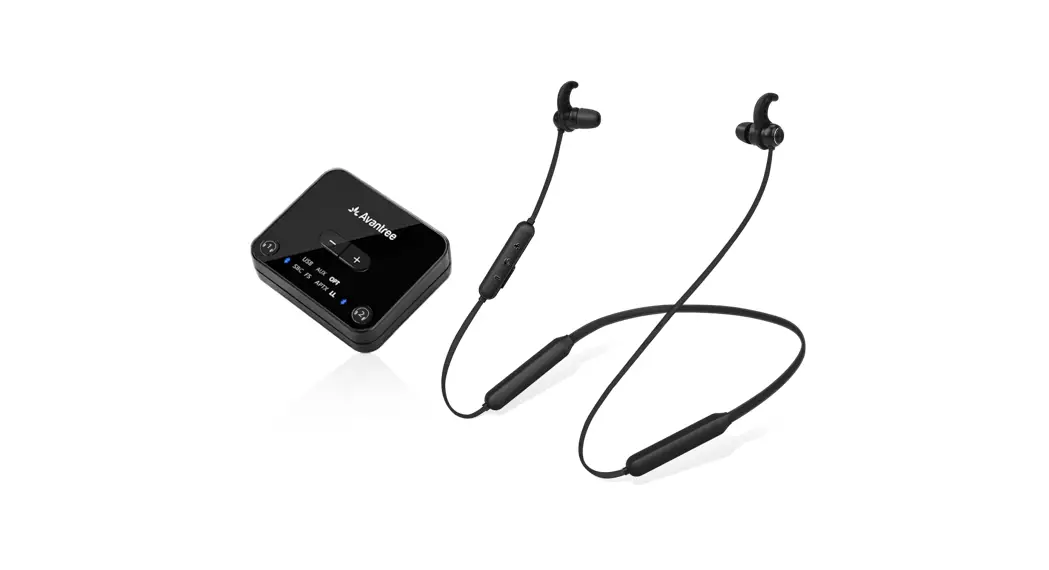

Bluetooth Transmitter and
Headphone set
Model No: BTHT-4186
User Manual
IMPORTANT NOTICE *Please watch the step-by-step video tutorial from avantree.com/ht4186/video before installation.
No need to pair! Units auto-reconnect each time they’re turned on!
Any questions? Contact: [email protected]
(Response Time: 1 working day)
Self-service Support:
- More FAQs on support.avantree.com
- 100+ Step by step video Guide – youtube.com/avantree/playlists
Telephone Support (Mon-Fri):
- USA / CANADA +1 800 232 2078 (EN, PST 9am-5pm)
- EU / Asia telephone No. refer to http://www.avantree.com/contact-us
Model No: BTHT-4186-BLK
Dispose of the packaging and this product in accordance with the latest provisions.
Z-PKQG-4186-F-V2
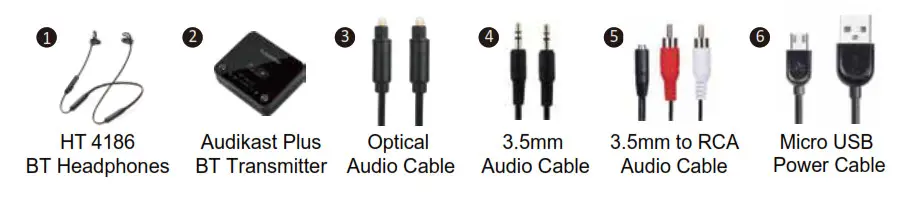
What’s in the box.
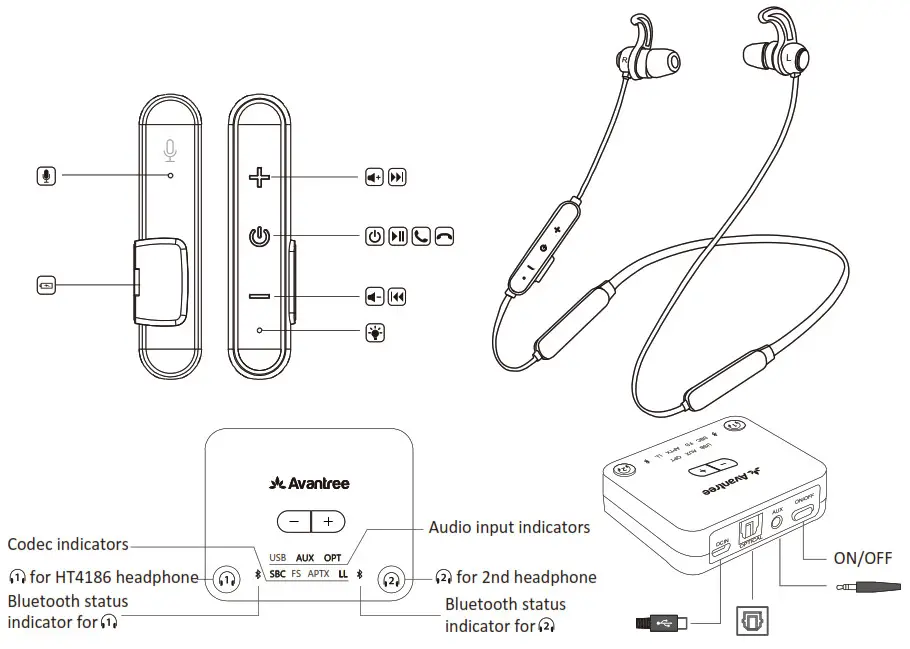
Product overview
How to use
NOTE: How do I wear these earphones? Please search for “HT4186” on support.avantree.com for FAQ and video guides.
1. Check your TV/Audio Source output options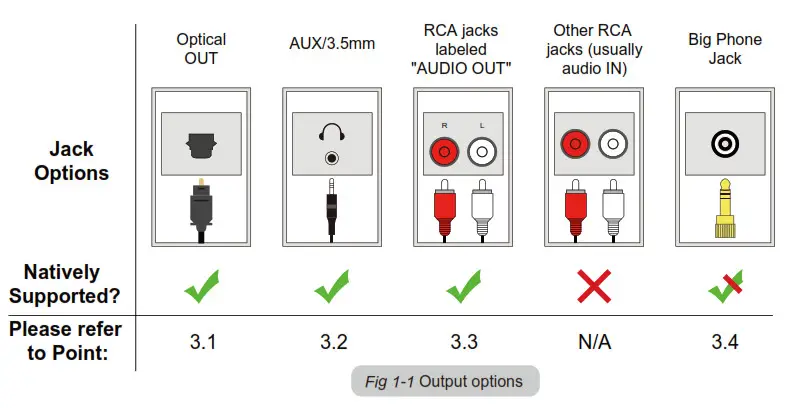
2. Turn on Transmitter and Headphones
- Powering up transmitter
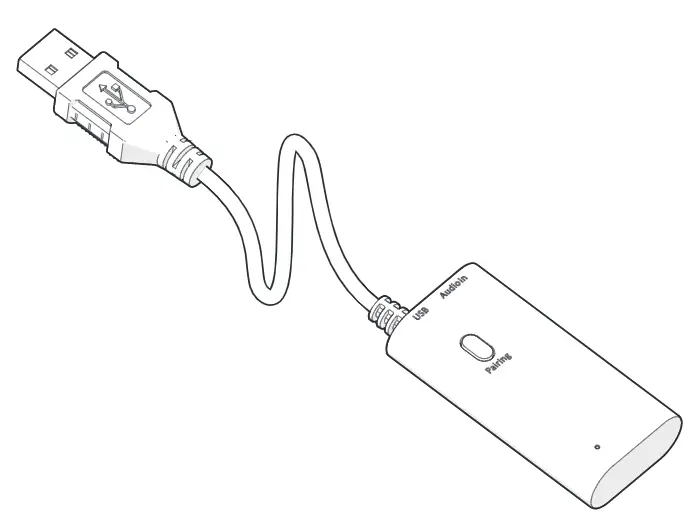
Powering up the transmitter with the USB cable provided. Connect it to a TV USB port or any other USB charger that supports 5V/500mA-2A. - Turn on both devices
Turn on the transmitter – Slide on/off switch to “ON” position , close to flashes
 BLUE once per 2 seconds.
Turn on the headphones – Press and hold for 3 seconds until you see the first sight of BLUE light.
They will auto-reconnect, indicators are: 1) Headphones say “ Your device is connected”. 2)close to on the transmitter and LED on headphones turn SOLID BLUE.
Connect Transmitter to your TV/audio source
NOTE: How to use these with my PC? Please search for ”HT4186” on support.avantree.com for FAQ and video guides.
Optical Audio Out
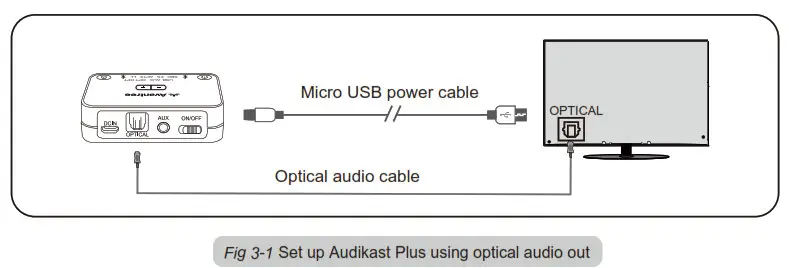
Now, you should be able to hear sound from headphones, if no sound:
a. Ensure your TV Speaker is set to“External Speaker”
b. Ensure TV Audio Format is set to“PCM”or turn off“Dolby/DTS”(This is IMPORTANT)
C. Ensure the sampling rate of the audio source is not more than 16bit/48KHz.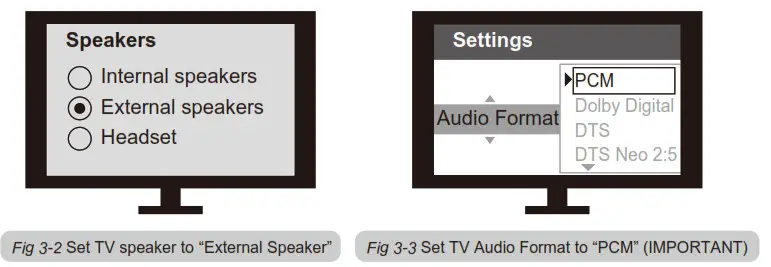
Note: Unplug any devices from the 3.5mm AUX jack while using the OPTICAL output.
AUX/3.5mm Audio Out
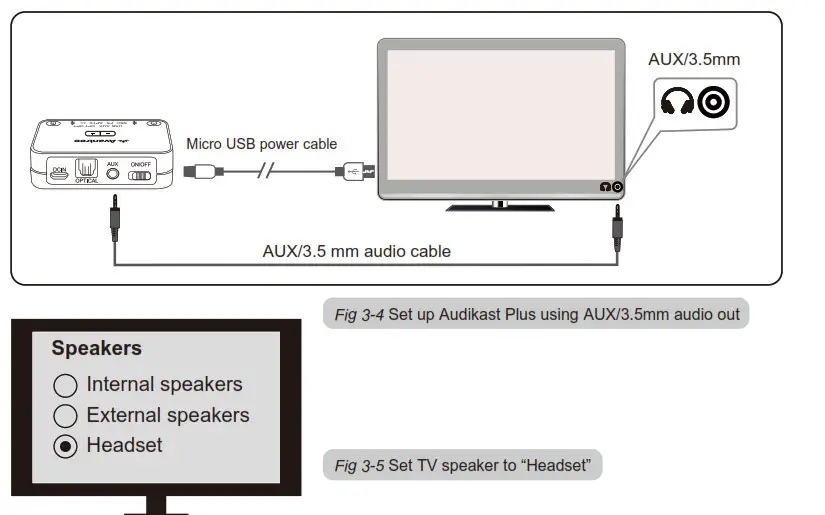
Now, you should be able to hear sound from headphones, if no sound, ensure your TV speaker is set to “Headset”.
RCA Audio Out (Red/White ports labeled “AUDIO OUT “)
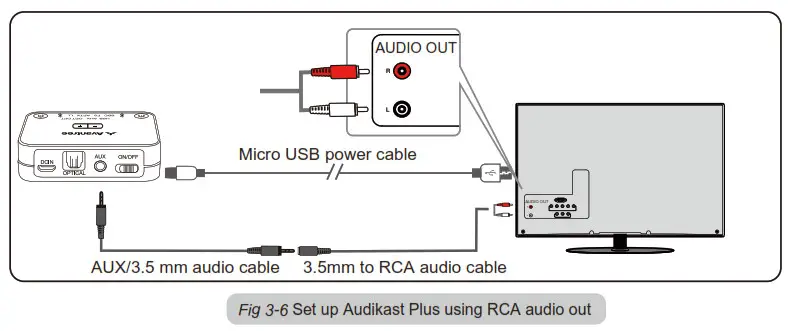
Now, you should be able to hear sound from headphones, if no sound:
a. Ensure use TV Red/White ports labeled “AUDIO OUT”, other Red/White ports are incorrect.
b. Ensure your TV Speaker is set to “External Speaker”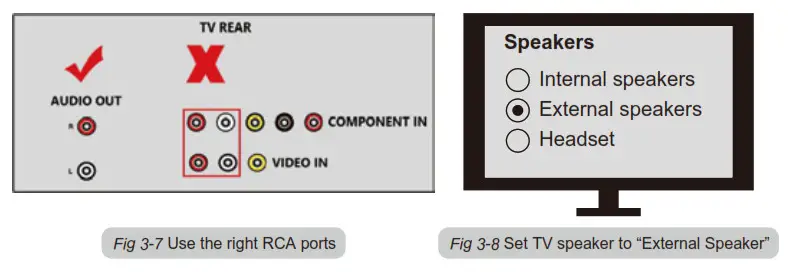
Receiver with 6.35mm Phone Jack at Front
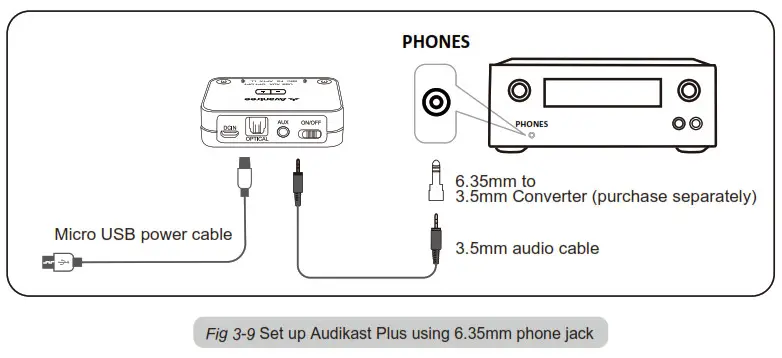
Note: Do NOT use the RCA ports on the back of an AV receiver. These are not suitable and will not work or could even permanently damage your Audikast product!
Charging headphones Tips
Please charge the headphones if you hear the “low battery” voice prompt. You can charge using a phone charger (5V/500mA-2A output), PC USB port, TV USB port or any other USB outlet using the included USB cable.
It takes about 2 hours to fully charge the headphones. The LED will turn RED during charging and turn off once charging is complete.
Add a 2nd pair of Bluetooth headphones
Step 1: Powering up the transmitter, then turn on the HT4186 headphones and transmitter – they will connect automatically.
Step 2: Enter the transmitter into PAIRING MODE manually – press and hold for 2 seconds,
  close to flash BLUE and RED alternately.
Step 3: Place your 2nd set of headphones into Bluetooth PAIRING MODE (please refer to your 2nd headphones’ user manual).
Step 4: Keep the devices close to each other and wait. Once connected, close to on the transmitter will turn SOLID BLUE.
For Next Use, the 2nd headphones will also auto-reconnect to the transmitter once turn on.
Otherwise, click once on the transmitter to initiate the reconnecting and close to flashes BLUE once per 2 seconds.
NOTE: If HT4186 headphone fails to reconnect Audikcast, please press the button once.
Troubleshooting
- No Sound.
1.1. Transmitter and Headphones are not connected properly
Turn off and on both headphones and transmitter, they should auto-connect to each other, once connected successfully,close to on transmitter, and LEDs on the headphones turn SOLID BLUE.
1.2. No audio signal into the transmitter
If connected using the OPTICAL port, 1) Ensure your TV audio format is set to “PCM”; 2) Change your TV audio OUT setting to “External Speaker”.
If connected using the RCA ports, 1) Ensure use the Red/White ports labeled “AUDIO OUT”. Other RCA ports are usually AUDIO IN and incorrect. 2) Change your TV audio OUT setting to “External Speakers”.
If connected using AUX/3.5mm audio out, change your TV audio OUT setting to “Headset”, and can you hear any sound with the headphone plugged directly into the TV? - TV speaker is muted while using HT4186.
This is a TV feature.
For many older models of TV, the internal TV speaker is muted when any of the audio output ports are connected (AUX, RCA, Optical, etc). For some TVs, e.g. LG, you can choose to play audio from the internal TV speakers and an external audio device simultaneously. Please try to change your TV settings or contact your TV manufacturer for more details.
If your family prefer to listen to TV speaker while you use the Bluetooth headphone, then one workaround is using an audio splitter, either a 3.5mm audio splitter ( e.g. Avantree TR302) or an optical audio splitter depending on which audio output you use, with an EXTERNAL SPEAKER to share TV audio with the HT4186. - Transmitter and headphones within HT4186 fail to reconnect
Turn OFF both transmitter and headphones. Then turn them both back ON and wait for 5-10 seconds for them to reconnect. If they don’t connect please follow the directions below.
Step 1: Clear paired history of headphones: Make sure NB16 is powered on. Press and hold + and – together for about 5s, until LED lights on BLUE and RED simultaneously for about 2s (looks PINK). It will power off thereafter. Power on again,it then enters pairing mode automatically with the LED flashing alternately RED and BLUE.
Step 2: Now, turn on the transmitter and wait for 5-10 seconds, they will auto-reconnect, close to on the transmitter and LED on headphones turn SOLID BLUE.
More FAQs on support.avantree.com
LED indicators of the transmitter(Audikast Plus)
| Status | LEDs indication | |
| Pairing | Pairing with HT4186 | close to  flashes BLUE and RED alternately flashes BLUE and RED alternately |
| Pairing with 2nd headphones | close to flashes BLUE and RED alternately | |
| Connected | Connected with HT4186 | close to turn SOLID BLUE |
| Connected with 2nd headphones | close to turn SOLID BLUE | |
| Reconnecting | Reconnect with HT4186 | close to flashes BLUE once per 2 seconds |
| Reconnect with 2nd headphones | close to flashes BLUE once per 2 seconds |
LED indicators & voice prompts of headphones(HT4186)
| Status | LEDs indication | Voice prompt |
| Power On | BLUE LED is on for 1 second | Power on |
| Power Off | RED LED is on for 2 seconds, then turn off | Power off |
| Pairing | RED and BLUE LED flashes alternately | Pairing |
| Connected with Audikast Plus | BLUE LED on | Your device is connected |
| Charging/charging complete | RED LED on/off | NA |
| Low battery | RED LED flashes once per 10 seconds | Low battery |