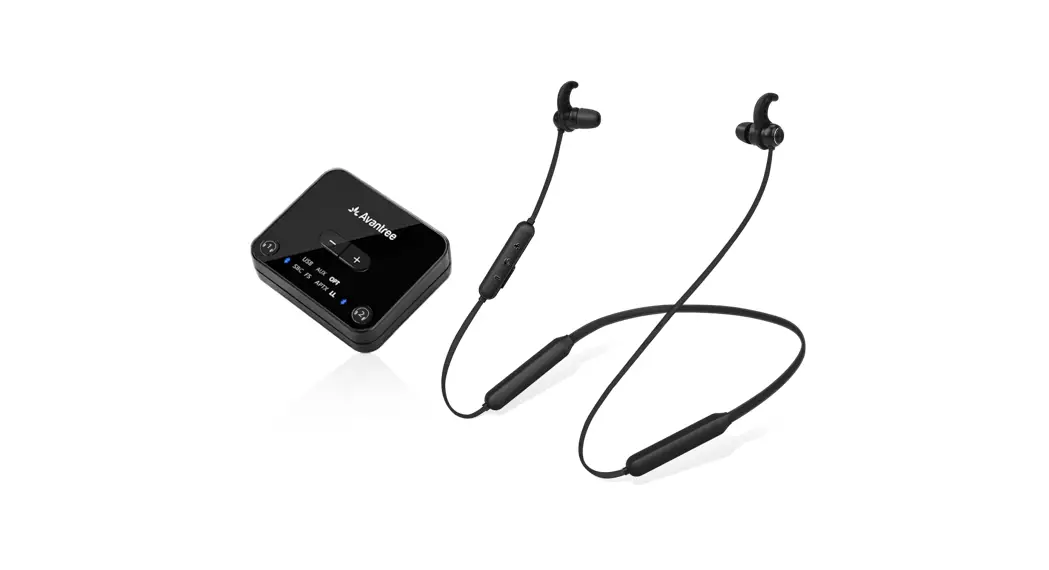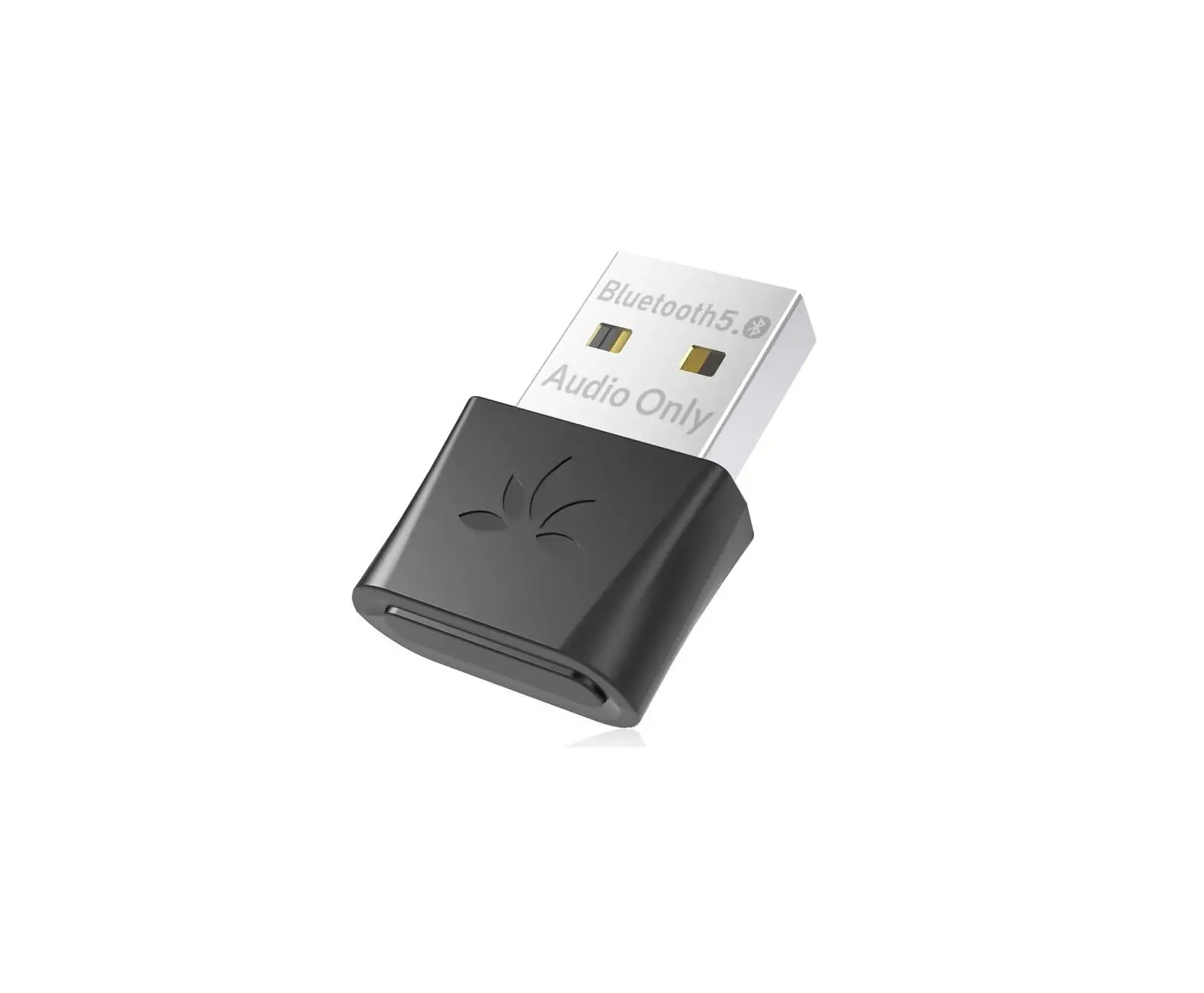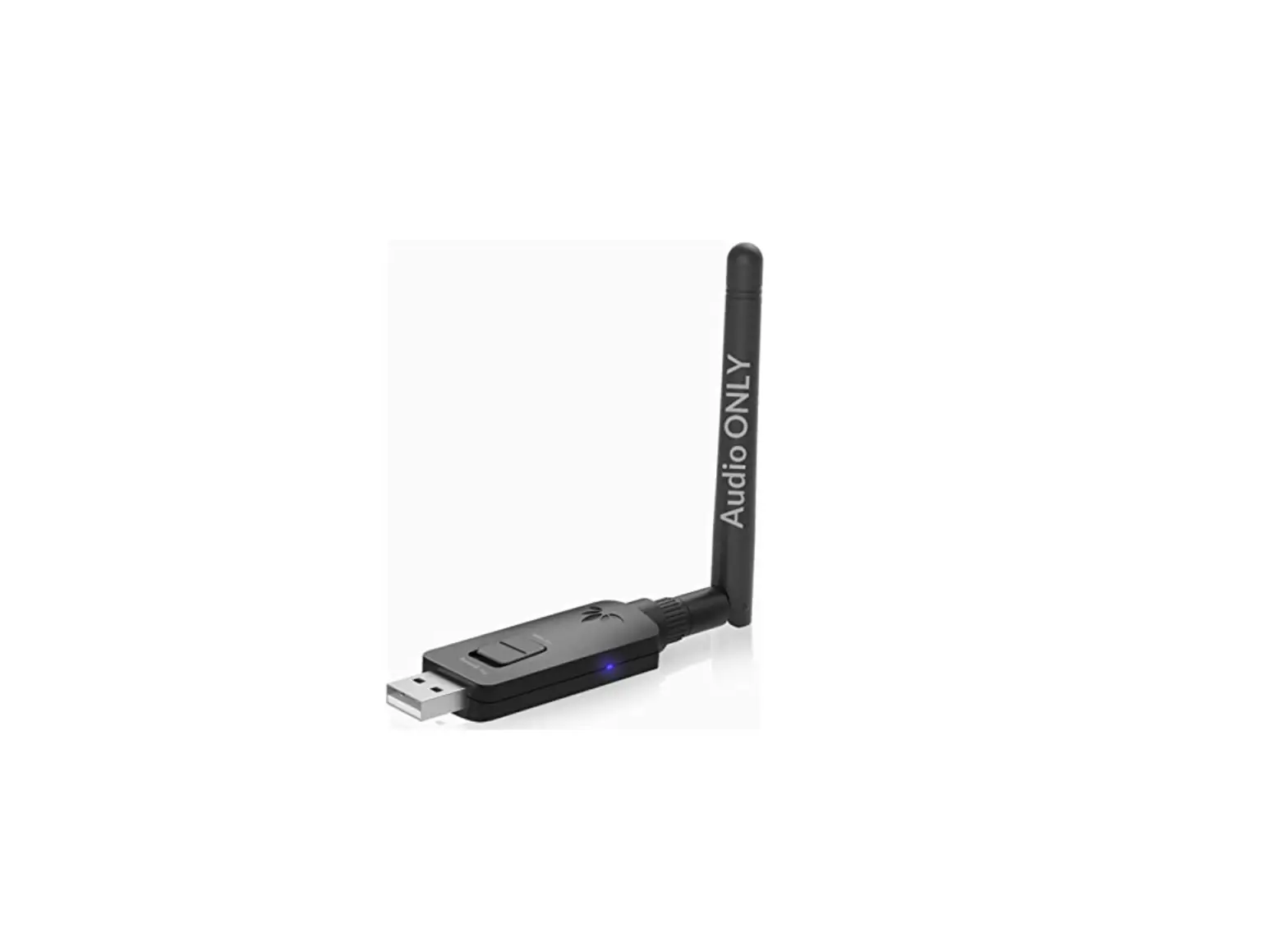

User Manual
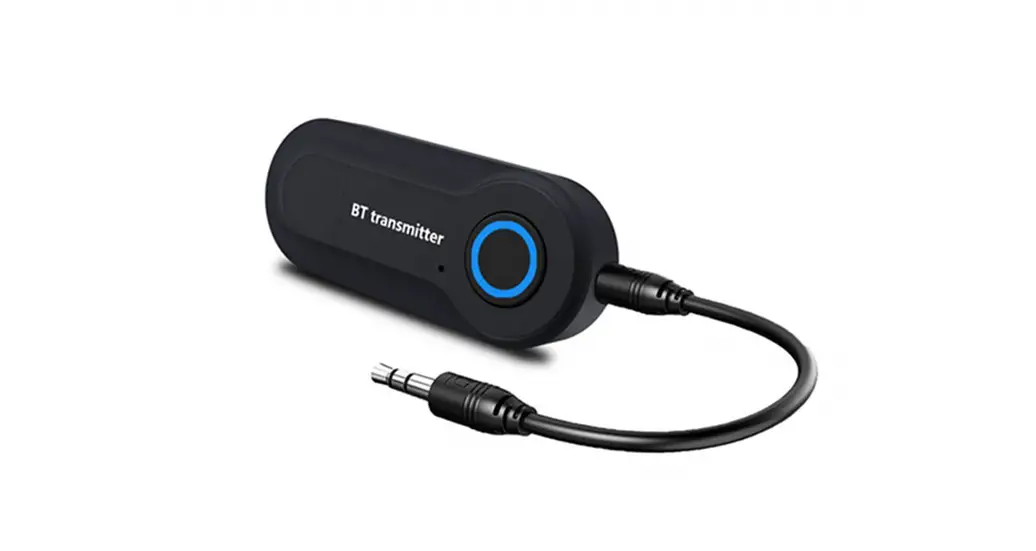
Bluetooth Transmitter
BTTC-418-P
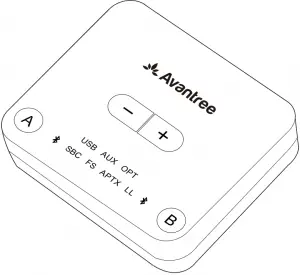
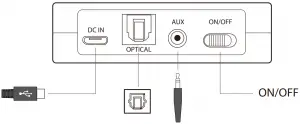
Overview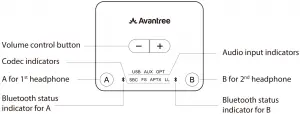
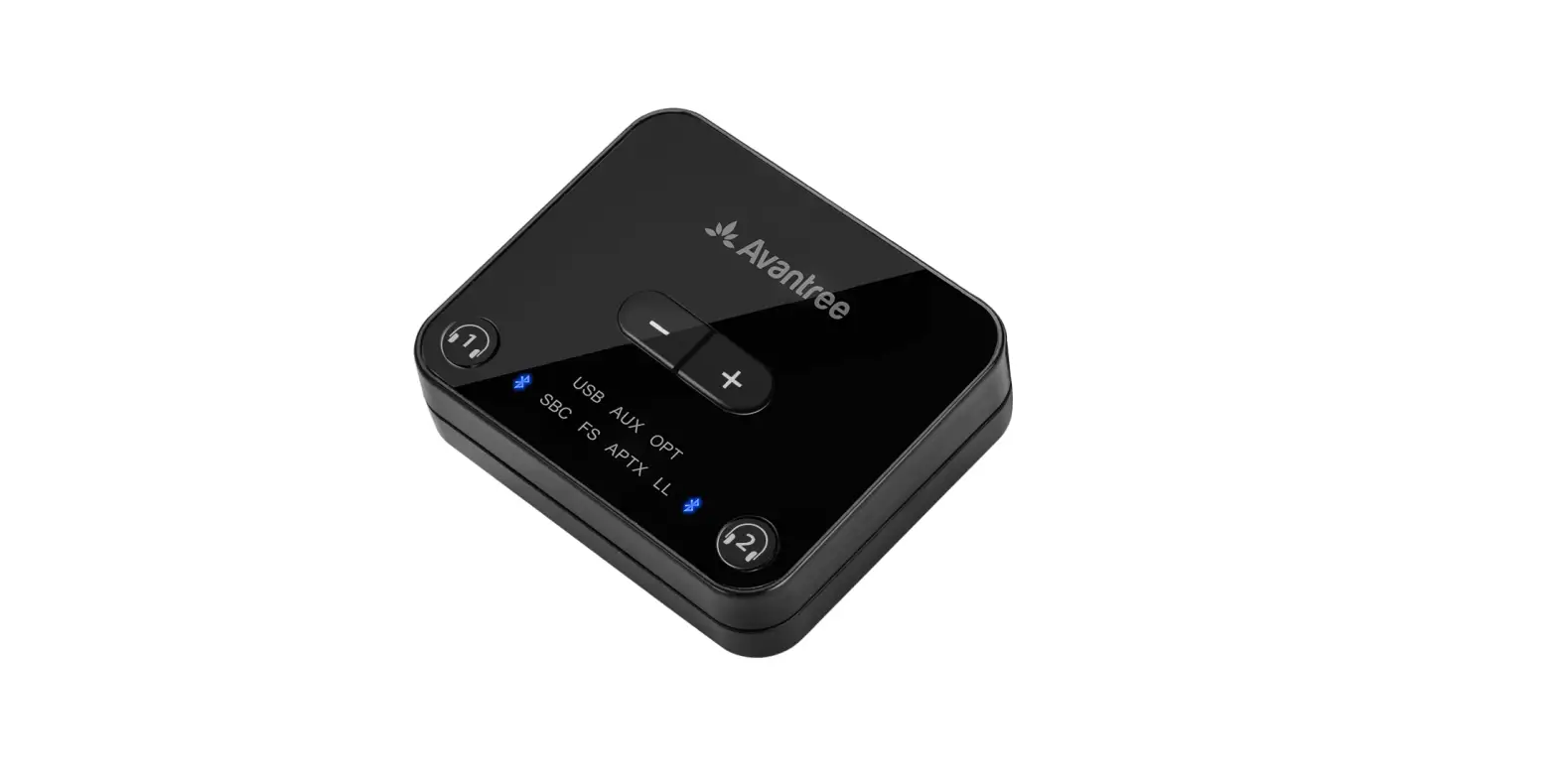
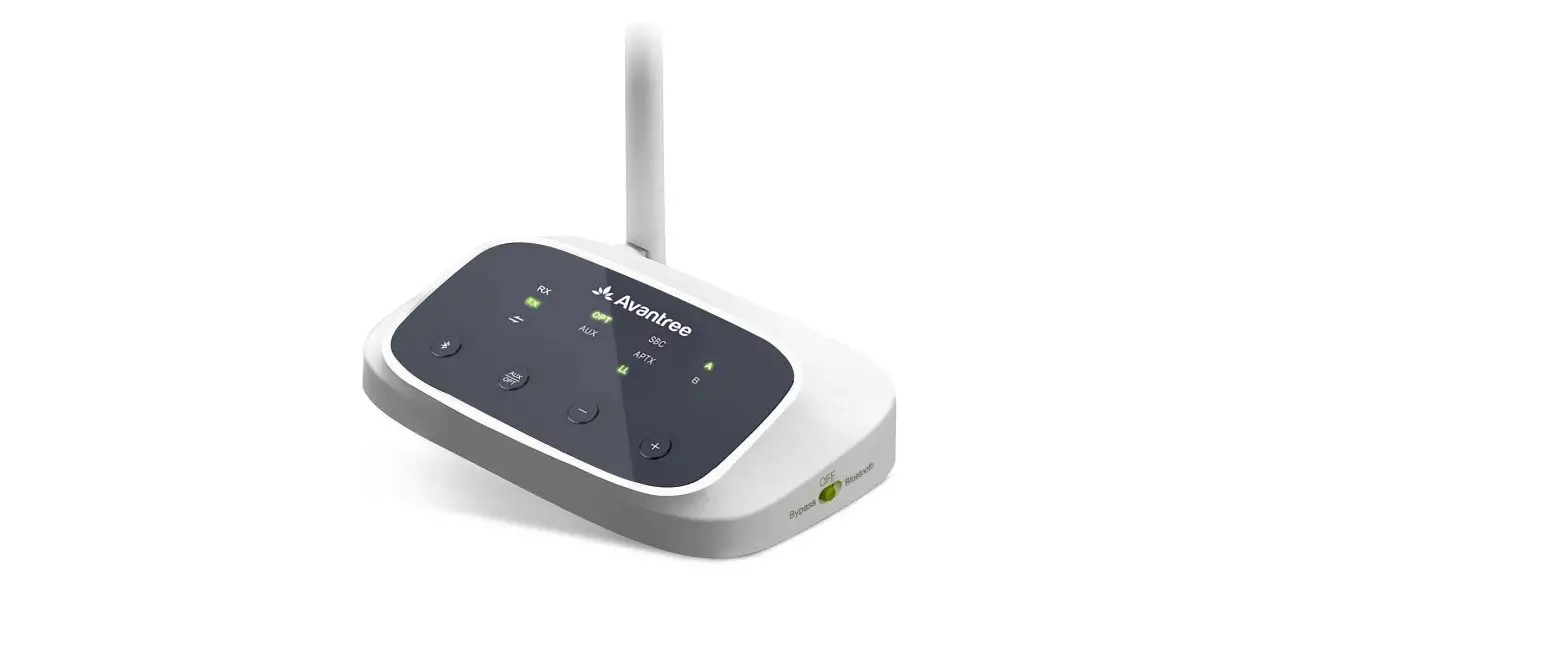
LED indication
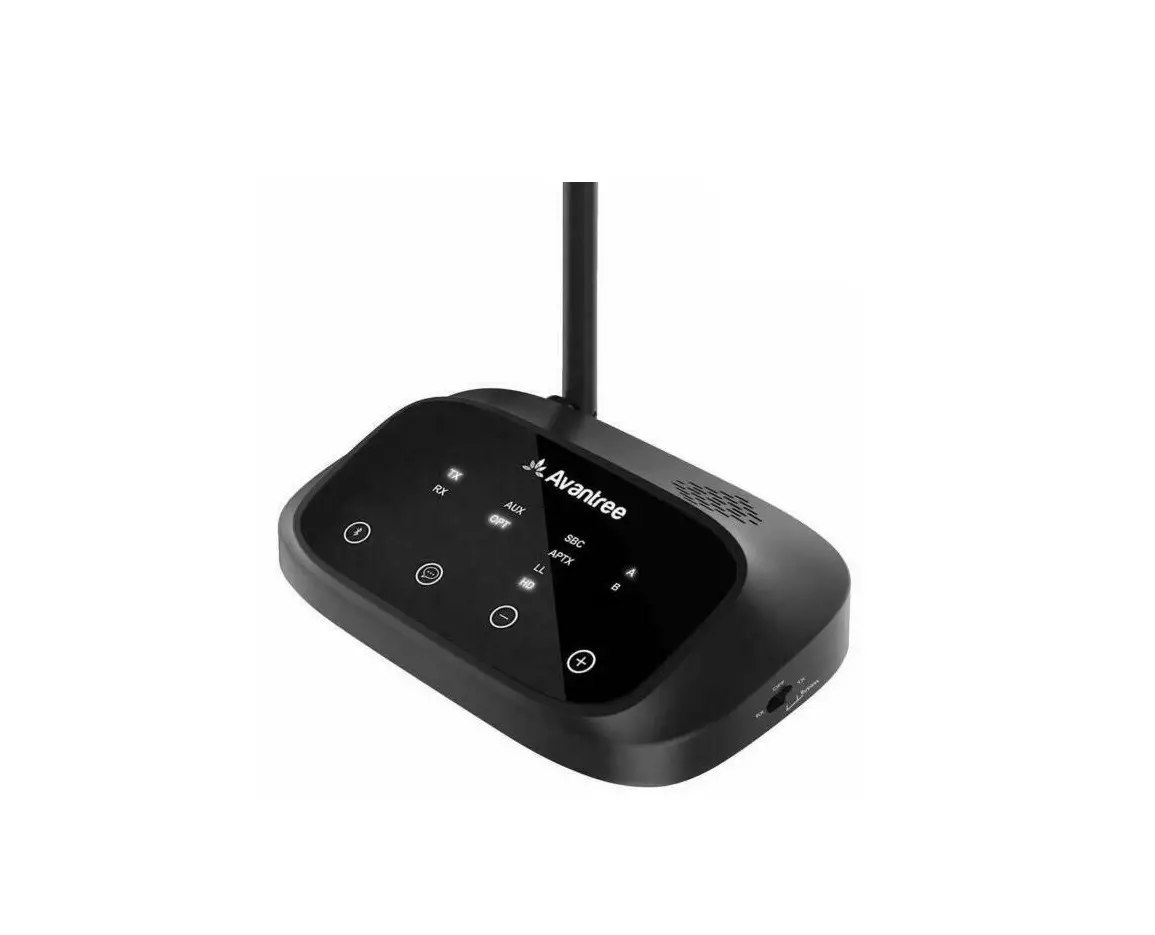
| Status | LED Indicator |
| Power on | All LED light up for 2 seconds |
| Pairing |  flash RED and BLUE alternately flash RED and BLUE alternately |
| Connected | turn solid BLUE |
| Reconnecting | flash BLUE every 2 seconds |
| Valid optical audio signal | OPT lights up |
| Invalid optical audio signal | OPT flashes |
| Valid analogue audio signal | AUX lights up |
| Invalid analogue audio signal | AUX flashes |
| Audio Playing on PC | USB lights up |
| Connected using the aptX LOW LATENCY codec | LL turn solid light |
| Connected using the aptX codec | APTX turn solid light |
| Connected using the FastStream codec | FS turn solid light |
| Connected using the SBC codec | SBC turn solid light |
1
Pair and connect to Bluetooth headphones
Powering up the transmitter
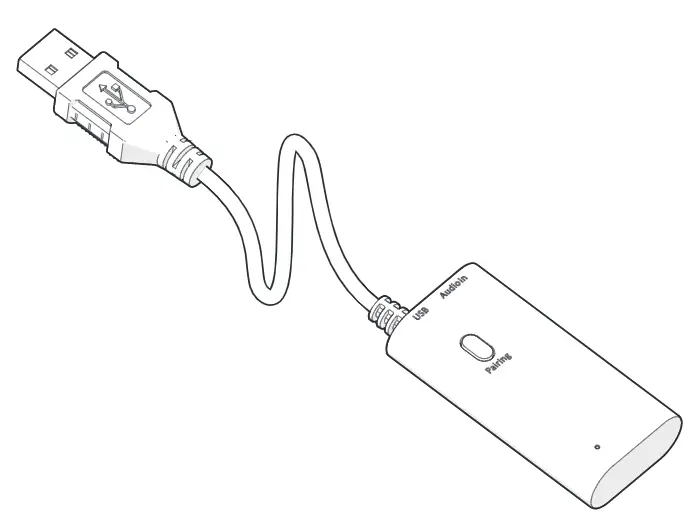
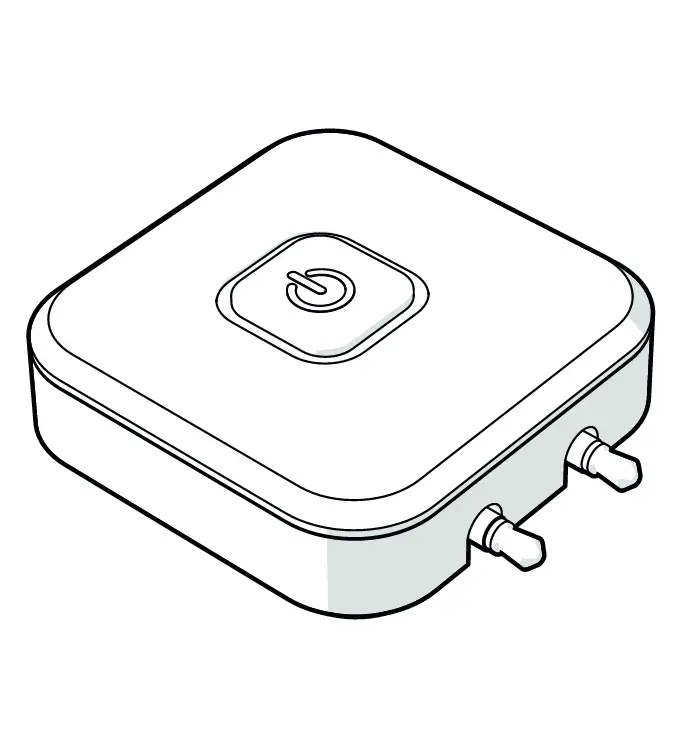
Power up the transmitter using the USB cable provided. Connect it to either TV USB port (TV must be ON to provide power) or a 5V/500mA-2A rated USB charger (e.g. your phone charger should work.) Then slide the ON/OFF switch to ON. All LED lights will light up for 2 seconds upon powering on.
Enter the transmitter into PAIRING MODE
For first time use, the transmitter will enter pairing mode automatically, the next to A will flash RED and BLUE alternately. For non-first-time use, press and hold A for 1 second to enter pairing mode.
Enter your headphones/speakers into PAIRING MODE
Please refer to relevant user manual (Usually LED on headphone flash RED and BLUE alternately or flash BLUE quickly)
Connecting
During the pairing process, keep the devices close to each other and wait. Once connected, the next to A will turn SOLID BLUE.
Reconnect
NO need to manually reconnect the transmitter to your device before each use. The transmitter will automatically reconnect to the last connected device within 5-10 seconds after both devices had been powered on. Alternatively, reboot the transmitter and wait 5 -10 seconds for them to reconnect.
If the next to A on the transmitter turn solid BLUE, it confirms that the connection between the transmitter and headphones is working normally. The next step is to feed the audio from your TV into the transmitter.
After you’ve connected the transmitter to your TV/audio while following the steps shown in the sections below, if you still cannot hear anything through your headphones, please either adjust your TV audio output setting as suggested or contact your TV manufacturer for support.
Use with your TV
Check your TV output options before the set up
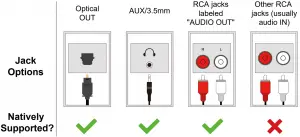
2
TVs with OPTICAL audio out
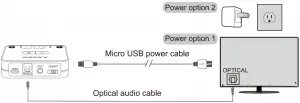
After connecting your optical cable as above, go to your TV audio settings and change your “audio format” to “PCM”. Usually, now the “OPT” indicator on the Audikast Plus will change to SOLID WHITE, and now you should be able to hear your TV/audio source through your headphones.
If not:
1) Ensure that your TV Speaker is set to “External Speaker.”
2) Ensure that your TV’s “DOLBY/DTS” is set to OFF (NOT auto.)
3) Ensure the audio cable is good and fully plugged.
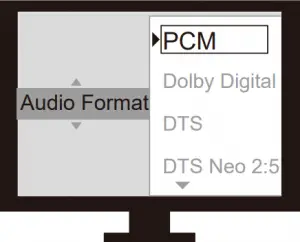
Set TV Audio Format to “PCM” (IMPORTANT)
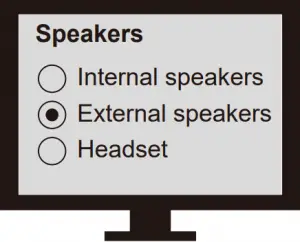
Set TV speaker to “External Speaker”
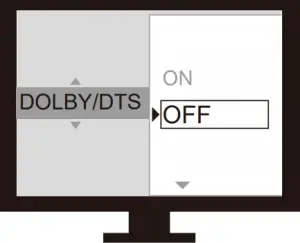
Set “DOLBY/DTS” to OFF
Note:
Please make sure that you keep the 3.5mm AUX jack “vacant” while using the OPTICAL out. (If anything is plugged into the AUX jack, the transmitter will default to the AUX signal and ignore any OPTICAL input.)
TVs with AUX 3.5mm audio out
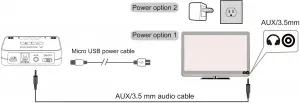
3
After connecting your audio cable as above, once the VALID audio signal is detected, the “AUX” indicator on the Audikast Plus will light up SOLID WHITE, and you should be able to hear your TV/audio source through your headphones.
If not:
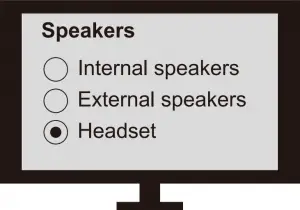
1) Ensure your TV speaker setting is set to “Headset.”
2) Plug a pair of wired headphones into the headphones jack you’re using with the Audikast Plus on TV. See if you can hear anything.
3) Turn up the volume and see if it helps.
4) Ensure the audio cable is good and fully plugged.
TVs with RCA audio out(Red/White ports labeled “AUDIO OUT”)
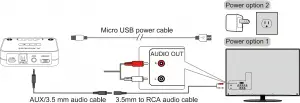
After connecting your audio cable as above, once the VALID audio signal is detected, the “AUX” indicator on the Audikast Plus will light up SOLID WHITE, and you should be able to hear your TV/audio source through your headphones;
If not:
1) Ensure that you’re using the TV Red/White ports labeled “AUDIO OUT” other Red/White ports will NOT work.
2) Ensure that your TV Speaker setting is set to “External Speaker.”
3) Plug a pair of wired headphones into the RCA jack you’re using with the Audikast Plus on TV. See if you can hear anything.
4) Turn up the volume and see if it helps
4
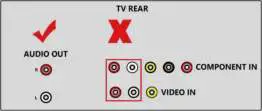
Use the right RCA ports Set TV speaker to “External Speaker”
Use with your AV Receiver with 6.35mm PHONE jack
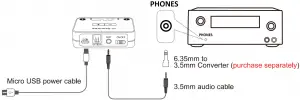
Notes:
1) If you’d like to connect the Audikast Plus to your AV Receiver, please ONLY use the “PHONES” jack on front side of your receiver to avoid damaging the Audikast Plus. You WILL need to purchase an additional “6.35mm to 3.5mm” adapter.
2) To avoid damaging your hearing, we recommended turning down the volume of your receiver before use.
Use with your PC/Laptop
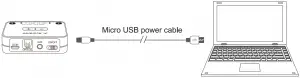
5
Note:
If you’d like to use an USB cable that’s not provided by us, please ensure that the USB cable supports both data syncing and power.
After connecting the micro USB cable as above, you should be able to hear from your computer through your headphones, and the “USB” indicator on the transmitter will light up; if not:
Right-click the speaker icon on the bottom-right corner of the PC/laptop screen and select “Playback devices.” In there, set “Avantree Audikast Plus” as “Default Device.”
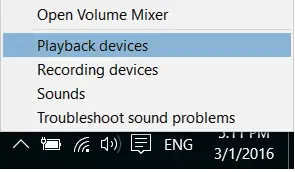
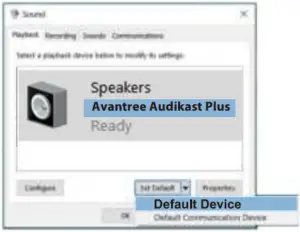
Set Avantree Audikast Plus as the playback device
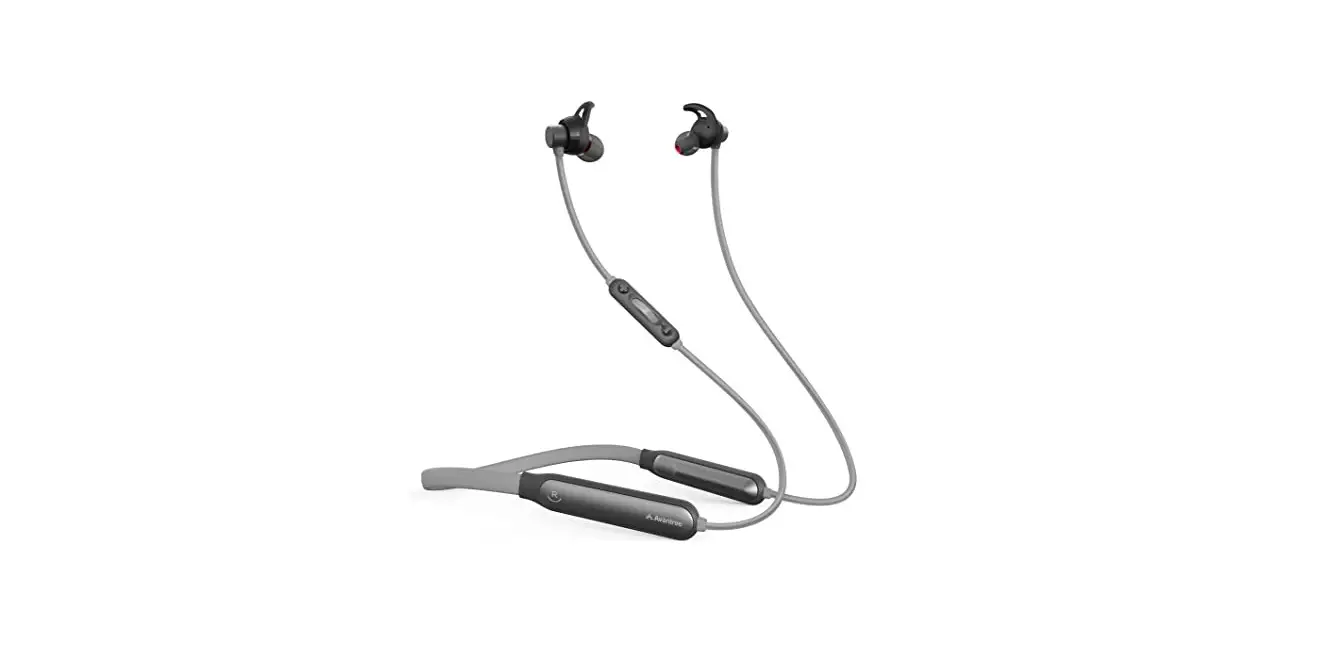
To use the Audikast Plus as a microphone device, please go to your audio settings and select “Avantree Audikast Plus” as “Microphone and Speaker device.”
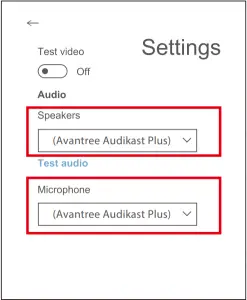
Set Avantree Audikast Plus as the Speakers and Microphone
Add a 2nd pair of Bluetooth headphone
Step 1: Pair and connect the transmitter to the 1st Bluetooth headphone.
Step 2: Enter the transmitter into PAIRING MODE manually – press and hold B for 1 second. The close to B will flash RED and BLUE alternately.
Step 3: Place your 2nd set of headphones into Bluetooth PAIRING MODE (please refer to your 2nd headphones’ user manual.)
Step 4: Keep the two devices close to each other and wait. Once connected, the close to B on the transmitter will turn SOLID BLUE.
6
Clear paired history
Press and hold both + and – simultaneously for 7 seconds. BOTH of the indicators will light up BLUE and RED (looks like PINK) for 5 seconds, indicating that the history has been cleared.
Adjust volume
Click or press volume control +/- once to adjust the volume. “Beep” sounds indicate that it has reached max/min volume level.
Troubleshooting
Not working/ no sound
1. The Audikast Plus and headphones are not connected properly
Re-pair and connect them, once connected successfully, close to A / B turn SOLID BLUE.
2. No audio signal into the Audikast Plus
Please adjust your TV audio output setting as suggested in Point Connect the transmitter to your TV/audio source or contact your TV manufacturer for support.
Audio delay
Bluetooth headphone is NOT aptX LL supported – If your Bluetooth headphone does not support aptX LOW LATENCY (e.g. Bose, Beats, Sony), it will work with the Audikast Plus using SBC or aptX codec and will experience a 70-220ms latency.
Short range / audio cuts
Unstable Bluetooth connection – Clear paired history of BOTH Audikast Plus and headphones.
Wireless signal interference – Move away any potential wireless interference devices, such as the WIFI router, Apple TV, Chromecast stick, Roku stick, any other RF audio transmitters etc.
Short work range of headphone – Work range is decided by devices on BOTH ends. Please test the work range of headphone is ok – test it with your smart phone.
Source issue – When you play an internet source from PC, Mac or cellphone, quite often, the audio cuts are Internet bandwidth / speed related. Please test with local source Bluetooth streaming and check again.
More FAQs at:
https://support.avantree.com/hc/en-us/sections/360003285831-TC418P-BTTC-418P-BLK-
7
 Support Center | Avantree