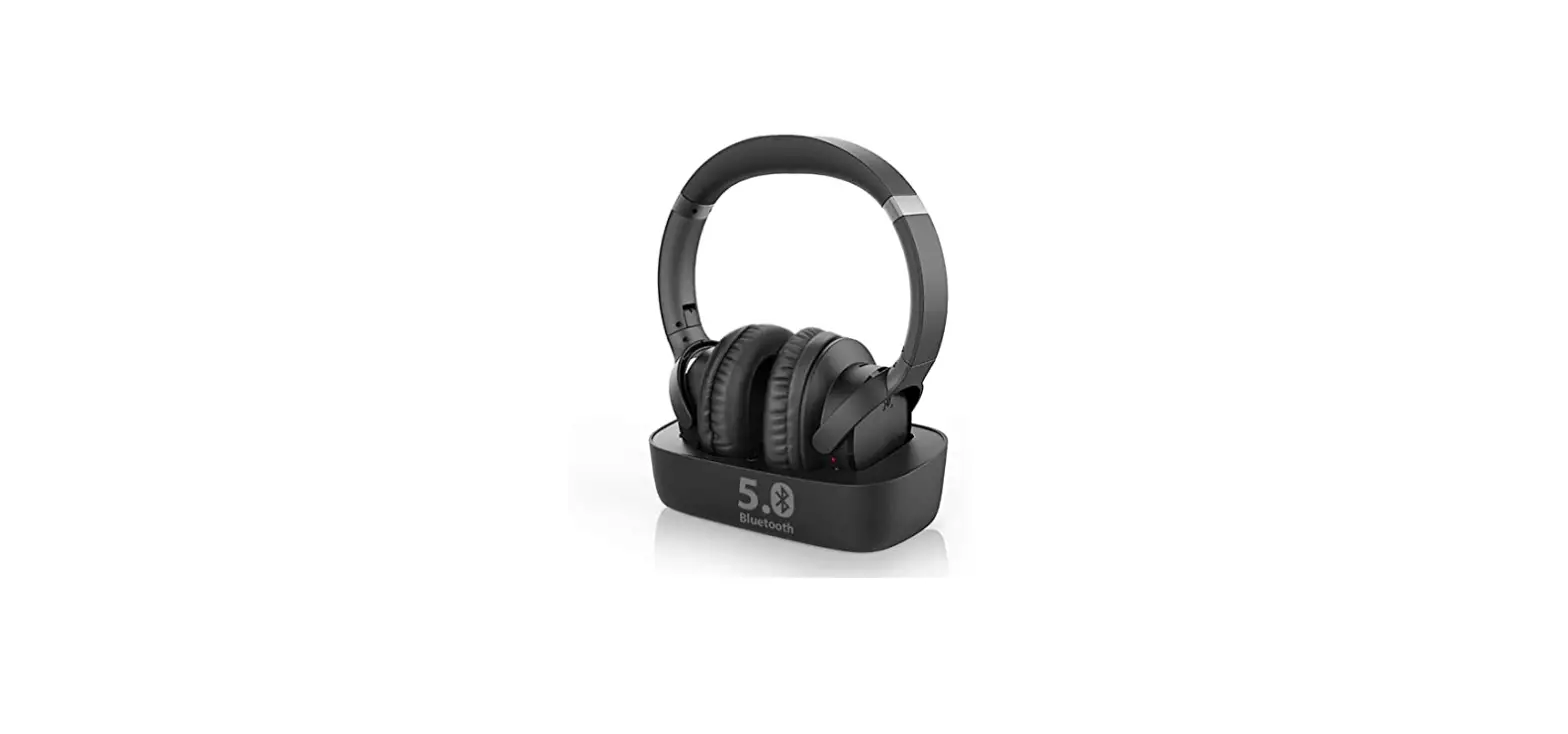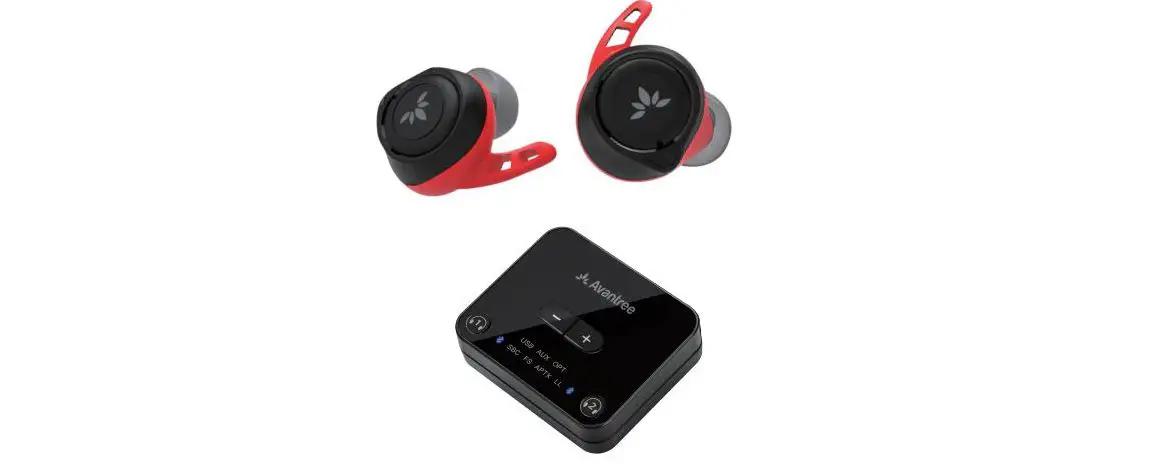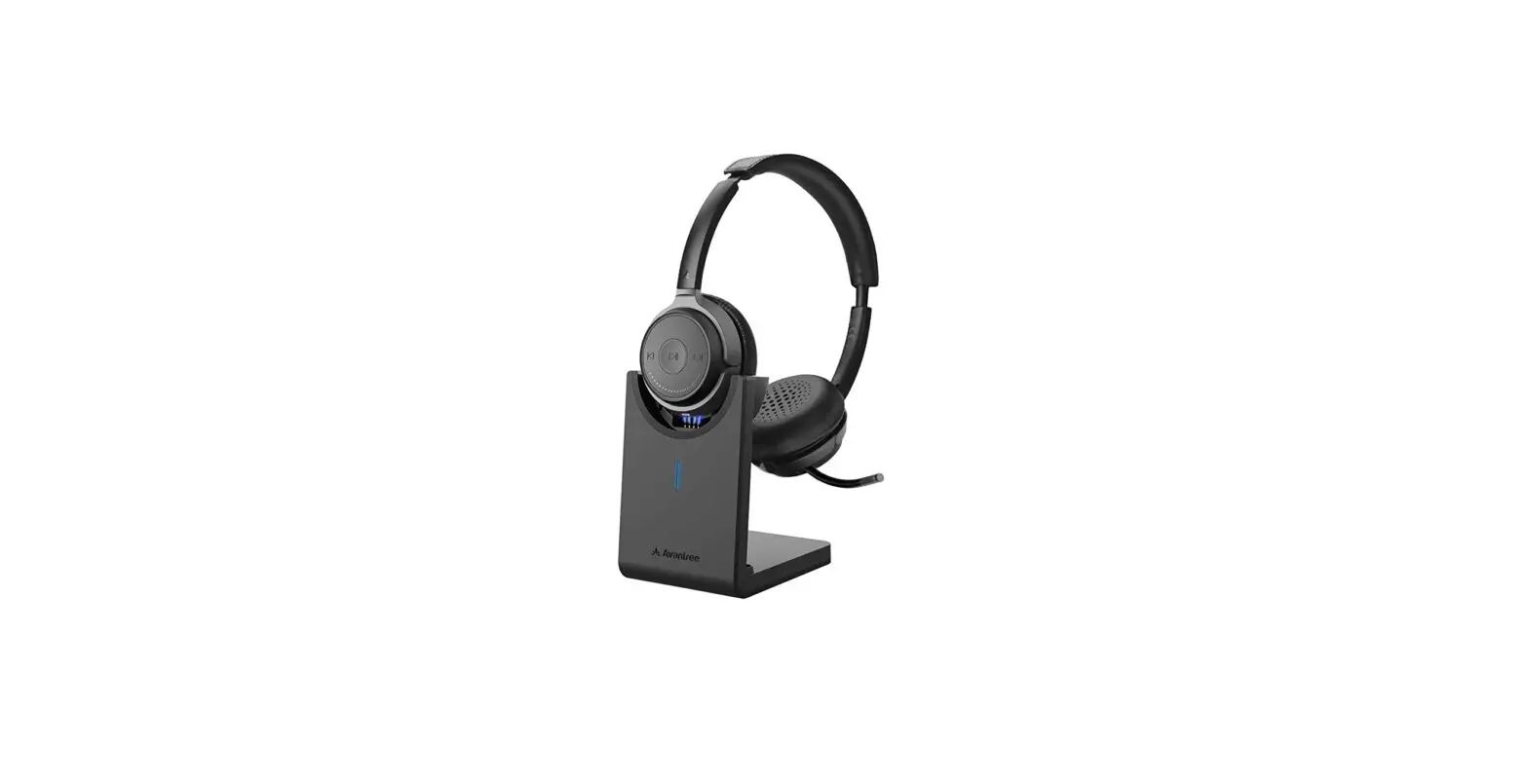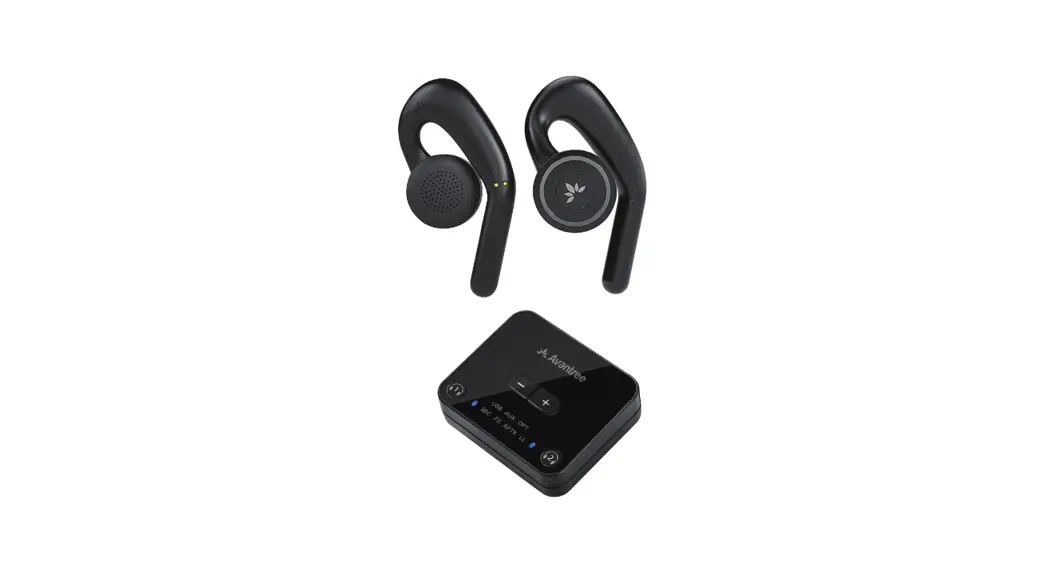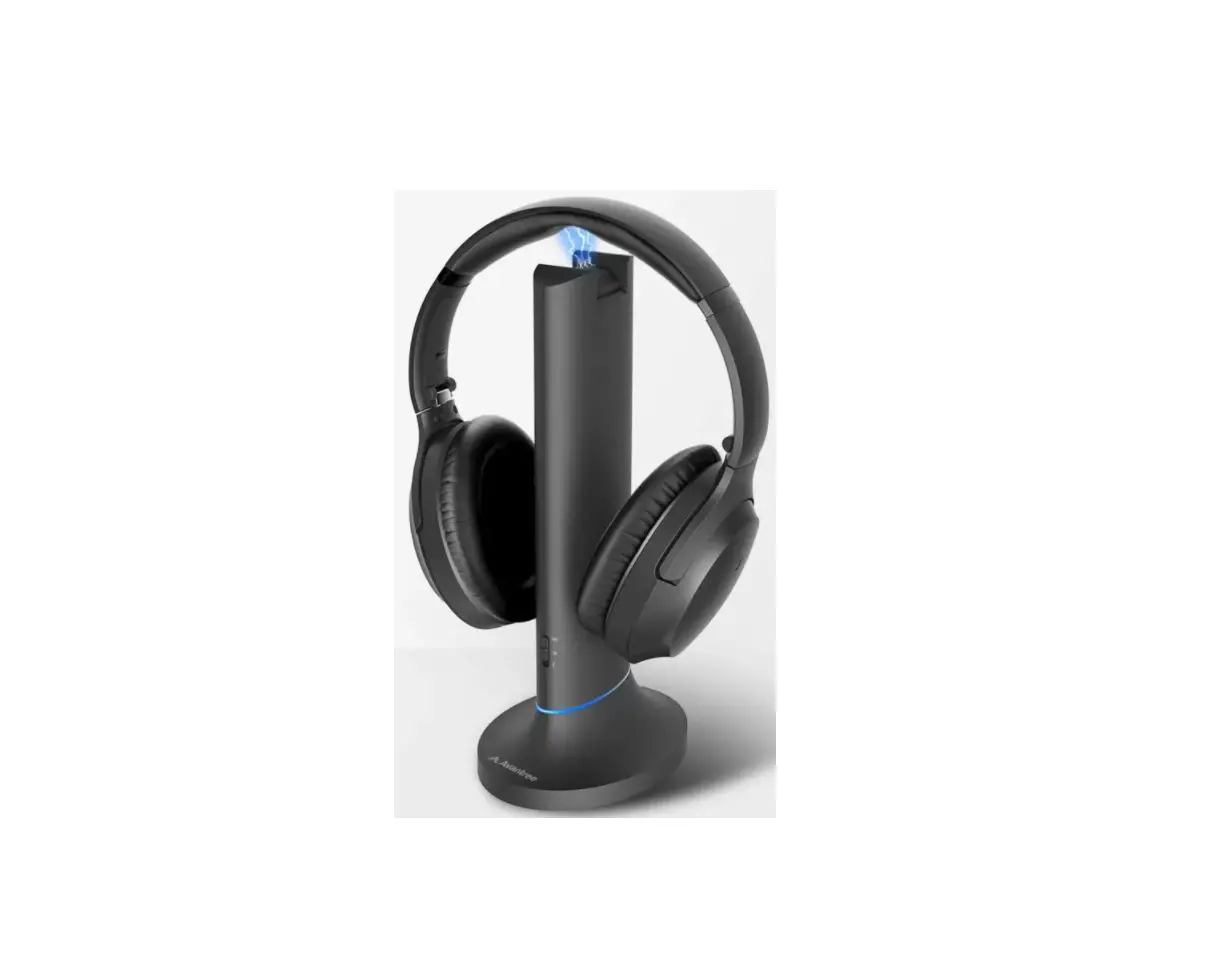
Avantree HT6190 Wireless Headphone User Guide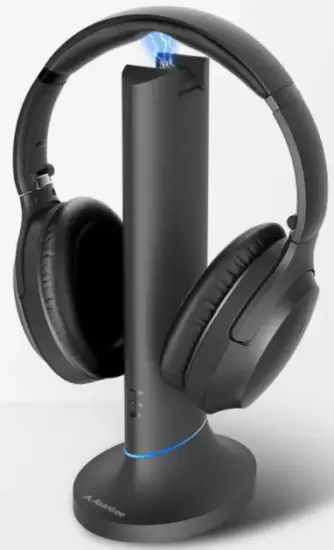
Please Visit
https://avantree.com/prnduct-support/BTHT-6190-BLK for detailed step-by-step setup guide
Product Overview
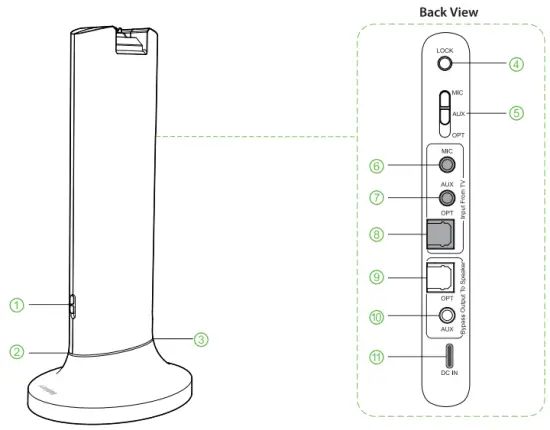
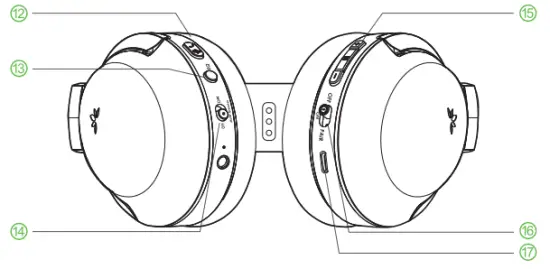
- Power ON/OFF/Pairing
- Power/Connection Indicator
- Signal Detection Indicator
- Lock (headphones to dock)
- Audio Input Select
- Microphone Audio IN
- AUX Audio IN
- Optical Audio IN
- Optical Audio OUT
- AUX Audio OUT
- DC IN
- Call Button
- Equalizer Mode Select
- Mute Speaker Switch
- Volume/Track Skip Control
- Power ON/OFF/Pairing
- DC IN
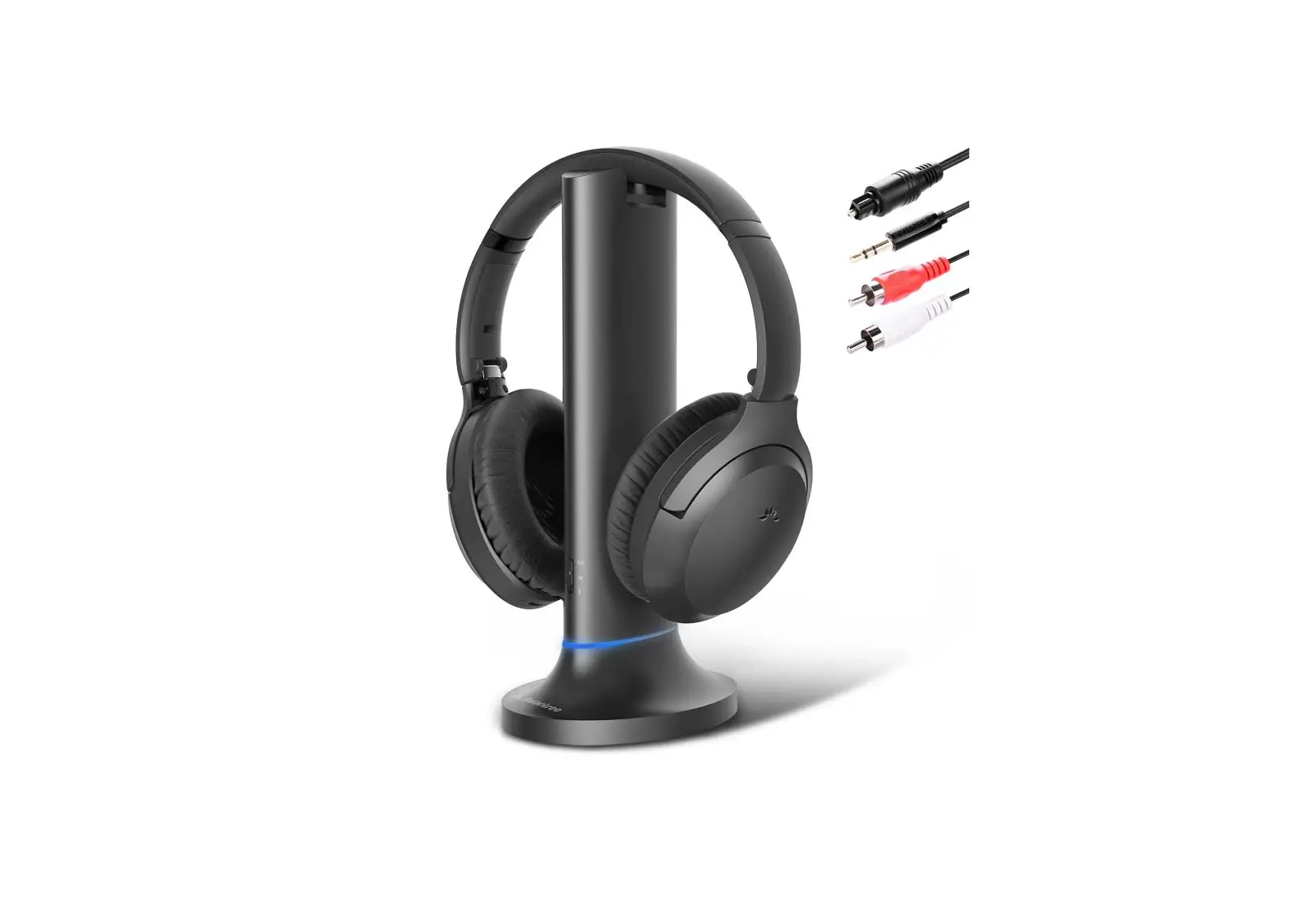
What’s in the box?
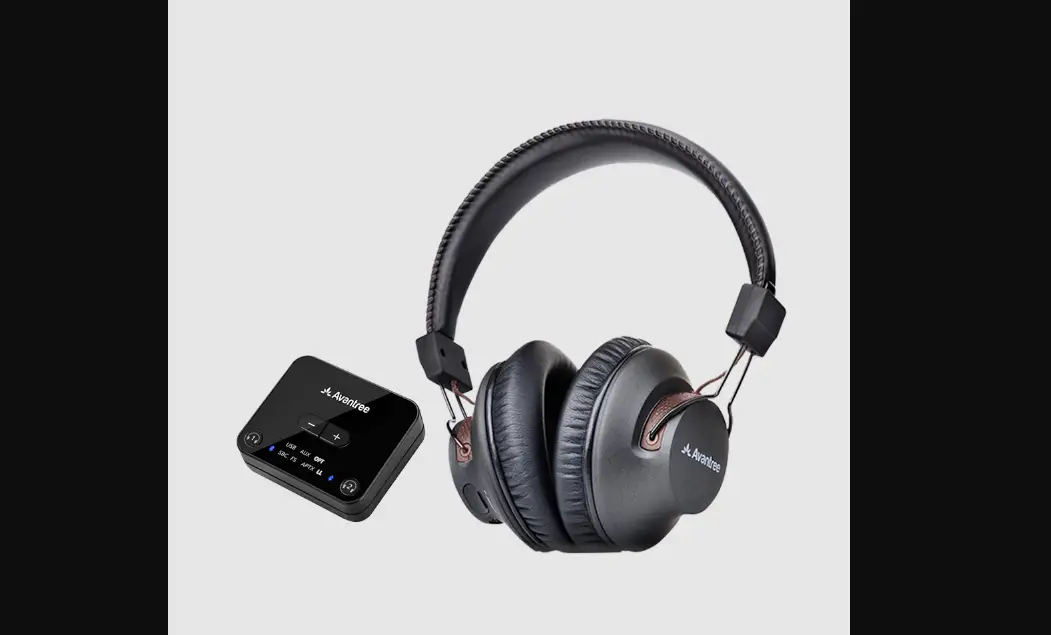
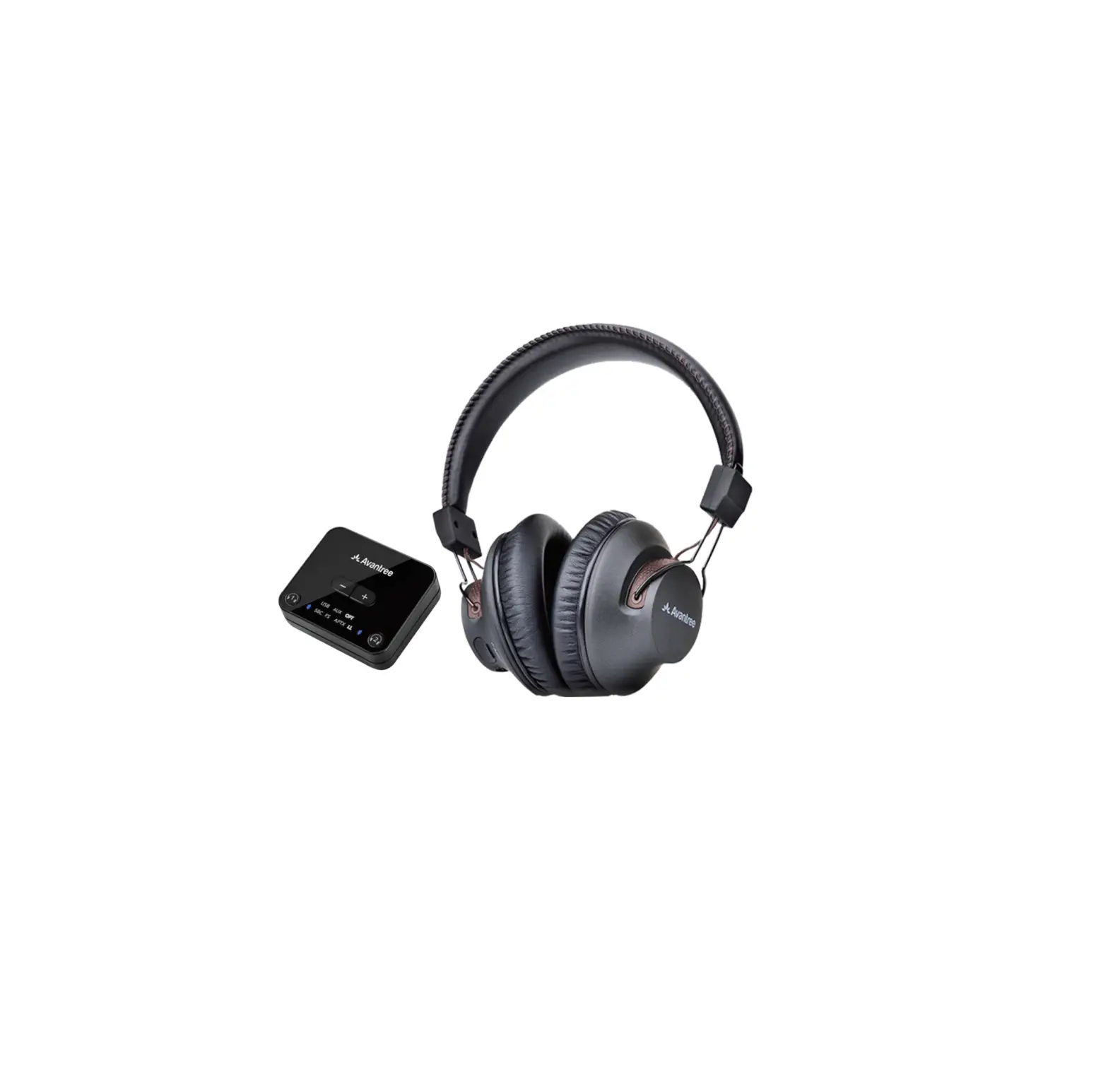
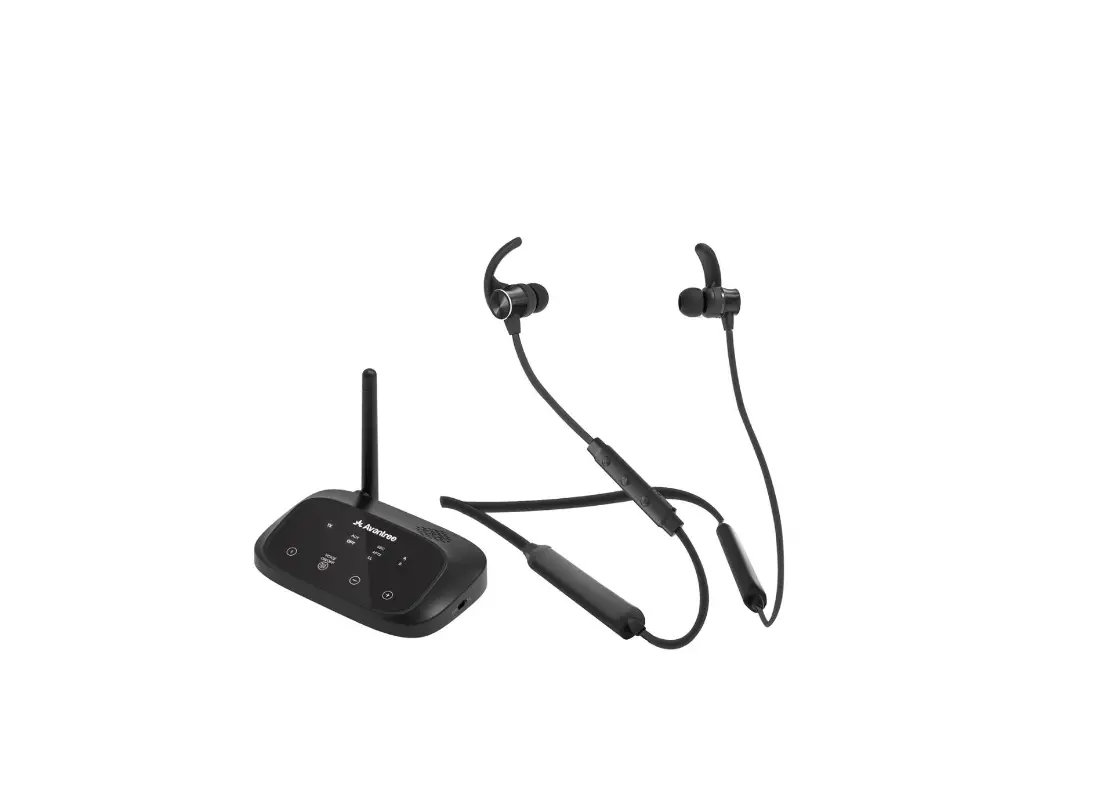
- Opera BT Transmitter
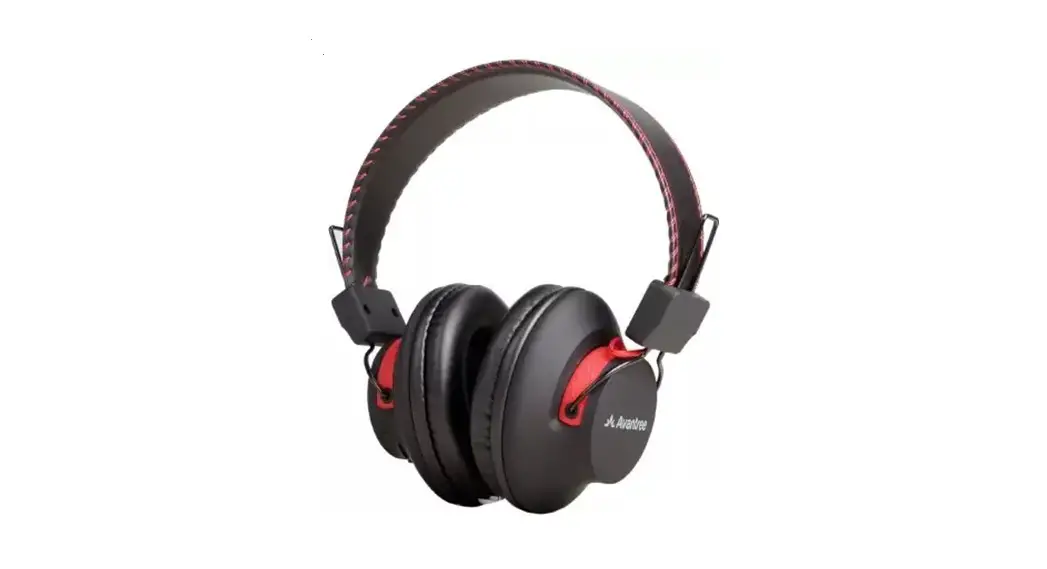
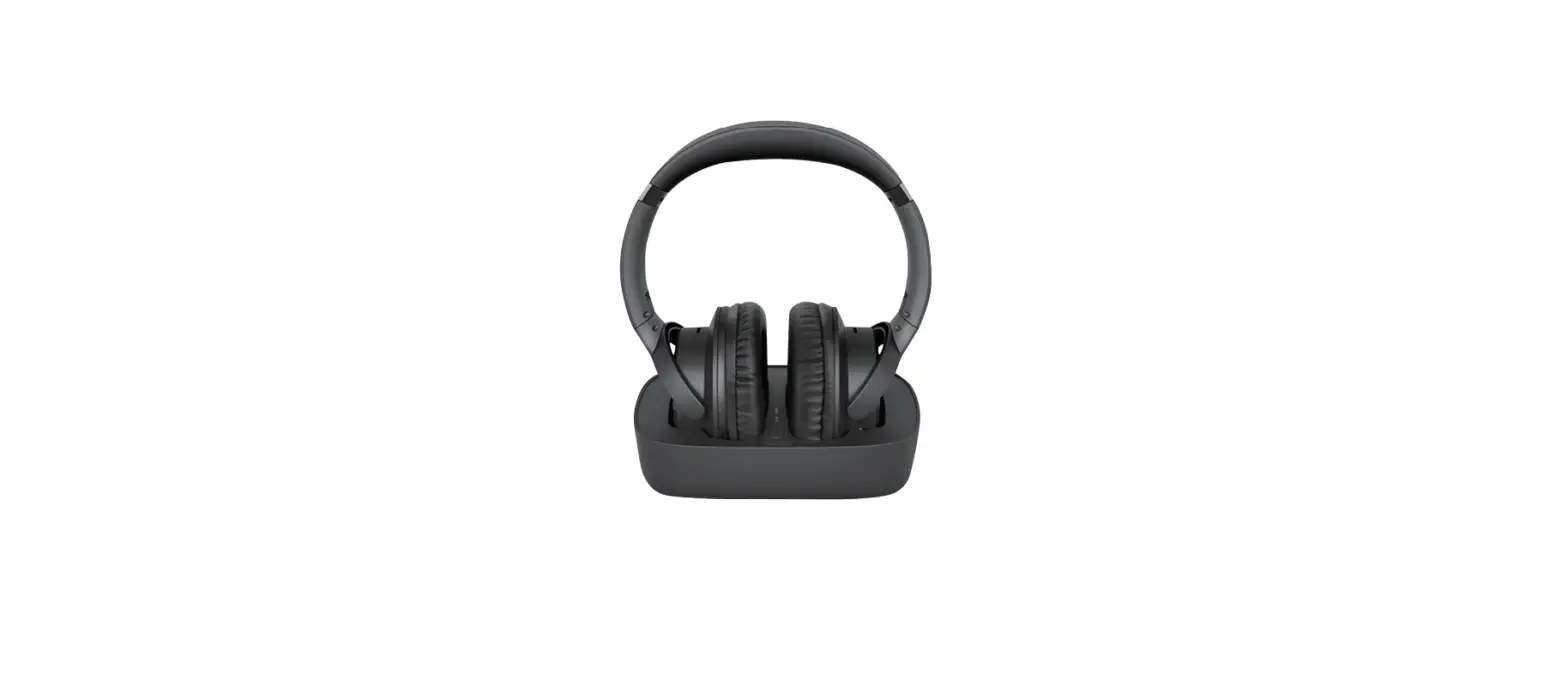
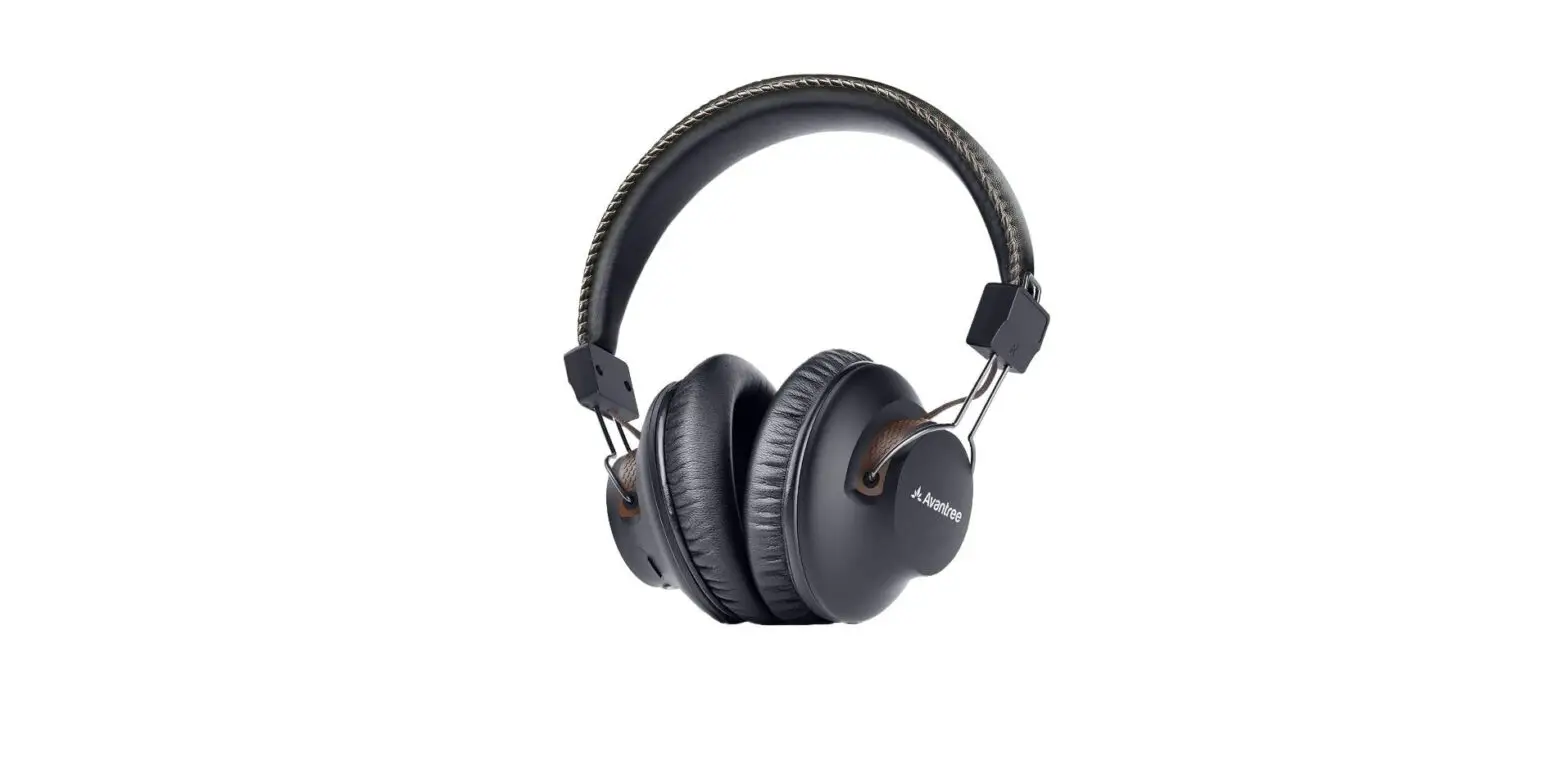
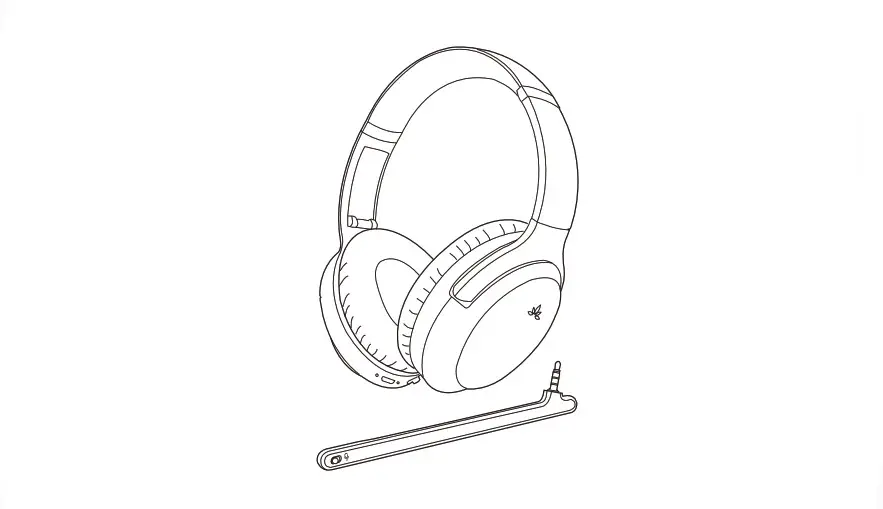
- AS90C Headphones
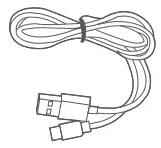
- USB Type-C Cable (13M)
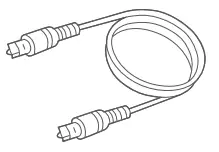
- Optical Audio Cable
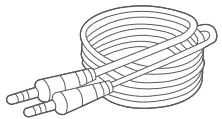
- AUX 3.5mm Audio Cable
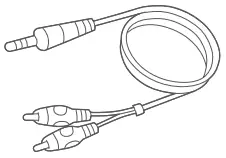
- 3.5mm to RCA Audio Cable
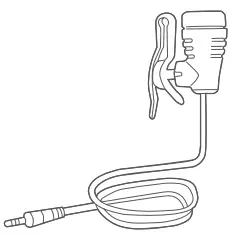
- Wired Microphone
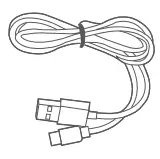
- USB Charging & Data Cable (0.5M)
Connecting Instructions
Part 1: Connect to Your Audio Source
If your audio source is not a TV, please visit avantree.com/product-support/BTHT-6190-BLK for instructions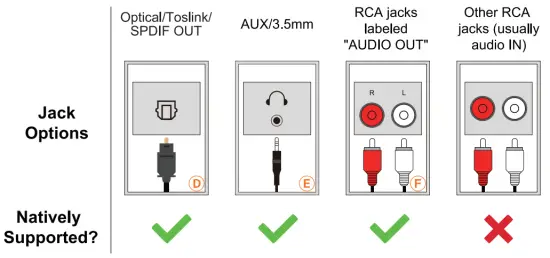
OPTION 1: Digital OPTICAL/TOSLINK/SPDIF — Recommended!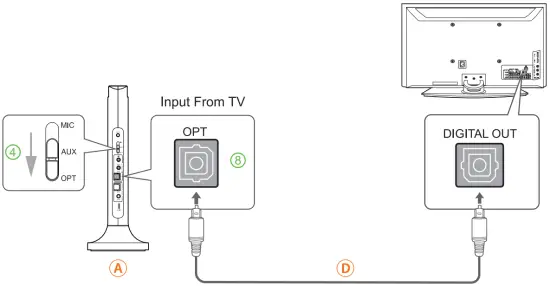
OPTION 2: AUX 3.5mm/ Headphone Out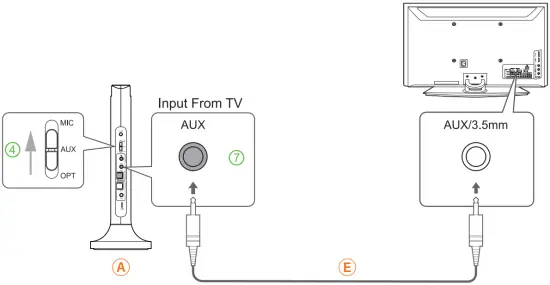
OPTION 3: Red/White RCA Audio Out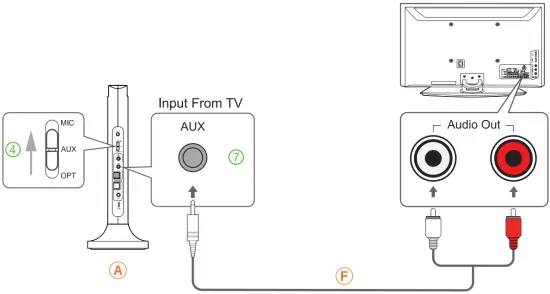
Inaccessible or No Audio ports on TV?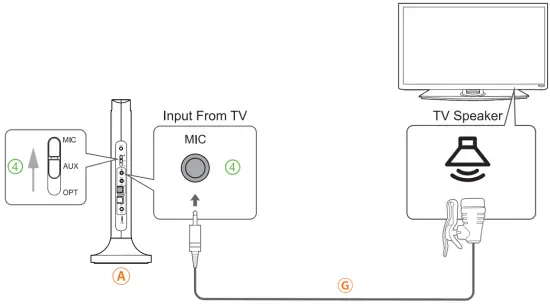
If you Have a Soundbar or AV Receiver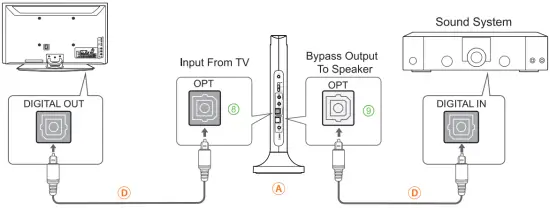
NOTES: Use the same type of audio cable for both connections (OPT to OPT, AUX to AUX) To connect transmitter to an AV Receiver with a 6.35mm front Phone jack, please use a 6.35mm to 3.5mm adapter (not included). For more instructions please visit support.avantree.com.
Part 2: Using Your Headphones with the Transmitter Dock
Step 1 – Connect dock to a Power Source and turn it on.
Connect the transmitter A to a USB wall charger (SV/SOOmA-2A) via the USB Type-C cable C provided.
Note: A TVUSB port will also work as a power source but bear in mind that the dock can only charge the headphones when the TV is ON. Contact us at [email protected] for a free USB wall charger if you need one.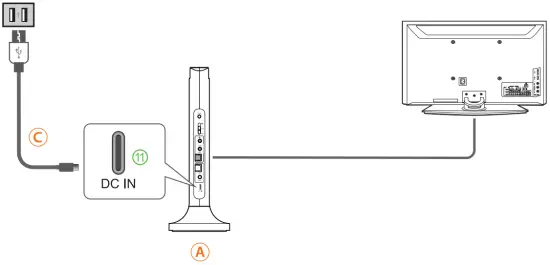
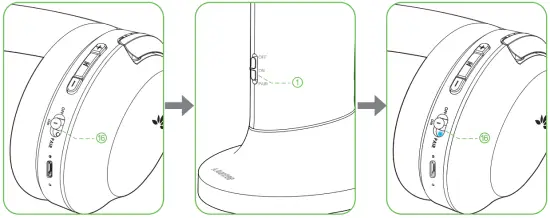
Step 2 – FOLLOW THE STEPS BELOW to Power Everything On.
- Turn on the headphones
- Turn on the transmitter
- Light turns SOLID BLUE once connected
Part 3: TV Settings
- Optical (SPDIF/TOSLINK) connection
Go into your TV’s SETTINGS MENU, Set TV Audio Format to KM. NOT AUTO, NOT DOLBY, NOT BITSTREAM!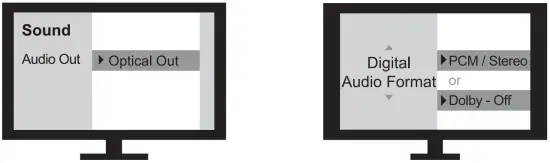
Charging
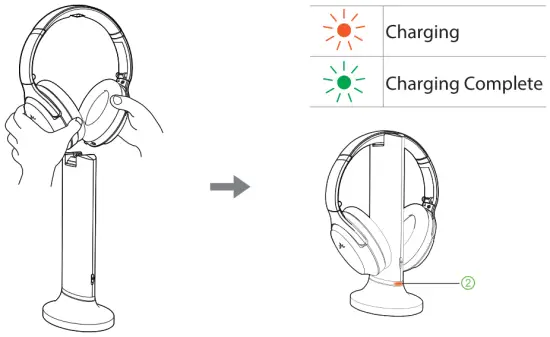
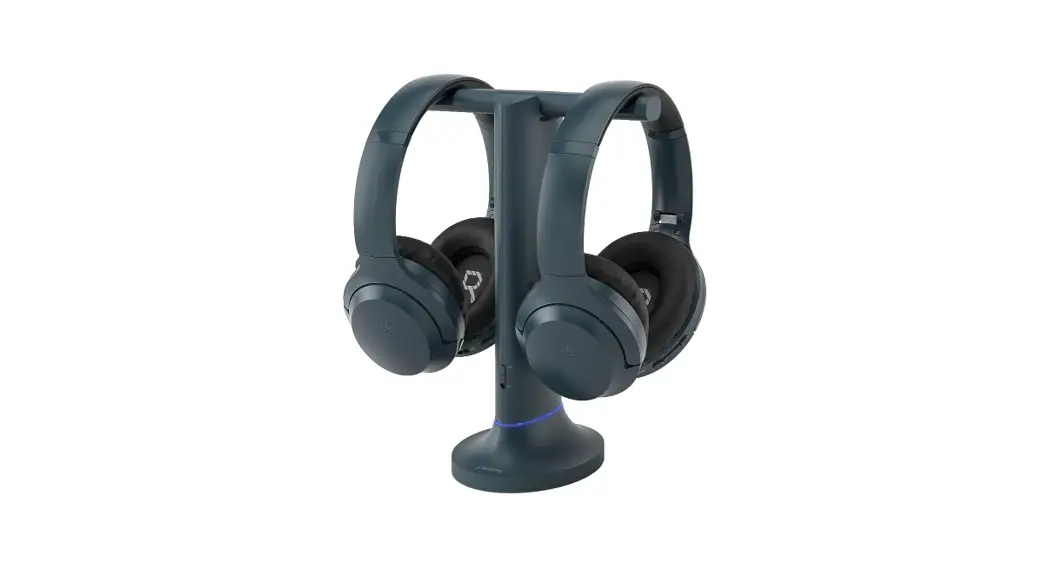
To Add a 2nd pair of Headphones
Please visit support.avantree.com for instructions.
If your setup is not working, please visit avantree.com/product-support/BTHT-6190-BLK for more troubleshooting tips