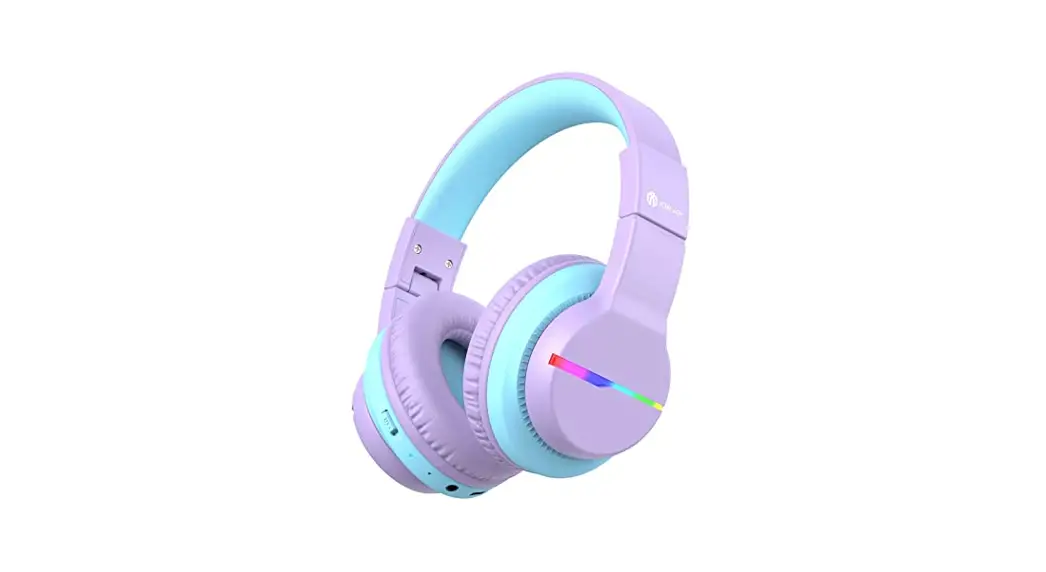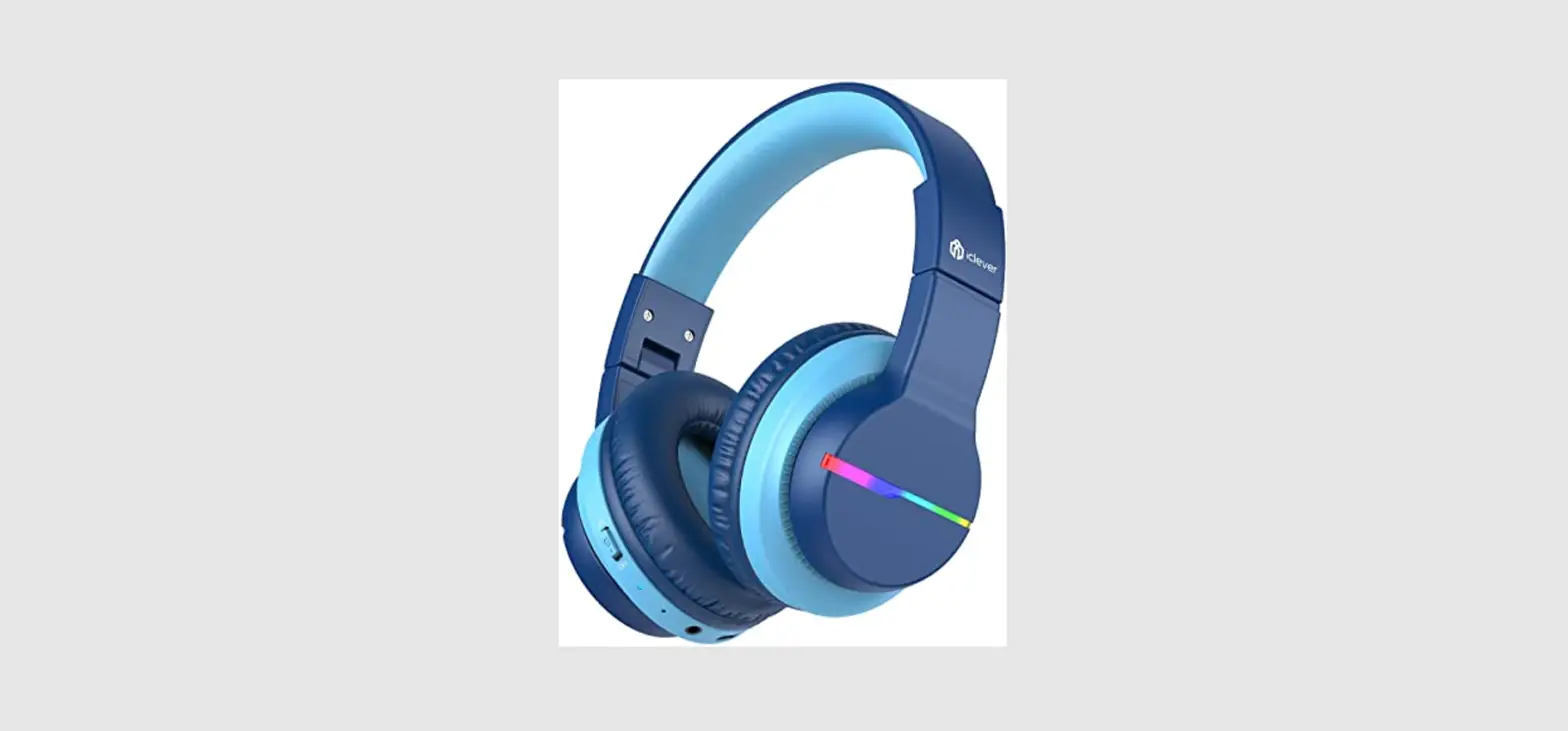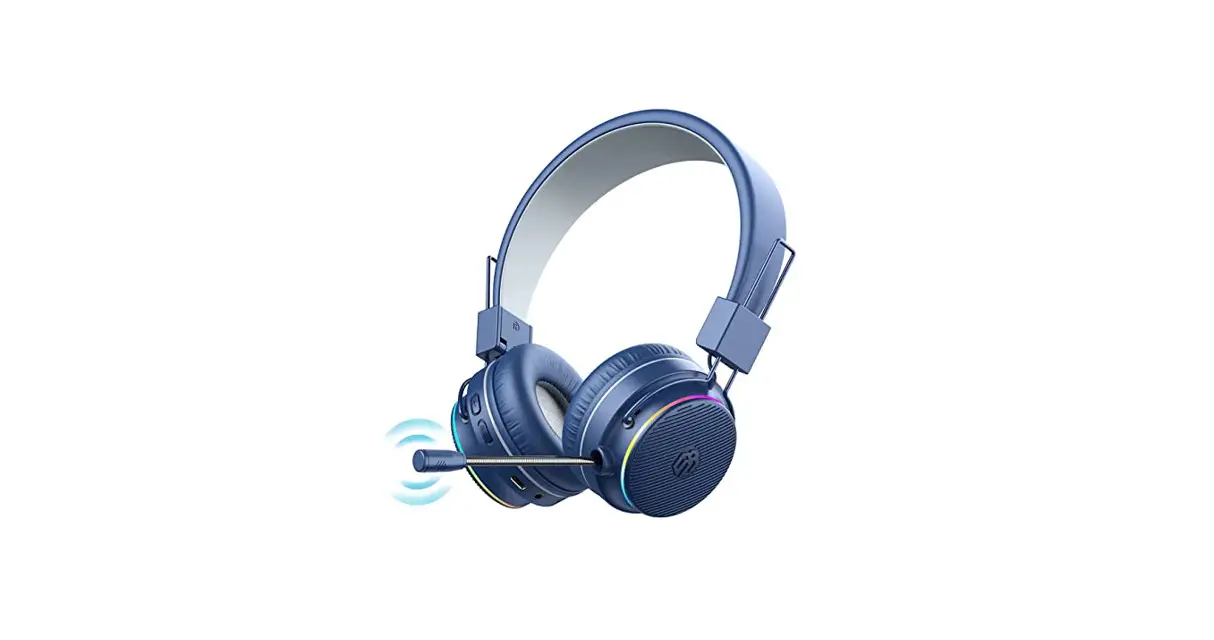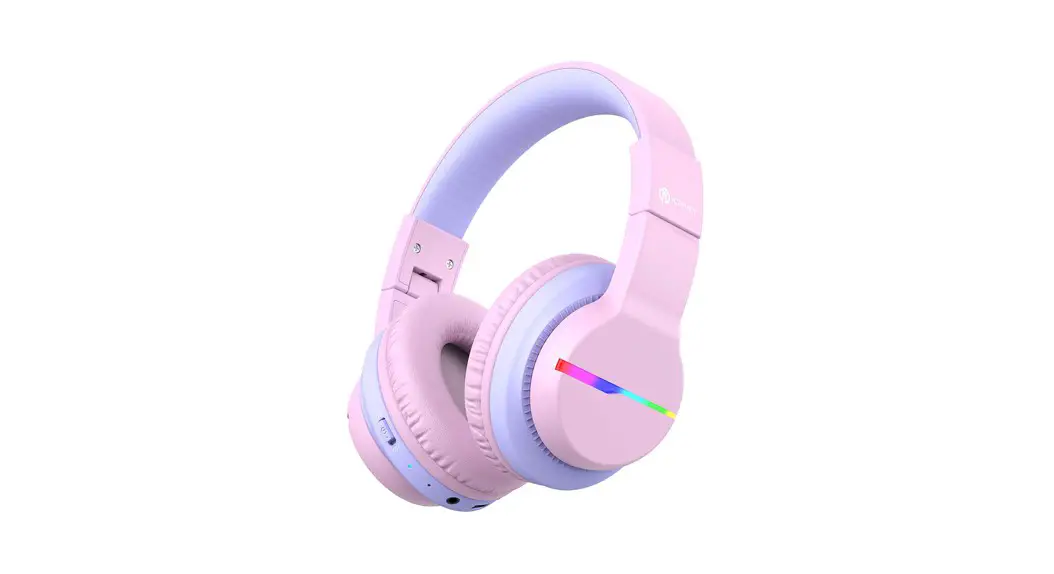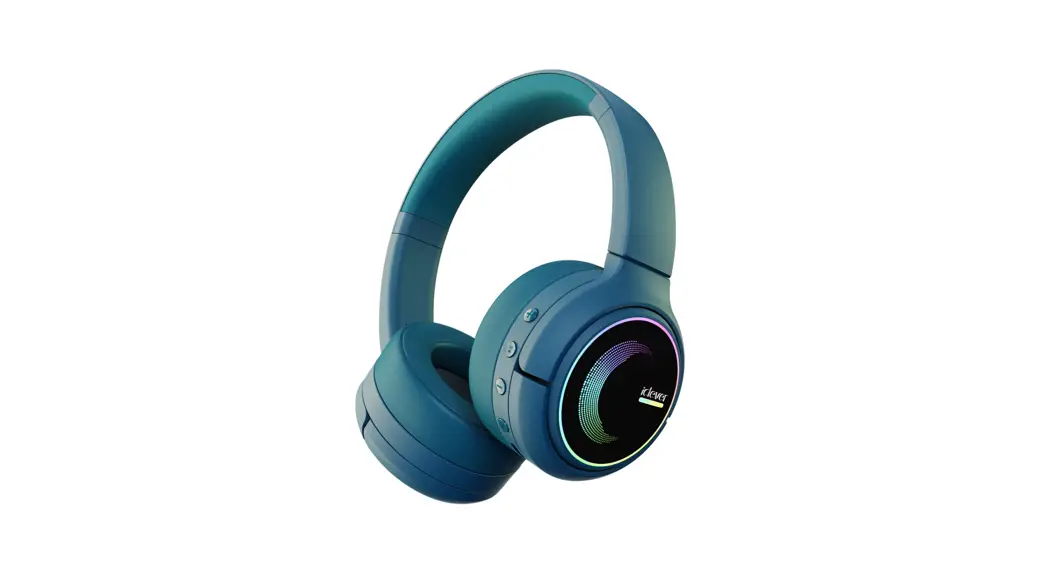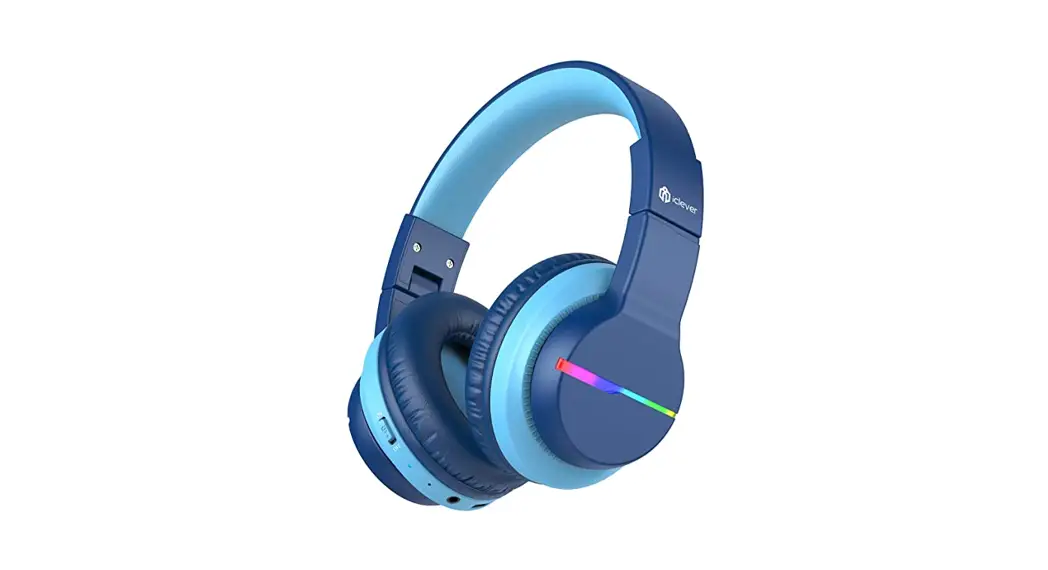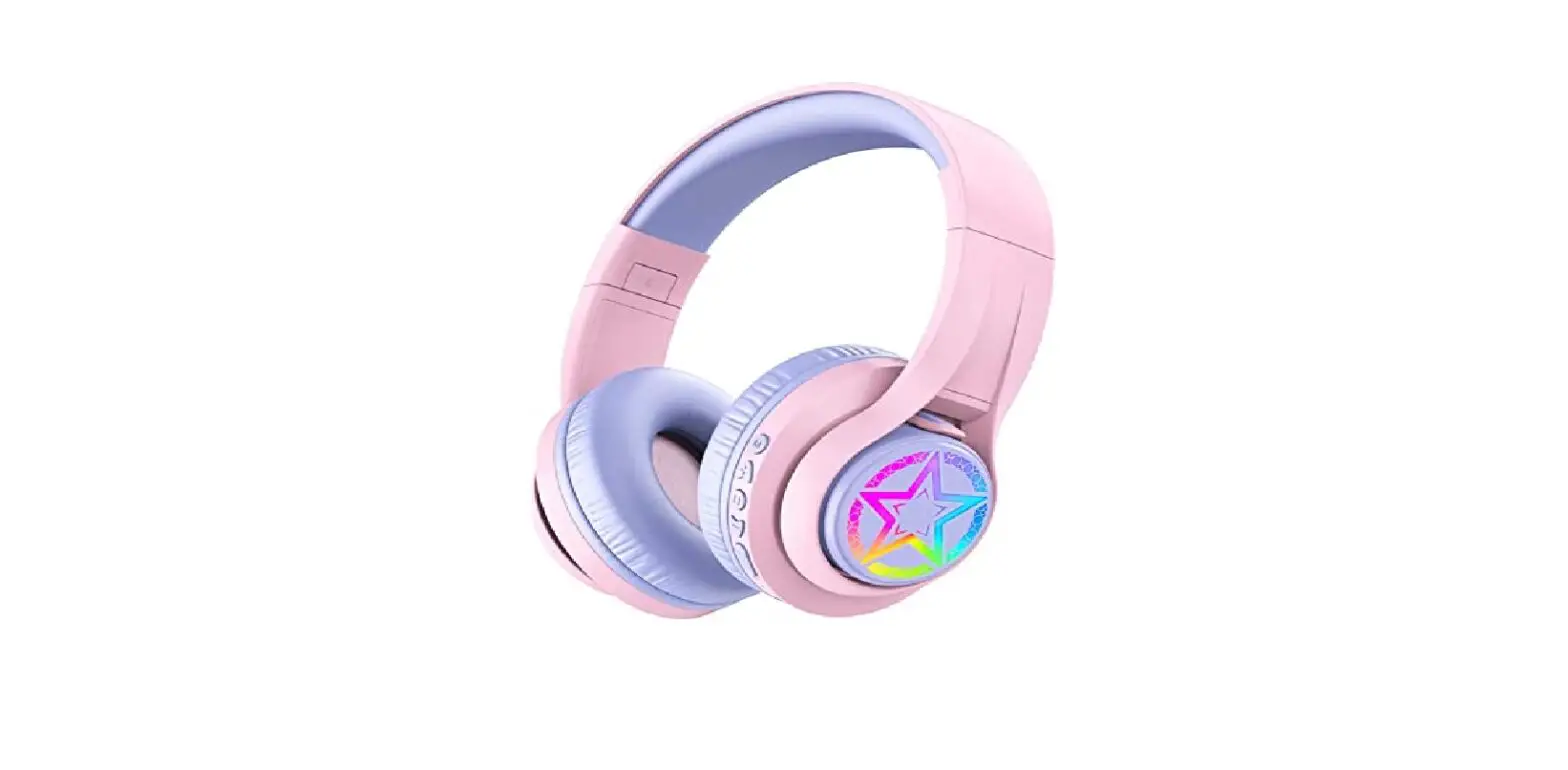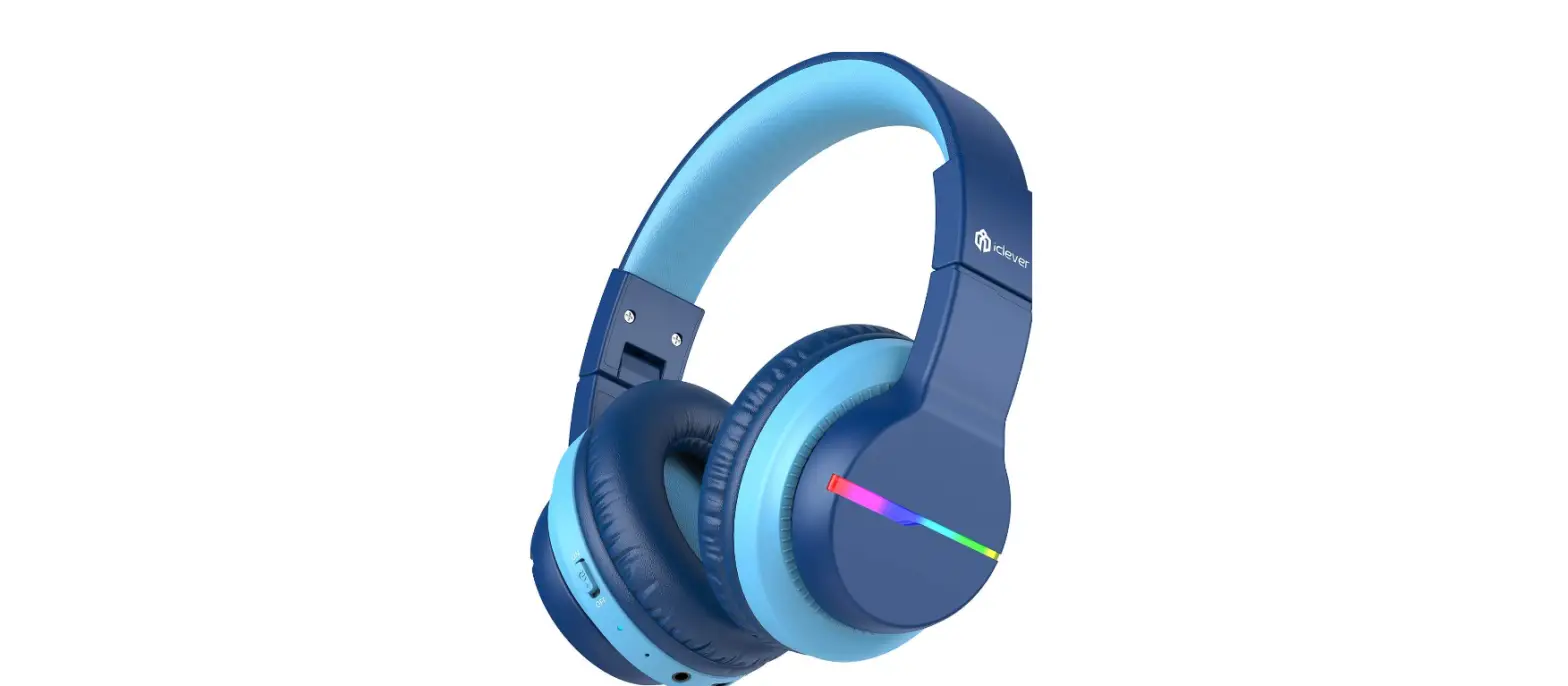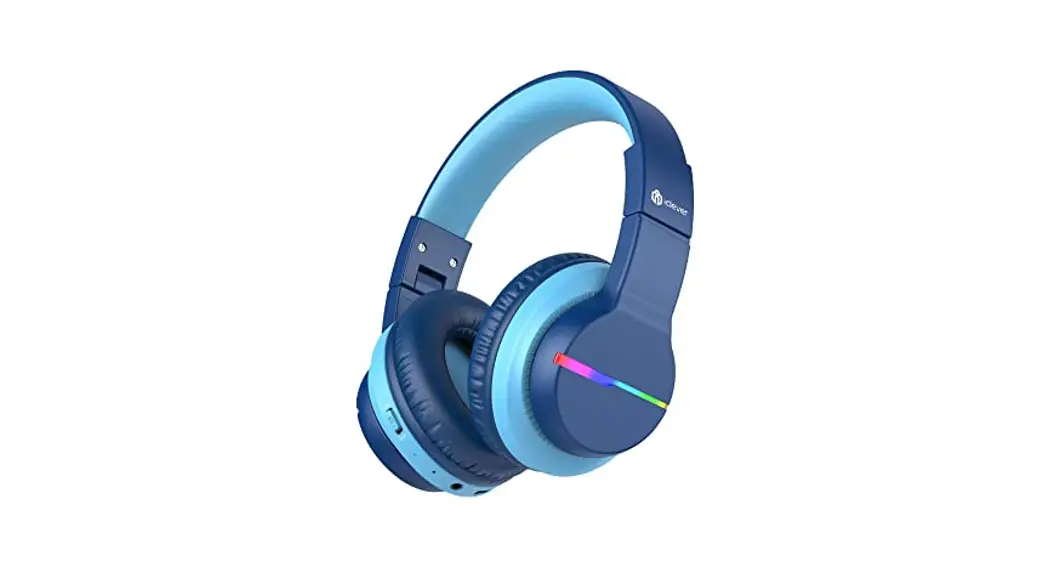

iclever BTH12 Wireless Headset
User Manual
Package Contents
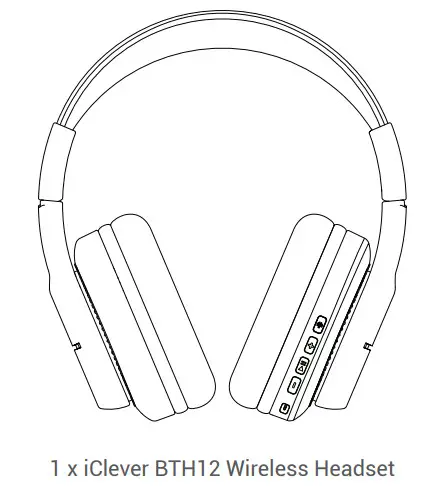
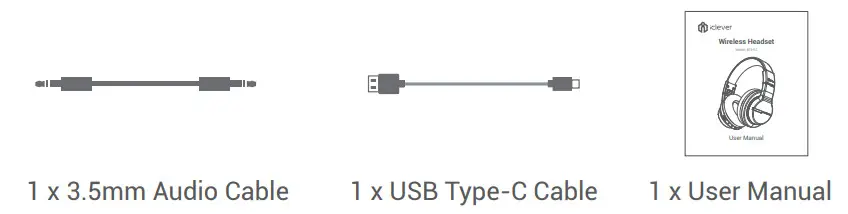
Product Diagram
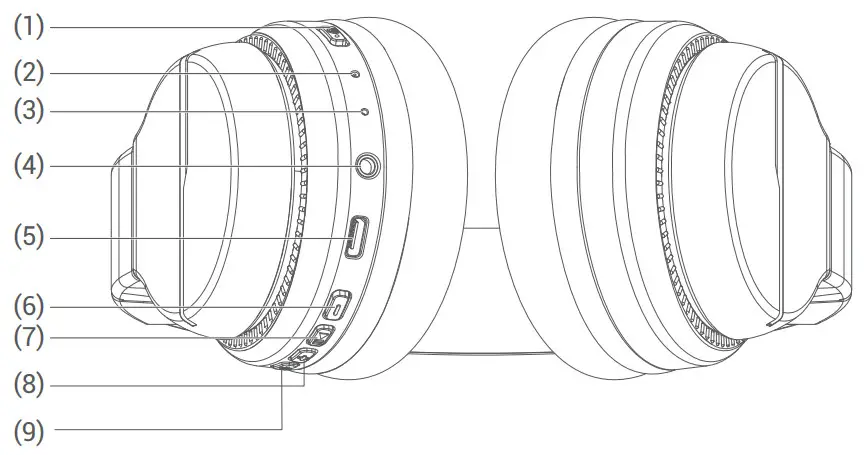
| 1. Power Button | 6. Volume – / Previous Track |
| 2. LED Indicator | 7. MFB Button |
| 3. Microphone | 8. Volume + / Next Track |
| 4. 3.5mm Audio Input | 9. Light Mode Switch Button |
| 5. Type-C Charging Port | |
On / Off
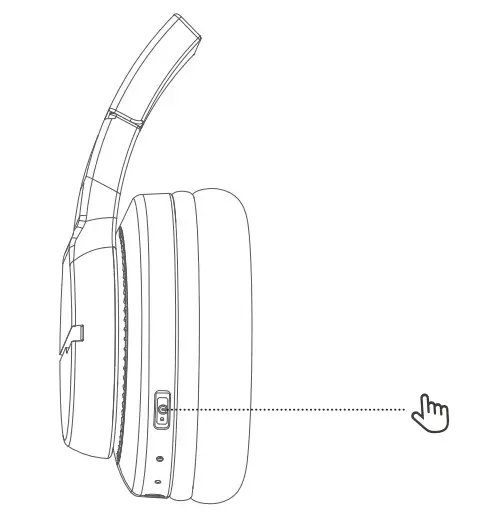
- Power on:
Switch the button to the “ON” direction. Then the LED indicator flashes blue for 1 second, and the colorful lights are on. - Shutdown:
Switch the button to “OFF” direction, and the headphone is turned off.
The LED indicator flashes blue for 1 second and then goes off.
Bluetooth Pairing
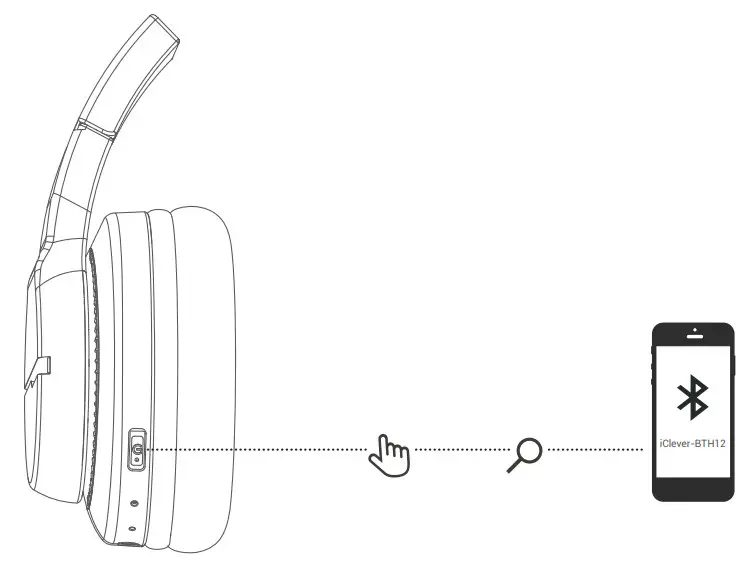
- In the power-on state, switch the button to the “ON” direction; the colorful lights are on; Bluetooth enters the pairing state, and the red and blue lights flash alternately.
- Turn on the Bluetooth of the mobile phone. Then find and select the “iClever-BTH12” Bluetooth pairing name in the device list for Bluetooth pairing connection.
Light Mode Switching
Short press the light mode switch button, and you can switch multiple light modes at will.
Volume Limit Gear Switching
- Press and hold the “+” & “-” buttons at the same time to switch the volume limit to 74dB, and the voice broadcast to “74dB”.
- Press and hold the “+” & “-” buttons at the same time to switch the volume limit to 85dB, and the voice broadcast to “85dB”.
- Press and hold the “+” & “-” buttons at the same time to switch the volume limit to 94dB, and the voice broadcast to “94dB”.
Note: The default power-on and factory reset are at 94dB volume limit.
| Volume Up | Short press the “+” button. |
| Volume Down | Short press the “-” button. |
| Next Track | Press and hold the “+” button for 2 seconds. |
| Previous Track | Press and hold the “-” button for 2 seconds. |
| Play/Pause | Press the MFB button once. |
| Answer/End A Call | Press the MFB button once. |
| Reject A Call | Keep pressing the MFB button for seconds. |
| Activate Siri | Press the MFB button twice. |
| Clear The Pairing List | Press and hold the “+” button and “-” button simultaneously for 4 seconds in the power-on state to clear the pairing list. Then the headphone will automatically enter a pairing state. |
Voice Prompt
| Power On | Power on |
| Power Off | Power off |
| Pairing | Pairing |
| Successful Pairing | Connected |
| Disconnection | Disconnected |
| Low Power | Battery Low |
How to Charge the Headphone
Connect the Type-C cable to the Type-C port on the headphone, and a 5V power outlet (power adapter is not included). The indicator light will glow red to indicate charging. When the headphone is fully charged, the indicator light will change from red to blue.
FCC Statement
Changes or modifications not expressly approved by the party responsible for compliance could void the user’s authority to operate the equipment.
This equipment has been tested and found to comply with the limits for a Class B digital device, pursuant to Part 15 of the FCC Rules. These limits are designed to provide reasonable protection against harmful interference in a residential installation. This equipment generates uses and can radiate radio frequency energy and, if not installed and used in accordance with the instructions, may cause harmful interference to radio communications. However, there is no guarantee that interference will not occur in a particular installation. If this equipment does cause harmful interference to radio or television reception, which can be determined by turning the equipment off and on, the user is encouraged to try to correct the interference by one or more of the following measures:
- Reorient or relocate the receiving antenna.
- Increase the separation between the equipment and receiver.
- Connect the equipment into an outlet on a circuit different from that to which the receiver is connected.
- Consult the dealer or an experienced radio/TV technician for help.
This device complies with part 15 of the FCC rules. Operation is subject to the following two conditions
- This device may not cause harmful interference.
- This device must accept any interference received, including interference that may cause undesired operation.
FAQS
When the headphone is connected with an audio cable, all the control buttons will not work. Thanks for the question.
No, two pairs could not listen to the same iPad at one time on wireless mode, but on wired mode, you could use a splitter to do it.
It is mainly made with the ABS plastic and leather.
Pink one is available for purchase, thank you for your question.
On your device, it will show your battery level, my don charges them every night, they last from 6 a.m. till way beyond 10:00 p.m on a single charge
Please press and hold the “+” button and “-“button simultaneously for 4 seconds in the power-on state to clear the pairing list. Then the headphone will automatically enter pairing mode.
Please press and hold the “+” button and “-“button simultaneously for 4 seconds in the power-on state to clear the pairing list. Then the headphone will automatically enter pairing mode.
No. The signal will not be disturbed. Thank you for your question.
Yes
Yes, I’ve successfully connected to our Samsung TV.
Our headphones come with the cushioned earpads and adjustable headbands, ensuring kids’ comfort all day long.
VIDEO
Find more about Declaration of Confirmity, please click the below link to download: http://files.iclever.com/BTH12-DOC-EN.pdf