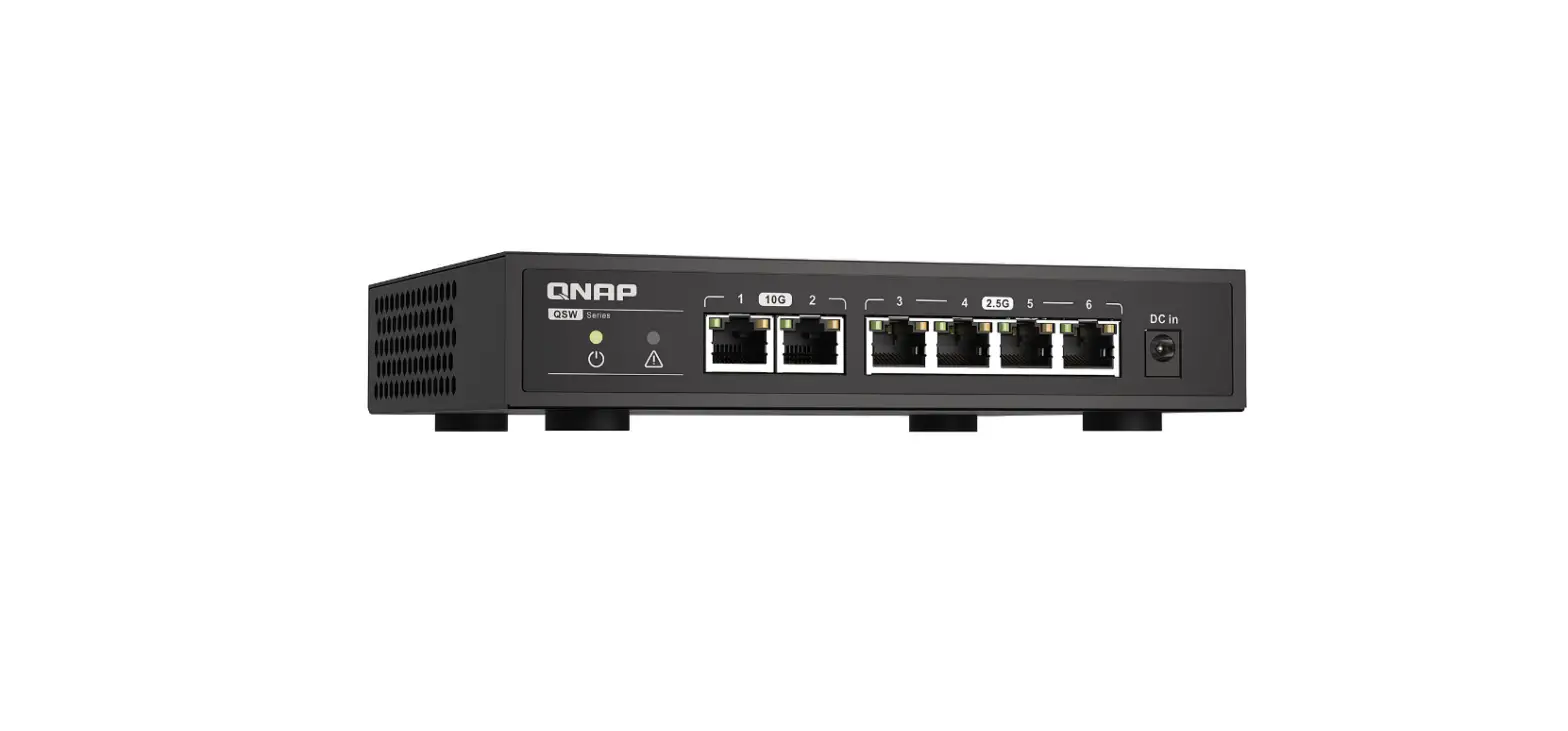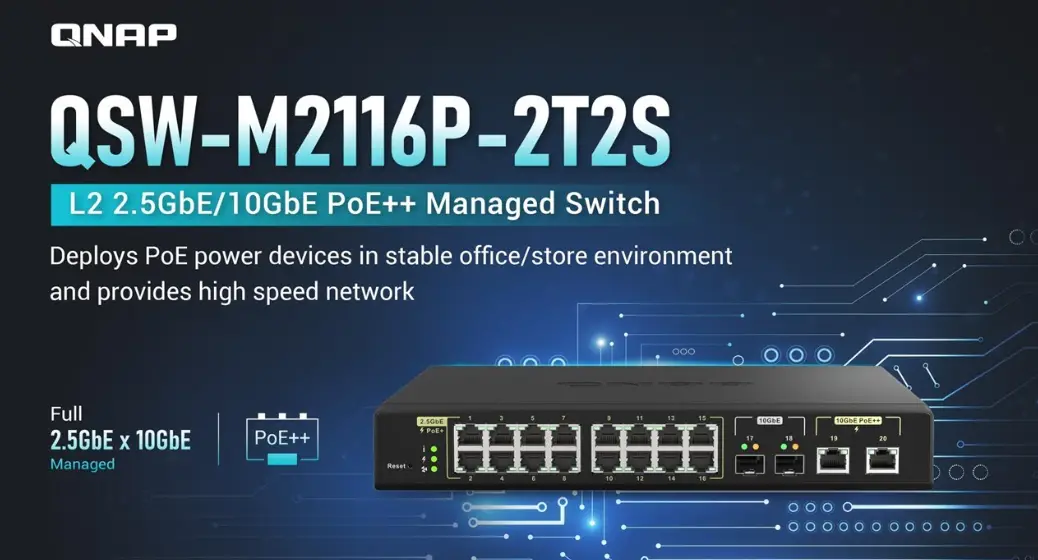

QNAP QSW-M2116P-2T2S Network Switch
Product Information: QSW-M2116P-2T2S Quick Installation Guide
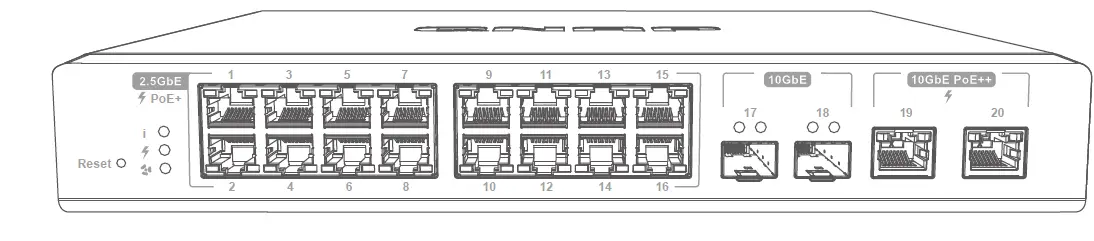
The QSW-M2116P-2T2S is a 16-port managed switch that features 2.5GbE RJ45 ports, 10GbE SFP+ ports, and 10GbE RJ45 ports. It also supports PoE+ for powering compatible devices.
Hardware Overview
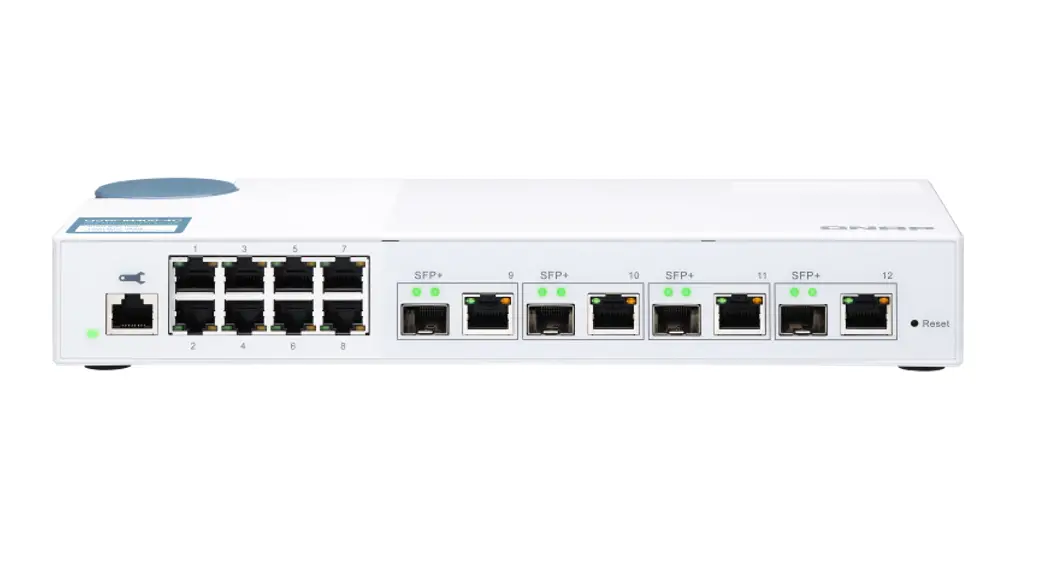
The switch features a reset button, LED indicators for system status, PoE status, and fan status. It also includes a maintenance port for emergency use by QNAP engineers only.
Hardware installation requires the use of rack mount kits, foot
pads, bracket screws, and a power cord.
Accessing the Web User Interface
The QSW-M2116P series supports DHCP client by default. When connected to a network, the switch will obtain an IP address from a DHCP server automatically. You can then use Qfinder to locate the switch and access the web user interface. If your network is not connected to a DHCP server, you can access the web user interface by changing your computer’s IP address to 169.254.100.102. The default IP address of the QSW-M2116P is 169.254.100.101
Web User Interface Login
The default username is “admin” and the default password is the same as the MAC Address. When logging in for the first time, you will be prompted to set a new password.
LED Behavior
The LED indicators show system status, PoE status, fan status, and link speed. Different flashing patterns indicate different statuses of the device.
Product Usage Instructions
- Install the switch hardware using the provided rack mount kits, foot pads, bracket screws, and power cord.
- Connect the switch to a network with a DHCP server. The switch will obtain an IP address automatically.
- Use Qfinder to locate the switch and access the web user interface. Alternatively, change your computer’s IP address to 169.254.100.102 to access the web user interface.
- Log in to the web user interface using the default username and password.
- Configure the switch settings as needed.
- Ensure that you change your computer’s IP address back to the original setting after configuration.
What’s In the box
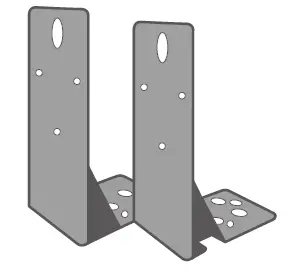
- Rack mount kits

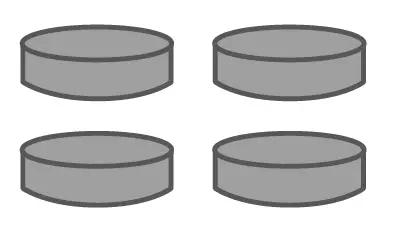
- Foot pads

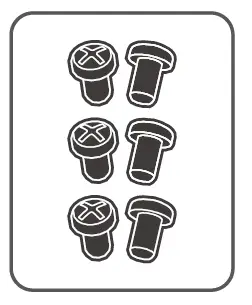
- Bracket screws

- Power cord

- QIG

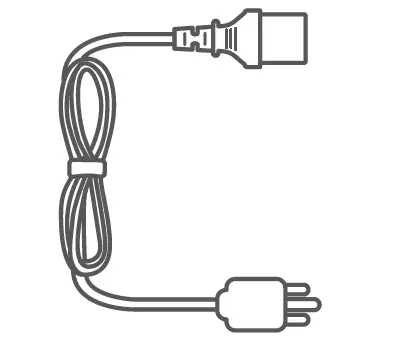
Hardware Overview
Panel Components
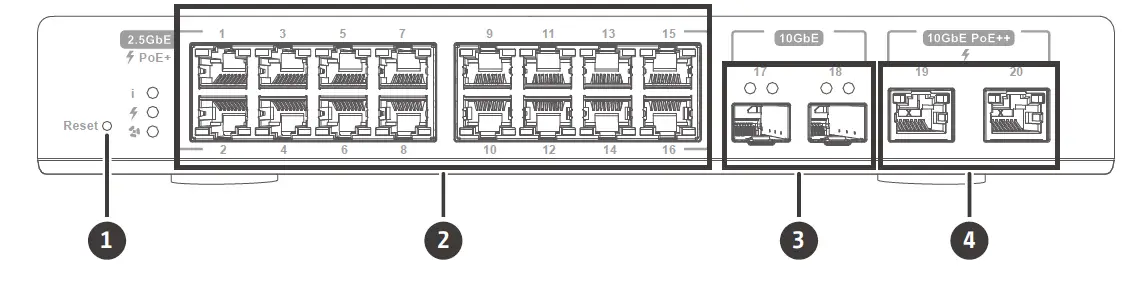
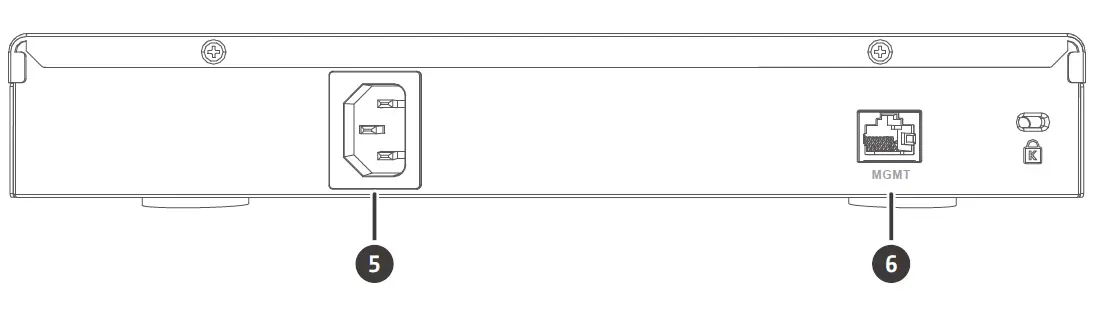
- 1 Reset button
- 2.5GbE RJ45 ports
- 10GbE SFP+ ports
- 10GbE RJ45 ports
- 5 Power input
- Maintenance port*
* Remark: Maintenance port can only be used by QNAP engineers in emergencies, it is not for users disposal.
LEDs
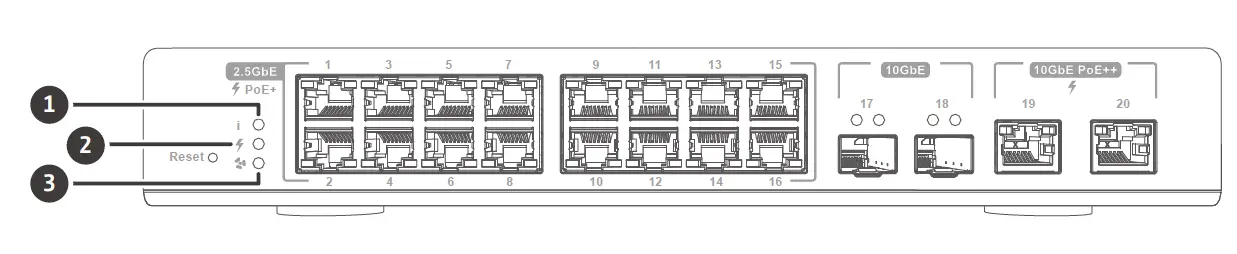
- System status LED
- PoE status LED
- Fan status LED
Hardware Installation
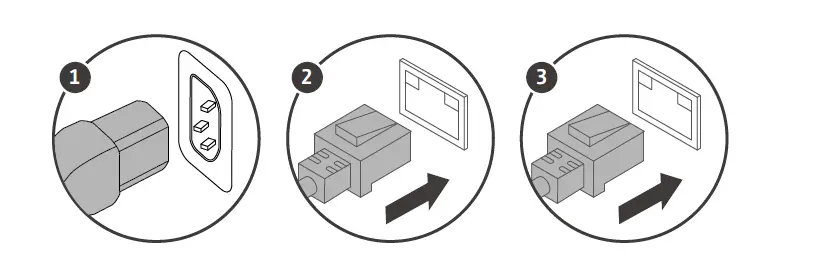
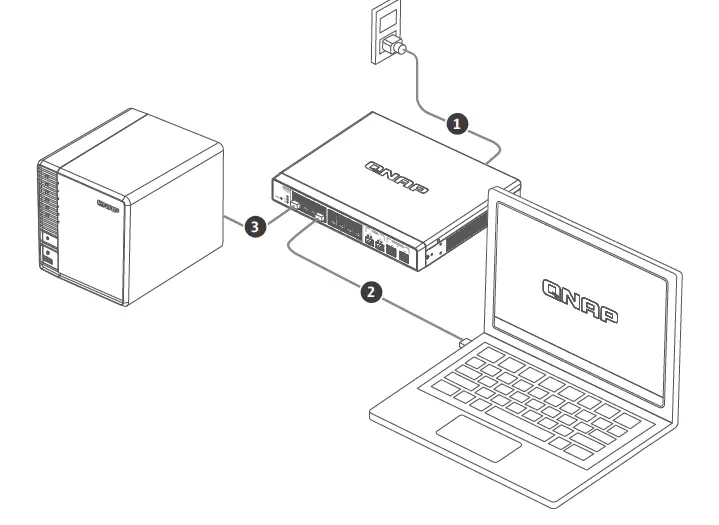
Accessing the Web User Interface
The QSW-M2116P series supports DHCP client by default. When connected to a network, the switch will obtain an IP address from a DHCP server automatically. You can then use Qfinder to locate the switch and access the web user interface.
If your network is not connected to a DHCP server, you can access the web user interface by changing your computer’s IP address to 169.254.100.102.
The default IP address of the QSW-M2116P is 169.254.100.101
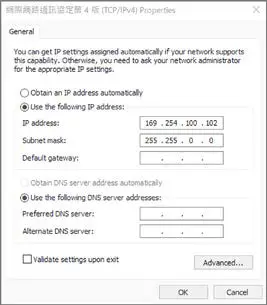
Note: After configuration, ensure that you change your computer’s IP address back to the original setting.
Web User Interface Login
- Default username: admin
- Default password: same as MAC Address
When logging in for the first time, you will be prompted to set a new password. QNAP strongly recommends setting a new password for security purposes.
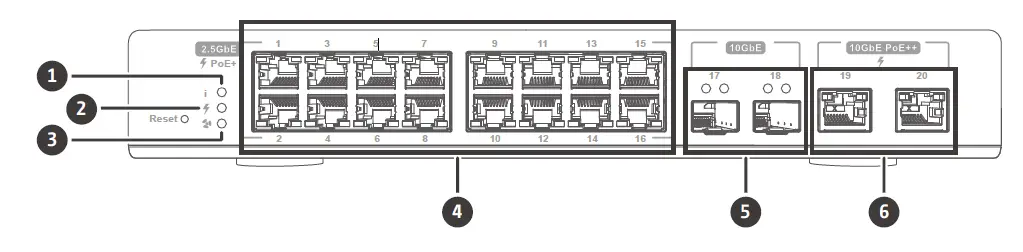
LED Behavior
| LED | Status | Description | |
|
1 |
System Status | Flashing green | Device is booting. |
| Steady green | Device is booted. | ||
| Flashing green/red | Device is resetting. | ||
| Steady red | Fatal error on the device. | ||
| Off | Device is powered off. | ||
| 2 | PoE Status | Green | PoE status is fine. |
| Red | Fatal error on the PoE. | ||
| 3 | Fan Status | Green | Fan status is fine. |
| Red | Fatal error on the fan. | ||
| 4 | 2.5GbE RJ45 | Green (Left) | Link is operating at 2.5 Gbps, flashing: link up, off: no link. |
| Amber (Left) | Link is operating at 1000/100 Mbps, flashing: link up, off: no link. | ||
| Green(Right) | Steady: PoE up, flashing: PoE error, off: PoE off. | ||
| 5 | 10GbE SFP+ | Green (Left) | Link is operating at 10 Gbps, flashing: link up, off: no link. |
| Amber (Right) | Link is operating at 1 Gbps, flashing: link up, off: no link. | ||
|
6 |
10GbE RJ45 | Green (Left) | Link is operating at 10 Gbps, , flashing: link up, off: no link. |
| Amber (Left) | Link is operating at 5G/2.5G/1G/100Mbps, flashing: link up, off: no link. | ||
| Flashing | Steady: PoE up, flashing: PoE error, off: PoE off. | ||
Specifications
| Model | QSW-M2116P-2T2S |
| Dimensions (H x W x D) | 43.5 x 285 x 234.8 mm |
| Net weight | 2.08 kg |
| Input voltage range | 100 ‒ 240 VAC |
| Switching bandwidth | 160 Gbps |
| 2.5GbE RJ45 ports | 16 (802.3at 30W) |
| 10GbE SFP+ ports | 2 |
| 10GbE RJ45 ports | 2 (802.3bt 90W) |
| PoE power consumption | 280 W |
| Operating temperature | 0˚C to 40°C (32°F to 104°F) |
| Relative humidity | 5% to 95% (non-condensing) |
Fcc
This device complies with Part 15 of the FCC Rules. Operation is subject to the following two conditions:
- This device may not cause harmful interference.
- This device must accept any interference received, including interference that may cause undesired operation.
FCC Class A Notice:
This equipment has been tested and found to comply with the limits for a Class A digital device, pursuant to Part 15 of the FCC Rules. These limits are designed to provide reasonable protection against harmful interference when the equipment is operated in a commercial environment. This equipment generates, uses, and can radiate radio frequency energy,
and if not installed and used in accordance with the instruction manual, may cause harmful interference to radio communications. Operation of this equipment in a residential area is likely to cause harmful interference, in which case the user will be required to correct the interference at his own expense.
Modifications: Any modifications made to this device that are not approved by QNAP Systems, Inc. may void the authority granted to the user by the FCC to operate this equipment.
This device complies with CE compliance Class A.
According to the requirement of the WEEE legislation the following user information is provided to customers for all branded QNAP Electronics products subject to the WEEE directive.
This symbol on the product or on its packaging indicates that this product must not be disposed of with your other household waste. Instead, it is your responsibility to dispose of your waste equipment by handing it over to a designated collection point for the recycling of waste electrical and electronic equipment. The separate collection and recycling of your waste equipment at the time of disposal will help to conserve natural resources and ensure that it is recycled in a manner that protects human health and the environment. For more information about where you can drop off your waste equipment for recycling, please contact your local city office, your household waste disposal service or the shop where you purchased the product.
Office in EU;
QNAP GmbH,
Linsellesstrasse 109
47877 Willich, Germany
Office in UK;
QNAP Ltd,
2 Drakes Meadow, Swindon SN3 3LL
United Kingdom
install.qnap.com
service.qnap.com
docs.qnap.com
 docs.qnap.com
 Cloud Install
 Customer Service - QNAP
 Master your digital files for work and daily life | QNAP (US)