IAP1301 Inactivity Alert Sensor
Inactivity Alert Sensor
The Inactivity Alert Sensor (model IAP1301) is a device designed
to detect inactivity and send alerts. It is part of the Home8
system, and operates using a proprietary 433MHz RF protocol. The
sensor must co-work with Mivatek’s OPU2/OPU3 shuttle.
Hardware Overview
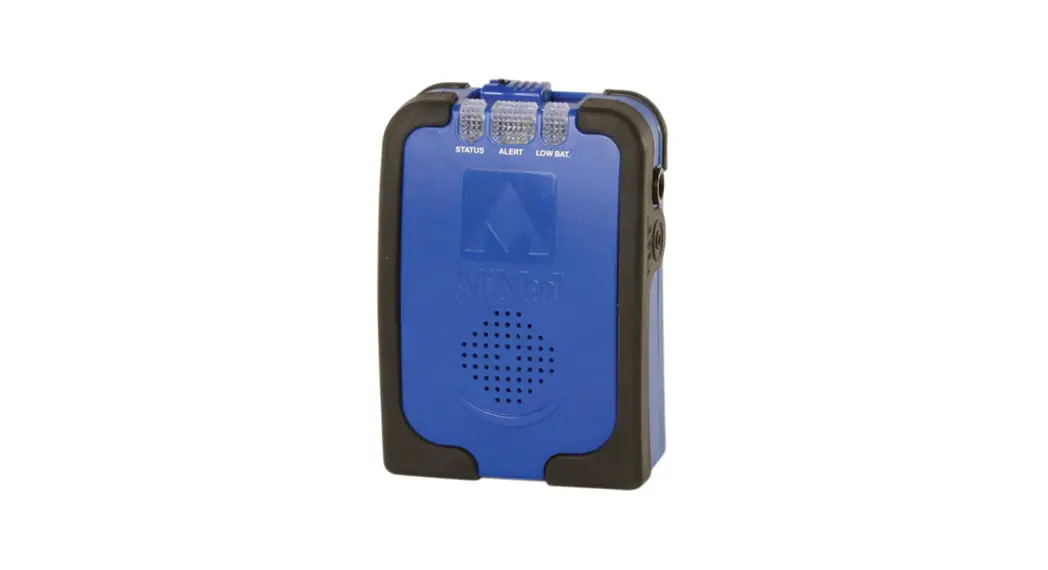
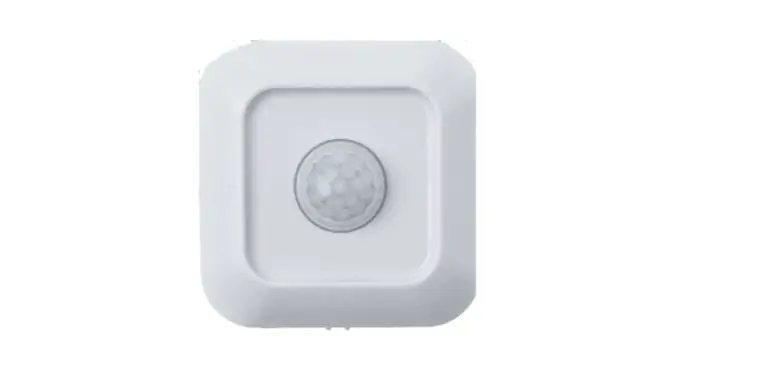
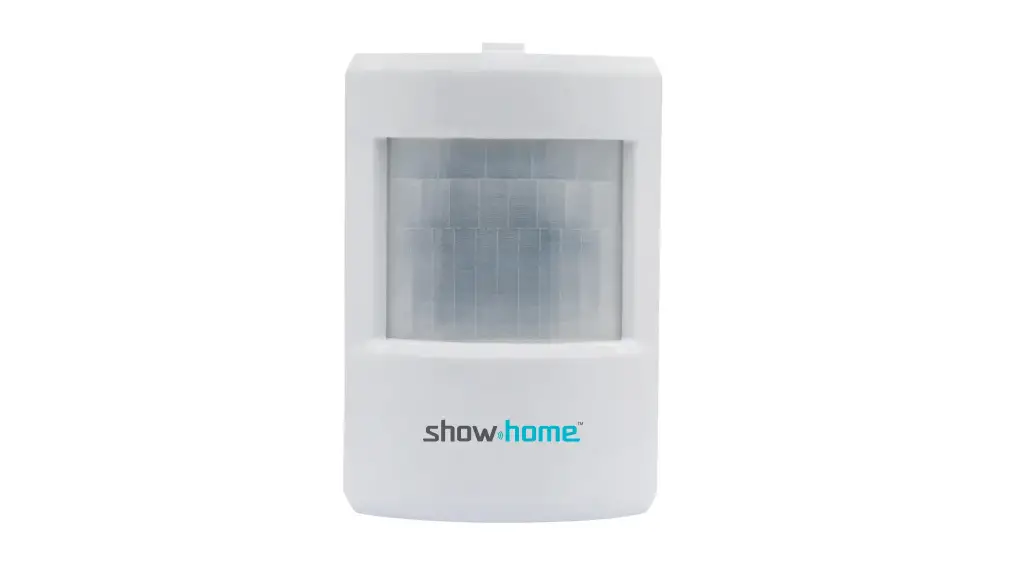
The Inactivity Alert Sensor is a small device that detects
inactivity. It has an LED indicator and operates using a CR123A
battery. The sensor takes around 10 seconds to warm up, during
which the LED will blink 7 times. The installation height and
positioning of the sensor should be based on range, pattern, and
angle recommendations.
Sensor Installation
- Release the cover tab to open the cover.
- Insert a CR123A battery, ensuring correct polarity.
- The sensor will take around 10 seconds to warm up, indicated by
7 LED blinks. - Position the sensor based on recommended installation height
and detection requirements.
Adding the Sensor to the System
Before using the sensor, it needs to be added to the Home8
system. Follow these steps to activate the sensor with the Security
Shuttle:
- Ensure the Security Shuttle is powered on and connected to your
router. - Avoid installing the battery before the sensor is successfully
activated to prevent false alarms during pairing. - Tap the menu icon to show the sidebar menu.
- Tap Device Management and select the appropriate Security
Shuttle. - Tap the plus icon (+) next to Sensor List.
- Select Sensor and follow the on-screen instructions.
- Scan the QR code located on the bottom of the sensor to start
the adding process. - Wait for the process to complete (approximately 1 to 2
minutes). - The sensor will be added to the device management page with a
unique name.
Inactivity Alert Sensor
IAP1301
User Manual
home8care.com
Inactivity Alert Sensor User Guide
1-844-800-648V21|[email protected]
1
Table of Contents
Chapter 1. Introduction ……………………………………………………………………… 2
1.1 System Requirement ………………………………………………………………………………….. 2
Chapter 2. Hardware Overview…………………………………………………………… 3
Chapter 3. Sensor Installation & Add/Remove Sensor into System ………. 5
3.1 Sensor installation……………………………………………………………………………………….5 3.2 Adding the Sensor to the System…………………………………………………………………..5 3.3 Positioning & Installing Sensor……………………………………………………………………… 9 3.4 Remove Sensor from System ………………………………………………………………………. 9 3.5 Rename Sensor from System …………………………………………………………………….. 11
Chapter 4. Sensor Operation……………………………………………………………. 13
4.1 Sensor operation modes, and way to judge valid motion ………………………………… 13 4.2 Inactive Period, and no activity alert ……………………………………………………………. 14 4.3 Low battery alert ………………………………………………………………………………………. 15 4.4 Device detachment detection………………………………………………………………………15
Appendix Glossary of Terms …………………………………………………………. 17
Inactivity Alert Sensor User Guide
V1.0 2017
1
Chapter 1. Introduction
This Motion Sensor is designed to be used for indoor inactivity detection. When mounted properly, It can monitor large and open areas of your home like the main entrance, living room, and family room. When the system does not detect motion for a time period that surpasses the preset inactivity threshold time that you designate in the Home8 app, the app will automatically send out inactivity alerts. Key features and specifications: RF Center Frequency: 433.92MHz Operating Range: Up to 100 feet (line of sight) Operating Temperature : 5°F to 104°F (-15°C to 40°C) Battery: Panasonic CR123A non-rechargeable battery Inactivate period: 1~24hrs, 1 hour per step “Away” mode available to disable sensor
1.1 System Requirement
This section explains the system requirement. Network: Proprietary 433MHz RF protocol, must co-work with Mivatek’s OPU2/OPU3 shuttle
Inactivity Alert Sensor User Guide
V1.0 2017
2
Chapter 2. Hardware Overview
This section provides an overview of the inactivity sensor.
Inactivity Alert Sensor User Guide
V1.0 2017
3
Inactivity Alert Sensor User Guide
V1.0 2017
4
Chapter 3. Sensor Installation & Add/Remove Sensor into System
3.1 Sensor installation
1. Release cover tab to open the cover. 2. Insert CR123A battery, and put the cover back.
(Please make sure the battery polarity before inserting.) 3. Sensor itself takes around 10 seconds to warm up, and LED will blink 7 times during sensor warm
up. 4. Sensor detects range, pattern, angle, and recommends installation height:
3.2 Adding the Sensor to the System
Before you begin using the sensor, it needs to be added to the Home8 system first. To activate the sensor with the Security Shuttle, complete the following steps. Note:
1. Make sure the Security Shuttle is powered on and connected to your router. 2. We recommend NOT installing the battery before sensor is successfully activated to avoid false alarm
during pairing.
Inactivity Alert Sensor User Guide
V1.0 2017
5
1. Tap the menu icon to show the sidebar menu.
2. Tap “Device Management”. If you have more than one Security Shuttle, you may need to swipe left more than once to find the one you wish the sensor to connect to. After selecting the Security Shuttle, tap the plus icon “+” located to the right of “Sensor List”.
Inactivity Alert Sensor User Guide
V1.0 2017
6
3. Select “Sensor”. 4. Follow the on-screen instructions. When finished, press “Next”.
Inactivity Alert Sensor User Guide
V1.0 2017
7
5. After scanning the QR code located on the bottom of the sensor, the “sensor adding” process will begin. The process will take approximately 1 to 2 minutes.
6. When the activation is completed, the sensor will be added to the device management page. In the illustration shown below, the name of the Security Shuttle is “Location 1” and the name of the sensor is “Inactivity Sensor 35360xxxx”.
Inactivity Alert Sensor User Guide
V1.0 2017
8
3.3 Positioning & Installing Sensor
After the “sensor adding” process has been completed, you can place the device at the desired location. For best performance, we recommend to face the sensor to open area, and place the sensor at least 2 meters above the ground. For details on installing, please refer to the picture below:
Note: Keep lens and sensor as clean as possible for best sensor performance.
3.4 Remove Sensor from System
If you wish to remove sensor from current system, complete the following steps. 1. Tap the menu icon to show the sidebar menu.
Inactivity Alert Sensor User Guide
V1.0 2017
9
2. Tap “Device Management”. If you have more than one Security Shuttle, you may need to swipe left more than once to find the one you wish the sensor to connect to. After selecting the Security Shuttle, select the desired sensor that you want to remove by tapping “>”.
3. Tap “Remove Sensor”, app will ask for confirmation if you really want to remove. Simply tap “Yes” to confirm & remove.
Inactivity Alert Sensor User Guide
V1.0 2017
10
3.5 Rename Sensor from System
If you want to remove sensor from system, complete the following steps.
1. Tap the menu icon to show the sidebar menu.
2. Tap “Device Management”. If you have more than one Security Shuttle, you may need to swipe left more
Inactivity Alert Sensor User Guide
V1.0 2017
11
than once to find the one you wish the sensor to connect to. After selecting the Security Shuttle, select the desired sensor you want to rename by tapping “>”.
3. Tap “>” to rename the sensor that will be shown on the app, and tap “V” to complete.
Inactivity Alert Sensor User Guide
V1.0 2017
12
Chapter 4. Sensor Operation
4.1 Sensor operation modes, and way to judge valid motion
Sensor has 2 different modes, “Test Mode” and “Normal Mode”. For a detailed description on the behavior of these 2 modes, please refer to following table.
Mode Test Mode Normal Mode
How to enter?
Condition of valid motion alert
LED behavior
First hour after battery is Please refer to fig.1 installed properly
Blinks when valid motion is detected
After Test mode is finished Please refer to fig.2 & fig.3 Blinks when valid motion is detected
Ignore any motion that occurs in this 10-second window
Fig.1 Condition of valid motion alert under “Test Mode”
For any motion that occurs in this 3-minute countdown window (1) Treat as same motion, will NOT send any alert to Shuttle (2) Reset and re-count the 3-minute window
Fig.2 Condition of valid motion alert under “Normal Mode”
Inactivity Alert Sensor User Guide
V1.0 2017
13
Fig.3 Illustration when multiple motions are detected during 3-minute countdown window under “Normal Mode”
4.2 Inactive Period, and no activity alert
Inside Home8 app, user can set “Inactive Period” from 1hour to 24hours, one hour per step. In the meantime, sensor will continuously monitor & send motion status to Security Shuttle, and it will use this data to determine the activity status. If the duration of 2 consecutive motions are longer than the preset time threshold that can be set by using Home8 app, Shuttle will send out “inactivity” alert, and app will pop out a notification as below.
Inactivity Alert Sensor User Guide
V1.0 2017
14
4.3 Low battery alert
This sensor can automatically detect current battery status, and report “low battery” when battery level is too low.
When “low battery” happens, LED indicator on the sensor will blink constantly, and app will also show “low battery alert from sensor” notification as below:
4.4 Device detachment detection
This sensor has a built-in tamper switch to detect the status of the front cover. When the front cover is opened, LED indicator will blink 1 time, and app will also show “Device detachment detected” notification as below.
Inactivity Alert Sensor User Guide
V1.0 2017
15
Inactivity Alert Sensor User Guide
V1.0 2017
16
Appendix Glossary of Terms
Arm: The cameras and other security related sensors in the system are actively monitoring the surroundings. Any suspicious activity that has been detected by the camera or sensor will prompt the app to immediately send a notification. A recording will also be performed by the camera(s) that witnessed the event.
Disarm: The cameras and other security related sensors in the system are no longer actively monitoring the surroundings. The system will not react to any suspicious activity detected by these devices. No notification will be sent.
Note: If the continuous recording function is turned on, video recording will always work regardless if the system is armed or disarmed. For more details regarding the continuous recording function, see Section 6.8 Turn On/Off Continuous Recording.
Event: An event is created when any camera or sensor detects an activity, or is manually triggered by the user.
Security Shuttle: Functions as a secure and intelligent hub to manage the devices and communicate with the cloud server. Currently, there are three types OPU1120, OPU2120, and OPU3120.
Inactivity Alert Sensor User Guide
V1.0 2017
17
 VPN Mantap | Aplikasi VPN Terbaik Gratis Sepuasnya
 More Security for Less | home8 Pro Security & Safety Systems