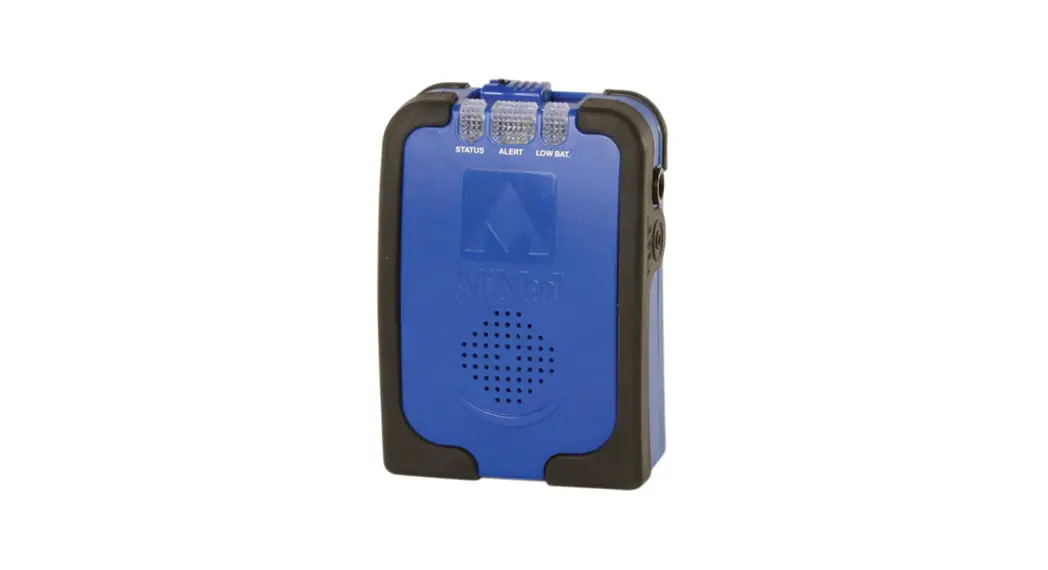
PNB1301 Panic and Medical Alert Sensor
Panic & Medical Alert Sensor
Product Information
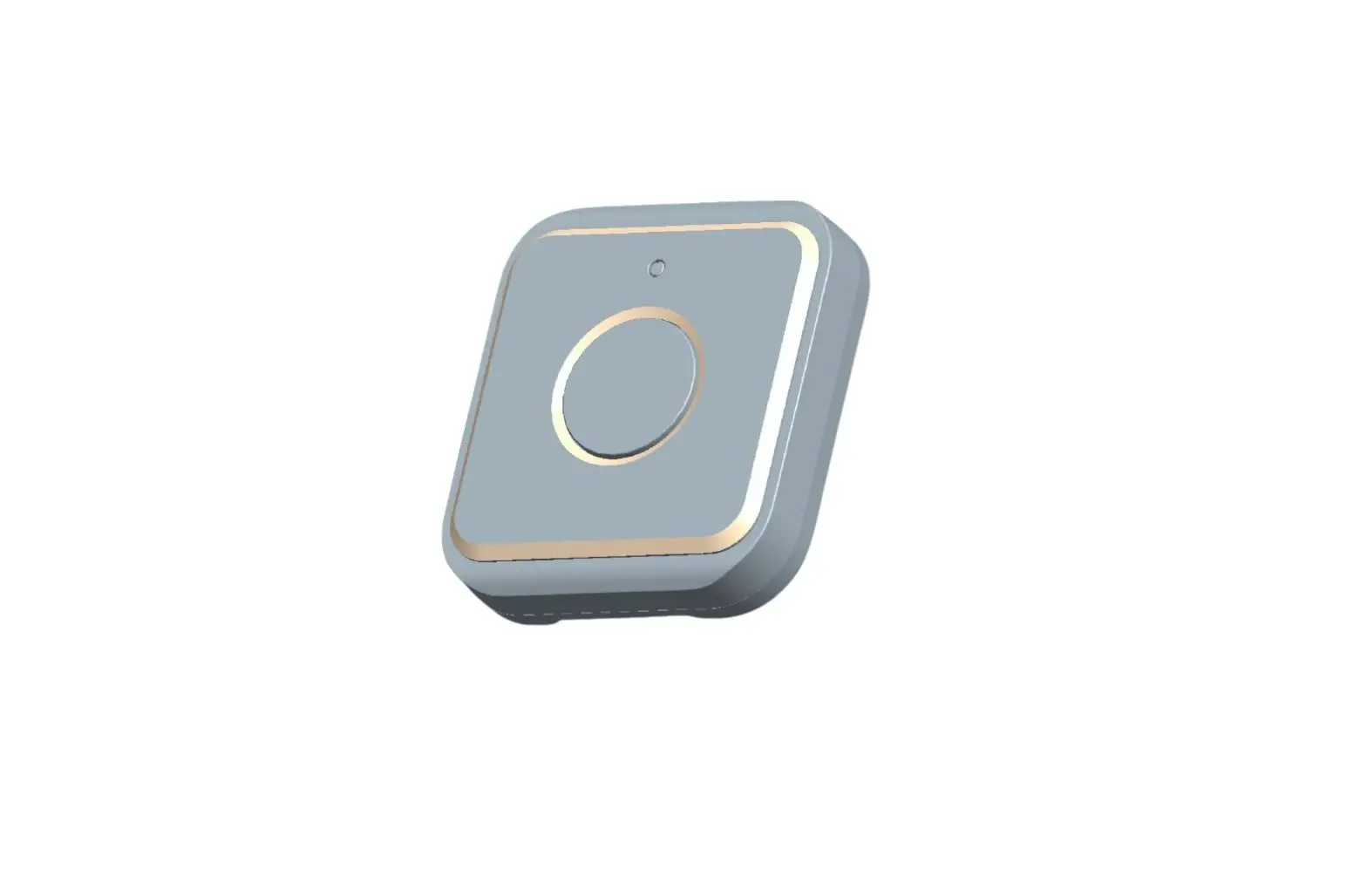
The Panic & Medical Alert Sensor (PNB1301) is a device that
can be used as a pendant or placed next to the bed or in the
bathroom for immediate use in emergency situations. This panic
button provides interactive/collaborative communication and
video-integrated alerts to multiple-tier group of users, including
the owner, authorized video users, emergency contacts for direct
notification, and prioritized emergency response.
Key Features
- Works with all Home8 systems
- Family member or patient can send alerts to caregiver
- Water Resistant
- Low battery status alarm
- LED Indicator
Specifications
System Requirement:
- Router with 10/100Mbps RJ45 LAN port and DHCP service
- An Apple iPhone, iPad, Android, or Windows mobile device
with:- iOS (version 8.1 above)
- Android (version 4.1 above)
- Windows 10 Mobile, Windows Phone 8.1, Windows Phone 8
Product Usage Instructions
3.1 Adding the Device to the System
- Make sure the Security Shuttle is powered on and connected to
your router. - Tap the menu icon to show the sidebar menu.
- Tap Device Management. If you have more than one Security
Shuttle, you may need to swipe left more than once to find the one
you wish the sensor to connect to. - After selecting the Security Shuttle, tap the plus icon +
located to the right of Sensor List. - Select Sensor.
- Follow the on-screen instructions. When finished, press
Next. - After scanning the QR code located on the back of the sensor,
the sensor adding process will begin.
Panic & Medical Alert Sensor
PNB1301
User Manual
Pahnioc Bmutteon8Ucsear rMean.ucaol m
V1.0 2017
1-844-800-6482 | [email protected]
1
Table of Contents
Chapter 1. Introduction ……………………………………………………………………… 1
1.1 System Requirement ………………………………………………………………………………….. 1
Chapter 2. Hardware Overview…………………………………………………………… 2 Chapter 3. Panic Button Setup …………………………………………………………… 3
3.1 Adding the Device to the System ……………………………………………………………………… 3 3.3 Testing and positioning the device ……………………………………………………………………. 6 3.4 Rename Device …………………………………………………………………………………………….. 6 3.5 Remove Sensor from System ………………………………………………………………………….. 6
Chapter 4. Starting to Use the Device…………………………………………………. 7
4.1 Function and Notification …………………………………………………………………………….. 7
Appendix Glossary of Terms …………………………………………………………… 8
Panic Button User Manual
V1.0 2017
1
Chapter 1. Introduction
Use this device as a pendant and place extra panic buttons next to your bed or in the bathroom so you can use it immediately in emergency situations. This panic button provides interactive/collaborative communication and video-integrated alerts to multiple-tier group of users, including owner, authorized video users, emergency contacts for direct notification and prioritized emergency response.
KEY FEATURES
Works with all Home8 systems Family member or patient can send alerts to caregiver Water Resistant Low battery status alarm LED Indicator
SPECIFICATIONS
Wireless and Security: 433 MHz Preparatory Wireless Range: 300ft (90m) line of sight Operating Temperature: 14°F ~ 122°F (-10°C ~ 50°C) Battery: CR2032, 3-year battery life
1.1 System Requirement
This section explains the system requirement when using the sensor.
Network Mobile Device * See Appendix Glossary of Terms.
Router with – 10/100Mbps RJ45 LAN port – DHCP service An Apple iPhone, iPad, Android or Windows mobile device with: – iOS (version 8.1 above) – Android (version 4.1 above) – Windows 10 Mobile, Windows Phone 8.1, Windows Phone 8
Panic Button User Manual
V1.0 2017
1
Chapter 2. Hardware Overview
This section provides an overview of the panic button.
Panic Button User Manual
V1.0 2017
2
Chapter 3. Panic Button Setup
3.1 Adding the Device to the System
Before you begin using the device, it will need to be added to the system first. For details, see the subsections below. Note: Make sure the Security Shuttle is powered on and connected to your router. 1. Tap the menu icon to show the sidebar menu.
2. Tap “Device Management”. If you have more than one Security Shuttle, you may need to swipe left more than once to find the one you wish the sensor to connect to. After selecting the Security Shuttle, tap the plus icon “+” located to the right of “Sensor List”.
Panic Button User Manual
V1.0 2017
3
3. Select “Sensor”.
4. Follow the on-screen instructions. When finished, press “Next”.
Panic Button User Manual
V1.0 2017
4
5. After scanning the QR code located on the back of the sensor, the “sensor adding” process will begin.
6. When the activation is completed, the device will be added to the device management page. In the illustration shown below, the name of the Security Shuttle is “Location2” and the name of the device is “Panic 7D0C0xxxx”.
Panic Button User Manual
V1.0 2017
5
3.3 Testing and positioning the device
After the “sensor adding” process has been completed, you can wear the device as a pendant. To make sure the connection of the device is working, short press the panic button, and you should receive an “Emergency” push notification.
3.4 Rename Device
To rename the device, go to “Device management”, select the sensor you want to rename, and then tap “Display Name”.
3.5 Remove Sensor from System
To remove the sensor from the current Security Shuttle, tap “Remove Sensor”.
Panic Button User Manual
V1.0 2017
6
Chapter 4. Starting to Use the Device
At this stage, your sensor is now ready for use.
4.1 Function and Notification
A signal cover range test is required to determine which areas in your home will be covered and if there are any environmental conditions that can affect the signal. Once there is an emergency situation, short press the button; owner and authorized users will get push notifications immediately. Once verified, you can call 1st responders directly from Home8 app for prioritized response.
Panic Button User Manual
V1.0 2017
7
Appendix Glossary of Terms
Arm: The cameras and other security related sensors in the system are actively monitoring the surroundings. Any suspicious activity that has been detected by the camera or sensor will prompt the app to immediately send a notification. A recording will also be performed by the camera(s) that witnessed the event. Disarm: The cameras and other security related sensors in the system are no longer actively monitoring the surroundings. The system will not react to any suspicious activity detected by these devices. No notification will be sent. Event: An event is created when any camera or sensor detects an activity, or is manually triggered by the user. Security Shuttle: Functions as a secure and intelligent hub to manage the devices and communicate with the cloud server. Currently, there are three types OPU1120, OPU2120, and OPU3120.
Panic Button User Manual
V1.0 2017
8
 VPN Mantap | Aplikasi VPN Terbaik Gratis Sepuasnya
 More Security for Less | home8 Pro Security & Safety Systems