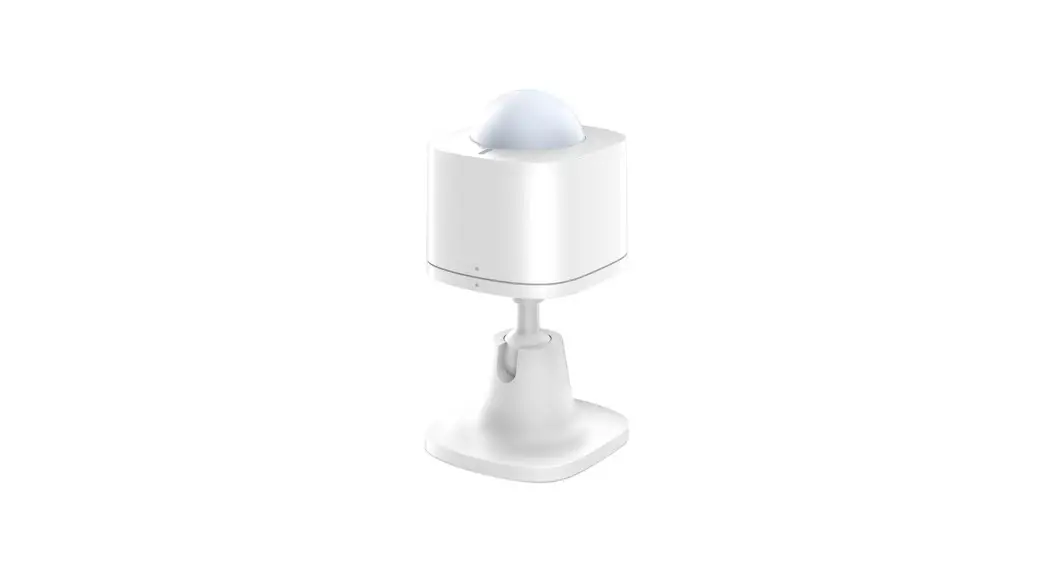
ADS1302 Activity Tracking Sensor
Product Information
| Product Name | Activity Tracking Sensor |
|---|---|
| Model | ADS1301 |
| Manufacturer | Home8 |
| Website | home8care.com |
| Contact Number | 1-844-800-6482 |
| [email protected] | |
| Version | V1.0 2017 |
Product Usage Instructions
Chapter 3. Activity Tracking Sensor Setup
3.1 Power on the sensor:
Before using the sensor, please remove the plastic pull tab from
the sensor to power it up.
3.2 Adding the Sensor to the System:
Before you begin using the sensor, it needs to be added to the
system. Follow the steps below:
- Ensure that the Security Shuttle is powered on and connected to
your router. - Tap the menu icon to show the sidebar menu.
- Tap Device Management. If you have more than one security
shuttle, swipe left until you find the one you wish the sensor to
connect to. - After selecting the security shuttle, tap the plus icon (+)
located to the right of Sensor List.
3.3 Positioning the sensor:
Place the sensor on doors, appliances, or other frequently used
objects around the house to track their usage.
3.4 Remove Sensor:
To remove the sensor, follow the manufacturer’s
instructions.
Chapter 4. Starting to Use the Activity Tracking Sensor
4.1 Activity tracking:
The Activity Tracking Sensor is a professionally calibrated
sensitivity sensor to keep track of and log your daily routine. It
can be used to track how often doors, appliances, and other
frequently used objects are used. You can share activity logs with
medical professionals or caregivers.
Activity Tracking Sensors
ADS1301
User Manual
home8care.com
Activity Tracking Sensor User Manual
1-844-800-6482 | [email protected]
V1.0 2017
1
Table of Contents
Table of Contents ……………………………………………………………………………… 1
Chapter 1. Introduction ……………………………………………………………………… 2
1.1 System Requirement ………………………………………………………………………………….. 2
Chapter 2. Hardware Overview…………………………………………………………… 3
Chapter 3. Activity Tracking Sensor Setup …………………………………………. 4
3.1 Power on the sensor ………………………………………………………………………………………. 4 3.2 Adding the Sensor to the System………………………………………………………………………4 3.3 Positioning the sensor……………………………………………………………………………………..7 3.4 Remove Sensor …………………………………………………………………………………………….. 8
Chapter 4. Starting to Use the Activity Tracking Sensor ………………………. 9
4.1 Activity tracking ………………………………………………………………………………………….. 9
Appendix Glossary of Terms …………………………………………………………. 11
Activity Tracking Sensors User Manual
1
Chapter 1. Introduction
The Activity Tracking Sensor is a professionally calibrated sensitivity sensor to keep track of and log your daily routine. You can place this sensor on doors, appliances, and other frequently used objects around the house to track how often they’re used. Share activity logs with medical professionals or caregivers.
Key features and specifications of the sensor.
Works with all Home8 systems Self-Configuring and easy installation Device is not controlled by the Arm/Disarm Remote Control Internal Antenna Low battery status alarm LED indicator 3-axis acceleration detection/monitoring
1.1 System Requirement
This section explains the system requirement when using the sensor.
Network Mobile Device * See Appendix Glossary of Terms.
Router with – 10/100Mbps RJ45 LAN port – DHCP service An Apple iPhone, iPad, or Android mobile device with: – iOS (version 8.1 above) – Android (version 4.1 above)
Activity Tracking Sensors User Manual
2
Chapter 2. Hardware Overview
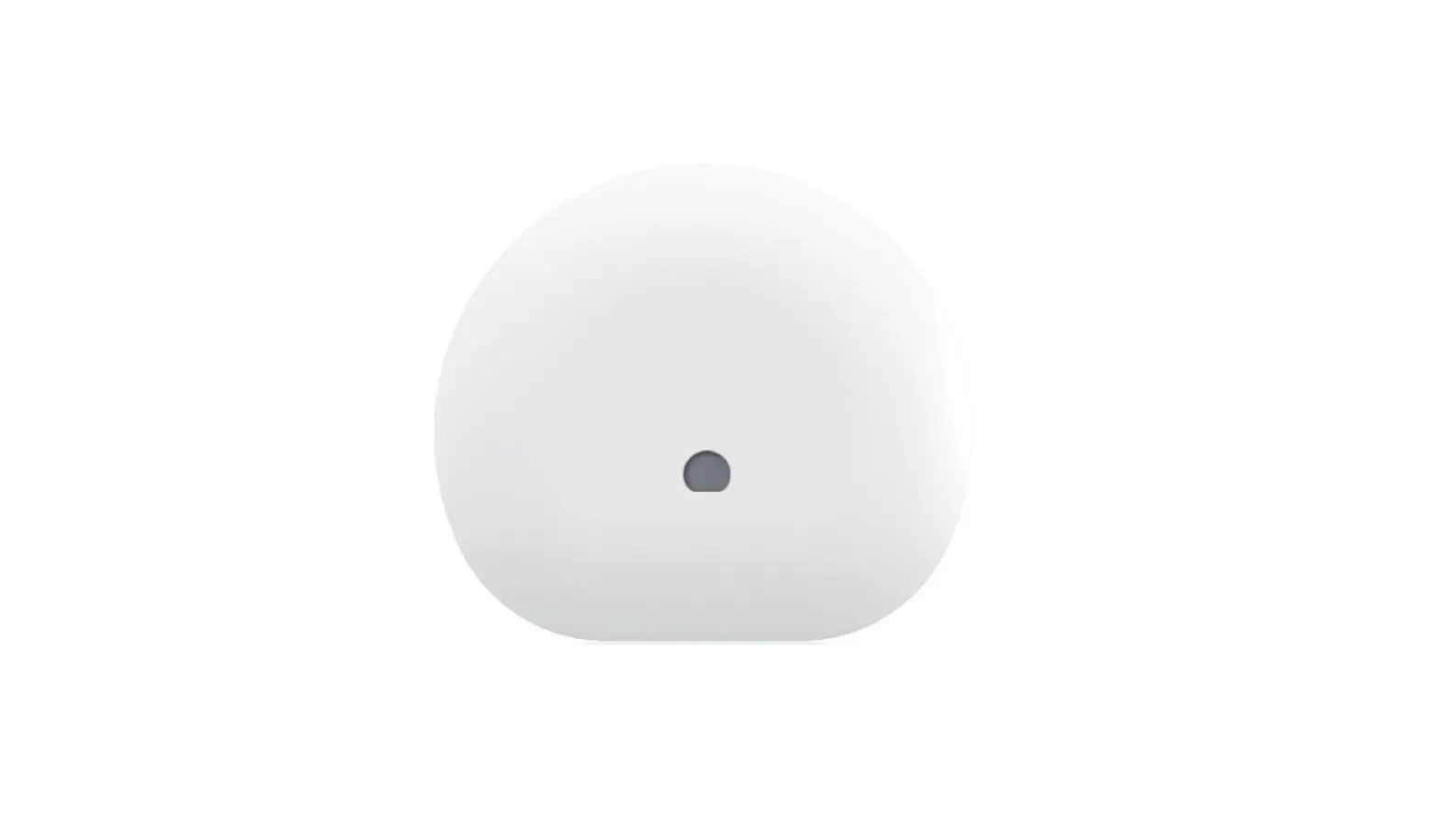
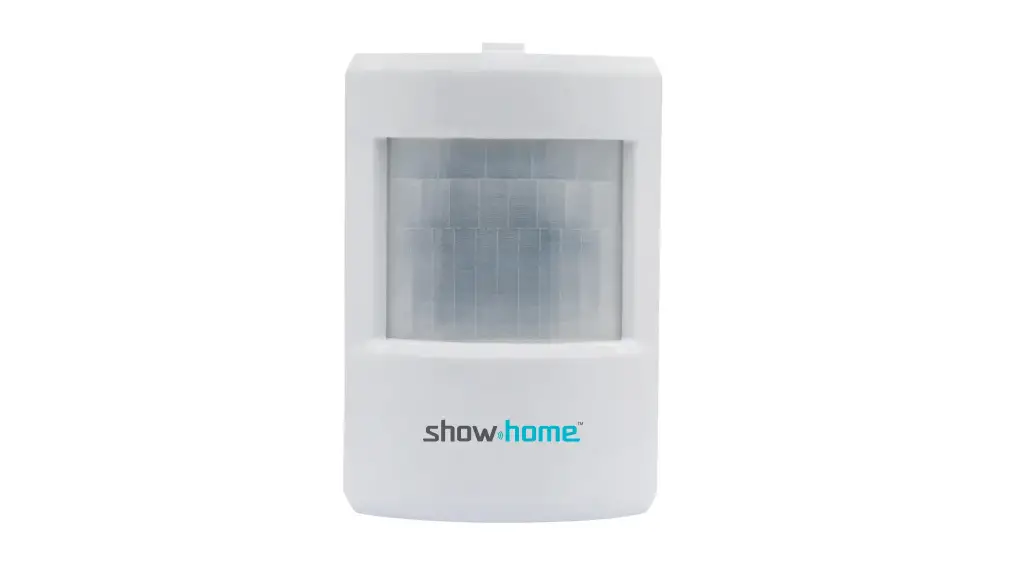
This section provides an overview of the Activity Tracking Sensor.
Activity Tracking Sensors User Manual
3
Chapter 3. Activity Tracking Sensor Setup
3.1 Power on the sensor
Before using the sensor, please remove the plastic pull tab from the sensor to power it up. (photo for new sensor with a plastic pull-out)
3.2 Adding the Sensor to the System
Before you begin using the sensor, it will need to be added to the system first. For details, see the subsections below. To activate the sensor, complete the following steps. Note: Make sure the Security Shuttle is powered on and connected to your router.
1. Tap the menu icon to show the sidebar menu.
2. Tap “Device Management”. If you have more than one security shuttle, you may need to swipe left more than once to find the one you wish the sensor to connect to. After selecting the security shuttle, tap the plus icon “+” located to the right of “Sensor List”.
Activity Tracking Sensors User Manual
4
3. Select “Sensor”.
4. Follow the on-screen instructions. When finished, press “Next”.
Activity Tracking Sensors User Manual
5
5. After scanning the QR code located on the bottom of the camera, the “sensor adding” process will begin.
Activity Tracking Sensors User Manual
6
6. When the activation is completed, the sensor will be added to the device management page. In the illustration shown below, the name of the Security Shuttle is “Location 1” and the name of the sensor is “Activity Sensor 000C0xxxx”.
3.3 Positioning the sensor
After the “sensor adding” process has been completed, you can place the device at the desired location. To make sure the connection of the sensor is working, you can check the Activity log if the activity has been logged successfully. For
Activity Tracking Sensors User Manual
7
details about how to view the Activity log, see Section 4.1 below Activity Tracking . You can freely attach the sensor to any surfaces (avoid metal surfaces to reduce the radio interference), such as doors, cabinets, drawers, etc.
3.4 Remove Sensor
To remove the sensor from the current Security Shuttle, tap “Remove Sensor”.
Activity Tracking Sensors User Manual
8
Chapter 4. Starting to Use the Activity Tracking Sensor
At this stage, your sensor is now ready for use.
4.1 Activity tracking
Regardless of the arming status, the Activity Tracking sensor will log the activities of the attached objects and present the activities in two ways.
1. Tap the Activity icon to enter the Activity tracking page.
2. The activity log will be displayed in 3-day line chart as below:
Activity Tracking Sensors User Manual
9
3. The detailed log is also available if you click on “See All Data”
Activity Tracking Sensors User Manual
10
Appendix Glossary of Terms
Arm: The cameras and other security related sensors in the system are actively monitoring the surroundings. Any suspicious activity that has been detected by the camera or sensor will prompt the app to immediately send a notification. A recording will also be performed by the camera(s) that witnessed the event.
Disarm: The cameras and other security related sensors in the system are no longer actively monitoring the surroundings. The system will not react to any suspicious activity detected by these devices. No notification will be sent.
Note: If the continuous recording function is turned on, video recording will always work regardless if the system is armed or disarmed. For more details regarding the continuous recording function, see Section 4.8 Turn On/Off Continuous Recording.
Event: An event is created when any camera or sensor detects an activity, or is manually triggered by the user.
Security Shuttle: Functions as a secure and intelligent hub to manage the devices and communicate with the cloud server. Currently, there are three types OPU1120, OPU2120, and OPU3120.
Activity Tracking Sensors User Manual
11
 VPN Mantap | Aplikasi VPN Terbaik Gratis Sepuasnya
 More Security for Less | home8 Pro Security & Safety Systems