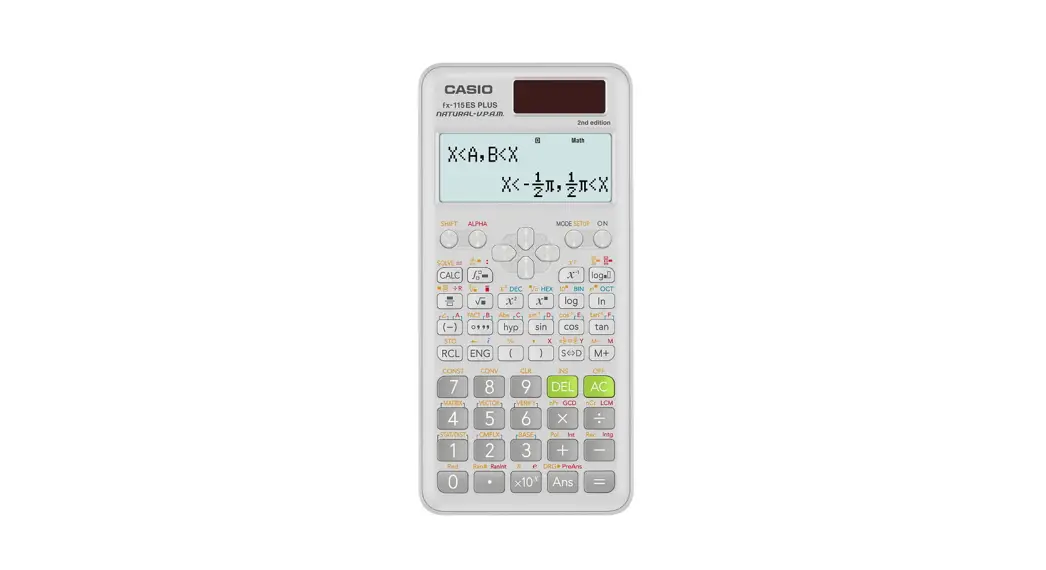
 Simply Calculate The Difference!
QUICK START GUIDE
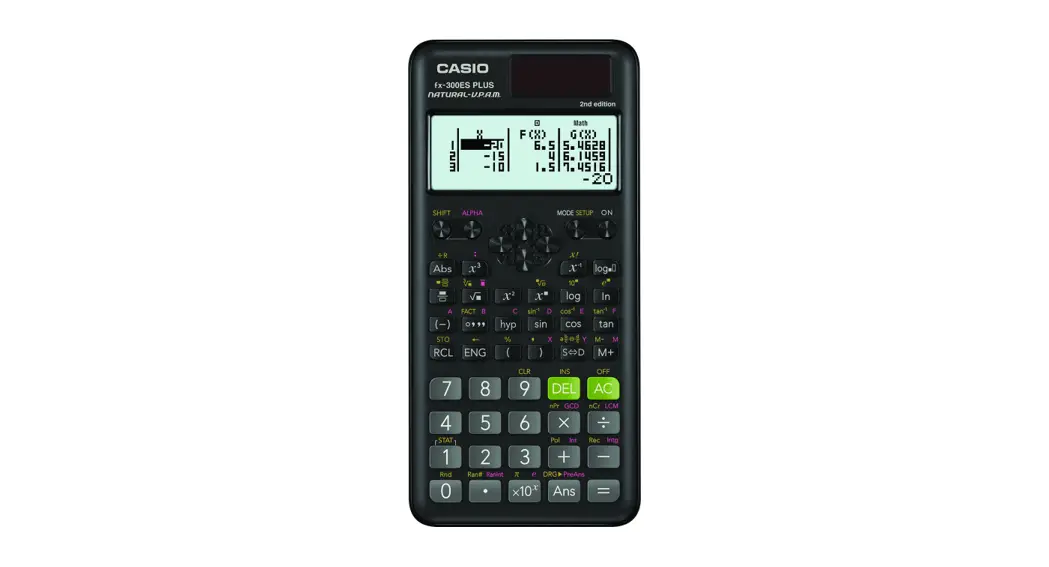
fx-300ES PLUS
2nd EDITION
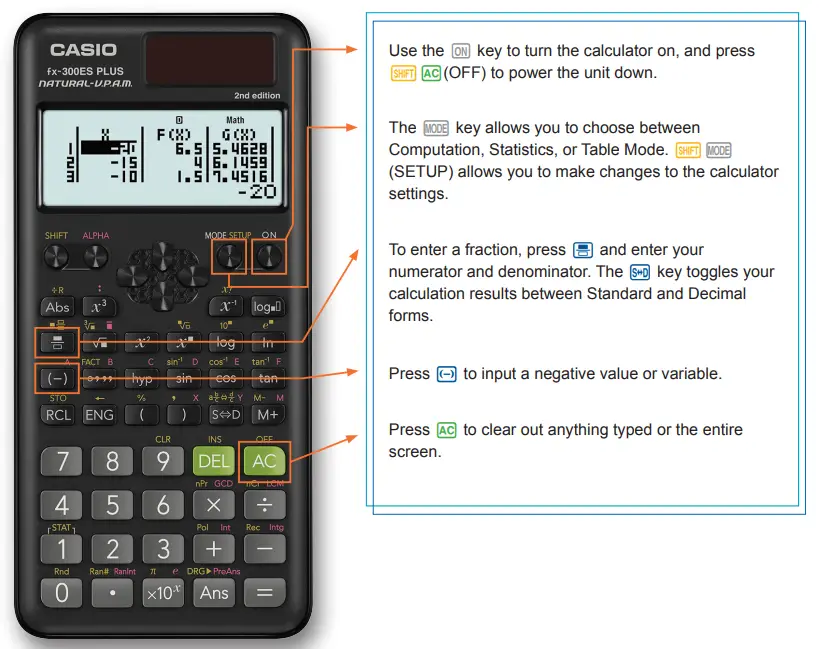

The following explains the meaning of each mode on the fx-300ES Plus 2nd Edition:
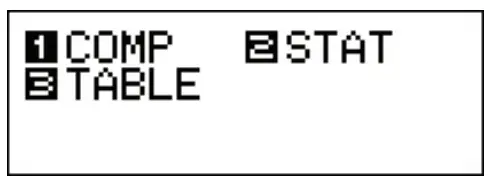
| MENU NAME | DESCRIPTION |
| COMP | This mode performs general calculations. |
| STAT | This mode performs statistical and regression calculations. |
| TABLE | This mode generates a numerical table based on one or two functions. |
To calculate and solve basic expressions, press to enter COMP mode.
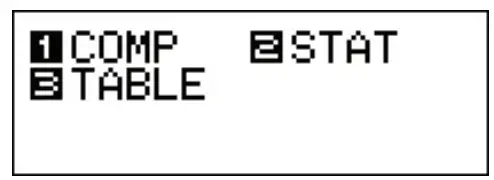
To make any changes to the calculator settings, press  (SETUP).

COMP MODE
Inputting a Fraction & Converting to Decimal Form:
- To solve7/8+2/3/11, press


- To view the solution as a decimal, press


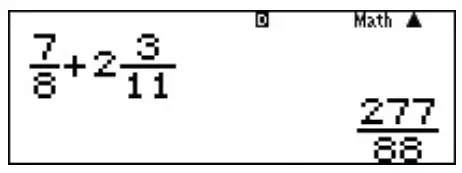
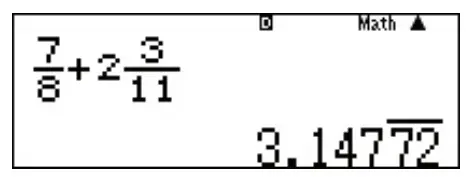
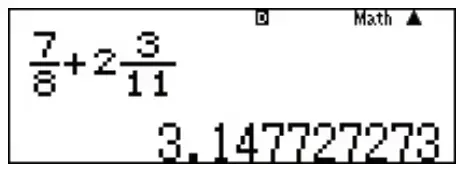
Note: press again to see the entire decimal answer. Pressing once more will display the fraction solution again.
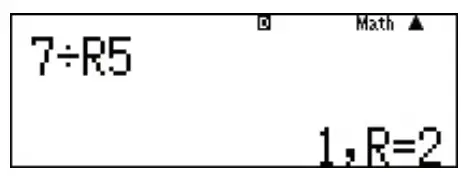
To Find the Remainder of a Division Problem:
- To find the remainder of 7 divided by 5, press



Absolute Value:
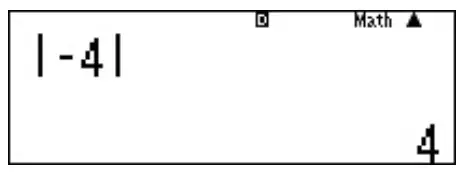
- To find the absolute value of -4, press


Exponents:
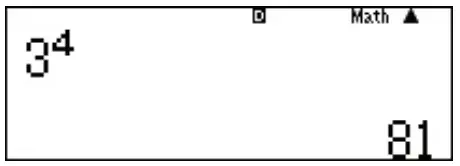
- To evaluate 34, press


Roots:
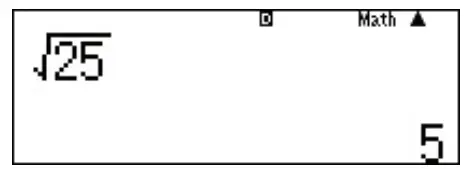
- To calculate the square root of 25, press


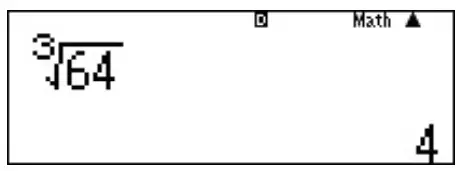
- To calculate the cube root of 64, press




Storing Variables:
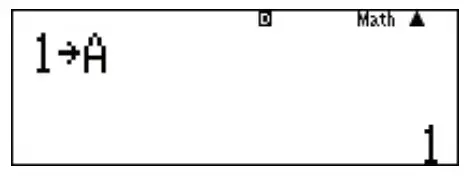
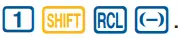
To store a value for any variable, press  followed by a variable, A F. In this example, we will store a value of 1 for the variable A.
- Press

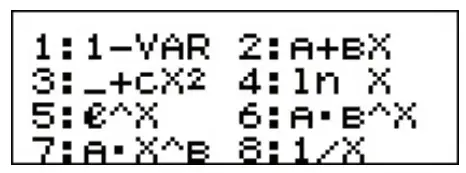
To start a statistical calculation, press  to enter STAT mode and use the screen that appears to select the type of calculation you want to perform.
Note: When you want to change the calculation type after entering STAT mode, press  (STAT/DIST)1(Type) to display the calculation type selection screen.

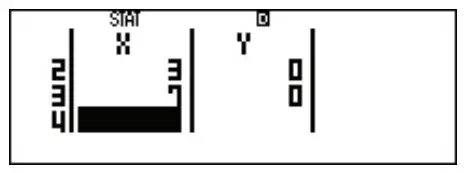
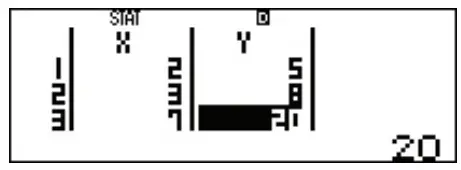
Enter the data points and find the linear regression formula.
(2, 5) (3, 8) (7, 20)
Entering Data:
- From the initial Stat screen, press
2(A+BX) for linear regression.
- Enter the x-values into the table by pressing


- Use the arrow keys to move to the top of the y-column and enter the y-values by pressing




STAT MODE
Finding a Regression:
- To find the regression equation, press
 to clear the screen.
- Press
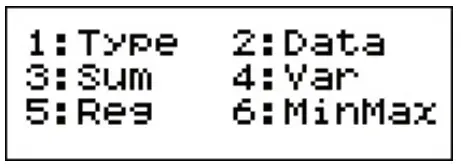
 (STAT) to display the Statistics Menu.
- Press
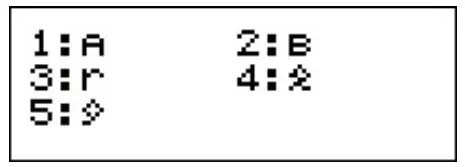
5(Reg) to find the coefficients for the linear regression equation.
- Press
1(A) to find the value of A.
- To find the value of B, repeat the process. Press


- The values of the correlation coefficient (r), the estimated value of X, and the estimated value of Y can also be found.
 to clear the screen.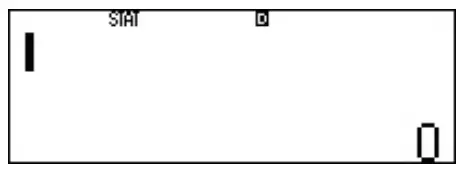
 to find the value of A.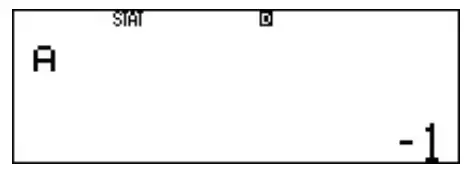

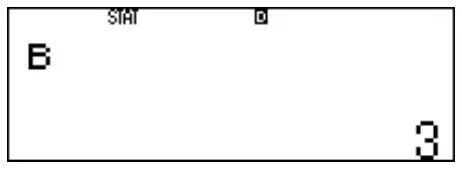

TABLE MODE
TABLE generates a number table based on one or two functions, entered as f(x) and/or g(x). Press  to enter TABLE mode.
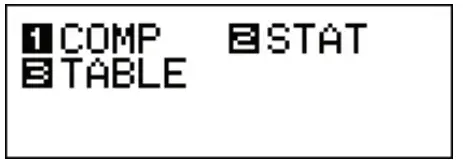
Note: Be sure to input the x variable  when generating a number table. All other variables will be handled as constants.
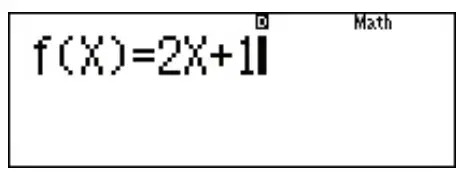
- Enter the function (f)x = 2x + 1 by pressing


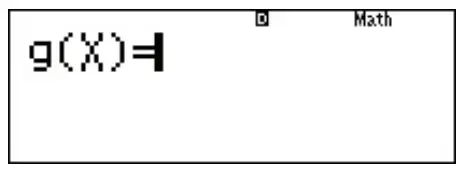
- Press to store that function. Another function can be entered to compare the two functions. Pressto moves to the next screen and only has one function entered.
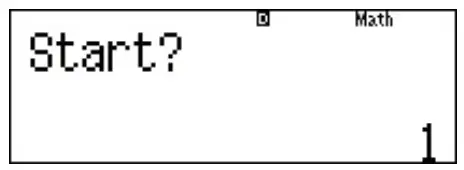
- Set a starting x-value for the table. The default value is 1. To change the value, enter the new value and press. To keep the existing value, press.

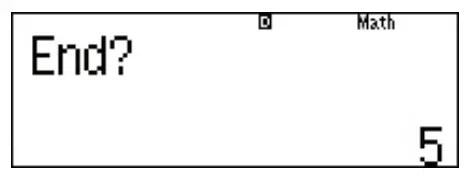
- Next, set an ending x-value for the table. The default value is 5. To change the value, enter the new value and press. To keep the existing value, press.

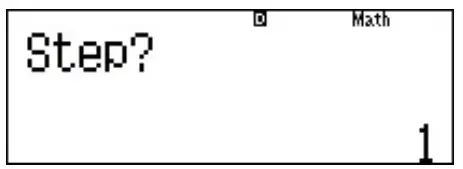
- Set a step value for the table. The default value is 1. To change the value, enter the new value and press. To keep the existing value, press.

- Use the
 and arrows to scroll through the entire table.
 Simply Calculate The Difference!
See the complete line of Casio calculators
www.casioeducation.com

 and
and  arrows to scroll through the entire table.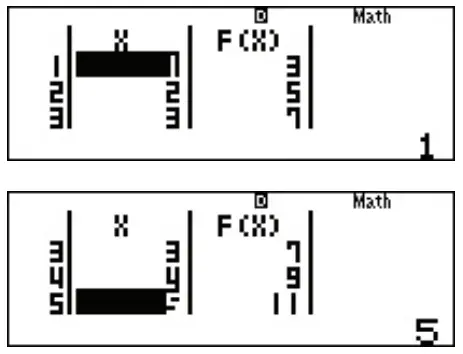

fx-300ES PLUS 2nd Edition Quick Start Guide
 Home Page | Casio Education