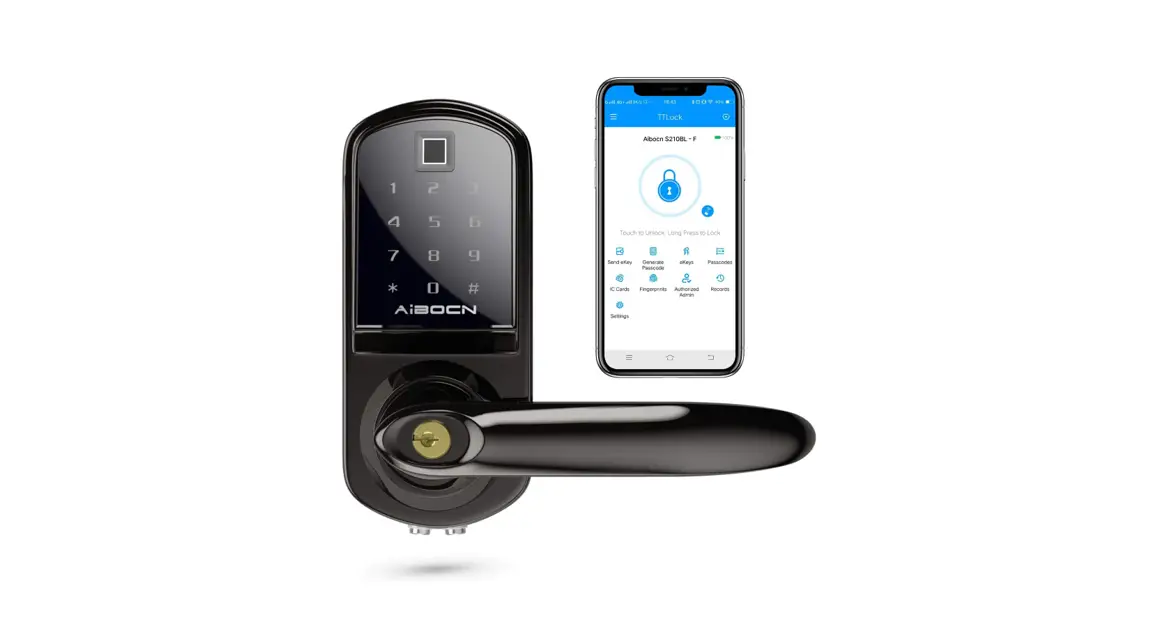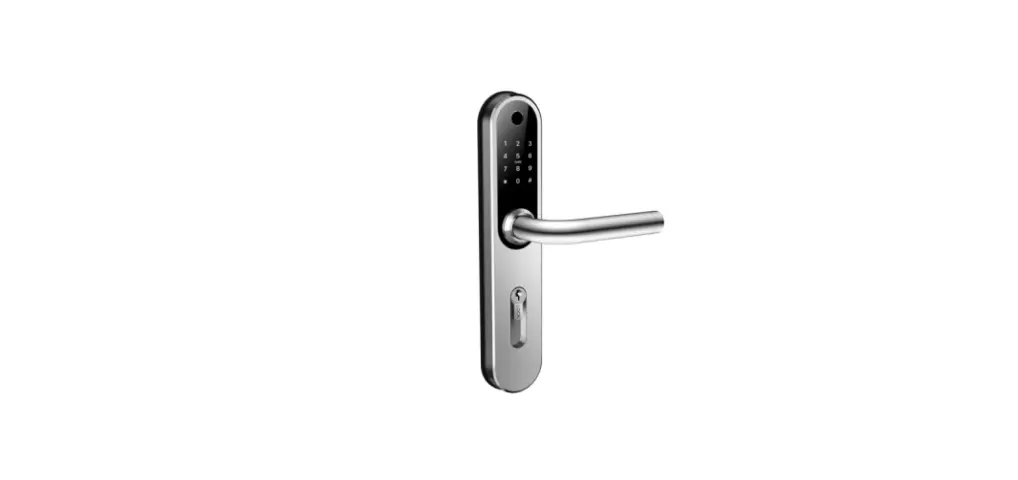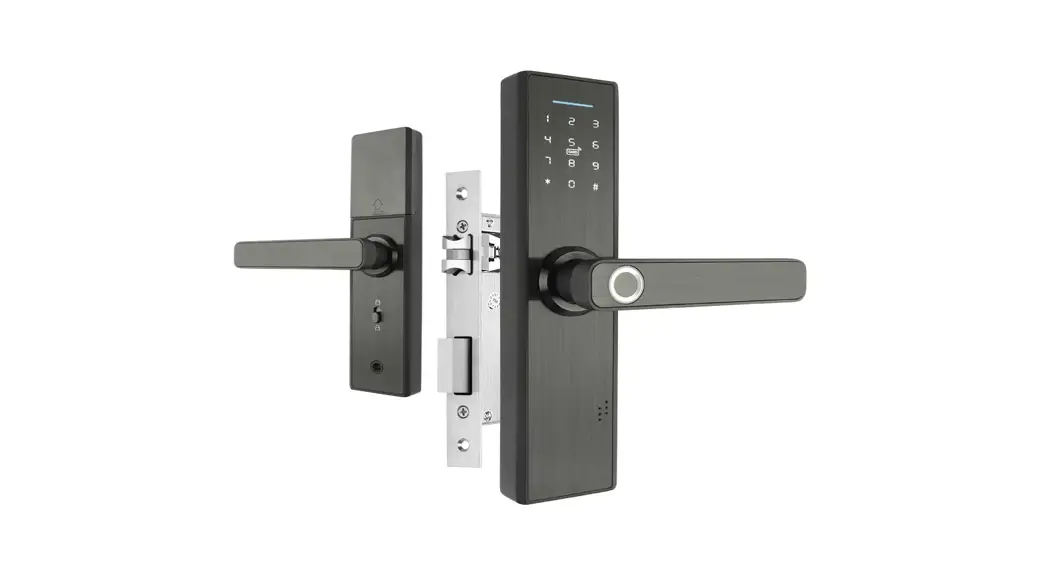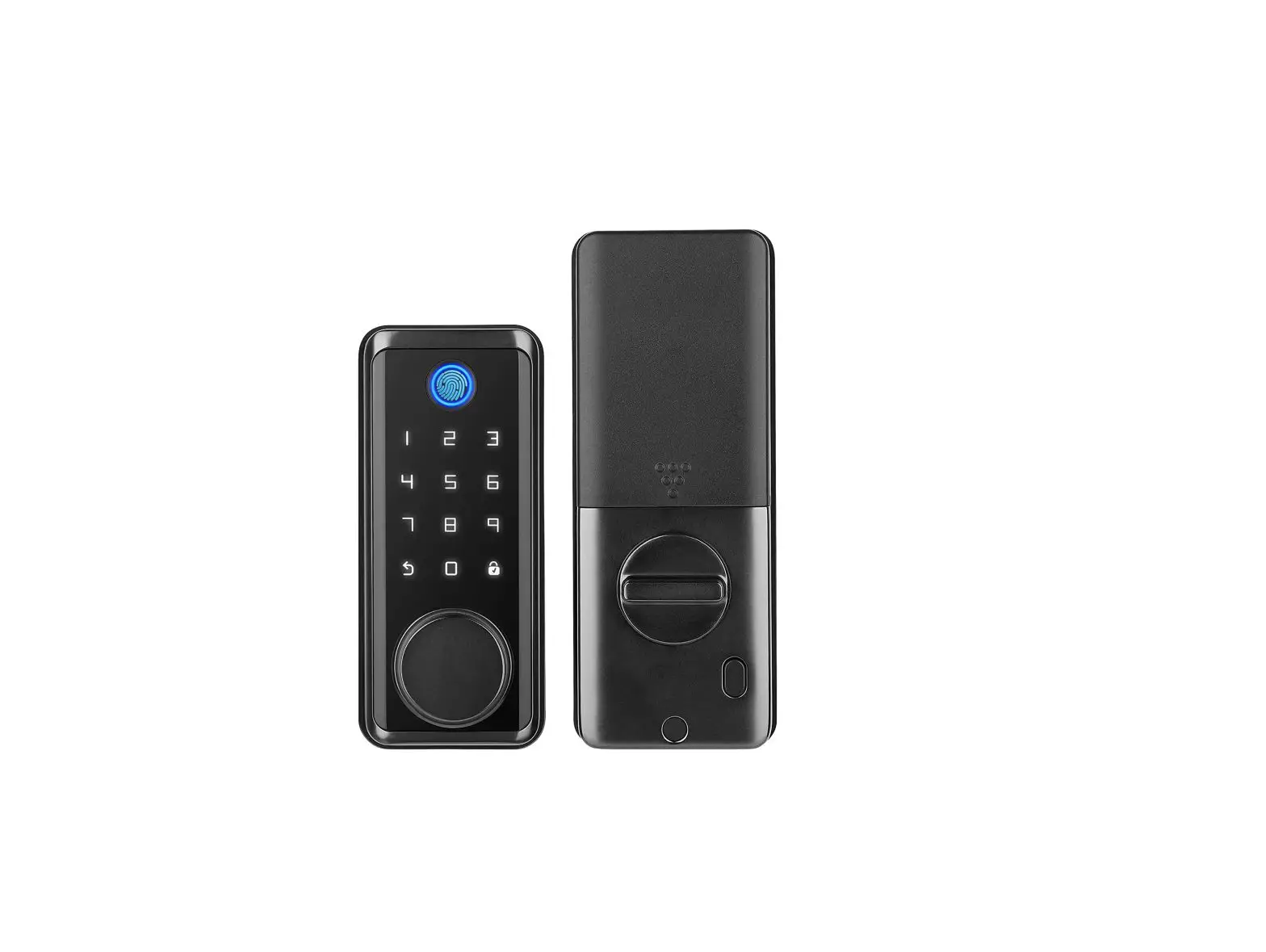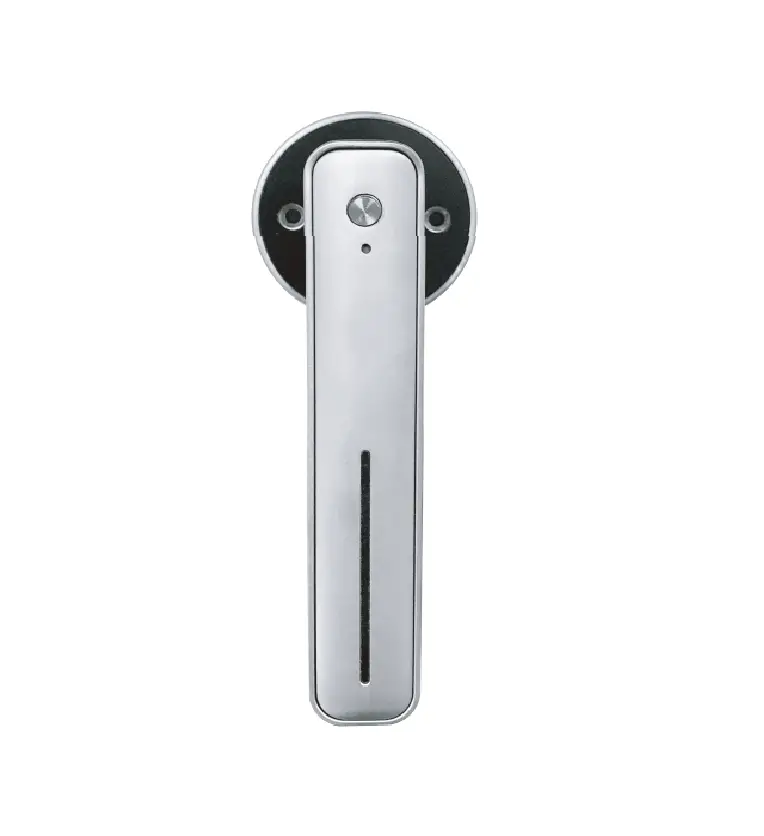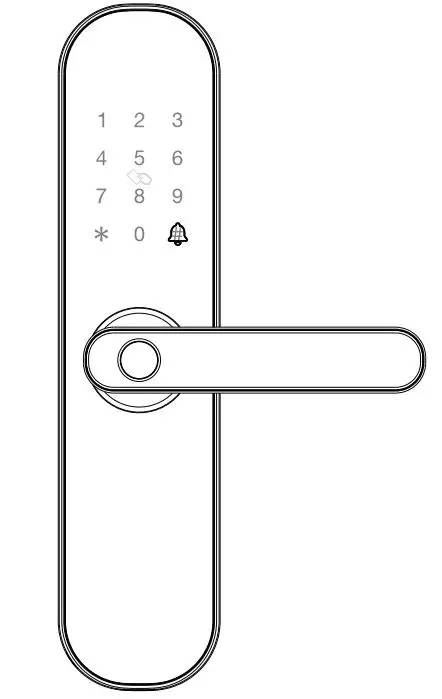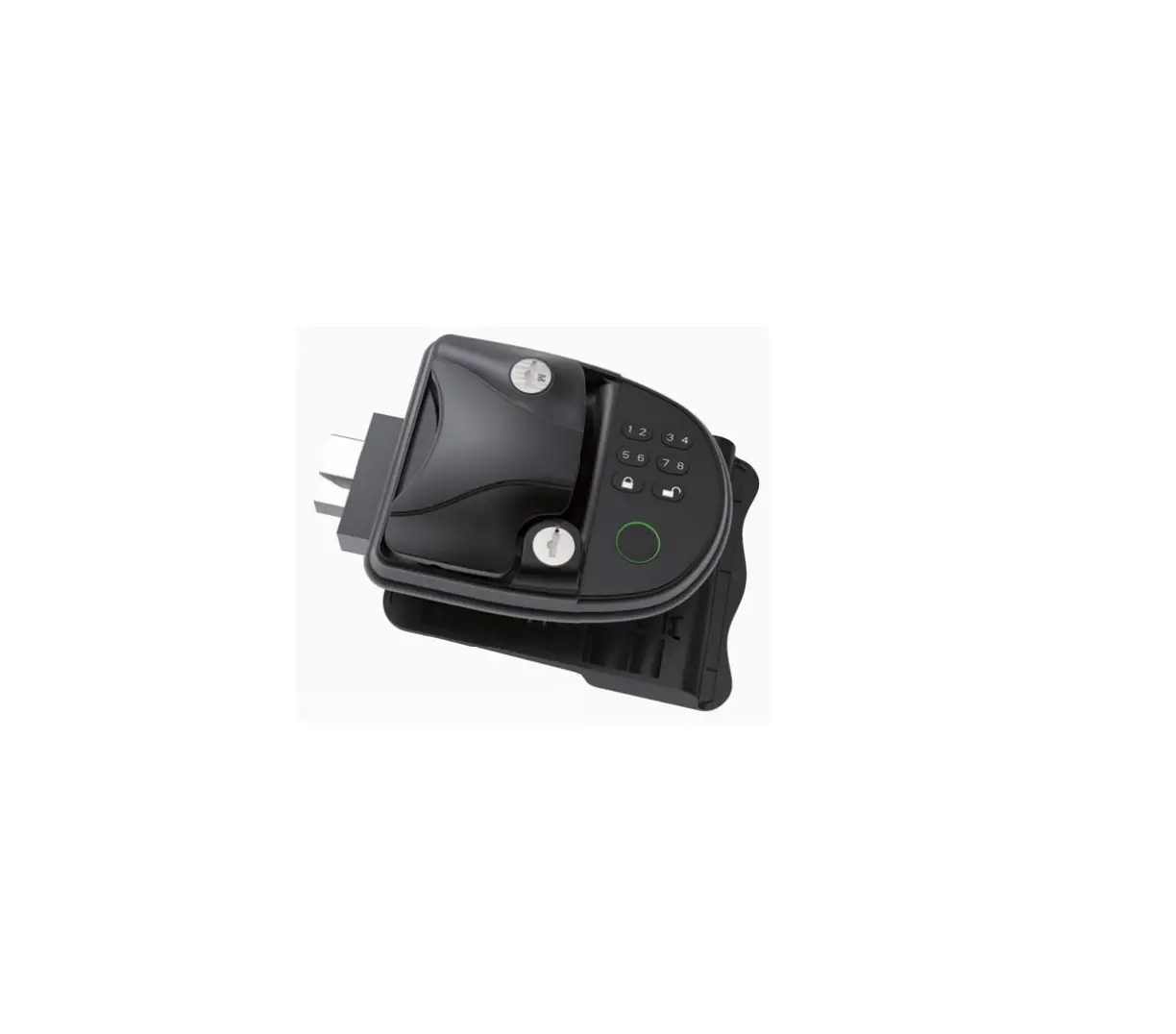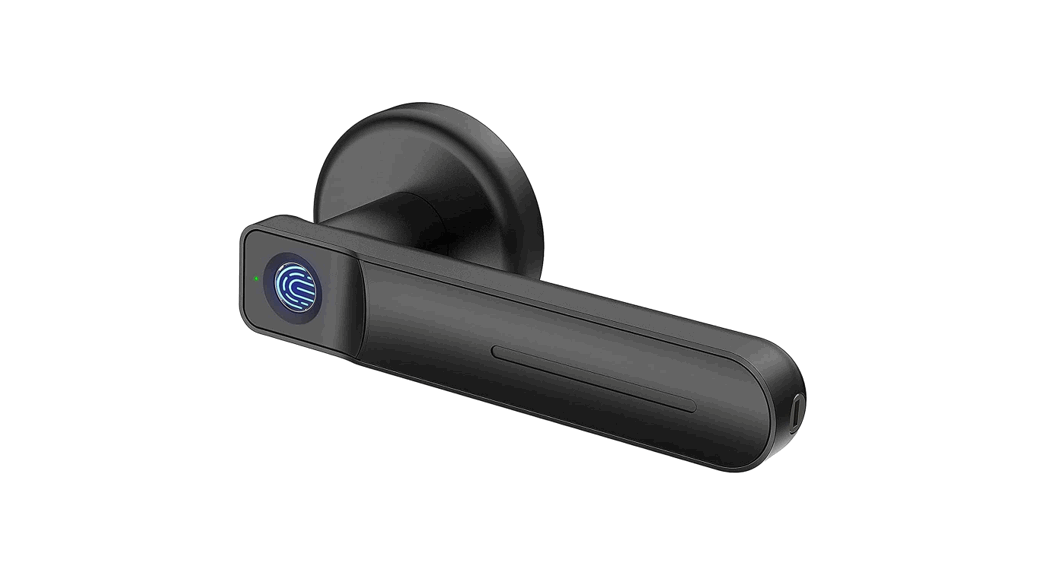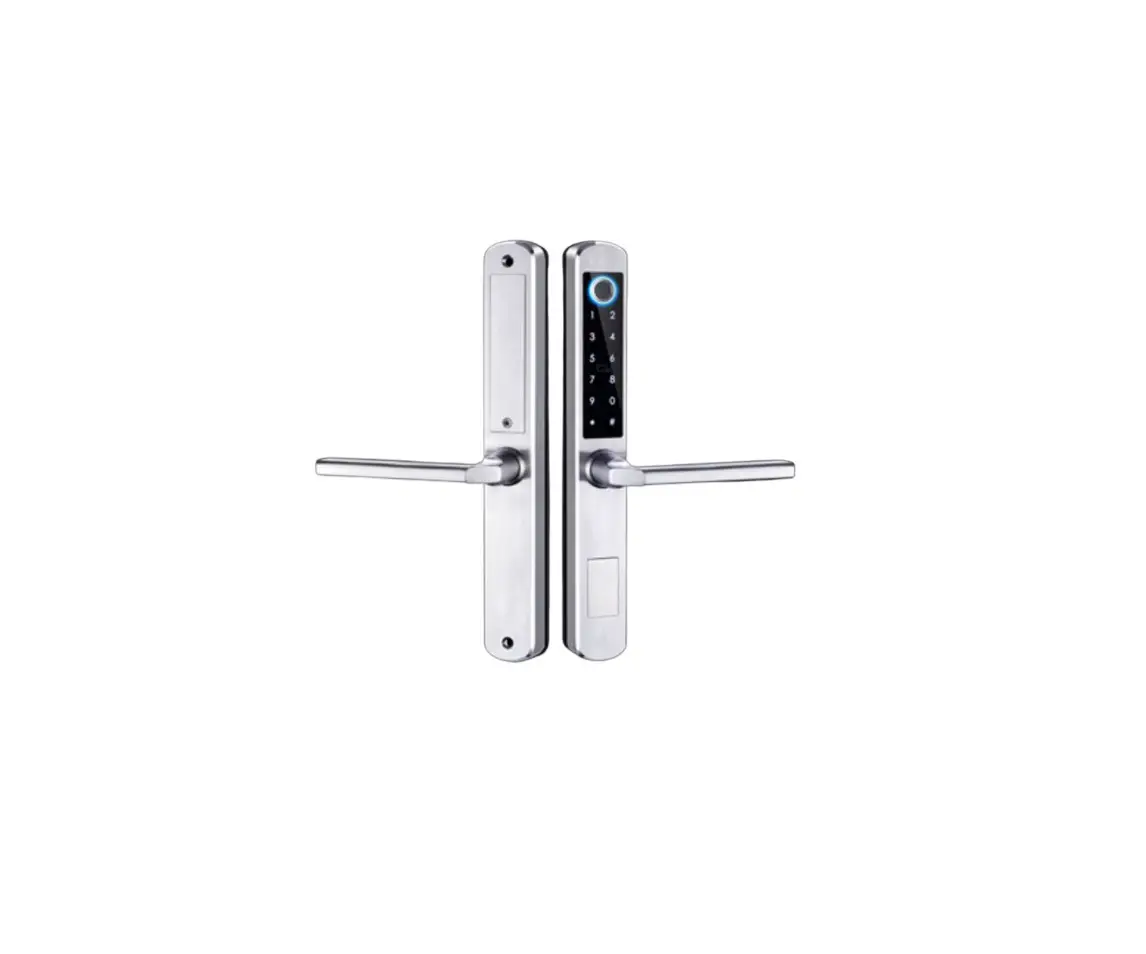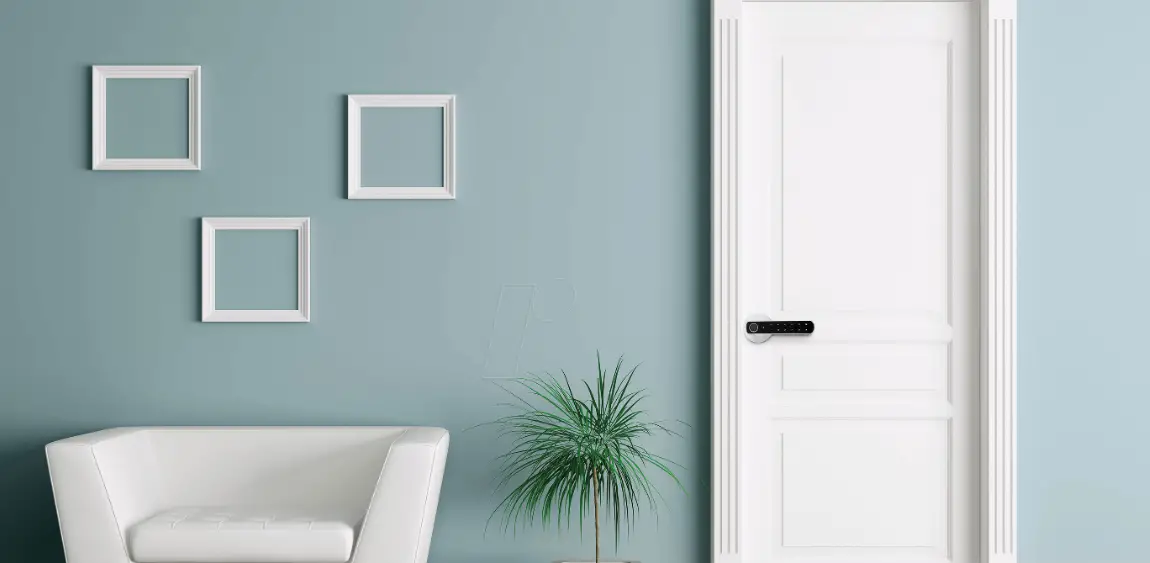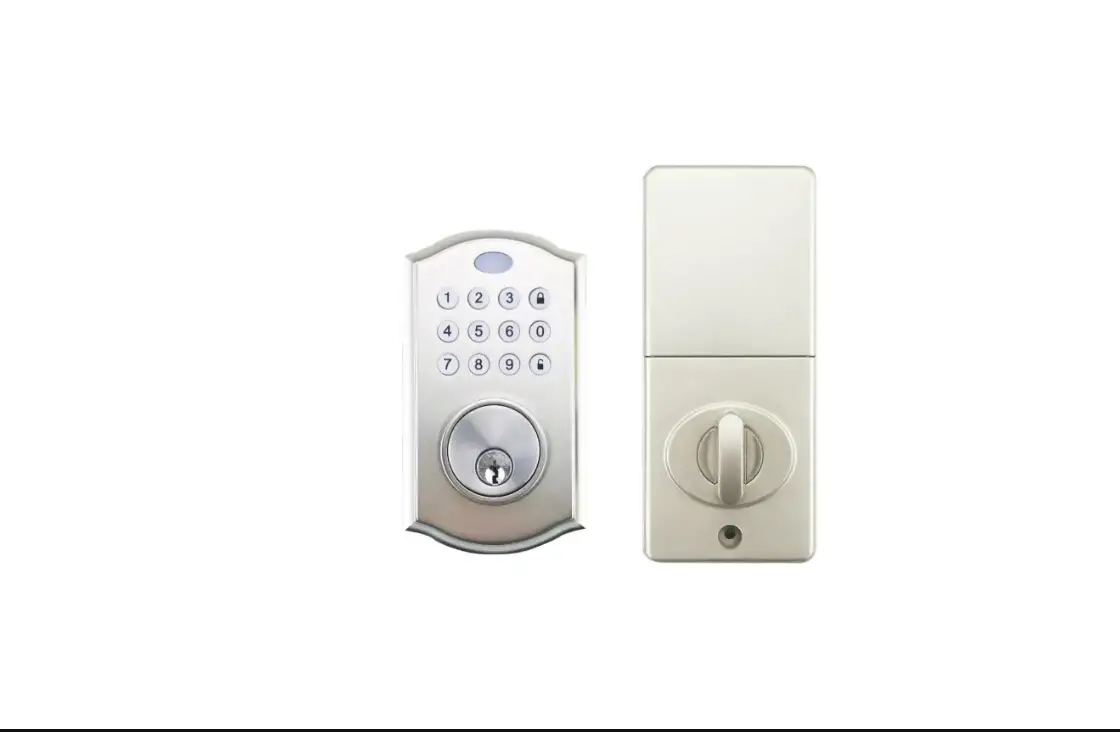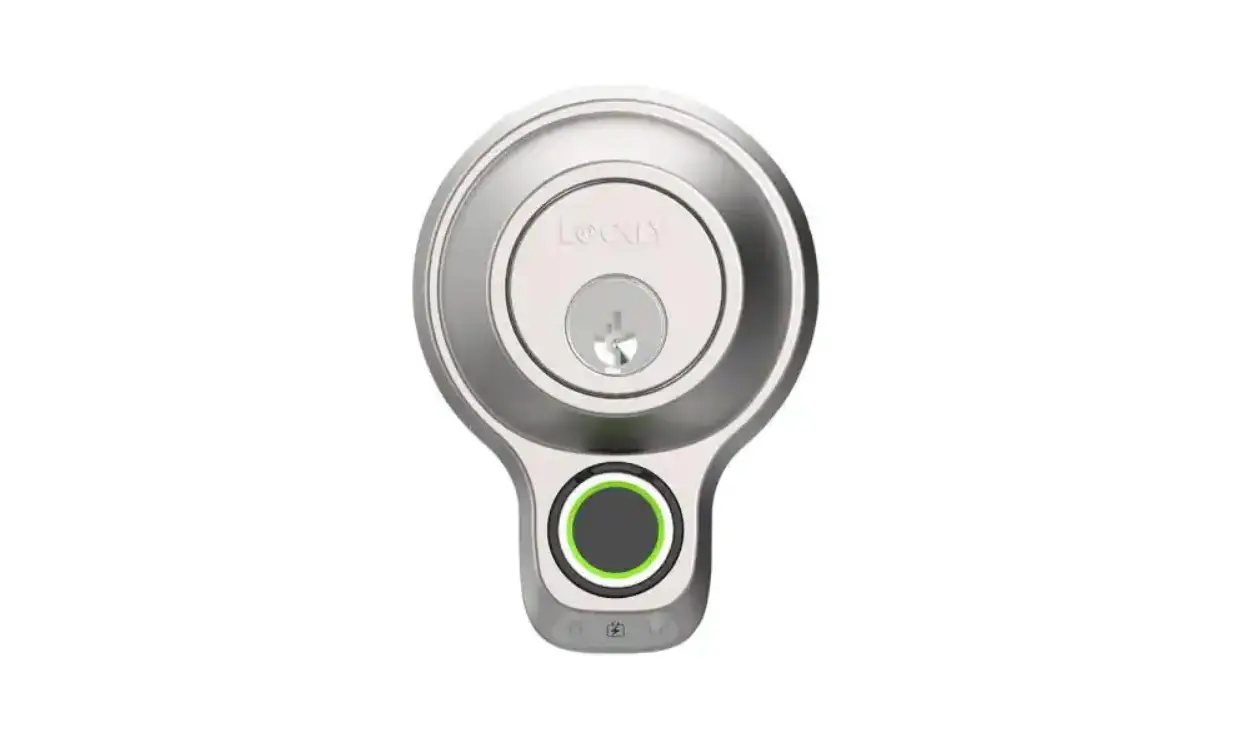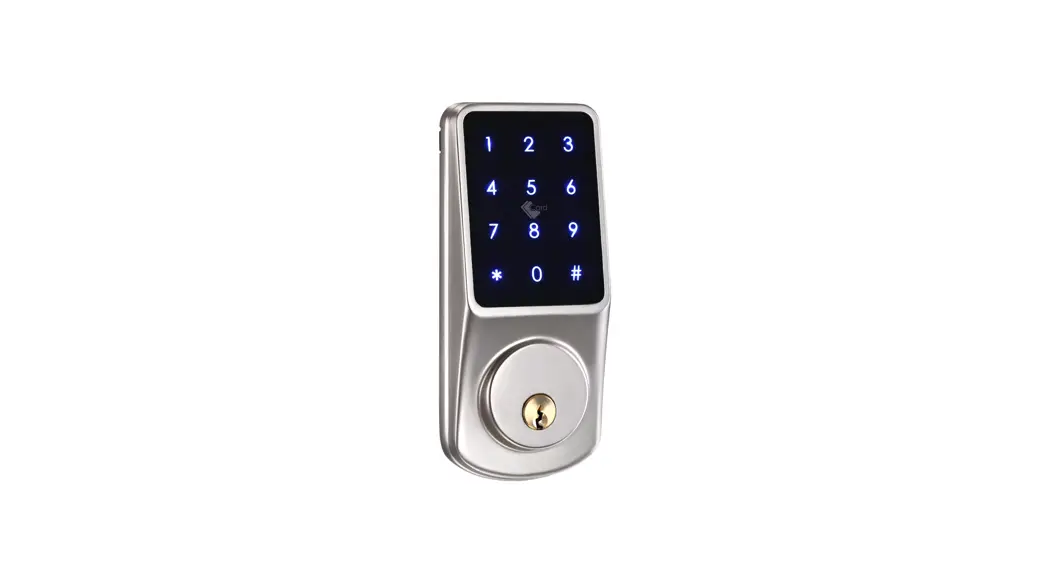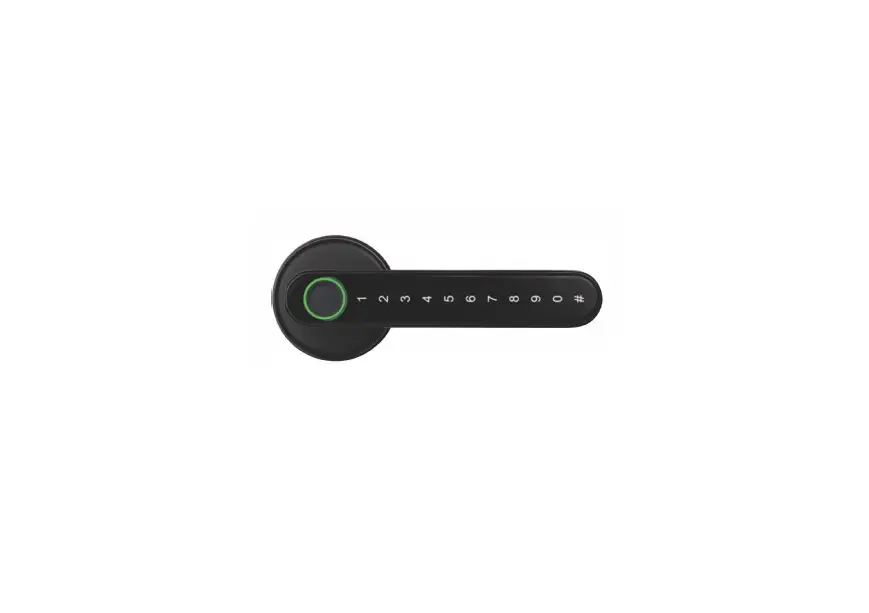
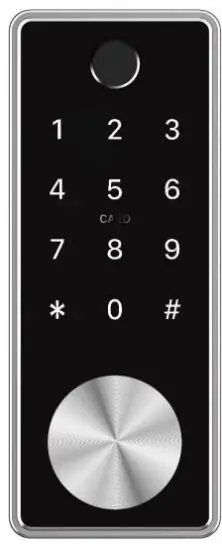
 DH210 Smart Fingerprint Deadbolt Lock
Instruction Manual
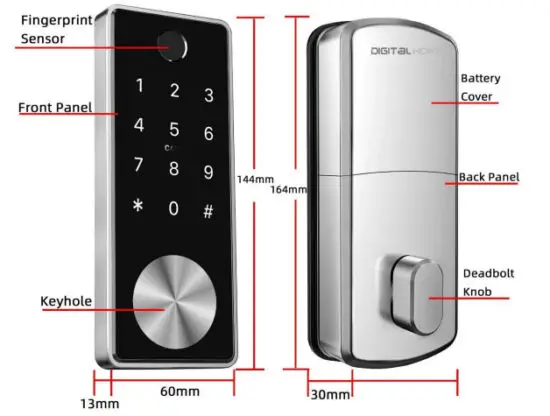
Lock Structure
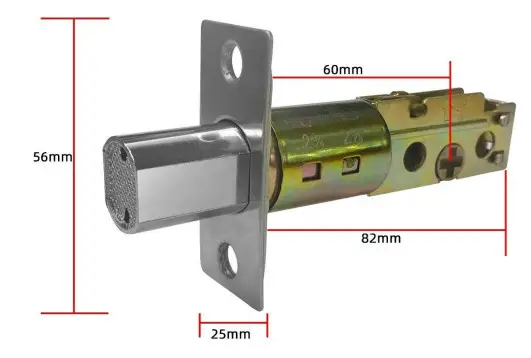
Mortise
Installation
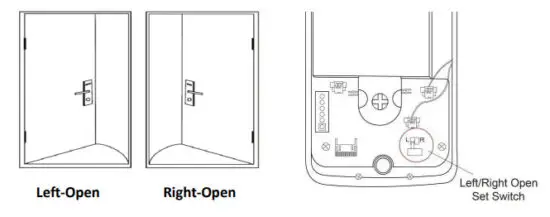
a. Confirm opening direction
- To install the lock for left-open, ensure the toggle button on the back assembly is set to L.
- To install the lock for right-open, ensure the toggle button on the back assembly is set to R.
b. Confirm before installation
| Left Open | ||
| 1 | 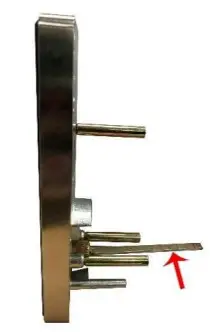 | The spindle always keeps horizontal |
| 2 | 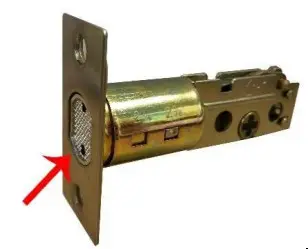 | Deadbolt always keeps pulling in |
| 3 | 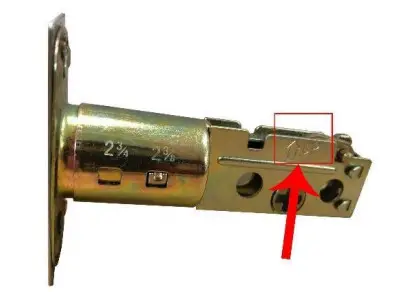 | This direction always Keep UP |
| 4 | 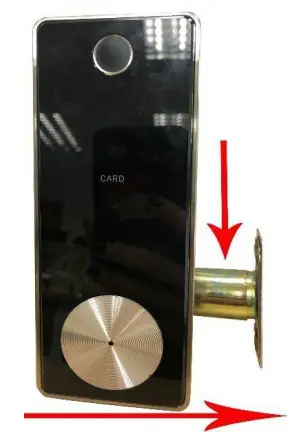 | What is left open? What is left open? This we called “left open”(show as image) This we called “left open”(show as image) |
| 5 | 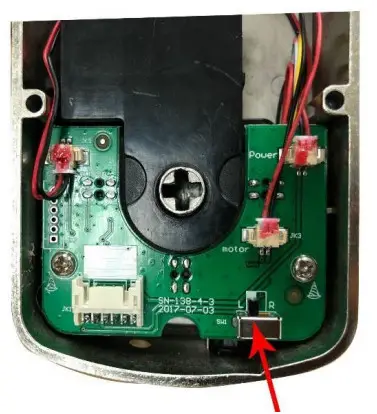 | Change to the “L” position in the PCB of the back panel |
| 6 | 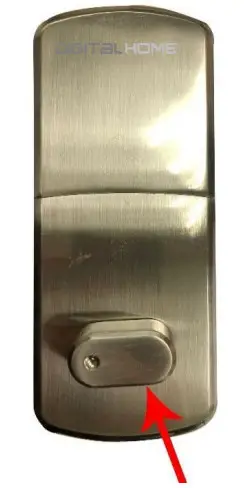 | The deadbolt knob is always horizontal |
| Note: Any of the above is an improper set, which will cause a problem! | ||
| Right Open | ||
| 1 | | The spindle always keeps horizontal |
| 2 | | Deadbolt always keeps pulling in |
| 3 | | This direction always UP |
| 4 | 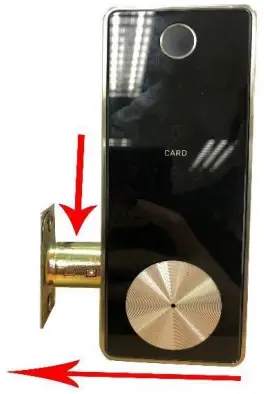 | What is right open? This we called “right open”(show as image) |
| 5 | | Change to “R” position in the PCB of the back panel |
| 6 | | The deadbolt knob is always horizontal |
| Note: Any of the above is an improper set, which will cause problems! | ||
c. Installation Steps
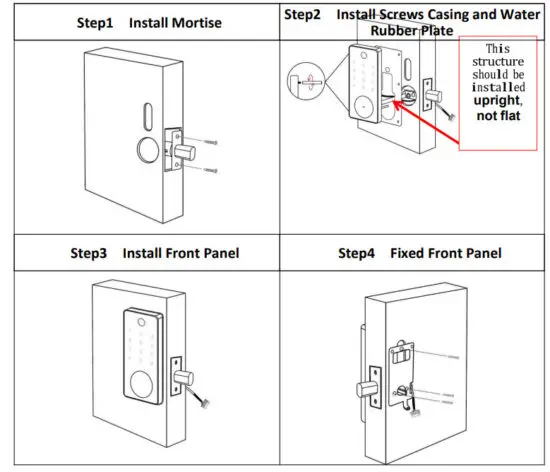
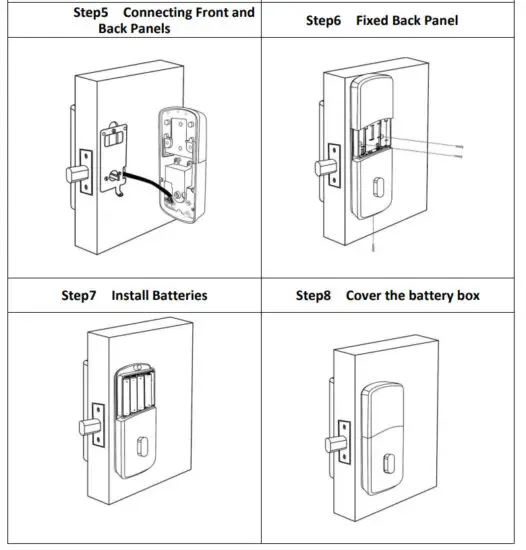
Specifications
| Suitable for Models | T11B |
| Materials | Zinc Alloy |
| Lock Size | 144*60mm |
| Lock Weight | 1.5 KG |
| Unlocking way | Bluetooth Gateway (Option) Fingerprint |
| Card Password Mechanical Key | |
| Color | Silver Black |
| Doors Applicable | Wooden Door |
| Working Voltage | 6V/4x AA Batteries |
| Door Thickness to Fit | 35-60mm |
| Working Temperature | -25℃-60℃ |
| Working Humidity | 20%-90% |
| Low Wattage Alarm | Less than 4.8V |
| Communication mode | Bluetooth 4.0 |
| Support System | Android 4.3 / IOS 7.0 above |
| Static current | ≤30uA |
| Working current | ≤200m A |
Initialization
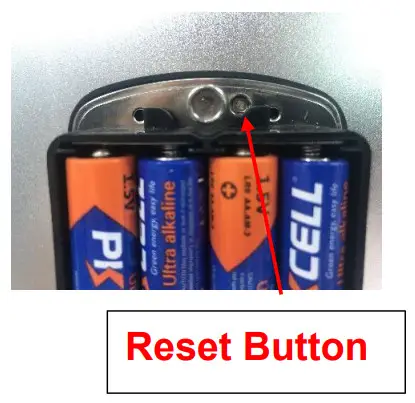
Long press the reset button on the back of the front panel for about 3s, input “000000r, the initialization is successful when the buzzer short beep twice.
Tip: How to open the key cover?
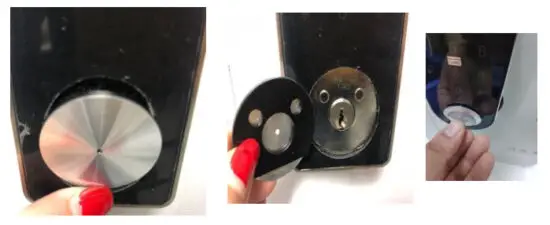
i. Hardware Troubleshooting
| 1 ) After installation, touch-sensing keyboard. screen no respond | a)In this case, first check that the positive and negative electrodes of the battery have been installed upside down and whether the battery has enough power b)Remove the back panel and see if it’s connected. c)To eliminate the above situation, you need to remove the lock, check whether the wires of the lock body are squeezed, and re-wire. |
| 2) unable to register fingerprint | Check the fingers for dirt or wear, check the fingerprint head on the lock for dirt and oil stains, etc. Check to see if the fingerprint is working properly (Pressto see if there are any responses. |
| 3) Fingerprint verification is successful, but the door cannot be opened. | The fingerprint lock has two important components: one is the fingerprint module and the other is the electronic clutch. If the verification is successful but the door does not open, you can listen carefully when the verification is successful, and if there is any sound of the motor rotating inside the lock. If there is, it is usually caused by the clutch in the handle. If not, it may be because the circuit board to the motor line has burned out. At this time, you can’t solve it yourself, or the warranty is processed. |
| 4) What is the reason why the smart lock consumes fast power? | a) Large standby power consumption 13) Short circuit |
| 5) Can you adjust the volume? | a)The Bluetooth system can only turn the sound On or Off, and cannot adjust the volume; b)The non-Bluetooth system can adjust the volume. |
| 6) There is no response to pressing the handle outside the door, and there is unlock normally inside the door, but the verification is normal, and the motor is normal. | It may be the triangle direction on the clutch was an error, please check a correction. |
| 7) The keys do not respond, and the lights are off | Most of this happens because the door lock is out of power |
| 8) How many times will the passcode be locked? How long is it locked? | Bluetooth: Enter wrong 5 times and lock for 5 minutes Non-Bluetooth: Enter wrong 5 times, lock for 1 minute |
| 9) How many records can be kept in the lock? | Bluetooth: 500 Non-Bluetooth: 10000 |
| 10) How many locks can a card match at the same time | No limit |
| 11) Cannot automatically wake lock when unlocking | Change the spring wire |