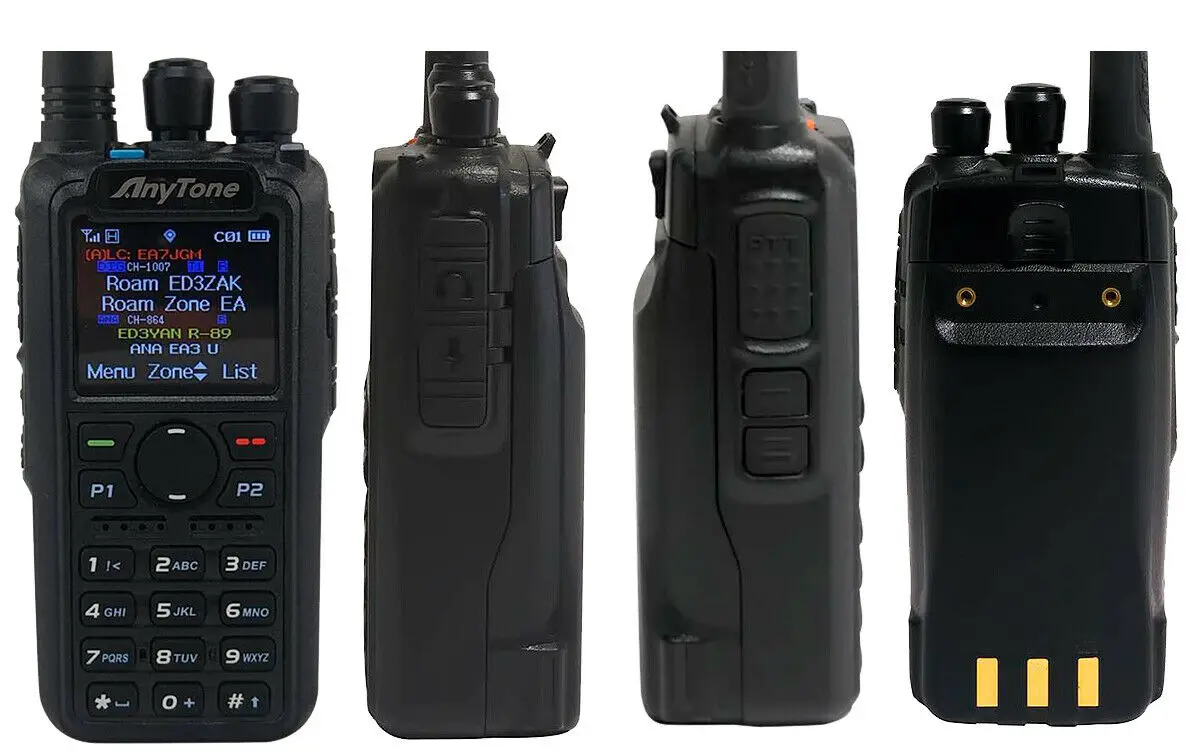

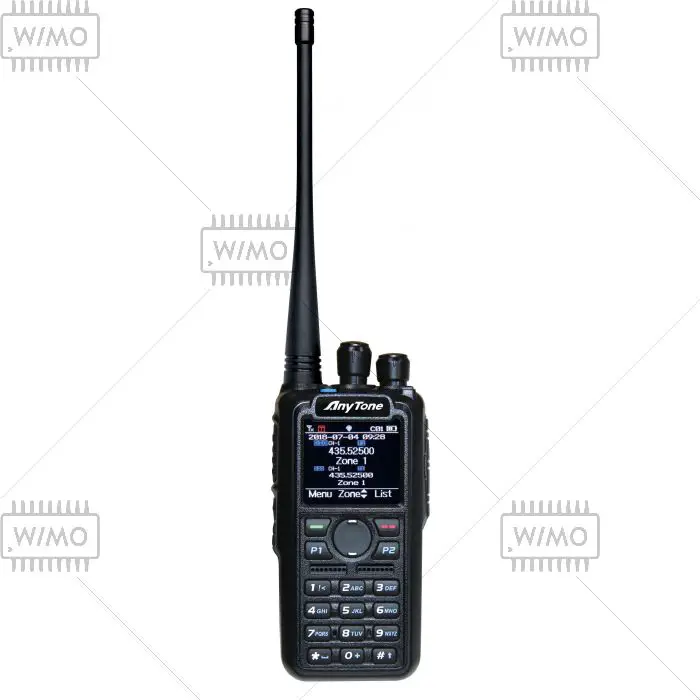
AnyTone AT-D878UV Plus Digital DMR Dual Band Handheld Commercial Radio Bluetooth
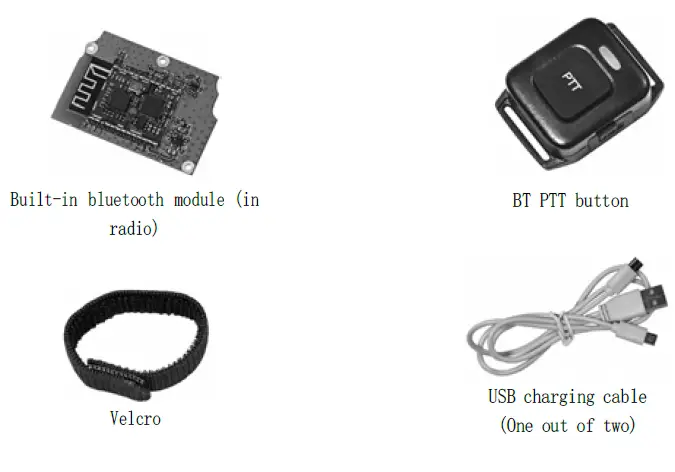
Package contents
When the indicator is red twinkling, the battery voltage is low. Connect USB charger cord into the BT PTT’s USB charging port. If the PTT is not fully charged, the indicator will turn red. When the indicator turns off, the unit is fully charged. A fully discharged battery will need approximately 1.5 hours to achieve complete charge.
Battery Power Indicators of BT PTT button
- Red light twinkling: Low battery voltage
- Light off: Fully charged. Over 24 hour talk time
- Red light: Less than a full charge
For best performance, keep charging PTT when not in use.
Mounting the BT PTT
Velcro is supplied with the BT PTT button which allows you to secure the PTT button to the car steeling wheel or any other location for convenience.
The AnyTone Bluetooth features are accessed from the radio menu. Once the Bluetooth units are installed on the radio, the Bluetooth Menu will appear in the radio Main Menu. Controls for the Bluetooth option are listed and described in the table below:
| MAIN BT Menu | SUB Menu | Description |
| BT On/Off | — | Turns BT On or Off |
|
BT Pairing | Seek BT | Seek a BT Device to Pair With (Device must be in Pairing Mode) |
| Available BT | Show Available BT Device to Pair With | |
| Paired List | Show BT Device Paired in Memory | |
| Disconnect BT | Disconnect Current BT Device | |
| BT Names | — | The radio BT name |
| Paired Names | — | The paired BT name |
| BT Hold Time | OFF/1 thru 120 Seconds / infinite | Allows BT to stay connected to BT Device for selected time |
| BT + int mic | — | Internal Mic On or Off |
| BT + int spk | — | Internal Speaker On or Off |
| BT Mic Gain | — | Sets BT Mic Gain |
| BT Spk Gain | — | Sets BT Speaker Gain |
| BT Pin Code | — | Allows entr y of BT Pi n Code During Pairing |
|
BT PTT Pair | PTT Pair | Pair the BT PTT Button |
| PTT Name | Shows BT PTT Button Name | |
| PTT BatVolt | Shows BT PTT Button Battery Level |
Getting Started
Step One: Pairing the radio with the BT PTT button
- Press the BT PTT button, the blue light is twinkling, the BT PTT is now in pairing mode.
- Turn on the radio and go into the Bluetooth menu, turn BT On in BT On/Off menu. Scroll down to the BT PTT Pair menu, enter into PTT Pair, the radio is now in pairing mode.
- Place the BT PTT button near the radio and wait. Within a few seconds, the devices should sync to each other.
- Once paired, the LED on the BT PTT will light off, the radio will have a blue “P” icon show on the top of the display.
Step Two: Pairing the radio with Car Audio System or Bluetooth earpiece
- Turn on the car audio system and go into Bluetooth pairing mode (same operation for the BT earpiece).
- Scroll the radio menu to the BT Pairing menu, enter into Seek PTT, the radio will start seeking a BT device to pair with.(The BT must be on in BT On/Off menu.)
- Let the radio near car audio system or Bluetooth earpiece and wait. Within a few seconds, the radio will show available BT names, select a BT and start pairing.
- Some cars require a 6 pin code for BT connection, enter into the BT pin code menu and input the 6 pin code on the radio.
- Once paired, the radio will have the blue BT icon shown on the top of the display.
Notice: The radio can only connect to a BT at one time, either Car Audio System or Bluetooth earpiece.
Step Three: Transmit and Receive Operation
Push-to-Talk can be activated by any of the following methods:
- Pressing and holding the PTT button of the radio
- Pressing and holding the PTT button on BT PTT (if a BT PTT is paired to the radio).
When transmitting, the operator’s voice is picked-up by:
- The car audio system. (when a car audio system paired to the radio)
- The microphone is in the Bluetooth earpiece. (when a BlueTooth earpiece paired to the radio)
- The microphone is on the radio. (when BT + int mic is turned on in radio menu)
Notice: When the receiver said your volume is not loud enough even if you already set to maximum volume, you can adjust the BT Mic Gain menu to bigger data to get a louder transmit volume.
When receiving, the receive audio is handled by the following methods:
- Receive audio can be heard over car audio system or BlueTooth earpiece, it can also be heard over the radio’s internal speaker when BT + int spk is turned on in the radio menu.
- The volume can be controlled by car audio system or BlueTooth earpiece, it can also be controlled by the knob on the radio.
Notice: When the receive audio is not loud enough even if you already set to maximum volume, you can adjust the BT Spk Gain menu to a bigger data to get louder receive volume.