
PROJECT
AZIO CASCADE COLLECTION
DOCUMENT
Cascade Quick Start Guide
AZIO-CASCADE-QSG-V01
BY
Tanc Peng
[email protected]
DATE
2022 . 08. 15
 QUICK START GUIDE

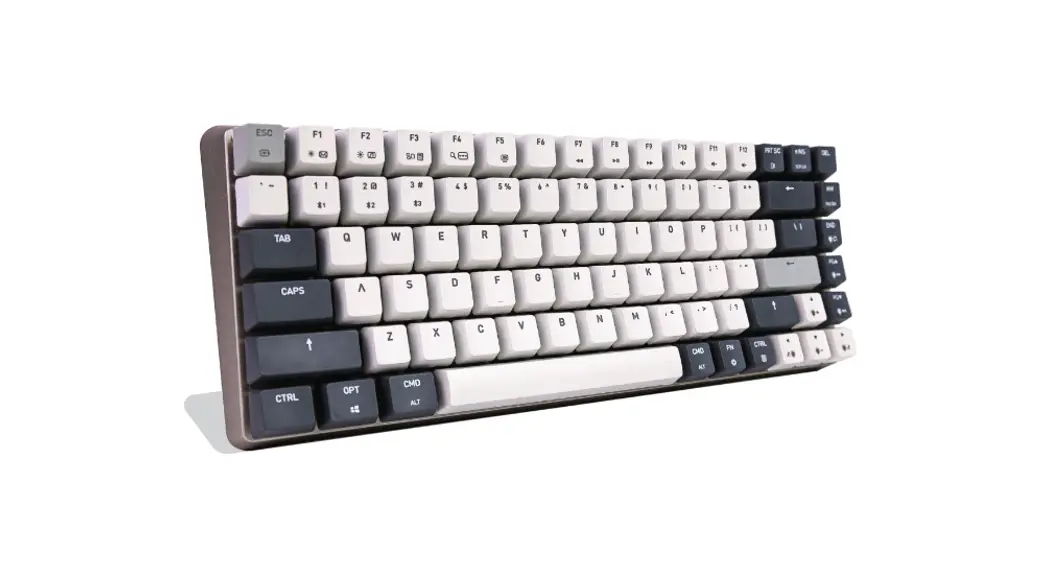
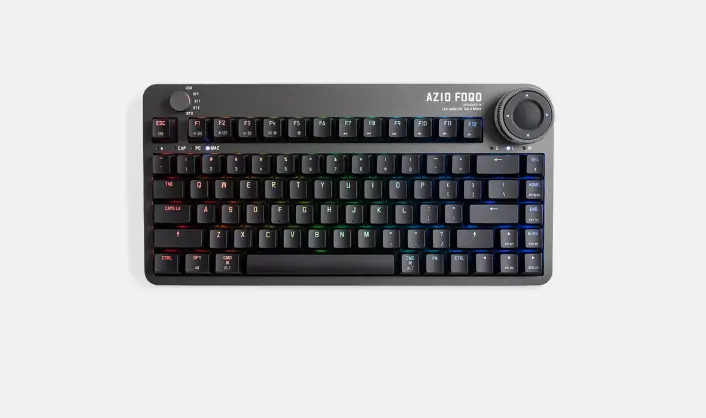
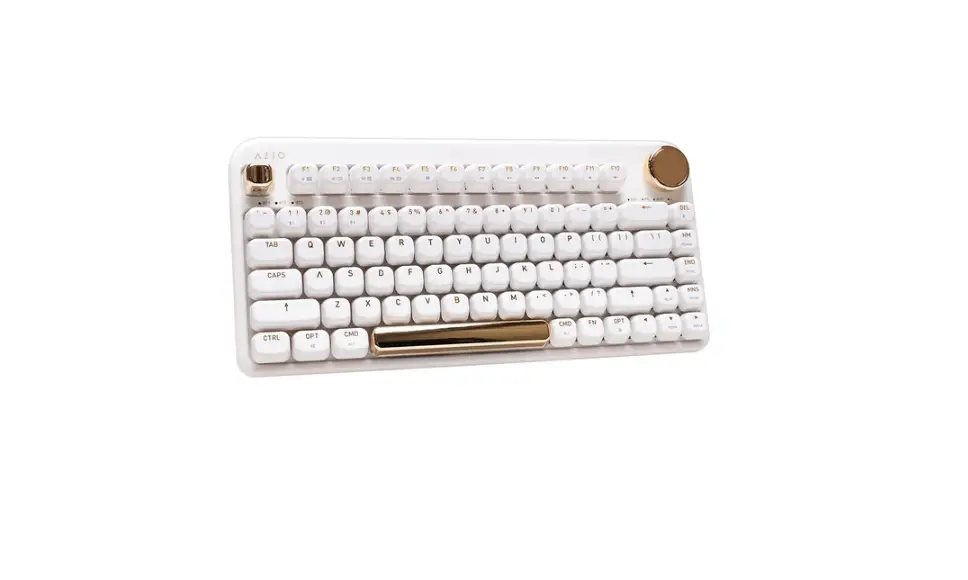
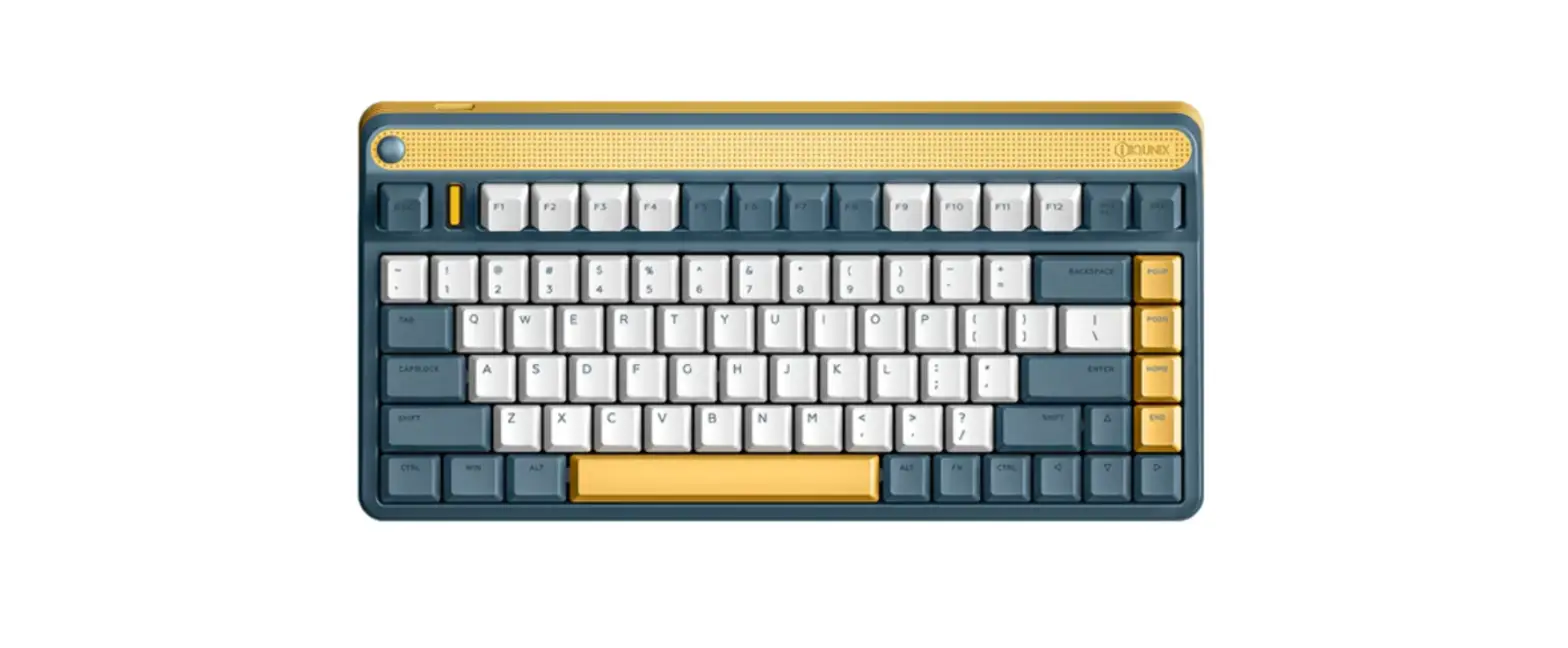
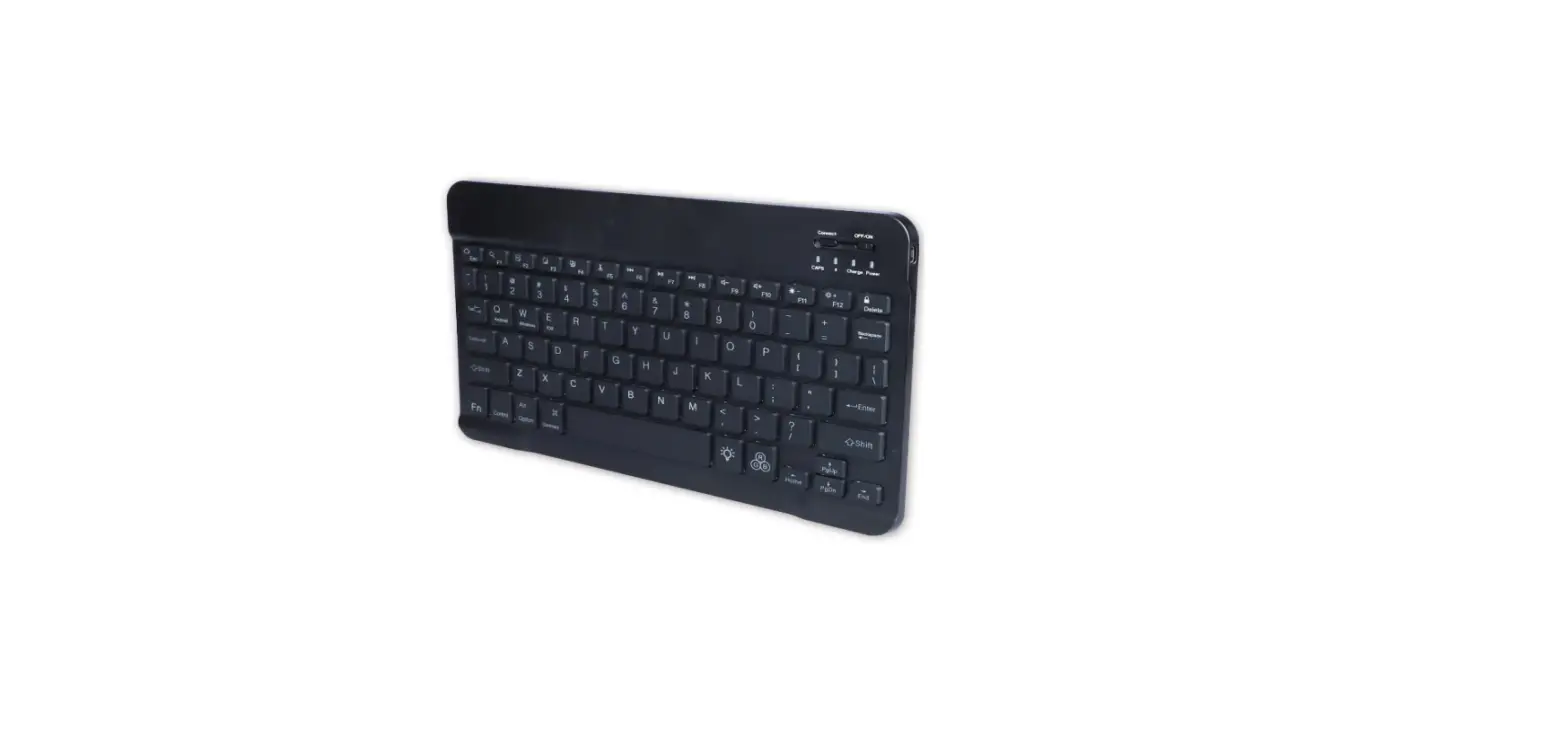
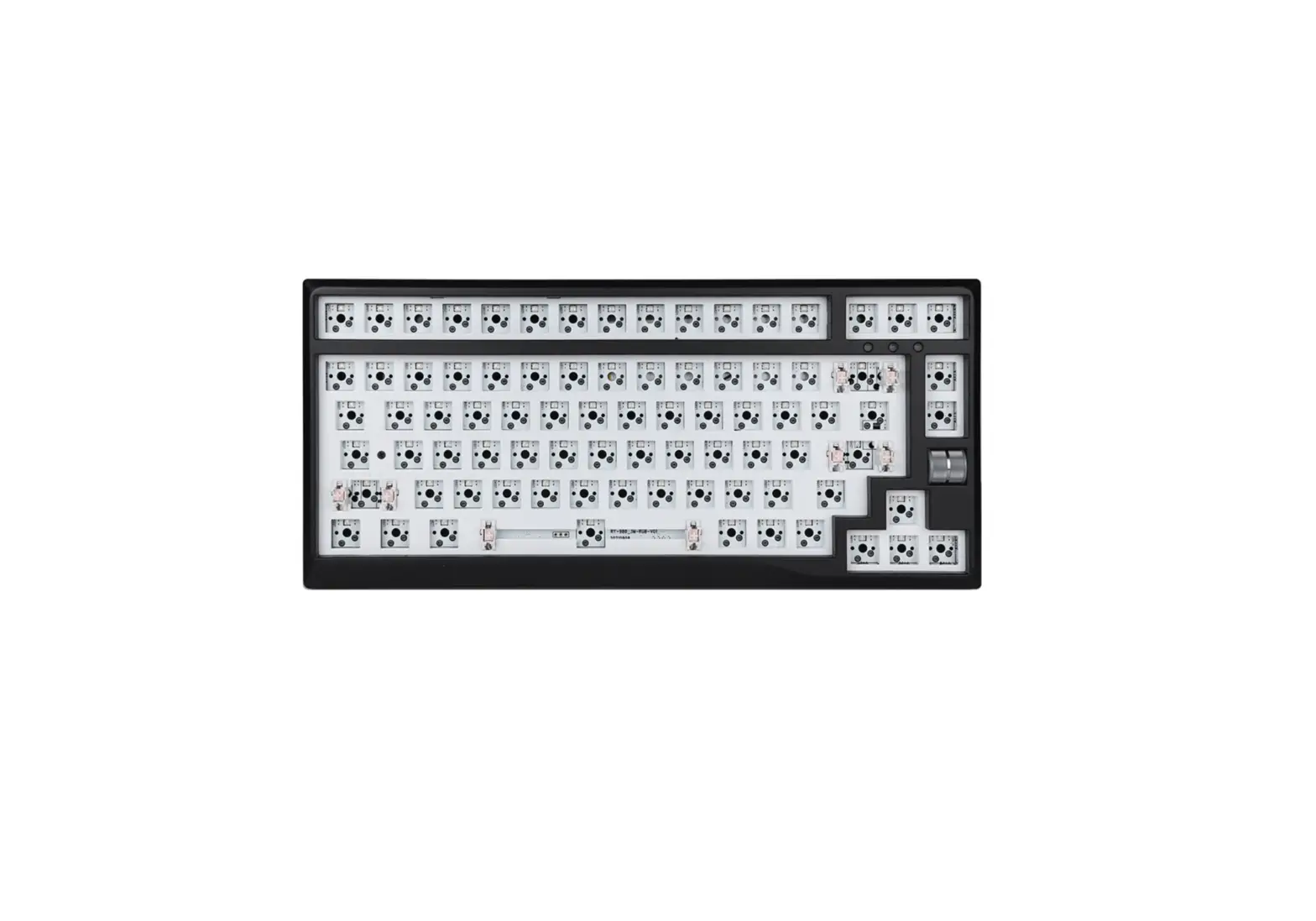
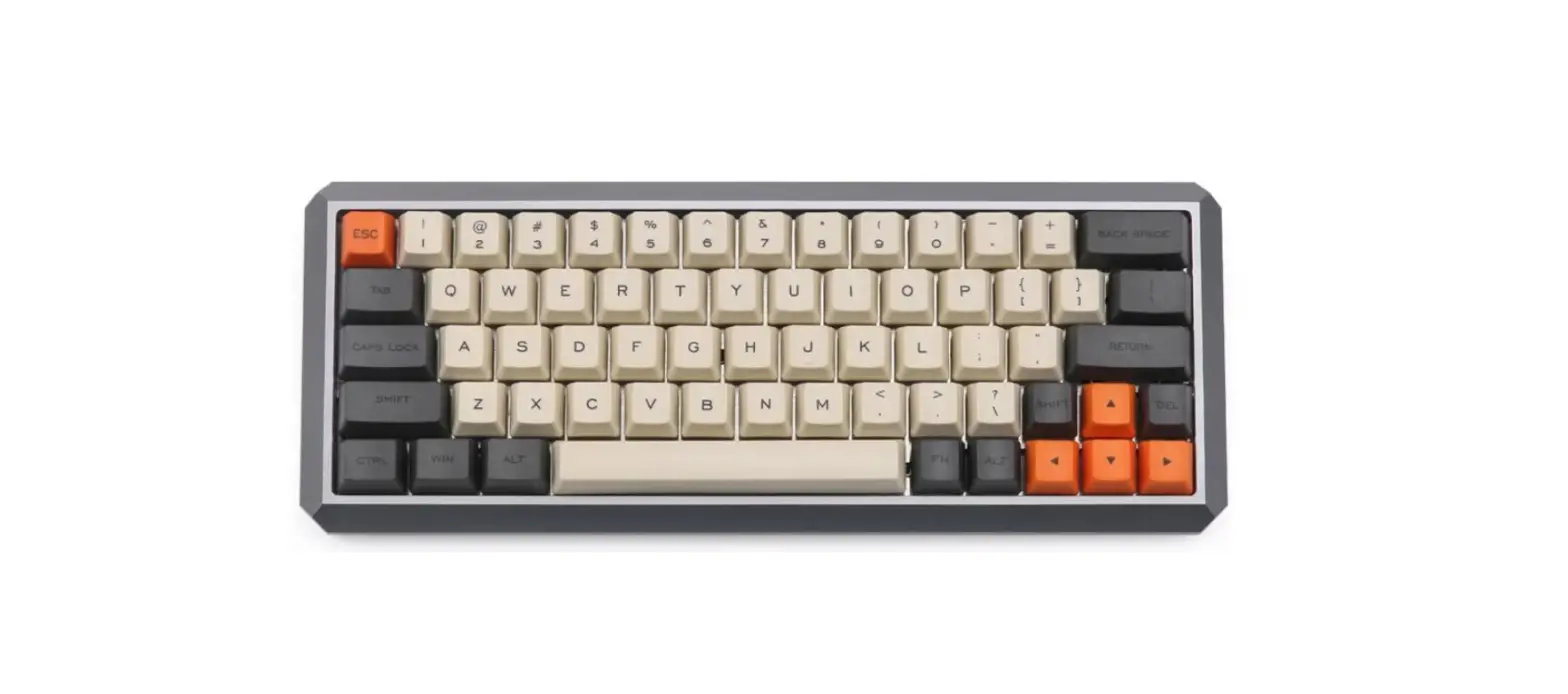
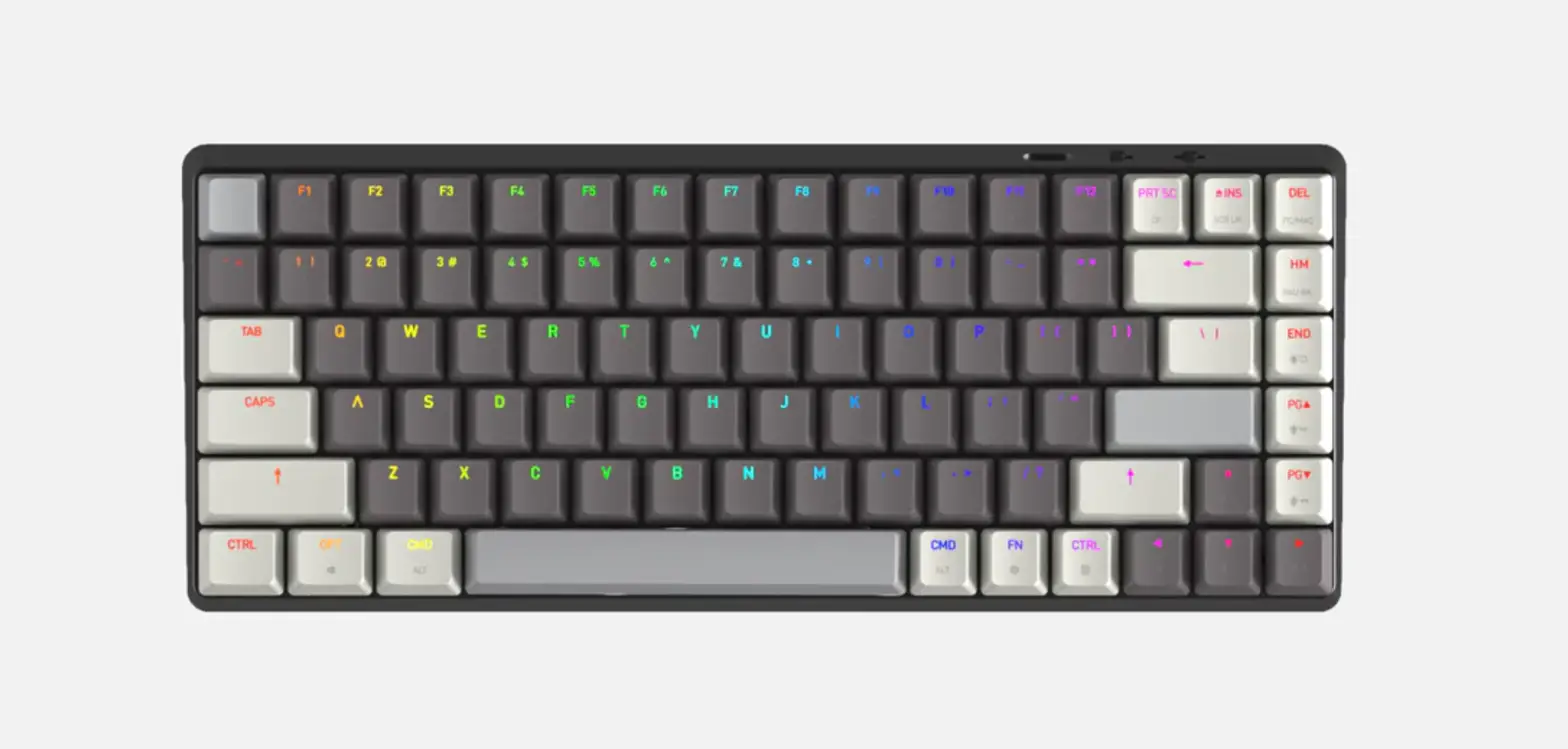
WIRELESS BACKLIT MECHANICAL KEYBOARD • HOT-SWAPPABLE SWITCHES • 75% LAYOUT
SOUND DAMPER LAYER • 9 LEO COLORS & 4 RGB LIGHT MODES • ALUMINUM TOP CASE
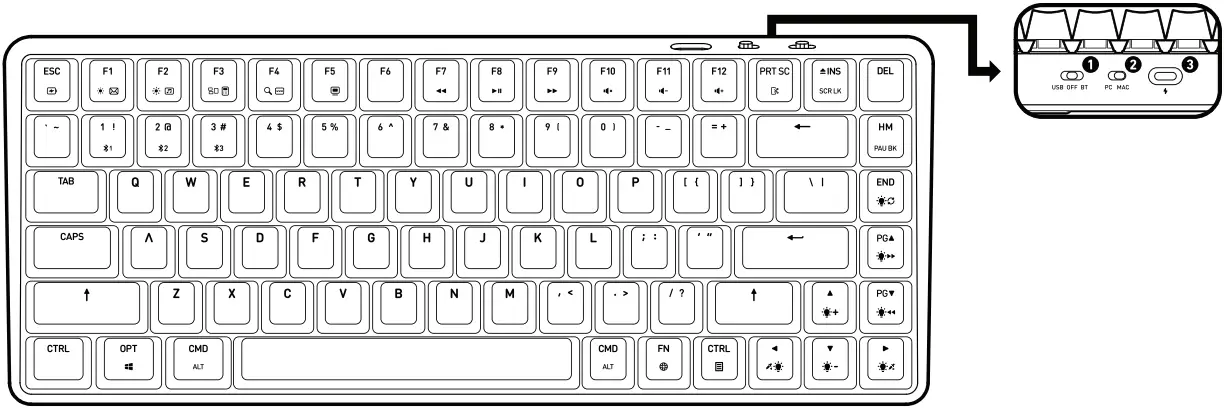
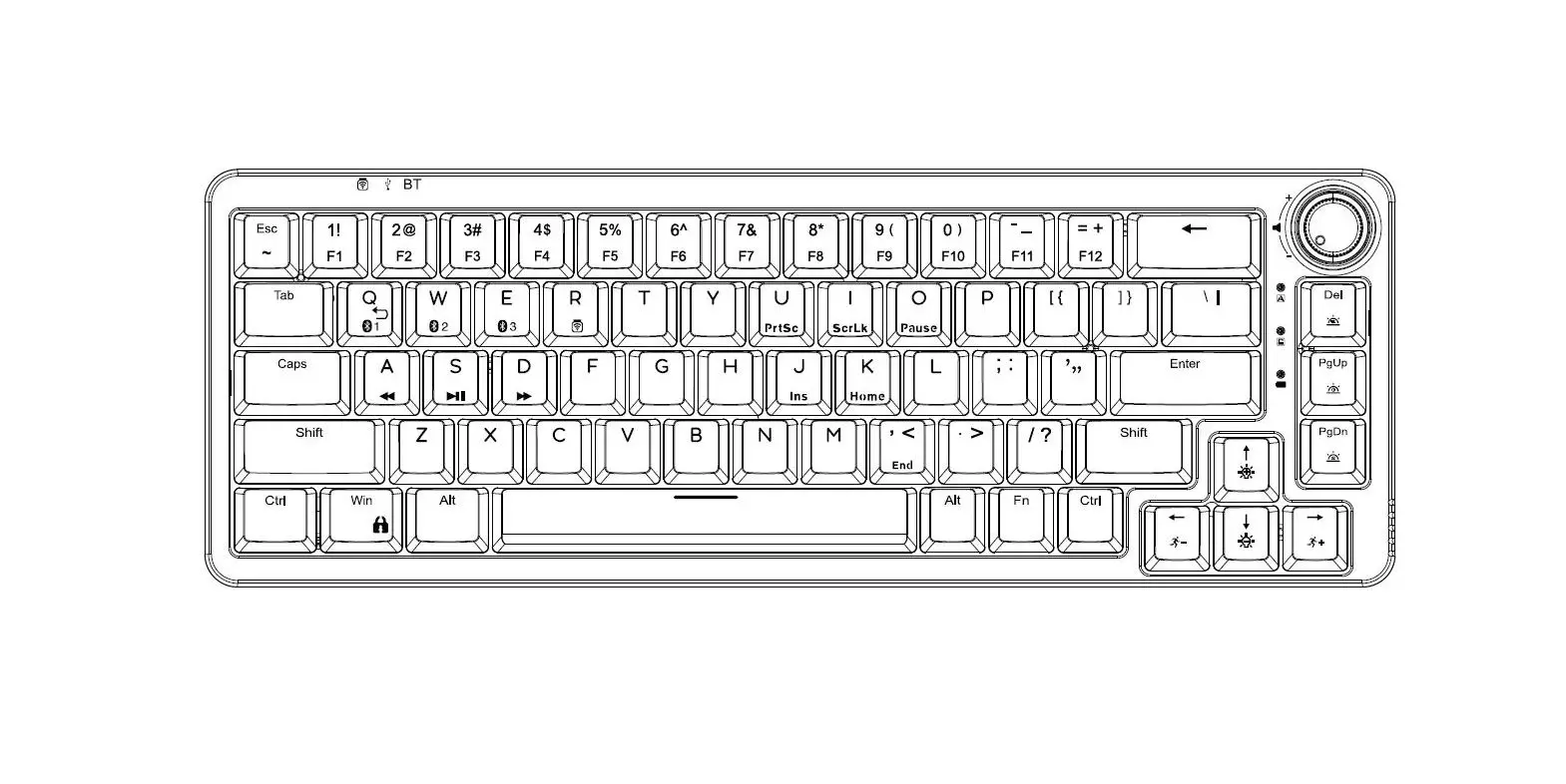
HOT KEYS LEGENDS
| Keys | MacOS | PC | |
| F1 |  | Increase Display Brightness | Email Application |
| F2 |  | Decrease Display Brightness | Media Player |
| F3 |  | Expose | Calculator |
| F4 |  | Search | Web Browser |
| F5 |  | None | My Computer |
| F6 | None | None | |
| Keys | MacOS & PC | ||
| F7 |  | Previous Track | |
| F8 |  | Play / Pause | |
| F9 |  | Next Track | |
| F10 |  | Mute Volume | |
| F11 |  | Decrease Volume | |
 | Increase Volume | ||
| END |  | Backlight Modes | |
| Arrow UP/DN |  | Backlight Brightness | |
| PG UP/DN |  | Backlight Speed | |
| Left & Right Arrow |  | Backlight Color | |
| ESC |  | Battery Level | |
- CONNECTION MODES
- OS MODES
- USB-C PORT
SETUP OS MODE
Toggle the switch to MAC or PC to set the keyboard compatible to your operating system.
SETUP via USB CABLE
Toggle the CONNECTION MODE switch to USB MODE.
Connect the Cascade keyboard to your computer’s available USB port with the USB Type-C Cable. The keyboard will light up and be ready for use when a successful connection establishes.
CHECK BATTERY LEVEL
Press FN Key + ESC Key to check battery level. Battery level will display through F1 to F10.
ESC key will flash in red back-light when battery is low.
SETUP via BLUETOOTH
Toggle the CONNECTION MODE switch to BT MODE.
STEP 01
Switch the keyboard to BT Mode. Activate the Bluetooth profile pairing process by pressing the FN key and the 1, 2, or 3 key together. The 1, 2, or 3 key will change to a blue back-light for a brief moment.
STEP 02
Press the FN key and the same number key (1, 2, or 3) together for 3-5 seconds. The 1, 2, or 3 key will flash in the blue back-light to indicate the keyboard is now discoverable by your computer’s Bluetooth device searching
STEP 03
You shall be able to find “Keyboard” in your discovered devise list. Click on it to connect. Once successfully connected, the display name will change to “CASCADE V1.0.”** After 60 minutes of inactivity, the keyboard will hibernate. Press any key to wake up and reconnect automatically.
**The keyboard firmware version might be a subject of change in the future.
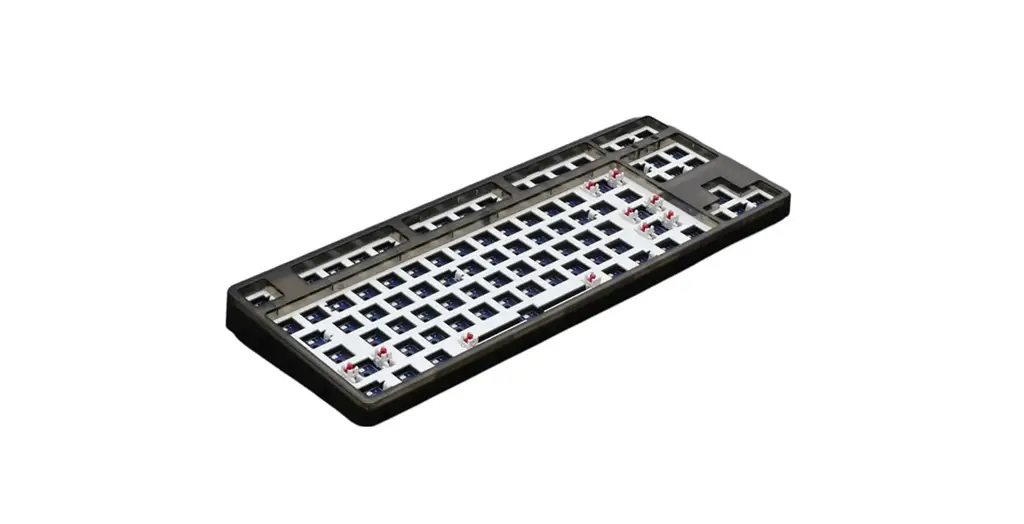
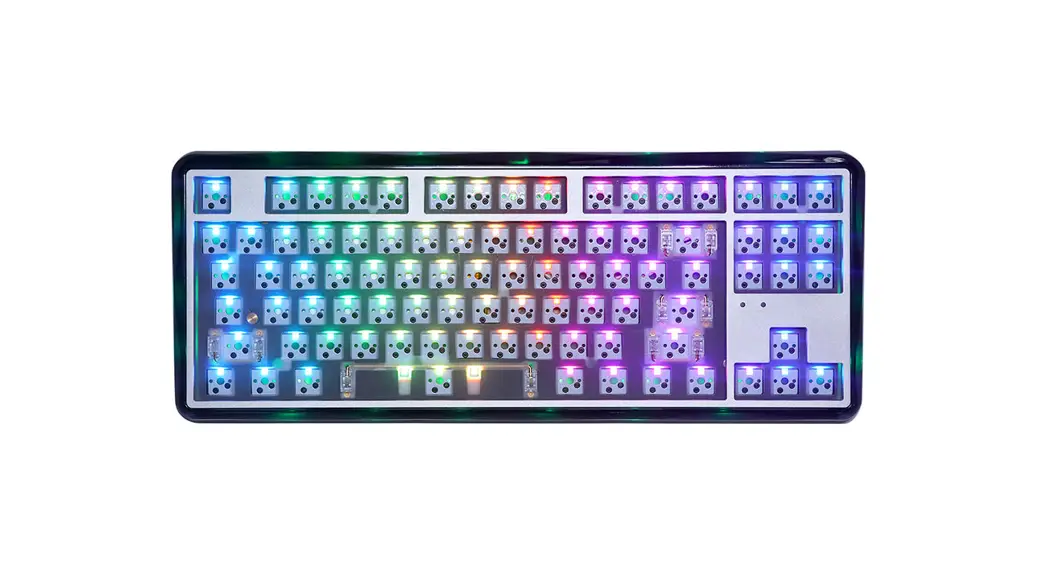
USING HOT-SWAPPABLE SWITCHES
 Scan QR code to view the full user guide of CASCADE. Visit www.aziocorp.com/support for any additional questions or support needs.
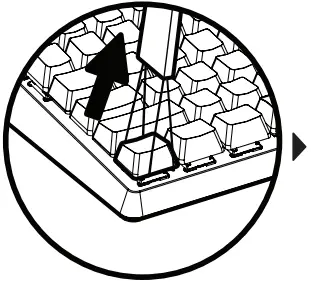
STEP 1. REMOVE KEYCAP
You will need the Keycap & Switch Puller provided in the package to begin removing your switches.
Use the rectangular side of the puller to pull and wiggle the keycaps off gently. Please make sure not to yank the keycaps out as you may damage the switch.
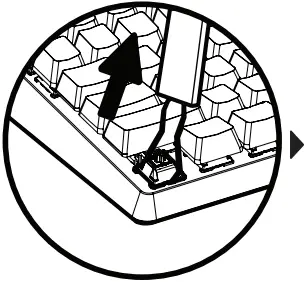
STEP 2. REMOVE SWITCHES
With the keycap off, you should see the switch underneath. Use the tong side of the puller to hook underneath the switch, pushing down onto the two plastic tabs on the top and bottom of the switches.
Now you may gently pull and wiggle the switches out. Please avoid yanking on the switch when extracting.
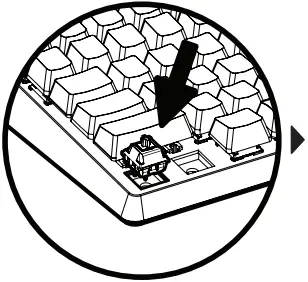
STEP 3. INSTALL SWITCHES
When you are ready to install new switches, please make sure the pins on your new switches are straight.
Start by lining up the switch pins with the sockets on the keyboard and gently pressing down until the switch glides into place. The switch should settle in and feel secure in place if properly lined up.
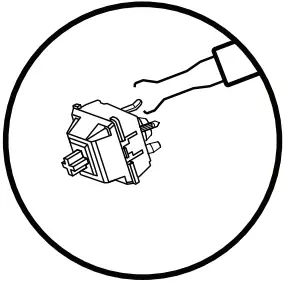
STEP 4. TEST KEYS
Once you’ve installed all the switches, you may test the keys with an online key test to test all switches function correctly.
If any of the keys are not working, you may have a bent pin on your switch. Take out the problematic switch, straighten out the pins with the switch puller, then re-install the switch.
FCC STATEMENT
Changes or modifications not expressly approved by the party responsible for compliance could void the user’s authority to operate the equipment.
This equipment has been tested and found to comply with the limits for a Class B digital device, pursuant to Part 15 of the FCC Rules. These limits are designed to provide reasonable protection against harmful interference in a residential installation. This equipment generates, uses and can radiate radio frequency energy and, if not installed and used in accordance with the Instructions, may cause harmful interference to radio communications. However, there is no guarantee that interference will not occur in a particular installation. If this equipment does cause harmful interference to radio or television reception, which can be determined by turning the equipment off and on, the user is encouraged to try to correct the interference by one or more of the following measures:
— Reorient or relocate the receiving antenna.
— Increase the separation between the equipment and receiver.
— Connect the equipment into an outlet on a circuit different from that to which the receiver is connected.
— Consult the dealer or an experienced radio/TV technician for help
This device complies with part 15 of the FCC rules. Operation is subject to the following two conditions (1) this device may not cause harmful interference, and (2) this device must accept any interference received, including interference that may cause undesired operation.
T. +1.909.468.1198
F. +1.909.468.3066
19933 Harrison Ave
City of Industry, CA 91789
This document contains confidential, copyrighted, and priviledged information. If you are not the intended recipient or believe that you have received this document in error, please inform AZIO Corporation immediately and delete this document from your possesion. Please do not print, copy, retransmit or otherwise use of this document without permission and consent of A/I0 Corporation.
Copyrighted @ 2021