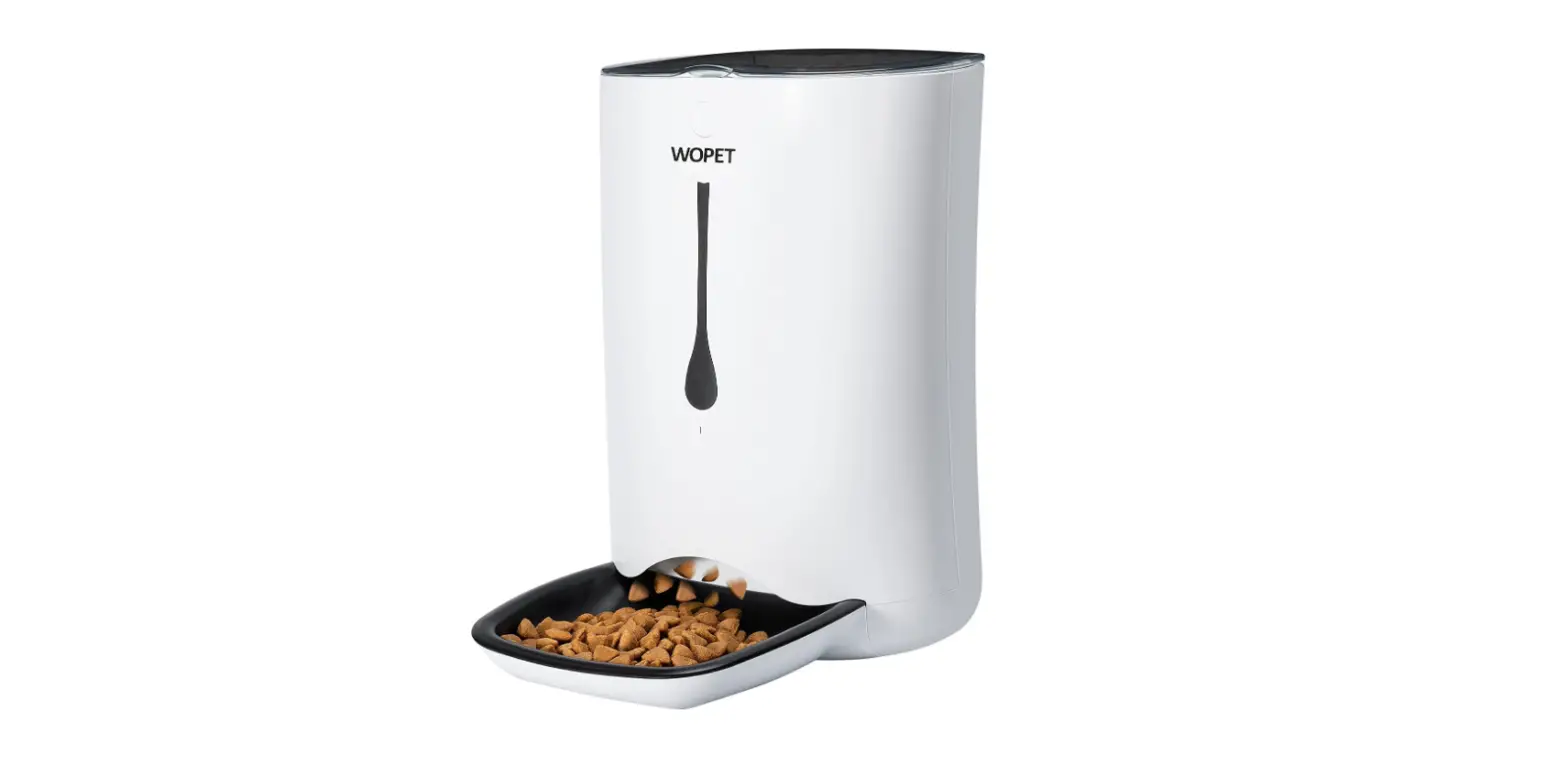
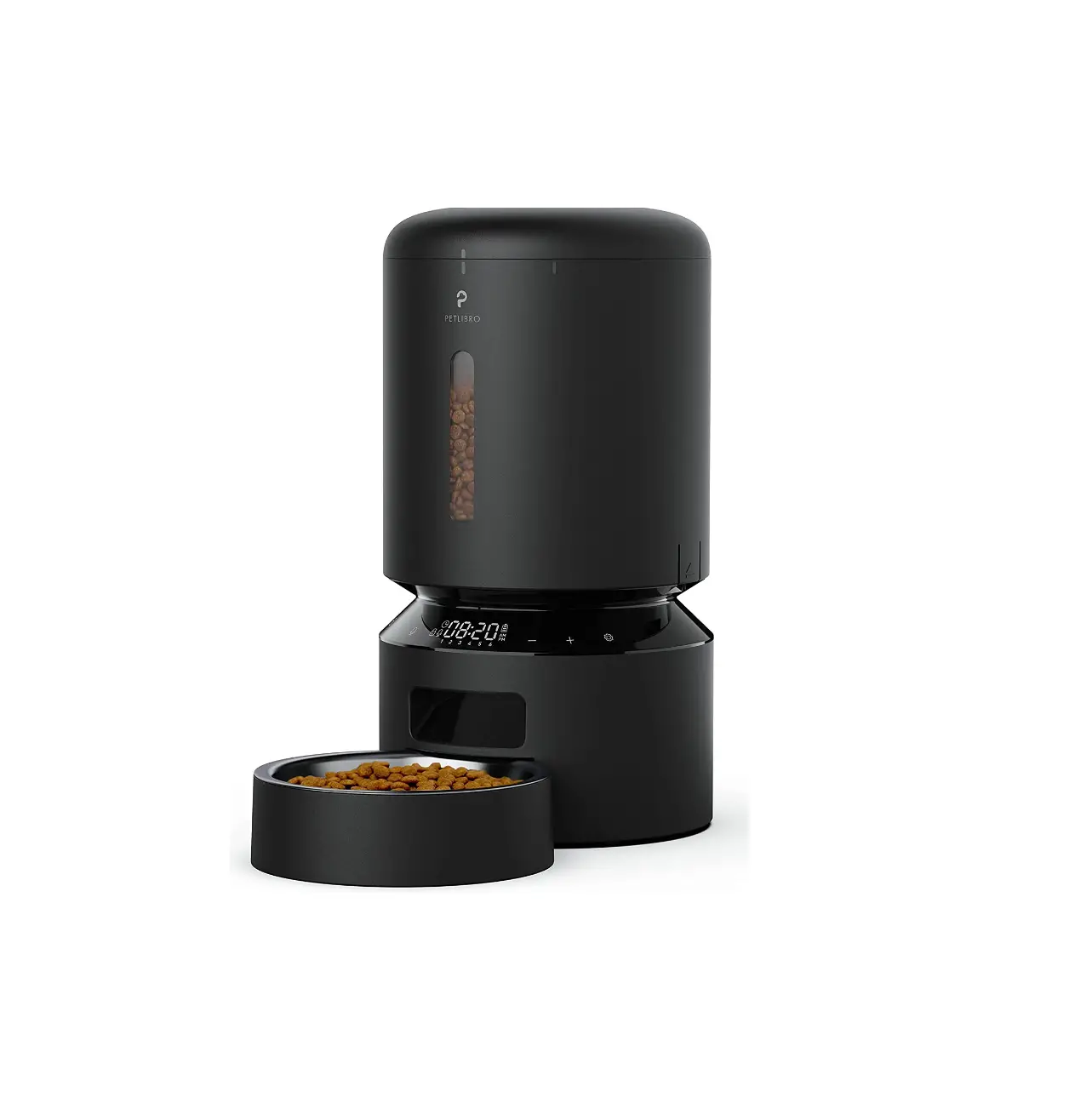
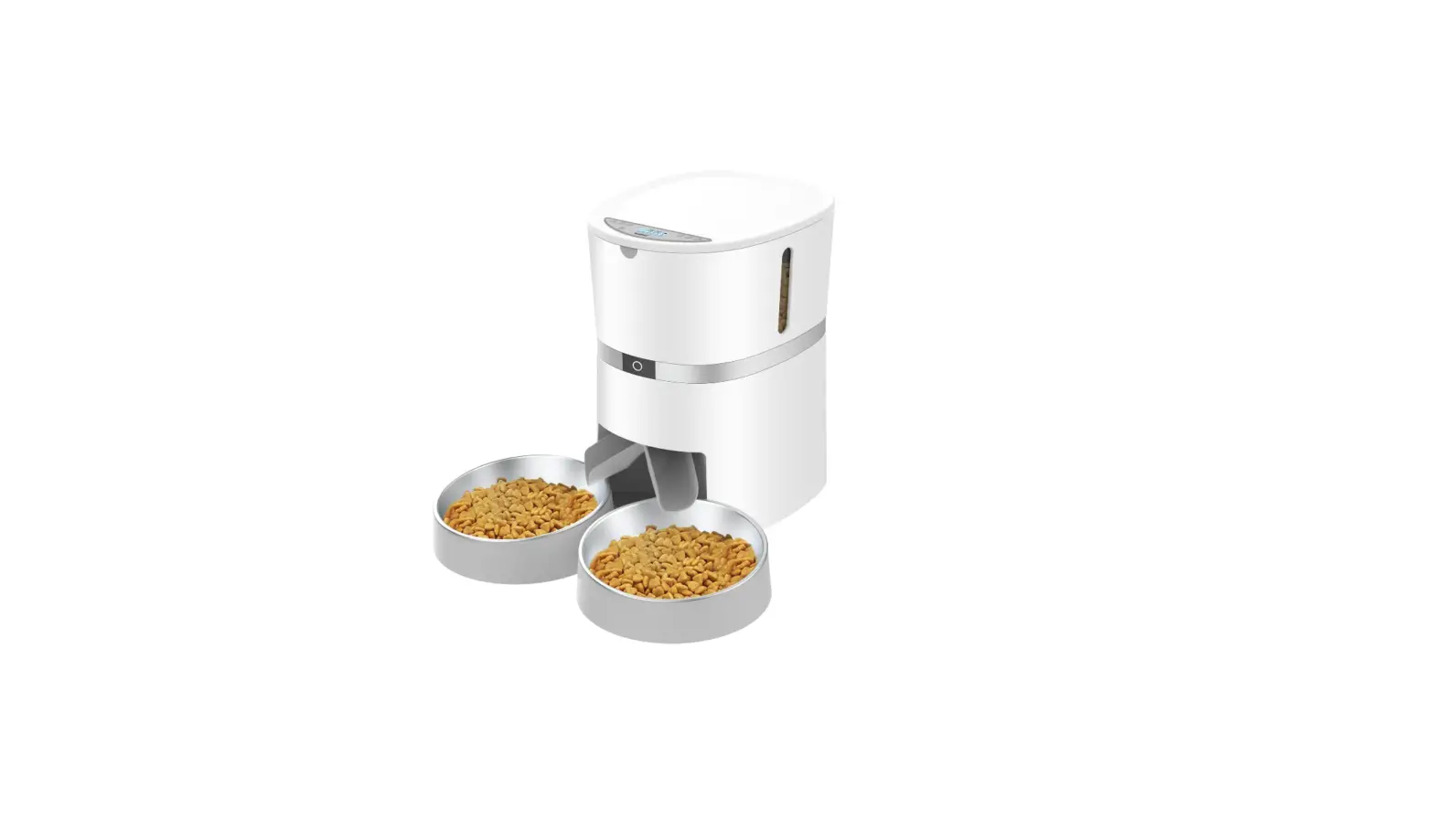
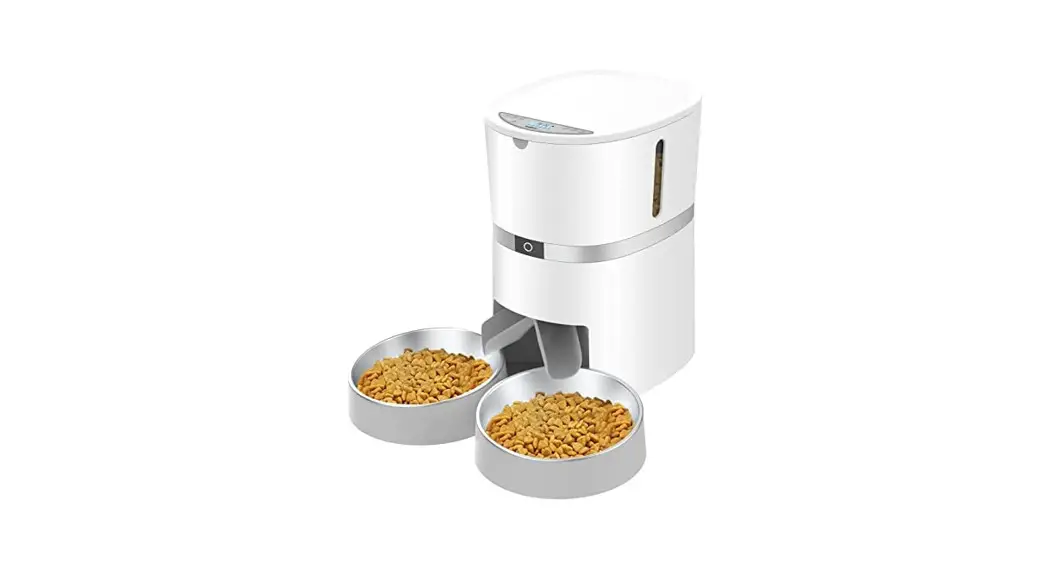
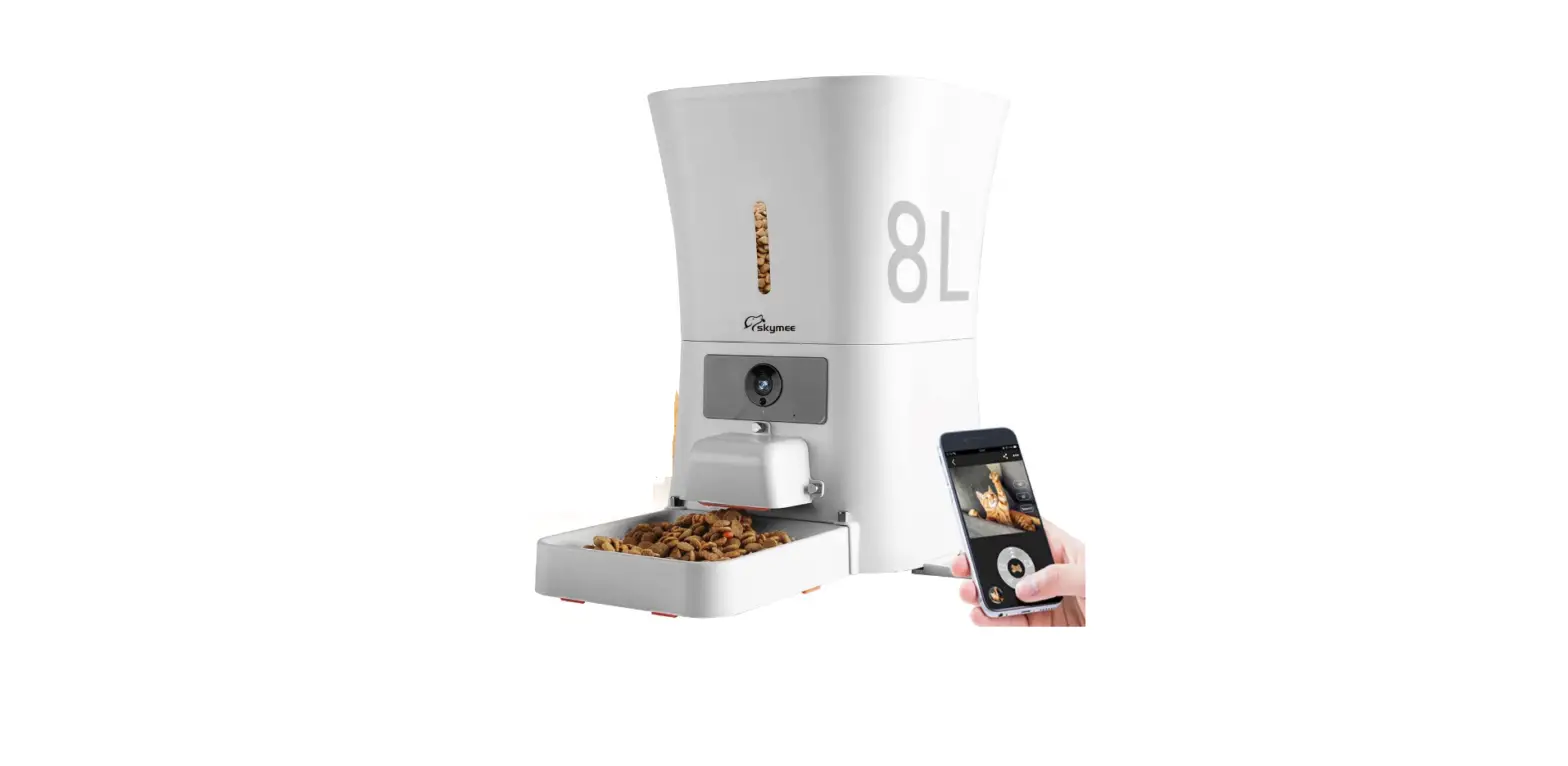
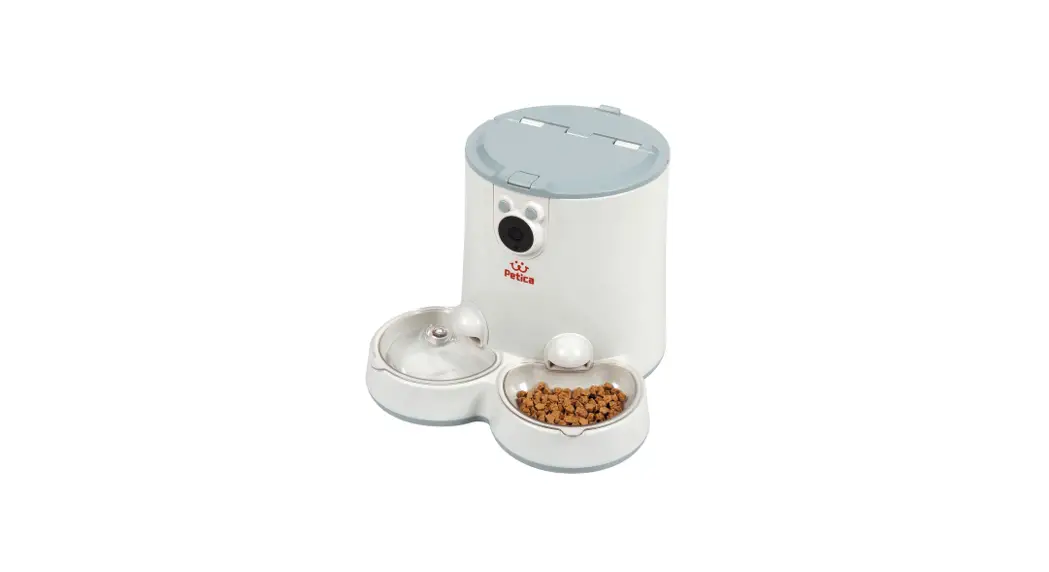
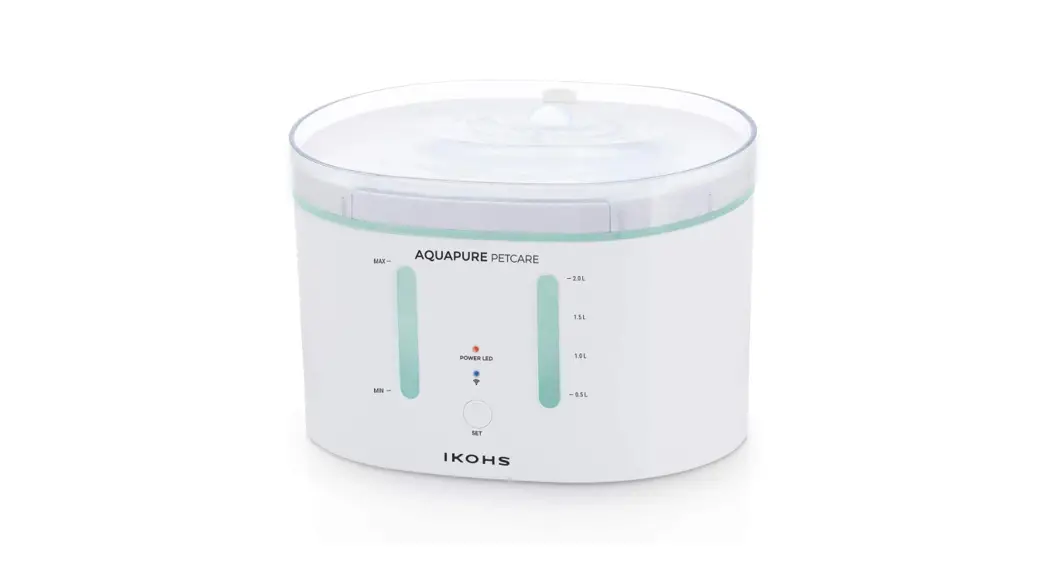
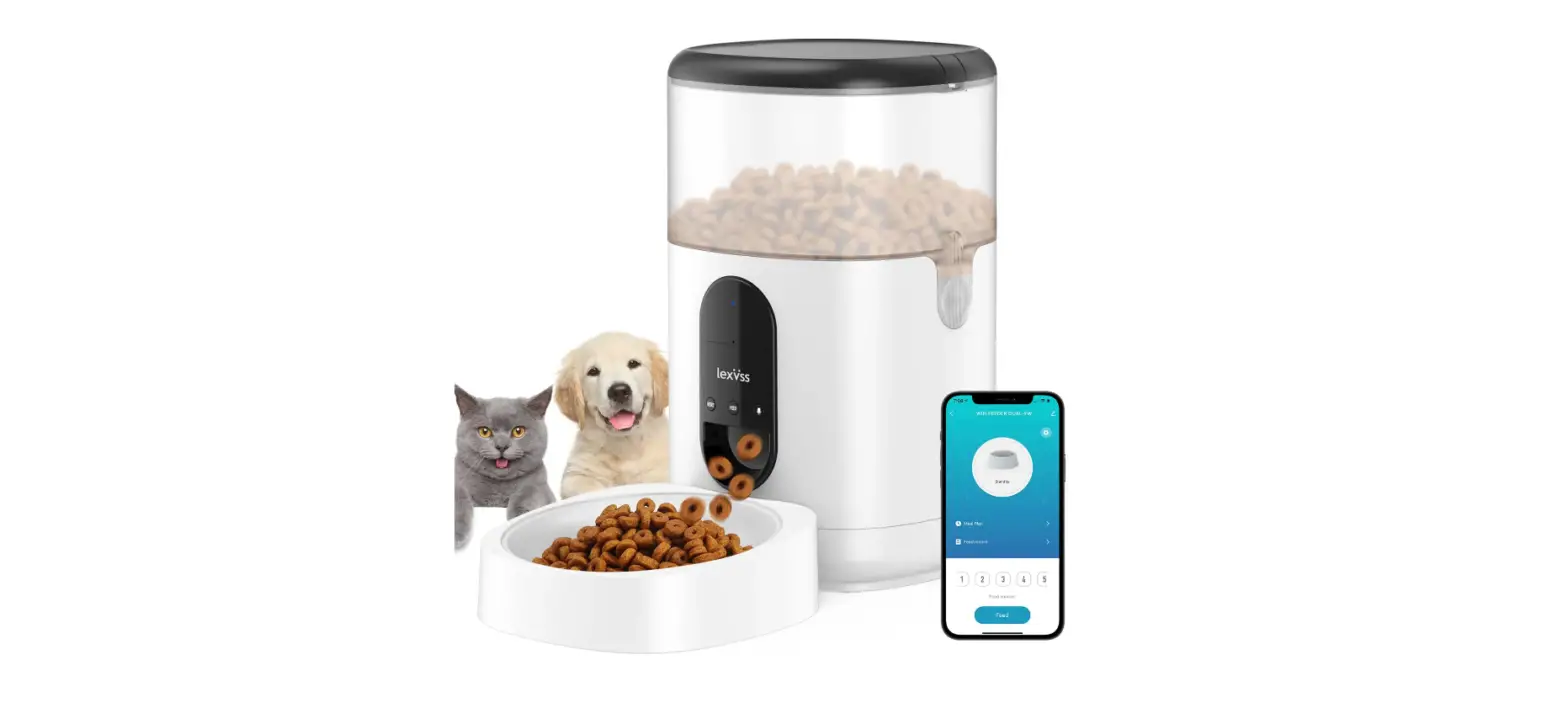
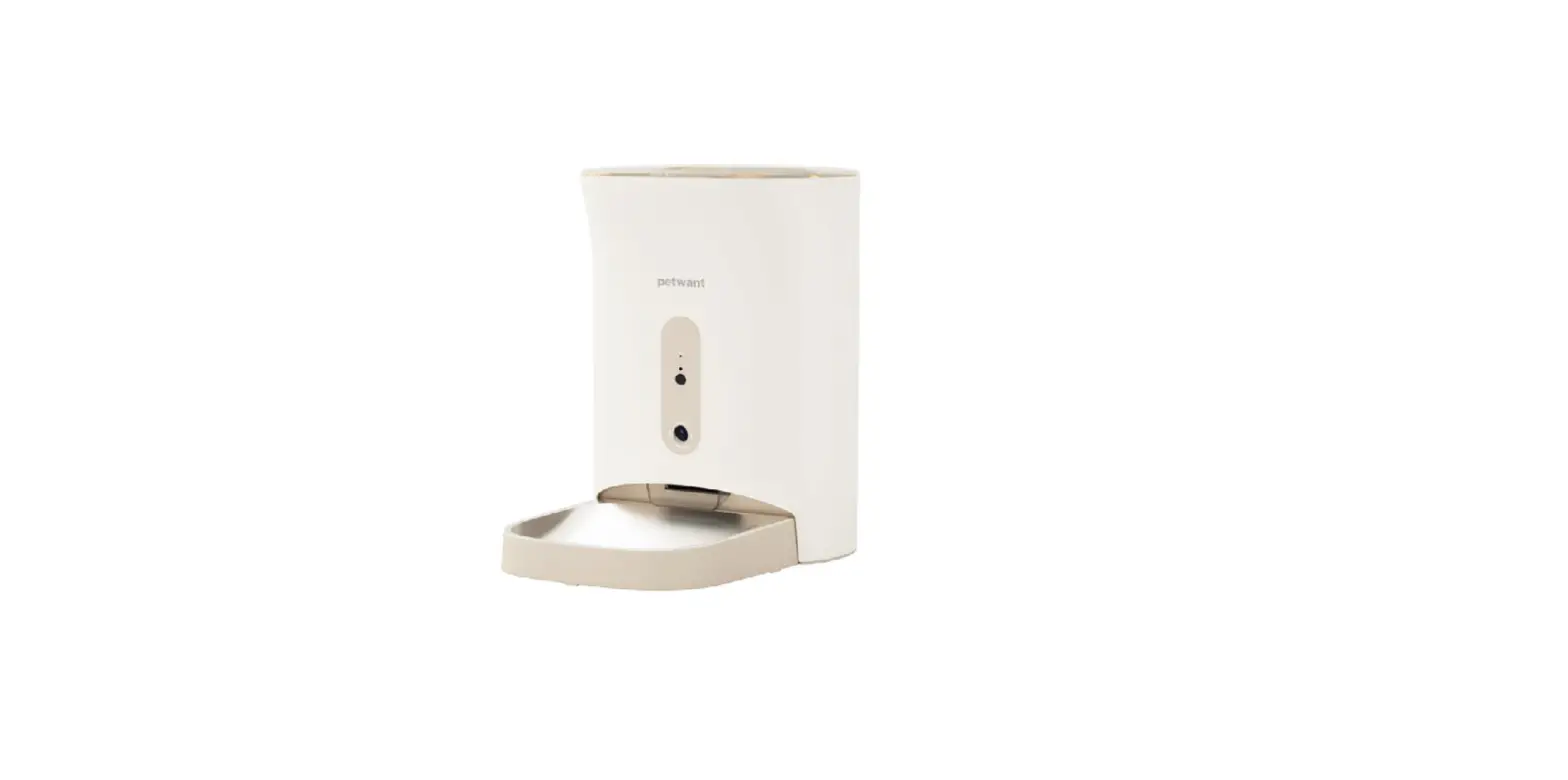
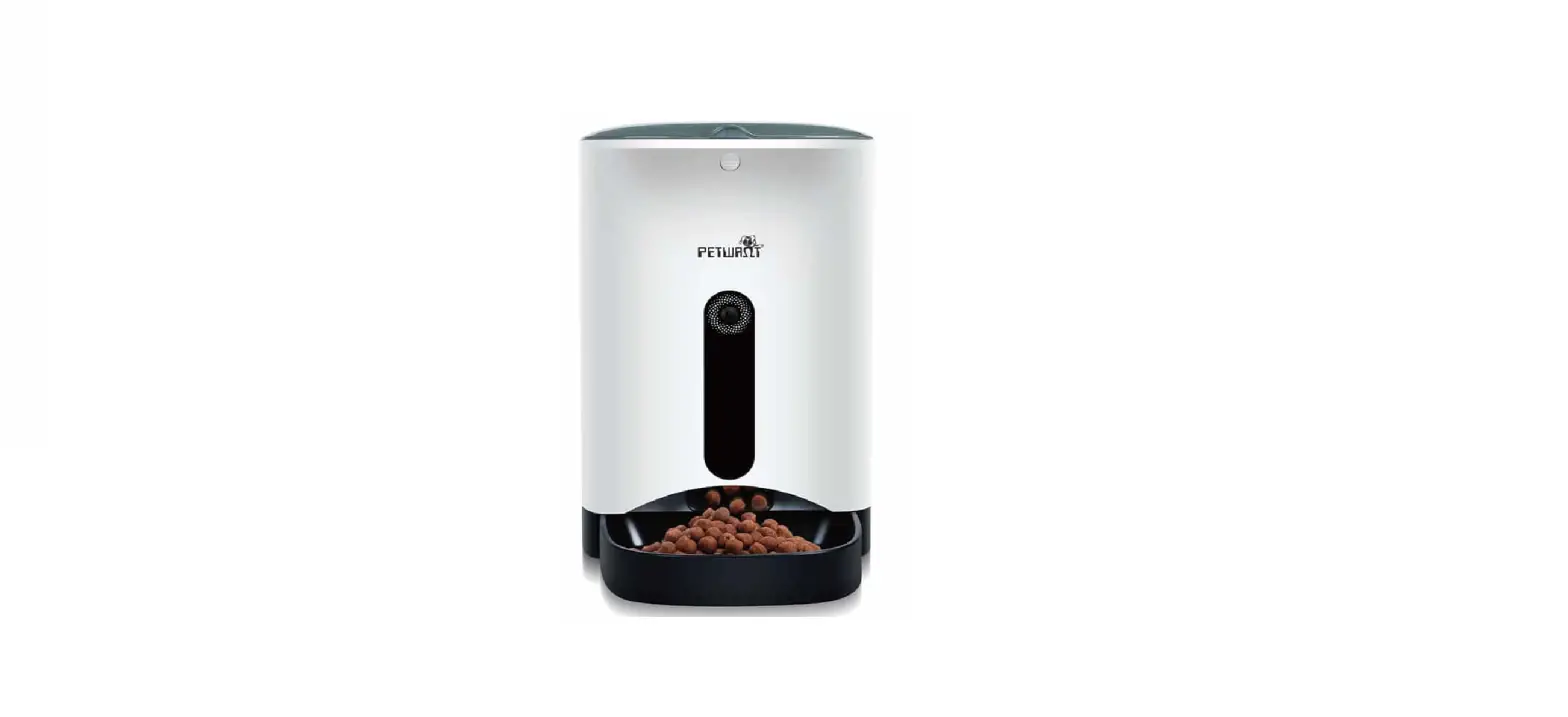
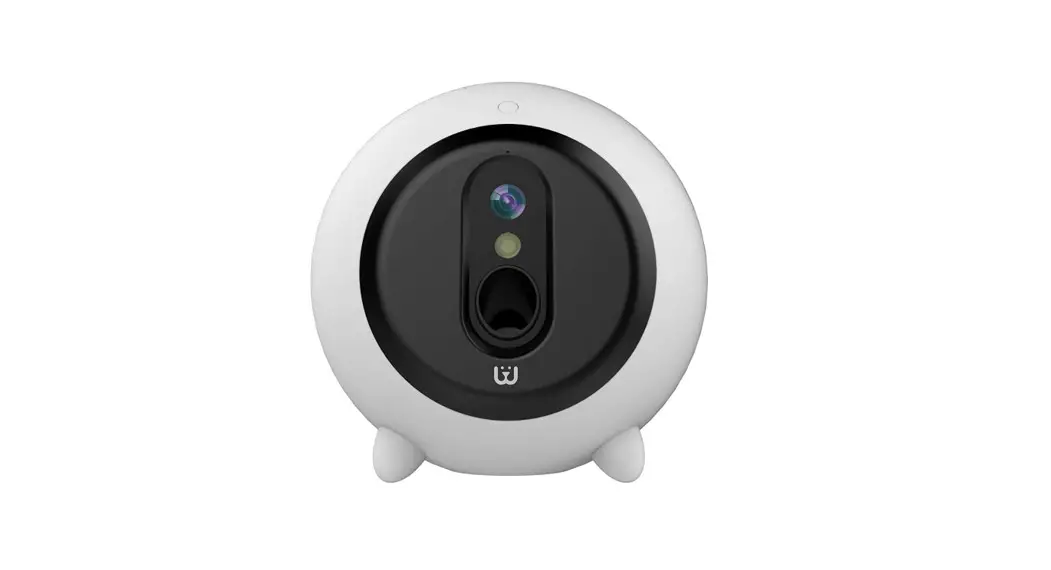
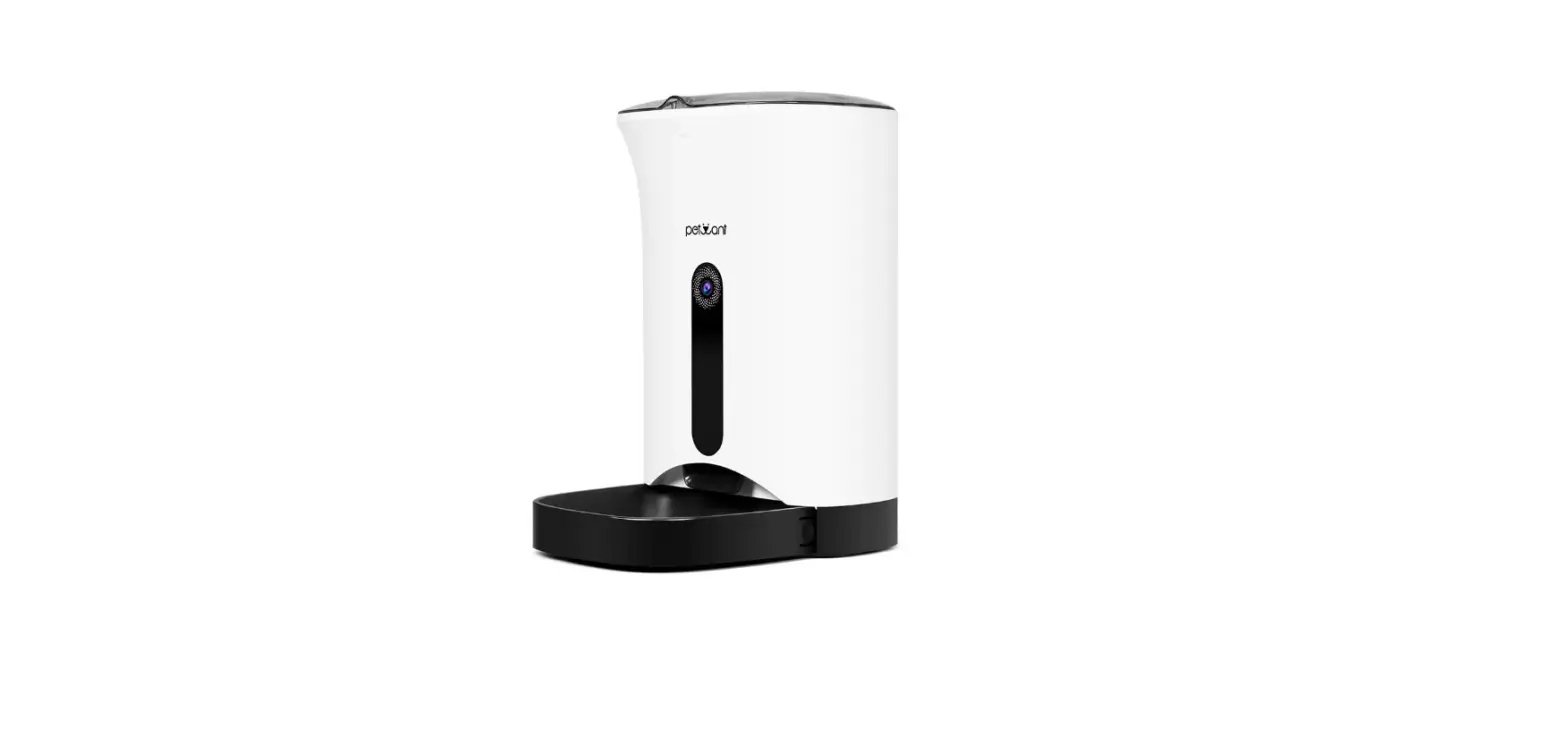
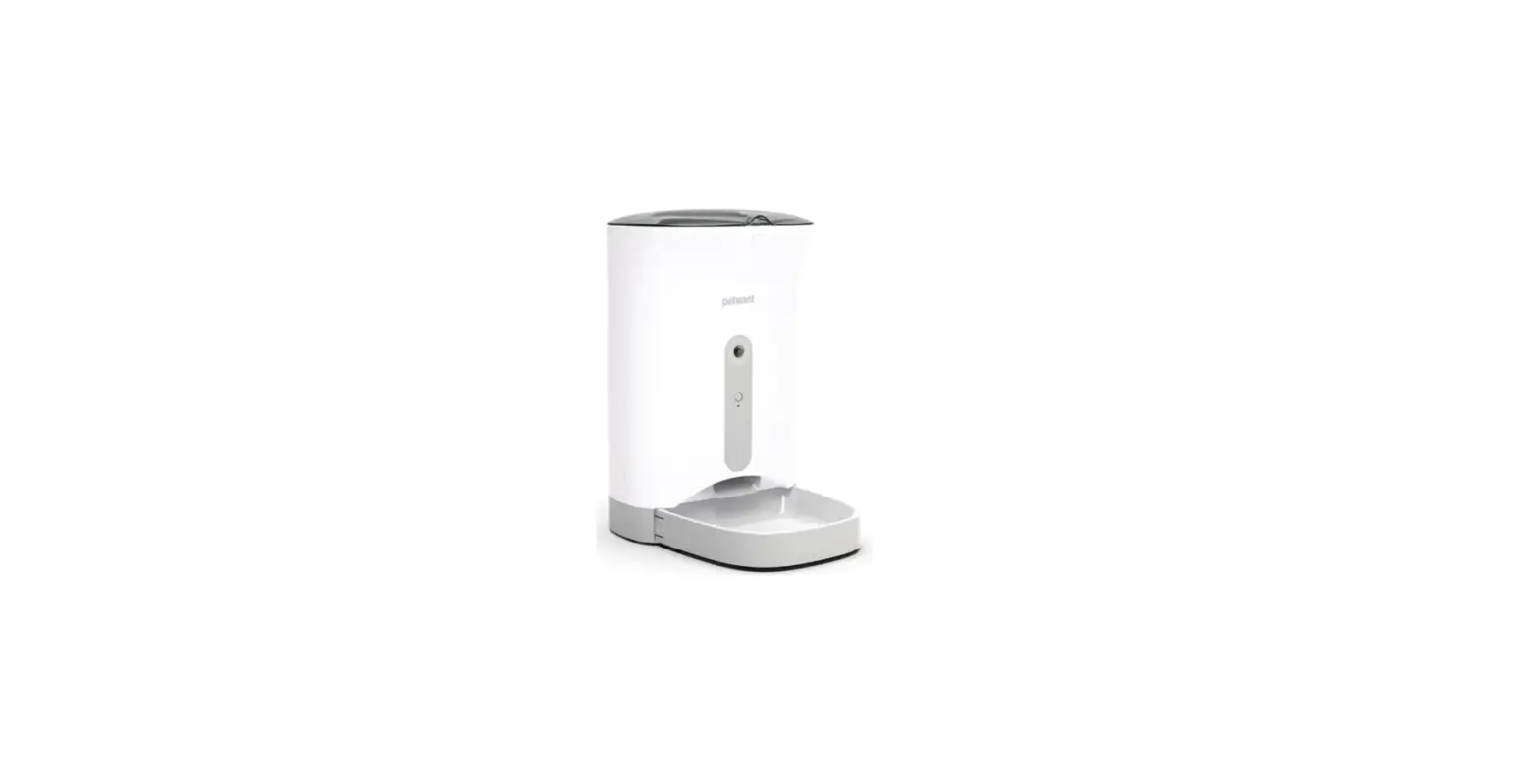
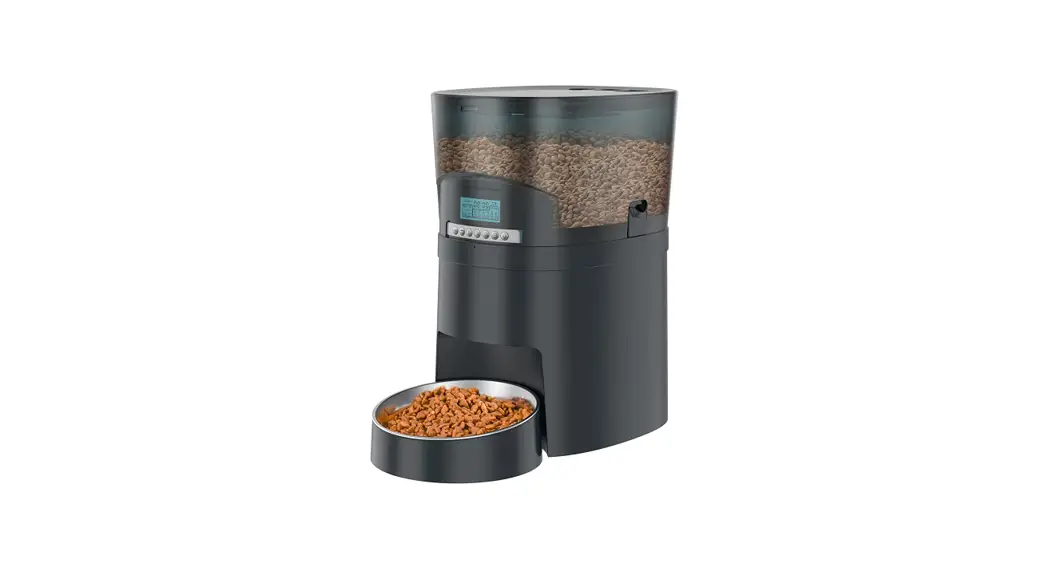
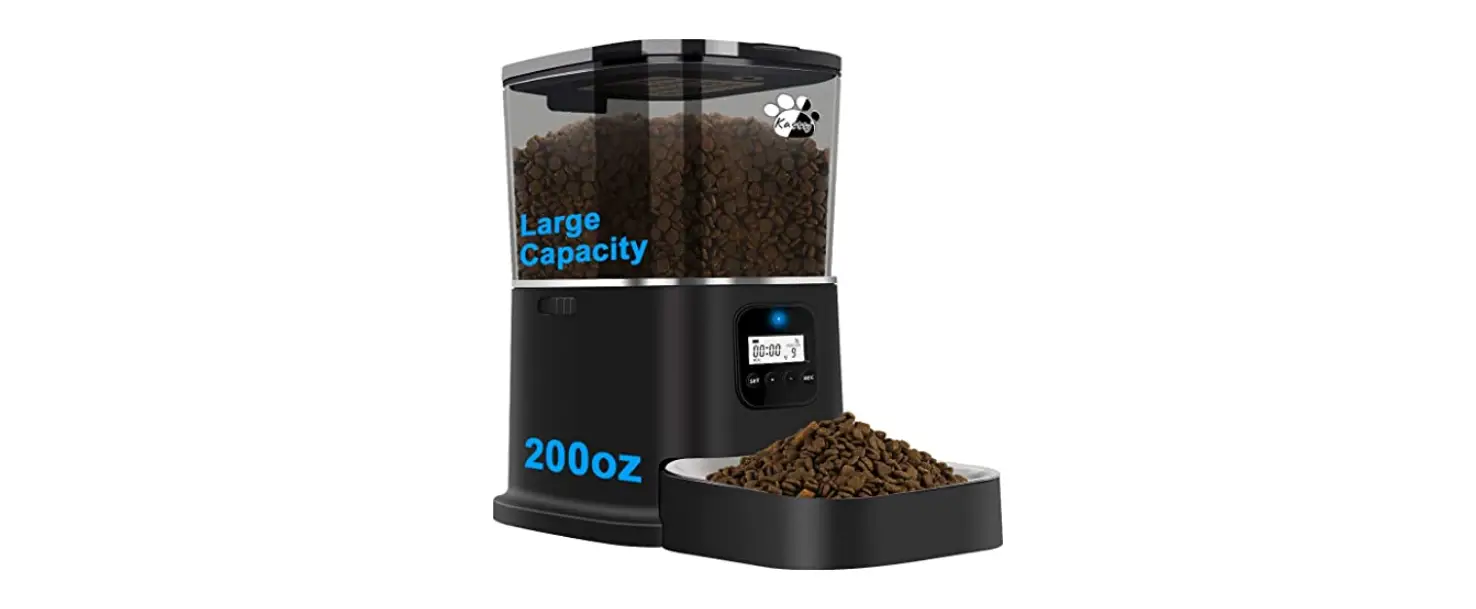
A7 Pro Automatic 2 In 1 Pet Feeder and Water Dispenser
Product Information:
The Automatic 2-in-1 Pet Feeder & Water Dispenser is a
convenient device designed to provide food and water for your pets.
It features a multi-pet identification system and various
functional modules for easy usage. The main screen displays
important information related to the device’s operation, such as
power status, Wi-Fi connectivity, and food/water levels. The
product comes with a packing list of essential accessories for
proper installation and usage.
Main Features:
- 2-in-1 design: pet feeder and water dispenser
- Multi-pet identification system
- Camera for real-time video capture
- Wi-Fi connectivity for remote control
- Power adapter and battery-powered options
- Water bowl and food bowl with dispensing ports
- Filter element for clean water supply
Packing List:
- Main Body x 1
- Water Tank x 1
- Sewage Tank x 1
- Grains Barrel x 1
- Filter Element x 1
- Water Bowl x 1
- Food Tray x 1
- Food Bowl x 1
- Power Adapter x 1
Product Usage Instructions:
Connecting the Power Adapter:
Connect the power adapter to the power interface at the bottom
of the device. Then, plug it into a socket.
Water Bowl Installation:
After cleaning the water bowl, align the protruding part at the
bottom of the water bowl and install it. Ensure that it is tightly
attached to the bottom to avoid water leakage.
Filter Installation:
- Open the filter package and take out the filter.
- Take out the clean water tank and place the filter in the
circular opening at the bottom as shown in the figure.
Power ON/OFF:
Turn the switch key on the back of the device to ON to start the
device. Turn the switch key in the opposite direction to OFF to
turn off the device.
Camera Cover:
Move the camera cover downward to allow the camera to capture
real-time video and establish network connection. Move the camera
cover upward to stop capturing real-time video.
APP Download:
Scan the QR code or search for “Dipet Life” on App Store or
“Dipet Life (Pro)” on Google Play to download and install the App.
Register or log in to use the App. Scanning the code directly takes
you to the device connection page.
Error Prompt and Solutions:
- Password Input Error: 1 long beep – Please enter the correct
Wi-Fi password. Then press and hold the M button to reset the
network configuration. - Router Connection Failure: 2 long beeps – Please check if the
router configuration is normal. Then press and hold the M button to
reset the network configuration.
Function List:
Click the M button to enter the Menu. Clicking the M button
allows you to switch between Feeding, Refresh, Weighing Reset,
Language, and return. Long press the M button for 2 seconds to
execute the selected function.
Feeding:
Press to choose. Press to select. Press the M button to stop
dispensing. A maximum of 2 servings are allowed.
Refresh:
Press to select. This function refreshes the device’s display
and updates the information.
Weighing Reset:
Press to select. This function resets the weighing mechanism of
the device.
Language:
Press to select. This function allows you to choose the desired
language for the device.
Return:
Hold to confirm. Press to select. This function takes you back
to the previous menu or exits the menu.
M
Automatic 2-in-1 Pet Feeder & Water Dispenser (Multi-pet Identification)
User Instructions
Please read this manual carefully and keep it safe before using the product.
Warning: Please use the product indoors and do NOT use it in places where it is exposed to direct sunlight, such as balconcy. Do NOT put any items other than pet dry food and freeze-dried food in the grains barrel, as this may cause equipment malfunctions or pose a risk of pets eating them by mistake. Please cover or store the power cord properly to prevent pets from biting the wire and causing dangerous situations such as electric shock. Do NOT clean the main body of the device directly with water to prevent damage to the internal electronic components. Do NOT place the device near a heat source or exposed flames, or other places that may produce high temperatures. If the battery is replaced improperly, there is a risk of explosion. Do NOT attempt to replace the internal rechargeable lithium-ion battery. Please contact us for help. If the product experiences serious swelling, please do NOT continue to use it. Do NOT squeeze the product or place it in a place where it is easy to fall. Do NOT attempt to dismantle or modify the optional base-style battery, otherwise the battery may explode or the liquid inside the battery may leak. Non-designated batteries by Pet Marvel Limited, or batteries that have been disassembled and modified, are NOT covered by the warranty.
Note: To prevent pets from knocking over the device, it is recommended to place the device in a corner or against a wall. Do NOT disassemble, modify, or repair the equipment by yourself, otherwise, you will be deemed to have waived all warranty and after-sales service rights. This device is compatible with dry pet food with a diameter of less than 16mm. Do NOT put in wet pet food to avoid blockage of the food outlet, damage to electronic components due to moisture, and other situations. The shape and density of the pet food particles will affect the actual capacity of the grains barrel; there may be differences in the amount of food dispensed per portion due to different food densities.
Product Introduction
This section provides an introduction to the basic functional modules of the product and an overview of the information displayed on the main screen.
Screen M Button
Camera Camera Cover Water Dispensing Port Water Bowl Food Bowl Food Dispensing Port
Powered by Adapter Powered by Batteries Low Battery
Insufficient Water Insufficient Food
Power Interface
M
Bottom
On/Off
Back
Camera On Camera Off
Wi-Fi Solid: The device is connected to Wi-Fi network Wi-Fi Blinking: The device is in the process of network configuration Wi-Fi Error: The device failed to connect to the Wi-Fi network Blue Solid: The device is working normally Red Solid: The device has a malfunction Yellow Solid: Shortage of food/water
Packing list
Please check whether the product is intact as follow. In addition, as the product is updated iteratively, some accessories may be adjusted, so please refer to the actual product.
M
Main Body*1
Water Tank*1
Sewage Tank*1
Grains Barrel*1
Filter Element*1 Water Bowl*1 Food Tray*1 Food Bowl*1 Power Adapter*1
Usage
Connecting the Power Adapter Connect the power adapter to the power interface at the bottom of the device, and then plug it into the socket.
Water Bowl Installation After cleaning the water bowl, align the protruding part at the bottom of the water bowl and install it, ensuring that it is tightly attached to the bottom to avoid water leakage.
Filter Installation 1. Open the filter package and take out the filter; 2. Take out the clean water tank and place the filter in the circular opening at the bottom as shown in the figure.
Power ON/OFF Turn the switch key on the back of the device to “ON” to start the device. Turn the switch key in the opposite direction to “OFF” to turn off the device.
M
M
ON
OFF
Camera Cover Move the camera cover downward, the camera can capture real-time video and network connection. Move the camera cover upward to stop capturing real-time video.
APP Download Scan the QR code, search for “Dipet Life” on App Store or search for “Dipet Life (Pro)” on Google Play to download and install the App and register or log in. Users who have downloaded the App will directly enter the device connection page after scanning the code.
M
Dipet Life (Pro)
Network Configuration 1. Connect your phone to the wireless network (Only supports connection to Wi-Fi networks in the 2.4GHz band). 2. After turning on the power for about 30 seconds, you will hear the voice prompt “Please use the Dipet Life APP to connect the device.” 3. Open the “Dipet Life” APP and on the “Add Device” page, find and click ” Automatic 2-in-1 Pet Feeder & Water Dispenser(Multi-cat Identification)” 4. Follow the network configuration process as shown in the APP to complete the operation. Scan the QR code for the tutorial. 5. Reset the network configuration: Press and hold the “M button” on the device for 7 seconds, and you will hear the voice prompt “Please use the Dipet Life APP to connect to the network”. The screen Wi-Fi icon is blinking, this indicates that the device’s network has been reset successfully. Then follow above to complete the device connection.
Usage Manual
Note
Error
Prompt
Password Input Error 1 long beep
Router Connection Failure
2 long beeps
Solution
Please enter the correct Wi-Fi password. Then press and hold the “M button” to reset the network configuration.
Please check if the router configuration is normal. Then press and hold the “M button” to reset the network configuration.
Function List Click the”M”button to enter the Menu. Click the”M”button to switch between Feeding, Refresh, Weighing Reset, Language, and return. Long press the”M”button for 2 seconds to execute the selected function.
Feeding Refresh Weighing Rese Press to choose.
Press to select
Weighing Rese Language Return
Hold to confirm.
Press to select
Feeding Refresh
Press the”M”button to stop dispensing. A maximum of 2 servings are allowed.
Deliver the dirty water in the bowl into the sewage tank.
1
2
1 Servings 2 Servings
Refreshing Finished
Weighing Reset*
Real-time display of current weight value.
250g Refreshing Finished
Language Long press to select the language.
Return
Select and long press “Return” to return to the main screen.
*In the following situations, it is necessary to operate “Weighing Reset” before use:
1. First unboxing; 2. After taking off and putting back the food bowl; 3. After using for a period of time.
Engilsh Press to choose.
Weighing Reset Language Return
Press to choose.
Add Water to Water Tank The device will detect when the water level is low and send a push notification through the app. The screen on the device will display “Water Tank Needs Refill” and the voice prompt will say “Shortage in clean-water Tank! Will you please top up some for me?” Note: You may add enough water and food based on the number of pets being fed at appropriate intervals.
Add Food to Grains Barrel The device will detect when the food level in the grains barrel is low and send a push notification through the app. The screen on the device will display ” Grains Barrel Needs Refill ” and the voice prompt will say “Shortage in Food Barrel! Please refill in time.” Note: When adding food, it is important NOT to remove the grains barrel to prevent food from spilling out from the bottom when it is put back.
Install TF Card for Camera You can install it in the card slot at the bottom of the device.
MAX2.5L MAX3.5L
M
Battery Saving Mode When disconnected to power adapter, to ensure normal feeding and watering of pets, unnecessary functions will be turned off and the device will enter battery saving mode. When the power is back on, the battery will automatically enter the charging mode, ensuring that the device can still feed and water pets even when you’re not at home.
Network Configuration Camera Smart Dispensing Display and LED Ring
Powered by Adapter AVAILABLE AVAILABLE AVAILABLE ON
Powered by Batteries UNAVAILABLE UNAVAILABLE UNAVAILABLE OFF
Maintenance and Care
Clean the Sewage Tank When the device prompts “Sewage Tank Full” and you hear “Sewage Tank is full. We need a bath.” You can remove the sewage tank and clean it.
Replace the Filter Element On the filter element page of the APP, follow the reset filter element video tutorial to replace the filter element, and click the “Reset Now” button to update the filter element life.
Product Specifications
Product Name: Automatic 2-in-1 Pet Feeder & Water Dispenser(Multi-cat Identification)
Product Model: A7 Pro
Color: White
Rated Input: 5V 3A
N.W.: 13.22lbs
Rated Power: 12W
Product Size:
Power Interface: Type-C
14.80*13.19*13.90 inches
Battery: Built-in 2 2600mAh lithium batteries
Product Warranty: 1 year
Communication Method: 2.4gHz (Wi-Fi connection)
This device includes a wireless radio transmission module with the approved model code (respectively): CMIIT ID: 2022DP16134.
7 Product Warranty Card
Dear user, thank you for purchasing our product. Please read the following warranty terms carefully before using the product:
Within one year from the date of purchase (based on the valid purchase certificate), if there are quality problems with the product itself, we will provide free repairs. The following situations are NOT covered by the warranty:
· Any faults or defects caused by improper use or conditions; · Any faults or defects caused by improper installation, misuse, unauthorized repairs, force majeure or other external reasons; · Any faults or defects caused by the use of third-party accessories; · The product has exceeded the warranty period; · Other faults or damages caused by issues other than product design, technology, manufacturing, quality, etc.; · Normal fading, wear or consumption during product use are NOT covered under the warranty; · Inability to provide a valid purchase certificate. Please communicate with after-sales customer service in a timely manner to confirm whether you are eligible for free warranty service. If the returned product does NOT meet the valid warranty terms, we will charge corresponding repair fees.
Product Warranty Information
Name
Warranty Coverage
Automatic 2-in-1 Pet Feeder & Water
Dispenser(Multi-pet Identification)
Main Components Peripheral
Consumables Software
Warranty Contact Information Email: [email protected] Official website: www.petmarvel.com
Components Name
Body Power Cord Filter Element
Software
Warranty Period (months)
Service Type
12
Pick-up and Deliver
12
N/A
12
N/A
0
N/A
FCC Statement
This device complies with part 15 of the FCC rules. Operation is subject to the following two conditions: (1) this device may not cause harmful interference, and (2) this device must accept any interference received, including interference that may cause undesired operation. Caution: Changes or modifications not expressly approved by the party responsible for compliance could void the user’s authority to operate the equipment. NOTE: This equipment has been tested and found to comply with the limits for a Class B digital device, pursuant to part 15 of the FCC Rules. These limits are designed to provide reasonable protection against harmful interference in a residential installation. This equipment generates uses and can radiate radio frequency energy and, if not installed and used in accordance with the instructions, may cause harmful interference to radio communications. However, there is no guarantee that interference will not occur in a particular installation. If this equipment does cause harmful interference to radio or television reception, whichcan be determined by turning the equipment off and on, the user is encouraged to try to correct the interference by one or more of the following measures: – Reorient or relocate the receiving antenna. – Increase the separation between the equipment and receiver. – Connect the equipment into an outlet on a circuit different from that to which the receiver is connected. – Consult the dealer or an experienced radio/TV technician for help important announcement
Radiation Exposure Statement
To comply with FCC RF exposure compliance requirements, this grant is applicable to only mobile configurations. The antennas used for this transmitter must be installed to provide a separation distance of at least 20 cm from all persons and must not be co-located or operating in conjunction with any other antenna or transmitter.
 Pet Marvel: Automatic Litter Box, Feeder, Water Fountain for Cat